RSS
 

Posts Tagged ‘Photos’

How to Avoid Blurry Photos by Choosing the Right Autofocus Mode

09 Apr

Sometimes the light is perfect, the moment is right, but when you get home you find out that your photo is blurry. Arrgh!

Why are your pictures blurry? One obvious reason might be that your camera isn’t focused properly. Today’s cameras and autofocus lenses can help you quickly take sharp images in a wide variety of situations, provided you choose the right autofocus mode.

Here are some questions to help you diagnose any situation and choose the correct auto focus setting
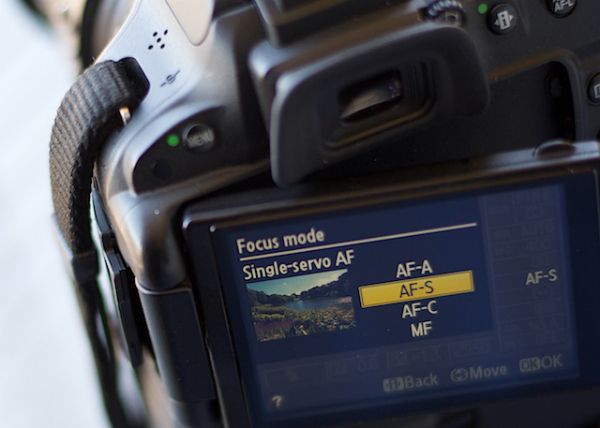
autofocus modes

Photo by Lynford Morton

Are you using the Auto-area autofocus or Single-point autofocus selection?

Who gets to decide your focus point? That’s the question you are deciding with this option. In an Auto-area autofocus, your camera decides what it should use as your focal point. It usually decides based on what looks most prominent in the viewfinder or closest to the camera. This might work when your subject is obvious and there are no potential distractions.

For more control, choose a Single-point autofocus setting. That mode allows you to choose your specific auto focus point (check your camera’s manual if you aren’t sure how to do this). After all, only you, not your camera, knows where you want to place your subject.

Is your subject moving?

Most DSLR cameras give you four basic options for autofocus settings: single, continuous, auto or manual. To help you choose the right option, ask yourself, “Is my subject moving?”

No, my subject is not moving

autofocus modes

Photo by Lynford Morton

If your subject is not moving, choose “AF-S” for Nikon or “One Shot” for Canon. This mode locks in your focus based on the distance to your subject. As long as your subject stays at that distance, your photo will be in focus. Your subject has to be stationary for this mode to work. In fact, your camera will not take the photo if your subject is moving (or it cannot lock focus).

This mode also allows you to recompose. Let’s say the autofocus point is in the center of the frame, but you want your subject on one side or the other. Keep depressing your shutter button slightly, and focus remains sharp on your subject. Then you can move the camera slightly left or right, recomposing with your subject out of the center of the frame.

Yes, my subject is moving

By Amsterdamized

If your subject is moving, use continuous autofocus (AF-C for Nikon or AI Servo for Canon). In this mode, you place your autofocus point over your subject, and focus continues to adjust while you hold down the shutter button, keeping your subject in focus as it moves.

For example, if someone is riding a bicycle, place the AF point on your subject and slightly depress the shutter. As long as you are pressing the shutter, the autofocus will continually adjust to your subject, keeping them in focus as they move. When you are ready to take the photo, depress the shutter completely, and the camera will focus on your subject for a sharp image.

No, my subject isn’t moving, but it might

A third option merges the functionality of the single autofocus and continuous autofocus. This hybrid mode, (AF-A for Nikon or AI Focus for Canon), starts out as a single auto focus. Your camera won’t focus until you lock in on a stationary subject. Once you have your subject in focus, you can take the photo as you would in a traditional single auto focus mode.

If your subject starts moving, however, the autofocus releases and continues to track your moving subject. It gives you the best of both worlds. One note of caution, I have noticed at times, if you recompose a stationary object quickly in AF-A mode, the camera can be fooled into thinking the subject is moving and release the autofocus.

My autofocus just isn’t getting it right

You always have the option of turning off the autofocus function and choosing the Manual setting. If your camera is having trouble detecting your focus point, it might be more efficient to focus the camera yourself.

How about the opposite situation? You turned off your autofocus by accident? Every now and then, when your camera can’t seem to focus, and you don’t hear the motor searching back and forth, check to see if you selected Manual autofocus by accident. This can happen more frequently than you might think.

Other issues to consider

What if you set up your autofocus properly, and the lens still won’t focus? Try these considerations:

  • You might be too close. Try backing away. If you are too near the subject, it might prevent the camera from focusing properly.
  • Your subject might not have enough contrast. Your image needs to have some contrast for many autofocus systems to work. If you try to photograph a solid sheet of white or any single color, most autofocus systems will struggle. Why? The camera compares adjacent pixels and when one is different, it uses that point to determine its focus. If it can’t find any contrast, it can’t focus.
  • You might have an extremely shallow depth of field. In this case, your autofocus is working, but the depth of field is so shallow, it is hard to tell that your subject is in focus.
  • You have camera shake. When you depress the shutter, you move the camera. If the shutter speed is too slow, the camera picks up that movement, and it looks like a blurry photo. Make sure your shutter speed is faster than the equivalent of your focal length. For instance, if you are zoomed to 100mm, your shutter speed should be 1/100th of a second or faster to avoid camera shake.

Why is your picture blurry? If the answer is in your autofocus, your fix could be as simple as choosing the right setting.

Do you have any other autofocus tips or comments you’d like to share? Please do so below.

More tips on sharper images and focus modes:

  • 5 Tips for Getting Sharper Images
  • Understand Exposure in Under 10 Minutes
  • Making Sharper Wildlife Photographs – [Part 1 of 2]
  • Making Sharper Wildlife Photographs – [Part 2 of 2]

The post How to Avoid Blurry Photos by Choosing the Right Autofocus Mode by Lynford Morton appeared first on Digital Photography School.


Digital Photography School

 
Comments Off on How to Avoid Blurry Photos by Choosing the Right Autofocus Mode

Posted in Photography


Developing a Creative Eye – be Careful Before Deleting Your Photos

06 Apr
PhotoA Good Eye

Photo A: ‘Reflections On Land’ by Patrick Elliott

DEVELOP A CREATIVE EYE

The more you get out and use your camera, the more proficient you become as a photographer. In the process of learning and using your camera, you will develop a better eye from a creative perspective. It is important that you put this “creative eye” to use on a regular basis, not only to maintain it, but also to improve it.

Taking pictures isn’t the only time you have to use your creative eye. You can use it by looking at other people’s pictures to see what you could have done differently, or what factors you will take from their pictures to add to your photography. As you go through your daily routine, you can imagine that you are constantly looking through a viewfinder or LCD screen, and as your eye develops, you will have more and more ideas for creative shots everywhere you go.

You can especially put your eye to use by looking at your pictures before the editing process. Developing this creative eye will benefit you as you are sorting through the pictures after a photo shoot. Put your eye to use by carefully looking at all of your images before deleting any of them. Let me tell you why.

DELETE IT OR KEEP IT?

It is very common to come back to your computer after a photo shoot, dump the images into your computer, and start deleting all the “bad” shots. Or, you may be the type who deletes the “bad” shots in the camera before importing them into your computer. Either way, be careful as you do this because you could overlook a good thing in those shots. The photo above (Photo A) isn’t a planned shot that I took during a photo shoot. It is the result of using my eye before deleting a bad shot. If you look at the photo below (Photo B), it is a bad shot that was not the model’s fault. We were outdoors and the lighting kept changing constantly because the sky was rapidly going through changes. She was in the process of getting prepared for a shot, and I was taking test shots while adjusting my settings to get the correct exposure.

As I got the images from that photo shoot to my computer, the photo that you see below (Photo B) was a “bad” shot that would normally go to the trash bin. But, before deleting it, I put my creative eye to use by carefully looking over it and something caught my eye. I saw a photo within the photo, and decided to open it up in my photo editor to bring this vision to life. I put my crop tool to use, and the result was the photo that you see above (Photo A).

PhotoB Bad Shot

Photo B: Carefully look over a bad shot like this before deleting

HOW SHARP IS YOUR EYE?

Do all that you can to develop a creative eye. I have mentioned a few techniques for you to practice so that your eye can become sharper. It is more than likely that photography may have you spending more time sitting down at the computer rather than the actual photo shoot. Use that time to really put your eye to use. What ways do you develop your creative eye? Have you ever seen something special in a picture before deleting it?

PhotoC Bad Shot

A test shot that would normally be deleted

PhotoD Good Eye

‘Living Outside’ by Patrick Elliott. Using the creative eye to make good use of a ‘bad shot’ you see in the image just above.

The post Developing a Creative Eye – be Careful Before Deleting Your Photos by Patrick Elliott appeared first on Digital Photography School.

Digital Photography School

 
Comments Off on Developing a Creative Eye – be Careful Before Deleting Your Photos

Posted in Photography


Four Ways to Improve Your Photos With the Clarity Slider in Lightroom

05 Apr

Using the Clarity slider in Lightroom

Andrew S. Gibson is the author of Mastering Lightroom: Book 2 – The Develop Module. There’s a special deal on now at Snapndeals, get 40% off for a limited time only.

The Clarity slider is one of the most useful in Lightroom when it comes to giving your images extra punch and impact. Today I’m going to show you several ways you can use it to improve your photos. But first, let’s take a look at exactly what the Clarity slider does, and how it differs from its cousin the Contrast slider.

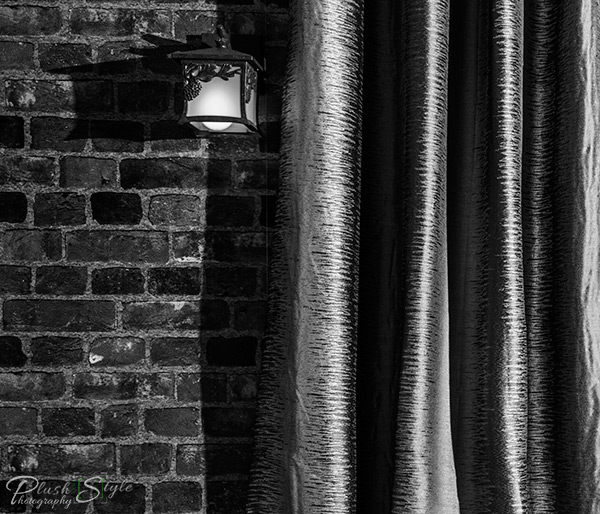
This photo is ideal to demonstrate the difference:

Using the Clarity slider in Lightroom

Using the Clarity slider in Lightroom

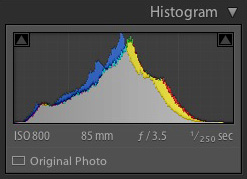
It was taken on an overcast day and the light was very flat. This is confirmed by the histogram, which has gaps on both the left and right-hand sides (screen capture image to the right).

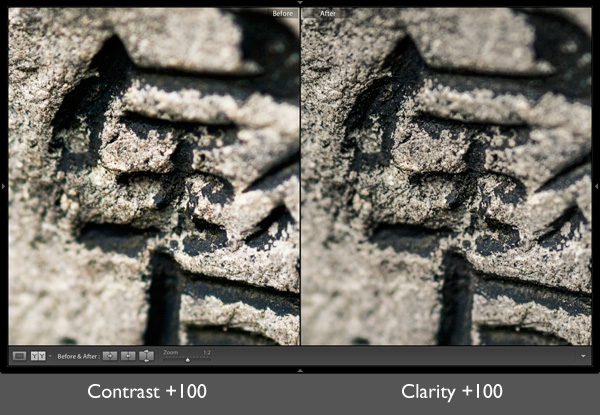
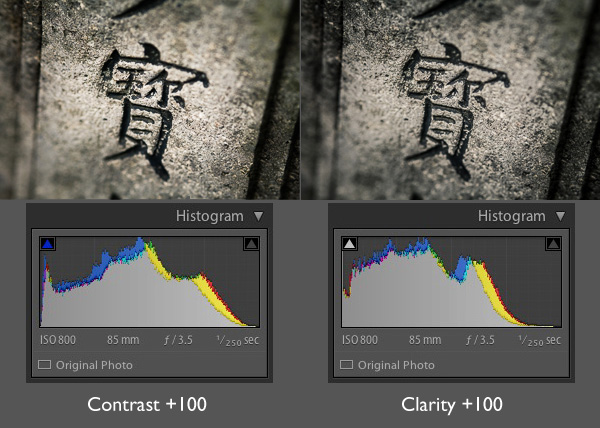
Now let’s see what happens when we set the Contrast slider, and then the Clarity slider, to their maximum settings of +100:

Using the Clarity slider in Lightroom

The most obvious difference at this scale is that the Contrast slider has a more far reaching effect. It makes both the shadows darker and the highlights brighter, stretching the histogram in the process.

The Clarity slider works differently. It increases contrast, but in the mid-tones only. The highlights aren’t affected, and if anything the photo becomes darker as the Clarity slider has a greater effect on dark tones than the Contrast slider.

Here’s a close-up of both images so you can see the effect in more detail. Look closely and you’ll see that the Clarity slider brings out more texture than increasing Contrast.

Using the Clarity slider in Lightroom

That’s the key to using this slider successfully. Increasing mid-tone contrast brings out texture and detail, increasing the tactility and apparent sharpness of the image. That’s what the Clarity slider is designed to do. Now I’m going to show you some practical applications.

1. Emphasizing texture

The Clarity slider in the Basic panel is a  global adjustment – meaning that, moving this slider affects the entire image. A small but subtle boost to Clarity can lift just about any image. Photos with more texture, such as the one below, may benefit from a larger increase in Clarity to bring out the texture and detail. This technique is especially effective in black and white. Plus, there’s nothing to stop you increasing contrast as well, especially in black and white, which usually benefits from higher contrast than colour images.

Using the Clarity slider in Lightroom

2. Emphasising texture locally

There is a theory in photography called visual mass that states that certain elements pull the viewer’s eye more than others (you read more about it in my article Composition, Balance and Visual Mass). One of these elements is sharpness. The eye goes to sharp parts of the image before it goes to unsharp, or out of focus areas.

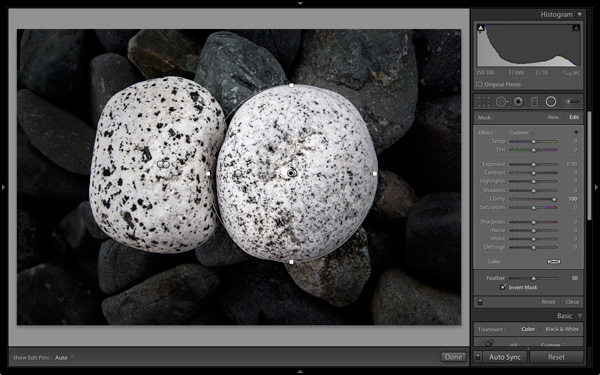
You can use this to your advantage by making local adjustments to Clarity rather than global ones. In the example below, I wanted the white stones to be the centre of attention. The principle of tonal contrast ensures that they are, and I emphasixed it here by placing Radial filters over the stones and setting Contrast to +100 in each one.

Using the Clarity slider in Lightroom

Note: The Radial filter is new to Lightroom 5. If you have an older version of Lightroom you can use the Adjustment Brush tool instead.

3. Emphasize the eyes in a portrait

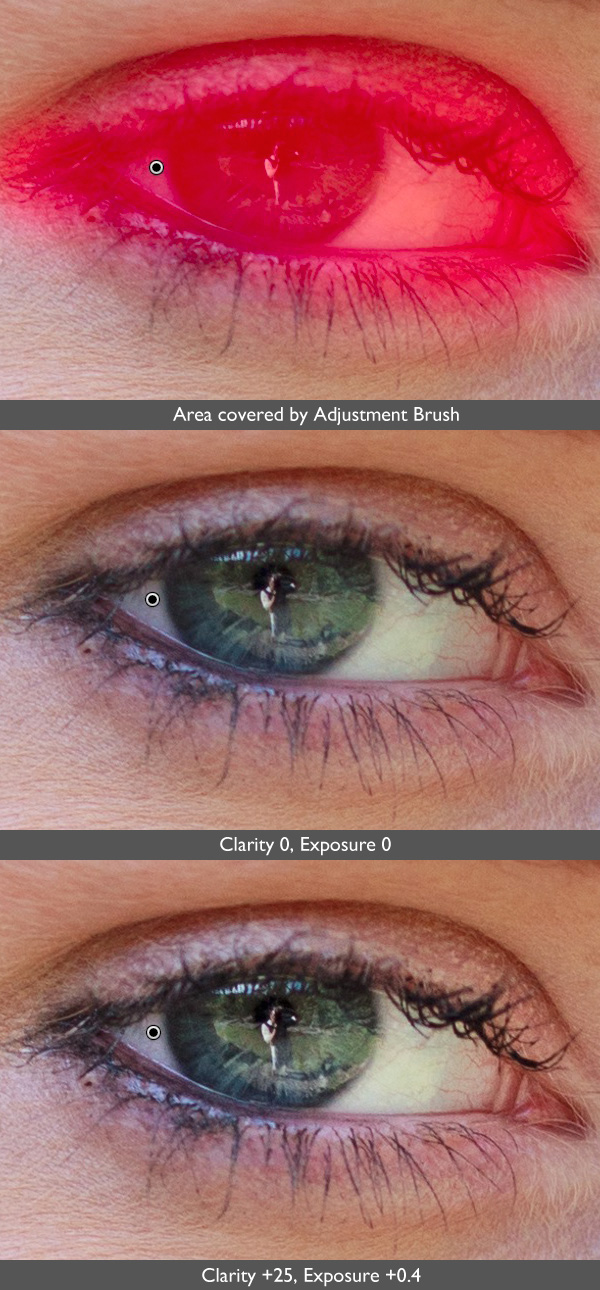
There’s another area where increasing Clarity locally can make a huge difference and that’s in portraiture. Use either the Radial filter or Adjustment Brush to increase the Clarity of your model’s eyes. Again, it’s a subtle, but often effective change. You can also do the same with your model’s mouth to emphasize the lips. Remember that as Clarity tends to make things darker, you’ll probably need to increase Exposure a little as well.

Using the Clarity slider in Lightroom

4. Soften skin

So far we’ve just looked at what happens when you increase Clarity, but you can also go the opposite way and decrease it in order to obscure detail, or soften part of the photo. You do have to be careful with this as the result can look a little false. A light touch is essential.

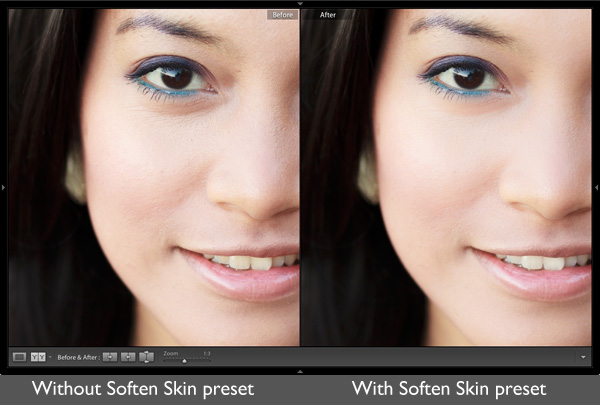
You can use negative Clarity as a kind soft focus effect in portraits. The most effective way is to increase Sharpness at the same time that you decrease Clarity. This helps retain realistic looking texture in the skin and avoids the false effect I spoke of earlier.

Lightroom has a built-in Adjustment Brush preset called Soften Skin which does exactly that. You can see the effect here. It’s subtle, look at the area under the model’s eyes if you’re not sure what the difference is:

Using the Clarity slider in Lightroom

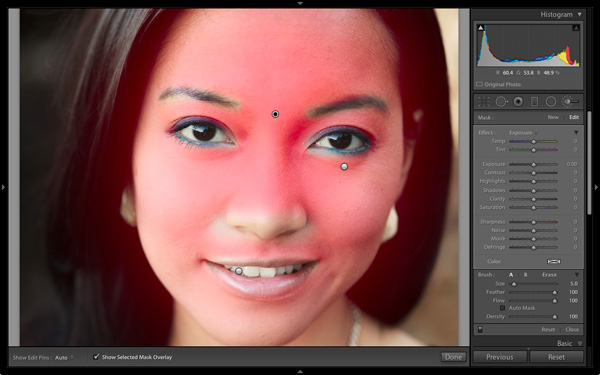
To use the Soften Skin preset, start by activating the Adjustment Brush and paint in the area you want to apply the preset to (shown in red below). Leave the eyes, eyebrows, mouth and tip of the nose alone as you don’t want to soften those areas.

Using the Clarity slider in Lightroom

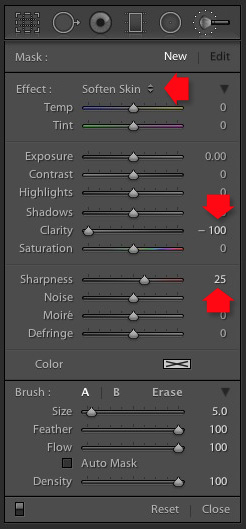
Select Soften Skin from the Effects menu. Lightroom sets Clarity to -100 and Sharpness to +25.

Using the Clarity slider in Lightroom

Using the Clarity slider in Lightroom

This is the strongest Soften Skin preset. If it’s too strong, you can reduce it by hovering the mouse over the Adjustment Brush pin until the double arrow icon (left) appears. When you see it, hold the left mouse button down and move the mouse left. Lightroom reduces the Clarity and Sharpness settings proportionally. Moving the mouse left, reduces the settings, moving it right increases them. Let go when it looks good to your eye. (You can also adjust the sliders manually)

Your turn

How do you use the Clarity slider? I’m curious to see what applications you have come up with for it.

Let us know in the comments, and feel free to share your photos so we can see what you have done.


Mastering Lightroom: Book Two

Mastering Lightroom: Book Two – The Develop Module ebookMy new ebook Mastering Lightroom: Book Two – The Develop Module teaches you how to process your Raw files in Lightroom for spectacular results. Written for Lightroom 4 & 5 it takes you through every panel in the Develop module and shows you how to creatively edit your photos. It’s now 40% off at Snapndeals for a limited time only.

The post Four Ways to Improve Your Photos With the Clarity Slider in Lightroom by Andrew S. Gibson appeared first on Digital Photography School.


Digital Photography School

 
Comments Off on Four Ways to Improve Your Photos With the Clarity Slider in Lightroom

Posted in Photography


In photos: Swimming with jellyfish

05 Apr

Nadia-Aly-Jellyfish-7.jpg

When Seattle-based photographer Nadia Aly was diving in Jellyfish Lake in Palau, an island in the Pacific Ocean, and found herself surrounded by a swarm of jellyfish, she took advantage of the moment. Since the jellyfish in the lake have no natural predators, they have lost their sting. This enabled Aly to get unusually close and shoot thousands of photos over the course of a few days using her Canon 5D Mark II in an Aquatica Underwater Housing unit. See gallery

News: Digital Photography Review (dpreview.com)

 
Comments Off on In photos: Swimming with jellyfish

Posted in Uncategorized


Solving the Problem of Duplicate Photos

02 Apr

I usually write about tips for Photoshop and Lightroom, but today I’m going to cover more of a workflow solution, solving the problem of duplicate photos on your computer or hard drives.

find-and-remove-duplicate-images-opener

If you’re like me, from time to time you’ve encountered the problem of duplicate photos. You might have imported a set of photos twice, accidentally duplicated a folder of photos, or you might have totally lost control of your photo collection to the extent that you now have multiple copies of your images and you don’t know where to begin finding, and cleaning them up.

While it’s easy enough to clean up a few duplicate images, if you have a lot of duplicates spread across multiple folders, the problem can be overwhelming. This is where some good software can make a big difference – the problem is finding that software.

There are a number of good quality, free programs that can help you find and delete duplicate photos if those images are in jpeg and tif formats. However, when you throw a folder of raw files at these programs, most of them flounder – they either don’t support raw formats or they don’t support a wide enough range of raw images to be of much use.

One program that can handle a wide range of raw formats and which is well up to the task of handling large image collections is Visual Similarity Duplicate Image Finder from MindGems (NOTE: this program is currently available for Windows computers only). This program comes in three versions – you will need the Professional version ($ 39.95) which can find duplicate photos, and which supports raw images – the entry level version doesn’t have this feature.

You can download a demo of Visual Similarity Duplicate Image Finder here. The demo is severely limited in its overall functionality, but it is very good for helping you decide if the program will work for you. You can scan folders for duplicates, view the first few that are found, and see a little of how the program will perform day to day.

find-and-remove-duplicate-images-1

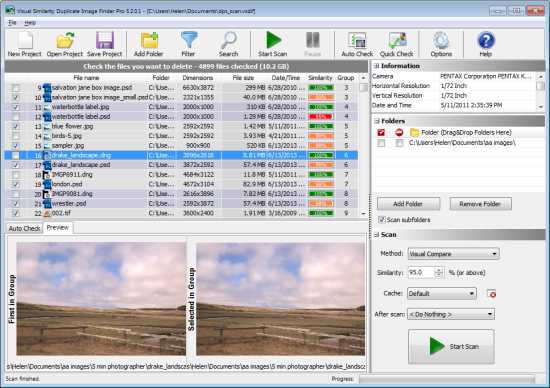
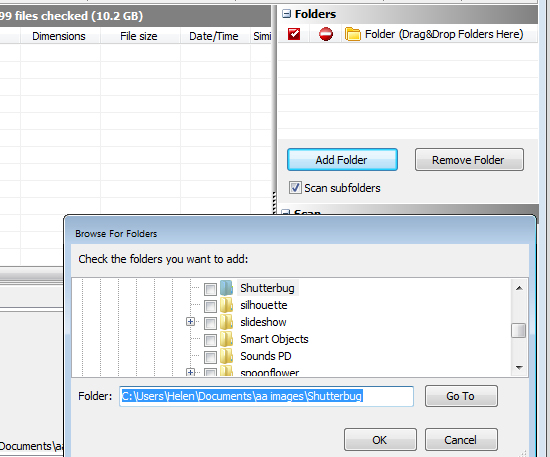
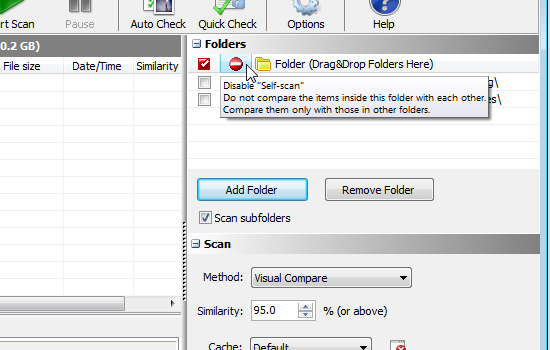
Once you download and install either the Demo or Pro versions, launch the program and on the right of the screen locate the Folders box. Drag and drop folders of photos that you want to search into the folders box or click Add Folder to browse to select one or more folders. You can select to scan subfolders of these folders if desired as well.

find-and-remove-duplicate-images-2

Once you have the folders selected, you need to decide if you want to compare images inside a folder or not – the program refers to this as “self-scan”. If, for example, you think that one or more folders may contain duplicate photos you would select self-scan so the program compares the images inside the folders with each other, as well as making comparisons between all the folders. You may disable this self-scan option if you have a folder of images and you want to import some additional images into that folder but need to check first that you won’t be importing duplicates.

find-and-remove-duplicate-images-3

While the developer recommends leaving the program options at the default settings you can, if you wish to do so, change the scan method. The default is Visual Compare, but there are three other options: Hash, File Size and EXIF Date Time Original. If you leave the setting at Visual Compare you can determine the amount of similarity required between images for them to be considered duplicates – the higher the Similarity value the more similar they must be to be considered duplicates. The default is 95%.

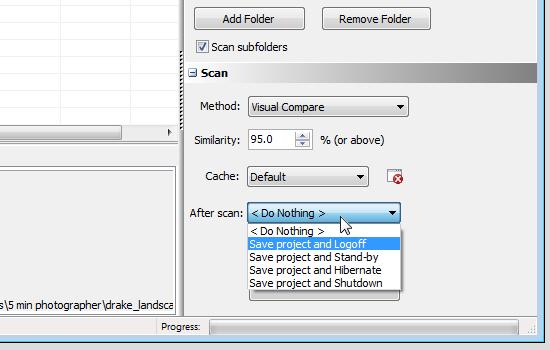
If you are using the Pro version you can configure an After scan option so you can, for example, set the program to save the scan results as a project file and then close down the computer. This means you can run the application unattended and have it shut everything down when it is finished the scanning process.

find-and-remove-duplicate-images-4

This ability to save the scan results as a project is enormously useful because the scanning process can take some time. By saving the results to a file you can return at any time to work on the duplicates that were found without having to do a new scan. In the Demo version you cannot save and load projects.

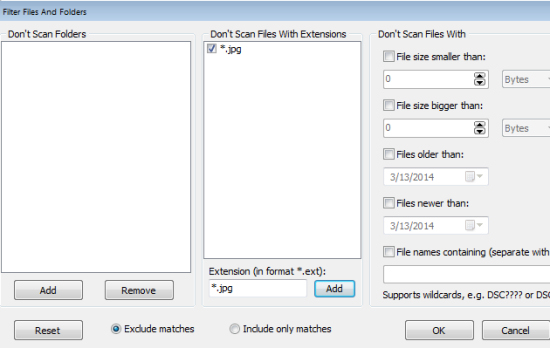
If you don’t want to include certain file types or folders in a scan click the Filter button to set a filter to filter out these files. There are other filter options too for file size and age of file.

find-and-remove-duplicate-images-5

To start the scan click the Start Scan button and wait until the scan is complete. Depending on the number of files involved this may take some time.

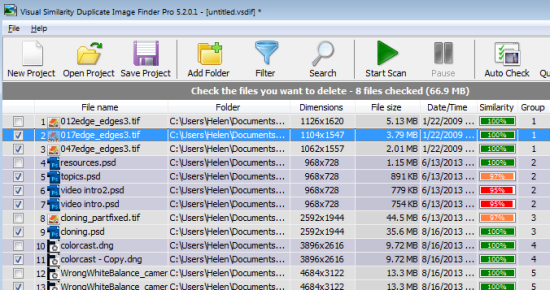
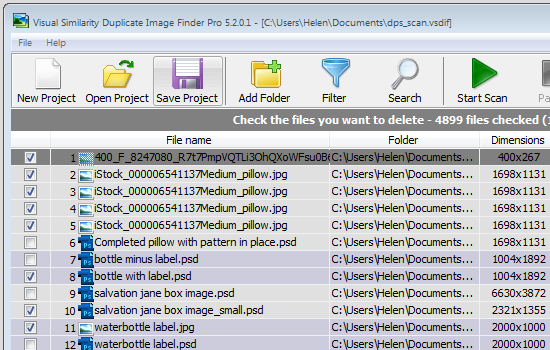
Once the scan is complete you will see a list of the identified duplicates. The list contains the filenames, folders, dimensions and file size as well as the date/time. Each set of duplicates is given a group number which is useful as there may be more than two duplicates. If you selected Visual Compare as the Scan method, then the percentage Similarity is also shown for each image.

find-and-remove-duplicate-images-6

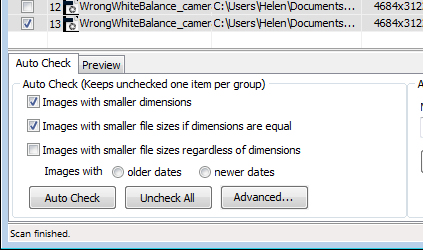
In the Auto Check panel you can have the program automatically mark the images for deletion according to rules you set. Options include Images with smaller dimensions, Images with smaller file sizes if dimensions are equal or Images with smaller file sizes regardless of dimensions. You can also choose to mark the images to delete as being those with the Older Dates or Newer Dates. This feature only selects the images and you can undo or change any selection before deleting the checked images.

find-and-remove-duplicate-images-7

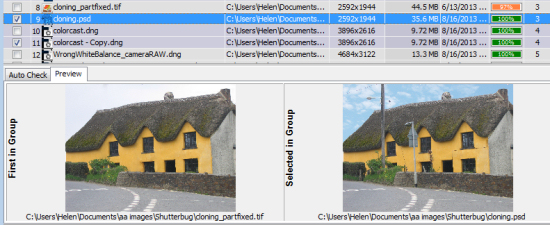
Click the Preview tab and you can make a visual check to see if the images are indeed identical or close enough that you will delete one of them. In many cases even images which are 99% similar can show significant differences so you will probably want to check all that are not 100% similar to decide what you want to do with them. The Preview panel makes this easy and you can, if necessary, click on an image in the Preview Panel to open it full screen size to check it and those similar to it.

find-and-remove-duplicate-images-8

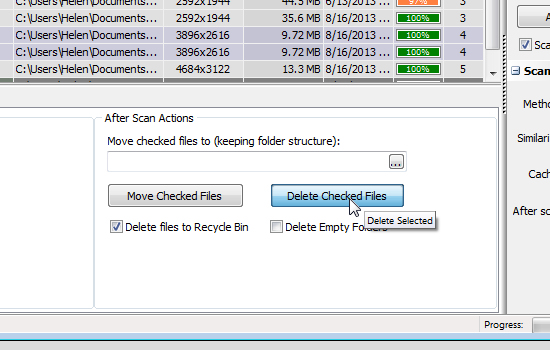
Once you have checked the images to delete, you can delete all of them in one step. You can send them to the Recycle bin, or you can move them to another location and, if desired, you can choose to automatically delete empty folders. It is also possible to delete images one at time by clicking on the file name and pressing Delete.

find-and-remove-duplicate-images-9

If you don’t complete all the work on your duplicates in one session, click Save Project to save the project file. Next time, click Open Project and select the project file to load it again and you can continue working immediately without having to scan first.

find-and-remove-duplicate-images-10

Visual Similarity Duplicate Image Finder is a professional tool and is designed to help manage large image collections. It has a lot of handy options that will speed up the process of determining what images are potential duplicates and for helping you to manage them according to your workflow requirements. When you consider the time that it will save you in organizing your image collection its purchase price looks like good value indeed.

Do you have other methods of sorting images? Please share your ideas in the comments below.

The post Solving the Problem of Duplicate Photos by Helen Bradley appeared first on Digital Photography School.


Digital Photography School

 
Comments Off on Solving the Problem of Duplicate Photos

Posted in Photography


Extreme X-Class Solar Flare Is Erasing Digital & Film Photos Worldwide

01 Apr

This mornings Solar flare corruption of my photography library

In a stunning event shocking NASA, the European Space Agency and the Russian Federal Space Agency the Sun flexed its power last night with an unprecedented X-Class solar flare (Update: some astrophysicists are contending it’s the first detected Z-Class solar flare). Unlike extreme solar events like the Carrington Event this solar storm has erased film and digital photos world-wide. Prints, film negatives and digital files have shockingly been affected equally being erased into oblivion. Neil deGrasse Tyson was quoted as saying,

iPhone Image Library Corrupted by Solar Flare

“The sun once again has humbled us with its power. With a single awe inspiring brush stroke of  projected radiation, the Sun has erased our visual history leaving us to remember moments of times past with only our heart and minds.”

Completely confused this morning seeing blank sheets of paper where my favorite family photos and wall prints once existed I rushed to my computer and phone to see the state of my digital libraries. Everything was gone. In a fit of amazement and cursing I rushed to check my slides and negatives from the 90′s and they too are now history being completely blank. In hindsight I now wish I savored the moments I photographed to better remember them verses my fuzzy memory of these moments as seen through a small view finder. Now that this fast moving storm of radiation has passed new photos are now again possible. Even though I am now again able to take photos seeing the fragility of our imaging technologies it begs the questions…

Is humanity’s creativity, existence & legacy what we see, feel, or leave behind?


Copyright Jim M. Goldstein, All Rights Reserved

Extreme X-Class Solar Flare Is Erasing Digital & Film Photos Worldwide

The post Extreme X-Class Solar Flare Is Erasing Digital & Film Photos Worldwide appeared first on JMG-Galleries – Landscape, Nature & Travel Photography.


Related Stories

  • Don’t Miss The Big Picture Natural World Photography Competition – Enclosure
  • Modern Day Astrolatry – Enclosure
  • In Defense of Pretty Pictures – Enclosure
Feed Ads by FeedBlitz
powered by ad choices


JMG-Galleries

 
Comments Off on Extreme X-Class Solar Flare Is Erasing Digital & Film Photos Worldwide

Posted in Equipment


A Collection of Spring Flower Photos to Brighten your Weekend

29 Mar

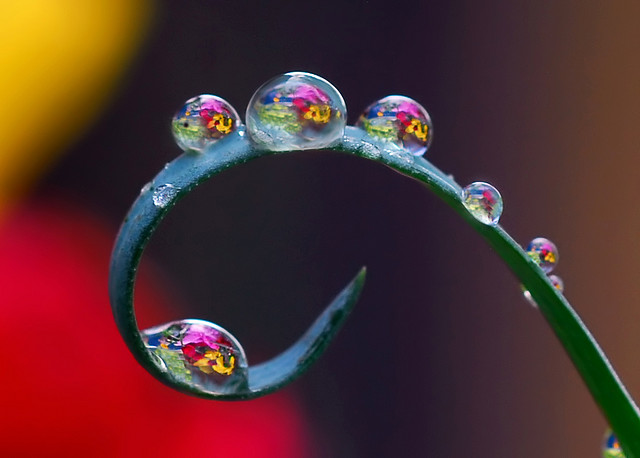
If you live in the northern part of the world hopefully you will start to see some signs of spring soon. I know where I live we still have some of the yucky cold white stuff but I got flowers for my birthday and they brightened my week, so I was inspired to do a collection of them to brighten yours!

Even if you’re in the southern half of the world you can still enjoy pretty flowers and know they’ll be back soon. Can’t you just smell them?

Enjoy!

By Republic of Korea

By Tim Hamilton

By Mike Mozart

By Davide Simonetti

By Ross Manges Photography

By slack12

By ZakVTA

By Jeff Kubina

By Maurice Perry

By Mike Keeling

By Xavier

By Agustin Rafael Reyes

By Steve Wall

By Gwen Harlow

By nutmeg66

By Chris Gin

By Brian Carson

By MARCOS VASCONCELOS

By casch52

By Jose Maria Cuellar

By David A. LaSpina

By LadyDragonflyCC – >;<

By Ferruccio Zanone

By Daniel Kulinski

By mendhak

By ruben alexander

By aussiegall

By George Thomas

By Rachel

By J Labrador

By Jim Nix

By kataaca

By Cath in Dorset

By Steve Corey

By Lisa Plymell

By keeva999


The post A Collection of Spring Flower Photos to Brighten your Weekend by Darlene Hildebrandt appeared first on Digital Photography School.

Digital Photography School

 
Comments Off on A Collection of Spring Flower Photos to Brighten your Weekend

Posted in Photography


Father’s family photos capture the delightful chaos of youth

26 Mar

laboile_13.JPG

While most photos of children and family put forth a cleaned up and polished look, Alain Laboile takes another approach. He photographs his six children in their natural state – which is often pretty messy – as they play and explore in their Bordeaux, France home. The results are delightfully honest and candid images of good old dirt-between-your-toes fun. See gallery

News: Digital Photography Review (dpreview.com)

 
Comments Off on Father’s family photos capture the delightful chaos of youth

Posted in Uncategorized


39 Colorful Sunset Photos to Start off Your Weekend

21 Mar

Well I’ve just returned from spending two and a half weeks in sunny Nicaragua including nine days living right on the beach, in a little fishing village.

Teaser alert: I will share some of my images from the trip with you in article very soon I promise, be patient! Here’s one for you!

Nicaragua-flickr-046

Darlene’s image of the beach in Nicaragua

Who doesn’t love a good sunset right?

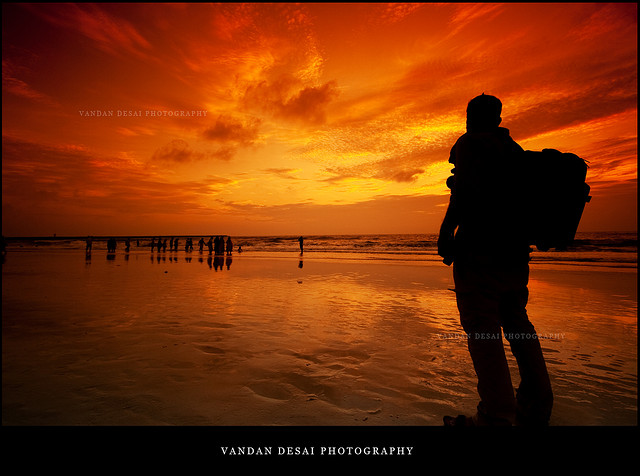
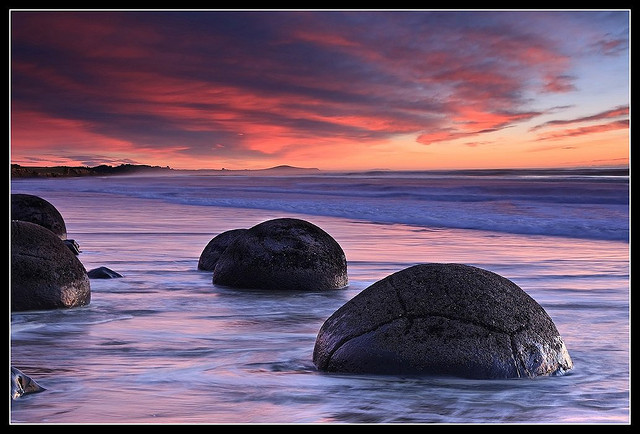
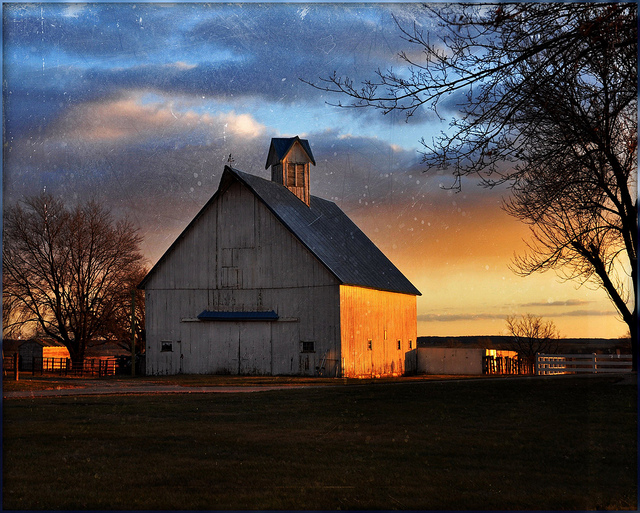
ENJOY and hope you feel refreshed just looking at these sunset photos!

By Philipp Rümmele

By esther**

By Chris Gin

By Giovanni Orlando

By Vandan Desai

By Chris Gin

By Eduardo Amorim

By David Yu

By nebojsa mladjenovic

By seyed mostafa zamani

By paul bica

By Len Radin

By Evan Leeson

By Dave

By Eduardo Amorim

By TumblingRun

By Evan Leeson

By Nick Kenrick

By Debasisphotography

By NeilsPhotography

By Trey Ratcliff

By Nikos Koutoulas

By Pablo Carrascosa

By John

By John

By Don McCullough

By cortto

By Nhi Tran

By a_migo

By Simon Stamm

By Kamil Porembi?ski

By Arlo MagicMan

By mr clearview

By Mike Baird

By Steve Corey

By philip hay

By Pedro Szekely

By Chris Goldberg

By Minoru Nitta

To get some tips on shooting sunsets and using sunset light try these articles:

  • How to Photograph Dramatic Clouds at Sunset
  • How to Shoot Landscapes at Sunset
  • Create a Warm, Sunset Mood Image in Lightroom 4
  • Tips for Great HDR Sunsets

The post 39 Colorful Sunset Photos to Start off Your Weekend by Darlene Hildebrandt appeared first on Digital Photography School.

Digital Photography School

 
Comments Off on 39 Colorful Sunset Photos to Start off Your Weekend

Posted in Photography


Hungarian law bans photos taken without consent

19 Mar

13116302753_33730a629a_c.jpg

According The Guardian newspaper, a new law in Hungary that took effect on March 15th could have a potentially chilling effect on photographic freedoms in that country. It will make it illegal to take a photograph of someone without their express permission. This new civil code covers anyone in the frame, which means that photographers will have to seek permission from anyone in the foreground or background. Learn more


News: Digital Photography Review (dpreview.com)

 
Comments Off on Hungarian law bans photos taken without consent

Posted in Uncategorized