RSS
 

Posts Tagged ‘Photos’

6 Ways to Improve Your Images and Take Better Vacation Photos

17 May

Have you ever been on a vacation only to return home disappointed with your images? Many people take pictures while on holiday but find they are unsatisfied with their results. You can improve your chances of capturing better vacation photos by learning the basics and applying a few simple techniques.

better vacation photos - trees in Namibia

1. Choose the right equipment

Firstly, you don’t need expensive equipment to achieve photos from your travels that are satisfying. If you’re looking to buy a camera, choose one that suits your needs and budget. Digital cameras now range from professional DSLRs to great compacts that can produce quality images. Even mobile phones can give you stunning results.

Generally, a camera with more megapixels will provide a better picture resolution and higher quality images when printed. Whichever camera you decide to use, choose a compact with a good quality lens and broad optical zoom or a digital SLR with a zoom or telephoto lens depending on the subjects and angle of view you want to capture.

For example, a wide zoom would help to photograph a wide sweeping landscape and a telephoto can be used to capture wildlife. Also consider the size and weight of your equipment and make sure you can carry your camera kit comfortably.

Lion's roar Ngorongoro Crater Tanzania - better vacation photos

2. Make mistakes

A common mistake people tend to make is to pick up a camera and shoot a scene without giving any thought to what they are actually photographing.

You can dramatically improve your images by learning from your mistakes and analyzing why an image may not look as good as the view that you saw when you took the image.

Appraise your work and think about how you could improve your images next time. It’s good to recognize your mistakes, such as poor camera technique and poor composition and improve on those things next time around.

Zhangjiajie China scene - better vacation photos

3. Improve your camera technique

A great photograph is rarely achieved without some initial technical knowledge and photographic skills. Learn the basics about your camera and how it works. Study your camera manual and read up on other technical areas such as depth of field.

Know the limits of your equipment and how to use it effectively to create the style of images you want to capture.

Handling your camera in advance of your trip can help familiarize yourself with the buttons and you will be more comfortable with how it works when you’re away. Time spent understanding your camera will help take your photography to the next level and make for a more enjoyable experience when on vacation.

town with mountains and a lake - Take Better Vacation Photos

4. Improve your composition

A thoughtless composition can let your image down. Too many different subjects can complicate a scene. Look for features, shapes and patterns that may work in harmony to strengthen your images. Take time to manufacture your shot, trust your instinct and aim for a composition that you like.

The image of trees and the towering sand dunes shows an example where the different subjects of the composition can work well together and strengthen an image.

Camel thorn trees Deadvlei Namibia - Take Better Vacation Photos

5. Focus on details

You can choose to photograph specific and interesting subjects to improve your holiday pictures. Focusing on details allows you to reduce the number of variables in the frame and concentrate on the different shapes and forms that can be found within your subject.

By shooting only a portion of a famous building or scene of nature, you can isolate an image to concentrate on the aspects that appeal to you. Try zooming in or moving closer to your subject to narrow your point of interest and make it stand out.

scenice view of a town with church steeple - Take Better Vacation Photos

6. Consider the time of day

The quality of light varies throughout the day and can have a huge impact on your final image. Most holiday snappers go on vacation for a break, rest in the mornings and go out and shoot during the middle of the day. However, bright sunlight at noon provides harsh shadows and flat lighting.

Try and shoot outside this time for better vacation photos and more dramatic light. Instead of sleeping in, set the alarm clock and get out early at least once when on vacation, or stay out late to capture the beautiful tones from the sun.

The light at this time of day can make a pleasing difference to your images. Be aware of the effects light can create and use it to capture better images. For example, look for shadows and highlights that may improve your images by providing contrasting shapes.

The Grand Canyon USA - better vacation photos

Conclusion

Taking photographs during a vacation is a wonderful way to improve your photography. By applying the tips above you can achieve better images while capturing lasting memories of the places you have visited that can give you immense pleasure for years to come.

Do you have any other vacation photography tips and photos? Please share them in the comments area below.

The post 6 Ways to Improve Your Images and Take Better Vacation Photos appeared first on Digital Photography School.


Digital Photography School

 
Comments Off on 6 Ways to Improve Your Images and Take Better Vacation Photos

Posted in Photography


Leaked photos of DJI Phantom 5 drone with interchangeable lens camera

17 May
Photo by OsitaLV via Twitter

The DJI Phantom 5 drone is allegedly featured in two newly-leaked images—as well as a few sketches—that claim to reveal details about the unannounced model. The leak comes from Twitter account “OsitaLV,” which also leaked images that allegedly showed the Phantom 5 camera in March. The images in the most recent leak, however, include the full drone, lenses, and controllers.

One of the two newly leaked images (below) shows the same camera featured in the March leak, though with the lens removed and featured at a new angle:

Photo by OsitaLV via Twitter

OsitaLV also shared three sketches showing the camera and lenses, one claiming the DJI Phantom 5’s interchangeable lens camera has a 1-inch CMOS sensor. Another sketch claimed four F2.8 lenses will be available: 15mm, 24mm, 35mm, and 50mm. Finally, the second new image shows the complete drone with the same grey body color and dark landing gear visible in the March leak.

OsitaLV previously claimed the Phantom 5 will feature a plastic GPS antenna cover, aluminum shell, and plastic landing gear. In a tweet shared on April 26th, the same Twitter user claimed that DJI has moved the motor cooling holes to the bottom of the drone and added more sealing rings to the battery, effectively making the drone “rainproof.”

Of course, none of this is considered confirmed or official until DJI makes it so, but leaks this substantial are rarely far off the mark. Keep an eye out for the official DJI news in the coming weeks or months—it shouldn’t be long now.

Articles: Digital Photography Review (dpreview.com)

 
Comments Off on Leaked photos of DJI Phantom 5 drone with interchangeable lens camera

Posted in Uncategorized


4 Reasons Why Putting Your Camera Down Can Help You Take Better Photos

15 May

We’ve all been there; in a new country, a new city or just a new part of your local town. Camera in hand, you shoot and shoot and shoot as your memory card never seems to fill up. It’s thrilling and you don’t want to waste a moment because there is so much to capture. But what if putting your camera down, even just for 20 minutes, can help you take better photos?

I don’t mean leave it unattended. But I do mean put it away or leave it behind as you go for a walk in your new environment.

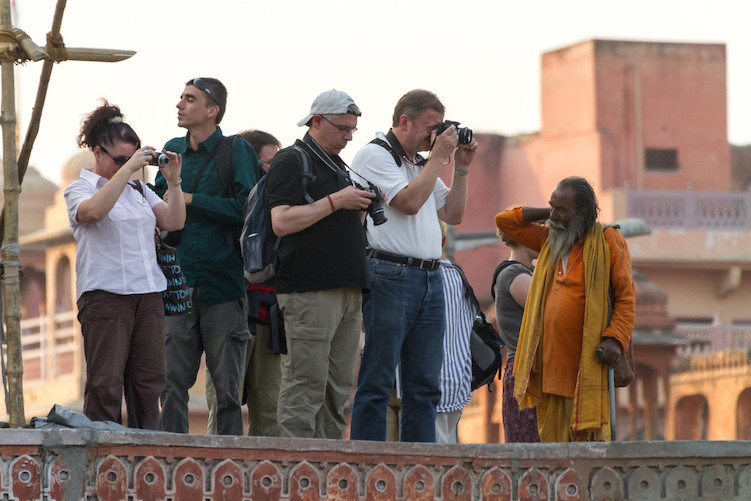
group of photographers shooting - What Happens When You Put Your Camera Down

I know some of you are getting the shakes at the mere thought of being without your camera in a new area, but indulge me for a moment. In this article, I will bring to light a few thoughts on why putting away your camera might actually help your photography.

1 – Greater Awareness

How can you truly capture the essence of a location without first experiencing it? There are always bright and colorful things to shoot. But if you go around grabbing each little scene like a bird grabbing nectar from a cherry blossom, you risk miss seeing the whole tree.

Jordan ruins at night in candlelight - 4 Reasons Why Putting Your Camera Down Can Help You Take Better Photos

I had time to visualize the shot above while watching an evening program at the Treasury in Petra, Jordan. While the program played, I was seated and limited in my movements, so I looked around at the space and tried to imagine photos from each location. At the end of the program, I was only allowed 10 minutes to get my shot (which took one minute to set up and 30 seconds to take), so my time spent gaining a greater awareness for my surroundings helped me greatly to take better photos in the time allotted.

Being aware of your surroundings is also important for safety. We all know the feeling of looking through our viewfinder, or camera screen, and losing all sense of what’s going on around us. It’s the feeling of “flow” when everything else melts away and there is just the joy of photography. That lack of awareness can work against you when in unfamiliar locations.

Beyond safety, having an awareness of your surroundings will also alert you if the clouds are about to cover the sun or if your scene is becoming more or less active. Watching others around you for clues on what to shoot is the next step.

2 – Observe Others

I love people watching in new environments. Even at home, if I go shopping with my wife I will typically end up on a bench just taking in the plethora of different shoppers passing by. Even we introverts can enjoy watching how people interact.

Look for clues about relationships and friendships while observing others. Do most people seem aloof or is there a lot of interaction? Watch how transactions are negotiated in markets. Is there a lot of haggling over price before money changes hands? These clues will help you anticipate when you can get those key shots when you return with your camera.

hat selling in Peru - take better photos

Because I took some time to people watch when the previous train came through town in the Urubamba Valley of Peru, I knew this colorful hat-seller would work the crowd when the next train arrived. So I waited and watched and was able to capture this image.

Is there a flow to the traffic of people around you? If so, look for a good location to set up and get some candid street photos. While crowds always draw attention, look for those standing back from the bustle if you want to capture a variety of everyday life.

Now is also a good time to realize who around you might not want their picture taken. Or who is charging photographers to pose for photos?

4 Reasons Why Putting Your Camera Down Can Help You Take Better Photos - officers in Jordan

In this shot of officers in Jordan, I hung around for a few moments with my camera down, said “Hi” and let the men get back to their conversations before taking the shot. I had noticed that they all looked intently at anyone new coming through the door and that wasn’t the shot I wanted. This more relaxed version was my goal.

3 – Observe Patterns

With patterns, I don’t mean just the cool shapes made by architecture or found in nature. I also mean the patterns humans create as they go about their day. Observing patterns will help you return with your camera (or simply get it out of your bag) and better anticipate the moment for shutter release and ultimately you will take better photos.

4 Reasons Why Putting Your Camera Down Can Help You Take Better Photos

For instance, watching a worker at the leather tannery in Fez, Morocco or a gentleman unloading chickens in Kathmandu, Nepal, with my camera down for a minute or two, helped me to visualize the action I wanted to capture and better time my shots.

4 – Interact Differently

Imagine someone came up to you on the street and instantly lifted a camera to snap a photo of your face. How would you feel?

Empathy for strangers and how they will react to my camera pointed in their direction is why I will typically recommend you ask permission first before taking a shot. Or better yet, with your camera down or put away, interact with your subject first. See what they are doing and ask questions if you can. Something about them made you want to take their photo, so take it one step further and interact before snapping away.

Peruvian kids - 4 Reasons Why Putting Your Camera Down Can Help You Take Better Photos

I played with these kids in Peru for a bit before having them ham it up for the lens. I don’t speak Quechuan and only poor Spanish, but I can recognize kids playing “shop” with weeds and flowers when I see it. I could tell who was in charge and I played along for a few minutes, trying in vain to get a good deal on my ugly weeds, before snapping this photo.

People will interact differently with you if you approach them first with your camera down or put away. Sometimes there is a fleeting moment that most feel needs to be caught candidly. But far more often a richer image can be created when you make human-to-human contact first. Rather than human-to-camera-to-human contact.

Conclusion

If you’ve never left your camera behind for even 10 minutes, I suggest giving it a try. It’s unnerving, I know! But it can lead to seeing your new environment in a way not possible with a camera constantly popping up to your eye.

Now you tell me; do you think you can take a walk and experience a new location without your camera? Do you think it might change the way you see the world before photographing it? Will it lead to helping you take better photos?

The post 4 Reasons Why Putting Your Camera Down Can Help You Take Better Photos appeared first on Digital Photography School.


Digital Photography School

 
Comments Off on 4 Reasons Why Putting Your Camera Down Can Help You Take Better Photos

Posted in Photography


How to Use Spot Coloring in Your Photos

14 May

What is spot color in an image?

Some people refer to it as selective coloring. However, these two techniques are not the same thing.

Traditionally, selective coloring is something that is done in post-production. Photographers would highlight a certain area of the image, or a certain object, and leave it as the only thing that has colored in the frame.

They would turn the rest of the image into monochrome, or on occasion increasing the color saturation of that object while lowering it in the rest of the photograph. This is to call attention or focus to that particular part of the image.

Spot coloring in photography - dried roses against a white backdrop

Do you remember the days of black and white prom dresses with red corsages? Or, do you remember a black and white image of a model with red lips? Those are classic examples of selective coloring.

Difference between spot coloring versus selective

Spot coloring uses the available colors in a scene and then composes the image so that one color stands out from the rest of the frame. Spot coloring is a technique that is used in-camera (done by the photographer). It works by placing a color against other colors that allow it to stand out in the composition.

Selective coloring is a technique where one color is prominent in the final shot whereas all the other colors have either been changed to monochrome or had their color saturation levels lowered during post-production.

Spot coloring in photography - purple flower against green trees

The key with spot coloring in camera is to look for naturally occurring examples of color pops as opposed to making changes in post-production to highlight a particular color. This purple flower pops against the green of the leaves.

Before we move forward on this subject, I have to say that I am not downplaying or downgrading selective coloring versus the spot color technique. If there is one thing that this photography journey has taught me, it is that there is a market for every style of photography.

Each style of photography has its fans and its critics – that’s just the way the industry works. You just have to decide which camp you want to be in and run with that. I use spot coloring as I compose my shots in-camera. Unfortunately, rarely do I see a good use of selective coloring in post-production.

Spot coloring in photography - woman in red sari against yellow brick house porch - 2

My lovely client, in her red sari, stood out against this historic yellow brick building. This is a perfect example of spot color. By placing the bright red clothing against the reduced color tone and vibrancy of the building, the eye is directed right toward the subject.

I don’t know about you, but being in front of the computer for an extended period of time editing my images is not the most productive use of my time. If I can get the shot as close to how I envision it to be in-camera, then post-production is just about adding the finishing touches so it becomes relatively easy.

Here is a link to another recent dPS article about tips for quick editing. For me, spot coloring is a way to achieve an effect that fits my brand, my aesthetics, and my style of photography. Also, note that a spot color in your frame doesn’t have to be bright and vibrant. Sometimes, color contrast or a change in color hue is enough to move the eyes to the subject.

Advantages of Spot Coloring In-Camera

Spot coloring in photography - two hands holding gelato cones in pleasing colors in Rome

Colorful Italian gelato against the brick façade gives the right amount of soft color pop in this “subtle” use of spot color.

Spot coloring in-camera, if done correctly, can help you in the following ways:

#1 – It provides a clear definition of your subject.

By isolating your subject by way of color, you give a clear definition of the subject and help it stand out in an otherwise busy/crowded frame.

#2 – It helps you understand the relationship between colors.

Some colors work together, and others just don’t. Understanding the relationship between complementary colors and opposing colors can go a long way to creating images that are aesthetically pleasing and on point for your brand and your portfolio.

When practicing your spot color technique, keep a copy of the color wheel with you when you are creating images or studying the images of others to see how colors work together or against each other. You can print a color wheel off of the internet or find one in your local art supply store.

Ryb-colorwheel

By No machine-readable author provided. Bwilliam assumed (based on copyright claims). [GFDL, CC-BY-SA-3.0 or CC BY-SA 2.5 ], via Wikimedia Commons

#3 – Spot color makes images more impactful, images that have strong clear subjects.

These are more impactful when compared to images that are busy and cluttered and don’t give the viewer a sense of what is happening in the frame.

#4 – It slows you down to observe first and then click later.

When you observe a scene intentionally for the play of colors, patterns, and textures, you automatically slow down and learn to see first and then click the camera. Often, we are so focused on just clicking and getting something captured as opposed to photographing the right subject the right way.

If nothing else, this process will help you get away from the “spray and pray” mentality (photograph multiple frames at once and hope one of them works). Trying to use spot color can help you to slow down and analyze your scene. Ultimately, this will help you develop as a photographer instead of relying on the “spray and pray” technique.

Creative spot coloring can be done for any genre of photography: portraits, travel, and still life. Of course, some are easier than others, but this look is achievable in all these areas.

Spot Coloring in People Photography and Portraits

Spot coloring in photography - family portraits in red colored clothes against the snow

By choosing a pallet that complements the background, I was able to bring focus to my clients instead of having them blend into the frame. Here the red clothing worked really well against the white of the snow. This example is a bright, vibrant use of spot color. Note that they are not all wearing the same colors – but they do all have some common elements of the red which collectively looks well matched.

When you are photographing people (e.g. families and kids), a simple tool like a style guide can go a long way. I proactively send a style guide, or what-to-wear for your portrait tips list, to my clients where I suggest clothing options and colors – basically, pieces that I know will photograph well according to the season and location.

For example, if we will be shooting outside in a park or out in nature, I will suggest colors and outfits that will not compete with all the greenery. During the fall season when we have gorgeous colors in the trees, I will suggest colors that go well with the oranges, browns, and reds that Mother Nature shares with us. This way, when I am composing my shots and directing my clients, I will use poses that will ensure the photos are aesthetically pleasing and that do not have too many competing colors in the frame.

This is a “professional use” of spot color. I am going to coordinate the colors so that my client stands out from the background while looking pleasing at the same time.

Now, before you accuse me of manipulating the client experience, I have to point out that in all my eight years of being a family photographer, I have yet to come across a client who does not appreciate the what-to-wear tips that I send them when they book my photography services.

Most people are extremely uncomfortable being in front of the camera and get stressed out on what to wear and how to dress. Anything that can help alleviate that pain is going to be a welcome and much-appreciated thing. They have no idea that it’s actually a technical and aesthetic consideration on my part. It makes my job easier!

Spot Coloring in Travel Photography

Spot coloring in photography - roman vatican guard in costume standing guard

This colorful costume of the guards in the Vatican, Rome really stands out against the pastel colors of the building facade and the iron gate.

One of the key considerations to creating compelling travel images is to be aware of what is going on around you. Location is just as important as light. When you get to a scene, take a quick look around and do a quick mental assessment of everything that is happening around you. Colors, textures, light, and the subject all play a very important role in the final outcome of the image.

Think about how spot color could work for your shot. If you are in a location that has generally muted tones and colors, look for a subject that is a contrasting color to the rest of the scene. If framed correctly, that subject will carry the entire weight of the image, and the other colors will work in harmonizing the overall image around that subject.

On the other hand, if you were to choose a subject more or less similar in tones and colors to the background, the subject will likely blend in and the entire image may lack that oomph that you were hoping for. If you are in a busy, colorful location with lots of activity, try to isolate your subjects against a monotone background, thereby giving the subject a chance to stand out from the commotion.

Spot Coloring in Still Life Photography

Spot coloring in photography - still life flat lay with ruby red grape fruit and grapes

I love photographing food because that means I get to munch on it after as opposed to snacking on junk food! Plus, there is no better learning tool for the spot color technique!

This is one of the easiest genres of photography where you can practice spot color easily. Why? You have complete control over all of the color elements.

Remember when I said spot color is an exercise in understanding the color pallet? When you are planning your still life imagery, you can choose the colors (from opposite ends of the color wheel) to add that element of color pop to your images. You will also learn how effectively different colors work together to create a composition.

Spot color can be used with any genre of photography. However, the still life genre is a particularly useful learning experience because you have plenty of time and you control all of the colors that will be introduced into the picture!

Summing Up

I hope these examples help you to understand that just like many other techniques, spot coloring is a way to add creativity and fun to your images. Do you use spot color in your images? Share in the comments below.

The post How to Use Spot Coloring in Your Photos appeared first on Digital Photography School.


Digital Photography School

 
Comments Off on How to Use Spot Coloring in Your Photos

Posted in Photography


Google Photos gets AI-powered suggested photo edits and colorization feature

09 May

At its I/O developer conference, Google has announced a bunch of improvements to its Photos app and, as you would expect, most of them are powered by artificial intelligence. AI algorithms have helped Google Photos users find and rate images for some time, but now the new Suggested Actions feature uses the power of AI to analyze images and suggest smart edits that would improve the shot, or prompt you to share it with the right people.

For example, if the AI recognizes people in the image, Google Photos will suggest sending it to that person; in the case of underexposure, it will suggest cranking up the brightness; and if the horizon is crooked, it’ll suggest rotating the shot. Also useful (but less photo-centric) if the algorithms detect that you have taken a photo of a document, it will suggest converting it to pdf.

All suggested actions can be confirmed and executed with a single tap.

In addition, Google Photos will receive some colorization tools. For example, a person in an image can be accentuated by desaturating the background and slightly increasing saturation on the subject. There’ll also be a new function to automatically colorize old black-and-white images.

According to Google CEO Sundar Pichai, the new features will roll out in the next couple of months, so keep an eye on DPReview and we’ll let you know when it’s time to update your Google Photos app.

Articles: Digital Photography Review (dpreview.com)

 
Comments Off on Google Photos gets AI-powered suggested photo edits and colorization feature

Posted in Uncategorized


Tips for Editing Hockey Photos in Lightroom

06 May

In this article, I’ll give you some tips for editing hockey photos using Lightroom. If you’re a hockey mom or dad, read on to make the photos of your kid on the ice stand out.

Shooting hockey is hard

Have you ever tried to photograph lightning?

Sometimes that’s what it feels like when taking pictures at a hockey game. Every play is a blur. You can feel the game’s speed and intensity right until the final whistle. Emotion and sweat mix together on the faces of players who battle and fight for every inch, as the arena shakes with a thunderous ovation from the spectators.

Two hockey players battle for the puck

In short, it’s a whole lot of fun to capture through a camera. But after the crowds are gone and your ears have stopped ringing, it’s time to head home, load your images up on the computer and apply your special brand of editing.

Editing hockey photos can be tricky too

Regardless of what camera you use, all hockey images will benefit from some attention in Adobe Lightroom before you share them on social media or in a local publication. And despite the thrills of the sport, the arena is a tough place for a photographer. You have to deal with low or inconsistent light, high ISO settings and low shutter speeds, scuffed up glass and more.

Learning the technique to get decent shots in the first place is half the battle — but that’s a story for another time. Today, it’s time to head into the editing room.

Note that even though this guide specifically addresses features in Adobe Lightroom, the same concepts can be used in any photo editing program with similar controls.

Shoot in RAW

First off, if you’re serious about getting the best hockey pictures possible then it’s a good idea to shoot in RAW. Sure, file sizes are a lot larger, but this is because more data is preserved for each shot. When you’re editing, you’ll be thankful for all the extra leeway you can get with a RAW file over a JPG.

A hockey player sitting on the bench during a game

That’s not to say that you’re doomed if you shoot JPG. It just means you’ll need to be extra careful getting the settings right in the camera since there won’t be nearly as much flexibility when editing later. The choice is yours.

Cull Aggressively

Culling is the process of removing and maybe also deleting photos that simply don’t make the cut.

Not every image is a keeper. Especially in sports photography, you’re going to get images that are out of focus, poorly composed or simply not very interesting. If your goal is to edit every single image you take, you’re going to go crazy.

Choose the best of the best to focus your time and energy on, and then start editing those.

Cropping and Straightening

It’s rare to nail the best possible composition right in your camera. Sure, it happens from time to time, but it’s more likely that your pictures will benefit from a bit of cropping and straightening.

Consider what’s important in the frame. You want to have a nice balanced composition that fills the image. Think in terms of simplicity: if you crop out a stick or skate that appears in the corner of the image it will help your final picture feel more clean and professional.

The unedited image of a hockey player on a breakaway - Tips for Editing Hockey Photos in Lightroom

This is the image out of the camera. It’s already a fairly tight shot, but it would be even better with a crop.

A hockey player on a breakaway against a goaltender - Tips for Editing Hockey Photos in Lightroom

That’s more like it! Now the action feels close and intense.

It might not be possible to do a tight crop of a shot and maintain quality, depending on how your camera handles high ISO settings. If you find that your images are always just a little too zoomed out, remember that for next time you photograph a game.

Straightening out your images is a big help as well. As you track the play through your camera, it’s easy to start tilting the camera.

There are times when a crazy tilt gives a sense of action and energy to a picture — but often it just looks like the players are about to tumble out of one side of the image.

An unbalanced image of a hockey goaltender - Tips for Editing Hockey Photos in Lightroom

The players by the bench look like they’re ready to slide down to the bottom left side of the shot.

A hockey goaltender taking a break while the crowd cheers - Tips for Editing Hockey Photos in Lightroom

This straightened version feels a little more stable.

Take the time to straighten your pictures and they’ll look much more professional and balanced.

Understanding White Balance

Cameras interpret color differently than our eyes do. Under tricky lighting conditions, cameras don’t always capture an accurate representation of color.

Correcting the White Balance is an important part of your final edit since it’s hard to appreciate an image that looks too blue or too yellow. If you shoot in RAW, you can adjust the White Balance without losing any image quality. With JPG, you can still make minor adjustments but don’t count on being able to save many images.

An example of the white balance settings in Lightroom

The White Balance slider in Lightroom.

If you have a shot that needs to be fixed, the eyedropper tool can be useful for getting you fairly close to the mark. Click on something in the shot that is a neutral color, such as the boards, and then adjust from there. Pay close attention to skin tones and always remember that the ice should be white.

A hockey image with a poor white balance setting - Tips for Editing Hockey Photos in Lightroom

The Auto White Balance setting missed badly on the original shot, choosing to use 4450K

Hockey players fighting for the puck - Tips for Editing Hockey Photos in Lightroom

After some correction, I settled on 3800K as a White Balance that displays the colors more accurately.

Finding the right White Balance can be tricky, especially since different display screens can have subtle variances. But with a bit of practice, correcting the White Balance in your shots will become a piece of cake.

Contrast, Shadows, Blacks and Dehaze

Your approach with editing is going to be very different depending on whether or not you have to shoot through the glass. In the NHL, photographers either shot through a small hole in the corners or from higher angles where they can see above the glass. But you may not have that luxury.

Shooting through thick glass usually robs a picture of a lot of its contrast. Contrast plays an important role in giving an image depth and making it “pop”. So you’ll need to add that back in the final edit.

Lightroom offers a couple of sliders that can manage this.

  • Contrast: This slider will make dark mid-tones darker and light mid-tones lighter. When used in moderation it can make a picture appear richer, but be careful not to overdo it and create surreal tones.
  • Blacks: This slider influences the darkest tones of the image. This can be useful for fixing hockey pants, sticks and skates so that they are black again, rather than a faded dark grey.
  • Shadows: This slider affects the mid to dark tones of the image. Typically this slider plays a big role in determining the brightness of the crowd and the players’ faces.
  • Dehaze: Introduced only a few years back, the Dehaze slider tries to interpret how light has been lost and scattered in the image. It works well with foggy images and is actually a good fit when shooting through hockey glass as well.
A low contrast image of two hockey players, taken through the glass - Tips for Editing Hockey Photos in Lightroom

This shot was taken through the glass. The colors are weak and the contrast is very poor. Overall, the image looks dull.

Two hockey players fighting for the puck in the corner of a rink - Tips for Editing Hockey Photos in Lightroom

After applying Contrast and Vibrance, the picture comes back to life! This image uses the following settings; Contrast +45, Shadows +42, Blacks -19, Dehaze +25.

If you’re lucky enough to get the chance to shoot without a pane of glass between you and the players, these contrast sliders will still be an important part of your final edit.

There is no “right” amount of contrast to use; just adjust the slider to taste and to make sure the final image is full and rich.

A hockey player on the bench during a game - Tips for Editing Hockey Photos in Lightroom

With no glass between the player and the camera, this shot is clear. It still benefits from some contrast to bring out color and drama.

Lightroom settings for a hockey image - Tips for Editing Hockey Photos in Lightroom

Adjustments used for the image above.

Keep your Whites White

The ice at a hockey rink is white. That means that it should be white in your final image as well. This can be a tricky process, especially since cameras don’t “see” the same way that your eyes do.

If you overexpose an image, the ice might turn into a uniform blob of white. If you underexposure, the ice becomes a murky gray. It’s a delicate balancing act.

An underexposed hockey image where the ice has turned a shade of gray - Tips for Editing Hockey Photos in Lightroom

A perfectly timed snap – but the underexposed ice looks terrible!

Once again, shooting in RAW gives you a bit of leeway. With RAW you can get good results correcting the exposure by plus or minus two stops. With JPG, a missed exposure could mean that the picture needs to go into the trash.

When editing, you’ll want to pay attention to your histogram and clipping warnings. If the ice is overexposed, it will show as a line right up against the right side of your histogram. Your final image should have bright ice but without clipping.

The histogram of a hockey picture - Tips for Editing Hockey Photos in Lightroom

The histogram of a typical hockey image (above). The mountain far to the right is the white of the ice. If it was all the way to the right, we’d start losing detail in the highlights.

A hockey player jumping into the air in celebration after scoring the winning goal - Tips for Editing Hockey Photos in Lightroom

After some tweaks to the exposure, the celebration can begin!

In Lightroom, you can adjust the overall image with the exposure slider, or you can target the ice surface more precisely by adjusting the Highlights or Whites sliders.

Start by adjusting the “Whites” slider, as this controls the maximum brightest point of the image. Once this is set, you can also adjust the “Highlights” slider, which affects a range of the brightest tones.

The goal should be to bring out a bit of the texture in the ice made of snow and grooves carved into the surface.

Brushes, Graduated Filters & Other Adjustments

Now let’s dig into some of the incredible tools in Adobe Lightroom. This is the point where your friends will wonder what kind of wizardry you are conjuring up to make your pictures look so good.

Adjustment brushes give you pinpoint control over selected areas of a picture. This is perfect for when you’ve got your whole image to a good point, but there are just a few more details that you can’t let slide.

Brushes can be used to apply any of Lightroom’s editing features. In the example below, I can use a brush to brighten up one of the players, who was a bit too dark in the finished image.

A hockey image with a adjustment brush applied to it - Tips for Editing Hockey Photos in Lightroom

The player in black was just a little too dark, even after all our adjustments. Never fear – now’s the time to use an Adjustment Brush.

Setting for an adjustment brush used on a hockey picture

Above are the settings applied to the brush. We’re raising the shadows to make the player brighter, but also adding contrast so that the adjustment doesn’t look unnatural.

The final hockey image, after an adjustment brush was applied - Tips for Editing Hockey Photos in Lightroom

The final image looks much more balanced!

Graduated Filters are fantastic for tackling uneven light or color shifts. If you’re a photographer in the big leagues, chances are you’ll be shooting at arenas with top-of-the-line lighting. But most of us aren’t there yet.

You’re probably more familiar with an old rink that has flickering lights, sections of the ice that are darker, or even the dreaded mixture of color temperatures. Find yourself in this situation and it’s going to take some fancy footwork to save your image.

The image below stood out for its strong composition and a good view of the players’ faces, but it doesn’t get much worse than the uneven light. No fear, Lightroom to the rescue!

An ice hockey image that is nearly ruined by poor lighting and color casts - Tips for Editing Hockey Photos in Lightroom

Ugh! This picture is the perfect example of terrible hockey rink lighting. Is it even possible to save it?

Using a graduated filter to fix the color cast on a hockey picture - Tips for Editing Hockey Photos in Lightroom

Fortunately, this shot was taken in RAW. So after applying some exposure and contrast adjustments, we can now use a Graduated Filter to try to fix this mess.

Settings on the graduated filter of a hockey image

The settings on the filter (above). We’re giving it a bump in exposure, and some heavy White Balance corrections.

The edited image of hockey players celebrating after a goal - Tips for Editing Hockey Photos in Lightroom

Voila – the picture is saved!

Lastly, Lightroom also offers a Radial Filter, which can be used to create effects similar to a vignette. This is a useful tool for subtly drawing attention to a certain player.

Saturation, Vibrance & HSL

Hockey sweaters are typically bright and vibrant with color. However, high ISOs, poor lighting, and dirty glass can often cause those colors to appear faded and drab in your image.

The Vibrance and Saturation sliders play an important role in bringing your image back to life with color.

Hockey players wearing bright red hockey jerseys - Tips for Editing Hockey Photos in Lightroom

For more precise control over colors, you can also turn to the HSL sliders. HSL stands for Hue, Saturation, Luminance, and these sliders allow you to modify an individual color in the image.

Is the home team wearing yellow? You can make their shirt colors “pop” by adding a saturation boost in the yellow channel but be careful not to ruin the balance in the rest of the image.

A hockey player deeking around a defender - Tips for Editing Hockey Photos in Lightroom

The settings of an HSL slider in Lightroom for a hockey image

Example of how to give just the yellow channel a bump in saturation.

If you’re looking for a more advanced application of the HSL sliders, try using them to eliminate unwanted colors from your image.

The image below is suffering from being a bit too colorful. All the spectators in the back, plus the yellow on the goaltender’s glove don’t really suit the color palette.

Fortunately, we can go in and start reducing the saturation of those colors that don’t fit in the image, giving a more professional and cohesive final shot.

A hockey goalie waiting for the face-off - Tips for Editing Hockey Photos in Lightroom

An intense shot, but the mishmash of color in this image is a bit distracting.

The adjustments made to the HSL sliders for a hockey image

These settings reduce the saturation on several channels. Note that we aren’t affecting either team’s colors.

The final edited image of a hockey goalie waiting for the puck to drop - Tips for Editing Hockey Photos in Lightroom

It’s a subtle effect, but now the colors are a bit more controlled, which improves the overall quality of the image.

The HSL sliders are also an invaluable tool for controlling unwanted color casts in your final image. If you can’t quite seem to find the right White Balance and there’s an overly blue or yellow tone lingering in your image, you can reduce the saturation for that specific color.

This might be necessary when shooting in arenas that have uneven lighting or that use a variety of types of light.

Adding Grit

Hockey isn’t a soft game. Play can get rough and gritty in a hurry — and you may want to try to capture a flavor of that in your edit. For this, you can turn to the Clarity slider.

The Clarity slider controls edge contrast. Using a pinch of Clarity can really help with bringing out textures and lend a gritty feel to the image.

A hockey player on the bench, with a pinch of clarity applied - Tips for Editing Hockey Photos in Lightroom

A +10 Clarity boost keeps this picture grounded in reality.

A hockey player on the bench, with clarity heavily applied

Sliding Clarity up to +85 creates a distinct and gritty style.

Be aware of how stylized you want your image. If you’re trying to edit the image to reflect reality, the Clarity slider should be used in moderation. But if you’re looking to let loose and create a bold, loud image, the Clarity slider can quickly become your best friend.

Sharpening & Noise Reduction

We’re getting close to the finished product! The combination of fast-paced action and high ISO speeds means that you’ll need to pay a bit of attention to sharpening and noise reduction.

Examples of sharpening and noise reduction in a hockey image

This is a tight crop of the finished image. Sharpening is set to +40 and Noise Reduction is +15. There’s still some grain, but it isn’t overly distracting.

Examples of sharpening and noise reduction in a hockey image

Now we move both Sharpening and Noise Reduction to +100. The grain is gone, but all details and texture have been smoothed out of existence as well.

A hockey goalie exits the bench and goes out onto the ice at the start of the game

The finished image, with +40 Sharpening and +15 Noise Reduction.

While modern cameras have vastly improved how much grain is produced in high ISOs, you’ll want to add some Noise Reduction. Don’t panic about the amount of grain while viewing the image at 400% zoom. Some grain is okay — in fact, it will be barely noticeable at all when viewing the picture under normal circumstances.

Noise reduction should be beneficial to the image; if you notice that details start to lose definition, then you’ve overdone it.

Sharpening can be added according to taste as well. Oversharpening can make the image look metallic and fake, so try to find the right balance.

Export and Share!

Last but not least, click “Export” and share your shots with the world! Maybe you’ve grabbed some awesome shots for a friend or family member, or maybe you’ve set a goal to become a professional photographer for the NHL.

A hockey team celebrates winning the trophy

Either way, you’re sure to have learned a few more tricks and will be able to apply that newfound knowledge to the next game you photograph.

Good luck chasing those elusive action shots!

The post Tips for Editing Hockey Photos in Lightroom appeared first on Digital Photography School.


Digital Photography School

 
Comments Off on Tips for Editing Hockey Photos in Lightroom

Posted in Photography


Facebook is using Instagram photos to train its image recognition AI

04 May

At its F8 developers conference Facebook not only revealed a number of new Instagram features, the company also talked about how it is using the billions of images on Instagram to train the world’s most accurate image recognition systems.

Training deep learning models for image and object recognition is typically a very labor-intensive task, as each training image has to be looked at and labeled by human workers. This is a serious limitation to the size of training image databases; however, Facebook has found a way to reduce human supervision in the training process by using images that are already labeled… with Instagram hashtags.

Its researchers used 3.5 billion Instagram images with approximately 17,000 hashtags to train deep learning models and the results have been encouraging.

A computer vision system that had been trained with one billion images and 1,500 hashtags, achieved 85.4 percent accuracy on the ImageNet benchmarking tool, outperforming the previous leading system by 2.3 percent.

It will be important to manage the disadvantages of less curated labels but the Facebook research shows that less supervised training of image recognition systems could be a step into the right direction, allowing for the use of much larger and databases and therefore improved image and object recognition and classification.

Translation: finding that photo you never tagged that’s buried miles deep in your archive might soon get a whole lot easier.

Articles: Digital Photography Review (dpreview.com)

 
Comments Off on Facebook is using Instagram photos to train its image recognition AI

Posted in Uncategorized


4 Tips to Organize Your Photos in Lightroom

01 May

Lightroom is one of the most widely-used programs for photographers today, with good reason. In addition to extensive editing options in the Develop module, Lightroom also contains a bevy of tools to help you organize your photos as well.

It can make the process of managing thousands (or tens of thousands) of pictures much more seamless and intuitive. Getting started with Lightroom’s organization functionality can be a bit intimidating, but there are four simple ways in which you can easily and quickly use the program to get a handle on your photos.

4 Tips to Organize Your Photos in Lightroom - sunset and flowers

Understanding the Lightroom Method

Before you begin using Lightroom’s organizational options it’s important to know one thing about how the program works. It never, and I mean never, does anything to the original images on your computer. All the organization tips covered here deal solely with how Lightroom sorts and displays images within its own internal Catalog, which is kind of like its own database for keeping track of your pictures.

Lightroom will never move your pictures to a different location on your computer, nor will it change the filename or any other property of your pictures. Basically, no matter what you do in Lightroom, your original pictures will always be safe and unchanged, so you never have to worry about making a mistake.

Feel free to try things, click on buttons, and play around with the features in Lightroom as much as you want because you’ll always have your original files safe and sound.

4 Tips to Organize Your Photos in Lightroom - thumbnail images

Lightroom contains a variety of tools to help you organize and manage your images.

1 – Smart Collections

If Lightroom didn’t have Smart Collections I’d probably fall out of my chair and start crying like a baby. Smart Collections are the bedrock upon which my entire Lightroom organizational methodology is built. They are simple enough that anyone can learn how to use them but powerful enough to meet the needs of the most demanding photographers.

Imagine taking a hamper full of laundry out of the dryer, dumping it on your floor, and as the clothes fall out they are immediately sorted and folded into individual piles: pants, shirts, lights, darks, and even socks. Pure bliss, right? That’s kind of how Smart Collections work, and they are so useful it’s almost magical.

4 Tips to Organize Your Photos in Lightroom - abstract image

Smart Collections can help you make sense of the chaos that is your photo library.

Smart Collections automatically sort your images into folders depending on criteria that you specify, and you can even have Smart Collections within other folders called Collection Sets. (Again, this all happens ONLY within the Lightroom Catalog database.

Lightroom will never move your photos around on your computer or change the folders they are actually stored in!). You can set up Smart Collections to automatically sort your photos into virtual folders such as…

  • All images that were taken in the month of January 2018  (see screenshot below).
  • Include all the images that were taken with either your Nikon or Canon camera.
  • Any images that have not yet been edited in the Develop module.
  • All images that were taken at a specific geographic location and have a five-star rating.

4 Tips to Organize Your Photos in Lightroom - smart collection criteria

One of the easiest ways to use Smart Collections is to just create one for each month of the year. I do this at the beginning of each year so my pictures are automatically sorted by month and I never have to think about it again until next January rolls around.

It’s a simple way to get started with Smart Collections and will help you see how useful they are for your entire photography workflow. You can create Smart Collections that fit almost any criteria you can think of, which can dramatically decrease the amount of time you spent managing your pictures.

2 – Flagging and Rejecting

This might sound simple to veteran photographers, but for someone who is just starting out or otherwise unfamiliar with Lightroom, the Flag/Reject technique can have a huge impact on how you organize your pictures.

On its face, the technique is simple. As you scroll through your photo library, press the P key to mark a photo as a Flagged (or Picked), press the X key to mark a photo as rejected, or press the U key to remove either of those demarkations from a given image.

This simple act can be incredibly useful as a way to organize your photos, especially when used in conjunction with Smart Collections. As you flip through your pictures it’s easy to press P, X, or U so later on you know which pictures are your favorites and which are not worth keeping.

You can then have the Flagged images automatically displayed in a Smart Collection without doing any extra work on your part. Additionally, you can click the filter icons at the bottom-right of both the Library and Develop modules to quickly show or hide the photos you have marked as Flagged, Rejected, Unflagged, or a combination of all three.

4 Tips to Organize Your Photos in Lightroom - flagging in LR

The white flag indicates that image is marked P or as a Pick. Notice there is also a white line around the thumbnail so you can easily find the flagged images.

3 – Keywords

One of the most useful features that Lightroom has to offer as it relates to photo organization is that of keywording, though it also requires some degree of effort on your part to make it truly worthwhile. In the Library module, you can activate the Keyword panel on the right-hand side of your screen and type in descriptive words that identify a given photograph, such as Soccer, Nature, or Macro.

To use multiple keywords for a given picture just use a comma to separate them, and you can assign as many keywords to a picture as you like.

Lightroom even has banks of keywords you can use to select common descriptors for categories like Outdoor Photography, Wedding Photography, and Portrait Photography. These make the process of adding keywords even easier because you can just click on the ones you want to use, and they are automatically assigned to the photo or a group of photos that you have selected.

4 Tips to Organize Your Photos in Lightroom - keywords

Lightroom makes it easy to assign keywords to photos in the Library module. You can also assign keywords to a group of photos during the import process as well.

To use keywording for photo organization you can create Smart Collections that specify certain keywords or, in contrast, do not contain specific keywords.

For example, you could have a Smart Collection of photos that include the keywords Wedding and Ceremony and another Smart Collection that requires the keywords Wedding and Reception. You can also use the Filter Bar (View > Show Filter Bar) to sort photos in real-time by adding specific keywords to your sorting criteria.

4 – Face Detection

Some people decried the inclusion of face detection when Adobe added it to Lightroom in 2015 because it’s generally not seen as a feature that true professionals use very often. While I can’t necessarily disagree with that sentiment, I do find facial recognition to be a fantastic way to organize your photos for beginners, casual shooters, and even sometimes for working pros.

Nestled at the bottom-left corner of the Library module is a small little Face icon which will activate Face Detection when you click on it. If you have never used this feature it will take Lightroom quite some time to analyze all the photos in your catalog for faces.

This also illustrates one of the biggest weaknesses with this feature: speed, or lack thereof. Face Detection is, and this is putting it mildly, as slow as molasses even on some of the latest computer hardware. But it still can be highly useful and, when properly trained, a great way to keep your images organized.

4 Tips to Organize Your Photos in Lightroom - facial detection

The initial facial analysis will take a long, long time. Better go get yourself a cup of coffee while you wait. Or two cups.

Click the question mark below each photo to add a name, and the more photos you name the better Lightroom’s analytical engine will be at figuring out which images contain which people. It will also group photos together that are nearly identical so when you give a name to one face it will add that name to all the faces in the group.

After you start the identification process you can click on a single face at the top of the screen under “Named People” to show all the pictures that include that person.

The most difficult part of the Face Detection process is detecting and naming faces. If you’ve got tens of thousands of images in your Catalog this can take a really long time. So I recommend starting with people who are most important to you and working out from there over time. Begin with your family, closest friends, or repeat clients, and then branch out to other people as you progress.

I find Face Detection to be in roughly the same category as the shop-vac out in my garage: I don’t use it every day, but when I do need it, it’s extraordinarily handy. Your mileage may vary, but you just might find that it’s worth your time to try out.

4 Tips to Organize Your Photos in Lightroom - face detection and naming

You can enter names for everyone in a single photo, and unnamed people will have a “?” above them.

Conclusion

These four tips are just some of the ways in which Lightroom can help you manage your ever-growing collection of photos. If you’re a Creative Cloud subscriber you will continue to see improvements over time, especially with regard to overall speed for things like Face Detection.

But even if you use a standalone version like I do, you may find that these features are often indispensable. Each also has their own set of nuances and additional settings that can help you tweak things even further.

What about you? What are some of your favorite ways to organize your photos in Lightroom? Please leave your thoughts in the comments below.

The post 4 Tips to Organize Your Photos in Lightroom appeared first on Digital Photography School.


Digital Photography School

 
Comments Off on 4 Tips to Organize Your Photos in Lightroom

Posted in Photography


This AI-powered chatbot scores your Instagram photos on color, emotion, and more

28 Apr

Do you ever wonder just how ‘Instagram-worthy’ your latest photo is? If so, you might want to check out this chatbot. The team at BBC Tomorrow’s World have built a chatbot that uses artificial intelligence to tell you just how much potential your photo has in terms of attracting likes and comments.

The free Messenger is available for Facebook Messenger and ties directly into your Instagram account. After you’ve granted it permission to access your Instagram content, it’ll ask you to upload the next photo you plan on posting. Once it’s been uploaded, the Tomorrow’s World chatbot will take roughly five to ten minutes to analyze the image, taking into account the colors, composition, and even landmarks that may be in the image.

As it crunches the pixels—which can take upwards of fifteen minutes—the chatbot provides little nuggets of information on how you can make the most of Instagram. For example, it let us know that blue is a popular color on Instagram, due to its ability to ‘evoke feelings of serenity and calmness.’ It also informed us that ‘breakfast’ is the most popular hashtag on Instagram… which was news to us.

Once your image analysis is complete, you’ll get a notification and be shown a video that breaks down multiple components of your photos, scoring each section along the way. It grades the image based on color, the emotions the bot believes the snap will evoke, any landmarks that might be in the image, features within the image, and your Instagram following as a whole.

To test the chatbot, we used an image from the Lamborghini Huracan camera car article yesterday. It scored a +94. Not bad considering it received zeroes in emotions and landmarks.

Would we replace the judgement of our own two eyes with this chatbot to curate our Instagram feed? No chance. But it’s still fun to take it for a spin and see what the BBC’s ‘artificial intelligence algorithm’ thinks of various images we throw at it.

To take the BBC Tomorrow’s World for a spin, head on over to the chatbot’s page and get it installed.

Articles: Digital Photography Review (dpreview.com)

 
Comments Off on This AI-powered chatbot scores your Instagram photos on color, emotion, and more

Posted in Uncategorized


This hacked Polaroid camera prints your photos onto thermal paper

24 Apr

If you enjoy DIY projects and don’t mind diving deep into programming, soldering, and otherwise hacking apart old cameras, this weekend project is right up your alley. Meet the thermal paper Polaroid.

Created by tinkerer Mitxela, this Frankenstein of a camera takes the shell of a Polaroid Sonar Autofocus 5000 and crams a webcam, thermal printer and Raspberry Pi Zero computer inside. The result is a digital instant camera that immediately prints your photographs onto thermal paper—the type of paper receipts are printed on.

The project isn’t for the faint of heart. It involves a good bit of cutting, soldering, wiring and programming, as meticulously detailed in Mitxela’s step-by-step guide on how he built the thing. The entire process was filled with a healthy bit of trial and error, but when all was said and done, it worked. And not barely worked… flawlessly worked, as though that’s how the Polaroid camera was designed to operate all along.

As explained in the above video, the camera uses a three-dollar webcam as the eye, catching the scene through the lens of the Polaroid. When the shutter of the Polaroid is pressed, a screenshot from the webcam is captured and processed by the Raspberry Pi Zero before being sent off to the thermal printer. As it prints, the paper is fed through the same area a normal Polaroid print would be expelled from.

The amount of work that went into the project is evident in how clean the camera looks even after all of the hacking, soldering and glueing. From the outside, the camera still looks almost identical to how it did when Mitxela started. Everything is packed inside the frame of the original Polaroid Sonar—it can even be booted up externally through the clever positioning of the serial port. which is hidden beneath where flash bars are placed when shooting with instant film.

To see the entire process and dozens of photos from throughout the building process, head on over to Mitxela’s site and check it out. And if you’re brave enough to take on this project yourself, be sure to share your results with us.

Articles: Digital Photography Review (dpreview.com)

 
Comments Off on This hacked Polaroid camera prints your photos onto thermal paper

Posted in Uncategorized