RSS
 

Posts Tagged ‘Photos’

How to Take Floating Photos – Levitation Photography [video]

26 Jan

The post How to Take Floating Photos – Levitation Photography appeared first on Digital Photography School. It was authored by Caz Nowaczyk.

In this great video from, Dunna Did It, you will learn how to create Levitation photography. That’s right, you’ll learn how to take floating photos!

?

What you need:

  1. Camera to shoot with
  2. Tripod
  3. Photo Editing software

How to create levitation photography:

  • Set up your object that you are photographing.
  • Put your camera’s settings to the required settings based on your lighting and room.
  • The trick is to take one photo holding it with your left hand, and then one holding it with your right hand.
  • Be sure to turn on you turn Grids ON in your camera.
  • Line up your camera in the same spot for each shot using your grid.
  • Use manual focus for each shot because you want the focus to be exactly the same for each photo.
  • Hold your camera with one hand and line it up to your grid, focus and take the photo.
  • While still holding it, reach with your other hand and grab the opposite side (keeping the camera in the same position). Let go with the other hand, and take the 2nd photo. Try this as many times as you need to.
  • Choose and edit your best photos in Lightroom (or the editing program of your choice).
  • Once you have the two you want to combine, jump to Photoshop (press cmd+E mac, ctrl+E win) and choose Edit in Photoshop.
  • Go to the image held with the left hand and double-click the layer in the Layer Palette to make it an editable layer.
  • Then choose Cmd+A to select all, then Cmd+C to copy.
  • Jump to the other image, double click the layer in the Layers Palette to make the layer editable.
  • Then choose Cmd+V to paste the other image you copied into the new image.
  • Lower the opacity of the top layer to about 36% so you can see how well you can line them up.
  • Move the top layer until it is lined up.
  • Next, we want to take the top layer and delete to parts we don’t want.
  • Put a layer mask onto the top layer and select your Brush Tool (use a soft brush by turning down the hardness).
  • Change your foreground color in your toolbar to black to paint out areas of the layer mask.
  • Paint out the areas you don’t want. To fine-tune, make your brush smaller and continue to paint out areas you don’t need.
  • Check all your lines around your image to ensure they line up.
  • Do any further edits you want and you are done!

You may also find the following articles helpful:

How to do Digital Blending in Photoshop to Create a Composite Photo

How to Create A Simple Composite: Photoshop Creative

How to Make a Composite Wine Bottle Image using Photoshop Layers

Preparing your Model and Background for a Successful Composite

How to Shoot and Create a Composite Image for a Product Advertisement

A Guide to Create Eye-Catching Composite Images


The post How to Take Floating Photos – Levitation Photography appeared first on Digital Photography School. It was authored by Caz Nowaczyk.


Digital Photography School

 
Comments Off on How to Take Floating Photos – Levitation Photography [video]

Posted in Photography


Video: Old projector lens adapter to A7 III body surprisingly makes for beautiful photos, bokeh

24 Jan

In pursuit of something different Mathieu Stern, who runs the Weird Lens Museum website, has adapted an old projector lens to fit on the front of his Sony a7 lll.

The lens he used is a Rollei 90mm f/2.4 MC that would have originally been fitted to a 35mm slide projector. Mathieu says he found the lens without its projector in a yard sale, and paid $ 5 for it. In the three minute video above Mathieu shows the lens in action and a number of photos captured in the sun that seem to have well controlled flare and low contrast.

As the lens has no iris the aperture can’t be varied from F2.4, but based on the results he attained, that doesn’t appear to be a problem. Mathieu discovered the lens fit perfectly into a M52 helicoidal tube which then allowed him to vary the apparent length of the lens so he could focus at a normal range of distances.

The helicoidal tube has an M42 screw mount, so all he needed to do then was find an M42 to Sony E mount adapter so the whole kit would fit on his a7 lll. Sure, it’s not the most elegant solution, but it got the job done. Below is a gallery of images captured with the setup and shared with permission from Mathieu.

$ (document).ready(function() { SampleGalleryV2({“containerId”:”embeddedSampleGallery_1210874026″,”galleryId”:”1210874026″,”isEmbeddedWidget”:true,”selectedImageIndex”:0,”isMobile”:false}) });

To find more of Mathieu’s work, head over to his website and YouTube Channel.

Articles: Digital Photography Review (dpreview.com)

 
Comments Off on Video: Old projector lens adapter to A7 III body surprisingly makes for beautiful photos, bokeh

Posted in Uncategorized


How To Edit Real Estate Photos in Lightroom (RAW)

23 Jan

Understanding the editing process is necessary for every photographer, especially if you’re in the business of real estate photography. You need to know the methods of post-processing so you are familiar with the necessary steps you have to take in order to achieve the output that you need. From the photo shoot down to the post-processing, a professional photographer should Continue Reading

The post How To Edit Real Estate Photos in Lightroom (RAW) appeared first on Photodoto.


Photodoto

 
Comments Off on How To Edit Real Estate Photos in Lightroom (RAW)

Posted in Photography


News links on Google may lose thumbnail photos under EU Copyright Directive

22 Jan

Google has given the public a preview of what Internet news results may look like if EU Copyright Directive Article 11 passes. Under this directive, news aggregators like Google and Bing would be required to pay non-waivable licensing fees in order to display image thumbnails and small text snippets from news articles.

The European Parliament backed the controversial copyright directive in September 2018 following the rejection of an earlier version in July 2018. Under the directive, the EU seeks to make certain companies liable for infringement of copyrighted content uploaded onto their online platforms (Article 13), and to require news aggregators to pay for displaying anything more than a link to a news source (Article 11).

The directive has proven divisive. Though proponents argue that the law could help protect copyright holders and traditional publishers, critics have expressed concerns over the directive’s potential effects on small publishers and the quality of search engine news aggregation results.

In its most recent update on the matter, Google gave SearchEngineLand access to an experiment showing what news search results may look like if Article 11 passes — devoid of image thumbnails, article titles, and text previews.

The image follows a blog post published by Google News Vice President Richard Gingras in December, who warned that under Article 11:

… search engines, news aggregators, apps, and platforms would have to put commercial licences in place, and make decisions about which content to include on the basis of those licensing agreements and which to leave out.

Effectively, companies like Google will be put in the position of picking winners and losers. Online services, some of which generate no revenue (for instance, Google News) would have to make choices about which publishers they’d do deals with. Presently, more than 80,000 news publishers around the world can show up in Google News, but Article 11 would sharply reduce that number.

Though the licensing fees paid by Google and similar companies under Article 11 could potentially benefit content creators, that assumes the companies would be willing to pay the fees rather than alter their products.

In late 2014, Google announced that it was closing down its Google News product in Spain after the country passed legislation that would have required it to pay publishers for displaying a preview of news articles. Google had called the requirement ‘unsustainable,’ stating that it doesn’t display ads on Google News and does not make revenue from that product.

In 2015, following the loss of Google News, an analysis by NERA Consulting found that publishers in the country experienced an average traffic drop of 6%, with small publishers suffering the most at 14%. German publishers experienced similar issues in 2014.

Articles: Digital Photography Review (dpreview.com)

 
Comments Off on News links on Google may lose thumbnail photos under EU Copyright Directive

Posted in Uncategorized


The Secret to Sharing Photos with Lightroom CC

18 Jan

The post The Secret to Sharing Photos with Lightroom CC appeared first on Digital Photography School. It was authored by Simon Ringsmuth.

After years of resisting the urge to sign up for one of Adobe’s Creative Cloud plans, I finally gave in. I purchased a subscription to the Photography bundle which includes Lightroom and Photoshop. While initially, I didn’t see a whole lot of benefits to this, I continue to discover all sorts of perks included in the Creative Cloud that I didn’t even think about before I jumped on the train.

One of the best, and also one of the least-talked-about, features has been the ability to share photos publicly right from Lightroom. This feature has been a total game-changer for me and it could re-shape the way you go about getting your work seen by others.

Traditional Lightroom sharing

With all previous versions of Lightroom, sharing images involved a few steps and some hoops to jump through. Mostly, this involved exporting images to your computer and then uploading them to social media sites, online photo platforms, or even email them to friends, family, and clients. Unfortunately, this also meant some hassles. Such as having duplicate copies of your shared images (one in your Lightroom catalog and one that you exported for sharing) and having to re-export and share images after you made any changes. The process could also be time-consuming, especially if exporting a large batch of images.

Some social sites like Flickr and Facebook created plugins for Lightroom, but in my experience, those have been somewhat unreliable, and I have used some that were ultimately abandoned by their developers. This meant that relying on these plugins was an exercise in frustration and, more often than not, futility.

Psst…have you heard about Lightroom’s photo-sharing capabilities?

Before I jumped to Creative Cloud, I had several presets that I created to export images for different groups of people. I had a hierarchy of folders in my cloud storage service that I used for sharing, and a headache if I needed to re-share images after further edits. After switching to the Creative Cloud Photography plan, that includes both Lightroom Classic CC and Lightroom CC, I have replaced all of that with a simple click of the mouse or tap of my iPad.

Using the sharing features of Adobe Creative Cloud, you can instantly make individual photos or even entire albums public. Then you get a link to share with anyone you want. You can further customize these features. You can specify whether people with the link can download photos, access picture metadata, and see only pictures that have a particular Flag or Star Rating. The images you share can have comments and likes from viewers, and you can get information on this activity as well.

Sharing doesn’t use your Cloud Storage

My favorite part about this type of sharing is that none of your shared images count against your Creative Cloud storage quota. Even if you have the Photography plan with only 20GB of storage, you can share as many photos to the web as you want without using any of that 20GB allotment. This feature does not use your allocated space because Adobe doesn’t share full resolution images with this feature.

You probably wouldn’t want to do this with clients who need high-resolution downloads for printing, but it’s great for getting your pictures seen by many people without any real effort on your part.

Sharing with Lightroom Classic CC

If your workflow is dependent on the more traditional Lightroom Classic CC as opposed to the cloud-focused Lightroom CC, you still have access to most of the cloud-based sharing features. You will, however, need to launch Lightroom CC at some point if you want to fine-tune your sharing options. The first step in sharing is to enable syncing. You achieve that by clicking on your name in the top-left corner of the application and choose “Start” under the option to Sync with Lightroom CC.

No need to panic at this point – nothing is going to happen to your photos, and no images are going to be suddenly shared to the cloud or anywhere else. All this does is give you the option to sync photo albums with Lightroom CC so you can edit your images using that program on your desktop or mobile device. It’s not even sharing the actual pictures, just low-resolution preview files. After you make any edits, those changes get automatically synced back to Lightroom Classic CC.

This feature also gives you the option of making your images available publicly on the internet for anyone to view. However, first, you must choose individual albums that you want to sync with Lightroom CC. Right-click on a collection in your Library and select Sync with Lightroom CC.

Doing so doesn’t share the photos publicly, but makes them available to Lightroom CC while also giving you the option to share them with others if you wish. (Note that this feature is only available for traditional photo collections in Lightroom and will not work with Smart Collections.)

After you have synced a Collection with Lightroom CC, you will see a small two-way arrow icon next to its name, and you will have access to additional features when you right-click on it with the Lightroom CC Links option. You can now make the album Public. Once you have completed that step, you can view the photos on the web or get a public link to send out to family and friends.

It is as simple as that! With one click you can get a link to an entire photo Collection, and Lightroom does all the heavy lifting of uploading them and putting them in a clean gallery format. For more options, open up Lightroom CC on your desktop or mobile device.

Sharing with Lightroom CC

Because Lightroom CC is built from the ground up to live and breathe in the cloud, it has a more robust suite of tools available for sharing (even though the basics are relatively similar to its desktop counterpart). Whether you have your original images stored in Lightroom CC (or stored in your Adobe Creative Cloud account) or synced from Lightroom Classic CC, the process of sharing them is the same.

To get started, navigate to one of your albums on the left side of the Lightroom CC interface. Right-click on the name of the one you want to share to the internet via a public link. Then choose the option that says Share to Web…

As the saying goes, here’s where the fun begins. After choosing this option, you get presented with a dialog box giving you several options to customize how your photos get shared online. What I like about this is you can specify different parameters for each shared album. See the screenshot below.

In this example, I opted to show only photos with a Pick status that are rated three stars or higher. I’m not allowing any location data to be visible either. The link can be copied and shared with anyone you want, or posted on social media sites. Any changes made to the album are automatically reflected in the shared link as well. So, if you add more images to the album, or change the Flag status or Star Rating, anyone with the link can automatically see the revised images.

If at any point you want to stop sharing the album, you can right-click on the name of the album and choose the Stop Sharing option. If you re-share it in the future, a new link gets generated for you to re-send to friends, family, and clients.

When visitors click on the link to your shared album, they will see a grid with all your images that they can scroll through and click. Icons in the top right corner can be used to play a slideshow or download a ZIP archive of the photos in the gallery if you have that option enabled.

When viewers click on an individual image, they have the option to leave comments or click a Like button. This information automatically syncs with Lightroom Classic CC so you can see it on your desktop.

When you view the link of one of your shared albums, you can also see any user comments and delete ones you don’t want. The one catch with this is that anyone who wants to leave a Like or Comment will need an Adobe ID. It’s a bit of extra effort but helps cut down on spam and other unwanted input from random internet users.

When people leave comments on publicly-shared photos, you can see a yellow icon appear by the Collection name in Lightroom Classic CC. Click the Collection to review the comments.

Finally, you can share any individual picture from an album on the web using its own unique link. Right-click on a single photo to get a unique link for that one image as well as the same sharing options that you have for full albums.

Sharing is a great way to get feedback from clients and see what photos they really like.

User control and privacy

The advantages of Lightroom’s built-in photo sharing system are enormous. Not the least of which has to do with user control and privacy.

When you share pictures on social media sites, your images and personal data get mined and used for advertising. However, no such activity takes place when using Lightroom shared albums. You control exactly what you share, and can remove images at any time. Deleting your images from the internet is as simple as clicking the Stop Sharing button.

Where sharing is beneficial

Here are a few scenarios to help you see where photo sharing may be beneficial:

  • After returning from a trip, create an album with your favorite images and share the link instantly with family and friends.
  • Create an album with pictures of your kids or other loved ones in your life and share the link. As you add more pictures to the album, anyone with the link can automatically see the new images.
  • Share a preview album with clients after a photo session, and ask them to click Like on their favorites. Then you can see the results and know which ones they appreciate. This can help you if you are assembling a physical album for them.

I took a lot of photos at a Petting Zoo birthday party my kids were invited to. Instead of uploading them to social media, I just shared a link to the album with parents and enabled downloads.

The more I use these sharing features, the more I have come to appreciate them. I don’t think I’ll ever go back to my old workflow again. Moreover, I hope this is useful for you and would love to hear any thoughts you may want to share in the comments below.

The post The Secret to Sharing Photos with Lightroom CC appeared first on Digital Photography School. It was authored by Simon Ringsmuth.


Digital Photography School

 
Comments Off on The Secret to Sharing Photos with Lightroom CC

Posted in Photography


You can now post photos and videos to multiple Instagram accounts at once

16 Jan

Instagram has added the ability to simultaneously post photos and videos across multiple accounts.

The multi-post option appears during the process of adding the caption, location, and tags to images, above the options to share the image on other social networks. DPReview first became aware of the feature on Sunday, January 13th and contacted Instagram to confirm whether or not the feature was live across all users or only a particular subset as part of an A/B test, something Instagram is known for doing in the past.

DPReview has not heard back from Instagram, TechCrunch received confirmation of the feature via a company spokesperson that said ‘[Instagram is] rolling out this feature to provide a better experience for people who often post to multiple accounts.’

Currently, the feature appears to be limited to iOS devices, according to the Instagram spokesperson, with no details on when the feature might make its way to Android. Not all iOS devices will have it either and Instagram is yet to confirm a hard timeline on when the feature will be rolled out to all iOS users.

Articles: Digital Photography Review (dpreview.com)

 
Comments Off on You can now post photos and videos to multiple Instagram accounts at once

Posted in Uncategorized


Tips on How to Take Better Instagram Photos

14 Jan

The post Tips on How to Take Better Instagram Photos appeared first on Digital Photography School. It was authored by Lily Sawyer.

Instagram is a visual platform with millions of images vying for your attention. Styling with Instagram in mind is key! But first, know what your purpose is.

dps-tips-for-instagram-photos

Know your purpose

You may be reading this because you have an interest in photography. You probably know that there is an array of lenses you can use but each lens has a specialty or a purpose. For example, the 85mm is great for portraits, the 14mm or 24mm for landscapes, macro/micro lenses for extreme close-ups, fast lenses for sports etc. In the same way, think of a style as your specific lens for a particular purpose, the purpose being your chosen genre on Instagram.

Genres

Before I offer tips, let’s look at a few genres: Portraits, Wedding, Interiors, Products, Flat-lays, Landscapes. But, as in business, the more niche you are, the stronger your account will look. So don’t just stop at these genres, niche deeper. For example, Black and White Portraits, Beach Weddings, Handmade Ceramics, Moody Landscapes.

If you like, you can go further: Black and White Wedding Photography, Fine Art Newborn Portraits, Beach Elopement Weddings, Handmade Ceramic Tableware, Moody Forest Landscapes, Dark Maximalist Eclectic Interiors…

Instagram followers tend to like consistency in what they see on your squares so be sure to leverage that. The more consistent your work is, the more you appear as an expert in what you are showing. Instagram gurus say that you can post 10% of other things. Particularly, those things that pertain to your personal life, which your followers may find interesting. However, keep the 90% consistent with the purpose of your account.

With that preamble out of the way, here are my tips on how to take better photos on Instagram for your chosen genre/niche. These are all my opinions so take what you find useful and leave the rest.

dps-tips-for-instagram-photos

1. Interiors

I have found, from running an interiors page myself layered.home with a daily growing following, that photos which are taken further back at wide angles do well. The interiors audience is generally more interested in seeing a wider view of an entire room.

Not only that, wider views shot from a slightly angular position do better than those taken from a straight-on frontal view. Be mindful of your lighting too. Light coming from a window or one side is more appealing to the eye compared to bright, flat lighting where everything is evenly illuminated. So whenever you take photos, just remember side lighting.

If the side opposite the light source is too dark, you may want to add a reflector or a piece of white card to take the edge off the darkness. Of course, this will work easily with smaller spaces or objects but for entire rooms would it be more difficult. You would need to add an extra light if using artificial light or open more windows.

So they can take pictures at any time of day, some interior accounts use daylight-balanced continuous lighting. You just need to position them so that they look natural like window light. Turn off all lights and use only one type of light source, preferably natural light (this is where a tripod comes in handy) in order to avoid mixed lighting.

But this isn’t to say you can’t break the rules!

dps-tips-for-instagram-photos

2. Portraits

It is better, as mentioned above, to stick to one type or style of portrait. For example, if you are after a brightly lit image with a very airy feel to it with a dreamy backdrop, try and keep that feel going in all your images. Don’t go bright one post and dark and moody the next.

If you photograph headshots, make sure your squares show a lot of headshots rather than a mixture of full body, super-close-up, half-length etc. Again you can have this variation but keep it to a minimum.

With one look at your nine squares, a follower should be able to already have an idea of your style and what type of photography your page is about. This goes with styling clothes too. You could go with a vintage touch for example, or a color palette kept to a minimum (usually up to four colors work). Unless your feed is all about rainbow colors or candy colors and in which case make that your purpose.

It is also important that your editing is consistent like your color treatment and tones. Stick to color and the same type of editing. From time to time, you could sneak in a black and white or a series. But again, only at a minimum.

dps-tips-for-instagram-photos

3. Product

When it comes to product photography, you want to show the products close-up so the viewer can see the features and benefits of the product. There are tools you can use such as a small white lightbox (also known as a light tent) to illuminate your product evenly.

This is essential if you are after a white seamless background enveloping your product. Or you can go for naturally lit dramatic lighting by using side window light only from a 45-degree angle and creating more dramatic light and dark tone going on. You can also use a dark backdrop with window lighting from the front to direct total focus on your product.

dps-tips-for-instagram-photos

4. Flatlays

This birds-eye-view style has become very popular especially when using intentionally-styled products within a context or a story. Technically, this is somewhat tricky because you lose the angles afforded by other points of view. To counteract this loss, add contrast to make your product stand out.

You need the flat lay image to grab attention. A symmetrical composition usually works here, where the product is in the middle (as shown in the photo above – taken with an iPhone) rather than using the Rule of Thirds. You can always use other minor elements around your main product to strengthen your composition with some asymmetrical touches without stealing the limelight.

A couple of very important general tips!

dps-tips-for-instagram-photosThe photos above were taken with an iPhone

On editing: Please, please do NOT over edit

I often see this on some Instagram accounts and, to be honest, it makes me cringe. Over-edited images have a way of looking unnatural.

Look closely at the four photos above. The first photo is straight out of the phone camera. The second has very gentle editing applied. The blacks have been slightly enhanced to look richer, and the highlights have been reduced to balance the image. It may not be dramatic, but it is a real depiction of the space and the items within it.

The third photo has blown-out whites, so you can’t see any details. Half of the wallpaper is over-exposed and the sheepskin is bereft of details. You can’t even see the fairy lights on it. The third image is over-edited. Technically speaking, what was an okay image to start with has become a bad image.

The blacks are the ‘clipped’ on the 4th photo, which is also too dark. Clipping is a photography term that means the intensity falls out of the minimum or maximum range. You do not see any details. In this instance, the blacks reach a point where the shadows of the plant blend into the wall. The cushion also blends into the skin it’s sitting on, and the whites of the framed prints have become blue.

The key word in editing is “enhance,” not “kill.” Use just enough contrast or blacks otherwise your photos may look entirely out of this world, and that in the negative sense of the word. Be gentle when moving those contrast, structure, shadows and blacks sliders as they affect the dark areas. Avoid using the saturation slider. It is better to add warmth and vibrancy rather than touching that saturation slider which can make your colors join the neon spectrum.

Be careful when using filters. Don’t apply the filters at 100% strength. Play around with the sliders to see how the photo looks. Start at 50% and go from there on both ends. Filters should generally be used at about 35% to make your photos pop. This approximation is assuming the picture is an okay photo from the start.

dps-tips-for-instagram-photos

White balance

Be mindful of color cast in your image. A color cast is a strong shift in the overall color of the image that usually comes from artificial light such as tungsten, which leaves a very yellow or orange cast. Similarly, fluorescent lighting which gives off a green cast especially on the areas of the photo that are meant to be white.

Looking at the photos above, which one do you think has good white balance? Where is the white still white and the fairy lights have a warm glow?

You want a white balance that looks natural. That is, where the whites look white, not yellow, pink, magenta or green. Neutral white with added warmth is good. It doesn’t need to be perfectly white – especially for Instagram posts – but at least it still looks white without unnatural color tints.

dps-tips-for-instagram-photos

Carousel

Take advantage of the carousel where you can post more images. Use it to hide what you want to post and show but do not want to be the front cover of your post. Doing so still makes your squares look consistently strong. However, you can deviate from your style and purpose behind the front image using this feature. For example, with interiors, you can add close-ups of the space or photos of products featured within the space.

With portraits, you can add other angles and viewpoints. You can use the “before and after” concept where your front page is the after and the carousel holds all the before or work-in-progress pictures. This feature is great for adding more content and value to your page without weakening your Instagram brand.

dps-tips-for-instagram-photos

Instagram is a powerful visual social media platform. However, with millions of images competing against yours, it is vital that you use strong images to stop people on their scrolling tracks!

I hope you found some of these tips helpful to grow your Instagram account!

The post Tips on How to Take Better Instagram Photos appeared first on Digital Photography School. It was authored by Lily Sawyer.


Digital Photography School

 
Comments Off on Tips on How to Take Better Instagram Photos

Posted in Photography


Create Powerful Black and White Photos with the Photoshop Gradient Map

12 Jan

The post Create Powerful Black and White Photos with the Photoshop Gradient Map appeared first on Digital Photography School. It was authored by Adam Welch.

In this article, you will learn how to use the Photoshop Gradient Map tool to transform your “meh” color images into incredible black and whites that go “WOW.”

When you think about it, a black and white photograph doesn’t make sense. No, really. At it’s most basic level, black and white photography presents us with a version of our world that we know is not accurate. The colors we normally see get shown to us in values of white, black and gray. We know a black and white photo isn’t true-to-life and yet a strong black and white photograph can transcend the sum of its parts. It can transport us to visual spaces which provoke emotions that even the brightest color photograph cannot achieve.

Even though a black and white picture is called “black and white” seldom are they merely tones of gray. A strong black and white image often present subtle color tones in the shadows, highlights, mid-tones or sometimes all three. Moreover, when it comes to concocting a black and white photo from a digital color image file, the way in which you approach your conversions can make or break the entire photograph.

However, not all methods are created equal. I’m about to show you one of the best ways I know to effectively convert and tone a photo to black and white. We’ll do this using a quiet little tool in Photoshop called the Gradient Map. When it comes to taking a digital black and white photograph from “meh” to “WOW” the Photoshop Gradient Map will be your best friend.

What is the Gradient Map?

The Photoshop Gradient Map is essentially just what it sounds like; a way for you to map out and control the color tones of different luminance values within your photo.

Toning with the gradient map can be shockingly simple (as with this lesson) or as delightfully complex as you choose to make your adjustments. Ok, enough talk, let’s get started. Let’s take a RAW color photo and begin the process of converting it to black and white, followed by toning it with the gradient map in Photoshop.

Begin with basics

To begin, I highly recommend you use a RAW image file. Doing so offers you the greatest amount of wiggle room to adjust the values within the photo after you convert it to black and white.

I’ve started with a photo opened in Lightroom to complete some basic edits. However, you can complete the entire process right inside of Photoshop. Preferably, converting the image to black and white and toning with the gradient map should be one of the last steps in the process. Of course, editing can take on a life of its own, so don’t hesitate to dynamically adjust your photo at any stage. Here we have the RAW file after some core edits in Lightroom.

You may be asking “why not just convert to black and white right now?” I don’t recommend converting the photograph to black and white before opening it in Photoshop. The reason for this is because it completely robs you of the vital color information that allows adjustments of the individual color luminance values.

Next, I’ll kick the image over to Photoshop….

Now the real fun begins! Come on…it really is fun.

Conversion and Toning with the Gradient Map

After you open your image in Photoshop, convert it to black and white. To achieve this, add a black and white adjustment layer.

Although it’s not necessary to do so, feel free to name this layer something specific. At this point, you can adjust the individual color luminance values to your liking. See, I told you there was a reason to hold off on converting until this step.

Now that you have a nicely converted black and white photograph you can jump into the toning process by adding a Gradient Map adjustment layer. Click on the Gradient Map icon just as we did with the black and white adjustment layer.

Doesn’t that look magical!

Kidding.

There are a couple of things we need to do after we select the Gradient Map. Depending on your default Photoshop settings, your view could appear slightly different than mine. Don’t worry, though, the steps are the same.

To select your gradient, click on the gradient drop down:

Then click the Settings Wheel to open up your toning options and make sure that Photographic Toning is selected.

You’ll be prompted to confirm you want to change to a new gradient. Click OK because you absolutely do.

Each of those little boxes represents a color gradient scheme you can select to tone your image. Think of these as gradient presets. For this photo, I’m going with an old favorite of mine, Platinum.

Don’t be afraid to experiment and find the flavor that you like for your photo. Remember, everything here is non-destructive so simply click the “undo” button at the bottom of the gradient map window to start over.

At this point, we are nearly finished with the bulk of our toning using the gradient map! Yes, it is that easy. However, before we go, I want to show you how to customize the gradient should you choose to do so. A gradient map adds color across the tonal values of your image. You can control just how it applies this by clicking the gradient (and even create new ones). Doing so opens up the gradient adjustment panel.

From this panel, we can adjust the individual values of the gradient to change color density and contrast. There are limitless combinations and color schemes available. So again, allow yourself to tinker, tweak, test and otherwise go completely wild with your gradients to see how they affect your photo. I’m not joking; the possibilities are endless. Didn’t I tell you this was fun?

Last but not least, you can also adjust the layer blend mode and opacity of the gradient layer in the Layers Panel. Play with the percentage levels until you get the effect right.

Now you can further adjust your photo right here in Photoshop, or back in Lightroom. Or, if you are finished, you can save and export.

Final thoughts on Gradient Maps and Black and White

With just a few simple layers in Photoshop, we went from this…

to this…

to finally this…

Black and white photos are more than…well, just black and white. Think of some of your favorite black and white images. Are they merely two colors or are they something more? Whether it be film or digital, most “black and white” images that move us possess color tones that create a sense of mode or aesthetic comfort that touches us on a creative and emotional level. Using the Photoshop Gradient Map to tone your black and white photos is one of the easiest and most effective ways to create advanced black and white’s that stand out. Once you begin making use of the Photoshop Gradient Map, you may wonder how you ever managed without it in the first place!

Do you use the Photoshop Gradient Map? Share with us some of your images below.


The post Create Powerful Black and White Photos with the Photoshop Gradient Map appeared first on Digital Photography School. It was authored by Adam Welch.


Digital Photography School

 
Comments Off on Create Powerful Black and White Photos with the Photoshop Gradient Map

Posted in Photography


Best Photos of 2018 by JMG-Galleries Blog Readers

09 Jan

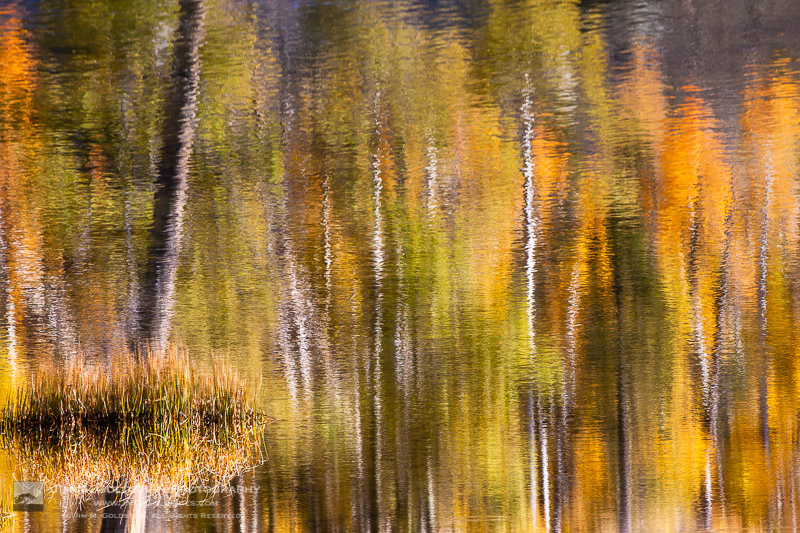
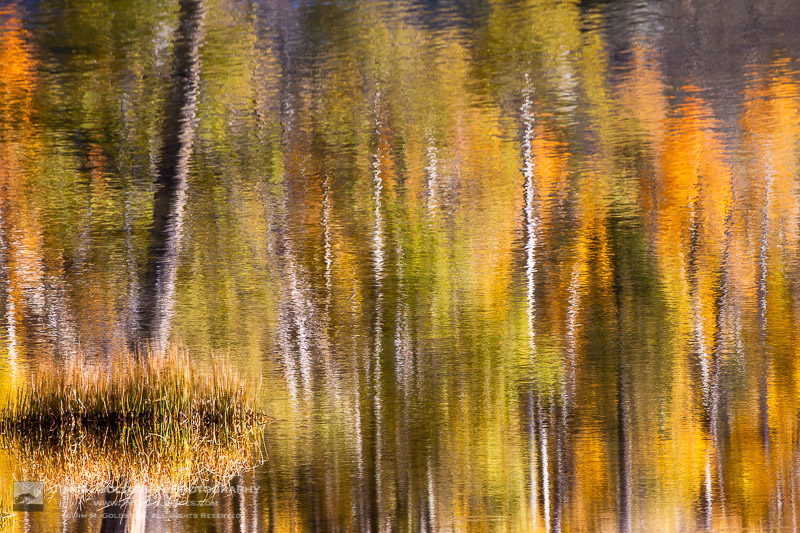
Fall Color AbstractI’m excited to share the results of my 12th annual Best of Photos project.  115 photographers from around the world (amateur and professional alike) have shared their best photos of 2018.  I’m always amazed at the quality of work shared and I hope it’s a source inspiration to you for the coming year.

For those who are new to my blog project, photographers taking part span the gamut of photo enthusiasts to professionals. The great thing about photography is that no matter what your skill level we all can relate equally in our love for the art of photography and visually exploring. With that in mind I encourage you to reach out to photographers whose work you enjoy to keep sharing & growing as an artist.  I am incredibly thankful that this tradition has been embraced and enjoy seeing how familiar faces have evolved their work & grown over the years.  I hope reviewing your best photos of the year and comparing them to years pasts keeps you inspired and aware of your progress as a photographer.

If you’d like to take part next year and be informed when submissions open for the “Best Photos of 2019” blog project add your name to my mail list. You won’t be spammed. I send out newsletters quite infrequently.

Thank to everyone who took part!  I invite you to visit each link below as I have and introduce yourself to many of the participating photographers.

Best Photos of 2018

  1. Jim Goldstein – Best Photos of 2018 by Jim M. Goldstein
  2. Michael Russell – My Top 10 Photographs Of 2018
  3. Dave Wilson – Best of 2018
  4. Joseph Smith – 2018 Favorites – A Baker’s Dozen
  5. Randy Langstraat – My Ten Favorite Photos of 2018
  6. Chuq Von Rospach – Chuqui 2018 Best Of Photos
  7. Rachel Cohen – Best of 2018
  8. Lucy Autrey Wilson – A Thousand Words
  9. Romain Guy – Best of 2018
  10. Alexander S. Kunz – My Favorite Photos from 2018
  11. Stefan Baeurle – Top 10 Favorites of 2018
  12. QT Luong – 2018 in Review
  13. Jenni Brehm – Best pf 2018 – Changing Perspectives
  14. Sean Bagshaw – My Favorite Photos Of 2018
  15. Johann A. Briffa – 2018: A Photographic Retrospective
  16. Exploring Light – 2018: A Year In Review
  17. Drake Dyck – Top Ten (favourite) Images of 2018
  18. Richard Wong – Fine Art Photography Prints – 2018
  19. Ramen Saha – 2018 – Ten moments
  20. Martin Quinn – Quinn Images 2018 Favorites
  21. TheDarkSlides – TheDarkSlides Best of 2018
  22. Denise Goldberg – top photos :: 2018
  23. Peter Carroll – Favourites of 2018
  24. Jeff Hubbard – Ten Favorite Photos 2018
  25. Gary Crabbe – My Favorite Landscape Photos of 2018 – A Year-End Retrospective
  26. Harold Davis – Harold Davis – Best of 2018
  27. Werner Priller – My Favorite Images of 2018/
  28. Phil Colla – Natural History Photography – Best Photos Of 2018
  29. Aaron Hockley – Tech Photo Guy: Best Photos of 2018
  30. Dan Baumbach – 2018 in Review
  31. Jao van de Lagemaat – Jao’s best images of 2018
  32. Pete Miller-USKestrel Photography – Favorite Images of 2018
  33. Shikha – Eastern Sierra – My favorite images of 2018
  34. Bruce Leventhal – Reflecting on 2018
  35. Christopher Sheppard – The Stories Behind My Favorite Photographs of 2018
  36. Alan Majchrowicz – Photo Highlights 2018
  37. Tom Whelan – Nature Diary
  38. Todd Henson – Best Photos of 2018: My Favorites of the Year
  39. Khürt Williams – Island in the Net
  40. Patricia Davidson – My Top 10 Favorite Photos of 2018
  41. Russ Bishop – 2018 – The Year in Pictures
  42. Jim Coda – Some of My Favorite Images from 2018
  43. Steve Cole – Birds Eye View of 2018
  44. Fred Mertz Photography – Best Photos of 2018
  45. Martijn van der Nat – Best of 2018
  46. Graf Nature Photography – Twenty Eighteen Wanderings
  47. Scott Thompson – My Top 10 Tahoe Area Photos of 2018
  48. Kyle Jones – 2018 Favorites
  49. Clint Losee – My Best Landscape and Nature Photos of 2018
  50. Caleb Weston – Caleb Weston – Dubland Media
  51. Greg Clure – Best of 2018
  52. Rick Holliday – Favorites from 2018
  53. J.J. RAIA – J.J. RAIA Best Photos of 2018
  54. Francis Gagnon – Francis Gagnon Best Photos of 2018
  55. Mike Chowla – My Ten Best of Images of 2018
  56. Carl Donohue – 2018 in photos
  57. Kurt Lawson – 10 Favorites of 2018: From Lava Rivers in Hawaii to Yosemite Snowstorms
  58. William Bean – William Bean
  59. T.M. Schultze – My Favorite Photographs of 2018
  60. Andrew Thomas – Aerial Adventures – Best of 2018
  61. Matt Conti – 2018 Top 20 Photos
  62. Daniel Leu – Favorites – 2018
  63. Carol Schiraldi – Best of 2018 from Carol’s Little World
  64. Alan Dahl – 2018 Favorite Photos
  65. Milan Hutera – 2018 in Pictures
  66. Kathy Barnhart – Flickr Sensing Light Best of 2018 Album
  67. Greg Russell – Alpenglow Images 2018 Year in Review
  68. Derrald Farnsworth-Livingston – Top 10 Favorite Images from 2018
  69. Kevin Ebi – Living Wilderness: Best of 2018
  70. Jackson Frishman – Favorites of 2018
  71. Greg A. Lato – My Favorite Photos of 2018
  72. Mike Shipman – Mike Shipman’s Best of 2018
  73. Beth Young – Best Photos of 2018
  74. Dale Grosbach – My Favorites – 2018
  75. Brent Huntley – Photography and Travel
  76. Charlie Russell – Best Wildflower Photos for 2018
  77. Bryan William Jones – Jonesblog
  78. Tony Wu – Favorite Photos of 2018
  79. Adrian Klein – 2018 Photo Retrospective
  80. Scott McGee – Top 10 of 2018
  81. William Neill – My Favorite Photographs of 2018
  82. Thomas Yackley – Yackley Photo
  83. Anne McKinnell – Best Photos of 2018
  84. Holly Davison – Top Ten of 2018
  85. Brian Knott – Brian Knott Photography 2018 Year In Review
  86. Anna DeStefano – Affirmation Photography’s Best of 2018
  87. Ingeborg Fernau – Magicalglow Photography Blog
  88. Emil Powella – Top 10 of 2018
  89. Elduro Tuco – Elduro Tuco
  90. Eric Chan – Favorites From 2018
  91. TP Chapman – Best of 2018
  92. Ilias Katsouras – Okrivadas
  93. Molly Dean – Best Photos of 2018
  94. Sarah Marino – 2018 Wrap-Up and a Few Favorite Photographs
  95. Michael Frye – My Top Photographs of 2018
  96. Jim Stamates – Memories of 2018
  97. Tim Aston – Favorites from 2018
  98. Samantha Decker – My Best Photos of 2018
  99. Bryn Tassell – Bryn Tassell favourites of 2018
  100. Mike Cleron – 2018 Favorites
  101. Carla Overduin – Best Photos of 2018
  102. Peter West Carey – Best Photos of 2018
  103. Simon C Ponder – SponderPoints
  104. Ron Niebrugge – Favorite Photos from 2018
  105. Steve Cozad – Best of 2018
  106. Björn Göhringer – My Top 15 Photos From 2018
  107. Neil Corman Photography – 12 Favorite Images from 2018
  108. Maurice O. Weaver – Best Photos of 2018
  109. Michael McCloskey – Best Photos of 2018
  110. Stephen L. Kapp – Best Photos of 2018
  111. Robin Black – Best Photos of 2018
  112. Kelly Castro – 10 FROM 2018
  113. Jeff Sullivan – My Top 10 Photos of 2018
  114. David Leland Hyde – Landscape Photography Blogger/Best Photographs of 2018
  115. Larry Angier – A collection of my best/favorites from 2016


Have a great 2019!

The post Best Photos of 2018 by JMG-Galleries Blog Readers appeared first on JMG-Galleries – Landscape, Nature & Travel Photography.


JMG-Galleries – Landscape, Nature & Travel Photography

 
Comments Off on Best Photos of 2018 by JMG-Galleries Blog Readers

Posted in Equipment


Secret Camera Settings that Supercharge your JPEG Photos

09 Jan

The post Secret Camera Settings that Supercharge your JPEG Photos appeared first on Digital Photography School. It was authored by Simon Ringsmuth.

Shooting pictures in RAW definitely has its advantages, but there are plenty of good reasons you might want to shoot using the JPEG format as well. It really comes down to personal preference, and both types of file formats have their pros and cons.

One of the biggest assets of the RAW format is that you can adjust your images as much as you want in programs like Lightroom or Luminar. Whereas the lossy compression algorithms used to create JPEG files leave much less room for post-processing flexibility. For this reason, to get the most out of your JPEG files, there are some important settings in your camera you should learn and customize to get your photos looking their best.

When you use RAW, you have access to the full data readout from your camera’s sensor. None of the data used to create your image was tossed out by your camera to compress the image and save memory card space. When shooting JPEG, your camera makes a series of determinations on the fly. It calculates what it thinks are the best values for various settings to get a pleasing photo almost like following a recipe to bake a cake. You can tweak that recipe to get the final output to be more customized to your taste. Doing so can be extremely helpful in many different photography settings.

White Balance

White balance is perhaps the most critical setting for JPEG shooters to understand. Getting this right can have a massive impact on how your images look. If you notice your images looking slightly yellow or blue, it’s likely due to the white balance not being calibrated correctly. Most people only use the Auto White Balance option which leaves the heavy lifting up to the digital brain inside your camera.

However, it’s straightforward to set the white balance by yourself and get much better results, particularly in tricky lighting situations. Especially indoors.

Setting the white balance at this cat show was really tricky due to the old fluorescent lights at the venue. Several of my auto white balance shots had a yellow tint, so I set the proper white balance in my camera and was able to achieve much better results.

It only takes a few seconds to set the white balance when shooting JPG and it can save you a lot of hassle in the long run. All DSLR and Mirrorless cameras, as well as most point-and-shoots, come with a variety of white balance settings. You can specify these if you know a little bit about the lighting conditions in which you are shooting. Many cameras have options such as Sunlight, Cloudy, Incandescent, Shade, even different types of fluorescent lighting. These can be selected to help make your photos look as good as possible.

The Overcast white balance setting gave me just the right look I was aiming for in this shot.

In my experience, the Auto white balance setting works great outdoors. However, when shooting inside, even the latest cameras can get tripped up by the many different types of artificial light. If you’re at a school, office, sporting event or another indoor setting with fluorescent lights, just choosing that option in your White Balance menu can make a huge difference to how your photos turn out. Try different settings and see what you like. Chances are, one of the pre-selected settings can help a great deal if you notice your photos looking a little blue or orange.

The picture I wanted to take was not what I ended up with. I missed a good opportunity largely due to improper white balance settings. A richer, more natural tone was what I wanted, but the image came out much cooler than I intended because I did not take a few seconds to set a proper white balance.

Finally, you can go all out and set a white balance of your own, which isn’t as big of a deal as it might sound. Every camera has its way of doing this. As long as you have a mostly white surface to point your camera at you should be all set (ideally it works if the surface is just slightly gray). Once again, the actual procedure is going to be different on every camera, and if you’re unsure do an internet search of your camera model and “custom white balance.” You should find the information you need.

Sharpening

While you adjust White Balance for various photography situations, Sharpening is a setting that you fine-tune to your taste and leave as-is. Of course, each photographer is different, but I’ve found I like a certain level of sharpening on all my JPG photos. This is because I have a particular type of look that I’m trying to achieve. Sharpening can’t fix an out-of-focus image. However, it can give your photos a certain level of pizzazz or clarity that you might have seen in other pictures but aren’t quite sure how to achieve on your own.

I ramped up the in-camera sharpening to get a clean, crisp image of these crayons. The foreground and background are just slightly out of focus due to shallow depth of field, but the middle is tack sharp.

Be careful not to set the sharpening too high though. Over-sharpening can lead to images that look fake and over-processed. However, you might find that with a few tweaks to the sharpening setting you can get your images to look much better.

Contrast

Adjusting the contrast slider can make dull images come to life and punch-up an otherwise boring image. Either you or your camera, depending on your shooting mode, makes decisions about how bright or dark your images are based on the exposure settings. The contrast becomes the overall difference between the brightest and darkest portions of your pictures. Dialing up the contrast makes bright parts brighter and dark parts darker, whereas lowering the value will have the opposite effect.

Adjusting the contrast value helped me get the shot I was aiming for.

Contrast may seem like such a simple thing and, for the most part, it is. But it’s something that often gets overlooked by casual photographers. They may want to have nice JPEG shots straight out of their cameras and not worry about fussing with all the technical details. You might find that you prefer your photos to have a little contrast lending an interesting dynamic element to them. Or, perhaps you want your images to be a bit more subdued. Try adjusting the contrast slider, and you might realize that it does the sort of thing you have always been trying to achieve but never quite knew how to get.

Saturation

If you have ever played around with filters on apps like Instagram you probably noticed that some of them make your colors pop and stand out while others have more subdued, muted tones. This effect is due in large (but not exclusive) part to saturation adjustments. You can fine-tune this on your camera to customize the look of your images. Some photographers prefer an over-saturated look – especially when taking nature or landscape pictures. It also works well for certain types of portraits too.

Adjusting your saturation after you take a picture can work, but it’s best to get it right in camera if possible.

Some photographers like a softer touch and prefer their JPEG files to be less saturated for a calm, timeless look. It’s all based on personal preference of the photographer. It can be useful and time-saving to change the saturation in-camera instead of in an image editing program. Adjusting the saturation is as simple as increasing or decreasing the value in your camera. You may find, after several test shots, that you prefer your images to be somewhat over or under-saturated. Either way, it’s worth giving it a try to see what you end up liking.

Other settings

Most cameras have additional custom settings you can change in addition to the basic ones covered so far. They can include things like film simulations, grain effects, highlight/shadow adjustments, and noise reduction, which can be very handy when shooting at higher ISO levels. If you have never explored these settings before, it’s a good idea to dive into your camera menus and do some experimenting.

If you dig into your camera menus you will find many other settings you can change to get just the right look you are going for.

Change some numbers, take some test shots, and see how the results compare to your normal shooting mode. It’s a good bet that you’ll end up with some appealing results. At the very least, you may learn more about your camera than you did before.

Custom Banks

A feature offered by many cameras is the ability to save banks of custom settings you can activate at will. Even my old Nikon D200, which came out in 2006, had this ability. The same is also true for every camera I own today. You can save specific values of most of your image adjustments such as Saturation and Contrast to a bank that you can recall at will. Using these custom settings means you don’t have to change individual values every time you want to shoot with a specific style.

This Fuji X100F has seven custom banks where you can save a huge variety of settings. You can switch between each bank with the touch of a button.

Think of this method as creating custom presets in Lightroom that you can apply to your camera with the touch of a button. If you’re shooting outdoors, you may have an in-camera preset with greater saturation and contrast. Perhaps you find yourself shooting school basketball games, so you create a preset with custom white balance and sharpening levels. If your camera does offer this feature, you can find it in the menus, or you can search online for your camera as well as the phrase “custom setting bank.”

Wrap up

I know not everyone shoots in JPEG, but if you do, some of these custom settings can come in handy and save you a lot of time. However, be aware that it’s difficult to undo them afterward. Unlike RAW, your JPEG files contain much less wiggle room and if you crank up the saturation and contrast in your camera, it’s challenging to undo these changes on your computer. Still, if you pay attention to what you are doing and make your adjustments carefully, you might be surprised at how useful these settings can be.

The post Secret Camera Settings that Supercharge your JPEG Photos appeared first on Digital Photography School. It was authored by Simon Ringsmuth.


Digital Photography School

 
Comments Off on Secret Camera Settings that Supercharge your JPEG Photos

Posted in Photography