RSS
 

Posts Tagged ‘Photos’

New photos, specs emerge for DJI’s ‘Mavic Mini’ drone rumored to be released tomorrow

12 Aug

Late last week, DroneDJ obtained images of an unreleased DJI drone that appeared to blur the lines between DJI’s Spark and Mavic drones. Now, DroneDJ has gotten its hands on a number of specs it believes the drone, said to be named the Mavic Mini, could have when it’s officially revealed.

The images, which were first posted (and subsequently deleted) by Twitter user and drone pilot OsitaLV, show a drone that looks like DJI’s Mavic drones, but is small enough that it could also be the successor to the DJI Spark or even the DJI Mavic Air.

However, its arms articulate more in line with what the DJI Mavic Pro and DJI Mavic 2 Pro/Zoom do and its three-axis gimbal appears to be a smaller, less substantial version of that found on the Mavic Air—all details that further blur the lines of where this drone would sit in DJI’s lineup.

$ (document).ready(function() { SampleGalleryV2({“containerId”:”embeddedSampleGallery_8389569858″,”galleryId”:”8389569858″,”isEmbeddedWidget”:true,”selectedImageIndex”:0,”isMobile”:false}) });

According to the new information provided by OsitaLV, the drone will feature a 12-megapixel 4K 1/2.3 CMOS sensor, retail for $ 399 when it launches, weigh 350g (12.35oz) and measure 270mm (10.63in) diagonally when unfolded. This puts it 100g over the FAA’s 250g limit, but still keeps it on the smaller side.

OsitaLV suggests the new drone will make use of the enhanced Wi-Fi technology found in DJI’s Mavic Air and Spark drones, and have object avoidance sensors on the front and bottom of the drone. It’s also reported the drone will use a new, replaceable battery that’s housed inside a compartment that also houses the memory card slot and USB port.

One anomaly, however, is that the images show a Micro USB port on the drone, while DJI’s more recent drones use USB-C. This could simply be because the drone seen in the images was an earlier version sent in for patent and registration purposes, before the jump to USB-C was made.

Rumor has it DJI has an announcement planned for tomorrow, so there’s a chance we’ll see this little machine in its final form.

Articles: Digital Photography Review (dpreview.com)

 
Comments Off on New photos, specs emerge for DJI’s ‘Mavic Mini’ drone rumored to be released tomorrow

Posted in Uncategorized


Four Lightroom Tips to Enhance Your Landscape Photos

05 Aug

The post Four Lightroom Tips to Enhance Your Landscape Photos appeared first on Digital Photography School. It was authored by Simon Ringsmuth.

Lightroom has a vast array of buttons, sliders, and selection boxes that can improve just about any photo, but sometimes the options are so overwhelming you don’t even know where to start! It’s impossible to say what specific adjustments will work for any given photo, partly because there are infinite possibilities and every photographer is unique. However, there are a few Lightroom tips you can use with certain types of images, such as landscapes, that improve them with just a few clicks. If you have ever wanted to punch up your landscapes quickly and easily, there are four options that you can use right away to make any landscape look amazing.

Four Lightroom Tips to Enhance Your Landscape Photos

If you import a landscape picture into Lightroom but find yourself staring dazed and confused at the array of editing options, try focusing on the four items below. I use these on most of my landscapes, and you might be surprised at how well they work for you too.

Of course, you can always continue tweaking and adjusting with as many options as you want, but these are great to start with.

  • Basic tone
  • Texture
  • Sharpening
  • Graduated Filter

Learning to use these four adjustments goes a long way towards improving not just your landscapes, but many other types of pictures too.

As you gain more editing experience, you will start to figure out what your editing preferences are and learn to adjust the options accordingly. Maybe you like a little more tonal contrast or a little less saturation? Perhaps you prefer your images to have a little less sharpness? Experimenting with these options helps you understand what you prefer. It helps you develop your skills as an editor to get the results you like.

Basic tone

Four Lightroom Tips to Enhance Your Landscape Photos

There’s a reason that the Develop module in Lightroom has a panel called Basic. This contains the most popular adjustments that most photographers use right away. They are especially useful for landscapes too. The following are what I recommend as a starting point for these types of images.

Highlights: Drag this slider to the left to make the brightest portions of your landscape a little darker.

Shadows: Drag this slider to the right to make the darkest portions of your landscape a little brighter.

Whites: Drag this slider to the right to make the white portions whiter

Blacks: Drag this to the left to make the black portions blacker.

To show you how much of an effect these simple adjustments can have on a landscape, here’s an image without any adjustments straight from my camera.

Image: Shot at the National Tallgrass Prairie Reserve in Kansas. An unedited picture straight from t...

Shot at the National Tallgrass Prairie Reserve in Kansas. An unedited picture straight from the camera.

The picture is dull, lifeless, and not all that interesting. 15 seconds of adjusting those four sliders in the Basic panel does wonders and transforms it into a whole new picture.

lightroom-tips-for-landscape-photos

Highlights -43, Shadows +26, Whites +70, Blacks -51. No other adjustments were made.

The resulting image is vibrant, lively, and exciting to look at, especially when compared to the original. It doesn’t take much work at all to use those four simple sliders when editing a landscape photo, and the results can be breathtaking.

Texture

The effect of the Texture tool isn’t quite as pronounced and may not take your breath away in the same way. However, Adobe’s latest addition to Lightroom can produce impressive results. While Texture is particularly useful when editing portraits, it can also bring out detail in grass and rocks, and other areas of a landscape image that has a great deal of natural texture.

Many landscape photographers are already familiar with the Clarity tool, which can have a similar effect as Texture. But, the former can often lead to images that appear over-processed and artificial. Texture is really designed to enhance the look and feel of textured surfaces. If you have not tried it, you may be surprised by the results.

I took the picture below in the mountains of the Pacific Northwest, and while I did some basic Highlight/Shadow/White/Black editing, I really want to bring out the details in the evergreen trees.

Image: I shot this while hiking near Seattle, Washington.

I shot this while hiking near Seattle, Washington.

Increasing the value of the Texture slider helps the trees to stand out. They come to life while leaving the clouds and sky virtually untouched. Adobe designed the Texture option to look specifically for textured surfaces. It applies the effect only where it’s really useful instead of across the entire image as a whole.

lightroom-tips-for-landscape-photos

Same image, with a value of Texture +90.

When viewed at full resolution, the result is remarkable, but even on a small screen, you can see that the trees have become more pronounced. The background trees are clearer and more discernible as well.

This new option in Lightroom is not yet as popular and well-known as Clarity, but it’s a boon for landscape photographers who want to spice up their images without going overboard.

Sharpening

The Sharpening tool has been an integral part of Lightroom for years, but might be overlooked by new landscape photographers who feel overwhelmed with all the features in front of them when editing their images. In contrast to Clarity and Texture, the Sharpening tool helps you emphasize the edges of everything in your pictures while also giving you the power to specify precisely how you want to apply the sharpening.

As with the Texture tool, your results aren’t going to be as immediately impactful as other edits, such as the Basic panel. However, careful adjustments to Sharpening can add a level of resonance to your landscapes and bring to life the small details.

Image: Shot at just outside a small town in north-central Kansas. Some basic edits applied, but no s...

Shot at just outside a small town in north-central Kansas. Some basic edits applied, but no sharpening.

The Sharpening adjustment, which sits in the Detail panel, has four parameters: Amount, Radius, Detail, and Masking. While these are all important, the ones I recommend you focus on are Amount and Masking. Move the Amount slider to the right to make your picture appear sharper and add a sense of crispness. After that, use the Masking slider to tell Lightroom where to apply the actual sharpening.

You can hold down the Alt or Option key (on a Mac) to see how this works and adjust as necessary. The black-and-white preview updates in realtime. As you hold down the modifier key and drag the slider, it shows you just where the sharpening will be applied.

Image: Adjusting the Masking parameter while holding down the Alt or Option key (on a Mac) shows a l...

Adjusting the Masking parameter while holding down the Alt or Option key (on a Mac) shows a live preview of where the sharpening will be added.

Use of the Sharpening tool is a great way to enhance your landscapes, especially when combined with some of the other editing options.

Image: Sharpening added with the following values: Amount 114, Radius 1.0, Detail 25, and Masking 85...

Sharpening added with the following values: Amount 114, Radius 1.0, Detail 25, and Masking 85.

Graduated filter

If you have never used the Graduated Filter on your landscape photos, you’re in for a real treat.

This tool allows you to apply graduated adjustments to part of the image, and even edit the adjustments using selective masking and brushing. It’s a great way to bring out the rich blue of a sky, the subtle greens of grass and foliage, or implement other edits to part of your picture without affecting the whole thing.

To demonstrate how the Graduated Filter works, I have a picture shot in southeastern Nebraska without any edits except for removing some spots of dust on the lens. The foreground is dark, and I’d like to change the color of the sky to reflect what I actually saw. However, global edits like the Basic panel just don’t work.

Image: Shot in rural Nebraska on a chilly February evening.

Shot in rural Nebraska on a chilly February evening.

As a point of comparison, here’s the same picture with some simple adjustments, like in my very first example. The Basic adjustments help but don’t produce the results I’m after.

lightroom-tips-for-landscape-photos

Highlights -18, Shadows +100, Whites +34, Blacks -7.

It’s an improvement but still a long way from what I want. Fortunately, the Graduated Filter is here to help! By applying this type of edit, I can alter the lower portion without affecting the upper portion. Also, the edit is applied gradually, so it appears more natural as the foreground recedes to the horizon.

Image: No edits from the original except for a single graduated filter applied to the foreground. Te...

No edits from the original except for a single graduated filter applied to the foreground. Temp 76, Exposure 2.16, Shadows 21, Blacks -13, Texture 50, Sharpness 20.

You can go one step further and add additional graduated filters, which is especially useful when working with landscapes. In this image, I’d like to bring out the rich deep colors in the sky without affecting the field in the foreground.

A graduated filter is the perfect tool for the job.

Image: Second graduated filter applied to the sky. Temp -73, Exposure -.50, Highlights -45, Dehaze 1...

Second graduated filter applied to the sky. Temp -73, Exposure -.50, Highlights -45, Dehaze 10, Saturation 16.

I listed the Graduated Filter last because it’s the most complicated of these four adjustments you can apply to your landscape, but it’s also, in my opinion, the most powerful. There are lots of options for customizing your graduated filters, and it’s going to be worth your time to explore more. However, the example above should be enough to get you started.

There’s so much more you can do with landscape photos in Lightroom beyond what I demonstrated here. These basics should be enough to get you started and help you bring out a lot of the color, detail, and vibrancy that your landscape photos may be missing.

After learning these, I hope you start exploring the other options Lightroom has to offer.

I’d love to see examples of your landscape photos in the comments below!


lightroom-tips-for-landscape-photos

The post Four Lightroom Tips to Enhance Your Landscape Photos appeared first on Digital Photography School. It was authored by Simon Ringsmuth.


Digital Photography School

 
Comments Off on Four Lightroom Tips to Enhance Your Landscape Photos

Posted in Photography


Make the Most of High Contrast Lighting for Dramatic Street Photos

02 Aug

The post Make the Most of High Contrast Lighting for Dramatic Street Photos appeared first on Digital Photography School. It was authored by Kevin Landwer-Johan.

Street photographers often love the type of light many others seek to avoid. High contrast lighting is favored by many because of the drama it adds to the action, or lack of it, in the streets.

Making the most of high contrast lighting is a matter of being able to see it more as your camera does. It also helps to have a good knowledge of how you can manipulate your photos during post-processing.

Make the Most of High Contrast Lighting for Dramatic Street Photos Young Market Vendor

© Kevin Landwer-Johan

Seeing like your camera

Your eyes can see a wider range of tone than your camera can. This is changing as camera technology advances. Soon cameras will be able to record more details in the highlights and shadows over a broader range. For now, your eyes are more capable.

What you see on your camera’s monitor when you review a photo is different than what you’ll see on your computer. On your camera, you will not see so much depth or detail. Learning to discern what your photos will look like after some post-processing will help you take better photos.

cycling

© Kevin Landwer-Johan

Taking photos knowing how you will process them later helps you make better decisions while you’re taking photos. The choices you make about exposure and composition can depend on what treatment you will give a RAW image on your computer.

When you look at a high contrast scene, your eyes will see more detail than your camera is able to record. Because the difference between the light value of the highlights and shadows is so vast, your camera cannot record it all. But your eyes will still be able to see it.

Understanding this when you are in high contrast light will help you make better photos.

high-contrast-lighting-for-dramatic-street-photos- Cycle Shadows

© Kevin Landwer-Johan

Expose with intent

Photographing in hard light means you must make careful exposure choices. Do you want to see details in the highlights? Do you want to see details in the shadow areas? You must choose if you want to make the most of the dramatic lighting.

Exposing for the highlights and letting the shadows fall into black is one of the most popular methods. This adds drama and mystery to your street photos.

I prefer to set my exposure manually. This way I know it will not alter until I change the settings myself. I will choose a light area to make a meter reading from. Then I will underexpose it a little to make the effect a little more dramatic.

This will make the shadow areas appear even darker. It also means I am less likely to have bright areas with no detail.

Drummer Boy

© Kevin Landwer-Johan

Setting my exposure in this way, I know I’ll be able to push the contrast effect even further during post-production.

If you set your camera to expose for the shadows, the highlight areas will be even brighter. You will lose detail in the lightest parts of your composition. Sometimes you will want this and to keep the details in the shadows. You must make a conscious choice when you are setting your exposure. If you get this wrong, you will find you cannot manipulate your photos so much during post-processing. This is more so if you are taking .jpegs rather than RAWs.

high-contrast-lighting-for-dramatic-street-photos Happy Man with contrast

© Kevin Landwer-Johan

Make use of the shadows

You can hide things in the shadows. You can conceal people or unwanted distracting elements in the darkness of a shadow.

Careful use of shadows can isolate your main subject and draw the viewer’s eye to it.

Use graphic lines of shadows created by architecture, trees or other strong forms. The shadows themselves become graphic elements in your photographs. You can combine them with the solid forms in your composition to create tension or harmony.

Wood Carving in the Shadows

© Kevin Landwer-Johan

Look for how static and moving shadows appear in your compositions. What do the shadows of people look like on the pavements or walls as they walk by? Are there shadows created by trucks, buses or cars passing by? Can you see light reflected off windows back into the shadows?

While you’re out with your camera, think about how the shadows might look when you add more contrast during post-processing.

high-contrast-lighting-for-dramatic-street-photos

© Kevin Landwer-Johan

Find a location and choose your time

Observe how the daylight looks at the places you like to photograph. It will be different at various times of the day and during different seasons.

Look at how the shadows fall on the ground and surrounding buildings. Are people walking in the sunshine or in the shade? At which points to they emerge from the shadows? Is the light in front of them or behind?

Pick a good place to work from and stay awhile. If you can visit the same location on many different occasions, you’ll build up a more diverse set of photographs. Doing this, you’ll be able to compare the photos you take. This can help you learn your favorite time to photograph at that place. Then plan to do it again and take even better photos.

Find a place where the light is how you like it and the background is interesting. Make sure the background will support the style of photograph you are wanting to take. Is the background in full sun or in the shadows? Is the light falling on it pleasing to you?

Egg Man black and white

© Kevin Landwer-Johan

Move around and look at the space from different angles. Where you photograph from will look different depending on where the sun is. You might prefer the sun behind you or to one side. Some scenes may look better when your subjects are backlit. These should be carefully made and not left to chance.

If you are including people or traffic in your photos, be observant of how it is moving. Anticipate where it looks best. How does the light look on a person as they walk through your composition? Does the traffic moving in one direction look more interesting than traffic moving the other way?

Once you have decided on a place to work from, stay there. Being patient is one of the most important things to do as a photographer. Wait and watch. Look for patterns of movement and also when these patterns are interrupted or broken. These can be some of the most interesting times to take street photographs.

Fancy Kaftan

© Kevin Landwer-Johan

Conclusion

Look at the sunlight and think about how you can post-process to enhance the look you want.

With street photography, you are reliant on the available light. You must look at it and figure out the best place to stand. Then you must make the right choice of exposure settings to take advantage of the high contrast.

Once you have found a good location and made a few exposures hang around. Give yourself time and space to really work a scene. Try going back to the same location at different times of the day and in different seasons. You may be surprised at how different your photographs will look.

We’d love it if you would go out and try some of these techniques and share your photos with us in the comments below.


high-contrast-lighting-for-dramatic-street-photos

The post Make the Most of High Contrast Lighting for Dramatic Street Photos appeared first on Digital Photography School. It was authored by Kevin Landwer-Johan.


Digital Photography School

 
Comments Off on Make the Most of High Contrast Lighting for Dramatic Street Photos

Posted in Photography


How to Backup Your Photos While Shooting Tethered so You Never Lose Them

01 Aug

The post How to Backup Your Photos While Shooting Tethered so You Never Lose Them appeared first on Digital Photography School. It was authored by Darina Kopcok.

Whether you’re working with clients or shoot as a lone ranger, you need to back up your work. As the saying goes, when it comes to hard drives, it’s not a matter of if they will fail, but when they will fail.

Working with image files requires a lot of power and is very taxing for your computer. This increases the chance of hard drive failure. You need to have a system of backing up your images that works for you. This is also important to backup your photos while shooting tethered.

how-to-backup-your-photos-while-shooting-tethered-3

Backup your photos while shooting tethered

There are various programs that allow you to connect your camera to a laptop or desktop computer via a USB cable. This allows you to view a larger and more accurate version of your image on the computer screen. Tethering is crucial in genres like food and still life photography, but also very useful in other niches, like studio portrait photography.

When shooting tethered while on location, an efficient workflow around the backup process will make your life a lot easier and ensure that you have several copies of your image files should an unforeseen incident occur.

If you’re like me and shoot tethered to a laptop but edit on a desktop, you already have the bonus of an extra copy of your images, since you’re using two computers.

If you transfer the images from the laptop to desktop via a detachable external hard drive, there is your third copy. However, if you use a card reader or transfer your images from your camera via a USB cable, you should have at least one more hard copy of your images. Also, what if something happens to your laptop while you’re on a shoot? Remember, it’s a question of when.

Do you use Lightroom as your tethering program of choice? You then have the option of saving your images to your SD cards as you take them. However, Capture One Pro doesn’t offer this option. This makes image capture instant, but it doesn’t give you an extra sense of security by providing additional copies of the images you’ve shot.

You cannot just set up Lightroom or COP to save to two places. You need file synchronization software to make sure that your work is being backed up while you’re shooting tethered. 

Types of backups

There are two types of backup: specific project backup and overall data backup. You need to concern yourself with both.

While you’re shooting, you need to back up every single file. You also need to do a backup of your whole computer. You should create backups on external hard drives and also in a cloud-based system. Don’t simply rely on cloud solutions for your backups.

Storing photos in the cloud basically outsources the storage of your photos. The data in the cloud is not necessarily safe or under your control. Risks with cloud storage are having your data hacked and deleted, being locked out of your account, or having it be closed if you make late payments. Also, these types of online services can suddenly shut down or otherwise cease to exist. 

A word about digital data

The problem with digital data is that storage formats change over time. You might keep your photos “safe,” but they’ll be useless to you if you can’t read or open them. 

Operating systems, software and file formats keep changing, so just because you can see a file on your computer doesn’t mean you can actually load it.

One example is the attempts to replace the standard .jpg file format with JPEG 2000, PNG (Portable Network Graphics) and several others. JPG is fine for now, but you can never say never because this sort of thing actually happens all the time as technology changes.

A word about disk drives

Hard drives are great for storing images because they are relatively inexpensive, they provide fast access to data, and it’s very easy to copy one hard drive to another. 

However, backup drives are not an all-in-one perfect solution. Your data is at risk of being stolen or destroyed by fire, flood or some other disaster.

Also, the data is vulnerable to malicious software and human error.

You can accidentally delete a folder, or make mistakes when copying files. If your PC is infected by malware, it will usually encrypt files on external hard drives as well.

I personally have had several hard drives fail. One time I had a hard drive and a laptop fail at the same time! Some hard drives fail after several years of use, while others fail after only a few months. There is no way of knowing when the case may be.

Therefore, you can’t store your photos on a single drive. A minimum of two is recommended. I have backups on a couple of 1TB external, portable hard drives, as well as on two 4TB hard drives that are plugged into my desktop computer. 

You should keep one of your backups off-site, like at a relative’s home or even in a bank safety deposit box. 

how-to-backup-your-photos-while-shooting-tethered-2

How to back up while shooting tethered

Chronosync is one backup software that I recommend you use while shooting tethered if you use a Mac. If you’re a PC user, check out Bvckup.

Goodsync can be used with either system.

This type of software allows you to look at a given folder and copy everything to another folder on a separate hard drive. For example, you might want to shoot images on your laptop and have them sync to an external portable hard drive. Or you may want to use two separate portable hard drives. Basically what you’re doing is telling it what folder to look at and make an exact duplicate of it to another drive.

You can set it on a schedule or have it running in the background. Setting it on a schedule is great if you always have a hard drive plugged into your laptop.

Here is an example of how to do it with Chronosync.

1. Open up the application and choose, Create a New Synchronizer Document

How to Backup Your Photos While Shooting Tethered so You Never Lose Them

2. Decide what drives you want to synchronize by selecting >Choose from the Source Target and Destination Target menus accordingly. It will give you several choices of how you might want to back up from the dropdown menu under >Operation.
My recommendation is that you choose >Backup Synchronize Bidirectional. This will ensure that everything that is on one drive will also appear on the other.

How to Backup Your Photos While Shooting Tethered so You Never Lose Them

3. Click on >Synchronize in the top left-hand corner. It may take a few minutes for the synchronization to take place. Once it’s complete you’ll see the message below.

How to Backup Your Photos While Shooting Tethered so You Never Lose Them

It’s as simple as that. With synchronization software like Chronosync, you’ll ensure that all your files and folders are backed up for a very low price.

Other backup software

Many large companies offer photo storage services including Amazon, Google, Microsoft (OneDrive), and Apple (iCloud). However, this can be expensive if you need a lot of storage. With some, downloading large files is cumbersome and data such as file names and EXIF Data may not be preserved. Some services don’t preserve your photos as you uploaded them, and others just don’t work very well (Time Machine, I’m looking at you).

Here are some other paid-for options that are worth a look:

FoldersSynchronizer – a popular program for Mac OS which synchronizes backup files, folders, and disks.

Super Duper – great for disk backups on a Mac. It allows you to create a bootable clone of your disk which you can easily copy from one hard disk to another. This makes moving from one computer to another during an upgrade virtually painless.

Smug Mug – an all-in-one solution that allows photographers to display and sell their images, with unlimited uploads.

Backblaze – a cloud-based backup system that will continually back up your data while your computer is on. Use to restore data after a drive failure.

How to Backup Your Photos While Shooting Tethered so You Never Lose Them

To sum up

To ensure that you have all your bases covered when backing up your files, you should backup specific shoots as well as regularly do backups of your whole computer(s).

Have a couple of backups on hard drives, as well as a cloud-based backup.

When shooting tethered, I recommend backing up your images manually as you’re shooting, one at a time, to ensure that each image exists in at least two places at that time. Once you’re finished shooting, back up your portable hard drive to another one, preferably a larger, more robust hard drive where you store a copy of all your image folders.


how-to-backup-your-photos-while-shooting-tethered

The post How to Backup Your Photos While Shooting Tethered so You Never Lose Them appeared first on Digital Photography School. It was authored by Darina Kopcok.


Digital Photography School

 
Comments Off on How to Backup Your Photos While Shooting Tethered so You Never Lose Them

Posted in Photography


How to Achieve Great Black and White Photos in Editing

26 Jul

The post How to Achieve Great Black and White Photos in Editing appeared first on Digital Photography School. It was authored by Nisha Ramroop.

achieve-great-black-and-white-photos

While every image has the potential to convert to black and white, it is no secret that some translate better. Whether you shoot in color (and convert) or shoot monochromatic, black and white photography is an art form from capture to post-processing. If you see black and white/monochromatic photography as a creative choice though, here are a few tips to consider to achieve great black and white photos.

Before delving into some of the simpler ways to edit black and white images, three things to consider when capturing (and processing) are contrast, texture, and composition.

Note: While the terms “black and white” and “monochrome” are used interchangeably they are not identical. Monochrome means a single color, so may contain a tint (of one color). True black and white imagery have no coloring at all, thus is essentially black, white and gray.

1. Contrast

Thinking with the end result of black and white in mind means thinking in contrasts. Thus look out for high contrast scenes when capturing your image. The interrelation between the light and dark areas allows you to create and emphasize shapes, edges, and forms. These include strong or interesting shadows and extremes between areas of brightness and shadow within your frame.

2. Texture

When you choose monochrome, texture is that element that takes your image to the next level. It gives your image added dimension by providing a variance in the tonal range. Texture lends more realistic detail to your frame when it evokes a sense of touch. Some textures that work well in black and white images include dirt, stone, metals, and wood. Trees, water and aged skin also translate well.

3. Composition

Oftentimes you may find it difficult to pre-visualize your scene without color. Your camera (DSLR or DSLM) most likely allows you the option of shooting both RAW and JPEG images simultaneously. By choosing the setting on your camera for black and white (also called monochrome), the images on your camera’s LCD will appear black and white, so you can revise your composition while shooting. In this scenario, you still maintain your color RAW file for processing later on, but can “see” what you will be working with.

As you work more with black and white imagery, you start to see differently. When color is absent, the other compositional elements of the image become more important. Some of these include lines, shapes, framing, and perspective.

achieve-great-black-and-white-photos

The river as a leading line

One of the strongest compositional elements is leading lines that pull your eyes into the frame. Any line or elements that make up a line, that recedes towards the horizon is called a leading line. There are numerous examples of these and they include rivers, streets, coastlines, railway tracks, and even buildings.

Sometimes when you convert an image to black and white, this compositional element becomes even stronger, which makes you reconsider your final crop or presentation of the image.

Black and white editing

When shooting color images to later convert to black and white, you have many options. The simplest is desaturating all the color and ending up with varying shades of gray. This is sometimes the ending point for high contrasts scenes as it may need nothing more.

Do not be so quick to desaturate everything though! Depending on what you want to achieve, these captured color ranges can be used to your advantage.

A high contrast rainy day image is a good candidate for a black & white

HSL (Hue, Saturation, Luminosity)

The HSL Panel can be found in Adobe Lightroom and Camera Raw and comparable to using a Black and White Adjustment layer in Photoshop. It is widely used and thus highly probable to find these three adjustments in other editing software as well. These adjustments are worth learning and are not as daunting as they first appear.

The first step in ACR is to check the Convert to Grayscale box

As the name implies, HSL adjusts the hue, saturation, and luminosity of the color in your image. There are individual color sliders for red, orange, yellow, green, cyan, blue and magenta. So why exactly is this a factor when the topic is black and white processing?

With the HSL panel, when you convert to black and white, you still have access to the color information of the image. You are now able to adjust these using the sliders and can end up with a drastically different image. You can control how light or dark each color is and achieve greater separation in your tones.

Using the color sliders, and pushing the blue on the HSL panel

Tonal contrast

Where complementary and analogous colors bring the image to life in a color photo; in a black and white photo, tonal contrast can take that image to the next level.

Unlike color photography, black and white has traditionally been a “contrasty” medium. Contrast is the difference between the light and dark areas in your image. Tonal contrast is the difference in the brightness (light intensity) among the various elements in an image. Thus in a black and white image, it is the difference in the range of white to gray to black.

achieve-great-black-and-white-photos

Tonal contrast is one of the main benefits of shooting black and white HDR (high dynamic range) images. HDR refers to the difference between the brightest and darkest areas of your image, thus it is only fitting that it will translate well as a black and white image.

You can easily take control of your contrast though using the various tools available in your editing software. There are a number of sliders and tools to adjust contrast available in the more popular ones like Adobe Lightroom and Photoshop. In Lightroom, these include the contrast slider, which adjusts the global contrast of the image. There are also black and white specific sliders and the HSL panel above. In Photoshop, you can use either the Levels or Curves tool.

Conclusion

The thought process of what will help you achieve great black and white photos, to capture and processing them is a great journey to take. Look for contrast and texture and try to visualize your end result. If you captured your image in color, you can maximize the color range for your black and white post-processing.

Feel free to share some of your monochromatic takes below.


achieve-great-black-and-white-photos

The post How to Achieve Great Black and White Photos in Editing appeared first on Digital Photography School. It was authored by Nisha Ramroop.


Digital Photography School

 
Comments Off on How to Achieve Great Black and White Photos in Editing

Posted in Photography


How to Take High Quality Product Photos With Your Smartphone

18 Jul

Smartphone camera technology has gone through an incredible evolution over the last several years. If we think back to how comparatively primitive our phone cameras used to be (certainly by today’s standards), what you get with a mid to high-end smartphone nowadays is quite remarkable. So remarkable that when compared side by side, photos from something like the iPhone X, Continue Reading

The post How to Take High Quality Product Photos With Your Smartphone appeared first on Photodoto.


Photodoto

 
Comments Off on How to Take High Quality Product Photos With Your Smartphone

Posted in Photography


5 Photos to Take with Auto Mode

15 Jul

The post 5 Photos to Take with Auto Mode appeared first on Digital Photography School. It was authored by Mat Coker.

Were you disappointed when you bought a fancy camera and it didn’t take good pictures for you? It happens to a lot of people.

But even when you know nothing about how your camera works, it’s possible to take a good photo on Auto Mode.

Auto Mode isn’t the place to stay, so once you get the hang of it, you can move on to aperture mode, shutter mode, and manual mode. You can also learn about exposure compensation, metering and all sorts of other fun things!

But first, let me show you how to take 5 different photos on Auto and then how to put the finishing touches on them using Lightroom.

  • Portrait with bokeh
  • Golden hour nature photo
  • Silhouette
  • Freeze a splash
  • Food photo

Portrait with bokeh

Auto mode portrait with bokeh

He is standing about 20 feet away from the tree in the background and I zoomed in to 140mm.

It’s actually pretty easy to take a portrait with bokeh (out of focus background).

I’m assuming that you have an 18-55mm kit lens, but maybe you even have a telephoto lens that zooms to 200mm or 300mm.

You’ve got your camera on auto mode. To achieve an out-of-focus background, bring your subject away from the background. Zoom your lens in all the way because this increases the bokeh effect.

It’s really that simple. The soft, overcast sky made a good light source for this photo. The photo would be even better if his expression were more authentic and there were catchlights in his eyes.

Golden Hour nature photo

Many people like to photograph flowers and nature, but they choose the worst time of day to do it. The harsh afternoon light is not always the best time to photograph a flower. The light is intense, the shadows are harsh, and you won’t likely be impressed with your photo.

Try taking nature photos during golden hour instead. The light will look much more pleasing in your photos. Even on Auto Mode, you’ll likely be happy with how some of your photos turn out.

These are all unedited Auto Mode photos.

Golden hour flower photo on auto mode

This photo was taken about an hour before sunset. The sun is behind the flower and you can see how the warm light causes this blossom to glow.


Golden hour nature photo

Auto mode lens flare

Freeze a splash

You’ll likely end up with blurry photos on Auto Mode if the light is dim. That is because you need lots of light if you want to freeze the action. It’s fun and easy to freeze water splashes when you’re outdoors in bright light.

That is the key to freezing motion on auto mode; lots of light.

Freezing a water splash

I had my kids ride through mud puddles so that I could get a shot of the water spraying up. The bright outdoor light allowed the camera to have a quick shutter speed and freeze the movement.

Silhouette

Let’s start with accidental silhouette photos. Your eye sees something pretty but the photo turns out like this:

Silhouette on auto mode

This birdhouse looked really cool, so I snapped a picture. Unfortunately, it turned out as a silhouette. That’s not what I wanted.

If the background is really bright, you’ll likely end up with a silhouette. Had I wanted this birdhouse to look brighter, I should have moved to the other side where the light was actually hitting it.

But let’s suppose you want a silhouette photo. How do you do it? It’s pretty easy to get a silhouette photo on Auto Mode. Just make sure the background is really bright and that you’re standing on the shady side of the object.

Silhouette photo on Auto Mode

This silhouette photo was intentional. I put the camera on Auto and knew that it would be a silhouette because of the bright sky in the background. I chose to make this a silhouette because I like how the pattern in the leaves and the clouds play off each other.

Food photo

Many bloggers purchase an expensive camera and are disappointed with the results of their photography. Let’s consider somebody who blogs about food but only knows how to use Auto Mode. Is it possible to take a decent food photo on Auto? Yes.

The key to a good food photo is light. Normally, you want the light to come from beside or behind the food in order to bring out the texture. A window is a great light source.

It can be a little tricky and you will likely want to do a basic edit of the photo (particularly exposure and clarity).

Food photography on auto mode

This is an unedited photo taken on auto mode. You can see that it is warm light coming from the side. I placed the cookies next to a window with late day, soft sunlight coming in.


Auto mode food photography

I set this sugar-topped muffin next to a window, hoping that the backlight would bring out the texture. Unfortunately, the photo is underexposed. The plate and the window sill are bright white and caused the camera to create a darker exposure. It’s almost a silhouette.


Edited food photo

You can see that with some simple brightening in Lightroom the photo looks a lot better.


Food photo

It’s a lot better to understand how your camera works so that you don’t have to rely on Auto Mode. But until then, do the best you can with side or backlight and then use a program like Lightroom to put the finishing touches on your photo.

Adding finishing touches using Lightroom

I use Lightroom to edit my photos, but just about any editing program will work fine.

There are two ways to think about editing. The first is fixing a photo that didn’t turn out right. Hopefully, you can avoid this approach as much as possible. If you find yourself having to fix the same sort of mistake over and over (say underexposed or misfocused photos), then you know it’s time to learn to get it right in-camera.

But if your photos are turning out nicely, then you can think of editing as putting the finishing touches on your photo. I’ll show you how I do that.


Lightroom portrait edit

You can see that I didn’t do a whole lot to edit this photo. I added some warmth, brought up the exposure, and decreased the blacks to add a little contrast. Very simple finishing touches.


Lightroom edit

I was a little heavy-handed with adjustments to this photo. First, I increased the overall exposure but then decreased the highlights because some parts of the photo had become too bright. The shadows were also increased, allowing for more detail to be seen. The clarity is increased to see the water droplets more clearly.

When to move off Auto

Keep track of the problems that you keep running into. These problems are clues about when to move away from Auto Mode and what settings you need to begin learning about. Don’t try to learn everything – just what you need to know to overcome problems you’ve been facing.

You’ll want to explore:

  • ISO
  • Aperture
  • Shutter speed
  • Metering
  • Exposure compensation
  • Manual mode

These are all dull-sounding words, but when you explore and learn the concepts, you’ll overcome challenges and have far more creative control over what you’re doing.

Keep pursuing creative elements and technical knowledge, and you will grow over time.


photos-to-take-with-auto-mode

The post 5 Photos to Take with Auto Mode appeared first on Digital Photography School. It was authored by Mat Coker.


Digital Photography School

 
Comments Off on 5 Photos to Take with Auto Mode

Posted in Photography


How to Recover Deleted Photos from an SD Card

07 Jul

The post How to Recover Deleted Photos from an SD Card appeared first on Digital Photography School. It was authored by Theodomentis Lucia.

A while back, all the photos stored on my Sony camera’s SD card were wiped off entirely. Needless to say, it was a nightmare as the SD card had pictures of my last vacation. This got me digging into data recovery for SD cards – as I was not ready to let go of my precious memories under any circumstances.

How to Recover Deleted Photos from an SD Card

Thankfully, after some unsuccessful attempts, I was able to get back my lost photos.

I took the assistance of a reliable data recovery tool and followed a stepwise process to recover my lost photos from the convenience of my home.

Is it possible to recover data from SD cards?

Before we get into the details, it is important to answer this million-dollar question.

In a nutshell – yes, you can get back your lost data from an SD card, hard drive, or any other data source.

This is because when you delete data from a source, it isn’t wiped away entirely. Instead, the address allocated to it becomes accessible to be overwritten by something else.

This is where a data recovery tool comes to the rescue. It can help you extract this inaccessible content before it gets overwritten by any other operation.

How to recover deleted photos from SD sards

To get back your lost or deleted data from an SD card, consider using a reliable data recovery tool. Personally, I encountered a few gimmicks and imposters on the web that didn’t yield expected results. Overall, I found Recoverit to be a very good data recovery tool out there. Since it was pretty easy to use Recoverit 8.0, I didn’t have to seek the help of a professional. I downloaded its Windows version. However, you can also get the Mac recovery application as well.

Here’s how I got back my lost photos from my SD card using Recoverit:

Step 1: Download Recoverit on your system

Needless to say, you need to start by downloading the data recovery tool on your computer. Just download Recoverit data recovery software on your Mac or Windows. You can get the free basic version if you wish. Although, to enjoy its unlimited features, you can purchase the pro or ultimate subscriptions too.

Step 2: Install and launch Recoverit

When the setup file is downloaded, simply open it and click on the “Install” button to get things started. Follow a basic click-through process to complete the installation and launch Recoverit on your computer.

How to Recover Deleted Photos from an SD Card - 2

Step 3: Connect your SD card

Carefully, unmount your SD card from your digital camera or camcorder and connect it to your system. If your computer doesn’t have an inbuilt card reader, then use a dedicated card reader unit to connect it. As soon as it is detected, you will be notified by the system.

Step 4: Select your SD card as a source location

Once you launch the Recoverit data recovery application on your computer, you can view different location options on its home page. This includes internal drives, partitions, and even connected external devices. You can select the drive of your SD card (under external devices) or browse to a specific folder to scan as well.

How to Recover Deleted Photos from an SD Card - 3

Step 5: Start the scan

After selecting the SD card as a source location, click on the “Start” button to initiate the data recovery process.

Step 6: Wait for the scan to be over

Sit back and wait for a few minutes as Recoverit Data Recovery scans the connected SD card in an extensive manner. Since it might take a while, make sure that your SD card stays connected to the system during the entire process. There is an on-screen indicator to depict the progress of the scan.

Step 7: Preview the extracted data

Upon the completion of the recovery process, the extracted content gets displayed under different categories. Here, you preview your photos, videos, documents, etc., and select the files you wish to save. The search option allows you to look for specific files in no time.

Step 8: Recover and Save your photos

On the native interface of Recoverit, you can select multiple files as per your convenience. In the end, just click on the “Recover” button to save the selected files. A browser window will open, letting you save these files to a secure location of your choice.

How to Recover Deleted Photos from an SD Card - 7


Tips for getting better recovery results

  • Recover the extracted content to a trusted location. Preferably, it should not be your SD card from where you have just recovered your lost photos.
  • After losing your photos, stop using your SD card or digital camera right away. If you restart it a few times, or use it for other reasons, then it might overwrite your old photos. This will make the chances of getting your photos back pretty bleak.
  • If there is no inbuilt card reader slot in your system, consider using a dedicated third-party unit to attach your SD card.
  • Don’t format the SD card or change its file system, hoping to get better results. Simply use a reliable recovery tool as soon as you can get positive results.

Conclusion

That’s it! By following this simple drill, I was able to get back my lost data from my SD card in no time. You can also try the same and perform an SD card recovery from the convenience of your home.

If you have also gone through a similar situation to recover deleted photos and would like to share your experience, feel free to let us know in the comments below.

Download Recoverit Free Version


Recoverit is a dPS paid partner

The post How to Recover Deleted Photos from an SD Card appeared first on Digital Photography School. It was authored by Theodomentis Lucia.


Digital Photography School

 
Comments Off on How to Recover Deleted Photos from an SD Card

Posted in Photography


How to Edit Fireworks Photos Creatively

05 Jul

The post How to Edit Fireworks Photos Creatively appeared first on Digital Photography School. It was authored by Rick Ohnsman.

I hope you had a chance to read my previous article, “Eight Tips for Better Fireworks Photos” before going out to make your fireworks images and found that helpful.  If so, you should have some good shots to work with here.  If not, these techniques will still work for you if you have some other good fireworks photos.  Either way, let’s see if I can teach you how to do the basic editing on your fireworks images. Then, how to creatively composite your shots and take the “wow factor” up another notch.

How to Edit Fireworks Photos

You shot in Raw, yes?

I realize that beginning photographers may be making their images with their camera set to save only the .jpg file, perhaps not having the editing tools or having learned to edit a Raw file.  While that’s not a deal-breaker, you will find doing so causes the camera to do much of the editing itself, using the camera’s built-in .jpg algorithm to “cook” the final image for you.  Perhaps while you are still a novice image editor, (cook), editing raw files can seem intimidating, and you may feel the camera is a better cook than you are.

The trouble is, with something like your fireworks photos, you will want as much latitude for creative editing as possible as well as much file information as the camera originally captured.  Letting the camera create a .jpg image lets it make the creative decisions and also throws away information you might have needed.

You will still be able to use the steps outlined here to edit a .jpg file.  Just understand things might not work as well.  One final plug for shooting Raw files before moving on – Almost all pros do, and that’s the level of work you want to create, right?  ‘Nuff said.

2 - How to Edit Fireworks Photos

This effect is what I call the “boom-zoom-bloom.” You’ll have to read Part One of this series if you missed how to create it.

Editing tools

The workflow described here assumes you will be using the editing programs I use for working with my images; Adobe Lightroom Classic and Photoshop.  Other editing programs may work equally well such as Photoshop Elements or another favorite of mine, Corel Paintshop Pro.  Use what you have and know; just understand the steps here are using the Adobe programs.  I will also sometimes use plug-in filters such as those in the Nik suite, Topaz Labs or Aurora.

Basic editing of a fireworks photo with Lightroom

This is my workflow with an image in Lightroom.  Much of the work simply involves moving each adjustment slider up and down to see what you like.  Playing is encouraged.

  • White Balance – You shot in Raw, right? Good, because if so, you can take the white balance wherever you like. Play with the Temperature and Tint sliders and get the colors you like.  Because fireworks have no “correct” color your viewer expects, you can pretty much adjust white balance however you like.  Although, if you’ve included foreground objects, you may want to use those as a reference in determining what is realistic.
  • Basic Controls – Play with the Exposure, Contrast, and other sliders to bring the image to your liking. If your highlights are a little bright, (but still not blown out), you can bring them back with the Highlights slider. You might also want to bring down the Blacks if the sky needs darkening
  • Adjust colors with the HSL/Color sliders. You can play with the Hue, Saturation, and Luminance sliders to tweak colors to your liking. Don’t forget to try the Targeted Adjustment Tool to pick and adjust specific colors in your image.
  • 3 - How to Edit Fireworks Photos
  • Dehaze – The Dehaze tool could be your friend and help reduce smoke in the shot if it became a problem.
  • Clarity and Texture  – These controls can give your fireworks images extra sharpness and pop.  Also, try sliding these controls toward the left for different looks.
  • Vibrance and Saturation – With standard photography, these two are typically used conservatively, particularly Saturation which is a bit of a sledgehammer. With firework images, however, often you are going for “pow,” so go ahead and play… it’s your shot.  Oversaturation will blow out details.  Watch each histogram RGB channel.  A histogram off the right edge means you’ve oversaturated that color.
  • Detail – Some sharpening can be good. The two best tools in this group for fireworks images are the Masking Tool and Noise Reduction/Luminance. Sharpen your image as desired.  Then, hold down the Alt key, (Option on Mac), and drag the Masking slider to the right.  What appears white will be sharpened, what is black will not.  The idea to allow the fireworks to be sharpened, but not the dark sky. As for Noise Reduction, if you shot at a low ISO you probably won’t need much. Use as little as needed here.
  • Consider saving settings as a Preset.  If you’ve used the sliders to get your image just right, you might want to apply the same settings to some of your other fireworks photos.  Saving the settings as a preset will allow you to apply the same look with a single click.

Other tools

I mentioned using plugins as options in your editing.  The sky really is the limit here.  Here are a few I have and sometimes find useful with fireworks photos:

Nik – Color Efex Pro, Viveza

Topaz Labs – Adjust, Denoise, (probably others too, I just I don’t have them).

Aurora HDR – You can work with a single image here not needing multiple shots as with traditional HDR work and can get some interesting looks.

Compositing for drama

Sometimes the best fireworks photo is a composite of several photos.  You can layer multiple images and create your own grand finale.  You can also put fireworks over places where they weren’t, but to your thinking should have been.

Confession time.

The image of the Boise (Idaho) Depot I used in the previous article, (and repeated above), is a composite.

They do have fireworks shows over this iconic landmark in our city; I’ve just never been there for a show.  I did, however, have nice nighttime images of the depot and also fireworks photos from another time and place.  With compositing, I created the image I wished I could have captured live but wasn’t there for.  What can I say, creative license, right?

So, you have a great fireworks photo.  You have a great night shot of a landmark or scene where you’d have liked to have captured a fireworks show.  Here’s how you make those come together.

Time for layers

If you only edit with Lightroom, this will be the end of the road for you.  Lightroom doesn’t do layers and they are a must for this technique.  Photoshop does layers, as does Photoshop Elements, Corel Paintshop Pro, and probably a few other editing programs.  Layers capabilities are a must for compositing. So, your editing tool of choice must have them.

Compositing images is a pretty advanced technique in some cases. However, because the background of your fireworks photo is likely to be black or very dark, things become much easier.  Learning compositing using fireworks images can be a great way to begin learning about layers, masks, and compositing in general.

Step-by-step compositing

  1. Open your fireworks image in Photoshop (or your editing program of choice).  You can open Photoshop first and then open the image or send it from Lightroom – (Photo/Edit In/Edit in Adobe Photoshop)

    How to send an image from Lightroom to Photoshop for editing. You can also send multiple images as layers in Photoshop, useful when doing the “Grand Finale” composites described later in this article.

  2. Open your other location photo, also in Photoshop.  You will have the fireworks photo and the scene photo each on separate tabs at this point. Just a note when selecting the scene photo: Select one that has a logical view, angle, and lighting that it will seem consistent with having fireworks in the shot.  Obviously, a daytime image or an image without much sky is just going to look weird.
  3. Go to the image of the fireworks.  Crop it to include just the fireworks section you want if you didn’t do this in Lightroom first.  Then Select All (Ctrl-A, Cmd-A on a Mac), Copy (Ctrl/Cmd-C)
  4. Go to the other tab with the Scene and hit Ctrl/Cmd-V for Paste.  The firework image will be placed as a layer on top of the scene image.
  5. With the fireworks layer selected, select the Screen blending mode.  The dark parts of the sky will become transparent and the fireworks will be superimposed over the underlying Scene image.

    Use the Screen blending mode and the black in the fireworks photo will become transparent showing the underlying image.

  6. You will need to place and size the fireworks where you want them over the Scene shot.  Use Free Transform for that.  With the fireworks layer still the one selected, Ctrl/Cmd-T.  Then hold down Shift and drag from a corner handle to resize while maintaining the aspect ratio of the fireworks image.  Click, hold and drag in the middle of the shot to move the overlying fireworks where you like.  Don’t worry about some of the fireworks perhaps appearing in front of things.  You’ll handle that in the next step.

    The fireworks moved and sized to put them where desired. Note: leaving a little overlap will add depth and make the composite look more realistic. You’ll clean-up in the next step.

  7. To touch up areas where the fireworks might overlap an area they should be behind, (note the fireworks overlapping the tower in my shot and the roof at the bottom), you will create a Layer Mask. Click the icon that looks like a rectangle with the dark circle in the center  A mask will be added to your fireworks layer.
  8.  With Black selected as your foreground color and the mask selected, use the brush tool to paint out areas where the fireworks overlap the foreground.  You want the fireworks to look like they are behind any foreground objects.
  9.  You may find areas in the fireworks layer weren’t black enough that the Screen blending mode eliminated them.  This might work for you –  With the fireworks layer selected, (not the mask, the layer itself), open the Camera Raw Filter (Ctrl-Shift-A).  Just the fireworks layer will appear in Camera Raw.  Take the Blacks slider down (left) to see if you can darken the problem areas.  Also, try the Shadows and Exposure sliders, but pay attention to how the fireworks are affected.  When you click OK, you will be returned to the Photoshop main window.  See if the problem is gone.  If not, use the brush on the mask as you did in step 8 to clean up any remaining areas.
How to Edit Fireworks Photos

This grand finale was captured in one 6-second shot and is not a composite.

The Grand Finale

The most exciting part of a fireworks show is when they shoot off a flurry of fireworks in rapid-fire fashion.  It can also be one of the harder parts of the show to photograph.  Sometimes the intensity of so many fireworks bursting in the air can result in a blown-out, overexposed mess with the settings used for most of the show not right now.

What to do?  How about creating your own finale with the compositing technique we just explored but this time, layering several fireworks images to build-up your finale shot.

How to Edit Fireworks Photos

When things really got crazy during the grand finale, the same 6-seconds was too much and the image was blown out. Look at the histogram. There’s no recovering highlights when they are pushed off the right side of the histogram. Way too overexposed!

Use the same steps as with the composite image we just covered. Stack up several layers of fireworks shots each on its own Photoshop layer.  Then turn on the Screen blending mode on all layers but the bottom one.  Use the technique as before, blending and masking as necessary.

Here’s what that might look like.

Position and clean each layer with a mask as before where necessary.  Voila!  Your own grand finale.

How to Edit Fireworks Photos

Fun even when the smoke clears

For most spectators, the fun of a fireworks show is over when the last boom is heard, and the smoke clears. As a photographer with editing skills, however, you can continue to create all kinds of exciting images with the fireworks shots you captured.  Using the editing and compositing techniques here will not only help you produce some great fireworks images but grow your editing skills in general.

Now, go have a “blast.”

Feel free to share your fireworks images with us in the comments below.


How to Edit your Fireworks Photos Creatively


The post How to Edit Fireworks Photos Creatively appeared first on Digital Photography School. It was authored by Rick Ohnsman.


Digital Photography School

 
Comments Off on How to Edit Fireworks Photos Creatively

Posted in Photography


7 Techniques for Original (and Stunning) Nature Photos

04 Jul

The post 7 Techniques for Original (and Stunning) Nature Photos appeared first on Digital Photography School. It was authored by Jaymes Dempsey.

Do you want to capture original nature photos?

The kind of photos that are both stunning and unique?

You can.

While capturing original nature photography might seem hard, it doesn’t have to be.

Because there are a few simple tricks that you can use…

…which will help you create original photos, consistently.

And it’s not about finding new locations.

It’s not even about finding new subjects.

Instead, it’s about looking at the subjects you have in a completely different light.

Let’s get started.

1. Use unusual lighting for surprisingly dramatic shots

For a long time, I felt like my images were frustratingly similar. I couldn’t find any new compositions. I couldn’t create the kind of magic I wanted. I felt like I had hit a wall.

Until I discovered the power of directional lighting.

Now, directional lighting is something that most photographers are familiar with. You get directional lighting when the sun is low in the sky – so that the light hits your subject from a particular direction.

If the light hits your subject from the front, it’s frontlight. If your light hits your subject from the side, it’s called sidelight.

But while frontlight and sidelight are nice enough, they pale in comparison to the power of backlight.

(Which is the type of light that completely changed my photography.)

Backlight comes from behind your subject. If you want a backlit photo, you should make sure that your subject sits between you and the sun – and then point your lens at your subject.

What’s so great about backlight?

Backlight allows you to capture intense, dramatic light. It allows you to create a contrast-heavy photo, one with a beautiful background and a detailed subject.

However, you want to be careful not to create a silhouette. If you underexpose the photo too much, the subject will lose all its detail, leaving you with nothing but a bright backdrop.

So here’s what I recommend:

Point your camera at your subject. And then crouch down so that the sun moves behind the bulk of your subject. If you can block the sun, you’ll reduce the background brightness. And you’ll be able to capture some nice detail in your subject while giving the overall shot some gorgeous background light.

One more tip:

It can be useful to let the sun fall through a background object. If there’s a tree in the background, angle yourself so the sunlight falls through the tree. This will create some spectacular bokeh.

And it’ll take your nature photos to a whole new level.

2. Shoot from strange angles for a completely new perspective

Shooting from new angles is a classic method for capturing original photos.

That’s because it works. Really, really well.

Of course, you don’t want to use the same new angles, over and over again. That will just cause you to fall into a cycle of creating similar photos once again!

Instead, try to find a new angle for every subject you photograph.

I’m a fan of getting down low, and I recommend you try it, too. Crouching, crawling, or even lying on the ground is a great way of opening up more intimate perspectives.

And more intimate perspectives can make for stunningly original images.

Another tip is to make yourself feel disoriented. Try lying on the ground, looking up at your subject. Or try climbing high above your subject, so that you’re shooting straight down.

These particular angles are just starting points. Take them and make them your own. Experiment as much as possible.

That’s how you’ll capture original photos.

3. Apply creative techniques for unique takes on a subject

Another easy way to produce original nature photos is to add something new to your photography arsenal. Something you’ve never tried before.

One way to find these techniques is to look at photographers in other genres. What are they doing that you like? What’s creative about their work? Is there something that you can take from their photos and apply to yours?

I’ll mention just a few creative techniques here. These will give you a sense of the possibilities of nature photography. And they’ll also open up new shots for you, right now.

First, one of my favorite creative techniques is freelensing. This involves detaching the lens from your camera and tilting it in different directions for a tilt-shift style image.

Freelensing will give you some striking images filled with shallow depth of field, gorgeous bokeh, and stunning light leaks.

Second, I recommend trying intentional camera movement photos (or ICM). ICM photos are beautifully abstract and impressionistic.

To capture amazing ICM photos, simply set your shutter speed to something low (in the 1/2s to 1/20s range). Then experiment with moving your camera when you take the photo.

If you persevere, you’ll soon be taking some amazing images!

Third, you should try the ‘shooting through’ technique, also known as ‘cramming.’

Find a subject – then change your angle so that you’re shooting through something in the foreground. This is generally vegetation, but it doesn’t have to be.

If you can create a shallow depth of field, you’ll blow the foreground into a beautiful wash of color. And you’ll capture some highly-unusual nature photos.

4. Create abstracts of your subjects for something impressively different

One thing I love about abstract photography?

It forces you to see your subject in a whole new light.

And that’s why abstract photography is perfect for creating fresh perspectives of a subject.

But this leads to the question:

How do you actually create stunning abstracts?

I have a few tips:

First, get close. For abstract photos, closer is almost always better.

Two, try to think in terms of shapes and lines, rather than subjects. Compose while keeping these geometric elements in mind.

Third, be careful not to underexpose your photos. It’s easy to do this with close-up abstract photography because you lose light as your lens focuses closer. So make sure to compensate for this possibility.

Finally, use your viewfinder a lot. Move your camera, and watch as the composition changes.

And when things start to look really good…

…take your shot!

5. Switch lenses for a fresh focal length (and fresh feel)

Sometimes, all we need to do for a fresh perspective…

…is switch lenses.

After all, you probably use the same lens for your nature photography pretty often. I know that I have a few lenses in my kit that I use regularly.

And this can cause you to get comfortable with your photography. You might struggle to find new images.

So switch lenses. And make the switch as big as possible.

If you’ve been shooting flowers with a long lens, try using something very short. If you’ve been shooting landscapes with a short lens, try to go for something long. And if you’ve been shooting birds with an ultra-telephoto, why not try something that shows far more of the environment?

Whenever I try this technique, it works wonders. The completely new perspective feels wonderfully fresh – and I get photos that I really love.

6. Find a photo you like and take something different

This technique is a tricky one.

If you can do it correctly, you’ll capture stunning original images. But if you approach it without much motivation, you’ll end up creating something boring and derivative.

Here’s how it works:

Start by finding some nature photos you like, but that were taken by other photographers.

Then recreate those photos. Recreate the setup, the composition, everything.

Finally, make three major changes to the shot.

The changes can be anything: settings, lighting, composition, and more. The point is to create a shot that’s radically different from the original, but that still captures the magic that the original possessed.

You can even use some of the techniques from elsewhere in this article. Add in a bit of ICM. Use a wildly different angle.

You’ll ultimately capture an original image. An image you can be proud of.
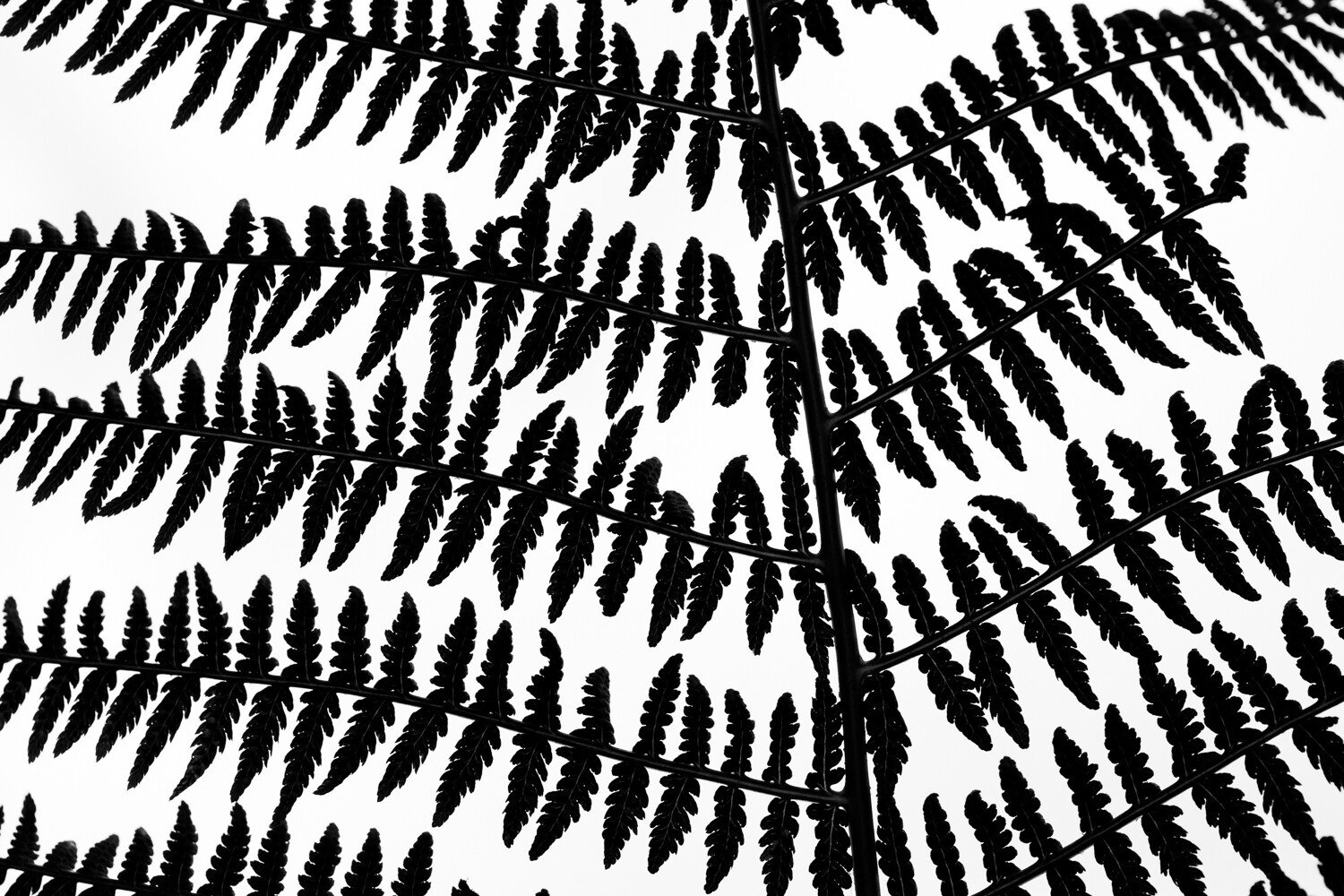
7. Shoot until you can’t shoot anymore, then keep shooting

Here’s one final technique for original nature photos:

Find a subject. Then photograph that subject as you normally would, taking all the obvious photos.

But then, once you’ve run out of easy ideas…

Keep going.

Keep taking photos.

And keep trying to innovate. Keep trying to find new nature images.

At first, you’ll struggle. You’ll think there’s nothing more that can be done.

But then you’ll start to have new ideas. Your mind will open up.

And that’s when you’ll get some of your most original photos!

Techniques for original (stunning) nature photos: next steps

Capturing original nature photos can be really, really tough.

Or, at least, it might seem that way.

But the truth is:

Anyone can take original nature photos! As long as they know a few simple tricks.

So as long as you follow the techniques laid out in this article…

…your nature photography will be gorgeous, stunning, and – above all – original!

Got any more tricks for original nature photos? Be sure to share them in the comments!


original nature photos

The post 7 Techniques for Original (and Stunning) Nature Photos appeared first on Digital Photography School. It was authored by Jaymes Dempsey.


Digital Photography School

 
Comments Off on 7 Techniques for Original (and Stunning) Nature Photos

Posted in Photography