RSS
 

Posts Tagged ‘Photo’

How to Create a Simple Blurb Photo Book in Lightroom

07 Feb

How to create a simple photo book in Lightroom

The easiest way to get started with Lightroom’s Book module is to create a simple photo book, letting Lightroom do most of the work for you so you don’t get bogged down in the extensive design process involved in making a more complex book.

Things to do before you start

You will make the book design process much easier by doing, or at least thinking about, the following things before you start:

  • Select which photos you’re going to include. Or at least narrow it down as much as you can. You might change your mind many times as you work on the design. Organize them in a Collection.
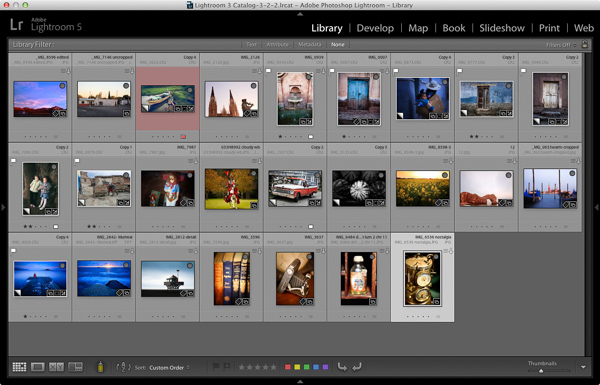
  • Arrange the photos in the approximate order they will appear in the photo book by clicking and dragging. You can do this in the Filmstrip in the Book module, but it is much easier to do it in Grid View in the Library module. It helps if you have created a Collection containing the photos you wish to include in the photo book. Again, this doesn’t need to be precise as you will probably change your mind as you work your way through the design process.
How to create a simple photo book in Lightroom

  • Choose photos for the front and back covers. The cover photo is the first one in the Collection, the back cover photo is the last. You can change your mind later if you need to.
  • Process your files, if required. Naturally, you have probably already processed the photos you would like to include in your book, but are the photos processed in a consistent way? For example, if you are creating a book containing toned black and white photos have they all been toned the same colour, or are they different? It might be better for the book if they are all toned the same colour. If your photos need processing, it may be helpful to make Virtual Copies, so the originals are unaffected by the changes.
  • Pick which Blurb photo book size to use. There are five to choose from: small square, standard portrait, standard landscape, large landscape and large square. Sizes and prices of Blurb books are outlined on Blurb’s website.
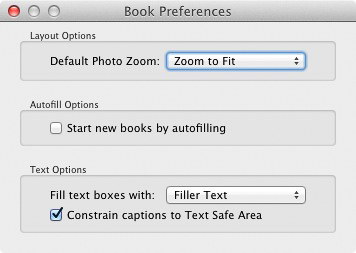
  • Go to Book Preferences, which are found under the Book menu in the Book module (you can’t open them from any other module). Set Default Photo Zoom to Zoom to Fit and leave the Start new books by autofilling box unchecked. The other settings don’t matter for simple photo books.
How to create a simple photo book in Lightroom

Creating a simple photo book

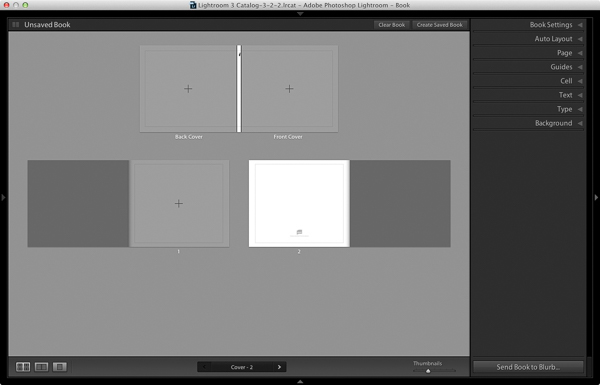
Go to the Book module. If you set your Book Preferences as recommended above, you will see something like this.
How to create a simple photo book in Lightroom

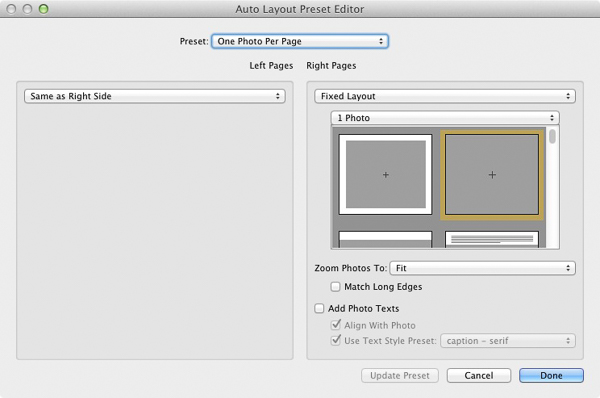
Regardless of what you see on screen, start by clicking the Clear Book button at the top of the Content window. Then go to the Auto Layout panel, set the Preset to One Photo Per Page and use the drop down menu accessed by the double arrow icon to select Edit Auto Layout Preset. The Auto Layout Preset Editor window opens (below). Look for the Zoom Photos To setting and set it to Fit (if it isn’t there already). Click the Done button at the bottom of the window.
How to create a simple photo book in Lightroom

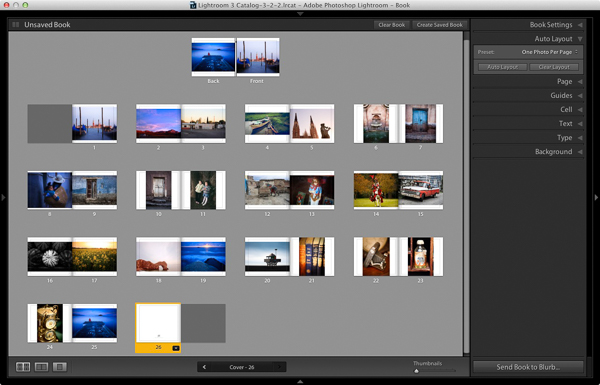
Click the Auto Layout button in the Auto Layout panel. Lightroom creates the book for you. It will look something like this, depending on the number of photos in your book.
How to create a simple photo book in Lightroom

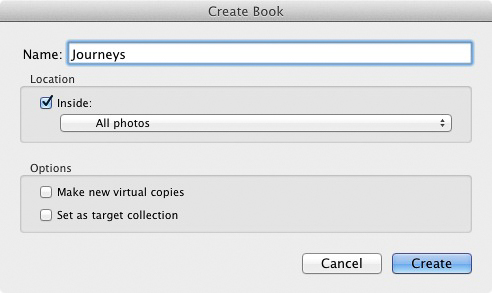
At this stage you will see the words Unsaved Book in the top-left corner. They indicate that the current book layout hasn’t been saved. Click the Create Saved Book button. This prompts Lightroom to open the Create Book window and create a Book Collection – a specialized type of Collection containing photos used in a photo book.

Give the book a name and select a Collection Set to store it in. Click the Create button. Lightroom duplicates the current Collection and turns it into the new Book Collection. It is displayed in the Collections panel with a book icon to differentiate it from other Collections. The name of the Book Collection is also displayed in the top-left corner of the Book module. Lightroom updates the Book Collection every time you make a change, so you can come back to it at any time without losing your work.
How to create a simple photo book in Lightroom

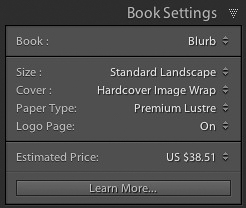
Go to the Book Settings panel and select the Size of the book and the type of Cover you’d like (I chose Standard Landscape with Hardcover Image Wrap for this example). It’s important to decide now which you want, as it may affect the layout if you change them later.

Lightroom displays the estimated price of the photo book at the bottom of the panel (click the double arrow icon to the right of the price to see it in a different currency). The figure changes according to the size of the book, the number of pages in it, and the Paper Type (there is more information about paper types on Blurb’s website.

You can save money by including the Blurb logo page – an extra page at the back of the book with Blurb’s logo. Doing so gives you a discount, but adds an extra page to the layout.
http://www.blurb.com/proline

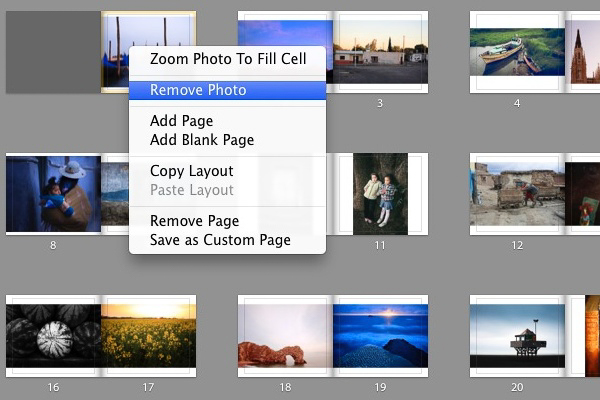
The first and last photos in the Book Collection are used as covers, but Auto Layout also adds them as the first and last photos in the book. If you don’t want them in those positions then you need to remove them.

Starting by going to the first image, right-clicking and selecting Remove Photo.

You should now see a grey square with a cross in it (if you don’t, go to the Guides panel and tick the Show Guides and Photo Cells boxes). The icon indicates the page contains an empty Photo Cell – Lightroom’s term for the spaces allocated to photos within the layout.

The left-hand page is dark grey, indicating that it’s the inside of the front cover, and that you can’t add anything to it.
How to create a simple photo book in Lightroom

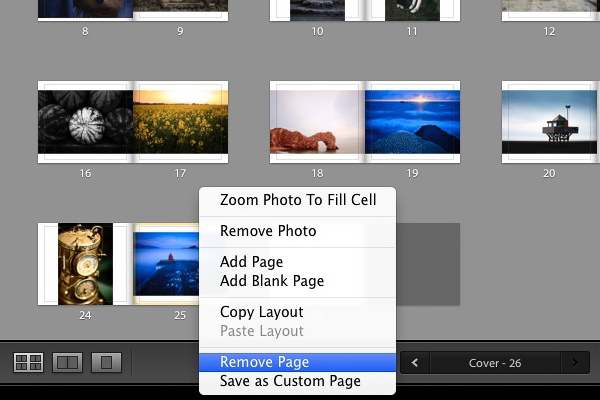
Repeat the process with the last photo in the book. This time, right-click the photo and select Remove page.
How to create a simple photo book in Lightroom

Add a white border

The next step is to create a white border around the photos in the book, rather than run them up to the edge of the printed page. The photos will be smaller, but the additional white space will give the book a more professional look.

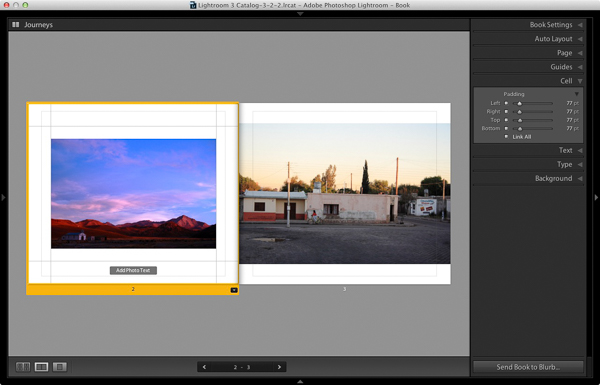
Click on a page containing a photo in the landscape orientation to activate it and go to the Cell panel. Grab the bottom slider and move it right. The other sliders should move with it at the same time (if they don’t, click the grey Link All square – when all the squares are white, they will move together). Adjust the sliders until the photo has a solid white border around it like the one in the screen shot below.
How to create a simple photo book in Lightroom

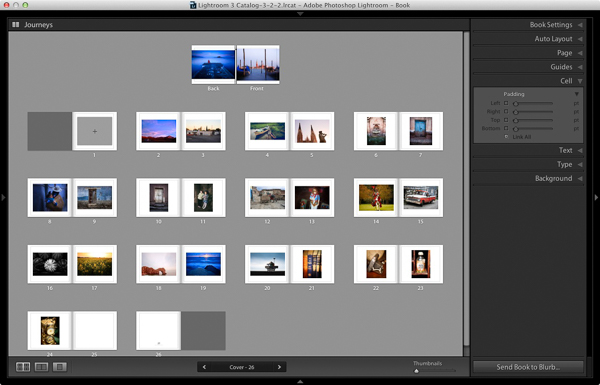
Right-click on the page and select Save as Custom Page. Switch to the Multi-Page View and go to Edit > Select All to select all the pages in the book (the cover isn’t included).

Click any arrow in a yellow frame, go to Custom Pages and select the page layout you just created. If this is the first time you have done this, it will be the only one there. Lightroom updates the selected pages with the chosen layout.
How to create a simple photo book in Lightroom

Design the covers

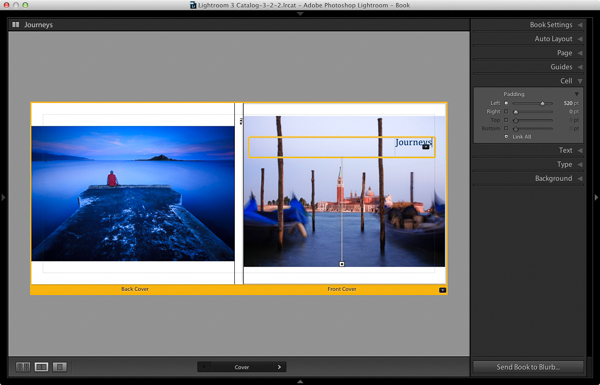
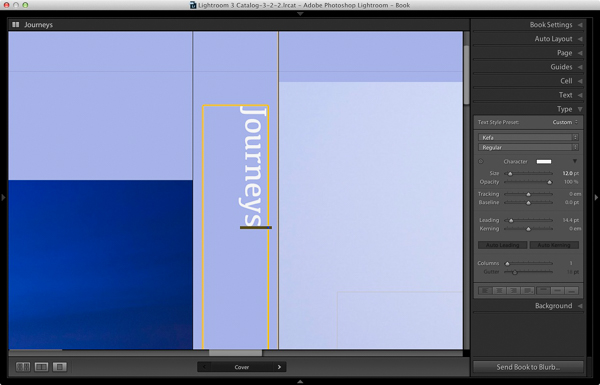
Go to the covers spread, click on the front cover and then the grey Add Photo Text button at the bottom. Type in the book title. You can change the font colour, size, and text in the Type panel. Click and drag the yellow border to move the text.

You can’t change the width of a Photo Text Cell. But you can easily move the title left or right by going to the Cell panel and moving the Left slider until the title is positioned where you want it.
How to create a simple photo book in Lightroom

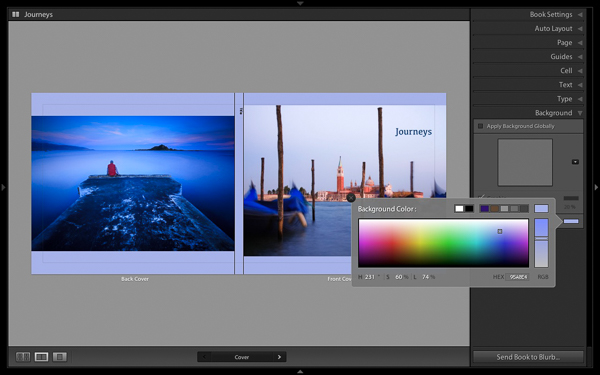
Open the Background panel and select a background colour that complements the front and back covers.
How to create a simple photo book in Lightroom

Go to the title on the spine of the cover, and change it to the title of your book. For consistency, you should use the same font you selected for the title on the front cover.
How to create a simple photo book in Lightroom

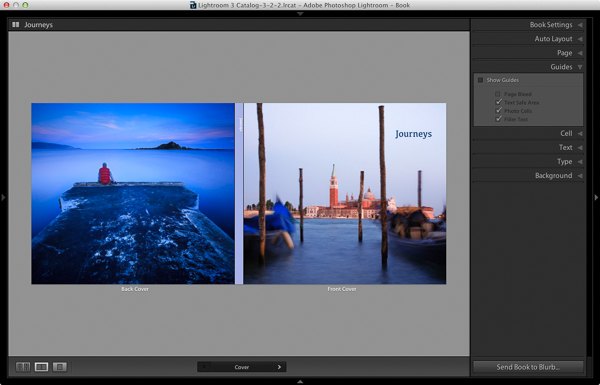
Another option for the cover is to expand the photos so that they fill the available space. This will crop the photos, which you may not want, but can look really effective. You may also need to move the title. To do so, right-click on the cover images and select Zoom Photo to Fit Cell. This is what it looks like with my covers.
How to create a simple photo book in Lightroom

Congratulations, you have finished your photo book! There are lots of ways you can tweak and improve your design in the Book module,  I may go into those in a later article. But hopefully you now see how easy it is to get started in the Book module. Indeed, if you are happy with this simple design, you can create a photo book in a few minutes.

Uploading your photo to book to Blurb

In order to print your book with Blurb you need a Blurb account, which you can sign up for on their website.

Then, press the Send Book to Blurb button underneath the right-hand panels. Lightroom prompts you to sign into your account. Then, enter the title and author’s name and click the Upload Book button. The upload takes some time, but when it’s done you can sign into your Blurb account online and see your book. Leave this step until you’re ready to order though, as Blurb will delete the book from your account if you don’t order at least one copy within 15 days.

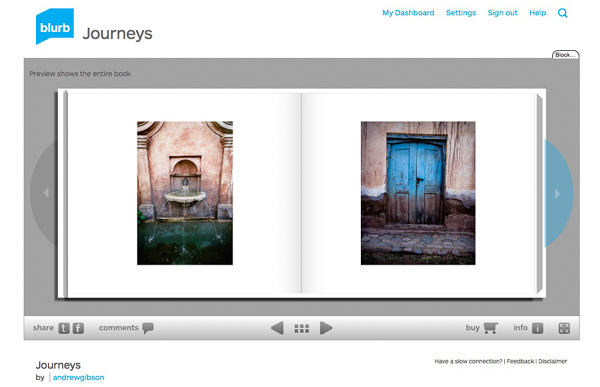
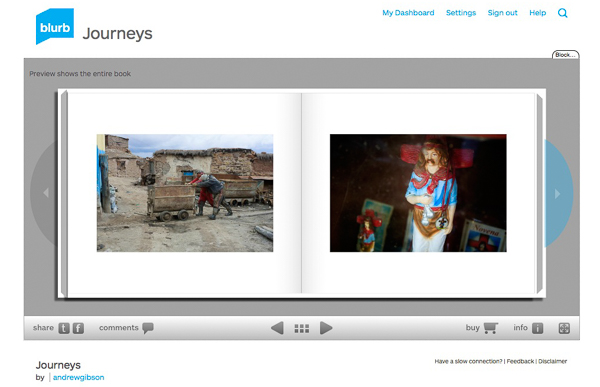
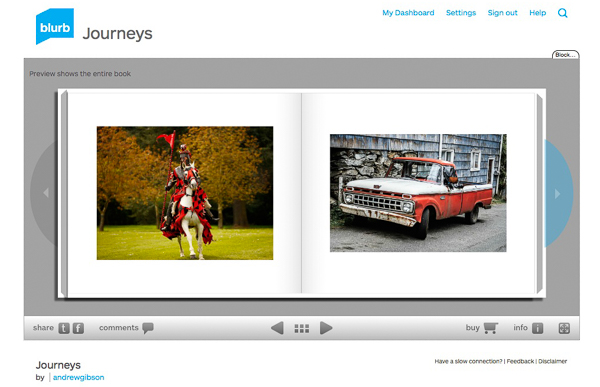
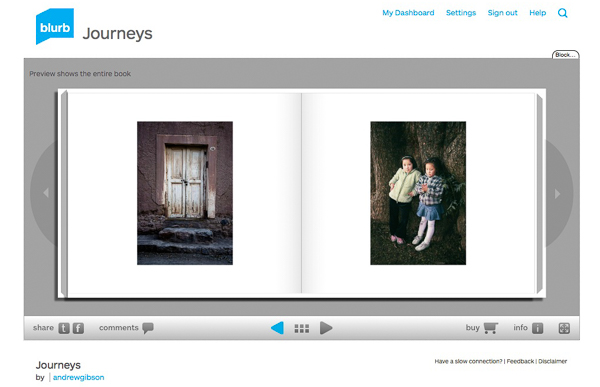
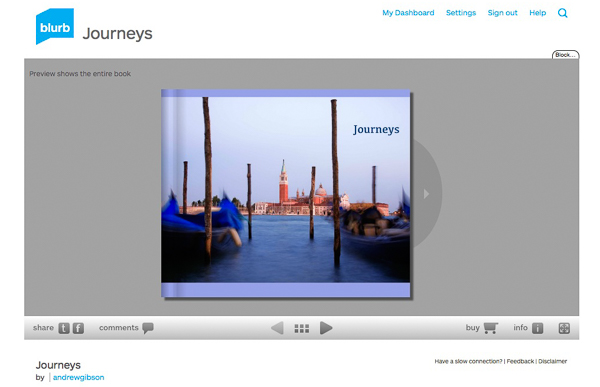
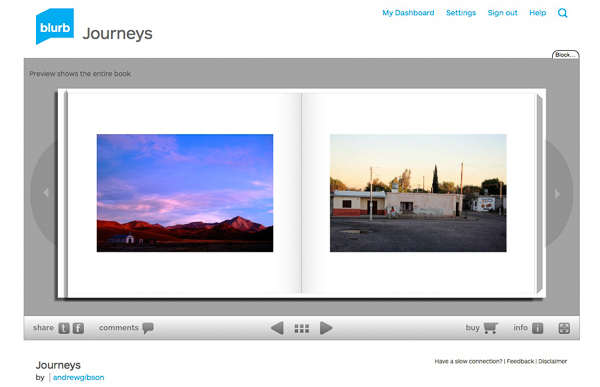
Here are some preview pages from the photo book I just created.

Have you made a book yet? Please share your comments and questions below.
lightroom-create-simple-photo-book-18
How to create a simple photo book in Lightroom


Mastering Lightroom: Book Five – The Other Modules ebook coverMastering Lightroom: Book Five – The Other Modules

My new ebook Mastering Lightroom: Book Five – The Other Modules shows you how to use Lightroom’s powerful features to create fun and interesting projects using the Map, Book, Slide show, Print and Web modules. Whether it’s geotagging, putting together a photo book, printing your best photos or creating web galleries all the information (and inspiration) you require is right here.

googletag.cmd.push(function() {
tablet_slots.push( googletag.defineSlot( “/1005424/_dPSv4_tab-all-article-bottom_(300×250)”, [300, 250], “pb-ad-78623” ).addService( googletag.pubads() ) ); } );

googletag.cmd.push(function() {
mobile_slots.push( googletag.defineSlot( “/1005424/_dPSv4_mob-all-article-bottom_(300×250)”, [300, 250], “pb-ad-78158” ).addService( googletag.pubads() ) ); } );

The post How to Create a Simple Blurb Photo Book in Lightroom by Andrew S. Gibson appeared first on Digital Photography School.


Digital Photography School

 
Comments Off on How to Create a Simple Blurb Photo Book in Lightroom

Posted in Photography


Andrew Darlow: Tail-Wagging Photo Fun with Model Pooches

22 Jan

Some photos illicit an involuntary “awww!” from nearly everyone who views them.

Andrew Darlow’s photos of motivational doggy models fall under that category. His shots of posed pups range from “that’s so adorable” to “that’s so adorable I almost can’t handle it!”

We were so excited about Andrew’s photography that we just had to interview him. Click through to read his photo shoot tips and challenges, equipment and wardrobe, even fave phone apps for adding text to photos!

Andrew Darlow’s Delightful Doggy Photography

(…)
Read the rest of Andrew Darlow:
Tail-Wagging Photo Fun with Model Pooches (1,757 words)


© Taylor for Photojojo, 2015. |
Permalink |
No comment |
Add to
Tail-Wagging Photo Fun with Model Pooches”>del.icio.us

Post tags:


Photojojo

 
Comments Off on Andrew Darlow: Tail-Wagging Photo Fun with Model Pooches

Posted in Equipment


What to Wear for a Photo Shoot: Clothing for Portraits

09 Jan

What to wear? It’s an age old question. One that never goes away. And what to wear for a photo shoot even gets harder. Two weeks ago, Santa brought my oldest daughter, Zoe, ten BILLION outfits from across the globe. Knit sweaters, lace sweaters, casual sweaters, fringed sweaters…if there was a sweater being made, she got it, in addition to Continue Reading

The post What to Wear for a Photo Shoot: Clothing for Portraits appeared first on Photodoto.


Photodoto

 
Comments Off on What to Wear for a Photo Shoot: Clothing for Portraits

Posted in Photography


Upcoming GoPro Hero4 firmware will enable new photo and video features

09 Jan

GoPro has released details about upcoming firmware updates for its Hero4 action cameras; the new firmware versions will be delivered next month, enabling new photo and video features like in-camera time lapse creation. Read more

Articles: Digital Photography Review (dpreview.com)

 
Comments Off on Upcoming GoPro Hero4 firmware will enable new photo and video features

Posted in Uncategorized


Canon wants to make Connect Station your photo and video hub

05 Jan

While it’s been quietly shown behind glass on several occasions, Canon has made its Connect Station CS100 official. This compact box houses a 1TB hard drive which can store thousands of photos and videos. Photos can be transferred by tapping an NFC-equipped 2015 Canon camera to its top plate, or via USB or memory card. Users can then view their media on their HDTV using an included remote control. The CS100 can also share photos to social networking services via Canon’s Image Gateway service. If you still have a spare HDMI port on your TV, you can pick up the CS100 in April for $ 299.

Articles: Digital Photography Review (dpreview.com)

 
Comments Off on Canon wants to make Connect Station your photo and video hub

Posted in Uncategorized


Shooting for the moon: Photo tips from a NASA astronaut

24 Dec

Many of us have dabbled in astrophotography, but it’s a fair bet that none of us have captured star trails quite like Don Pettit has. A NASA astronaut and photographer, part of his job aboard the International Space Station has included photographing Earth from space, capturing aurora and vast glowing cities. Want to learn how to shoot like an astronaut? Read his eight tips for shooting in space. Learn more

Articles: Digital Photography Review (dpreview.com)

 
Comments Off on Shooting for the moon: Photo tips from a NASA astronaut

Posted in Uncategorized


Top 10 Photo Gadgets of 2014

22 Dec

If you have ever wondered what to give a creative person that seems to have everything, be sure to check the list of photography devices and accessories we collected here today. Whether you’re looking for a cool New Year’s gift or just want to add some new toys to your photo bag, you will love this collection. The world of Continue Reading

The post Top 10 Photo Gadgets of 2014 appeared first on Photodoto.


Photodoto

 
Comments Off on Top 10 Photo Gadgets of 2014

Posted in Photography


National Geographic Photo Contest 2014 winners announced

20 Dec

Winners of the National Geographic’s 2014 Photo Contest have been announced, with first place winners in three categories bringing in cash prizes. The overall Grand Prize winning photo (above) has earned a total of $ 10,000 and a trip to National Geographic headquarters. Take a look at some of the winning images. See gallery

Articles: Digital Photography Review (dpreview.com)

 
Comments Off on National Geographic Photo Contest 2014 winners announced

Posted in Uncategorized


Canon updates Digital Photo Professional to version 4.1.50

18 Dec

Canon has updated its Digital Photo Professional 4 (DPP) software to version 4.1.50. The update brings support for a couple of new lenses and several camera models, improvements to multiple functions, and compatibility with 64-bit native environments, among other things. The newest version, says Canon, incorporates feedback from both APS-C and older full-frame owners eager for ‘the very latest Raw workflow solution’. Read more

Articles: Digital Photography Review (dpreview.com)

 
Comments Off on Canon updates Digital Photo Professional to version 4.1.50

Posted in Uncategorized


How To Evaluate Photo Contests Before Submitting Your Images And Cash

16 Dec
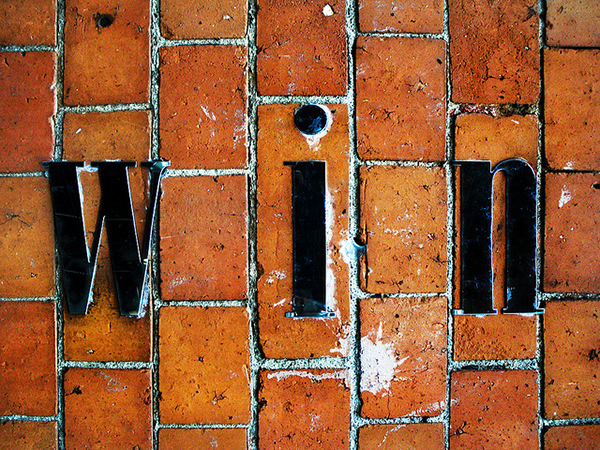
win

Flickr/Crystian Cruz

Barely a day goes by when I don’t see a tweet or Facebook post about yet another photo contest I must enter. “Big prizes! Fame! Exposure! Magazine Cover!” they yell out at me and I’m often tempted for various reasons.

On the surface, most contests seem like a good idea given the potential upside. However, there are many aspects to any contest which photographers should consider. Those considerations will depend upon where you are along the photography spectrum, from beginner to advanced professional.

When I look at a photo contest more closely, there are many questions I regularly ask to see if the contest is a good fit for my desires and time (and pocketbook). I’m going to list out some basic questions you want to ask yourself before entering contests in hopes that it helps you decide the next time you see a listing. There are no right or wrong answers as we all have different needs and desires for our photography. I want to help you make a conscience choice, not a reflexive one.

After the questions I will present a few current contests I feel are worth entering and why.

What is in it for me?

If you are thinking of entering a contest then you want to get something back out of it. It’s important to know what you want before you submit, otherwise you will never find what you are looking for.

Images Money

By Images Money

I break down the three main reasons for entering contests into the the 3Fs:

  • Fame – Are you doing it just for the exposure and fame? Do you want to be known as “X Magazine’s Fashion Photographer of the Day/Month/Year”? If so, will this contest help you with that goal? Will it add to your resume/CV?
  • Fortune – Are you looking for the big bucks and could care less about the fame? Does the contest offer decent prizes to help you meet that goal? What about second and third place, are those good prizes too?
  • Feedback – Some contests offer a chance to receive a critique from one of the judges (sometimes at an additional cost). This is helpful especially if you don’t win a prize. Improvement is likely why you are reading dPS in the first place!

Personally, I go for fame once in a while but mostly go for fortune. After all, I met my wife in Costa Rica after winning a Facebook contest to a surf camp there, so I am a little biased. That being said, there is no right answer for everyone, pick the criteria that works for you.

Who picks the winners?

For me, this is the next big issue. Is the winner picked by a single judge, a jury, or is it an open popularity contest voted on by likes and shares?

I prefer juried and judged contests, especially when I can research those doing the picking. I pick these contests because the judges are typically photographers, or someone with advanced art education and experience. I feel the playing field is more level with these contests.

On the other hand, pictures of kittens, sunsets, rainbows, and oversaturated mountains do very well with the voting internet as a whole. I shy away from popularity contests because A) I’m not ultra-popular and B) they can be rigged and often bury great work in favor of pretty work. The main reason a website will run a photo contest is to make themselves more popular and visited and that’s why these types of contests exist.

Chris Potter

By Chris Potter

What about my rights?

As a professional with a vested interest in protecting the use of my images, I read the full rules of every contest I enter. They aren’t as hard to read as the iTunes regulations, and the key bits are often labeled with a header such as “Rights” or “Permission”.

What you are looking for here is how your image may be used. A good contest will limit their use of the images submitted to only promote that particular contest. In that case, they will display the images so others can see them and potentially share them (with correct links back to the contest which contains proper credit to me as the photographer) and that is all. They will display winners and may also use them in promoting the next contest, such as showing the 2014 winners when advertising the 2015 contest.

Other contests are simply a rights grab. They offer a juicy prize, such as $ 10,000, but state they can use the images worldwide, royalty-free forever, however they wish. These contests are looking to avoid paying stock companies (and their photographers) for a boatload of images they may use later. They receive the images often at less than a dollar per image. These contests make good business sense for the company, but stink for what they do to everyone except the grand prize winner. Avoid these contests if possible.

What does it cost?

Let me state up front that nothing is free. If a contest is totally free, there are great odds that it is looking to grab rights. Be wary of free (except the Sony contest mentioned below).

Second, what is the entry fee? A legitimate contest with judges or jury will almost always pay those judges and juries. There is the cost of running the contest and paying for prizes. These are, after all, businesses that are running the contests and they don’t want to lose money.

You need to decide for yourself if the cost of entry is worth the reward (see the first item to set your contest barometer).

Hans Pama

By Hans Pama

What do they want?

The best way to be disqualified before your images are judged is to mess up the entry procedure and send something in the wrong size or format. Read the entry rules carefully and make sure your images match the size, DPI, and format regulations. Also, read the rules specifically mentioning digital manipulation and compare that to what you have done. Some contests are no-holds-barred (like the Nikon contest below) and let you submit images that have been highly manipulated to the point where objects are removed or inserted. Others stick to what could traditionally be done in a darkroom with an enlarger.

As a starting point, most contests allow for changes to anything for which your editing software has a slider. Things like Exposure, Contrast, Sharpness, as well as Burning and Dodging. Saturation is usually okay too. Realize too that the winning entries in almost every contest have been edited to bring out the life in the image, so expect that you will have to do the same.

Some contests don’t want to see corporate logos in the images or need recognizable people to have a model release on file. If there are images of animals, some contest ban pictures from zoos and game parks, while others allow it. This is why you need to read the rules first to make sure you don’t waste your time and get disqualified.

Where to find contests

I love it when others do the legwork for me and find a plethora of contests which meet my standards. To that end, I am thankful to Photoshelter for regularly putting out a list of worthwhile contests (and notes on some that aren’t worthwhile). They already released their 2015 photo contest guide posted. It’s a great place to start.

The internet is obviously a great place to search. I suggest narrowing the search by defining what you are good at. Don’t type “Photo Contest” into Google, instead, try “West Coast Photo Contest” or “Wildflower Photo Contest”. This will help you find contests better suited to your strengths.

Lastly, don’t forget to look locally. Many communities have contests that can be a great stepping stone for your career or business. It can also help you make contact with your local arts community. Summertime really brings out the contests at art fairs.

Bram Van Damme

By Bram Van Damme

What looks good to me?

Here are a few contest I will be entering in the coming months/year. I chose these contests specifically because they are judged, are not rights grabs, and offer either decent prizes or worthwhile exposure.

Please feel free to link to your favorite upcoming contests (and tell us why we should enter) in the comments section below.

  • The Open – $ 50,000 in prizes and it plays to both fields with 100 entries selected by public vote and 100 from judges. Final selection from 200 finalists is chosen by judges. Emphasizes photographers retain their rights to photos. Entry Deadline May 1, 2015.
  • PDN Photo Annual – 10 categories give you many options and it is a highly regarded contest with good exposure inside the industry. Entry Deadline February 3, 2015.
  • Sony World Photography Awards – Also 10 categories and open to all. Groups for professional, student and open. $ 25,000 top prize and each group winner gets flight to London for showcase gala. Entry Deadline January 5, 2014.

Good luck!

googletag.cmd.push(function() {
tablet_slots.push( googletag.defineSlot( “/1005424/_dPSv4_tab-all-article-bottom_(300×250)”, [300, 250], “pb-ad-78623” ).addService( googletag.pubads() ) ); } );

googletag.cmd.push(function() {
mobile_slots.push( googletag.defineSlot( “/1005424/_dPSv4_mob-all-article-bottom_(300×250)”, [300, 250], “pb-ad-78158” ).addService( googletag.pubads() ) ); } );

The post How To Evaluate Photo Contests Before Submitting Your Images And Cash by Peter West Carey appeared first on Digital Photography School.


Digital Photography School

 
Comments Off on How To Evaluate Photo Contests Before Submitting Your Images And Cash

Posted in Photography