RSS
 

Posts Tagged ‘Photo’

How To Choose Photo Paper for Printing?

26 Apr

Photography is not a hobby nor a profession – it is an art. Although, being different from many other hobbies, it requires sheer dedication, skill and talent to end up making something outstanding. Choosing the optimum paper may not be as easy as we think. I would say this part is most challenging to a neophyte. Having no experience in Continue Reading

The post How To Choose Photo Paper for Printing? appeared first on Photodoto.


Photodoto

 
Comments Off on How To Choose Photo Paper for Printing?

Posted in Photography


Fujifilm X100T in black listed as discontinued on B&H Photo

25 Apr

Is it the beginning of the end for the Fujifilm X100T? The camera has been listed as discontinued on B&H Photo’s website. This isn’t the first time we’ve seen this camera show up on an online retailer’s website as discontinued; Digital Rev showed it out of stock back in September 2016, though it currently lists one version the camera as ‘in stock.’

The B&H Photo listing shows only the black version of the X100T as discontinued, while the silver version is still available. In contrast, Digital Rev shows the black version as currently available and the silver version as unavailable. Adorama still lists both the black and silver versions available for a discounted $ 1,099.99.

Via: FujiAddict

Articles: Digital Photography Review (dpreview.com)

 
Comments Off on Fujifilm X100T in black listed as discontinued on B&H Photo

Posted in Uncategorized


Personal Photo Gifts for Mom from Parabo Press

24 Apr

Turn your photos into amazing Mother’s Day gifts, that will certainly make you the golden child in your mother’s eyes.

With our Parabo Press app, it’s easy to order up the perfect Mom’s Day surprise made with the photos right there on your phone.

Organize your photos on your compy? No sweat. Order up a gift from the Parabo website.

Either way, Mom will love it!

Plus, you’ll save 20% on your gift with the coupon PJMOM, now through Parabo’s standard shipping Mother’s Day order deadline 5/3.
(…)
Read the rest of Personal Photo Gifts for Mom from Parabo Press (22 words)


© laurel for Photojojo, 2017. |
Permalink |
No comment |
Add to
del.icio.us

Post tags:


Photojojo

 
Comments Off on Personal Photo Gifts for Mom from Parabo Press

Posted in Equipment


How to Shoot and Stitch a Panorama Photo

21 Apr

Sometimes the landscape is just too big. Sometimes, just one image won’t do the trick. Then it’s time to create a panorama!

How to Create a Panorama photo

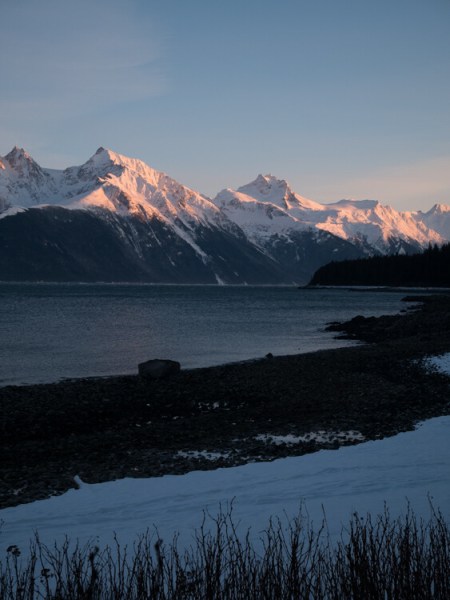
I’m fortunate to spend a lot of time in the grand landscapes of Alaska. But often, camera in hand, I’ve stood there, unable to create the image I wanted. There was just too much going on, or things were happening in a way that just didn’t match a typical single-image format. I was photographing along a gravel beach near Haines, Alaska this winter, while the alpenglow was lighting up the peaks across the inlet. The glaciers and spires were painted in peach light. Going super wide to capture it all, with my 14mm, made the mountains too small and distant, and left too much empty space. I wanted the details in the

I was photographing along a gravel beach near Haines, Alaska this winter, while the alpenglow was lighting up the peaks across the inlet (see image above). The glaciers and spires were painted in peach light. Going super wide to capture it all, with my 14mm, made the mountains too small and distant, and left too much empty space. I wanted the details in the mountains while maintaining a sense of the vast landscape. A panorama was the only way to go.

How to Create a Panorama Photo

Panoramas are hardly a novelty, Smartphones and many point and shoots can create them in-camera. But stitching together images from a DSLR or other high-resolution camera will yield better results if you do it right. Sadly, panoramas are easy to screw up. Here are a few tips for making an effective panorama from a series of images.

What lens to use to make a panorama

Making a panorama isn’t the time to use a wide angle lens. The optical distortion inherent in these lenses tends to mess with the process of stitching them together. Pick a standard lens or a short telephoto; something between 40mm and 100mm will work well, though I’ve occasionally gone as high as 200mm if the situation warrants.

How to Create a Panorama

Remove all filters from your lens, especially polarizers. They can cause gradations across an image that are impossible to work with later, so get that thing off your camera.

Cameras and settings

I shoot all panorama images in RAW format. This allows me greater flexibility in post-processing to make sure that exposures, white balance, and other settings match from one image to the next. That said if you are careful in-camera, and manually select all your settings from ISO to exposure and white balance, you can get by with JPGs.

How to Create a Panorama Photo

Exposure

Take a few sample shots of your subject. If you are shooting a landscape that varies in tones, meter off the brightest part of your scene and make the image as bright as possible without blowing out the highlights. Take note of those numbers (exposure settings), then using Manual Mode set your aperture and shutter speed accordingly.

How to Create a Panorama Photo

Focus

Turn off autofocus. As you pan across your scene, you don’t want your camera grabbing a new focus point each time. Set the focus so that your subject is sharp, then don’t touch it again until you’ve finished the series.

How to Create a Panorama Photo

White Balance

There are two options for white balance. The first, and easiest, is to set your white balance in camera, using one of the presets. Don’t use auto white balance, because the camera may decide each image varies slightly, and the colors will shift within the final panorama. Pick something appropriate and stick with it. The second option is to set the white balance of your RAW images in post-processing (see below).

How to Create a Panorama Photo

Making the images for the panorama

Composition

Almost all of my panoramas are created using vertically formatted photos (i.e. the camera is oriented vertically). First, this allows me to stitch together a greater number of photos for the same scene. Second, it allows me to compose with more negative at the top and bottom. This dead space is important to allow for cropping later.

Here is a series and final image to show you how I took the shots:

Notice how there is overlap from one image to the next, and they are all shot vertically. So nine images were stitched to make this final panorama image.

Shooting

How to Create a Panorama Photo

A level tripod is very useful, but not absolutely essential. If you are using a tripod, level it. With a level tripod, as you pan, your camera’s angle will not shift up and down. If you are hand-holding be very careful to keep your camera level as you move across your scene shooting your images for the panorama.

Start a full frame to the side of where you expect your final image to begin. This assures that you have some negative on the sides of the image. Then begin making your series as you pan right or left. Overlap each shot by between a third to one-half of the frame each time. The overlap is what allows the computer to detect which images go where and line them up, so make sure to leave plenty of overlap.

Move across the scene making as many images as necessary to fully capture the landscape. Take a breath.

How to Create a Panorama Photo

Post-processing your panorama

Continuity

In the computer (I use Lightroom), go through each your series and confirm that the white balance of each image is identical. If you shot in RAW, assuring white balance continuity is as easy as checking that they each have the same color tone. Check the numbers, if they aren’t all exactly the same, change them so that they match. If you set your white balance in camera, you can skip this step.

How to Create a Panorama Photo

Don’t edit the images separately, leave your photos as they are out of the camera (except to make sure the white balance is the same). Any additional post-processing is best done once the panorama has been created.

Stitching

There are many programs that can create panoramas. These include specialty programs like PTGui, which is designed to create enormous images involving hundreds of individual photos. However, both Photoshop and Lightroom have merge to panorama capabilities which work great in most situations. As an example, I’ll go through the steps in Lightroom:

Select your images by clicking the first one in your series, pressing and holding the Shift key, then selecting the final image. All the ones in between will now be selected as well.

Right-click (PC) or Control-Click (Mac) and select Photomerge > Panorama.

How to Create a Panorama Photo
A preview window will pop up offering three options; Spherical, Cylindrical, and Perspective. For most simple panoramas, Cylindrical will work, but feel free to click back and forth between these options to find the best option for your image. Click Merge.

How to Create a Panorama Photo

The stitched image will appear in your Lightroom Library, or as a new image in Photoshop. The result will likely have some jagged edges from your base images not quite lining up. Select the crop tool and cut the jagged edges away. (This is why the negative space I noted earlier is so important.) Note: you can also check off “Auto Crop” in the panorama popup box and it will be done automatically for you. 

Once you’ve got your image cropped you can post-process as you would any other photo in your collection.

How to Create a Panorama Photo

Conclusion

Panoramic photos, while definitely not the best option in all scenarios are a great tool to keep in mind for those moments when a landscape is just too big, too dramatic, or too epic to be captured in a single photo. When I first started shooting panoramas many years ago, I regularly overlooked simple things like remembering to remove my polarizer, or failing to assure the same white balance from image to image. Screw up a setting or forget a filter and the final image just won’t work, and there is nothing you can do about it. Pay attention to those annoying little details and you won’t miss your chance to create some epic panorama images.

Do you shoot panoramas? If so, show them off below, or share some of your own tips for success.

The post How to Shoot and Stitch a Panorama Photo by David Shaw appeared first on Digital Photography School.


Digital Photography School

 
Comments Off on How to Shoot and Stitch a Panorama Photo

Posted in Photography


Photographers react with outrage at National Geographic train tracks photo

14 Apr

‘Don’t take photos on train tracks.’

If you feel like you’ve been hearing this message a lot lately, it’s because you have. And it bears repeating because apparently, it hasn’t gotten through. Not even a month after another tragic, well-publicized incident, National Geographic is coming under fire for posting a photo of a woman standing on train tracks at sunset to its Instagram account.

One more time for everyone in the back: Don’t take photos on train tracks.

Taking photos on active train tracks, or putting your subjects on train tracks, is illegal and dangerous. As a recent Today Show segment reminded us, despite their size trains are surprisingly quiet and may not be heard until it’s too late.

Plenty of Nat Geo’s Instagram followers have apparently heard the message and taken it to heart, judging by the numerous negative comments posted in response to the photo. But many other commenters are expressing approval, and the photo has well over 485,000 likes. Regardless of the circumstances surrounding this particular photo, publishing it to a much-respected and much-followed account could lead others to think taking this kind of photo is a good idea.

Unfortunately, there are many, many examples of why this is not a good idea. 

Articles: Digital Photography Review (dpreview.com)

 
Comments Off on Photographers react with outrage at National Geographic train tracks photo

Posted in Uncategorized


Big Sky Country: Local photographers share their favorite Montana photo spots

14 Apr

$ (document).ready(function() { SampleGalleryV2({“containerId”:”embeddedSampleGallery_0904372940″,”galleryId”:”0904372940″,”isEmbeddedWidget”:true,”standalone”:false,”selectedImageIndex”:0,”startInCommentsView”:false,”isMobile”:false}) });

Montanans celebrate an unofficial holiday on April 6th every year since ‘Big Sky Country’ as it’s known is covered by just one area code: 406. In honor of the day, Resource Travel recently rounded up a list of locals’ favorite photography spots across the state. Take a look at just a few examples of Montana’s gorgeous scenery and then head to Resource Travel for exact locations and more photos to whet your travel appetite.

Articles: Digital Photography Review (dpreview.com)

 
Comments Off on Big Sky Country: Local photographers share their favorite Montana photo spots

Posted in Uncategorized


Headed to Havana? Check out these photo spots

08 Apr

$ (document).ready(function() { SampleGalleryV2({“containerId”:”embeddedSampleGallery_6485310145″,”galleryId”:”6485310145″,”isEmbeddedWidget”:true,”standalone”:false,”selectedImageIndex”:0,”startInCommentsView”:false,”isMobile”:false}) });

Resource Travel has shared some helpful tips for photographers headed to Cuba, and now they’re offering a handy guide to Havana’s most photogenic spots. Photographer Edin Chavez shares his go-to spots for photographing the vibrant colors and culture that make up the fabric of Havana. Included are helpful tips, like the best time of day to go, and Google Map locations so you can save them for reference later.

Read the full post on Resource Travel

Have you been to Havana? Let us know what your favorite photo spots are in the comments.

Articles: Digital Photography Review (dpreview.com)

 
Comments Off on Headed to Havana? Check out these photo spots

Posted in Uncategorized


Ultra large and custom film sizes now on order from Ilford Photo

06 Apr

UK black and white film manufacturer Harman Technology has announced that its annual large format and custom film ordering scheme is open from now until May 26th. The scheme allows users of cameras that take unusual film formats to order certain Ilford emulsions within a set window so the company can set aside factory time to bulk-produce formats it wouldn’t otherwise be able to make financially viable.

As was the case last year Ilford FP4 Plus, HP5 Plus and Delta 100 emulsions will be available to order in sheet sizes from 2.25 x 3.25in to 20 x 24in. Rolls are also on offer for 127 film and formats 9cm wide, as well as 50 foot rolls of 20in film. Not all emulsions can be ordered in all formats but most of the more popular formats are covered. 120 backing paper can be ordered in 100ft lengths.

Harman says there are minimum order quantities that need to be reached before manufacturing can go ahead, but in the case of the sheet films usually a single order of a box of 25 sheets is enough. Roll films though need between 2 and 15 orders to make them practical to cut.

The company lists retailers across the world with which orders can be placed and the sizes/emulsions on offer. Prices will need to be checked with those retailers. Shipping to distributors will begin in August 2017. For more information see the Ilford Photo website.

Press release

ILFORD PHOTO ULF, CUSTOM & SPECIALIST FILM MANUFACTURE 2017

Buoyed by ongoing global resurgence in photographic film use, HARMAN technology Limited is delighted to be offering film photographers the opportunity to place orders for a range of specialist film products and formats for the 12th consecutive year.

To enable this film photography revival, it is vital that a wide range of film formats are available including film for ultra large format and collectable cameras.

By consolidating orders HARMAN technology can supply products that would not normally be viable to manufacture.

“This program enables us to further support film photographers who use and value our conventional products” said Giles Branthwaite, Director of Sales and Marketing at Harman technology. “Through running the ULF program each year, we are able to satisfy the strong demand for specialist film formats. Whilst manufacture is not easy, we have been rewarded by high demand ensuring we will continue to address and care for this market.”

Films available for this year are ILFORD FP4 PLUS, HP5 PLUS, and DELTA 100 PROFESSIONAL. Not all films are available in all formats.

For a full list of the 2017 items and participating dealers visit:
http://www.ilfordphoto.com/ulf

The options available reflect what has been asked for over the past 12 years. HARMAN technology is happy to consider any other size suggestions but do not guarantee to make them available.

For sheet sizes an order for just one single box can be made, but for roll sizes this is not possible due to potentially excessive waste. Please see the minimums and multiples required next to the appropriate roll size.

Note:
Orders must be placed with the listed ULF reseller partners no later than Friday 26th May.

The UK factory will start to ship orders to Distributors during August and end users should check with the local ULF reseller for expected arrival dates.

Articles: Digital Photography Review (dpreview.com)

 
Comments Off on Ultra large and custom film sizes now on order from Ilford Photo

Posted in Uncategorized


How To Use Lightroom To Save An Underexposed Photo

30 Mar

Sometimes you  come home with what you thought was a great shot, just to find out that it is way underexposed and without any better exposures of that composition. But, how can you save the underexposed photo in Lightroom? Of course, first of all, it would be better to get the exposure right on location, lesson learned, right. But if Continue Reading

The post How To Use Lightroom To Save An Underexposed Photo appeared first on Photodoto.


Photodoto

 
Comments Off on How To Use Lightroom To Save An Underexposed Photo

Posted in Photography


Movavi Photo Editor 4

28 Mar

  Let’s take a closer look at  the new  Movavi Photo Editor. The completely redesigned interface is the first thing that catches your eye when you launch the program. Now you’ve got all the tool tabs at the top, and their settings on the right. Quick access to all functions, including “Undo”, “Redo”, “Revert Changes”, and “View Original” buttons in Continue Reading

The post Movavi Photo Editor 4 appeared first on Photodoto.


Photodoto

 
Comments Off on Movavi Photo Editor 4

Posted in Photography