RSS
 

Posts Tagged ‘Photo’

The New York Times is looking to hire a Photo Director

17 Mar
The New York Times Building by wsifrancis | CC BY-NC-ND 2.0

The New York Times has posted a job opening for the position of Photo Director. If you’re looking for a high-profile job in the world of photojournalism, and you live in (or don’t mind moving to) New York City, you could do a lot worse than working for The Gray Lady.

The opening was listed seven days ago, and it goes to great lengths to emphasize the importance of photography to the Times’ mission. “Photography is a central part of our identity,” reads the posting. “It’s how we bear witness to events that matter, and our Photo department is one of the treasures of our newsroom.”

As for the job of Photo Director itself, the posting reads:

Now we’re looking for someone to lead this talented and diverse team and to become part of the visual leadership of the organization. We want to continue integrating photography and other forms of visual journalism into the fabric of our report — as closely as our words.

This role is one of the most important and high-profile jobs in visual journalism, and we’re seeking candidates with a rare combination of journalistic experience, organizational expertise and extraordinary visual talent.

Some of the listed qualifications include:

  • Daily leadership of a large staff of photo editors and photographers who work across the globe, covering all subjects.

  • Candidates should be able to maintain high journalistic standards and sustain a level of excellence that makes photography a core component of The Times’s identity.

  • Sophisticated news judgment and a compelling vision for how The Times can produce world-class journalism and innovative storytelling. We’re looking for a strong digital sensibility, including the ability to recognize emerging techniques and platforms and a clear understanding of how to define a modern photo desk.

  • Strong grasp of feature and portrait photography and the ability to improvise visual solutions for news coverage that may not be obviously visual.

  • Sharp eye for talent and ability to recruit a diverse, first-rate team of photo editors and photographers.

If you think you have what it takes to be the new Photo Director at the New York Times, click here to read the full job opening and apply.

Articles: Digital Photography Review (dpreview.com)

 
Comments Off on The New York Times is looking to hire a Photo Director

Posted in Uncategorized


How to Know if Your Photo is Good or Not – The Art of Self Image Critique

15 Mar

One of the common issues that amateur or newbie photographers often have is deciding which photos to include in their portfolio or website. The great thing about photography is that it is subjective, and every person will have different ways of assessing if they like a photo or not, doing an image critique.

You should always aim to photograph what you enjoy with your own unique style and vision. But sometimes, especially if you are looking to earn money from your images, you will need to consider other people’s tastes and needs. Here is a quick guide on how to know if your photo is good or not.

How to Know if Your Photo is Good or Not - The Art of Self Image Critique

1. Is it Technically Good?

Different photographers have different workflows, but often for most, it starts with actually checking if a photo is technically good because let’s be honest, a blurred or poorly focused photo isn’t going to make it into your portfolio.

So a good first step when evaluating a particular photo is checking that it is sharp with good tonal range, good contrast between shadows and highlights and focused correctly on the right part of the scene.

Of course, there might be occasions when a photo might be slightly off in terms of focus, for example, but it still works and if you want to showcase it in your portfolio that’s fine. But the majority of the time, a blurred photo can be discounted.

How to Know if Your Photo is Good or Not - The Art of Self Image Critique

Image not sharp and not completely in focus.

2. Is it Missing Something?

Sometimes you can look at one of your photos and you can tell that it is missing something.

It might be a quiet cobbled street that just looks empty without a person in the shot. Or it might be a landscape image that’s missing a point of interest. These are the type of photos that you look at and think, “I wish I had done this” or “if only there was something or someone in that spot”.

If you think that about one of your images, then it’s probably missing that certain something that would make it a great photo.

How to Know if Your Photo is Good or Not - The Art of Self Image Critique

Whilst it’s a nice landscape and sunrise, there is no point of interest. Would have improved with a boat in the lake or similar point of interest.

3. The Stop Test

One of my favorite tests when I edit a collection of my photos is what I call the “stop test”. As you flick through one of your galleries of photos – whether that’s on your smartphone, your computer, or even your camera, there are usually some photos that make you stop.

Sometimes it might just be a split second longer than usual, but you did still pause briefly from continuing to flick through the set to look at that one photo.

This is usually a good sign that there is clearly something about that particular shot that grabs your attention. If it can grab your attention it might grab the attention of others as well.

How to Know if Your Photo is Good or Not - The Art of Self Image Critique

4. Are You Being Sentimental?

One thing that is really easy to do, as a photographer, is to get sentimental about a photo. Regardless of how detached you want to make yourself when editing your photos, there will still be that part of you that remembers what it took to capture the shot.

It might have been that you spent hours getting to a location or maybe it reminds you of a memorable encounter with someone interesting. No photographer is a robot and we are all guilty of being sentimental about some of our images.

So try to ask yourself, if you are unsure about an image, if it is actually a good photo, or you are just being sentimental.

How to Know if Your Photo is Good or Not - The Art of Self Image Critique

Even though it took a while to get up to this point to be able to capture the photo, the lack of light means the image doesn’t work.

 5. Is it Different Than What Already Exists?

In this era of digital photography, often the biggest challenge is capturing unique photos. But that is also a good test of whether you should include a photo in your portfolio or not.

It could be that the photo you have taken is perfectly fine, but if you have managed to capture something unique that doesn’t already exist, then it might be a great photo. The key is to search what already exists and see if your image is better or different than others.

How to Know if Your Photo is Good or Not - The Art of Self Image Critique

6. Can You See it Being Used?

Even if you are not planning on selling your photos, trying to envision them being used in real life scenarios can often be a good guide as to how good they are.

When you look at your image can you imagine it being used on the cover of a magazine or to illustrate something for a feature or story? Can you see it on a billboard, flyer, or even a postcard? If you can imagine your photo in those scenarios then it’s probably a good photo and you should include it in your portfolio.

How to Know if Your Photo is Good or Not - The Art of Self Image Critique

7. Go With Your Gut

For all of the different ways that you can critique or evaluate a photo, sometimes you just have to go with your gut feeling.

Sometimes you could be proved right and that image that you were unsure of, leads to work or even ends up making sales. Always remind yourself that photography is subjective and at some point, we all look at a photo we’ve taken and just have a good feeling about it.

How to Know if Your Photo is Good or Not - The Art of Self Image Critique

Taken at a local market in London, it was a last minute decision to submit this image to my agency. Since then it has made over $ 350 worth of sales.

Conclusion

These are just some of the ways that can help you assess if a photo is good or not. But remember that these are not hard and fast rules that you should adhere to all the time.

Not every photo will fall into every point above and that doesn’t make it a bad photo. Use these points as a guide when you are really stuck on an image and if in doubt go with your gut feeling.

Read more on image critique tips in these dPS articles:

  • How to Critique Your Images Objectively: Ask for Other Points of View
  • Constructive Photography Critique: How to Give and Receive with Grace
  • 4 Ways Self-Critique Can Improve Your Photography

The post How to Know if Your Photo is Good or Not – The Art of Self Image Critique by Kav Dadfar appeared first on Digital Photography School.


Digital Photography School

 
Comments Off on How to Know if Your Photo is Good or Not – The Art of Self Image Critique

Posted in Photography


NYC photo tour helicopter crashes in the East River, claiming five lives

13 Mar

A photo tour helicopter crashed into New York City’s East River on Sunday, claiming the lives of the five passengers who were onboard. The helicopter was owned and operated by New Jersey-based Liberty Helicopters as part of a doors-off photo tour that allows passengers to take aerial images of the city.

According to the New York Times, the tragedy was caused by engine failure. The helicopter’s pilot, Richard Vance, made an emergency call shortly after taking off, later telling investigators that the fuel shut-off switch may have been accidentally hit by a passenger or some onboard equipment.

Vance reportedly aimed toward the river as an emergency landing site to avoid crashing in Manhattan; however, after hitting the water, the helicopter’s inflatable pontoons were unable to keep the chopper upright. The helicopter quickly capsized, and though Vance was able to escape and scream for help, the passengers were unable to cut themselves loose from the heavy-duty harnesses that are used as part of these doors-off tour.

Firefighter and police divers worked as quickly as they could against 5 mph currents to try and free the passengers, but they were not able to rescue any of them in time.

The tragedy highlights concerns about marketing helicopter photo tours to tourists. These doors-off tours require strapping passengers into the helicopter using heavy-duty harnesses, equipping them with only a knife to cut themselves free in the event of a crash. And while all passengers must watch a short safety video, this is hardly adequate training to deal with an actual emergency.

According to the Times, the passengers on this helicopter tour were shown a 10-minute safety video about using the knife to escape the harnesses; however, the video didn’t include instructions on cutting through nylon ties during a water landing. Critics have long called on officials to restrict helicopter traffic over Manhattan, but the latest incident has also called into question whether the doors-off photo tourism industry should face greater regulation.

An investigation into the crash, including why the helicopter’s inflatable pontoons failed to prevent the vehicle from sinking, is still underway.

Articles: Digital Photography Review (dpreview.com)

 
Comments Off on NYC photo tour helicopter crashes in the East River, claiming five lives

Posted in Uncategorized


What to Bring to Photograph a Wedding Besides Your Photo Gear

12 Mar

Our main job as wedding photographers is to create beautiful images for our clients. But our job is also to provide a phenomenal customer service experience from beginning to end. Throughout the last decade as a wedding photographer, I’ve developed this list of non-gear related items to bring along when you photograph a wedding.

What to Bring to Photograph a Wedding Besides Your Photo Gear

Wedding Day Essentials

The Wedding Timeline

Six weeks before the wedding, send the bride and groom a questionnaire requesting details about the timeline, addresses, wedding party, their families and vendors. Not only will this help the bride and groom think through any details they may have overlooked in their busyness, but their answers will help you foresee any timeline delays or issues.

Some important questions to ask:

  • At what address will the bride be getting ready?
  • At what address is the groom getting ready?
  • Ceremony start time and address.
  • Reception start time and address.
  • When would you like photo coverage to begin?
  • Based on the number of hours purchased, what time would you like photography coverage to end?
  • Will you be having a First Look?
  • Please provide the timeline for your wedding day, so far.
  • Are there any specific locations you have in mind for your wedding day portraits?
  • Will you be exchanging gifts with your spouse or family members?
  • What mailing address should I use for you after the wedding?
  • How many bridesmaids do you have and what are their names?
  • How many groomsmen do you have and what are their names?

What to Bring to Photograph a Wedding Besides Your Photo Gear

Family Photo List

Under no circumstance should you show up to a wedding without a list of family photos, created and approved in advance by the bride and groom. Attempting to focus the bride and groom minutes after they’ve been pronounced husband and wife, in front of a room full of family and friends eager to talk to them, is a recipe for disaster!

Having a list you can work from, and check off each grouping with a pen, will save valuable time.

What to Bring to Photograph a Wedding Besides Your Photo Gear

On the wedding questionnaire, request the following information about family:

  • Please list immediate family of the bride
  • Please list immediate family of the groom
  • Please provide a list of family photos you’d like and please note the names of each person in the grouping.
  • Are there any divorces/deaths I should be aware of so as to not embarrass anyone on either side of the family?

Review and take charge of the list

Review the information received about each immediate family before the wedding. Throughout the hours you’re photographing, you’ll meet at least 40 people by name! Don’t rely on your own memory. By having everything written down, you can check your timeline and remember the bride has two brothers named Matt and Joseph. Now, all you need to do is figure out which brother you met was Matt and which was Joseph. Magic!

Usually, the family photo list that the couple returns is perfect. I may re-arrange groupings for ease of the photo time (starting with the largest groupings first and peeling people away as needed) but very minimal change is usually required.

What to Bring to Wedding Days 7

However, sometimes the list may include large group after large group of extended family. When this situation happens, send the couple a warm and polite email confirming the list. Review the timeline and see how much time is needed capture the family photos requested.

Let the couple know you are happy to capture whatever images they would like, but you may have to steal 30 minutes from another portion of the day. When you present the options this way, many couples will choose to forego large groupings for family photos and enjoy their cocktail hour instead.

Verify Addresses and Phone Numbers

You can never be too careful when it comes to details, so leave no stone unturned. Even if the couple provided the name of the venue, request the specific address to eliminate all room for error. It’s important to have addresses for the bride’s house, groom’s house, photo locations and the reception.

Basically, anywhere you need to visit on the wedding day, have an exact location and meeting spot if the location is a park, for example.

What to Bring to Photograph a Wedding Besides Your Photo Gear

Phone numbers are a key piece of wedding day communication. Have the bride and groom’s phone numbers on file, but also request the phone numbers of the Maid of Honour and the Best Man and confirm they will have their phones with them. It’s quite common for a bride and a groom to not have their personal phones on them, and rightly so.

Have the wedding coordinator’s name and phone number printed on your timeline for easy access. It is also not a bad idea to have phone numbers of a few other key vendors. Always be more prepared than necessary.

Step up Your Experience with These Items

What to Bring to Wedding Days 8

If you only remember half of this article, stop reading now and remember the first part. But if you want to step up your “photography game” and look like a wedding day hero, keep reading. Make gathering the following items a goal for your next wedding season.

Parking Payment

Depending on your city’s parking meter structure, a credit card may be all you need — but some cities require coins. Stock your wallet with five dollars worth of coins for parking in a time crunch. Additionally, research if your city has an iPhone app for easy parking with your credit card.

Set of Umbrellas

Purchase a set of matching umbrellas in either a solid black or a clear color so they match any wedding party — your brides will be thankful. Keep the umbrellas in the trunk of your car at all times so you’re never left out in the rain.

What to Bring to Photograph a Wedding Besides Your Photo Gear

Extra Clothing

Wedding days can be long and weather can be inconsistent. Prepare for everything with a rain jacket or parka (depending on the season), sweater or cardigan for the reception (if the AC starts up) and my favorite – a change of shoes for tired feet halfway through the day.

Business Cards

Don’t be caught repeating your name to a potential customer over and over again so they can memorize it and find you on Instagram. Have business cards in your bag at all times.

Laptop and Card Reader

For slower receptions, you could download your memory cards to a laptop for immediate back-up. Also handy for downloading your second shooter’s images before driving separate ways at the end of the workday.

Water, Snacks, and Gum

Working on an empty stomach isn’t fun. Pack more snacks than you think you’ll need — you can keep some in your camera bag and the rest in the car for an emergency. Having gum or breath mints nearby is a bonus while talking with guests and, of course, a water bottle and staying hydrated is a must.

Wooden Hanger for Dress

What to Bring to Photograph a Wedding Besides Your Photo Gear

I have yet to add a wooden hanger to my wedding day list, but it’s a good idea. You’ll save 3-5 minutes at the bride’s house looking for a wooden hanger to replace the flimsy clear plastic one.

Emergency Kit

Photographer to the rescue! Pack a small bag with bobby pins, band-aids, tide-to-go, Tylenol, a sewing kit, a lint brush packs of Kleenex and anything else you think a bride or bridesmaid or family member may want at some point in the day. You’ll be the hero when the bride stains her dress and you whip out the tide-to-go or hand the mother of the bride some Tylenol.

If you photograph weddings, what else do you take along besides your photo gear? Please share in the comments below.

The post What to Bring to Photograph a Wedding Besides Your Photo Gear by Jamie Delaine Watson appeared first on Digital Photography School.


Digital Photography School

 
Comments Off on What to Bring to Photograph a Wedding Besides Your Photo Gear

Posted in Photography


Photo story of the week: Locomotion

10 Mar

In November 2013, I was fortunate enough to backpack through Southeast Asia with my partner. We visited some incredible places, met some of the nicest people and experienced many amazing moments along the way, but the place that is most memorable for me would be the quiet town of Hoi An, in Vietnam. It is located on the coast of the East Sea in the South Central Coast region of Vietnam.

The thing that convinced me to travel SE Asia was definitely the change of lifestyle from western society and, of course, their culture. I have always been fascinated by the diversity of different cultural lifestyles. Everywhere you look in Asia, especially around the cities and busy little towns there are photo opportunities waiting to be captured. Sometimes the action is difficult to keep up with when you are standing in the middle the bustling streets with people scattered everywhere. Taking a steady shot is impossible when so much spontaneous movement is going on around you.

This is when the cinematic technique comes into play—namely: panning. This works a treat for some unique and fun images. I spent most days walking the streets with my camera hanging from my shoulder, ready for moments like these to come by, and the majority of my photos from Hoi An were of local people riding their bicycles and scooters through town.

This image is of two young Vietnamese boys riding a bicycle through Central Market. I stopped my aperture down to F16 and shot a low ISO of 50 to eliminate as much ambient light reaching my sensor. This gave me an exposure of 1/4 sec: quick enough to pick up definition in the subject, but slow enough capture motion blur. I locked my auto focus onto the boys as they approached and fired continuously while panning my camera with them as they rode past. I ended up with a dozen shots, but this was my favorite.

The photo was shot with a Canon 5D Mark II and Sigma 35mm F1.4 at F16, ISO 50, and 1/4 sec shutter speed.


Drew Hopper is a freelance documentary photographer from NSW, Australia, working on long-term projects whilst exploring the visual literacy of the still image. You can find more of his work on his website, or by following him on Facebook, Twitter, and Instagram.

Articles: Digital Photography Review (dpreview.com)

 
Comments Off on Photo story of the week: Locomotion

Posted in Uncategorized


Major ON1 Photo RAW update adds tethered shooting, better noise reduction and more

10 Mar

ON1 just released a major update to its photo editing software ON1 Photo RAW. The update, version 2018.1, brings with it a host of feature upgrades, including: better auto-alignment for the HDR mode, improved high ISO noise reduction, and more detailed image sharpening. The update also includes a new tethered shooting function for certain Nikon and Canon DSLRs, as well as a new import utility that allows metadata to be added as images are sucked in from the camera.

Video files can now be seen in the browser, and new sort features allows user to browse imported images in a number of ways, such as by file type, date, file name or rating. Users can also batch rename groups of images, and a date-and-time editing function lets you adjust the recorded moment an image was shot.

Finally, the company has also made some changes to the way images are debayered to improve the amount of micro detail preserved in the final render.

ON1 says its priorities are image quality and processing/handling performance:

“Version 2018.1 isn’t just about the new features, although there are many powerful new additions,” says ON1 Director of Product Dan Harlacher. “Image quality and performance are the top priorities in every update, and we are very excited for our customers to experience these improvements for themselves in this update.”

New users can take advantage of a free trial, or purchase the software in its entirely (usually $ 120) for a special limited-time price of $ 80. If you’re already using Photo Raw 2018, the new version is free.

For more information, visit the ON1 website.

Press Release

ON1 Photo RAW 2018.1 – New Update Available

Portland, OR – March 1, 2018 – ON1, Inc. is pleased to announce the immediate availability of the new ON1 Photo RAW 2018.1, the first major free update to Photo RAW 2018. Version 2018.1 includes image quality enhancements, performance improvements, and key features to optimize the photographer’s workflow.

“Version 2018.1 isn’t just about the new features, although there are many powerful new additions. We’ve been very focused on image quality and the results customers get from using ON1 Photo RAW. Image quality and performance are the top priorities in every update, and we are very excited for our customers to experience these improvements for themselves in this update,” says Dan Harlacher, Director of Product at ON1.

New Improvements

  • Debayering – The algorithms have been improved to increase the amount of micro detail while reducing aliasing, yielding photos that are noticeably crisper with less color artifacts.
  • HDR – HDR alignment and deghosting have improved, yielding sharper results with less ghosting, noise, and color fringe. Users now have the ability to select which frame is used for deghosting and can also adjust the amount of motion visible in water and clouds.
  • Faster Cataloging – The thumbnail and preview generation of images is now faster. Searching photos has also been improved.
  • Noise Reduction – Improvements to reduce large noise from very high ISOs. Automatic hot-pixel removal has been added, and green and purple color aberration reduction has improved.
  • Sharpening – The sharpening algorithms have been improved to enhance micro details and provide sharper initial results.
  • Panorama – The panorama merge dialog now does a better job with vertical panoramas as well as really large ones. It can now stitch together up to 25 photos at a time. Blending of photos to compensate for differences in exposure and white balance have been improved.
  • Preview Quality – The preview window has been improved to more accurately reflect the details and sharpness in photos at different zoom levels.

New Features

  • Import – Get photos from your camera to your computer, choose where you want the photos to go, assign metadata, and more.
  • Tethered Shooting – Get your photos to your computer instantly and apply import settings. Currently supports Canon and Nikon.
  • Soft Proofing – Simulate what your photo will look like when it’s printed.
  • Metadata Templates – Add metadata to a group of photos using presets. This allows you to choose and save only the information you want applied to your photos.
  • Video Browsing & Organizing – Now supports viewing video files so you can organize those as well. Copy, move, name, add metadata, and more.
  • Custom Sorting – This option in Browse allows you to put your photos in any order you choose.
  • Batch Rename – Rename all of your photos in a batch to add unique information to filenames.
  • Edit Capture Date – Adjust date and time on your photos so they match the actual date and time they were taken.
  • Auto Advance – Automatically switch to the next photo during the culling process when rating or tagging photos.
  • Additional Camera & Lens Support — Added support for several new cameras and many new lenses. See the full list here.

About ON1 Photo RAW

ON1 Photo RAW 2018.1 is the only photo editor designed by photographers for photographers. ON1’s unique community-driven development approach via The Photo RAW Project gives customers a voice in how it’s designed, allowing users to submit ideas and vote on new features. With fast photo management, hundreds of customizable photo effects, powerful masking tools, HDR, panos, layers, and other Lightroom and Photoshop-like features, Photo RAW 2018.1 is the ultimate all-in-one photo editor and raw processor with no subscription.

Craig Keudell, CEO of ON1 says “Our vision for Photo RAW has always been that it would the fastest, most flexible, and easiest-to-use raw processor and photo editor on the market. A single photography centric photo editor with powerful Lightroom® and Photoshop®-like features photographers can own and enjoy for many years. Photo RAW has come a long way in a short time and we are both excited and very busy building new exciting technologies for our next update.”

ON1 Photo RAW 2018.1 isn’t just for raw files. Supported file formats include JPEG, TIF, PSD, PSB, PNG, and DNG are supported and benefit from the speed, performance, and abundance of editing tools in the app. Photo RAW 2018.1 continues to work seamlessly within current photography workflows. The app integrates as a plug-in for Adobe® Lightroom® Classic CC and Photoshop® CC and further builds its case as a complete standalone photo editor or alternative to the Adobe Photography Plan. Version 2018.1 also integrates with the major cloud services to allow for uploading, managing, and editing photos across multiple computers. This allows users to sync photos and their edits across multiple computers or in a studio setting.

Price and Availability

ON1 Photo RAW 2018.1 is available now for an introductory price of $ 79.99 for a limited time (Reg: $ 119.99). A free and fully functional 30-day trial is also available on the ON1 website. A single purchase of ON1 Photo RAW 2018.1 will include both Mac and Windows installers and activation for up to five computers. It comes with a 30-day money-back guarantee, world-class customer support, hundreds of free video tutorials, and free ON1 Loyalty Rewards every month.

For More Information

* ON1 Photo RAW 2018.1 Introductory Special
* Free 30-Day Trial
* The Photo RAW Project
* About ON1

Articles: Digital Photography Review (dpreview.com)

 
Comments Off on Major ON1 Photo RAW update adds tethered shooting, better noise reduction and more

Posted in Uncategorized


7 Tips to Help You Capture the Perfect Landscape Photo

08 Mar

Landscape photography is one of the most popular genres of photography and it’s easy to understand why. After all, every single person at some point in their life has probably looked at a landscape photograph of an epic scene with dramatic clouds and beautiful light and just thought, “Wow!” But as easy as it may seem, capturing stunning landscape images isn’t straightforward. Here are seven tips to help you capture the perfect landscape photo.

How to Capture the Perfect Landscape Photo

1. Find Your Perfect Spot

The starting point for any great landscape photo is your location. This, of course, means you have to start planning a shoot in advance to ensure you don’t waste time looking for it once you are on location. The first thing you need to do is decide what you are actually going to photograph. Is it a beautiful valley from lookout point? Or is it a historic castle perched on top of a cliff?

This might come from your research into the area you are visiting or it might be a place someone has told you about. It could even be somewhere that you have already been to, but now want to photograph.

Once you have an idea of where and what you are looking to photograph, you then need to look at the relevant maps to make sure that what you are planning to photograph is accessible. Then you need to delve in deeper and ensure that your view of that beautiful valley isn’t going to be obstructed by a big hill in front of you – this means using maps that show elevations. On top of all of this you also need to factor in the direction of the light and how that will affect your view.

Ideally you want to end up with an exact spot of where you would like to photograph and which direction you are intending to look. The good news is that in today’s digital world there are tons of options to help you find out this information from the likes of Google maps, and apps like Photographer’s Ephemeris or PhotoPills.

How to Capture the Perfect Landscape Photo

2. Light is Everything

Any sort of outdoor photography relies heavily on the light that is available. For landscape photography, light is even more vital. The most amazing scene in front of you will look uninspiring and mundane under a blanket of white cloud. If you want to capture the perfect landscape photo, then you need to ensure that you are working with the best light possible.

It’s no secret that most landscape photographers would recommend photographing in the early morning and late afternoon/evening. This is when you will get a low golden soft light from the sun that produces long shadows but that doesn’t mean you can’t photograph at any other time.

You just need to ensure that you understand and have planned for the light you intend to use. For example, it may be that you want to capture a particular side of a cliff. It may be that the only time it is lit by the sun at that time of year is late morning. The most important thing is understanding and trying to organize your shoot for the best time that you possibly can.

How to Capture the Perfect Landscape Photo

3. Compose Your Shot Perfectly

One of the best things about landscape photography is that you often have plenty of time to prepare and compose your shot. That big mountain in front of you isn’t suddenly going to move like an animal does in wildlife photography. As long as you have planned your shoot well and have arrived at your location early, you should have enough time to really fine-tune your composition.

The first thing I always do whenever I get to a location for a landscape shot is just to sit down and look around for 10-15 minutes, I recommend you try it. Not only does this help you evaluate the scene and think about the best composition, but it also helps you lower your heart rate (if you have had a long walk). It allows you to get over that initial awe that you often feel when you see an amazing landscape before you.

When you feel you are ready, compose the shot and take a few test photos while you wait for the perfect light. Think about the scene in front of you. Should you show more of the foreground? If so, is there a point of interest to capture the viewer’s eyes? Or are there interesting mountains or sky, in which case you need to show more of the background? As I said earlier, keep taking test photos and recomposing your shot until you feel that you have the perfect composition and then wait for the perfect light.

Clearly, on the odd occasion, you might have to work fast. For example, if you have a small break in a storm that allows the rays of the sun to get through, but the majority of the time if you have planned your shoot well, you should not be in a hurry.

How to Capture the Perfect Landscape Photo

4. Use a Tripod

For landscape photography a tripod is essential. If you want to capture the best possible photo, in the best possible light, you will have to use a tripod. The alternative usually means having to raise your ISO, which in turn means excessive noise in your photos that can affect the overall image sharpness.

But the other advantage of using a tripod is that it can give you more options for your photography. For example, you can use slower shutter speeds to capture movements of clouds or water or give you a more elevated or lower point of view.

Yes, they are a hassle to carry (you may want to invest in a good camera bag that you can strap your tripod to), but they are simply essential for landscape shots.

How to Capture the Perfect Landscape Photo

5. Use Graduated ND filter

Often the other most widely used accessory for landscape photography is graduated filters. One of the big challenges of landscape photography, especially in low light conditions is the difference in the light areas (the sky) and your dark areas (the foreground). For example, as it gets nearer to sunset, the sun drops lower on the horizon. This might mean that mountains obstruct it.

You then have a situation where your sky is really bright as obviously it is still being lit by the sun, but your foreground is dark because the light from the sun is obstructed by the mountains. So, if you expose for the sky (light areas or highlights) then your foreground will be too dark and if you expose for the dark areas (shadows) your sky will be blown out ( completely white with no detail).

To compensate for this difference in exposure settings needed, you can either use a technique called “exposure stacking”. That means taking multiple shots at different exposure levels and then merging them into one photo in post-processing (using layer blending or HDR techniques).

Or, most landscape photographers prefer to capture photos as correctly as possible at the time of taking the photo. In this situation, the only way to do this is by using a graduated neutral density filter, which balances out the difference in the brightness between the top and bottom of the photo.

How to Capture the Perfect Landscape Photo

6. Experiment With Shutter Speed

As mentioned earlier, one of the great things about landscape photography is that you often have time to take a few different shots. Even during the short time when it’s sunset or sunrise, you will have plenty of time to experiment with different settings and even a few different compositions. So don’t be afraid to really push your settings to extremes.

For example, set a really slow shutter speed of 30 seconds and if there is some wind you will see some amazing cloud movement streaks in the sky. Or if you are by the coast set a fast shutter speed to capture the waves crashing into the rocks. Play around with the settings until you have something that looks amazing and captures the scene perfectly.

How to Capture the Perfect Landscape Photo

7. Post-Production

Usually, the final step in any good landscape photo is some post-processing. This always seems to be a contentious issue as some photographers prefer to keep post-processing to a minimum and some like to really boost the image. Whatever your preference and way of working are, it comes down to personal opinion. But there are a few things that you should look at as a minimum.

For example, making sure your images are straight, clear of dust spots, and correcting the white balance should be a must. You may also want to tweak the crop of the photo if it needs it. Beyond that, ensuring a good contrast and boosting the saturation will help your landscape image jump out.

Generally speaking, every photo will benefit from some level of post-production. Some will need more and some less.

How to Capture the Perfect Landscape Photo

Conclusion

Landscape photography is an incredibly rewarding genre of photography. A great landscape shot often has the power to really capture the viewer’s attention which is why it’s no surprise that it’s also one of the most popular branches of photography.

The post 7 Tips to Help You Capture the Perfect Landscape Photo by Kav Dadfar appeared first on Digital Photography School.


Digital Photography School

 
Comments Off on 7 Tips to Help You Capture the Perfect Landscape Photo

Posted in Photography


Do’s And Don’ts Of A Corporate Photo Shoot

08 Mar

Whether it’s a newly minted company or a well-established one, companies want their brand to stand out. One of the best ways to do so is with highly professional, well-executed corporate photography. Every business can benefit greatly from professional photographs. With the online marketplace continuously expanding its reach, the quality of your photographs will make all the difference. After all, Continue Reading

The post Do’s And Don’ts Of A Corporate Photo Shoot appeared first on Photodoto.


Photodoto

 
Comments Off on Do’s And Don’ts Of A Corporate Photo Shoot

Posted in Photography


How to Make Your Digital Photo Look Like a Polaroid Using Photoshop

06 Mar

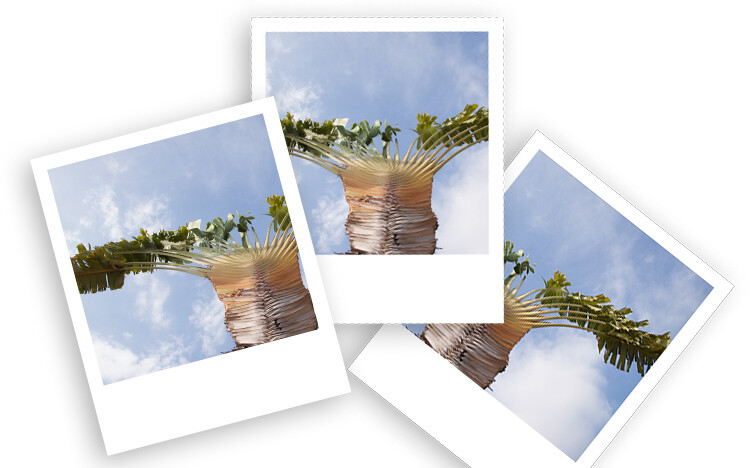
Nostalgic for the printed photos? Polaroids are coming back as trend as are many vintage things. Do you want to achieve this effect while still maintaining the advantages of the shooting digital? In this tutorial, I’ll show you how to make your digital photo look like a Polaroid and even like a stack of Polaroids in a very easy way using Photoshop.

From digital to Polaroid effect intro

Make a new document in Photoshop

The size of the image in an original Polaroid (just the image without the white frame) is 3.1 inches by 3.1 inches. Therefore, you need to open a new document in Photoshop with those measurements. If you are going to keep the result digital then you can leave it at 72 dpi (dots per inch). If you want to print it then set it to 300 dpi. Make sure the background color is black and then click OK.

Polaroid effect tutorial size document

Double-Click on this background so that you make it a layer, that is by default called Layer 0. Then make a new empty layer by going to Menu > Layers > New Layer.

Add the white frame

Now you need to do the outer frame which is the white border of the Polaroid. In order to make sure it’s centered, you can do it in two steps. First, go to Menu > Image > Canvas Size and this will open a pop-up window. The original Polaroid has a width of 3.5 inches, regardless you put it as both width and height. Make sure the point in the grid below is on the center square.

Polaroid effect tutorial canvas size white frame

Now you just need to make the bottom part of the frame larger. For that, go again to the Canvas Size but this time the point should be in the top square. Now fill this layer with white color by going to the paint bucket tool, make sure white is the foreground color and then click on the layer.

Polaroid effect tutorial canvas size white frame2

Add the background and a drop shadow

Create a new layer that will be your background. It can be white for now, but you can also add a texture like wood, for example, if you want to make it look like a table top, and so on. Go to Canvas Size and make it bigger once again. You can choose the size that’s best for you, here I’m doing 5.5×6.5 inches.

Select the layer that contains the frame (the white rectangle) and click the Add a Layer Style button at the bottom of the palette (fx). Select Drop Shadow and in the window that will pop-up, you can choose your settings. I’m using a 45-degree angle, with a distance of 30, a size 10, and setting the opacity to 29. You can set all these however you want, just move them around until you like how it looks. Make sure the preview option is ticked so that you see what you’re doing.

Polaroid effect tutorial drop shadow

Put your image inside the frame

Up until now, you have prepared your Polaroid and you can use this process for any photo or save it as a template.

To put your photo inside the frame you need to open your raw image and make the adjustments you want until you are satisfied, as you would do normally.

Now open the image as a Smart Object by holding Shift to make the Open Image button turn into Open Object and click on that. Another way to do it is to click the link at the bottom of the image window and in the pop-up window tick the option “Open in Photoshop as Smart Object”.

For more information about Smart Objects you can see my previous article on that topic here: How to Create with a Good Workflow Using Smart Objects in Photoshop.

Polaroid effect tutorial open as smart object

Now drag the thumbnail of that image into the layers palette of the Polaroids document you’ve been working on and it will be added as a Smart Object there as well. Now you can choose the image and keep working on the Polaroids.

Make sure the Smart Object (your image layer) is on top of all the other layers (with your black square directly underneath). Right-click on the image layer and select Create a Clipping Mask from the menu. Then use the Move tool to position the image to best compose it within the square.

Polaroid effect tutorial clipping mask

Oops, notice my layers are in the incorrect order here. Make sure your image is on TOP of the black square.

Try out some backgrounds to make it more interesting!

How to make a stack of Polaroids

If you want to make a stack of Polaroids follow these directions.

Select all the layers except the background and put them into a group by going to Menu > Layers > Group Layers. Now make as many copies of it as you’d to have like in your stack. You can do this just by dragging the group into the New Layers button at the bottom.

Finally just give a little twist to each one (use Edit > Transform > Rotate). There you go!

Digital to Polaroid Stack Effect tutorial

Digital to Polaroid Effect tutorial

Or you can play around with the composition. Remember you can also change the image that appears in each frame.

Digital to Polaroid Stack wide Effect tutorial

Extra effects

If you like to give your digital photo a printed quality but you don’t want to do a Polaroid, try curling the corner as if it was a page turning in only three steps.

1. Draw a square selection in the corner and draw a Gradient inside it with the Gradient tool set to go from black to white.

Tutorial Curl Turn Page effect 1

2. Go to Menu > Edit > Warp and drag the corner to create a curl.

Tutorial Curl Turn Page effect 2

3. Add a Drop Shadow like you did with the Polaroids.

Tutorial Curl Turn Page effect

Give it a try

So have fun making Polaroids in Photoshop and share your questions, comments and Polaroid compositions in the comments section below.

The post How to Make Your Digital Photo Look Like a Polaroid Using Photoshop by Ana Mireles appeared first on Digital Photography School.


Digital Photography School

 
Comments Off on How to Make Your Digital Photo Look Like a Polaroid Using Photoshop

Posted in Photography


This SkyPixel 2017 photo contest winner wasn’t shot from a drone… or in 2017

04 Mar
“Sun’s Up, Nets Out” by Zay Yar Lin

Drone maker DJI announced the winners of the 2017 SkyPixel aerial photography competition earlier this month, but already there’s a controversy. As it turns out, the winner of the Landscapes category wasn’t actually taken with a drone or captured in 2017.

The contest rules required entries to have been taken in 2017 using “any aerial platform,” but a recent report from PetaPixel reveals that the winning image in the Landscape category, “Sun’s Up, Nets Out” by Zay Yar Lin, was actually taken in 2014 using a Nikon D750 from an elevated bamboo stage… probably not what they meant by ‘aerial platform.’

In fact, the photograph—which has since been disqualified—was previously submitted to the NatGeo 2015 Traveler Photo Contest as well as the 2016 Sony World Photography Awards, and was a ‘top entry’ in the Amateur Photographer of the Year 2016 contest. Zay’s award bundle for the SkyPixel 2017 contest included a Nikon D850 and DJI Phantom 4 Pro Obsidian drone.

In a statement to PetaPixel, Zay Yar Lin explained that his D750 was attached to a hexacopter on said bamboo stage when this photo was shot, but that he didn’t realize the photo had to be taken in 2017. His statement reads:

I regret that I had shot with my DSLR with hexacopter on the bamboo stage to get the best angle. But to be honest, I wasn’t aware of the Photo Contest rules that all photos should have been shot in 2017. I’m a freelance and ethical photographer in the contests. Please look up my profile in any site. I really regret misunderstanding had occurred between us.

Zay didn’t mention the attached hexacopter when he spoke with Amateur Photographer about this image in 2016.

Articles: Digital Photography Review (dpreview.com)

 
Comments Off on This SkyPixel 2017 photo contest winner wasn’t shot from a drone… or in 2017

Posted in Uncategorized