RSS
 

Posts Tagged ‘Photo’

Moment launches Battery Photo case for iPhone X and XS

14 Sep

Smartphone accessory lens maker Moment has started shipping its new Battery Photo Case for the iPhone X and the new iPhone XS, just in time for the launch of Apple’s new iPhone models.

The case was first announced earlier this year as a Kickstarter campaign and comes with a range of features aimed at iPhone photographers. There is a two-stage shutter button that locks focus on half-press and the case is of course compatible with the Moment lens lineup which comprises of telephoto, wide, super fish and macro lenses, as well as a soon-to-be-released Anamorphic lens.

The battery portion of the case is compatible with the Qi wireless charging standard and offers a 3,100mAh capacity for charging your device on the go. An integrated lightning port and a wrist/neck strap attachment point are on board as well.

The case is available now for $ 99 on the Moment website. Updated versions for the brand new iPhones XS Max and XR are expected in November.

Articles: Digital Photography Review (dpreview.com)

 
Comments Off on Moment launches Battery Photo case for iPhone X and XS

Posted in Uncategorized


Tips for Portrait Processing with ON1 Photo RAW 2018.5

11 Sep

There are many genres within the framework of photography and one that is very popular is portraits. As such, many photographers are looking for great software that can help them make their portraits so much better. ON1 Photo RAW 2018.5 has some great tools and adjustments for portrait processing to give them a professional touch.

In ON1 Photo RAW 2018.5 you will find all the tools you need to retouch out blemishes or any imperfections that the person or model may have. You can give the skin the same hue all over to get rid of blotchiness. Finally, you can make the eyes whiter and the teeth brighter. Your subjects will love the results.

Tips for Portrait Processing with ON1 Photo RAW 2018 - portrait image

Portrait processing with ON1 Photo RAW

We are going to start with the basic skin retouching before heading to the Magic Eye Fixer and finally the Toothbrush.

Basic Retouching

Open the image you want to work on in the Develop Module of ON1 Photo RAW 2018.5. Here you can make the basic adjustments like correcting the exposure or the white balance. Play around with the sliders to get what you want.

You can see what was done to this image below.

Tips for Portrait Processing with ON1 Photo RAW 2018 - basic adjustments

Basic adjustments.

No girl wants to be seen with acne on her face, so the next step is to get the Erase tool and remove as much of it as you can.

Tips for Portrait Processing with ON1 Photo RAW 2018 - blemishes

There are still blemishes on and around the chin, so now it is time to take it a step further with the skin retouching. ON1 Photo RAW 2018.5 has some great adjustments you can use to do just that.

If you are working on images of people that you know or clients, consult with them first about what they are happy with you removing from their skin. It might be good to remove scars, for example, however, if they are proud of those scars, it might upset them. Always ask.

Skin Retouching

You can do skin retouching in either the Develop or Effects modules. For this article, we will use the latter so click on Effects in the right-hand panel.

Once you are there click on Add Filter under the Overall settings.

Tips for Portrait Processing with ON1 Photo RAW 2018 - Effects Add Filter

Effects > Add Filter

When you click on that you will get a big list of options from which you can choose. For this tutorial, click on Skin Retouching.

Tips for Portrait Processing with ON1 Photo RAW 2018 - skin retouching filter

Skin Retouching filter.

You should see a new window open up that has all the adjustments for Skin Retouching. The first thing you want to do is select the eye dropper that is next to the square color patch. You will see a cross-hairs cursor so that you can make a selection on the skin.

Tips for Portrait Processing with ON1 Photo RAW 2018 - skin selection

Choose a part of the skin that is somewhere in between the darks and the lights. A mid-tone is the best option and a good place to find that is on the forehead.

Once you have your selection you are ready to retouch all the skin. You can now set the range of how much you want to do on the face. Use the Range slider at the bottom.

As you move it around you will see parts of the image that are covered in black while others are now. The black parts will not be affected, which as the lighter sections and places where it doesn’t cover it you can use the skin retouch. It doesn’t hurt to move it up a lot.

As you move the Range slider along you will see parts of the image covered in black while other areas are not. The black parts will not be affected by the retouching. However, the light sections, or the parts of the image that seems like they are not being affected, is where the skin retouching will apply to the image.

It doesn’t hurt to move the Range slider up a lot.

Tips for Portrait Processing with ON1 Photo RAW 2018 - range of skin retouching

Add a Mask

Next, you need to add a mask. You can do that at the top of the layer window, it is the white rectangle with the black circle inside.

You will see more options appear and along with the mask. The cursor will also change and the brush will come up automatically once you have done that.

Tips for Portrait Processing with ON1 Photo RAW 2018 - mask and brush options

Once you have the mask, go ahead and invert it. When you do this the mask will go black. When it is black it means that nothing from that layer is affecting your image. The brush is already chosen and now it is time to work out what parts of the image you want to add the skin retouch.

Make sure you brush is set to Paint In. You can change the brush options including feathering along the top above the image. You don’t need a lot, my brush was set at 31.

Now paint over the skin you want to affect. You should see parts of the mask going white where you are painting. Avoid the eyes and the mouth.

leannecole-skin-retouching-on1-portraits-6

Once you think you have done all the skin it is best to check and make sure.

Along the bottom of the window, you will see the button for a preview. Press it to see your original image. However, on the left, you will see a rectangle with a grey dot in it. If you click on it you will see the image go to solid black and white.

Tips for Portrait Processing with ON1 Photo RAW 2018 - mask

This shows you what your mask looks like. Pressing the letter O does the same thing if you like keyboard shortcuts. It can be hard when it is like this to really see what you have got painted and what you haven’t.

Go up the Main Menu > Masks > View Mode and finally choose Red Overlay.

Tips for Portrait Processing with ON1 Photo RAW 2018 - red mast overlay

The red overlay will show you where the black part of the mask is (the unaffected areas), so you can now refine your mask.

Tips for Portrait Processing with ON1 Photo RAW 2018 - red overlay mask

In the above image, you can see what has been selected. The areas with no red are where the skin retouching will be applied. If you have areas that should be red, change your brush to Paint Out and it will cover them.

Click the circle at the bottom to change back to the image, or press O to show it.

The skin retouching can seem very subtle, but if you toggle the layer on and off you should be able to see the changes.

Tips for Portrait Processing with ON1 Photo RAW 2018 - toggle layer

Final Adjustments

Now to do some final adjustments. At the bottom of the layer you can see Blemishes, Smoothing, Shine and Evenness. Move all the sliders to the left.

Tips for Portrait Processing with ON1 Photo RAW 2018 - sliders at the bottom

Slowly move each slider up and see how they change the image. Take them all the way to the right to see how bad would be if you go too far, then bring them back to where you want.

The one you have to be really careful about is the Smoothing slider. You can make the skin look like plastic very easily. You can see what was done for this image in the following example.

Tips for Portrait Processing with ON1 Photo RAW 2018 - sliders adjusted

The next step is to again turn the layer off and on to see the results and whether you think it has improved the image.

Tips for Portrait Processing with ON1 Photo RAW 2018 - skin retouching before and after

Magic Eye Fixer

The Magic Eye Fixer is great to help whiten the white parts of the eyes. It can make the subject’s eyes seem a lot brighter. However, this one needs to also come with a warning, it is very easy to take it too far and make the eyes look ridiculous.

To use this tool, go to the Local Adjustments tab and then select Add Layer.

Tips for Portrait Processing with ON1 Photo RAW 2018 - new layer

In the new layer window, you will see options like Lighten, Darken, Vibrance, and Detail across the top (just below the Opacity slider). Then there is a square with a down-arrow that says More underneath. Click on it and a drop down menu will appear.

Look down the list and you will see Magic Eye Fixer. Click on that.

Tips for Portrait Processing with ON1 Photo RAW 2018 - magic eye fixer

Once you have clicked on it you will see some of the adjustments change automatically. The brush tool will also be automatically selected. Paint over the eyes.

leannecole-eye-fixer-on1-portraits-3

Obviously with the automatic changes that ON1 Photo RAW makes for the adjustments are too much. You may also find it too hard to paint exactly over the eyes. Don’t forget you can change the brush to Paint Out to deselect the areas you don’t want if you mess up.

Enlarge the image view so you can get a better look at what you are doing; make sure you are only changing the parts you want to affect. You can also press O to check the mask as well.

Tips for Portrait Processing with ON1 Photo RAW 2018 - masked eyes

You can see that the adjustment is too much. Now you can change the exposure slider to make it look more natural. You can also use the Opacity slider at the top of the layers panel. That will also help you tone down how much the layer affects the image.

Tips for Portrait Processing with ON1 Photo RAW 2018 - eye settings

You can toggle the layer off and on to see if you like the effect or want to make further adjustments. Just remember not to go too far.

Healing the Skin

You could leave the image here, but there are other things you can do to make the skin look even better.

In the left-side panel, there is a brush called the Retouch Brush. This is a good one to use to help remove unwanted skin blemishes. It softens them, without removing them completely.

Tips for Portrait Processing with ON1 Photo RAW 2018 - retouch brush

Paint this Retouch Brush over the areas where you would like to remove imperfections. For this image, we will use it for the bags under the eyes, the scar on the forehead and the one over the right eye. It will also work well for the acne marks on the chin.

The brush is feathered and the opacity has been changed to around 50%.

Tips for Portrait Processing with ON1 Photo RAW 2018 - after retouch brush

After the Retouch Brush

It is a great tool, but as with all things, you can go too far. Sometimes it is good to leave the image for a day or two, then go back and take another look. It gives you a better perspective.

Whitening Teeth – Toothbrush

You will find that many people like to have their teeth appear whiter in photos. We aren’t all blessed with brilliant white teeth and now you can help them achieve that. ON1 has included an adjustment that will help you do the job very easily.

So still in the Effects Module, go to Add Layer. As you did for the Magic Eye Fixer, click More and select Toothbrush this time.

Tips for Portrait Processing with ON1 Photo RAW 2018 - toothbrush

You will see a new layer open up with many adjustments already made, so it is ready for you to go.

Tips for Portrait Processing with ON1 Photo RAW 2018 - preset adjusments

Do much the same as you did for the eyes. Click on the mask and then the brush will come up. Paint over the teeth. It may be easier to do them one at a time. If you go outside the teeth click on the brush to Paint Out and go over the areas you don’t want affected.

The teeth should be very white.

Tips for Portrait Processing with ON1 Photo RAW 2018 - overly white teeth

Obviously, it looks terrible like this so you will need to make further adjustments to get the right look.

You can change the opacity of the layer, or turn down the exposure slider so the effect isn’t so bright. For this image, I changed the exposure because there was something else I wanted to do.

These images are of my daughter, who has never thought looking after her teeth were worth worrying about. So, I wanted to get rid of the yellow staining. The best way to do that was to lower the saturation so the teeth appeared whiter. Move the Saturation slider to the left until you get the result you are happy with.

Tips for Portrait Processing with ON1 Photo RAW 2018 - teeth whitening

Now we can compare the final image by turning the layer on and off. You do that by clicking the Yellow dot in the top left corner of the layer panel you are working in.

Tips for Portrait Processing with ON1 Photo RAW 2018 - layer off

Layer off.

Tips for Portrait Processing with ON1 Photo RAW 2018 - resulting image

Layer on, final result.

The image could be left there, but I decided that her face and hair could do with some brightening overall. So I choose a new layer, and did a mask with her face, that included her hair. The exposure was brought up slightly and so was the White balance to make the image warmer.

Tips for Portrait Processing with ON1 Photo RAW 2018 - lighten the image

Looks much better now. She even likes it as well.

Finally

ON1 Photo RAW 2018.5 has everything you need to do the most amazing portrait processing. You can give people skin that is attractive or remove unwanted hues that the camera adds. Everyone wants to look beautiful in photos and now you can help them look the way they see themselves.

The people at ON1 have created an amazing community for all their users and there are many other videos to help go to the next level. Don’t forget to check all of them out and see what else you can do with your portraits.

Disclaimer: ON1 is a paid partner of dPS.

The post Tips for Portrait Processing with ON1 Photo RAW 2018.5 appeared first on Digital Photography School.


Digital Photography School

 
Comments Off on Tips for Portrait Processing with ON1 Photo RAW 2018.5

Posted in Photography


DPReview TV: understanding 4K and 6K photo modes on your camera

12 Aug
Special 4K and 6K photo modes may be one of the most under-appreciated features on recent cameras. After all, with today’s models boasting impressive performance and high frame rates, why would you need them? In this week’s episode, Chris and Jordan take a closer look at these modes and explain why – and when – you’ll be glad to have them on your camera.

For more information check out our in-depth article explaining 4K photo mode.

Read our in-depth article about 4K photo mode

Subscribe to our YouTube channel to get new episodes of DPReview TV every week.

Subscribe to our YouTube channel

Articles: Digital Photography Review (dpreview.com)

 
Comments Off on DPReview TV: understanding 4K and 6K photo modes on your camera

Posted in Uncategorized


Epson FastFoto FF-680W, world’s fastest personal photo scanner, now available

09 Aug

Epson has launched its new FastFoto FF-680W High-Speed Photo and Document Scanning System, a model it claims is the fastest personal photo scanner currently available. At max speed, the FastFoto FF-680W can scan a photo every second at 300dpi (up to 36 photos per batch).

The FF-680W, which builds upon the existing FF-640 model, supports a variety of media types, including Polaroids, postcards, and panoramic photos, as well as scanning in 300dpi (“easy sharing”), 600dpi TIFF (“archiving”), and 1200dpi (“enlarging”) modes. More than one mode can be used per photo batch. The scanner also supports document scanning with OCR.

Both USB and wireless connectivity is supported. Users can directly share scanned images to Google Drive and Dropbox, capture handwritten notes on the back of an image during a single scan, and perform modest photo restoration and edits using Epson’s ScanSmart software.

The Epson FastFoto FF-680W scanner is available through the company’s website and at select retailers, including Amazon, for $ 599.99 USD.

Articles: Digital Photography Review (dpreview.com)

 
Comments Off on Epson FastFoto FF-680W, world’s fastest personal photo scanner, now available

Posted in Uncategorized


A Quick Primer On Resolution and Photo Scanning

08 Aug

When you are setting out to digitize your collection of old photos and film, scanning resolution is an important attribute to consider. This number is crucial when you are thinking of printing your scanned images rather than just viewing them on a screen. Since most people, at some point or the other, will want to create memorable keepsakes – framed Continue Reading

The post A Quick Primer On Resolution and Photo Scanning appeared first on Photodoto.


Photodoto

 
Comments Off on A Quick Primer On Resolution and Photo Scanning

Posted in Photography


Tips for Processing Night Photography with ON1 Photo RAW 2018.5

07 Aug

For many students, as they start learning photography they want to know how to take photos at night. It is a mystery to them and they often think it is so complicated that they will never be able to do it. That is until they try it and discover just how easy it is. The next step is editing those images and ON1 Photo RAW 2018.5 has a lot of tools and adjustments that are perfect for processing night photography.
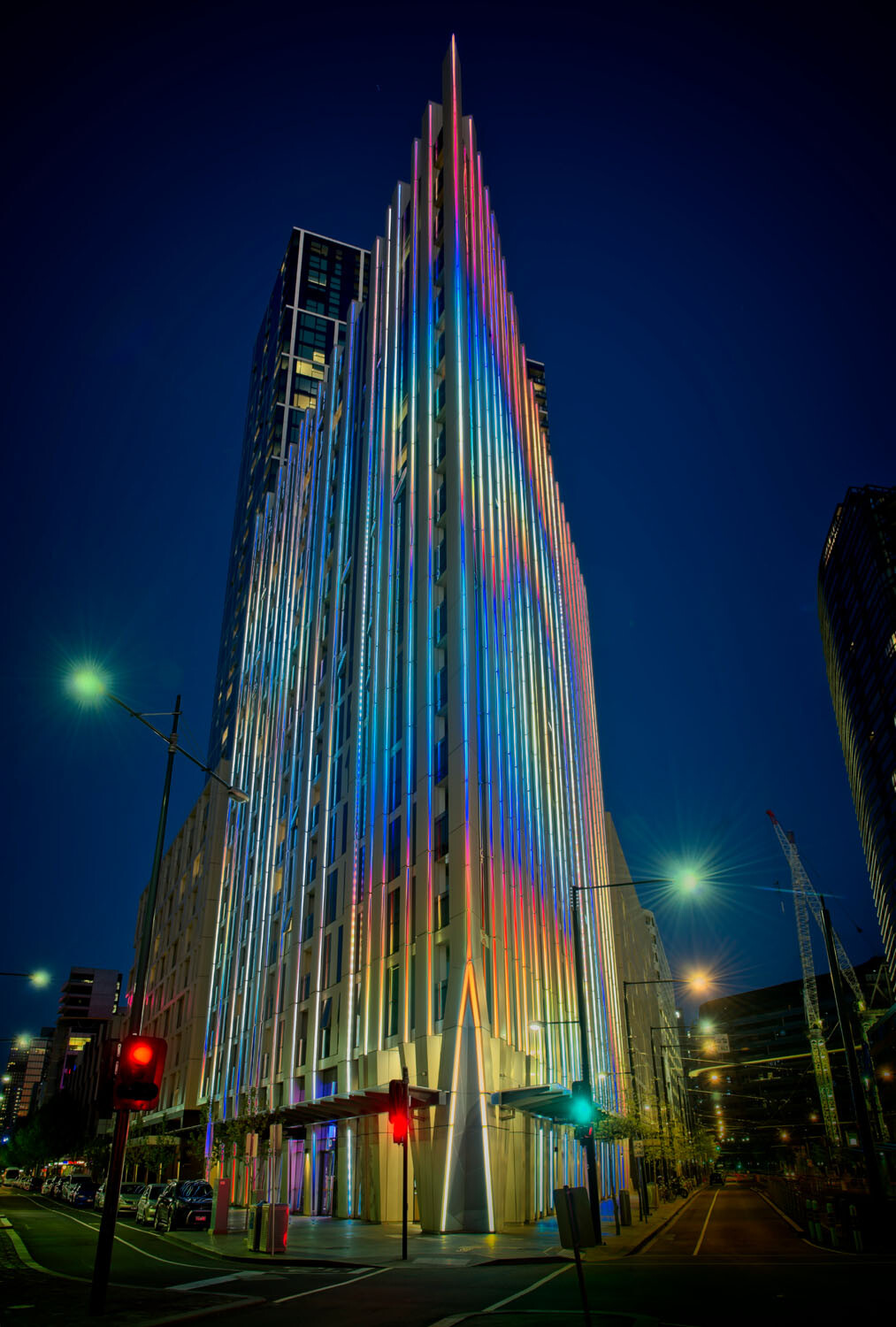
HDR architecture image - Tips for Processing Night Photography with ON1 Photo RAW 2018

An image created using the HDR option in On1 Photo RAW 2018.

Night photography options

First, we should take a look at the different types of night photography that you can do. There is the easiest option of setting your camera up on a tripod and photographing lights somewhere.

The city at night is very popular if you live in an urban area. Perhaps capturing town lights can also be good. You just need something that is making light. HDR has had a lot of bad press, but it really is good for some images, and night shots of cities are perfect for it. ON1 Photo RAW’s HDR processing is one of the best I’ve seen.

When the sun has gone down and there is a lot of traffic you can photograph light trails. Taking longer exposures with your camera on a tripod will make all those lights look like streaks. If you want to make it look like there were a lot, then you can stack the images together, so all the streaks will show in one final image.

One type of night shot that is hugely popular right now, especially in Australia, is astrophotography. Photographing the Milky Way. It is the season for it here and with the low population, you are spoilt for choice where to do them. If you have ever tried doing any astrophotography then you will also be aware that your images have to be processed or they can look at washed out. ON1 Photo RAW 2018.5 has you covered there as well.

Tips for Processing Night Photography with ON1 Photo RAW 2018 - astrophotography milky way image

An astrophotography image processed with ON1 Photo RAW 2018.5

Photographing the City

Night time in the city can be so magical and to be taking photos of it even more so. Processing your images taken at night is much the same as processing any of your images.

Open your image in ON1 Photo RAW and take it into the Develop module. Make the adjustments as you would for other images. Move the sliders around to see what you can get. Take them too far and then bring them back.

sliders in ON1 Photo RAW - Tips for Processing Night Photography with ON1 Photo RAW 2018

When learning it is good to take the sliders too far, see what happens.

If you want to make adjustments to particular areas, then look at local adjustments which is the best place to do that.

However, what if you want to do something to your image to really make it pop?

HDR photography, or High Dynamic Range, can be perfect for this. It is a process that has copped a lot of criticism over the years. People say it is too much, that the images can be ugly. But that really only happens when you don’t use it for the right images, or overdo it.

There are some scenes and images that are perfect for HDR and night photography is one of those times.

HDR Night Photography

When you are to decide which images would work best for HDR, look for ones that have a lot of dark areas, and a lot of bright parts as well. Usually, your camera will struggle with getting an even image of a high contrast scene. It will either make the image too bright or too dark. Night images have those problems. Once you get the lights exposed right, all the shadows become too dark or black.

The best way to do HDR is to take a series of images or bracketed shots. If your camera will allow you to bracket then it will sort out the exposures you need. The most common number of shots is 3 or 5. For this article, five images were taken.

Next, select all of your bracketed images inside the ON1 Photo RAW browse module. You can do that by clicking the first then pressing the shift key followed by clicking on the last image. If you have put the images into a subfolder you can then just use Ctrl/Cmd+A.

Tips for Processing Night Photography with ON1 Photo RAW 2018 - bracketed set of images

Work out which images you want to use.

Once they are selected you should be able to see the HDR button over on the right-hand side of your screen, underneath all the different modes.

select images and HDR button - Tips for Processing Night Photography with ON1 Photo RAW 2018

Select all your images.

ON1 Photo RAW will then merge all your images together. The first time you do it, a window will pop up asking you what look you would like. The options include Natural, Natural Auto, Surreal and Surreal Auto. You can make the changes once the image has been merged to HDR. There are lots of choices with ON1.

Let’s take a look around the HDR working window

Tips for Processing Night Photography with ON1 Photo RAW 2018 - HDR looks

Selecting your HDR look in ON1 Photo RAW.

There are several places where you can set the amount of de-ghosting (remove spots where something moved between brackets) you want the program to do. You can change the HDR look you wanted if you think you made a mistake. You can select which image you think should be the main one.

Go through and change the image to suit the look you are after. I know I say this a lot, but the best way to learn is to play around with the settings.

HDR options - Tips for Processing Night Photography with ON1 Photo RAW 2018

All the different things you can do to your image.

Like most images, you need to experiment to see what you like. Remember that ON1 is non-destructive so you won’t ruin anything. Try everything, it is the best way to learn. Take it all too far and then bring it back.

Lastly, choose where you want your image to go when you are done. You can have it open in Develop, Effects or go back to Browse. The last choice is Cancel. If you want to save it then click Save.

Tips for Processing Night Photography with ON1 Photo RAW 2018

Taking the image further.

Once the image is opened in the Develop module, you can then make more adjustments to as you would normally.

Develop module - Tips for Processing Night Photography with ON1 Photo RAW 2018

Where to go next.

ON1 Photo RAW is one of the best programs for doing HDR. You can make so many changes to it as it is happening and after it is done. Nothing is final.

final HDR - Tips for Processing Night Photography with ON1 Photo RAW 2018

The final HDR image.

Astrophotography

For anyone who has ever done astrophotography, you know that the images always need to be processed.

Here is an image that was taken a couple of years ago. This is the raw file and you can see that it needs a lot of work.

night image Milky Way and lighthouse - Tips for Processing Night Photography with ON1 Photo RAW 2018

Raw image from astrophotography shoot.

Open the image up in ON1 Photo RAW and go to the Develop module. Everything you need to make the best astrophotography images is all right there.
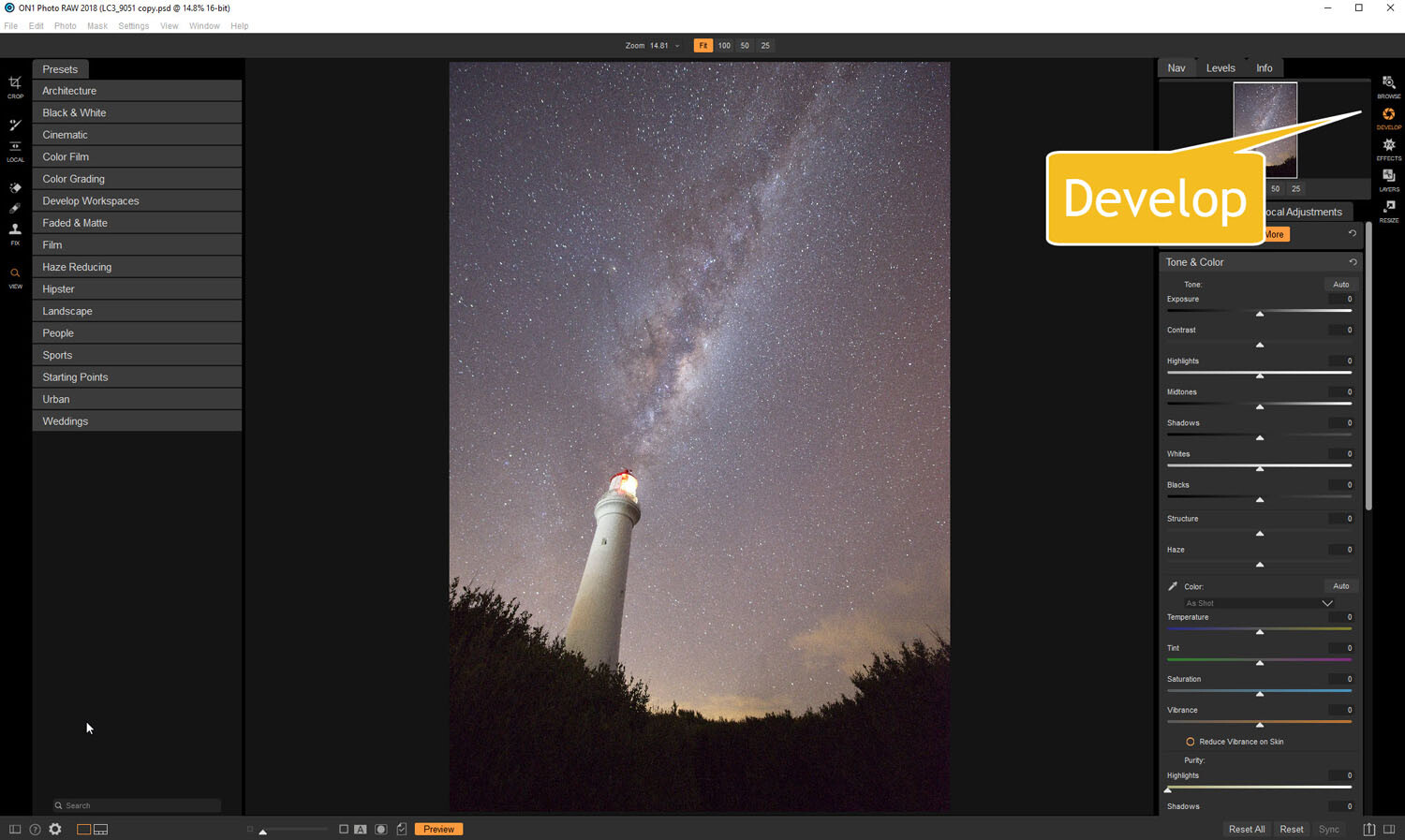
develop - Tips for Processing Night Photography with ON1 Photo RAW 2018

Open in the Develop module.

Noise reduction

The first thing you want to do is to work on the noise in the image. All astrophotography images have a great deal of noise. You have to increase your ISO quite high in order to get the Milky Way in your image. Usually, it is going to be somewhere between ISO 3200 up to 6400.

The image for this article was taken at f/2.8, for 30 seconds at ISO 6400. It was taken at 14mm using a 14-24mm lens.

In the Develop module go to Details. This is where you can help reduce the noise in your image. Click on the image to zoom in so you can see the noise better.

noise and details section of develop - Tips for Processing Night Photography with ON1 Photo RAW 2018

The first thing to do is to fix the noise in the image.

Under Noise Reduction, you will see a Luminance slider. Move that along until the noise almost disappears. Be careful not to go too far or you might lose all the stars (noise is just white specs so the stars can easily be misinterpreted as noise if you go too far).

This slider smooths out the image and you can lose a lot of detail if you go too far. Bring up the Detail slider to help maintain it. It is about experimenting and seeing what you like as well.

You can also bring up the Sharpening amount as well but be careful. Over sharpened images can look terrible. Go easy with this slider.

noise adjustments - Tips for Processing Night Photography with ON1 Photo RAW 2018

You can see how much was changed.

Tone & Color

It is time to go back to Tone & Color and make more adjustments.

tone and color - Tips for Processing Night Photography with ON1 Photo RAW 2018

Take the image back to Tone & Color to make basic changes.

The main things you want to add back into your image are the blacks and lots of contrast. The added contrast will help the stars stand out more from the dark sky. The blacks will allow the darker parts of the sky to appear as you saw them when you shot the image.

The highlights can be brought down to stop the lighthouse from blowing out too much. If you take the shadows down it helps make the darker parts of the sky richer as well. However, be aware that it can also make other parts of the image go black, like the foliage at the bottom of this image.

The whites were brought up a fraction, as this helped to lighten up the Milky Way and make it jump out more.
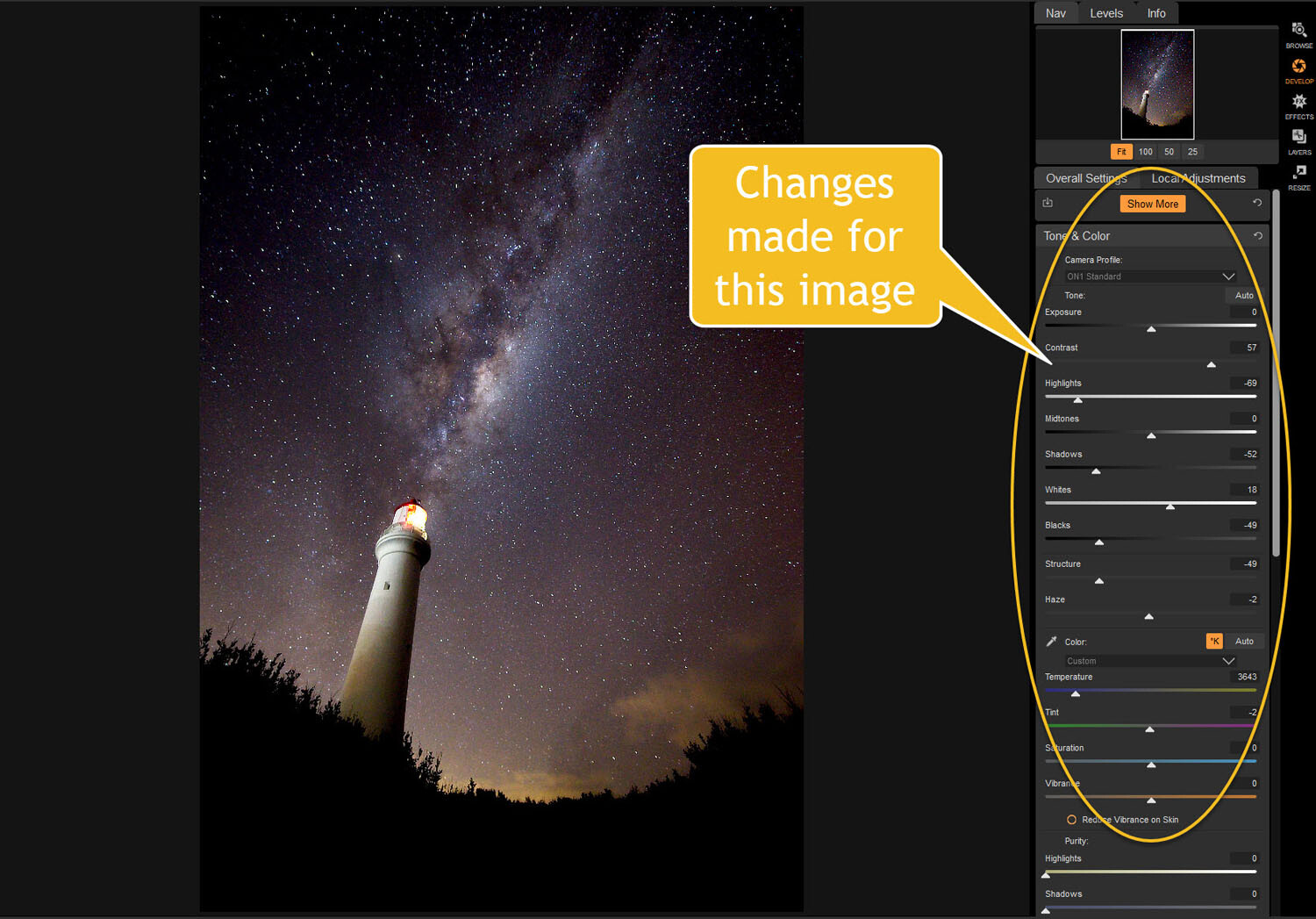
slider adjustments - Tips for Processing Night Photography with ON1 Photo RAW 2018

Some of the changes that were made in Tone and Color.

Color Adjustments

Most of the changes are made to the image now, but if you look closely there is quite a bit of blue in it. It shouldn’t be there and to remove it you need to go to Show More and then Color Adjustments.

color cast - Tips for Processing Night Photography with ON1 Photo RAW 2018

Taking out the blue cast color in the stars.

A new window for this will open up down below the other adjustment windows.

As it is the blue you want to change, click on that color square. Once it is selected you can move the saturation slider until the blue in the image disappears or is to your liking.

reducing blue saturation - Tips for Processing Night Photography with ON1 Photo RAW 2018

Changing the saturation of the blue.

You can try adding presets to your image as well, though most people with astrophotography just do the basics and leave it there.

You will need to play around with your photos to see what you can do and what is to your tastes. These are just suggestions as to what other photographers do. Experiment, take the sliders too far and then bring them back.

This is the final image.

final image of lighthouse - Tips for Processing Night Photography with ON1 Photo RAW 2018

The final image of the Milky Way over the top of the lighthouse.

Light Trails

In cities, or anywhere there is a lot of traffic, you will see photographers trying to capture the trails of the lights as the cars go past. For most places, the best time to capture this is during peak hour when a lot of vehicles are moving. However, it also needs to be dark.

Unfortunately, there are times of the year where it is impossible to get both at the same time. For instance, in Australia during the summer daylight saving means it doesn’t get dark until after 8 pm. Getting good light trails is reduced because there isn’t enough traffic at that hour.

However, there is a way to make it look like there was more traffic, that is to stack your images. You can also do this for star trails too.

Stacking light trails

Work out which image will be the first one. Take it the Develop module in ON1 Photo RAW and do what you want to process it normally first.

But do not straighten it or do any lens correction on the image. If you do then the other images won’t align up properly, you can do all that after.

original image for light trails - Tips for Processing Night Photography with ON1 Photo RAW 2018

The first image used for the light trails.

Once you have your image ready, go to the Layers module.

layers - Tips for Processing Night Photography with ON1 Photo RAW 2018

Take the image to the Layers mode.

Next, add all the other photos that will make up the final image. The best way to do this is to put all the images into a subfolder. Select the images you want to use, then right-click and go to Add Subfolder.

add subfolder - Tips for Processing Night Photography with ON1 Photo RAW 2018

Putting your images into a subfolder.

A window will pop up once you click Add Subfolder. You can name it as you want, or ON1 will name the folder the same as the filename for the first image. Make sure the box is ticked for Move Selected Items into Subfolder.

add subfolder - Tips for Processing Night Photography with ON1 Photo RAW 2018

Creating the subfolder.

Now you are ready to add all those images as layers to the original photo.

Get your image to the Layers module which is where you will add the images for your light trails. Go up to File in the main menu at the top. Select Add Layer(s) from File.

add images from file - Tips for Processing Night Photography with ON1 Photo RAW 2018

Now it is time to add the layers.

A window will pop up where you can go to the subfolder that you put the images into. Select all the images, Ctrl/Cmd+A, then press Open.

select images - Tips for Processing Night Photography with ON1 Photo RAW 2018

Selecting all the images you want to use.

ON1 Photo RAW will ask you if you want to open them all, say yes. Depending on how many images you are trying to do it can take some time for this to happen. The images used for this demonstration are quite large and took a few minutes.

images added as layers - Tips for Processing Night Photography with ON1 Photo RAW 2018

All the images are added.

Next, you need to blend each layer. You want the lights to shine through from each but not everything else. For each layer, go up to the blending pull-down and select Lighten.

blending options - Tips for Processing Night Photography with ON1 Photo RAW 2018

Blending all the layers with Lighten.

You can now save the image and then you can do more processing if you wish. If the image needs straightening, lens corrections, etc., you can do it in the Develop module.

light trails image - Tips for Processing Night Photography with ON1 Photo RAW 2018

The final image.

Star Trails

If you enjoy doing star trails then you will be able to use this same method for processing and stacking those images using ON1 Photo RAW. Just add them all as layers and use the Blending option Lighten.

Conclusion

There are many things you can do with your night photos in ON1 Photo RAW 2018.5. With things developing constantly you will be able to do more and more with time. The HDR feature is one of the best I’ve seen and I’m sure most of you will enjoy that.

With all software, experimenting is the key. Take what you learn and see what else you can do with it.

Disclaimer: ON1 is a dPS paid partner.

The post Tips for Processing Night Photography with ON1 Photo RAW 2018.5 appeared first on Digital Photography School.


Digital Photography School

 
Comments Off on Tips for Processing Night Photography with ON1 Photo RAW 2018.5

Posted in Photography


The Canon Zoemini is a small and lightweight portable photo printer

04 Aug

Despite most images existing exclusively in digital format these days, there is a good choice of portable photo printers available in the market and Canon has just added a brand new option to the segment in the shape of the Zoemini.

At 160 g and measuring only 118 x 82 x 19 mm, the Canon Zoemini is lighter and smaller than most comparable products and very similar in size to the smartphone you would typically pair it with, making it easily storable in any bag.

Like most printers of this type, the Zoemini uses ZINK printing technology – ink is stored in water- and tear-resistant 2” x 3” photo paper. Larger output sizes can be achieved through the Canon Mini Print app that allows you to “spread” images across four or nine of the self-adhesive sheets.

The Canon Zoemini and the corresponding mobile app for Android and iOS will launch on September 5th. In Europe it will retail at €140 (approximately $ 160). No information on pricing and availability in other regions has been provided yet.

Articles: Digital Photography Review (dpreview.com)

 
Comments Off on The Canon Zoemini is a small and lightweight portable photo printer

Posted in Uncategorized


Think Tank Photo and MindShift Gear merge into a single company

02 Aug

Camera bag and accessory manufacturers Think Tank Photo and MindShift Gear have officially merged to become a single company under the Think Tank Photo brand.

Formerly sister companies, founded by overlapping parties but operated as individual entities (Think Tank Photo Inc. and MindShift Gear LLC, respectively), the two companies will now operate under the same roof with combined business operations in Santa Rosa, California. Think Tank founder, president and lead designer, Doug Murdoch, will serve as Chairman of the Board and president of the combined company.

Despite the merger, MindShift will remain a distinct product line under the Think Tank brand, offering outdoor photography bags and accessories. As it has for more than 15 years, Think Tank Photo will continue to put out its diverse lineup of photography bags and accessories.

‘We celebrate a milestone today as we formally join two of the top brands in camera bags and photo accessories, Think Tank and MindShift,” said Doug Murdoch in the press release. ‘Combined under the Think Tank umbrella, and with MindShift’s powerful position in the outdoor photography market, we will draw on our decades of experience to push the boundaries of carrying solutions and enhance our reputation as the choice of working professionals.’

Starting today, MindShift Gear’s website will redirect to Think Tank Photo’s website, where you can find the MindShift product lineup.

Articles: Digital Photography Review (dpreview.com)

 
Comments Off on Think Tank Photo and MindShift Gear merge into a single company

Posted in Uncategorized


Review: Palette modular photo editing system

21 Jul

Palette System
$ 250-$ 550 | PaletteGear.com

The Palette system uses physical controls to manipulate software features in Lightroom Classic, Photoshop, and other applications.

Image editing applications are full of controls that mimic physical interactions. We could adjust a photo in Lightroom using nothing but numbers, but we’re conditioned to drag virtual sliders to see how the change affects the image. What we’re actually doing is repetitively positioning the mouse pointer over specific locations to work those controls.

Palette is a set of modular hardware pieces that can be assigned individual tasks and features.

If you’re tired of hitting those tiny targets or want to potentially speed up your editing workflow, perhaps you should consider the real-life physical controls of the Palette system. Palette is a set of modular hardware pieces that can be assigned individual tasks and features. Think of a sound-mixing board, but for editing photos (although Palette can also work with some audio and video software, too).

Key Features

  • Three physical controls: buttons, dials, and sliders
  • USB-powered
  • Controls many features of Adobe (and other) software
  • Modular controls snap together with strong magnets
  • Machined aluminum modules
  • Rubberized base so modules don’t shift during use
  • Mac and Windows compatible

Buying options

The modules can be like a mini puzzle: make sure the pins connect to pads so that power and data are distributed throughout the connected pieces.

The Palette system is sold in three kits:

  • Starter Kit ($ 249.98) includes the core, two buttons, one dial, and one slider.
  • Expert Kit ($ 349.98) includes the core, two buttons, three dials, and two sliders.
  • Professional Kit ($ 549.98) includes the core, four buttons, six dials, and four sliders.

The components are also available as separate add-ons: $ 29.99 for the button, or $ 49.99 each for the slider or dial.

Design

The system is based around a single Palette Core unit, which is 45mm (1.8in) square and connects to the computer via a Micro USB port. The core includes the processor and software for running the system, plus an OLED screen that indicates which mode it’s currently running. (It’s not a touchscreen, though; my smartphone-trained fingers kept tapping the display at first, expecting something to happen.)

At times I wish the controls offered some physical feedback, such as a dial that ticks as you turn it

The rest of the components connect to the core and to each other via strong magnets, with one side sporting spring-loaded pins to make data and power connections. There’s an arcade-style button, a dial that spins smoothly and can also be pressed like a button, and a slider. At times I wish the controls offered some physical feedback, such as a dial with detents that clicks as you turn it instead of just spinning smoothly; perhaps the company could offer such a module in the future.

Each piece includes an illuminated “halo” that can change color, which is helpful for visually identifying which application or feature you’re working with. Rubberized bases give the components a good grip so they don’t slip around while you’re working.

In use

I’ve used the Palette system and the PaletteApp software primarily with Lightroom Classic CC; it also supports Lightroom 6 and Lightroom CC 2015, but notably does not work with the newest Lightroom CC (which doesn’t offer the same hooks for other applications that the classic versions do).

It’s not a Lightroom-only tool, however. Adobe’s apps are well represented, with support for CC versions of Photoshop, Premiere Pro, After Effects, Illustrator, InDesign, and Audition. The software knows a few other applications, too, such as Final Cut Pro X, iTunes, Spotify, VLC, WMP, and Google Chrome. If PaletteApp can access the menu systems of other software, you can also set up some custom controls, although in my testing those weren’t as snappy as the interaction with supported apps. PaletteApp requires macOS 10.9, Mavericks, and higher, or Windows 7 and higher.

The software knows a few other applications, too, such as Final Cut Pro X, iTunes, Spotify, VLC, WMP, and Google Chrome

When you first begin using the Palette system, expect a lot of experimentation as you figure out which control layouts work for you. PaletteApp includes several pre-made profiles to get started, so as you snap modules together, functions are already assigned to them. You can also import downloaded profiles created by other Palette owners. That’s helpful, although I found myself wanting examples of physical layouts as starting points. I’d like to see recommendations of how other people work: do they use dials or sliders for controls like Exposure, for instance, and how are the modules arranged? I appreciate the freedom to piece modules together the way I want, but it’s almost too open-ended until you figure out what works for you.

Built-in profiles get you started.

The system’s modularity does have the advantage that one layout isn’t trying to accomplish everything; in Lightroom, for example, you can set up controls for reviewing and culling images, and then switch to a profile with controls for performing basic edits or even, say, landscape-specific editing tasks.

I’ve set up this profile and layout for reviewing and culling images after importing them in Lightroom Classic CC. Here’s the same layout with a profile designed to apply basic and frequently-used Lightroom Develop controls.

Of course, you can manually assign features to each module and in some cases, fine tune their performance. Depending on the control, dials and sliders may include a Sensitivity or Range value (or both) to set upper and lower limits to how much a control is applied. For example, pushing a white balance tint slider all the way to the right can max out at +50 instead of +100, since you’d probably never crank the setting that high toward purple.

Manually set a module’s task, and adjust aspects like sensitivity depending on which type of control it is.

One of the best features of the Palette system is how responsive it is—not just in tracking a control’s physical movement with its onscreen setting, but switching between tools and modules. Activating a module switches to that editing control, regardless of where you were in Lightroom. For example, to straighten a photo, you could turn a dial assigned to Crop Angle. That switches to the Develop module if it’s not already active, selects the Crop Overlay tool, and starts rotating the image as you turn the dial.

At times the responsiveness can be jarring, though. A physical slider’s position dictates the software slider; imagine that the module for Exposure is set a quarter distance from the left following an edit in another application, but the Exposure slider in Lightroom is at the zero midpoint. As soon as you nudge the module’s slider, the Exposure value jumps down to –2.5 to match.

When you first begin using the Palette system, expect a lot of experimentation as you figure out which control layouts work for you.

There’s a preference called Optimize for Performance which, when turned off, shows the live status of the controls in the PaletteApp window. That can be helpful when the app is visible and you don’t want to take your eyes away from the screen, and it has the added benefit of including notches on the virtual dials that don’t exist on the physical ones. However, those notches are ultimately arbitrary: if you reset a control (by pressing the dial button), the notch doesn’t snap back to the center, so the next time you turn the dial, it starts from the last position.

One clever feature of the Palette system is the ability to rotate your setup in 90-degree increments. By repositioning the connected block of physical modules for other tasks, you can train your muscle memory to work in two different applications, for instance, and not take apart the layout you’ve set up and put it together into a new one each time.

The bottom line

If you spend a lot of time editing in Lightroom and Photoshop, and you have the desk space to dedicate to it, Palette is a good investment. That’s particularly true if your work involves processing hundreds of images and manipulating several key controls, such as editing batches of wedding photos.

That really gets to the whole point of using a system like this: to be able to let your hands take over while your attention is focused on the image you’re editing, not having to dart around the screen selecting every control using a mouse or touchpad.

What we like:

  • Build quality is exceptional
  • Color accents help differentiate tasks
  • Modularity lets you set up the controls how you like
  • Compatible with many applications
  • Granular sensitivity for the controls
  • Ability to rotate layout in 90-degree increments

What we don’t:

  • Open-endedness of layout options can be daunting until you find a layout you like
  • Expensive, especially to buy extra individual components
  • No physical feedback, such as clicks as you turn dials, which would sometimes be helpful

Articles: Digital Photography Review (dpreview.com)

 
Comments Off on Review: Palette modular photo editing system

Posted in Uncategorized


Some Cool Tools For Editing Your Photos Inside ACDSee Photo Studio Ultimate 2018

17 Jul

In this third installment of articles on ACDSee Photo Studio Ultimate 2018, we look at some of the Cool Tools – either new features or ones that are particularly useful. Read my first two articles here:

  • ACDSee Photo Studio Ultimate 2018 Guide for Beginners
  • How to do Creative Editing with Layers in ACDSee Ultimate Photo Studio 2018

New Features

1. ACTIONS

Newly implemented in the latest release of the software, Actions are a range of predefined edits that you can apply to your image to achieve a specific look or effect. To assist you with this, there is an Actions Browser that lets you see the effect applied in advance, which is extremely useful.

Some Cool Tools For Editing Your Photos Inside ACDSee Photo Studio Ultimate 2018

Image with the Actions Browser open.

There are 16 different categories covering color, black and white, workflow, editing, special effects, portrait and landscape options, and more. Once you decide on the desired Action, click PLAY and it is applied.

Some Cool Tools For Editing Your Photos Inside ACDSee Photo Studio Ultimate 2018

Example of a Split-tone Action.

Some Cool Tools For Editing Your Photos Inside ACDSee Photo Studio Ultimate 2018

A black and white conversion Action applied.

To apply an Action, you need to open your image in Edit mode. On the top menu bar, look for Tools > Browse Actions.

2. LIQUIFY

Liquify is often used in fashion and portrait editing to change the shape of people or parts of their bodies. It is a new feature in this release of ACDSee Photo Studio Ultimate 2018. This tool needs to be applied with a large soft brush and a delicate touch or it can look overly obvious.

I found the Liquify tool very easy to use. It worked quickly (i.e. there was no lag on processing the change) and had a gentler effect than I was expecting.

Some Cool Tools For Editing Your Photos Inside ACDSee Photo Studio Ultimate 2018 - liquify

This is the before image for comparison.

Some Cool Tools For Editing Your Photos Inside ACDSee Photo Studio Ultimate 2018

Showing where the effect had been applied.

Some Cool Tools For Editing Your Photos Inside ACDSee Photo Studio Ultimate 2018 - liquify

Image after Liquify applied to the arch and bowl of the spoon, and the dark side of the main blueberry.

Using the Liquify Tool

Liquify is a function in Edit mode, so you need to open your image up in there. On the top menu bar, select Filter > Geometry > Liquify.

There are four different Liquify modes:

  1. Shift – This moves pixels from one area to another in the direction you move the brush.
  2. Pinch – This moves the pixels towards the center of the brush (making things smaller).
  3. Brush – This moves pixels away from the center of the brush (making things bigger).
  4. Restore – Undo mode for any of the three options above.

Once Liquify mode is active, check that your brush is the correct size and softness (a larger and softer brush is recommended) and very gently click and nudge the area you want to adjust a tiny amount. It is much easier to do lots of little adjustments as you can undo one if you go too far.

Also be mindful that when you use Liquify it moves all the pixels within the brush, so if you have any lines or other elements, they can be affected too. This can make it obvious that you have used Liquify, so be careful about the backgrounds and surrounding elements in the area you’re using it.

3. FREQUENCY SEPARATION

This is a function used a lot in portrait and fashion photography – anywhere there is a lot of skin visible, especially faces and close-ups. Frequency separation allows you to smooth out blemishes and imperfections, to even out the skin tones, and provide a polished outcome in the image.

While it can be done manually, it is time-consuming to set up. Now with a few clicks, the software does all the layers for you, making it easy to apply the effect where necessary. I don’t photograph people or close up portraits so have never had the need to use this functionality, but for those who want to access this advanced technique, ACDSee has included it.

Using the Tool

Open your image in Edit mode and in the Layers pane, duplicate the layer. Frequency Separation is a destructive edit, so it is recommended that you work on a duplicated layer to maintain image integrity.

Select the top layer (the duplicate), then right-click and select Frequency Separation from the drop-down box. It will then create two layers – one will be grey and have (HF) in the layer description. The other one will be in color, but will be all blurry and have (LF) in the layer description.

On the LF layer, use a brush to work on any skin imperfections. On the HF layer, use the Repair tool to clone clear skin over top of the blemish areas.

4. PIXEL TARGETING

The Pixel Targeting tool allows you to select specific areas in your image based on a combination of tone and color selection. It works in conjunction with an adjustment layer.

In Edit mode, open up your image and select an adjustment layer (any of them seem to be fine). Here I am using a shot of some bright red raspberries and a Vibrance adjustment layer.

Right-click on the top layer and select Pixel Targeting and a panel will open up. The top sliders allow you to select the tones and the bottom sliders allow you to select the colors.

Some Cool Tools For Editing Your Photos Inside ACDSee Photo Studio Ultimate 2018

Adjust the tone and the color sliders to suit. It creates a mask of the subject that you want to adjust.

Save a preset for future use (use the Save option at the top of the screen) and click OK.  The mask you have just created in the Pixel Targeting window is now applied to your adjustment layer, and it will only apply the adjustment to the light areas of the mask.

Here I have turned the raspberries blue simply by adjusting the Hue sliders in the Vibrance layer.

Some Cool Tools For Editing Your Photos Inside ACDSee Photo Studio Ultimate 2018

Useful Features

While learning how to use ACDSee Photo Studio Ultimate 2018, there were several things about it that I found particularly useful. These are either the small things that don’t get used a lot but work really well when you do need to use them, or something that makes it much easier to do a really common task.

These are things I appreciate, especially when something you do a lot is made easier, or offers a clever alternative.

1 – Add a File as a Layer

Some Cool Tools For Editing Your Photos Inside ACDSee Photo Studio Ultimate 2018

At the bottom of the Layers pane are a whole lot of quick access icons for different layer features. The one circled here is the “Add a File as a Layer” option.

I do a couple of specific tasks that require the addition of outside images as extra layers, such as adding texture overlays and compositing.

There are lots of other instances when this could be useful – focus stacking, blending panorama or astrophotography images, time-lapse stacking, and so on.

This is a particularly common function and the way Photoshop does it is really NOT user-friendly. I have always gotten around it by using a second monitor and dragging my image in that way.

But if you are working on a laptop or only have one layer, that isn’t an option, so this feature becomes worth knowing about.

It’s really simple. Click on the Add a File as a Layer icon and a dialog box opens up asking you to select the location of the image you want to add. Even better, you can switch your view to Thumbnail and see examples of the images so you can select the right one.

Click on the desired file and select Open. The file will then open up as a new layer. It will probably need to be resized and the program has that mode already activated for you as well. Drag the yellow handles to the right size, select Commit, and you are done!

Some Cool Tools For Editing Your Photos Inside ACDSee Photo Studio Ultimate 2018

2. Heal Tool

Sometimes you might have a mark, a blemish, or a stray hair or twig in the way on your shot, and you don’t notice until you see it on the big screen when you are editing. Technology has improved so much these days that software can often take care of those issues for you, but it can still be a less than polished outcome.

When editing my blueberry shots, I was dismayed to find that I hadn’t noticed my main berry had a scratch down the front of it. Great chance to give the Heal tool inside ACDSee Photo Studio Ultimate a go.

I was quite impressed with how well it works. Just right-click on a good area and then paint over the blemish area. I find doing lots of small selections gives a more natural effect usually, but ACDSee did a really good job.

Some Cool Tools For Editing Your Photos Inside ACDSee Photo Studio Ultimate 2018

After the Heal tool was applied.

Some Cool Tools For Editing Your Photos Inside ACDSee Photo Studio Ultimate 2018

Before Heal tool applied – you can clearly see the big scratch on the front of the berry.

Conclusion

Before writing these articles, I had never used ACDSee software at all. My background was with PaintShop Pro, Photoshop, and Lightroom. Learning about the full range and capabilities of this ACDSee program has been interesting. There are some really exciting new features and useful tools included, particularly in Edit mode.

Overall I have been impressed at the depth and capability of ACDSee Photo Studio Ultimate. For a beginner wanting a one-stop-shop program at a cost-effective price (and no subscription model), it has a lot of benefits.

For anyone looking to get started in managing their photo files, processing RAW images, and more in-depth editing, this is a good place to start. If you’re looking for a non-subscription option, it is worth considering as well.

Disclaimer: ACDSee is a dPS advertising partner.

The post Some Cool Tools For Editing Your Photos Inside ACDSee Photo Studio Ultimate 2018 appeared first on Digital Photography School.


Digital Photography School

 
Comments Off on Some Cool Tools For Editing Your Photos Inside ACDSee Photo Studio Ultimate 2018

Posted in Photography