RSS
 

Posts Tagged ‘Photo’

TourBox is a portable controller that speeds up Photoshop and Lightroom photo editing

13 Oct

A new Kickstarter campaign is seeking funding for TourBox, a controller designed for image processing software, including Adobe Photoshop and Lightroom. The device features a knob, wheel, scroller, and multiple buttons, and is designed for use alongside a tablet or mouse.

TourBox’s controls are said to be precisely calibrated for ideal speed, accuracy, and acceleration, each button customizable for the creation of personal presets. With this controller, users are able to rapidly adjust brush size, hardness, flow, and opacity, as well as perform actions like zooming in and out and dragging an image.

The controller has a small, portable plug-and-play design that enables photographers to work on their content while away from the office. The device is compatible with both Windows and macOS.

The team behind TourBox is seeking funding on Kickstarter, where the campaign has exceeded its funding goal with more than a month remaining. Backers are offered the Early Bird TourBox for pledges of at least $ 89 USD. Shipping to backers is estimated to start in December 2018.

Disclaimer: Remember to do your research with any crowdfunding project. DPReview does its best to share only the projects that look legitimate and come from reliable creators, but as with any crowdfunded campaign, there’s always the risk of the product or service never coming to fruition.

Articles: Digital Photography Review (dpreview.com)

 
Comments Off on TourBox is a portable controller that speeds up Photoshop and Lightroom photo editing

Posted in Uncategorized


How to Reverse-Engineer a Photo

12 Oct

Although it sounds like a highly technical term, ‘reverse engineering’ is something you’ve done many times. Any time you’ve asked questions like “What camera did you take that with?”, “What settings did you use?” or “Where was this taken?”, you’ve been trying to reverse engineer a photograph.
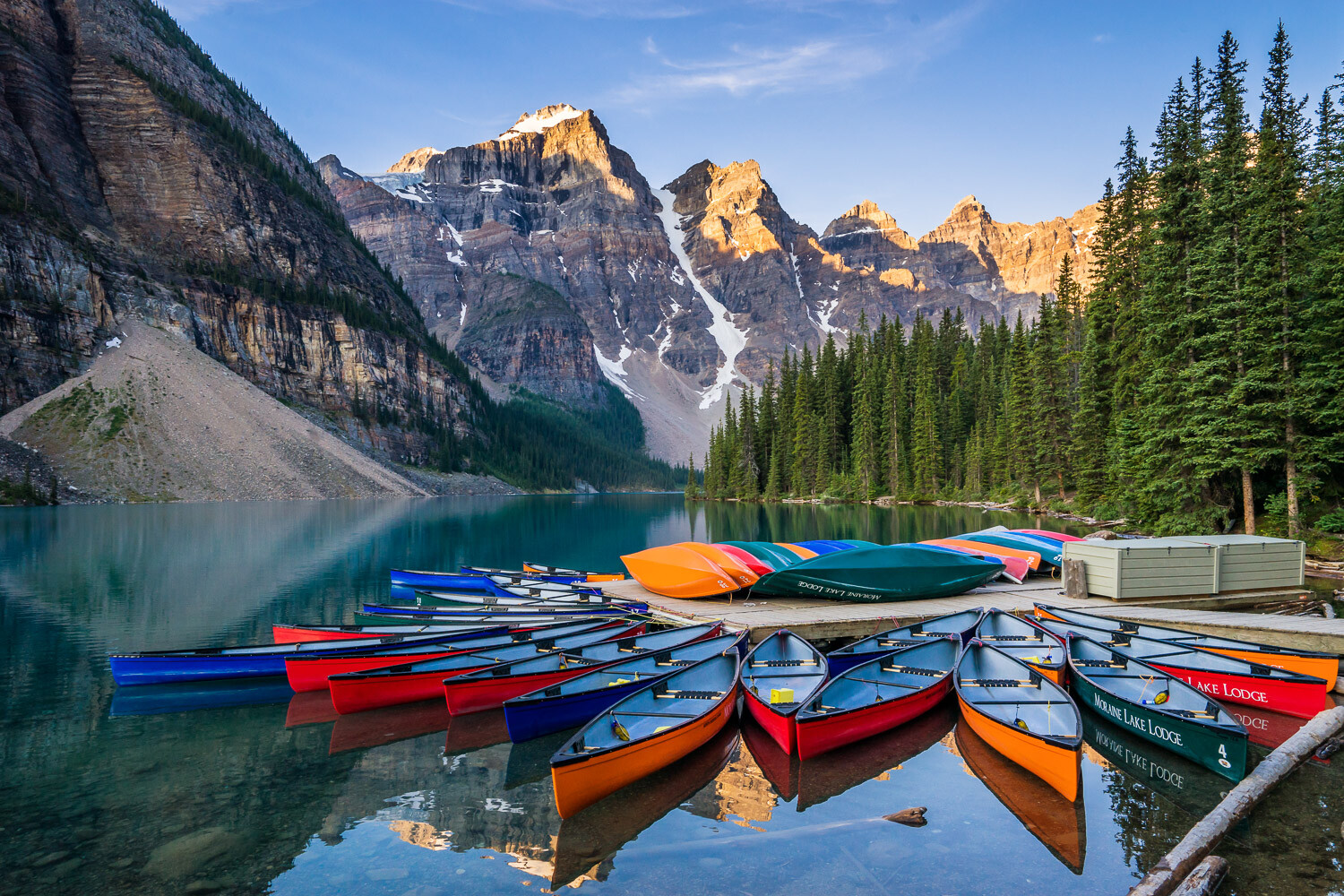
lake how to reverse engineer photos

We’ve all looked at a photo and tried to figure out how it was created. I do it every day. Whether you’re conscious of it or not, when you see a photo you admire you try to analyze it. You’re asking, “How do I take photos like that?”

The truth is, if you ask the photographer about their camera or settings you’re asking the wrong questions. By all means, ask questions. After all, that’s how we learn. But you can also learn a lot from studying an image – if you know what to look for. When you can visually deconstruct an image, you’re one stop closer to being able to create something similar.

This isn’t a lesson in plagiarism. It’s simply a way to learn from other photographers whose work you admire. No successful artist would be where they are today without learning from the works of others they look up to.

Light and Shadow

The most important photographic lesson I ever learned is that it’s all about the light. Reverse-engineering photos is no different. Analyzing the light in an image is the simplest and most effective way to learn how a photo was made.

When you look at the image, ask yourself a few questions.

  • Which direction is the light coming from?
  • Is there more than one light source?
  • Is the light hard or soft?
  • Is there reflected light in the photo?
  • What about the color temperature? Is it warm or cool?

Sometimes the answers will be obvious. Sometimes they’ll be impossible to answer. But the more often you ask them, the better you’ll get at answering them.

If you’re looking at a landscape photo, you can almost always assume there’s only one light source – the sun. But that doesn’t mean you can’t deconstruct the light. The direction, hardness and temperature of the light will tell you a lot about the conditions the photo was taken in. Even though beautiful landscape lighting isn’t as technical as portrait or product lighting, you can still learn a lot from analyzing it.

aerial how to reverse engineer photos

The sun striking this landscape, along with the warm light on the right side of the image, clearly show where the light is coming from.

If you’re reverse-engineering a portrait, it’s more likely to have more than one light source, as well as reflected light. When a photographer starts balancing multiple light sources, reverse-engineering a photo can become more difficult. But there are still ways to analyze the light if you know what to look for.

Start by asking yourself, “Where are the shadows?” It may seem a little backwards, but one of the best ways to analyze light is to look at the darker parts of the image. Where is there no light? Do you see any hard shadows? Are there areas where you can see the light dropping off gradually? Studying the shadows will tell you about the direction of the light as well as how large it is relative to the subject.

bear how to reverse engineer photos

The illuminated fur around the outside of the bear show that this image was backlit. And its shadow on the ground shows the exact direction the light was coming from.

Interpreting a photograph’s light becomes more difficult as the lighting gets more complex. As more light sources or reflectors are added, the shadows become less obvious. If the shadows are very light or non-existent, it likely means either the light is very diffuse and bouncing all over the place, or there are multiple light sources.

If you’re lucky, you can sometimes see exactly what light source was used by looking for reflections. Look at the eyes, glasses, windows, water surfaces, and anything that reflects light. Sometimes you can see a perfect reflection of the light source, but at the very least you’ll be able to see its direction.

cabin how to reverse engineer photos

The soft light on the subject, combined with the reflection in her glasses, show the window as the light source. The very dark shadows tell us there are no other light sources.

Gear and Settings

In many cases, you don’t need to ask what equipment or settings were used to create a photo. With practice, you can learn to guesstimate the technical details such as focal length, aperture and shutter speed.

Figuring out what focal length was used isn’t too difficult once you know how focal length affects a photo. As a general rule, the shorter the focal length (wider angle), the more distortion you’ll see and the more of a scene will fit in the frame. As the focal length gets longer (normal or telephoto), you’ll see more compression in the image and less of the scene in the frame.

car how to reverse engineer photos

Only a very wide-angle lens can capture everything in a scene like this from the ground to the sky. The lens distortion makes closer objects like this car look much bigger.

While this won’t tell you the exact focal length used, it will give you a ballpark figure. With practice, you’ll be able to tell if a photo was taken with a wide-angle (<35mm), normal (35-85mm) or telephoto (>85mm) lens. The exact number doesn’t matter. What does matter is getting a rough idea where your focal length needs to be to create the same look.

As with focal length, you can figure out roughly what aperture was used by understanding how it affects an image. As the lens aperture opens and closes, the depth-of-field (DOF) of the image changes. The wider the aperture (smaller f-number), the narrower the DOF.

Again, the exact number doesn’t matter. What matters is understanding how aperture affects DOF and how to interpret the DOF of a photo. If the image is sharp and in focus from the foreground right through to the background, a smaller aperture (f/11-22) has probably been used. If everything but the subject is soft and out of focus, a larger aperture (f/1.4-5.6) has probably been used. If the DOF is somewhere in between, the aperture is probably around f5.6-11.

Finally, these principles can also be applied to shutter speed. You probably know that shutter speed affects the way movement appears in an image. If objects you would expect to see moving are frozen still, you know a faster shutter speed was used. If there’s some motion blur in the image, you know the shutter speed was slower.

bay how to reverse engineer photos

You can see that a longer shutter speed has been used here to create the milky water effect, common with long-exposure photography.

With a landscape photo, any time you see silky-smooth water or clouds common with long exposures you know it has a shutter speed of at least a few seconds. If you’re seeing some movement, it’s more likely to be less than one second. To freeze movement, you’d expect shutter speeds of at least 1/100th of a second.

rocks how to reverse engineer photos

Very short shutter speeds are required to capture moving water, as in this seascape photo.

If the photo doesn’t include any moving objects, it’s much more difficult to figure out the shutter speed used. But if there’s no movement then shutter speed doesn’t really matter. It just needs to be fast enough to avoid any blur caused by camera movement to ensure a sharp image.

Post-Processing

Reverse-engineering the post-production that’s been applied to an image is the trickiest part. There’s almost no limit to what can be done in Photoshop today, which makes it difficult to figure out how a photo has been processed.

You can get a rough idea of how much post-processing has been applied by looking at the photo. Does it look realistic? Do the colors and tones appear the way you’d expect in real life? Is the whole image well exposed from the darkest shadows to the brightest highlights? Are the light and shadows consistent across the image as you’d expect? Do the people look real, or impossibly perfect?

Asking these kinds of questions will help you know what to look for. It’s easy to look at the image as a whole and get frustrated trying to analyze it. As you break it down and look at the individual details of a photo, it becomes easier to see the edits that have been applied.

I’ll admit this isn’t exactly my strong suit, being colorblind. Picking out the color grading or effects that have been applied is never easy for me. But with practice I’ve become much better. And if I can do it, so can you.

london how to reverse engineer photos

You can see by looking at the church that extra warmth has been added in post-production to emphasize the warm late afternoon sun.

Keep in mind that photographers and retouchers that are highly skilled in Photoshop, are very good at making their images look natural and unedited. Just because an image looks real doesn’t mean it is. A photo that’s been edited by a Photoshop ninja will be very difficult to reverse-engineer.

Exif Data

When all else fails, and you desperately want to know the settings used to take a photo, you may be able to access the image’s exif data. When a digital photograph is created, a bunch of data is embedded into the file. This includes focal length, shutter speed, aperture, camera model, and often a bunch of other information.

A photo’s exif data is often stripped out by the photographer or the website it’s uploaded to. But if it hasn’t been stripped, you can easily access the data by either:

  • downloading the image and reading the data on your computer
  • using one of the many websites that will analyze a photo’s exif data for you.

Some websites, such as exifdata.com, can even analyze a photo from the image’s URL.

cuba how to reverse engineer photos

The shadow of the tree clearly shows the direction of the sun, while the light reflecting off the concrete has filled in the shadows on the subject.

Use Your New Powers Wisely

Now that you know how to reverse-engineer a photo, go and practice. The more you do it, the easier it will become. As a photographer, being able to analyze and deconstruct a photo is an incredibly valuable skill. You can learn a tremendous amount from other photographers by doing this.

But again, this isn’t a lesson in plagiarism. It’s about growing as a photographer by learning from other people’s photos, not recreating or cloning them.

Now, go and find some photos you love and deconstruct them using your new-found powers.

The post How to Reverse-Engineer a Photo appeared first on Digital Photography School.


Digital Photography School

 
Comments Off on How to Reverse-Engineer a Photo

Posted in Photography


Canon brings its Digital Photo Professional Raw processing program to iOS

10 Oct

Canon has ported a large chunk of its Digital Photo Professional (DPP) Raw processing software’s feature set to mobile and launched the DPP Express app for Apple’s iPad.

The new app works in conjunction with Canon’s Camera Connect app and offers a wide range of processing functions for Canon .CR3 Raw files and JPEG images. Files can be viewed, adjusted and saved to the cloud, a computer or your camera – all wirelessly.

The Camera Connect app, which also allows you to control the camera remotely, is used to wirelessly download images from your Canon camera to the iPad. Once on the tablet, images can then be processed and edited in DPP Express. The user interface has been designed with simplicity in mind and adjustment options include tone curves, picture settings, gamma levels and lens correction. All changes are applied in real time.

DPP Express also offers Multiple Editing Histories, allowing for several edited versions of the same image. Up to four editing histories let you compare effects and editing options on the same image and can be copied and pasted between files to apply the same workflow to more than one image.

The app is compatible with newer iPads and iPad Pro models running iOS 11. For more information on compatibility and features have a look at the Canon website. You can download DPP Express from the iOS App Store.

Articles: Digital Photography Review (dpreview.com)

 
Comments Off on Canon brings its Digital Photo Professional Raw processing program to iOS

Posted in Uncategorized


How to Achieve a Consistent and Clean Photo Editing Style

07 Oct

As a photographer, achieving a consistent and clean photo editing style is important for developing your work.

Depending on your photographic niche, the way you choose to post produce and edit your images is a key factor in achieving cohesiveness in your portfolio. Utilizing editing software such as Adobe Lightroom or Photoshop can help you develop a style and aesthetic that is personal to you.

Let’s discuss some of the necessary elements for achieving a consistent and clean photo editing style. 

Focus on Lighting to Achieve a Consistent and Clean Photo Editing Style

In order for your images to look polished and professional, you will want to focus the majority of your edits on making lighting corrections. It is important to note that shooting in camera RAW mode will allow you to make the most of your editing process. If you have this capability, change your image capture mode prior to shooting. 

Lighting corrections in post-production include changes to exposure, highlights, shadows and adjusting your black and white points. By shooting in RAW mode, you can bring details back into the image that may have been lost while shooting by increasing or decreasing some of these lighting values. This allows you to set a base for your images that define your editing style.

Whether you want to create bright, airy images or darker, moody edits – these can all be achieved by manipulating your lighting. 

Take a look at the clean photo editing style in the before and after of the images below. 

How to Achieve a Consistent and Clean Photo Editing Style - Focus on Lighting example 01


How to Achieve a Consistent and Clean Photo Editing Style - Focus on Lighting example 02

How to Achieve a Consistent and Clean Photo Editing Style - Focus on Lighting example 03

Avoid Harsh Color Edits 

While using editing programs including Lightroom or Photoshop, it can be easy to over-manipulate the color of your image. With tools such as the RGB curve, HSL or Split Toning, these capabilities can be very powerful and effective when used properly. When aiming to create a consistent and clean photo editing style, avoid harsh or dramatic color edits that appear inauthentic to the original image. 

In order to stay true to the original tones of your image, consider adjusting your white balance to ‘AUTO’ within your camera before shooting. You can manually adjust this using Lightroom if your images are shot in RAW format. The white balance ‘Auto’ mode on your camera is designed to achieve the most authentic and true-to-life color under most shooting circumstances. During the editing process, color adjustments can be made by changing values such as temperature, tint, saturation, hue and tone. 

Each photographer has a colour editing style that is specific and recognizable to their work. Whilst you can create a color style that is unique to you, be sure to remember that professional images maintain accurate color consistency. You want to make sure to change your image color values with intention, and use this same method across your body of work.

How to Achieve a Consistent and Clean Photo Editing Style - Color Editing - Example 01

How to Achieve a Consistent and Clean Photo Editing Style - Color Editing - Example 02

Eliminate Distracting or Unnecessary Elements

Another tip to creating a consistent and clean photo editing style is to remove distracting elements from your images. This may include background elements, imperfections of your subject, or even poor composition. Many of these imperfections can be fixed by utilizing removal tools such as healing brushes or the clone stamp.

The overall composition of the image can also be improved by altering the cropping and fixing alignment problems with straightening. In order for your work to have a professional appearance, you must remember to fix the imperfections and pay attention to the smaller details of your images.  

For example, in the image below,  I wanted more of the sky and less of the tree branches. Using the Lightroom Clone Stamp tool, I was able to remove some of the branches by replacing it with the blue detail of the sky. You can change your image as you see fit to avoid an image with distracting or unnecessary elements. 

How to Achieve a Consistent and Clean Photo Editing Style - Using the Clone Stamp - Example 01

Create Tools for Consistency

The most effective way to create consistent editing in your post-production workflow is to create tools such as presets in Lightroom or actions in Photoshop. These capabilities were created so you can save edits and reapply them across multiple sets of images. Depending on the editing software you prefer to use, presets and actions are both fairly simple to create and integrate into your editing workflow. 

Presets

Presets are used in Adobe Lightroom to copy and paste edits from one image to another. In order to create a preset, you must first make edits to an original image. To do this:

  1. Open your original image in the Develop Module in Lightroom. 
  2. Apply the color edits and lighting adjustments you want to make. 
  3. Once satisfied with your results, navigate to your keyboard and press ‘Command + C’ (the shortcut for copy). 
  4. The Copy Settings dialog box will appear, guiding you to choose the settings you would like to copy. Make your selection and press ‘Copy’. 
  5. Navigate to the left tool bar and find the tab labeled ‘Presets’
  6. Press the ‘+’ button and choose the option of ‘Create Preset’ or alternatively, go to the menu bar, choose ‘Develop’ and then select ‘New Preset’.
  7. A ‘New Develop Preset’ box will appear asking you to name your preset and choose the settings you want to save. 
  8. After you have determined these values, press ‘Create’ and your preset will now show in the ‘User Presets’ tab in the Develop Module.
  9. You can now apply this preset to any of your images with one simple click to paste the edits. 

How to Achieve a Consistent and Clean Photo Editing Style - Using Presets in Lightroom


Here is an example of a before and after edit with one of my personal Lightroom image presets. 

How to Achieve a Consistent and Clean Photo Editing Style - Using Presets in Lightroom Example image

Actions

Actions are created in Adobe Photoshop by recording adjustments made in the program. Unlike presets, actions are developed by pressing the ‘RECORD’ button while editing your image. Once satisfied with an edit, press the ‘STOP’ button and your action is created. Actions are used for specific adjustments to an image such as color, light and retouching. 

To create an Action, you will need to go to the right side panel and find the ‘play’ button denoted as a triangle pointing to the right. 

  1. Choose the paper icon to ‘Create New Action’.
  2. Name your Action and press ‘RECORD’.
  3. Photoshop will record your adjustments and save them to your new Action.
  4. When you are satisfied with your changes, press the ‘Stop’ button to save it. 
  5. Once your Action is complete it can be applied to your images by selecting the name of your action and pressing the ‘Play’ button.

How to Achieve a Consistent and Clean Photo Editing Style - Using Action in Photoshop


Actions can be very effective for portrait photographers who need to retouch and fine tune the facial features of their subject. You can create actions to smooth skin, remove blemishes and even for methods such as frequency separation.   

Here is an example of a before and after edit with one of my personal Photoshop Color Actions.

How to Achieve a Consistent and Clean Photo Editing Style - Using Action in Photoshop Example image


As you can see, a consistent and clean photo editing style is achieved through integrating techniques such as; lighting adjustments, natural color edits, and the elimination of distracting elements. It is also achieved by using tools such as Lightroom Presets or Photoshop Actions. In your body of work, having an editing style that is cohesive and visually appealing will give your images a truly professional touch.

Do you have any tips for creating consistent and clean photo editing styles in either Lightroom or Photoshop? Share with us in the comments below.

The post How to Achieve a Consistent and Clean Photo Editing Style appeared first on Digital Photography School.


Digital Photography School

 
Comments Off on How to Achieve a Consistent and Clean Photo Editing Style

Posted in Photography


ARS is a new online platform for honest, anonymous photo critiques

02 Oct

A new platform called ARS offers photographers a way to get honest feedback on their images. Unlike social media, where commenters may be biased by a desire to be nice or get followers, ARS offers no such pressure or incentives. Instead, the photographers sharing images and the people critiquing them are completely anonymous.

ARS was created by Eric Kim, who explained on his website, “Whenever you upload a photograph to Facebook, Instagram, Flickr, etc – most people (to not hurt your feelings) will just say something generic like, ‘Nice shot! […] If someone saw my picture (and didn’t know who I was), would they still like the picture?”

ARS ditches the social media model, instead presenting users with “equally and randomly” distributed images to critique. The platform features a simple, clean interface in which users have a text field for providing their feedback, as well as “Keep” and “Ditch” buttons. Photographers can view their “Keep” percentage for each uploaded image, as well as the number of critiques provided.

The platform was launched as a beta that has since been updated to version 2. According to Kim, ARS Beta 2 is about 300% faster than the original version. Additional work is underway to eventually launch version 3, as well as an ARS mobile app. Interested photographers can join at ARSBeta.com using a Google account.

Articles: Digital Photography Review (dpreview.com)

 
Comments Off on ARS is a new online platform for honest, anonymous photo critiques

Posted in Uncategorized


ON1 Photo RAW 2019 due out in November with revamped UI, improved Lightroom migration

26 Sep

ON1 has announced the upcoming version of its photo editing program ON1 Photo RAW 2019. Due out November 2018, ON1 claims version 2019 ‘is one of the biggest and best releases in our history [and] will include tons of improvements to the photo editing workflow and new features.’

Specifically, ON1 Photo RAW 2019 will have an updated UI, a new non-destructive workflow for layers, auto-alignment of layers, focus stacking, a new portrait module, a new AI-powered masking tool, a new text tool, new digital asset management updates and — arguably most significant — a Lightroom photo settings migration plug-in.

Starting with the user interface, ON1 says version 2019 will have a ‘fresh and modern feel.’ Specifically, ON1 says the overall UI will have improved contrast and updated icons, tabs and sliders that take up less screen real estate.

Before diving into the other features, we’re going to hit on the new Lightroom Photo Settings Migration feature. Detailed in the above video, you can now easily export your Lightroom catalogs directly into ON1 Photo RAW 2019 and bring along all metadata and non-destructive edits with the images. While the edits won’t be exact, ON1 notes its AI-powered algorithms will do their best to get more most accurate edits possible using what ON1 Photo RAW 2019 has to offer.

The workflow for layers is no longer a separate module. In ON1 Photo RAW 2019, the non-destructive layers workflow will be present inside of the Develop and Effects module. ‘This will allow for creating or editing multi­layered files, including raw files, and keep the non­destructive settings for each photo layer,’ says ON1 in its press release.

Focus Stacking is also new. As the name suggests, it automatically blends a collection of images together at varying focusing distances and lets you adjust it in real-time to get just the right amount of depth of field. The Auto-Align Layers feature combines multiple images as layers for easier masking and blending when editing.

A new Portrait Module can automatically detect faces in images and features a custom toolset for precise retouching. ON1 specifically mentioned the ability to ‘smooth skin, brighten and sharpen eyes and whiten teeth.’

The AI Masking Tool isn’t due out until a December update to ON1 Photo RAW 2019, but ON1 says it ‘will allow [you] to easily identify areas of your photo to create a selection or mask and the AI technology detects your subject matter and automatically creates a beautiful mask.’

Other additions include a new Text Tool, a Layered HDR Workflow and additional Filter Options in the Effects module. Support for new cameras and lenses have also been added.

ON1 Photo RAW 2019 is set for a November 2018 release and is currently available for pre-order on ON1’s website for $ 100 for a limited time. If you own any previous versions of ON1 software, pre-orders are only $ 80 for a limited time.

Articles: Digital Photography Review (dpreview.com)

 
Comments Off on ON1 Photo RAW 2019 due out in November with revamped UI, improved Lightroom migration

Posted in Uncategorized


Back to School Canvas Photo Print Giveaway (16? x 20? Canvas Print)

20 Sep

  Dear readers, Welcome to this months Giveaway.  For this one, we have partnered with Canvasonthecheap.com. We have personally used them in the past and liked the quality of their product. And now for the Giveaway details: One lucky winner will receive a 16″ by 20″ canvas print of their chosen photograph.  Here is all you need to do: Like Photodoto on Continue Reading

The post Back to School Canvas Photo Print Giveaway (16″ x 20″ Canvas Print) appeared first on Photodoto.


Photodoto

 
Comments Off on Back to School Canvas Photo Print Giveaway (16? x 20? Canvas Print)

Posted in Photography


Think Tank Photo launches dual-access, water-resistant Lens Case Duo lineup

18 Sep

Think Tank photo has launched a new line of protective lens cases it calls Lens Case Duo. The six cases in the lineup feature a soft, padded liner and two zippered access points: one from the top of the case and one from the side.

Each of these cases can be used on their own or together as a modular system. The two methods of accessing the lens inside make it easy to pair with either a belt system or stuffed inside a backpack — whatever your setup requires. The larger cases, designed for massive primes and telephoto lenses, include a shoulder strap in the event you prefer to carry it as a sling of sorts.

Currently, the Lens Case Duo comes in six different sizes: 5, 10, 15, 20, 30 and 40. The smallest of the cases (5) is meant to hold a small prime or kit lens. On the other end of the spectrum, the biggest case (40) can hold telephoto zoom lenses, such as Canon and Nikon 70-200mm F2.8. You can find a full list of suggested carrying capacities on Think Tank Photo’s announcment page. Each of the bags come in black and green colorways, feature a water-repellent coating, and have two small neoprene pouches on the front.

These bags bear a striking resemblance to Think Tank Photo’s waist belt lens pouch line-up, so it’s nothing new, really. The only notable difference we see is the ability to access the pouch from the side in addition to the top. Also, these don’t feature a built-in rain pouch like Think Tank Photo’s belt system pouches do.

The Lens Case Duo 5, 10, 15, 20, 30 and 40 are available for $ 21, $ 22, $ 27, $ 29 and $ 33, respectively.

Articles: Digital Photography Review (dpreview.com)

 
Comments Off on Think Tank Photo launches dual-access, water-resistant Lens Case Duo lineup

Posted in Uncategorized


Affinity Photo for iPad gets major update, 30% off discount

16 Sep

Affinity Photo for iPad has put out a new update that further improves the Photoshop competitor with new features, updated tools and bug fixes.

Serif, the company behind the Affinity suite, also noted there’s now more than a quarter of a million people worldwide using Affinity Photo for iPad, following on the heels of Apple’s App of the Year accolade it received at WWDC in May 2018.

Affinity Photo version 1.6.9 introduces a long list of changes including ‘massively’ expanded support for touch gesture control, a tweaked UI designed for more intuitive control and better brush management, a new Export persona for easy exporting of multiple layers and a slew of under-the-hood changes to boost performance.

Below is the full list of features and tools that have been updated in Affinity Photo for iPad:

  • Added support for brush nozzle base texture mode.
  • New Undo/Redo gesture with two and three finger tap.
  • Added drag modifiers to studio icons for color, text, navigator and history.
  • Added canvas rotation control via Navigator Studio.
  • Added swipe gesture to swap primary and secondary colors on the Color Studio
  • Context menu now uses a long-press release gesture to invoke.
  • Added two-finger hold gesture to resize a layer from its centre.
  • During shape creation, a two-finger hold gesture will transform the layer.
  • On the Layers Studio, with a layer selected, a two-finger tap on another layer will select all layers in between.
  • On the Layers Studio, pinch inwards (either vertically or horizontally) to group selected layers. To ungroup, do the opposite and pinch out.
  • With the Move Tool active, a two-finger hold gesture on a layer plus a one finger drag duplicates the selected layer.
  • Easy access to merge and rasterize commands via Layer Studio icons.
  • New Export persona. A new workspace for exporting regions of your image as slices.
  • Improved brush stroke lag and small stroke response.
  • Brushes remember previously used stroke settings.
  • Move any custom brush to any category.
  • Added support for on-screen keyboard trackpad mode.
  • Added Tab key to on-screen keyboard context bar.
  • Updated Persona icons.
  • Numerous other improvements and bug fixes.

To entice new users, Serif has announced a 30% off sale through 7AM ET on Tuesday, September 18th. Normally, Affinity Photo for iPad retails for $ 20, but with this discount, you can snag it for $ 14 in the iOS App Store.

Do note Affinity Photo for iPad only supports iPad Pro, iPad Air 2 and iPad (early 2017). If you have an older device, it won’t run — so don’t waste your money.

Articles: Digital Photography Review (dpreview.com)

 
Comments Off on Affinity Photo for iPad gets major update, 30% off discount

Posted in Uncategorized


Konseen launches Photo Studio, a portable light box tent for portraits

15 Sep

Konseen has launched Photo Studio, a new light box tent large enough to photograph people, in addition to smaller objects like clothing and jewelry. Photo Studio is offered in two sizes, one measuring 47 x 39 x 78in / 119 x 99 x 198cm with enough room for adults, the other 47 x 32 x 63in / 120 x 80 x 160cm, which is large enough for children. Both models include LED lights, a silver reflector, and multiple backgrounds.

Features include three soft cloth backgrounds, as well as three PVC backgrounds

The Konseen Photo Studio features a pipe-based frame with a tent cloth that zips over the structure. Users assemble the tent, which includes the option of attaching light panels to any of the frame pipes. The smaller Photo Studio model includes six light boards, each with 96 LEDs; the larger model includes 8 light boards, each also featuring 96 LEDs.

Each light board includes its own dimmable AC adapter. Other features include three soft cloth backgrounds, as well as three PVC backgrounds in white, black, and blue colors. The light color temperature is 5500K and each board has a dimming range from 1- to 100-percent.

The Photo Studio is priced at $ 280 USD (small model) and $ 340 USD (large model).

Via: PetaPixel

Articles: Digital Photography Review (dpreview.com)

 
Comments Off on Konseen launches Photo Studio, a portable light box tent for portraits

Posted in Uncategorized