RSS
 

Posts Tagged ‘Photo’

How to Turn Your Living Room into a Photo Studio

08 Apr

The post How to Turn Your Living Room into a Photo Studio appeared first on Digital Photography School. It was authored by Jackie Lamas.

Have you ever wished to have a studio space where you could bring clients in and photograph all types of portraits and ideas? You can! Your living room, or any room in your home for that matter, can be quickly converted so that you can photograph your studio ideas in your home!

Setting up backgrounds on a plain wall can help you take great portraits in your own living room.

Finding the right space

Your living room might be the room with the biggest space for you to get the best angles and set up your lights. As long as you have about 10 feet of blank wall space, you can use it for your at-home studio.

Choose a wall where you can mount backgrounds. Put up studio paper, or any background paper. Alternatively, use a painted wall for your photos. It doesn’t have to be anything special, and you could use the existing wall as the main background as well.

A bedroom with big windows can be used as a studio for portraits.

Why 10 feet? The wider your wall space, the more room you’ll have to the sides of your photos. This will enable you to photograph both horizontally and vertically. You will also have room for more than one person.

If you’re photographing headshots or only individuals, a smaller wall space would work. A wall with 5 feet would be sufficient enough for headshots and individuals.

Other spaces in your home that could work

The living room doesn’t have to be the only space that you can use. For example, if you don’t have studio lights, but want to create beautiful portraits with creative direction on backgrounds and don’t want to go on location, your home can still work!

You can photograph in a covered patio with lots of wall space, in your garage, in the bedroom, or on a balcony. All of these spaces work if you have the wall space to place your subject and space to photograph them from a distance.

This makes it much simpler to choose the right location for your at-home studio in the event that you don’t have studio lighting equipment or a special look to your photographs.

Creating the best set up for studio/flash  set up

You don’t necessarily need to use studio lights for your at-home studio, however, if that is what you’re going to use then let’s go through what you’ll need in the space for the best outcome.

Use flash bouncing off the ceiling to light portraits in your living room or in the space you want for your at home studio.

You’ll need to choose a wall space that is in a darker or not-so-brightly-lit room. You can also use shades or curtains to block out light so that your off-camera lighting can correctly light your scene.

Using a flash to light these portraits to simulate the sun. Plain wall background in the bedroom.

Living rooms offer the most space but make sure you can get it dark enough to set up the lights exactly where you want them.  You could also use external flashes to set up your at-home studio.

You can light portraits creatively when you have control of the space and lighting.

Have a lamp nearby so that you can use it as a modeling light. You can also use a light dimmer so that the light doesn’t affect the outcome or interfere with the white balance, exposure, or look and feel that you’re trying to achieve.

Best set up for natural light at-home studio

If your living room or any other room in your home has great natural light, you can definitely set up your studio there. The same tips apply as far as wall space so that you can pose your subject and have enough space in the frame in case cropping is necessary. It also gives you the option to photograph vertical or horizontal.

This was shot with all natural light using a silver reflector with a 3×3 grey background taped to the wall. Edited to bump up the contrast and desaturate the colors.

Choose a room that has great window light or light coming into the space. For example, a garage space with the garage door open is a good option. Another good option is a living room with big sliding doors where light floods the room. Make sure that the sunlight isn’t coming directly into the room or through the window where it casts weird shadows on your subject.

To diffuse the light, you can hang translucent curtains. This will help with harsh lighting, shadows, and the temperature of the room. Of course, you don’t necessarily need the window open unless it adds more light to your scene – if that is the look you’re going for.

If your home has textured walls, you can use them as backgrounds for the portraits as well!

Use a reflector and bounce cards to help bounce light in the direction you want. Black flags  (black boards that help darken the light) and are great for creating shadows and can help to give you more dramatic lighting.

Be aware of the floor

In your home, your floor is already installed and this can present a problem if you’re photographing full-length portraits. Take a look to see if the floor is what you’ll want for your photos. If it isn’t, you can use paper and place it from the wall all the way to the floor. This will create a seamless look to your photos like a real studio.

In the before photo, we covered the floor with a black sheet so we could photoshop the black background in and create a seamless look.

You can also get cheap wood floor-looking laminate flooring and create your portable floor. If the trim base to the floor isn’t distracting, you could even possibly photoshop that out to create a more seamless look with the wall and the floor.

Just be aware of your floor so you know what to do before you start photographing in your new home studio.

Backgrounds for in-home studios

There are a lot of great backgrounds that you can use for a home studio. Given that it’s completely your space and you can get really creative. The simplest one is the one you already have available! Use the existing wall color and texture to create interesting portraits.

You can use existing decor to create beautiful portraits or tape a paper background to the wall for a seamless background.

Other backgrounds you can use can be:

  • A sheet that covers the wall and onto the floor for a seamless fabric background.
  • Paper either rolled onto the floor for seamless or a piece of paper taped to the wall for up-close portraits
  • Any fabric or paper with a print on it
  • Different colored paper for headshots

Pretty much anything you can think of you can create as a background! You can get really creative with balloons, tissue paper, hanging strings, lights, paper flowers, artificial flowers, string or hanging garlands either made by you or already made newspaper or even plants.

The options and ideas are limitless and will give your photos a unique look no matter what your style is.

In conclusion

Your living room can be the perfect space for you to create beautiful studio work. You don’t need fancy equipment just nice wall space and the light you love to photograph with. Add in some music and you’ve got the perfect comfortable studio right in your home!

Do you have other suggestions to make a great living room studio? Share with us and our readers in the comments below.

The post How to Turn Your Living Room into a Photo Studio appeared first on Digital Photography School. It was authored by Jackie Lamas.

Digital Photography School

 
Comments Off on How to Turn Your Living Room into a Photo Studio

Posted in Photography


Review: Photolemur 3 Photo Enhancer Software

06 Apr

The post Review: Photolemur 3 Photo Enhancer Software appeared first on Digital Photography School. It was authored by Sandra Roussy.

There are many options out there when it comes to photo editing apps and software. From the simple one-click filter apps for smartphones to the elaborate software programs like Photoshop and Lightroom.

Technology is making it easier to do photo editing quicker and expertly without learning the complete nuts and bolts of complex and expensive software. Depending on your particular needs, some software on the market today can do a very professional job in a few easy clicks.

Let’s take a look at one of these programs that have emerged on the market that boasts advanced technology using algorithms and artificial intelligence to enhance photos automatically and effortlessly.

Photolemur 3 Photo Enhancer

Photolemur is relatively new on the market and prides itself on being a completely automatic photo enhancer. It uses algorithms and artificial intelligence to analyze photos and applies corrections and enhancements as necessary. The software is only available for computer use at the moment and is Mac and PC compatible. You can purchase a single license for US$ 35.00 or a family licenses of up to five users for US$ 55.00.

How it works – instant and quick results

It really is as easy as they say! You drop your photos or import them into the app, and the software gets to work immediately. It analyzes skies, colors, exposure, and faces to enhance your images and fix any problems it encounters.

You can batch import and apply the editing to all your photos at once, or edit them one by one. The software supports a variety of file formats – even RAW files.

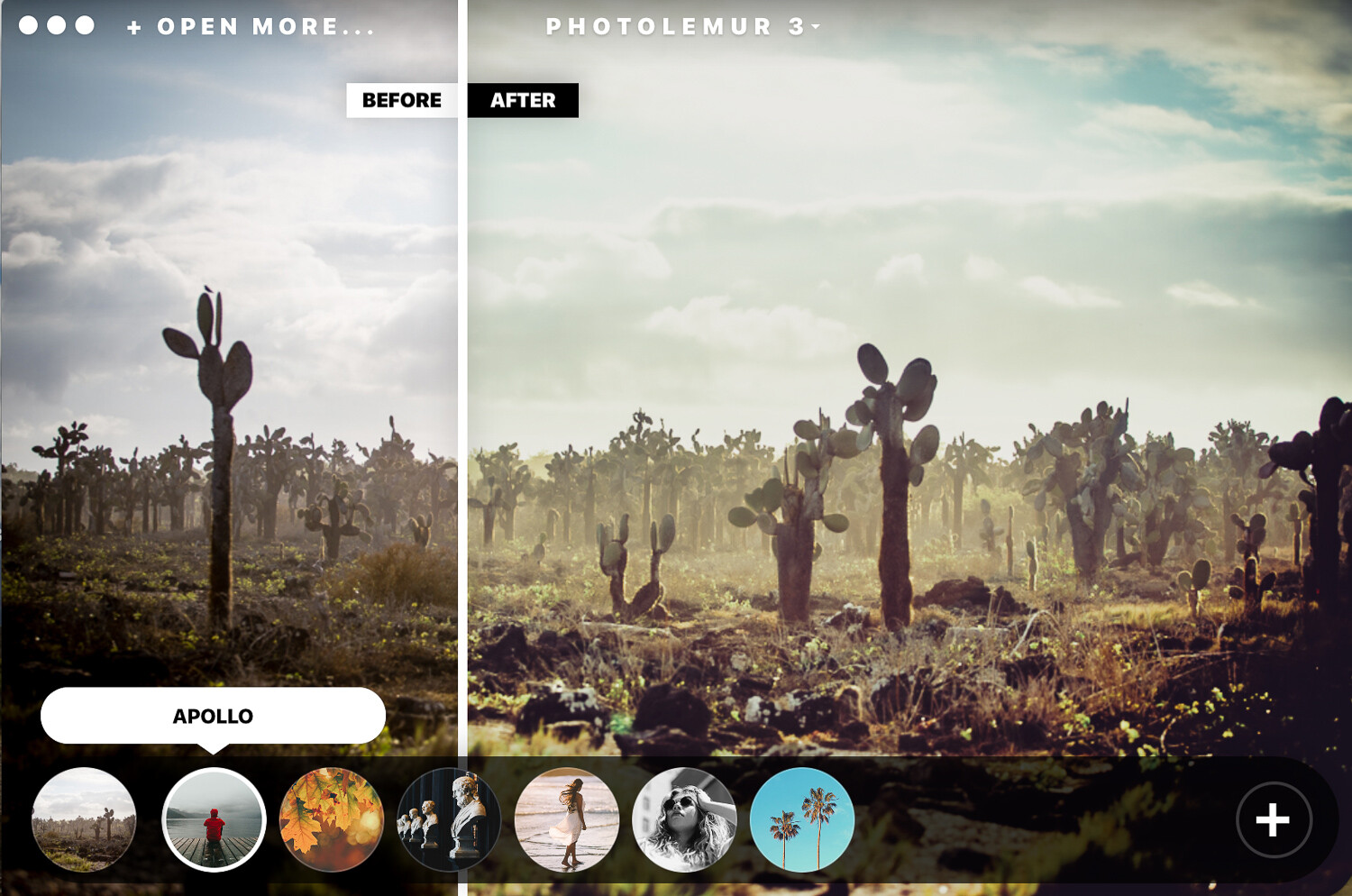
After Photlemur finishes analyzing your images, it gives you a before and after view with a fun slider. You can see and compare the enhancements applied to your photos.

At the bottom, you can click on the paintbrush and gain access to a slider that lets you adjust the amount of enhancement that you want to apply. The software won’t let you adjust the changes individually. For example, you can’t edit the exposure only. It does a pretty decent job at making the skies pop and fixing any exposure issues automatically.

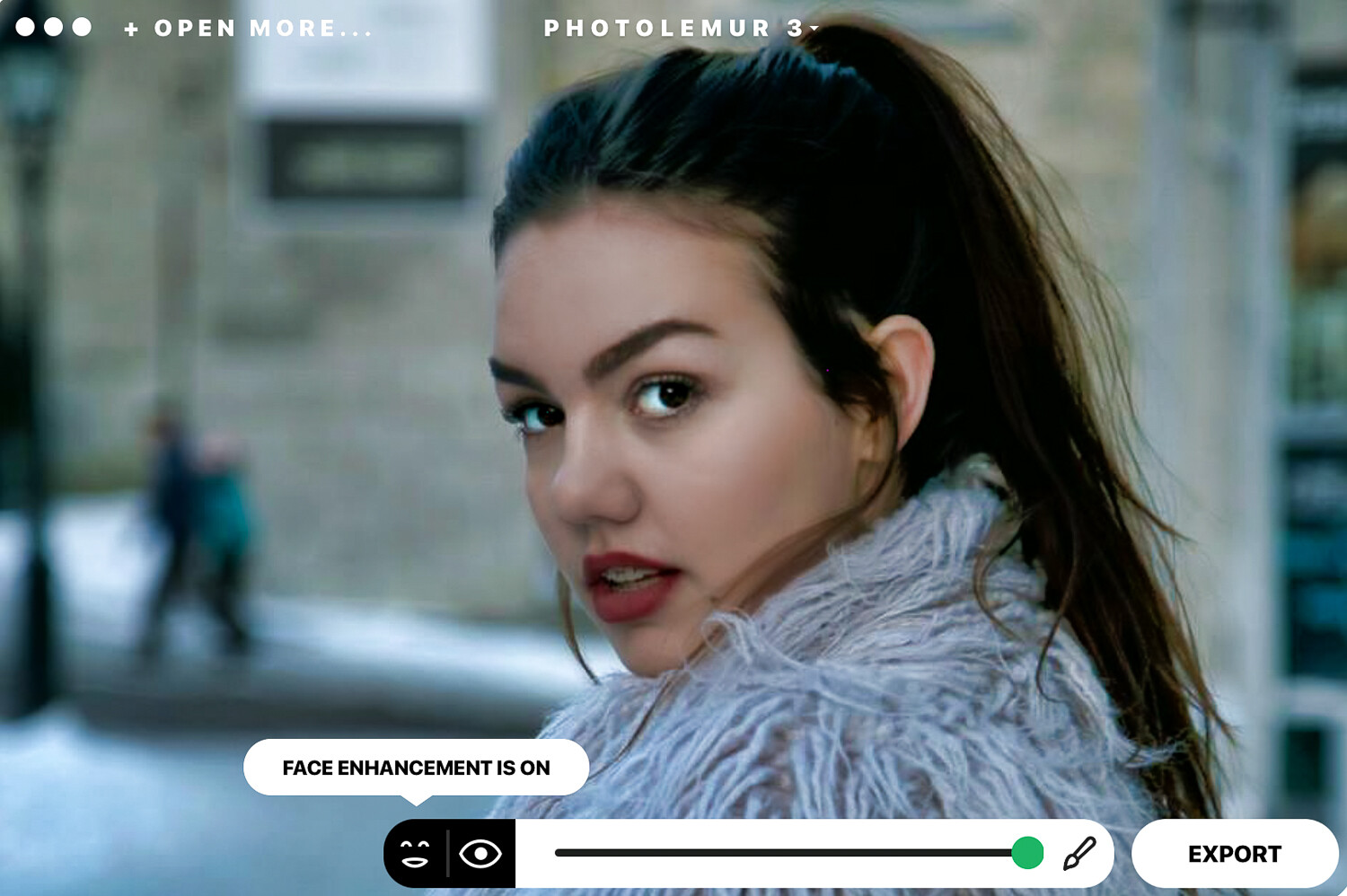
Photolemur 3 also features a face and skin enhancer that fix your portrait photos instantly by smoothing skin and imperfections, enhancing eyes, and whitening teeth.

On the left-hand side of the bottom slider, you will notice icons that let you turn on or off the “EYES ENLARGEMENT” and the “FACE ENHANCEMENT”.

I didn’t particularly like what happened to the hair of my model in this image. I would probably glide the slider a little to the left for portrait photos.

Applying filters

The software has integrated filters you can apply to your images. The filters are very similar to the ones you find on apps like Instagram. Click on the circle at the bottom and get access to all the filter options. If you’re a fan of filters, these do the trick pretty well. The mono filter transforms your photos to black and white with commendable results.

Exporting options

Once you’ve finished editing your photos, you can export them to your computer, upload them on various social media sites, or attach them directly to an email.

Standalone and Plug-in

You can use Photolemur 3 as a standalone app on your computer, and you can also add it as a plugin for Photoshop and Lightroom. Upon initial installation, you are prompted to add the plugin if you wish to do so.

Who it’s for

Photolemur 3 is a great tool for beginner or amateur photographers who want to easily and quickly enhance their photos. It does what it claims and has made photo enhancing stress-free. However, I don’t think that professional photographers will use this software on a regular basis because of its limitations.

It’s ideal for landscape photographers because of the sky enhancer and also for portrait photography. It’s super easy to set-up and get going. You can get your photos edited in a few minutes with a few simple clicks.

What it doesn’t do

If you have Photoshop or Lightroom knowledge and are accustomed to editing your photos manually, you will find Photolemur 3 restrictive. If you don’t like the way the software adjusted your exposure and colors, there is no way to go in deeper to adjust these results individually.

That said, it does a pretty good job automatically.

The program makes some sounds when it does certain actions that I’m not a fan of. Thankfully you can go to the settings drop-down menu and disable this feature.

Conclusion

I particularly like the way Photolemur 3 processes the skies to look better and how it corrects any exposure issues. However, I would go a little easy on the face enhancement features so that portraits don’t look over-edited.

You can give Photolemur 3 an unlimited free trial before you purchase it. Download the free limited version from their website and test it out for yourself. The free version adds a watermark and has other restrictions like no batch processing and limited export size.

This type of technology is the future of photo editing, and we will be seeing more algorithms and artificial intelligence applied to photography software and apps. I’m all for professional results done in a less time-consuming way. More time to have fun shooting!

Have you used Photolemur 3? What are your thoughts?

The post Review: Photolemur 3 Photo Enhancer Software appeared first on Digital Photography School. It was authored by Sandra Roussy.


Digital Photography School

 
Comments Off on Review: Photolemur 3 Photo Enhancer Software

Posted in Photography


National Geographic is now accepting entries for the 2019 Travel Photo Competition

29 Mar

Entries are now being accepted for National Geographic’s 2019 Travel Photo contest, with a top prize of $ 7500 on the line for the overall winner.

The competition is broken down into sections for Nature, Cities and People, and those coming out on top for these subject areas will win $ 2500. Second place winners will get $ 1500 and those in third position will come away with $ 750.

Seemingly to encourage photographers to enter now rather than at the last minute, the cost of submitting an image raises every week from $ 10 in week one to $ 35 in week six – which is the final week to enter before the May 3rd deadline.

The competition requires images be taken within two years of the date of entry, and only minor digital manipulations are allowed. The rules also state that anyone identifiable in the images will need to sign a release form:

If any persons appear in the photograph, the entrant is responsible for obtaining, prior to submission of the photograph, any and all releases and consents necessary to permit the exhibition and use of the photograph in the manner set forth in these Official Rules without additional compensation. If any person appearing in any photograph is under the age of majority in their state/province/territory of residence the signature of a parent or legal guardian is required on each release.

Entrants will also need to obtain permissions from the owner of any private property shown in the pictures – ‘each entrant must be prepared to provide (within five (5) calendar days of receipt of Sponsor’s request) a signed written license from the owner of any private property included in the Submission’. Entry requirements can be studied in full on the Rules page of the website. Residents of 42 of the world’s 195 countries are eligible to enter the contest.

For more information, and to see those images already entered, visit the National Geographic Travel Competition website. For inspiration take a look at our coverage of the 2018 Travel Photo Contest winners.

Official announcement

National Geographic Travel Photo Contest Now Open

The National Geographic Travel Photo Contest is accepting entries from March 18 through May 3. Harness the power of photography and share your stunning travel experiences from around the globe. Enter your most powerful photos for a chance to win the 2019 National Geographic Travel Photo Contest. We are looking for images that show us the world: its people, places, and cultures. Photos that tell the story of a place and travel moments that reveal what inspires you.

Need inspiration? See the 2018 winners gallery and discover which photos took home top prizes.

Visit weekly to see photo galleries of the top entries and see if your photo is featured. Think you have the winning picture? Show us your best.

Categories
Submit to three categories: nature, cities, and people.

Official Prizes
The grand prize winner will receive $ 7,500. Their winning image will be featured on the @natgeotravel Instagram account. Individual category prizes include:

  • First place winners will receive $ 2,500.
  • Second place winners will receive $ 1,500.
  • Third place winners will receive $ 750.

How to Enter and Pricing
Starting March 18, visit the entry page to upload your photo and join the competition. Hurry! Enter early—prices increase every Monday. There is no limit to entries.

  • Week 1 entry fee: $ 10
  • Week 2 entry fee: $ 15
  • Week 3 entry fee: $ 20
  • Week 4 entry fee: $ 25
  • Week 5 entry fee: $ 30
  • Week 6 entry fee: $ 35

Articles: Digital Photography Review (dpreview.com)

 
Comments Off on National Geographic is now accepting entries for the 2019 Travel Photo Competition

Posted in Uncategorized


Photo Mechanic 6 launches with 64-bit support, selectable ingestion and more

26 Mar

As promised earlier this month, Camera Bits has released Photo Mechanic 6, a major update to the company’s image ingestion software. A free trial is available to download for new users on Windows and macOS, while ‘qualified’ existing customers can upgrade for $ 89 USD. A new software license is priced at $ 139 USD. For users who purchased Photo Mechanic 5 in 2018 will receive a license key for Photo Mechanic 6 for free.

Photo Mechanic 6 brings a large number of big and small improvements, including the previously announced 64-bit support, the ability to ingest images from selection, better image caching, full-screen support for Preview and Contact Sheet windows, and reverse geocoding.

As part of the initial release, Photo Mechanic 6 brings new elements including a new render cache and image gallery exporter. In addition to new features, version 6 also adds improvements to existing tools, including crop, slideshow, and the Find and Replace panel, plus new support for Blu-ray disc burning and much more.

The software enables photographers to rapidly ingest images, organize, and manage them at faster speeds than catalogue-based competitors. Users have the ability to cull, tag, view, organize and export their images from a single application. This is the first major update to Photo Mechanic since the release of version 5 in 2012.

Mac users must be running at least Mac OS X 10.10 or higher to use Photo Mechanic 6; Windows users must be running a 64-bit version of either Windows 7, 8, or 10.

In addition to the release of Photo Mechanic 6, Camera Bits has also announced Photo Mechanic Plus, a premium upgrade version of Photo Mechanic that will include the much-anticipated Catalog feature. A limited beta of Photo Mechanic Plus will be launched on April 22nd to Photo Mechanic 6 owners at no extra cost and will be launched alongside a dedicated forum where beta testers can share feedback.

In Camera Bits’ own words, the upcoming Catalog feature ‘is an image database for managing large numbers of image files across multiple locations.’ After the beta period is over Photo Mechanic Plus will be offered as a paid upgrade over Photo Mechanic 6 at a price that’s yet to be announced.

Articles: Digital Photography Review (dpreview.com)

 
Comments Off on Photo Mechanic 6 launches with 64-bit support, selectable ingestion and more

Posted in Uncategorized


3 Creative Ingredients for Every Photo You Take

25 Mar

The post 3 Creative Ingredients for Every Photo You Take appeared first on Digital Photography School. It was authored by Mat Coker.

We all look at our photos at times and think, “these just aren’t that great.” New photographers who aren’t sure what to do feel this way all the time. But so do seasoned photographers.

Sometimes, looking at the most basic elements of your photo can help you a lot.

I have a mental checklist that I use to help me take the best photo I can. When I review my photos I use this checklist to ask what I could have done better.

Whether you’re a new photographer trying to develop your style or a seasoned photographer wanting to revive a stagnant style, you can use these 3 ingredients to make dramatic changes to your photos.

  • Moment
  • Composition
  • Light

All three of these ingredients are present in every photo you take, it’s just a question of what you do with them. Begin by understanding the moment you’re photographing and then build your composition and play with light.

We’ll look at moment, composition and light separately, but I’ll identify all three in each photo as we move along.

candid action moment photo

Moment: candid, action
Composition: high angle
Light: soft, backlight
When I first began using an old iPhone to take pictures I knew I couldn’t rely on camera settings to make my photos look good. Instead, I would have to focus on other elements such as gesture, angles, and light.

Moment

Most people would agree that the moment is the most important part of any photo. We won’t even notice the shortcomings in your photo if the moment is strong enough.

First, begin by considering what sort of moment you’re about to photograph. The first question to ask is whether the moment is one that you’ve set up (still life, food photography or posed portraits) or is it happening naturally (candid moments, photojournalism, lifestyle or street photography)?

Posed moment

Moment: posed
Composition: face to face angle
Light: soft, side light

Candid moment

Moment: candid
Composition: high angle
Light: soft side light
After photographing thousands of the same pose over and over, this candid moment was a breath of fresh air.

Whether it’s a natural or posed moment, there are further questions to ask. That moment may be packed with action (sports), or emotion (events) or mystery (portraits).

Action moment

Moment: action
Composition: slightly higher angle
Light: soft, side light

Emotional moment

Moment: candid moment combing two emotions; a loving embrace and a crying infant
Composition: face to face
Light: backlight

You can go even deeper into the moment. When the environment or background plays a role, the moment may be a season, a time of day, or a sudden storm.

Candid moment at golden hour.

Moment: a childhood moment at golden hour
Composition: face to face
Light: warm, soft, backlight

Types of moments to look for:

  • Natural
  • Posed
  • Action
  • Emotion
  • Mystery
  • Stage of life
  • Time of day
  • Season
  • Weather

The type of moment that you’re photographing will influence your decision about composition and light too.

Composition – especially angles

Composition refers to everything your photo is composed of. Which means no matter what part of the photo you’re discussing, it’s all composition. However, photographers often use the term composition to refer to a specific type of element such as angle, background, framing, symmetry, lines, centering, rule of thirds, etc. So even though moment and light are technically part of the photo’s composition, they often stand on their own.

We’ll take a close look at angles because you must use an angle in every photo, whereas other elements such as lines, symmetry, or rule of thirds may not be possible or desirable in every photo.

Angles are easy to learn and fun to use. To change the angle you simply need to get your camera higher or lower or rotate horizontally from left to right.

There are five vertical angles to choose from, and each one changes the look and feel of the photo. You should choose your angle based on the type of moment you’re photographing.

  • Bird’s eye view – when you get up high and look straight down (candid and still life moments).
  • High angle – like a grown-up looking down at their kids (posed or emotional moments).
  • Eye level – at the same level as the thing you’re photographing (emotional or action moments).
  • Low angle – like a child looking up at the world of grown-ups (action moments).
  • Bug’s eye view – looking straight up from down on the ground. (dramatic moments).

Experiment with angles and you will soon learn what works best for you.

High angle food photography

Moment: setup, “posed”
Composition: bird’s eye view. Great for food photography because it mimics the angle that you use to look down at your food.
Light: soft, side light

Moment: posed
Composition: low angle
Light: soft, side light
Climbing a mound of dirt with your Tonka trucks is pretty epic for a little kid. So photographing it from a lower angle helps to exaggerate the size and how the moment feels.

Use angles and the other elements of composition to bring out the nature or essence of your moment.

Choose your angle well and then fill out your composition with other elements to draw the eye. Try negative space (also with portraits), centering, black and white, silhouettes, lines, framing and other unique approaches.

“One doesn’t stop seeing. One doesn’t stop framing. It doesn’t turn off and turn on. It’s on all the time.” – Annie Leibovitz

Light

There will be all sorts of moments that you have either orchestrated (posed) or discovered (candid). You respond to that moment with your composition, bringing out the meaning of the moment. Finally, you do your best with light to make the moment look better.

Sometimes you can control the light (strobes, off camera flash, or window light). In most other cases you can’t control the light. But no matter what light you’re given, you can always modify it with scrims and reflectors.

There are a few aspects of light to keep in mind since they dramatically affect your photo.

Color

Most light has a color to it. Perhaps it’s clean white light, or maybe it’s being reflected off a colored surface. Consider the temperature of the light. Is it warm or cool?

cool light

Moment: season, night
Composition: lower angle
Light: cool, backlight

Warm light

Moment: posed
Composition: face to face angle, framed by the branches
Light: warm, backlight

Quality

When it comes to the quality of light, remember that a larger light source will produce softer light while a smaller light source produces harsh light.

So a large window is a source of soft light, while a bare light bulb produces harsh light. Photographers use umbrellas and softboxes to make the light source larger and produce a softer light.

An overcast sky is a source of soft light, while the sun is a source of harsh light.

Moment: posed
Angle: face to face
Light: harsh, side light

soft window light

Moment: perfectly still, but not posed
Composition: bird’s eye view angle
Light: soft, side light produced by a window

soft overcast light

Moment: posed
Composition: face-to-face angle, symmetrical composition
Light: soft light was produced by an overcast sky.
The orderliness of the photo is broken by the silly expression on her face.

Direction

Whatever the color and quality of light, it will always be coming from a particular direction. The direction of light changes the feel of your photo.

front light

Moment: candid
Composition: low angle
Light: green, harsh, front light

side light

Moment:action
Composition: high angle, centered
Light: harsh, side light

low angle photography

Moment: action
Angle: low angle
Light: backlight from the setting sun, producing texture in the sand

There is a lot to learn about light, but keep in mind these three big elements:

  • Temperature, color
  • Quality (large and soft, or small and harsh)
  • Direction

Every creator uses ingredients

Photographers are no different.

None of the three main ingredients are optional, they’re going to be in every photo. The question is what you do with them and how they affect your photo.

There is going to be a moment, but did you think it through and capture it the way you hoped?

There will always be an angle (and many other elements of composition), but did you choose one that made the moment stand out better?

And, there will always be light, but did you use it in such a way as to make the moment look it’s best?

The post 3 Creative Ingredients for Every Photo You Take appeared first on Digital Photography School. It was authored by Mat Coker.


Digital Photography School

 
Comments Off on 3 Creative Ingredients for Every Photo You Take

Posted in Photography


Photo Mechanic 6 will launch March 25 with faster speeds, new UI and 64-bit support

19 Mar

Photo ingesting software Photo Mechanic is about to receive a major update in the form of Photo Mechanic 6. This update follows the last major update, version 5, released way back in 2012.

According to Camera Bits, the company behind the software, Photo Mechanic 6 will be faster, offer 64-bit compatibility, have an ‘intuitive and compact’ user interface and support for selecting specific images to ingest.

Photo Mechanic is billed as a faster alternative to catalogue-based software like Lightroom, enabling photographers to quickly ingest, tag, cull, view, oragnize, and export images. Among the product’s features is support for ingesting images while shooting with a tethered camera, copying files from more than one card simultaneously, using saved GPS tracking logs to geotag photos and more.

Photo Mechanic 6 will be released on March 25. Existing customers who are eligible for an update will be able to purchase the new version for $ 89 USD; a new product license will cost $ 139 USD.

Articles: Digital Photography Review (dpreview.com)

 
Comments Off on Photo Mechanic 6 will launch March 25 with faster speeds, new UI and 64-bit support

Posted in Uncategorized


Polarr Online Photo Editor Review

15 Mar

The post Polarr Online Photo Editor Review appeared first on Digital Photography School. It was authored by Glenn Harper.

It’s hard to evaluate photo-editing software without comparing it to Photoshop. You tend to have preconceptions about what it should be capable of and how it should behave – even how it should look. In terms of functionality, many programs will struggle to compete against Adobe. In this Polarr online photo editor review, you’ll find out what you can get for free. Or not much more than free.

Polarr image editor review

The colorful interface of Polarr. You can create specific effects under “Toning” by setting the hues of shadows and highlights.

Online photo editors work in your browser. They can be sophisticated, but the days of some of them (namely, flash-based programs) are numbered. Adobe will stop supporting flash in 2020, so anything that runs off it is likely to vanish or wither away.

Modern online editors are written in HTML5 code. They load quickly, but they also tend to be more basic than flash-based equivalents. Polarr is different. You can use Polarr online in a browser, or you can download it for offline use. There’s also an app for your phone.

Good first impressions

One of the best things about Polarr is its design. It doesn’t try to be Photoshop, and it’s intuitive to use. With filters on the left and most of the tonal and color tools on the right, there are shades of Lightroom about it, but it has a look of its own. You open Polarr, and you want to use it – or at least I did.

Polarr Image Editor review

A favorite Polarr feature of mine is its histogram. It’s neater than any other I’ve seen in online editors. It shows a colors histogram by default, which you can expand into separate RGB histograms. In the absence of a clipping display, it’s useful to see what your edits are doing to the image. You can drag the semi-opaque histogram wherever you want in the frame.

Not-so-good things about Polarr

Like most browser editors I know of, you can’t open hefty 16-bit files in Polarr. You’re limited to editing 8-bit JPEGs. This isn’t bad as long as the quality of the JPEG is high and it hasn’t been saved many times before. However, theoretically, you must submit to a lower-quality workflow.

A more limiting aspect of Polarr is that it exports everything in an sRGB color space. This might be a constraint of its coding, but it’s less than ideal if you want to print your files on an inkjet. For the web and online photo labs, it’s fine. In mitigation, it does embed a profile when saving, which some rival products neglect to do. You do know where you stand with it.

Who’s it for?

Polarr has one or two shortcomings, but it’s still a program with a lot of depth. Who would use it? Anyone looking for the following:

  • A free or cheap alternative to Photoshop and other costly pixel editors
  • Includes built-in special effects and retouching tools so you don’t have to learn complex editing methods or buy plug-ins
  • Auto image enhancer often a good quick fix for eye-catching web pictures
  • Intuitive to use, especially if you are familiar with sliders in other programs
  • No big downloads required and quick startup
  • Aesthetically pleasing user interface
  • Ideal for editing images for web or online labs
  • Backed up by an extensive library of online tutorials at Polarr Wiki
  • Option for more complex edits with the Pro version (subscription based, but low cost).
Polarr imaage editor review

The Polarr Wiki website has had a lot of work put into it and includes many written and video tutorials.

Editing with Polarr

Polarr is nice to look at – clean and colorful – but how is it in use? I set out to learn what it could do. If I couldn’t do things the same way I can in Photoshop, what workarounds could I find? Polarr is sophisticated, so I was confident I could perform the most basic processing tasks and more.

Auto Enhance

I never shy away from hitting “auto” or “auto enhance” buttons in editing programs, because sometimes they give you a better starting point. In Polarr, Auto Enhance is aggressive with the Dehaze slider, and that tends to block shadows. You can tweak the result, of course, with the shadows, blacks and contrast sliders for instance. Auto-enhance does work well with flat, hazy images and can create eye-catching results in a single click.

Ploarr image editor review

This was a flat-toned file that has been made quite dramatic by Polarr’s auto enhance feature. The shadows have started to clip, but not anywhere important in this case.

Color and Tone Adjustments in Polarr

Leaving the auto settings and moving onto manual adjustments, Polarr offers Lightroom-style color and tonal controls (the latter called “Light”). It has Temp and Tint sliders for white balance, but no auto-white-balance tool to outrank your eyesight. A Vibrance slider boosts color without clipping.

When adjusting tone, Polarr offers highlights, shadows, whites and blacks sliders, which you move to achieve a full tonal range while watching the histogram(s). This replace a levels adjustment. Whites and blacks adjust large areas on either side of mid-tones. Highlights and shadows adjust only the brightest or darkest parts of the image.

Polarr image editor review

Some basic editing in Polarr (original shown in inset – not part of software). Balancing the exposure a little, warming the color temp and adding some vibrance.

Again, the controls in Polarr are neatly laid out and colored according to their function. The controls haven’t been arbitrarily renamed, so you quickly know what things do if you’ve used other editors. Being mildly obsessive about detail, I miss the clipping display and being able to correct color by numbers (which is what auto-white-balance tools basically do). However, Polarr still has much to offer.

Polarr Curves

Polarr’s curves are modishly minimalistic, and they’re useful for some basic color correction. You have a composite RGB curve for adding contrast, and then there are the separate red, green, and blue (RGB) curves.

Polarr image editor review

Not the finished result, but you can see how the color neutralizes as the histograms align. The left-hand picture is typical of artificial lighting. A blue histogram leaning to the left indicates yellow.

Used in conjunction with the RGB histograms, you can use RGB curves to remove color casts. You do this by adjusting any necessary curves so that the histograms roughly align with each other.

You can place a point in the middle of the curve and pull it up or down, or for shadows and highlights, place a point in the bottom or top corner and pull it along the outer axis. Polarr gives you the input and output RGB values while you work.

Sharpening in Polarr

Sharpening always strikes me as a bit of a dark art in that; whatever method you use, there’ll always be experts out there espousing a better way. In Polarr, you get a clarity slider that sharpens mid-tones and generally adds punch to images (easy to overdo) and a very basic sharpening slider with no radius control. The sharpening might be smarter than I’m giving it credit for, but there aren’t numerous fancy ways to sharpen in Polarr. I’m doubtful that that matters.

Other features and effects

Other useful features I haven’t yet mentioned include an elegant crop tool, a spot-removal tool with heal and clone modes, and distortion correction. Spot removal was a bit frustrating at first with my laggy browser, but it works.

Polarr photo editor review

I made the inset darker so you can just about see the original dust spot, which has been cloned over by the right-hand circle.

Polarr also includes film filters, a text tool with various graphics, and a face retouch tool with skin smoothing for flattering portraits. Plus, you’ll find grain, diffuse, pixelate and fringing effects. You can also add frames to your pictures.

Polarr image editor review

One of Polarr’s film filters (M5) looks suspiciously like the teal-orange “movie” effect, which you either love or hate. Once I latched onto that, I started seeing it everywhere (Outlander, recently). Therapy is ongoing.

Pro Version

The Pro version of Polarr is subscription based, but it’s at a price you may not balk at. The Pro features are cleverly integrated into the free version, except you can’t save a photo that includes Pro edits. A pop-up appears asking if you want to upgrade or try the feature. What are the features?

Masks

The chief advantage of Polarr Pro is the inclusion of masks for localized adjustments. They include radial, gradient, color, brush, depth and luminance masking tools. These are all ways to select specific parts of the image for editing, and they work well.

Polarr image editor review

Masking a bronze equestrian statue for some localized editing. Overlapping edges can be tidied up later.

You can use the brush tool if you want to manually select an area for better control. This includes an optional “Edge Aware” aid that, if used carefully, helps avoid overlapping edges when you’re painting areas in for selection. Brush size, compare, hardness, flow, feathering, erase, view mask and invert options are also present with masks.

Polarr image editor review

In this picture, I’ve brought detail out in a near-silhouetted statue. Of course, I can alter shadows without masking, but other edits like clarity, contrast, exposure and saturation are usually universal.

Overlays

Whether with a mask or separately, you have the option of inserting an overlay effect. That might be your own added background or one of the many included ones (e.g., clouds, sky, weather, backdrops). This is all good stuff for people that like to experiment and create digital composites. A choice of blending modes helps you achieve the effect you’re after.

Polarr image editor review

The sky in this photo was a little washed out, so I’ve dropped one of the more subtle Polarr skies in as an overlay.

Noise reduction

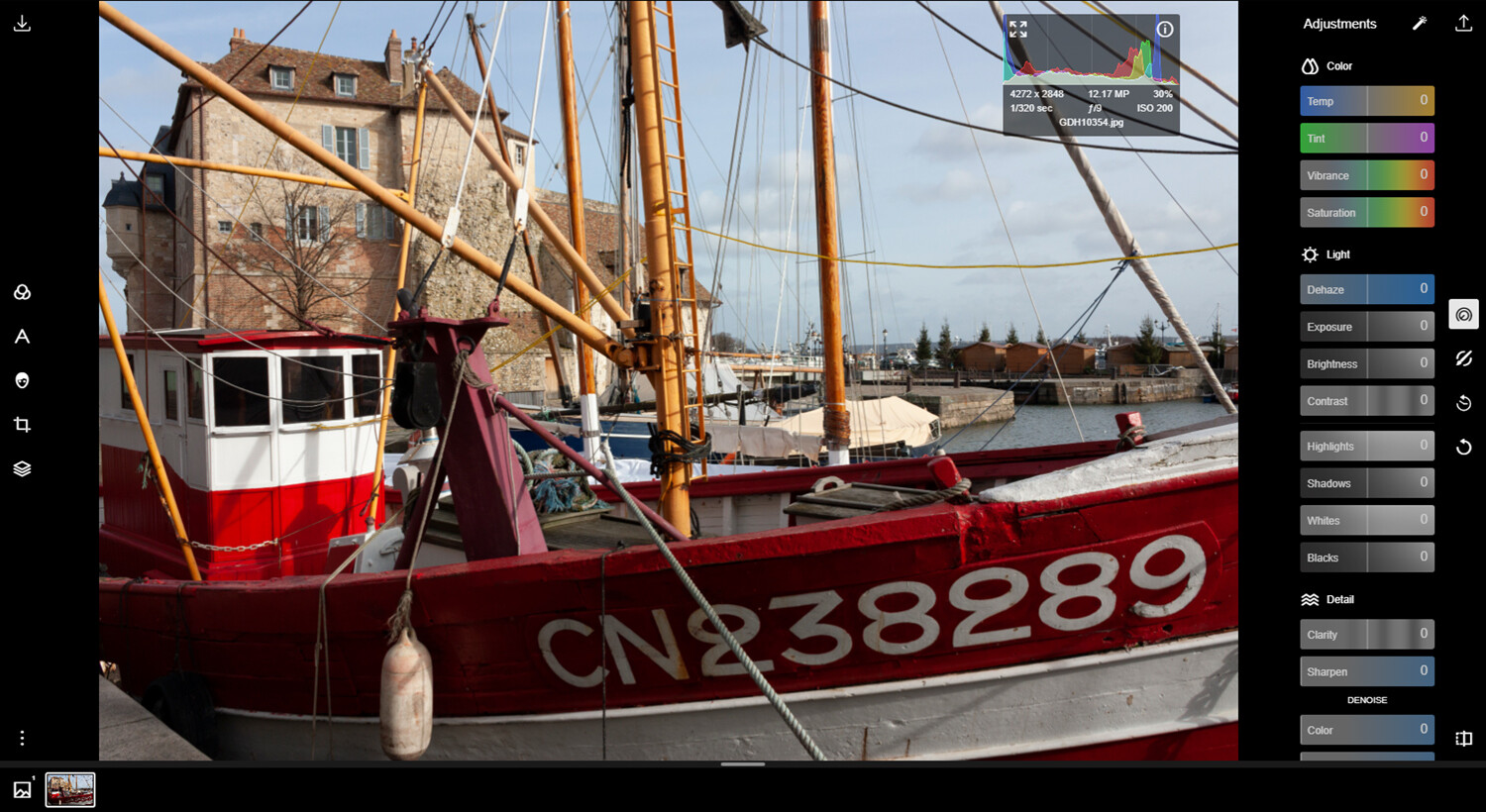
In Polarr, you can’t mask off sharpening in large single-tone areas. So, if your images are noisy and you think the noise will show in the final result, the Pro version offers color and luminance Denoise sliders. These are universal edits that don’t currently combine with masks.
Polarr image editor review

The denoise tool is part of the Polarr Pro offering. Here you can see a before and after with quite a lot of luminance noise reduction applied to the right.

Summary

Aside from the sRGB constraint and occasional lag (perhaps my sluggish PC), I enjoyed Polarr. The sRGB thing may be universal among browser editors, and if you think of Polarr as a way of prepping photos for online labs or the web, it’d be hard to beat. Polarr is uncommonly pretty, which seems superficial, but the attention paid to aesthetics invites use. I’d love to know what you think!

The post Polarr Online Photo Editor Review appeared first on Digital Photography School. It was authored by Glenn Harper.


Digital Photography School

 
Comments Off on Polarr Online Photo Editor Review

Posted in Photography


Think Tank Photo launches Vision shoulder bags for DSLR and mirrorless gear

14 Mar

Think Tank Photo has unveiled its new Vision series of shoulder bags, including the Vision 10, Vision 13 and Vision 15. The new line is designed to accommodate mirrorless and DSLR cameras alongside ‘pro-sized’ lenses and lens hoods, according to the company. The bags feature a padded divider system that can be customized to meet individual needs, as well as pockets for tablets and laptops.

The Vision 10 bag is the smallest of the series, offering enough interior space for a single standard-size camera body with either a short zoom or wide lens attached alongside another lens or two and a 10-inch tablet; there’s also space for a detached 24-70mm lens. Alternatively, this bag can hold a mirrorless camera kit that includes three or four lenses.

Vision 10 Insert

The Vision 13 offers a bit more space, including enough room for both a 10-inch tablet and a 13-inch laptop, as well as up to a 70-200mm detached lens. The Vision 15 offers the most space with room for a standard size camera body with an attached 24-70mm lens, up to four extra lenses, and a flash, as well as a 10-inch tablet and up to a 15-inch laptop. There’s also room for a 70-200mm detached lens.

All three bags feature exterior fabric with a water-repellent DWR coating and polyurethane underside coating, as well as YKK RC Fuse zippers, 420D velocity nylon, 350G 3D air mesh, 3-ply bonded nylon thread, 500D 2-tone polytech weave nylon tarpaulin, and antique-plated metal hardware. The bags’ interior includes a 200D liner and PU-backed Nylex liner, 3-ply bonded nylon thread, a rain cover, and removable foam dividers.

$ (document).ready(function() { SampleGalleryV2({“containerId”:”embeddedSampleGallery_3389363237″,”galleryId”:”3389363237″,”isEmbeddedWidget”:true,”selectedImageIndex”:0,”isMobile”:false}) });

Other features include padded non-slip shoulder straps, dedicated phone pocket, luggage handle pass-through, water bottle pocket, and a reinforced top handle.

The Vision bags are available through Think Tank Photo now at the following prices:

  • Vision 10: $ 109.75
  • Vision 13: $ 129.75
  • Vision 15: $ 139.75

Articles: Digital Photography Review (dpreview.com)

 
Comments Off on Think Tank Photo launches Vision shoulder bags for DSLR and mirrorless gear

Posted in Uncategorized


Viral ‘Ice Throne’ photo captured as grandma on iceberg was swept out to sea

05 Mar

A casual photo session in Iceland resulted in a grandmother being swept out to sea while on her ‘Ice Throne,’ according to a recent news report. The incident, which resulted in a safe rescue and amusing image, involved Judith Streng, who was on Iceland’s Diamond Beach with her son when they spotted a throne-shaped piece of ice.

Streng was interviewed by ABC News after the images of her unexpected sea voyage went viral. During the interview, Streng explained that she spied the piece of ice, which was ‘shaped like an easy place to sit.’ Her son managed to take one image of Streng on her throne before the small iceberg began to ‘totter.’ Moments later, a wave dislodged the ice and pulled it — with Streng still seated atop — out to sea.

Fortunately, Randy Lacount, a boat captain with water rescue training from Florida, was nearby when the incident happened and was able to rescue Streng without trouble. Per her interview, Streng was able to joke about the moment, saying, ‘I’m always going to be queen. Come on, that was my chance.’

Articles: Digital Photography Review (dpreview.com)

 
Comments Off on Viral ‘Ice Throne’ photo captured as grandma on iceberg was swept out to sea

Posted in Uncategorized


Costco says it will close the photo departments at several stores in April

03 Mar

American retailer Costco is shutting down the photo labs in a growing number of its stores, according to letters the company has sent to its customers. The most recent letter to surface comes from the company’s store in Woodland, California, which plans to close its photo department on April 25.

The letter, which was recently published by PetaPixel, cites low demand as the reason for the closure, stating, ‘the need for printing photos has steeply declined, even though the number of pictures taken continues to grow.’ The retailer will continue to offer photo printing through its Photo Center website and at select other locations, however.

Photo Center customers who receive the letter from Costco are offered a $ 50 credit for use with the company’s photo website. This is the latest among a growing number of Costco photo department closures. According to The Dead Pixels Society, the company will also shutter all but one photo department in its Massachusetts stores, as well as the photo lab at its busiest Hawaii location, the Iwilei store.

Though Costco has made the decision to repurpose its limited floor space in stores with low consumer printing demand, select other retailers continue to offer in-store photo printing services, including Walgreens and Walmart. Online photo printing services remain ubiquitous, and Costco is still counted among them.

Articles: Digital Photography Review (dpreview.com)

 
Comments Off on Costco says it will close the photo departments at several stores in April

Posted in Uncategorized