Entries are now being accepted for the Epson International Pano Awards competition that celebrates and rewards outstanding panoramic photography. In its sixth year, the contest which is sponsored by Epson Australia, has a prize fund of $ 50,000, including a single prize of $ 5,000 for the Jeff Mitchum Fine Art category. Read more
Tag: Panoramic
-
How to Shoot Panoramic Photos
Image stitching is not new, neither is panoramic photography. Since almost the beginning, photographers have been intrigued with providing a wider view of a given scene. The reason is that panoramic images provide context. In a normal frame of a large expansive scene, we only see a small part of the bigger picture. A panoramic image however, gives us a broader view, and a context for that image. The word panorama is derived from two greek words, “pan” which means everything and “horama” which means that which is seen or the view. So, panorama literally means – a view of everything.
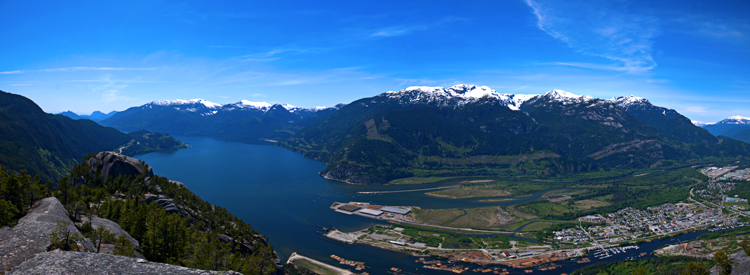
A six image pano of Howe Sound, Squamish BC
Early on, photographers would make panoramics manually, by simply panning across a scene and taking sucessive images. Once the images were printed, they would manually stitch them by overlaying one image on top of the other, or even cutting them into place. This was a new way of viewing and capturing scenes. I saw my first panoramic image as a young boy. It was a huge scene of photographs that had been stuck together and overlaid. It was in a museum in the city where I grew up. I was intrigued, it gave me a view of the city I was living in, that I had never seen before. It gave me a whole new perspective on the place that I called home. I wasted many rolls of film as a youngster trying to do the same shots, but never managed to get it right.
One solution to this challenge was the panoramic camera. These cameras revolutionized panoramic photography. They were able to capture a panoramic scene of 180 degrees in a single shot. No more cutting and sticking photographs together. These rotating cameras captured great images of scenes and did it with ease. There were also wide-angle panoramic cameras that took in much more of a scene in a single image and again, changed the way we viewed images and scenes. These cameras changed the views, and contexts of many famous places. In their day, they were the pinnacle of technology.
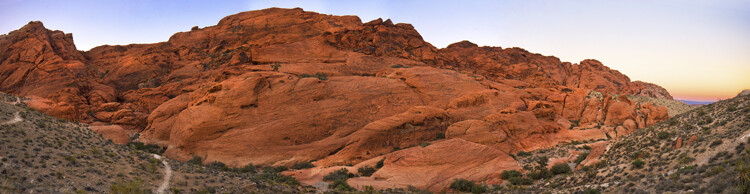
Red Rock Canyon, Las Vegas
Once again, the wheel of progress turned and all of this changed when digital panoramics became possible. The photographer only had to pan across the scene and take successive images, as in the past, but now the stitching process in the computer gave a seamless result. The photographer simply dropped these images into a photo stitching tool and voila, an amazing panoramic image magically appeared. Well, that was the idea anyway, in practical terms it was not so easy.
1. How to shoot panoramic photos
Autopano giga is a standalone software tool that stitches your images together. There are a few guidelines to follow when you do a photostitch. By following these guidelines, you will be almost guaranteed that your image will stitch properly the first time.
A. Shoot in Manual mode
Expose for your scene manually and don’t change the exposure between shots. You may have to do a light meter reading for the brightest and darkest parts of your scene. Adjust your settings to make sure that you have good exposure throughout the images and then start shooting.
B. Overlap your shots by at least 30%
Overlap each image by at least 30% if you are shooting in landscape orientation and up to 50% if shooting in portrait. By overlapping you will have duplicates of parts of your scene, this will allow the software to stitch the images together better and adjust for the perspective distortion too.
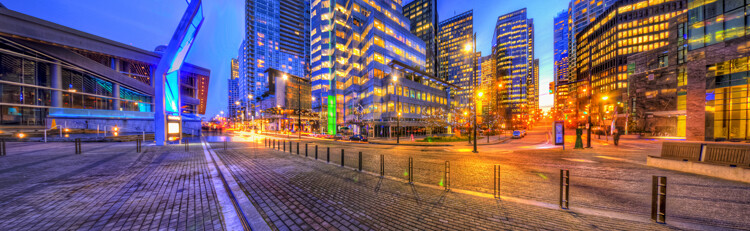
Five images stitched, Jack Poole Plaza, Vancouver
C. Use a tripod
You can shoot handheld, but using a tripod will ensure that the images will be shot along the same horizontal plane. This can also help with the stitching process too.
D. Keep your aperture between f/8 and f/11
You will want to keep everything in focus, so be sure that your aperture is set to at least f/8. At f/2.8 your focal point may change and this could cause some parts of your image to be out of focus. It may also be a good idea to set your aperture to f/8, focus your camera, then switch to manual focus. That way your camera won’t be focusing on a different part of the scene in each image. At f/8 or f/11 the whole scene should be in focus.
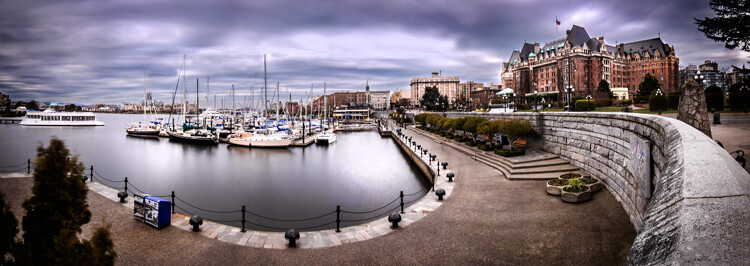
Six image Pano, Victoria Harbour on a snowy, windy day
Now the magic part, digitally stitching the images together. You can do this using Autopano Giga or Photoshop, my preference is Autopano Giga. To learn more about how to do this, take a look at these articles I wrote on image stitching: Walk Through and Review of Autopano Giga – Image Stitching Software and Step By Step How to Make Panoramic HDR Images.
Lets make this fun, upload some of your images that you have stitched, then tell us what software you used. Enjoy, happy shooting and stitching.
googletag.cmd.push(function() {
tablet_slots.push( googletag.defineSlot( “/1005424/_dPSv4_tab-all-article-bottom_(300×250)”, [300, 250], “pb-ad-78623” ).addService( googletag.pubads() ) ); } );googletag.cmd.push(function() {
mobile_slots.push( googletag.defineSlot( “/1005424/_dPSv4_mob-all-article-bottom_(300×250)”, [300, 250], “pb-ad-78158” ).addService( googletag.pubads() ) ); } );The post How to Shoot Panoramic Photos by Barry J Brady appeared first on Digital Photography School.
-
Samsung developing 360 degree panoramic 3D camera for VR headsets
Samsung is showing off a prototype camera that captures 360-degree 3D images in an effort to provide content for its virtually reality headset, the Samsung Gear VR. Using cameras arranged into 8 stereoscopic pairs around the device’s perimeter, the prototype (called Project Beyond) can capture 3D still panoramas, with single frames measuring 35MP. Learn more
-
Windowless Flights: 2 Planes to Stream Live Panoramic Views
[ By WebUrbanist in Technology & Vehicles & Mods. ]

The latest contender for ‘most scary yet exciting passenger cabin ever designed’ has trumped its predecessor – the first version boasted horizontal strips of screen on both sides of the plane’s interior while this latest one features effectively see-through ceilings as well as walls.


The S-512 being developed by Spike Aerospace boasts a four-hour flight time from New York to London, in part due to the reduced engineering requirements of a windowless cabin (and leading to at top speed of 1375 MPH).


In this audacious private jet, the windows and their supporting infrastructure are instead being replaced with view screens that stitch together live footage being shot of the plane’s surroundings while it is in flight.


Meanwhile, six months later, Technicon Design has released concept drawings of Ixion, which likewise uses cameras mounted on the fuselage and wings to capture images for interior high-resolution display, but with an added dimension of also disappearing the rooftop of the cabin.


The nearly-continuous visual experience would be segmented by strips providing lights and air conditioning, and in theory the projections could be shifted on demand, from realtime scenery to other full-surround displays. For now, though, only the first is a series proposal for a real private plane – the latter is a conceptual design pushing the idea further but with no plan for actual deployment.
Want More? Click for Great Related Content on WebUrbanist:

Real-Time Billboard: Sign Points at Actual Planes Flying By
The ability to track planes in mid-flight has produced many apps and websites for following jets through friendly skies, but this ad campaign applies this same …
Click Here to Read More »»
Panoramic Rainbow: Circular Space Spans Color Spectrum
Rainbows on the horizon are impossible to approach, let alone pass through – they flicker and fade like phantoms, except in the case of this iconic …
Click Here to Read More »»
Google Street Art: View Over 5,000 Past & Present Pictures
Using panoramic Street View technologies, Google is assembling an awesome collection of high-resolution images capturing over 100 works in 5,000 interactive …
Click Here to Read More »»


[ By WebUrbanist in Technology & Vehicles & Mods. ]
[ WebUrbanist | Archives | Galleries | Privacy | TOS ]
-
Step By Step How to Make Panoramic HDR Images
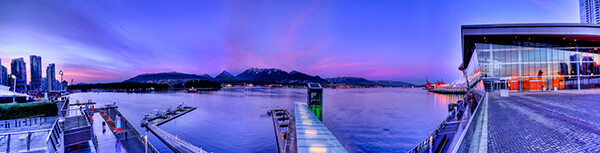
Panoramic HDR image of Coal Harbour – Vancouver, Canada
I am convinced that digital photography has changed so many aspects of photography forever. HDR and photo stitching are just two of those aspects. In the film era you could achieve a lot in the darkroom with blending, dodging and burning, but not to the extent that HDR allows us to achieve now. Photostitching has also allowed us to produce images that were not possible a few years ago. In the days of film, panoramic images were possible, but required a camera made for that purpose, nowadays we can shoot panoramic shots with any digital camera, they can even be shot using an iPhone. So the merging (excuse the pun) of the HDR and Photostitching was inevitable.
This process is a little time consuming and needs to be planned beforehand, but the results can be really spectacular and make your images very dramatic. This article will give you a starting point into exploring the world of bringing HDR and Photostitching together.
What is a panoramic HDR image?
A panoramic HDR is quite simply a series of HDR images that have been stitched together using photo stitching software. It is an image comprised of any number of images, sometimes up to 60, depending on how you plan your shots. Sounds complicated right? It’s really not. If you follow a simple plan, it’s actually pretty easy. It is all in having the correct workflow, so here it is.
The panoramic HDR workflow outlined
The quick process we will be running through is as follows:
- Plan and shoot your HDR and panoramic images
- Edit your HDR images
- Stitch your HDR images together
- Edit the final image in Lightroom or Photoshop
That’s it, simple and we will do it in small steps, so it is easy to follow.
Step 1 – plan and shoot your HDR and panoramic images
HDR Images
I have written Getting Real with HDR – a Step by Step Tutorial for Realistic Looking HDR. Take a look at that if you need a refresher on how to get your HDR images into good shape. Normally, when you shoot an HDR image, you will be using between three and seven images of the same scene to create the HDR. In panoramic HDR shots, you will repeat that HDR shot across the scene for five to seven shots that will capture the panoramic. The key point to remember when shooting a panoramic image is your subject matter. Choose a scene that works in the panoramic format; i.e. a seascape, mountain range, forest or a cityscape from a distance. If you are too far away from your subject, the stitched photo may lack impact, so choose your scene with that in mind.
Panoramic Images
Of course, it’s up to you how many images you want to shoot for your HDR shots. In the example shot at the top of the article, I used three shots per HDR set and used a total of seven images to capture the scene panoramically. Keep in mind that you may want anywhere between three to seven shots per HDR image and use as many images as you need to capture the scene.
Here is a visual breakdown on how this shot worked. I have broken the shots I took into sets. Each set consists of three HDR images. So, Set #1 consists of three HDR images, Set #2 consists of three HDR images. Set 1 and Set 2 overlap by 30%. Set 2 and Set 3 overlap by 30% as well, and so on.
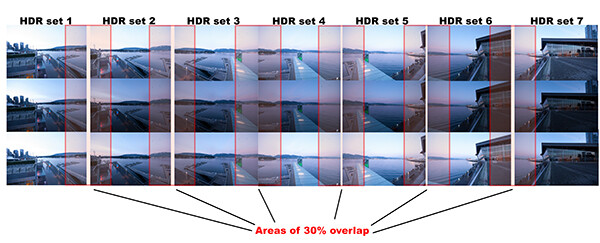
HDR sets and flow for the image of coal harbour. Note the overlaps
What you will notice is that you must take your HDR images and complete the set before moving your camera for the next set. This ensures that you will get the best possible HDR shots, and that they will blend properly. Once you have your HDR shots done on Set #1, move your camera over to frame and shoot Set #2. With panoramic photography, you must overlap your images by at least 30%. It’s not necessary to overlap much more than this, but less than 30% could cause the software to struggle to find linking points in the images. If you have a scene that has lots of detail in it, 30% will be good, if you have a scene that is not very detailed (let’s say a beach scene with sand, water and sky) you may need to overlap more to make sure that the photos can stitch. Continue this process until you have captured your scene in the sets you have decided on.
Some quick tips to remember when you shoot Panoramic HDR images
1. Choose a preset white balance setting that works well for the scene, avoid using auto white balance. If you use auto white balance (AWB), your overall colours in the scene may change as you shoot your panoramic and this could cause some unusual colour shifts in your image
2. Keep your aperture between f/8 and f/11. Once you have chosen your aperture, don’t change it throughout the sets.
3. Use a tripod to make sure that your images are sharp. Also, as you move the camera onto the next set, be sure to overlap by 30%.
4. Be sure not to allow the camera to move up or down as you shoot the images. If it does, the result will be that the images might stitch but the resulting shot will be dropping down or sweeping up and you may not be able to get it right afterwards.
5. The best idea is to use a tripod and keep the focal plane as flat as possible, to avoid distortion, particularly with a wide angle lens.Step 2 – edit your HDR images
Edit your images by set. Start with Set #1 and take them into an HDR product such as Photomatix Pro. You could used Photoshop too, but my preference is Photomatix Pro. For more details on making your HDR images, take a look at my HDR article to get into the details of the editing process in Photomatix.
Save each set and name them chronologically. I will name my images as follows: SCENENAME – HDR PANO 1, SCENENAME – HDR PANO 2 etc. Once you have taken all your sets through the HDR process and named them in order, the photostitching part is pretty easy.
Step 3 – stitch your HDR images together
For the photostitching part of this process, you can use the photo stitching function in Photoshop or any other photo stitching tool of your choice. I have used Photoshop in the past and it works well, but for more complex stitching I find that Autopano Pro works extremely well. It has been rated as one of the best stitching packages available. I have used it to stitch some pretty crazy panos together and almost anything I have thrown at it, it has been able to process.
Lets look at how this process works in Autopano Pro:
- Open Autopano Pro and on the first screen that you see, click on the second icon from the left to select your images to be stitched
- Navigate to the HDR images that you have processed and select them
- Click on “detect” on the top left hand side of the screen
- Autopano will now scan your images and do a preliminary stitch, this preview stitched image will be displayed on the right hand side of the screen that is open. This process may take a few minutes.
- Once the preview image is displaying, click on the “edit” button (Right hand side of the screen) this will open the image in the Autopano edit screen
- There are a number of options here, below is a high level overview of the most important functions
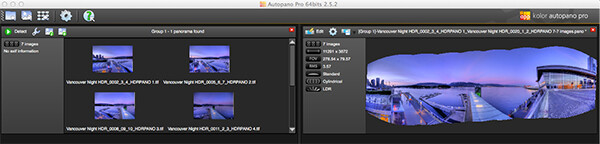
Autopano Pro – images selected for the pano stitch on the left and a preview of the stitched image on the right
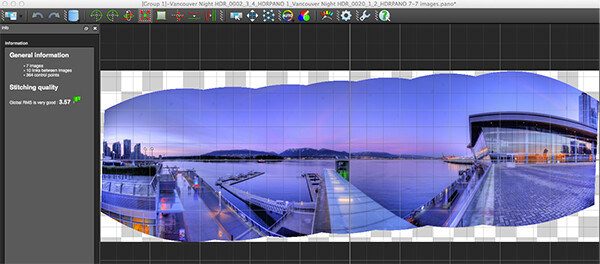
Autopano edit screen with preview of stitched image
Autopano functions on the edit screen:
Autopano has a number of options you can use to render your panoramic image. These projections help with distortion and skewing. Below is an explanation of the most commonly used projections.
- Spherical – the spherical function allows any panorama to be assembled. It is a commonly used function for building panoramic images.
- Planar or rectilinear projection – this is a good choice if the angle is low, It’s recommended for architectural shots because it is the only mode that does not curve lines that are deemed to be straight lines. Sometimes if the angles are too extreme there may be a loss of sharpness, so be aware of this.
- Cylindrical projection – this projection can be used up to 360° (horizontally).
- Mercator projection – the mercator projection can also be used up to 360° (horizontally). The effect of stretching up and down the image may seem to become distorted.
The key factor in choosing a projection is in how the projection affects your image visually. Does it work for the subject matter? Does the image look correct? Ask yourself these questions as you experiment with the projections.
Once you are happy with your projection and the way the image looks, you can now save the image to a folder on your computer.
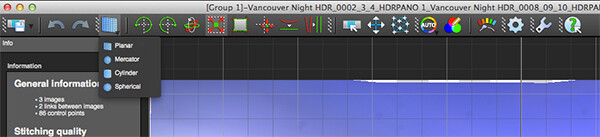
Choose the projection that works best for your image
Rendering
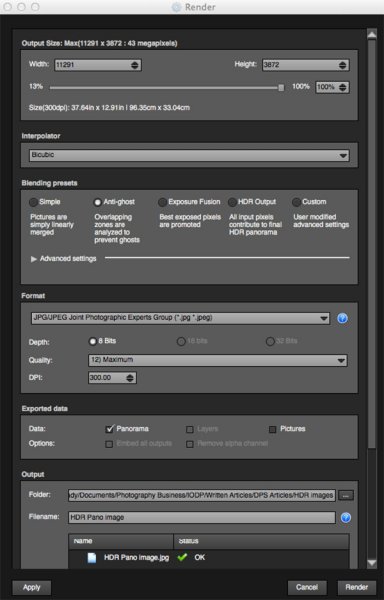
Render screen and options
This is the process of saving your panorama.It is called rendering because the software needs to perform the final stitching and edits to your image. On the rendering screen, you will need to take note of the following:
Interpolator – the interpolator is the method used to assemble the pixels of your panoramic image and will determine the quality and sharpness of your image. There are a few different options here, but the most commonly used options is Bicubic. The other options are useful for advanced stitching.
Blending settings – the purpose of the blending settings is to allow the combining of the overlapped sections of your panoramic to look smooth and seamless. You will notice the following presets:
- Simple – this is fast, but it is possible that defects are seen where the areas overlap
- Anti-ghost – conserve the image’s strong characteristics (stops, lines, curves) when mixing while automatically removing objects that have moved
- Exposure Fusion – to be used if the panorama was created with a bracket shoot. Keeps the best of different exposures.
- HDR output – to be used by users who wish to create a “.hdr” format file in order to create post-production or special effects. Don’t use this on these images as they have already been processed as HDR images.
- Custom – this is enabled when you manually change the parameters and they no longer correspond to a profile.
On the advanced settings, I generally leave that on the default.
Format
This section allows you to determine what the format in which you want your image to be saved. The two formats I use most are TIFF and JPEG. TIFF is an uncompressed file (which means all the information is still in the file, this is great if you are planning to print the image out large) The downside to TIFF is that the files are big. JPEG is a compressed format, that means that some image information has been discarded, the quality will still look the same to the naked eye, but if you print a JPEG image up really big, you may notice some image degradation. Depending on your final output and your space constraints you can choose the format that works best for you. Take the quality up to 12 and set the DPI to 300. This will ensure that you have the best quality image saved.
Output
On this screen, the software needs to know where to save your panoramic and what you want to call it. Choose your destination folder and name the file. Once this is done (it sounds more complicated than it is) click on the render button and the software will begin rendering your image. Depending on the size of the files being stitched, this rendering process can take a few minutes. Once complete, a screen will pop up to let you know that the image is now rendered.
4. Edit the final image in Lightroom or Photoshop
Your image is now stitched together, but the final step in the process is to edit the image in your choice of image editor (Lightroom, Photoshop, Gimp or any other) You will want to follow the basic workflow I outlined in a previous article. Once that is done, you will now have a fantastic Panoramic HDR image. Not too many photographers attempt these images as they take some time to get right, but the results can be spectacular. Give this a try, let me know where you struggled or any insights you had during the process, above all go out and have fun with it!
Panoramic HDR image of Coal Harbour – Vancouver BC
The post Step By Step How to Make Panoramic HDR Images by Barry J Brady appeared first on Digital Photography School.
-
Hands-on with the Panono panoramic ball camera

The Panono is a ball-shaped panoramic camera with 36 individual camera modules and a built-in accelerometer. We got our hands on a prototype and met with its Berlin-based creators. See what we thought of the crowd-funded camera on connect.dpreview.com.
-
Photographer creates ‘virtual panoramic tour’ of North Korea

What’s it like to visit one of the world’s most secretive countries? Singapore-based photographer Aram Pan wanted to find out for himself. North Korea is notorious for stage-managed and highly restricted access for foreigners, but Pan decided to have a go at simply asking North Korean authorities whether he could enter the country and document what he saw. Click through for extracts from his story, and some of his stunning images.
-
Panoramic Rainbow: Circular Space Spans Color Spectrum
[ By WebUrbanist in Architecture & Public & Institutional. ]
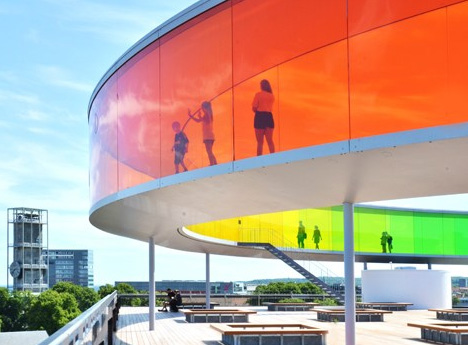
Rainbows on the horizon are impossible to approach, let alone pass through – they flicker and fade like phantoms, except in the case of this iconic space.
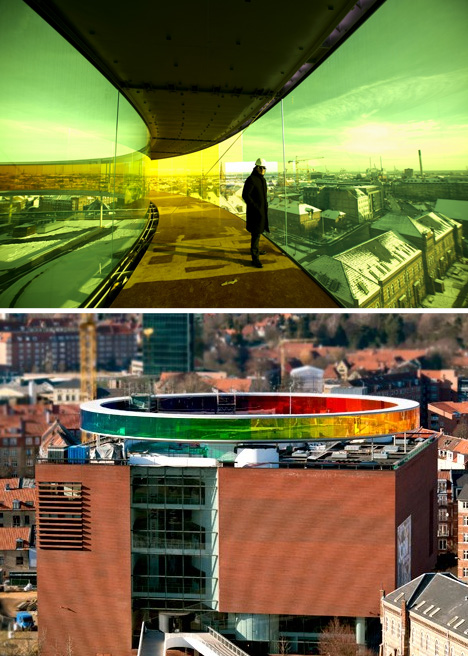
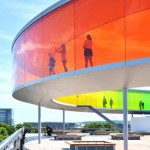
Your Rainbow Panorama by Olafur Eliasson is an enclosed circular walkway that sits atop the ARoS Aarhus Kunstmuseum in Denmark. Its colored glass spans from floor to ceiling and rotates visitors through five hundred feet of color, looping them through a rainbow of panoramic city views.
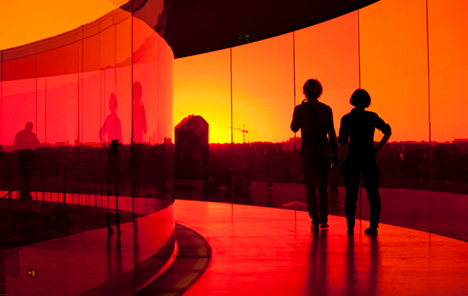
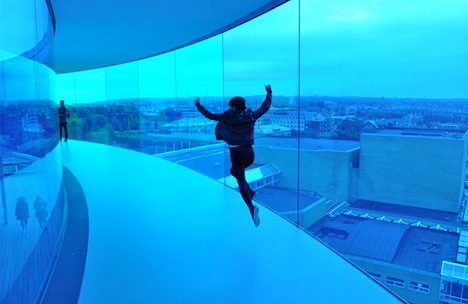
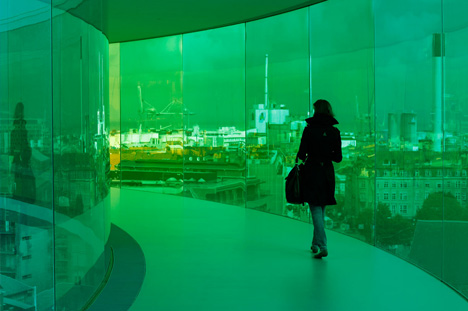
The experience of walking along this 500-foot path is at once reductive and complex. At each step, the city outside becomes a monochromatic landscape, filtered through the lens of single slices of color that rotate as you move.
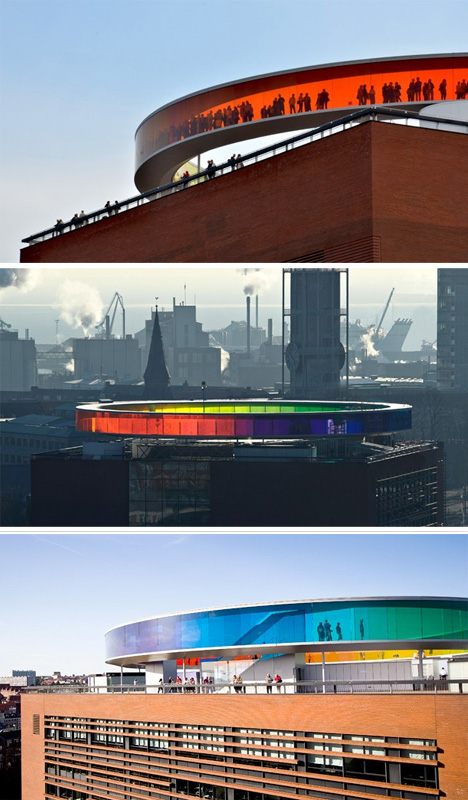
From outside, the raised structure forms a bright beacon within the city, a recognizable icon thanks to its combination of round shape and vibrant color. As this project illustrates, powerful architecture can be about more than structure, building and void – it is also about shaping experience through color and light.
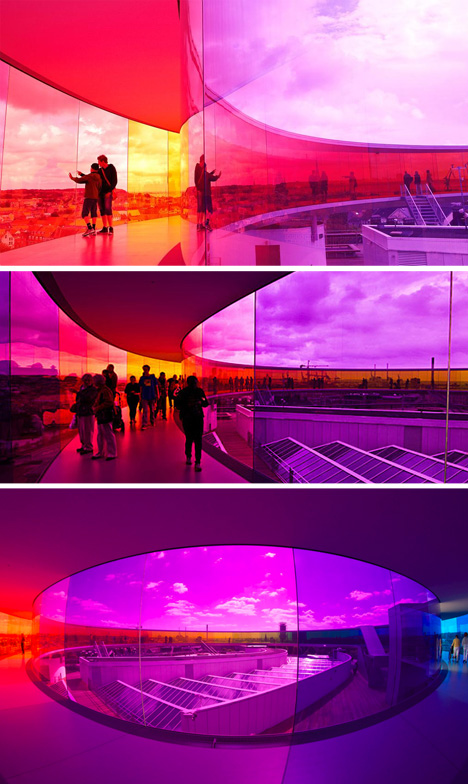
According to its Danish-Icelandic designer, it is “a space which virtually erases the boundaries between inside and outside – where people become a little uncertain as to whether they have stepped into a work or into part of the museum. This uncertainty is important to me, as it encourages people to think and sense beyond the limits within which they are accustomed to moving.” In the end, is it an gallery space, a viewing platform, a permanent art installation … or does it perhaps span a spectrum of spatial definitions as well as colors?
[ By WebUrbanist in Architecture & Public & Institutional. ][ WebUrbanist | Archives | Galleries | Privacy | TOS ]


-
Static Flip Books: 360-Degree Scenes in Panoramic Pages
[ By WebUrbanist in Art & Drawing & Digital. ]
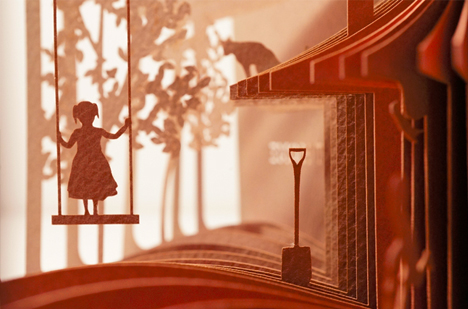
Like a flip book, there is no text, and each page of these volumes contains a slightly different scene. Except instead of paging through them rapidly to reveal the story, the ‘reader’ unfolds the entire book at once into a dynamic panorama.
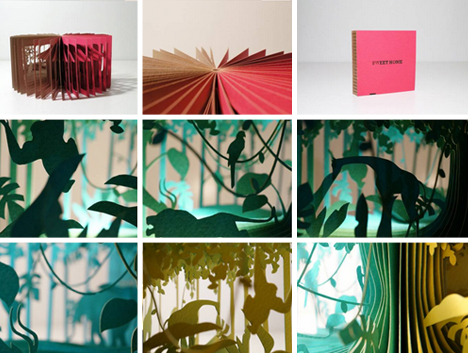
Artist Yusuke Oono has a whole series of these 360-degree books telling stories of daily home life, remote jungle adventures, and everything in between.
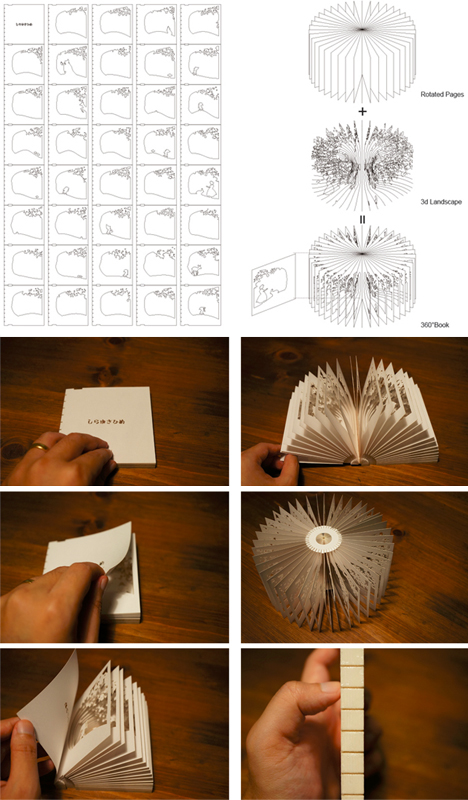
Each one unfolds into a three-dimensional scene, created using CAD-derived designs and laser-cutting programs, completed with a splash of color.
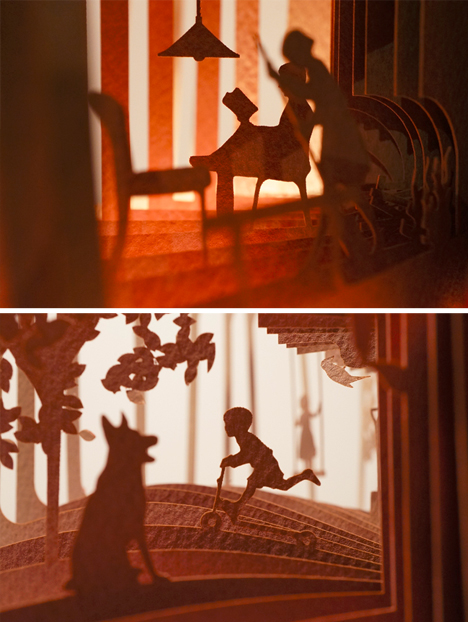
The resulting negative space allows viewers to see through pages and visualize scenes, assembling them from the two-dimensional information on each layer – like rotational cut-outs of some miniature reality (or slices of life, if you like).
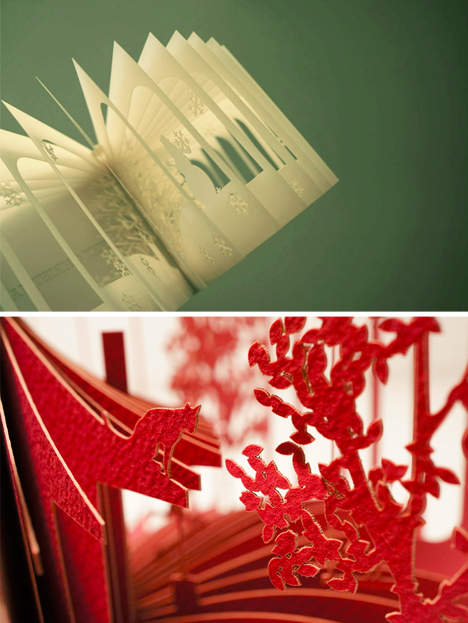
Ground, trees, walls and roofs provide the context – small figures of women, men and children tell silent stories that change with perspective and light. Each page is both a moment in space and in time. Brilliant, beautiful, simple.
[ By WebUrbanist in Art & Drawing & Digital. ][ WebUrbanist | Archives | Galleries | Privacy | TOS ]

-
320-gigapixel photo of London is the world’s largest panoramic photo

A 320-gigapixel image taken from top of London’s British Telecom Tower has set the world record of the largest panoramic photo. It breaks the previous record set by a 281-gigapixel electron micrograph of a zebrafish embryo taken in 2012. The London image was shot by panorama specialists 360 Cities and is made up of 48,640 individual frames. To get an idea of just how large this photograph is, BT says if it was printed at ‘normal resolution’ the photo would measure measure 98 x 24 metres.Click through for pictures and more information on the hardware used to make the image.