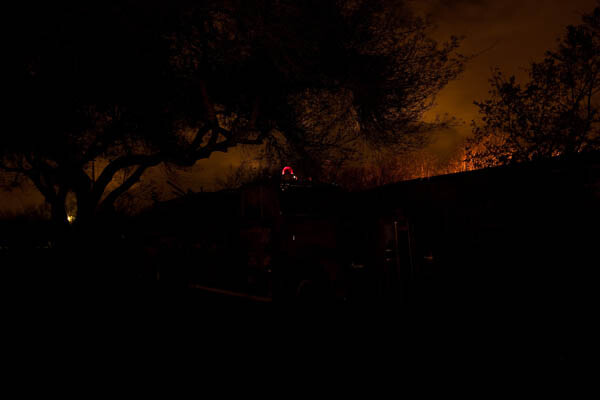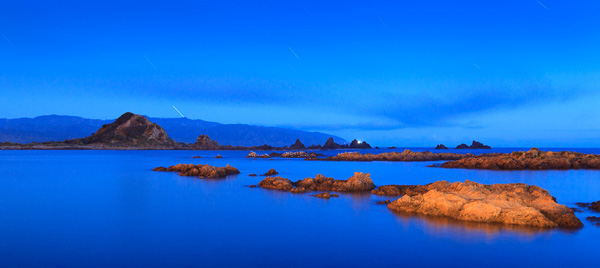
RSS
 

Posts Tagged ‘painting’

Painting with Light in the Landscape

27 Sep

Painting with light

Most of the articles I’ve written about light so far have explored the use of natural light. Painting with light in the landscape takes that idea further by mixing artificial light, provided by the photographer, with the ambient light to create surreal and dramatic images.

Painting with light is an effective technique because it works with two ideas that, when combined, become very powerful:

  • Painting with light usually takes place at dusk. The main reason for this is entirely practical. You use either a torch or a portable flash to paint with light, and they are not bright enough to use during the day. The light is very beautiful during twilight, so this turns out to be a benefit.
  • Painting with light uses two colours that work very well together – orange and blue. Now, you may use coloured gels to paint with other colours, but these should still be colours like red, green and yellow that contrast nicely with the natural blue colour of the light you get at twilight.

The tools

Let’s take a look at the tools you can use to paint with light. First is my favourite, a hand-held rechargeable lantern that I bought from a local hardware store (just like this one). It’s powerful – the light has a strength of one million candlepower (you can buy models with two or five million candlepower). It wasn’t expensive, and also comes in useful to keep around the house or in the car. It has a tungsten bulb.

Using the lantern is easy. First, you need a spectacular landscape.

For example, these cliffs at Muriwai, a beach near Auckland in New Zealand, are a dramatic scene:
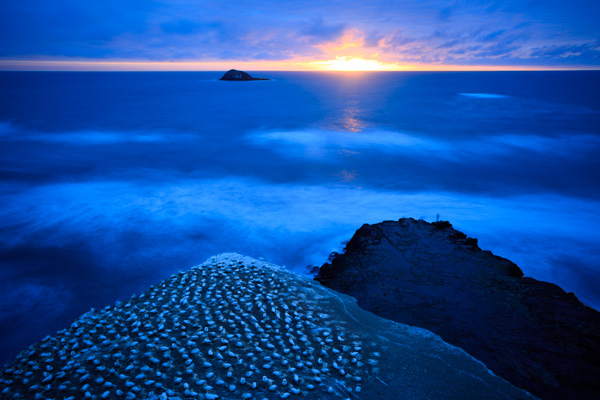
Painting with light

I was curious to see what happened if I used the lantern to paint the cliffs with light. I returned another evening to try it, here’s the result:
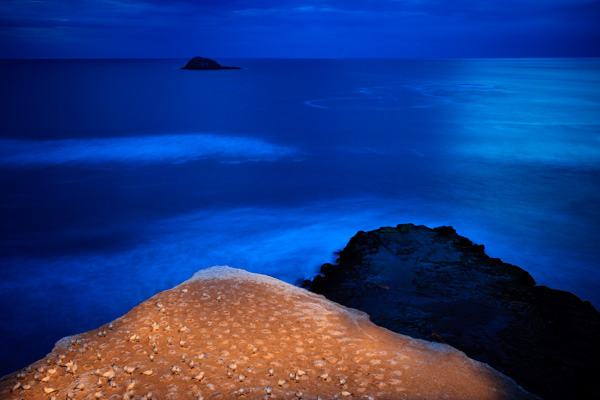
Painting with light

The technique itself is quite simple. Turn the lantern on, point it at the scene you want to paint, then gently move the lantern so the light from its beam covers the surface of the subject. You do this while the camera’s shutter is open.

You’ll need a shutter speed that gives you enough time to paint the subject, so you’re looking at at least ten seconds. Thirty seconds is easier (hence the need for low light). Don’t use neutral density filters to obtain these shutter speeds, as they also block the light from the lantern. You need to wait until the ambient light is low enough to obtain these shutter speeds through a combination of low ISO and small aperture (such as f11 and f16, but preferably not f22 as diffusion will soften the image).

The crucial aspect is timing. Try it too early, when the light is bright, and the light from the torch won’t be strong enough to overpower the daylight. Leave it too late and it will be too dark. The sky will be black, and you won’t have any background detail.

What you’re looking for is the sweet spot between these two extremes. When the light is low enough to give you a shutter speed of around 30 seconds, and the light from the torch balances with the ambient light, and it is still light enough to get good background detail.

The best way of finding the sweet spot is to test it out. Put your camera on a tripod, decide how you will compose the image and then wait for the light to fade. Take a test shot when the light is low enough for a shutter speed of ten seconds or so. Then look at the result on your camera’s screen.

Does the ambient light overpower the light from the torch? Then you need to wait until it gets darker. Did you cover the subject evenly with the torch light? This may take several attempts to get right. Hopefully, the moment that you figure out how to paint the subject with light will coincide with the moment the ambient light and torch light balance each other perfectly.

When you find the sweet spot, keep going until the ambient light fades away. You can decide which image you prefer when you view the results on the computer.

Painting with light

This is a photo taken earlier. You can see that it’s too early to work yet – the light from the lantern is overpowered by the ambient light. It also needs more work to get the coverage right.

Using portable flash

Another way to paint with light is to use portable flash. Using a lantern is simple, and a good way to get started. But if you’d like to take up the challenge, portable flash gives you some interesting options. Here’s why:

  • You can use portable flash to fire multiple bursts of light at the subject, building up the exposure over time.
  • You can use coloured gels to give light of different colours.
  • You can shoot at night, rather than at dusk, using portable flash to fire multiple bursts of light, building up an exposure over time. You can use multiple flashes, or the same flash with different coloured gels, to do so. There are lots of good examples here at Troy Paiva’s Lost America website.

The essence of the technique is again simple. Switch your flash unit to manual, and use the highest powered setting (1:1). Work out your composition in advance, preferably while there is still enough light to see. Wait until the light gets low, then start using your flash to illuminate the subject.

If you are going to be in the frame yourself, make sure you are wearing black clothes. Don’t stand still – keep moving so that you don’t register in the frame. Keep your body between the flash unit and the camera so that the light from the flash head itself doesn’t appear in the frame, just the light that illuminates the subject. Keep checking the camera’s LCD screen to see how the images are coming out, and adjust your technique accordingly.

Here’s a photo I created using a portable flash unit fitted with an orange gel (CTO – Colour Temperature Orange) to imitate the look of a tungsten bulb.
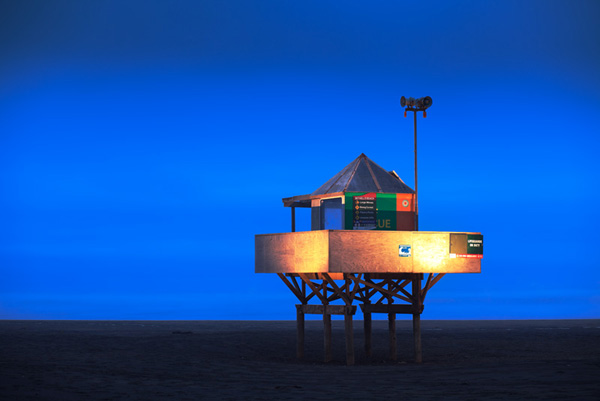
Painting with light

Mastering Photography

Painting with light

My ebook Mastering Photography: A Beginner’s Guide to Using Digital Cameras introduces you to digital photography and helps you make the most out of your digital cameras. It covers concepts such as lighting and composition as well as the camera settings you need to master to take photos like the ones in this article.

Post originally from: Digital Photography Tips.

Check out our more Photography Tips at Photography Tips for Beginners, Portrait Photography Tips and Wedding Photography Tips.

Painting with Light in the Landscape


Digital Photography School

 
Comments Off on Painting with Light in the Landscape

Posted in Photography


100 Smashing Examples of Light Painting Photography (Get A Break From Work Already)

03 Aug

All of us has experimented with light more than once while capturing friends in the club or dark street with lanterns. Moving light creates amazing patterns in the photo, so these light properties can be effectively used by artists in order to create an image full of magic and mystery. Light painting, also known as light graffiti or light drawing, Continue Reading

The post 100 Smashing Examples of Light Painting Photography (Get A Break From Work Already) appeared first on Photodoto.


Photodoto

 
Comments Off on 100 Smashing Examples of Light Painting Photography (Get A Break From Work Already)

Posted in Photography


Painting Robot Plans Each Stroke Of Its Own Masterpieces

12 Jul

[ By Steph in Gadgets & Geekery & Technology. ]

eDavid Robot Painting

If you think humans in creative professions aren’t in danger of someday being replaced by robots, which ostensibly don’t possess the ability to produce real art, you’re going to want to watch this video. A robot called e-David watches itself paint and constantly adjusts its style and technique, planning each stroke in succession to create works of art that feel much more alive than you might expect.

eDavid Robot Painting 2

The team behind the e-David project equipped a standard robot with all the necessary means for painting, including five different brushes, a range of 24 colors, and a camera so it can watch itself independently while painting.

eDavid Robot Painting 3

eDavid Robot Painting 4

The robot takes a picture of what it’s going to copy, and then processes it through its software to determine where to add dark or light tones to reproduce the original. It can even decide to switch brushes or clean them.

eDavid Robot Painting 5

The paintings created by the robot aren’t determined by a human programmer; they’re really and truly the creation of the robot itself. It even signs them. Of course, robots can’t express emotion – yet – so they’re still pretty far from being able to capture the spirit of human-created art. But give them a few decades.

Share on Facebook


[ By Steph in Gadgets & Geekery & Technology. ]

[ WebUrbanist | Archives | Galleries | Privacy | TOS ]


WebUrbanist

 
Comments Off on Painting Robot Plans Each Stroke Of Its Own Masterpieces

Posted in Creativity


Light Painting Part Two – Photoshop

13 May

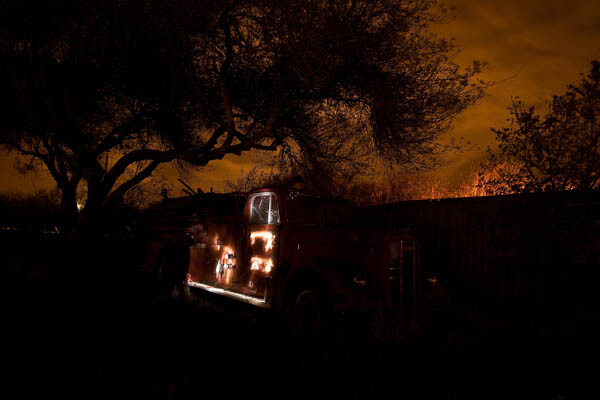
"1956 Le France Pumper"

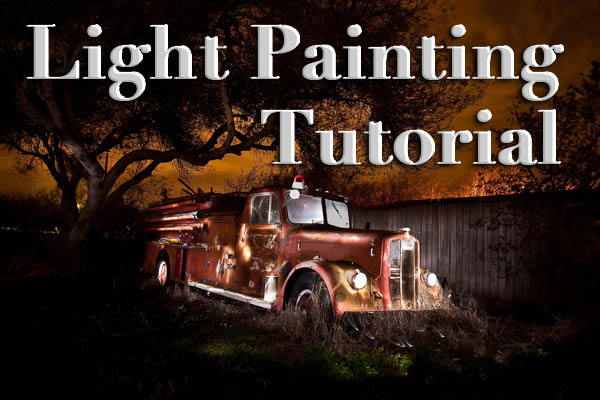
In Part One of  the Light Painting Tutorial I went over how to do the photography part: equipment, camera settings, set up, lighting, potential pitfalls, and step by step instruction on how to do light painting shots.  In this article Part Two, we’re going to take a look at how to combine multiple exposures in Photoshop.

WHAT YOU’LL LEARN IN THIS TUTORIAL

  • how to create one big layered file of all your images
  • what layer settings to use to “turn the lights on” with each added image
  • how to get rid of any unwanted areas of each image
  • how to easily “dim the lights” on any shots that were too bright
  • saving your final combined image as a masterpiece

Combining images in Photoshop is surprisingly quick and easy

What you need to do this:

  • a series of images of the same subject, shot with the same angle of view (you didn’t move the tripod), with each image lit just a little differently
  • Photoshop (CS or Elements) or some other photo editor that uses layers
  • a basic knowledge of how to use layers, blend modes and masking in your photo editor
  • a computer with good memory and speed – creating multi-layered documents can sometimes slow down your computer if you have an old processor, not enough RAM (put as much in as your computer will hold, I have 6gb and want more but I’m maxed on my 6 year old MacBookPro) or your hard drive is overly full (you want your hard drive never to go over 75% full max, otherwise it will bog down).

Note: if your computer is slow you may not need a new one: just upgrade your RAM and get a bigger hard drive or empty a bunch of stuff off and see if that helps.

STEP ONE OPENING YOUR FILES AS LAYERS

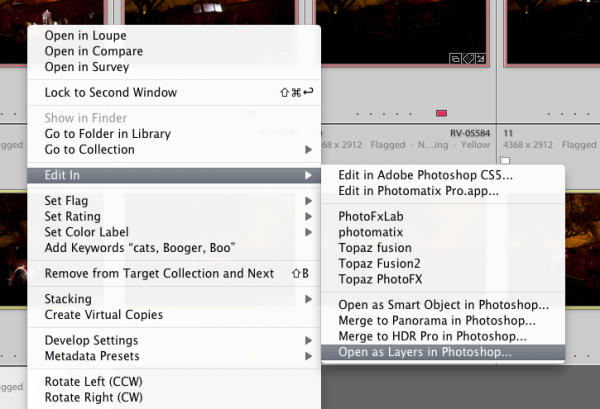
If you are using Adobe Lightroom, you can open your original files directly from Lightroom into Photoshop (wherever I mention Photoshop you can use CS, Elements or your usual editor that has layers capabilities). I do find however that if you are shooting Raw opening 12 or more Raw files into Photoshop really tends to bog it down. So in this case I have exported JPGs first and then opened those into Photoshop. If you are opening from Lightroom directly follow these steps:

  • select all the images of your scene so they are highlighted
  • right click on one of the thumbnails
  • from the pop up menu choose “Edit in” and then “Open as layers in Photoshop” like shown below in Figure #1
open-as-layers-from-LR-to-PS

Figure #1

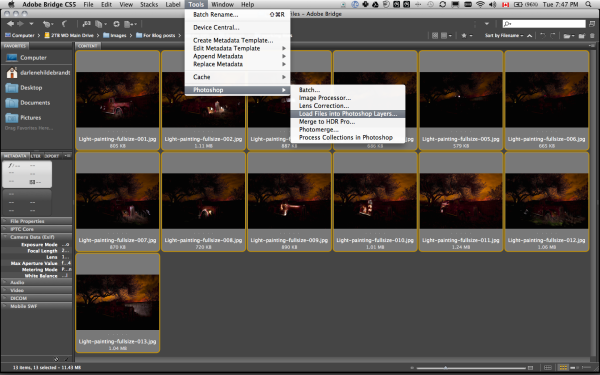
If you are using Photoshop you will follow almost the same steps using Bridge (or the mini browser where you can see your thumbnails)

  • select all the images of your scene so they are highlighted
  • go to the Tools menu
  • select Photoshop > Load files into Photoshop layers (as shown below in Figure #2)
Open as layers from Bridge

Figure #2

STEP TWO ALIGNING THE LAYERS

Once you have all your files opened as layers into one document in Photoshop you want to make sure they are perfectly aligned.  If you used a tripod and it didn’t move they should be pretty close, but we want to make sure they are perfect. Follow these steps:

eyeball-icon

Figure #3

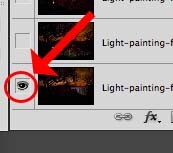
  • Turn on just your bottom layer by clicking and holding the Option or Alt key on your keyboard, then clicking on the little eyeball icon (next to the thumbnail of the layer) of the bottom layer. That will make that one active and hide all the others. (See Figure #3 right)
  • Next one by one turn on each layer by clicking the eyeball next to them. If you notice that any of the images seem to jump a bit as you do that, you’ll want to run an alignment. If not but you just want to be sure anyway, continue on to the next step
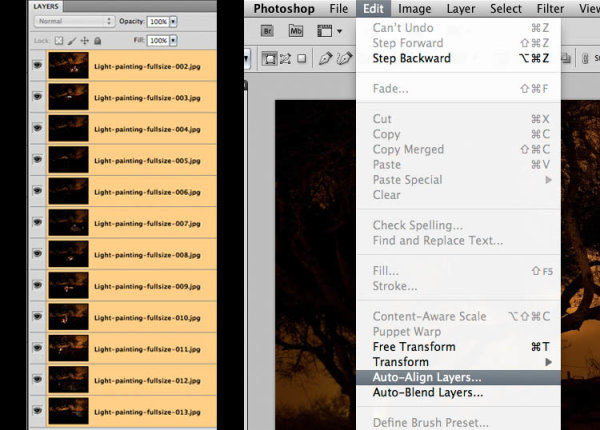
  • Select all your layers, click the bottom thumbnail, then shift>click the top one so all layers are highlighted (as shown below in Figure #4 below)
  • Align the layers by going to the Edit Menu> Auto align layers (see Figure #5 below) and just choose the auto method from the pop up box. If it adjusts any of the layers you may have to crop the result to get rid of any odd edges.
Figure #4 left - Figure #5 right

Figure #4 left – Figure #5 right

STEP THREE BLENDING THE LAYERS

Now that your images are aligned perfectly we’re ready to do some magic!  In this section we’re going to “turn on the lights” from each image one by one. Here’s how:

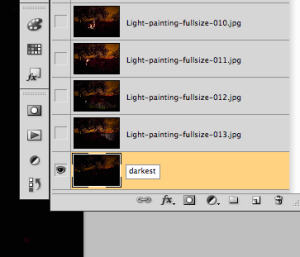
Rename darkest image, put it as bottom layer

Figure #6

  • find your darkest image by going through each layer one at at time.  This should be the image you shot before you added light with your flashlight. The base image you created in Part One of the Light Painting Tutorial.  
  • drag the layer with your darkest image to the bottom of your layers panel.  Just grab the thumbnail for the layer and drag and drop it below the bottom one.  You can rename that layer “darkest” if you like by double clicking on the layer name and typing in your new one. See Figure #6 right.
  • turn on the layer just above the bottom one and make it your selected layer – use the eyeball icon, they should all be turned off except your “darkest” layer and the one above it now
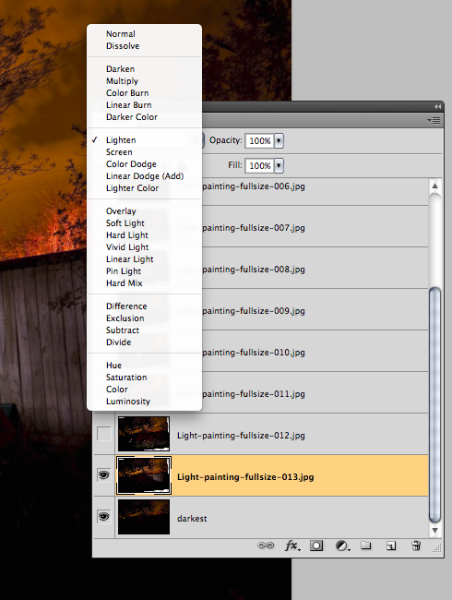
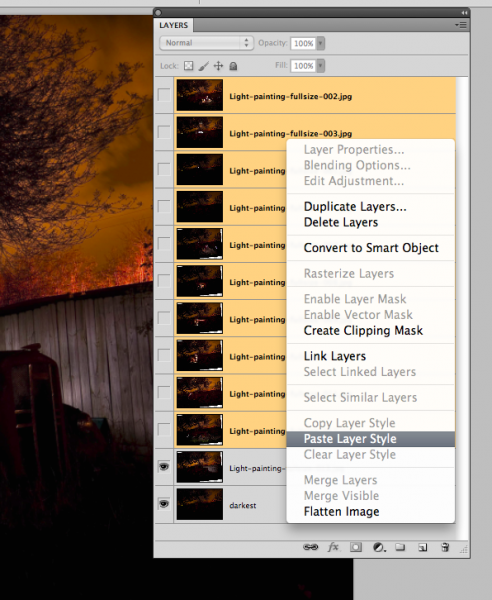
  • change the blend mode of the selected layer to “lighten” – you do this by going up to the pull down menu in the upper left corner of your layers palette, right under the tab that says “Layers” and to the left of where it says “Opacity”. See Figure #7 below.
  • copy the layer style – right click on the layer itself and choose “copy layer style”
  • change the blend mode of all other layers to lighten – select all other layers, right click and choose “paste layer style”. That is the only way I know of to change them all quickly without having to do them individually, one by one. See Figure #8 below.
Figure #7

Figure #7

Figure #8

Figure #8

TURNING ON THE LIGHTS

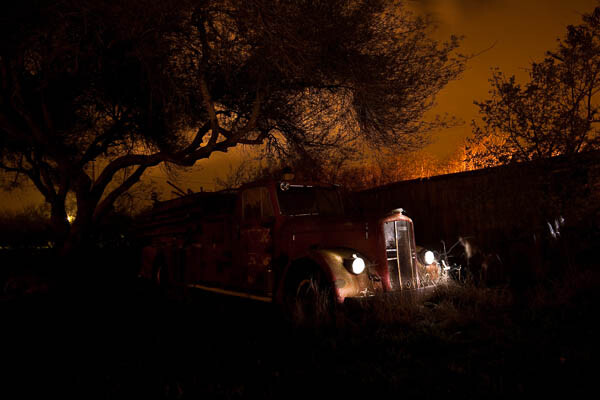
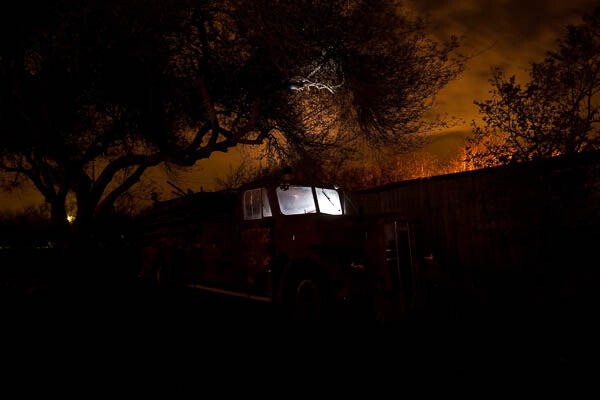
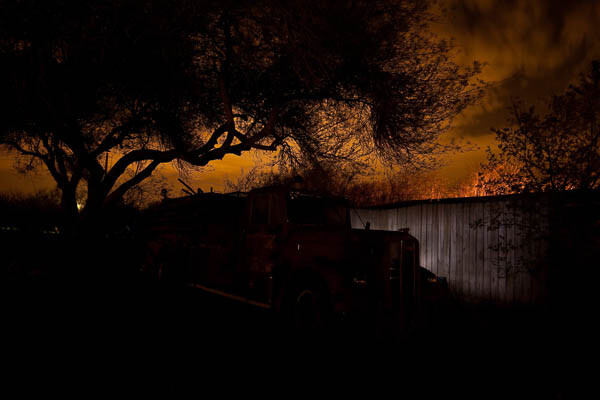
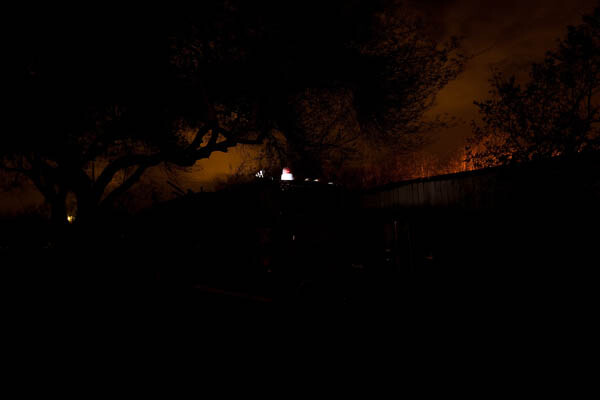
Now if you click on each of the Eyeball icons for the layers above, you will see the lights turn on in the different spots you painted in each exposure. In the example of the firetruck here are a few views of the overall image as I turn on a layer above one at a time.

lights-on

REVIEW AND REFINING THE IMAGE

I’ve skipped a couple here, but you get the idea. Notice how as I turn each subsequent layer on a new part of the truck is magically lit up. There are a few issues however, as it’s never, or rarely perfect right out of the camera. But we can fix those things easily too using layer masks. Do you notice the following issues in the image above?

  • a few stray light bugs in places we don’t want them (on the fence to the right of the truck)
  • the sky got overly bright as well (caused by some of the exposures being longer than the “darkest” base layer)
  • there are some double images of the tree branches in a few places (caused by wind and the tree moving from one exposure to the next)

To fix any issues and clean up the image follow these steps:

Figure #9

Figure #9

  • turn on just the bottom layer again (alt/option click the eyeball for that layer)
  • turn on each layer one at a time, let’s do the one above the bottom one first
  • review the image and look for any issues such as – areas that got too light, stray light bugs, your body showed up in the photo, etc.
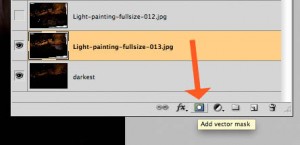
  • create a layer mask by clicking on the “layer mask icon” in the bottom of the layers panel. See Figure #9 right.  ***Important to note: you can do this two ways. Just clicking it directly will create a mask that shows the whole layer (mask will be white).  Alt/option clicking on it will make the layer hidden or “masked” (mask will be black). If you only have a few issues to “paint out” use the direct click method.  But if you have a lot of issues you need to paint out, I suggest using the second method so the mask hides the layer and then you just paint in the good areas. Either way you’ll get the same result just with less painting or adjustments needed so choose the method that is best for each layer.***
  • mask-selected

    Figure #10

  • paint on the mask to show or hide the parts you want – TIPS: hit the “D” key on your keyboard, that will set your swatches to the default black/white for foreground and background colors. Then hit “B” to get your brush tool. Select a soft edge brush so you don’t get a harsh line where you paint on the mask. Paint at 100% using Black to over areas you want to hide and switch to white for areas you want to show. To switch the foreground/background colors back and forth use the X key. Here’s what it looks like – make sure you are painting ON the mask not the image. You’ll be able to tell because there will be little corner markers around the mask and not the layer thumbnail. See Figure #10 right.
  • repeat for each layer – turn it on, add a layer mask, paint to hide and show the areas you want. TIP: if you want to see what it looks like without the layer mask (especially useful if you are using a black mask and painting IN areas you want to show), hold SHIFT and click on the mask itself. A red X will appear and the mask is just disable. Do the same to turn it back on. 
  • if any of your images appear too bright you can tone them down by simply lowering the opacity of that layer, or by painting over the parts that are too bright with the layer mask to partially hide them (just set your paintbrush opacity to 20% and brush over that area gently)

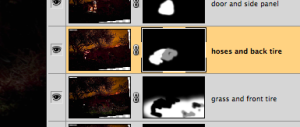
This is what my layers look like with the masks added and areas painted to show only the bits I want from each exposure. Remember to save your file in two formats:  PSD to preserve all the layers, and a final JPG you can use for printing or sharing online (you may have to make a smaller one for email sharing).

all-layers

SUMMARY AND REVIEW

Okay so it seems like a lot of steps but once you get the hang of it, then it really doesn’t take that long to make something you can wow your friends with. They’ll be asking you “how’d you do that?!” in no time! Let’s take a look at the steps in short form again:

  • open your files as layers into one document
  • align the layers in perfect registration
  • change the layer blend modes to “lighten” (all except the bottom layer)
  • add a layer mask to each layer and paint in areas you want, or hide areas you don’t want to appear in the final image
  • save as a layered PSD file
  • flatten and save again as a JPG (full resolution, no compression)

I hope you enjoyed this two part series, once again here is the final image.

"1956 Le France Pumper" Corpus Christi, Texas

“1956 Le France Pumper” Corpus Christi, Texas

Post originally from: Digital Photography Tips.

Check out our more Photography Tips at Photography Tips for Beginners, Portrait Photography Tips and Wedding Photography Tips.

Light Painting Part Two – Photoshop


Digital Photography School

 
Comments Off on Light Painting Part Two – Photoshop

Posted in Photography


Light Painting Part One – the Photography

04 May

"1956 Le France Pumper"

I teach a night photography class and I find that many people who’ve never tried it imagine it to be a lot harder than it really is to get spectacular results. In this two part series I’m going to take you through step by step how I created the image above using light painting techniques that are actually quite easy.

PART ONE – THE PHOTOGRAPHY

In this article, Part One, I’m going to go through everything you need to know so that you can go out and create some images using this technique. In Part Two I’ll take you through combining multiple exposures, like I’ve done for this shot, using Photoshop to create the final photograph. It’s really not that hard and I’ll do it one step at a time so you can follow along with my screen shots after each step.

WHAT YOU’LL LEARN IN THIS ARTICLE

  • Recommended equipment
  • Camera basics (how to set up your camera)
  • Finding a good subject
  • Getting started (set up, preparation and starting points)
  • Lighting, how to do light painting and some tips
  • Potential problems and how to avoid them

EQUIPMENT FOR NIGHT PHOTOGRAPHY

Night photography is not that difficult but there are a few essential pieces of equipment needed to do the job right. Here is a list of mandatory and optional items:

The “Must Haves”

  • a DSLR, or camera with manual settings that include “Bulb”
  • a camera that shoots RAW format images (not mandatory but highly suggested)
  • a sturdy tripod that is not affected by wind
  • an electric cable release or remote trigger (could be called either) with a locking mechanism or timer
  • at least one extra battery for your camera (long exposures and cold eat up batteries quickly so you may run through two or more in a night)
  • a lens hood or shade for your lens

The “Really Nice to Haves” – not essential, but sure handy

  • a digital watch or timer (or remote that has a timer) I use my iPhone
  • a penlight or small flashlight (your cell phone can work in a pinch) to be able to check camera settings and find an item in the bottom of your bag OR a headlamp like the kind hikers wear, is a better option for hands free operation
  • a powerful flashlight like a Maglite for light painting (I use an incandescent one, LED will produce a bluer tone light)
  • a speedlight or portable flash unit can also be used for light painting (you don’t need a fancy one, even an old Vivitar 283 or 285 will do the trick)
  • rain covers for your camera bag, camera, and yourself (weather can change quickly at night but you can get some great shots in bad weather if you’re prepared – you dry easier than your camera, keep that in mind!)
  • A friend to tag along. Helpful if you’re doing night photography in an urban setting. It’s someone to help pass the time, but also watch that your gear doesn’t grow legs and walk off while you’re digging in the camera bag for something. Or someone to stand guard over the camera gear while you’re off painting with light in the scene.

CAMERA SETTINGS

  • File format –  shoot raw whenever possible lighting at night can be odd colors
  • White balance – I generally choose “incandescent” or “tungsten” White Balance Preset when doing light painting because I know that will balance correctly for my flashlight. I let the rest of the scene fall where it may color wise
  • Focus – your camera has a hard time focusing at night and will “hunt” unless you find focus and lock it for all your exposures.  If your camera has back button focus capabilities I’d suggest using that, if not you can focus and then turn it to manual focus so it doesn’t attempt to refocus when you hit the shutter release. You can try to focus using manual but keep in mind if your camera can’t see in the dark, neither can you!  So to achieve focus use your flashlight, and if you have a friend along, get them to light up the part of the object you want to focus on. Then either use your auto focus and lock it, or manually focus and then don’t touch it!
  • Manual mode or BULB – for exposure set it to manual. That way the camera is not trying to guess the correct exposure. We’ll be setting it and leaving it for the most part – just like our focus. For exposures longer than 30 seconds (30″ on your camera) you’ll need to find and use your BULB setting. On many cameras it is right after 30 seconds on the shutter speed scale, one some there’s a B option on your mode dial on top of your camera.
  • ISO – how low can you go?!  This is where it gets counter intuitive because your gut may be telling you that it’s dark out so you need a higher ISO, right?  Well in certain situations like shooting the moon, a starry sky, or northern lights where you want a faster shutter speed – then you might need a higher ISO. But for this purpose and most of the times you are on a tripod it is always best to choose the lowest ISO possible. Noise in your image increases with changes in 3 things:  higher ISO, long exposures and in blue or dark areas of your scene. We’re already pushing the long exposure boundaries and night is ALL blue – so keeping the ISO low will minimize the noise best we can.

Light-painting-015FINDING A GOOD SUBJECT

Night photography can produce some great images, but it can be a bit tricky to find a location and compose your shots in the dark.  It is best to go out ahead of time and find a spot, then return to it later, about 30 minutes before you actually want to start shooting.  That will give you time to find it, get set up and be ready.   Here are some tips for finding a good night subject suitable for painting with light.

  • Old barns and abandoned cars and trucks in fields make great subjects, and often are appropriate for some painting with light.  If you need to cross someone’s land to get to there, make sure to get permission BEFORE you head out.  Trespassing is not cool and could lead to  lot of problems including getting arrested, or worse, which you certainly don’t want.
  • If you want to shoot the moon, star trails, or do light painting you’ll need to get out of the city.  You may have to drive quite a while to get far enough away so that the city lights do not contaminate your shot.  As you will be exposing for several minutes or longer, the city lights may show up on the horizon if you are not far enough away. (the city lights are a factor in my example in this article which gave me some limitations, and the orange fire in the sky – more on that later)
  • Start with a smaller subject that you can light in one exposure and work your way up to bigger ones like this firetruck or an old barn that will take a few shots and need compiling. An old bicycle is a great starter subject. Buy one at a flea market or junk yard and take your own prop wherever you want and plop it into your scene.  Just remember to take it with you as you’ll want it again later and littering isn’t cool either.

Light-painting-014

GETTING STARTED – SETTING UP

  1. Set up your camera on tripod with remote attached or set up to fire the camera
  2. Turn off any image stabilization (IS or VR) on your lens
  3. Turn OFF “long exposure noise reduction” unless you have a lot of patience. What it does it takes a second exposure of equal length of just black, then merges it with your shot to get rid of the noise. But if you’re doing a 2 minute exposure, you have to wait another 2 minutes to review your image and be able shoot again. I don’t use it, and because we’re on a low ISO noise shouldn’t be a big factor
  4. ISO low – ideally 100 or 200
  5. Aperture – start around f/5.6 – depending on your scene, then adjust from there if you want more or less depth of field.  Keep in mind the smaller aperture you use, each stop you close down doubles the amount of time you need to be painting and exposing. So a 60 second exposure at f/5.6 becomes an 8 minute exposure at f/16!
  6. Shutter speed – start around 60 seconds. I’ve done enough night photography to know that’ll get you pretty close for most moonlit scenes. You may have to adjust faster (shorter exposure) or longer depending on whether it’s a full moon, or there’s some stray light in the scene, and how bright your flashlight is.
  7. Focus using the flashlight – then lock your focus.

LIGHT PAINTING – HOW TO DO IT

Basically what you do it set your camera on Bulb, open the shutter using your locking release and walk into your scene and start lighting the objects in the camera view using your flashlight. It sounds simple but can be quite tricky to get just the right amount of light in different places, not get yourself in the image, and still get a good overall exposure. Here are a few tips or starting points, then you just need to experiment and adjust as you go.

Setting up your base exposure

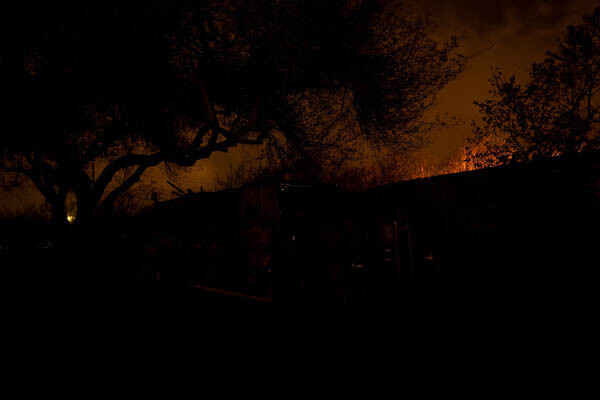
  • Before you start “painting” take a test shot, without the flashlight, of the scene as it is with no additional light added
  • Review that image and make sure you have a good overall exposure of the scene, with it perhaps just a little on the dark side (histogram should be mostly inclined to the left side)
  • When you are happy with the exposure, adjust your settings so that you have a long enough shutter speed to easily get into the scene and light the subject with your flashlight before the shutter closes (at least 30 seconds). You may have to go to a smaller aperture to do so.
  • Once you know your exposure and your shutter speed is at least 30 seconds long, you can get started. If you can bring a friend along they can press the shutter release for you, so you can go in and out of the scene without returning to the camera after each shot to press it again. Or a wireless remote comes in handy here too.
First shot to establish the base exposure. ISO 100, f/5.6 for 30 seconds.

My first shot to establish the base exposure. ISO 100, f/5.6 for 30 seconds.

Adding the flashlight – tips for light painting

  • To keep yourself invisible, always make sure the flashlight is aimed at the subject, and that you do not light up yourself, dark clothing helps too.  Also keep moving during the whole exposure.  Don’t stand in one place for more than a couple seconds or you will show up as a ghost in that spot.
  • Don’t aim the flashlight back towards the camera, unless you want what I call “light bugs”. Sometimes you can use that technique on purpose to create streaks of light and outline your subject, and that can work well also.  See the image of the little red wagon above for an example of light bugs. I believe I accidentally had my headlamp on while I painted and it made the light bugs – but I kind of liked it so I kept it. Happy accidents are great!
  • Keep the light moving the whole time so as not to create any harsh lines or bright spots. I like to make outlines of the shape of my subject or parts of it. Discover what works for you.
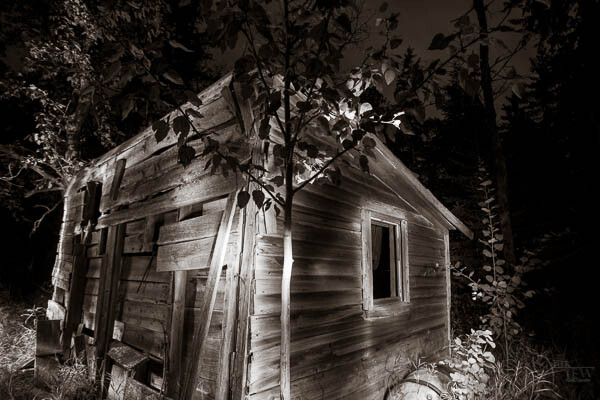
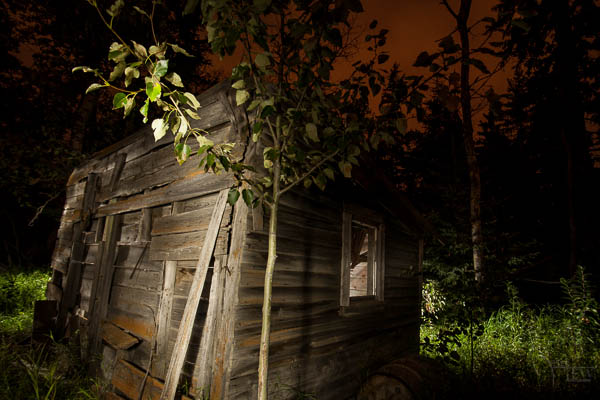
  • For a more defined and abstract look to your light painting you must come in a REALLY close to the subject!  By that I mean about 1-2 feet away from the subject. YES you are going to get right into the scene. But if you keep moving, and keep your light moving you will not show up in the photo. (see the b/w of the old shack above for an example of this look and technique). Also make sure your flashlight beam is focused to a small area – that’s why I like the Maglites, they focus down to a small spot.
  • For a broader more even light keep the flashlight beam wide and stand back from the subject a bit (4-8 feet) and light it from the side to create a nice cross light and texture on the subject. (see the color image of the old wooden shack below for an example of this affect)
Light-painting-017

Light painted from a few feet away from the shack with a wider beam flashlight

REVIEW YOUR IMAGE AND DO IT ALL AGAIN

Back in the days of film, painting with light was much harder.  There was no way to determine if any of the exposures were correct or not.  To paint a whole scene you had to get it right in one frame or exposure.  Now with digital we have the benefit of testing and seeing what we’re doing and compensating on the next shot.   You can even paint a scene in stages, or sections, and build them all into one image later in Photoshop.  I’ll cover how to do that in Part Two.

The things you want to look for in your first image are:

  • How did you do with your flashlight painting? If it was too bright in one area and not bright enough in another, just be conscious of how much time you spend on one spot and adjust accordingly.
  • If it is overall too dark or light, you may need to adjust your exposure time or your aperture.
  • If the flashlight isn’t showing up well enough you might need a longer exposure time (just go from 30 seconds to 60 and try again) to allow you to paint slower and cover more areas better.
  • If you want the light more even, back up and use a wider beam.
  • If you want it more focused and like outlines, get closer.
  • Did you get any light bugs you didn’t want?  (turn off your headlamp!)
  • Did you get a ghost of yourself or a body part?
  • Generally look for any problems or areas you want to correct.  Take note and do it again, and again, and again – until you’re happy with it.
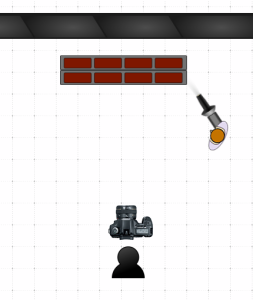
Set up showing how close I got to the firetruck

Set up showing how close I got to the firetruck

MAKING A MULTIPLE IMAGE COMPOSITE – SHOOTING FOR IT

Now that you’re ready to progress to a larger subject we’ll look at how to shoot multiple images of the same subject, so that you can merge them together in Photoshop later. The ONLY thing you’re going to do different than what you just did in the lessons above – is paint the subject in sections. That’s it!

For the firetruck image I actually shot about 30 different exposures. I didn’t end up using them all but I wanted to make sure I had my based covered and had options. That’s the beauty of putting them together later – you do NOT have to get it perfect in one shot! Let’s take a look at a few of my images from that shoot.

Lighting the back area where the hoses are.

Lighting the back area where the hoses are and the back tire

Lighting the side panel and running board.

Lighting the side panel and running board, notice how I’ve highlighted certain areas

Lighting the front grill and headlights - to get headlights to look like they're on, put the flashlight right up to the glass and just rotate it around for a bit.

Lighting the front grill and headlights – to get headlights to look like they’re on, put the flashlight right up to the glass and just rotate it around for a bit.  Notice the light bugs on the right here? We’ll handle those in part two.

Lighting up the windows from the inside!

Lighting up the windows from the inside! A little of the tree branch too.

Lighting the fence behind the truck to give it separation

Lighting the fence behind the truck to give it separation

Turing on the cherry light that makes it a firetruck!  Don't forget the details like this!

Turing on the cherry light that makes it a firetruck! Don’t forget the details like this!

Lighting the "cherry" from behind to make it glow red

Lighting the “cherry” from behind to make it glow red

You get the idea right? Cover it well, then just to be sure, do it again. I think we were there (my husband was the button pusher, I ran the flashlight) about an hour an a half just doing this one shot. It was such a unique subject, and we had full permission to be there and be photographing it at night that I wanted to take full advantage of it. That it was a beautiful night and this stuff is just so much fun for me that once I get started, I lose all track of time.

Wrapping up

Well I was a bit long winded on this tutorial, I hope you are still with me. I wanted to make sure you had all the details you need to go out and try this yourself. I fully expect you to do so and be ready with some images for Part Two when we are going to take our multiple shots and combine them to get something that looks like this in the end.

Action plan steps

  1. get the right gear
  2. find a good subject, get permission if need be
  3. set up your camera using the starting settings
  4. take your base exposure test shot
  5. add your flashlight and light painting
  6. review and continue

COME BACK FOR PART TWO!

"1956 Le France Pumper" Corpus Christi, Texas

“1956 Le France Pumper” Corpus Christi, Texas

Post originally from: Digital Photography Tips.

Check out our more Photography Tips at Photography Tips for Beginners, Portrait Photography Tips and Wedding Photography Tips.

Light Painting Part One – the Photography


Digital Photography School

 
Comments Off on Light Painting Part One – the Photography

Posted in Photography


Painting with light tutorial

11 Feb

Just a short video on how to do painting with light photography
Video Rating: 5 / 5


Megan Fox – Transformers 2 – Digital Painting – Adobe Photoshop

11 Jan

My Music on ITUNES : itunes.apple.com My Music on AMAZON : www.amazon.com My Music on AMAZON France : www.amazon.fr Print on canvas in limited editions : www.stval.fr I’m Stephanie Valentin (website : www.stval.fr), afrench artist violinist, singer, composer, painter and sculptor I often put new artwork and free downloads on my website www.stval.fr – How to draw videos – Free brushes for Adobe Photoshop (CS2, CS3, CS4) and Gimp – Painting tutorials (french and english text and pictures) – Free celebrity wallpaper – Digital art gallery and print – Free songs to download (mp3), lyrics and sheet music – Free online dress up games – Oil painting (musicians, artistic nude, animal…) – Photo retouching tutorials and pics – 2D and 3D animation – Sculpture Subscribe to my channel : youtube.com Thank you for viewing ! Time : 6 hours
Video Rating: 4 / 5


24 December, 2012 – The Synthesis of Chinese Landscape Painting and Photography

24 Dec

Traditional Chinese Landscape Painting has endured for almost 1500 years, longer than any genre in Western culture. What perceptual qualities (that we can see for ourselves) lie behind this? How can we adopt these to the medium of digital photography? Looking at the visual structure of paintings began for us as a way to analyze what makes a an image “work,” and it has grown into a fascination with a very different way of seeing – that of the classical Chinese Landscape painters.
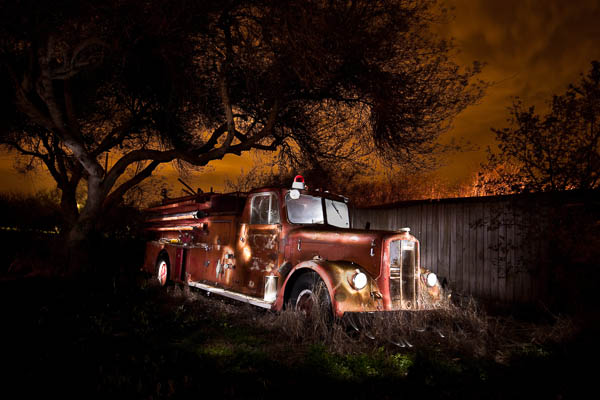
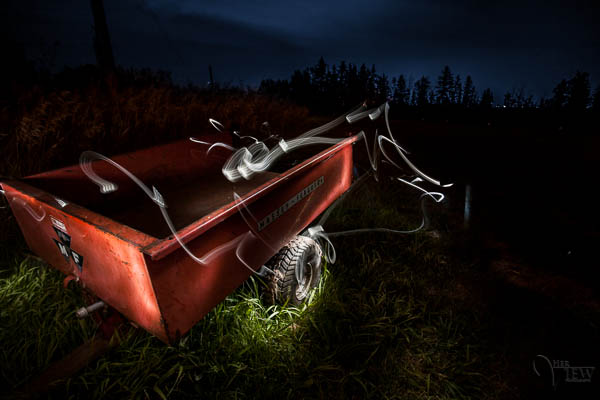
George DeWolfe and Lydia Goetze explore this subject in their new essay The Synthesis of Chinese Landscape Painting and Photography. 


The Luminous Landscape – What’s New

 
Comments Off on 24 December, 2012 – The Synthesis of Chinese Landscape Painting and Photography

Posted in News


Mixed Media Painting (Detail) by Choichun Leung / Dumbo Arts Center: Art Under the Bridge Festival 2009 / 20090926.10D.54932.P1.L1.C23 / SML

20 Dec

A few nice visual art images I found:

Mixed Media Painting (Detail) by Choichun Leung / Dumbo Arts Center: Art Under the Bridge Festival 2009 / 20090926.10D.54932.P1.L1.C23 / SML
visual art
Image by See-ming Lee ??? SML
SML Pro Blog: Choichun Leung / 13th Annual DUMBO Art Under the Bridge Festival NYC 2009: Part 10 of 10 / Art + Artists

Choichun Leung
2008
Part of the SCRIPTO series
www.choichun.com/scripto.html

See also Choichun Leung talks about her mixed media paintings (Flickr 720p HD video).

Choichun Leung left Wales when she was seventeen to pursue a degree in metal-smithing at Loughborough college of Art and Design in the UK, afterwhich she studied Buddhist iconography in both Beijing and the Yangkung caves in China’s Shanxi province. In 1988 she moved to London where she studied under the Ray Man Chinese Orchestra as a percussionist and a student of the Gu-qin – a traditional Chinese bass zither. Leung worked in Hong Kong as a background artist for animation film before returning to London in 1992 where she received a grant and Gold Award from the Prince of Wales’ Youth Business Trust for the most innovative new business of the year: a line of symbolic art products using the traditional technique of Chinese paper cutting.

With music and the arts always hand in hand, Leung came to New York in 1994 where she began painting seriously, worked as an assistant to artist Peter Max, and studied music composition. From that point forward, Choichun’s artwork has been inextricably entwined with her interest in music and have continued to influence each other.

As the single mother of a young daughter, Choichun moved to Germany in 2002 to write music, perform and collaborate on an audio/visual project based in Koln. Upon the invitation of a gallery in 2006 she returned to New York. Most recently Choichun has been featured in two solo exhibitions at JLA Baxter House in Manhattan and will take part in a group showing in Hamburg in November 2008. Choichun currently lives in Brooklyn, NYC .

Artist Statement Our lives are as long as we remember. Our memories are imbedded in us like DNA. But what of lives that through trauma or age have lost memory? What of the interplay of conscious thought and the sub-conscious? Which one really drives the show? My paintings are like rorschach tests in reverse, a psychological diary of that moment in time, an investigation of the relationship between past and present, reality and illusion and in effect a blue print to the past self. Through the symbolisms revealed, and the stories or objects we project into the abstract, we expose another layer of ourselves and in turn provide clues to what may not be fully aware. My paintings are simple traces of that activity, void of any meaning, but imbedded with the years of experience that shapes us, yet also holds us hostage.

Choichun never paints from sketches but instead allows the process and medium dictate. Each application is an expressive gesture evoking the emotion and inner psychology of that moment, a conflicted excavation of what may be hidden or imagined. The script like lines emerge as a non-cognitive language or what she has come to identify as ‘glyphs’ – a pictographic personal alphabet; where ‘glyphs’ document the days, weeks and months spent on a piece. The one actual reference that Choichun can identify in her work after the fact springs from her background in music and her fascination with its chaotic notes and interpretive patterns. These can be seen in the work’s fine, rhythmic and frenetic lines as well as in the heavier, poured-on, black & white ‘mono-glyphs’ which overtake the paintings like visual representations of a sound. Choichun paints on both wood panels and canvas, using liquid acrylic, aerosol, oil bars and thread . With sticks, brushes, trowels and vessels: applying the paint and then scratching through the layers to reveal what is underneath, scripting with ‘glyphs’ throughout, painting over, sanding down and repeating this process until an image is revealed or another is hidden.

www.choichun.com

13th annual D.U.M.B.O. Art Under the Bridge Festival® (Sept 25 to Sept 27, 2009)
www.dumboartfestival.org/press_release.html

The three-day multi-site neighborhood-wide event is a one-of-a-kind art happening: where serendipity meets the haphazard and where the unpredictable, spontaneous and downright weird thrive. The now teenage D.U.M.B.O. Art Under the Bridge Festival® presents touchable, accessible, and interactive art, on a scale that makes it the nation’s largest urban forum for experimental art.

Art Under the Bridge is an opportunity for young artists to use any medium imaginable to create temporary projects on-the-spot everywhere and anywhere, completely transforming the Dumbo section of Brooklyn, New York, into a vibrant platform for self-expression. In addition to the 80+ projects throughout the historical post-industrial waterfront span, visitors can tour local artists’ studios or check out the indoor video_dumbo, a non-stop program of cutting-edge video art from New York City and around the world.

The Dumbo Arts Center (DAC) has been the exclusive producer of the D.U.M.B.O Art Under the Bridge Festival® since 1997. DAC is a big impact, small non-profit, that in addition to its year-round gallery exhibitions, is committed to preserving Dumbo as a site in New York City where emerging visual artists can experiment in the public domain, while having unprecedented freedom and access to normally off-limit locations.

www.dumboartscenter.org
www.dumboartfestival.org
www.video_dumbo.org

Related SML
+ SML Fine Art (Flickr Group)
+ SML Flickr Collections: Events
+ SML Flickr Sets: Art
+ SML Flickr Sets: Dumbo Arts Center: Art Under the Bridge Festival 2009
+ SML Flickr Tags: Art
+ SML Pro Blog: Art

Brooklyn Graffiti / Dumbo Arts Center: Art Under the Bridge Festival 2009 / 20090926.10D.54913.P1.L1.C23 / SML
visual art
Image by See-ming Lee ??? SML
13th annual D.U.M.B.O. Art Under the Bridge Festival® (Sept 25 to Sept 27, 2009)
www.dumboartfestival.org/press_release.html

The three-day multi-site neighborhood-wide event is a one-of-a-kind art happening: where serendipity meets the haphazard and where the unpredictable, spontaneous and downright weird thrive. The now teenage D.U.M.B.O. Art Under the Bridge Festival® presents touchable, accessible, and interactive art, on a scale that makes it the nation’s largest urban forum for experimental art.

Art Under the Bridge is an opportunity for young artists to use any medium imaginable to create temporary projects on-the-spot everywhere and anywhere, completely transforming the Dumbo section of Brooklyn, New York, into a vibrant platform for self-expression. In addition to the 80+ projects throughout the historical post-industrial waterfront span, visitors can tour local artists’ studios or check out the indoor video_dumbo, a non-stop program of cutting-edge video art from New York City and around the world.

The Dumbo Arts Center (DAC) has been the exclusive producer of the D.U.M.B.O Art Under the Bridge Festival® since 1997. DAC is a big impact, small non-profit, that in addition to its year-round gallery exhibitions, is committed to preserving Dumbo as a site in New York City where emerging visual artists can experiment in the public domain, while having unprecedented freedom and access to normally off-limit locations.

www.dumboartscenter.org
www.dumboartfestival.org
www.video_dumbo.org

Related SML
+ SML Fine Art (Flickr Group)
+ SML Flickr Collections: Events
+ SML Flickr Sets: Art
+ SML Flickr Sets: Dumbo Arts Center: Art Under the Bridge Festival 2009
+ SML Flickr Tags: Art
+ SML Pro Blog: Art

 
Comments Off on Mixed Media Painting (Detail) by Choichun Leung / Dumbo Arts Center: Art Under the Bridge Festival 2009 / 20090926.10D.54932.P1.L1.C23 / SML

Posted in Photographs


Light Painting the Stone River

19 Dec

A few nice visual art images I found:

Light Painting the Stone River
visual art
Image by rao.anirudh
Andy Goldsworthy’s "Stone River" sculpture outside the Cantor Center for Visual Arts on the Stanford campus.

Took a 7-minute exposure of the Stone River just after midnight while walking from one end of the 320 ft long sculpture to the other with a light blue LED. Took two more exposures, one for the trees and the other for the night sky and blended the three using GIMP.

100% Acrylic Art Guards by Agata Olek / Dumbo Arts Center: Art Under the Bridge Festival 2009 / 20090926.10D.54776.P1.L1.SQ / SML
visual art
Image by See-ming Lee ??? SML
See also Agata Olek talks about her 100% Acrylic Art Guards (Flickr 720p HD video)

Agata Olek (Flickr)
100% Acrylic Art Guards

"I think crochet, the way I create it, is a metaphor for the complexity and interconnectedness of our body and its systems and psychology. The connections are stronger as one fabric as opposed to separate strands, but, if you cut one, the whole thing will fall apart.

Relationships are complex and greatly vary situation to situation. They are developmental journeys of growth, and transformation. Time passes, great distances are surpassed and the fabric which individuals are composed of compiles and unravels simultaneously."

Agata Olek Biography. The SPLAT! of colors hits you in the face, often clashing so ostentatiously that it instantly tunes you into the presence of severely cheeky humor. A moment later the fatigue of labor creeps into your fingers as a coal miner’s work ethic becomes apparent. Hundreds of miles of crocheted, weaved, and often recycled materials are the fabric from which the wild and occasionally wearable structures of her fantasylands are born.

Olek was born Agata Oleksiak in Poland and graduated from Adam Mickiewicz University in Poland with a degree in cultural studies. In New York, she rediscovered her ability to crochet and since then she has started her crocheted journey/madness.

Resume sniffers may be pleased to know Olek’s work has been presented in galleries from Brooklyn to Istanbul to Venice and Brazil, featured in "The New York Times", "Fiberarts Magazine", "The Village Voice", and "Washington Post" and drags a tail of dance performance sets and costumes too numerous to mention.

Olek received the Ruth Mellon Award for Sculpture, was selected for 2005 residency program at Sculpture Space, 2009 residency in Instituto Sacatar in Brazil, and is a winner of apex art gallery commercial competition. Olek was an artist in an independent collective exhibition, "Waterways," during the 49th Venice Biennale. She was also a featured artist in "Two Continents Beyond," at the 9th International Istanbul Biennale.

Olek herself however can be found in her Greenpoint studio with a bottle of spiced Polish vodka and a hand rolled cigarette aggressively re-weaving the world as she sees.

agataolek.com
agataolek.com/blog

13th annual D.U.M.B.O. Art Under the Bridge Festival® (Sept 25 to Sept 27, 2009)
www.dumboartfestival.org/press_release.html

The three-day multi-site neighborhood-wide event is a one-of-a-kind art happening: where serendipity meets the haphazard and where the unpredictable, spontaneous and downright weird thrive. The now teenage D.U.M.B.O. Art Under the Bridge Festival® presents touchable, accessible, and interactive art, on a scale that makes it the nation’s largest urban forum for experimental art.

Art Under the Bridge is an opportunity for young artists to use any medium imaginable to create temporary projects on-the-spot everywhere and anywhere, completely transforming the Dumbo section of Brooklyn, New York, into a vibrant platform for self-expression. In addition to the 80+ projects throughout the historical post-industrial waterfront span, visitors can tour local artists’ studios or check out the indoor video_dumbo, a non-stop program of cutting-edge video art from New York City and around the world.

The Dumbo Arts Center (DAC) has been the exclusive producer of the D.U.M.B.O Art Under the Bridge Festival® since 1997. DAC is a big impact, small non-profit, that in addition to its year-round gallery exhibitions, is committed to preserving Dumbo as a site in New York City where emerging visual artists can experiment in the public domain, while having unprecedented freedom and access to normally off-limit locations.

www.dumboartscenter.org
www.dumboartfestival.org
www.video_dumbo.org

Related SML
+ SML Fine Art (Flickr Group)
+ SML Flickr Collections: Events
+ SML Flickr Sets: Art
+ SML Flickr Sets: Dumbo Arts Center: Art Under the Bridge Festival 2009
+ SML Flickr Tags: Art
+ SML Pro Blog: Art

 
Comments Off on Light Painting the Stone River

Posted in Photographs