RSS
 

Posts Tagged ‘need’

Canon EOS-1D X Mark II: What you need to know

22 Aug

Introduction

The Canon EOS-1D X Mark II is Canon’s flagship DSLR aimed at pro photographers, with a lineage dating all the way back to 2001’s EOS-1D. As usual, this iteration of the line is full of new and updated technologies designed to make it one of the top performing cameras in the world.

A quick glance through the headline features will tell you that this is a pretty amazing camera, and unsurprisingly that’s pretty much what our review uncovered. But let’s take a look at what impressed us most, what surprised us, and maybe even what disappointed us a little bit.

Touch screen innovation – conservative UI

The EOS-1D X II gains a touchscreen, which we’ve seen work well in conjunction with the excellent live view focus that Canon’s Dual Pixel AF can bring. Sadly, and presumably in the name of backwards compatibility, its use is extremely limited.

Thus, you can customize the arrangement of the Q.Menu but can’t operate it by touch. You can use the touchscreen to specify the AF position in live view mode, but the camera can’t then track the subject and, unlike its Nikon counterpart, you can’t double-tap to zoom nor swipe to switch images.

In fairness, the 1D X II is designed as the zenith of what the conventional DSLR can do. It’s a traditional, sports-shooting super camera that will be immediately familiar to existing users of the series. But is that a reason to limit the utility of a feature that its new owners are having to pay for?

Autofocus needs careful configuration

The EOS-1D X II’s autofocus is excellent, as you’d expect for a camera whose first major outing was to cover the multitude different sporting challenges of the Rio Olympics.

Configuration is easier than on the likes of the EOS-1D IV: you now need only choose from six preset use cases, then adjust them if they’re not giving you the results you want, rather than just being confronted with the 75 different combinations that the settings allow.

However, in our testing, we found that it needed a bit more of a hand than Nikon’s D5 for it to anticipate the type of movement it needed to shoot. And that, once suitably configured, it was less adaptable to other shooting situations. Which isn’t to suggest it’s not up to the job, just that it requires a little more user input.

We were also hoping the higher resolution metering sensor would increase the accuracy, of the camera’s iTR focus tracking system. Sadly, the system still felt imprecise and tended to jump off the subject entirely. It works, but it’s not as effective as the 3D autofocus on the Nikon D5, which may leave many users shooting their 1D X II the same way they always have.

Quick, easy video

The 1DX II can shoot DCI 4K video at 60 frames per second. It’s the first stills camera we’ve seen that can do this and we were very impressed with the quality, detail and how little rolling shutter it exhibits. So, while we don’t expect many people to buy this camera for video shooting, it does put very good quality video into the hands of photojournalists and sideline shooters (so long as TV rights deals don’t prohibit it, of course).

And, beyond thinking of it as video, this means the 1D X II can shoot 8MP JPEGs at 60 frames per second with the camera refocusing as you shoot. Suddenly, rather than just using the touchscreen to rack focus between subjects, you can ask it to track subjects as you record and have a great chance of capturing your decisive moment.

Huge files, dual formats

High frame rate 4K isn’t an unalloyed benefit, though. The 1D X II doesn’t (or can’t) compress video into a compact video format, instead taking the unusual route of using the huge, inefficient Motion JPEG format.

It’s true that Motion JPEG gives slightly higher quality individual frame grabs even than All-I H.264 (where each frame is recorded individually), but the size cost for that gain is tremendous.

And this draws attention to the 1D X II’s decision to use two different memory card formats. You’ll need to use a CFast card to capture video at the camera’s highest rate, just as you will to maximize the camera’s buffer when 14 fps shooting. In which case, what do you use the second slot for? Even choosing to record JPEGs to the physically similar Compact Flash format while shooting Raw to a CFast risks slowing the camera down. Perhaps Canon should have been brave and made a dual CFast camera, even if that meant also offering a slower dual CompactFlash version.

Image Quality

The area we had least concern about was image quality (though the JPEGs seemed a little muted, by default.) Despite splitting every pixel in two and increasing the amount of circuitry, the 1D X II outperforms its predecessor in low light. That’s not enough to quite match the best sensors we’ve seen but hey, you also gain that simple autofocus in video.

The other area in which the Mark II gains an edge over the original model is dynamic range. A move to on-sensor analog-to-digital conversion means that you get Raw files will more processing latitude at low ISOs. You can push, pull and manipulate your Raw files more than before without having to worry about noise becoming visible. Which is especially useful in unexpected or challenging light the X is likely to encounter.

Take Home Message

The EOS-1D X II exceeds its predecessor in just about every way, though not without a few compromises along the way.

We love the additional dynamic range we get out of the Raw files on this camera; it makes it a much more flexible tool in challenging lighting. We also love the CFast card slot, though we kind of wish Canon had gone all the way and just put in two of them. Also, while AF is blazing fast, there are enough customization options to make you dizzy at times; practice and familiarity will pay off.

Our biggest surprise was how much we liked the 1D X II as a video camera. Thanks to Dual Pixel autofocus, it’s really easy to capture beautiful footage, even for someone who’s not a video pro. This could be a real game changer for photographers who need to capture both stills and video from the same event.

What’s your experience? Have a favorite feature or surprise from this camera? Tell us in the comments below?

Articles: Digital Photography Review (dpreview.com)

 
Comments Off on Canon EOS-1D X Mark II: What you need to know

Posted in Uncategorized


Fujifilm X-E2S: What you need to know

19 Aug

Introduction

The Fujifilm X-E2S is essentially a Fujifilm X-E2 with firmware updates and some very minor tweaks. That doesn’t mean it’s a bad camera, or that people shouldn’t consider it. Over the course of doing a thorough review (one that focused on its use and its appeal to different users, given how well-known the camera’s performance is), I came away with some observations – some of which you’d miss if you were just skimming the review, or reading through the key specifications.

So in case you missed it, let’s take a quick look back at some of our findings with the Fujifilm X-E2S.

The fun factor

I don’t always want to bring cameras I review to my friends’ barbecues. But I did want to bring the X-E2S. Fujifilm XF 27mm F2.8. ISO 200, 1/250 sec, F2.8.

The most important thing to note about the Fujifilm X-E2S is that it’s a camera that you’ll want to pick up and just go shooting with. Its retro styling isn’t to everyone’s taste, but most people that see it will think it looks ‘cool.’ The buttons have great feedback, and to for the photographer with some experience, the old-school shutter speed, aperture and exposure compensation dials are a natural and easy way to take control of the camera. As for the newbie who just grabbed it because of the new, lower MSRP, the ‘Auto’ button on the back will ensure he or she can enjoy shooting right away, while all those other controls make for an excellent camera to grow in to. Although the menus are a bit laggy, the abundant customizable controls will limit the time you’ll need to spend in them. 

In the end, this camera is just fun to use, which means you’ll want to take it with you more often, which means you’re going to end up taking more photographs. That’s never a bad thing.

The JPEGs

Straight-out-of-camera JPEG using the Classic Chrome film simulation. Fujifilm XF 27mm F2.8 lens. ISO 2500, 1/125 sec, F2.8.

Take a Google stroll across the World Wide Web, and you’ll see heaps of both praise and disdain being hurled at Fujifilm’s JPEG engine. As for us? We’re big fans. Not only do you get lots of adjustment parameters, you can get quick access to them to boot using the custom-settings banks (although these also save your ISO parameters, which we’re not such big fans of). At the core of its appeal is Fujifilm’s selection of film simulations. Don’t be fooled, they won’t necessarily give you transparent, true-to-life colors (Classic Chrome used above is a good example), but they have a certain richness and personality to them that we find oddly addictive. Some people will still struggle with waxy skin tones at higher ISO values, but for the most part, we found we could get away without shooting Raws on the X-E2S by dialing down the noise reduction.

The convenience 

When you pop the XF 27mm F2.8 pancake lens on the Fujifilm X-E2S, you’ll have a combination that’s only slightly bigger than its fixed-lens sibling, the X100T. Sure, you get a slower maximum aperture with the pancake, but you also get a different field of view – and the 27mm is excellent wide-open. It’s a combination that’s unobtrusive and will let you get the X-E2S into venues where cameras with detachable lenses are generally not allowed, and your images will stand out from the masses and their smartphone snaps.

And speaking of smartphones, the built-in Wi-Fi on the X-E2S will allow you to share your images almost as quickly as if you were one of the masses shooting with a smartphone. The size and Wi-Fi implementation alone make the X-E2S a convenient companion that still feels like a real camera.

The great kit lens 

Out-of-camera JPEG using the Provia preset. Fujifilm XF 18-55mm F2.8-4 @ 55mm. ISO 200, 1/1500 sec, F4.

The Fujifilm X-E2S can be had with an XF 18-55mm F2.8-4 kit zoom lens, and although the price premium is higher than other manufacturers’ kit bundles, there’s a few clear reasons why. This kit lens is all metal, optically stabilized and has a solid feel to it without feeling heavy. The zoom, focus ring and aperture rings are all good-sized and well-damped. Lastly and most importantly, its maximum aperture varies from 2/3 of a stop to a full stop faster than most competitors’. Not only will this allow you to keep your ISO values that much lower in challenging lighting conditions, but it also contributes to an increased amount of background blur, and it must be said, the out-of-focus characteristics of this lens are very good. For people who aren’t able or don’t want to swap lenses or invest in a collection, this is a kit lens that could be their only lens without regret.

The whole package

Processed to taste in Adobe Camera Raw using the Pro Neg Hi preset. Fujifilm XF 90mm F2. ISO 1600, 1/200 sec, F8.

There are certainly some aspects of the Fujifilm X-E2S that are starting to show their age – but they may not matter to everyone. The 16MP X-Trans sensor has less resolution than many competitors, but it still offers up good color and noise performance. The autofocus system isn’t great for fast-moving subjects, but for casual shooting, most users will find it’s good enough. The only feature that is really unforgivably bad is its video quality, which actually made me chuckle out loud when I looked at it for the review. But this camera is also very obviously not geared toward video shooters.

So the X-E2S isn’t the most exciting camera that Fujifilm has released recently – the X-T2 and X-Pro2 have both brought some stirring innovations to the Fujifilm ecosystem – but that doesn’t make the X-E2S any less solid. As a decidedly midrange experience being sold at something approaching a more entry-level price, the Fujifilm X-E2S deserves a look.

Articles: Digital Photography Review (dpreview.com)

 
Comments Off on Fujifilm X-E2S: What you need to know

Posted in Uncategorized


Everything You Need to Know to Master Lightroom

03 Aug

Today we launched a brand new dPS course to help you get total control over Adobe Lightroom.

dps-lightroom-mastery-hero-v1b-large

For a short time you can grab it with a 50% off early bird discount.

Are you frustrated with the time you’re spending perfecting your photos in Lightroom?

Perhaps you’re a beginner and just don’t know where to start with the workflow?

Our latest online video training course Lightroom Mastery will have you mastering post processing in hours.

Photographer Mike Newton has created a complete Lightroom Mastery Course specially for dPS subscribers.

Whether you’re a Lightroom novice or an intermediate user, you can take the whole course and work alongside Mike or skip ahead and start on the modules/tools you want to learn.

here’s a little more on what it includes from Mike himself.

Promotional Video from Digital Photography School on Vimeo.

Checkout details on all 15 modules here.

No matter what level of Lightroom user you are, you will walk away with huge improvements in the quality of your edits and the speed of your workflow.

The best part is Mike makes it super easy to understand.

In this course you’ll learn how to:

  • Use the essential editing features of Lightroom
  • Create amazing edits quickly and easily
  • Stitch panorama
  • Add watermarks to your photos
  • Export a selection of photos as a web gallery for displaying your work online
  • Perfect your Lightroom workflow for speedy batch editing
  • Most importantly, learn what to do, when to do it, which tools to use, and have fun while editing!
  • For a limited time, we’re offering this comprehensive Lightroom Mastery course for US$ 49, but in a couple of weeks time it will be going to the regular price of US$ 99.

Learn more and grab Lightroom Mastery with a Limited Time 50% Saving here.

PS: As with all our products this one comes fully guaranteed. If for any reason you don’t find it meets your needs just let us know within 30 days of purchase and we’ll send you a refund.

googletag.cmd.push(function() {
tablet_slots.push( googletag.defineSlot( “/1005424/_dPSv4_tab-all-article-bottom_(300×250)”, [300, 250], “pb-ad-78623” ).addService( googletag.pubads() ) ); } );

googletag.cmd.push(function() {
mobile_slots.push( googletag.defineSlot( “/1005424/_dPSv4_mob-all-article-bottom_(300×250)”, [300, 250], “pb-ad-78158” ).addService( googletag.pubads() ) ); } );

The post Everything You Need to Know to Master Lightroom by Darren Rowse appeared first on Digital Photography School.


Digital Photography School

 
Comments Off on Everything You Need to Know to Master Lightroom

Posted in Photography


Photographers Need To Stop Taking Pictures

18 Jul

stop-taking-pictures

Stop taking pictures – OK – I assume that that headline grabbed your attention – and that was what it was designed for.  (I have to say that I’m only half-joking about this – I’ll explain…)   Recently I realized that – that for me as a photographer – one of the most effective and valuable things I could do with my time is NOT taking pictures!  I have to admit it was a bit of a shock when the reality of this started to sink in but now it makes absolute sense to me.


What, you might say – You’re a photographer. What’s going on here?


I’ll explain…  Since you only have a limited amount of time each day you need to prioritise and figure out what actions brings you the “biggest bang for your buck” or the highest lifetime value (you can use the term ROI [Return On Investment] as well).


In our every day we are juggling a lot of roles and I dare to say that most of us are running around “putting out fires” as they flame up instead of working on the really important stuff. The really important stuff are the things that will bring us a lot of value for a limited effort. I’m sure you’ve heard about the 80/20 rule (the Pareto Principle) – this is it!


Photographers – Stop taking pictures #photography #GettingThingsDone
Click To Tweet


Surprisingly taking pictures does NOT bring me the highest life-time value.  Building processes and workflows for my photography brings me the highest lifetime value because once they are in place they run on auto-pilot, automatically.  You spend some time on it but after that the process will just run and run and run…   See what i mean?   Taking pictures gives you some money – but you have to repeat it – over and over again…

productivity-pyramid

And here is the beauty of the whole thing – When you start putting processes and effective workflows in place for your photography you will increase the ROI on your work because the new processes will add  value to what you do – automatically!


IMAGE SOURCE:

Feature image & image 1: courtesy of Per Zennstrom


Fashion Photography Blog

 
Comments Off on Photographers Need To Stop Taking Pictures

Posted in Uncategorized


3 Quick Photoshop Edits You Need to Know

08 Jul

For many photographers, spending time behind a computer editing images, can be annoying. I personally enjoy the editing process, but I often hear photographers saying that they wish they didn’t have to spend time editing images. Of course, the image editing process has become the photographer’s responsibility since the advent of digital photography. In the past, the editing process was the domain of the lab that developed and printed your roll of film.

If you are one of the photographers that does not like the idea of spending hours editing your images, then this article might help you get out of the editing blues.

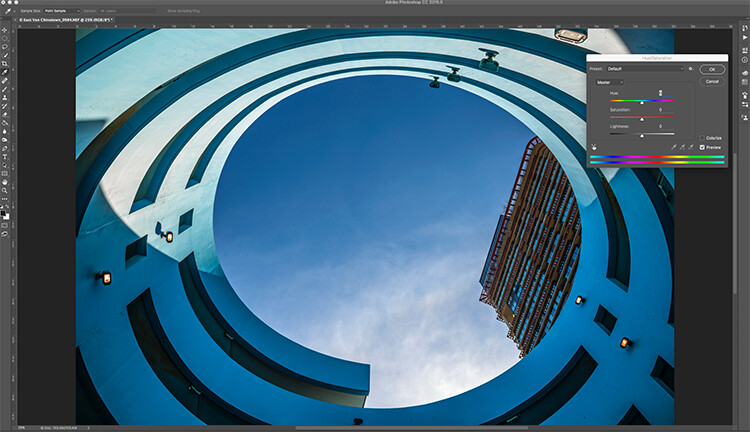
Image open in Photoshop with the Hue and Saturation tool open

Image open in Photoshop with the Hue and Saturation tool open

Of course, you will always need to spend some time editing, but you don’t want to be spend hours trying to make an image  look good. There is a quick way to get some good results from your images in Photoshop. But, before we talk about that, first there are some things that you need to do in-camera, which will save you time in post-production.

  1. Make sure your lenses are clean, you don’t want to spend time cleaning up dust spots on your images.
  2. Make sure your sensor is clean, get your sensor cleaned when you start to notice sensor spots on your images.
  3. Use a tripod, straightening images in Photoshop or Lightroom wastes your time.
  4. Make sure your image is in focus and sharp. Zoom in on your LCD screen to be sure, if not, retake the shot.

From there, you can be sure that your images are coming out of your camera in an edit-ready state. You don’t want to spend your time fixing photography mistakes made in-camera. The main goal with image editing is to take your good images, and make them look spectacular. So, here are some very quick edits you can do to your images (assuming the image is in good shape) in Photoshop, and in turn, spend more time behind the camera.

Quick Edit #1 – Levels or Curves?

This is something of an ongoing debate among photographers. Some have a preference for one or the other, the reality is that they are very different tools, and you can (and should) use both.

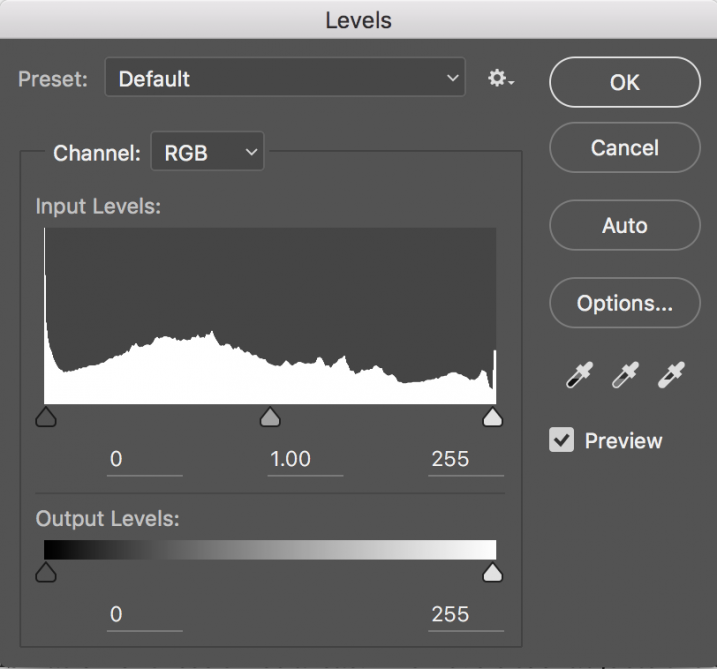
Screen Shot 2016-06-30 at 3.52.50 PMLevels is a great tool to quickly make exposure adjustments to your image. Curves gives you the same ability, but in much more detail. It also has some very powerful abilities in terms of specific adjustments. For a quick edit though, Levels is your tool of choice: IMAGE > ADJUSTMENTS > LEVELS, the keyboard shortcut is CMD>L on a Mac and CTRL>L on a PC, OR add it as an adjustment layer for non-destructive editing.

Levels can really make a difference to your image. Take a look at this article to help you with levels: 5 Photoshop Tools to Take Your Images from Good to Great, as well as some of the other tools available. The levels tool looks deceptively simple, but it has some really powerful functionality. It is best to adjust your image using Levels first, as this tool affects exposure on three areas of your image: the highlights, shadows and midtones.

All images are made up of a combination of these three areas. The Levels tool adjusts the exposure in each of them separately. The reason why this is important, is because exposure affects colour. For example, if you make your exposure in a scene darker, your colours will become more saturated, if you brighten the exposure, your colours will desaturate. So, making levels adjustments first, will also help your image’s colour.

Image straight out of camera, no adjustments

Image straight out of camera, no adjustments.

The same image after adjustments in Levels

The same image after Levels adjustments

Quick Edit #2 – Hue and Saturation

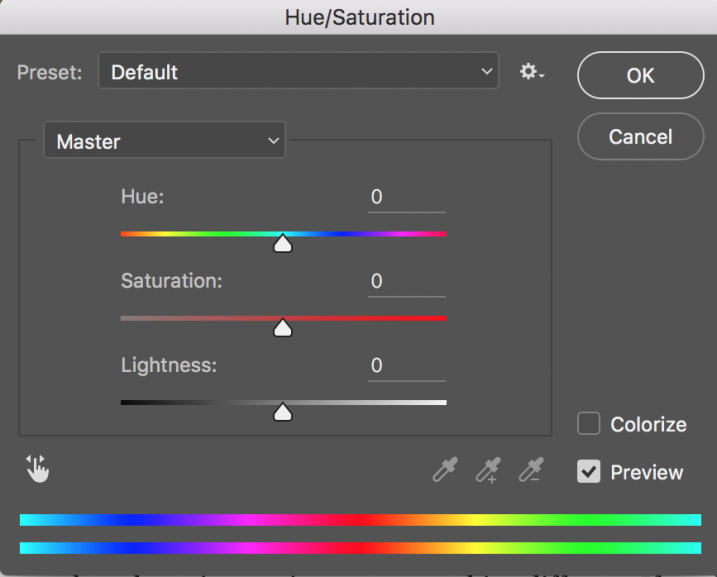
Screen Shot 2016-06-30 at 3.54.30 PMThis tool is the next one in order. Start off with Levels and then move onto Hue and Saturation  (IMAGE > ADJUSTMENTS > HUE AND SATURATION or the keyboard shortcut is CMD>U on a Mac or CTRL>U ON A pc). This also looks like a simple tool on the surface, but there is a lot more depth to it.

First of all, you will see three sliders, the top one is Hue, the middle one is Saturation, and the bottom one Lightness. You will also notice a pull-down box above the three sliders, it is set to Master as the default.

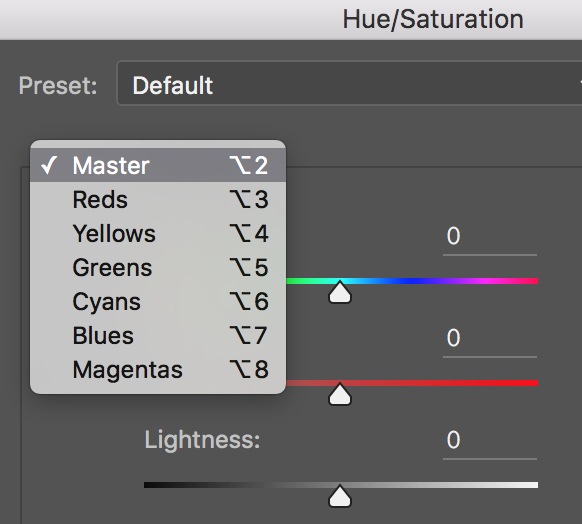
Screen Shot 2016-06-30 at 4.02.56 PMThe Hue slider is used if you want to change the colours in your image to something different. If you leave the box at the top on Master and adjust the Hue slider, all the colours in the image will change, making your image look a little funky and weird, but this could be fun too! The real power of the Hue slide comes into play when you select a colour channel from the drop down box. If you click on the arrow next to Master, all the colour channels will drop down (see screenshot left). This is really useful if you want all the reds to look a little more orange in your scene. Bear in mind, this is a universal adjustment, it will select all the reds in your image and make an adjustment to them all.

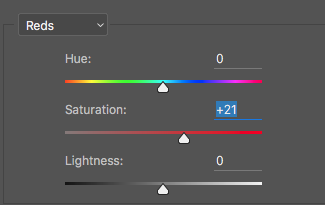
Screen Shot 2016-06-30 at 4.06.31 PMThe second slider is Saturation which affects how rich your colours are in your image. If the reds in your image seem to be light or weak, you can select Reds from the list, and simply move the Saturation slider up (see screenshot right). Also, if some of your colours seem too bold, you can select the appropriate colour channel and move the Saturation slider to the left. You can select each colour individually and make the necessary adjustments.

The last slider is Lightness. I have almost never used this one. If you have done a good job on your levels adjustment, there is really no reason to use the Lightness slider, so I would recommend not using it.

Image after Hue and Saturation adjustments have been made

Image after Hue and Saturation adjustments have been made

Quick Edit #3 – Brightness and Contrast

Once you have made your colour adjustments using Hue and Saturation, you might need to boost the brightness a little. The Brightness and Contrast tool (IMAGE > ADJUSTMENTS > BRIGHTNESS AND CONTRAST, there is no keyboard shortcut to this one) should be used sparingly, do not make big adjustments using it.

You can simply nudge the Brightness slider to the right and give some pop to the image, then do the same for the Contrast slider. If you don’t feel that you need to use this tool, then don’t, it is only necessary if your image looks a little dark after your colour adjustments.

Note: if you’ve done each of these as an adjustment layer you can go back and tweak your levels again, after doing the others.

Final quick edits made in Brightness and Contrast

Final quick edits made in Brightness and Contrast

That’s it, you are done, in a manner of speaking. These quick edits may be good enough for you to get your image to a satisfactory point. If you are happy with your image, then great – you have not spent too much time editing it.

You can do these three quick Photoshop edits on images that you think might be printed. Then if you see that the edits give them the boost you want, you can then spend more time on each image. This cannot replace a good workflow and a good understanding of what is possible in Photoshop, but these three tools will give you the ability to quickly edit your images and get them into a print-ready state really quickly.

If you need to do some further edits, then take a look at this article about more detailed post production techniques or check out all the articles dPS has on image editing in Photoshop. 

googletag.cmd.push(function() {
tablet_slots.push( googletag.defineSlot( “/1005424/_dPSv4_tab-all-article-bottom_(300×250)”, [300, 250], “pb-ad-78623” ).addService( googletag.pubads() ) ); } );

googletag.cmd.push(function() {
mobile_slots.push( googletag.defineSlot( “/1005424/_dPSv4_mob-all-article-bottom_(300×250)”, [300, 250], “pb-ad-78158” ).addService( googletag.pubads() ) ); } );

The post 3 Quick Photoshop Edits You Need to Know by Barry J Brady appeared first on Digital Photography School.


Digital Photography School

 
Comments Off on 3 Quick Photoshop Edits You Need to Know

Posted in Photography


Choosing the Right Camera Bag – and Why You May Need More than One

22 May

You’ve just bought yourself a new camera, or perhaps a new lens. Now you find yourself wanting to get a new bag for new purchases – after all, a good bag will protect your equipment, and can serve as an ideal place to store your photography gear when not in use.

camera bags

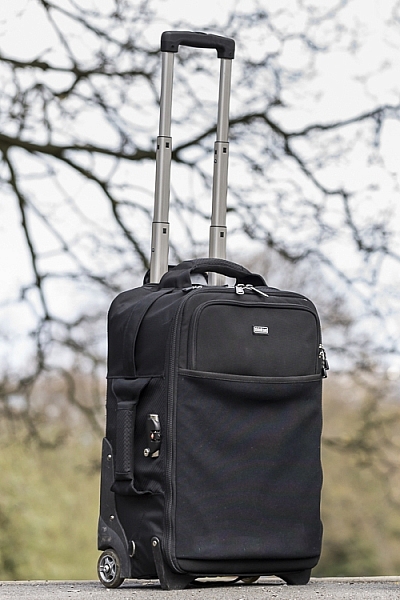
These are some of my bags. The two end ones are both roller bags. From left to right: ThinkTank Roller Derby; ThinkTank Airport Accelerator; ThinkTank Airport Security.

However, choosing a camera bag that’s right for you may not be as straight forward as it seems, but it is something that some thought should be given to. Choosing the right bag can make photography more enjoyable for you, as it can help carrying your equipment easier and more comfortable.

The days of buying the generic shoulder bag are gone! Now we are spoilt for choice with offerings of backpacks, shoulder bags, sling bags, belt packs, roller bags; the list goes on. But which one is right for you? Which one is the best fit for you and your equipment needs?

1. Camera Bag Size

This is my largest camera bag. I use this bag when I need to carry more equipment than normal.

This is my largest bag. I use this bag when I need to carry more equipment than normal.

How much equipment do you have, and will you want to carry all, or only some of it with you? This will help you decide on which size bag you need to look at. Also, think ahead; will you be buying more equipment such as additional lenses or camera bodies? Will you be adding a flash system, etc.?

All of these will obviously increase the size of your kit, and influence the size of the bag you purchase if you wish to use the bag for all of your stuff. But, do bare in mind that the more kit you carry with you, the heavier the bag will be. Also do be aware that if you use a pro-sized or gripped body, some bags may not fit your camera as the bag is not deep enough to accommodate such sizes. Generally, bag manufacturers will give a list of what can fit into a bag, and list so you can see if pro-sized or gripped DSLRs are suited to that particular bag.

2. Camea Bag Style – The Personal Part

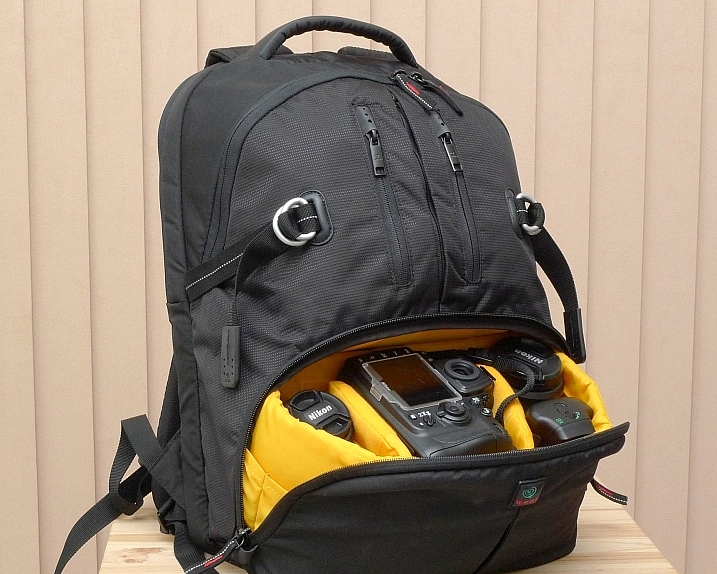
camera bag backpack

Choosing the size of your bag is relatively easy. It’s choosing the style of bag that I think is the most challenging, and this is where most people can get a little stuck. There are just so many choices available, it really does come down to personal choice.

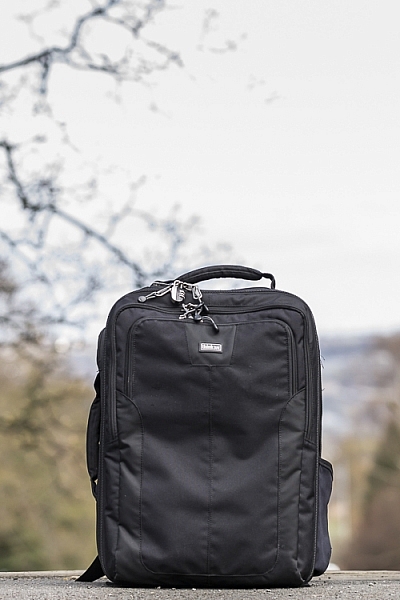
I take my backpack, the ThinkTank Airport Accelerator (left), to nearly every job I do. I use this bag to carry my laptop, laptop accessories (charger, internet hub, card reader, etc.) and any other bits and pieces I may need such as wet weather gear. If I need it, I also put my modular set (not pictured) inside this bag to use on site.

You may prefer to use a shoulder bag, where the next person may prefer to have a backpack. It’s important to consider just how much equipment you want to carry around in your bag, as this can influence the style of bag you end up purchasing. Below is a small table with a short list of pros and cons to each style of bag.

Let’s have a look at some of the pros and cons of the following bag types:

Backpacks

Backpack style camera bag

By ????? KhE ?

Pros:

  • Completely frees your hands, enabling you to use your phone, change lenses, etc.
  • Varying levels of carrying capacity.
  • Weight is moved from one shoulder (on a shoulder bag) to both shoulders, and your lower back.
  • Can be more comfortable that other options.
  • Can be ideal for storing equipment when not in use.

Cons:

  • Can be slow to access your equipment and/or change lenses etc
  • Bags can have the ability to carry too much equipment and become too heavy
  • Can become uncomfortable with sustained activities; especially in warmer climates

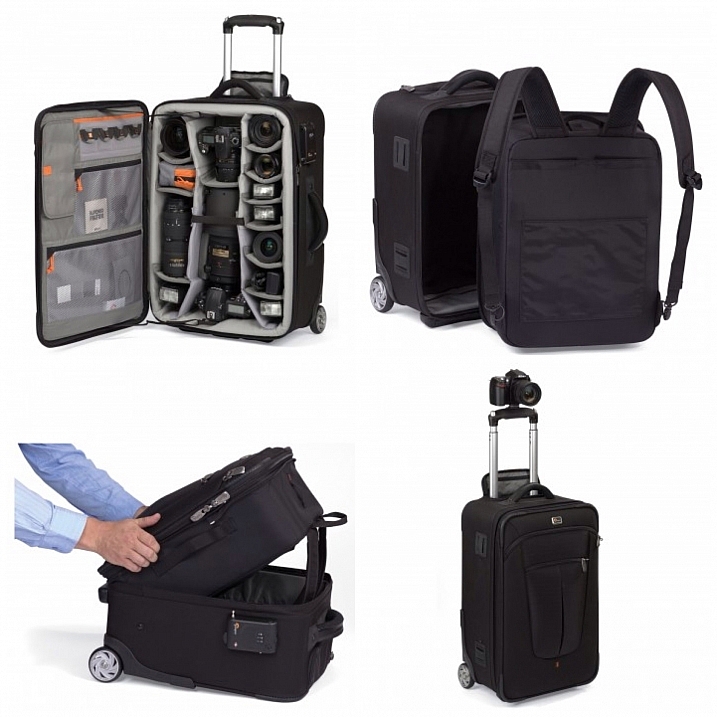
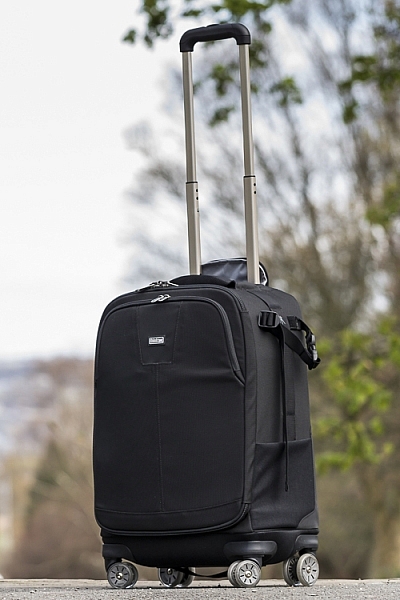
Roller Bags

Roller bag style camera bag

By See-ming Lee

Pros:

  • Can carry the largest volume of equipment easily.
  • Easy to transport equipment, as you are not required to carry anything; simply roll the bag along.
  • Perfect for keeping all of your gear in one bag, and storing equipment when not in use.

Cons:

  • Not well suited if you require more mobility whilst out photographing.
  • Require somewhere secure to be left when no longer needed on a shoot.

Modular Systems

modular camera bag system

Image courtesy Lowepro

Pros:

  • Ideal for photographers who want maximum mobility.
  • Smal pouches that attach via a belt sit on your waist, thereby removing the weight off your back and shoulders, and transferring it to your hips.
  • Ideal for carrying extra pieces of equipment without the need for a bag on your back.

Cons:

  • Not ideal for transportation as the pouches to not offer enough protection.
  • Each pouch has a very limited carrying capacity, so not suited to carry all of your equipment.
  • Not suited for storing equipment as each pouch can only hold a very limited number of items.

Sling Bags

Pros:

  • A hybrid of backpack and shoulder bag; these bags sit on your back via a single strap.
  • Can be more comfortable for prolonged use than a shoulder bag.
  • Quickly and easily access your equipment without take the bag off.
  • Perfect for storing smaller amounts of equipment.

Cons:

  • Generally have a lower carrying capacity than other bag styles.

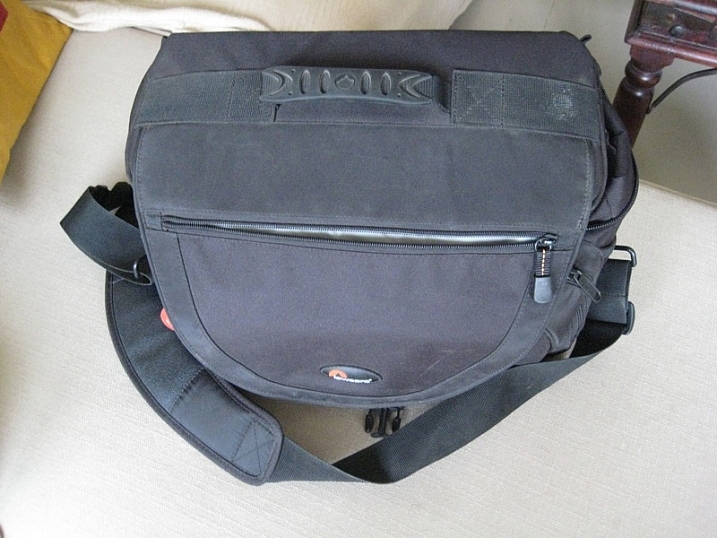
Shoulder Bags

Thomas Wanhoff

By Thomas Wanhoff

Pros:

  • Easy access to equipment as it’s by your side.
  • Can look more casual, allowing you to blend in easier.
  • Varying levels of carrying capacity to suite your equipment.
  • Can be great to store equipment when not in use.

Cons:

  • Weight of equipment is on one shoulder and can cause discomfort.
  • Not ideal if you have larger lenses (greater than ~200mm for example).

3. Active or Passive Bag Concept

Personally, over the years I have used pretty much every style of bag around from backpacks, sling bags, shoulder bags, to roller bags and modular belt systems; you name it and I’ve most likely used it at some stage!

What I have learned from this experience is that one style of bag is no better than the next and that what works on one adventure, won’t necessarily work as well on another. I have also learned that generally, one bag will not fit every situation. This brings us to an interesting concept that I have called Active Bag and Passive Bag.

An Active Bag is a one that allows you to easily carry equipment with you and be more mobile; one that can go with you all the time. The styles of bag that are suited to this are: backpacks, sling bags, modular systems and shoulder bags.

This roller bag - the ThinkTank Roller Derby - is the bag that I take to pretty much every job I have. It's small enough to easily fit in the car, yet carries everything that I need on a job.

This roller bag – the ThinkTank Roller Derby – is the bag that I take to pretty much every job I have. It’s small enough to easily fit in the car, yet carries everything that I need on a job.

Passive Bags are great at transporting all your equipment to and from your shooting location and even providing a great storage solution for storing your kit whilst it’s not being used. But these bags are not ideal for the photographer who is constantly on the move. What I have found to work best is having a combination of both Active and Passive Bags with me. I use my roller bag to transport my kit to my shooting location and it provides great protection during the transport phase – not to mention a great portable desk to sit my laptop on! I then compliment this by using an Active Bag, usually a modular belt system or backpack, to carry the extra lens and flashes that I may need.

I already have two cameras over my shoulders, each with a lens, so the bags I have are there to carry what I cannot hold in my hands, or do not need right at that moment. It is a little more expensive, yes, but the benefits are great. This is something worth considering if you’re find yourself in a similar situation where you want/need to carry a larger amount of equipment, but do not need that bag once you are at your location.

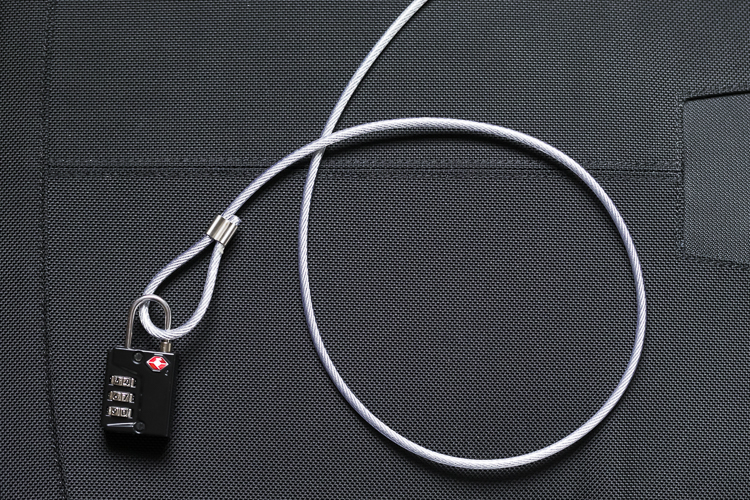
Cable Lock

Some manufacturers also include a cable that is made in to the bag. This is ideal to lock the bag to an immovable object; perfect for Passive type bags.

4. Bag Quality

So you’ve decided on the size and style of bag you wish to purchase; but please do not overlook quality. You’ve spent a small fortune on your equipment, and the last thing you should do it cut corners on what protects it.

A good camera bag should have nicely padded, removable inserts inside. The removable inserts will allow you to customize the bag to best suit your equipment, and the padding will provide greater protection and help prevent your equipment from crashing into each other.

Generally, the first thing to fail in a camera bag are the zippers, so looking for a good feeling zipper (especially for the main camera compartment) is very important. A poor quality zipper can unexpectedly fail, and potentially cause your equipment to fall out and break.

You also want your bag to last, so make sure the exterior fabrics used are tough and wear resistant. Personally, I use ThinkTank Photo products and to be honest, I cannot fault them at all. They’re extremely well made and have withstood everything that I have thrown at them.

Zipper

A close up of the zipper on the main camera compartment on one of my bags. The zippers used on this bag are YKK Fuse zippers.

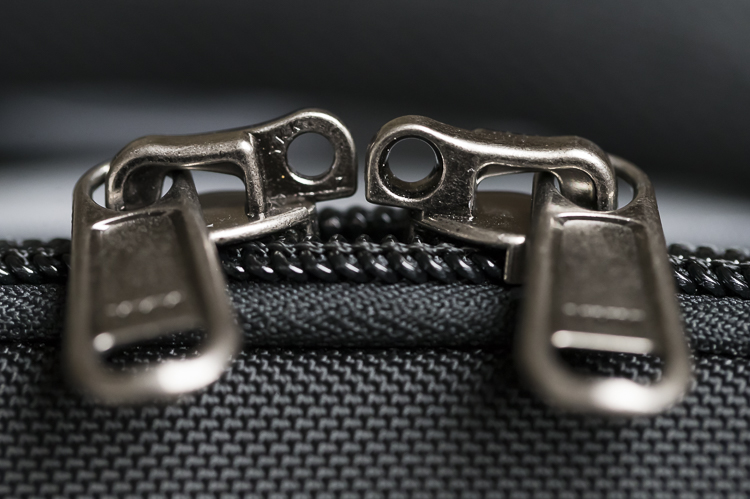
Lockable Zipper

Some bags also offer zippers that are lockable; ideal for that little bit of extra security.

Conclusion

Whilst this is an introduction into buying a bag for your camera, by no means is this exhaustive and you will still need to do a little research before you make a purchase. But, this article should offer some guidance on which bag may be right for you. You will find that most of your decisions will be based upon your own requirements. I would highly recommend you go in to a store, and bring your kit with you to try the various bags to help you find the best one.

I’d love to hear if you have anything else you want to add and offer some advice based on your own experiences. What kind of bags do you have?

googletag.cmd.push(function() {
tablet_slots.push( googletag.defineSlot( “/1005424/_dPSv4_tab-all-article-bottom_(300×250)”, [300, 250], “pb-ad-78623” ).addService( googletag.pubads() ) ); } );

googletag.cmd.push(function() {
mobile_slots.push( googletag.defineSlot( “/1005424/_dPSv4_mob-all-article-bottom_(300×250)”, [300, 250], “pb-ad-78158” ).addService( googletag.pubads() ) ); } );

The post Choosing the Right Camera Bag – and Why You May Need More than One by Daniel Smith appeared first on Digital Photography School.


Digital Photography School

 
Comments Off on Choosing the Right Camera Bag – and Why You May Need More than One

Posted in Photography


The 6 Most Important Things You Need to Know about Lightroom’s Develop Module

15 May

Lightroom is powerful, but it’s also complex and has a steep learning curve. If you feel overwhelmed by all the options, there’s great value in taking a simple approach and learning to use the tools that are most useful first. Leave the more advanced features until you have more experience.

With that in mind, I’ve put together this list of the six most important things you need to know about Lightroom’s Develop module. Learn these and you will be well on the way to Lightroom mastery.

1. Backup your catalog regularly

This is the most crucial thing to set up, as everything you do to your photos in the Develop module (not to mention metadata changes like Collections, flags and keywords) is stored in the catalog. It would be a disaster to lose your catalog (and consequently all your hard work) to hard drive failure, so you need to make sure that Lightroom is backing it up regularly to an external hard drive.

To do so, go to:

  • For Windows users: Edit > Catalog Settings > Back up catalog
  • For Mac users: Lightroom > Catalog Settings > Back up catalog

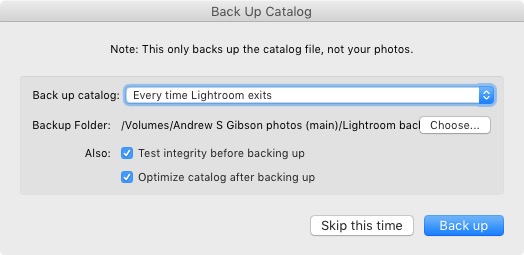
I have mine set to: Every time Lightroom exits – some photographers find that Once a week, when exiting Lightroom is enough.

When you exit Lightroom, a dialog window appears that shows you where Lightroom is going to save the backup Catalog. Click Choose to change the location if you need to. Note: this is the only time you can select the destination where the backup will be saved.

Make sure the Test integrity before backing up and Optimize catalog after backing up boxes are both ticked. This slows down the back up process, but it’s worth it because it helps ensure that your catalog remains free from corruption, and is optimized for speed.

Lightroom Develop module

Please note: The Catalog doesn’t contain any of your photos. Backing up your Catalog doesn’t back up your photos, only the information that Lightroom contains about them. Photo backups need to be managed separately.

2. Profile is the most important setting in the Develop module

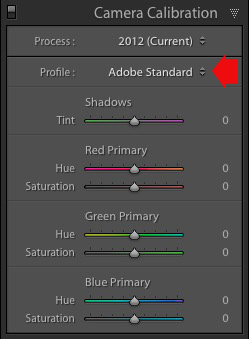
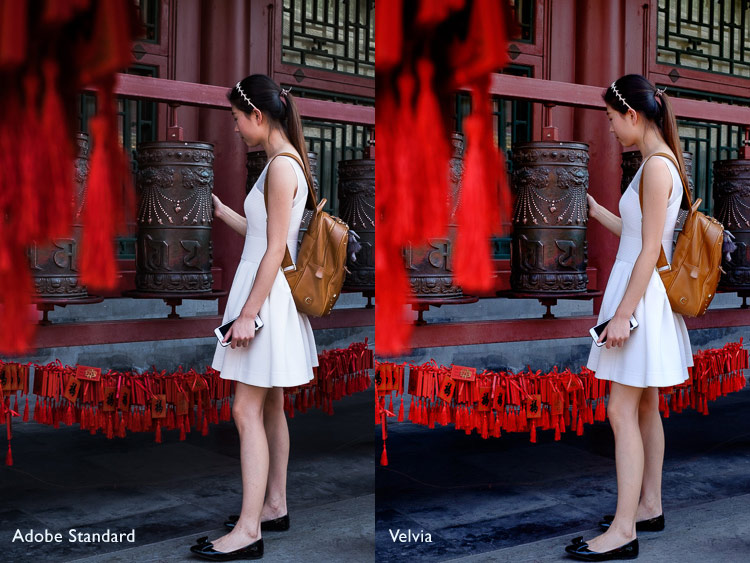
The Profile menu is tucked away in the Camera Calibration panel, at the bottom of the right-hand panels in the Develop module. The default profile setting is Adobe Standard (circled below). This profile was created specifically for your camera by Adobe. Pick that one for accurate colors.

You will also find the color profile settings specific to your camera (Landscape, Portrait, and so on). You can pick one of these if you prefer the look to Adobe Standard.

Lightroom Develop module

The profile affects both color and contrast, so from a practical point of view it’s important to select the right one, before you start adjusting contrast and white balance in the Basic panel. Get the profile right, and it makes all subsequent processing steps much easier. Get it wrong, and it makes them more difficult.

For example, if you apply a profile intended for landscape photos to a portrait, then you could end up with over-saturated colors and unnatural skin tones. Then you might try and fix that by playing with the Basic panel sliders or other color controls. This approach rarely works, it’s far better to select the most appropriate profile from the start.

These two photos show the difference between the Adobe Standard and Velvia profiles on a Fujifilm X-T1 camera. The Velvia profile saturates colors, the Adobe Standard profile looks more natural.

Lightroom Develop module

3. Use Lens Corrections to correct distortion and eliminate chromatic aberrations

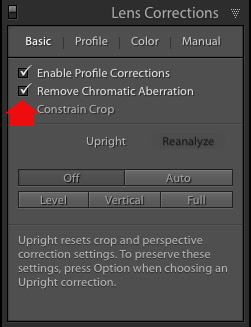
No lens is perfect, and most have at least a little distortion and chromatic aberration. One of the benefits of digital photography is that you can eliminate these in the processing stage, so they are not the problem they once were. Go to the Basic tab in the Lens Correction panel, select Enable Profile Corrections and Remove Chromatic Aberration in order to do so.

Lightroom Develop module

This comparison shows the result on a photo taken with a zoom lens producing barrel distortion.

Lightroom Develop module

Lightroom Develop module

4. You can carry out 80% of your processing in the Basic panel

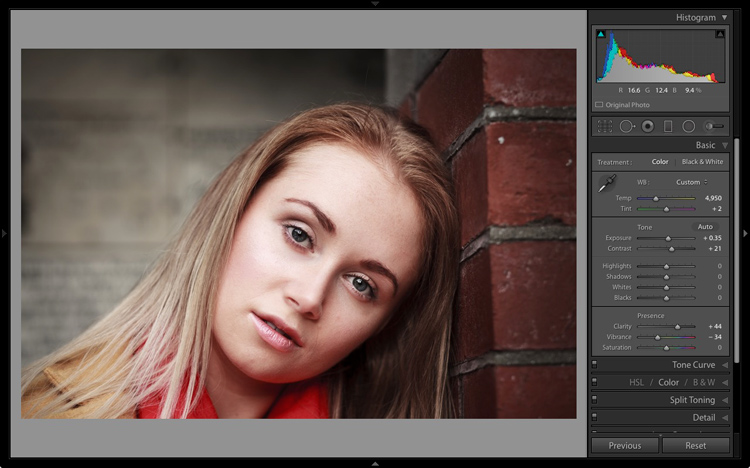
Once you have selected a Profile, and applied Lens Corrections, you can go to the Basic panel to start making any adjustments required to the photo’s brightness, contrast, and color.

The sliders in the Basic panel are extremely powerful. Take the time to get to know what each one does, and how the settings affect your images. Once you get the hang of these sliders it’s quite possible that you can do all of your global adjustments (those that affect the entire image) here, and not have to touch the Tone Curve or HSL / Color / B&W panels at all.

This photo is a good example. Virtually all the processing was done in the Basic panel, made possible by selecting the most appropriate profile first. The only additional thing I did was add a vignette using the Effects panel.

Lightroom Develop module

My article Steps for Getting Started in the Lightroom Develop Module goes into this in more detail.

5. Learn to use local adjustments wisely

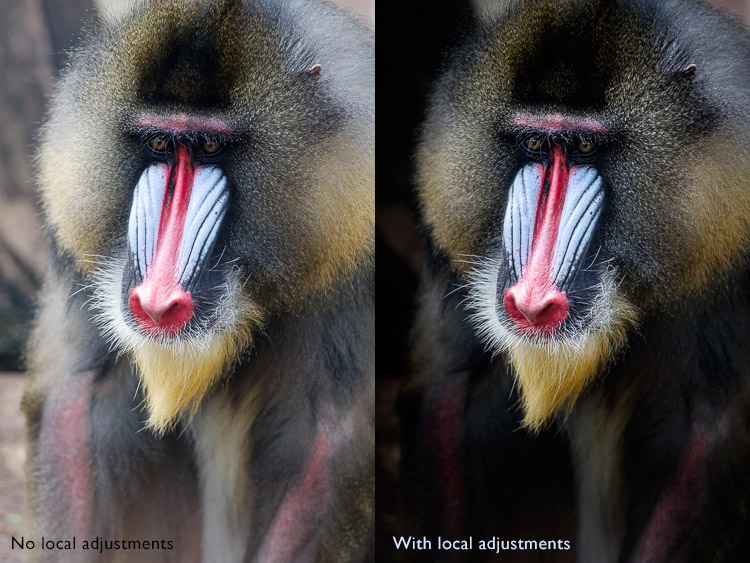
It wasn’t so long ago that many professional photographers would send their negatives to master printers who used dodging, burning, and other fancy darkroom techniques, to create a far better print than the photographer ever could. These local adjustments – those applied to only part of the image, rather than all of it – are often vital for bringing the best out of your Raw files in Lightroom.

Lightroom has three tools for making local adjustments – the Adjustment Brush, Radial Filter and Graduated Filter. They allow you to selectively adjust brightness, contrast, and other tone and color settings. Each tool has its own idiosyncrasies, so take the time to get to know each one in turn.

This example shows the difference that local adjustments make. I used a combination of all three of Lightroom’s tools to turn the image on the left, into the one on the right.

Lightroom Develop module

6. Don’t overlook the Clarity slider

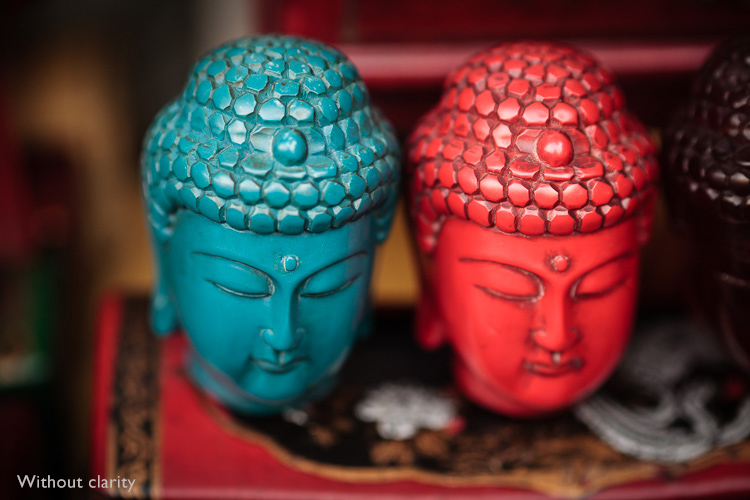
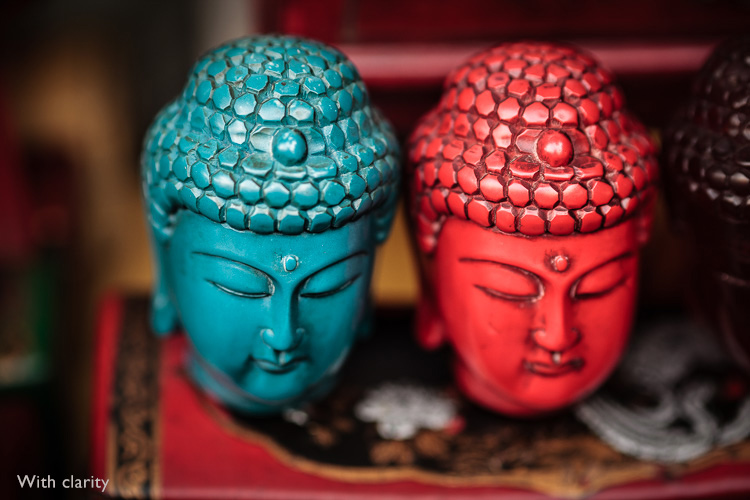
The Clarity slider is extremely useful as both a local, and global adjustment. It’s primary use is to enhance texture, and it does so by increasing edge contrast (the spots where dark and light areas meet). You do have to be careful not to overuse it, but judicious applications of texture enhancement can help bring the best out of any photo. Clarity is also an ideal tool for enhancing black and white images, which often rely on texture to add impact.

The following photos show the effect of adding Clarity. I used the Radial filter to apply Clarity to the Buddha heads to bring out the texture.

Lightroom Develop module

Lightroom Develop module

These six items are not a comprehensive list of what you can do in Lightroom’s Develop module, but they will certainly get you started, and simplify the process of learning to use it.

What do you think are the most important tools to master in the Develop module? Do you agree with my selection? Please let me know in the comments below. And if you want to learn more about Lightroom then please check out my Mastering Lightroom ebooks.

googletag.cmd.push(function() {
tablet_slots.push( googletag.defineSlot( “/1005424/_dPSv4_tab-all-article-bottom_(300×250)”, [300, 250], “pb-ad-78623” ).addService( googletag.pubads() ) ); } );

googletag.cmd.push(function() {
mobile_slots.push( googletag.defineSlot( “/1005424/_dPSv4_mob-all-article-bottom_(300×250)”, [300, 250], “pb-ad-78158” ).addService( googletag.pubads() ) ); } );

The post The 6 Most Important Things You Need to Know about Lightroom’s Develop Module by Andrew S. Gibson appeared first on Digital Photography School.


Digital Photography School

 
Comments Off on The 6 Most Important Things You Need to Know about Lightroom’s Develop Module

Posted in Photography


9 Things You Need to Know to Become a Nature Photographer

29 Mar

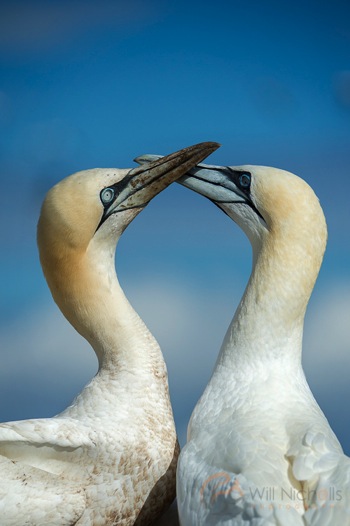
Nature photography is a very popular field to be involved in. That’s no surprise though, as it gets you outdoors and seeing our planet in a way that others may miss. When I first started as a nature photographer, I began to see things differently. It sounds cliché, but I paid more attention to my surroundings and saw things from different angles.

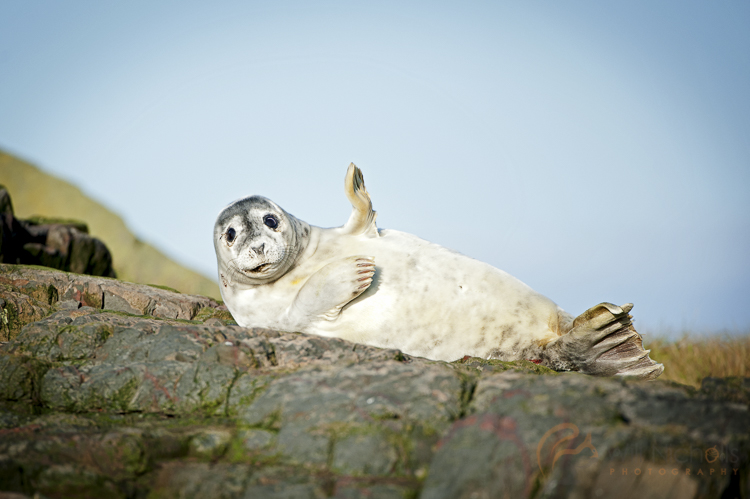
Will Nicholls 3This tutorial will look at some of the most important things to keep in mind if you are looking to become a nature photographer.

#1 You’ve got to love it

Luckily this isn’t a very hard thing to adhere to, but you must love nature to excel at capturing it on camera. Nature photographers spend a lot of time outdoors. If you’re a landscape photographer, you’ll spend lots of your time hiking through scenic areas for just a few clicks of the shutter. Wildlife photographers often spend hours and hours sitting in one place, waiting for an animal to appear. Without the passion and drive behind you, this can be mind-numbing.

So it’s not for everyone, but if you’re reading this article, then chances are you have that interest programmed within you already!

#2 Be different

While it’s great that nature photography is so popular, this brings with it one big challenge – everybody is doing it. This means you need to figure out how you can be different (assuming you want your photos to be noticed).

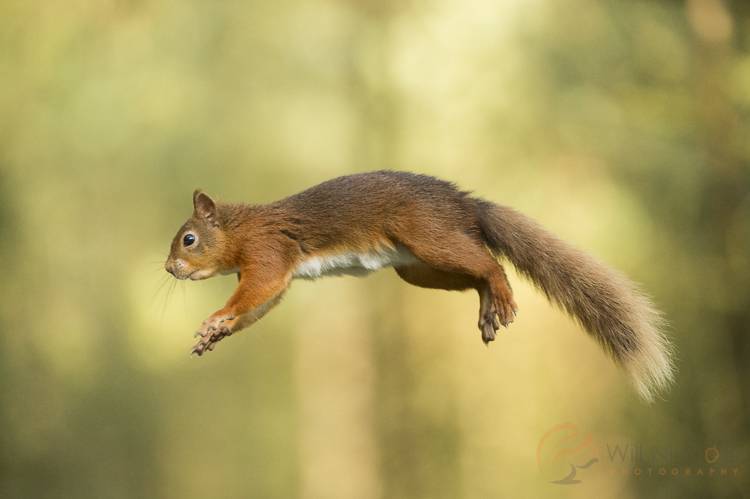
This could be anything from focusing, and specializing on a single family or species of animal, to developing an artistic quirk and style in your photography. Personally, I spend a lot of my time photographing red squirrels – thousands of hours actually, to give you some idea. All this time has allowed me to learn about the animal, and capture behaviour that others have not managed.

Will Nicholls 5

#3 Take risks

By taking risks I mean with your time, not necessarily something dangerous to your wellbeing. As the saying, “Nothing ventured, nothing gained.” suggests, if you don’t take risks then you are unlikely to capture those truly mesmerizing images.

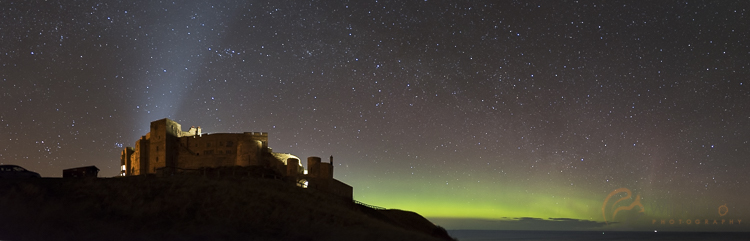
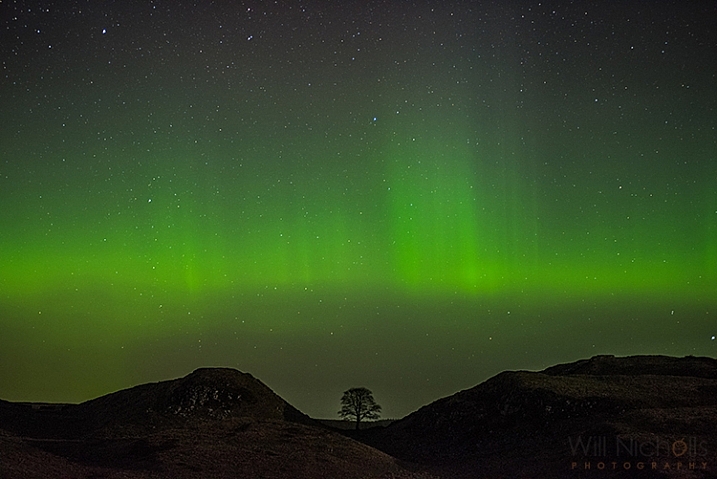
Recently in the North of England, there was a display of the aurora borealis. Typically, it is hard to predict this phenomenon, and the available forecasts only look an hour ahead. It can finish as quickly as it starts, so planning for such an event is not really possible. I decided that I wanted to capture the Northern Lights with a particular castle in the foreground, but it was over two hours away. Nevertheless, at 2 a.m. I dropped everything, and raced off to the coast. When I arrived the display was weakening, but I waited a further two hours and the lights erupted in front of me. I got home at 8 a.m., but it was well worth it.

I’m particularly pleased with this result as photographing the Aurora Borealis can be especially challenging because we are positioned only just north enough to see them.

Will Nicholls 8

#4 Be respectful of nature

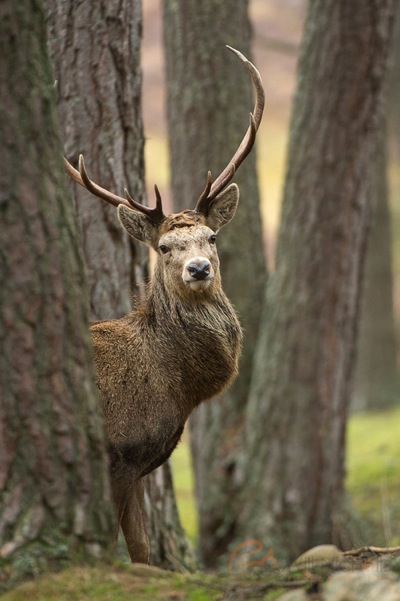
Unfortunately, this is one thing that is not adhered to by everyone who calls themselves a nature photographer. Having an ethical approach to your photography, especially when it involves animals, is of the upmost importance. Those who don’t are shamed within the industry, and immediately lose the respect of the majority of photographers who really care about their subjects.

No photo should come before the welfare of an animal or place. It’s just that simple, and remembering this rule will help to improve your photos in the long run. The best photographers don’t cut corners, and you’ll find they have a great affinity with the environment.

Will Nicholls 4

#5 Think about what you’re photographing

It’s easy to press the shutter when you finally find what you’re looking for, whether that be an animal or a scene, but clicking the shutter without thought will often result in unimpressive photos. Think about what you’re trying to convey to the viewer. You want the person looking at the picture to feel like they are in your shoes, looking at the scene themselves.

For landscape photography, this often comes with effective composition, thinking about both your foreground and background to properly document a scene, and avoiding a flat appearance.

With wildlife photography, this comes from capturing the character and behaviour of an animal. Impactful photos can be achieved by establishing eye contact between the viewer and the subject.

Will Nicholls 7

#6 Introduce scale

Sometimes we are just bowled over by the scale of something in nature. Documenting this with a camera can be tricky as you’re recording a three dimensional scene with a two dimensional medium. Think about using objects to show scale in your photos.

For this photo of the Northern Lights, I photographed it above a tree. This tree is particularly famous, resting in a gap on Hadrian’s Wall in England – and it’s actually rather large itself! This helps to convey the expanse of the sky and display above.

nature photography


#7 Try a different lens

This is another way of experimenting with your photos, and it works for both landscape and wildlife photography. If you usually shoot with a wide-angle lens, then put it down and pick up a telephoto. If you use a telephoto, then try something shorter. This forces you to play with perspective, and capture something new.

Photographing wildlife with a wide-angle lens is great fun, and can result in some fun shots that incorporate the surroundings into the image.

Will Nicholls 2

#8 Plan your shoots

Just because nature is relatively unpredictable, that doesn’t mean you shouldn’t plan your shoots. Have an idea of a photo you want to capture, and keep at it. Maintaining a long-term study of an area, or animal, will allow you to capture something extra special. It may be that particular shot you’ve been chasing, or something completely different.

#9 Don’t give up

If it was easy then everyone would do it. Nature photography requires a huge amount of time, but it should also be something that you can relax and enjoy – it definitely shouldn’t be a burden on you.

Will Nicholls 6

Results don’t come instantly, and like anything, it takes practice to achieve great images. Since you can’t direct nature and tell it what to do, taking good photos can be a longer process than in the other disciplines, but the challenge is what keeps it interesting.

Please share any other things you’ve noticed about being a nature photographer, and your nature images in the comments below.

amzn_assoc_placement = “adunit0”;
amzn_assoc_enable_interest_ads = “true”;
amzn_assoc_tracking_id = “dpsgeneral-20”;
amzn_assoc_ad_mode = “auto”;
amzn_assoc_ad_type = “smart”;
amzn_assoc_marketplace = “amazon”;
amzn_assoc_region = “US”;
amzn_assoc_linkid = “6710d26f550e9793f41475ee806fee9e”;
amzn_assoc_emphasize_categories = “13900861”;
amzn_assoc_fallback_mode = {“type”:”search”,”value”:”digital cameras”};
amzn_assoc_default_category = “Photo”;

googletag.cmd.push(function() {
tablet_slots.push( googletag.defineSlot( “/1005424/_dPSv4_tab-all-article-bottom_(300×250)”, [300, 250], “pb-ad-78623” ).addService( googletag.pubads() ) ); } );

googletag.cmd.push(function() {
mobile_slots.push( googletag.defineSlot( “/1005424/_dPSv4_mob-all-article-bottom_(300×250)”, [300, 250], “pb-ad-78158” ).addService( googletag.pubads() ) ); } );

The post 9 Things You Need to Know to Become a Nature Photographer by Will Nicholls appeared first on Digital Photography School.


Digital Photography School

 
Comments Off on 9 Things You Need to Know to Become a Nature Photographer

Posted in Photography


6 Powerful Reasons Why All Photographers Need Facebook Pages

04 Mar

Why Photographers Need A Facebook PageHi there everyone,


It’s Ed a.k.a Edrenalin here, editor of FashionPhotographyBlog.com, bringing you insights from the inside.


I’m constantly intrigued when I discover that out of the numerous photography businesses I’ve helped, the majority of them do not have a Facebook page for their business. Sure, these photographers had a personal Facebook profile, however, when it came to having a dedicated page for their photography, this was non-existent. I see this over and over again, and I can tell you that they are missing out on a great marketing tool in their business tool belts.


However, I have to insert a disclaimer here, in that not every business will benefit from having a Facebook page for their business. It really depends on what kind of clients you are after for your business. For those of you who are looking for clients to make contact with you to book you then a Facebook page would be an ideal platform for you. If not, you can still create a Facebook page but there may be other social media platforms that may be more relevant to your market.


Top 6 reasons why you need a Facebook Page for your business (even if you don’t have a photography business yet).


1. It’s free as long as you are connected on Facebook with a personal account. It won’t cost you anything to create a Facebook business page and it’s pretty quick and easy to set up so give it a go, you have nothing to lose.


2. Having a recognisable authority website such a Facebook, talking about your website provides bonus points for SEO. Not all social media accounts pass on “SEO link juice” these days (the reason for this is to prevent online scammers from abusing these social media platforms) however having a Facebook page is a great way to increase the visibility of your photography business, on Facebook and Google searches.


3. Not only can people see friends that they know like and interact with your page, they can read the reviews and the feedback that people leave in the comments, to work out if you are a reputable photography business or not. People trust what their friends say more than what what you say. It’s one thing for you to talk about how great you are with your photography business, but it’s another when they hear it (or read it) from people they know, trust or relate to.  


4. Potential clients who want to send a message to you on your website for an enquiry or booking might want to first know how quickly will you reply back to them (and whether you are still in business or on holiday). They may check out your Facebook page, since Facebook is one of the largest social media platforms in the world, and see what you are currently up to, and check up on your most recent posts.


5. It allows your target audience to discover your photography business outside your website. By having a Facebook page you have another web property with a sizeable audience that potential clients can find out about you and your photography, even if they don’t know what the web address of your photography website is (or even if you don’t have one yet).


6. And here is one of the most important reasons – If you don’t have a Facebook page yet, you can guarantee that your competitors already do and they are communicating with your potential clients before you get the chance to. This is the reality in today’s competitive marketplace and a lot of photographers are losing potential business because they haven’t jumped on board Facebook yet and join the conversation.


So if you are hesitating or been thinking about starting a Facebook page for a long time but haven’t done so yet, I recommend that you do so right away for the reasons stated in this article. Do not worry if it doesn’t look perfect the first time. Remember that progress is better than perfection, and you can always close the page down or make edits to it later if it’s not to your satisfaction.


Do you like this article? Want to read more articles like this? Then please SHARE this article on social media. If you have any comments or questions please feel free to put them in the comment section below. 


Fashion Photography Blog

 
Comments Off on 6 Powerful Reasons Why All Photographers Need Facebook Pages

Posted in Uncategorized


CP+ 2016: Features you need to know about on the Nikon D5/D500

03 Mar

CP+ 2016: Features you need to know about on the D5/D500

Nikon is starting off the year strong with the announcement of the D5 and D500, the KeyMission 360, and the DL compacts announced for CP+ 2016. We got our hands on the D5 and D500 and have been very impressed by our initial, informal testing. AF is much improved, as are ergonomics. We’re working on a video to demonstrate what we consider to be ground-breaking AF performance, but in the meantime we thought we’d also put together a slideshow highlighting some new things we found while digging through the D5 and D500 menus, and give you an idea of the extensive customization options available.

CP+ 2016: Features you need to know about on the D5/D500

First off is the autofocus menu, where you’ll note a couple of new features. You can now turn face detection on and off during viewfinder AF-C shooting, with the ‘3D-tracking face-detection’ option. Helpfully, Nikon’s new 180k-pixel RGB metering sensor is more than capable of discerning a face – even the eye of a face.

3D-tracking gains a ‘3D-tracking watch area’ customization, with options for a ‘Normal’ or ‘Wide’ watch area. We believe this affects how wide of a search region the camera should look over when tracking a subject around the frame. Frankly, the default setting has always worked so remarkably well that we’re not sure what switching it from its default (‘Normal’) will do, but we’re curious to put it to the test soon.

CP+ 2016: Features you need to know about on the D5/D500

‘Focus tracking with lock-on’ gains some new customization. Previously, this option just had a setting of 1 to 5, with higher numbers biasing toward ‘sticking’ to a subject rather than being distracted by a different object that passes in front of it. Nikon has now broken this setting down to allow you to separately customize how long the camera should wait before refocusing to a subject that passes in front of your initially acquired subject, and how erratic the movement of your subject is. 

It’s unclear if ‘Subject motion’ refers to how erratic an object switches between approaching and receding motion, vs. how erratic the subject is in terms of X-Y movement around the frame. We’ll investigate this once we have one in for testing, but the tailoring should help the user adapt the camera to a wider range of shooting scenarios.

CP+ 2016: Features you need to know about on the D5/D500

While this isn’t new, we though it worth pointing out that Nikon tends to offer four different settings for release vs. focus priority in AF-C (continuous).

Release prioritizes ‘taking the shot’ over focus, while ‘focus’ prioritizes acquiring focus before releasing the shutter. Focus+release prioritizes focus for the 1st shot, prioritizing release for later frames, while release+focus prioritizes firing the shutter for the 1st shot, but requiring focus before release for subsequent shots.

CP+ 2016: Features you need to know about on the D5/D500

The D500 can illuminate the focus screen red, but you can turn this off if you so desire. Unfortunately, the camera can only flash the point(s) red when either selecting them, activating an AF point, or when focus is acquired. It cannot keep focus points lit red as you track a subject or fire a burst. That’s reserved for Nikon’s flagship…

CP+ 2016: Features you need to know about on the D5/D500

… the D5 (and its recent predecessors). Unlike the D500, the D5 can continuously keep AF points lit red, which helps you see the active point as the camera follows a subject around the frame in, say, 3D-tracking mode.

You can even adjust the level of bright red they glow, in 4 steps. Seeing one red AF point stick to your subject like glue even as it moves around in your composition is, frankly, somewhat magical. Stay tuned for a video of it in action.

CP+ 2016: Features you need to know about on the D5/D500

With all the complex AF modes and customizable buttons on the D5, it’s helpful that Nikon has finally adopted a visual way to assign button function. And the number of customizable functions per button is impressive. The D5 allows you to customize the Pv, Fn1, and Fn2 buttons on the front of the camera where your right hand fingers rest, an additional vertical Fn button right behind the shutter button on the vertical grip, and finally a Fn3 button to the left of the LCD screen.

The Pv, Fn1, Fn2, and Fn3 buttons are highly customizable in that they can be assigned to any one of 24 or so different functions, or any of a number of functions (6, if we counted correctly) that have different levels of granularity that you can adjust by holding the custom button while turning a dial. The Fn3 button is a bit more limited, and the AF-ON button is reserved for AF and AE functions. We’ll spell out all the assignable options for these buttons in the D500 slides to follow, as they’re largely the same (save for features unique to the D5, like LAN, or 14 fps lockup). One significant difference, though, is that the joystick on the D5 is not customizable, while on the D500 you can assign exactly what pressing this joystick (called the ‘sub-selector’) down does.

Helpfully, you can change the behavior of these buttons during movie recording by customizing their functions specifically for movie shooting.

CP+ 2016: Features you need to know about on the D5/D500

The D500’s custom control assignment is a bit less complex than the D5’s, because it has fewer customizable buttons. On the other hand, unlike the D5, its ‘sub-selector’ AF joystick is customizable (we’ve set it to change image area in conjunction with a dial, as you see highlighted in yellow above), so it’s no slouch when it comes to customizability.

The Pv and Fn1 buttons are on the front of the camera, for easy access with your right hand as it grips the camera. The Pv button is up top and can generally be activated easily by your middle finger, with the Fn1 button accessible by your ring or pinky finger. Given their ease of access, and ability to be used in conjunction with the rear thumb dial, these two buttons are highly customizable. The new sub-selector retains all customization options of the Pv and Fn1 buttons as well, while adding two more. The Fn2 button, to the left of the LCD screen, is less customizable, likely because it’s less used during shooting. The AF-ON button is reserved for AF/AE functions.

Before we dive deep into all the customization options available for these buttons, for those prone to accidentally or inadvertently changing settings, you always have the option to assign a button to ‘None’, essentially deactivating it.

CP+ 2016: Features you need to know about on the D5/D500

With all this button customization, you’re probably wondering what you can or cannot assign to various buttons. Let’s start off with the AF-ON button, because it has a particular feature that might just be game-changing if you love Nikon’s ‘3D tracking’ as much as we do.

AF-ON can be assigned to any of the options shown above, as well as ‘AE lock (Hold)’ and ‘AF lock only’ (on the 2nd page of this menu, not shown). But here’s what we’re most excited about: the ability to assign the AF-ON button to ‘AF-area mode’ or ‘AF-area mode + AF-ON’. It’s a quick way to instantaneously switch between your selected AF-area mode (Single, d25, d72, d153, Group-area, Auto-area, 3D) by momentarily holding down the AF-ON button. 

The option to couple the AF-area switch with AF-ON means the following: a half-depress of the shutter engages AF with your typical AF-area mode, say 3D-tracking. But let’s say you’re now faced with a situation where things are happening so fast that you don’t even have the time to place your selected AF point over your intended subject to start tracking it. Instead, you just want the camera to find, say, the nearest bird or human face by itself and track it. What do you do? Click next…

CP+ 2016: Features you need to know about on the D5/D500

Assign the AF-ON button to ‘AF-area mode + AF-ON’ and select ‘Auto-area AF’ within this sub-menu. That way, when you hold down the AF-ON button, the camera will switch to ‘Auto-area’ as long as you have it held down, focusing on the nearest object or detected face and tracking it. This makes for versatile switching between your two most-used AF-area modes.

I actually found it most useful to assign AF-ON to ‘AF-area mode + AF-ON’ with Single-point AF, highlighted above. That way, I keep 3D-tracking engaged as the default AF mode (in AF-C), always defining my subject by initiating AF on it. The camera then tracks it as it moves or as I recompose, but if I ever want the camera to stop moving AF points automatically to track, and instead just freeze the AF point while still continuously focusing on the subject if it approaches or recedes, I just hold down the AF-ON button (while keeping the shutter button half-depressed). Want the camera to continue tracking the subject exactly where it left off? Just let go of the AF-ON button while keeping the shutter half-depressed, and the camera starts tracking the subject around the frame again. 

CP+ 2016: Features you need to know about on the D5/D500

The camera remembers your subject, such as this gentleman’s eye at the Nikon booth at CP+ (please excuse the low, through-the-viewfinder, iPhone video screenshot). The camera tracked his eye until I wanted it to stop moving the AF point – but only momentarily – re-engaging the tracking of his eye when I laid off the AF-ON button.

Previously, 3D-tracking – though class-leading in terms of subject tracking – was somewhat limited by the following: when I got the composition I wanted, and there was no more subject movement, I’d often want the camera to stop tracking in the X-Y plane, but continue tracking in depth (refocusing if the subject or photographer approaches or recedes). I couldn’t do that – if I wanted the AF point to momentarily stop moving while in 3D tracking, I’d have to engage AF-Lock, which’d mean the camera would stop focusing entirely. Now, though, I can use the AF-ON button to momentarily stop only the X-Y tracking. There isn’t a camera in the world, save for the D5 and D500, that can provide this robust functionality.

There is still no way to assign a button to instantly switch between AF-S and AF-C, but with the reliability of Nikon’s 3D tracking, I would leave this cameras in AF-C pretty much permanently, assigning one of the customizable buttons to ‘AF lock’ in the rare instances I don’t want the camera to focus (for example, recomposing such that the subject is outside of the AF area).

CP+ 2016: Features you need to know about on the D5/D500

You’re probably tired of hearing about AF by now. Let’s look at the other customizations possible with the Fn1, Pv, and sub-selector buttons. This and the next 3 slides show all the available customizations on the D500 for these three buttons, with the sub-selector also assignable to ‘select center focus point’ (a quick way to reset to center) and ‘highlight active focus point’ (red). For reasons that are obvious, Nikon is expecting you to assign the sub-selector to AF point-related functionality.

Oops, I thought I was going to stop talking about AF… As Barney often says, I’m absolutely irrepressible.

CP+ 2016: Features you need to know about on the D5/D500

This is the 2nd page of assignable options to the Fn1, Pv, and sub-selector buttons.

CP+ 2016: Features you need to know about on the D5/D500

This is the 3rd page of assignable options to the Fn1, Pv, and sub-selector buttons.

We think it’s very cool that you can momentarily trip the camera into a different metering mode – though this is nothing new for Nikon. It’s helpful that Nikon’s spot-metering is linked to the selected AF point on nearly every one of their cameras, and highlight-weighted metering allows one to expose for the highlights and recover shadows in post-processing (given the extensive latitude most Nikon cameras have). And on a related note – remember that you can permanently bias any of the metering modes +/- 1 EV, in 1/6 EV increments on most Nikon DSLRs (it’s an option under the metering menu).

CP+ 2016: Features you need to know about on the D5/D500

… and the final and fourth page of assignable options to the Fn1, Pv, and sub-selector buttons. Well, not exactly, since the 5th page has a ‘None’ option, and all of these options are a bit shifted for the sub-selector button because it has two additional functions listed on the 1st page. But now I’m just being pedantic.

A very useful assignment is ‘Access top item in MY MENU’. It’s a quick way to access one of your most used menu items after you assign to the top of MY MENU. Again, available on previous Nikons, but worth reiterating. This is how I, for example, quickly bias the minimum shutter speed the camera will use in Auto ISO mode.

CP+ 2016: Features you need to know about on the D5/D500

Here is a list of 6 out of 7 functions you can assign to the Fn1 button if you desire to operate it in conjunction with a dial (the 7th, on the next menu page, being ‘Photo shooting menu bank’. The same list of options is available if you with to operate the Pv button with a dial. Note that if you do this, you can’t assign any of the previous actions in the past 4 slides. You either use the Fn1 and Pv (and sub-selector) buttons as single button press actions, or as actions triggered in combination with a dial. The latter is more limited, for obvious reasons.

The sub-selector button has three fewer options when used in conjunction with the dial…

CP+ 2016: Features you need to know about on the D5/D500

… when using the sub-selector (pressing it downward centrally) in combination with a dial, you don’t get ‘1 step spd/aperture’ (which adjust shutter speed and aperture in 1 EV increments, instead of 1/3 EV) or ‘Active D-Lighting’ or ‘Exposure delay mode’.

CP+ 2016: Features you need to know about on the D5/D500

As we’d mentioned earlier, the Fn2 button to the left of the LCD screen is less customizable, probably because it’s less ergonomically useful during shooting. The Fn3 button in a similar position on the D5 has a few more features because of things like LAN connectivity on the D5.

CP+ 2016: Features you need to know about on the D5/D500

Now that you have a good idea of the extensive customization available on the D5 and D500, as well as some of the new features that enhance AF ergonomics and functionality, we turn to one last feature that shooters may find useful: an electronic front-curtain shutter (EFCS). This was first introduced on the Nikon D810, and we’re happy to see it continue in Nikon’s lineup.

EFCS initiates exposure electronically, foregoing the mechanical shutter, which ensures no camera-induced shake during an exposure. The exposure is ended mechanically, ensuring that rolling shutter is not an issue.

EFCS is limited though: above certain shutter speeds (we’d guess around 1/1000 or 1/2000 or so), EFCS becomes unreliable, if not outright unavailable. Furthermore, Nikon continues to offer this as a mirror-up only mode, which is a shame. It means you have to switch the camera’s drive mode to mirror-up, press the shutter button once to lock up the mirror and shutter, and press the button again to initiate the exposure electronically. That means you can’t really use it in typical shooting scenarios. Especially when you consider that the 2nd button press can induce motion, which means you may wish to introduce an exposure delay…

CP+ 2016: Features you need to know about on the D5/D500

… and unfortunately, the same exposure delay options are available as before. We would’ve loved to see the introduction of 1/2s, 1/4s, and 1/8s which, when coupled with EFCS, would automatically trigger the electronic shutter after the pre-specified delay.

In other words, EFCS should’ve been implemented like this: press the shutter button to lift up the mirror and shutter, then after the pre-specified delay time – say 1/2s – the camera would automatically start the exposure electronically. As it is, just like on the D810, you’ll have to press the shutter button once, then press it again to initiate the delay, after which the exposure is started. With a long lens, your entire composition will have shifted by now. And this method is often required in conjunction with certain VR lenses to ensure no mirror/shutter-induced shake is present in a certain range of shutter speeds (typically 1/60s – 1/125s).

That said, these roughly ~21MP cameras are unlikely to be as sensitive to mirror induced shake as the higher resolution D810, so users probably don’t have to worry much about these issues at all. Still, best practices are best practices, and we hope Nikon is listening.

CP+ 2016: Features you need to know about on the D5/D500

Introduced on the D810, but now with its own menu option, is ‘Monitor color balance’. This allows you to tune the color of the LCD on your camera’s screen. Some pros might find this useful in their workflow, to ensure the screen is a better judge of output color. But as long we’re seeing this sort of tailoring for color – might we expect true ICC color management in future camera displays? We certainly hope so.

We hope you’ve learned a few things about the new features available on the D5 and D500. The extensive feature-set and customization will prove invaluable for working pros and enthusiasts alike. We weren’t able to get a look at automated AF Fine Tune, unfortunately, but it’ll be the first thing we look at when we get our hands back on these cameras. Suffice it to say we’ve walked away incredibly impressed by these cameras, particularly by what they offer both in terms of AF capability and ergonomics. These cameras are likely to be second to none in their ability to track moving subjects and focus on them, even during 10-12 fps bursts. But don’t take our word for it – we’ve tried it, and will be releasing a video soon showing it in action.

Stay tuned.

Articles: Digital Photography Review (dpreview.com)

 
Comments Off on CP+ 2016: Features you need to know about on the Nikon D5/D500

Posted in Uncategorized