RSS
 

Posts Tagged ‘module’

Lightroom Tips for the Develop Module – the Magic Alt Key

08 Dec

LR_Alt_option_visualization_opener

Lightroom tips for the Develop module – one feature in Lightroom that isn’t obvious or easy to discover is the visualization feedback which you can get in the Develop module. In many cases when you hold the Alt key, (Option on a Mac) and click (and hold it) on a slider, the screen will change to give you feedback on the adjustment you are making.

This feedback (visualization) take some of the guess work out of how the adjustment you are making is affecting the image. Here are some of the useful visualizations available in the Lightroom Develop module:

Alt and the Exposure, Highlights, Whites, Shadows and Blacks Sliders

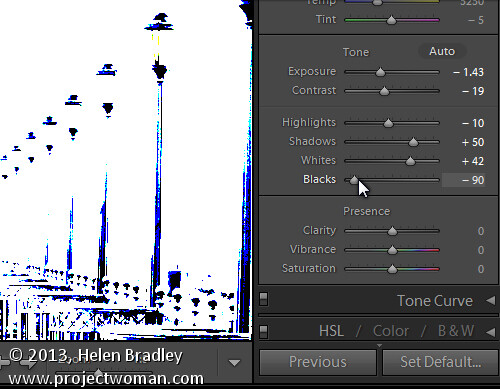
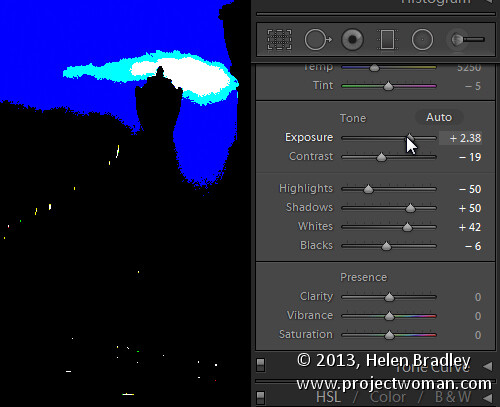
When you hold Alt (Option) and drag any of these sliders you will see any areas where whites or blacks are clipped as a result of the adjustment – the color shows which channel is being clipped. When you adjust Shadows and Blacks the white areas of the image aren’t clipped.

LR_Alt_option_visualization_1

Showing where the blacks are being clipped

When adjusting Exposure,  Highlights and Whites – the black areas are not clipped.

LR_Alt_option_visualization_2

Showing where the highlights are being clipped

Sharpening

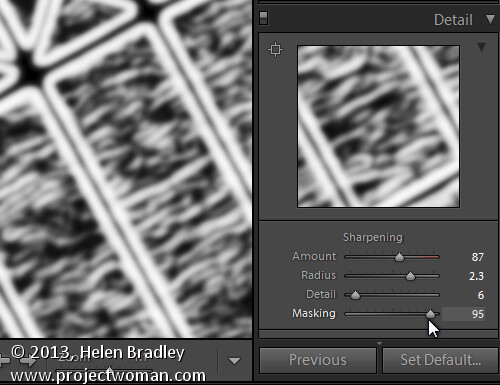
When adjusting Sharpening you can preview the result of the sharpening on the image by holding the Alt (Option) key and drag on any slider. Alt (Option)  and the Amount slider shows you the sharpening applied to a black and white version of the image – as Lightroom sharpens only the luminance and not color this gives you a better view of the sharpening result.

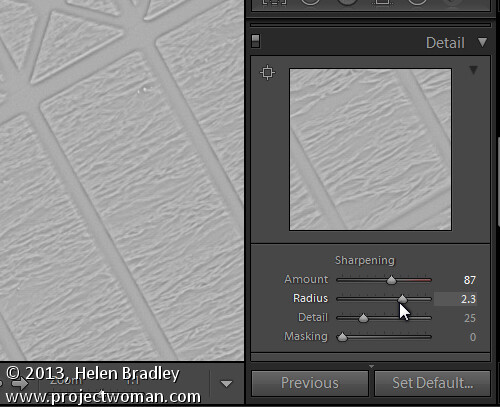
Alt (Option)  with the Radius slider shows the halos being applied to the edges in the image to sharpen it.

LR_Alt_option_visualization_3

Showing the radius or amount of sharpening being applied

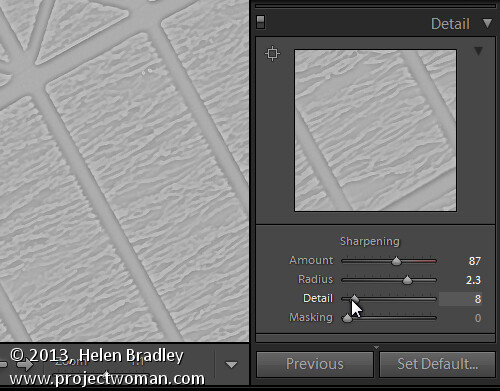
Alt (Option)  and the Detail slider shows the suppression of the halos occurring as you drag on this slider.

LR_Alt_option_visualization_4

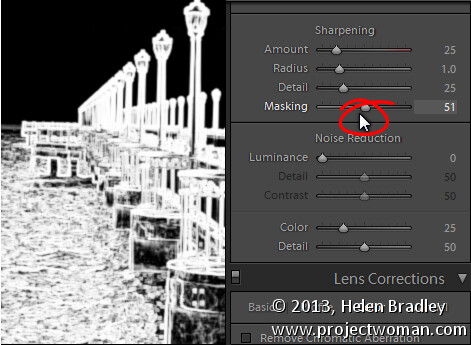
Alt (Option) and the Masking slider shows a black and white mask over the image – the areas which are black are not sharpened and those which are white will be sharpened.

LR_Alt_option_visualization_5

Showing the mask when sharpening – makes it easy to control which areas are sharpened and which are not, very useful for people photos.

Split toning

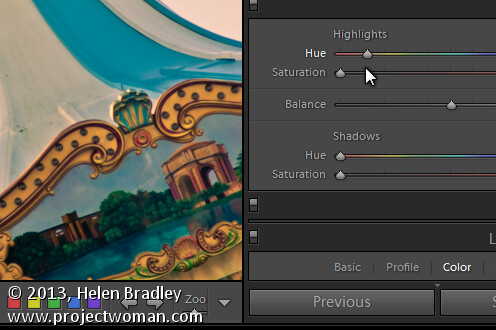
Alt (Option) and either of the two Hue sliders shows the currently selected hue in place on the image even if the Saturation slider is set to zero. This lets you see the color you are selecting, at 100% saturation, before you apply it.

LR_Alt_option_visualization_6

Noise Reduction

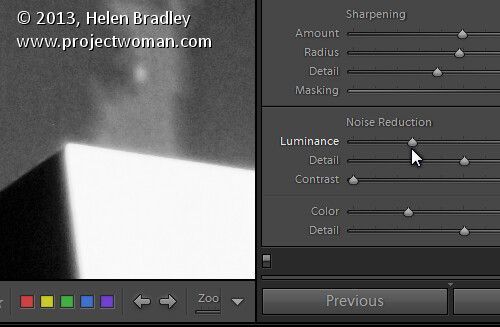
Alt (Option) and the Luminance, Detail and Contrast sliders for removing  noise converts the image into a black and white image so you can see the effect of the adjustments more clearly.

LR_Alt_option_visualization_7

Lens Correction – Color tab

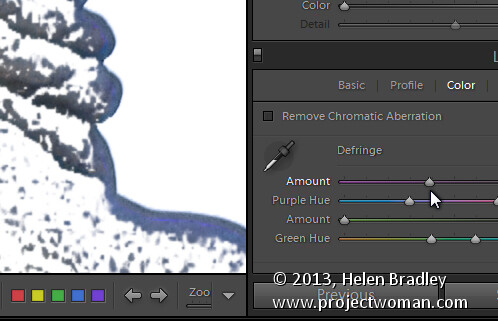
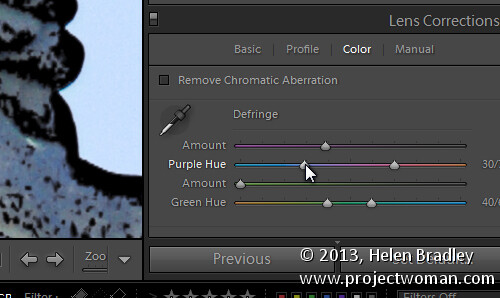
Alt (Option) and the appropriate Amount slider shows the areas in the image affected by fringing. White is not affected and you will see any areas affected by purple or green fringing.

LR_Alt_option_visualization_8

Alt (Option) and the appropriate Hue slider lets you view the range of hues being fixed. Black areas are already being targeted and any remaining purple or green color indicates residual color fringing.

LR_Alt_option_visualization_9

Recognizing the times you can use the Alt (Option) key in the Develop module will help you make adjustments to your images more easily and effectively. I hope you enjoyed these Lightroom tips for the Develop module.

Post originally from: Digital Photography Tips.

Check out our more Photography Tips at Photography Tips for Beginners, Portrait Photography Tips and Wedding Photography Tips.

Lightroom Tips for the Develop Module – the Magic Alt Key

The post Lightroom Tips for the Develop Module – the Magic Alt Key by Helen Bradley appeared first on Digital Photography School.


Digital Photography School

 
Comments Off on Lightroom Tips for the Develop Module – the Magic Alt Key

Posted in Photography


Pictures purport to show rumored Sony smartphone lens/sensor module

13 Aug

sony.png

Rumors continue to fly about a Sony lens/sensor combo in the works for Android and iOS devices. Now, more images have emerged of the rumored accessories, apparently designed to attach magnetically to your existing smartphone. It’s speculated that one of these models bears the same 1-inch sensor as the Sony Cyber-shot RX100 II, and both models reportedly boast NFC and WiFi connectivity. Click through for the most recent images and details at connect.dpreview.com.

News: Digital Photography Review (dpreview.com)

 
Comments Off on Pictures purport to show rumored Sony smartphone lens/sensor module

Posted in Uncategorized


10 Shortcuts of the Commonly Used Features in the Library Module of Lightroom 4

02 May

Introduction

This tutorial has been transcribed from the SLR Lounge Lightroom 4 Workshop on DVD, a 14 hour Lightroom 4 A – Z guide with over 130 tutorials for mastering Lightroom from start to finish. The Digital download can be purchased from SLR Lounge while the physical copy is available through Amazon Prime.

Overview

This quick article will go over 10 shortcuts of the commonly used features in the Library Module of Lightroom 4. Knowing these simple shortcuts can greatly speed up your workflow!

(Note:  Apple users, just pretend that “CTRL” is “CMD”.  😉

1. Lightroom 4 Module Shortcuts

There are a total of 7 Modules in Lightroom 4 and each corresponds with numbers 1-7. To switch to a Module, hit “Ctrl + Alt + 1-7.”

“1” is the Library Module, “2” is the Develop Module, “3” is the Map Module, and so forth. For example, if you want to go to the Develop Module, hit “Ctrl + Alt + 2.”

01_lightroom-module-shortcuts

Another quick way to get to the Develop Module is by simply hitting “D.” You can also get to the Library Module through the different Library View Modes, which brings us to our next shortcut.

2. Library View Modes

There are 4 Library View Modes in Lightroom 4: Grid View Mode, Loupe View Mode, Compare View Mode, and Survey View Mode. To access the Grid View, hit “G.” To get to the Loupe View, hit “E.” Hit “C” for Compare View and “N” for Survey View. If you are in a module other than the Library Module, hitting any 4 of these Library View Mode shortcuts will bring you back to the Library Module.

3. Import/Export Shortcuts

To import images into Lightroom, hit “Ctrl + Shift + I.” This will bring up the Import Dialogue Box. Hit “Ctrl + Shift + E” to bring up the Export Dialogue Box to export your images out of Lightroom.

4. Photoshop Shortcut

Sometimes we need to finish editing our images in Photoshop. We can take our images from Lightroom into Photoshop by selecting the image and then hitting “Ctrl + E.” Once you are done with your image in Photoshop, hit “Ctrl + W.” This will bring you back into Lightroom, where you will see both your Photoshop copy and Lightroom copy of your image in your Lightroom catalog.

5. Left/Right Panels Shortcuts

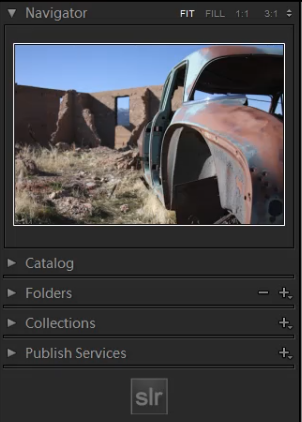
The boxes on the right and left sides of Lightroom 4 are referred to as Panels. Like the Modules, the Panels also correspond to a number. The Left Panels correspond with the numbers “0-4” and include the Navigator Panel, the Catalog Panel, the Folders Panel, the Collections Panel, and the Publish Services Panel.

To expand or collapse a Left Panel, hit “Ctrl + Shift + 0-4.” The Navigator Panel is “0,” the Catalog Panel is “1,” the Folders Panel is “2,” and so on. Below, you can see that only the Navigator Panel is expanded and the remaining Panels are collapsed.
02_lightroom-left-side-panels-shortcuts

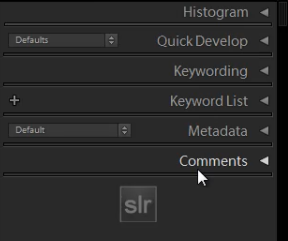
The Right Panels correspond with the numbers “0-5.” To expand or collapse a Right Panel, hit “Ctrl + 0-5.” The Right Panel includes the Histogram Panel, the Quick Develop Panel, the Keywording Panel, the Keyword List Panel, the Metadata Panel, and the Comments Panel. The Histogram Panel is “0,” the Quick Develop Panel is “1,” the Keywording Panel is “2,” and so forth. As you can see below, none of the Panels have been expanded.
03_lightroom-right-side-panels-shortcuts

6. Target Collection Shortcuts

Since we just discussed the Panels shortcuts, we will go over a Target Collection, which can be found in the Collections Panel (“Ctrl + Shift + 3”) in the Left Panel. A Target Collection is a useful tool because it helps us organize our photos quickly by using a hotkey. You can set a previous collection as the Target Collection, or you can create a new collection and set it  as the Target Collection.

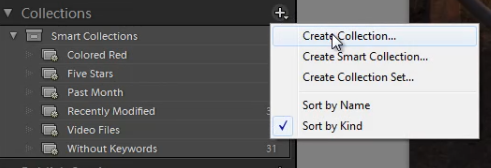
To create a new collection, click on the “+” sign next to Collections in the Left Panel. Select “Create Collection.”
04_create-new-collection

Once you have hit “Create Collection,” the Create Collection Dialogue Box will appear. Once you have named your collection, hit “Create.”
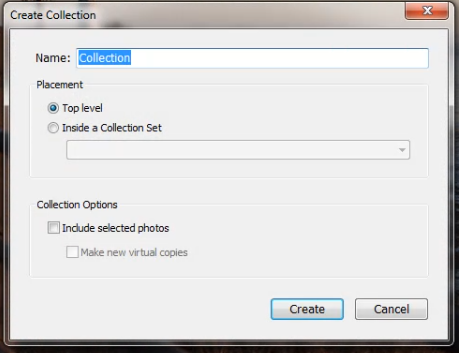
05_create-collection-dialogue-box

Right-click on a collection and hit “Set as Target Collection” to set the collection as your Target Collection.
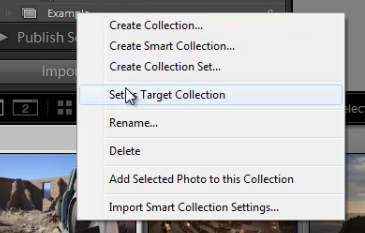
06_set-as-target-collection

Once you have selected a collection to be your Target Collection, a “+” sign will appear next to the collection you have selected to remind you which collection is your “target” for the Collection hotkey. Now, simply hit “B” to add any image to your Target Collection!

For example, you might have created a collection for your portfolio images. Set that collection as your Target Collection, and then whenever you are looking through your latest photo shoot and you see one that is portfolio worthy, just hit “B” to add it to your portfolio!

7. Rotate Left/Right Shortcuts

To rotate multiple images at once, go to the Grid View (“G”). Once you are in the Grid View, select your images by holding down “Ctrl” while clicking on your images. To rotate your images to the left, hit “Ctrl + [.” To rotate your images to the right, hit “Ctrl + ].” You can also rotate individual images by using the same shortcuts.

8. Flag Shortcuts

Some people use flags as their culling system. For example, selecting an image as a pick means that we will deliver the image. Rejecting an image means that we will not deliver the image. Simply hit “P” to flag an image as a “pick.” If you want to remove the flag, hit “U.” To reject an image, hit “X.”

Or, to simply increase or decrease the flag status of an image, just hit Ctrl and either the up or down arrow.  This is by far the fastest way to go go from image to image and flag keepers (with just one hand!) by using the left and right arrows to navigate and the Ctrl-up/down key combination to pick or reject your images…

9. Star Rating Shortcuts

The following are the shortcuts for the Star Rating in Lightroom 4.

  • “1” = 1 star
  • “2” = 2 stars
  • “3” = 3 stars
  • “4” = 4 stars
  • “5” = 5 stars

Simply select an image and hit “1-5” to give the image a star rating. To reset Star Ratings on your images, hit “0.”

10. Color Label Shortcuts

The Color Labels in Lightroom 4 correspond with the numbers six thru nine. Red is “6,” Yellow is “7,” Green is “8” and Blue is “9.” There is also a Purple Color Label but to label an image Purple, you need to go into the Edit Menu, as shown below.
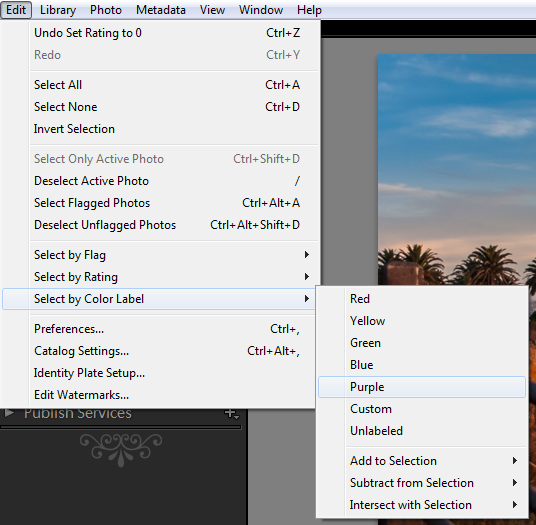
07_lightroom-purple-color-label

If you want to remove a Color Label, hit the corresponding number again. So for example, if your image is already color labeled Green, hit “8” again to remove this Green Color Label.

Learn More with the Lightroom 4 Workshop Collection!

This was a sample tutorial from the Lightroom 4 A to Z DVD which is one of the DVDs in the Lightroom 4 Workshop Collection. A collection of nearly 30 hours of video education teaching everything from Lightroom basics to advanced raw processing techniques.

The LR4 Workshop Collection also includes the critically acclaimed Lightroom 4 Preset System which is designed to enable users to achieve virtually any look and effect within 3-5 simple clicks. From basic color correction, vintage fades, black & white effects, tilt-shift effects, faux HDR, retouching, detail enhancing, and so much more. Click the links above to learn more.

Post originally from: Digital Photography Tips.

Check out our more Photography Tips at Photography Tips for Beginners, Portrait Photography Tips and Wedding Photography Tips.

10 Shortcuts of the Commonly Used Features in the Library Module of Lightroom 4


Digital Photography School
 
Comments Off on 10 Shortcuts of the Commonly Used Features in the Library Module of Lightroom 4

Posted in Photography


Toshiba shows-off Lytro-style Light Field module for mobiles

28 Feb

Toshiba-Light-Field-Module.png

Toshiba Semiconductors have been demonstrating a sensor module for mobile phones that allows Lytro-style refocusable images. The company promises 2MP images from an 8MP sensor and is already working on a version with higher-resolution output. However, there’s reason to believe such cameras would be even more prone to the drawbacks we identified in Lytro’s camera. Click through to find out more.

News: Digital Photography Review (dpreview.com)

 
Comments Off on Toshiba shows-off Lytro-style Light Field module for mobiles

Posted in Uncategorized


Creators of Raspberry Pi computer announce $25 camera module

07 Feb

rasppi.jpg

The makers of Raspberry Pi – the popular low-cost computer – have announced the development of a new camera module, expected to cost $ 25. Since the first version of Raspberry Pi was released early last year, more than half a million of the low-cost boards have been sold to eager enthusiasts all over the world, and put to use doing everything from running games to powering a voice-activated coffee machine (yes, really). Details on the forthcoming camera module are vague, but it is expected to offer at least 5MP resolution and the ability to capture HD video. Click through for more details. 

News: Digital Photography Review (dpreview.com)

 
Comments Off on Creators of Raspberry Pi computer announce $25 camera module

Posted in Uncategorized


Using a wired shutter release/remote trigger with the EasyTag GPS Module

25 Nov

www.easytagger.ca The EasyTag has a 2.5mm jack to pass-through remote triggers/shutter releases. This ensures that compatible Nikon DSLRs like the D200, D300/s, D700, D3s, D5000, D3100, D7000, D90, etc. do not lose any functionality when the EasyTag is plugged in, using the data connection. This gives the EasyTag a significant advantage over the di-GPS, Geometr or Nikon GP-1 modules. www.easytagger.ca There are wired, wireless and (wired) timer releases available. There is also a 10-pin adapter which allows the remote to be connected directly to Nikon 10-pin DSLRs such as the D200, D300/s, D700 and D2/3: www.easytagger.ca
Video Rating: 3 / 5

This is a selection of some of my Landscape and seascape images. Check out my site if you want to see more. If you are interested to learn how to capture such images then maybe one of my workshops is what you are looking for. Contact me at my website www.dannyirvine.com or join me on my facebook page http

 
Comments Off on Using a wired shutter release/remote trigger with the EasyTag GPS Module

Posted in Nikon Videos


Lightroom 4: Developing module overview | lynda.com tutorial

20 Oct

This Photoshop Lightroom tutorial describes a few tips and techniques you can use to get familiar with the Develop module. Watch more at www.lynda.com This specific tutorial is just a single movie from chapter one of the Photoshop Lightroom 4 Essentials: Enhancing Photos with the Develop Module course presented by lynda.com author Chris Orwig. The complete Photoshop Lightroom 4 course has a total duration of 5 hours and 32 minutes, and guides photographers through the process of improving images with creative color, sharpening, and other effects in the Lightroom Develop module. Photoshop Lightroom 4 Essentials: Enhancing Photos with the Develop Module table of contents: Introduction 1. Getting Started with the Develop Module 2. Develop Module Workflow Tips 3. Working with Color Temperature and White Balance 4. Masking Basic Tonal Adjustments 5. Improving Vibrance, Saturation, and Clarity 6. Basic Panel Workflow Reflections 7. Cropping and Composing 8. Retouching Tools 9. Using the Graduated Filter 10. Making Localized Adjustments 11. Modifying the Tone Curve 12. Changing HSL and Color 13. Converting to Black and White 14. Creative Color with Split Toning 15. Noise Reduction and Sharpening 16. Making Lens Corrections 17. Adding Vignette and Grain Effects 18. Using the Camera Calibration Controls Conclusion
Video Rating: 3 / 5

 
Comments Off on Lightroom 4: Developing module overview | lynda.com tutorial

Posted in Retouching in Photoshop


Ricoh M-mount GXR Mount A12 module announced and previewed

05 Aug

Ricoh has announced a Leica M-mount unit for its modular GXR camera system. The GXR Mount A12 features a 12MP APS-C CMOS sensor with the ability to fit a wide range of M-mount lenses or a still wider choice if used in combination with an adapter. And, unlike the majority of digital cameras, it features no low-pass (anti-aliasing) filter. The Mount A12 module includes all the usual GXR features (such as toy camera and miniature processing modes), but also gains a silent electronic shutter mode, several manual focus assist options and a series of lens correction parameters. The module will be available from early September, at an MSRP of $ 649. We’ve been using a pre-production Mount A12 module for the past few days and have prepared an hands-on preview with real-world samples.
News: Digital Photography Review (dpreview.com)

 
Comments Off on Ricoh M-mount GXR Mount A12 module announced and previewed

Posted in Uncategorized


DCWatch reports on Pentax’s Astro Tracing function using the O-GPS module

05 Jul

Japanese website DCWatch has published a test of the star tracking feature of Pentax’s O-GPS module. The Astro Tracer mode uses the GPS coordinates to calculate the camera’s movement relative to the stars, then utilizes the camera’s image stabilization system to shift the sensor to track that movement. The report, which is a little tricky to follow in its Google-translated form, includes several example images, showing the system’s effectiveness. (From DCWatch)
News: Digital Photography Review (dpreview.com)

 
Comments Off on DCWatch reports on Pentax’s Astro Tracing function using the O-GPS module

Posted in Uncategorized


Pentax launches O-GPS1 geotagging module

06 Jun

Pentax has launched an add-on GPS module for its recent DSLRs that allows simple geotagging of images. The O-GPS1 unit attaches to the camera’s hotshoe, allowing the camera to add latitude, longitude, altitude, UTC capture time and direction as image metadata. This data can be used to place images in mapping software such as Google Earth or as a means of file organization and retrieval. K-5 and K-r users also gain access to the ‘Astrotracer’ feature that predicts the movement of celestial objects and uses the sensor shift mechanism to track this movement to give astrophotographs with single points, rather than star-trails. The O-GPS1 unit will be available from mid June at a recommended price of $ 249.95/£229.99.
News: Digital Photography Review (dpreview.com)

 
Comments Off on Pentax launches O-GPS1 geotagging module

Posted in Uncategorized