RSS
 

Posts Tagged ‘mobile’

Mobile Speed: Portable SSDs for photographers

02 Dec

Like many photographers, I spend a lot of time working in the field away from my office. By extension, that translates into a fair amount of time in front of my laptop computer backing up, organizing, and working with my images and videos before I get home.

For years my workflow depended on portable hard drives, but thanks to increased camera resolution and the need to shoot more video, particularly 4K video, I discovered that I was spending increasingly more time waiting around while bits moved across wires. And when I wanted to work with those files, the experience kept getting slower. I also worried a lot about spinning drives getting damaged in transit.

Mobile office? A perfect place for portable SSDs.

A couple years ago I switched to using external solid state drives, or SSDs, for all my mobile work. Back then there weren’t a lot of off-the-shelf products to solve my problem, so I took a DIY (do-it-yourself) approach and made my own. Times have changed, and there are now a proliferation of external SSDs to meet your needs.

Despite this, I still run into a lot of photographers who haven’t made the switch, and I’m continually surprised at how many of them have never even considered external portable SSDs, despite the fact that they often have one in their laptop.

Fortunately, we’ve reached a point where SSDs strike a reasonably good balance between price and performance. In this article I’ll take a look at some of my favorite portable SSDs that I’ve used over the past year, each of which appealed to me for a different reason, and let you know what I like about each one.

The portable SSD solutions featured in this article: (L to R) The do-it-yourself solution, Samsung T3, SanDisk Extreme 510, OWC Envoy Pro EX, Glyph Atom, Glyph Atom RAID

The DIY Solution

For those willing to get their hands dirty, the DIY (do-it-yourself) solution is a viable option. SSDs designed for laptops are plentiful online and there’s a huge selection of brands and sizes. At the time of publication, it’s possible to get a 1TB SSD for under $ 240, which is probably enough portable storage to meet the needs of most mobile photographers.

Turning a bare SSD into an external peripheral is surprisingly simple; all you need is an inexpensive hard drive case, like this one from Anker, and a USB cable. Snap the SSD inside, connect it to your computer, and format the drive.

The DIY (do-it-yourself) approach is the most economical method, and is also a great way to recycle an old SSD when you upgrade a laptop. Total assembly time: about 2 minutes.

There are plenty of cases available for around $ 10, and you can reuse them if you get a larger SSD later. I’ve been using the Anker case mentioned above for about two years and have upgraded the SSD inside three times. An external case is also a great option if you’ve upgraded the SSD in your laptop and want to recycle the old one as external storage.

Samsung T3

The Samsung T3 first caught my attention at CES in January, and I’ve been using one almost since then. The T3’s most compelling feature is that it’s small; a bit shorter than a credit card, and only 1cm thick. It also weighs close to nothing, making it great for travel. It uses a USB-C plug, but ships with a USB-C to USB-A cable so you can plug it into the existing ports on your computer right out of the box. 

The T3 has become one of my go-to SSDs when I’m traveling really light, as in 11-inch Macbook Air light. I barely notice it in my bag, and often carry it around in a shirt or pants pocket when I’m out working. In fact, this is the SSD that people ask me about most often when they see it, once they realize it’s not a card reader for my camera. This is the SSD to take with you if you want compact size, speedy performance, and a bit of style.

The Samsung T3 is a bit shorter than a credit card and 1cm thick. Put it in your pocket and you’ll barely know it’s there.

The T3 is also comes in a variety of capacities ranging all the way up to 2TB of storage, making it an incredibly compact way to store a lot of data. It’s available in several sizes including 250GB ($ 119), 500GB ($ 199), 1TB ($ 399), and 2TB ($ 799)

SanDisk Extreme 510

The SanDisk Extreme 510 gives the Samsung T3 a run for it’s money when it comes to portability, being just slightly larger due to it’s square shape. However, the difference in size is negligible when you consider how small they both are.

What sets the Extreme 510 apart from the T3 is that it’s designed for slightly more rugged use, with an IP55 rating for water and dust protection, including an integrated cap that fits over the USB port. It also has a rubber bumper around the edges to protect against drops, and it really works. Finally, there’s a small metal loop on one corner in case you want to attach a lanyard or clip the drive to your other gear.

This has turned into my favorite SSD when I need to travel light in potentially adverse conditions, such as during our Nikon D810 Field Test where dust seemed to get everywhere. I’ve even found myself using the metal loop to clip the drive to an attachment on the inside of my pack for security. My only complaints about the Extreme 510 are that the rubber cap over the USB port comes off a little too easily, and that it’s currently only available in one size (480GB).

The SanDisk Extreme 510 might look unconventional, but it’s a great choice for mobile use thanks to its water and dust resistance, and rubber bumper to protect against drops.

One interesting note about the Extreme 510 is that in my performance testing it had slightly slower than average write speeds, though I didn’t really notice this in practical use. The 480GB SanDisk Extreme 510 costs $ 249.

OWC Envoy Pro EX

Other World Computing (OWC) is known for high quality products with a focus on the Macintosh market, so it comes as no surprise that the OWC Envoy Pro EX’s case is a perfect match for a MacBook computer, right down to the anodized aluminum case. (Well, the silver variety at least.) That said, it should work with any computer as long as you format it correctly.

The Envoy Pro EX is in the middle of the pack when it comes to size, but leads the way when it comes to style, and its build quality is excellent, right down to the smallest details. I would almost call it Apple-esque, which I suppose is the point. I’ve received lots of comments about this drive, particularly from other Mac users.

The Envoy Pro EX is a great choice if presentation and appearance are of importance, particularly if you’re a Mac user. Whether you’re visiting clients or just trying to project a professional image, it does the job well. Or, if you just want a SSD that will match your MacBook’s style, and potentially outlast it as well, the Envoy Pro EX is a great choice. 

The OWC Envoy Pro EX is a well-built, stylish SSD that’s relatively compact. It’s also a perfect visual match for a silver MacBook or MacBook Pro. 

The Envoy Pro EX is available in a range of sizes including 240GB ($ 195), 480GB ($ 339), and 1TB ($ 559).

Glyph Atom and Atom RAID

The Atom and Atom RAID from Glyph Technologies are a bit heavier than the other SSDs in this article, but that simply reflects their build quality. These things are solid. Really solid. As in, I’m pretty sure I could run over them with my car and they would still work, solid. Both are enclosed in a very sturdy aluminum housing which is encased in a rubber sleeve to add some shock protection.

The Atoms are also the only SSDs in this article that feature support for USB 3.1, Gen 2. In a nutshell, this means they have twice the theoretical maximum data transfer rate of the other devices in this article (10 Gbps vs. 5 Gbps). The Atom comes in a candy bar shaped case similar in size to the OWC Envoy Pro EX.

The Glyph Atom is one of the most solid portable drives I’ve ever come across and is a great fit for serious production use where things get banged around a lot. 

The Atom RAID includes two SSDs in a RAID 0 configuration to provide even greater speed when transferring data, and it can deliver. Physically, it’s about 50% wider than the standard Atom and a bit heavier, but otherwise similar in design.

The Glyph Atom RAID is every bit as solid as the Atom, but includes two SSDs in a RAID 0 configuration for even more speed.

Both Atom devices use a USB-C connection and ship with native USB-C to USB-C cables as well as USB-C to USB-A cables. It’s a nice touch that Glyph provides cables for both types of connections out of the box. My only complaint about the design is that the LED status light on these drives is bright enough to illuminate the corner of a room in the dark.

The Atom and Atom RAID are hands-down the most durable SSDs I’ve tried, and the ones I would choose for a production environment where they get used, abused, and banged around every day. I’ve been using them non-stop for several weeks, shoving them in and out of bags with other gear, and am consistently impressed with how rugged they are. Whether the additional speed of the RAID model is justified depends on your requirements, but it’s there if you need it.

The Atom is available in capacities of 275GB ($ 129), 525GB ($ 229), and 1TB ($ 399). The Atom RAID is available in capacities of 1TB ($ 419) and 2TB ($ 819). You pay a bit of a premium for the RAID version, but if you need the speed it will probably cost you one way or another.

Performance

DPReview doesn’t do in-depth performance testing of products like hard drives. There are other sites that do a great job of things like that. However, in addition to using all these drives over the past several months, I put them all through some real world use tests on a 5K iMac using a Lightroom library with about 10,000 photos, as well as a 250GB Final Cut Pro X project. I also ran some common benchmarking software for a baseline comparison.

In real world use there was very little noticeable performance difference between any of the drives, with the exception of the DIY solution, which seemed just a bit slower when importing large amounts of data. Of course, this will depend on what SSD you use for a DIY build, so results may vary.

For slightly more objective results I ran speed tests on all the SSDs using Blackmagic Disk Speed Test and AJA System Test, both of which provided almost identical results. I also included a popular portable spinning hard drive, the WD My Passport, in the test for comparison.


Capacity Tested

 Write Speed Read Speed
DIY solution*  250GB  253 MB/s  266 MB/s
Samsung T3  1TB  383 MB/s

 406 MB/s

Sandisk Extreme 510  480GB  285 MB/s  420 MB/s
OWC Envoy Pro  960GB  378 MB/s  409 MB/s
Glyph Atom**  1TB  472 MB/s  431 MB/s
Glyph Atom RAID**  2TB  804 MB/s  572 MB/s

WD My Passport 5400 rpm portable hard disk

2TB  69 MB/s  104 MB/s

* Average results for two SSDs: a Samsung EVO 840 and SanDisk Extreme Pro. (Results for both drives were similar.) Actual performance for DIY solutions will depend on the SSD used.

** Tests for the Atom drives were performed using a new MacBook Pro with Touch Bar, which has Thunderbolt 3 ports capable of supporting the drives’ USB 3.1, Gen 2 interface.

When looking at these numbers, keep in mind that it’s possible to get slightly different results by adjusting the test parameters, though when I did so the overall trend stayed the same between drives. The take home message here is that all the drives are insanely fast compared to a portable spinning hard drive. That in itself shouldn’t be a surprise, but the table shows just how much faster the SSDs can be.

There are some interesting things to note from the data, however. I was surprised that my home-built DIY drive was consistently slower than the commercial offerings, especially since it’s basically just a bare SSD plugged directly into a USB 3.0 interface. It’s possible that different SSDs would have performed better in the same enclosure.

It’s also possible to see the advantages of the newer USB 3.1, Gen 2 transfer rates on the Atom drives, especially when you throw a RAID 0 configuration into the mix. Of course, to take advantage of these speeds you’ll need a computer that supports the new standard as well.

Conclusion

If you’re still using regular hard drives for your mobile photo work, there’s never been a better time to make the switch to portable SSDs. Of course, there are compelling reasons to stick with spinning hard drives; they deliver huge amounts of storage at low cost. Every photographer has their own price/performance threshold, but that ratio is getting better all the time.

From a performance perspective, almost any portable SSD will likely meet the needs of most photographers. The most economical solution is the DIY approach. It’s incredibly easy to assemble your own portable SSD, and prices for bare drives have come down a lot, especially if you’re willing to pick up a recently discontinued model.

When it comes to commercial SSD models, the best choice will likely come down to your specific needs. Do you need fast and light? Style? Rugged build? Each one has a sweet spot. Finally, don’t limit yourself to the SSDs included in this article. There are lots of options on the market today, and some may meet your needs better than these. If you haven’t made the switch, go online, see what’s available, and take the plunge!

Articles: Digital Photography Review (dpreview.com)

 
Comments Off on Mobile Speed: Portable SSDs for photographers

Posted in Uncategorized


An Overview of 8 Adobe Creative Cloud Mobile Apps

02 Dec

If you currently have an Adobe Creative Cloud subscription, did you know that you have access to a variety of mobile apps developed by Adobe? Even their least expensive subscription plan (the Photography plan, which includes access to Photoshop and Lightroom for $ 9.99 per month) includes access to eight different mobile apps that have so much to offer! In this article, I’ll take you through an overview of all the Creative Cloud Mobile apps included in the Photography Plan, and explain some different ways that you can use them.

adobe-mobile-apps

1. Adobe Photoshop Fix

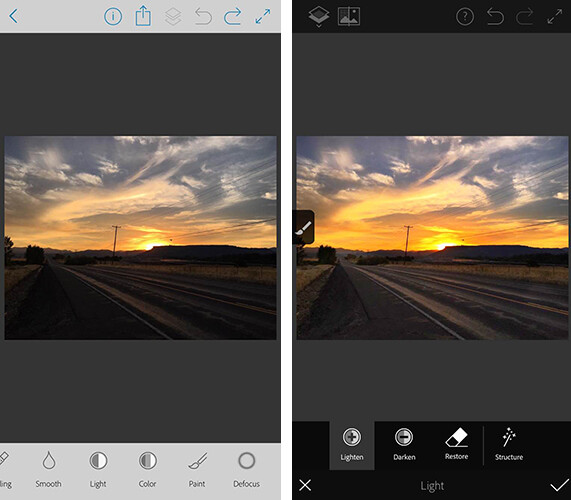
The first app is a mobile version of Photoshop (called Photoshop Fix) that includes simple retouching with the ability to liquify, heal, patch, smooth, lighten, and darken images. You can also do some basic image adjustments such as controlling exposure, adjusting contrast, and saturation. You also have the capability to send your image directly to the Photoshop CC desktop program with layers intact, to continue editing there if you’d like.

The mobile app is certainly a scaled-down version of the desktop program. But it does offer lots of options for simple retouching and adjustments of images you’ve taken with your cell phone, and is a fantastic (FREE) resource!
adobe-photoshop-fix-app

Screenshots of Adobe Photoshop Fix for iPhone.

2. Adobe Lightroom for Mobile

Once again, the Lightroom Mobile app is a scaled-down version of the desktop program which allows you to make basic adjustments to your images via your smartphone or tablet. Easily make adjustments to temperature, tint, exposure, contrast, highlights, shadows, whites, blacks, clarity, saturation, sharpness, noise, moire, color hue, and more. The real gem of the Lightroom mobile app is the access to 40

The real gem of the mobile app is access to 40 Lightroom presets that can help elevate your images in one touch. I especially enjoy the 11 black and white presets, which are significantly better (in my opinion) than other apps that offer one-touch editing. They also offer everything from low contrast to film versions.

adobe-lightroom-mobile-app

Screenshots of Adobe Lightroom app for iPhone

3. Adobe Photoshop Mix

Adobe Photoshop Mix allows for more creative editing than the original Photoshop Fix app. It specializes in cutting out portions of different images and merging them together into one image. I haven’t found this app to be particularly useful for the type of photography I prefer, but if you ever find yourself in the position of needing a photo of Santa on the beach, with no time to make a photo session happen, this app would be your go-to.

I found this app much more difficult to use with my finger than any of the other Adobe apps, but it may be easier to manage with a stylus. Like the other Adobe apps, it runs seamlessly with the desktop programs, so you can fine-tune your images on the computer later if you wish.

4. Adobe Spark Post (formerly Adobe Post)

Adobe Spark Post allows you to quickly create graphics combining photos and text for social media. You can begin using a number of different templates, import your own photo, or search from Adobe’s free photo library. Next, enter your text, choose your font, spacing preferences, and color palate. With one touch, you can select whether you’ll be posting to Facebook, Instagram, on a blog post, or a number of other options, and the app will automatically size the image for you.

I have found this app to be so useful in so many different ways. Need a quick graphic advertising mini-sessions? Check. Want to combine a photo with a quote you love? Check. Need a pinable image for a blog post or article? Check. All of these examples are things that I could certainly do from scratch in Photoshop, but the ease and speed with which I can create very similar graphics with Spark Post has completely won me over. It’s the app you didn’t know you were missing!
adobe-spark-post-mobile-app

Sample graphic created with Adobe Spark Post on iPhone.

5. Adobe Spark Page (formerly Adobe Slate)

Adobe Spark Page is a quick and easy way to create easy photo journals and web stories that are shareable on social media. It is suggested to use Spark Page to easily create newsletters, presentations, and travel journals. Once again, you can begin with a number of different layouts from Adobe that take all the guesswork (and time) out of the project. Spark pages automatically adjust to a plethora of different devices, and you can preview the way that your particular page will look on each. I haven’t implemented Adobe Spark Page into my process as of yet, but am currently contemplating using it as an avenue to share collections of images on social media.

6. Adobe Spark Video (formerly Adobe Voice)

All of the Adobe Spark apps are similar in that they are designed to elevate what you’re sharing on social media, while simultaneously streamlining the process. In this instance, Spark Video allows you to create simple and easy videos with lots of different options and layouts.

When you first begin creating a project with Spark Video, it asks whether you’re promoting an idea, sharing something that happened to you, telling a story about someone overcoming something difficult, telling about something important to you and attempting to engage your audience to participate, or sharing an experience that changed your view on the world. Depending on which option you select, Spark Video moves into a template that prompts you with what to include on each 2-second clip of your video. You also have the option to start from scratch and build your video from the ground up.

You can also record yourself narrating the video, or chose from a stock music library. There are so many different ways that you could think about utilizing Spark Video–whether making a video of a particular session, easily explaining what to wear for a family session, or creating a quick ad to use on social media. The possibilities are endless.

7. Adobe Portfolio

With Adobe Portfolio, you can build a website in just a few minutes. Again, there are many different templates available, including several designed especially for photographers. You can select images to act as feature images to link to albums, include some brief information about yourself, and gives you the ability to enable or disable right-clicking to save images. The process to build and edit your site is simple and requires no knowledge of HTML or CSS. You can even use your own domain name in conjunction with the portfolio you create. You can also achieve a similar but even more streamlined effect, by using Adobe Spark Page to create a portfolio of your work.

adobe-portfolio-app

An example of a basic portfolio created with Adobe Portfolio. More galleries could be included as you continue to scroll down past the header.

8. Adobe Premiere Clip

With Adobe Premiere Clip, you have access to some amazing video editing capability right from your phone. Drag and drop videos, trim them and arrange into a video. The app is smart enough that you can add music and set it to auto-fade during any dialogue. If you have an iPhone, you can also import an entire collection from Lightroom for mobile to Premiere Clip to easily create a video of your images.

Accessibility

In order to use these apps, simply search for them individually in the app store (or use the links provided for you above), and download them. Once you open the app, you’ll be prompted to sign in with your Adobe ID. Simply sign in using the same ID you used to purchase your Creative Cloud subscription, and you’ll have access to the app! Additionally, it’s worth mentioning that many of these apps (Spark Page, Spark Post, Spark Video, and Adobe Portfolio) are also available via web browser, so you aren’t necessarily limited exclusively to your mobile device.

In all, these apps pack a big punch and are a huge bonus to the desktop access to Photoshop and Lightroom! If you have a Creative Cloud subscription and are not already using the Adobe Creative Cloud Mobile Apps, I’d absolutely encourage you to check them out. Whether you’re a professional photographer or just someone who enjoys taking photos in their own backyard, there’s likely at least one app that you’ll find useful!

googletag.cmd.push(function() {
tablet_slots.push( googletag.defineSlot( “/1005424/_dPSv4_tab-all-article-bottom_(300×250)”, [300, 250], “pb-ad-78623” ).addService( googletag.pubads() ) ); } );

googletag.cmd.push(function() {
mobile_slots.push( googletag.defineSlot( “/1005424/_dPSv4_mob-all-article-bottom_(300×250)”, [300, 250], “pb-ad-78158” ).addService( googletag.pubads() ) ); } );

The post An Overview of 8 Adobe Creative Cloud Mobile Apps by Meredith Clark appeared first on Digital Photography School.


Digital Photography School

 
Comments Off on An Overview of 8 Adobe Creative Cloud Mobile Apps

Posted in Photography


How to Use DNG Files on Your iPhone With Lightroom Mobile, RAW or ProCam 4

16 Nov

The recent release of iOS 10 saw an important update to the iPhone’s operating system for photographers. If you own an iPhone with a 12-megapixel camera (that is an iPhone 6S/Plus, iPhone 7/Plus, iPhone SE or even an iPad Pro 9.7) the operating system now allows third party camera apps to save photos in the DNG format. That’s excellent news for iPhone photographers as it means that you can now realize the potential of your phone’s camera.

iPhone DNG file

Image quality improvements

The advantage of using DNG (rather than JPEG) as the file format is that you can process the DNG files in Lightroom (or your software of choice). This gives you much greater control over noise reduction and sharpening, as well as color and tonal adjustments. Photos processed by the iPhone and saved in JPEG format often suffer from smearing caused by noise reduction, especially if taken in low light. Using DNG lets you avoid that.

This photo was taken at ISO 125 (fairly high for an iPhone, whose lowest ISO setting is 25) using the JPEG format (all other photos in this article are from DNG files).

iPhone DNG file

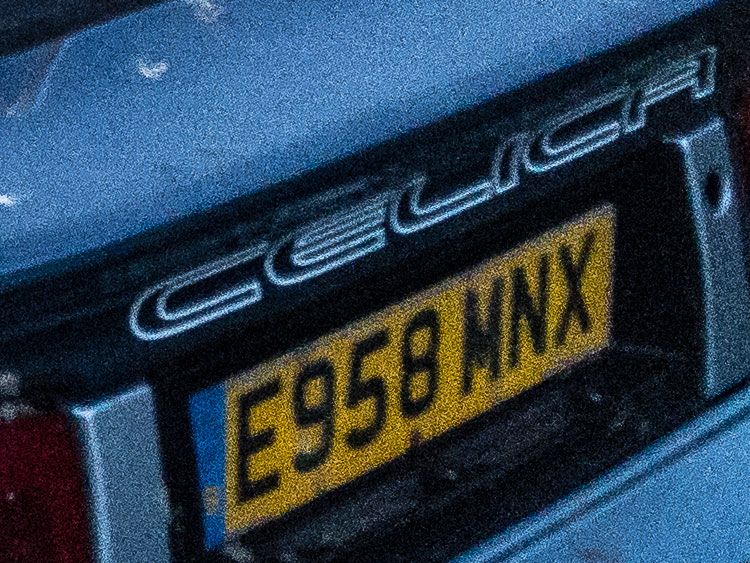
This 100% magnification from part of the image shows the smearing caused by the iPhone’s processing. To me, it looks like someone has applied a filter in Photoshop that is meant to make the photo look like a painting.

iPhone DNG file

This photo was taken at ISO 250 using the DNG format. A smartphone camera is not the best tool for shooting in low light, but I wanted to test the camera under these conditions.

iPhone DNG file

This is a 100% magnification. I processed the photo using Lightroom’s default noise reduction settings. There is plenty of noise (exaggerated by the increased Clarity needed to get the best out of iPhone files) but no smearing.

iPhone DNG file

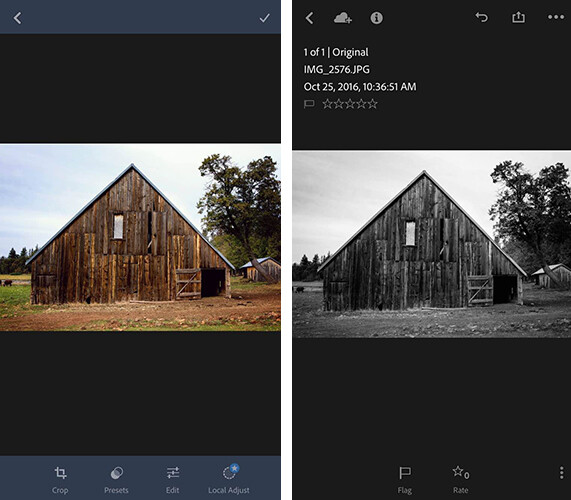
DNG files are also much better for converting to black and white than JPEG files. Black and white shooters will appreciate the ability to process their own Raw files and not rely on the camera’s software to do it.

Here’s a black and white version of the opening photo that I made using Lightroom for conversion.

iPhone DNG file

What you need to know

The important thing you need to know is that, at the time of writing, the iPhone’s native Camera app doesn’t have the ability to save your photos in the Raw format. You need a third-party one. Let’s take a look at some of the choices available.

Lightroom mobile

Lightroom mobile lets you take, save, and process DNG files on your iPhone. This is brilliant if you’re a Lightroom CC subscriber as it lets you take full advantage of all of Lightroom mobile’s features.

The only disadvantage of using Lightroom mobile is that the photos you take are stored within the Lightroom mobile app and not in the Camera Roll. That means you can’t download your DNG files by connecting your iPhone to your computer using the lightning cable.

Please note: If you’re not a Lightroom CC subscriber, you can still download Lightroom mobile for your iPhone and use it to take Raw photos. However – and this is very important – there is no way to save the Raw files to your Camera Roll or get at them without a CC subscription. I understand that Adobe software engineers are working on a solution to this, and hopefully, it will be implemented in a future version of Lightroom mobile.

iPhone DNG file

How it works

Lightroom mobile uploads photos taken with the camera, to Adobe’s servers. These are then downloaded by Lightroom desktop or Lightroom mobile on another device such as a tablet. You can set Lightroom mobile to sync only over wi-fi networks, so you don’t have to worry about using up data. But, given that DNG files are larger than JPEG files, it does mean that if you take photos in any volume it’s going to take a while for them to synchronize across devices.

Lightroom mobile’s camera app is a little more sophisticated than the iPhone’s camera app and lets you set white balance and exposure compensation.

As we’ve seen, Lightroom mobile works well under the right circumstances. But if you’re not a CC subscriber or you don’t have fast wi-fi, then you may want to look elsewhere for an app that lets you save photo files in the DNG format.

iPhone DNG file

RAW

500px have released a free camera app called RAW that lets you capture DNG files and edit them on your phone. The RAW app lets you create model releases, upload and license your photos on the 500px website, and use filters created by other RAW app users to process your photos.

The app also lets you save DNG files to the Camera Roll. So that you can download them by connecting your iPhone to your computer without having to rely on a wi-fi connection. You can only do this one at a time, though. So it’s a time-consuming process if you shoot a lot of photos. The camera in the app itself is also quite limited – you can tap on the screen to select the focus point but that’s the only control you have over the camera.

iPhone DNG file

VSCO Cam

The VSCO Cam app (also free, AND available for Android users too!) doesn’t support DNG yet but according to a recent press release DNG support is coming in a future update (date unspecified).

I’m looking forward to this, because the VSCO Cam camera app is quite clever and lets you adjust the exposure, white balance, and flash settings, as well as display a grid and a spirit level on the screen. You can download free presets to process your images (or buy others). But the big advantage is that it saves photos automatically to the Camera Roll, so you can download your DNG files directly from your iPhone if you want, without having to rely on a wi-fi connection.

iPhone DNG file

ProCam 4

If you’re looking for a sophisticated iPhone camera app that supports Raw, saves your DNG files to the Camera Roll, and gives you full manual control over the camera, then I recommend the ProCam 4 app.

It costs a few dollars to buy ($ 4.99) but is well worth the expenditure. This app lets you adjust ISO, shutter speed and white balance. It also lets you save the same photo in both JPEG and DNG formats in the Camera Roll.

If you take photos in any volume, then the ProCam 4 app is the best one that I’ve used for the iPhone. All you have to do to transfer your DNG files to your computer is connect the iPhone with the lightning cable and import the files using Lightroom (or the computer’s own software). It’s much quicker and easier than waiting for Lightroom mobile to synchronize files, or using the RAW app and saving your photos to the Camera Roll one by one.

iphone-dng-8

Disadvantages of DNG

Are there any disadvantages to using Raw on an iPhone? The only one that I can think of is that DNG files are larger than JPEGs and require more storage space. If you have an iPhone with 64GB or more storage space I don’t think this will be a problem. But if you have 32GB or less, then space management may become an issue if you have lots of DNGs.

More to come in the future

Before we finish I think that it’s important to note that the ability to save DNG files on an iPhone is such a new feature that developers are still rushing to take advantage of it. Expect the apps mentioned in this article to be updated and improved, and for more apps to take advantage of this new feature in the future.

All photos in this article were taken with an iPhone SE and processed in Lightroom.

Do you have an iPhone that lets you use the DNG format? Which apps do you use to take DNG photos? Let us know in the comments.

Editor’s note: There are several Android phones which can shoot RAW files in the DNG format as well. If you have an Android do a google search to find options for your brand and model.


If you’d like to learn more about processing photos in Lightroom then please check out my Mastering Lightroom ebooks.

googletag.cmd.push(function() {
tablet_slots.push( googletag.defineSlot( “/1005424/_dPSv4_tab-all-article-bottom_(300×250)”, [300, 250], “pb-ad-78623” ).addService( googletag.pubads() ) ); } );

googletag.cmd.push(function() {
mobile_slots.push( googletag.defineSlot( “/1005424/_dPSv4_mob-all-article-bottom_(300×250)”, [300, 250], “pb-ad-78158” ).addService( googletag.pubads() ) ); } );

The post How to Use DNG Files on Your iPhone With Lightroom Mobile, RAW or ProCam 4 by Andrew S. Gibson appeared first on Digital Photography School.


Digital Photography School

 
Comments Off on How to Use DNG Files on Your iPhone With Lightroom Mobile, RAW or ProCam 4

Posted in Photography


Seagate 5TB Backup Plus Portable is ‘world’s largest capacity’ mobile storage drive

16 Nov

Seagate has introduced the 5TB Backup Plus Portable, calling it the world’s largest capacity portable external storage drive. The Backup Plus Portable features the BarraCuda 5TB internal drive in a 20.5mm-thick aluminum case; it supports both macOS (with an NTFS driver) and Windows with USB 3.0 connectivity.

Seagate announced the BarraCuda internal hard drive last month, and lists the 5TB model with data transfer speeds up to 140MB/s. At this capacity, the drive can store up to 600 hours of HD video, according to Seagate. The new Backup Plus offering will be available later this month in red, black, blue, and silver color options for $ 190.

Via: Seagate

Articles: Digital Photography Review (dpreview.com)

 
Comments Off on Seagate 5TB Backup Plus Portable is ‘world’s largest capacity’ mobile storage drive

Posted in Uncategorized


Omnivision introduces new sensors for mobile devices with wider DR and lower noise

11 Nov

Chinese sensor manufacturer OmniVision Technologies has announced four new image sensors for smartphones that feature improved dynamic range and noise performance. The 16MP and 20MP sensors offer higher full-well capacity which allows pixels to collect more charge before clipping: increasing dynamic range.

A new structure allows pixels to convert more of the light captured into electrical charge, resulting in a claimed 12.5% improvement in sensitivity, giving better low light performance. Better separation between pixels also improves noise by helping to prevent color crosstalk, and thus should produce a cleaner image in dim conditions.

The standard versions of each chip allow further improvements in dynamic range using a method that records two different exposures simultaneously called zHDR. The sensor divides the pixels in a zig zag pattern so that some record a long exposure and others a short one, and the two exposures are combined to form an image with a wider range of tones.

These are second generation sensors that already use phase detection AF and which can record 4K video.

‘4C’ variants of both chips include a non-standard color filter array pattern that makes it easier to combine the signal from four pixels, to give less noisy, lower resolution images.

The company says that they will be ready for mass production in the early part of next year. For more information see the OmniVision website.

Press release

OmniVision Debuts Second-Generation PureCel®Plus and PureCel®Plus-S Technology and Product Families

OmniVision’s Newest Pixel Architecture Brings Exceptional Low-Light Performance and Increased Dynamic Range to Advanced Imaging Applications

OmniVision Technologies, Inc., a leading developer of advanced digital imaging solutions, today introduced its latest advancement in leading-edge pixel technologies: second- generation PureCel®Plus and PureCel®Plus-S. In keeping with OmniVision’s tradition of delivering industry-leading image sensors, the second- generation PureCel Plus technology offers significant improvements over the previous generation, such as higher full-well capacity (FWC), better sensitivity, increased signal-to-noise ratio (SNR) and enhanced low-light performance. Though the initial development was focused on supporting small-pixel products for mobile applications, this technology will ultimately benefit many other image sensor applications.

OmniVision’s second-generation PureCelPlus technology showcases various performance improvements, including:

  • 20 percent increase in FWC, enabling higher dynamic range.
  • A newly introduced composite metal grid (CMG) structure, which increases pixel quantum efficiency and enhances sensor low-light performance, leading to a 12.5 percent improvement in sensitivity.
  • Improved deep trench isolation (DTI) structure, which further reduces color crosstalk and improves the SNR10 (low-light performance index) number by 10 lux.

These structure improvements also enable small-pixel sensors to have better tolerance to incident light angles. This in turn allows imaging systems to use lower F-number lenses for better brightness, and to realize lower module heights that are essential for slimmer phone designs.

“Maintaining good image quality and sensor performance for small pixels in low-light conditions has always been a challenge in the digital imaging space. OmniVision has delivered increasing engineering advances over the years to address this market need,” said Dr. Song Xue, senior manager of sensor technology at OmniVision. “Our second-generation PureCelPlus technology enables our end users to capture high-quality, high-resolution photos, even in challenging lighting environments.”

OmniVision’s second-generation PureCel Plus-S technology will empower new families of compact 20-megapixel and 16-megapixel sensors. The 20-megapixel OV20880 and OV20880-4C and the 16-megapixel OV16885 and OV16885-4C are designed to deliver high-resolution images to high-end smartphones across a variety of lighting conditions.

The OV20880, OV20880-4C, OV16885 and the OV16885-4C are currently available for sampling and are expected to enter volume production in the first quarter of 2017.

Articles: Digital Photography Review (dpreview.com)

 
Comments Off on Omnivision introduces new sensors for mobile devices with wider DR and lower noise

Posted in Uncategorized


The future is bright: technology trends in mobile photography

01 Nov

The future is bright: technology trends in mobile photography

Smartphones have long overtaken the trusted digital compact camera as the most popular imaging device among consumers. So it’s no surprise that for some time now the mobile industry has been a major driving force of innovation in imaging. 2016 is slowly yet surely coming to an end, and has been a fruitful year in terms of innovation in mobile imaging. What better time to look back at the most important technology trends that have emerged over the past few months?

Multi-lens-cameras

Dual-cameras have been around for some time now, but this year we’ve seen the introduction of two new types of this camera category with real potential to have a lasting impact on mobile imaging. The dual-camera modules in the Huawei P9 and Honor 8 capture images on a color and a monochrome sensor at the same time. Thanks to the lack of a color array filter, the latter can record better detail, higher contrast and a wider dynamic range than its color counterpart. After capture, the image information from both sensors is combined, resulting in better overall image quality than on a conventional camera.

 The dual-cam in the Huawei P9 combines images from color and monochrome sensors.

Both the LG G5 and Apple’s new iPhone 7 Plus use dual-cameras for optical zooming. However, there is an important difference. On the LG the standard wide-angle lens is accompanied by a super-wide-angle. The Apple’s secondary lens offers an equivalent of 56mm, double that of the 28mm standard lens.

 Apple’s iPhone 7 Plus uses a dual-camera setup for digital zooming.

Lack of optical zoom is one of the key limitations of conventional smartphone cameras. The digital zoom functions implemented in most smartphones lead to a deterioration of image quality and can’t really be considered an alternative. This is why the solutions from LG and Apple represent a real step forward that can help expand the creative potential of smartphone photography. The concept of dual-cameras is still in its infancy and it’s probably only a question of time before we’ll see smartphones with more than two camera/lens combinations – the very approach that the the Light L16 camera development team is taking.

Raw-capture on smartphone cameras

Raw-capture on smartphones is not a totally new topic either. It was first introduced to the high-end models in Nokia’s Lumia line and came to Android devices with version 5.0 of the Google OS, which was introduced in 2014. Since then many high-end devices from Samsung, Huawei, LG and other manufacturers have supported the feature. However, with the introduction of the seventh iPhone generation and iOS 10, Raw capture is now finally available on the other major mobile platform, iOS, massively expanding its potential user base. 

 The Huawei P9’s DNG files can be edited in Adobe Camera Raw or other Raw converters.

The advantages of the Raw file format are the same on a smartphone camera as they are on a DSLR or mirrorless system camera. Instead of leaving the conversion of the captured image data to the algorithms of the camera’s JPEG-engine, the photographer can adjust many image parameters after capture, without any loss of image quality, by processing manually in a Raw-converter such as Adobe Camera Raw, Lightroom or Capture One.

With the small image sensors in smartphone cameras digital exposure compensation can only be applied within narrow limits, but white balance, sharpness, contrast, noise reduction and many other parameters can all be modified. Especially in difficult lighting situations shooting Raw can be a lifesaver. However, it can also help achieve more natural image results when the camera’s default settings produce too vibrant images, as is often the case with smartphone cameras, or to create different versions of the same image – for example one for large-scale printing and one for viewing on the web.

There is no doubt that the conversion of Raw image files can improve the quality of an image, or at least adjust it for specific requirements. However, the crucial question is if this all makes sense on a smartphone. Here, opinions are mixed. On one hand it can be argued that photographers who are willing to put time and effort into Raw conversion would typically shoot with their DSLR or system camera to start with. On the other hand, you never know when you encounter a great photo opportunity. If the only camera you’ve got is the smartphone in your pocket, Raw conversion can make the difference between a good and a great image.

Modular solutions

For many users an elegant and thin smartphone body is an important buying criterion. Unfortunately those characteristics stand in direct contrast to camera performance. Larger sensors offer lower noise levels and better dynamic range. Bigger lenses provide for brighter apertures or offer zoom capability. A powerful xenon flash also requires space. One of the solutions to this dilemma is a modular approach: for general everyday day use you carry the slim smartphone in the pocket. When better image quality and camera features are required, for example while visiting an event or when traveling, an external camera module is attached to the smartphone.

Previous approaches, for example Sony’s QX-models or the Kodak Pixpro SL modules, which are compatible with most smartphones and connect to the device via Wi-Fi, were unfortunately cumbersome to operate. Connection to the smartphone was often slow and occasionally unstable, leading to laggy image transmission and operation.

However, this year Lenovo has revived the camera module concept by introducing the Hasselblad True Zoom. The TrueZoom is so far only compatible with the smartphones of Lenovo’s Moto Z series but, on the upside, attaching and operating the device work much more seamlessly than anything else we’ve seen before. The TrueZoom attaches to the smartphone magnetically and, with a 10x zoom lens and xenon flash, instantly transforms it into a connected travel zoom camera, without any rebooting or other configuration steps.

The Hasselblad True Zoom camera module attaches magnetically to smartphones of the Lenovo Moto Z series.

The fact that the True Zoom is only compatible with a handful of phones won’t contribute to a wide distribution of the device. However, it is showing what is currently technologically feasible in terms of smartphones and external modules working together. Things could get even more interesting if market leaders Apple or Samsung show an interest in camera modules and make them popular with the masses.

Algorithms trump hardware

As mentioned above, your standard smartphone doesn’t provide enough space for large image sensors, zoom lenses or powerful flash units. However, mobile devices have one definite advantage over conventional cameras: computing power.

Thanks to powerful chipsets modern smartphone cameras can record and digitally merge several image frames in a split-second. This process, called image stacking, captures more image information than a single frame. The resulting JPEG files show better detail, lower noise levels and a wider dynamic range than standard exposures. In very dark scenes this method can also achieve a brighter exposure than conventional capture. In addition, camera shake and blur in low light are less of an issue, as the individual frames of the image stack can use faster shutter speeds than a single standard exposure.

 The HDR+ mode in the Google Camera app uses frame stacking for improved image results.

Apple offers such high dynamic range and night modes in its iPhone cameras and Google has implemented them into the HDR+ function of its Google Camera app, which is also used as the stock camera app on the new Pixel and Pixel XL phones. Again, development of such technologies is still in relatively early stages. Over the coming years more powerful processor hardware and better algorithms will likely further improve smartphone image quality, without a need for larger sensors or faster lenses.

Outlook

It’s probably fair to say that in the conventional digital camera sector the rate of innovation has noticeably slowed down over the last few years. In contrast, many of the new concepts that are currently being applied in mobile imaging are still in their infancy. It remains to be seen which ones will be here to stay and which ones will be forgotten in the nearer future. However, there’s no doubt that mobile photographers have a lot to look forward to. 

Articles: Digital Photography Review (dpreview.com)

 
Comments Off on The future is bright: technology trends in mobile photography

Posted in Uncategorized


How to Get Stunning Macro Photos with Your Mobile Phone

01 Nov

If you’ve ever scrolled through Instagram or Flickr and seen an incredible close-up photograph of a flower, insect, or even jewelry, you may have wondered how you can get similar photos, especially if you don’t have a camera. Thankfully, you don’t have to buy a DSLR or expensive macro lens to get these kinds of shots. All you need is a mobile phone, a simple accessory, and a bit of curiosity. In this article, I’ll go through some tips to help you get stunning macro photos using your mobile phone.

how-to-get-stunning-macro-photos-with-your-mobile-phone

Busy

Lenses

While some phones have a macro mode, the best way to get amazing macro photos with your phone is to invest in an inexpensive lens (or set of lenses) that work specifically with your device. I have an iPhone 5s and initially purchased the Olloclip 4-in-1 set that includes lenses for wide-angle, fisheye, macro 10x, and macro 15x.

I quickly discovered the 10x was my personal favorite since it best suited most of my subjects. So I also got the Olloclip Macro 3-in-1 that has lenses for 7x, 14x, and 21x, as well as a couple special hoods that diffuse the lighting and make getting a good shot a bit easier. Over time, I’ve discovered that the 7x lens is my go-to for nearly all of my macro photos since it can capture a large enough area while still getting lots of detail. You can experiment and use any of these magnifications to get the types of shots you are not able to take with your phone camera alone.

Prairie

Options

There are definitely other brands and magnifications available, but make sure that the lens you buy fits with your phone and won’t get in the way of taking photos. Note that most lenses slip over your phone so you cannot typically use them with a phone case. Olloclip has special cases with openings at the camera area for easy access, or you can go without a case.

You never know when you might come across something that will make for a good macro photo. Initially, I suggest taking your lenses with you (they fit in a pocket), especially when you go outside so that you can experiment with different subjects. A garden or another area with flowers or insects is a great place to try out your new lens. Or if it’s winter, use your lens as an excuse to buy a bouquet of flowers.

Garden

Lighting

As with all photography, lighting is critically important for taking good macro pictures. Daylight is probably the best and easiest to work with, but bright sunlight can make for tricky shadows. With macro photography, sometimes you can simply move your subject to decrease shadows by gently bending a flower stem or turning a leaf toward you.

Fullsun

You can also use your body to block bright sunlight or put a hand over your subject to reduce glare. You can play around with sunrise and sunset, and catch lighting in the background of your images. With macro lenses, the light will often turn into a lovely addition to your photos in the form of bokeh, or out-of-focus areas that make your pictures appear to glow.

Bokeh

Note: you can also add light. Read: How to Create Gorgeous Flower Images using a Flashlight and a Reflector

Focus and framing

With macro photos, there are endless ways to frame your subject, but you will be limited in the depth of field or the area of the photo that will remain in focus. You want the subject to remain (mostly) in focus, depending on your magnification. The larger the magnification, the smaller the area of exact focus in your pictures. This can lead to surprisingly beautiful photos which you might not expect to get from just your mobile phone.

Sunset

Sometimes your intended subject will be too large to fully capture, even with the smaller magnification (like the 7x lens), so you may have to focus on only a part of the subject like the center of the flower, or a few petals. This is the fun part of macro photography! You can shoot the subject from directly above, from the side, or even from below. Experiment with different angles for the same subject.

Center

Other notes

When taking macro photos, any movement is your enemy. Even slight movement while shooting will result in blurriness. You will need to remain very still, and do everything you can to keep your subject from moving. A tripod for your phone can help but isn’t necessary. Just find a position that’s comfortable, stay as still as possible, and steady your phone with two hands.

Sometimes, like on a breezy day, it’s impossible to keep your subject in one place. You can sometimes hold your subject still (as with a flower), but other times you can’t, as with shooting insect photos. One helpful tip for these situations is to use the burst mode on your phone’s camera which takes many shots in rapid succession. On an iPhone, you can hold down the camera button on the side of the phone or on-screen to shoot multiple photos very quickly. Android phones usually have a way to do this, too. If you don’t have built-in burst most, just take many photos while staying as still as possible. This is how I get most of my insect photos, patience and taking many shots. It’s easy to weed out the blurry photos later.

Beebalm

Editing – especially for Instagram users

Since many people who use their mobile phones for photography also use Instagram to share them, here are a couple extra tips for Instagram users.

1. You don’t need to use Instagram’s filters to make great photos.

Adjusting color or warmth slightly can make your photos look more like real life. In the image below, the only adjustment has been to crop the image.

Original

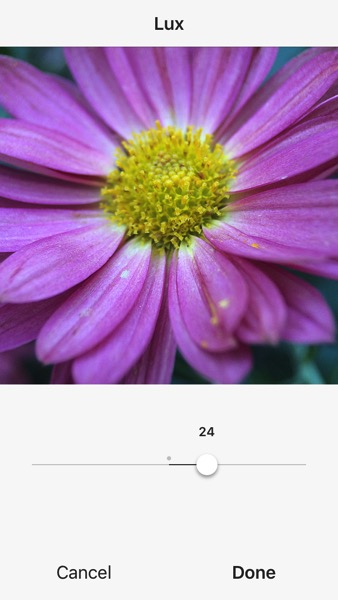
2. Turn up the Lux

This is the little light/dark option at the top of the screen when you are on the Filter or Edit pages in the Instagram app. Using this editing trick (try moving it to the right to 50 or even 100), you increase the intensity of your images. This makes the photo a little less washed out, which can help if you’re taking photos on a very bright day. In the image below, this is turned up slightly and adds more depth to the petals.

Lux

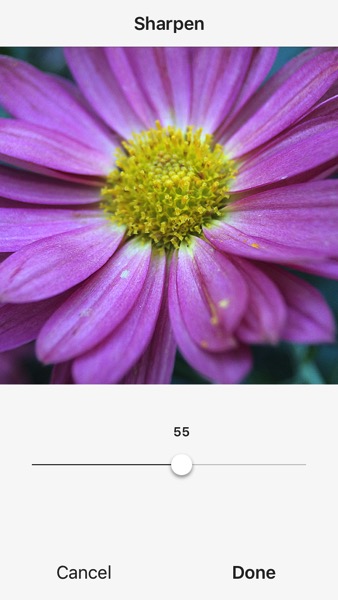
3. Sharpen your macro photos

Using Instagram’s own built-in sharpen edit, you can bring a bit more detail out of your macro photos. In the image below, this has been adjusted and brings out the detail in the center of the photo.

Sharpen

Conclusion – your turn

Do you have any tips for getting good macro shots with a mobile phone, or with other gear that doesn’t cost a lot of money? Leave your thoughts in the comments below, and feel free to share your own macro shots, too. I’d love to see your photos.

Ladybug

googletag.cmd.push(function() {
tablet_slots.push( googletag.defineSlot( “/1005424/_dPSv4_tab-all-article-bottom_(300×250)”, [300, 250], “pb-ad-78623” ).addService( googletag.pubads() ) ); } );

googletag.cmd.push(function() {
mobile_slots.push( googletag.defineSlot( “/1005424/_dPSv4_mob-all-article-bottom_(300×250)”, [300, 250], “pb-ad-78158” ).addService( googletag.pubads() ) ); } );

The post How to Get Stunning Macro Photos with Your Mobile Phone by Beth Ringsmuth Stolpman appeared first on Digital Photography School.


Digital Photography School

 
Comments Off on How to Get Stunning Macro Photos with Your Mobile Phone

Posted in Photography


World’s First All-Electric Mobile Office Built Into a Nissan Van

29 Oct

[ By SA Rogers in Technology & Vehicles & Mods. ]

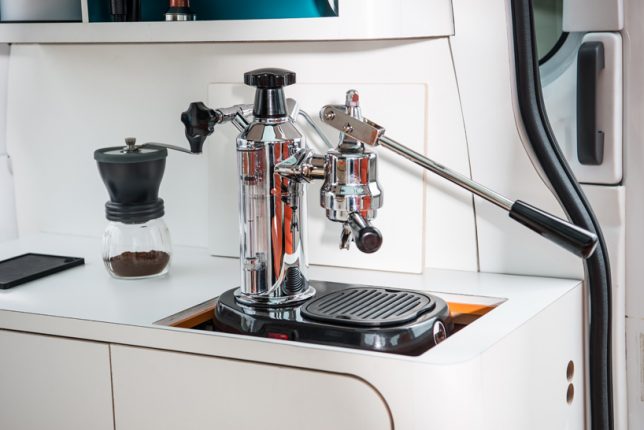
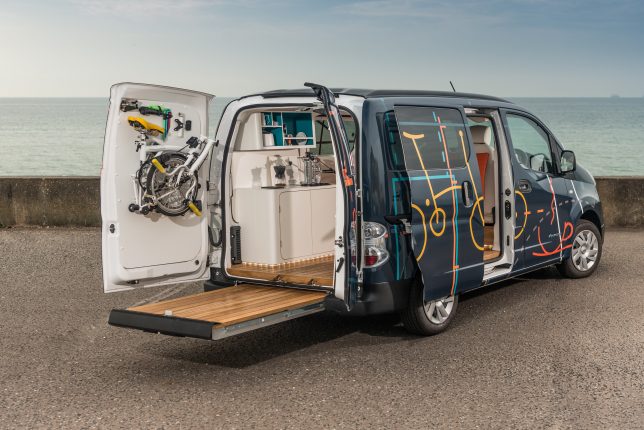
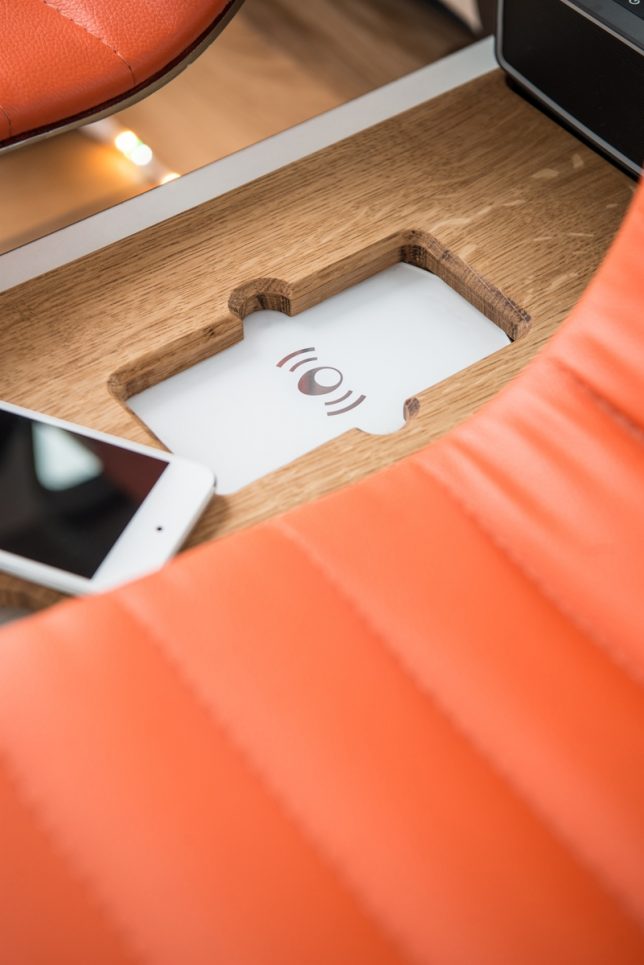
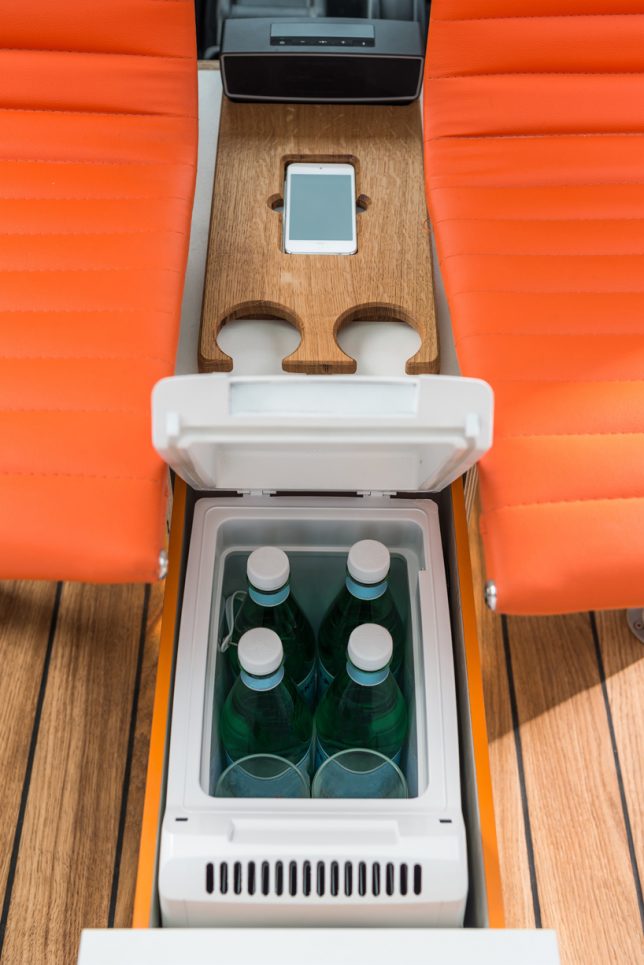
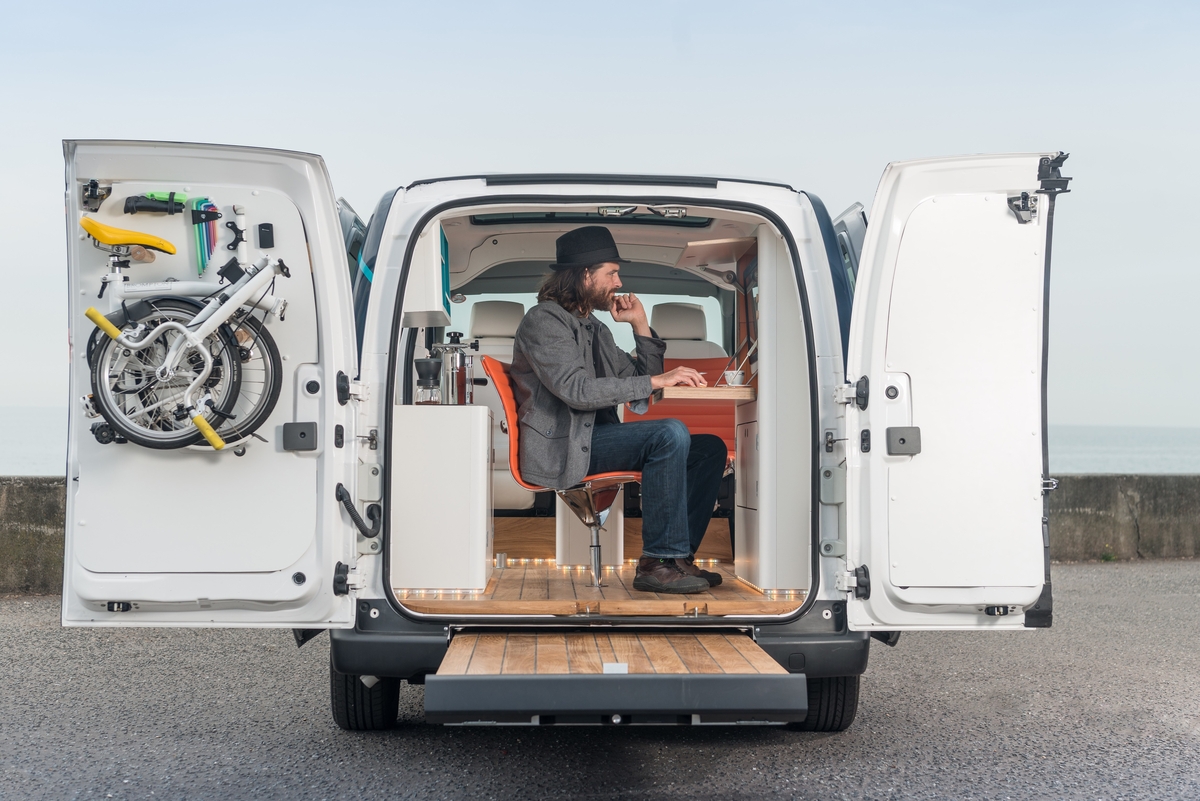
Who wants to sit in a stale, noisy central office when they could take their job – not to mention the coffee maker – on the go instead? This Nissan vehicle houses the world’s first all-electric mobile office, and it’s more than just a fold-down desk in the back of a van. The whole enviable setup includes a panoramic glass roof, wood flooring with built-in LED lights, an intelligent system that adjusts the lighting and color, wireless mobile charging and an espresso machine that pops up out of the counter.

Devised to show off what the e-nv200 van can do, the mobile office concept spotlights changing workspace trends, especially as flexible and remote working becomes more widespread. Lots of workers are no longer chained to permanent desks anymore, with the freedom to do their jobs from any number of places.

nissan-mobile-office-2

nissan-mobile-office-3

nissan-mobile-office-1

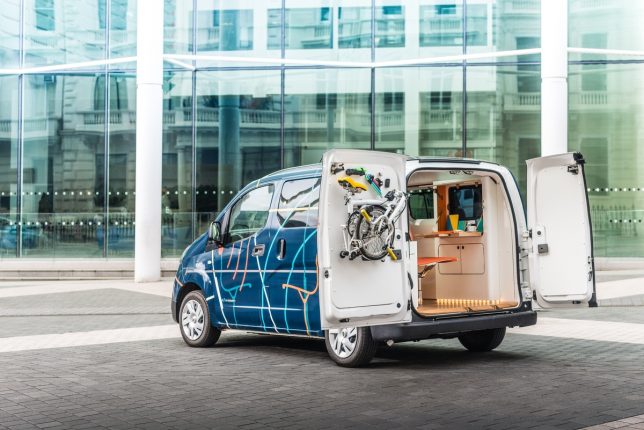
Both of the side sliding doors on the e-nv200 can be opened, along with the split rear doors, to open up the office to the worker’s chosen surroundings. Drive the van to the park, a beach or any other spot that inspires you and helps you focus, pull out the floating deck at the rear and enjoy working conditions most of us can only dream about.

nissan-mobile-office-4

The fold-down desk console features a built-in touch screen computer, wireless mouse and keyboard along with storage space and stationery supplies, and there’s even a mount inside one of the rear doors for a folding Brompton bike if you want to take a break and get some exercise. Watch the video to take in all of the details.

Share on Facebook


[ By SA Rogers in Technology & Vehicles & Mods. ]

[ WebUrbanist | Archives | Galleries | Privacy | TOS ]


WebUrbanist

 
Comments Off on World’s First All-Electric Mobile Office Built Into a Nissan Van

Posted in Creativity


Google Pixel XL added to mobile studio test scene comparison

26 Oct

Google’s Pixel and Pixel XL have garnered plenty of interest for their imaging capabilities since they were launched in the beginning of October. They each offer a 12.3MP camera with an F2.0 lens and a 1/2.3″ sensor – the same size used in yesteryear’s compact cameras – sporting 1.55µm sized pixels. The Pixel phones also utilize gyroscope-based stabilization for some seriously smooth video recording.

We got our hands on a Pixel XL review unit, and while we wait for the clouds to part outside for some real-world samples, we put it in front of our studio test scene. Take a look below at its JPEG and Raw performance in daylight and low light. It’s quite impressive: the lens is relatively sharp across the frame, and our low light Raw shots show that despite receiving 1.33 EV less light than the iPhone 7, the Pixel shows only slightly more noise, meaning it comfortably outperforms the iPhone camera in low light.*

$ (document).ready(function() { ImageComparisonWidget({“containerId”:”reviewImageComparisonWidget-20506681″,”widgetId”:423,”initialStateId”:null}) })

Related: Google’s Pixel phones: what you need to know

*Multi-frame noise reduction – used in low light by both the Pixel and iPhone 7 – may skew results in either direction for either camera, providing better performance for static subjects, or potentially blurry images for moving ones.

Articles: Digital Photography Review (dpreview.com)

 
Comments Off on Google Pixel XL added to mobile studio test scene comparison

Posted in Uncategorized


Google Pixel tops DxOMark’s Mobile rankings

05 Oct
Google Pixel’s HDR+ mode wows DxO in real-world use. Photo via DxOMark.

The Google Pixel smartphone has just been launched but DxO has already had a chance to put the new device’s camera through its paces – with impressive results. With a DxOMark score of 89 the Google Pixel features the best smartphone camera ever tested by the French company.

The DxO engineers found the new Google phone to perform well across all situations but were particularly impressed by the high levels of detail and relatively low noise levels across all light situations. Exposures were accurate, with very good contrast and white balance, as well as fast autofocus. The testers also liked the white balance performance and detail preservation when shooting with flash. Minor weaknesses included some inconsistency in repeated autofocus and artifacts in low-light shots. You can read the full report on DxOMark.com.

Articles: Digital Photography Review (dpreview.com)

 
Comments Off on Google Pixel tops DxOMark’s Mobile rankings

Posted in Uncategorized