RSS
 

Posts Tagged ‘Minutes’

NYC Skyway: From Brooklyn to Manhattan in 4 Minutes by Air

17 Sep

[ By WebUrbanist in Technology & Vehicles & Mods. ]

east river skyway tram

Building on the strategy of the Roosevelt Island Tramway (connecting to Manhattan over the East River), this proposal promises record commuting times, bypassing subways, streets and ferries to use the sky instead.

east river skyway above

The East River Skyway project aims to make the jump between Boroughs faster, cleaner, safer and cheaper, all while reducing the load on the subway system, already packed to more than capacity under the ground below.

east river skyway cars

The design proposal calls for an initial connection between Williamsburg and and Lower Manhattan, followed by extensions deeper into Brooklyn and, ultimately, links to Queens and Long Island City as well.

east river skyway diagram

skyway project high speeds

Beyond the ultra-fast transit time boasted by the system there are some non-financial considerations as well: tourists and locals alike can also take the tram (as they already do to and from Roosevelt Island) in part simply to get a better view of the city from above.

hovering skyway project design

east river skyway design

Its designers cite other major international cities deploying and contemplating similar initiatives, from Singapore to London, England and  Rio de Janeiro, Brazil.

Share on Facebook


[ By WebUrbanist in Technology & Vehicles & Mods. ]

[ WebUrbanist | Archives | Galleries | Privacy | TOS ]


WebUrbanist

 
Comments Off on NYC Skyway: From Brooklyn to Manhattan in 4 Minutes by Air

Posted in Creativity


Tips for Taking Great Portraits in 10 Minutes or Less

20 Aug

Portraits 10 minutes or less 01

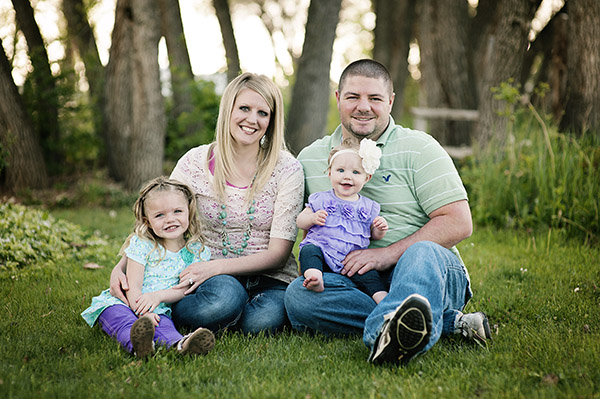
Yes, you read that right. 10 minutes tops (not counting editing time), and you could have a set of photos worthy to hang on the wall. Don’t get me wrong, I’m not telling you that every session should be that speedy, but sometimes that’s all the time you have.

Portraits 10 minutes or less 02

Maybe you’re dealing with some kids that aren’t too happy about being there, and 10 minutes is all they’re going to give you before the meltdown. Maybe you’ve got awful weather, and you’ve got 10 minutes before the tornado hits. Maybe you decide 10 minutes before the sun goes down that it’s the perfect day for some photos, and you must do them right then (or your model shows up an hour late and you’re losing light fast). Maybe you want photos of your favorite pet, and you know that you’ll be lucky to get 10 minutes of attention.

Maybe, like me, you like to do little mini-sessions sometimes, and you stack them in 10 minute increments. Maybe, just maybe, you like a challenge. So, here’s your challenge: see if you can follow these tips and get great portraits you’ll love in 10 minutes or less. Ready, set, go!

Portraits 10 minutes or less 03

Pick one location

For a portrait session in a time crunch, you must choose ONE location. Just one. Find a spot that has good light, a nice background, and stick with it. Moving around is great if you have lots of time, but our goal right now is speed and quality. Use a tried and tested spot, or scout out a good spot ahead of time. This would also be a good time to use a great indoor studio spot, but stick with just one backdrop.

Portraits 10 minutes or less 04

Make a plan

Go into your 10 minute session with a plan. For example: Let’s say you have a family who wants to hang a family photo collage on their wall. You know you’ll need a family photo, one of each kid, one of the kids together, and one of the parents together. You might want to give an option of portrait orientation (vertical), or landscape orientation (horizontal), especially for the family photo. So, take one of each of those. You may want to do one of family photo standing, and one seated. Maybe plan for one close-up and one full-body portrait of each kid. Whatever your scenario is, plan out ahead of time what you’re going to need, then stick to the plan. This isn’t the time to experiment.

Portraits 10 minutes or less 05

Put your subjects at ease quickly

Normally, you’d get to know your subjects a little bit, and put them at ease. You still need them to feel comfortable, so don’t skip this, just put it on fast-forward. The second you greet them, be happy, be enthusiastic, be fun! Every minute counts, so let them know right away that for this 10 minutes, your only focus is them. Let them feel your confidence in them, and in yourself. You don’t have time for awkward photos, so they have to be on board and comfortable right from the start. You could say something like, “Are you ready for the most painless photo session you’ve ever had? Let’s do this!”. It might get a laugh, and put them at ease right away. Who doesn’t want a painless photo session?

Portraits 10 minutes or less 06

Know your camera well

Finally, know your camera. When you’re in a time crunch, you don’t want to be fiddling with the settings, and panicking if things aren’t going how you expect. The more time you practice with your camera when you’re not under pressure, the better you’ll perform when it really counts. Know what settings you like, and when to use different apertures, shutter speeds, and ISO settings. If you are comfortable with these, you’ll be able to change them on the spot, in between photos, without wasting time.

If you aren’t comfortable with your camera yet, this would be a good time to use aperture priority, or even the auto setting. This isn’t the time to learn; this is the time to apply what you have already learned.

Portraits 10 minutes or less 07

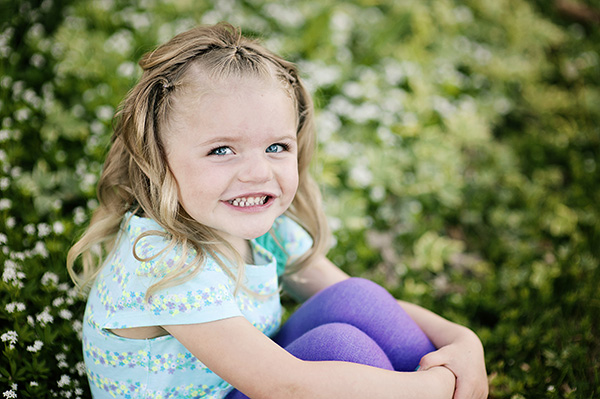
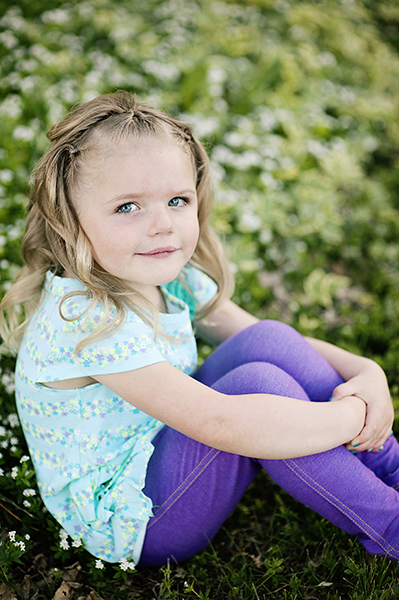
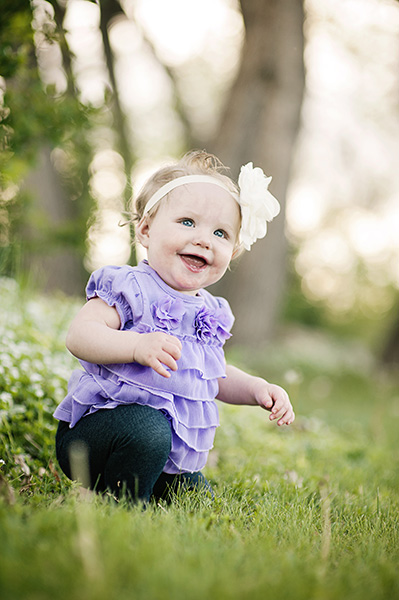
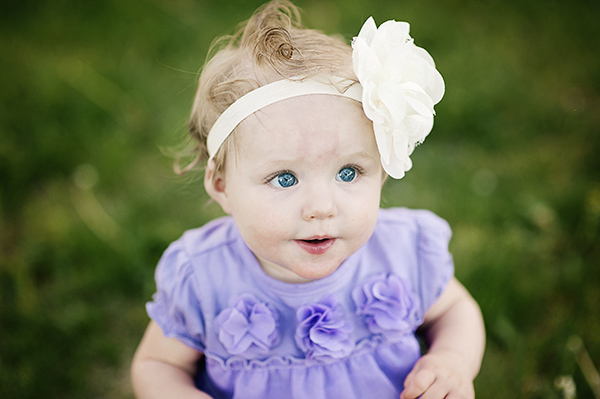
So, are you ready? I’m sure we’ve all got 10 minutes to spare. Give it a try, see if you can shoot at least eight portraits you love in 10 minutes or less using these tips. Let me know how it goes. The photos I shared here are an example of a real life less-than-10-minute session.

Portraits 10 minutes or less 08

The post Tips for Taking Great Portraits in 10 Minutes or Less by Melinda Smith appeared first on Digital Photography School.


Digital Photography School

 
Comments Off on Tips for Taking Great Portraits in 10 Minutes or Less

Posted in Photography


How to Improve Your Portrait Photography in Five Minutes

31 Jul

People often ask me for tips on taking better photos of their friends and family.

After much thought on photography tips that can apply to various experience levels and equipment — from DSLRs to smart phones — I present to you a short article with tips you can learn in five minutes to help you improve your portrait photography. If you have more time and would like more specifics, I’ve noted additional articles on each tip that may interest you.

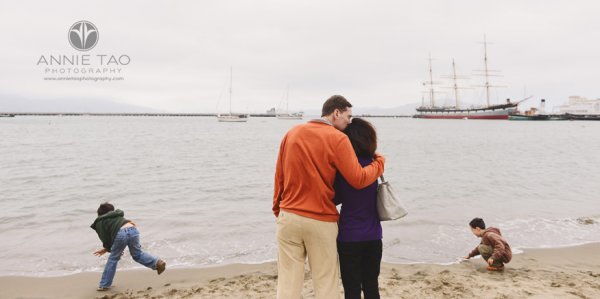
Annie-Tao-Photography-DPS-article-Improve-Portrait-Photography-perspective

Tips that will instantly improve your portraits:

1. Don’t put everyone in the center

That person may be the center of your life, but they don’t always need to be in the center of all the photos.

Aside from corporate headshots, positioning your subjects directly in the center of your frame for every image can be… yawn. And don’t just substitute it with the “rule of thirds” either. Think how boring everything would be if they were always in the same place, whether that is the center of every frame or at a third mark.

Be adventurous once in awhile – mix it up!

Annie-Tao-Photography-DPS-article-Improve-Portrait-Photography-dont-center

Annie-Tao-Photography-DPS-article-Improve-Portrait-Photography-dont-center-2

If you can’t break the rules because you have never heard of the Rule of Thirds, you can read this article.

2. Keep one eye on the background

If your subject is right in front of a lamppost or a tree, reposition yourself or your subject, so it doesn’t look like he is growing a lamppost out of his head.

Another example:  if your subject is wearing a green dress and sitting on the grass, have her move where the background is a different color, so she doesn’t look like a floating face in a sea of green.

Also, be mindful of distracting elements behind your subjects, like a garbage can. The background can turn a good photo into a bad one, so keep one eye on the background.

Annie-Tao-Photography-DPS-article-Improve-Portrait-Photography-background-2

If you want to read more about the impact of backgrounds, check out Improve Your Background, Improve Your Photography.

3. Capture the story, not just a smiling face

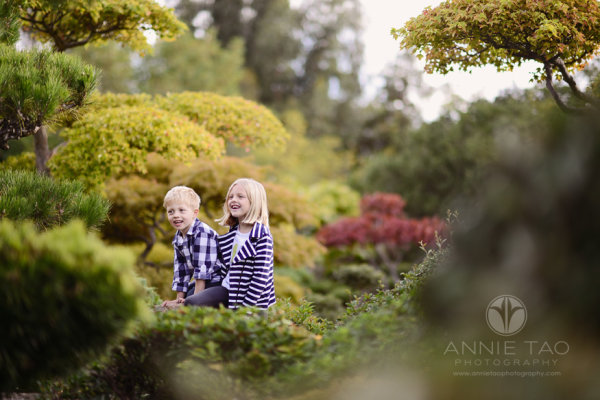
Of course we all prefer a photo of someone smiling, but we aren’t always in a constant state of joy. Consider taking shots when someone looks pensive or serious, for example, or engrossed in an activity.

Try to resist the “look at me and smile” routine. I guarantee that photo will tell more of a story than one where people stop what they are doing to flash a fake smile.

Annie-Tao-Photography-DPS-article-Improve-Portrait-Photography-not-smiling

Annie-Tao-Photography-DPS-article-Improve-Portrait-Photography-capture-story-2

Annie-Tao-Photography-DPS-article-Improve-Portrait-Photography-capture-story

For more tips on this, read: Don’t Wait For A Smile.

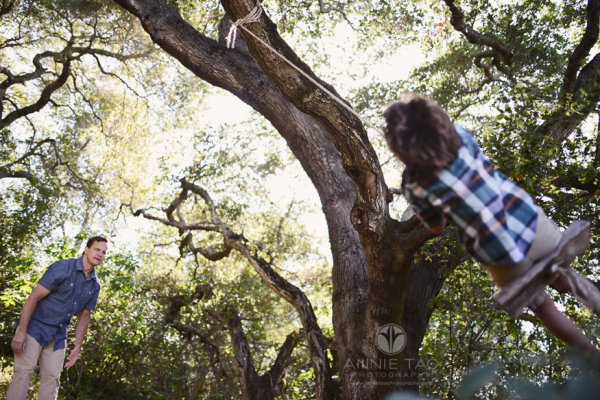
4. Change your perspective

Did you know you can create the tone or mood of an image by the angle of your camera and your closeness to your subject?

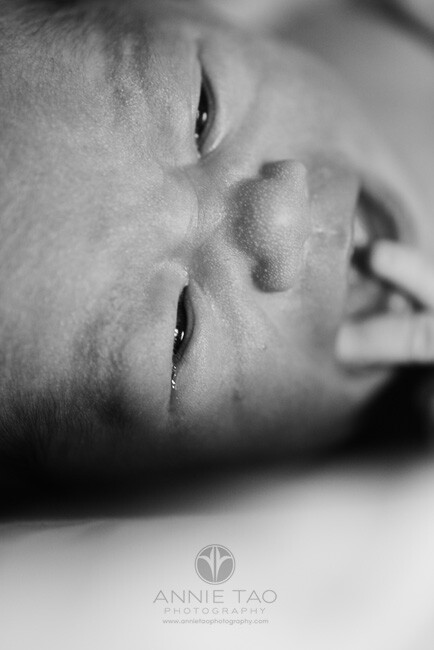
Your perspective when you take the photo influences the viewer’s perception of the image. Taking a shot from the top, looking down can paint a picture that someone is small. A tight shot of a teardrop can provide a sadder tone than a shot that was taken from a distance.

So next time, before you click the shutter button, think about what tone you want to give and what story you want to tell.

Annie-Tao-Photography-DPS-article-Improve-Portrait-Photography-perspective-4

Annie-Tao-Photography-DPS-article-Improve-Portrait-Photography-perspective-3

To see examples of different perspectives and when you would use them, you must read The Power of Perspective.

There are many things you can do to improve your portrait photography. I narrowed my list to four because these were the ones that came to mind first.

Do you have a good tip to share? Please comment below. We’d love to hear it.

The post How to Improve Your Portrait Photography in Five Minutes by Annie Tao appeared first on Digital Photography School.


Digital Photography School

 
Comments Off on How to Improve Your Portrait Photography in Five Minutes

Posted in Photography


Single Image Star Trails – a Powerful Technique to Create Star Trails in Minutes Using Phototoshop

11 Jun

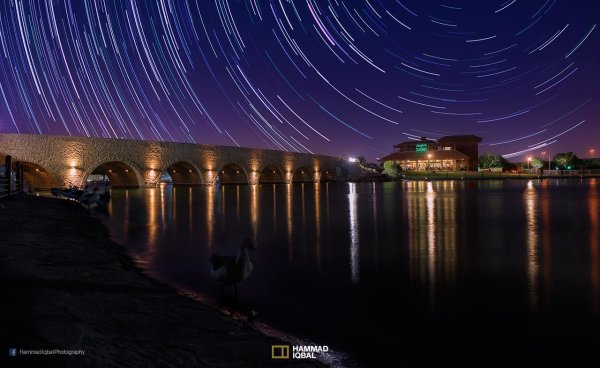
10258929_1466264890276738_7906982947618430010_o

If you are reading this, you must be among those who have a special place in their hearts for stars, galaxies and the wonders of the universe. With recent advancements in camera technology, many photographers have captured the beauty of the night sky in spectacular ways. The truth is that every photographer is fascinated by the glittering stars, and captivating night skies, that have the power to instantly teleport us to a world beyond our wildest imaginations. From a photographic perspective, star trails can add another dimension to an otherwise average shot and that is likely the primary reason for many photographers desire to learn how to capture star trails. If you are struggling to find out and learn about this rewarding effect, get your camera and computer ready. But before that, let me introduce you to star trails.

10373061_1472036406366253_4127720884282225109_oWhat are Star Trails?

Star trails is a photographic effect that gives an illusion of motion to the stars along a circular or an elliptical path. Technically, stars do not move when we observe them. They are quite stationary very much like our Sun. In reality, the circular motion of the stars we see in star trail images is a result of rotation of the Earth along its axis. For better understanding, please refer to the ‘equatorial grid’ figure under “Understanding Star Trails” section below.

How are Star Trails captured?

Traditionally, star trails are captured by taking multiple shots of the sky in succession over a period of many hours. Modern DSLR cameras also allow you to take a single exposure of an extended length of 30 minutes or more but many photographers prefer to take multiple shots at 30 seconds each and stack them together. Doing it this way eliminates any chances of shaky exposures that can occur due to wind or bumping into the setup while the shutter is open. If you are attempting to make almost a full circle star trails, then the number of shots required to create it can go in hundreds. Later, all those shots are stacked together in Photoshop or a free software such as StarStax to create a single image that shows the circular paths of the stars.

Photographers have been using this method for years with great results. But if you do not have the option to return to the same location again, then the conventional method would feel limited, as it requires you to stay in one spot for hours, thereby limiting your options to take multiple shots and capture a variety of angles on location in one night.

Understanding Star Trails

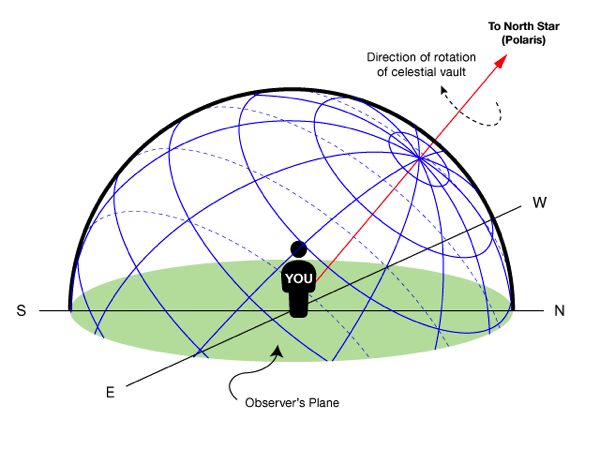
Equatorial grid

Equatorial grid from observer’s point of view

Imagine that ‘YOU’ are inside a giant sphere (see above diagram). Now, depending on the direction you look at, the effect of the star trails will be as follows:

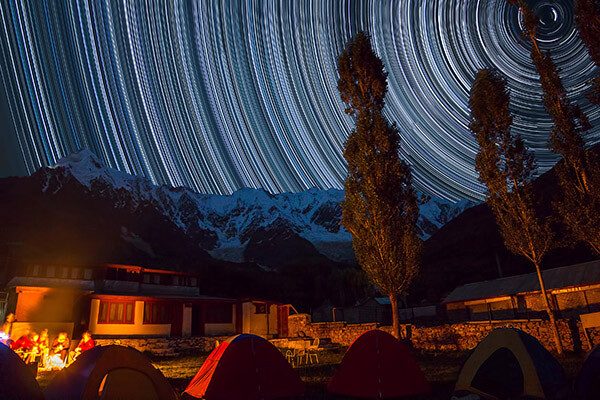
Facing North: Star trails effect will appear to be circular with some stretching of the circular lines at the far edges of the frame.

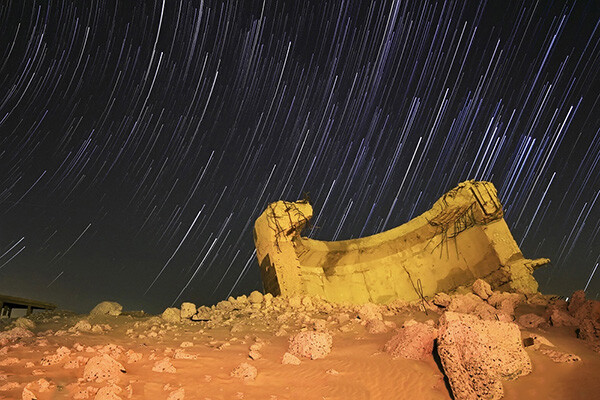
Facing East: The trails will appear to be straight in the middle moving diagonally in an upward direction from bottom center to top center. They will also appear to be converging at both top left and bottom right at the far sides of your frame. See image below:

East West Trails Umm ul Aish Kuwait

Umm-ul-Aish, Kuwait – image shows the upward motion of East star trails

Facing West: In this direction, the trails will appear to be the exact opposite of what you see when looking towards the South. Moving downwards and to the right from top to bottom in a diagonal line, they will also appear to be converging at both bottom left and top right at the far edges of your frame.

Facing South: If you are facing South head-on, the star trails will appear to be moving from left to right in an upward curve.

One-shot Star Trails – the Technique

I have been developing a new method to create star trails in Photoshop. Unlike the ‘Star Trails’ Photoshop action that you might already be familiar with, this technique is much more than that. It eliminates all limitations associated with the traditional method of capturing star trails. Unlike the conventional method, this technique only requires a single shot, that’s right, only ONE shot of the night sky to create realistic star trails. Since this technique is a result of a joint effort between me and my friend Mobeen Mazhar, who is a great landscape photographer from Pakistan, we have named it the “HM technique” or “HM star trails”.

When implemented correctly, this technique will open endless possibilities for you in your star trail adventures and is sure to spark new hope among photographers for all levels of expertise. Now, let’s take a look at different types of star trails and how you can use this new technique to create them in Photoshop with just one shot.

Creating North Star Trails

North Star Trails Nanga Parbat

Nanga Parbat-Trashing, Pakistan – North Star trails created with HM technique

This is the most common and simplest type of star trails. Traditionally, it can be achieved by pointing your camera towards North with the focus set to infinity and then taking consecutive long exposure shots (30 seconds) at high ISO settings. Since the North Star remains almost stationary, the final effect is circular with the stars seeming to revolve around a pivot point, which is the North Star. Then at the time of post-processing, all shots are stacked using Photoshop or StarStaX.

The downside to this approach is that it can take as many as 700 shots over a period of five to eight hours to get a full circle trail. Now watch the video below to learn to create North Star trails within minutes using just a single shot of the night sky.

Creating Meteor Shower Trails

Meteor shower AspirePark

Aspire Park, Doha – meteor shower trails created with HM technique

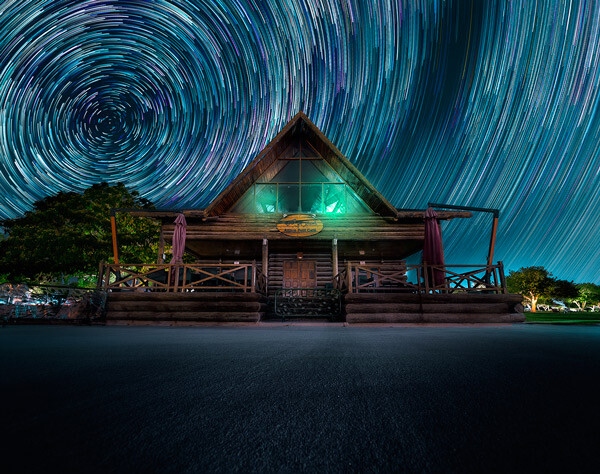
Meteor shower trails is by no means an official name. This is fundamentally a beautiful variation of the North Star trails. Instead of a long continuous streak of light, the trails seem to disappear at the origin which gives it depth and dimension. There is also another variation of the meteor shower trails in which the tip of the trail is thicker, brighter and looks like a blob or droplet.

The underlying technique of the meteor shower trails is the same as shooting the North Star trails. The only difference is in post-processing. The meteor or comet effect is achieved by using the ‘Comet mode’ in StarStaX as shown below.

‘Comet Mode’ feature in StarStax

But regardless, the traditional method still requires that you spend hours on a single spot to take hundreds of consecutive shots. Now watch the video below to see how you can create amazing meteor shower trails in minutes, and once again, all you need is a single shot of the night sky.

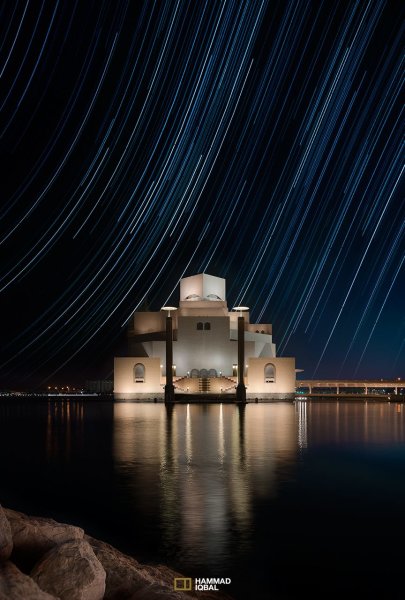
Creating Vortex Star Trails

Vortex Aspire Park Doha

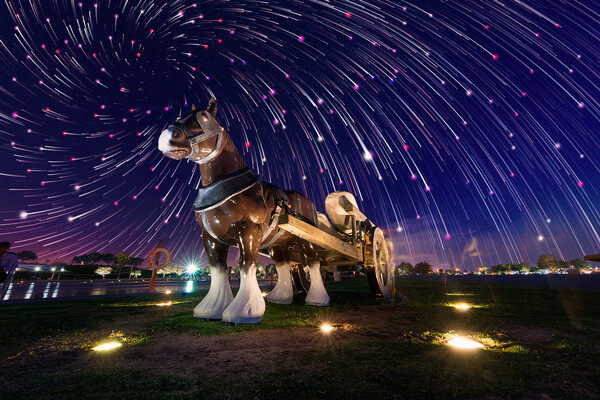
Aspire park, Doha – Vortex star trails created with HM technique

This is by far my favorite kind of star trails and is quite complex to achieve. Unlike the previous two types of trails, vortex star trails require special equipment which can be costly and may prevent most photographers from trying it. The vortex effect is achieved by zooming in or out on the lens during the long exposure. It may sound simple at first but the trick is to avoid vibrations as you zoom during the 30-second long exposure. Hence it makes it extremely difficult, if not impossible, to do it with bare hands without shaking the whole setup.

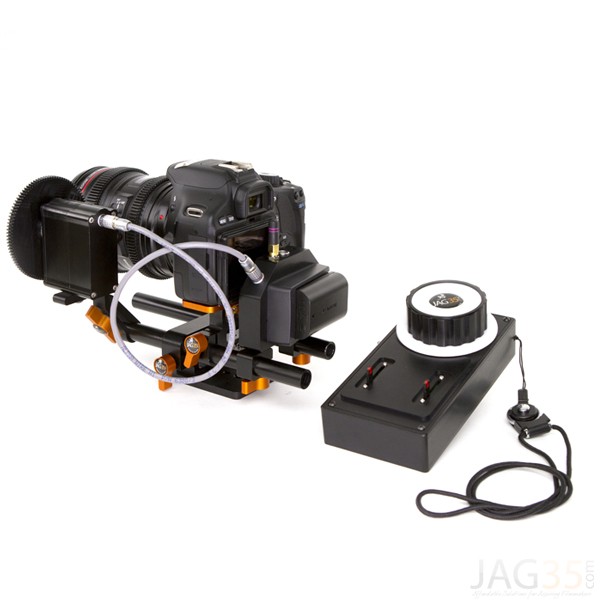
But if you have plenty of free cash to burn, you can get the tools which would include a geared ring that goes on the zoom ring of your lens, a motor and a wireless remote for controlling the motor. The setup is basically what DSLR filmmakers use for focus racking, that is a motorized follow focus system as shown below. The system is very useful if you shoot professional video with your DSLR but for photographers, the cost might not be justifiable.

Electronic follow focus

Wireless electronic follow focus kit v2 by Jag35

Do not worry because the following video will show you how to create vortex star trails in Photoshop. No cash required.

Conclusion

With the help of this powerful new technique, you will be able to maneuver on location, shift your focus towards making a variety of compositions, save countless hours, battery power and thousands of shutter actuations on your DSLR. Would you have thought that a single shot could give you such incredible flexibility in your star trail photography?

Tip: Just make a note of the direction your camera is facing to help you create star trails in relation to the reference direction.

I am sure that this tutorial will add a new skill to your photography arsenal. If you have any questions, post them in the comments below. Thank you.

Technique developed by Hammad Iqbal and Mobeen Mazhar

Mobeen Mazhar is a passionate traveler and has spent more than a decade exploring Pakistan and its natural beauty. Photography gives him a mode to express his love for nature and a medium to document his travel experiences. He is a landscape specialist, regular travelogue writer and travel expert for Pakistan. You can find his photographic work at Facebook, 500px and Flickr.

The post Single Image Star Trails – a Powerful Technique to Create Star Trails in Minutes Using Phototoshop by Hammad Iqbal appeared first on Digital Photography School.


Digital Photography School

 
Comments Off on Single Image Star Trails – a Powerful Technique to Create Star Trails in Minutes Using Phototoshop

Posted in Photography


Understand Exposure in Under 10 Minutes

13 Mar

DPS-Annie-Tao-Exposure-article-perfect-exposure-exampleThere are countless Photography books and classes that explain exposure, yet after reading or attending them, your photos may not have improved because…well, let’s be honest… some of us Right-Brainers aren’t super technical!

I recently taught a small photography class to newbies. I thought hard about how I could explain exposure in the simplest way possible. I found that a parallel example of something relatable was the best way to convey the different aspects that impact exposure.

I tested this theory by explaining exposure to my 8-year old daughter and then quizzed her. She proved the theory was a success by grasping the concepts within 10 minutes. So I’d like to share my lesson with you so you can understand exposure in under 10 minutes!

A 10-minute lesson that will change your Photography

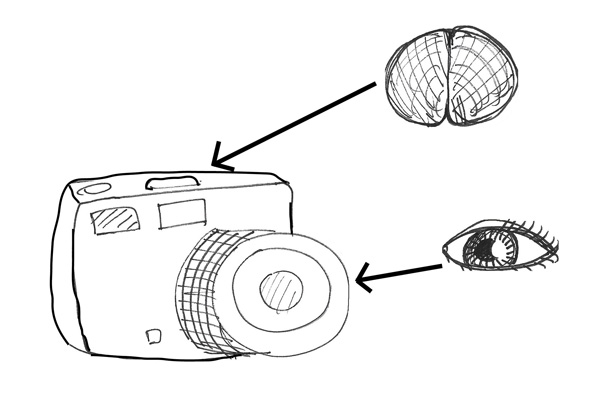
Your DSLR camera is like your head with the LENS being your vision and the camera BODY is your brain. Your vision sees things and your brain records the details.

DPS-Annie-Tao-Exposure-article-camera-metaphor

Just like when you look at something – let’s say, a flower – your eyes see it and send information to your brain that the flower has long petals and that it is yellow. If you looked at it too quickly or it was too dark, for example, the information your brain records is compromised.

The “exposure triangle” is about how 3 things — aperture, shutter speed and ISO — work together to provide enough light for your brain (the camera) to record what you see. You need the right combination of these 3 components to have perfect exposure.

DPS-Annie-Tao-Exposure-article-perfect-exposure-example

Good exposure

For example, if you don’t let in enough light, you won’t see things very well because it’ll be too dark (underexposure).

DPS-Annie-Tao-Exposure-article-underexposure-example

Too dark, or underexposed

If you let in too much light, then it’ll be too bright and you can’t see a lot of the details (overexposure).

DPS-Annie-Tao-Exposure-article-overexposure-example

Too bright, or underexposed

APERTURE = how WIDE you open your eyes

A small aperture (a large f-stop or f-number, like f/22) is like squinting. A large aperture (a small f-stop or f-number, like f/1.4) is like having “bug eyes”.

Quiz:  If you are shooting in low light, how wide do you open your eyes? Will you see well at night if you are squinting (small aperture)?

Quiz:  What happens on a super bright day if your eyes are wide open and they’re open for a long time (slow shutter and large aperture)? Can you see well then?

DPS-Annie-Tao-Exposure-article-fish-with-eyes-open-wide-and-squinting

Aperture is how big you open your eyes – bug eyes, or squinting

SHUTTER SPEED = how LONG you open your eyes

A fast shutter, like 1/1000th of a second, is blinking super fast. A slow shutter speed, like 2 seconds, is keeping your eyes open and then blinking. The thing to remember is:  your brain is recording everything when your eyes are open. So if you or something you’re looking at is moving, and your eyes are open a long time (slow shutter), then your brain will record a blurry image.

Quiz:  If you want a crisp shot of someone jumping, how long do you need your eyes open? What will freeze the shot:  a quick blink (fast shutter) or a slow one (slow shutter)?

DPS-Annie-Tao-Exposure-article-moonglasses

ISO special glasses

ISO = special glasses that help you see in the dark

ISO is like the opposite of sunglasses. Let’s call them MOONglasses!  ;)

The higher the ISO, the thicker your moonglasses, so the more you are able to see in low light. You need thick moonglasses (high ISO) when shooting indoors or at dusk. You need very thin moonglasses (low ISO) when it’s a sunny day.

Quiz:  do I need thick, thin or medium moonglasses if I’m shooting at the beach on my lunch break?

All 3 of these things work together

Here is an example:  You are photographing your sleeping cat who is snuggled on the couch. There is not much light coming through the windows or additional ambient light. To see well, you have medium-to-thick moonglasses on (such as ISO 600). You need to have your eyes open pretty wide (large aperture, such as f/1.4). However, you don’t have great vision (you have a kit lens that only goes up to f/4.5), so you need more light to see. Thus, you leave your eyes open longer (slow shutter speed, such as 1/30th sec).

Final Quiz:

  1. In the same scenario, your cat notices you are snapping photos, so she starts walking away and leaps off the couch. You still want to photograph her. Which would you change:  how open your eyes are (aperture), how long you leave your eyes open (shutter speed), or thickness of your moonglasses (ISO)?
  2. If you increase your shutter speed because you want to freeze the image, what else would you need to change? (If you changed nothing else, the image would be too dark because you let in less light.)

Once you get the basic concept of exposure and how the three components of the exposure triangle (aperture, shutter speed and ISO) work together, turn your DSLR camera to “manual” and practice the specific settings based on different circumstances.

Want more on exposure?  Try these:

  • Your First DSLR – now what?!
  • Getting off Auto – Manual, Aperture and Shutter Priority modes explained
  • Introducing the Creative Triangle
  • Using Manual Mode: Exposure Lesson #4
  • Photo Nuts and Bolts – a dPS ebook

The post Understand Exposure in Under 10 Minutes by Annie Tao appeared first on Digital Photography School.


Digital Photography School

 
Comments Off on Understand Exposure in Under 10 Minutes

Posted in Photography


3 Minutes with Portrait Photographer Alex Huff

02 Feb

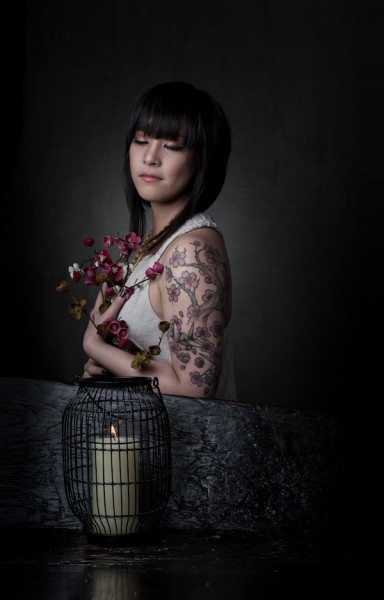
The beauty of portrait photography is that it is as diverse as its subjects and often takes its cues from traditional paintings. One photographer who has found such inspiration is Alex Huff who is today’s guest on “3 Minutes with…” .

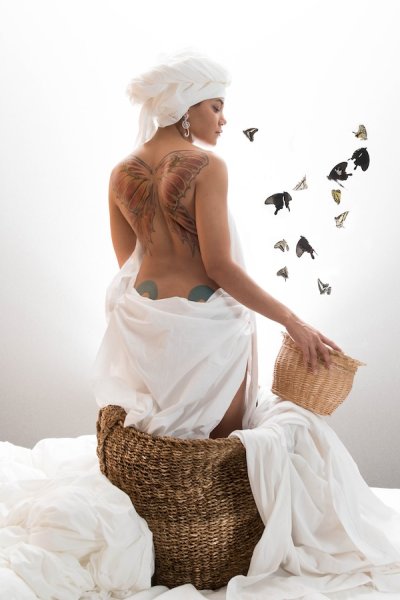
Butterfly Tattoo

Describe your photography in 100 words or less

My photography style strives to depict simple beauty with some influence from Dutch Golden Age paintings. The purpose of this particular collection is to showcase individual tattoos in the same frame as the objects and subjects they are designed after. This has allowed my models to revisit symbols that influenced them to get their ink in the first place. My goal is to photograph tattoos in a way that is true to their natural colors and gives them the same life and depth as the items they represent. I describe this process as my “tattoography”.

What gear/software do you use?

I use the Nikon D800 DSLR, 24-70mm f/2.8 & 85mm f/1.4 lenses, Elinchrom D-Lite monoheads, and SB-910 flashguns. My favorite modifiers are the Elinchrom 39″ Deep OctaBox, the Photoflex Extra Small OctoDome with eggcrate, and the Westcott 7′ parabolic umbrella. I edit almost entirely in Adobe Lightroom.

AlexHuff_Tattoography-6

What’s one quick tip that you’d give people interested portraiture photography?

My quick tip to portrait photographers would be to constantly reassure your model, especially while “chimping” or checking your monitor. As an occasional model myself, I understand how discouraging it is to witness a quiet, grimacing photographer behind the lens. Keep it lively, even if you are panicking inside. I also highly recommend letting models see their images halfway through a shoot and don’t be afraid to take their suggestions.

CherryBlossomMea

What three photography sites or photo blogs do you recommend?

Strobist – this blog always reminds me that lighting is creative and doesn’t have to be complicated.
Juxtapoz – they tend to feature a lot of tattoo photography which helps me keep up with how other people approach that subject.
The Unprofessional Photographer – This is my unconventional go-to. Sometimes you just gotta laugh. (Editor’s note: warning may contain crude or x-rated content, visit at your own risk!)

To view more of Alex Huff’s photography visit her web site: alexandriahuff.com

The post 3 Minutes with Portrait Photographer Alex Huff by Jim Goldstein appeared first on Digital Photography School.


Digital Photography School

 
Comments Off on 3 Minutes with Portrait Photographer Alex Huff

Posted in Photography


Five Minutes to Realistic HDR using Lightroom and a 32-Bit Plugin

19 Dec

Easy Peazy HDR in Adobe Lightroom to make realistic HDR images!

HDR photography used to be time consuming, difficult to learn, and required expensive software. Recent new technology now allows anybody, even beginners, to make perfect HDR in less than 5 minutes – while eating a bowl of ice cream. It’s that easy!
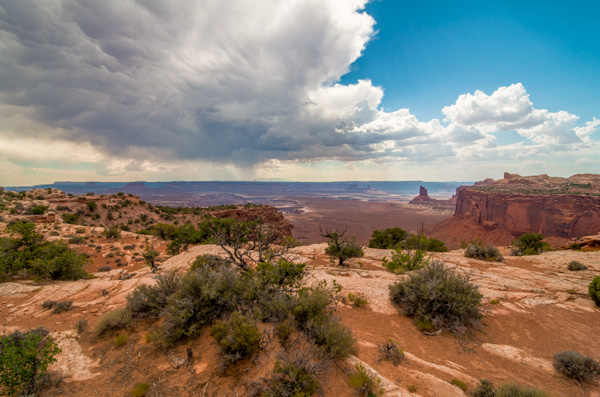
Cuddeback_DSC5809_10_1132-bit-HDR-2

Using Adobe Lightroom for HDR

Just wait until you see how awesome this is!

The Perfect HDR Workflow takes place completely within Adobe Lightroom 4 or 5, a very robust, yet inexpensive, state of the art software. There is also an inexpensive plugin you will need. It’s made exclusively for Lightroom by the smart Photomatix people and is the secret sauce which makes this workflow possible and so elegant. It’s called “Merge to 32-bit HDR plugin” and is available for $ 29. They also have a trial version available so you can test it out first. These are the same people who make the world’s leading HDR tone mapping software, Photomatix Pro. So, take comfort, there’s no smoke & mirrors in this HDR workflow and you’ll be working with the best software available today. At the same time, your photography will now blow away 95% of the HDR images which are still being made using the old, harder to learn, HDR tone mapping process.

Notice, you don’t need to own Photoshop or endure the pain & suffering of learning how to use Photoshop to do this method! This, in itself, is huge and a welcome departure from the way HDR photography is typically done.

Advantages of 32-bit HDR Processing

The process I’m going to show you is technically called 32-bit HDR processing. The Perfect HDR Workflow is just my name for the particular workflow I designed with the beginning photographer in mind. My criteria was that total cost be under $ 150 US, which immediately rules out Photoshop in the workflow. Another requirement was that it be so easy that even a beginner can learn to make extraordinary HDR photos in minutes.

The advantages of the 32-bit process are:

  • It’s fast
  • It’s inexpensive
  • It yields realistic looking images
  • It’s very easy to learn

HDR doesn’t have to be complicated anymore. In fact, the Perfect HDR Workflow obliterates the complex technical barriers of making outstanding HDR which used to exist. Now, anybody with a digital camera and the desire can play a much bigger game when it comes to HDR photography, can do this!

Are you ready to see how it’s done?

Five Minutes to Perfect HDR

Here we go. Start with the three bracketed RAW images right out of the camera (you can download these for free if you want to follow along):
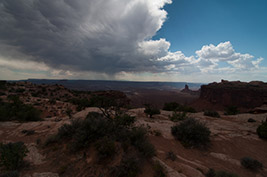
Easy realistic HDR in Lightroom

-2 shot at: ISO 200, F8, 1/1500

Easy realistic HDR in Lightroom

0 exposure shot at: ISO 200, F8, 1/350

Easy realistic HDR in Lightroom

+2 exposure shot at: ISO 200, F8, 1/90

In less than 5 minutes you’ll end up with an HDR photo looking like this:

Cuddeback_DSC5809_10_1132-bit-HDR-2

Start your stopwatch:

The first thing you want to do is create the 32-bit image. With the three RAW files selected in Lightroom, right click and in the dialog box which appears, select “Export>Merge to 32-bit HDR” as shown below.
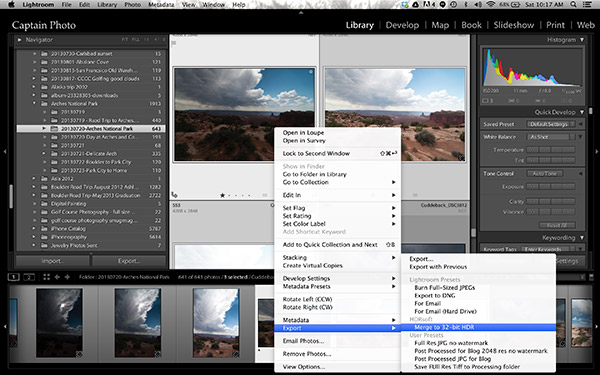
Screen Shot 2013 11 23 at 10 17 57 AM

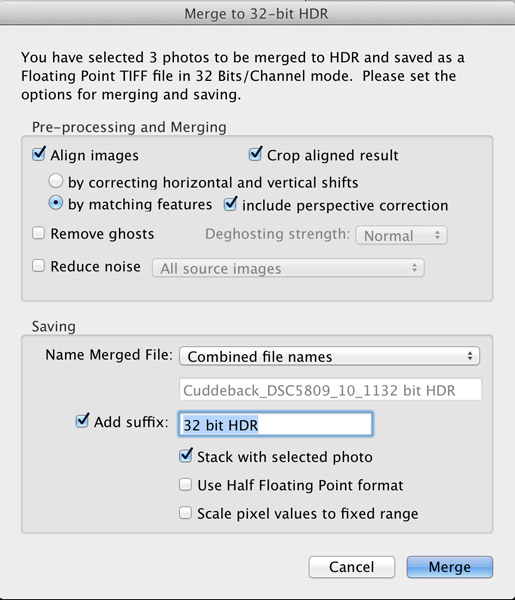
A new dialog box opens up where you choose your options for merging the RAW files (see image below). Always choose to “Align Images” and then one of the alignment options. If your three photos were taken handheld, select the alignment option “by matching features”. When you shoot on a tripod, you would chose the other option, “by correcting horizontal and vertical shifts”.

If there are moving objects in your scene such as: cars, people, clouds, trees, or anything else – select “Remove ghosts” and the software will usually do a great job of producing a non-blurry merged image, with no ghosts. For this landscape photo, nothing was moving so this option was not selected.

Noise reduction is usually necessary in HDR photography, however, I recommend not using the “Reduce noise” option which the plugin offers up. Instead, you are better off using the noise reduction built into Lightroom. So, leave that unchecked, as well.

Moving down to where you choose how the resulting 32-bit file is saved. I recommend simply combining the file names and adding a suffix like “32-bit HDR” so that, at a glance, you know that is the 32-bit file you want to work with in Lightroom.

The final dialog box selection you want to make is; “Stack with selected photo.” It’s so easy and elegant how this plugin makes your HDR workflow when this is selected. After the 32-bit file is created, the plugin automatically imports it right back into Lightroom and places it neatly next to the original RAW files. This keeps my OCD mind happy. Leave the final two options unselected then click the “Merge” button.

Here’s what the dialog box should look like
Screen Shot 2013 11 23 at 10 18 08 AM

In a few seconds, your newly created 32-bit file appears in Lightroom and looks something like this:
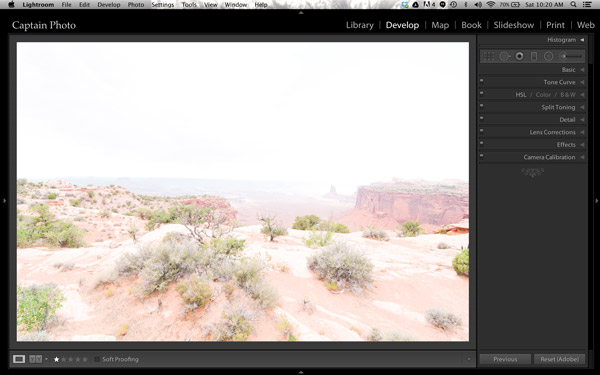
Screen Shot 2013 11 23 at 10 20 14 AM

Okay, well that’s not too pretty! That’s because this is a 32-bit file which your computer monitor can’t correctly display. But Lightroom 4 or 5 can process it, so let’s do that.

We’ll be working mostly in the Basic panel of the Develop module in Lightroom. The first step is to simply click the “Auto” button which gives you Lightroom’s best guess at the right setting for the image:
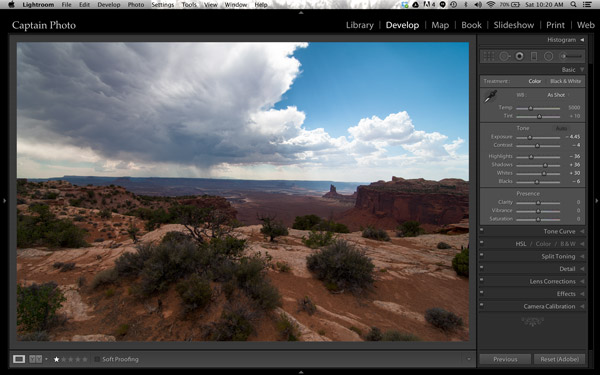
Screen Shot 2013 11 23 at 10 20 25 AM

It’s already looking much better. But let’s take it a step further!

Adding Your Artistic Touch

Now it’s time to add your personal artistic mark on your photo! At this point, you take over the processing manually to create an HDR image that is most pleasing to you. There are no right or wrong settings. However, my 5 minute process to Perfect HDR does follow some general guidelines so let me show you how this image evolved for me.

Working in the Basic panel, you first will reduce the “Highlights” (slide it left) and increase the “Shadows” (push it to the right) sliders until the image looks best to you. Then you might adjust the “Clarity” to a slight positive value, which adds local contrast between pixels. It makes the HDR photo “pop.” Please be careful not to push clarity too far right. My advice is to keep it below 30, for now anyway. Now let’s jump out of the Basic panel.

For just a couple of quick automatic adjustments, open up the “Lens Correction” panel. I recommend that you always check the box to “Remove chromatic aberration.” Also, you may want to straighten your horizon and/or vertical lines using the “Upright” adjustment tool. Here is what the “Lens correction” panel looks like when you make these simple adjustments:
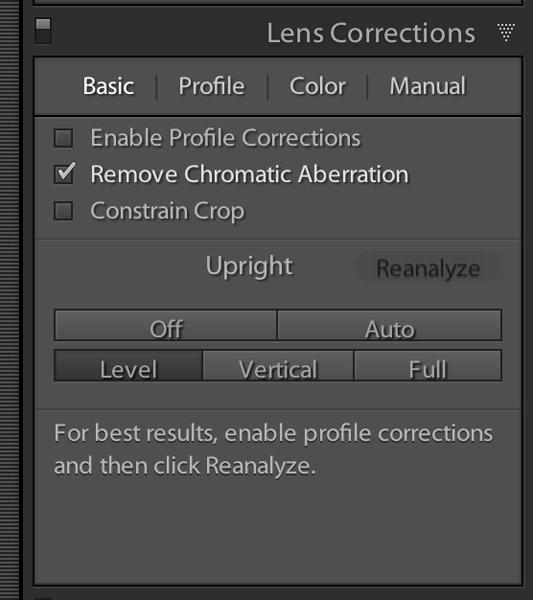
Screen Shot 2013 11 23 at 10 24 24 AM

Now, go back to the Basic panel to finish. Set the white and black points as shown in the video below. The other sliders in the Basic panel can then be fine tuned to your taste and that’s it! Woooo Hooooo, done in less than 5 minutes! You’ve just made your first Perfect HDR photo! Send it to Mom and your friends and be ready to receive their adoration!

Watch The Full Perfect HDR Workflow Video

In the video below, I show the complete processing of this image including how to set the white and black points correctly. It’s easier to show some of the steps in a video, rather than try to describe it all in written form.

Try the Perfect HDR Workflow

If you want to give the Perfect HDR Workflow a try yourself right now, you can download my RAW files of this image for free. Get the free trial download of the merge to 32-bit plugin from the Photomatix website. The plugin you want is the last item on the page. Install the plugin with your copy of Lightroom 4 or 5. Then follow along to get the hang of the Perfect HDR Workflow and find out for yourself how easy this really is! If questions come up, I hang out on Google+ every day and you are welcome to circle & chat with me there or on my blog.

Become an HDR Wizard

Next time, in Easy Peazy HDR in Lightroom Part II, we’ll take this image further using the other panels of the Develop module in Lightroom. I think you’ll be amazed at the power and control you have using Lightroom to process your HDR photos. It’ll be like you’ve evolved into this unstoppable HDR Wizard!

The post Five Minutes to Realistic HDR using Lightroom and a 32-Bit Plugin by Keith Cuddeback appeared first on Digital Photography School.


Digital Photography School

 
Comments Off on Five Minutes to Realistic HDR using Lightroom and a 32-Bit Plugin

Posted in Photography


Animated History of Western Architecture in Just 15 Minutes

25 Jul

[ By WebUrbanist in Art & Photography & Video. ]

design in a nutshell

These six super-short videos are an architectural tour de force for visual learners bent on absorbing as much as possible in as little time as needed. Narrated by actor Ewan McGregor, the Design in a Nutshell series (all playable below) presents whole history of Western architecture (and related design fields). This historical tour is highly engaging, thanks to lovely animations and engaged narration complete with famous examples and dynamic illustrations.

design architectural history series

Diagrams and dramatic descriptions will carry you through from Gothic Revival to Arts & Crafts and Bauhaus, then onto Modernism and Postmodernism. For the design-inclined, these educational mini-films should be enough to whet your appetite, leaving you to want more on each of these movements. But meanwhile, since you may be in a hurry, let us forgo further description and get started below:

Created by The Open University, a distance-learning institution based in the United Kingdom, these are by no means exhaustive, but they are a great introduction to thinking about architecture. Visually, they can begin to help you when it recognizing and understanding time-specific and universal themes, and start to connect what you see in cities around you to design theories and historical contexst. Or, if you already know the basics, simple share these with friends you want to get excited about built environments instead!

Share on Facebook


[ By WebUrbanist in Art & Photography & Video. ]

[ WebUrbanist | Archives | Galleries | Privacy | TOS ]


WebUrbanist

 
Comments Off on Animated History of Western Architecture in Just 15 Minutes

Posted in Creativity


3 Minutes with Photographer John Paul Caponigro

24 Apr

Inspiration comes in many forms and fine art photographers can be a great source of inspiration. While fine art photography can often make a new photographer scratch there head wondering what the big deal is, if you take the time to look at the photographers body of work or better  yet read articles written by the photographer the work can take on much more meaning. One photographer who is an excellent source of inspiration via his visual work and numerous articles is John Paul Caponigro, an Environmental Fine Art Landscape Photographer, who is today’s guest on “3 Minutes with…”

1. Describe your photography in 100 words or less.
My life’s work is both a call to connection with nature and a call for conscientious creative interaction in our environment during a time of rapid change. My artist’s statements will tell you much more.

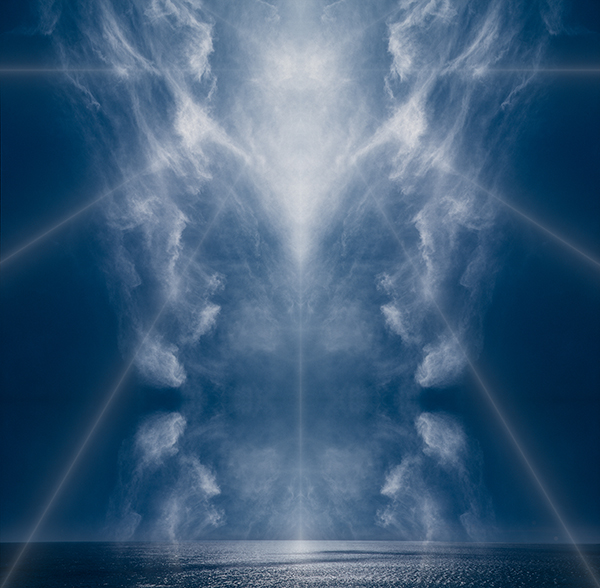
ExhalationIV_2006_5_1

2. What gear/software do you use?
Canon 1DS MKIII and 5DMK II and iPhone 4. Lightroom 4 and Photoshop CS6. But that will change soon, won’t it? I list all the equipment I use on my website.

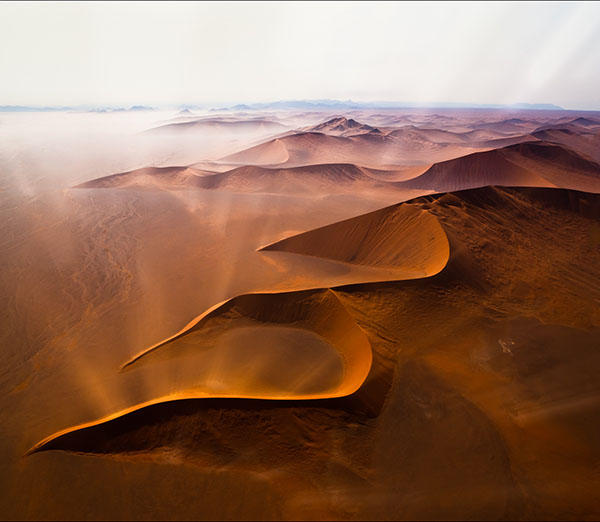
20100924_AFRNamibiaSossusvlei_0479-Edit_1

3. What’s one quick tip that you’d give people interested photography?
It’s not about tools and techniques, it’s about vision. Uncover the unique contribution you have to make and pursue developing it as well as you possibly can. It helps to make a personal plan for your creative life. I’ve written a number of articles on this that are available online.

refraction_LXXIV_5_1

4. What 3 Photography Sites or Photo blogs do you recommend?
Julianne Kost’s Adobe TV episodes (How To)
Luminous-Landscape.com (Tech)
Pixelatedimage.com (Soul)
TED.com (Inspiration) [bonus]

To view more of John Paul’s photography visit his web site: johnpaulcaponigro.com

Post originally from: Digital Photography Tips.

Check out our more Photography Tips at Photography Tips for Beginners, Portrait Photography Tips and Wedding Photography Tips.

3 Minutes with Photographer John Paul Caponigro


Digital Photography School

 
Comments Off on 3 Minutes with Photographer John Paul Caponigro

Posted in Photography


How To End Exposure Problems and Master Metering Modes in 5 Minutes

27 Mar

You pull out an impressive piece of equipment. Her eyes widen. Did she lick her lips? The pressure’s on now. Yes, she definitely licked her lips. When you declare with total confidence, to a beautiful woman, that you’re a  photographer, there are potential benefits and downsides. Suddenly she wants you to take photos of her in the night sky, with Continue Reading

The post How To End Exposure Problems and Master Metering Modes in 5 Minutes appeared first on Photodoto.


Photodoto

 
Comments Off on How To End Exposure Problems and Master Metering Modes in 5 Minutes

Posted in Photography