RSS
 

Posts Tagged ‘Luminar’

How to Create a Grunge Look with Luminar 2018

16 Jan

Grunge. It’s a great look for gritty, edgy, photos, and you couldn’t have it simpler than doing it in Luminar 2018. In this article, you’ll see how to examine Presets and use elements from those Presets to create your own custom Grunge look. Presets are fantastic, but the best way to improve your processing is through your own creative process. So let’s get started.

Grunge look.

Find the right image for a grunge look

Open the photo you want to process. I have a winter woods scene here. It’s already moody, and you’ll find that using a photo that will benefit from a grunge look is a good place to start. No point starting with happy sunny day shots as it really doesn’t fit the style.

How to Create a Grunge Look with Luminar 2018

Presets

As Luminar has a huge number of Presets, you should begin there. If you don’t see the Presets at the bottom, click the Presets panel icon, it’s the third one in from the right on the top toolbar. From the Categories, choose Dramatic. Two of these look appealing for a grunge look; Dramatic Grungy and Dramatic Look.

Dramatic Grungy opens a custom Workspace with three filters: Dramatic, Clarity and Structure.

How to Create a Grunge Look with Luminar 2018

You’ll notice that Dramatic Look also uses three Filters. Dramatic is there, but the others are Raw Develop and Vignette.

How to Create a Grunge Look with Luminar 2018

The Dramatic Filter is common to both presets, and there are other filters that are in one and not the other, so perhaps a good start is to combine the five filters from both presets into your own custom workspace.

Custom Workspace

You can reset the image by going to Filters panel, clicking on “Custom Workspace” and choosing “Clear Workspace”. This gives you a fresh start to create your own grunge workspace.

How to Create a Grunge Look with Luminar 2018

Click Add Filters. You can find some of the filters immediately. Raw Develop, Structure and Vignette are in the Essentials section, Clarity is in Issue Fixers and Dramatic is in Creative. If you don’t see a filter immediately, just type a few letters in the Search box at the top of Filters Catalog to restrict the view to match.

You’ve probably noticed that there’s a Clarity slider in Raw Develop, so you could choose to leave out the Clarity filter. But you might want even more Clarity and this allows you to double up the effect, and mask it to only apply to certain parts of the image.

Finally, add one more filter to this set; Cross Processing. This will allow you to color tone the final look.

Raw Develop

The Raw Develop filter is where you use Luminar’s processing to bring out the most from your Raw file. This Raw file (as per most) is a bit flat to start, so needs some tweaking. Reducing Highlights and increasing Shadows will open up the photo a bit more, while decreasing Blacks and increasing Whites will add to the contrast of your photo. At some point, you may want to decrease the saturation of the photo, but for now, use Raw Develop to get the most out of your photo.

How to Create a Grunge Look with Luminar 2018

The Photo is still a little cool toned so a bump in Temperature to 6000k will fix that and sit better with the tones in the photo.

How to Create a Grunge Look with Luminar 2018

You can leave Clarity at zero here and come back later if you want to add more.

Structure

What makes a photo grungy? Think of the things and feelings grunge evokes; dark, moody, edgy, and gritty. The Structure filter can definitely do the Edgy bit. Your Amount slider can go from really soft at -100, to really nasty at +100. 60 seems to look good for this photo.

Softness changes your internal contrast in the photo. A setting of 30 keeps the skin from getting too blown out. Of course, if you want more of the effect in the background you could erase the effect a little on the subject using the masking tools.

The final slider is Boost, which does indeed boost the effect. 60 looks great here. We’re already well on the way to making a grungy photo.

How to Create a Grunge Look with Luminar 2018

Vignette

Vignette darkens or lightens the corners of the photo via the Amount slider. To draw attention to the center of your photo, you should darken the edges. Your first step should do is click Place Center, then click on your subject. That will target the area for the middle of the vignette to keep lighter.

How to Create a Grunge Look with Luminar 2018

To see your Vignette edge easier, set the Feather to 0, with Amount turned way down.

How to Create a Grunge Look with Luminar 2018

Using Size and Place Center, get the best position and radius for your vignette. Use Roundness to get the best shape; to the left, it’s more rectangular, to the right it’s rounder.

Don’t worry if it looks too obvious, this is just for getting the placement and size right as it’s easier to see this way.

How to Create a Grunge Look with Luminar 2018

Finally, set the Feather to soften the edge of the vignette, and set Amount to the final darkness you want.

How to Create a Grunge Look with Luminar 2018

Edge vignette applied.

Clarity

Contrast darkens shadows and lightens highlights. Clarity tends to work away from these areas and work more in the mid tones. It’s a grit filter, so add your grit here. 100 is way too much, and 40 looks better here.

How to Create a Grunge Look with Luminar 2018

Dramatic

You’ve already gotten quite a bit of drama to the image, so only a hint of this contrast-based filter is needed. The Dramatic Filter is one to play with for this.

If you want to retain color, set Saturation up to full. Adding Contrast and Local Contrast will increase both the darker and lighter aspects of the photo, so Brightness is there to compensate for whichever is stronger. In this photo, you’ll find reducing it is necessary.

How to Create a Grunge Look with Luminar 2018

Cross Processing

How to Create a Grunge Look with Luminar 2018

While this was originally a way of changing colors by processing film in the wrong chemicals, Cross Processing is now more associated with color toning a photo. Luminar uses city names to define their various toning options.

You should try each one with the Amount slider up high to find one you like. After looking at all the cities, I came back to Tokyo, which I’d found pleasing immediately. Then you can dial the effect back using the Amount slider until you find the look you want.

How to Create a Grunge Look with Luminar 2018

Reprocess

The image is now suitably dark and gritty, but probably a little too dark. A quick trip back to Raw Develop to bump the Exposure slider will fix this.

How to Create a Grunge Look with Luminar 2018

Saving Presets or Workspaces

Now is the time to save what you’ve set up. If you like your work, you should consider creating either a Preset to repeat the exact look you have here or set up a Workspace to have all the filters open for you to begin working from scratch (or both).

To save your Preset, click Save Filters Preset at the very bottom right corner of the screen. A dialog appears allowing you to name and create your new preset. This will allow you to apply all the same filters and settings to any image with one click. Of course, you can always adjust any of them to suit the image or dial it back using the amount slider on the preset.

How to Create a Grunge Look with Luminar 2018

To save your new Workspace, go to the top of Filters, then click on Custom Workspace. From the drop-down menu and choose “Save as New Workspace”.

How to Create a Grunge Look with Luminar 2018

Name the Workspace and create it.

How to Create a Grunge Look with Luminar 2018

The new Workspace will now appear in the Workspaces list and will be selected (check mark next to it). Now it is available for you to use with any image. Clicking it will open those same five filters but not apply any of the settings.

Other options

Here is the before and after to show the full grunge effect.

Before.

Grunge look.

With the look solidified, you could potentially add a texture to add even more grit to your photo. So, check out how to do this in our article How to Apply Creativity to Your Images with Texture Overlays Using Luminar.

As you’ve seen, Luminar 2018 has great tools that you can use to achieve your processing goals quickly and repeatedly. Now, go out and grunge!

Disclaimer: Macphun, soon to be Skylum, is a dPS advertising partner.

The post How to Create a Grunge Look with Luminar 2018 by Sean McCormack appeared first on Digital Photography School.


Digital Photography School

 
Comments Off on How to Create a Grunge Look with Luminar 2018

Posted in Photography


Your Guide to Understanding the Luminar 2018 Dashboard

10 Jan

With Macphun (soon to be Skylum) keen to promote Luminar 2018 as a replacement for Lightroom, there’s no doubt that there are many photographers who are interested in trying it. Unfortunately, that’s where the confusion may start as the Luminar interface is completely different from both Lightroom and Photoshop.

If you’re new to Macphun software then it can take time to find your way around the new interface. But if you’ve already used some of their other programs you’ll find that Luminar is very familiar, as Macphun tends to use the same layout in most of its software.

Note: The screenshots in this article are taken from the Mac version of Luminar 2018.

Luminar Dashboard Layout

When you open a photo in the program for the first time, you see something like this.

Luminar dashboard

The photo you’re working on is displayed in the center. Presets are shown along the bottom (red). The side panel on the right is where you apply filters and create workspaces (green). There are more tools along the top (yellow). See the image below.

Luminar dashboard

Let’s take a look at each of these in more detail.

Luminar Presets

One of the benefits of using Luminar is that it comes with lots of presets that you can use. If you don’t like presets, that’s okay – presets are optional and you can ignore them, or hide the panel if you do not use them.

Luminar presets are intelligent and each one comes with an amount slider. If you like a preset but the effect is too strong you can reduce the intensity. That means Luminar presets are adaptable and you can use them in a subtle way if that’s what you prefer.

Click on any preset to apply it to your photo (marked below). In this example, I selected a preset called Center of Attention. Afterwards, you’ll see an amount slider which you can set anywhere on a scale from zero to 100. You can also click on the star icon to add the preset to your list of favorites so you can find the ones you like quickly.

Luminar dashboard

Click on the Categories button (marked below with the big red arrow) to reveal a list of preset categories available in your version of Luminar. Click on any of the categories to display the presets underneath.

Luminar displays Basic presets by default, but you can choose from categories such as Street, Dramatic and Portrait. You can also click on Favorites to show any presets you have marked as a favorite. Clicking on “Get More Presets” takes you to a page on the website where you can get additional sets of preset (some which are paid, and some that are free).

Luminar dashboard

Workspaces, Layers, and Filters

If you’re a Lightroom user then Luminar’s right-hand panel will look familiar as they are similar to the panels in Lightroom’s Develop module. There’s a histogram at the top, layers underneath that (yes, Luminar has layers!) and then filters below.

Luminar dashboard

This area might look a little bare at first, but that’s only because the workspace is clear. In Luminar, a workspace is a selection of filters displayed which are ready for you to use.

Filters are Luminar’s equivalent of the right-hand panels in Lightroom, or the various Layer adjustments available in Photoshop. The reason Luminar doesn’t display all the available filters is that there are so many of them (50 in total). Instead of showing all the filters, Luminar arranges them into workspaces. You can use one of Luminar’s built-in workspaces or you can create your own.

Click on the Clear workspace button (below) to choose one of Luminar’s built-in workspaces. Here, I chose the Portrait workspace. It has nine filters which, as you might expect, are useful for developing portraits.

Luminar dashboard

Click on the gray arrow (marked below) to open up a filter and reveal its settings and sliders. The screenshot below shows the Develop filter, which is similar to Lightroom’s Basic panel.

Note: When working with RAW files this filter is called RAW Develop, and when working with JPGs is simply called Develop.

Luminar dashboard

Another benefit of using workspaces is that you can customize them to display only the filters that you want to use. You can start by removing and adding filters to one of Luminar’s built-in workspaces.

To remove a filter click on the white arrow next to the filter name (marked below) and select Delete from the pull-down menu.

Luminar dashboard

To add a filter, click the Add filters button (marked below). Luminar opens the Filters Catalog to the left, and they are displayed in helpful categories as you can see below like; Issue Fixers, Creative, etc. Here, you can select a filter to add it to your workspace.

Luminar dashboard

When you hover over the name of a filter in the filters Catalog Luminar displays an information panel to tell you what the filter does.

Luminar dashboard

To save the workspace, click on Custom workspace (marked below) and select Save As New Workspace. Now, your new workspace will appear in the list and you can select it any time you want.

Luminar dashboard

The Luminar Toolbar

Finally, the Toolbar at the top of Luminar contains some extra commands and tools that you will find useful. Most of these are self-explanatory. When you hover the mouse over an icon Luminar displays a strip of text to explain what it does. In the screenshot below, you can see that the mouse pointer is over the Compare icon.

Luminar dashboard

As you can see, the Luminar interface is simple and easy to use. The biggest obstacle to using Luminar is understanding how presets, workspaces, and filters work. Once you understand how to use these tools then you can start exploring the potential of Luminar to create beautiful photos.

Disclaimer: Macphun, soon to be Skylum, is a dPS advertising partner.

The post Your Guide to Understanding the Luminar 2018 Dashboard by Andrew S. Gibson appeared first on Digital Photography School.


Digital Photography School

 
Comments Off on Your Guide to Understanding the Luminar 2018 Dashboard

Posted in Photography


Mastering and Sharing One-Click Presets in Luminar

02 Jan

One of the main strengths of Luminar by Macphun, soon to be Skylum, is how it makes a suite of professional-style editing tools available to even the most casual of photographers. It does it all with a user interface that is clean, simple, and easy to understand. In contrast to some other editing programs on the market, Luminar’s full suite of powerful tools is available through a simple approach based on applying Filters and Presets, along with more advanced options such as layers and masking.

Instead of hiding these under myriad menus and obscure tiny buttons, Luminar presents you with easy-to-understand options when choosing your edits and includes real-time previews of what your edits will look like. And much of this starts with the simple act of selecting a Preset.

Mastering and Sharing One-Click Presets in Luminar

Presets versus Filters

Before getting too deep into how to use and share one-click Presets, it’s important to understand some basic terminology related to Luminar’s use of Presets and Filters.

When you load an image into Luminar’s editing interface you are presented with two main options to edit your images: Add Filter or Apply Preset.

Filters

Filters are individual editing tools that let you perform basic adjustments such as color temperature, exposure, and white/black levels. Luminar also contains more advanced filters like color balance, texture overlay, HSL, and the Accent AI filter that uses artificial intelligence to adjust a range of parameters all with a single slider. Filters can be applied across an entire image, brushed in selectively, and used in combination with layers in a manner similar to Adobe Photoshop’s editing workflow.

Mastering and Sharing One-Click Presets in Luminar

Click Add Filters, then select a filter such as Saturation / Vibrance, and you will be shown a description of the Filter as well as a preview of how it would look applied to a sample image.

Presets

Due to the sheer number of filters available the options can seem overwhelming even to seasoned editors. This is where Presets come in handy, and where the brilliant simplicity of Luminar really starts to shine.

A Preset is a collection of filters specifically chosen by the developers of Luminar to produce a certain type of effect on the whole image when combined. At the bottom of the Luminar interface, you will see a row of Presets with names like Soft & Airy, Sky Enhancer, and Vivid which are good starting points when editing a variety of image types. Click the Categories button to see the filters organized as specific collections that can be useful depending on the specific types of images you are editing.

Mastering and Sharing One-Click Presets in Luminar

Presets are organized into specific categories, and you can also access your favorites and any custom Presets with the click of a button.

If all this talk of Presets has you feeling overwhelmed before you even start, just take a breath and know that it’s a lot simpler than it might seem especially when you actually open Luminar and start to use it. You don’t even have to use Presets at all but I have found them to be a great starting point when editing my images. It’s a nice compromise between me performing all manner of meticulous edits by hand and having Luminar do all the work for me.

Presets occupy a comfortable middle ground that allows you to have one-click access to a set of edits that will enhance your images in a heartbeat. At the same time, they still allow you to retain as much control over the individual editing parameters as you would like.

Preset walkthrough

To show how Presets work I’m going to walk you through an example step by step beginning with this image of some autumn leaves. This is the RAW file straight out of my camera with no edits applied.

Mastering and Sharing One-Click Presets in Luminar

Original boring unedited image. Cue sad trombone sound effect…wop wop woooop.

When you load an image into Luminar you will see it take up most of the screen except for a portion at the bottom and the right. The former is where you can select a Preset and the latter is used for applying and editing Filters.

Mastering and Sharing One-Click Presets in Luminar

Add Filters on the right, Presets are at the bottom.

Forget about Filters for now and just focus on the Preset options at the bottom of the screen. Each one has a name that describes the type of effect it will have on your photo. Best of all, each Preset has a mini preview of what it will actually do if you apply it to your image.

Preset previews rock!

This is one of my favorite features of Luminar, and it’s almost worth the price of the program all by itself because you can quickly scan through the many options available and choose one to instantly transform your photo with the click of a button.

Mastering and Sharing One-Click Presets in Luminar

The Preset panel gives you real-time previews of what each one will look like when applied to your image.

As an added bonus you can even adjust the degree to which Luminar applies a Preset by clicking on one and then dragging the slider to the left. That way if you like the effect that a Preset has on your image but find it to be a bit overdone, just lower the value a bit with the slider. You also have the option of clicking the star icon in the corner of any Preset which saves it to a list of favorites.

Mastering and Sharing One-Click Presets in Luminar

Use the slider to adjust the degree to which a Preset is applied.

The following image is an example of what one click on the “Warm Sunset” Preset did to transform the original picture of some dull green and yellow leaves.

Mastering and Sharing One-Click Presets in Luminar

The finished version, all done with a couple of clicks thanks to the Presets in Luminar.

Not too shabby, right? As a comparison, I loaded the same RAW file into Lightroom and was able to get similar results but it took a lot more time and required changing values on a dozen different sliders.

Such is the beauty of Luminar’s approach. The developers have done much of the heavy lifting so that you don’t have to, while still giving you full access to all the editing options within each of the Presets. So if you really want to do a dive deep and adjust your images on a granular level, you can.

Note: You can also add a texture overlay and save that in a custom preset as well.

Editing the Presets

If all the screenshots and arrows in this article have your head spinning, here’s a refresher of the basic Luminar workflow:

  • Step 1: Import an image into Luminar
  • Step 2: Click on a Preset
  • Step 3: You’re done. There is no Step Three.

However, if you would like to dive into some of the finer details of using Presets, Luminar lets you see exactly what each one does and also tweak the parameters to your liking. You can save your edits as new Presets, and even create your own Presets from scratch.

For example, the Warm Sunset Preset that I applied to the image of the leaves is really just a collection of Filters with specific adjustment values already applied. The following screenshot shows the specific filters that Warm Sunset uses, as well as the numerical values that have been dialed in by the Luminar developers.

Mastering and Sharing One-Click Presets in Luminar

The Warm Sunset Preset consists of three Filters, each with pre-determined values dialed in that you can change at any time if you like.

When you click on a Preset you will see all of its Filters show up on the right side of your screen, and you are free to change any of the values you want or even add new Filters to the mix. It’s an endlessly customizable editing solution that can go a long way towards giving you the professional results you have always wanted without the hassle and steep learning curve inherent in some other photo editing programs.

Creating and Sharing Presets

Even though there are dozens of Presets already built-in to Luminar, you can create your own by choosing any combination of filters, editing them to the values you want, and choosing “Save Filter Preset…” from the Filters menu.

I often find myself adding a little clarity along with some post-crop vignetting to my images (and for nature shots a bit of vividness too) so I pulled those Filters, dialed in the values for each one, and then saved it as a Preset called “Clarignette” (my attempt at making a new word).

Mastering and Sharing One-Click Presets in Luminar

A custom Preset I created called Clarignette, which uses the Clarity, Brilliance/Warmth, and Vignette Filters.

Custom Presets can be accessed by clicking the Categories button just above the row of Presets and choosing “User Presets.” Any Presets that you create or customize can also be shared with other users which makes this a great way to use custom Presets on multiple computers or in any type of collaborative editing environment. Choose “File > Show Presets Folder…” to see the folder on your computer where your custom Presets reside. Each one is saved as an “.lmp” file that you can copy to the Custom Preset folder on another computer or send to a friend.

Stacking Presets with Layers

One final ace up Luminar’s sleeve is its ability to let you combine filters using layers, in precisely the same way Photoshop and other image editing programs handle a layer-based non-destructive workflow.

Instead of applying a Preset directly to the image you are working with, you can click the “+ Overlay Preset” button in the lower-right corner of the Luminar workspace which adds a layer onto which your Preset edits are applied. This is exactly the same as an Adjustment Layer in Photoshop. Your Preset edits can now be applied, controlled, and adjusted independently of the image itself. Masking tools can then be used on each layer to control which parts of the image are affected by the Preset.

Note: You can also apply a mask to any of the Filters applied directly to your image as well.

Mastering and Sharing One-Click Presets in Luminar

I started with an image of some leaves, and created an Overlay with the Vivid Preset. Then I added a second Overlay with the B&W Preset and applied that with a radial mask so it is only affecting the outer edges of the image leaving all the color in the center.

This layer-based Preset implementation is another illustration of how Luminar takes a powerful-but-simple approach to editing. It’s not that Luminar is quantifiably better or worse than other editing programs because such an evaluation depends greatly on the individual needs, workflow, and style of the photographer. However, for users who are relatively new to photo editing and want a program that offers a simple, clean, intuitive approach with a feature-set deep enough to grow with them over time, it’s hard to beat Luminar.

Anyone who has used Instagram or other social media apps to apply image edits with the click of a Filter or Preset button will feel right at home with Luminar. As those individuals demand greater control and flexibility as they improve their skills, Luminar is right there beside them ready to meet the challenge. I really do like Luminar’s approach to editing with Presets and Filters and I think it’s a nice way to bridge the gap between amateur and professional photo editing. It’s simple enough for casual users but has a deep feature-set to cater to more demanding photographers too.

Disclaimer: Macphun, soon to be Skylum, is a dPS advertising partner.

The post Mastering and Sharing One-Click Presets in Luminar by Simon Ringsmuth appeared first on Digital Photography School.


Digital Photography School

 
Comments Off on Mastering and Sharing One-Click Presets in Luminar

Posted in Photography


How to do Powerful RAW Conversions with Luminar 2018

19 Dec

One of the most powerful new filters in Luminar 2018 is the RAW Develop Filter. RAW files, straight out of the camera, appear flat and boring, but with capable RAW conversion software like Luminar 2018, you can transform the RAW data into a detailed and vibrant photograph.

Luminar 2018’s RAW handling has seen significant improvements over previous versions. It performs faster and the tools in the RAW Develop Filter reveal additional details in the highlights and shadows, display more accurate color, and reduce noise.

Luminar 2018 RAW Develop Filter

LUMINAR 2018’S RAW DEVELOP FILTER

The RAW Develop filter is organized into three categories:

  • Adjust – Essential Color and Tone Adjustments.
  • Lens – Remove Image flaws caused by the lens.
  • Transform – Correct perspective issues caused by the camera’s physical position.

These three tool sets form a powerful triad for correcting many of the problems encountered with unprocessed RAW image files.

QUICK TIP: JPG Shooters get access to the same tools in the Develop Filter.

Luminar 2018 RAW Develop Filter Tabs

ADJUST

The Adjust tab inside the RAW Develop filter contains fundamental color and tone adjustments. Settings include:

  • White Balance – Choose from white balance presets that are similar to the settings in your camera.
  • Temperature – Warm up (yellow) or cool down (blue) the color temperature of the photo.
  • Tint – Correct color casts by adding magenta or green.
  • Exposure – Adjust the overall luminance of the photograph.
  • Contrast – Adjust the overall contrast of the photo.
  • Highlights – Adjust the brightness of the brightest areas of the photo.
  • Shadows – Adjust the brightness of the darkest areas of the photo.
  • Whites – Adjust the white point of the histogram and white tones in the photo.
  • Black – Adjust the black point of the histogram and black tones in the photo.
  • Clarity – Adjust mid-tone contrast.

LENS

The Lens tab in the RAW Develop filter allows you to fix flaws caused by the lens. Settings include:

  • Distortion – Correct barrel or pincushion distortion.
  • Chromatic Aberration Fix – Correct for color fringing along high contrast areas.
  • Devignette – Remove darkened edges caused by lens vignetting.

TRANSFORM

The Transform tab in the RAW Develop filter allows you to compensate for perspective problems caused by the position of the lens at the time of capture. Settings include:

  • Vertical – Tilt the image forward or backward on the X-axis (helpful with key-stoning).
  • Horizontal – Tilt the image right or left on the Y-axis (helpful when shooting at an angle from the subject).
  • Rotate – Useful for straightening a photo.
  • Aspect – Expand the height or width while contracting the opposite direction.
  • Scale – Use to hide the edge gaps after transforming a photo.
  • X Offset – Shifts the image left or right.
  • Y Offset – Shifts the image up or down.

HOW TO PROCESS RAW IMAGES IN LUMINAR 2018

Open your photograph in Luminar, navigate to the Add Filter button and click on RAW Develop in the ESSENTIAL category. The interface is intuitively designed, suggesting the order in which to make your adjustments:

  • Step 1 – Adjust
  • Step 2 – Lens
  • Step 3 – Transform

EXAMPLE 1

Cappuccino Before Luminar 2018 RAW Develop

RAW/Unprocessed (© Angela Andrieux)

Straight out of the camera, the photo above was somewhat flat and slightly underexposed.

Cappuccino After Luminar 2018 RAW Develop

After Luminar 2018 RAW Develop: Adjust + Lens (© Angela Andrieux)

In the Adjust tab of the RAW Develop filter, small adjustments to the Exposure, Contrast, Highlights, Shadows, Whites, Blacks, and Clarity make subtle, but noticeable, improvements to the photograph.

Cappuccino Luminar 2018 RAW Develop Settings Adjust

In the Lens tab of the RAW Develop filter, a small adjustment was made to remove the lens vignette from the corners.

Cappuccino Luminar 2018 RAW Develop Settings Lens

EXAMPLE 2

Balboa Park Corridor Before Luminar 2018 RAW Develop

RAW/Unprocessed (© Angela Andrieux)

The photo above, in its unprocessed state, has blown out highlights, an unpleasant pink color cast, barrel distortion, and a slightly awkward perspective.

Balboa Park Corridor After Luminar 2018 RAW Develop

After Luminar 2018 RAW Develop: Adjust + Lens + Transform (© Angela Andrieux)

With the help of the Adjust panel in the RAW Develop Filter, the color cast was removed, the highlights were toned down with some detail recovered, and architectural details were enhanced.

The Lens panel in the RAW Develop filter fixed a slight lens distortion and removed chromatic aberrations.

This photograph had significant chromatic aberrations in the high contrast areas. Notice the patches of sunlight in the “Before” image below – each sunlit spot has a greenish fringe around the top and a magenta fringe at the bottom. The Chromatic Aberration Fix sliders did a great job of minimizing the unwanted color fringe.

QUICK TIP: Zoom in to 200-300% to check for chromatic aberrations in high contrast areas.

Balboa Park Corridor Before Luminar 2018 RAW Develop Lens Correction

Before Luminar 2018 RAW Develop Lens Correction (zoomed to 200%) (© Angela Andrieux)

Balboa Park Corridor After Luminar 2018 RAW Develop Lens Correction

After Luminar 2018 RAW Develop Lens Correction (zoomed to 200%) (© Angela Andrieux)

Balboa Park Corridor Luminar 2018 RAW Develop Settings Lens

The Transform panel in the RAW Develop filter corrected for a slight upward tilt of the camera when the photo was captured and straightened the vertical lines.

Balboa Park Corridor Luminar 2018 RAW Develop Settings Transform

EXAMPLE 3

Avila Beach Pier Before Luminar 2018 RAW Develop

RAW/Unprocessed (© Angela Andrieux)

The unprocessed RAW photo above has a color cast, is underexposed, lacks detail and contrast, and has both lens distortion and perspective issues caused by a wide-angle lens. The tools in Luminar 2018’s RAW Develop filter corrected each of these issues.

Avila Beach Pier After Luminar 2018 RAW Develop

After Luminar 2018 RAW Develop: Adjust + Lens + Transform (© Angela Andrieux)

The Adjust tab of the RAW Develop filter corrected the color cast and white balance issues, increased the exposure, added contrast and brought out detail in the shadows under the pier and movement in the water.

Avila Beach Pier Luminar 2018 RAW Develop Settings Adjust

The Lens tab of the RAW Develop filter made easy work of correcting the substantial lens vignetting, removing some barrel distortion, and cleaning up the chromatic aberrations around the pier pilings (high contrast areas).

Avila Beach Pier Luminar 2018 RAW Develop Settings Lens

The Transform tab of the RAW Develop filter straightened the horizon and the legs of the pier, correcting for both the position of the camera and the distorting effect of a wide-angle lens.

Avila Beach Pier Luminar 2018 RAW Develop Settings Transform

Conclusion

Each example above shows the power of the RAW Develop Filter in Luminar 2018. A RAW image file contains an abundance of data, but it takes a skilled photographer and a high-quality RAW conversion tool like Luminar 2018, to turn those files into beautiful photographs.

LUMINAR 2018 HOLIDAY SPECIAL OFFER

Ready to transform your RAW files into amazing photos? Visit Luminar 2018 until December 31 to take advantage of the holiday offer!

Get Luminar with an awesome pack of bonuses, plus get an extra $ 10 OFF with the coupon code: DIGITALPHOTOGRAPHYSCHOOL. 

Disclaimer: Macphun, soon to by Skylum, is a paid partner of dPS.

The post How to do Powerful RAW Conversions with Luminar 2018 by Angela Andrieux appeared first on Digital Photography School.


Digital Photography School

 
Comments Off on How to do Powerful RAW Conversions with Luminar 2018

Posted in Photography


How to Make Food Photos Look Tastier with Luminar

05 Dec

When it comes to food photography, photo editing is at least half of the battle. Sure, there’s an art to styling and shooting food so that it looks yummy right out of the camera. But more often than not, it pays to spend a little time sprucing up that photo in post-production. There are lots of popular photo editing tools out there, but lately, I’ve been preferring Luminar by Macphun, soon to be Skylum.

Simple and straightforward to use, you can enhance any food photo in Luminar right out of the box. Here’s how to get started. I should be clear that this is my personal food photography editing workflow. Feel free to make adjustments and edits to your own taste (pun intended) and preferences.

How to Make Food Photos Look Tastier with Luminar

The final image, edited in Luminar.

Get Started

First, open a photo in Luminar. You can open an image three ways; by clicking the blue Open Image button on the welcome screen, by going to File > Open, or by dragging and dropping an image on the welcome screen.After your image is open, take a look around at the software’s interface.

The top bar contains a variety of useful tools such as crop, transform, and undo, plus unique features like clone and stamp, erase, and a handy history menu which lets you scroll back through every edit you’ve made to an image. There’s also a button to give a quick preview of changes made to your image, and even a compare slider showing the image before and after editing.

1. Apply a Luminar Preset

On the bottom row of Luminar, you’ll find a menu of presets, which are essentially filters, with predetermined settings. (Note: if the presets are not showing click the icon third from the right in the top toolbar.) There are dozens of presets to choose from and they’re sorted by category. In the default version of the software, there’s not a specific category for food photos, but the Basic presets will do just fine (and as you go, you can create your own custom presets).

Selecting a preset automatically applies the edits intended by the designer of the preset. In the sandwich image below, the Fix Dark Photos preset has been applied. Directly over the preset is a slider that allows you to adjust the intensity of that preset. On the right side, a panel opens up showing what aspects of the photo have been edited. You can go in and fine-tune the adjustments to taste using the sliders.

Luminar Apply Preset - How to Make Food Photos Look Tastier with Luminar

2. Open up the Filters Catalog

Applying a preset will get your photo off to a great start, but you’ll often need to make a few micro adjustments to your image.

To do this, click on the Add Filters button in the right-hand corner. This will open up the Filters Catalog, offering you tons more editing tools. Hovering your mouse over a filter will result in a pop-up window that explains the filter’s effect and shows an example thumbnail image (as seen below).

Luminar Add Filters - How to Make Food Photos Look Tastier with Luminar

Here I’m adding the Dodge & Burn Filter.

Finding and Sorting Filters

There several tools in the catalog that will help you find the filters you need. First is the search bar where you can type in a filter name. Below that is a drop-down menu that lets you see filters according to their usage, such as Issue Fixers, Essential, and Creative. Finally, you can star or favorite your most-used filters to make them easier to find. For food photos, I stick to pretty basic filters that add minor adjustments.

Below, I’ve applied a Dodge and Burn filter to darken (burn) some of the sandwich bread. I also added a Denoise filter to reduce some of the grain in the black background.

Luminar Dodge and Burn - How to Make Food Photos Look Tastier with Luminar

3. Crop the Image

After applying a preset and fine-tuning with filters, I’m feeling pretty good about the color and lighting of my image. All that remains is cropping the image. To do this, click on the Tools menu in the top bar and select Crop. This will reveal a cropping interface with guidelines, a collection of crop preset,s and the ability to rotate the image if you like.

In this case, I cropped in just a bit to put more emphasis on the sandwich and remove the bit of food on the right.

Luminar Crop - How to Make Food Photos Look Tastier with Luminar

The Crop tool in Luminar.

4. Clone and Stamp

Almost there! Now that I’ve cropped the image to my liking, there are a few messy spots that I want to erase. Time to clone and stamp! This feature is also in the Tools drop-down menu where you found Crop.

In this workspace, Clone & Stamp works very similarly to other image editors such as Photoshop and Lightroom. Simply hold down the Option key and click on an area you want to copy pixels from. Then click (paint) over the object you want to remove or replace. In the photo below, a few messy spots on the bread have been clone stamped, as well as part of the black shirt background.

Luminar Clone Stamp food editing - How to Make Food Photos Look Tastier with Luminar

Clone tool for fixing a few messy bits.

5. Save, Export, Share, or Open Image in another platform

When you’re done editing your food photos in Luminar, you have several options for saving and sharing images.

One option is to go to File –> Save As. Just note that this will save your image in a Luminar 2018 native format (.lmnr) so that you can continue to fully edit and adjust the same image later. If you choose you can save all the layers and the history for this image in the .lmnr file.

Luminar Save As - How to Make Food Photos Look Tastier with Luminar

Saving as a .lmnr file.

If you want to save in another file format such as a JPG, you’ll have to Export. This brings up a dialogue box where you can specify file size, format, quality, and the location of the saved image.

Luminar Save - How to Make Food Photos Look Tastier with Luminar

Your final option for saving images is to share them directly to online platforms such as Facebook or 500px. It’s necessary to sign into your individual accounts to connect them to Luminar, but once you do so, sharing them directly to other websites is a snap.

You can also open the image in another image editing platform such as one of Macphun’s many other programs (i.e. Aurora HDR).

Luminar Social Media - How to Make Food Photos Look Tastier with Luminar

In Conclusion

Whether you’re trying to fix or spruce up a food photo, Luminar by Macphun, soon to be Skylum, is a great photo editing platform. Not only does it have a wide range of adjustable presets, but it also has basic and advanced tools that both amateur and pro photographers will appreciate.

Download a free trial of Luminar and give it a go! Post your food photo results in the comments below.

Luminar Food Photo Editing - edited

Final, edited photo.

Disclaimer: Macphun, soon to be Skylum, is a dPS advertising partner.

The post How to Make Food Photos Look Tastier with Luminar by Suzi Pratt appeared first on Digital Photography School.


Digital Photography School

 
Comments Off on How to Make Food Photos Look Tastier with Luminar

Posted in Photography


How to Apply Creativity to Your Images with Texture Overlays Using Luminar

28 Nov

How to Apply Creativity to Your Images with Texture Overlays Using Luminar

Layers of fun

One advantage that Luminar has over the average Raw processor is the ability to work with Layers. “What is a layer?” I hear you ask.

Well, your basic image is a single layer, like a sheet of paper on a table. Adding another layer is akin to adding another sheet of paper on top. With layers, you get the benefit of being able to control the layer opacity (the transparency effectively) as well as what parts of the layer are shown – a bit like choosing tracing paper or cutting holes out of the paper.

How to Apply Creativity to Your Images with Texture Overlays Using Luminar

Think of layers like a stack of paper. By cutting out parts of the sheet you can see the one below, or like with tracing paper, you can see through to the layer before.

Originally you’d need to erase the bits of the layer you didn’t want showing, which could be messy if you made a mistake erasing. These days you’d use a layer mask instead. A layer mask is a greyscale map running from white, where everything is visible, to black, where everything on the layer is hidden. Varying shades of gray indicate how visible a part of the layer is or the mask opacity. Lighter is more visible.

There’s a mantra I learned many years ago that helps you remember. “White reveals, and black conceals”.

The beauty of Luminar (by Macphun, soon to be Skylum) is that it hides some of the mechanics of this because rather than painting in black or white, you have a brush that either paints in, or erases the mask. It’s really great!

When you have a few layers together, the combined set of layers is called the layer stack. Working in layers allows you to apply effects to only certain parts of your photo, or to combine more than one photo into a more interesting composition.

Beginning

Let’s open Luminar and choose a photo. Click Open Image to begin.

How to Apply Creativity to Your Images with Texture Overlays Using Luminar

Luminar opening screen.

Navigate to your photo and select it. This process will be easier when the new DAM (Digital Asset Management) module for Luminar 2018 comes next year. I’m going to work with this shot of an old cottage.

How to Apply Creativity to Your Images with Texture Overlays Using Luminar

Original image.

Making a Layer

Luminar provides a few options for creating new layers. In the right panel, you have the Layers panel. To make a new layer, click the + icon in the panel header and select one of the following options:

How to Apply Creativity to Your Images with Texture Overlays Using Luminar

Layers: click the plus symbol to make a new layer.

  • New Adjustment layer; which creates a layer that contains only the filters that you add.
  • Create Stamped Visible Layer; which copies the results of all the underlying layers (combining them) to a new flattened layer.
  • New Original Layer; which copies the base layer on top of the currently selected layer.
  • Add New Image Layer; which allows you to add any other image to the layer stack. This is the one that allows you to add texture and other files!

Add a texture file

Luminar doesn’t store textures, but you can use any texture file you like. Personally, I keep my favorite textures in a folder on Dropbox for easy access from anywhere, but you can use any cloud service you like for this.

From the Layer options, choose Add New Image Layer and navigate to your textures folder. Choose the texture you want to add to the current photo. Viola. It’s loaded.

How to Apply Creativity to Your Images with Texture Overlays Using Luminar

Texture image.

Now obviously the texture file will load over your original image. This is fine, you’ll fix this shortly. But first, you should check that the file fits how you like. By default, Luminar will make it fit over the layer below, but you’re not stuck with it.

You have three options in the Layers menu for this. Right-click on the layer and from the Image Mapping option in the menu, choose from Fill, Scale to Fit, or Fit (as seen below). If you don’t like how these look, you have another option:  the Transform tool.

How to Apply Creativity to Your Images with Texture Overlays Using Luminar

You can pull and drag your textures file into shape as required. It doesn’t have to retain its original aspect ratio as it’s adding to your original image and isn’t the actual focus of the final composition. In my case, the texture looks fine for now in regards to size.

Blending Modes

The next step is to go through the different blending modes to find one that suits the images best. Different ones work for different images, so it’s best to experiment. Overlay and Soft Light tend to get used a lot, but often Multiply or Screen can work too. Even Hard Light can be perfect sometimes.

How to Apply Creativity to Your Images with Texture Overlays Using Luminar

Overlay Blend Mode.

How to Apply Creativity to Your Images with Texture Overlays Using Luminar

Soft Light Blend Mode.

Whichever one you use, you’ll probably find that the effect is really strong. That’s fine because you’re working with layers, you can just reduce the opacity until the texture looks good.

For this image, I thought both Multiply and Color Burn looked great. I loved the saturation that Color Burn gave to the photo, but reducing the opacity to bring back some shadow detail removed too much of that. For that reason, I went with Multiply.

How to Apply Creativity to Your Images with Texture Overlays Using Luminar

Multiply Blend Mode.

How to Apply Creativity to Your Images with Texture Overlays Using Luminar

Color Burn Blend Mode.

Masking

You may not want the texture to appear on all parts of the photo. So you’ve got two options. Paint in the texture, or just paint out where you don’t want it. To access the masking functions, click on the brush icon on your texture layer. This opens a menu allowing you to choose the type of local adjustment you want to apply. Your options are Brush, Radial Mask, or Gradient Mask. You can also go with a Luminosity mask. For this image, the brush is the best option.

How to Apply Creativity to Your Images with Texture Overlays Using Luminar

Access the masking tools.

Once the brush is selected, the options appear at the top. I’m going to remove the texture from the house. If you want to remove (hide) part of a layer, click the Erase option on the Brush settings menu. Set Size, Softness and Opacity to taste as you paint.

How to Apply Creativity to Your Images with Texture Overlays Using Luminar

You will see this menu at the top of your screen when you active the Brush tool. Choose Erase to paint away effects, choose Paint to add it in. This allows you to make corrections if you go too far with your painting as well.

Once you’re finished, click Done on the end of the brush options bar.

How to Apply Creativity to Your Images with Texture Overlays Using Luminar

Adjusting the Texture

One good thing about Add Image is that the layer you’ve created has full access to all the Filters in Luminar. Let’s say you’re using either the Overlay or Soft Light blend mode. Any part of the image that’s mid-grey will be unaffected by the texture.

If your texture is dark, or light, the image will reflect this. You can easily change this by adding a Tone filter and adjusting the exposure. If the color from the texture is too strong, you can use Saturation to reduce this or use Hue Shift to change it.

How to Apply Creativity to Your Images with Texture Overlays Using Luminar

Apply filters to the texture layer to fine tune it.

Finishing the image

Of course, you can also apply filters to the original image. Being a landscape, this would be a good time for you to try the Landscape workspace. When you click on the original image, layer Luminar hides the layers above it. To get to the workspaces, click on Clear Workspace and choose Landscape from the menu.

How to Apply Creativity to Your Images with Texture Overlays Using Luminar

Landscape workspace.

Using the suggested filters in the workspace, it’s easy to add back the saturation I saw when I used Color Burn blending mode on the texture.

How to Apply Creativity to Your Images with Texture Overlays Using Luminar

To activate the texture again, simply click on the texture layer.

How to Apply Creativity to Your Images with Texture Overlays Using Luminar

Saving the file

Once you’re done, you’ve got a few options for saving your image. Using Save will create a .lmnr file, which is Luminar’s native editing file format – this will retain all layers and filters you’ve applied (similar to a PSD file in Photoshop).

By using Export instead, you can choose a range of other options, like JPEG, PSD or TIFF.

How to Apply Creativity to Your Images with Texture Overlays Using Luminar

Export options.

Using Filters to add Texture

You’re not forced to use a layer to add textures with Luminar though. They also have a handy new filter called Texture Overlay. Pretty much everything you can do on a layer can be done with this filter. The only thing you can’t really do is rotate the texture at a random angle via Transform, but it’s very rare that you’d ever need to do this.

Start with the image you want the texture on again. Click the blue Add Filter button. Use the Search Bar in the Filters Catalog menu that appears to find the “Texture Overlay” filter. Click to add it.

The Texture Overlay filter added. These are the options and sliders for this filter.

To add your texture file, click “Load Texture…” This will open your file on top of the background photo. The default amount of 50, means you can see the mix of the original image and the texture at 50% opacity; it’s also in Normal blend mode.

The texture added at the defaults – 50% and Normal blend mode.

The Amount control can also run to negative figures, so you can add an inverse version of the texture, which is a cool feature. Here’s how -20 on the Amount slider looks.

If your texture is a different aspect ratio to your original image, you can use Keep Aspect Ratio to force it to fit the image. The two buttons below this allow you to flip the texture file horizontally, or vertically, or both (they appear blue when applied so you know if it’s been flipped).

Zoom will let you scale the texture file to fit the features of your underlying photo. Below Zoom is the Blend mode menu. From here choose the blend mode that suits in the same way as with our first method. Again Color Burn looks great at 100 Amount.

The effect is still a little strong, so you could pull it back by reducing the Filters Amount slider. Here 67 looks great.

Amount = 100, Filters amount = 67

Masking the Filter

Filter masking is really straightforward with this method too. You simply hover over the panel header to reveal the brush icon. Click on this to choose the mask type: Brush, Radial or Gradient. Choose Brush to apply your mask in a specific area.

Filter masks are useful and are applied the same way as a layer mask.

If you’re only looking to remove a small area of texture, switch to the Erase Brush in the brush toolbar that appears above the photo.

In this photo, I’ve brushed the texture away from the cottage.

You can add as many texture overlay filters as you like, just remember that the Filters Amount affects the whole filter set.

Getting Texture files

You can get plenty of commercial texture packs to get you started, but there are free ones out there too. When you’re out and about, consider capturing any textures you find interesting to try out yourself!

Please share your finished textured masterpieces created with Luminar in the comments below. We’d love to see what you make.

Disclaimer: Macphun is a dPS advertising partner.

The post How to Apply Creativity to Your Images with Texture Overlays Using Luminar by Sean McCormack appeared first on Digital Photography School.


Digital Photography School

 
Comments Off on How to Apply Creativity to Your Images with Texture Overlays Using Luminar

Posted in Photography


Luminar – The New Powerhouse for Fine Art Black and White Conversions

14 Nov

I recently embarked on a project of creating black and white images for an upcoming exhibit at an art gallery. The images have been shot, now the only question that remains is how will I handle the post-processing. In years past I’ve relied heavily on Lightroom and also Nik Silver Efex (yep remember that program). I have found, however, that the black and white conversions and looks created by the Nik Collection are starting to get a little dated.

It was very trendy some years ago to process in Silver Efex, but now that Google is no longer updating the program I find that the presets are not working as well for creating looks that appeal to today’s art buyers.

Luminar - The New Powerhouse for Fine Art Black and White Conversions

One of the images in the collection. I used Lightroom for some initial adjustments then used Luminar as a plugin to finish off the editing.

So I decided to process my images using Luminar by Macphun. I was already familiar with the program and the easy to use interface, so I thought I would push myself a little further and edit these images looking specifically to process for black and white.

Preset Black and White Workspace

One of the first things to be aware of is that Luminar offers a Black and White specific workspace. By clicking on the workspace tab, you will bring up a variety of tools that will help you to process for black and white conversions.

The workspace includes some filters like Colour filters, Exposure/Contrast, Highlights/Shadows, as well as Clarity/Detail, and a few others. The Curves filter is nicely constructed in that you can adjust RGB as well as the separate colors with just a simple click of the mouse.

Luminar - The New Powerhouse for Fine Art Black and White Conversions

In this image, you can see that I’ve set the workspace to B&W for black and white conversion.

I was also able to add additional filters to the list and remove others quickly and easily. For the majority of my images, I don’t tend to use textures, so I removed this filter from the workspace. If I were to process another set of images, I might use this filter, but for now, it was easier to remove it. You will notice that once you start adding or removing filters, the workspace becomes a custom setup.

Create your customized Workspace

One of the features that I like about Luminar is the fact that I can create a customized workspace. I am still in the process of tweaking my black and white filters so I can quickly and easily choose a specific workspace with which to start. One that will offer me the filters I need for easy black and white conversions aiming at a variety of different looks. For instance, I can create workspaces for grungy black and white conversions as well as ones that would mimic vintage film looks.

So I added filters to the workspace and made a custom set for processing to my tastes. Filters I removed; Texture Overlay, Grain, Soft Glow, Curves, and Vignette. I added the Advanced Contrast filter. You can also collapse any of the filters you aren’t working at the moment by clicking the little triangle icon just left of the filter name. That will give you more work area and less need to scroll up and down the filters panel.

Adjustment Brushes

Luminar also offers users the opportunity to make specific local adjustments with the Brush and Radial Mask tools. For one specific image, I used the brush to paint in my adjustments to only specific parts of the image. The brush tool creates a mask where you can selectively apply edits to your image.

Read more about this technique here: How to use Filter Masks in Luminar for Powerful Local Adjustments

Here you can see how I am applying the Highlight/Shadow filter only to a select area using the brush and a filter mask.

Workflow

So without further ado, I will take you through the steps I used to edit this image. As you will see, Luminar is a very quick and simple to use program that lets you edit your work in the matter of a few moments.

Step 1 – Presets

I always start by viewing my images in the presets. Who knows, one of them might just work and then my job is done. Luminar has these huge previews of each preset at the bottom of the screen, I find them very useful. This one is called “Bloody Mary”. I like the hint of color it includes but for this upcoming exhibit it won’t fit with the rest of the images so I’ll have to save this effect for later.

Step 2 – Black & White Workspace

Next, I chose the Black and White workspace and then started to adjust the black and white points. I like to make sure that each of my images contains the full range of tones right from pure white to pure black. This is always one of my first steps. I make sure that my histogram touches both the left and right edges. This step is very important as it gives my prints a lot of depth.

Before adjusting the Black and White point sliders. Notice the lack of contrast in the image.

After adjusting the Black and White point sliders. This sets the pure black and pure white in the image and adds contrast.

Step 3 – Color Filters

My next step was to play with the color filters and sliders and see how they would affect the look of the image. Sometimes using a filter makes a specific part of the image pop. For this particular shot, I want to emphasize the bands of light that played across the tree trunk.

To do this click on “Edit” next to the colored circles, and then on the Luminance (brightness) tab. That will allow you to adjust the tones of each color individually. Play with them each to see how they affect your image.

In this image, if I move the red slider all the way to the left, you will see that the tones on the rock get considerably darker. While moving the slider to the left adds light to this part of the shot.

Before adjusting the color sliders.

Red slider to the left darkens any tones in the image that are red.

Red slider to the right lightens red and darkens opposite colors.

Step 4 – Structure

I wanted this shot to be much grittier and defined, so I adjusted the Structure Filter as well. The texture in the bark is important for the effect of the light on the trunk. The structure slider helps emphasize this.

These two shots show the effect Structure has on this image. In this first image, I’ve purposely moved the slider all the way to the left so you can see the effect. The second shot shows the slider moved further to the right. The ridges of the bark become much more defined as I played with this slider.

Structure Slider pulled all the way to the left.

Final toned-down Structure Slider.

Step 5 – Split Toning

For this series of images, I am pairing urban shots with nature shots. All the nature shots, however, were taken somewhere within the city of Toronto. The photos will also contain a slight hint of blue. I love that tone when it’s printed out on my textured fine art paper. I also like to pair this hint of blue with a slightly grey/blue matte when I frame the images for the gallery exhibit. It’s a subtly unique look.

You can see here I’ve exaggerated the saturation to determine if I liked the color. Then, once I had the hue I liked, I toned the colors down to add just a subtle hint of blue to the black and white image. I also adjusted the balance so that the tone of blue will show more in the shadows than in the highlights.

Exaggerated Split Toning Filter to judge the color.

Final Split Toning settings and look.

Step 6 – Final Adjustments

Finally, I added an Advanced Contrast filter. I wanted to give the details within the image some punch and this slider worked beautifully on this image. You can play around with the highlights, mid-tones, and shadows separately. After some adjusting, I shifted the highlight slider further to the right adjusting the effect of the contrast on the tree bark.

Advanced Contrast Filter turned off.

Advanced Contrast filter added.

Conclusion

Well, that’s it, folks. The editing was very quick and simple. The image is complete for now. I always like to leave my work for a few days and then come back to view the image again. A set of fresh eyes always helps in fine-tuning the details.

In closing, Luminar has proved to be a very quick and easy-to-use tool for completing black and white conversions. It offers the same versatility and creative opportunities as other programs and is truly a powerful application.

Before and after comparison. You can use the handy before/after slider to see all the changes you’ve made to your image. Just click the little icon at the top that looks like an open book, and move the slider across your image to see the effects.

Before and after image, side-by-side.

I like the fact that I can use it as both a stand-alone product and a plug-in for Lightroom. The interface is certainly easier to navigate than other programs and I enjoy working in Luminar. That certainly says something as I’m not the type who likes to mess around with post-processing.

Disclaimer: Macphun is a dPS advertising partner.

The post Luminar – The New Powerhouse for Fine Art Black and White Conversions by Erin Fitzgibbon appeared first on Digital Photography School.


Digital Photography School

 
Comments Off on Luminar – The New Powerhouse for Fine Art Black and White Conversions

Posted in Photography


How to use Filter Masks in Luminar for Powerful Local Adjustments

07 Nov

Luminar is a powerful, full-featured photo editor, with a massive array of features and editing tools. A great deal of its workflow is built around the fairly simple concept of applying filters. It’s much like the way you might edit a photo in Instagram or other similar programs – but you get much more power and control with Luminar.. You can use Luminar to add one or more filters to a picture in order to change properties like color, brightness, saturation, or even add fog effects or convert it to black and white.

However, this is where the similarities between Luminar and simple phone-based editing tools stops. Luminar’s filters are far more than just surface-level adjustments. They can be combined, layered, and customized in infinite combinations for photo editing far beyond what you might be used to in other programs. Add to that the use of filter masks to selectively choose where the edits to a filter are applied, and you have the recipe for a program that can become a very important part of your photography workflow.

How to use Filter Masks in Luminar for Powerful Local Adjustments

Understanding Filters

Luminar is built on a foundation of powerful editing algorithms that let you tweak every aspect of your photos. But unlike some other image editors on the market, it is extraordinarily simple to use the tools available to you. Rather than hundreds of confusing options, tiny buttons, and labyrinthine menus, many of the editing options in Luminar are available within a few clicks as Filters. Or you can access them by opening an image and clicking the “Add Filters” button on the upper-right portion of the user interface.

How to use Filter Masks in Luminar for Powerful Local Adjustments

Clicking “Add Filters” opens a menu that allows you to select from dozens of filters such as Clarity, Color Balance, Soft Focus, Tone, Vignette, and many others. If you’re unsure as to what all these filters actually do, just hover your cursor over one. A brief description will pop up along with a small sample image illustrating the type of editing that filter will do.

How to use Filter Masks in Luminar for Powerful Local Adjustments

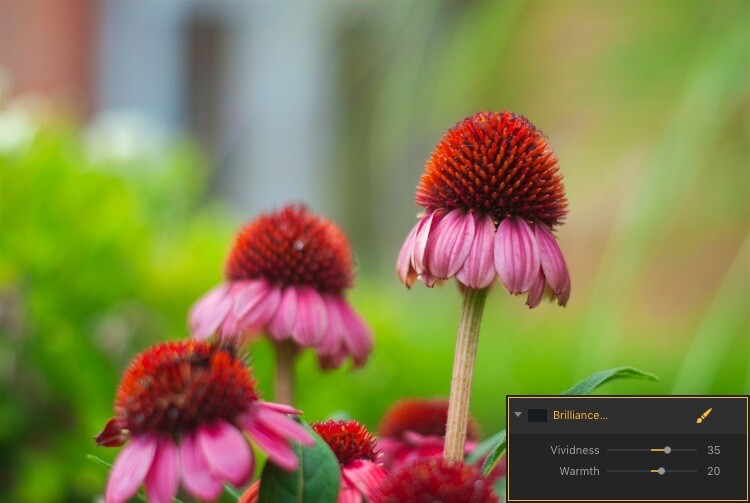
The easiest way to apply one of these is to simply click it and adjust any of the parameters available for that filter. For example, if you click on Brilliance/Warmth, you can adjust two different aspects of the filter; Vividness and Warmth.

How to use Filter Masks in Luminar for Powerful Local Adjustments

A few quick adjustments with a single filter made this bland RAW file go from ho-hum to frame-worthy.

Using Multiple Filters

You can combine as many filters as you want. You can even use layers, just as in Photoshop, to apply one or many filters. Then you can edit all of them at once with options like layer masking, which shows and hides everything on a single layer, and layer opacity.

It may sound complicated, but in actual use, the process is very simple: Load an image, add a filter, adjust the filter, and you’re done. The procedure only starts to get complicated if you want it to, at which point Luminar has a deep enough feature set to accommodate even the most highly demanding photographers.

Controlling the Effects with Filter Masks

Filters are all well and good, but the ace in Luminar’s sleeve is in the way it lets you apply them selectively with filter masks. If you have ever used a filter on Instagram you know that all your edits are applied across the entire image. That can be good but can also be quite frustrating if you only want to edit specific portions of the photo.

That’s where the simplicity and brilliance of Luminar’s approach really shine because you can control exactly where your edits are applied when you use a filter. To illustrate how this process works, I started with this photo (below) of a squirrel that was clearly in need of some editing.

I shot it in RAW in order to give myself the most amount of flexibility when editing the image, but Luminar works fine with JPG files too. Just know that you won’t have quite the same degree of control when editing JPG compared to RAW files.

How to use Filter Masks in Luminar for Powerful Local Adjustments

Apply Global Edits First

Before I started doing selective editing with filter masks, the first thing I did was to use two filters on the entire image. I used the Brightness/Contrast filter to make the picture brighter and then used Highlights/Shadows to lower the highlights a bit.

How to use Filter Masks in Luminar for Powerful Local Adjustments

So far so good, but I wanted to really make the squirrel stand out from the fountain in the background. Next, I added a Color Temperature filter but here I used the Brush icon in the top corner of the filter control box to apply it only to the squirrel.

Add Local Adjustments

This lets you literally paint in the filter adjustment in the same way you might use the Adjustment Brush tool in Lightroom to selectively edit an image. As you’re painting, you can use the toolbar at the top left of your screen to control the size, softness, and opacity of your brush as well as other settings that will feel right at home to most photographers.

How to use Filter Masks in Luminar for Powerful Local Adjustments

Click the Show Mask icon in the top left corner of the Luminar interface to show where you are applying (painting) a filter to the image.

By far, the most useful option here is Show Mask which you can select by clicking the eye icon in the top left, or by pressing the / key on your keyboard. This lets you see exactly where you are applying your adjustments in real-time while you paint. It is highly useful for making sure your edits are only applied where you want them to show up.

You can use the scroll wheel on your mouse to zoom into the image while brushing your filter adjustments. This allows you to fine-tune your editing to be exactly where you want it applied.

How to use Filter Masks in Luminar for Powerful Local Adjustments

With Show Mask enabled your filter adjustments show as red markings on the photo.

Add a Vignette on the Bottom Only

After editing the color temperature of the squirrel I used the Vignette filter. But instead of applying it to the whole picture I brushed it in just on the bottom corners (something users of Apple’s now-defunct image editing program Aperture might remember doing years ago).

How to use Filter Masks in Luminar for Powerful Local Adjustments

The icon in the top left corner of the filter window shows a black-and-white preview of where the mask has been applied. White reveals, black conceals – just like Photoshop. So anything shown in white is where that filter will be showing.

The ability to brush on filter adjustments is a huge game-changer for anyone who is used to the limited brushing options in Lightroom or overwhelmed by the prospect of doing this type of granular editing in Photoshop. And I say this as someone who uses both Lightroom and Photoshop!

Sometimes I just need a quick and simple editing workflow and the more I use Luminar the more it has replaced much of the work I do in those and other programs. To add a bit of icing to the editing cake, Luminar ships with full plugin support for many popular image editing programs including Photoshop and Lightroom. So you can still use those for your traditional workflow while simply hopping over to Luminar if you want to make use of that program as well.

Filter Mask Options

While my favorite aspect of filter making is the ability to brush adjustments precisely where I want them. But there are two other options that can be quite useful depending on the type of editing you want to do. In addition to a brush, you also have the option of applying Luminar filters with a Radial Mask, Gradient Mask, or Luminosity Mask.

Radial Mask

This applies the filter in a circular pattern which can be rotated, expanded, and contracted. It allows you to apply a filter in an even and controlled fashion. It works almost exactly like the Radial Filter in Lightroom. But instead of only letting you adjust the basic exposure, color, sharpness, and noise you can use it to apply any of Luminar’s dozens of filters.

Think of it like the Lightroom Radial Filter but much more powerful and customizable.

How to use Filter Masks in Luminar for Powerful Local Adjustments

The Radial Mask in Luminar can be used with any of its powerful Filters.

Gradient Mask

Similar to the Radial Mask, the Gradient Mask lets you apply a filter smoothly across an entire image while gradually changing the degree to which it is applied. Once again it works just like its Lightroom counterpart but for filters. Once you have either of the Radial or Gradient masks applied you can choose several additional options such as Disable, Invert, Density, and Feather.

How to use Filter Masks in Luminar for Powerful Local Adjustments

Luminosity Mask

This is an option that is somewhat unique to Luminar. Even though you can re-create this type of mask in Photoshop and other programs I have never seen it implemented so easily and smoothly as it is here.

When you enable a filter and click on the brush icon you have the option of creating a mask that applies the filter only to the brightest portions of the image. This is incredibly useful if you want to make changes and edits quickly without zooming in and painstakingly brushing in your adjustments at a granular level.

This feature is especially useful for landscape photographers who frequently have images with a lot of contrast between the lightest and darkest parts of the image. They often need to edit the sky separately from the rest of the image.

Luminosity Mask in Action

As an example of how this works, I have used the following image of a sunrise that I took in Nebraska one chilly winter morning.

How to use Filter Masks in Luminar for Powerful Local Adjustments

I wanted to make adjustments to the sky while also brightening the dark portions, but not have my edits interfere with each other.

The first step was to add a Brilliance/Warmth filter and then generate a Luminosity Mask. That would make sure any changes would be made just to the sky and not the foreground. I confirmed this by showing the Mask Overlay which gave me a clear idea of where the mask was being applied.

How to use Filter Masks in Luminar for Powerful Local Adjustments

I edited the values of the Brightness/Warmth slider to get the sky looking just right, then added a Highlight/Shadow filter to brighten up the foreground. After that, I finished with a Color Temperature filter which I applied only to the ground by using an inverted Luminosity Mask. That ensured it would apply only to the shadows and not the highlights.

The final image gave me a result that would have been much trickier to create in Lightroom, and require a lot of complicated selection editing and layer adjustments in Photoshop.

Note: the new version of Lightroom (Classic) that Adobe just released now has the ability to add a Luminosity mask to local adjustments as well. 

How to use Filter Masks in Luminar for Powerful Local Adjustments

Simply Powerful Editing

The real advantage for me when using Luminar’s Filter Masking is that it’s a way for me to do creative, complex edits to my images in a simple and efficient manner. Some people have asked me if it’s better than Photoshop and Lightroom, and my answer is a rather vague. “it depends”.

I think there is room for all three programs in a photographer’s workflow depending on that person’s individual needs. But there certainly is a lot to be said for how Luminar gives you access to such powerful and highly customizable image filters while making the adjustment process so easy to use.

If you just want to click a few filters and save your image, as you would in Instagram, then you can be on your way in seconds. However, if you want more fine-grain control over which parts of your photos that those filters are editing, then using Filter Masks in Luminar might be the answer you’ve been looking for.

Have you tried Luminar’s filter masking feature? I’m curious to know about your experience and any tips or tricks you might have uncovered. If you have not yet given these tools a chance you might be surprised at the results you can achieve.

Disclaimer: Macphun is a dPS advertising partner.

The post How to use Filter Masks in Luminar for Powerful Local Adjustments by Simon Ringsmuth appeared first on Digital Photography School.


Digital Photography School

 
Comments Off on How to use Filter Masks in Luminar for Powerful Local Adjustments

Posted in Photography


Macphun unveils Luminar 2018, takes on Adobe Lightroom CC

02 Nov

Macphun—the photo editing software company that will rename itself ‘Skylum’ at the end of the year—has just unveiled the latest version of its full-featured photo editing suite Luminar. Meet Luminar 2018: a photo editor and (eventually) digital asset manager that seeks to compete with Adobe’s Lightroom at a time when many Lightroom users are looking for an out.

Available for pre-order starting today, Luminar 2018 features speed improvements, a dedicated RAW develop module, LUT support, AI-powered filters that can do some strange/interesting things like create intelligent light rays, and a digital asset management system (coming soon) that will allow you to organize your photo library sans subscription.

Macphun is very much hoping disgruntled Lightroom users will give Luminar 2018 a go:

Luminar 2018 has been re-built from the ground up for dramatic performance boosts.

[…]

Instead of stuffing menus with boring effects and old technology, Luminar only puts in filters that photographers want and need. Luminar offers more than 40 filters to correct color, sharpen details, and release creativity. New filters include the ability to enhance color with Brilliance, selectively lighten or darken specific areas of an image with Dodge & Burn, as well as the ability to change the lighting in a photo with Sun Rays.

Want a whole new way to stylize images? Try the new Lookup Table adjustments, known as LUTs . Creative color, perfect black and white conversions, and even digital films stocks are just a click away. Lightroom users who rely on custom presets created for Lightroom can also easily convert those presets into LUTs (with a free 3rd party tool) and use them inside of Luminar 2018.

Here’s a closer look at the interface:

$ (document).ready(function() { SampleGalleryV2({“containerId”:”embeddedSampleGallery_3300296879″,”galleryId”:”3300296879″,”isEmbeddedWidget”:true,”standalone”:false,”selectedImageIndex”:0,”startInCommentsView”:false,”isMobile”:false}) });

And a few before and after images to show what Luminar 2018 can do when you put it to work on your images:

$ (document).ready(function() { SampleGalleryV2({“containerId”:”embeddedSampleGallery_6390293885″,”galleryId”:”6390293885″,”isEmbeddedWidget”:true,”standalone”:false,”selectedImageIndex”:0,”startInCommentsView”:false,”isMobile”:false}) });

Most of the features discussed will launch with Luminar 2018 later this month, with the exception of the DAM, which is scheduled to ship “in 2018.” Pre-orders start today at a special discount price of $ 60 for new users (usually $ 70) and $ 40 for users of the current Luminar (usually $ 50).

To learn more about Luminar 2018, head over to the Macphun (soon Skylum) website by clicking here.

Press Release

The new Luminar 2018 takes on Adobe Lightroom

New Luminar 2018 delivers a breakthrough photo editing experience for photographers on Mac & Windows with new filters, tools, non-destructive editing, major speed boosts, and a digital asset management platform that will arrive in 2018.

San Diego, CA – November 1, 2017 — Macphun, the California-based software developer today announced Luminar 2018. New users will be able to purchase Luminar 2018 for $ 59, and current users of Luminar may upgrade at a special price of $ 39. Preorders start November 1 at www.macphun.com/luminar.

Luminar 2018 offers everything a modern photographer needs for photo editing, including new filters powered by artificial intelligence, major speed improvements, a dedicated RAW develop module and a forthcoming in 2018 digital asset management platform. Users will also benefit from the new intelligent Sun Rays filter, LUT support, and real-time noise removal. With adaptive workspaces that match styles of shooting, Luminar adapts to deliver a complete experience that avoids clutter and complexity.

Luminar 2018 has been re-built from the ground up for dramatic performance boosts. Existing filters deliver richer colors and depth in less time. A brand new streamlined user interface speeds up working with presets, filters, and masks. With full support of pro options like layers, masks, and blending modes, complex repairs and photo composites can be easily accomplished.

And, importantly, Luminar works on both Mac- and Windows-based desktop computers*.

“We’ve taken the time to listen to photographers, and what they want is performance and quality. The less time photographers have to spend in front of computers, the more time they have for taking pictures,” said Alex Tsepko, CEO of Macphun. “Our mission is to get Luminar streamlined with just the tools and controls photographers need. The goal is simple: enable the best-looking images with the least amount of effort.”

Luminar offers a new RAW Engine that can handle high-quality images faster. Plus, it’s easy to solve image problems caused by camera lenses with Lens Correction features that resolve vignette, distortion, and color aberrations. If the photo has unwanted perspective problems, a new Transform tool can quickly solve them.

Instead of stuffing menus with boring effects and old technology, Luminar only puts in filters that photographers want and need. Luminar offers more than 40 filters to correct color, sharpen details, and release creativity. New filters include the ability to enhance color with Brilliance, selectively lighten or darken specific areas of an image with Dodge & Burn, as well as the ability to change the lighting in a photo with Sun Rays.

Want a whole new way to stylize images? Try the new Lookup Table adjustments, known as LUTs**. Creative color, perfect black and white conversions, and even digital films stocks are just a click away. Lightroom users who rely on custom presets created for Lightroom can also easily convert those presets into LUTs (with a free 3rd party tool) and use them inside of Luminar 2018.

Luminar 2018 will become available in November 2017, and in 2018 a free update will provide a new image browser/digital asset manager to help photographers manage their image libraries.

Photographers will be able to sort, rate, organize, and backup their photos at great speed. The new digital asset management platform in Luminar will work without subscription and will work with any storage (cloud or local). It will also bring a number of unique features, that the current Lightroom library can’t boast.


* Workspaces, Clone & Stamp, blend modes for layers, luminosity masking, flip and rotate, as well as some other tools and features will be available in the Mac version at launch, and arrive in the PC version with free updates by the end of the year.

** Look-Up Table (LUT) – is mathematically precise way of taking specific RGB image values form a source image – and modifying them to new RGB values by changing the hue, saturation and brightness values of that source image. LUTs are used creatively to impose a specific ‘Look’ on a source image.

Availability

Pre-order for Luminar 2018 will run from November 1 until November 16.

Pre-order customers will receive a special price and value-add bonuses such as:

  • A pack of signature presets & textures from a Pro photographer Nicolesy.
  • An exclusive pack of LUTs.
  • 1-year Power plan from SmugMug ($ 72 value). For new accounts only

Pricing

Mixed-computer households can share the same product key for Mac and PC which can be activated on five devices.

Current users of Luminar may upgrade at a special pre­-order price of $ 39

New users can purchase Luminar at a special pre­order price of $ 59

The retail price for Luminar 2018 after November 16 will be:

$ 49 upgrade for current Luminar HDR users

$ 69 for new users

The digital asset management platform will arrive in 2018 as the free update for all the users of Luminar 2018.

Articles: Digital Photography Review (dpreview.com)

 
Comments Off on Macphun unveils Luminar 2018, takes on Adobe Lightroom CC

Posted in Uncategorized


How to use Macphun’s Luminar for Beginners

31 Oct

If you haven’t used it before, your first question might be what exactly is Luminar? Simply put, it’s photo editing software designed by Macphun (available soon for Windows – download the beta version to try it here).

It might differ a little bit from other photo editing software that you’ve used because it is a photo editor only – it does not include an image cataloging component. It is also a one-time purchase rather than a subscription-based product. Luminar’s workflow focuses on very easy-to-use presets that literally enable you to press one button and completely process your image, ideal for beginners.

Luminar for beginners - white hibiscus

Cropped and edited in Luminar using Mild Image Enhancer Preset at 85 opacity, plus a white balance adjustment.

In this article, I’ll upload some images and take a whirl around the user interface so that you can understand where all the tools are, and what they do. After that, we’ll dive in with some basic editing techniques. In just a few paragraphs, you’ll have some great ideas on how to use Luminar to edit your own photos.

Starting in Luminar Stand-Alone

To start, click on the Luminar icon. The initial screen asks you to Open Image. Click the blue button to open a Finder  (or Explorer) window, navigate to your chosen image, select it, and click open. Your image opens in Luminar.

Luminar for Beginners - Start

Opening in Luminar from Lightroom

If you prefer to start in Lightroom, right-click on your image, select Export > Luminar > Open Original Image. Your image opens in Luminar. Note: you can also select Edit in > Luminar.

Luminar for Beginners - Lightroom

If you made adjustments to your image in Lightroom such as lens corrections, cropping, straightening, spot removal or noise reduction – instead of choosing Open Original Image, choose “Use .TIFF with Lightroom Adjusters”. Or select Edit in > Luminar and choose “Edit a copy with Lightroom adjustments” from the options.

The Top Toolbar

Let’s take a quick look at the top toolbar inside Luminar. We’ll discuss where everything is and what they do but, just in case something doesn’t make sense, and you’re not sure what each icon does, hover your cursor over it. A tiny pop-up will appear and you can confirm that you’re looking at the right tool.

Luminar for Beginners - top toolbar

Luminar’s top toolbar.

Side Panel

Starting in the far right corner of the Top Toolbar is an icon that allows you to open and close the Side Panel, which is where you add Layers and Filters to make adjustments to your image. I prefer to work with the Side Panel open but if you need to see a larger version of your image, click this icon to toggle it off and give yourself a larger workspace. Click it again to toggle it on.

Luminar for Beginners - Side panel open

Here the Luminar workspace has the Side Panel toggled on. Note that if the icon is white, it is toggled off; if an icon is orange, it is toggled on.

Preset Panel

The icon for the Preset Panel is one to the left of the Side Panel one. Again, click the icon to toggle this panel on and off.

Luminar for Beginners - Preset Panel

When activated, the Preset Panel runs along the bottom of the Luminar workspace, giving you a preview of what each will when applied to your image.

Layers and Histogram

The next icon is the Layers panel. It looks like two sheets of paper in a stack. Because the focus of this article is on beginning techniques, we’re not going to talk about layers here. Just make a quick note of where this icon is so that when you’re ready to give it a go, you know how to find it.

To the left of the Layers icon is the Histogram icon.

Luminar for Beginners - histogram icon

The Histogram icon is highlighted here in red, the Layers one is just to the right of it. Currently, Layers are turned off so it is gray.

The Histogram itself has two triangles that can be clicked on and off as well. Solid orange triangles indicate this feature is on. When these alerts are on the triangles indicate if your image has any blown highlights/whites or blocked up shadows/blacks. If it does, they’ll be called out in red or blue respectively on the image.

Luminar for Beginners - highlight alert

The bit of red “paint” on the petal all the way to the left indicates blown-out whites.

History

Click the little clock icon to pull up the history of all the changes you’ve made to your image. If you’re not sure you like what you’ve done, click on any of the previous steps to get back to a point that you do like.

Luminar for Beginners - History Icon

Undo

The curved arrow to the left of the History icon will undo the last step that you’ve made.

Compare

Possibly one of my favorite Luminar features, Compare is the little icon just to the right of the eyeball. Once you activate the comparison frame, you can slide the before/after line back and forth over the image to see how your adjustments are affecting it.

Luminar for beginners - compare icon

Preview

The eyeball icon can be toggled on and off to quickly show you your original versus your edited image.

Luminar for beginners - preview icon

Zooming Icons

There are four zooming icons. You can toggle between 100% and Fit to Screen or make incremental size changes by using the + (plus) and – (minus) icons.

Luminar for beginners - zoom icons

Side Toolbar

Running down the right-hand side is a list of tools that are mostly more advanced so we won’t be addressing them gere. However, the Crop Tool, a scissors icon, is part of almost every workflow.

Luminar for beginners - crop tool

Luminar for beginners - pink hibiscusCropped to a square and processed using Quick and Awesome Workspace in Luminar.

Filters

Now that you know where all the tools are, let’s talk about how to use them to make adjustments to your image.

Luminar calls each set of adjustments a Filter.  For example, the Tone Filter contains sliders that adjust Exposure, Contrast, Whites, Blacks, etc. Some filters, like the Polarizing filter, contain only one adjustment.

Luminar for beginners - filter panel

To add additional Filters to your image, click the + (plus) sign to open the flyout menu, scroll through it, select the filter you need and then adjust the slider.

Luminar for beginners - Filter flyout menu

Note: if you click the name of the filter it will be added and the flyout menu will close. But if you want to add more than one filter just click the little + at the end of the filter name and it will add that filter and keep the menu open so you can add more.

Workspaces

Luminar offers quite a few different Filters and as you are learning the program you may not know which is the best set of Filters to add to your image. One of the ways that Luminar helps you narrow things down is by giving you Workspace options. For example, let’s say your image is monochrome (or you want it to be). You can choose the B&W Workspace as a starting point. If it’s a landscape, choose the Landscape Workspace.

Luminar for Beginners - Landscape workspace

Luminar’s workspaces make it simple to use.

The Filters included in each Workspace have been selected to enhance just the type of image you’re working on. The adjustment of each slider is left to your discretion.

Luminar for beginners - wild horses

Cropped and edited in Luminar using the Landscape Workspace.

If you haven’t used Luminar before (or have, but not successfully), start with the Quick and Awesome Workspace. With some images, applying the Accent-AI Filter is all you may need to do. Activate the Compare feature so that as you adjust this Filter, you can see what it is doing. Add Saturation, Clarity, and Vibrance as needed. How do things look? Do you still need additional adjustments but are not sure which ones to apply? Now is the time to try Presets.

Presets

Presets are similar to Workspaces because in each Preset includes a select group of Filters. However, in Presets Luminar adjusts the sliders (or pre-sets them, get it?) to create a unique look. Usually the name of the Preset will give you a good idea of the look that Preset will create.

Luminar for beginners - preset applied

One of my favorite parts about Luminar Presets is that I can adjust the Opacity of them. In the photo below, the Image Enhancer Preset looks just a tad too strong. Dragging the Opacity Slider to reduce it to 65 was a perfect – and easy – solution.

Luminar for beginners - wild horses

Cropped and edited in Luminar using the Image Enhancer preset at 65 opacity, with no other changes.

Four favorite Presets

If you’re not sure where to start, or which Preset to choose, here are four of my favorites:

  • Happy Memories in the Travel set.
  • Warm Sunset in the Travel set.
  • Bright Day in the Outdoor set.
  • Mild Image Enhancer in the Basic set.

To locate the Presets, click the Preset Menu icon in the lower right corner of the interface then click through the choices in each category. Once you find yourself using the same Presets over and over, add it to Favorites so that you can locate it faster. Just click the star on the preset to add it to your Favorites list.

Luminar for Beginners - preset menu

Applying Presets using Compare

To choose the right Preset for your image, scroll through them with the Compare preview panel turned on. As you click on each one, you’ll see both your original image and how it will look after applying the Preset at 100%. That will help you learn how each Preset affects your image and eventually, you’ll find your own favorites.

Luminar for beginners - bright day preset

Fine-tuning Presets

If the Preset you chose for your image looks good but not perfect, remember they can be used as just a starting point. Once you apply them you can decrease the opacity. You can also adjust individual sliders or add and delete Filters in the Side Panel.

Luminar for Beginners - St Johns NL

Cropped and edited in Luminar using the Bright Day Preset at Opacity 80, Vignette adjusted to -25, Blacks adjusted to +10.

Saving your image

If you started in Luminar, have completed work on your image, and want to create a JPG, Select File > Export to image then select the correct folder and rename the file as appropriate.

If you plan to continue to work on the image, or might want to make changes in the future, select File > Save As to create a native Luminar file, then select the correct folder and rename the file as appropriate. That will retain any Layers if you used that feature as well as the History.

Saving your image to your Lightroom Catalog

If you started in Lightroom, it’s a snap to save your image. After you finish processing your image in Luminar, click the Apply button in the upper left corner of the interface. This saves your image and also catalogs it in Lightroom in the same folder as your original image.

Your Turn

Hopefully, you’ve been following along and processing a few images in Luminar as you were reading. Now take a minute to upload your best image for the dPS community and tell us about how you created it in Luminar. Which are your favorite Luminar presets?

Disclaimer: Macphun is a dPS advertising partner.

The post How to use Macphun’s Luminar for Beginners by Lara Joy Brynildssen appeared first on Digital Photography School.


Digital Photography School

 
Comments Off on How to use Macphun’s Luminar for Beginners

Posted in Photography