RSS
 

Posts Tagged ‘Looking’

Looking Beyond Land: 12 Floating Galleries, Schools & Cemeteries

22 Jun

[ By SA Rogers in Architecture & Offices & Commercial. ]

jellyfish barge main

Even without the threat of rising sea levels, we’ve got land scarcity issues in nearly every major city, prompting engineers and architects to look towards the rivers and seas as settings for floating structures that could support not just housing and restaurants but also farms, movie theaters, schools and even cemeteries.

Floating Movie Theater: Pavilion of Reflections

floating pavilions reflection 2

floating pavilion reflection 3

pavilion of reflections 2

pavilion of reflections

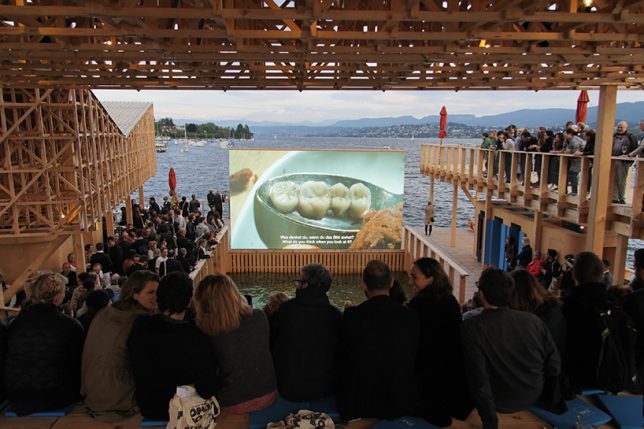
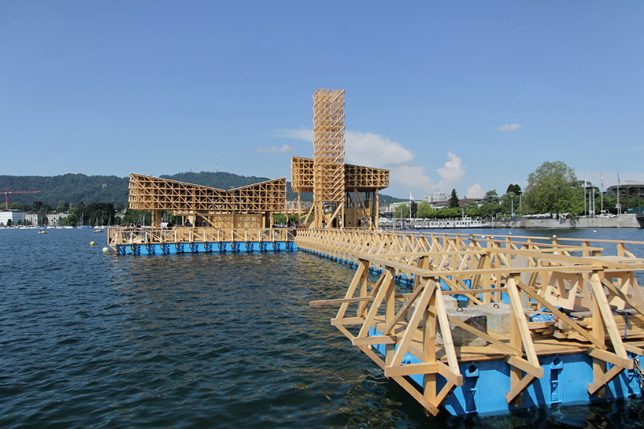
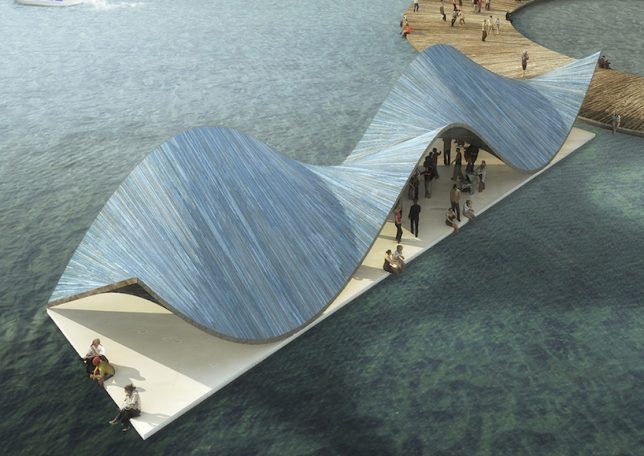
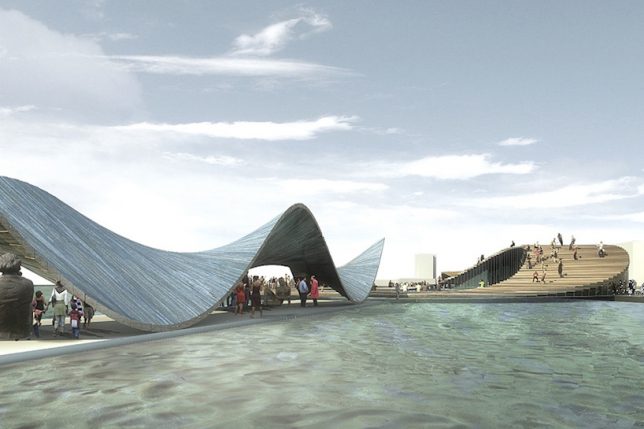
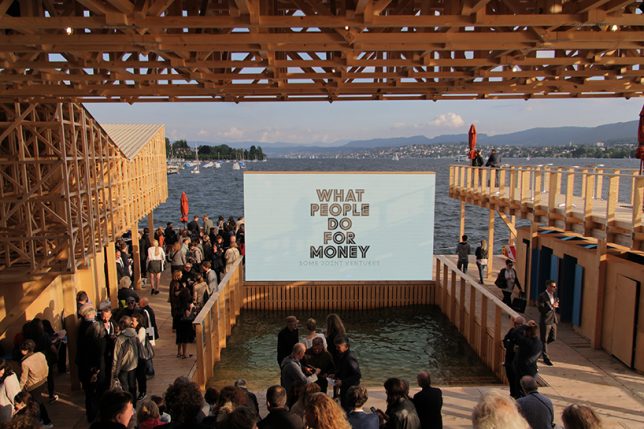
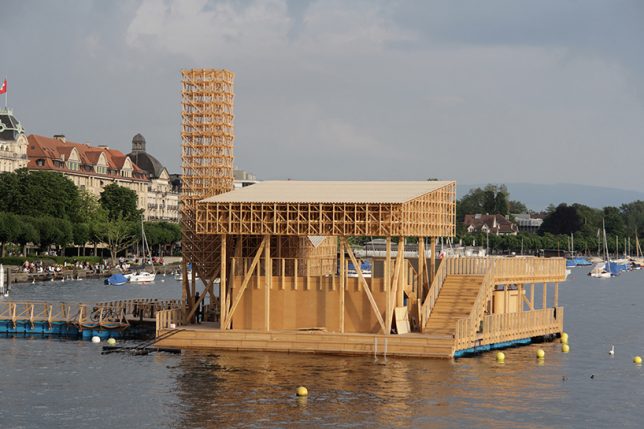
Assembled on Lake Zurich for the contemporary art biennial Manifesta 11, ‘Pavilion of Reflections’ is an open-air floating cinema with an integrated swimming pool that dips right into the lake. In the daytime, it functions as an urban island, while at night , the LED screen lights up and spectators take their seats to watch a series of documentaries.

Floating Hawker Center: Solar Orchid for Singapore

floating pavilion solar orchid

floating pavilion solar orchid 2

floating pavilion solar orchid 3

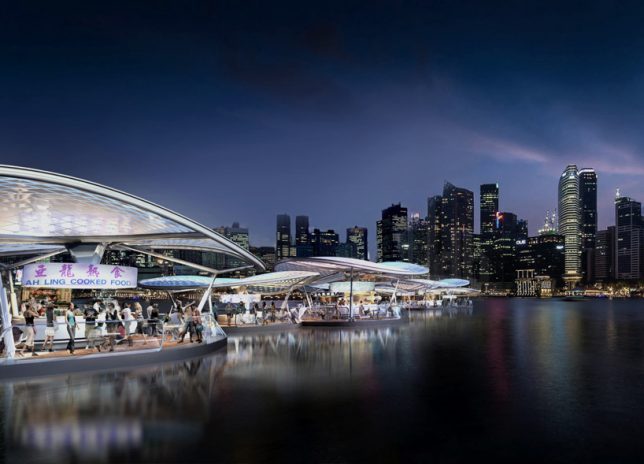
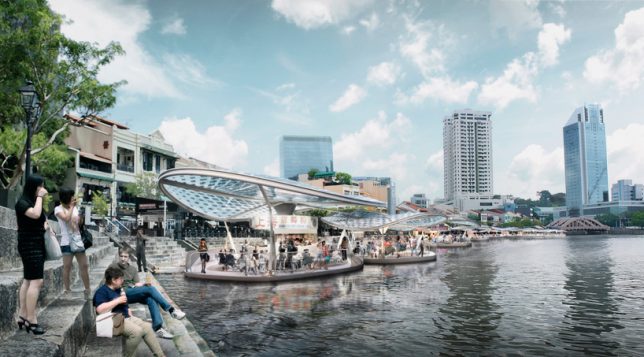
Singapore’s traditional hawker culture of food and retail street carts extends out onto the water with the Solar Orchid by SPARK Architects. The self-contained, solar-powered pods encourage interaction with the harbor while reinterpreting the nation’s traditional pastime. Each individual pod accommodates cooking stalls with built-in exhaust, water, electrical, gas, waste collection and water recycling services as well as places for diners to sit.

Floating Eternity Cemetery for Hong Kong

floating pavilion cemetery 1

floating pavilion cemetery 2

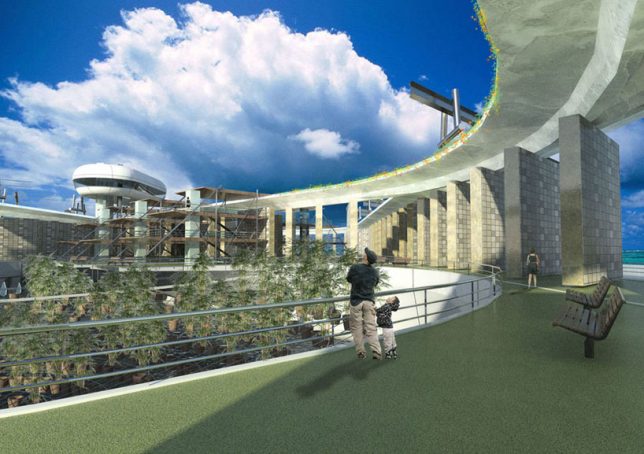
Hong Kong has a bit of a corpse burial problem, as they run out of land space even for their efficient hillside cemeteries and skyscraper vaults. Could a floating cemetery island that’s able to move from one port to the next throughout the region offer a solution? It’s certainly a novel idea. The Floating Eternity Cemetery by BREAD Studio leaves the land for the living with an exterior looping wall housing urns and central space for ceremonies. Families can come aboard at certain times of year to honor their dead, making it a special, shared experience, before the offshore cemetery moves along again.

Floating Swimming Pool: Baltic Sea Park

floating pavilion baltic 3

floating pavilion baltic 1

floating pavilion baltic 4

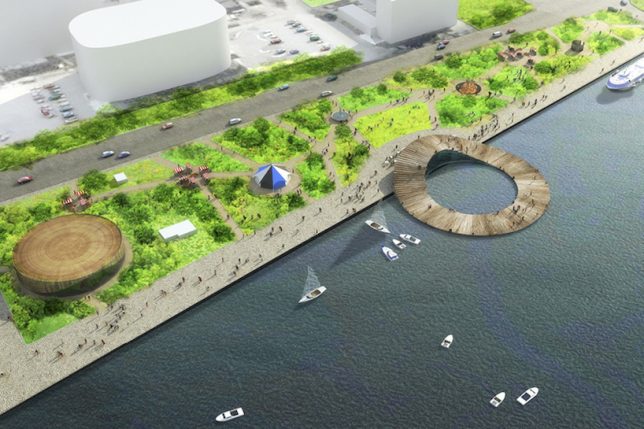
When you run out of land for parks, build them on the water. This way of thinking is spreading across the world, from New York City to Estonia, envisioned as the home of this ‘Baltic Sea Park’ by kilometrezero. The circular pavilion honors thousands of years of history and cultural exchange on the Baltic Sea, and connects buildings on land to a floating structures that acts as a dock for a changing series of floating pavilions. In the summer, the protected circle of water within it becomes a giant swimming pool.

Next Page – Click Below to Read More:
Looking Beyond Land 12 Floating Galleries Schools Cemeteries

Share on Facebook


[ By SA Rogers in Architecture & Offices & Commercial. ]

[ WebUrbanist | Archives | Galleries | Privacy | TOS ]


WebUrbanist

 
Comments Off on Looking Beyond Land: 12 Floating Galleries, Schools & Cemeteries

Posted in Creativity


Looking Sharp: A focus stacking tutorial

29 May

This was taken in the deserts of Southern Utah at Snow Canyon State Park near St. George, Utah. 

 Photo: Chris Williams Exploration Photography

Background: Understanding the Process

One of the questions that I receive quite often from beginner photographers is “How do I produce tack sharp images from front to back in challenging shooting conditions or in cases where the foreground fills up nearly half the frame?” The answer in short is to utilize a process known as focus stacking. The answer is simple but the process can be very labor intensive from a shooting and processing standpoint.

Even when working with a large depth of field there may be occasions where you still have to take more than one image due to low light, wind and or large foreground subjects. Most technique books will tell you that this is easily accomplished by stopping down to a very small aperture such as F22, focusing on a set focal point at about 1/3 of the way into the frame or determining the spot from your hyperfocal distance (the distance between a camera lens and the closest object that is in focus when the lens is focused at infinity), focus at that spot and take your image.

Here’s one of the images that I used during focus stacking.  This was shot at 35mm and at f/2.8 due to conditions at the time of shooting.  As you can see it was impossible to achieve sharp focus throughout the image.

In principle this sounds like a very quick and easy fix to a somewhat complex problem that plagues most landscape photographers. In practice, however, it comes with a couple of big issues. Not only can using an aperture this small decrease image quality due to diffraction, it doesn’t actually deliver the maximum possible depth of field. That’s where stacking comes in. In the digital age we can now improve upon this technique and produce higher quality, tack sharp images from the front to the very back of the frame.

Before diving into this process I should mention that you may not always need to use this technique and this process is really up for interpretation in regard to what you define as a ‘sharp image’. The lens quality and aperture play a huge role in whether or not you wish to go through the work of focus stacking an image. In general, I always use this process now as I want my images to look tack sharp even when printed at very large sizes.

Selecting the Aperture

Choosing the aperture is an important first step to this process. I always try to choose an aperture in the ‘sweet spot’ of the lens. This is a bit of a loaded term; you have to decide whether you are after maximum resolving power or greater overall focus in your image. These differences may be subtle in some cases, but regardless I always try to choose optimal sharpness over depth of field in an individual image, bearing in mind that I’m going to be stacking multiple images. I would rather take a few extra shots to ensure that the RAW files are of the highest quality I can achieve given the conditions.

Generally speaking, the sweet spot of a lens is about 2.5 to 3-stops from the maximum aperture. This does vary from lens to lens however; for example, I normally shoot between f/8 and f/11 when possible on my Canon 16-35mm f/2.8L ii to achieve the sharpest results possible (which I know is a few stops greater). The bottom line is to get to know your lens! You can even run it through an aperture progression and compare the images to find that coveted lens ‘sweet spot’.

Behind the Lens

Focus stacking can be very tricky when you’re out in the field. I use the following steps to ensure that I don’t miss a focus point and to make adjustments on the fly in changing conditions such as light, wind and rain.

  • Find your desired composition and make sure that your tripod is in safe position that won’t allow for any movement or shifting while you’re performing the in camera focus stacking.
  • Place your camera on your tripod, turn on live view, switch your lens to manual mode, make sure that your camera is set to manual and dial in your composition.
  •  Once you have the composition dialed in lock your camera down on your tripod and make sure that your ball-head or camera mount is completely locked down so no movement can occur during this process (if some movement does occur you can try to correct this using Auto-Align in Photoshop, but I always try to avoid this to the best of my ability).
  • Use either your camera’s in camera timer (set for 2-10 seconds) or use a remote shutter trigger to avoid any camera movement issues.
  • Once you are 100% sure that you’re happy with the composition it’s time to adjust your settings; I always fire a few test shots to ensure that I can freeze the foreground subject (flowers etc.) and to see what I can get away with in regard to ISO/Aperture/Shutter-speed while still yielding an acceptable result with respect to proper exposure and the signal to noise ratio.
  • This may sound trivial but play with your settings a bit to find the right exposure/sharpness balance; aim to keep the ISO at base and the aperture as close to the ‘sweet spot’ as possible (f/8-f/11 in most cases) this may not be possible depending upon conditions, so make adjustments as you see fit.
  • Adjust your CPL or lens filter (ND etc.), if you’re using one, to give the foreground more pop etc.

The Progression

Now comes the fun part: how do you make sure that you have everything in focus and that you don’t miss a focus point? There’s definitely more than one way to go about doing this, but I generally focus on the foreground elements that are closest to the lens; normally near the bottom 1/3 of the frame in live-view.

I normally zoom in to my area of interest in Live-View and dial in my focus point using manual focus.  After taking the image I repeat the process for my next focus point.
  • While in live-view, zoom in to the bottom most portion of your foreground subject and manually adjust the focus until everything is sharp and adjust your settings depending upon conditions (wind etc.)
  • To find your next focus point stay in live-view, zoom in to the same area you just photographed and move up in the frame to find your next focus point
  • Repeat this process until you reach the background elements in your image and take your final exposure.
  • You may want to bracket your last exposure to keep the highlights and shadows from clipping or to catch a sunstar; if you’re shooting on a camera that has a great deal of dynamic range (like a Sony a7r/ii or Nikon D810) then you may be able to do this with one exposure; it’s completely up to you

The toughest thing about focus stacking in the field is dealing with changing conditions such as wind, rain and light. When wind is an issue I always run through at least two or three focus stacking progressions to ensure that I have a sharp frame at each focus point. Even in perfect conditions I still run through a focus point progression at least twice to ensure that I haven’t missed a point. There’s nothing worse then getting home after a long day of shooting only to find that you completely missed a focus point.

Once you take your camera off of your tripod or move your tripod, it will be a huge pain to get everything lined up again and you may not even be able to in most cases. Double and triple check your exposures to ensure that you’ve got all of your focus points nailed down before moving your camera and packing up your gear.

Articles: Digital Photography Review (dpreview.com)

 
Comments Off on Looking Sharp: A focus stacking tutorial

Posted in Uncategorized


The Droids You’re Looking For? 10 Amazing DARPA Robots

21 Jan

[ By Steph in Conceptual & Futuristic & Technology. ]

darpa cheetah gif

No need to get too concerned about a robot uprising just yet, if the finalists at last year’s DARPA Robotics Challenge are any indication, but that doesn’t mean the field hasn’t made some impressive advances. Typically developed by Boston Dynamics with funding from the US Defense Advanced Research Projects Agency, most recent robotic creations were created to someday take the place of humans in dangerous scenarios like disaster response and war. We may still be a long way away from robot soldiers (which are, frankly, kind of terrifying), but DARPA and the teams that participated in the challenge have still produced some impressive results.

Challenger: DRC-Hubo
darpa hubo 3

darpa hubo 2

darpa hubo 1

darpa tasks

Held from 2012 to 2015, the DARPA Robotics Challenge was a bit underwhelming for robot fans, resulting in more funny GIFs of robots falling than amazing feats of robotic technological prowess. The entrants used the tall and gangly ‘ATLAS’ humanoid robot technology developed by Boston Dynamics as a base, and then made their own improvements. The goal was to develop semiautonomous ground robots that can complete “complex tasks in dangerous, degraded, human-engineered environments.” South Korea’s Team KAIST won with its DRC-HUBO, beating 23 other teams from around the world. The robots were tasked with opening doors, operating valves, driving cars and climbing flights of stairs. By the final challenge, where the robots had to take more risks, there was a lot more toppling, including one that fell so hard it lost its head.

Challenger: Running Man
darpa running man

darpa running man 2

darpa running man 3

Crowd favorite Running Man, by Team IHMC, was particularly adept at walking and balancing “in a complete whole-body control algorithm,’ hence its name. This guy took the lead early on and was only edged out by DRC-Hubo during the final challenge. Running Man successfully drove a Polaris off-road vehicle all the way down a dirt track, got out, walked to a door and opened it before successfully completing several more drills, but then fell and couldn’t right itself twice in a row. While the bots were being remotely controlled by their human operators for part of the time, they generally had to figure things out on their own.

Challenger: Tartan Rescue CHIMP
darpa tartan 1

darpa tartan 2

darpa tartan 4

Looking significantly less humanoid than the other challengers, Carnegie Mellon’s CHIMP dominated the challenges early in the competition, completing all eight tasks and picking itself up after falling. Designed to go virtually anywhere, the all-terrain bot moves on all four of its limbs, which is pretty cool to watch when it’s scaling vertical surfaces on ladders or working itself up to a full run. None of these robots move at lightning speed (one DARPA official likened the pace of observing the competition to watching a round of golf) but they’re doing some pretty cool things nonetheless.

Challenger: LEO
darpa trooper gif

Lockheed Martin’s Team Trooper produced the ‘Leo’ robot, named for Leonardo da Vinci. This bot stumbled when it started to close an open valve but then stopped midway through, requiring human intervention. Lockheed focused on the ability for a human operator to assist Leo at varying levels of autonomy, from sending commands to pick up tools to planning arm and finger trajectories manually if the robot was required to use an entirely new type of tool. It’s easy to see how this ability could translate into real life, helping robots carry out life-saving tasks like shutting valves at a malfunctioning nuclear power plant.

Next Page – Click Below to Read More:
The Droids Youre Looking For 10 Amazing Darpa Robots

Share on Facebook


[ By Steph in Conceptual & Futuristic & Technology. ]

[ WebUrbanist | Archives | Galleries | Privacy | TOS ]


WebUrbanist

 
Comments Off on The Droids You’re Looking For? 10 Amazing DARPA Robots

Posted in Creativity


US National Park Service looking for the next Ansel Adams

10 Dec
Photo by Jeff Keller

If your dream job hasn’t come along so far and you fancy yourself as a bit of an Ansel Adams, you could do worse than to pay a visit to the US Government’s employment website. The National Parks Service is looking for a full-time photographer to record the glory of the country’s natural treasures, much as Ansel Adams did on contract to the Department of the Interior in the 1940s. The only hitch is that applicants will be expected to use equipment similar to that used by Adams himself, as the job involves shooting with large format film cameras as well as the latest digital kit. 

You’ll need to be a US citizen, have a driving license and be subjected to a background check, but for your efforts you could earn up to $ 100,000 a year for doing what you love. The job isn’t all wandering around with a big camera and a box of film holders though, as you’ll be expected to make large scale prints, mount exhibitions and help review submissions for the service’s photographic collection. According to the advert, you’ll have to put up with ‘moderate discomfort’ out on location and ‘exposure to weather conditions’.

Keen enthusiasts though will already be familiar and well-experienced in ‘physical exertion such as long periods of standing; walking over rough or rocky surfaces; recurring bending, crouching, or stretching; and recurring lifting of moderately heavy equipment and materials.’

The job advert also specifically asks for the following: 

  • Knowledge of the principles and techniques of large format, black and white photography.
  • Knowledge of published standards and guidelines for architectural, engineering and landscape documentation.
  • Knowledge of film and digital photographic processes and techniques.

Those demands shouldn’t be too much of an issue for most photographers already working with large format equipment in the field. To apply for the job you’ll need to get moving as applications have to be in by 15th December. Santa might be coming early to someone. 

Articles: Digital Photography Review (dpreview.com)

 
Comments Off on US National Park Service looking for the next Ansel Adams

Posted in Uncategorized


5 Tips to Help You Take More Natural Looking Portraits

09 Nov

You’ve probably seen those beautiful portraits where couples are embracing, and laughing naturally off-camera, or two children are skipping up the beautiful country lane-way, bathed in the most perfect light. Everything in the image looks flawless, yet it still seems like the photographer just happened to be walking past at the exact right moment to capture the perfect shot.

So why is it when I try and capture those perfect candid moments someone always has their eyes closed, hair is covering half of their face, or the lighting is wrong, or worse still an unsuspecting passerby in bright pink sweat pants walks through the background of the shot.

Lifestyle 2

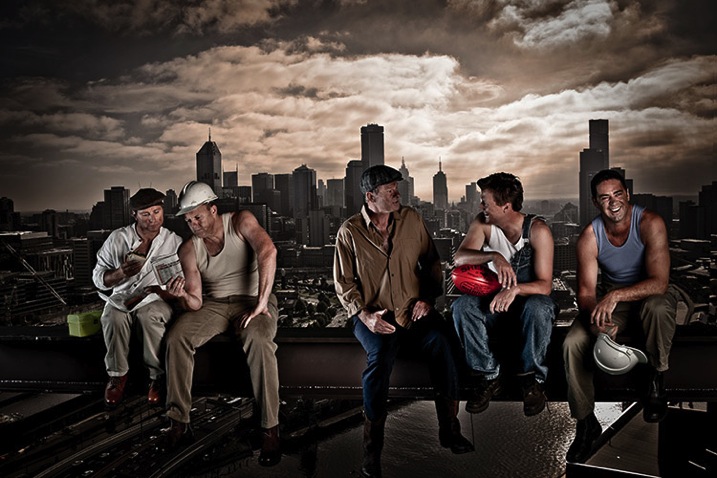
In this image I gave each model one action to repeat over and over, to achieve a natural candid feel. (The Footy Show cast – image courtesy Nine Network Australia)

Getting realistic and natural looking shots can be really tricky. If I set up the shot, and try and direct certain poses and reactions, the shots can look really stiff and contrived. If I try and get people to laugh on cue, it tends to look fake.

I can always leave it to chance in the hope that the people I’m working with do something worth photographing but this isn’t always an option. So what’s the best way to get people to look natural on camera? Here are my five favorite and most successful techniques to help you take more natural looking portraits:

1. Check your mood

People tend to mirror, and reflect the mood of the photographer, so if you are having a bad day or feeling grumpy, then your models are going to pick up on that vibe. If you want happy and excited looking expressions, then you need to have that vibe yourself. If you are not feeling it before the shoot, for whatever reason (stuff happens right?) then do whatever it takes to put yourself in a good mood. Listen to a funny podcast on the commute in, call a friend who makes you laugh, read funny stuff. Eat half a jar of Nutella (don’t judge me).

WW14 192

2. If you want people to laugh genuinely, then give them something to laugh about

I’m constantly wisecracking through the shoot, and ever ready to capture the expressions as the joke hits. The best way to do this is to set up your models in the position you want them, start with serious poses, and then throw in a funny remark between frames.

You don’t even need to be that funny for this technique to work. You only really need two or three good jokes, or lines, that will crack a group of people up. I’ve been using the same lines for years and they still work. The important part is that you make them your own, and it’s something you would say, or feel comfortable saying.

3. Laugh with people

GB MEL14 750 Lifestyle 3

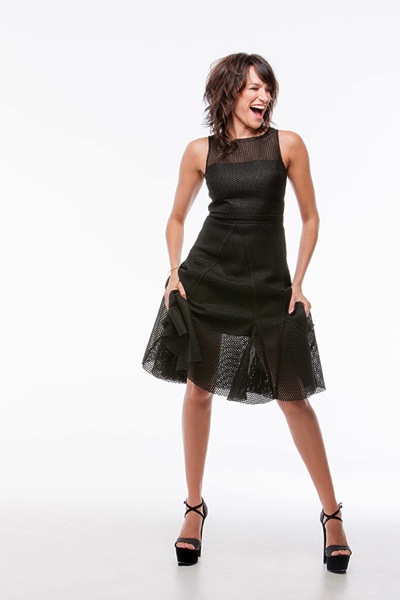
To get this image of the Dalton family (above) I actually just started laughing with them. Laughing with your models is infectious. I felt a bit embarrassed doing it at the start, but soon discovered it was totally worth the genuine laughs, and reactions I got. (The Dalton Family/Foxtel)

Another great trick to make models laugh is I actually ask my models to laugh, and will start laughing with them. This always starts out really awkward, everyone laughs uncomfortably, and at first they are laughing at me. But, after a while, everyone is laughing with me, and I’m always able to capture some genuine and beautiful laughing shots.

4. Give each person something to repeat

Lifestyle 4

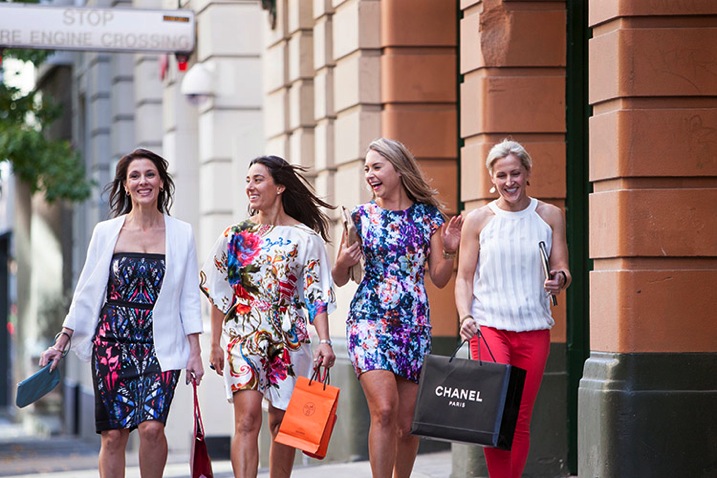
In this image, I gave each of the girls a specific action and eye-line, while they walked toward my camera. The client wanted a fun, positive, natural-looking shot. If this sort of image is left to chance, all the girls end up looking in the same direction, or have the wrong facial expression.

Try and give everyone in the group a set of actions to repeat as you shoot. This makes it easier to control the group, and keep the shape of the shot you are trying to get. I find I have greater success when I give each model only one action to repeat, and a direction to look toward.

An example of the direction I gave for the girls walking above would be:

  • Girl A (use their real names or course!): Walk towards me, look into the camera and smile at me like you’ve just seen your best friend
  • Girl B: Walk towards camera and smile over at girl A
  • Girl C: Tell a story, and gesture with your hands and look over at girl B
  • Girl D: Laugh to yourself and walk towards camera

5. Keep talking, coaxing, encouraging, directing

People perceive silence from a photographer as a sign that you are unhappy with what they are doing.

PPTS Women 0035 PPTS Men 0026W

What’s your favorite technique for getting natural looking portraits? Do you have any great tricks we could all try? I’d love to hear about them. Please share any others in the comments below as well as your images of natural looking portraits you’re proud of.

googletag.cmd.push(function() {
tablet_slots.push( googletag.defineSlot( “/1005424/_dPSv4_tab-all-article-bottom_(300×250)”, [300, 250], “pb-ad-78623” ).addService( googletag.pubads() ) ); } );

googletag.cmd.push(function() {
mobile_slots.push( googletag.defineSlot( “/1005424/_dPSv4_mob-all-article-bottom_(300×250)”, [300, 250], “pb-ad-78158” ).addService( googletag.pubads() ) ); } );

The post 5 Tips to Help You Take More Natural Looking Portraits by Gina Milicia appeared first on Digital Photography School.


Digital Photography School

 
Comments Off on 5 Tips to Help You Take More Natural Looking Portraits

Posted in Photography


3 Steps to Photoshop Retouching for Natural Looking Portraits

26 Jul

In the world of photography, editing and retouching are just as important as the imagery itself. Every image that you see published has been through its fair share of post-processing before it is seen by the public. If photographers didn’t retouch their images, it would be like a painter presenting his sketches instead of the finished painting.
portrait retouching techniques

With the fast moving technology of today, extraordinary images are everywhere, every day. Even with perfect lighting, and preparation work, a final image always receives some post-production attention. The trick to post-processing is to make it look as if it hasn’t been retouched at all, or as I call it, “refreshed”.

With the endless possibilities of Photoshop retouching techniques available, how do you know what tools to use when, and why? In this article, you will learn professional photoshop tricks that work for any portrait, any time. This is a simple recipe to give your subjects a naturally refreshed look, letting their genuine beauty shine, while keeping the integrity of their expressions, their features, and the clarity of the digital image itself.

Key Steps in the Refreshing Process

  1. Evaluate
  2. Eliminate
  3. Reduce
  4. Repeat

The specific tools and techniques discussed here are tried and tested with over 10 years of retouching experience. It is best to experiment with these concepts, and with practice, develop your own style of retouching.

This process has been designed as a routine that will eventually create habits in your mind, train your eyes to see the details more clearly, and create an overall efficient and effective retouching process. The goal is to spend less time in front of the computer and more time behind the lens (where the real magic takes place).

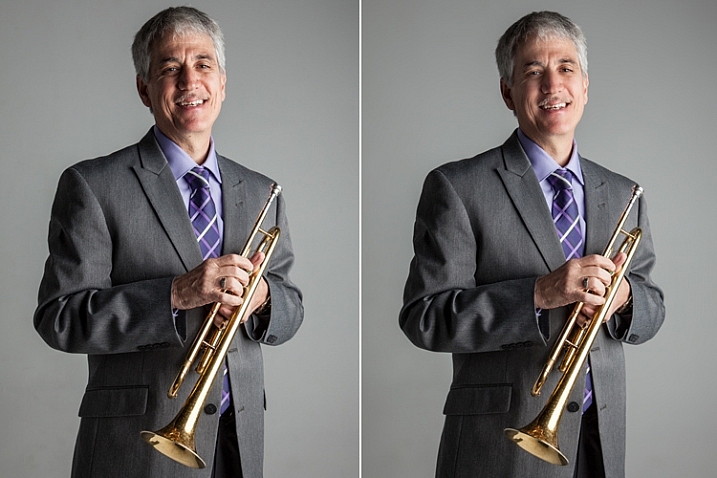
Let’s look at each one of these steps in order. We will use a studio image of a musician as the example throughout this article.

A great tip to keep in mind during this entire process is that with each new step, or even sub-steps, it is best to duplicate your layer before beginning to use the next tool. This way you are creating a back-up of each step for you to return to, if you notice that you are retouching too much on any particular step. It also allows you to see the progression of your workflow in Photoshop.
portrait retouching techniques

Step One: Evaluate

Immediately analyze the image you are about to retouch. How is the lighting? How do the subjects look? What is going on in the background?

When you see the areas of the image that will need your attention ahead of time, you can quickly assess what you will want to accomplish with the retouching process. This is the beginning of training your eye to seek out the details, and look at your image differently, than when you first took the shot.

Look at your image as if it’s not a photograph of a person, but instead consider that it is just shapes, colors, and light. Identify where the light is coming from and how it is affecting the subject.

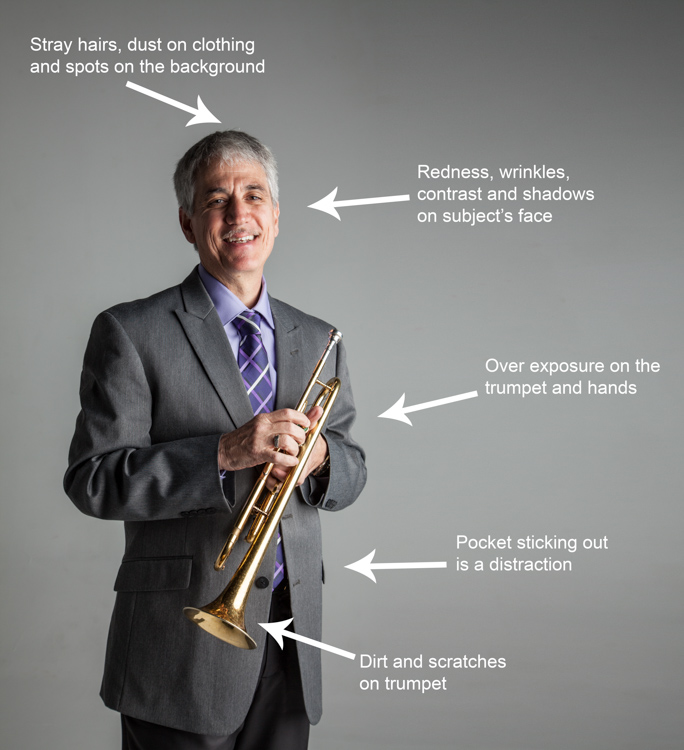
In this example, the direction of the light is causing more definition, creating harsh shadows across the subject. This was done intentionally to give a more characterized, artistic portrait for this musician.

However, its effect can be overpowering at times and cause distraction to the viewer. This is noticeable in the darker shadows around his right eye, and the highlights shining across the left side of his face.
portrait retouching techniques
Here are some additional elements to be aware of.

  • Different textures: The subject is an older man wearing a suit and playing an instrument. All of these textures are different and will require various tools and techniques when the retouching process happens in those areas.
  • Zoom in close: As with any image, zooming in close will allow us to see any skin imperfections, dirt, dust, or scratches that you will want to eliminate all together.
  • Make judgements on distracting elements: There are some parts of the image that could stay or be eliminated, it becomes your choice as the retoucher. What is a distraction? What is a part of the purpose of the image? For instance, the scratches on the trumpet and the left side pocket sticking out could potentially be distractions, but maybe this client would like them to stay.

Once you identify the elements that need attention, decide if each will be removed altogether, or if it needs to be reduced. For instance, the stray hair and the dust on his jacket need to be removed, but the redness and wrinkles are only to be reduced, not eliminated completely. This difference is important for the next steps in the process. So ask yourself, will it be eliminated or reduced?

Step Two: Eliminate

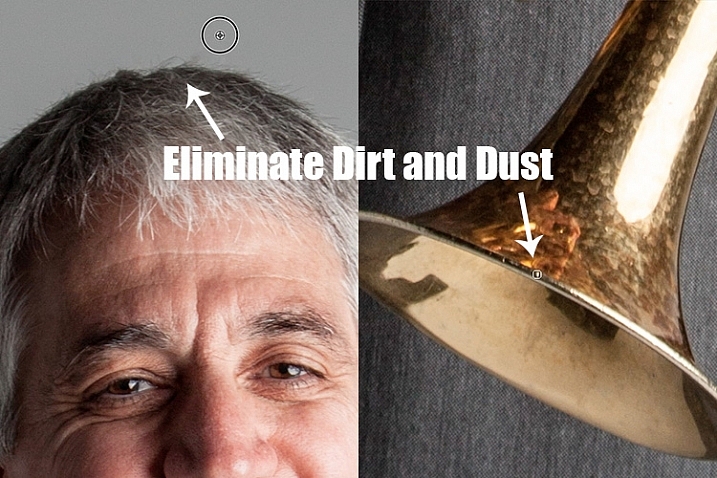
Once you have made your initial evaluation of the image, you can begin the elimination process. This includes but is not limited to: dust, dirt, scratches, pimples, food in teeth, and anything else that doesn’t belong. Zoom in and examine your image up close. Think of each area as shapes and color, allowing yourself to be as accurate as possible when removing these details.

For this first elimination step, it is best to use the spot healing brush, the healing brush tool, the spot tool, the patch tool, and/or any other tool that completely removes things. Don’t rely on just one. Learning how each tool works different will help you use a combination of these removal tools effectively, and efficiently.

For instance, the clone stamp tool copies exactly what you click. The healing brush blends the color and texture of what you click on, with the area you want to fix. The spot healing brush is a genius tool. It has its own way of deciding if you want to blend the area you click on, or remove the unusual pixels within that area (like a stray hair against a solid background).
portrait retouching techniques

The more you make effects to a digital image, the more destructive you can be to the clarity of the final file. Using these tools is crucial to the integrity of the image. If you can click it away in less than a few clicks, then this is the time to do it.

Once the “spots” are removed, you can focus your attention on reducing or “refreshing” the imperfections we all know we have, but don’t want to notice in the permanence of a photograph.

Step Three: Reduce

This is where your artistic eye, and attention to detail come into play. Pimples go away, dust and dirt are just distractions, but our wrinkles, smile lines, scars and facial expressions are the details that make each of us unique. Those are the things you will focus on in this stage of the “refreshing” process.

Every subject you see in an image has great qualities that they might not be confident about accentuating. It is your job as the retoucher to keep not just the integrity of the digital image, but the integrity of the special moment and the emotional expressions that have been captured in that image.

For this reason, this second step is crucial. Train yourself to pay attention to the details, the purpose of the image, and the personality of your subject. If you are retouching a very smiley bride who laughed a lot, you don’t want to remove her laugh lines, but you do want to reduce the shadows and shine as her makeup wears off and the night wears on.

In this specific example of the musician, the character lighting has created great contrast that add to the personality of the subject. But in some areas it over accentuates his wrinkles by creating deep shadows and harsh highlights of overexposure.

The Best Trick in Portrait Retouching
portrait retouching techniques

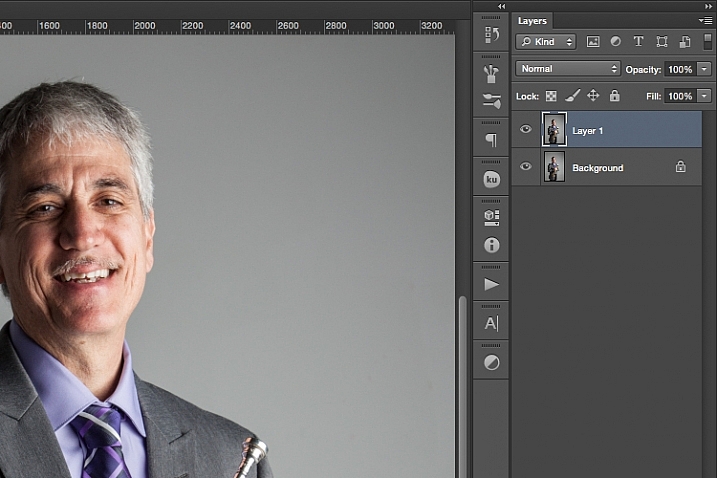
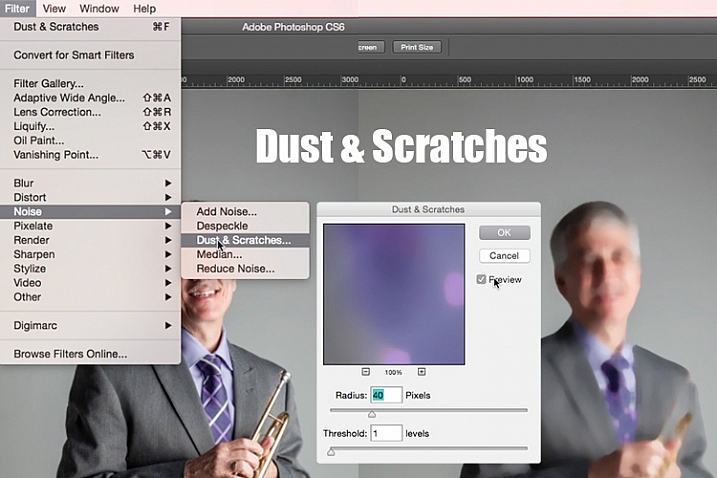
Duplicate your layer after completing step one. With this new top layer highlighted, select from the main photoshop menu: Filter > Noise > Dust & Scratches. A window will pop-up with settings options, and you will notice the image behind that window now shows a preview of this filter effect.

In the Dust & Scratches window, change your Radius to 40px and Threshold to 1. Experiment with these settings and see what works best for your images.

Once you have applied the Dust & Scratches filter (on the top, duplicated layer), you will notice how it blurs the image. But, this is not like using the blur tool. The method that this filter uses specifically identifies differences between pixels and their surrounding area. The Radius is what removes the “dust” and the Threshold is what brings back the details. Dissimilar pixels are modified to achieve a balance between sharpening and hiding defects.

The Dust & Scratches filter provides a more powerful way to remove noise from an image than any other noise removal tool. This is key to keeping the integrity of the textures, color, and overall feel of the digital image as you see it in print or on a screen.

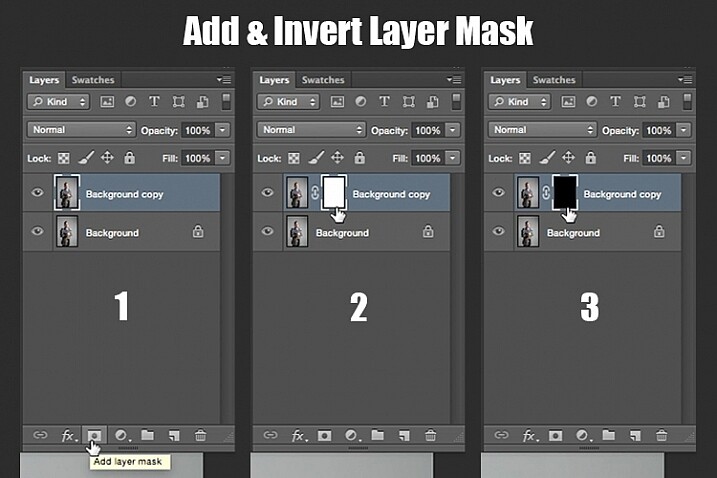
Now that you have a layer with the right effect applied, you are going to add a layer mask to this newly altered layer, and invert the mask. Do this by clicking the icon “Add layer mask” at the bottom of your layers panel. Notice the layer mask shows up as a white box next to your highlighted top layer. Now invert this layer mask by holding the command button and clicking the letter, “i”. This will now change the layer mask to black and bring the original image come back into view.
portrait retouching techniques

Step 1: duplicate the layer
Step 2: add a layer mask
Step 3: invert the mask so it is black

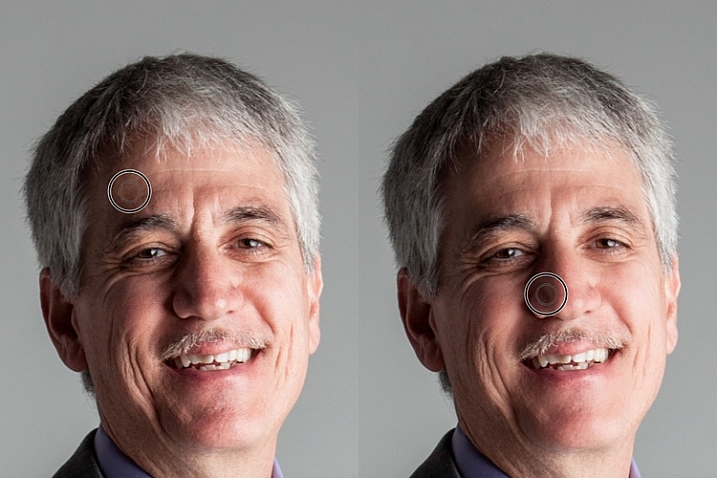
You can see how the image looks unaffected by the Dust & Scratches filter. Really, it is just hidden under the layer mask. Now you can paint back into the areas where you want to reveal the Dust & Scratches filter. The trick is to do this precisely, and not too much.

Select your brush tool (keyboard shortcut is B). Making sure the layer mask is selected (not the layer – square brackets will show around the mask when it is selected like shown above), noticing its color is black, paint with the color white to bring back the Dust & Scratches filter effect.

The key to using the brush tool on an inverted layer mask is to experiment with the brush opacity strength. When focusing on the skin areas, start by brushing back at only 30% opacity. Remember, you can always brush back over an area again more or less by toggling back and forth between painting with black or white. Painting with white will reveal the effect, while painting with black with hide it.

Steer clear of teeth, lips, eyes, nostrils, ear folds, and edges like the jaw line and hair lines during this time. These areas have specific edges and textures that are important to the overall image.

Once you have completed the skin areas, you can smooth the background. Change the opacity to 100% to completely smooth out this solid color background. This only works on solid backgrounds that are seamless. Using the brush at 100% will remove any dust spots that show up from the camera lens, or dirt that is actually on the studio backdrop.
portrait retouching techniques

Tips to Keep in Mind During This Step

  1. In general, keep your brush below 50% when painting the effect on skin. This allows more than 50% of the original textures and features to still be noticeable. If you paint more than 50% in these areas, you will see a putty-like effect starting to take over, causing your image to be more retouched than refreshed.
  2. Using the bracket keys on the keyboard [ and ], frequently change the size of your brush as you paint. Keep your brush hardness at 0 unless absolutely necessary. This allows you to move in and around smaller and larger areas of the skin and background with more efficiency and accuracy.
  3. The zoom tool is your best friend during this part of the refreshing process. Remember, instead of thinking of this image as a portrait, consider that you are just seeing shapes, color, and light. Zoom in close and pay attention to the changes you are creating. Force yourself to go too far with some brush strokes so that you know the limit. When you have gone too far, just toggle back to painting with black (set your opacity to 100%) and remove that last brush stroke all the way before beginning again (or use Command+Z to undo the last step).
  4. Be careful around fingers and edges of arms and legs where there are small curved areas. If you paint near these edges the Dust & Scratches will run over the edge and remove the curved areas all together, altering the look of elbows, fingers, shoulders, ankles and knees.
  5. Men can have beards and tend to have rougher looking skin than women. Be careful not to soften too much on a man’s skin. The same goes for grandparents.
  6. With babies and children, who have much smaller features, it is important to be aware of the shadow areas that you paint over. If you change the shape of their skin too much, it will no longer look like them. This is particularly important around the nose, eyes and mouth – their tiniest features.

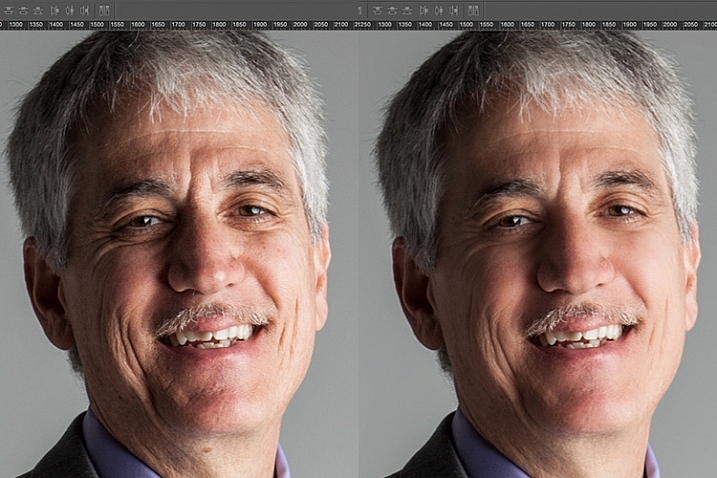
Here is the before and after of the Dust & Scratches filter effect on the musician’s face:
portrait retouching techniques

Notice the softening of the skin and reduction of the shadows in the wrinkles, yet he still looks untouched with most of the original texture still visible.

Now that you have completed the most important task of this post processing technique, it is time to repeat the steps from the beginning. Start again by evaluating the image as a whole. Notice any other areas that need attention. Remember to duplicate the top layer once you have completed any step in the process. Allow yourself to duplicate your layers as many times as you want. It’s always a safe bet.

Next, eliminate. This is your chance to eliminate any larger parts of the image that take more time. Elements to consider removing are:

  • Some (not all) of the scratches across the trumpet.
  • His left-side jacket pocket.

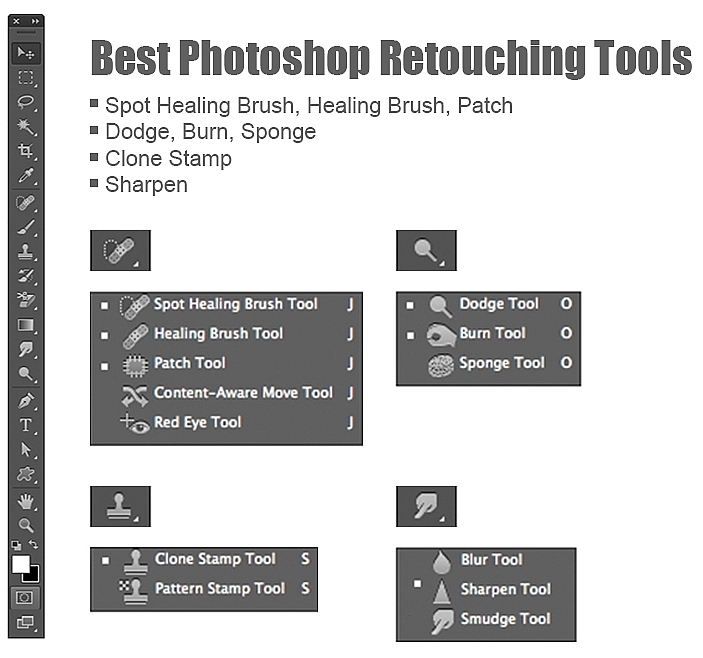
After eliminating for the final time, move on to step three again. In this case, instead of using Dust & Scratches as your reduction tool, you can use other popular items in the toolbox. Tools to consider using are the Healing and Spot Brushes, Dodge and Burn, and Sharpen and Saturate/Desaturate.
photoshop brushes for portrait retouching

Eliminate then Reduce – Repeat.

First, don’t forget to duplicate your layer before starting this step! If you don’t duplicate, this step will not work.

To lighten the shadowed area of the musician’s right eye, the Dodge Tool used at 50% on shadows would look too overly processed. But by allowing it to be over done on this newly duplicated top layer, you can then reduce the opacity of the layer to bring back the layer underneath at 50% or more. Now the over processed shadows look naturally lighter than the original.

This technique is great for all the tools mentioned above. The Sharpen tool can be used on eyes and jewelry. The Healing and Spot tools can be used for under eyes, and shadows that need a bit more attention. Desaturate and Dodge tools can be combined to whiten teeth. Anytime you want to reduce using these tools, just remember to duplicate the layer; make your changes, then reduce the opacity of that newly affected layer until the effect looks natural.

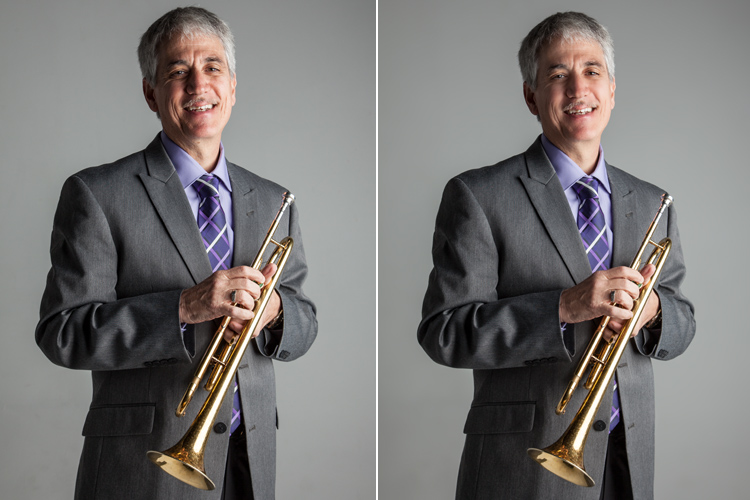
At this point in the retouching process, you have walked through each step of the process twice. It is time evaluate your finished image. This is where all those duplicated layers comes in handy. Keeping the top most layer turned on and the bottom original layer on, turn off every layer in between. Then zoom-in to 100% (accurate view of pixels), and click on and off of your top layer to see all the changes you have made.

If necessary make any other slight adjustments, like cropping to the correct size, then save your image. It’s best to always save the Photoshop layered copy (save as a PSD file) as well as a flattened JPG file, in the quality size you want.

We all know photoshop is full of endless possibilities, and we all love to learn. If you have other techniques that are great for “refreshing” your portraits, please share.

As with all things in life, this process takes practice to perfect. With practice you will gain accuracy, efficiency and train your eyes to see your images (before and after post-processing) in a whole new light, giving you better control over the look and feel of your retouched portraits.
portrait retouching techniques

Remember, as you learn and grow as a photographer, the goal is to always create your best images in the camera, and not just assume that you can just fix it in post. Keep this in mind, and with every click of the shutter you will become a better photographer, and spend less time in front of the computer.

Of course, you will always edit and retouch your very best images. When you do sit down to do so, now you will have a whole new range of techniques you can apply.

googletag.cmd.push(function() {
tablet_slots.push( googletag.defineSlot( “/1005424/_dPSv4_tab-all-article-bottom_(300×250)”, [300, 250], “pb-ad-78623” ).addService( googletag.pubads() ) ); } );

googletag.cmd.push(function() {
mobile_slots.push( googletag.defineSlot( “/1005424/_dPSv4_mob-all-article-bottom_(300×250)”, [300, 250], “pb-ad-78158” ).addService( googletag.pubads() ) ); } );

The post 3 Steps to Photoshop Retouching for Natural Looking Portraits by Danielle Werner appeared first on Digital Photography School.


Digital Photography School

 
Comments Off on 3 Steps to Photoshop Retouching for Natural Looking Portraits

Posted in Photography


3 Steps to Professional Looking Headshots Using One Flash

20 Jul

Ideally, every time we take photos of someone, there is a studio full of equipment at our disposal or wonderful sunlight that is perfectly diffused. This, however, is not reality. Usually, the sun is either too faint or too harsh. We don’t always have access to a studio, let alone one full of lighting gear that we can use. Sometimes, we also just don’t have the time to learn a new technique, rent more gear, or find the perfect location. Other times, the subject has very limited availability and locations. Still, we smile through the limitations and do our best to provide professional images every single time.

Do you feel prepared to compensate for these different light conditions that you may be forced to work with, though?

OneFlash-example4

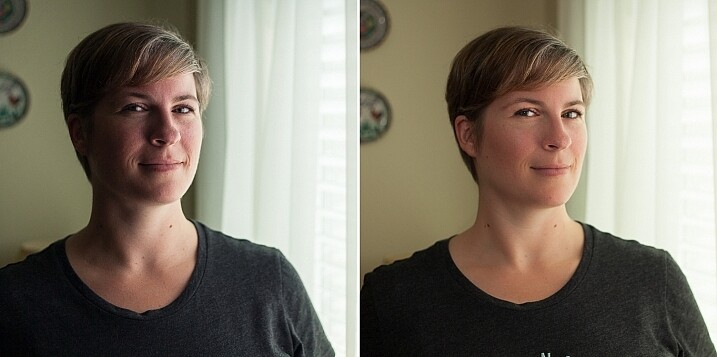
Natural light is always wonderful for any type of portrait, including headshots. Bouncing that natural light around with reflectors or just finding a bright shaded spot all work well. If you have a flash at your disposal, though, you can create even, or dramatic lighting to accommodate headshot needs.

The following three tips will help you create headshots using only one flash to compensate for less-then-perfect lighting conditions:

1. Diffuse, diffuse, diffuse!

When using a flash, the last thing you usually want is for it to LOOK like you used a flash. To do this, you need to find ways to make the light disperse more, reducing any harsh look that it will otherwise produce. There are several ways to do this, and each on their own will help. Combining techniques works best, though.

  • Bounce it – If there’s a wall somewhere to your side, a ceiling within a couple of feet from you, or if you have a reflector of any kind, bounce it. Aim the flash towards the reflector so that it fills in shadows to compensate for any uneven lighting conditions.
  • Aim the flash behind you to help disperse the light –  This may sound counterintuitive, but aiming the flash BEHIND you helps to disperse the light quite a bit. It provides a front light on your subject, but much softer than would otherwise be if the flash were pointed directly at them.
  • Use a diffuser on the flash – Whether it’s a plastic cover, a fabric mini-softbox, a bendable reflector that attaches, or a homemade version of any of the above – a diffuser directly on your flash will instantly soften the light and allow you more versatile light on your subject.
  • Set zoom on flash to the widest setting possible – your flash can be set to adjust to match the angle of view of the focal length lens you are using. However, this can be manually adjusted regardless of the lens you are using. When the flash is set to 70mm, for example, the light will be more narrow and direct than when it is set to 24mm. While this alone doesn’t make a drastic difference, it is another tool to add for further light diffusion.
Left - No flash. Right - Single flash, on-camera, turned to right of subject for fill light.

Left – No flash. Right – Single flash, on-camera, turned to the right of the subject for fill light.

In the before and after photos above, the left image shows the result using only natural light from the window. It’s beautiful light, but not always what you want.

The right photo shows same location, same position, with a single flash used to fill in the shadows. The flash is on-camera and has a flash dome diffuser on it. It’s angled to left of photographer (right of subject) so that it will bounce off walls and ceiling, and manually set at 1/8th power.

2. Use remote triggers

If you have access to remote triggers, play with using the light to add drama or emotion. This alone will give you a studio look and can be done just about anywhere. Be sure that this type of look is appropriate for your subject’s needs, especially since it tends to have a very strong look. For example, the owner of a flower shop may want something that is more natural-looking and shows the outdoors or her shop, while the owner of a tech start-up may like the strong look of dramatic lighting. While each situation is different, a few options for flash placement are:

  • Directly behind client
  • At 45 degrees behind or in front of subject
  • Directly to side of subject
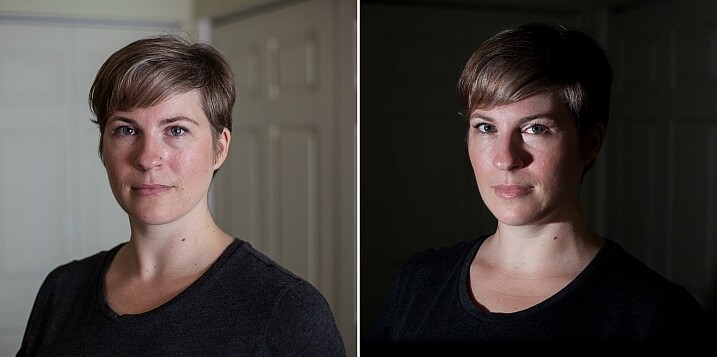
Left - No flash. Right - manual mode, underexposed several stops, single flash towards right of subject.

Left – No flash. Right – manual mode, natural light underexposed several stops, single flash towards right of subject.

The before and after photos above show how to use a single flash to create some dramatic headshots in any indoor situation. The left photo is properly exposing for the space, using natural light only. The photo on the right is manually controlled to greatly underexpose the natural light (so that the background disappears as much as possible), and then a single flash is placed towards right of subject to give concentrated and dramatic light.

3. Manual flash mode

While it is best to always use your flash on manual mode in order to have full control over the lighting, this is an often overlooked method. Manual mode on your flash will allow you to adjust the strength for any situation. Shooting indoors and bouncing the flash? Start your flash strength at 1/8 of full power and adjust from there. Shooting in full sun? Start at 1/2 strength and adjust down as needed. Need a soft bit of shadow to be filled while indoors? Set your flash strength to 1/16 and adjust from there. Note that you will get to know good starting points for different situations, but adjustments are always needed since every situation is unique.

OneFlash-example6

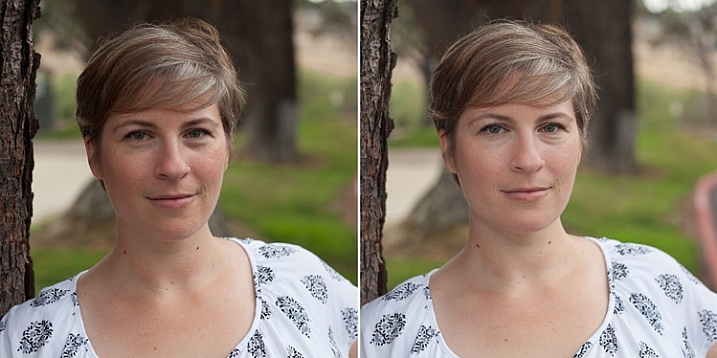
Left is using no flash, outdoors. Right photo is same position and location, using single flash on camera at 1/4th power.

The before and after photos above show you can use a single flash to compensate for shadows in daylight. The left photo shows direct daylight and no flash. The photo on the right is at the same time, same position, same sun condition, but with a single flash at 1/4 power to help fill shadows.

Regardless of what tools you have access to for each photo shoot, a big part of your job as photographers is to be able to adjust to any situation. While having lots of gear at your disposal is handy, it is not always necessary. Oftentimes, the gear you have on hand can do the job you need it to do; all it takes is some thinking outside of the box.

Do you have ways that you create beautiful headshot or portrait lighting on-the-fly? Please share in the comments below.

googletag.cmd.push(function() {
tablet_slots.push( googletag.defineSlot( “/1005424/_dPSv4_tab-all-article-bottom_(300×250)”, [300, 250], “pb-ad-78623” ).addService( googletag.pubads() ) ); } );

googletag.cmd.push(function() {
mobile_slots.push( googletag.defineSlot( “/1005424/_dPSv4_mob-all-article-bottom_(300×250)”, [300, 250], “pb-ad-78158” ).addService( googletag.pubads() ) ); } );

The post 3 Steps to Professional Looking Headshots Using One Flash by Natalia Robert appeared first on Digital Photography School.


Digital Photography School
 
Comments Off on 3 Steps to Professional Looking Headshots Using One Flash

Posted in Photography


Keep Your Night Light Looking Natural

20 Feb

Just ’cause the sun disappears after a certain time of day doesn’t mean your camera has to!

If you prefer using natural light in your photos, then shooting after dark (both indoors and out) can feel a little intimidating.

That’s why we’re here with four solutions for tricky nighttime lighting! You’ll make friends with flash, tripods, and everything else you need so your photo-taking can continue late into the night.

Say goodbye to camera curfews. Night owls, rejoice!

4 Tips For Taking Photos After Dark

(…)
Read the rest of Keep Your Night Light Looking Natural (536 words)


© Taylor for Photojojo, 2015. |
Permalink |
No comment |
Add to
del.icio.us

Post tags:


Photojojo

 
Comments Off on Keep Your Night Light Looking Natural

Posted in Equipment


The Droid you’re looking for? Samsung Galaxy Camera 2 review posted

14 Feb

The Samsung Galaxy Camera 2 is the second iteration of that manufacturer’s ultra-connected camera running full Android OS. It’s a 16MP camera with a 23-483mm equivalent lens that also happens to run Android 4.3 Jelly Bean, though it lacks the 3G/4G connectivity of its predecessor and offers only Wi-Fi. Is this hybrid the best of both worlds, or does it come up short in the imaging department? Read review

Articles: Digital Photography Review (dpreview.com)

 
Comments Off on The Droid you’re looking for? Samsung Galaxy Camera 2 review posted

Posted in Uncategorized


Natural Looking HDR in Photoshop and Lightroom in 5 Easy Steps

06 Feb

HDR (High Dynamic Range) photography was developed out of necessity to overcome limitations of photography equipment, mostly in digital cameras’ sensors. From the beginning, the technology was intended to make photographs as close as possible to human experience by bridging the gap between what the human eye perceives, and what the digital camera can actually capture.

NaturalLookingHDR Photo 1

Montreal, Canada – HDR processed, five exposures, tripod.

Think of HDR as a sophisticated, software based, ND (Neutral Density) filter. Instead of placing it in front of the lens at the moment of capturing photos, HDR allows you to accomplish it in post-processing. It sounds practical and convenient, right? There is no need for extra equipment and you can work on extending the dynamic range of the scene without rush, at your own pace, in the comfort of your home.

NaturalLookingHDR Photo 2

Montreal, Canada – HDR processed, three exposures, hand-held.

Why is HDR photography getting such bad press lately?

I believe that the main reason for this is the misconception in defining what HDR actually is. Somehow, there is a notion, that HDR is a new style in photography, which is completely false. HDR is not a style or genre; it is a technique of post-processing. It is a tool. The way the final photo looks is absolutely up to you, as you have full control over the entire process.

There are many different tools and techniques for creating HDR photographs and each one has its own advantages and limitations. If you are going for a surrealistic, edgy look in your images, Photomatix is your best friend.

But, if you are like me and your main goal is to achieve images that are as natural as possible and reflect the best aspects of the original scene, I definitely have a solution for you – one that I’ve successfully used for years and love.

On my blog, dedicated to travel and landscape photography (see my bio below for a link), you can find a detailed breakdown of my shooting and processing techniques for almost every photograph. In most cases where I used this technique, it is not easy to tell if the photo was processed as HDR unless you read the description. They look that natural.

NaturalLookingHDR Photo 3

Big Sur, California – HDR processed, three exposures, tripod.

The technique is somewhat underappreciated, but it is very powerful and easy to master. The beauty of it is that you do not have to learn additional software and there is no learning curve. You use familiar and powerful Adobe tools, Lightroom and Photoshop, and nothing else.

NaturalLookingHDR Photo 4

Cayo Coco beach, Cuba – HDR processed, three exposures, tripod.

This technique leverages the power of 32-bit processing in Photoshop HDR Pro, the module of Photoshop that was established in version CS3.

Below is the infographic that illustrates the schematic view of the entire process, from the time you take the photo to the moment you are ready to save the final image.

NaturalLookingHDR Photo 5

The Technique

1. Bracketing Photographs

Before you can start processing photos for HDR you need to take a series of bracketed shots with different exposure values. Normally, you take between three and five shots in each series but, in extreme lighting conditions (example: shooting directly into the sun), you might need to take anywhere from seven to even nine shots.

Ideally, you take multiple shots on a tripod but, since Photoshop has an extremely effective alignment tool, it is possible to take hand-held photos and let Photoshop align them.

2. Lightroom: Preprocessing

This is very simple step that should not take longer than one to two minutes. Import photos into Lightroom and only apply the following adjustments in the LENS CORRECTIONS panel:

  • Enable Profile Corrections. Lightroom detects the model of your lens and applies corrections to fix any type of distortions.
  • Remove Chromatic Aberration. Lightroom automatically cleans the edges in your photographs.

3. Photoshop: Tone Mapping

This is an almost completely automated process and should not take longer than two minutes.

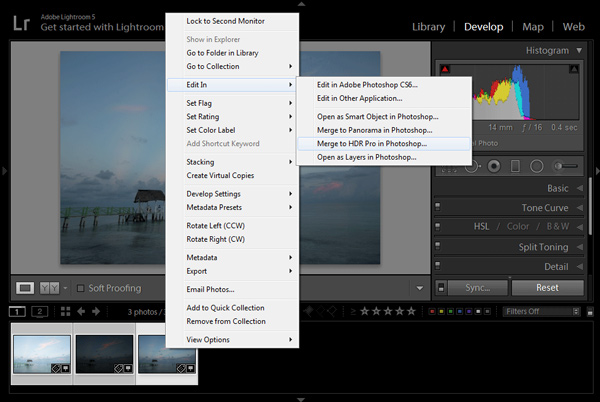
In Lightroom, select the bracketed photos that you want to merge to HDR. Right click (option click on Mac) and go to Edit In > Merge to HDR Pro in Photoshop.

NaturalLookingHDR Photo 6

Your bracketed photos will open in Photoshop and will be placed on separate layers. Immediately, the complex algorithm will be applied in order to align the layers. This comes in handy if you took the photos hand-held, without a tripod.

Next, the HDR Pro interface is triggered. All you have to do here is select the tone mapping mode. Opt for the 32-bit option to ensure that you preserve as much information as possible from the original images. Click OK.

NaturalLookingHDR Photo 7HDR Pro will merge the bracketed photos into a new 32-bit image and open it in Photoshop’s main interface. The tone mapping is complete. All you have to do now is save the document (File > Save). The new HDR image will be saved and automatically imported back into Lightroom. You can find it next to the original bracketed photos.

4. Lightroom: Main Processing

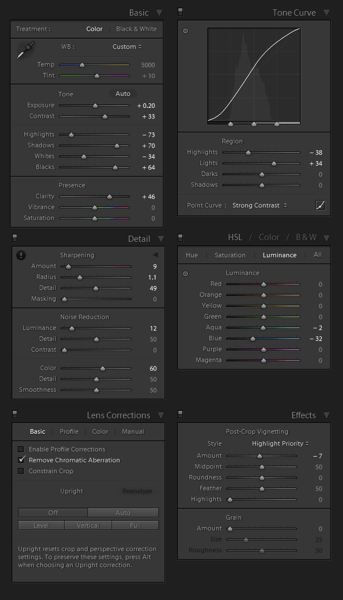
This is the most exciting step. You edit the newly tone mapped HDR image with enormous bit depth (32-bit) to give it the desired look and feel you want. Use standard Lightroom workflow to achieve your artistic vision.

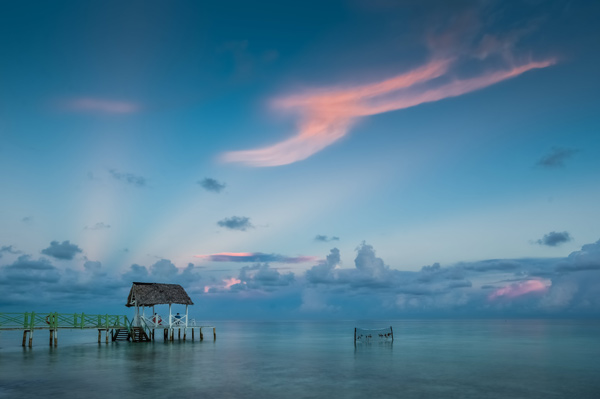
Here is the photograph I took in Cuba and processed using this technique. Below the photograph, you can find a screenshot of the Lightroom interface with all of the adjustments I performed in order to achieve the final look.

NaturalLookingHDR Photo 8

Cayo Santa Maria, Cuba – HDR processed, three exposures, tripod.

NaturalLookingHDR Photo 9

At this point, HDR processing is done. If you are happy with the way your photo looks, you can save it as a JPEG directly from Lightroom (“Export” in Lightroom).

5. Photoshop: Final Touches (Optional Step)

In some cases, HDR photos require additional edits, such as selective sharpening, noise reduction and HDR artifacts cleaning. Photoshop is your best friend for selective editing.

Select the HDR photo in Lightroom, right click and select Edit > Edit in Adobe Photoshop. In Photoshop, do what is necessary to improve your final photo. In the majority of cases, all you will need is to reduce noise and nothing else.

That is it. This is how you achieve natural looking HDR images in five easy steps or less.

NaturalLookingHDR Photo 10

Manhattan, New York – HDR processed, three exposures, hand-held.

PROS of 32-bit HDR processing in Photoshop HDR Pro

  • It does not require stand-alone HDR software
  • The learning curve is minimal
  • Tone mapping and editing are completely two separate processes and it is easy to achieve a natural look
  • This technique takes advantage of 32-bit editing

CONS of 32-bit HDR processing in Photoshop HDR Pro

  • In some cases when there are multiple moving objects in the scene (trees, leaves, water), it can cause artifacts that require additional cleaning.

Have you tried this method before? How do you process your HDR images? Please share in the comments below.

googletag.cmd.push(function() {
tablet_slots.push( googletag.defineSlot( “/1005424/_dPSv4_tab-all-article-bottom_(300×250)”, [300, 250], “pb-ad-78623” ).addService( googletag.pubads() ) ); } );

googletag.cmd.push(function() {
mobile_slots.push( googletag.defineSlot( “/1005424/_dPSv4_mob-all-article-bottom_(300×250)”, [300, 250], “pb-ad-78158” ).addService( googletag.pubads() ) ); } );

The post Natural Looking HDR in Photoshop and Lightroom in 5 Easy Steps by Viktor Elizarov appeared first on Digital Photography School.


Digital Photography School
 
Comments Off on Natural Looking HDR in Photoshop and Lightroom in 5 Easy Steps

Posted in Photography