RSS
 

Posts Tagged ‘Local’

Big Sky Country: Local photographers share their favorite Montana photo spots

14 Apr

$ (document).ready(function() { SampleGalleryV2({“containerId”:”embeddedSampleGallery_0904372940″,”galleryId”:”0904372940″,”isEmbeddedWidget”:true,”standalone”:false,”selectedImageIndex”:0,”startInCommentsView”:false,”isMobile”:false}) });

Montanans celebrate an unofficial holiday on April 6th every year since ‘Big Sky Country’ as it’s known is covered by just one area code: 406. In honor of the day, Resource Travel recently rounded up a list of locals’ favorite photography spots across the state. Take a look at just a few examples of Montana’s gorgeous scenery and then head to Resource Travel for exact locations and more photos to whet your travel appetite.

Articles: Digital Photography Review (dpreview.com)

 
Comments Off on Big Sky Country: Local photographers share their favorite Montana photo spots

Posted in Uncategorized


Vibrant Hybrids: Architect Inspired by Local Traditions & Transformers Movies

10 Mar

[ By WebUrbanist in Architecture & Houses & Residential. ]

extreme designs

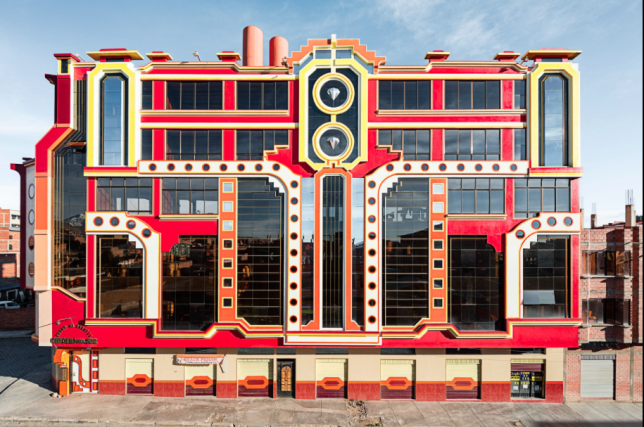
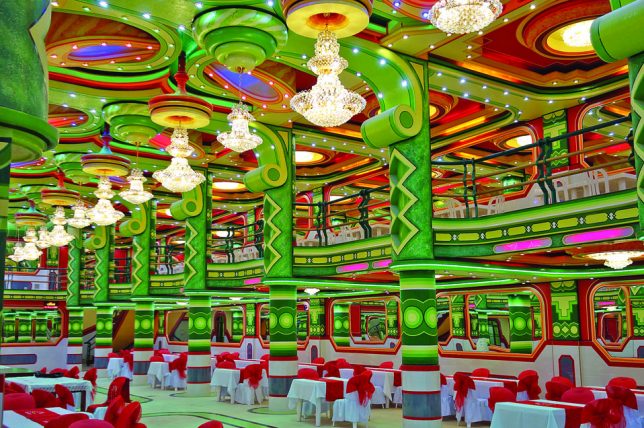
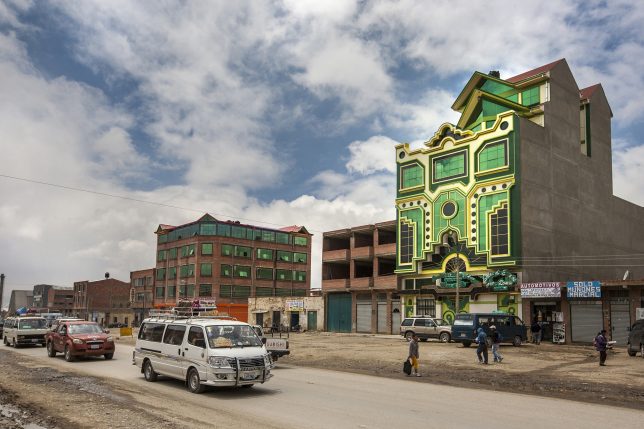
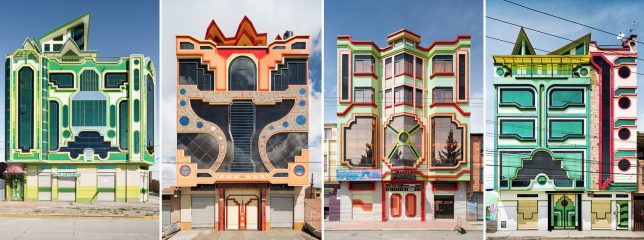
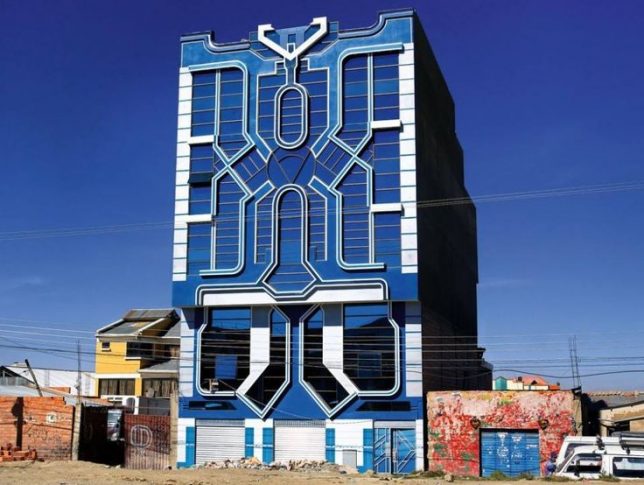
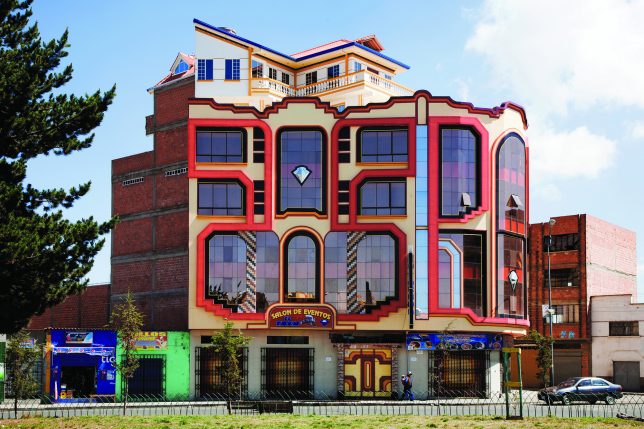
Architects around the world strive to incorporate regional design histories into contemporary work, but Bolivian designer Freddy Mamani Silvestre takes it a step further, blending pop culture inspirations into his fantastically bizarre buildings.

transformer architcture

Mamani is an Aymara, part of a people who were historically conquered and displaced by Incan and Spanish populations.He trained as an engineer, then grew into fame designing mixed-use mansions for the rich (generally: stores on the ground floor, apartments above and a penthouse for owners).

eclectic modern

“Mamani’s architecture incorporates circular motifs from Aymara weaving and ceramics and the neon colors of Aymara dress,” reports the New Yorker, “and it alludes to the staggered planes of Andean temples.” It also is inspired by cyberpunk visions and science fiction films like Transformers.

extreme design

Creative, eccentric, joyful, imaginative are all words that have been used to describe his work, though some see it extreme, superficial, garish or gaudy as well. It can be polarizing, with fans praising his audacity and critics decrying the lack of formal method to the apparent madness.

vibrant traditional

fantastic weird buildings

Silvestre works in unusual ways as well, sketching ideas onto walls or simply describing what he wants to coworkers, leaving them to execute the details. He has completed a number of projects in this way in El Alto, the highest city in the world.

Share on Facebook


[ By WebUrbanist in Architecture & Houses & Residential. ]

[ WebUrbanist | Archives | Galleries | Privacy | TOS ]


WebUrbanist

 
Comments Off on Vibrant Hybrids: Architect Inspired by Local Traditions & Transformers Movies

Posted in Creativity


Hasselblad introduces keystone and local highlight recovery in Phocus 3.1

21 Oct
A before and after example in which the highlight recovery tool has been applied via a mask over the sky in the right-hand image

Hasselblad has released the latest version of its Phocus software that is designed to manipulate images from its H and X series cameras, and the CFV digital back. The 3.1 version adds a new perspective control palette that allows both vertical and horizontal corrections against grid-pattern guide lines, which is something users have been requesting for some time. This should make life easier for those shooting architectural subjects, flat coping and product photographers, among others.

A second new feature is a highlight recovery tool that can be used via a selection on an adjustment layer. A mask is painted over the area that needs drawing back and a slider control pulls in the over-bright detail.

The company has also added a pair of new settings for its Reproduction menu that governs color and contrast settings in the display. Reproduction Low Gain creates a lower contrast image while Negative inverts colors and tones – which will be useful for creating film negatives for other processes.

Version 3.1 of Phocus is available for download on the Hasselblad website.

Manufacturer information:

Phocus 3.1

The eagerly awaited update to our rich image processing software has just been released, bringing with it additional features and benefits.

Keystone Perspective Correction
The new Keystone tool enables you to perform high quality perspective corrections directly in Phocus. This can be done both via a simple guideline interface or via manual slider adjustments. Additionally, the dual-axis correction capability is extremely useful when copying flat artwork.

Local adjustment of highlight recovery
Highlight recovery has now been added to the palette of local adjustment tools, allowing for quick and precise correction without the need for manual masking.

Viewer background and margin options
It’s now possible to configure both margin and background color options for the viewer. This can be done separately for both the normal and a newly added proof mode.

Added camera response options
In the reproduction tool you now have the choice of 2 additional response modes. Reproduction Low Gain enables an even higher quality linear response. The new Negative response is suitable for reproduction of black and white negative film.

Phocus tutorials now available
We have partnered with UK professional photographer Karl Taylor to produce a series of Phocus Tutorial videos. They can be accessed through the Phocus product page and you will need to log in to view them.

Articles: Digital Photography Review (dpreview.com)

 
Comments Off on Hasselblad introduces keystone and local highlight recovery in Phocus 3.1

Posted in Uncategorized


How to Use the Local Adjustments Tools Inside Lightroom

27 Oct

Local adjustments in Lightroom

Whenever you take a photo, no matter what the subject, it would be extremely unusual if it couldn’t be improved in some way by making local adjustments in Lightroom.

Local adjustments affect part of the image. Whenever you carry out any processing action in Lightroom you are either making a local adjustment (only affects part of the image) or a global adjustment (affects the entire image).

If you have been following this series and trying out some of the techniques I wrote about in my earlier Lightroom articles that you have been mainly making global adjustments. There is an exception. Adding a vignette in the Effects panel is a local adjustment because it affects the edges of the image but not the centre.

Lightroom gives you three powerful tools for making local adjustments. They are the Adjustment Brush, the Graduated filter, and Radial filter.

The Adjustment Brush

The Adjustment Brush is for creating an odd shaped mask – one that can’t be made easily with the Graduated or Radial filters.
Local adjustments in LightroomNote that masks work differently in Lightroom than in Photoshop. In Photoshop, the adjustment is applied to the area that isn’t covered by the mask. In Lightroom, the adjustment is applied to the area covered by the mask.

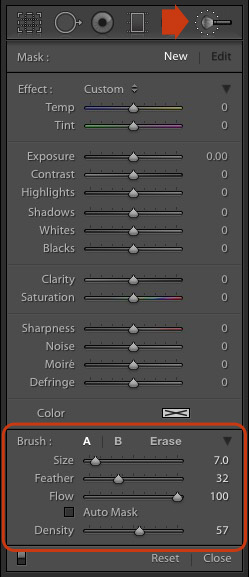
Creating a mask in Lightroom is the same as making a selection in Photoshop. Go to the Develop module and click the Adjustment Brush icon (marked on the right) or use the keyboard shortcut K.

The Adjustment Brush panel opens up underneath the icon. The first 14 sliders show the adjustments you can make with this tool. The Effect menu contains a number of presets that you can use (click the word “Custom” to see the pull-down menu).

At the bottom (circled) are sliders for setting the size, softness and strength of the Adjustment Brush.

To start, select Brush A (if not already selected) and use the [ and ] keys to make the brush smaller or larger respectively, until it is the right size to create the mask you need. You can also use the Size slider, but the keyboard shortcuts are easiest.

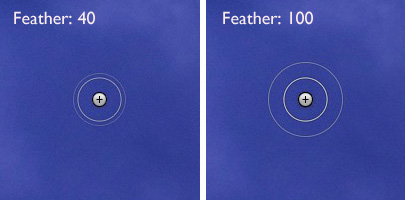
Hold down the Shift key and use the [ or ] to adjust the amount of feathering. Again, you can use the Feather slider but the keyboard shortcuts are faster once you get to know them.

The size of the Adjustment Brush is shown by two concentric circles on the screen. The inner circle shows the area fully covered by the brush. The outer circle shows more or less where the effect of feathering ends. The distance between the circles increases when you increase the feathering amount. This diagram shows how it looks on screen.
Local adjustments in Lightroom

You can create another Adjustment Brush by clicking on B and changing the parameters. You can switch between the A and B brushes whenever you like, useful for complex retouching.

Select Erase to delete part of the mask that you have created. You can adjust the size and feathering of the Erase brush as well.

Flow controls the opacity of the mask. 100 is full strength. Set it here unless you have a reason to do otherwise.

Density sets the maximum strength of the effect.

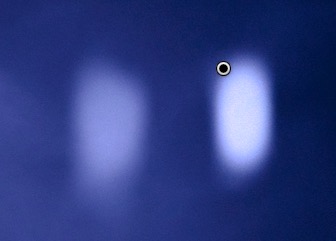
The difference between Density and Flow is this. If you set Flow to 25% and repeatedly brush over part of the image, each brush mark builds on the one below it, increasing the strength of the effect until you reach 100%. If you set Density to 50%, and flow to 25%, then repeatedly brush, the maximum strength you can reach is 50%.

This diagram shows the difference. On the left I set the Exposure slider to +4.00, Flow to 25%, Density to 50% and brushed repeatedly. On the right I did the same with Density set to 100%.
Local adjustments in Lightroom

Tick the Auto Mask box to limit the edges of the mask to any edges in the photo. Sometimes this tool works well, but other times it reacts to textures and creates a patchy mask that doesn’t cover the area you want. I leave this unticked most of the time.

You can add as many Adjustment Brushes to an image as you like. Each one is represented by a grey dot that is revealed when you select the Adjustment brush tool and move the mouse over the photo. The current Adjustment Brush is marked by a black circle within the grey pin. Click on a grey dot to activate that adjustment and make changes to it, or delete it (press the Backspace key).

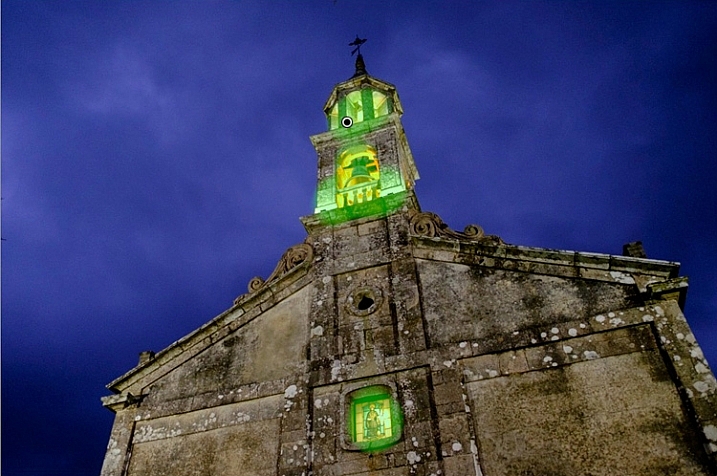
Now, let’s put that into practice. I’d like to do two things to the photo below. One is reduce the intensity of the highlights created by the lights inside the church; the second is emphasize the texture of the stone. We can do both with the Adjustment Brush.
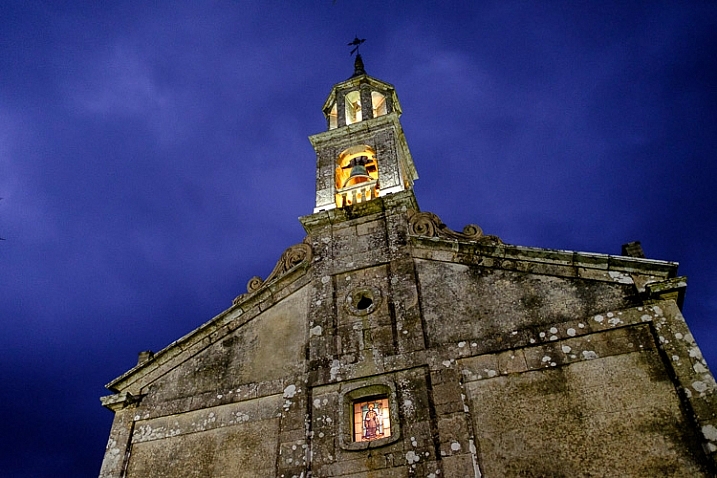
Local adjustments in Lightroom

First, I brushed in the areas affected by the bright highlights (shown in green below).

Local adjustments in Lightroom

You can see the area covered by the Adjustment Brush at any time by pressing the O key.

This is called the Mask Overlay and is coloured green in my screen shots. The default colour is red. Press the Shift and O keys together to change it. Press O again to hide the Mask Overlay.

Then I moved the Highlights slider left (to -67) to reduce the intensity of the highlights. These screen shots show the difference.
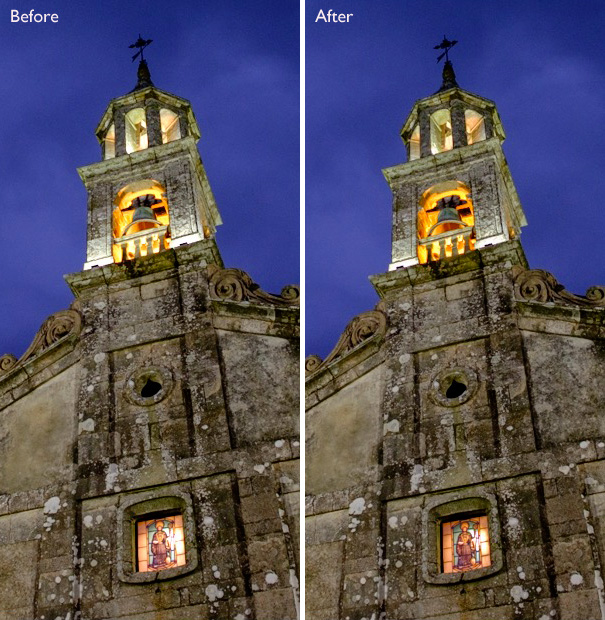
Local adjustments in Lightroom

Next, I created a new mask covering the stonework.
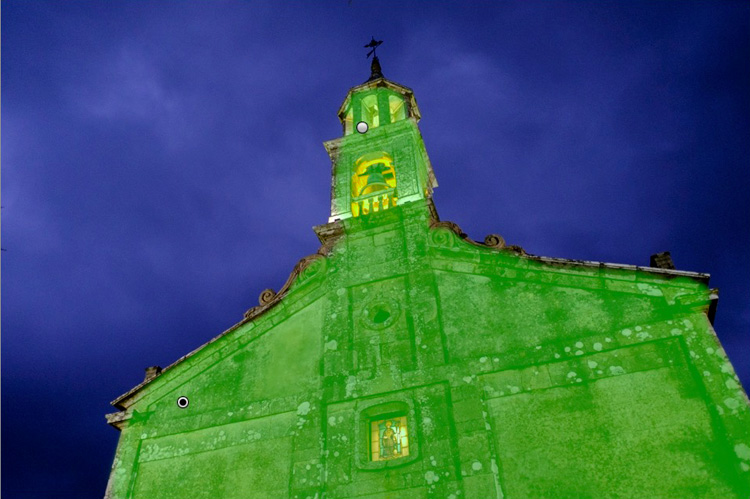
Local adjustments in Lightroom

Then I increased Clarity to +58 to bring out the texture of the stone wall.

Here’s the final result, compared to the original.
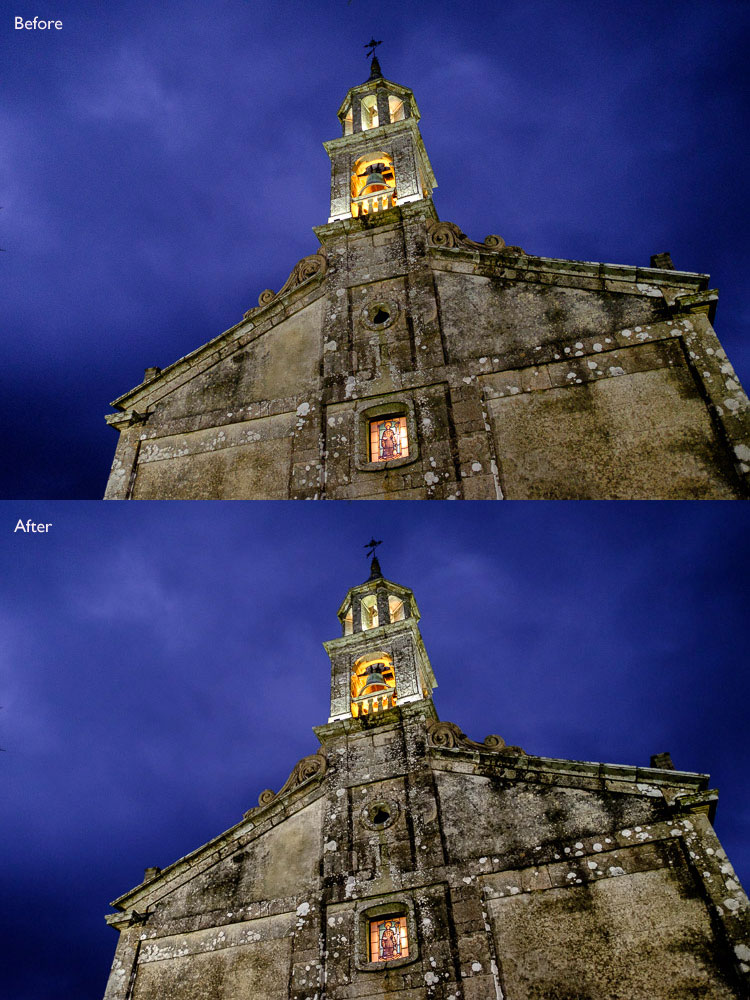
Local adjustments in Lightroom

Here are some more uses for the Adjustment Brush:

  • Portrait retouching. Use the Adjustment Brush to select the model’s skin and apply the Soften Skin preset. You can also enhance eyes by increasing exposure and Clarity.
  • Enhancing black and white photos. Many black and white images rely heavily on texture for impact. Use the Adjustment Brush to select the textured areas you would like to have the most impact, and increase Clarity to enhance them.
  • Selectively desaturating the background to add impact to portraits.

My article, Four Ways to Improve your Photos with the Clarity Slider in Lightroom, shows you how to do it.

The Graduated filter

Lightroom’s Graduated filter is named after the type of filter used by landscape photographers to make skies darker.

This is also the most obvious use for Lightroom’s Graduated filter. However, it only works if detail was recorded in the sky. it doesn’t replace a physical graduated neutral density filter.Local adjustments in Lightroom
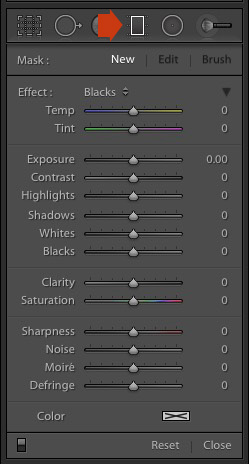
Go to the Develop module and click the Graduated filter icon (marked right), or click the keyboard shortcut – M. The Graduated filter panel opens, revealing the same sliders as the Adjustment Brush.

Click and hold the left mouse button down, and pull the mouse down over the image. Lightroom adds a Graduated filter to the photo.

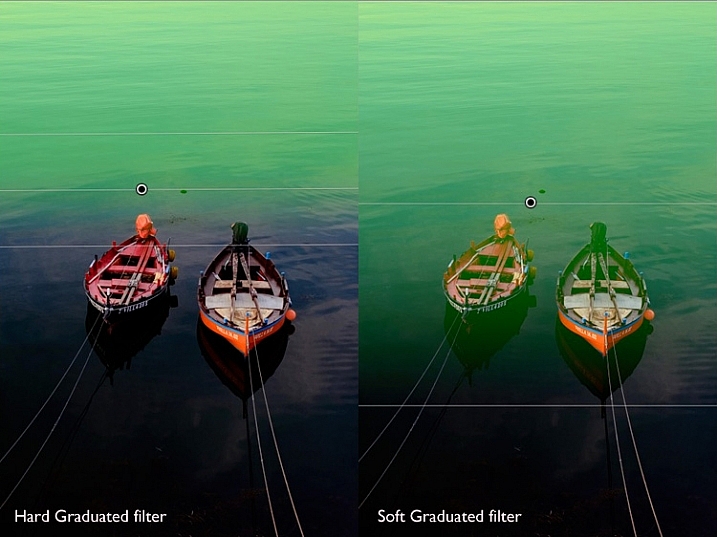
The Graduated filter is marked by three lines that move further apart as you move the mouse across the photo. The lines represent the softness of the filter – the further they are apart, the more graduation you get.

Let go of the mouse button to place the filter. If you do so close to the edge of the photo, you will create a filter with three lines close together. This is a hard filter, with a rapid graduation between full effect and no effect.

If you hold the mouse button down for longer, you get a filter with three lines spaced far apart. This is a soft filter, with a gentle graduation between full effect and no effect.

The two types of filter are shown below. I pressed the O key to show the Mask Overlay (you can only do this in Lightroom 6 and Lightroom CC).
Local adjustments in Lightroom

After creating the filter, you can move it by clicking and dragging the central pin.

If you hold the Shift key down while creating the filter, it is placed parallel to the edge that you started from.

To rotate the filter, hold the mouse over the central line (the one with the pin) until the cursor changes from a plus sign to a curly double arrow. Hold the left mouse button down and move the mouse to rotate the filter.

To change the softness of the filter, hold the mouse over the outer line until the cursor changes to a hand. Click and drag to move the line closer to, or further from, the central line. If you hold the Alt key down while you do so, the central line stays in position.

The best way to come to grips with this is to try it out. It may sound complex, but it’s quite simple, and you’ll quickly get the hang of it.

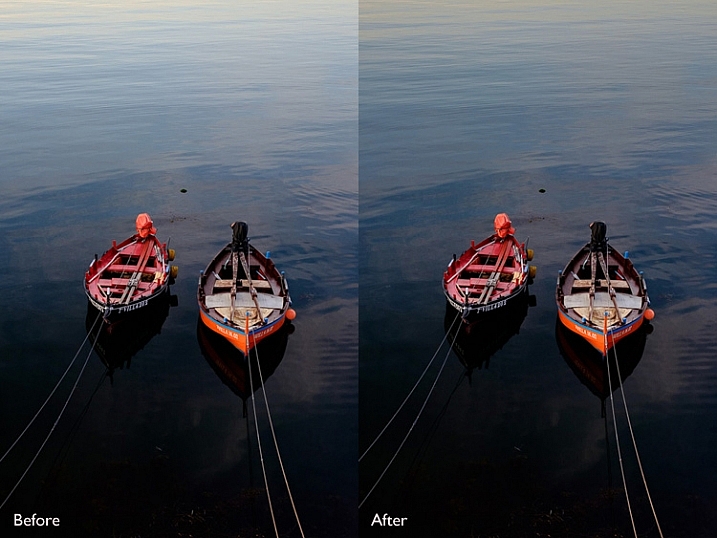
Here’s an example of how you can use the Graduated filter to improve an image. The water behind these boats is very bright, and I wanted to make it darker to fit in with the foreground. The Graduated filter is the perfect tool for this. Before and After photos shown below.
Local adjustments in Lightroom

In Lightroom 6 and Lightroom CC you can combine the Graduated filter with the Adjustment Brush. The Adjustment Brush is used to alter the shape of the mask created by the Graduated filter.

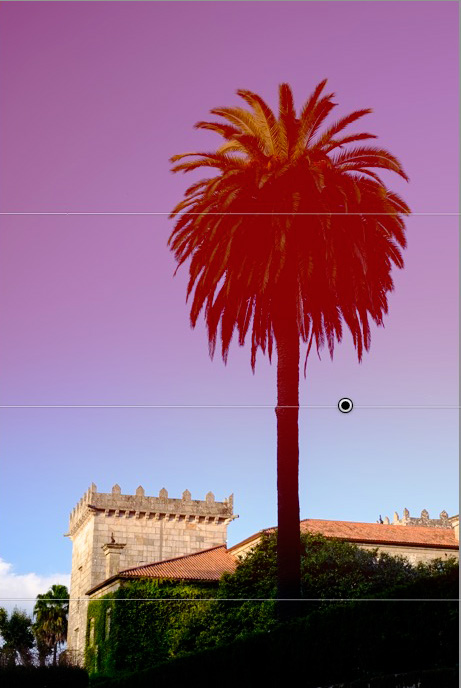
In this example, I used the Graduated filter to darken the sky. The only problem is that the Graduated Filter also makes the palm tree darker, which I don’t want. Here’s the Mask Overlay (shown in red).
Local adjustments in Lightroom

Press O to show the Mask Overlay, then click on the word Brush in the Graduated filter panel (marked below). The Brush options open up below the panel. Click Erase (also marked below) and adjust the size (and other settings) to suit.
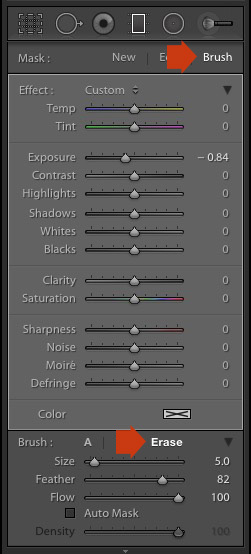
Local adjustments in Lightroom

Here’s what the Mask Overlay looks like with the part that covers the palm tree erased.
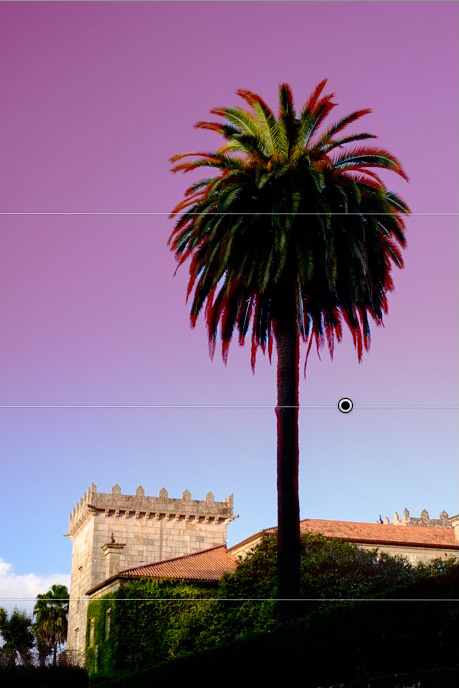
Local adjustments in Lightroom

Here are the before and after versions.
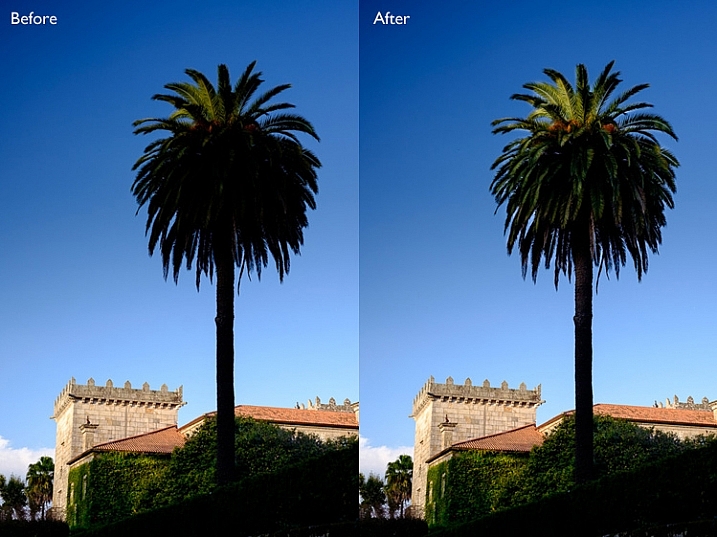
Local adjustments in Lightroom

Before (left) showing the graduated filter to darken the sky. After (right) showing the tree portion having been erased or masked out from being darkened by the graduated filter.

My article Improve Your Images with the Lightroom Graduated Filter Tool shows you six ways you can use the Graduated filter to improve your photos.

The Radial filter

The Radial filter (new in Lightroom 5) is for creating circle or oval shaped masks. If you have Lightroom 6 or Lightroom CC you can press O to show the Mask Overlay. You can also combine the Radial filter with the Adjustment Brush.Local adjustments in Lightroom
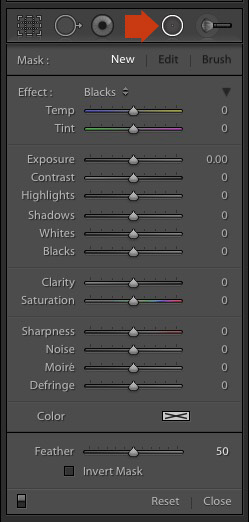
Go to the Develop module and click the Radial filter icon (marked right). The Radial filter panel opens. The sliders are the same as those used by the Graduated filter and the Adjustment Brush.

Hold the left mouse button down and drag the mouse across the photo. Let the mouse button go when you are done.

Change the size and shape of the Radial filter by clicking and dragging the four white squares at the compass points of the filter.

Rotate the Radial filter by moving the cursor to the edge of the filter until it changes from a hand or plus icon to a double curly arrow. Click and drag to rotate.

Use the Feather slider to set the softness of the gradient at the edges of the Radial filter. The default setting of 50 seems to work well for most masks, but you can change it if you need to.

By default Lightroom applies the adjustments to the area outside the Radial filter. Tick the Invert Mask box to apply the adjustments to the area inside it instead.

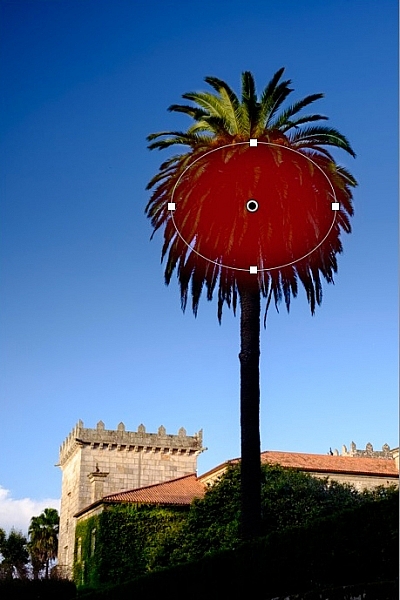
The screenshot below shows a Radial filter that I placed on photo used in the previous demonstration. I ticked the Invert Mask box to apply the adjustment to the area inside the Radial filter. The Mask Overlay is on to show you the affected area (in red).
Local adjustments in Lightroom

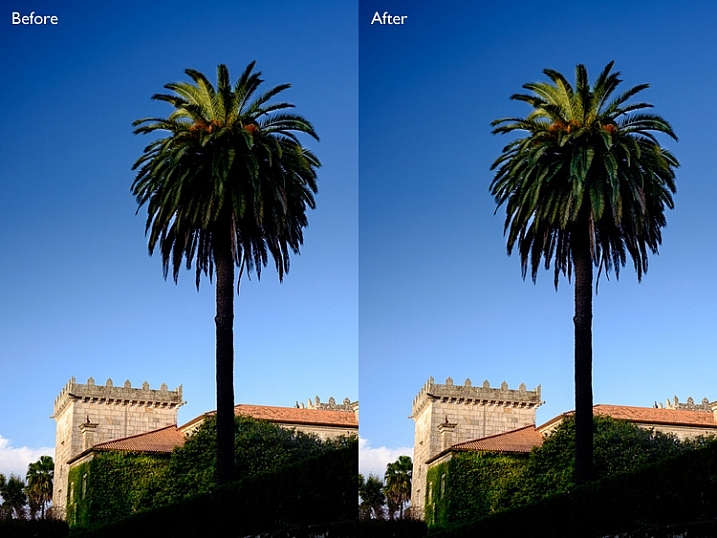
Then I increased Exposure to bring out some detail in the palm tree. Before and after versions below.
Local adjustments in Lightroom

Here are some uses for the Radial filter:

  • Portrait retouching. Select eyes or lips and enhance using exposure and Clarity sliders.
  • Making portrait backgrounds darker. Place a Radial filter over the model’s face and make the background darker.
  • Add a vignette to off-centre subjects. When you create a vignette in the Effects panel, it is always centred. With the Radial filter, you can place it wherever you need.

In my next article I’ll show you how to harness the power of Lightroom using Virtual Copies. Until then, if you have any questions about the techniques in this article, or you would like to share how you use local adjustments in Lightroom, please let us know in the comments.


The Mastering Lightroom CollectionMastering Lightroom ebooks

My Mastering Lightroom ebooks will help you get the most out of Lightroom. They cover every aspect of the software from the Library module through to creating beautiful images in the Develop module. Click the link to learn more or buy.

googletag.cmd.push(function() {
tablet_slots.push( googletag.defineSlot( “/1005424/_dPSv4_tab-all-article-bottom_(300×250)”, [300, 250], “pb-ad-78623” ).addService( googletag.pubads() ) ); } );

googletag.cmd.push(function() {
mobile_slots.push( googletag.defineSlot( “/1005424/_dPSv4_mob-all-article-bottom_(300×250)”, [300, 250], “pb-ad-78158” ).addService( googletag.pubads() ) ); } );

The post How to Use the Local Adjustments Tools Inside Lightroom by Andrew S. Gibson appeared first on Digital Photography School.


Digital Photography School
 
Comments Off on How to Use the Local Adjustments Tools Inside Lightroom

Posted in Photography


Adobe Camera Raw 9.2 adds local dehaze

07 Oct

Adobe has released Camera Raw 9.2, introducing a local version of its new dehaze adjustment. ACR 9.2 also adds support for the DxO ONE, though not for the camera’s SuperRAW files. Other cameras supported by the update are the Olympus OM-D E-M10 II, Sony Alpha 7S II and Leica S (Typ 007). Read more

Articles: Digital Photography Review (dpreview.com)

 
Comments Off on Adobe Camera Raw 9.2 adds local dehaze

Posted in Uncategorized


Form Follows Footprint: Forest Retreat Just Fits Local Codes

02 Jan

[ By WebUrbanist in Architecture & Houses & Residential. ]

forest pavillion for sweden

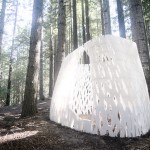
A creative response to a new legal loophole, this structure is designed specifically to test the limits of a Swedish planning law allowing buildings under a certain size to be constructed without prior structure-specific approval.

forest pavillion at night

forest retreat structure model

Jägnefält Milton of Stockholm worked with Arup engineers to work within the confines proposed by the legislation, which include dimensional limits of 25 square meters and 4 meters in height.

forest pavillion side view

forest pavillion covered view

The intent, though, is not to push the limits but to respect their intent and create a low-footprint, eco-friendly pavilion that respects its environment.

forest building materials natural

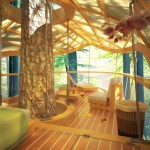
The design calls for using the timber cleared from the site to construct the structure and use a tension system of structural anchors to maximize views, minimize outside materials and take advantage of a large stone on the site.

forest pavillion simple interior

forest leaf site plan

Supported off the ground, the lower platform is mirrored by a roof of the same organic leaf-like shape and a fabric cover can be deployed around the entire building to provide some privacy as well.

Share on Facebook


[ By WebUrbanist in Architecture & Houses & Residential. ]

[ WebUrbanist | Archives | Galleries | Privacy | TOS ]


WebUrbanist

 
Comments Off on Form Follows Footprint: Forest Retreat Just Fits Local Codes

Posted in Creativity


Mobile 3D Clay Printer: Whole Houses from Local Mud & Fiber

03 Nov

[ By WebUrbanist in Architecture & Houses & Residential. ]

3d printing dirt water

Easy to disassemble and transport on demand, this 3D-printing solution uses natural materials to build completely stable homes from readily available resources.

3d printed architecture mud

Designed by WASP (World’s Advanced Saving Project) and deployed recently at a maker fair in Rome, the Delta device itself is lightweight and can be loaded onto a truck, moved then rebuilt in a matter of hours.

3d printed architectural home

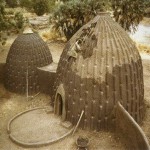
Structurally, the system employs curved walls, arches and domes to create solid buildings that can withstand the test of time. For its source material: dirt, clay and water are fed into the machine, leaving the results to dry naturally in the sun. Other substances like wool can be added to help bind the solution. Architecturally, the designs draw on regional vernaculars.

3d printer delta machine

Part of WASP’s larger goal here is to raise awareness of non-plastic building materials that can be used in 3D printers, all with the same degree of precision found when using plastics. This process has started with demo models and is leveling up to full-scale structures.

3d house printing technology

As for future endeavors: “the company is in the process of exploring 3D printing implantable ceramics, such as hydroxylapatite, bioglass and aluminium oxide, to create bone implants with the same porous structure as natural bone.”

Share on Facebook


[ By WebUrbanist in Architecture & Houses & Residential. ]

[ WebUrbanist | Archives | Galleries | Privacy | TOS ]


WebUrbanist

 
Comments Off on Mobile 3D Clay Printer: Whole Houses from Local Mud & Fiber

Posted in Creativity


Create Better Black and White Photos Using Local Adjustments in Lightroom 5

08 Jul

Local adjustments in Lightroom

I showed you how to convert your photos to black and white in Lightroom in an earlier article. But, considering it dealt purely with global adjustments, the piece only gives you half the story. Global adjustments get you started, but in order to get the best black and white conversion possible you need to make local adjustments as well. This article will show you how to do this.

First, a couple of definitions:

Global adjustments: Any adjustments (to brightness, contrast etc.) that affect the entire image.

Local adjustments: Adjustments that affect only part of the photo.

Before I show you how to make local adjustments, let’s think about why you would do so. Certain things pull the eye more than others. For example, when you look at a photo with people in it, your eye will go straight to them, even if they are small in the frame. This is probably down to human curiosity more than anything, but it works.

Two other things that pull the eye are highlights and contrast. The idea behind making local adjustments is that you can alter the brightness or contrast of certain areas in the frame to influence where the eye goes. This creates a better, more beautiful photo.

Dodging and burning

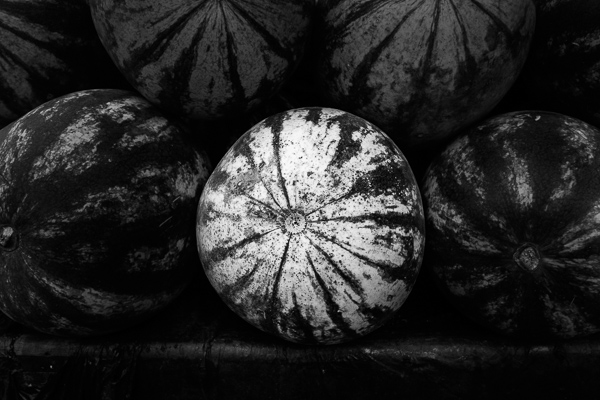
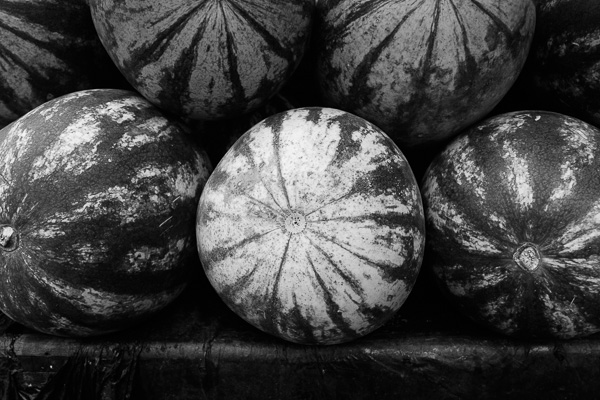
Here’s the photo we’re going to work with in today’s article. I’ve already converted it to black and white using global adjustments.

Local adjustments in Lightroom

As you can see, it lacks a focal point. It also contains lots of beautiful textures which will look great in black and white if we can bring them out.

In order to make effective local adjustments you need to decide what you want to achieve before you start. Here, I decided to make the central watermelon the focal point of the composition. Decision made, it’s just a question of how to achieve it.

Dodging and burning

Although Lightroom itself doesn’t use these terms, you will find them referred to time and again in post-processing. Dodging is the act of making part of the photo lighter, and burning is the act of making it darker. They originated in the chemical darkroom and are also done in photo editing programs like Photoshop.

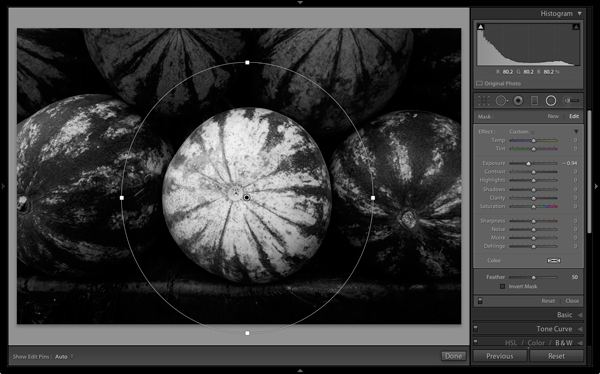
The first step to achieving my aim of making the central watermelon the focal point, is to make the rest of the photo darker. I did that by placing a Radial Filter over the central watermelon and moving the Exposure slider left.

Local adjustments in Lightroom

Note: The Radial Filter is new to Lightroom 5. If you have an earlier version of Lightroom, you can use either Post-crop Vignetting or the Adjustment Brush instead.

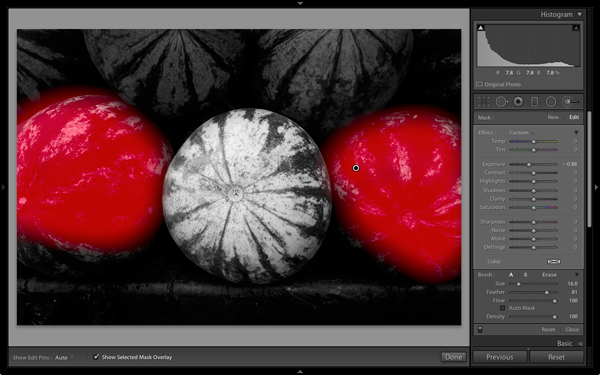
The two watermelons either side of the central one are a little too bright. So I used the Adjustment Brush to select (mask) them and moved the Exposure slider left to make them darker. The screenshot below shows the area covered by the mask. Note how I only painted the top parts of the watermelons as the bottom part was already dark.

Local adjustments in Lightroom

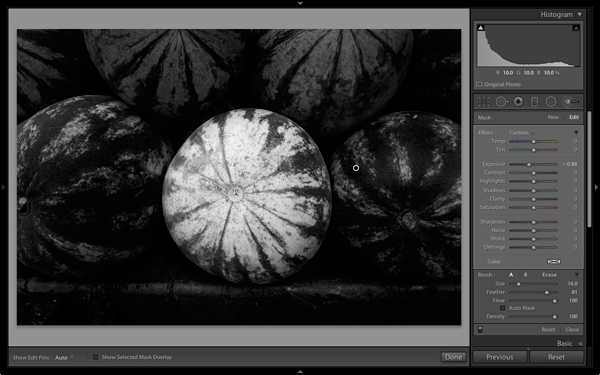
This is the result of the local adjustment.

Local adjustments in Lightroom

Contrast and Clarity

The next step is to improve the appearance of the central watermelon. I can do that by increasing contrast to bring out the beautiful textures of its skin.

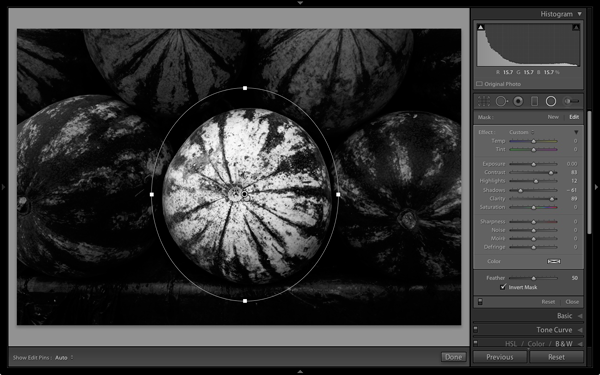
I placed another Radial Filter over the watermelon (you could also use the Adjustment Brush) and ticked the Invert Mask box so the adjustment was applied inside, rather than outside, the filter. Then I increased Contrast and Clarity, and moved the Highlights slider right and the Shadows slider left. The result is a big increase in contrast, bringing out the texture of the watermelon’s skin. Here’s the result.

Local adjustments in Lightroom

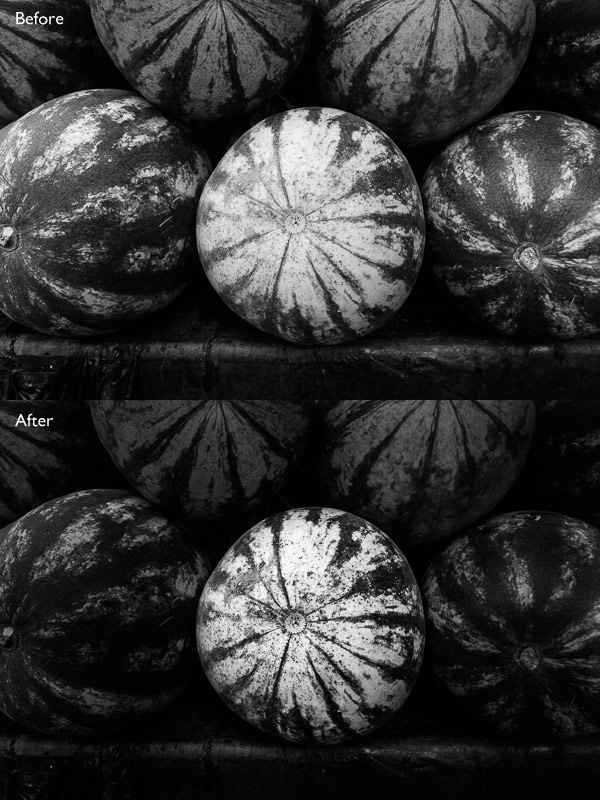
Here are the before and after views so you can see the difference, which is entirely down to the local adjustments.

Local adjustments in Lightroom

That completes my overview of using local adjustments in Lightroom. As you can see, the local adjustments turned an average photo into a much stronger one. There is nothing overly complicated about it, it’s more a matter of training your eye to see in black and white and then deciding how to use the tools that Lightroom gives you to realize your vision.

I’m curious to hear how you use local adjustment when you convert your photos to black and white. Please let us know in the comments.


Mastering Lightroom: Book Three – Black & White

Masterlng Lightroom: Book Three – Black & White by Andrew S GibsonMy ebook Mastering Lightroom: Book Three – Black & White goes into the topic of black and white in depth. It explains everything you need to know to make dramatic and beautiful monochrome conversions in Lightroom, including how to use the most popular black and white plug-ins. Click the link to visit my website and learn more.

The post Create Better Black and White Photos Using Local Adjustments in Lightroom 5 by Andrew S. Gibson appeared first on Digital Photography School.


Digital Photography School
 
Comments Off on Create Better Black and White Photos Using Local Adjustments in Lightroom 5

Posted in Photography


Travel Photography without the Travel – Going Local

07 Apr

Many photographers love to travel. They love the thrill of being in a new place, of capturing new scenes and experiences, and of coming home with quality images. But landscape and travel  photography do not need to be confined to weeks-long trips to far-flung locations. This article will explore how to get the most out of a weekend (or even weekday) local photography outing (all photographs in this article were taken within a few miles of where I live).

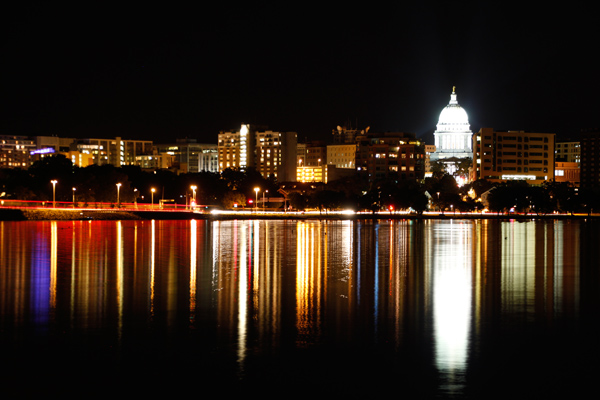
city, urban, night, lighttrails, reflection, traffic

Before: Planning and Packing

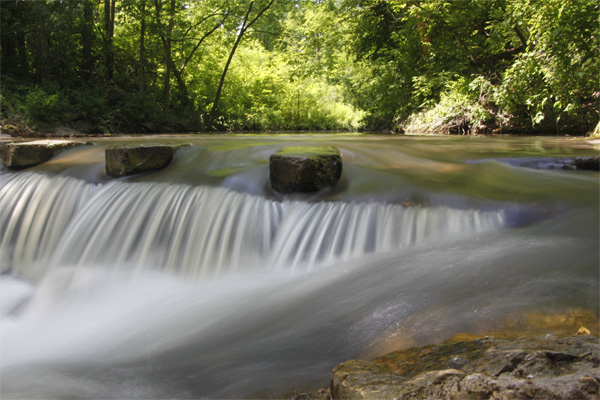
Making a plan or having a bucket list of photography wants is a great place to start. Always wanted to photograph a slow, silky waterfall? Looking to capture candid street photography shots of interesting people? Want to bring home that idyllic sunset shot over open water? Now is the time.

Start by spending a little time evaluating the photographic potential of what is already around you. We often become so accustomed to our day-to-day that we forget to recognize the possibilities of the familiar. Challenge yourself to find and seek out a nearby or local photography opportunity. Try browsing on Flickr for waterfalls and streams in your area or make a plan to spend some time in an older part of town watching for street photography opportunities.

waterfall, silky water

Urban waterfall

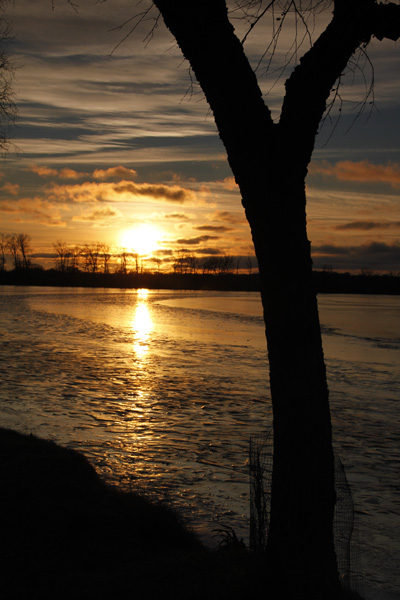
Want to catch that sunset or sunrise? Plan for the light. Look up sunrise and sunset times for your date(s) and location, and decide where you want to be shooting during the blue hour and golden hour in the morning and evening. You can even use programs like the Photographers’ Ephemeris to determine the timing and angles of sunrise, sunset, moon rise, and moon set, which can help you capture dramatic photographs of these events and their relative surroundings.

sunrise, tree, silhouette, reflection, morning

Now that you have a plan, create a packing list. Consider creating a ‘basic’ packing list for any photographic excursion that you can reuse for future trips. At a minimum, be sure to bring your camera body and any extra lenses, extra memory cards and batteries, your battery charger, a camera case, and basic cleaning supplies (blower, brush, and cloth). You may also wish to add a tripod, remote shutter release, and any additional filters or flash units, depending on your anticipated shots. Also do not forget about basic travel or emergency supplies like a flashlight or headlamp, cell phone, and snacks. Finally, I always stash a gallon sized plastic bag in my camera case or purse as well, which makes an impromptu rain or snow cover (cut out a corner to keep shooting) or just easy protection from unexpected weather.

During: Follow Your Plan, Amend Your Plan, and be Flexible

Getting the most out of a quick photography outing requires using your time wisely. This is where you will reap the benefits of your pre-trip planning and research. Give yourself extra time at each location to scope out the scene before you start photographing. Minutes spent walking around without your camera raised will help you zero in on the shots and angles you want rather than simply trying to capture it all and hoping something turns out well. Avoid the temptation to ‘lock’ yourself down once your tripod comes out. Be sure to consider alternate views of your subject. Read more about the importance of Perspective in Photography: don’t just stand there, move your feet!

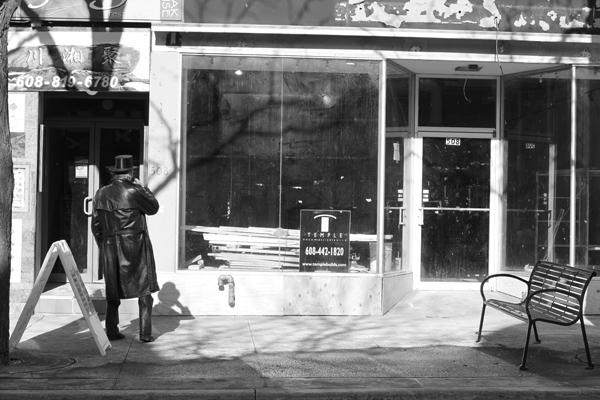
street photography, black and white, B&W, urban, city, decay

As with any photography, you should also be prepared to amend your plan as necessary. Weather, crowds, unexpected building closings, and innumerable other factors can interfere with even the best laid plans. Consider having a backup indoor plan for your outdoor day or an alternate location nearby, just in case. The benefit of exploring a nearby photography location is that it is much easier to return again if your first time does not work out the way you had planned.

After: Workflow and Reflection

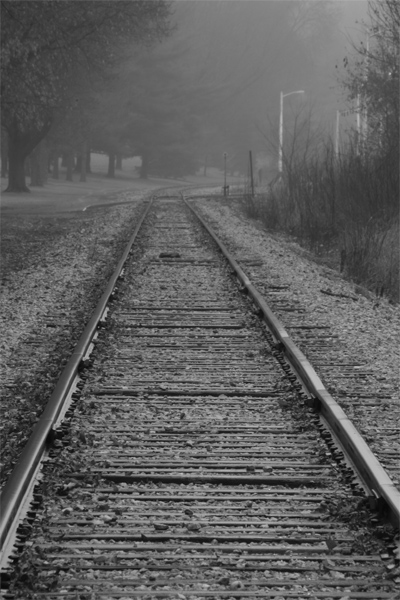
fog, foggy, morning, railroad, tracks, black and white, B&W

Once you get home, be sure to download all of your photographs immediately and back them up as well, using whatever system you have established (multiple hard drives or disks, portable hard drives, cloud backup, etc.). Establish a system for tagging and evaluating your shots so that you can find your favorites quickly and easily.

Don’t shortchange yourself after the outing either. Take some time to review the trip as well as to review your shots. Write yourself some notes about what worked well and what did not. Continue to add on to your bucket list by thinking of new ideas or missed opportunities. You may be surprised at how much photographic potential you can find around you!

Have you been able to check items off your photography bucket list by focusing on opportunities closer to home? Share your favorites in the comments below.

The post Travel Photography without the Travel – Going Local by Katie McEnaney appeared first on Digital Photography School.


Digital Photography School
 
Comments Off on Travel Photography without the Travel – Going Local
Posted in Photography


Little & Local: Staircase Cinema & Sidewalk Library Projects

25 Jun

[ By WebUrbanist in Art & Installation & Sound. ]

small local installation projects

Public art used to be synonymous with huge and impersonal and location-agnostic sculptures made of metal and marble. Countering that classic Modernist trend are installations like this pair: a set small, site-specific and community-oriented design-build projects located in Auckland, New Zealand, and New York City, New York, respectively.

small sidewalk stairway cinema

First, from Oh No Sumo (images by Simon Devitt), the Stairway Cinema, a sheltered spot for watching movies on steps rising right off the sidewalk and open to pedestrians passing by. Public participants are invited to curate the collection of films shown on the screen.

small movie theater stall

About its creators and inspiration: “Our ongoing goal is to experiment with architecture and the way it can engage with the public in unique and exciting ways. This project takes inspiration from the site and its inhabitants. The intersection of Symonds Street and Mount Street is a place of ‘hard waiting’. Bus stops and laundromats create a hard-scape of poor space for social interaction.”

Next Page:
Little Local Staircase Cinema Sidewalk Library Projects

Share on Facebook


[ By WebUrbanist in Art & Installation & Sound. ]

[ WebUrbanist | Archives | Galleries | Privacy | TOS ]


WebUrbanist

 
Comments Off on Little & Local: Staircase Cinema & Sidewalk Library Projects

Posted in Creativity