RSS
 

Posts Tagged ‘lightroom’

Adobe’s Tom Hogarty talks about the extra features in the Lightroom 4 beta

17 Jan

lrlogo.jpg

We spoke to Tom Hogarty, Lightroom’s Principal Product Manager, about the changes being previewed in the latest public beta of Adobe’s processing workflow software. The beta version of Adobe Photoshop Lightroom 4 introduces a wide range of additional functions, tight integration with a third-party vendor and significant changes to some fundamental image editing tools. Hogarty explains how these features came about, their impact on Lightroom users and what Adobe hopes to learn from user feedback during the beta process.

News: Digital Photography Review (dpreview.com)

 
Comments Off on Adobe’s Tom Hogarty talks about the extra features in the Lightroom 4 beta

Posted in Uncategorized


Adobe issues Lightroom 3.6 and ACR 6.6 release candidates

10 Nov

Adobe has released ‘Release Candidates’ of its Camera Raw 6.6 and Lightroom 3.6 raw processing software. The updates cover 5 additional cameras, namely the Canon Powershot S100, Nikon 1 J1, Nikon 1 V1, Panasonic Lumix DMX-GX1 and Samsung NX5. Also included are lens profiles for a number of recent Sigma and Nikon lenses, along with several medium format optics and the Sigma DP2x. Both updates are available from the Adobe Labs site. The company uses the term ‘Release Candidate’ to denote software that is well tested but not yet the final version.
News: Digital Photography Review (dpreview.com)

 
Comments Off on Adobe issues Lightroom 3.6 and ACR 6.6 release candidates

Posted in Uncategorized


Portrait Retouching with Lightroom 3

26 Sep

A quick walkthrough of portrait retouching using Lightroom 3.

How to whiten eyes in photoshop – part two of my tutorial on how to colour correct eyes. Website will be up and running soon…
Video Rating: 0 / 5


Digital Photography 1 on 1: Episode 68: Lightroom Versus Photoshop

22 Sep

In this episode, Mark explains the differences between Adobe Lightroom and Adobe Photoshop. Watch as he demonstrates the strengths of each program and how they are best suited for a photographer’s workflow. Buy Adobe Photoshop and Lightroom, and learn more about both of these programs here: www.adorama.com Send your questions to: AskMark@Adorama.com


Lightroom Presets

08 Aug

Lightroom presets enhance or simplify your develop time with your photographs. Here are a few websites for Lightroom presets that (mostly) offer free presets to be used in Lightroom. If you know of any other sites that I have not listed please comment below and I will add the sites you suggest.

Presetsheaven
Pretty Presets for Lightroom
onOne Software
Lightroom Killer Tips
Ultimate Collection of The Best Adobe Lightroom Presets
Presetpond
Adobe Exchange
Inside Lightroom
Wonderlandpresets
get totally rad
speckyboy
Presetopia
Rule of Thirds Photography
Flickr Discussing Presets
Kubota Image Tools
Camera Dojo
Prophotoshow
Mcg Studios
Rebecca Lily
Gantico

Any suggestions, ideas? Feel free to comment on this article!

Back to Top

BlogPhoto

 
Comments Off on Lightroom Presets

Posted in Equipment


Adobe Lightroom Lesson to Learn – Backup Your Library

08 Aug

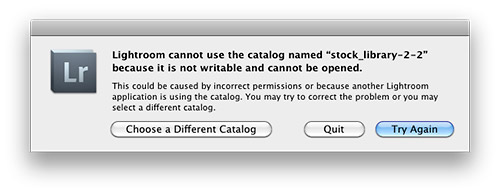
If you use Adobe Lightroom then let me warn you, the following dialog box is the last thing you want to see when all is configured correctly (permissions are correct and another application is not using the catalog). Why? Because it means that your catalog file is inaccessible and may have big problems. The net result being lost work and time to fix the problem. Alas there is something you can do before this ever appears that will save you from spontaneously cursing late in the evening and/or instantly turning your hair white, but first a short story…
Learn From My Experience
This past Friday night at 11pm I was that guy in a darkened room being warmed by the glow of my monitor and cursing at the dialog box pictured above. Innocently enough I thought I’d work on an image or two before bed and brought up Lightroom 3.4.1, but the Zen-like activity of working on an image or two (cue the sound of water trickling over a cascading slope of river rocks with birds chirping above) was abruptly cut short (cue sound of a needle scratching on a record). Panic didn’t set in right away because I backup my Lightroom library on an external hard drive (see my drive setup) and I also employ Apple’s Timemachine backup function for my primary hard drive that houses my Lightroom catalog.
Note: It’s best practice to not keep your working Adobe catalog on an external drive due to degraded performance.

Remembering that I had these two backup mechanisms in place I thought, “Keep it together Jim. Let’s see if we can retrieve things to make this a quick fix before bed.” Then 30 milliseconds later my inner voice countered, “Shit! You’ve avoided backing up your Lightroom library for a at least 2 weeks so you could shut down your computer more quickly. Good job Jim, considering you just made a bunch of new smart collections and keyworded hundreds of photos.” Sure enough I looked and my last catalog backup via Lightroom was made to my external hard drive over two weeks before all my recent work had been completed. Backup plan #1 was a failure purely because I was lazy and impatient.

I then started sorting through my Timemachine drive to find my Lightroom catalog date stamped Thursday (the day before this mess happened). There were multiple backups for Thursday and Friday so I was starting to feel relieved, but then I noticed the file size was half what it should be.  I loaded the catalog and sure enough it was what my Lightroom catalog looked like not days or weeks ago, but several months ago. I’ll spare you the cuss filled thoughts that were shooting through my brain at this point. I opened backup after back up for the past week or two and Timemachine had not updated my catalog for what seems to be months…seemingly  just duplicating an older copy.

As you can imagine the thought, “Holy shit!” kept repeating in my mind. Instantly I opened a browser window and I started searching on Google “Lightroom cannot use the catalog named” and what I found was limited, very limited in fact. Most of the posts were for version 2 and not version 3. The one thing that was consistent advice was to delete the lrcat.lock file that comes up next to your catalog file ending with lrcat. (Note: Do not delete your catalog file ending in .lrcat that is having problems!!!!) I deleted the lrcat.lock file and reloaded Lighroom but kept getting the same result, seeing that dreaded dialog box. I was resigned to having to eat the loss of a lot of work at this point. At best I’d have to copy and paste metadata from exported files made the past 2 weeks  to get back to where I was before my catalog had problems.

Finally as a last resort I decided to restart my computer. The lrcat.lock file was removed and the catalog file didn’t show any signs of corruption you might visually see on a Mac. After my restart I loaded Lightroom and…

everything came up normal. So with out any hesitation I quit Lightroom and at the prompt backed up my catalog via Lightroom’s backup function. I then made a triple backup by copying the verified working catalog to a thumb-drive I carry on my keychain.

Lessons Learned, Please Take Note:

  1. Don’t be lazy and regularly backup your Lightroom catalog especially after completing a lot of work.
  2. Have a backup of your backup catalog
  3. Don’t rely on Timemachine as a backup for your Lightroom catalog. Period.
  4. Verify that your backup catalogs work
  5. Seriously don’t be lazy and regularly backup your Lightroom catalog!!!

Left Wondering
Granted I didn’t look at every forum entry when searching for a solution to this problem, but those that came up at the top of the search results were not helpful and dated. I was surprised I couldn’t easily find something in the Adobe Labs forum about this that was relevant to version 3.x either. While things are working again I’m not 100% satisfied and I’m going to be researching further what exactly caused my catalog to become inaccessible. Seeing that my Lightroom catalog now spans content on 4 drives and contains information for 110,000 image I’m not keen to risk losing it all.

Technorati Tags: Adobe, Lightroom, backup, error, best practice

Copyright Jim M. Goldstein, All Rights Reserved

Adobe Lightroom Lesson to Learn – Backup Your Library

flattr this!


JMG-Galleries – Jim M. Goldstein Photography

 
Comments Off on Adobe Lightroom Lesson to Learn – Backup Your Library

Posted in Equipment


Lightroom Presets

08 Aug

Lightroom presets enhance or simplify your develop time with your photographs. Here are a few websites for Lightroom presets that (mostly) offer free presets to be used in Lightroom. If you know of any other sites that I have not listed please comment below and I will add the sites you suggest.

Presetsheaven
Pretty Presets for Lightroom
onOne Software
Lightroom Killer Tips
Ultimate Collection of The Best Adobe Lightroom Presets
Presetpond
Adobe Exchange
Inside Lightroom
Wonderlandpresets
get totally rad
speckyboy
Presetopia
Rule of Thirds Photography
Flickr Discussing Presets
Kubota Image Tools
Camera Dojo
Prophotoshow
Mcg Studios
Rebecca Lily
Gantico

Any suggestions, ideas? Feel free to comment on this article!

Back to Top

BlogPhoto

 
Comments Off on Lightroom Presets

Posted in Equipment


Adobe Lightroom Lesson to Learn – Backup Your Library

08 Aug

If you use Adobe Lightroom then let me warn you, the following dialog box is the last thing you want to see when all is configured correctly (permissions are correct and another application is not using the catalog). Why? Because it means that your catalog file is inaccessible and may have big problems. The net result being lost work and time to fix the problem. Alas there is something you can do before this ever appears that will save you from spontaneously cursing late in the evening and/or instantly turning your hair white, but first a short story…

Learn From My Experience
This past Friday night at 11pm I was that guy in a darkened room being warmed by the glow of my monitor and cursing at the dialog box pictured above. Innocently enough I thought I’d work on an image or two before bed and brought up Lightroom 3.4.1, but the Zen-like activity of working on an image or two (cue the sound of water trickling over a cascading slope of river rocks with birds chirping above) was abruptly cut short (cue sound of a needle scratching on a record). Panic didn’t set in right away because I backup my Lightroom library on an external hard drive (see my drive setup) and I also employ Apple’s Timemachine backup function for my primary hard drive that houses my Lightroom catalog.
Note: It’s best practice to not keep your working Adobe catalog on an external drive due to degraded performance.

Remembering that I had these two backup mechanisms in place I thought, “Keep it together Jim. Let’s see if we can retrieve things to make this a quick fix before bed.” Then 30 milliseconds later my inner voice countered, “Shit! You’ve avoided backing up your Lightroom library for a at least 2 weeks so you could shut down your computer more quickly. Good job Jim, considering you just made a bunch of new smart collections and keyworded hundreds of photos.” Sure enough I looked and my last catalog backup via Lightroom was made to my external hard drive over two weeks before all my recent work had been completed. Backup plan #1 was a failure purely because I was lazy and impatient.

I then started sorting through my Timemachine drive to find my Lightroom catalog date stamped Thursday (the day before this mess happened). There were multiple backups for Thursday and Friday so I was starting to feel relieved, but then I noticed the file size was half what it should be.  I loaded the catalog and sure enough it was what my Lightroom catalog looked like not days or weeks ago, but several months ago. I’ll spare you the cuss filled thoughts that were shooting through my brain at this point. I opened backup after back up for the past week or two and Timemachine had not updated my catalog for what seems to be months…seemingly  just duplicating an older copy.

As you can imagine the thought, “Holy shit!” kept repeating in my mind. Instantly I opened a browser window and I started searching on Google “Lightroom cannot use the catalog named” and what I found was limited, very limited in fact. Most of the posts were for version 2 and not version 3. The one thing that was consistent advice was to delete the lrcat.lock file that comes up next to your catalog file ending with lrcat. (Note: Do not delete your catalog file ending in .lrcat that is having problems!!!!) I deleted the lrcat.lock file and reloaded Lighroom but kept getting the same result, seeing that dreaded dialog box. I was resigned to having to eat the loss of a lot of work at this point. At best I’d have to copy and paste metadata from exported files made the past 2 weeks  to get back to where I was before my catalog had problems.

Finally as a last resort I decided to restart my computer. The lrcat.lock file was removed and the catalog file didn’t show any signs of corruption you might visually see on a Mac. After my restart I loaded Lightroom and…

everything came up normal. So with out any hesitation I quit Lightroom and at the prompt backed up my catalog via Lightroom’s backup function. I then made a triple backup by copying the verified working catalog to a thumb-drive I carry on my keychain.

Lessons Learned, Please Take Note:

  1. Don’t be lazy and regularly backup your Lightroom catalog especially after completing a lot of work.
  2. Have a backup of your backup catalog
  3. Don’t rely on Timemachine as a backup for your Lightroom catalog. Period.
  4. Verify that your backup catalogs work
  5. Seriously don’t be lazy and regularly backup your Lightroom catalog!!!

Left Wondering
Granted I didn’t look at every forum entry when searching for a solution to this problem, but those that came up at the top of the search results were not helpful and dated. I was surprised I couldn’t easily find something in the Adobe Labs forum about this that was relevant to version 3.x either. While things are working again I’m not 100% satisfied and I’m going to be researching further what exactly caused my catalog to become inaccessible. Seeing that my Lightroom catalog now spans content on 4 drives and contains information for 110,000 image I’m not keen to risk losing it all.

Technorati Tags: Adobe, Lightroom, backup, error, best practice

Copyright Jim M. Goldstein, All Rights Reserved

Adobe Lightroom Lesson to Learn – Backup Your Library

flattr this!


JMG-Galleries – Jim M. Goldstein Photography

 
Comments Off on Adobe Lightroom Lesson to Learn – Backup Your Library

Posted in Equipment


adobe workflow Lightroom 2 photoshop cs4 and Portraiture

03 Jul

Portraiture is a Photoshop, Lightroom and Aperture plugin that eliminates the tedious manual labor of selective masking and pixel-by- pixel treatments to help you achieve excellence in portrait retouching. It intelligently smoothens and removes imperfections while preserving skin texture and other important portrait details such as hair, eyebrows, eyelashes etc. Portraiture features a powerful masking tool that enables selective smoothening only in the skin tone areas of the image. What makes Portraitures masking tool truly unique is its built-in Auto-Mask feature. It helps you quickly discover most of the skin tone range of the image automatically and, if preferred, you can manually fine-tune it to ensure optimal results, providing unmatched precision and productivity. www.imagenomic.com Photoshop cs4 www.adobe.com Lightroom 2 www.adobe.com
Video Rating: 3 / 5


Adobe Photoshop Lightroom 2.0

17 Feb

Kerry from CameraDojo.com takes you on a tour of some of the new features of Adobe Photoshop Lightroom 2.0.