
RSS
 

Posts Tagged ‘lightroom’

Output from Lightroom to Your Blog

16 Oct

Lightroom print image with border opener

I use Lightroom to prepare the images ready to upload to my blogs so it’s critical that I can get them out of Lightroom all ready to upload without having to do any more work on them. On one blog I use framed images and therein lies a problem – the images need a thin keyline around them so you can see the edge. Without an edge the image would just blend into the surrounding white background of the blog page.

So, here’s how to create a frame effect in Lightroom – the images will be sized for the web with the appropriate resolution, they will have a frame around them, together with my name, and they will have a keyline around the image and around the page itself. And, to finish, it will all be saved as a reusable template.

Start outside Lightroom in any graphics or photo-editing program and create an image 500 x 600 pixels in size and filled with white. Save it as a jpeg format image and import it into Lightroom – place it somewhere easy to find.
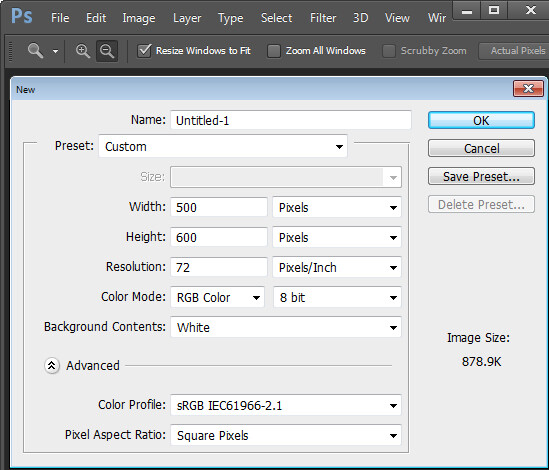
Lightroom print image with border 1

Then, in Lightroom place the images for the blog post into a collection and add the empty image you just created to the same collection. For convenience I use a single collection for the images destined for my blog – it makes them easier to find and it simplifies the output process.

Switch to the Print module and select the collection. To configure the document size, from the Layout Style panel select Custom Package and from the Print Job panel set Print To to read JPEG file. Set the File Resolution to 100 ppi and select the Custom File Dimensions to 5 in x 4 in to make a landscape orientation image which will ultimately be created as a 500 x 400 pixel image. Set Color Management Profile to sRGB.
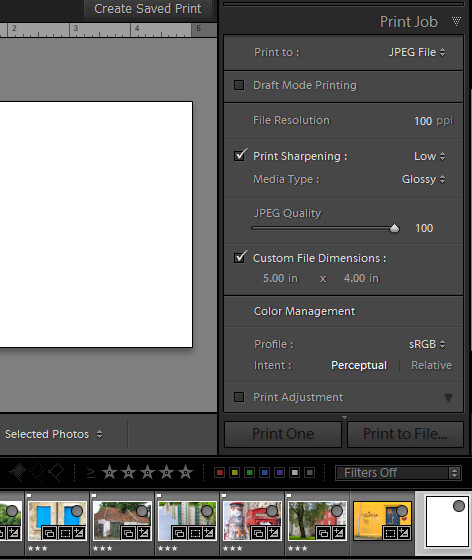
Lightroom print image with border 2

Now, drag and drop the first image into the work area and size it to suit. Choose Image Settings > Inner Stroke and then set the width to 0.2 pt black line. This will appear around the image.
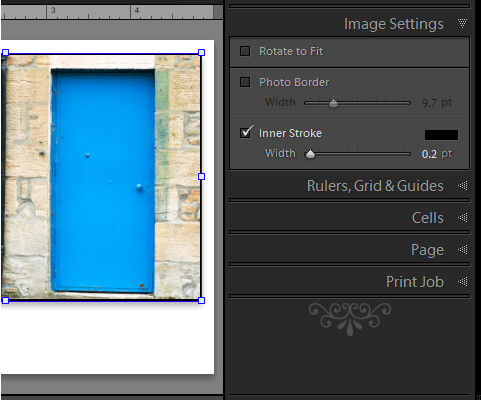
Lightroom print image with border 3

Now drag the empty white image into an empty place in the work area and then size it to just smaller than the size of the work area. It will automatically have a line around it – the Inner Stroke setting is applied to all the images. To place this image behind the first image, right click it and choose Send to Back.
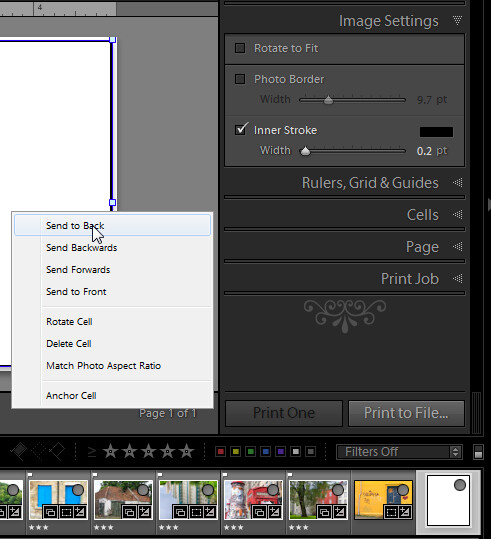
Lightroom print image with border 4

The text is added using an Identity Plate. To make one, click the Page panel and enable the Identity Plate checkbox. Click the small triangle in the Identity Plate box and click Edit and then click Use a styled text identity plate. Type the Identity Plate text – for example, mine reads Helen Bradley | Photography – select and format it as desired. Click the Custom button, click Save As and type a name for it, click Save and then Ok to add it. Move it into position and size it to suit.
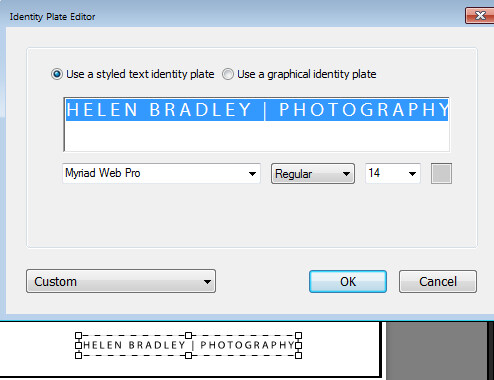
Lightroom print image with border 5

When you’re done click Print to File to print the image.

Lightroom print image with border 6

To save the design as a template you can use over and over again, click the + opposite Template Browser in the left panel. Type a name for the template.
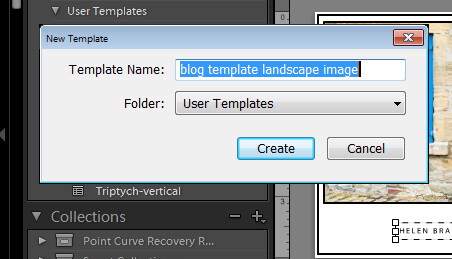
Lightroom print image with border 7

In future you can select this template and use it to print another image. Before you do so, you will need to drag and drop an image into the image placeholder and add the empty image to the larger placeholder. If you want to be able to print portrait orientation images, repeat the process to create a second template – you can reuse the empty image and the Identity Plate.
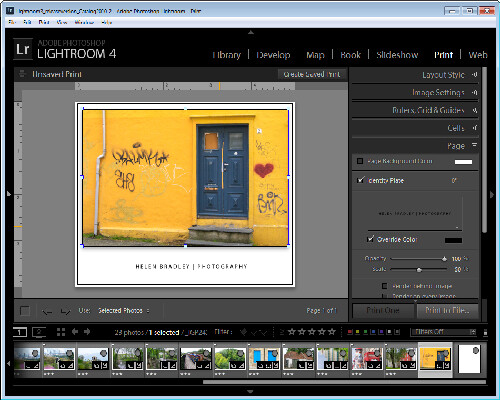
Lightroom print image with border 8

Post originally from: Digital Photography Tips.

Check out our more Photography Tips at Photography Tips for Beginners, Portrait Photography Tips and Wedding Photography Tips.

Output from Lightroom to Your Blog


Digital Photography School

 
Comments Off on Output from Lightroom to Your Blog

Posted in Photography


Adobe releases Camera Raw 7.2 and Lightroom 4.2, adding 21 cameras

16 Oct

shared:AdobeLogo.png

Adobe has released the final versions of Adobe Camera Raw 7.2 and Lightroom 4.2. The latest updates bring finalized support for 21 additional cameras, including the Sony A99 and RX100, the Fujifilm X-E1 and the Canon EOS M. Lightroom gains tethering support for 11 cameras, including the Nikon D800 and Canon EOS 5D Mark III. It also adds support for ‘Albums’ in its uploader to the Revel service. Updates are available through the in-software update systems.

News: Digital Photography Review (dpreview.com)

 
Comments Off on Adobe releases Camera Raw 7.2 and Lightroom 4.2, adding 21 cameras

Posted in Uncategorized


VSCO Keys offers costly shortcut to Lightroom efficiencies

16 Oct

VSCOKeys.png

Visual Supply Company has announced ‘VSCO Keys,’ a keyboard shortcut customization tool for Adobe Lightroom 3 or 4. It aims to make working in Lightroom more efficient, but the $ 125 price tag (only a fraction less than Lightroom itself) is likely to limit its appeal to photographers who aren’t profiting from their work. The software comes with two presets, one of which adds shortcuts without clashing with any of the software’s native controls, while a more comprehensive one replaces several of them. A 14-day free trial allows you to assess the value of the efficiency savings to your workflow. (via Petapixel)

News: Digital Photography Review (dpreview.com)

 
Comments Off on VSCO Keys offers costly shortcut to Lightroom efficiencies

Posted in Uncategorized


21 September, 2012 – New Lightroom 4 Tutorial Videos

16 Oct

Adobe today announced the release of a DNG FlatField plugin for Lightroom 4. This allows for lens cast correction.

We can now release new videos with Eric Chan & Jeff Schewe on the additional features of Lightroom 4.1 and 4.2.

Eric is Principal Scientist at Adobe and responsible for many of the new features of Lightroom 4 and Process 2012.

Three of these videos are available at no extra charge in the existing Advanced Tutorial for Lightroom 4 in zip files 31 & 32. Check out the new Table of Contents v.8

There is also a new add-on tutorial:

The Luminous Landscape Guide to Lightroom 4.x – Update with Eric Chan & Jeff Schewe

Now available in our Store for $ 9.95

This new tutorial features over two hours of content on

– The DNG Flat Field Plugin
– Chromatic Aberration & Defringe
– High Dynamic Range in 32 bit floating point
– A 1 hour+ Interview with Eric Chan


UPDATE: 16:00 hrs: 21 Sept.

More reports and video by Nick Devlin from the show floor at Photokina.


The Luminous Landscape – What’s New

 
Comments Off on 21 September, 2012 – New Lightroom 4 Tutorial Videos

Posted in News


ADOBE LIGHTROOM TIPS: FACIAL RETOUCHING TECHNIQUES

02 Aug

ONLINE ADOBE LIGHTROOM CLASSES @ www.bestlightroomtraining.com! Facial retouching techniques in Adobe Lightroom… Kris Gay Best Lightroom Training 260-440-3889 studio/office 260-438-7246 cell WEBSITE: bestlightroomtraining.com EMAIL: bestlightroomtraining@gmail.com This video may not be embedded or shown on any web site, page, or other venue without the express written permission of the copyright owner.
Video Rating: 5 / 5

 
Comments Off on ADOBE LIGHTROOM TIPS: FACIAL RETOUCHING TECHNIQUES

Posted in Retouching in Photoshop


Adobe issues Lightroom 4.1 release candidate with 5D Mark III support

30 Mar

lr4icon.png

Adobe has launched a release candidate of Photoshop Lightroom v4.1, including a series of bug fixes and support for Canon’s EOS 5D Mark III. The release candidate tag means it has been well tested but could still benefit from user input. The update includes support for the 5D Mark III that appeared in the latest Adobe Camera Raw update.

News: Digital Photography Review (dpreview.com)

 
Comments Off on Adobe issues Lightroom 4.1 release candidate with 5D Mark III support

Posted in Uncategorized


Leica includes Lightroom 4 with most camera purchases

16 Mar

shared:Leica.png

Leica has announced it will bundle Adobe Photoshop Lightroom 4 with many of its cameras. The latest version of Adobe’s raw processing and management software offers extensive support for Leica cameras and lenses. It will be included with future purchases of the S2, S2-P, M9, M9-P, X1 and D-Lux 5 cameras.

News: Digital Photography Review (dpreview.com)

 
Comments Off on Leica includes Lightroom 4 with most camera purchases

Posted in Uncategorized


Just Posted: Adobe Photoshop Lightroom 4 review

06 Mar

lr4opener_small.png

Just posted: Our six page review of the now-less-expensive Adobe Photoshop Lightroom 4. Adobe has released and halved the price of the latest version of its workflow and image editing software, and we’ve prepared an in-depth review exploring the changes. Along with Book and Map modules, and a revised editing workflow, Lightroom 4 brings Raw file support for a number of recently announced cameras, including the Canon EOS-1D X and Nikon D4. Are the changes in Lightroom 4 worth the upgrade for current users? Find out in our detailed review.

News: Digital Photography Review (dpreview.com)

 
Comments Off on Just Posted: Adobe Photoshop Lightroom 4 review

Posted in Uncategorized


Five New Features of Adobe Photoshop Lightroom for Professional Photographers YouTube

01 Mar

This video tutorial is a quick overview of my five favorite new features in Adobe Photoshop Lightroom 3 for the professional photographer. This video highlights: improvements to the import dialog, the new IPTC Extension metadata fields, the improved sharpening and noise reduction algorithms, and the incredible new lens correction tool. The video concludes with a quick demo of the new Publish Services feature. Learn more at www.thelightroomlab.com.
Video Rating: 4 / 5


Lightroom Quick Tip: Removing Rosacia

22 Feb

This tutorial demonstrates a quick retouching process to remove rosacia using Adobe Photoshop Lightroom. This is invaluable for building quick and economical web galleries for your portrait clients.
Video Rating: 4 / 5