RSS
 

Posts Tagged ‘lightroom’

RIP Lightroom 6: Death by subscription model

19 Oct

In all the fanfare of the launch of its more cloud integrated, edit-anywhere Lightroom CC software, Adobe has made a lot of noise about ease-of-use and faster speeds, but it also quietly made reference to the death of the standalone desktop version, Lightroom 6.

With it, it feels like Adobe is turning its back on a certain type of enthusiast photographers: those users who enjoy and care about their photography enough to buy Adobe’s products, but don’t need to edit ‘in the field’ or have clients to justify the ongoing cost of subscription software.

What’s that, Granddad, software in a box? How do you get it onto your phone, then?

With the company stressing ease of use of the latest version, they probably don’t see it that way, but it’s clear that the user who upgrades their camera and their software only occasionally has no place in Adobe’s shiny new future in the cloud.

In my look back at my excitement surrounding the development and launch of Lightroom v1.0, I said I felt that the subscription model “runs counter to the longevity benefit of building a database around my images”. I stand by that.

The tension at the heart of Lightroom

As I understood it, Lightroom was almost two pieces of software in one. In part it was an attempt to provide all the tools a broad range of photographers needed, without the cost and complexity of buying Photoshop. Photoshop’s success and name recognition had meant that lots of users who didn’t really need most of its capabilities, felt they had to buy it. Lightroom gave them an affordable alternative, and allowed Adobe to focus on their professional users (in both photo and non-photographic fields), with Photoshop.

archiving: the creation of a long-term library of work that you might want to refer back to and perhaps update

But, equally, Lightroom was Adobe’s attempt to bring an asset management tool to a wide range of photographers who suddenly found themselves generating and needing to process and store many more images than they had done before. Part of that management is archiving: the creation of a long-term library of work that you might want to refer back to and perhaps update.

The move to subscription only for Lightroom undermines both the idea of an affordable alternative also, significantly, the idea of an usable archive. While it’s true that most households readily spend $ 10 per month for online streaming services, and many times that for mobile phone and data services, there will be a lot of users who object to the idea of having to pay, in perpetuity, for the continued ability to edit their own archives. Especially if their needs haven’t necessarily changed and where there isn’t necessarily an ongoing cost to the company.

most households readily spend $ 10 per month for online streaming services, and many times that for mobile phone and data services

Adobe seemed to recognize this when it chose to continue Lightroom 5 and then 6 as a standalone products alongside its CC software, and said it had no plans to move to subscription only. But it probably should’ve been obvious that this position had changed as the company buried the link to the standalone version in ever more obscure corners of its website.

Change vs long-term plans

Of course, there’ll be plenty of users who are quite happy to pay for online storage and the access-and-edit-anywhere capability of the new system. Given how many attempts Adobe has made at solving this problem (I’m looking at you, Carousel/Revel), it’ll probably be pretty good, despite my reservations about the effect on quality/stability that the move to constant updates has had on Photoshop. Overall, it’s just unfortunate for people who don’t particularly want that product.

The idea that your existing work becomes less controllable, less dynamic, is uncomfortable.

At the risk of sounding older and more curmudgeonly than I really am: it’s the principle of the thing. I’ve never had much sympathy for people expecting perpetual upgrades from Adobe, for free: if you spend hundreds of dollars on a new camera, it seems unrealistic to expect a corporation to accommodate that choice, unpaid. After all, you still had exactly what you’d paid for.

With a subscription model, that’s no longer true. Instead you end up paying for support for ever more cameras you don’t have and features you don’t necessarily want, in the knowledge that you’ll lose most of the software’s capability if, for whatever reason, you don’t choose to continue your subscription. The idea that your existing work becomes less controllable, less dynamic, is uncomfortable.

Why I’ll be looking for other options

The idea of losing the ability to edit my existing files, even though my needs haven’t changed is obnoxious enough that I don’t want to further commit myself and my images to a Lightroom database.

That means foregoing the temptation to squeeze the last life out of Lightroom 6 by using the DNG Converter that Adobe, to its credit, updates for free to retain compatibility. Because one day there’ll come an operating system that LR 6 won’t work with, and my supposedly long-term solution will be reduced in utility.

All purchases are ultimately a balance between what the customer wants and the company is willing to give them, for the money. With this latest move, it feels to me like that balance has been lost: the move favors Adobe much more than it benefits me. The Lightroom I loved is dead, because apparently it’s not a product Adobe wants to make anymore.

Articles: Digital Photography Review (dpreview.com)

 
Comments Off on RIP Lightroom 6: Death by subscription model

Posted in Uncategorized


Adobe just made it way easier to import Lightroom collections into Adobe Portfolio

11 Oct

Adobe has announced that Portfolio, its online website publishing service for CC customers, has a new integration with Lightroom that lets users import their collections and add photos to their website with next-to-no effort.

As of this new update, a users’ Lightroom content will simply show up within Portfolio’s ‘Manage Content’ section under the ‘Integrations’ tab. From there, users are able to choose any of their Lightroom Collections to import to a Page on Portfolio. When added to the website, Adobe says the full Collection appears as a new Page with a photo grid, which you can then customize by removing images and/or rearranging the grid. Other elements, such as text and videos, can also be added to the page.

Finally, Adobe also says that Portfolio will now automatically import new Behance projects to new Pages within a chosen gallery—assuming the user chooses a default import gallery and has their Adobe ID associated with a Behance account.

Imported content is tagged with either a Lightroom or Behance badge in the Manage Content section to show where it was imported from.

To learn more about these new features or give them a try for yourself, head over to the Adobe Creative Cloud blog or download the latest version of Portfolio and give Lightroom import a shot for yourself.

Articles: Digital Photography Review (dpreview.com)

 
Comments Off on Adobe just made it way easier to import Lightroom collections into Adobe Portfolio

Posted in Uncategorized


The Control Room app lets you control Lightroom from your smartphone

10 Oct

Need to spice up your Lightroom editing experience on the desktop? No need to wait for whatever Adobe has waiting for us at AdobeMAX, you can try out the Control Room app instead. Available for both Android and iOS, the app lets you control all of your Lightroom sliders (and more) from your smartphone, allowing you to lean back and edit the photos on your desktop without touching a mouse or keyboard.

The app was created by software engineer and photographer Aaron Vizzini, who only recently decided to share his creation with the general public.

Using Control Room, you can both edit and manage (rate, flag, create rapid collections) your photos using your smartphone as the control pane. Any changes you make on your device will update in real time on the computer through a companion plugin. It’s exactly as seamless as it sounds:

Whether or not this will actually help speed up your Lightroom workflow is entirely dependent on you, but the idea, at least, is pretty neat. To learn more about Control Room or get the $ 4 app for yourself, head over to the iTunes App Store or Google Play, and then visit the Control Room website to download that plugin as well.

Articles: Digital Photography Review (dpreview.com)

 
Comments Off on The Control Room app lets you control Lightroom from your smartphone

Posted in Uncategorized


3 Powerful Tips for the Perfect Vignette in Lightroom

08 Oct

The vignette is one of the most powerful ways to boost your photos. It reduces your photo’s brightness at corners and sides compared to the image center. It’s mainly used to highlight elements in the center even more. Besides, you can also use it to cover distracting details on the sides of your image.

As popular as it is, it’s just as common to not apply vignettes properly using Lightroom or Adobe Camera Raw. Let me show you three powerful tweaks to squeeze out 100% of its potential and present your photos in a better light!

1) How to decide which photo is suited for a vignette

The vignette shifts the focus to the center of your frame. That’s why you’ll ideally have a photo where your subject is placed in the middle. Otherwise, the vignette will make your subject darker and take away the spotlight.

To make the vignette even more powerful, it really helps to have the light in the center of the frame as well. Your subject is either lit up from the front or illuminated by some backlight. Of course, it depends on how strong you apply the vignette. If you use it lightly around the sides and corners, then the subject can also be a bit to the top, bottom, left or right of the frame.

3 Powerful Tips for the Perfect Vignette

Take a look at the two photos above. The one on the left has the subject on the far left. The vignette not only covers the subject, it also highlights the less important wall in the middle. The right photo, however, has the subject in the center. The vignette blends out the unimportant details of the office and highlights the person and the view in the center. Do you see how the vignette works much better in the example on the right?

Whether you are capturing buildings in a city, trees in the countryside or animals in the zoo, the same rule of thumb applies: place the most important element in the center.

2) How to make the vignette as smooth as possible

The best vignette in the world is the one you barely notice. That’s why you always need to make sure that the transition is as gentle as possible. Once you notice the transition from dark to bright, it’s not done right. Do you see the circle of the vignette in this photo?

3 Powerful Tips for the Perfect Vignette

The reason for this is generally that the feather slider is too far to the left side. As you can see in the screenshot below, it’s at 33. The more you go to the left, the more visible the transition will be.

Transition Bad - 3 Powerful Tips for the Perfect Vignette

Always make sure to move the feather slider to the right side. For most of my vignettes, I slide it all the way to 100. That way, you will achieve the smoothest transition for your photos.

Transition Bad - 3 Powerful Tips for the Perfect Vignette

Once you’ve applied the feather more generously, the vignette’s border will largely disappear. As a result, your vignette will blend more smoothly into the natural light of the scenery. In case the transition remains too strong, you can always reduce the amount a bit as well.

3 Powerful Tips for the Perfect Vignette

3) How to create a custom vignette

Although the post-crop vignette works best with subjects in the center, you will also use different placements. Luckily, you can always create a custom vignette that is tailored to your composition. The easiest way to do this is to use the Radial Filter.

The following photo could really need a vignette. That way, we could highlight the sunset and the silhouette even more. In order to create a custom vignette, open the Radial Filter (Shift + M) first. Then you decrease the exposure to a level between -0.20 and -1.0. In this case, I set it to -0.64.

Radial 3 Powerful Tips for the Perfect Vignette

Click on the subject in your photo, hold and drag the circle around your subject. Everything outside of the circle will become darker.

3 Powerful Tips for the Perfect Vignette

Remember the first tip how the transition always needs to be smooth? We will do the same for the custom vignette. With the feather slider, you can make the transition from dark (outside the circle) to bright (inside the circle) smoother. The further you slide it to the right, the gentler the transition becomes. For this photo, I changed it to 81 instead of 50.

Radial 3 Powerful Tips for the Perfect Vignette

When you compare the original photo (left) with the custom vignette (right), you can clearly see the difference. The light atmosphere in the right photo is more intense and the vignette guides the viewer to the subject.

3 Powerful Tips for the Perfect Vignette

Conclusion

I hope these three tips for better vignettes will you take your images to the next level. Of course, practice makes perfect. Play around with the sliders as much as possible to get a feel for the right amount. If you have any questions, let me know in the comments and I’m more than happy to help you out!

The post 3 Powerful Tips for the Perfect Vignette in Lightroom by Marius Vieth appeared first on Digital Photography School.


Digital Photography School

 
Comments Off on 3 Powerful Tips for the Perfect Vignette in Lightroom

Posted in Photography


5 Reasons for Lightroom Photographers to Use the Edit In Photoshop Feature

01 Oct

Since its Version 1.0 release in 2006, Adobe Lightroom has gone from strength to strength, firmly establishing itself as the go-to software for photographers around the globe. With each new update, you’ll be relieved to find you have fewer reasons for awakening the software’s fuller-figured big brother, Photoshop CC.

That said, there are some limitations with Lightroom that have stood the test of time. Thankfully, with more signups for the Creative Cloud Photography plan, there are now few photographers without access to both solutions. But for the times you need it, here are five reasons you’ll likely find yourself firing up Photoshop CC for better results.

1 – Cloning and Healing

Lightroom is a whiz at removing simple sensor spots from that top left corner of your images (Nikon users, you know what I’m talking about!). Punching Q then A allows me to quickly visualize any distracting spots with the handy white on black overlay, and their removal is typically a swift one-click solution using the Spot Healing tool.

However, the same cannot be said when attempting to remove distractions from more complex textures such as dust spots in the grass, for example, or people, as in the image below. For those situations, I rely on the smarter algorithms and expanded capabilities of Photoshop.

Cloning before - 5 Reasons for Lightroom Photographers to Use the Edit In Photoshop Feature

Want to feel like the only person at Angkor Wat? Then, you’ll need Photoshop!

To remove and replace objects that Lightroom cannot handle, start by right-clicking the image and choosing Edit in Photoshop. Then create a duplicate layer (CTRL/CMD + J) of your image in Photoshop (I generally do this every time I start processing so I can always get back to the original if I make a mistake or don’t like the result).

Next, erase the distraction with the Eraser Tool (E) so that you can see a “missing piece” where the culprit used to lie (be sure to turn off the visibility of the original background layer if nothing appears to have been erased). Select the area using the wand tool (W) and then in the menu bar at the top of your screen choose Select > Modify > Expand (choose around 5 pixels as your setting).

Next, choose Edit > Fill and select “Content-Aware” in the Contents dropdown list. Hit OK and Photoshop will attempt to replace what you’ve erased with something sensible.

Cloning demo - 5 Reasons for Lightroom Photographers to Use the Edit In Photoshop Feature

A before, during, and after shot showing the simple removal of people from an image using Erase and Content-Aware Fill.

I’ve been able to seamlessly remove crowds of people from the image you see here using this technique, and the process took only around two minutes. Whereas Lightroom relies on finding a similar texture it can use to cover up distractions/blemishes, Photoshop uses its clever algorithms to create its own texture.

Cloning final - 5 Reasons for Lightroom Photographers to Use the Edit In Photoshop Feature

Going, going, gone! Photoshop makes light work of the unwanted people in the image.

2 – Digital Blending

Sometimes you just can’t quite capture enough dynamic range in your image to get away with a single exposure (at least not without introducing an unacceptable amount of noise or strange artifacts). While Lightroom has attempted to cater to those who wish to combine exposures with the introduction of HDR Photo Merge, using the feature can sometimes lead to incredibly flat images that are tricky to process (and in the case of the image you see below, caused the sun to completely disappear by virtue of it not appearing in both of the photographs).

Hdr both frames - 5 Reasons for Lightroom Photographers to Use the Edit In Photoshop Feature

Pulling up the shadows on the darker of these two exposures would introduce too much noise, and so HDR seemed the way to go.

Lightroom hdr attempt - 5 Reasons for Lightroom Photographers to Use the Edit In Photoshop Feature

…if only it wasn’t for Lightroom’s attempt to fix global warming.

Lightroom hdr after post-production - 5 Reasons for Lightroom Photographers to Use the Edit In Photoshop Feature

The plight of a freezing earth aside, even after post-production in Lightroom, the blended exposure looks flat and uninteresting.

The advanced masking abilities of Photoshop, combined with a technique called Luminosity Masking makes combining exposures much simpler. Using this technique, you choose exactly what appears from each exposure, so blending images that have uncommon elements (as in the case of the sun in the example image) is simple.

Photoshop hdr blend - 5 Reasons for Lightroom Photographers to Use the Edit In Photoshop Feature

Not only is the sun retained, but the image looks punchier overall, too.

3 – Advanced Tone and Color Control

The local adjustment tools in Lightroom including the Adjustment Brush (K), Graduated Filter (M) and Radial Filter (Shift+M) give you far less need for Photoshop than was the case before they were introduced. They are excellent targeting tools, yet they all suffer a major weakness – there is no access to HSL (Hue, Saturation, and Luminosity) adjustments.

In daytime landscape images, you’ll often want to deepen the blue of the sky. While this can be done using the HSL panel, the problem is that blue is not a color found exclusively above the horizon, as is the case with the walls and clothing in the example image below. The only way I could deepen the blue here would also cause detrimental effects to the blue everywhere else. Targeting the sky with the Adjustment Brush didn’t give me access to the necessary HSL sliders.

Color control before - https://digital-photography-school.com/understanding-the-hsl-panel-in-lightroom-for-beginners/

I wanted to bring a bit of life to the sky in this image. But in Lightroom, there is no way to adequately control the blues without affecting the same tones in other areas of the image.

Color can be better controlled in Photoshop by hitting Select > Color Range, then using the eyedropper tool to select a color you want to affect in isolation. You can then create an adjustment layer of your choice to affect the selected area; most often you’ll find a Hue/Saturation adjustment is the best method.

The benefit of this last method is a dramatic one: Whereas in Lightroom you can only make wholesale adjustments, i.e. changes that affect the entirety of the image, to Hue, Saturation, and Luminosity, you aren’t subject to the same limitation in Photoshop. By selecting an appropriate color, then masking out the effect in undesirable areas, you’ll retain more control, as is the case with the image below.

Color control after - 5 Reasons for Lightroom Photographers to Use the Edit In Photoshop Feature

Targeting only specific areas while retaining full access to every adjustment Photoshop offers is hugely appealing. Note the sky is darkened here but not the wall or people’s clothing.

To achieve my aim, I simply created a Hue/Saturation adjustment layer and then masked away the effect from everywhere but the sky. I’d tried all manner of adjustments in Lightroom but could only get the sky to look how I wanted at the expense of adding too much blue elsewhere.

Another great option when this happens is to simply create two virtual copies in Lightroom, one with the sky (or another problem area) as you want it, and another before you did the damage with the other edit. You can then blend the two together in Photoshop.

4 – Stitching Panoramas

When Adobe announced they’d be adding the Panorama Photo Merge feature to Lightroom, I figured that’d be yet one more thing scratched from my “Must use Edit in Photoshop” list. Alas, it wasn’t to be, predominantly because of the likelihood of “blank canvas” – the phenomenon where you’ll find blank, white space in your Lightroom panoramas. Try it for yourself. CTRL/CMD + Click to select all of the images you wish to stitch, then right-click and select Merge > Panorama. I bet there’s an area missing from the photograph.

Lr pano demo - 5 Reasons for Lightroom Photographers to Use the Edit In Photoshop Feature

Here you see Lightroom’s attempt at creating a 6-frame panorama.

The effect is caused by the distortion inherent to some degree in every lens, and Photoshop will produce near identical results. Where Photoshop excels, however, is in its ability to offer a more flexible solution. In Lightroom, you are left to merely crop away the now-useless areas. But in Photoshop you can use the same Content-Aware Fill method described in #1 above to cleverly re-create a convincing replacement area of sky (although you may want to try expanding your selection by 20 or so pixels, as opposed to the 5px recommended for removing smaller items).

Left to the solutions in Lightroom, I’d have been forced to crop away more of the sky than I’d have liked in this image. With Photoshop I was even able to replicate some tricky texture in the water at the bottom of the frame. I still needed to crop away a little of the image, but nowhere near as much.

Pano in photoshop - 5 Reasons for Lightroom Photographers to Use the Edit In Photoshop Feature

Pano complete - 5 Reasons for Lightroom Photographers to Use the Edit In Photoshop Feature

Photoshop’s Content-Aware Fill allowed me to retain much more of the final image and forced less cropping.

5 – Chromatic Aberrations

Lightroom generally does a pretty good job of dealing with chromatic aberration, the color fringing that can appear where dark and light tones meet. You’ll often see this in daytime cityscapes where the top edges of buildings meet a bright sky, for example, usually manifesting itself as a green or purple edge straying into the brighter tone.

Chromatic aberration before - 5 Reasons for Lightroom Photographers to Use the Edit In Photoshop Feature

While this nun is a holy person, the blue glow on the shoulder is a bit much.

Lightroom has a couple of ways of dealing with this. First, there’s the Remove Chromatic Aberration checkbox in the Lens Corrections panel. I’d say 90% of the time, this is enough to correct the problem. Where the fringing persists, heading into the manual tab of the same panel allows you to grab the Fringe color Selector (the eye-dropper-like icon) and click on the offending area.

This will generally fix a more complex problem, but every once in a while you’ll encounter fringing so stubborn that Lightroom can’t handle it. This happens most frequently with blue fringing, which Lightroom is pretty much powerless against. Fortunately, blue fringing is quite rare, but it does happen.

Fringe color selector - 5 Reasons for Lightroom Photographers to Use the Edit In Photoshop Feature

Lightroom is powerless against the dreaded Blue Glow!

You could try to desaturate the offending edge with Lightroom’s adjustment brush but you run the risk of accidentally straying into the surrounding area. Alternatively, you could try to completely desaturate the blue and cyan in the HSL panel. In this case, I didn’t want to do either of those as it would put my blue-green background at risk, making it look far too much like color-select for my liking.

Photoshop affords so much more control in fixing this problem. It’s as simple as heading to the menu bar to hit Select > Color Range and then clicking on the color fringing with the eyedropper tool that appears automatically. This will create a selection based on that very blue causing the problem.

By altering the “Fuzziness” you’re basically setting color sensitivity. The lower the number, the more precisely Photoshop will select that color; the higher the number, the more leeway you give the software to find similar colors. Don’t worry if there’s an identical or similar color elsewhere in the image that Photoshop picks up on; it’s easy to mask that out later.

Once you see that your mask has isolated the problem area well enough, open a Hue/Saturation adjustment layer, which should have automatically applied your selection as a mask. Reduce saturation in the Blues and Cyans until the problem is gone. If you’ve accidentally desaturated some other important area of your photograph, click on your mask, grab the black brush, and mask it out. Easy.

Color range with mask - 5 Reasons for Lightroom Photographers to Use the Edit In Photoshop Feature

Targeting doesn’t get any easier.

Chromatic aberration demo

The nun’s blue glow is successfully removed. I’m not quite sure how she’d feel about this.

Conclusion

The next time one of the few remaining weakness of Lightroom is exposed, you can try one of the above techniques so the software doesn’t have to get in the way of your vision.

Have you found any other Lightroom limitations? Please share in the comments below.

The post 5 Reasons for Lightroom Photographers to Use the Edit In Photoshop Feature by Chris Cusick appeared first on Digital Photography School.


Digital Photography School

 
Comments Off on 5 Reasons for Lightroom Photographers to Use the Edit In Photoshop Feature

Posted in Photography


How to Speed Up Your Photo Editing with the Right Lightroom Workflow

29 Sep

Processing photos is fun for me. But as much as I like doing it, I like being out in the field making new photos even more. That’s why I’ve developed a Lightroom workflow that helps me get the job done as quickly as possible.

Following these steps, you’ll learn how to make adjustments to a whole batch of images and then apply image specific adjustments to bring out the best in each frame.

Before you begin, choose a batch of photos taken at the same time under similar lighting conditions. I usually go through and pick my favorite photos from a shoot first, and then work on those.

How to Speed Up Your Photo Editing with the Right Lightroom Workflow

Step 1: Make Global Adjustments to the First Photo

In the Develop Module, pick the first photo in your batch and make the following adjustments to make it look its best.

Remember there are no rules with the sliders other than a little goes a long way. Just go with your gut. And if you’re not sure what a slider does, just take it to one extreme and then the other and you’ll be able to see exactly what is going to happen.

Camera Calibration

You’ll find this at the bottom of the develop module on the right-hand panel. I like to set this first because it makes such a dramatic difference to the color and contrast in an image. Simply go through the drop down box and pick the one that looks the best.

White Balance

Next go up to the top of the develop module and start working your way down. The first slider is white balance and there you can choose from the items in the drop down box. Again, simply choose the one that looks best.

Highlights and Shadows

Try darkening the highlights by moving the slider to the left and lightening the shadows by moving the slider to the right. You don’t want to go so far that you’ve removed all contrast from the scene, just enough that you have more detail in the highlight and shadow areas.

Clarity

The clarity slider will add contrast to the edges of things making them appear more crisp. Try nudging it a bit to the right. On the other hand, if you want your image to be softer and dreamier, you can move the clarity slider to the left.

Vibrance

The vibrance slider is more subtle than saturation since it adds color to the parts of your image that are already less saturated.

Sharpening

Most photos need a little sharpening. In the Detail Panel, try moving the sharpening slider a bit to the right.

Vignette

In the Effects Panel, add a slight post-crop vignette to draw the eye into the frame by dragging the slider slightly to the left.

How to Speed Up Your Photo Editing with the Right Lightroom Workflow

Before any adjustments in Lightroom.

How to Speed Up Your Photo Editing with the Right Lightroom Workflow

After the basic adjustments have been applied in Lightroom.

Step 2: Sync Settings

In the Develop Module, select all the photos in your batch (including the one you just edited) from the filmstrip at the bottom of the screen. Then click the Sync button at the bottom of the develop panel.

How to Speed Up Your Photo Editing with the Right Lightroom Workflow

Voila! All the adjustments you made to your first image have now been applied to the whole group.

Step 3: Make Final Adjustments to Single Photos

The following adjustments need to be made to each photo individually since they are rarely the same in a batch.

Crop and Straighten

If necessary, use the crop tool to adjust the crop. Maintain the aspect ratio of your image by holding down the shift key on your keyboard while you crop. You can also use the angle tool located inside the crop tool to make sure any horizon or shore lines are straight by drawing a line from one side to the other.

How to Speed Up Your Photo Editing with the Right Lightroom Workflow

Don’t Miss a Dust Spot

Using the spot removal tool, check the box next to “Visualize Spots” below the image to help you see the dust spots more easily.

How to Speed Up Your Photo Editing with the Right Lightroom Workflow

Radial Filter

Use the radial filter tool to increase the exposure very slightly on your main subject which will help to draw the viewer’s eye to it. Remember to click the “invert mask” checkbox to affect the area inside the circle. Otherwise, the default is to affect the area outside the circle you draw.

How to Speed Up Your Photo Editing with the Right Lightroom Workflow

Radial Filter in Lightroom.

Summary

I find that processing photos is more fun when it doesn’t take forever! Now with time saved doing basic processing, you may choose to take your photo into another photo editor to add special effects. Or you can just call it done and get back out in the field doing what you love: making photographs.


Want more? Try Anne’s Lightroom video course: Launch Into Lightroom to learn everything you need to know to get started in just a couple of hours.

The post How to Speed Up Your Photo Editing with the Right Lightroom Workflow by Anne McKinnell appeared first on Digital Photography School.


Digital Photography School

 
Comments Off on How to Speed Up Your Photo Editing with the Right Lightroom Workflow

Posted in Photography


My 5 Favorite Lightroom Sliders

22 Sep

Lightroom is a mature, fully featured photo-processing app. It has tools bursting out at the seams, from lens corrections to color corrections and even camera styles and mode emulations. That doesn’t stop you from having some favorites though. These are the ones that I seem to use on every photo that I choose to edit.

My five favorite Lightroom sliders

So, here are my five favorite Lightroom sliders in no particular order. I’ll use two different photos to walk through but will give other examples as well. Here’s our two starting photos, both raw files that have been exported as JPEG with no settings applied.

My 5 Favorite Lightroom Sliders

My 5 Favorite Lightroom Sliders

#1/2 – Shadows/Highlights

My first two favorite sliders are used as a pair. The Shadows slider changes luminosity of the darker areas in the photo. The sliders in the Basic panel are all interactive and affect each other, so pushing the Shadows sliders to the right will also affect the darkest part of the photo typically controlled by the Blacks. Because of this, you’ll often need to bring the Blacks slider down a bit to compensate.

My 5 Favorite Lightroom Sliders

The first photo with Highlights at -100 and Shadows at +100. Notice how it resembles HDR tone mapping.

The Highlights slider affects the brighter parts of the image. I use this most often to bring back detail in these areas. A great trick for underexposed photos is to increase Exposure to brighten the photo, then bring down the Highlights slider to rescue lost highlight detail.

Together the Shadow/Highlights pair act as tone mapping controls in Lightroom. By bringing Shadows to +100 and Highlights to -100, you can get a natural look faux HDR photo from a single photo. In fact, the Auto control in Lightroom’s HDR tool sets Shadows to +70 and Highlights to -100 most of the time, which isn’t too far off this cool look.

My 5 Favorite Lightroom Sliders

The second photo with our faux HDR settings applied.

I’ll generally apply this to any landscape or cityscape as a Lightroom Preset, and then refine it as needed.

#3 – Clarity

During the development of Lightroom, the Clarity slider was called Punch, which is a great way of describing what it does. Contrast work across the whole image. Clarity, on the other hand, tends to increase or decrease edge contrast on the tones that are neither the darkest nor lightest tones in the photo. 

My 5 Favorite Lightroom Sliders

Clarity slider set +43.

My 5 Favorite Lightroom Sliders

Basic panel settings so far for photo number one.

Pushing it to the right intelligently creates more punch in the image, without increasing contrast in the blacks and whites.

My 5 Favorite Lightroom Sliders

Clarity +25

On portraits, Clarity is like a grit slider, bringing character to male portraits.

My 5 Favorite Lightroom Sliders

Before and after Clarity +52 has been added to this male portrait (right).

Moving Clarity to the left softens out those mid-tones. While I’ve seen other mention that it doesn’t affect the colors, I feel that it does add a small amount of saturation. This soft look is great for skin, especially female portraits. I don’t use it globally in those case though, I use it as a local adjustment with the Adjustment Brush tool, allowing me to apply it only to specific areas.

My 5 Favorite Lightroom Sliders

Here’s what negative Clarity looks like. While it’s softened the skin, it’s also softened all the mid-tones in the photo.

My 5 Favorite Lightroom Sliders

Here’s the same setting, but only applied to the skin. It makes a huge difference and provides an effective way to retouch skin in Lightroom.

#4 – Vibrance

Sticking to the Basic panel, Vibrance is located in the Presence section right below Clarity. Vibrance is a special form of Saturation. Saturation works by increasing the intensity of each color until they’re a pure tone. Too much can be garish, and this is where Vibrance steps in.

Vibrance works on a more relative scale. It affects colors that are already saturated less than muted ones. This means it takes a lot longer to look garish and balances out the saturation of all colors in the photo.

My 5 Favorite Lightroom Sliders

Our first photo with +31 Vibrance added to the previous settings.

Our second photo with Vibrance +23.

The Vibrance slider in Lightroom has one other trick up its sleeve though. It prevents skin tones from becoming saturated. This means you get to increase the saturation of your portrait location, without giving an Oompah Loompah tone to your subject. That’s a big win in my opinion.

My 5 Favorite Lightroom Sliders

Even with Vibrance of +50, the skin tone still looks reasonably natural, avoiding the orange look that Saturation would have at a similar setting.

For landscape photos this does mean Vibrance pushes greens and blues more than reds and oranges, so for sunsets and sunrises, I usually mix Vibrance and Saturation evenly.

#5 – Dehaze

Dehaze is a Lightroom CC only feature. You can use it in Lightroom 6 with presets though. It’s not as convenient, but access to the feature via presets is still useful even if you don’t have the Dehaze slider. 

The Dehaze slider is located in the Effects panel.

My 5 Favorite Lightroom Sliders

Dehaze of +60 on a foggy shot from Venice.

Dehaze is aptly named as it removes haze from an image. That sounds simple, but it’s really doing a lot of work to figure out what’s happening in the photo, so it knows which areas are affected by haze, and applying the correction based on the haze at that point in the photo.

My 5 Favorite Lightroom Sliders

Photo one with Dehaze +30

My 5 Favorite Lightroom Sliders

Photo two with Dehaze applied.

It works as an effect on images without haze as well, where it increases contrast and saturation. It does tend to darken the photo, so you generally need to boost exposure as well when you’ve used it. Dehaze can also be used in reverse, to increase the haze in a photo, giving it more atmosphere.

My 5 Favorite Lightroom Sliders

Negative Dehaze can make a photo look foggy.

Haze in and of itself isn’t a bad thing and does add mood to a photo. It’s when areas of the photo are more substantially affected than others that it comes into its own. For these times, Dehaze is available as a local correction via the Adjustment Brush, Graduated Filter, and Radial Filter.

My 5 Favorite Lightroom Sliders

Develop settings for our second photo.

And you?

So those are my five favorite Lightroom sliders. Do you have any favorites that you use all the time? Please add a comment below and let us know.

The post My 5 Favorite Lightroom Sliders by Sean McCormack appeared first on Digital Photography School.


Digital Photography School

 
Comments Off on My 5 Favorite Lightroom Sliders

Posted in Photography


Using Lightroom Alongside Photoshop: Working with Smart Objects

19 Sep

What software do you use to process your digital images? As of the writing of this article, Adobe Lightroom sports over 1.4 million Likes on their official Facebook page. And Photoshop? That Facebook page is pushing 7.7 million Likes. If those numbers are any indication of the overall use of the editing software, then it’s safe to say that you are likely using one of the two programs right now (you’re reading this after all). Lightroom and Photoshop arguably set the standard for all other post-processing software platforms.

If you’re like me you use both of them, in tandem, to edit and process your photos. There are literally limitless possibilities when it comes to using Lightroom and Photoshop together. Out of those possibilities comes the idea of “Smart Objects”.

Do you know about Smart Objects? Have you ever used them before in your workflow? If not, I’m going to show you exactly how useful (or not) working with Smart Objects between Lightroom and Photoshop can be. Don’t worry, it’s all easy to understand. Let’s have a look at what Smart Objects can do for you and your photography when it comes to working with both Lightroom and Photoshop.

What are Smart Objects?

Think of Smart Objects as being a larger suitcase. All your edits in Lightroom are non-destructive. This is because you aren’t actually editing your original file in Lightroom. Rather, you are working with a virtual copy of your image. When you go from Lightroom to Photoshop, like this…

Using Lightroom Alongside Photoshop: Working with Smart Objects

You package everything into the suitcase and send it off to Photoshop Land. What do you put in your suitcase? You might put your Lightroom edits, the original file information, or a mix of the two. The key is that you don’t want to do anything to your photos that you can’t take back. While you can edit your images between Lightroom and Photoshop non-destructively, there are ways to remain more flexible than others. One of these is by using smart objects.

While you can edit your images between Lightroom and Photoshop non-destructively, there are ways to remain more flexible than others. One of these is by using smart objects.

Using Lightroom Alongside Photoshop: Working with Smart Objects

Smart Objects pack more into the suitcase when you move your editing between Lightroom and Photoshop. When your image opens as a Smart Object in Photoshop, you’ll notice a special little icon on the layer thumbnail.

Using Lightroom Alongside Photoshop: Working with Smart Objects

This lets you know that you are now working with a Smart Object layer. From here, work with your image in Photoshop as you do normally.

The benefits of using Smart Objects

The great thing about using Smart Objects when jumping from Lightroom to Photoshop is that you are taking an original version of your image with you so that editing becomes much more versatile once in Photoshop. Not only can you change the edits you made in Lightroom but you can also work more effectively when transforming or resizing your photo.

This all sounds a little complicated, but I can assure you it’s not. Let me show you some of the perks of using Smart Objects when working between Lightroom and Photoshop.

Real-time edits of Lightroom adjustments

Using Smart Objects, you can make dynamic changes to your Lightroom edits using Adobe Camera Raw just as you would in Lightroom itself. This lets you augment your Lightroom edits on the fly and when you save your image back to Lightroom there will be less need to make those final tweaks. Double click the Smart Object thumbnail and your photo will open in ACR.

Using Lightroom Alongside Photoshop: Working with Smart Objects

Apply any edits you want while in ACR and they will go back with you if/when you bring your photo back into Lightroom.

Smarter resizing and transforming

There’s a problem that plagues editors when it comes to downsizing and upsizing images in Photoshop. It’s pixelization. Because, spoiler alert, digital images are made up of pixels (except vector images). When you scale an image down in Photoshop, the program removes pixels to make the image smaller. This is all well and good until you decide you want to make the image larger again. Since you’re missing pixels, the photo can lose a lot of quality and look pixelated. Let me show you what I mean.

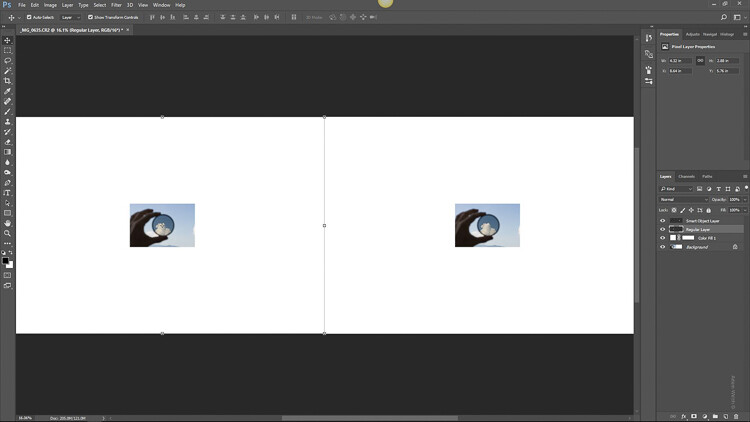
Here we have that same photo that we imported to Photoshop. I’ve duplicated the image with the one on the left being our regular “Pixel Image” and the one on the right is the same photo only converted to a Smart Object (select layer>layer menu>convert to Smart Object.).

Using Lightroom Alongside Photoshop: Working with Smart Objects

I scale both photos down to 10% of their original size.

Using Lightroom Alongside Photoshop: Working with Smart Objects

Then, being the hypothetical indecisive photographer that I am, I decide to then bring the photo back to its original 100% size. Which gives us this.

Using Lightroom Alongside Photoshop: Working with Smart Objects

Not much difference, right? Wrong. Let’s take a closer look. Here’s the regular image after scaling it back to its larger size.

And now look at our Smart Object…

The smart object image has kept its clarity and sharpness because Photoshop didn’t touch the pixels when it was downsized and used the additional information in the Smart Object to edit non-destructively. This is the power of working with Smart Objects when using Lightroom and Photoshop together.

The Downside

No, it’s not all sunshine and rainbows when working with Smart Objects. The biggest problem is that since you are including the RAW file information when you jump from Lightroom, the final file sizes can become rather large after you edit your image in Photoshop. Depending on the size of your original image file this can make for a lot of hard drive real estate being consumed resulting in poor performance during your processing.

Final thoughts on Smart Objects

Using Lightroom alongside Photoshop essentially gives you the best of both editing worlds. You have the simplistic adjustment capacity Lightroom while being able to perform more intricate edits using Photoshop. Smart Objects simply sweeten the pot. Using Smart Objects allows you to edit your images more efficiently and completely non-destructively.

Resizing images from Smart Objects means no loss of quality when you upscale or downscale. Throw in the fact that you have the fluidity of accessing and changing your Lightroom edits while in Photoshop using ACR and you quickly begin to run out of reasons not to incorporate this into your editing workflow. The increased file size, in my opinion, will be well worth the added benefits Smart Objects will bring you.

Have some of your own processing tricks while using Lightroom and Photoshop together? Please share them in the comments below.

The post Using Lightroom Alongside Photoshop: Working with Smart Objects by Adam Welch appeared first on Digital Photography School.


Digital Photography School

 
Comments Off on Using Lightroom Alongside Photoshop: Working with Smart Objects

Posted in Photography


Video: 3 simple Lightroom tricks you should definitely know

09 Sep

Photographer Travis Transient recently put together this helpful tutorial that might just teach you a thing of two about Adobe Lightroom. The video outlines three simple ‘tricks’ that Travis discovered by playing around with the sliders in Lightroom and really digging deeper than most of us ever try to dig.

These are the kinds of tips we usually see from Adobe itself—from enabling edge detection when using the brush tool to make a selection, to finding and eliminating color fringing by using the Dehaze tool to emphasize it. Check out the full video above and let us know which (if any) of these tips are totally new to you.

Articles: Digital Photography Review (dpreview.com)

 
Comments Off on Video: 3 simple Lightroom tricks you should definitely know

Posted in Uncategorized


Four Ways to Use Snapshots in Lightroom

27 Aug

What’s Lightroom’s most underrated feature? If you ask five different photographers you’ll probably get at least six answers. But for me, it’s Snapshots.

Lightroom snapshots

Unused and unloved – that was the fate of Snapshots in my Lightroom workflow for many years. It’s taken me a long time to appreciate how useful they are. For most of that time, I used Virtual Copies when I needed to create different versions of the same photo. But now I use Snapshots, and it’s made life a lot easier.

Why use Snapshots in Lightroom?

Let’s look at why you would use Snapshots or Virtual Copies.

One of the benefits of a Raw file is that you can interpret the file in many different ways in Lightroom. The most obvious example is that you could create both a color version of an image and a black and white one.

How to use Snapshots in Lightroom

Two versions of the same photo created in Lightroom from the same Raw file.

There are so many different ways of developing a photo in Lightroom that’s easy to make multiple versions of the same image. Sometimes it’s difficult to know when to stop! Especially if you have a large collection of Develop Presets.

Snapshots are the easiest way to keep track of all the different versions you make of a photo.

What is a Snapshot?

A Snapshot captures all the work you have done on a photo at a particular point in a time.

Snapshots are related to the entries in the History panel. You can turn any entry in the History panel into a Snapshot by right-clicking and choosing, Create Snapshot. Snapshots save you time because you don’t have to go searching through the History panel for the point you’d like to revert to.

Lightroom Snapshots

Some of the History panel entries for a photo I developed in Lightroom. It’s nearly impossible to pick the correct entry if you want you to go back to an earlier version of the photo.

How to create a Snapshot

There are two ways to create a Snapshot.

1. Go to Develop > New Snapshot (or use the Cmd-N [Mac] / Ctrl-N [PC] keyboard shortcut.)

Lightroom creates a Snapshot from the current Develop module settings. You can give it a name or use the default (current date and time).

Lightroom Snapshots

2. Right-click on an entry in the History panel and choose, Create Snapshot. Lightroom creates a Snapshot from the settings applied to the photo at that point in the development history.

Lightroom Snapshots

Reasons to use Snapshots

Now you know how to create a Snapshot, let’s look at some ways you can use them.

1. To record where you are in the Develop module

When you’re developing photos in Lightroom you may find yourself arriving a point where you are about to go off in a different direction. For example, let’s say you want to make both a color and a black and white version of the same image. You might start off by developing it in color. When you are finished, you make a Snapshot.

Then, you can convert it to black and white. When you’re done, make another Snapshot. You can then switch between the two versions by clicking on the appropriate Snapshot. See what that might look like below.

Lightroom Snapshots

2. To test out Develop Presets

Let’s say you would like to apply some Develop Presets to your photo, but you are not sure which ones are best. For example, I often develop my portraits using my Vintage Portrait Presets for Lightroom. There are 30 presets in the pack, and I don’t know in advance which ones will work best.

Using Snapshots, you can go through the entire set. When you find a preset that you like, you can create a Snapshot quickly using the keyboard shortcut Cmd-N [Mac] / Ctrl-N [PC].

At the end, you will have several Snapshots. You can then click on them one by one to see which preset you prefer. For example, I applied five different Vintage Portrait Presets to this portrait and saved each as a Snapshot. In the end, I decided the Vintage 19 preset was my favorite.

Lightroom Snapshots

Tip: Rename the Snapshot you decide is the one you like best to something like “Preset name [final]” so you can remember which one it is. You can also delete the other Snapshots by right-clicking and choosing, Delete.

3. To make comparisons

There’s an easy way to compare two Snapshots to see which version you like best.

Start by right-clicking on the first Snapshot and selecting Copy Snapshot Settings to Before. Then click on the second Snapshot to apply it to the photo you are developing. Use the backslash (\) keyboard shortcut to switch between the before and current settings to make the comparison.

You can also cycle between the Before/After views by clicking the icon marked below in the Toolbar (use the T keyboard shortcut to display the Toolbar if you can’t see it).

Using the Before/After comparison to compare two Snapshots.

4. To take the place of Virtual Copies

At the beginning of the article, I mentioned that I use Snapshots instead of Virtual Copies. The main reason is that Virtual Copies are difficult to keep track of.

For example, let’s say you create four Virtual Copies of a photo, each one developed a different way. To start with, they are probably all in the same Collection. As time goes by you may create more Virtual Copies of the same photo. This is quite common – many photographers change the way they develop photos as their style evolves and Adobe adds new tools to Lightroom.

A problem arises when those new Virtual Copies are in different Collections to the originals. Suddenly you have a situation where Virtual Copies are scattered across your Catalog. That makes it nearly impossible to see how many Virtual Copies of a photo you have created.

Snapshots solve that problem. With Snapshots, there is only ever one version of your photo in the Catalog. You never have to go hunting for missing Virtual Copies. All you need to do to see the different versions of your photo is click on the Snapshot name.

Lightroom Snapshots

This photo has 9 Snapshots. If they were Virtual Copies instead it would be much harder to keep track of them.

Tip: What happens if you make a Snapshot and then update the settings? The Snapshot doesn’t change as it’s intended to record the state of a photo at the point in time you made it. But it’s easy to update the Snapshot. Just right-click on the Snapshot’s name and choose, Update with Current Settings.

Conclusion

Hopefully, now you can see why Snapshots are both useful and under-appreciated. If you have a problem with too many Virtual Copies in your Catalog then try using Snapshots instead to see if they solve your problem.

And of course, if you have any questions about using Snapshots in Lightroom then please let me know in the comments below.


If you’d like to learn more about Lightroom, including great tips like the one in this article, then please check out my popular Mastering Lightroom ebooks. You’ll be making the most of Lightroom in no time.

The post Four Ways to Use Snapshots in Lightroom by Andrew S. Gibson appeared first on Digital Photography School.


Digital Photography School

 
Comments Off on Four Ways to Use Snapshots in Lightroom

Posted in Photography