RSS
 

Posts Tagged ‘lightroom’

How to Make Color Adjustments Using Tone Curves in Lightroom

14 Jul

In this article, you’ll learn how to use tone curves in Lightroom to make color adjustments to your images and bring your visions to life.

Color and RAW format

If you photograph in RAW file format, you know that the images straight out of the camera are often a bit flat compared to photographing in JPEG format. Most RAW images require some sort of editing to make them look close to how you envision the scene when you took the shot.

Adjusting color in an image is a very powerful component in editing and can really make an image go from okay to wow when done correctly. Of course, it goes without saying that too much color and the image will appear unreal.

Color Adjustment Bread Still Life Photo - How to Make Color Adjustments Using Tone Curves in Lightroom

Lightroom color adjustment options

Whether you photograph in RAW or JPEG, Lightroom is one of the many editing software you can use to bring out the color in your images. Even within Lightroom, there are multiple ways to edit your image based on the look you want to create.

To understand how to edit the color, you need to first understand color in an image and how it is affected. One of the main things that impacts color in an image is the quality of the exposure. Apart from the exposure, there are other factors that can be adjusted to affect the color.

  • White Balance (read Adjusting White Balance in Lightroom)
  • Color Profile
  • HSL Panel (read Understanding the HSL Panel in Lightroom for Beginners)
  • Color Curves
  • Split-toning (read How to Rescue an Image in Lightroom With Split Toning)
Color Adjustment in Lightroom Blueberries in a bowl Still Life Photo - How to Make Color Adjustments Using Tone Curves in Lightroom

This image was straight out of the camera. You can see on the histogram that the image was slightly overexposed and the color temperature is that of a warm day.

You don’t need to adjust each and every one of these editing elements, but understanding how they work will help you figure out which one to use based on the desired outcome of your editing skills.

Color Adjustment Blueberries in a bowl photo still life image

The same image edited to my specific style and brand aesthetics – light, bright and airy – with some Tone Curve adjustments to the red and green channels applied.

I want to focus on the Color Curves Panel for the purpose of this article. I recently stumbled upon this panel and once I understood all of its capabilities, it quickly became one of my favorites in terms of experimenting with different colors to get the look and feel I wanted for my images.

Now, I am not saying that you have to use only the color panel for your images. But it is simply one of the tools you can use to edit your images.

What are Color Curves?

Color Adjustments in Lightroom Tone Curve Adjustments

Color Curves are located within the Tone Curve Panel in the Develop Module in Lightroom. The Tone Curve is one of Lightroom’s more powerful panels and it represents all the tones of your image.

The bottom of the Tone Curve is the Tone axis that represents the Shadows on the left and Highlights on the right. In the middle, you have mid-tones, which are then further split into darker mid-tones, called Darks, and brighter mid-tones, called Lights. The left axis represents the brightness or darkness of the specific tonal regions. The further up the left axis you go, the brighter the tones get.

Now within the Tone Curve, you can select RGB (all the colors) or you can select the curve for each specific color individually (Red, Green, and Blue).

When you adjust the RGB curve, you will find that your image starts to have a lot of depth. I typically adjust the RGB Curve first when I use Curves in my editing workflow.

Adjusting the Curves

To adjust the Tone Curve you can move the sliders or directly drag the line of the curve itself up or down to get the desired effect by changing the shape of the curve. To do this, you must first click the box in the lower right corner of the tone curve so that the sliders go away.

One of the most commonly used techniques for adjusting images is called an S-curve where the graph actually looks like the letter S. You can do this by dragging the lower third of the line down a bit and raising the upper third just slightly. The S-curve deepens the shadows and brightens the lighter portions (adding contrast), really helping the image pop.

Color Adjustments in Lightroom Public Transportation in Rural India Photo

Using Color Curves

The Color Curves in Lightroom can be used to fine-tune the color in specific regions of your image. For example, you can adjust the blues in your shadows or the greens in your mid-tones. You don’t have to adjust all three tone curves for every image.

When deciding what direction to adjust your Color Curve remember:

  • Red is the opposite of cyan.
  • Green is the opposite of magenta.
  • Blue is the opposite of yellow.

Reducing any one of those colors using Color Curves, increases that color’s opposite.

One of the most common reasons for using Color Curves is when correcting skin tones in images with people. Yes, you can adjust the skin tones by adjusting the White Balance. But if you want to adjust it even further if you’re not quite getting you the look you want, you can use Color Curves.

Color Adjustments in Lightroom Girl eating summer ice cream

An exaggerated example of using the Red tone curve to add a warm summer glow to an image and enhance the skin tones.

Applications

With Color Curves, you can adjust the color in a limited part of the tonal range versus the global adjustment (the whole image) you get with the temperature slider. For example, if your shadows are overly red you can reduce the red in the shadows through the Color Curve without impacting red globally.

Save your Color Curves as presets

Adjusting Color Curves can take a lot of time. So when you find a Color Curve combination that really works for you, you can save it as a preset. You can then use this as a starting point for your images and fine-tune the curve as each individual image necessitates.

To do this, click on the “+” button at the top of your Presets Panel on the left side of Lightroom. When the preset box pops up, just make sure you only check “Tone Curve” so that when you use this on other images, your preset is adjusting only the Tone Curve.

Not many people use the Tone Curve as an essential part of every edit. Most people just stick to the basics panel and make global edits to the image and call it done. I use the color panel when I want to elevate my image and/or when the basic adjustments are really not giving me the look I want for my image.

Another way to get acclimated to the tone curve is to study the tone curve adjustments for presets you already own and use. This gives you more insight into how to use the tone curve for subtle and specific changes.

Conclusion

There is no right or wrong way to edit color in an image. Each photo shoot has its own unique feel, and accordingly, will have its own unique color edit as well. There are multiple ways to achieve similar editing results in Lightroom. But what is most important is that you understand all the tools available to you within Lightroom so that you can take full creative control over the direction of your edits.

How do you use Color Curves? Please share in the comments below.

The post How to Make Color Adjustments Using Tone Curves in Lightroom appeared first on Digital Photography School.


Digital Photography School

 
Comments Off on How to Make Color Adjustments Using Tone Curves in Lightroom

Posted in Photography


Lightroom Tricks: How to Process Video in Lightroom Classic CC

03 Jul

Video? Wait…what? Isn’t this Digital Photography School? Yes, it most certainly is and yes you indeed read the title of this article correctly. I’m about to show you how easy it is to actually process video right inside of Adobe Lightroom Classic CC.

Now, this isn’t exactly a true hack (no Matrix stuff here) but it is a way for you to “work around” some of the limitations of Lightroom when it comes to processing your video files.

A possum and a movie camera 1943

By Australian War Memorial collection from Canberra, Australia (A possum and a movie camera 1943) [No restrictions], via Wikimedia Commons

Lightroom has always been able to support limited video editing in the Quick Develop module but not in the processing powerhouse that is the Develop Module. Many photographers today tend to work with some type of video format in addition to their photography ventures. I happen to run my own YouTube channel which means I shoot quite a bit of video as well as working in straight photography.

Lots of wedding and event photographers split their time between making images and recording video. Furthermore, aerial photography and video have exploded lately with the increased commercial availability of drones. This means there are a lot of photographers out there with video files that need to be processed quickly. If you’re in a pinch, being able to use Lightroom to easily process a quick video is invaluable.

Alright, enough of building it up. Let’s get down to business and learn how to use Lightroom process video files.

Import the Video

The process of importing a video file into Lightroom is exactly the same as any other image file. Once the video file is imported you have the ability to view and play the video in its entirety right inside of the Library  Module.

This is where the problem with video processing in Lightroom begins. Once you try and switch to the Develop Module you’re confronted with this…

Lightroom Tricks: How to Process Video in Lightroom Classic CC

Conventionally, this is as far as you can go with your video file. If you stop here you’re limited to the Quick Develop buttons at the top right.

Lightroom Tricks: How to Process Video in Lightroom Classic CC

You do have the ability to apply presets here but these are an end unto themselves. Meaning, you can’t adjust the video appearance using the adjustment sliders in the Develop Module. Or can you? Yes, you can, as a matter of fact. And this is where the gentle hacking begins.

Capture a Frame

To begin your Lightroom trickery, and therefore the editing of your video, you first have to capture a frame of the video. This essentially becomes an image file and you’ll use this image to apply your edits that will eventually be transferred to the video. To obtain the frame capture, simply click the small frame icon below the video and select Capture Frame.

Lightroom Tricks: How to Process Video in Lightroom Classic CC

Now you have what is really just a screenshot from the video. The new frame capture appears immediately after the video in the film strip (see red arrow below).

Lightroom Tricks: How to Process Video in Lightroom Classic CC

Process the Frame Capture

To process your frame capture you first need to switch over to the Develop Module from the Library Module. It’s easy to think that you somehow need to augment your workflow since you’re processing a frame capture. This is not the case.

Process this image captured from the video just as you would any other normal photo. Keep in mind though that you are only able to save the following edits for transfer to your video.

Lightroom Tricks: How to Process Video in Lightroom Classic CC

Only the adjustments not greyed out below are available to copy over to video files.

Here’s the breakdown:

  • Treatment and Profile
  • White balance
  • Exposure
  • Contrast
  • White clipping
  • Black clipping
  • Vibrance
  • Saturation
  • HSL
  • Split Toning

Yes, unfortunately, there will be no Clarity, Sharpening or Vignetting applied to your video in Lightroom. But look at that list! Of special interest is the tone curve which will give you amazing control over the look of your video. For this example, I’ve made some fairly extreme edits for the sake of demonstration.

Lightroom Tricks: How to Process Video in Lightroom Classic CC

You may be thinking “Okay, but how do I get those edits onto the video?” You’re in luck. I’m about to show you how, and it’s incredibly easy.

Sync the Edits

The magic happens when you synchronize the edits you’ve just made to your frame capture with the video file you’ve imported. In truth, you can sync the edits from any image you have in the Lightroom catalog but the most predictable method is by using a still from the actual video you’re processing.

To sync the processed frame capture and the video, first, you need to switch back to the Develop Module. Then use Ctrl/Cmd+click to select both the video file and the frame capture from the film strip.

Lightroom Tricks: How to Process Video in Lightroom Classic CC

Next, it’s just a matter of clicking the “Sync Settings” button at the bottom right.

Lightroom Tricks: How to Process Video in Lightroom Classic CC

That’s it! All of your edits are instantly transferred from the frame capture to the video.

Lightroom Tricks: How to Process Video in Lightroom Classic CC

Export the Video

Once all the editing is over, the method to export the video file is just as simple as importing. Simply choose the destination, file naming and quality settings for the video. You can even add your own watermark.

Lightroom Tricks: How to Process Video in Lightroom Classic CC

Final Thoughts….

Is processing your videos in Lightroom the ideal method? I don’t think so. Is it an easy and effective way to apply some creative edits to your video file? Absolutely.

I actually process most of my videos in this manner and then export them to another program to finish the cutting and final processing. Lightroom gives us the ability to apply most of the same processing power to our videos, with a few limitations.

If you’re like me and constantly on the go, being able to stay in a familiar photo processing program like Lightroom is a welcomed alternative to more involved video processing software. Try it for yourself if you need an easy way to process your video clips!

The post Lightroom Tricks: How to Process Video in Lightroom Classic CC appeared first on Digital Photography School.


Digital Photography School

 
Comments Off on Lightroom Tricks: How to Process Video in Lightroom Classic CC

Posted in Photography


Understanding Creative Profiles in Lightroom Classic CC

26 Jun

In April of 2018, Adobe took a much-anticipated advance in the way it allows users to process their images in Lightroom. Beginning with the version 7.3 release of Lightroom Classic (and ACR 10.3) Adobe now offers the use of something called “Adobe Profiles” as well as “Creative Profiles”.

For us photo nerds, this is a BIG deal.

Understanding Creative Profiles in Lightroom Classic CC

Image courtesy Adobe Blog https://theblog.adobe.com/april-lightroom-adobe-camera-raw-releases-new-profiles/

But exactly what are these new “profiles” and how can you use them in your everyday image processing? Well, sit back and relax because I’m about to tell you all about the brand new creative profile section in Lightroom Classic. If you can’t tell…I’m really excited about this!

What are Creative Profiles?

Before we go too far it’s important to note that you’ve probably used profiles before either in Lightroom or right inside your camera. All those settings in your camera for things like Vivid, Standard, Landscape or Portrait are all considered profiles.

Understanding Creative Profiles in Lightroom Classic CC - camera profiles landscape

All of those modes found in your camera are just a way that your camera’s tiny internal computer can process your images. When you shoot RAW, those profiles are simply bypassed in favor of more control in your editing later. The new creative profiles in Lightroom Classic work in essentially the same way.

Think of the profiles as ways to “cook” your RAW files while not needing to sacrifice any editing power. Furthermore, Lightroom’s new profile feature harnesses the user-friendliness of develop presets and integrates that creative simplicity with the power and flexibility of what’s called a color LUT (look up table). I won’t go too far into explaining LUTs in this article but just know that they are used extensively to color grade images.

The great thing about the creative profiles is that they allow you to use custom made LUTs in your editing.

How to Use Creative Profiles

Making use of the new profiles feature in your editing is extremely easy. These profiles can be applied just like develop presets…only not. What I mean by this is that a profile is similar to a develop preset in that it instantly performs edits for you with simply a click of the mouse. But this is where the similarity between profiles and presets end.

The difference comes down to how the nature of the profiles and how they apply their edits. Develop presets are simply saved blueprints of adjustment slider settings. This means that develop presets override the current setting of each adjustment slider and set each slider according to the saved value on the preset.

Understanding Creative Profiles in Lightroom Classic CC - LR preset settings

While develop presets are a powerful tool for any workflow, you can still run into trouble when you begin to use multiple develop presets while editing the same image.

Applying Profiles

A creative profile works differently from a preset in that it does not rely on the adjustment sliders to make changes. This means that a profile can be added at any time during your processing workflow without affecting the edits you might have already made. Let me show you.

This image has had some basic processing and now I’m going to apply one of my presets.

Understanding Creative Profiles in Lightroom Classic CC - scene of a desert and dark blue sky

Have a look at the adjustment sliders before…

Understanding Creative Profiles in Lightroom Classic CC - sliders in LR

…and now after the develop preset is applied.

Understanding Creative Profiles in Lightroom Classic CC

The preset will automatically change the respective sliders that I saved when I made the preset. This can cause some problems especially if you choose to apply the preset at the end of your editing. It can be one big post-processing headache.

Next, we’re going to take that same image and apply a creative profile.

Just look at the image and the sliders as compared to before we applied the profile. The profile has applied edits without affecting those we already have made.

Understanding Creative Profiles in Lightroom Classic CC

I don’t have to tell you how extraordinarily convenient it is to be able to impart a certain look to the photo without disrupting the things I’ve already adjusted.

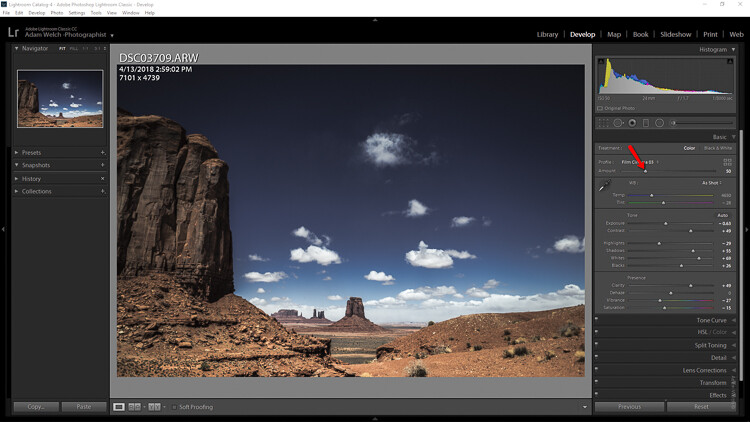
Adjusting Profile Density

Not only can profiles be used completely autonomously of the current image adjustments, but you can also control how much of the profile is applied. Think in terms of opacity and intensity.

You can now determine how much or how little of the effect you need and then dial in the desired setting using the amount slider.

Understanding Creative Profiles in Lightroom Classic CC

Here’s the profile effect at approximately 75%…

Understanding Creative Profiles in Lightroom Classic CC

…and now with about 25%

Understanding Creative Profiles in Lightroom Classic CC

Something to keep in mind when using profiles is that even though they are more flexible than develop presets that doesn’t mean they don’t come without their limitations.

The main one being that you can only apply one profile at a time. So don’t get any ideas of stacking profiles…at least not yet.

Final thoughts on Creative Profiles

I love presets. I love making presets. In fact, a good bit of my work revolves around the developing and constructing of develop presets for Lightroom. So when I say that I love the direction Adobe is heading with the profiles feature in their latest versions of Lightroom Classic CC hopefully you’ll want to give them a try as well.

Profiles are extremely similar to develop presets in that they allow you to perform a lot of processing in the fraction of the time it might normally require. The difference between profiles and presets is not in their outcome but rather in the little detours each one takes to reach the final destination.

Will profiles ever totally replace develop presets? I don’t think so, at least not for a while. And why should they? Like most aspects of photography, each small link in the chain serves to pull together a greater whole; it’s in this way that presets and profiles complement each other.

Once you understand the basics of using Adobe’s new creative profiles each one of them will serve you extremely well. As always, use presets and profiles up to and never beyond the point of your own creative vision for your images. Less is usually more. Have fun and enjoy shooting!

The post Understanding Creative Profiles in Lightroom Classic CC appeared first on Digital Photography School.


Digital Photography School

 
Comments Off on Understanding Creative Profiles in Lightroom Classic CC

Posted in Photography


How to Edit Food Photography Images Using Lightroom

22 Jun

To edit food photography it requires a bit of a different approach than you might take with other types of photography, like portrait or landscape. The objective is to keep the food looking as fresh and appetizing as possible, which can take a subtle but considered hand.

How to Edit Food Photography Images Using Lightroom

Before and after a subtle edit of a food photo.

Although there is always room for style and artistry, the more real your subjects look, the better. Lightroom is the program of choice for most food photographers. It’s intuitive and relatively easy to use and offers most of the tools required to make great food photos.

For this article, I will walk you through how I make global adjustments to a food image in Lightroom’s Develop module. Workflow is something that is individual to each photographer. This is how I approach editing my food photography, however, you may opt to do things differently. Hopefully, you will find some takeaways that will help you edit your own images.

I’ll be editing this image of an apple pie. This is the shot straight out of the camera. Like all RAW images, it lacks contrast and needs a bit of pizzaz.


How to Edit Food Photography Images Using Lightroom

Final image.

The Histogram

It’s important to have a basic understanding of the histogram in order to make adjustments to the exposure and tones in your image. The histogram is one of the key tools available for analyzing your image. It provides a graph of the density values of a given image. The histogram shows the relative quantity of pixels at each density value.

The far left point of the histogram is pure black and the densest, and the far right point is pure white with no density. A big peak in any of these regions means that the image has a lot of pixels at that particular density. An open gap in the histogram means that there are no pixels at that density.
How to Edit Food Photography Images Using Lightroom - histogram

The distribution of these tones will tell you about the overall exposure of the image. Most images look best if they contain both dark and light values. Generally, without some dark and light values, the image may lack contrast and look flat.

If you have a strong peak at the black or white end of the histogram, your image could be under or overexposed. However, it really depends on the individual image and the desired aesthetic. For example, blown out whites has become a “thing” in recent years. A dark and moody shot will have a lot of pixel density at the dark end of the spectrum.

Cropping

Before you can start making global adjustments to your image, it makes sense to crop and straighten it first. One tip is to shoot a bit wider than what you want for your end result so you can tweak your composition in post-production. You also may want to crop it to a certain aspect ratio – say 4×5 or square for Instagram.

First,  make sure that your horizon line is straight.

My horizon line in the apple pie image was already pretty straight. I used the crop tool to check it and also brought the crop in slightly on the left-hand side to cut off a little bit more of the pie. To access the Crop Tool in Lightroom, click on the grid symbol under the Histogram in the top panel (or just hit R, the keyboard shortcut). This will allow you to crop your image by bringing in the corners with your cursor.

While this tool is activated you can click “O” for the shortcut to bring up several compositional overlays like the Phi Grid or Golden Spiral to help you get the most out of your composition.

How to Edit Food Photography Images Using Lightroom - crop your image first

Lens Corrections

How to Edit Food Photography Images Using Lightroom - lens corrections panel in LR

The Lens Corrections options fix optical distortion caused by the position of your subject in the frame, or where your camera is positioned relative to your scene. Lightroom supports a variety of lenses to automatically calibrate with this function.

I always check off Enable Profile Corrections before I start making adjustments to my image. Checking this box automatically brings up the camera profile for the lens used to create the image, in this case, the Canon EF 24-70mm.

White Balance

I recommend setting your White Balance in-camera or shooting with a gray card and adjusting it in post-processing. This removes incorrect color casts and ensures that your whites and colors render accurately.

How to Edit Food Photography Images Using Lightroom - eye dropped for WB in LR

You can correct your White Balance in Lightroom by taking the eyedropper tool (circled in red below) and clicking on an area in the image which appears neutral. This will the adjust the color temperature in the whole image, and you can tweak afterward if it’s not quite as you desire. It’s not as precise as the other options but can work well for food your food images.

Also, in food photography, White Balance can be used creatively, depending on your image. I tend to favor a cooler approach to my food photography. Cool colors give a crisp and fresh feeling to the image, which means I tend to edit more towards the blue or cyan.

Using the white balance eye dropper tool in Lightroom to color correct - How to Edit Food Photography Images Using Lightroom

Using the white balance eyedropper tool in Lightroom to color correct

Keep in mind that the goal is to make the food look as fresh and appetizing as possible, so you don’t want the food to look blue. Food photography looks best when there is a balance of tones. I keep my surfaces and props on the cool or neutral side and work with my food subjects individually to keep it as realistic looking as possible.

When composing my apple pie image, I chose a vivid blue background to complement the golden tones of the pie. Not only does this create a balance of tones, blue and yellow are opposite on the color wheel and are a great combination of colors for food photography.

How to Edit Food Photography Images Using Lightroom

After White Balance color corrections.

Exposure and Contrast

The next slider is Exposure, which affects the brightness of the range of tones in your image. To see bright or dark details, pull the Exposure slider to the left, or the Blacks slider to the right. If the bright areas look muddy, or the shadows still need more light, move the sliders to points where the image looks good overall.

I often make this adjustment initially and then may scale it back once I have made some other adjustments.

Contrast can be boosted in the Basic Panel or in the Tone Curve panel, which I will get to in a moment. It’s important to add some contrast, as RAW digital files are flat by nature.

How to Edit Food Photography Images Using Lightroom

After slight Exposure and Contrast adjustments.

Highlights, Shadows, Whites and Blacks Sliders

How to Edit Food Photography Images Using Lightroom - basic panel sliders

This panel is where you may end up doing a lot of tweaking before you settle on a look that you’re satisfied with. It will give you a more precise balancing of tones than simply relying on the Exposure slider.

In my shot of the apple pie, the highlights were too bright, and the shadows too light for the look I was aiming for, which was a darker mood. My style tends to be dark and moody with bright food.  I brought the highlights down and boosted the whites, while also bringing down the shadows and blacks to create the ideal balance for the aesthetic I was going for.

How to Edit Food Photography Images Using Lightroom

After Highlights and Shadows were tweaked.

Clarity, Vibrance, and Saturation

Clarity is a most important slider in Lightroom when editing food photography. Clarity gives your image contrast in the mid-tones (edge details more specifically) and adds detail. You probably wouldn’t edit a portrait with +50 clarity, but you can easily do so with food photos. Keep in mind that overdoing the clarity can make food look dry and unappetizing. For this edit, I put my clarity at +42.

Vibrance is also an important slider in food photography post-processing. It’s a better tool for your edits than saturation because it’s is more subtle. It tends to adjust the less saturated colors without intensifying the ones that are already saturated.

The difference between Vibrance and Saturation is that it affects the intensity of the colors. Red becomes redder, green becomes greener, and so on. Vibrance will first boost the saturation of the muted colors and then the other colors. It adjusts the less saturated tones without over-saturating the ones that are already saturated. Whether you use Saturation depends on the image and the look you are going for, but in general, a conservative approach is what works best when editing food photography.

How to Edit Food Photography Images Using Lightroom

Clarity, Vibrance and Saturation adjusted.

It’s easy to quickly overdo the Saturation and make your image look ugly. If I use the slider at all, I might only nudge it up a tad to about +5 or +6. You’ll notice that I actually brought down the Saturation slightly in this image, so the blue looks a little less intense.

Tone Curve

The Tone Curve is often challenging to new users, but it’s one of the most powerful tools that Lightroom has to offer. Getting in-depth with it is beyond the scope of this article, but let’s look at the basics.

The Tone Curve is a graph that maps out where the tones in your images lie. The bottom axis of the Tone Curve starts with Shadows at the far left side and ends with Highlights on the far right end. The mid-tones fall in the middle, in a range from darker to lighter. The tones get darker as you move lower, and brighter as you move up the axis.

Assess the mid-tones in your image. Are they bright already? If not, click on the middle of the tone curve and bring the point up. If they are already bright or too bright, bring the curve down slightly. Move on to the rest of your image. Typically you will find that your curve looks somewhat like a soft S (see screenshot below).

You can control the lightness and darkness of your tones by adjusting the Point Curve itself or by Region Curve. The Region has sliders for each part of the tonal range. As you drag each slider, the curve and the image both change.

To make adjustments with the Point Curve, click on the area you want to affect to create an anchor point at which to control the tone. Dragging the point up lightens that tone; dragging it down darkens the tone.

After Curves.

You will also notice that there is an RGB option in the lower-right portion of the point curve. This helps you to individually edit the Red, Green, and Blue channels. It performs the same types of adjustments to brightness and darkness, but on each separate color. This can be utilized if you want to edit a color individually, or give your image a certain type of color overall.

To choose tones directly from the image, there is a handy tool called the Targeted Adjustment Tool. This is located in the top left of the Tone Curve.

Click on it and move the cursor over the image. The tool shows you the tones under the crosshairs. If you click and drag it up and down the image, you will affect the tones like those under the crosshairs. For example, if you drag vertically on an area with light pixels, all of your image’s highlights will be adjusted.

If you’re getting started with learning the Tone Curve, play around with the Region sliders and take note of how the various sliders affect the curve. Whichever approach you choose, be sure to watch the histogram as you make changes, to ensure that you are not losing important detail.

HSL Adjustments

HSL stands for Hue, Saturation, and Luminance. This is where you balance the colors in Lightroom. However, color adjustments are usually more subjective than tonal adjustments, as color gives a photograph a sense of mood.

There are two ways to make color adjustments in this panel; you can adjust them all at once under HSL/All, or each color individually under the Color tab at the top of the panel.

The Hue tab or section is where you choose how warm or cool you want each color in your image to be. For example, I find that greens almost always look off, so I slide the greens slightly more towards the left or right to get them looking more realistic. To add more warmth, that is, more yellow to your greens, slide it to the right. For a cooler hue, sliding it to the right will add more blue.

Whereas the Saturation slider in the basic panel adjusts the color of the whole image, the saturation sliders here adjust each color individually.

If you adjust a color to be more saturated, then it will affect the saturation of that particular color throughout the whole photo. Whether you’re working in the basic panel or the HSL panel, saturation requires a light hand.

In the image of the apple pie, I thought that the blue looked a bit more on the magenta side, so I slid it towards the left. This hue gave me a blue that worked better with the orange tones in my picture.

Lastly, Luminance affects the brightness of the color. I find these sliders more valuable than the saturation sliders and work with these first.

How to Edit Food Photography Images Using Lightroom

After HSL adjustments have been applied.

Working in Lightroom is all about balance, and the same goes when working with the Hue, Saturation, and Luminance adjustments.

Noise

Noise is the grain that can appear throughout an image. It’s not often a problem when you are shooting with artificial lights, but when working with natural light, grain can appear in your images if you are shooting at a higher ISO or you didn’t get enough light onto your sensor.

Working with the Noise slider in Lightroom will minimize the grain and give your image a smoother look. But, be careful not to push the slider too high, as it can result in a plastic look. For the apple pie, I set the Noise at +20, as it was shot in studio with a strobe.

Post-Crop Vignetting and Dehaze

If you are editing a darker, moodier image, Post-crop Vignette is a must. By darkening the outer corners of the frame, you draw the viewer’s eye towards the center of the image and your subject.

To darken, move your slider to the left. The midpoint slider controls how far in the dark edges get to the center of your photo. Feather controls how soft or hard your vignette will look. A softer vignette looks more appealing than a hard, “spotlight” effect.

How to Edit Food Photography Images Using Lightroom

Vignette applied.

Sharpening

Sharpening should be the last editing step. It adds contrast between pixels and edges, thereby adding definition and creating a more refined look.

NOTE: It’s not meant to make a blurry image look sharp!

Also, sharpening should not be applied to the whole image. In food photography, there is not much of a point in sharpening the props and the background, etc. The focus is on the food, therefore, this is what we sharpen.

To do this in Lightroom, mask out the image to select the areas of the image you want to sharpen rather than sharpening the whole image. You do this by holding down the Alt/Option key (it will show you where the sharpening is being applied, the white areas) while clicking on Masking in the Sharpening panel. Slide it to the right. The farther right you go, the less of the image it will sharpen. For my image, I left it at +76.

Also read: How to Make Your Photos Shine Using Clarity, Sharpening, and Dehaze in Lightroom

In Conclusion

So here is the final image! Not drastically different than what I began with, but overall a more balanced and refined looking photo and consistent with my style of food photography.

How to Edit Food Photography Images Using Lightroom

Before and after editing. Note how subtle the differences are here.

When it comes to post-processing your food photography, the best advice I can give is that whatever your style, strive for a natural look for your subject. Ask yourself this question, “Looking at this image, do I want to eat that food?”

The answer should unequivocally be yes! If so, you’ve done a good job.

The post How to Edit Food Photography Images Using Lightroom appeared first on Digital Photography School.


Digital Photography School

 
Comments Off on How to Edit Food Photography Images Using Lightroom

Posted in Photography


Adobe Creative Cloud updates bring preset and profile syncing to Lightroom CC

19 Jun
A new batch paste option in Lightroom CC allows settings to be quickly synced across multiple images.

Adobe has announced a raft of updates across its suite of Creative Cloud apps, including Lightroom CC and Lightroom Classic CC.

For photographers, Lightroom CC receives the most substantial updates, which include easy synchronization of presets and profiles across all devices. Preset and profile syncing works with Lightroom’s inbuilt options, as well as custom and third-party presets and profiles. Presets can now be created in Lightroom CC on mobile devices, too. iOS devices also gain a new chromatic aberration removal tool, and a beta ‘long-exposure’ mode which combines multiple images and stacks them to simulate the effect of a long shutter speed without the need for a tripod.

Lightroom CC for iOS now includes a ‘Technology Preview’ of a new long exposure photo mode, which simulates the effect of using a long shutter speed by combining several conventionally-captured exposures into one.

For those using Lightroom CC on a desktop computer, Adobe has improved batch syncing of settings across multiple images, and enhanced the options for sharing albums.

Users of Lightroom Classic CC are promised a substantial update ‘coming soon’ but in the meantime, Adobe has provided an iterative release centering on ‘speed, stability, and a focus on professional workflows’. To that end, Adobe has added new ways of accessing and sorting presets, new color labels for organizing folders, and faster searching inside them.

Learn more about what’s new in Adobe Lightroom CC

Learn more about what’s new in Adobe Lightroom Classic CC

In other news, for designers, Adobe Spark is now available for Android smart devices and Adobe XD benefits from a range of improvements and added features including overlay support and private sharing.

Articles: Digital Photography Review (dpreview.com)

 
Comments Off on Adobe Creative Cloud updates bring preset and profile syncing to Lightroom CC

Posted in Uncategorized


10 Lightroom Plugins You Should Use

24 May

Lightroom is one of Adobes most useful tools in its photography bag. It’s the companion to Photoshop, and it’s built more for image processing and visual editing, rather than the manipulation abilities that makes Photoshop so popular. Lightroom is one of the key tools any photographer should have in their tool belt. What’s a Plugin? Plugins are often referred to Continue Reading

The post 10 Lightroom Plugins You Should Use appeared first on Photodoto.


Photodoto

 
Comments Off on 10 Lightroom Plugins You Should Use

Posted in Photography


Fixing Your Photos with the Lightroom Spot Removal Tool

23 May

Lightroom’s suite of editing tools is not as comprehensive as its big brother Photoshop But the program does offer a host of options for fixing photos that cover most of the corrections you are likely to need on a daily basis. You can, of course, use Lightroom for basic operations like adjusting white balance, changing exposure, and converting images to black and white. But there are much more advanced features as well, such as the Spot Removal Tool.

This tool is a quick and easy way to remove blemishes and imperfections. It doesn’t have the same level of depth and customization as similar options in Photoshop, but with a little practice, it should suffice for most situations in which you are likely to need it.

Fixing Your Photos with the Lightroom Spot Removal Tool - sunset photo

Fixing Imperfections

To access the Spot Removal tool, first, click on the Develop module and then press the Q button (the keyboard shortcut). Or you can click on the circle icon with a small arrow pointing to the right just below the histogram at the top of the panel on the right-hand side.

how to open the Lightroom Spot Removal Tool

Once you are in the Spot Removal panel it might be tempting to start clicking away at every spot and blemish on your images. But understanding some of the options available to you will help you use the tool more effectively and result in better edits.

The Spot Removal tool has two main options, Clone and Heal. Each of these has three sliders that you can change: Size, Feather, and Opacity. Before getting into the differences between cloning and healing, let’s take a look at the three options they have in common.

Fixing Your Photos with the Lightroom Spot Removal Tool - sliders

Size

This changes, as you might have guessed, how big the edit is going to be. Larger sizes are suited for bigger edits, while pinpoint accuracy can be obtained by making the tool as small as you need it to be.

You might be tempted to slide left and right to change these values, and that certainly works just fine. But you can also type precise numbers between 0-100 or just scroll up and down using the mouse wheel to see the brush automatically grow and shrink until you get it to where you want. You can also use the square brackets [ and ] on the keyboard to adjust the brush size.

Feather

This slider lets you control how gradually the Clone or Heal edits are implemented. Sliding all the way to 100 means your edits will gradually fade out near the edge of the tool. A value of zero indicates that there will be no feathering whatsoever.

This will result in a harsh edge around your edits that will be easy to spot so I don’t usually recommend it. Instead, try for a value of around 50 and adjust it to your taste. Similar to the Size parameter you can adjust this with the mouse by holding [shift] and scrolling up and down, which I find much easier to use than the slider.

Opacity

The opacity is a way for you to specify how transparent your edits will be. A setting of 100 is totally opaque and nothing will show through, whereas lower values will lessen the overall impact of the tool.

There might be instances in which you don’t want to completely remove a spot or blemish but mask over or fade it just a little, and in that case, set an opacity of 25 or 50 (this works well for portrait retouching, lightening circles under eyes and wrinkles without completely removing them).

Fixing Your Photos with the Lightroom Spot Removal Tool

Cloning

Hearkening back to the earlier days of Photoshop, the Clone tool is one of the most often-utilized features for beginning or even more advanced photographers who want to tidy up their pictures. The basic function is pretty straightforward since all it does at a fundamental level is copy, or clone, one part of a picture and put it on top of another part. This is great for situations with textures, patterns, or colors that are highly similar or where duplicating one portion would not be easy to detect.

Using the Clone Tool

This picture of a squirrel (below) has a stick on the right-hand side that I would like to remove. The Clone tool is a good way to do it. To fix something like this you can either shrink the tool so it’s small and brush it over the imperfection or increase the size to be much larger and click just once.

Each situation is going to call for a different type of edit but in general, I like to use a larger brush and click once because it usually results in edits that aren’t as visible in the final result.

Fixing Your Photos with the Lightroom Spot Removal Tool - image needing some cloning to remove a stick

This image is fine, but it would be great if that stick protruding up on the right side could be removed.

Lightroom tries its best to get your initial clone edit just right by taking what it thinks is a sample of a similar portion of your image. But as you can see below it doesn’t always work.

bad cloning job - Fixing Your Photos with the Lightroom Spot Removal Tool

Lightroom’s initial attempt with the Clone tool was less than ideal. You can clearly see a circle of in-focus grass where the stick used to be.

Adjusting cloning results

You don’t have to be content with the initial results though, as Lightroom lets you refine and tweak the cloning options until you’re satisfied.

There is an Overlay setting for the Clone tool. It is a white circle indicating the location from which the Clone Tool is selecting to copy. As well there is another circle showing you where it is being pasted. In the lower-left portion of the Develop module is a tiny little option picker that says “Tool Overlay” with four choices: Auto, Always, Selected, and Never. My personal preference is to go with “Never” and use the “H” key to show and hide the Tool Overlay as I need it.

As you use the Spot Healing tool you will see little gray circles pop up all over your image, which shows you the places where you have edited your image. If you don’t see these tiny pins press “H” to show them, and then click on one to show the white circles showing you where the edits are being taken from and applied. You can see an example of this in the image below.

Fixing Your Photos with the Lightroom Spot Removal Tool - cloning overlay

Press the H key to show and hide the Tool Overlay. Then grab the source that is being copied and drag it to another part of your image that blends in better with the surroundings of the blemish to be cloned out.

Once you see where Lightroom is grabbing the part of your image that it’s using to fix a blemish, it’s easy to fine-tune it to get the results you are looking for. Use your cursor to drag the bright circle around the image until you find a spot that would be better-suited for filling in the blemish. You can also adjust the sliders while you have your editing point selected to see in real-time what happens when you change things like size, feather, and opacity.

better cloning job - Fixing Your Photos with the Lightroom Spot Removal Tool

I wouldn’t say it’s impossible to tell that this photo has been edited, but most casual viewers would likely never know.

Visualize spots

One issue that you might encounter when using the Spot Removal Tool is that it’s not always easy to see where the spots in your picture are actually located. Fortunately, Lightroom has an option that can help you in this regard.

If you click the “Visualize Spots” button in the lower-left corner of the Develop module (make sure the Spot Removal tool is selected), you will see a black-and-white version of your image with areas of high contrast highlighted. If you do not see this option, activate your toolbar by pressing T on the keyboard.

You can also simply press the A key to activate the Visualize Spots view. Use the slider to fine-tune the amount of contrast visible, and doing so will show you where some of the imperfections are located that you might have missed.

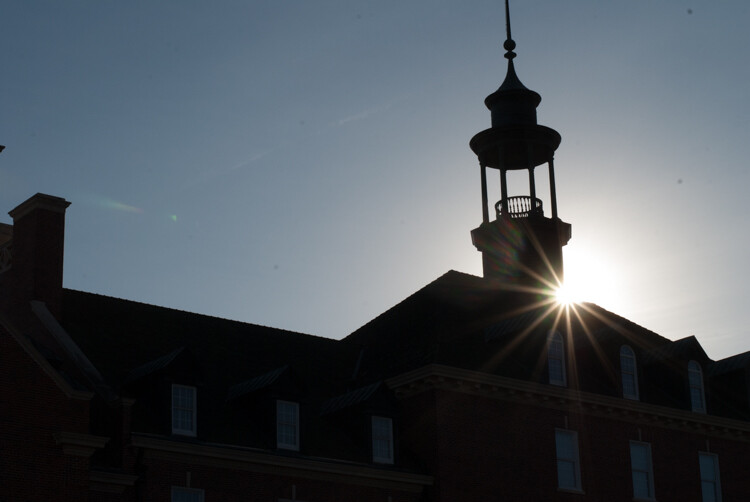
Fixing Your Photos with the Lightroom Spot Removal Tool - silhouette with spots to remove

Some of the spots on the above image are easy to see, but others are visible only upon closer inspection. Snuffing out all the blemishes, which are really dust on the front of my camera lens, would be a time-consuming process without the Visualize Spots option enabled. Doing so makes it easy to see every mote and speck that I need to fix with the Spot Healing tool.

Fixing Your Photos with the Lightroom Spot Removal Tool - visualize spots active

Visualize spots activated

The finished image, after some clicking and editing, is much improved. I even decided to leave in the streak of lens flare on the left side because I liked the effect, you could remove it if you wanted to by using the same tools.

image after cloning - Fixing Your Photos with the Lightroom Spot Removal Tool

Healing

While similar to the Clone tool, the Healing brush operates in a slightly different way. It takes textures and tones from a source portion of your image and blends it with the area you want to fix. It’s not a direct 1:1 copy of the source, like the Clone tool, and as such it creates results that are often a little more refined and effective in terms of removing problems and blemishes.

The Heal tool has the same options as the Clone tool (Size, Feather, and Opacity) but because the nature of the tool is somewhat different. The Opacity doesn’t function in exactly the way you might expect. It still adjusts how much of the source spot is stamped onto the blemish you want to remove but because it’s blending textures, colors, and patterns even a 100 value of Opacity means that you won’t see quite the same results as the Clone tool.

Fixing Your Photos with the Lightroom Spot Removal Tool

To fix a picture using the Heal tool, click on any spot you want to remove (or click and drag if it’s more than just a single spot) and Lightroom takes care of the rest. If the spot is not fixed to your liking, press H to show the Tool Overlays and edit as you see fit by dragging the source that is being copied and adjusting the Size, Feather, and Opacity.

Note: One other thing you can do with the Lightroom Spot Removal tool is to draw a line or shape. Your cloning area is not just limited to a circle anymore as it once was in LR.

The picture below shows the result of using the Heal tool to remove about a dozen blemishes and imperfections on a photo of some mushrooms. All this was done in under five minutes using only the Heal tool, and it illustrates how simple and effective this type of editing can be.

Fixing Your Photos with the Lightroom Spot Removal Tool

The Photoshop Solution

I often use the Lightroom Spot Removal Tool to fix little things in my images, but for real in-depth editing, you might want to turn to Photoshop. There you can really dig in with layers and the advanced editing tools that program offers.

For most photographers, whether professional or casual, the options in Lightroom will usually suffice. That’s what I find myself using almost every time I need to tweak a picture. Give it a try and you might be surprised at what it can do for you too.

The post Fixing Your Photos with the Lightroom Spot Removal Tool appeared first on Digital Photography School.


Digital Photography School

 
Comments Off on Fixing Your Photos with the Lightroom Spot Removal Tool

Posted in Photography


How to Choose Your Lightroom Export Settings for Printing

19 May

If you haven’t yet printed some of your favorite photos, trust me you are missing out on a lot. The joy and pleasure that you get by looking at the prints cannot be matched by the digital copies. This article might excite those photographers who have gotten their photos printed at least once. But if you haven’t yet, this might be the beginning, give it a try!

The majority of you may already be using Adobe Lightroom to post-process and color correct your photos. But did you know that you might be saving your final digital copy to be sent to the printer using the wrong export settings? Do not panic, this article will help you cross-check some of the key export settings that you want to follow.

Getting the Dimensions Correct

Trust me, this is one of the most basic and silliest mistakes that you might make while exporting the final copy to be sent for printing. To make sure that you get the dimensions correct, simply crop the image (if needed) using the desired aspect ratio the moment you import the photo to Lightroom. This will make sure that the final prints are in the perfect dimensions and you do not have to pay the printer extra to correct the ratio.

Note: You can use a Virtual Copy to crop for print and leave the original for online.

crop sizes and ratios in Lightroom

Select the Correct Color Space

A good quality print is one which has the most accurate color representation. If you have been getting a difference in colors between what you see on your screen and what you get on your prints, something might be wrong with the color space.

The color space of a digital image is the most important aspect of accurate color representation in a print. You need to make sure that you are selecting the AdobeRGB or any other color space as advised by your printer. AdobeRGB is a larger color space as compared to the sRGB, which is the default color space in the export setting. To know more about the color space, read: AdobeRGB vs sRGB Color Space.

Some printers may have their own custom color profiles, which they may or may not share with you. So, in that case, they would ask you for AdobeRGB color space file and later export the file as per their custom profile. If you are unsure about the printer, simply export the photo as AdobeRGB color space.

Note: Many labs and printers in the USA use the smaller sRGB space, so if you send AdobeRGB files for printing you will get unexpected color in your prints when they come back. Be sure and ask the lab what they use and prefer beforehand.

Once you have selected the color space, make sure to keep the Bit Depth as 16 bits/component. This will make sure that the color transition and falloff is gradual.

Select the Correct Image Format

Once you are done with selecting the required color space, it is important to choose the correct image format. You can go with the JPEG format but if you are opting for high-quality or a big print, save it as a TIFF. This file format has much more information as compared to a JPEG and is vastly accepted by the printers.

Note: Again check with your lab first. Some will not accept a TIFF file.

Select the Correct PPI (Pixel Per Inch)

PPI in a photo print means the number of pixels that are there per inch of the photo. The ideal and the best possible quality is 300ppi, but you can also choose 240ppi if required. Basically, the more the PPI the better print quality you would get. If you are getting bigger prints and do not want the photo to look pixelated, try saving the photo with maximum possible PPI (ideally 300ppi in the case of prints).

Note: Once again ask your lab. Some may have a standard PPI that they use and prefer. Canvas prints, for example, are often at 150ppi. 

Finish up

Once you are done selecting these four major export settings, you shall be good to export the file for prints. You can always experiment with these settings as there are no hard and fast rules. These were just some tips and suggestions I wanted to share as per my experience.

One other thing to make note of is whether or not you are enlarging the image. Be careful when upsizing files as there are good and bad ways to do that, but that is beyond the scope of this article. Read more here: Image Size and Resolution Explained for Print and Onscreen

The post How to Choose Your Lightroom Export Settings for Printing appeared first on Digital Photography School.


Digital Photography School

 
Comments Off on How to Choose Your Lightroom Export Settings for Printing

Posted in Photography


How to Use the Lightroom HSL Panel for Landscape Photo Editing

12 May

If you are a landscape photographer, you might already be using various lens filters to get desired colors and saturation in your images. What if you do not own these filters or forget to carry them along? There is a tool in Adobe Lightroom can help you.

The HSL (Hue, Saturation, and Luminance) tool is a savior for all photographers, especially those shooting landscapes. This is because the HSL tool allows you to adjust the hue, saturation, and luminance in your photos very efficiently.

Where is HSL Panel located in Lightroom?

First, you have to make sure that you are working on the Develop module, in order to access the HSL tool.

How to Use the Lightroom HSL Panel for Landscape Photo Editing - develop module

Once you are in the develop module, you can now see all the toolbars on the right-hand side of the window. Simply scroll down a bit until you see the “HSL / Color / B&W” panel. As you will be working on the HSL tool, just click on the “HSL” tab.

How to Use the Lightroom HSL Panel for Landscape Photo Editing - HSL panel

Using the Hue Sliders in HSL

The first tool that we shall be discussing is the Hue tab, which as the name suggests allows you to adjust the hue (or color tint) of a photo. Hue enables you to adjust the tones ranging from -100 to +100. In simple language, you can change the tone/tint of a particular color in a photo, but within the hue range. By default, Lightroom allows you to play with the hue of eight default colors as shown in the photo below.

For example, if you look at the comparison below the original color of the sky was blue (middle image below). So if I adjust the blue slider and take it all the way to -100, the color shifts from blue to a somewhat greenish color. Similarly, if I take the slider all the way to +100 the color shifts towards a magenta tone.

hue adjustments - How to Use the Lightroom HSL Panel for Landscape Photo Editing

Hue adjustments with the Blue slider.

I know it looks disastrous, but this extreme example gives you an idea of how you can use the Hue tool when required. Let me share a perfect example with you that I achieved using the Hue adjustments.

How to Use the Lightroom HSL Panel for Landscape Photo Editing

LEFT: Original image RIGHT: Color corrected using the Hue tool

Using the Saturation Sliders in HSL

Now once you are done adjusting the hue of the colors that you desire, you can move on to the saturation tab in the HSL panel. We all love saturation in landscape photos especially in the sky, don’t we?

Using the saturation tab, you can adjust the intensity of a particular color from the list of eight default colors. Unlike the saturation slider in the Basic LR panel where the whole photo gets affected, here you can selectively adjust the saturation of a single color.

Suppose you want to boost the saturation of blue color in the sky, simply drag the blue slider towards the right and see the magic. If you wish to make it less saturated, mode the slider towards the left and experiment with selective coloring effect.

Similarly, you can perform repeated actions using different colors in your frame and get a well-saturated photo.

How to Use the Lightroom HSL Panel for Landscape Photo Editing - blue saturation slider

The blue saturation slider on the HSL panel in action.

Using the Luminance Sliders in HSL

The last tool from the HSL panel is Luminance, which allows you to adjust the brightness of a particular color tone. So basically you can increase or reduce the brightness of a color by adjusting the Luminance slider.

There are situations when the sky is way brighter than the mountains or your subject, or maybe your subject is brighter than other elements of your frame. Using the luminance sliders, you can balance the brightness of the scene.

For instance, in the photo below, the sky is overexposed and I want the blue color to be dark in order to get more contrast in the sky. Using the Luminance tool I adjusted the blur color slider to -80 to get the desired result as shown below.

How to Use Lightroom HSL Settings for Landscape Photo Editing

Choosing Colors Manually in HSL

There are chances that the color that you want to choose to adjust the Hue, Saturation, or Luminance is not amongst the eight default colors. No worries, you can still adjust the HSL settings using a special feature called the Targeted Adjustment Tool which is located on the HSL toolbar itself (as shown in red below).

How to Use Lightroom HSL Settings for Landscape Photo Editing

The targeted adjustment tool is highlighted in red.

Simply tap on the icon and take it over to the exact spot where you wish to adjust the hue, saturation,  or luminance. Now click and hold at that point in your frame and drag the mouse up/down to adjust the sliders automatically.

Some colors are a mix of two or more primary colors, so you may see multiple sliders being adjusted when you click and drag the mouse. For example, green grass isn’t always just green, it usually has a lot of yellow in it as well.

Final Words

Hue, saturation, and luminance play an important rule in landscape photo color correction, do you agree? Using the HSL sliders, you get a lot more flexibility as you can perform better color correction based on particular colors.

Be it changing the hue of trees from green to orange, boosting the saturation of the sky, or adjusting the luminance of the scene, the HSL tool in Lightroom takes care of it pretty well.

The post How to Use the Lightroom HSL Panel for Landscape Photo Editing appeared first on Digital Photography School.


Digital Photography School

 
Comments Off on How to Use the Lightroom HSL Panel for Landscape Photo Editing

Posted in Photography


Tips for Editing Hockey Photos in Lightroom

06 May

In this article, I’ll give you some tips for editing hockey photos using Lightroom. If you’re a hockey mom or dad, read on to make the photos of your kid on the ice stand out.

Shooting hockey is hard

Have you ever tried to photograph lightning?

Sometimes that’s what it feels like when taking pictures at a hockey game. Every play is a blur. You can feel the game’s speed and intensity right until the final whistle. Emotion and sweat mix together on the faces of players who battle and fight for every inch, as the arena shakes with a thunderous ovation from the spectators.

Two hockey players battle for the puck

In short, it’s a whole lot of fun to capture through a camera. But after the crowds are gone and your ears have stopped ringing, it’s time to head home, load your images up on the computer and apply your special brand of editing.

Editing hockey photos can be tricky too

Regardless of what camera you use, all hockey images will benefit from some attention in Adobe Lightroom before you share them on social media or in a local publication. And despite the thrills of the sport, the arena is a tough place for a photographer. You have to deal with low or inconsistent light, high ISO settings and low shutter speeds, scuffed up glass and more.

Learning the technique to get decent shots in the first place is half the battle — but that’s a story for another time. Today, it’s time to head into the editing room.

Note that even though this guide specifically addresses features in Adobe Lightroom, the same concepts can be used in any photo editing program with similar controls.

Shoot in RAW

First off, if you’re serious about getting the best hockey pictures possible then it’s a good idea to shoot in RAW. Sure, file sizes are a lot larger, but this is because more data is preserved for each shot. When you’re editing, you’ll be thankful for all the extra leeway you can get with a RAW file over a JPG.

A hockey player sitting on the bench during a game

That’s not to say that you’re doomed if you shoot JPG. It just means you’ll need to be extra careful getting the settings right in the camera since there won’t be nearly as much flexibility when editing later. The choice is yours.

Cull Aggressively

Culling is the process of removing and maybe also deleting photos that simply don’t make the cut.

Not every image is a keeper. Especially in sports photography, you’re going to get images that are out of focus, poorly composed or simply not very interesting. If your goal is to edit every single image you take, you’re going to go crazy.

Choose the best of the best to focus your time and energy on, and then start editing those.

Cropping and Straightening

It’s rare to nail the best possible composition right in your camera. Sure, it happens from time to time, but it’s more likely that your pictures will benefit from a bit of cropping and straightening.

Consider what’s important in the frame. You want to have a nice balanced composition that fills the image. Think in terms of simplicity: if you crop out a stick or skate that appears in the corner of the image it will help your final picture feel more clean and professional.

The unedited image of a hockey player on a breakaway - Tips for Editing Hockey Photos in Lightroom

This is the image out of the camera. It’s already a fairly tight shot, but it would be even better with a crop.

A hockey player on a breakaway against a goaltender - Tips for Editing Hockey Photos in Lightroom

That’s more like it! Now the action feels close and intense.

It might not be possible to do a tight crop of a shot and maintain quality, depending on how your camera handles high ISO settings. If you find that your images are always just a little too zoomed out, remember that for next time you photograph a game.

Straightening out your images is a big help as well. As you track the play through your camera, it’s easy to start tilting the camera.

There are times when a crazy tilt gives a sense of action and energy to a picture — but often it just looks like the players are about to tumble out of one side of the image.

An unbalanced image of a hockey goaltender - Tips for Editing Hockey Photos in Lightroom

The players by the bench look like they’re ready to slide down to the bottom left side of the shot.

A hockey goaltender taking a break while the crowd cheers - Tips for Editing Hockey Photos in Lightroom

This straightened version feels a little more stable.

Take the time to straighten your pictures and they’ll look much more professional and balanced.

Understanding White Balance

Cameras interpret color differently than our eyes do. Under tricky lighting conditions, cameras don’t always capture an accurate representation of color.

Correcting the White Balance is an important part of your final edit since it’s hard to appreciate an image that looks too blue or too yellow. If you shoot in RAW, you can adjust the White Balance without losing any image quality. With JPG, you can still make minor adjustments but don’t count on being able to save many images.

An example of the white balance settings in Lightroom

The White Balance slider in Lightroom.

If you have a shot that needs to be fixed, the eyedropper tool can be useful for getting you fairly close to the mark. Click on something in the shot that is a neutral color, such as the boards, and then adjust from there. Pay close attention to skin tones and always remember that the ice should be white.

A hockey image with a poor white balance setting - Tips for Editing Hockey Photos in Lightroom

The Auto White Balance setting missed badly on the original shot, choosing to use 4450K

Hockey players fighting for the puck - Tips for Editing Hockey Photos in Lightroom

After some correction, I settled on 3800K as a White Balance that displays the colors more accurately.

Finding the right White Balance can be tricky, especially since different display screens can have subtle variances. But with a bit of practice, correcting the White Balance in your shots will become a piece of cake.

Contrast, Shadows, Blacks and Dehaze

Your approach with editing is going to be very different depending on whether or not you have to shoot through the glass. In the NHL, photographers either shot through a small hole in the corners or from higher angles where they can see above the glass. But you may not have that luxury.

Shooting through thick glass usually robs a picture of a lot of its contrast. Contrast plays an important role in giving an image depth and making it “pop”. So you’ll need to add that back in the final edit.

Lightroom offers a couple of sliders that can manage this.

  • Contrast: This slider will make dark mid-tones darker and light mid-tones lighter. When used in moderation it can make a picture appear richer, but be careful not to overdo it and create surreal tones.
  • Blacks: This slider influences the darkest tones of the image. This can be useful for fixing hockey pants, sticks and skates so that they are black again, rather than a faded dark grey.
  • Shadows: This slider affects the mid to dark tones of the image. Typically this slider plays a big role in determining the brightness of the crowd and the players’ faces.
  • Dehaze: Introduced only a few years back, the Dehaze slider tries to interpret how light has been lost and scattered in the image. It works well with foggy images and is actually a good fit when shooting through hockey glass as well.
A low contrast image of two hockey players, taken through the glass - Tips for Editing Hockey Photos in Lightroom

This shot was taken through the glass. The colors are weak and the contrast is very poor. Overall, the image looks dull.

Two hockey players fighting for the puck in the corner of a rink - Tips for Editing Hockey Photos in Lightroom

After applying Contrast and Vibrance, the picture comes back to life! This image uses the following settings; Contrast +45, Shadows +42, Blacks -19, Dehaze +25.

If you’re lucky enough to get the chance to shoot without a pane of glass between you and the players, these contrast sliders will still be an important part of your final edit.

There is no “right” amount of contrast to use; just adjust the slider to taste and to make sure the final image is full and rich.

A hockey player on the bench during a game - Tips for Editing Hockey Photos in Lightroom

With no glass between the player and the camera, this shot is clear. It still benefits from some contrast to bring out color and drama.

Lightroom settings for a hockey image - Tips for Editing Hockey Photos in Lightroom

Adjustments used for the image above.

Keep your Whites White

The ice at a hockey rink is white. That means that it should be white in your final image as well. This can be a tricky process, especially since cameras don’t “see” the same way that your eyes do.

If you overexpose an image, the ice might turn into a uniform blob of white. If you underexposure, the ice becomes a murky gray. It’s a delicate balancing act.

An underexposed hockey image where the ice has turned a shade of gray - Tips for Editing Hockey Photos in Lightroom

A perfectly timed snap – but the underexposed ice looks terrible!

Once again, shooting in RAW gives you a bit of leeway. With RAW you can get good results correcting the exposure by plus or minus two stops. With JPG, a missed exposure could mean that the picture needs to go into the trash.

When editing, you’ll want to pay attention to your histogram and clipping warnings. If the ice is overexposed, it will show as a line right up against the right side of your histogram. Your final image should have bright ice but without clipping.

The histogram of a hockey picture - Tips for Editing Hockey Photos in Lightroom

The histogram of a typical hockey image (above). The mountain far to the right is the white of the ice. If it was all the way to the right, we’d start losing detail in the highlights.

A hockey player jumping into the air in celebration after scoring the winning goal - Tips for Editing Hockey Photos in Lightroom

After some tweaks to the exposure, the celebration can begin!

In Lightroom, you can adjust the overall image with the exposure slider, or you can target the ice surface more precisely by adjusting the Highlights or Whites sliders.

Start by adjusting the “Whites” slider, as this controls the maximum brightest point of the image. Once this is set, you can also adjust the “Highlights” slider, which affects a range of the brightest tones.

The goal should be to bring out a bit of the texture in the ice made of snow and grooves carved into the surface.

Brushes, Graduated Filters & Other Adjustments

Now let’s dig into some of the incredible tools in Adobe Lightroom. This is the point where your friends will wonder what kind of wizardry you are conjuring up to make your pictures look so good.

Adjustment brushes give you pinpoint control over selected areas of a picture. This is perfect for when you’ve got your whole image to a good point, but there are just a few more details that you can’t let slide.

Brushes can be used to apply any of Lightroom’s editing features. In the example below, I can use a brush to brighten up one of the players, who was a bit too dark in the finished image.

A hockey image with a adjustment brush applied to it - Tips for Editing Hockey Photos in Lightroom

The player in black was just a little too dark, even after all our adjustments. Never fear – now’s the time to use an Adjustment Brush.

Setting for an adjustment brush used on a hockey picture

Above are the settings applied to the brush. We’re raising the shadows to make the player brighter, but also adding contrast so that the adjustment doesn’t look unnatural.

The final hockey image, after an adjustment brush was applied - Tips for Editing Hockey Photos in Lightroom

The final image looks much more balanced!

Graduated Filters are fantastic for tackling uneven light or color shifts. If you’re a photographer in the big leagues, chances are you’ll be shooting at arenas with top-of-the-line lighting. But most of us aren’t there yet.

You’re probably more familiar with an old rink that has flickering lights, sections of the ice that are darker, or even the dreaded mixture of color temperatures. Find yourself in this situation and it’s going to take some fancy footwork to save your image.

The image below stood out for its strong composition and a good view of the players’ faces, but it doesn’t get much worse than the uneven light. No fear, Lightroom to the rescue!

An ice hockey image that is nearly ruined by poor lighting and color casts - Tips for Editing Hockey Photos in Lightroom

Ugh! This picture is the perfect example of terrible hockey rink lighting. Is it even possible to save it?

Using a graduated filter to fix the color cast on a hockey picture - Tips for Editing Hockey Photos in Lightroom

Fortunately, this shot was taken in RAW. So after applying some exposure and contrast adjustments, we can now use a Graduated Filter to try to fix this mess.

Settings on the graduated filter of a hockey image

The settings on the filter (above). We’re giving it a bump in exposure, and some heavy White Balance corrections.

The edited image of hockey players celebrating after a goal - Tips for Editing Hockey Photos in Lightroom

Voila – the picture is saved!

Lastly, Lightroom also offers a Radial Filter, which can be used to create effects similar to a vignette. This is a useful tool for subtly drawing attention to a certain player.

Saturation, Vibrance & HSL

Hockey sweaters are typically bright and vibrant with color. However, high ISOs, poor lighting, and dirty glass can often cause those colors to appear faded and drab in your image.

The Vibrance and Saturation sliders play an important role in bringing your image back to life with color.

Hockey players wearing bright red hockey jerseys - Tips for Editing Hockey Photos in Lightroom

For more precise control over colors, you can also turn to the HSL sliders. HSL stands for Hue, Saturation, Luminance, and these sliders allow you to modify an individual color in the image.

Is the home team wearing yellow? You can make their shirt colors “pop” by adding a saturation boost in the yellow channel but be careful not to ruin the balance in the rest of the image.

A hockey player deeking around a defender - Tips for Editing Hockey Photos in Lightroom

The settings of an HSL slider in Lightroom for a hockey image

Example of how to give just the yellow channel a bump in saturation.

If you’re looking for a more advanced application of the HSL sliders, try using them to eliminate unwanted colors from your image.

The image below is suffering from being a bit too colorful. All the spectators in the back, plus the yellow on the goaltender’s glove don’t really suit the color palette.

Fortunately, we can go in and start reducing the saturation of those colors that don’t fit in the image, giving a more professional and cohesive final shot.

A hockey goalie waiting for the face-off - Tips for Editing Hockey Photos in Lightroom

An intense shot, but the mishmash of color in this image is a bit distracting.

The adjustments made to the HSL sliders for a hockey image

These settings reduce the saturation on several channels. Note that we aren’t affecting either team’s colors.

The final edited image of a hockey goalie waiting for the puck to drop - Tips for Editing Hockey Photos in Lightroom

It’s a subtle effect, but now the colors are a bit more controlled, which improves the overall quality of the image.

The HSL sliders are also an invaluable tool for controlling unwanted color casts in your final image. If you can’t quite seem to find the right White Balance and there’s an overly blue or yellow tone lingering in your image, you can reduce the saturation for that specific color.

This might be necessary when shooting in arenas that have uneven lighting or that use a variety of types of light.

Adding Grit

Hockey isn’t a soft game. Play can get rough and gritty in a hurry — and you may want to try to capture a flavor of that in your edit. For this, you can turn to the Clarity slider.

The Clarity slider controls edge contrast. Using a pinch of Clarity can really help with bringing out textures and lend a gritty feel to the image.

A hockey player on the bench, with a pinch of clarity applied - Tips for Editing Hockey Photos in Lightroom

A +10 Clarity boost keeps this picture grounded in reality.

A hockey player on the bench, with clarity heavily applied

Sliding Clarity up to +85 creates a distinct and gritty style.

Be aware of how stylized you want your image. If you’re trying to edit the image to reflect reality, the Clarity slider should be used in moderation. But if you’re looking to let loose and create a bold, loud image, the Clarity slider can quickly become your best friend.

Sharpening & Noise Reduction

We’re getting close to the finished product! The combination of fast-paced action and high ISO speeds means that you’ll need to pay a bit of attention to sharpening and noise reduction.

Examples of sharpening and noise reduction in a hockey image

This is a tight crop of the finished image. Sharpening is set to +40 and Noise Reduction is +15. There’s still some grain, but it isn’t overly distracting.

Examples of sharpening and noise reduction in a hockey image

Now we move both Sharpening and Noise Reduction to +100. The grain is gone, but all details and texture have been smoothed out of existence as well.

A hockey goalie exits the bench and goes out onto the ice at the start of the game

The finished image, with +40 Sharpening and +15 Noise Reduction.

While modern cameras have vastly improved how much grain is produced in high ISOs, you’ll want to add some Noise Reduction. Don’t panic about the amount of grain while viewing the image at 400% zoom. Some grain is okay — in fact, it will be barely noticeable at all when viewing the picture under normal circumstances.

Noise reduction should be beneficial to the image; if you notice that details start to lose definition, then you’ve overdone it.

Sharpening can be added according to taste as well. Oversharpening can make the image look metallic and fake, so try to find the right balance.

Export and Share!

Last but not least, click “Export” and share your shots with the world! Maybe you’ve grabbed some awesome shots for a friend or family member, or maybe you’ve set a goal to become a professional photographer for the NHL.

A hockey team celebrates winning the trophy

Either way, you’re sure to have learned a few more tricks and will be able to apply that newfound knowledge to the next game you photograph.

Good luck chasing those elusive action shots!

The post Tips for Editing Hockey Photos in Lightroom appeared first on Digital Photography School.


Digital Photography School

 
Comments Off on Tips for Editing Hockey Photos in Lightroom

Posted in Photography