RSS
 

Posts Tagged ‘lightroom’

10 Lightroom Tricks That Will Make Your Life Easier

04 Sep

When it comes to Lightroom, there is a lot to learn, and we tend to pay the most attention to the big things like understanding how to organize images and which sliders to use to improve our photos. But there are also lots of little Lightroom tricks that will improve your workflow and just make your life easier when it comes to working with your photos.

In this video, I’ll show you 10 of my favorite tricks that will make your life easier in Lightroom. There is also a summary of these items below the video for your reference. Enjoy!

1. Build Previews

Have you ever noticed that when you view images full size in the Library Module and you move from one to the next, sometimes Lightroom shows a message that says “Loading…” and it takes a minute for the photo to display properly? You can get around that by building previews before you start working on a group of images.

To do this, choose Library > Previews > Build Standard-Sized Previews.

I generally build standard-sized previews which are just big enough to fit in the Lightroom window. You can also build the 1:1 Previews which means you can view each image zoomed-in at 100% without having to wait, but that takes longer.

Building the previews first does take a bit of time, but you can do something else while Lightroom is busy with this task. Then when you are ready to work on your images, Lightroom will be really fast.

2. Auto Advance

When selecting your Picks or adding a star rating to images in the Library Module, you can have Lightroom automatically move to the next image, making it very quick to go through a selection of photos. To turn this setting on choose Photo > Auto Advance.

3. Solo Mode

In the Develop Module, there are a number of panels which, when expanded, can make it necessary to do a lot of scrolling to move between them. But with “solo mode”, only one panel can be opened at a time which means no more scrolling.

To turn this on, right-click to the left of one of the develop module panel titles (such as “basic”) and choose Solo Mode.

4. Quickly Reset a Slider

When you make a change to a slider in the Develop Module, and you simply want to reset it back to zero, you don’t have to actually move the slider back. Simply double-click on the name of the slider and it will reset.

5. Letter O Key

Did you know there are quite a few different crop overlays you can use to help you crop your photos just right? Click the crop tool in the Develop Module, and then try repeatedly pressing the letter O on your keyboard to rotate through the various crop overlays.

6. Letter F Key

When you think you are done and you want to view a larger size of your image to make sure everything is just right, press the letter F on your keyboard to view the image full screen. Press F again to go back.

7. Letter L Key

Another way to view your image without distractions is to use the L key on your keyboard. Press it once and all the sidebars and your desktop will turn grey. Press it again and everything goes black except your actual photos (this is called Lights Out). Press it a third time to return to normal.

8. Backslash Key

As a final check when you think you are done with your processing, press the backslash key on your keyboard to see the “before” version of your image before you made any changes in Lightroom. Press it again to see the “after” version.

9. Virtual Copies

If you want to make another version of an image without changing the original, you don’t have to actually make a copy of it on your hard drive. You can simply create a “virtual copy” and apply different settings to it. This virtual copy takes up no space on your hard drive and allows you to play with different looks.

10. Sync Settings

After you have finished processing one photo in a group, you can apply those exact settings to all the other photos in the group. This makes it very fast to process a whole group of images.

Go to the Library Module, select all the photos you want to apply the settings to, including the one you have processed, and click the “Sync Settings” button in the lower right corner of your screen. You can then choose whether to sync all or just some of the settings to the selected photos.


Lightroom can be overwhelming! If you want to learn the essentials of Lightroom so you can get started quickly and easily, check out my video course Launch Into Lightroom. In 22 short videos that total a little over 2 hours, you’ll be off and running.

The post 10 Lightroom Tricks That Will Make Your Life Easier appeared first on Digital Photography School.


Digital Photography School

 
Comments Off on 10 Lightroom Tricks That Will Make Your Life Easier

Posted in Photography


How to Find Your Best Photos Using Compare View In Lightroom Classic CC

01 Sep

To compare your images in Lightroom, you can either use Survey View or Compare View. In this article, I will focus on Compare View in Lightroom Classic CC.

Comparing images allows you to choose the very best image or images to edit in the Develop Module. Compare View is used to compare two similar images, whereas Survey View is useful for comparing a series of similar photos to narrow down your favorite choices.

I personally use Compare View often because as a still life photographer, I am often filtering through many images that are very similar to each other. Compare View allows you to do this efficiently. Grid View in the Library Module is where you can find and utilize Compare View.

Using Compare View

With the images of the Brussels sprouts below, my goal was to select the best composition. Although the pictures look really similar, some of them are better than others in terms of the placement of the knife and the Brussels sprouts, and how they lead the eye through the frame. I wanted the cut Brussels sprout to fall in one of the focal points according to the Phi Grid, and the other small pieces to look random and well balanced.

This is how some of the unedited images look in Grid View.

Grid View-Best Photos Compare View In Lightroom Classic

To compare your images, start in Grid View. The keyboard shortcut to get to Grid View is G.

Then enter  C to go to Compare View. You can also hit the X/Y icon on the left-hand side of the toolbar.Using Compare View-Lightroom-DPS

Choose the first image you would like to compare. This will appear in the left-hand window and is labeled Select in the upper right-hand corner. The next image in the Lightroom filmstrip appearing on the right is the Candidate.

Select Candidate Compare View In Lightroom Classic

Info Overlay

If you hit the letter I on the keyboard, you will be able to see the date and time you shot the image in the left-hand corner of the image, as well as the pixel size. If you hit the “I” key again, it will display your camera settings and lens information. Hit it for the third time and the info overlay will disappear.

Compare View In Lightroom Classic

File date and size.

Compare View In Lightroom Classic

Camera metadata and shooting information.

If you select only one photo and then switch to Compare View, Lightroom Classic CC uses that photo and either the last, previously selected photo, or an adjacent photo in the filmstrip.

Compare View-Lightroom-DPS

When you look at your filmstrip, the white diamond in the upper right-hand corner of the image is the Selected one, whereas the black diamond is the Candidate. The Selected image is brighter as seen here (thumbnail on the left).

The difference between the Selected image and Candidate is that the Selected image will remain where it is on the left, while you can choose different photos in the Candidate window. You do this by clicking on the right or left arrow in the toolbar, or using the arrows on your keyboard.

Compare View Icons

Here is the toolbar in Lightroom’s Compare View.

LR Toolbar - Compare View In Lightroom Classic

Zoom

The cool thing about Compare View is that you can zoom in on your image, which you cannot do in Survey View. You can access the zoom at the bottom left of the tool panel, as shown in the photo below.

You can also use Cmd/Ctrl+ to zoom in, and Cmd/Ctrl- to zoom out. While you are zoomed in you can click on the image and drag it around to inspect it closer, to see if it’s in focus, or if there was dust on your sensor, etc.

Link Focus

The link focus icon looks like a lock. When you’re scrolling through a zoomed-in image, both of the images will move. If you click on the lock icon to “unlock” it, it will allow you to scroll around only on one of the photos.

This is good if you’re comparing images with a slightly different composition. It’s a great tool when you want to check that all of the people in a group photo have their eyes open, for example.

Compare View Compare View In Lightroom Classic

Sync

If you click to unlock the Link Focus tool, once you want to go back to viewing the same parts of your image at the same time, you simply need to click on the Sync button next to the zoom. This button controls the zoom sync ratio.

sync-compare view-lightroom

Swap

Use Swap to change the image that shows up in the Select window. It swaps it out with the image that is currently in the Candidate window.

Take care that when you are choosing photos in the filmstrip that you actually click on the photo itself, and not the frame. If you click on the grey part, not only are you choosing the photo as a Select but also you are choosing the photo next to it as the Candidate photo.

You can also swap photos by clicking on the images individually in the filmstrip.

Compare View In Lightroom Classic

Make Select 

When you click on this icon, it will move to the Select Window and use the next photo in the filmstrip as the Candidate. Swap simply reverses them.

Compare View-Lightroom-DPS

Select Previous/Next Photo

Then you can click on the arrows to toggle through the images in the Candidate window.

Compare View-LR-DPS

Rating Images

Photographers all have their preferred way of rating their photographs, whether that be by flagging them, adding a color label, or star rating. You can do this in Compare View.

I personally find flagging is the easiest way. After I have finished going through my photos and am in the Develop Module, I will use star ratings to signify where I am in the editing process. For example, four stars need further editing, while five stars indicate that I have finished editing and exported them to the appropriate file.

I use color labels to separate my personal photos from client work and stock images. Currently, this is what is working for me. You may have a very different system.

Flag the photographs you are potentially interested in editing by hitting P, which marks it as a “pick”. To mark one as a reject (for later deletion), hit the X on your keyboard. If you keep your CAPS lock on, you can simply hit the arrow keys. You can later delete all of those rejected images in bulk.

To Sum Up

  • Go to Grid View
  • Choose your Select Image
  • Choose C for Compare View
  • Use the arrows to cycle through the images. Inspect them as necessary, using the Zoom and Link Focus tools as necessary. 
  • Pick the images you want to keep by hitting P to flag them. Hit X for any images you want to get rid of. Rate them now if desired.

Compare View is a bit more difficult to use than Survey View. However, you can also cycle through your images very quickly, once you get the hang of it.

Take advantage of Lightroom’s powerful features to quickly filter through tons of your photos. You can immediately get rid of images that don’t work and you’ll never use, or images that are very similar but miss the mark. This will free up space and make your life a lot easier when it comes to searching for photos and going through Lightroom’s filmstrip.

The post How to Find Your Best Photos Using Compare View In Lightroom Classic CC appeared first on Digital Photography School.


Digital Photography School

 
Comments Off on How to Find Your Best Photos Using Compare View In Lightroom Classic CC

Posted in Photography


How to Merge Multiple Lightroom Catalogs Into One

25 Aug

In Lightroom, a catalog is a database that tracks the location of your photos and information about them. When you edit your photos and add metadata or keywords to them in Lightroom, all of these changes are stored in the catalog. The photo files themselves are not touched.

There is fierce debate about on how to best approach catalogs in Lightroom. Some photographers say that it’s best to have one master catalog. Others say it’s best to have multiple catalogs, organized by client or shoot or date (like one per year).

Merging Lightroom Catalogs-DPS - https://www.pexels.com/photo/blur-business-coffee-commerce-273222/

There are pros and cons to each approach.

When you’re opening and closing the same catalog all the time, there is a greater chance for your files to become corrupted. On the other hand, having more than one catalog can become complicated when you want to access different photographs from different folders, as you can’t search through multiple catalogs without opening each one.

Also, Lightroom’s mobile sync only works with one catalog.

So what can you do if you have several catalogs now but just want to have one main one? You can do a database merge of all your catalogs in Lightroom. The important thing is that you do so correctly.

You must import your actual catalogs, rather than your photos, or your virtual copies and collections won’t be imported.

Let’s take a look at the steps that you need to take to merge all of your catalogs into one master catalog.

Identifying Your Catalogs

The first step is to identify the catalog you would like to function as your master catalog. Go to the Lightroom menu (Mac) or Edit menu (Windows) > Catalog Settings and choose the General tab. This will tell you the name of the catalog you are currently working in.

LR Catalog Settings - How to Merge Multiple Lightroom Catalogs Into One

LR Catalog - How to Merge Multiple Lightroom Catalogs Into One

Use  Spotlight (Mac) or Search (Windows) to search for additional catalogs with an “.lrcat” file extension that you want to include in your master catalog. Make note of their names and locations.

lrcat search How to Merge Multiple Lightroom Catalogs Into One

You will likely have a lot of results from this search. Notice how I have several .zip files. These are backup catalogs. I also have some ending with -2, -3. -4. These number extensions are due to upgrading the catalogs with Lightroom updates.

Look for a .lrcat file with the same name but without the number extension. Check the date it was modified. If the two files were modified on the same date, you can ignore the file with the number extension.

Be aware that you can import a catalog from an earlier version of Lightroom Classic CC into a more recent version. The new, updated catalog contains all of the metadata associated with the previous catalog and photos.

Do a Bit of Cleanup

At this point, you may want to open the catalogs that you think you’ll want to import and go through them to see what’s in there. Now is a good time to track down and relink any missing files.

If you look at the Lightroom film strip pictured below, you will see a box with an exclamation mark in the upper right-hand corner of the images. If you click on it, you will get a message stating that the original file cannot be found. This happens when you move the files around on the hard drive without doing inside Lightroom or relinking so Lightroom can find them.

For example, this may happen if you move your files from your computer’s hard drive to an external drive.

missing file error message - How to Merge Multiple Lightroom Catalogs Into One

missing files - How to Merge Multiple Lightroom Catalogs Into One

This is the popup message you get if you click the exclamation mark. Click “Locate” and find the file on your hard drive to relink it.

If you want the missing images to show up in your library, take the time to link them now. If a lot of photos are missing, you may want to just link the images you have worked on and remove the unedited photos.

Merging Your Catalogs

If you don’t already have a Master Catalog to important your other catalogs into, you will have to create one.

In my case, I had one main catalog that I’d used for several years before deciding to switch to having several catalogs. When I realized a multi-catalog workflow wasn’t ideal for me, I simply renamed this larger catalog “Master Catalog” and imported the other smaller catalogs into it.

However, if you do not have one main catalog, you can start one and use it for all of your catalogs. If you have numerous catalogs, this will take some time, as you have to merge each catalog individually.

To create a new Master Catalog, go to the File menu and choose New Catalog. A box will pop up that says Create Folder with New Catalog. Type in “Master Catalog” where it says Save As and then hit Create.

File Menu new catalog - How to Merge Multiple Lightroom Catalogs Into One

Master Catalog - How to Merge Multiple Lightroom Catalogs Into One

To import a catalog, go to File > Import from Another Catalog.

Import from Another Catalog - How to Merge Multiple Lightroom Catalogs Into One

Choose the catalog you would like to import into the Master Catalog.

Under File Handling, choose; Add new photos to catalog without moving. Whether your photos are on an internal or external hard drive, you will likely not want to change their location when creating a Master catalog.

Import from Catalog - How to Merge Multiple Lightroom Catalogs Into One

It also asks you about “Changed Existing Photos”. You will only need to make a selection here if you have the same sets of files in numerous catalogs. This is not likely to be the case, as you usually important your photos from a given shoot into one specific catalog, rather than several.

Repeat this step with each of your other catalogs until you’ve imported them all into the Master Catalog.

Once all of the photos are all in a single catalog, you can do some organization, such as tidying up your folder structure, removing duplicates, or unwanted photos, etc.

Backing Up

Each time you import a catalog, be sure to back up your Master Catalog. This way, you will have a backup of each step you took. If you make a mistake or end up with an unexpected merge result, you don’t have to start all over again, just revert to the last backup.

Once you have finished importing all of your catalogs, I recommend setting up a back up schedule.

Choose Catalog Settings under the Lightroom tab. Under Back Up Catalog, choose how often you want to back up. I personally back up every time Lightroom exists. I’ve had my catalog become corrupted a couple of times. By having backed it up every day, I was easily able to restore my files from the most recent backup without losing any of my work.

Settings How to Merge Multiple Lightroom Catalogs Into One

Back Up Preferences - How to Merge Multiple Lightroom Catalogs Into One

In Conclusion

Essentially, these are the steps you need to take when merging numerous Lightroom catalogs. Of course, in doing so, you might encounter scenarios or issues beyond what a single article can cover.

However,  if you have been relatively organized with importing your images and know where to find your various catalogs, you should easily be able to create one Master Catalog from all the catalogs you have on your hard drives.

The post How to Merge Multiple Lightroom Catalogs Into One appeared first on Digital Photography School.


Digital Photography School

 
Comments Off on How to Merge Multiple Lightroom Catalogs Into One

Posted in Photography


Adobe updates Lightroom CC, Lightroom Classic CC and Camera Raw

22 Aug

Adobe has released its August 2018 update for Adobe Lightroom CC (v1.5), Adobe Lightroom Classic CC (v7.5) and Adobe Camera Raw (v10.5). Across the board, the update brings along bug fixes, new features and support for more cameras and lenses.

First on the docket is Adobe Lightroom CC (v1.5). The stand-out feature of the update is the ability to store albums locally. Now, you can download images from an album onto your computer and edit them offline if you’re going to be without internet for a bit. The next time you get internet the images will sync to the files stored in Creative Cloud.

Adobe Lightroom CC (v1.5) also brings the ability to see what albums a particular image belongs to. Windows users now have support for Apple’s HEIC image file format as well.

Onto Lightroom Classic CC (v7.5), Adobe has added the ability to upload presets and profiles in bulk, rather than having to do it one-by-one. ‘You can import XMP presets and profiles, DCP profiles, and LCP profiles as part of a zip file,’ says Adobe in its press release. ‘However, .lrtemplate presets can’t be imported as part of a zip file.’

Adobe also added two new book types (Blurb Magazine and Blurb Trade Book), as well as a new paper type (Standard Layflat) inside the Book module of Lightroom Classic CC. Lightroom Classic CC (v7.5) for Windows also receives support for Apple’s HEIC image file format.

Bug fixes inside Lightroom Classic CC (v7.5) include fixes for various preset issues, exporting problems, metadata errors and performance issues. You can find a full list of squashed bugs on Adobe’s announcement page.

The update to Adobe Camera Raw (v10.5) is rather minor, as it only adds support for three new cameras and eight new lenses. Support for these new cameras and lenses has also been added to Adobe Lightroom CC (v1.5) and Lightroom Classic CC (v7.5). Below is a complete list of the new cameras and lenses supported in these updates:

Cameras:

  • Parrot Anafi
  • Sony RX100 VA (DSC-RX100MSA)
  • Sony RX100 VI (DSC-RX100M6)

Lenses:

  • Nikon AF-S NIKKOR 180-400mm f/4E TC1.4 FL ED VR
  • Nikon AF-S NIKKOR 180-400mm f/4E TC1.4 FL ED VR + 1.4x
  • Anafi 23mm F2.4
  • SIGMA 70mm F2.8 DG MACRO A018
  • SIGMA 105mm F1.4 DG HSM A018
  • Sony FE 400mm F2.8 GM OSS
  • Sony FE 400mm F2.8 GM OSS + 1.4X Teleconverter
  • Sony FE 400mm F2.8 GM OSS + 2X Teleconverter

You can find a full list of cameras and lenses supported by Adobe products here and here, respectively.

The updates for all three apps went live today, so head to your Adobe Creative Cloud desktop app (or respective app store) and update your programs.

Articles: Digital Photography Review (dpreview.com)

 
Comments Off on Adobe updates Lightroom CC, Lightroom Classic CC and Camera Raw

Posted in Uncategorized


Lightroom Local Adjustments – Radial Filter Versus the Adjustment Brush

18 Aug

Adobe Lightroom is image editing software that allows you to edit and make color adjustments to your photos. Among many, the Radial Filter and Adjustment Brush are two very useful local adjustment tools in Lightroom.

But often people get confused between both of these tools and are not sure which one to use in which situation. So I thought I’d share a few tips on the basis of which you can easily figure out the importance of each respective tool.

Radial Filter Tool

This tool is a blessing for portrait, event, wedding, and wildlife photographers. The reason why I am pointing to these genres of photography is that such photos usually have a single subject in the frame which needs to be highlighted.

The Radial Filter allows you to select an area using an elliptical mask. Then the shape of the ellipse can be changed by dragging one of the points. Once the area is selected, you can make adjustments inside or outside the shape using the new Brush component depending on your requirements.

radial filter Lightroom local adjustments

Adjustment Brush Tool

The Adjustment Brush is like painting the image canvas with the required adjustments. You can use the mouse pointer, drag and select the area manually where you wish to make desired adjustments. You have the ability to increase or reduce the size of the brush to make a fine and precise selection.

 Lightroom local adjustments - adjustment brush

Radial Filter or Adjustment Brush? How to Decide?

As you saw in the example above, using the Radial Filter allows you to select a particular area using the elliptical mask whereas the Adjustment Brush allows you to manually select the area using the cursor.

As a photographer and a creative person, you have to first visualize the result you want to achieve for your picture. If you believe that using the Radial Filter would suffice for your editing needs, go ahead with it. But if you feel that you need more manual and precise control over the selection of the area where you need desired changes, go with the Adjustment Brush.

It may sound easy but it might be challenging in some situations, so let me help you with this by looking at two examples.

Example 1: When to use the Radial Filter

 Lightroom local adjustments - radial filter image of an Indian boy

In the image above, my intention was to make changes to the area around the face of the boy. Now as the shape of the face is defined, I can easily select the area using the elliptical shape of the Radial Filter tool. Later, if I feel that I need to change the shape of the selection I can easily do that by dragging the points or using the Brush feature.

It does not make any sense to use the Adjustment Brush in this particular scenario as I can save my time by simply using the Radial Filter.

Basically, you should use the Radial Filter when the shape of your subject is defined and you can easily make the selection using the ellipse. Weddings, portraits, wildlife, events, and sports are some of the genres of photography where you can use the Radial filter to make changes faster.

Example 2: When to use the Adjustment Brush Tool

 Lightroom local adjustments - landscape scene sky selected

In this particular image, I wanted to make exposure and highlight changes selectively in the sky region. As you can clearly see, the shape of the sky area in this photo is not defined therefore I can not use the Radial Filter. If I use the Radial Filter I would either select unwanted areas of the mountains or would miss out some parts of the sky.

But by using the Adjustment Tool I can manually select the area I want to make changes in and I was able to do that precisely. Though this approach is a bit time consuming as compared to the Radial Filter, but you surely get an accurate selection. Now whatever changes I make would perfectly be made only on the sky region.

Conclusion

So the conclusion is that you should be using the Adjustment Brush when the shape of the area that you wish to select is not well defined. Landscapes, Cityscapes, or any photo where the shape of the subject is very complex, the Adjustment Tool would give you much accurate selection than the Radial Filter.

If you want to read more about each of these tools check out these dPS articles:

  • Creative Use of the Radial Filter in Lightroom
  • Lightroom’s Secret Weapon: The Radial Filter and How to Use it
  • Lightroom Mastery: The Power of the Adjustment Brush
  • 5 Tips for Using the Lightroom Adjustment Brush Tool
  • How to Use the Local Adjustments Tools Inside Lightroom

The post Lightroom Local Adjustments – Radial Filter Versus the Adjustment Brush appeared first on Digital Photography School.


Digital Photography School

 
Comments Off on Lightroom Local Adjustments – Radial Filter Versus the Adjustment Brush

Posted in Photography


Unlocking the Power of the Basic Panel in Lightroom

16 Aug

Lightroom is anything but intuitive for new photographers. Its multitude of panels, sliders, menus, and buttons are enough to make your head spin. But fortunately, there’s hope for even the most beleaguered beginner.

Amid all the options and icons is a single panel in the Develop module that can handle most of the basic editing tasks you are likely to need on any given image. Appropriately titled “Basic,” this one panel contains a plethora of sliders each with its own unique effect.

Once you get the hang of these you’ll start to feel right at home with the way Lightroom works. The first step in becoming familiar with the Basic panel is understanding what each of the sliders does, so let’s examine each of them in detail.

maternity photo - Unlocking the Power of the Basic Panel in Lightroom

You and Lightroom: A match made in heaven

The Lightroom Basic Panel

The Basic panel is broken into three general areas; WB (or White Balance), Tone, and Presence.

Each has a few sliders that control specific types of edits and it’s not uncommon for 95% of your editing to be done right within this one panel.

Despite its meek-sounding name, the Basic panel is a powerful and highly effective tool that you can use to give your images the type of punch visual appeal you need.

Unlocking the Power of the Basic Panel in Lightroom

These sliders are in the Basic panel, but they can do quite a lot.

The Temp Slider

Lightroom’s nomenclature can seem somewhat daunting, especially if you don’t have a background in photography or image manipulation. Temp is the abbreviated form of Temperature, though a true beginner would be forgiven for thinking it simply meant Temporary (Lightroom is not good at helping people learn these sorts of things.)

The temperature of an image, broadly speaking, is how warm or cool it appears. If you really want to dig deeper with White Balance this article is a good place to start.

Move the slider to the left and it will give your image a blue tint, but move it to the right and it will appear to have a yellow cast. If you are editing a JPG image this slider will let you change the value to ± 100, whereas shooting in RAW lets you go from 2,000 to 50,000.

The reason it’s called Temp is that you are adjusting the degrees Kelvin temperature of the white level of the photo. But you don’t need to know all the technical terminology to get good results. If a picture feels too cold or too warm, adjusting this one slider can go a long way towards fixing your photo.

Unlocking the Power of the Basic Panel in Lightroom - white balance temp slider

The Tint Slider

This slider works in tandem with Temp to give your image just the right color cast. As you slide Temp back and forth, your White Balance will get closer to where you want it, but it might result in an image that looks somewhat green or red. You can then use the Tint slider to fix that, giving your image just the right look and feel.

If you prefer Lightroom to do a bit of the heavy lifting for you, you can use the large eyedropper icon in the top-left corner of the Basic panel to get your image most of the way towards a proper White Balance and Tint.

Click the eyedropper and then click on a light gray (not pure white) area of your image. Lightroom will adjust the Temp and Tint sliders to what it thinks are the best values for your image. It’s a good starting point and will often get you pretty close to the look you want.

tint slider magenta to green - Unlocking the Power of the Basic Panel in Lightroom

Exposure Slider

Move this slider and you’ll quickly get an idea of what it does. It simply makes your picture brighter or darker. This is a global adjustment that affects all areas of the image including the light parts, mid-tones, and dark portions all get brighter or darker when you move the slider left or right. (Note: The Exposure slider mostly affects mid-tones although other tones are also affected.)

You can see this reflected in the histogram above the Basic panel. Move the slider to the left or right and the entire graph moves to the left or right.

Exposure is often used to compensate for when a picture doesn’t come out right from the camera. This usually happens if the camera wasn’t metering the scene properly or exposure compensation was enabled by mistake.

Exposure is like a blunt instrument that goes a long way towards making dark images lighter or light images darker. Then you can use additional sliders in the Tone section to fine-tune your picture.

exposure slider - Unlocking the Power of the Basic Panel in Lightroom

Contrast Slider

You might have seen a slider like this on your TV. If you have ever adjusted the values, you probably noticed that as contrast increases, the picture also gets more vivid and punchier. That’s because higher contrast results in a greater degree of variance between light and dark areas.

The same holds true for the Contrast slider in the Lightroom Basic panel. Move the Contrast slider to the right and the bright areas will get brighter while simultaneously making the dark areas darker.

Contrast can also have a negative value which makes your image seem almost hazy since the farther you move the slider to the left the less difference there is between light and dark areas.

Most photographers don’t find negative contrast values particularly useful. But it can come in handy depending on the type of style you are going for in your image editing.

contrast slider - Unlocking the Power of the Basic Panel in Lightroom

Highlights Slider

This slider, in conjunction with Shadows, works especially well if you shoot in RAW format. That is because much of your image data that might be discarded in a JPG file is still available to you when editing RAW files.

When you move the Highlights slider to the left it makes only the bright parts of your image darker. Conversely, when you move it to the right the bright parts get even brighter.

This works wonders on images where some parts are properly exposed but other parts are blown out and you want to decrease the exposure of just the bright parts.

Highlights slider - Unlocking the Power of the Basic Panel in Lightroom

Shadows Slider

Whereas the Highlights slider only affects the bright portions of an image, the Shadows slider lets you adjust the degree to which the dark areas get lightened.

Many photographers begin their editing by moving the Highlights and Shadows sliders, often by moving Highlights to the left just a bit and Shadows to the right. This will make dark portions of the image brighter while simultaneously making bright portions darker.

Some image editing programs only allow you to bring the highlights down and shadows up, but Lightroom takes a slightly different approach. You can, if you so choose, make the bright areas even brighter and the dark areas even darker by moving the sliders to the right and left, respectively.

Most photographers don’t take this approach but it’s nice to know you have it available if you want to use it.

Shadows slider - Unlocking the Power of the Basic Panel in Lightroom

Whites Slider

While the Whites slider might seem somewhat similar to Highlights, it doesn’t actually adjust the brightness of lighter portions of an image. Rather, it makes the whiter areas more white. The effect might seem subtle, but careful adjustment of the Whites and Blacks sliders can have a similar effect to the Contrast slider but it offers you more fine-grain control over the outcome.

I often begin with a +25 adjustment on the Whites slider just to give my images a bit more punch and brightness and then adjust it as needed.

It’s easy to overdo it when adjusting the Whites slider. You might find that going much past 50 will give your images a strange and unnatural look so take care when editing that you don’t overdo it.

You can also get good results by moving the Whites slider to the right while also moving the Highlights to the left. This tends to result in a bit more even-handed editing while giving your images the added spark you might be looking for.

whites slider - Unlocking the Power of the Basic Panel in Lightroom

Blacks Slider

The Blacks slider works just like the Whites slider but in reverse. It makes the dark portions of an image more pure black which can give a nice sense of contrast and tone to a photo.

When you first adjust this slider it might seem like it has the same effect as the Shadows slider, but careful examination reveals a subtle difference in that it is not actually making the dark portions brighter or darker, but adjusting the intensity how black the darkest portions are.

Similar to the Whites slider you might get good results by lowering the black levels and then increasing shadow detail just a bit.

blacks slider - Unlocking the Power of the Basic Panel in Lightroom

Clarity Slider

Of all the sliders in the Basic panel, Clarity is probably the one that is the least understood and depending on who you talk to, the most abused. Clarity does not adjust the overall contrast of an image but instead, it adjusts what’s known as edge contrast.

Whenever there are harsh lines or edges, adjusting the clarity slider to the right will make them stand out and have a little more pop or visual punch than they otherwise might. Moving it too far to the right will result in images that look artificial and unnatural, but it can be useful to use high values if they get you the result you want.

Conversely, you can move Clarity to the left to make your images appear softer and almost a bit ethereal.

Keen image editors will note that the Adjustment Brush tool contains an option called Skin Smoothing which is merely a -40 Clarity adjustment that you can paint in wherever you want. Using this on a person’s face has the effect of removing the appearance of pores and even small hairs that can, if overused, lend an unnaturally smooth look that you might see in magazines or other media.

Clarity slider - Unlocking the Power of the Basic Panel in Lightroom

Dehaze Slider

Arriving a few years ago for Lightroom Creative Cloud users, the Dehaze slider does pretty much what its name suggests, although the results are not always as good as what users might want.

The idea of the Dehaze slider is that by moving it to the right on images with a bit of a foggy or hazy appearance, you can mitigate some of the issues causes lens imperfections or atmospheric intrusions.

It’s not a perfect solution, but if used in the right conditions it can go a long way towards fixing an image that might have otherwise ended up in the rejected pile.

dehaze slider - Unlocking the Power of the Basic Panel in Lightroom

Vibrance Slider

Have you ever taken a picture that you thought would look awesome, but after importing it into Lightroom, just seemed kind of dull and boring? As if the lifeblood had somehow been sucked out of its colors? Vibrance aims to fix that and it works especially well on images of nature and landscapes.

Whereas saturation adjusts the overall color intensity of an entire image, Vibrance works by making duller colors more vivid. It’s also smart enough to leave skin tones alone which means you can make a scene look a little more interesting and colorful without resulting in portraits that are unnatural or oversaturated.

Vibrance slider - Unlocking the Power of the Basic Panel in Lightroom

Saturation Slider

This option can take even the dullest and most boring image and add a massive punch of color. Or it can be used to turn vibrant pictures into faded black-and-white versions.

When you slide the Saturation slider to the right it increases the value of all the colors in an image, whereas moving it to the left has the opposite effect and can eliminate all color entirely.

Similar to the clarity slider, saturation is powerful but easy to overuse and I find that it’s best when adjusted in relatively small amounts.

saturation on a portrait - Unlocking the Power of the Basic Panel in Lightroom

Conclusion

If you are new to Lightroom and unsure of where to even begin, the Basic panel is a great way to get you where you might be trying to go.

Even though the goal of this guide was to give you a good understanding of the sliders in this panel the best way to learn is to try it out for yourself. Open up some images and start using the sliders and see what you can do with them. You might be surprised at your results!

Remember that Lightroom is non-destructive so you can always undo your changes which makes it even easier to edit or just experiment for fun.

The post Unlocking the Power of the Basic Panel in Lightroom appeared first on Digital Photography School.


Digital Photography School

 
Comments Off on Unlocking the Power of the Basic Panel in Lightroom

Posted in Photography


How to Organize Your Photos by Location in Lightroom

09 Aug

You likely know Adobe Lightroom as a powerful piece of photo-editing software. It’s known as the industry standard for photography post-production, especially when paired with Photoshop. You may also know that its photo management features are pretty impressive. If you so choose, you can use this one piece of software to upload, rename, keyword, review, edit, export and organize your photos.

camper van on the grass - How to Organize Your Photos by Location in Lightroom

How you use Lightroom is entirely up to you, and it’s unlikely that two photographers will use it the same. The way you organize your catalog will depend on many factors, including which genre of photography you choose, who you’re shooting for, and how you have your computer hardware arranged. There is no right or wrong way to organize things, and it will likely change over time.

If you’re a portrait or wedding photographer, you might choose to organize your catalog around sessions or dates. As a landscape and travel photographer, it makes sense for me to organize my photos based on locations. Whether a location is a city, country, or even a continent, it helps me to keep things organized so I can always find what I’m looking for without wasting time searching through thousands of photos.

There are a few different ways to find photos based on location in Lightroom, but they only work if you take a few simple steps when you import them.

Import

Whenever you import photos into Lightroom, try to follow the same steps.

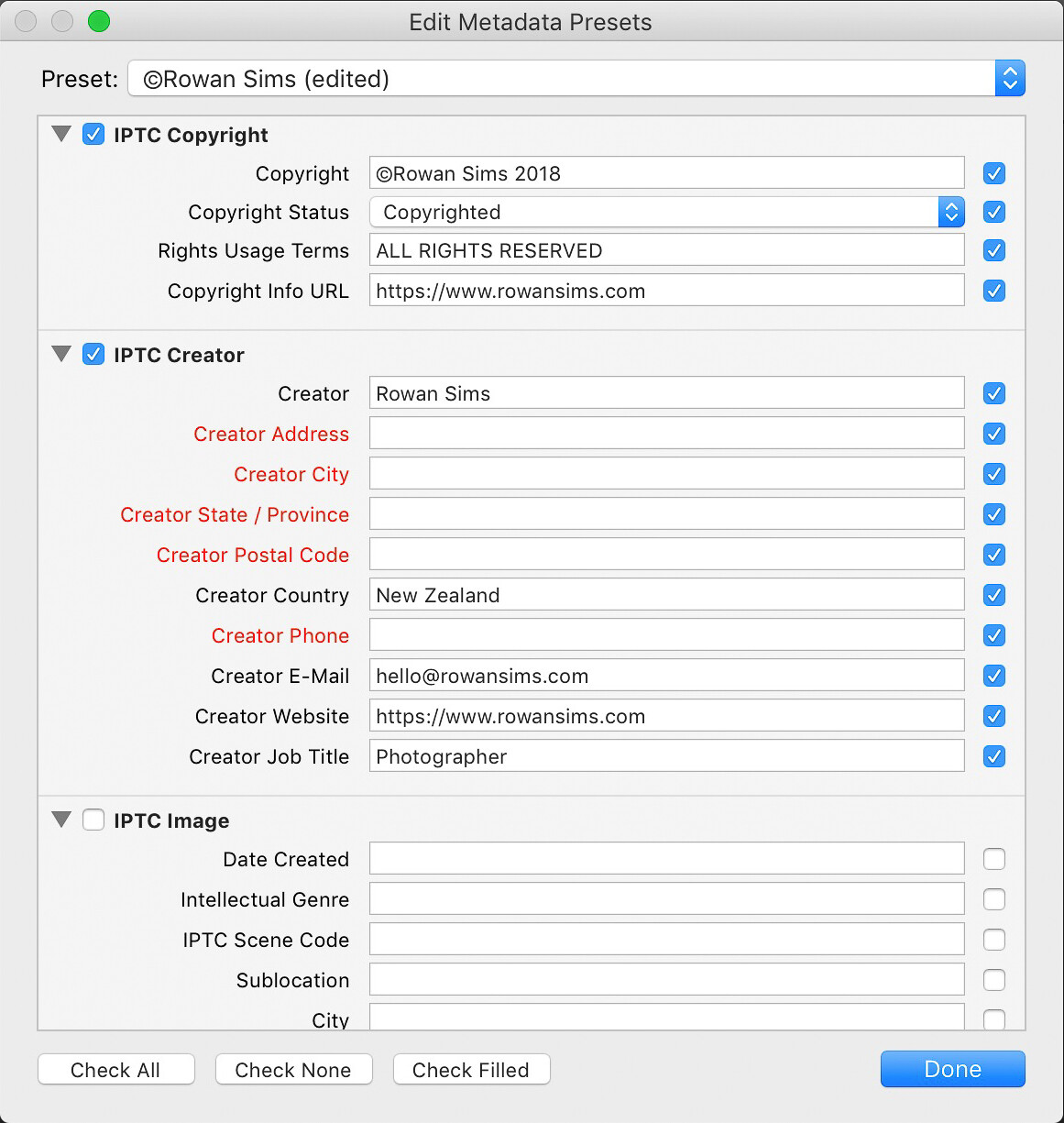
It’s a good idea to create some templates for the Develop and Metadata settings. This makes it easy to apply some standard settings and metadata to every one of your photos. You should at least apply your copyright information to your photos with a metadata preset.

metadata organizing lightroom photos by location

Keywords

The single most important thing you can do to simplify the process of finding photos is keywording. You don’t need to add a long list of keywords, just a few relevant ones that will help you later on when you search.

When organizing by location, I always add the name of the country, region, and specific place name. I’ll also add any other relevant keywords that I may want to search for, such as aerial or long-exposure.

When renaming my images during import I always include the location in the name. Something like “noosa-beach-qld-australia” works well. The words in your filenames become searchable keywords themselves (make sure to use a dash between words). I don’t use dates in my file names, but it’s up to you whether you want to or not.

How to Organize Your Photos by Location in Lightroom

Folders

Using a good folder structure will make your life far easier, especially when you have tens of thousands of images.

To organize your folders by location, you can create a new folder for each specific location or one for each city or country. I have one folder for each country I visit and just keep adding to it. Even if I visit that country again years later, I’ll still keep using that same folder. It makes it far simpler and I know where I can find a photo from anywhere on earth.

It also makes it simpler to find image files on my computer as the folder structure I set up is identical both inside and outside Lightroom. Organizing folders by date or some other number-based system would never work for me.

Collections

Collections are another one of Lightroom’s great features that can help you keep everything organized by location. Where Folders contain every photo from a given location, Collections contain only the photos you choose. Again, I’ll create a new Collection for each country, but I only put the keepers in there.

How to Organize Your Photos by Location in Lightroom

In the past, I’ve done this manually, but I now create a Smart Collection for each location. I only need to add two rules to each Smart Collection: Flag and Keyword. Based on these settings, any photo that I flag that has that keyword is automatically added to the collection.

smart collections - How to Organize Your Photos by Location in Lightroom

Map

As a travel photographer, my favorite Lightroom tool for finding photos based on location is the Map module. One of the first things I’ll do after I’ve finished importing new photos into Lightroom is to add GPS coordinates. There are a couple of ways you can do this.

If you know the coordinates you can add them manually in the Metadata panel. The easiest way is to select all your images (Cmd/Ctrl+A) then go into the Map module, search for the location in the search bar above the map, then drag all your photos onto the right location on the map.

Depending on your camera, your photos may already have GPS coordinates embedded in the file. This is often the case with drone photos or any other GPS-connected camera or device. If not, you can record the GPS coordinates by taking a photo with your phone then grabbing them from that photo’s metadata.

map module - How to Organize Your Photos by Location in Lightroom

Searching for Photos

Now that you’ve imported your photos with location-based keywords and filenames, organized them into location-based Folders and Collections, and geotagged them with GPS coordinates, finding them later is simple.

I use a different approach depending on whether I’m looking for a specific image or a group of images from a specific location.

If it’s a specific image you want, and you know you flagged it, select the Collection associated with that location. If you’re not sure if it’s flagged, select the folder. Then search inside the collection or folder using the Library Filter.

Click on Text, select Any Searchable Field in the first drop-down menu, then Contains All in the next menu, then type your keywords in the search field. The more keywords you add, the more specific the search becomes.

library filter - How to Organize Your Photos by Location in Lightroom

If I’m looking for an image or group of images from a specific location, I like to use the Map module. Select All Photographs in the Catalog panel on the left then go to the Map module and type the location name into the search bar. Any geotagged images in that area will show up on the map.

You can zoom in or out on the map to make your search location more or less specific. Images in the specified location will appear along the filmstrip below the map.

Summary

A little forethought and organization when importing your images are worth the effort. It doesn’t take much time to apply these settings but can save you a lot down the road.

If you’re anything like me and have tens of thousands of photos in your catalog, you’ll be doing yourself a favor, and future you will thank you for your efforts.

The post How to Organize Your Photos by Location in Lightroom appeared first on Digital Photography School.


Digital Photography School

 
Comments Off on How to Organize Your Photos by Location in Lightroom

Posted in Photography


How to Use the Lightroom Editing Trifecta: History, Snapshots, and Virtual Copies

05 Aug

I often find myself knee-deep into editing a photo when an idea hits me to try something totally different. Maybe it’s exploring different cropping options, creating a black-and-white version, or getting crazy with the adjustment brush. One useful feature of a Lightroom editing workshop is that it gives you the flexibility to explore as many different paths as you want for a picture. While always giving you the freedom to jump back to different editing points or start over entirely.

Three of the best ways to do that are with the History, Snapshot, and Virtual Copy options. Let’s dig deeper into each one separately.

butterfly on a red flower - How to Use the Lightroom Editing Trifecta: History, Snapshot, and Virtual Copies

Lightroom History

Decades ago in the early days of personal computers, you were lucky if you could click undo more than once. Even the first version of Photoshop did not allow more than one undo!

This meant that you had to be extraordinarily careful when creating or editing digital images because any changes were basically permanent. Whereas today most programs allow virtually limitless error-correction when it comes to undoing your work. Lightroom is no different and if you want to fix a mistake just choose Edit > Undo and any errors or changes will be immediately wiped away.

Better than undo

History in Lightroom is sort of like undo but it is infinitely more flexible. It’s a veritable time machine that gives you the freedom to revert back to any aspect of your editing even if you have made dozens and dozens of changes to an image.

Whereas Undo lets you go back to earlier versions of your image one step at a time, the History panel actually lists all the changes made since you imported an image into your Catalog including the numerical values of each edit. If you make a change that involves a numerical value those will show up in the History panel as well, including the amount of the change and the resulting value.

For example, if you adjust the Exposure by +0.5, the History panel will show you Exposure +0.50 and then the resulting exposure value of +0.50. If you make another exposure adjustment of 0.2, you will see that in the History panel along with a final value of +0.70. This helps you see a written description of all the edits you have made to an image as they were applied.

lightroom history - How to Use the Lightroom Editing Trifecta: History, Snapshot, and Virtual Copies

The complete history of all my edits to the butterfly image at the top of this article. Clicking on any of the edits listed will instantly let me jump back in time to that particular step of the editing process.

History is saved within your catalog

Every image’s complete editing history is saved in your Lightroom Catalog so you can revisit changes you made to photos years ago just as you can with photos you take today.

Using the History panel is fairly straightforward. Click on any edit and your image will instantly revert back to when that change was made.

However, if you then make any subsequent edits at that point, the changes will be reflected at the top of the History panel and therefore will not take into account all the additional edits you already made. This is where the Snapshot tool comes in handy.

Lightroom Snapshots

You can use Snapshots in combination with the History panel or all by themselves. Either way, it opens up a great deal of editing flexibility that is light years beyond what the Undo/Redo commands have to offer.

As you work through your edits on a photo you might find yourself wanting to save the current state of your image so you can make additional changes but still have the option of reverting back to a specific point in time or a specific set of edits later.

Snapshots let you do that easily with one click. They are extremely useful for trying new things or even just saving various versions of a single image.

countryside weather vane - How to Use the Lightroom Editing Trifecta: History, Snapshot, and Virtual Copies

The above image was taken on a recent trip through the state of Kansas. I got it printed as a canvas for my wife to hang on the wall.

Creating and naming a snapshot

After creating this version of the picture I wanted to make some additional changes and even try a black and white version. But I did not want to lose the original image in case I ever want to get it re-printed. Lightroom makes this a simple one-click step. All I had to do was click the + button under the Snapshot panel. Lightroom then created a version of the image frozen in time at that exact point in the editing process.

name your Snapshot in LR - How to Use the Lightroom Editing Trifecta: History, Snapshot, and Virtual Copies

After creating the Canvas Print Snapshot I did a black-and-white conversion, changed the Blue color slider to adjust the brightness of the sky, and re-cropped it to be a 3:2 aspect ratio.

black and white version - How to Use the Lightroom Editing Trifecta: History, Snapshot, and Virtual Copies

I was happy with the result, so I saved a new Snapshot which I titled according to the edits made.

black and white snapshot named - How to Use the Lightroom Editing Trifecta: History, Snapshot, and Virtual Copies

Benefits

This process lets me switch between two versions of the same image with the click of my mouse. I can also create as many Snapshots as I want while also re-naming or deleting them by right-clicking on any given Snapshot name. In addition, I can use the History panel to create Snapshots by hovering over any of the edits listed in the History, right-clicking, and choosing the “Create Snapshot” option.

Finally, one nice but an often-unnoticed benefit of Snapshots is that you can move the mouse over your list of Snapshots and see a preview of each one in the small window in the top-left corner of Lightroom. It’s a handy way to see what each snapshot looks like without clicking and loading them one by one.

snapshot version of windmill - How to Use the Lightroom Editing Trifecta: History, Snapshot, and Virtual Copies

Three renditions of the windmill photo now exist, each with its own Snapshot that I can click on at any time to load that particular version.

Virtual Copies

One limitation of the Snapshots is that you have to manually click through your Snapshots one by one by one if you want to export them as individual photos. This is fine if you have one or two snapshots of a single image, but if you need to export multiple snapshots from multiple photos the process can become cumbersome right away.

This is where Virtual Copies really shine. While they are similar to Snapshots there are some key differences that make them highly useful in certain situations.

maternity portrait - How to Use the Lightroom Editing Trifecta: History, Snapshot, and Virtual Copies

I cropped this image into a square and while the client loved it, she asked if I could send her a vertical version. I used Lightroom to make a Virtual Copy and re-cropped that so I would always have my original crop.

How they work

Virtual Copies function in a manner almost identical to Snapshots in that you can create what is basically a saved state of your edits at any point in the editing process. After that, you can add more changes to each saved state without impacting the other Virtual Copies.

To create one, right-click on any image in the Library or Develop module and choose “Create Virtual Copy” or choose “Create Virtual Copy” from the Photo menu (or use the keyboard shortcut Cmd/Ctrl+’). This essentially duplicates the photo in your library (as a new thumbnail) but does not actually create a copy of the original file.

Virtual Copies are duplicate versions of images that can be edited like any other photo in your library, and function almost identically. A Virtual Copy has its own unique editing history, can be cropped and adjusted like any other image, and can utilize editing presets as well.

The only way to distinguish Virtual Copies from other photos is that they have a small triangle icon (like a page turning) in the lower left corner of their thumbnail.

How to Use the Lightroom Editing Trifecta: History, Snapshot, and Virtual Copies - virtual copy in thumbnail strip

The small triangle icon in the lower left corner of an image thumbnail indicates that it is a Virtual Copy.

Snapshot or Virtual Copy?

Snapshots are fine when I’m experimenting with different editing techniques, but I prefer Virtual Copies on client work, particularly when I want to give them multiple versions of a single image.

For example, when processing a recent session I was able to edit an image for white balance, sharpness, tonality, etc., and then create a virtual copy with those same edits that I cropped much closer. When I exported my images from Lightroom both versions got rendered and saved to my computer, which is not the case when working with Snapshots.

How to Use the Lightroom Editing Trifecta: History, Snapshot, and Virtual Copies

I had two different crops of this image that I wanted to send to the clients. I used Virtual Copies instead of Snapshots so both would be exported when I created the final batch of images to send to them.

Conclusion

Lightroom has a host of small but powerful features like this that, once learned, can greatly streamline and enhance your workflow.

Do you use History, Snapshots, or Virtual Copies? If so what are some of your favorite tips and tricks that help you get your work done more efficiently? Leave your thoughts in the comments below.

The post How to Use the Lightroom Editing Trifecta: History, Snapshots, and Virtual Copies appeared first on Digital Photography School.


Digital Photography School

 
Comments Off on How to Use the Lightroom Editing Trifecta: History, Snapshots, and Virtual Copies

Posted in Photography


5 Lightroom Tips and Tricks for Beginners

28 Jul

If you have recently started using the Adobe Lightroom software and are looking for some exciting tips and hacks, this article is the perfect read for you. Lightroom is one such software which allows us to visually improve your photos with easy controls.

But there are some hidden or less explored features of this software of which you might not be fully aware. This is why made this list of five such Lightroom tips and tricks which you can use to maximize your editing skills and save time while editing pictures.

1. Change Colors using the HSL Tool

The HSL tool is one of my favorite tools in Lightroom as it allows you to adjust the Hue, Saturation, and Luminance of a particular color in your image. Yes, you can selectively choose one of the eight primary colors (as shown in the image below) and adjust its tint (hue), intensity (saturation), and brightness (luminance).

If you wish to play around with the colors in your photo, you can use the Hue tool and adjust the tones as per the range of colors available for the respective color.

For example, if you look at the images below, you can simply change a particular color in a photo by adjusting the Hue scale. When I took the purple color hue slider all the way towards +100, the color shifted towards pink. Whereas, when I took the scale towards -100 the color changed to somewhat blue.

5 Lightroom Tips and Tricks for Beginners

It is simply magical how you can use the hue scale and change the color (within the range of hue of colors) and enhance the visual appearance of your photo.

2. Automatic Slider Adjustment (shift + double click)

In situations when you are not sure which slider to adjust and by how much, Lightroom has an automated solution to this. The “Automatic Slider Adjustment” feature enables the software to automatically adjust the primary sliders which are Exposure, Contrast, Highlights, Shadows, Whites, and Blacks.

All you have to do is hover the mouse pointer on a particular slider title (on the word, NOT the actual slider – for example, “Exposure”). Then press and hold the Shift key and along with that double-click the mouse button on the title.

In this example, the software automatically detected the properties of the photo and adjusted the exposure as +0.45. Similarly, you can do this for rest of the primary sliders and let the software decide the best settings for your photos. It’s a good starting point, you can then tweak them as necessary.

NOTE: When you press the Shift key, the “Reset” button at the bottom right corner will change to Reset.

5 Lightroom Tips and Tricks for Beginners

3. Clipping Mask

One of that toughest parts of editing is getting the shadows and highlights accurate and within the range so that there is no clipping or loss of detail. One way of keeping a watch on the shadows, highlights, blacks, and whites is by reading the histogram. But histogram can sometimes be difficult to read and you can end up losing details in certain areas of the image.

Inside Lightroom, there is a quick and easy way of finding out if the shadows, highlights, whites or blacks are going out of range or leading to any clipping.

Press and hold the Alt key and then move one of the four sliders. When you are adjusting the highlights or whites in this way, you will see any areas which are clipped appearing as white. Similarly, when you adjust shadows or blacks, the spots appearing in black (or a color) indicate clipping in those areas (as shown in the samples below).

5 Lightroom Tips and Tricks for Beginners

Left – highlight areas being clipped appear in white. Right – shadow areas being clipped appear in black or a color (partial clipping).

4. Copy Paste Effects

If you are a wedding or event photographer, you might find this tip really helpful. Adobe Lightroom allows you to copy and paste effects from one photo to another with just a click. This comes handy when you are editing photos which are shot in similar lighting conditions and you want the similar effects on multiple photos.

Once you are done editing the first photo from the lot, click on the “Copy” button located at the bottom left corner (or press Cmd/Ctrl+C). Now you can see multiple adjustments (as shown in the screenshot below). Check off the ones you wish to copy or simply select Check All if you want everything similar in other photos.

Now navigate to the next photo and simply press Paste (or press Cmd/Ctrl+V) and all of the same settings will be applied to that particular image.

5 Lightroom Tips and Tricks for Beginners

5. Radial Filter Auto Selection

The Radial Filter in Lightroom is a life saver for photographers, don’t you agree? You may have used this tool to create vignetting effect or to make adjustments in the selected area of your photo.

But did you know that rather than wasting your time manually selecting the shape of the selection as per your subject you can use the Auto Selection trick?

Simply draw a small selection over your subject, press and hold Ctrl/Cmd and double-click on the small dot at the center of the selection. The software will automatically make a selection based on the shape and size of your subject. It is accurate most of the time, but there are always exceptions especially when the photo has multiple elements in the frame.

5 Lightroom Tips and Tricks for Beginners

Conclusion

Lightroom is a great program, but image procesing can be tricky and time consuming. Try out these five Lightroom tips and tricks and let us know how you make out. If you have any others please share your Lightroom tips for beginners in the comments area below.

The post 5 Lightroom Tips and Tricks for Beginners appeared first on Digital Photography School.


Digital Photography School

 
Comments Off on 5 Lightroom Tips and Tricks for Beginners

Posted in Photography


An In-Depth Look at the Range Mask in Lightroom Classic CC

22 Jul

Lightroom is an ever-changing ever-morphing evolution of the cutting edge of digital image processing. Quite literally, it seems like Adobe releases new features and updates for their upper tier consumer photo editing software extremely frequently. Now, some of these updates and new features are loved by the photographic community and others…well, not so much.

One of these brand new features, called the “Range Mask”, came along with the v7.2 release of Lightroom Classic CC back in February (2018) and it caused quite a stir. It allows you to incorporate masking with the local adjustment tools right inside of Lightroom V7.2 and later.

An In-Depth Look at the Range Mask in Lightroom Classic CC - Death Valley

As with most fresh features in Lightroom, some photographers were a little bit skeptical about its actual usefulness in their editing workflow. It’s an interesting tool to be sure and after this, you’ll know everything there is to know about the brand new range mask feature in Lightroom Classic CC.

What is the Range Mask?

Before we get too far into the conversation let’s take a moment and briefly talk about masks as they pertain to editing photographs. A mask is simply a way for you to control what areas of a photo receive the edits you want to apply. There is a huge range of mask types and they vary quite infinitely in their applications.

Usually, masks are routinely used in Photoshop. The old adage “black conceals and white reveals” was born directly from the usage of layer masking inside Photoshop. For the purposes of understanding the range mask in Lightroom, just know that masks allow selective control over edits within a photo.

The new range masking feature provides you with two different methods for applying masks: luminance and color.

Luminance Range Masking

If you’re a Photoshop user, think of luminance masking as a boiled down version of luminosity masks. Don’t sweat it if you’ve never used luminosity masking in Photoshop. Just know that the luminance mask applies local adjustments based on the brightness range you select.

luminance slider - An In-Depth Look at the Range Mask in Lightroom Classic CC

This means that you can apply any edit from a local adjustment tool to only the shadows, highlights, or mid-tone luminance ranges that you choose. The luminance masking function also features a “smoothing” slider. This controls the intensity of the masking effect from hard to soft.

Color Range Masking

Conceptually, the color range mask works just as the luminance range mask except instead of basing its masking on brightness it relies on the color ranges you select with the dropper tool.

color range mask - An In-Depth Look at the Range Mask in Lightroom Classic CC

The dropper tool lets you select a large color palette by clicking and dragging the eye-dropper over an area of your photo.

An In-Depth Look at the Range Mask in Lightroom Classic CC

Using the eye-dropper tool to select the color range.

Alternatively, you can also select up to four (five without the large area selected) highly specific color areas by shift+clicking each desired point.

An In-Depth Look at the Range Mask in Lightroom Classic CC

Using the dropper to select up to 5 target colors for the mask range.

It’s important to note that you can not use both the luminance and color range masks within the same local adjustment tool at the same time. However, you can create a new local adjustment (or duplicate one) and “layer” the masks as many times as you see fit.

How to use the Range Mask in Lightroom Classic CC

Alright, let’s get down to business and look at an example of how the luminance and color range masks work. It’s extremely easy and can yield some impressive results once you get the hang of things.

Using the Luminance Range Mask

Here’s an image from an awesome night I spent in Death Valley a couple months ago.

death valley no-edit An In-Depth Look at the Range Mask in Lightroom Classic CC

Let’s say I want to use the Gradient Filter tool to brighten up that foreground and bring out a little more detail around the two people crouched by the fire.

An In-Depth Look at the Range Mask in Lightroom Classic CC

That looks okay, but it definitely caused the highlight portions of the sky to be a little too bright for my taste. To solve this, I’ll apply a luminance range mask.

Simply select “Luminance” from the mask selection drop-down. Next, adjust the slider so that most of the highlights are excluded from the gradient filter adjustments and voila! The sky is no longer overexposed yet the foreground is now much more visible.

And since you can use the range mask with any edit in the local adjustment tool kit I went ahead and added in a little clarity and highlight boost to really make the foreground pop.

To truly demonstrate the effect of the luminance range mask I’ll tick the “show selected mask overlay” box at the bottom of the view window (the keyboard shortcut to show the overlay is O). The areas in red are the portions of the image where the gradient filter has applied its edits.

An In-Depth Look at the Range Mask in Lightroom Classic CC

Gradient Filter applied without a mask. See how it is affecting parts of the sky as well.

Next, let’s have a look at the effect of the luminance range mask.

An In-Depth Look at the Range Mask in Lightroom Classic CC

Gradient Filter with the Luminance Mask applied. Notice how the sky is now less affected in the bright areas.

Notice how the red masking recedes from the highlights in the skyline? It’s not overly obvious in this example but it will be incredibly apparent when we take a look at the effects of the color range mask.

Using the Color Range Mask

We’ll stick with the same photo from earlier for this example. But this time I’m going to use a Radial Filter to brighten up the fire and add some saturation to make the orange glow of the flames stand out more from that gorgeous purple of the desert night.

First, let’s see how a normal Radial Filter looks when applied to the area in question.

An In-Depth Look at the Range Mask in Lightroom Classic CC

Radial Filter applied in Lightroom Classic CC.

Sure, it definitely brightens and adds saturation to the fire but it also added the adjustments to the entire filter area.

To remedy this, I’ll use the color range mask. I begin by using the‘shift+click and drag method to select the majority of the fire area color. Next, I set the Amount slider for the color range mask virtually to zero so that the mask really targets just those oranges and reds. This is the result:

An In-Depth Look at the Range Mask in Lightroom Classic CC

And remember how I said you could immediately discern the effects of the color range mask? Well, look at the mask overly before the color masking was applied….

An In-Depth Look at the Range Mask in Lightroom Classic CC

Radial Filter without masking.

…and now check out the incredible selectivity of the color mask.

An In-Depth Look at the Range Mask in Lightroom Classic CC

Radial Filter with color range mask applied.

Final Thoughts on the Range Mask in Lightroom Classic CC

The new range mask feature borrows the power of Photoshop layer masks and brings it home to the warm safety and comfort of Lightroom. While the range mask is admittedly nowhere near as versatile and customizable as say a luminosity mask in Photoshop, it does have its own excellent merits when it comes to taking more control of your local edits.

With the luminance range mask, you can fine-tune where your edits are applied based on the brightness levels within the photo. This is hugely beneficial when working with highly contrasted scenes and works great for black and white images.

The color range mask harnesses the power of color to let you creatively select exactly which tones will receive your adjustments. As you saw in the examples above, the color range mask is an excellent way to really bring out the contrast when working with complementary colors.

If you haven’t updated to the Lightroom Classic CC v7.2 or later then I urge you to do so now. Take the new range mask feature for a spin and let us know what you think in the comments below.

The post An In-Depth Look at the Range Mask in Lightroom Classic CC appeared first on Digital Photography School.


Digital Photography School

 
Comments Off on An In-Depth Look at the Range Mask in Lightroom Classic CC

Posted in Photography