RSS
 

Posts Tagged ‘large’

Guide to Growing a Large Online Audience for Photographers

16 Jun

In this article, learn about how you can grow an online following that will enable you to profile your work, make important new contacts, and eventually monetize your photography.
TravelPhotographyMonetizedResized

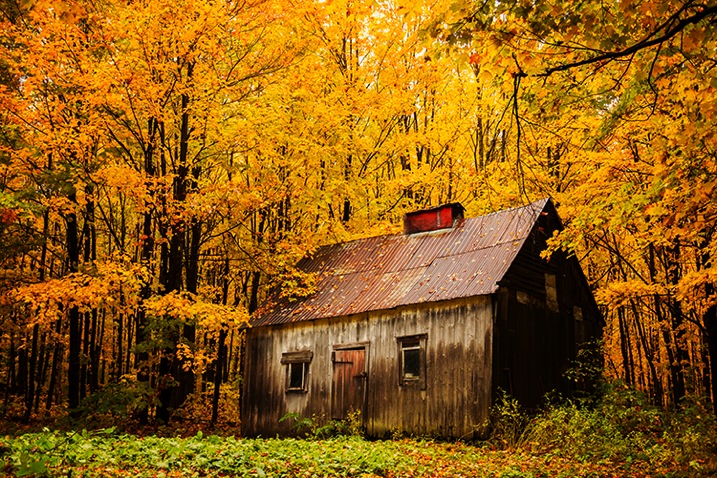
Through growing my online following I have successfully monetized a career in travel photography, visiting amazing destinations like Quebec, Canada.

First, you need to decide on the best way to share your work. Is it a blog, a social media platform, or a combination of the two? Which social media platforms lend themselves best to photography? How many should you have? There are slight nuances between all social media platforms but the core ways to share remain the same.

Choosing your platform

The best advice for choosing your platform is to follow your heart. You should put your time and effort into the things that you enjoy. A great rule of thumb is to use a platform that you love, religiously, and then supplement it with one or two others. The best way to figure out what you love is to try everything, and I mean really try it. Give different platforms a few weeks each as you learn how to share content, how to engage with the community there, and how to navigate the different features. Look at how much momentum you can pick up in that time, how many users you connect with, and the sort of feedback you are receiving on your photography.

Some great platforms for you to try are Facebook pages, Instagram, Steller, Trover, Google+, Flickr, 500px, Tumblr, Pinterest, Ello and of course, your own blog. Each social media platform is different with its own benefits and limitations. Make some effort to learn about each as you try them and remember that social media is social! If you’re not sure of something, just ask someone that you follow.
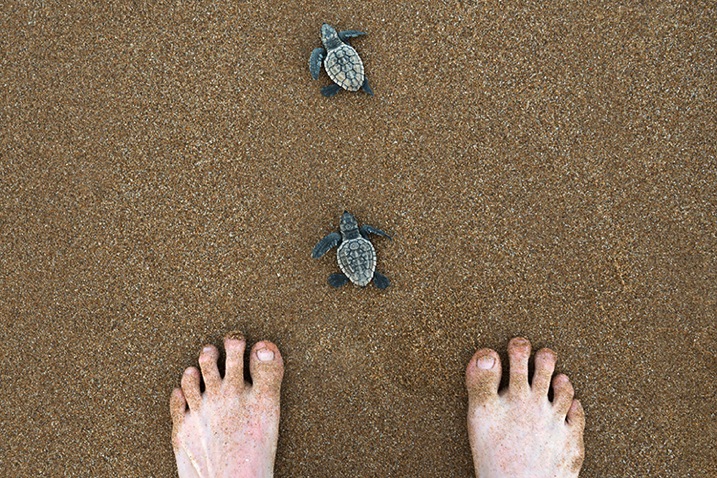
ThePlatformILoveResized

The platform that I love the most is Instagram because it lends itself well to the simple compositions I favor, plus users love uncomplicated images and subject matter such as these baby turtles in Bundaberg Australia.

Sharing content

Each platform is a little different, as are the ways of sharing your photographs, but despite subtle differences the core of sharing remains the same. Share your best work, network within the platform to get that work seen, and engage with the people who are engaging with you.

What is your best work? From any shoot or session that you do, whether it is landscape, portraiture, a family shoot, wedding, macro, food photography, etc., choose a handful of favorites and feed them out slowly, as opposed to all at the same time. Build a story into your posts and talk about the work. You might wish to share your camera settings, a gaff you made during the shoot, some information about the subject matter, or maybe even ask for feedback or advice. Again this comes down to online sharing being social. Put yourself out there and you will be amazed at what can happen.
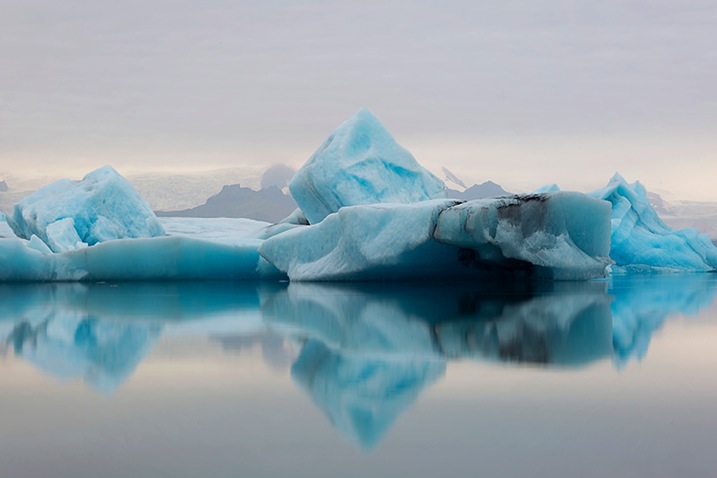
ChooseTheBestResized

I must have taken 500 photographs of the icebergs in Jökursárlón but I only shared a coupe online, and I made sure they were perfect for my audience, uncluttered with my trademark simple composition.

Networking can be as easy as discovering photographers that you admire and commenting on their work, or using hashtag searches to find inspiration or even liking streams of images that you’re into. When another user receives a notification that you’ve engaged with their work they’re likely to come and check out yours. If they don’t, find others who will. Sharing your work online to grow an audience requires time and persistence as well as a genuine love and passion for what you’re doing. That’s why it’s important to use the platforms that you enjoy.
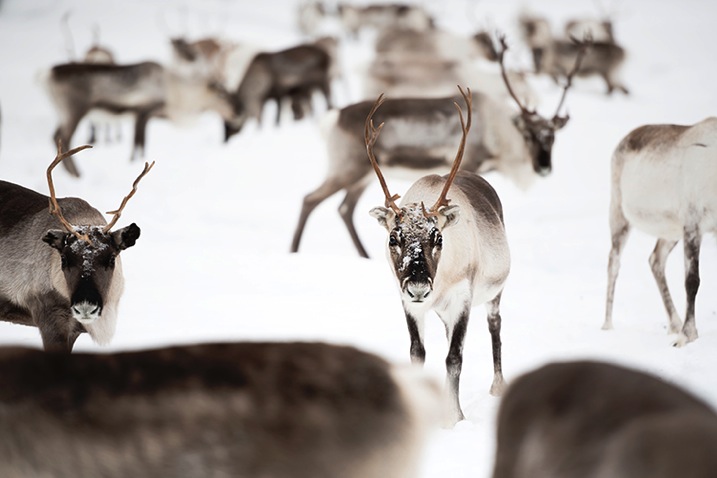
WhyIEnjoyResized

Another reason why I enjoy Instagram is because it is so populated. I can find any type of image, any destination, and many people with similar interests by sharing there. Reindeer fan anyone?

Engaging can be done in several different ways but one of the most important ways is to thank people that have commented on your work or reply to questions as they’re asked. You don’t need to dedicate your life to it, but you will find that a little effort will enable you to snare new followers and build new connections.

Over time, you may notice that you receive more likes and comments on a certain type of image. For example, if your macro photography is getting double the likes of your portrait photography then your followers are telling you what they really love. You can choose to give them more of what they love, or continue to diversify. In my experience the biggest social media accounts often have quite consistent subject matters. You will start to get people following you just for your macro photography, and perhaps you’ll notice a dip in engagement when you post anything else. It’s up to you how to manage this, but the best advice is to always stay true to your passions.
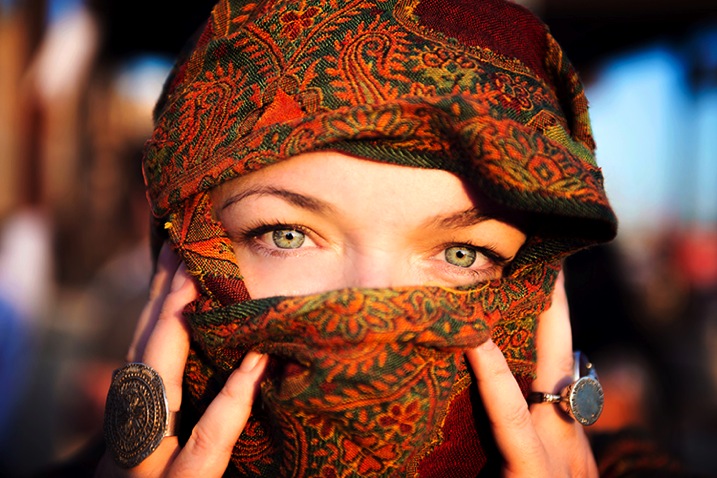
StarTrueResized

Although I am well known for travel photography and landscapes I also love portraiture, and despite the lower engagement I continue to post the work that resonates with me.

Networking

It’s a funny thing networking on social media; so many people do it badly. If you want to do well with people online then simply remember to be a person! You are not a faceless photographer pumping out uploads; you are a person with feelings, opinions, humor and personality, so you should let that shine through. Whatever platform you are using, you should have a profile photo that looks like you and a bio with a little information about yourself. Each time you upload a photograph you should write an engaging caption, and when people talk to you, talk back as you would in real life. You may be astonished at how many amazing people there are using social media, and they are all at your fingertips.

ProfileShotResized

A strong profile shot of you looking like yourself, doing something you love, in a scenic but uncluttered background, will help people engage with you.

Over time you may realize that brands you admire use the same platform you do, and you should treat them the same way you would treat others. Engage with the brand and offer real feedback on what they’re doing in that space. Share your personality and you may find them discovering you back. The same goes with potential clients if you are trying to break into a certain photography industry. Just be yourself, share great work, network, engage, and persist.

Monetize

If you ever get to the stage where you have a large online following on any platform, then the time may be right to monetize. There are various ways of doing so. This can be really dependent on the type of photographer you are, and the kind of work you are doing. You may be a wedding photographer you has stylists offering you money to promote them on your channels. You might love travel photography (like me) and find a way to promote destinations to your online followers. Maybe you’re into lifestyle photography and brands pay you to include their product in shots in exchange for a fee. With an audience you will find that the photography industry will open up to you as more and more businesses are hiring based on both photography style and online reach.
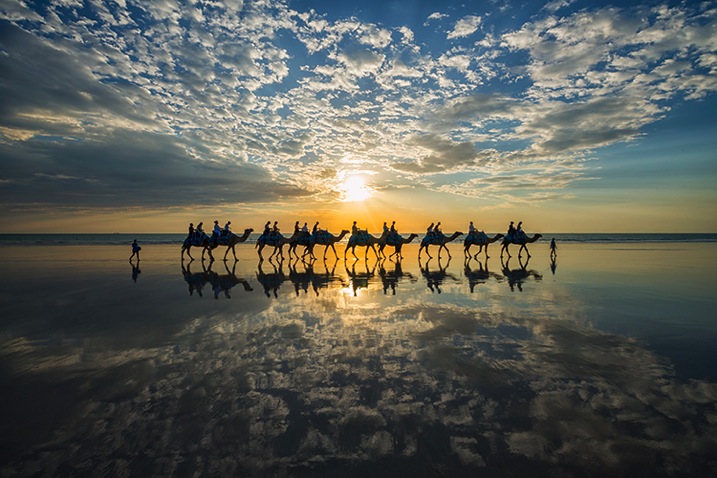
OnlineReachResized

It’s not a complicated image, perhaps any decent photographer could have taken it, but combine this image with a 400,000 strong audience and I get a foot in the door thanks to my online reach. (Follow Lauren on Instagram here)

If not the above, then having an online following will expose you daily to an audience that may one day need a photographer. Online sharing gives you a chance to be seen by everyone from businesses, to journalists, to tourism boards, and of course potential clients and friends. By finding the platform that you love and sharing great work; by putting your best foot forward and networking and by keeping an eye out for opportunity, you can definitely go places no matter the level of your photography.
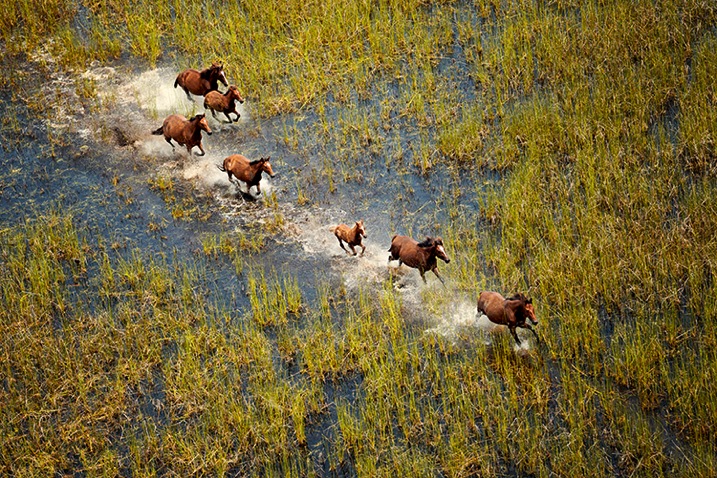
WeAllStartSomewhereResized

We all start somewhere. Online sharing has enabled me to take my photography to places I never would have believed possible and having an audience makes me proud and accountable for every image I share.

googletag.cmd.push(function() {
tablet_slots.push( googletag.defineSlot( “/1005424/_dPSv4_tab-all-article-bottom_(300×250)”, [300, 250], “pb-ad-78623” ).addService( googletag.pubads() ) ); } );

googletag.cmd.push(function() {
mobile_slots.push( googletag.defineSlot( “/1005424/_dPSv4_mob-all-article-bottom_(300×250)”, [300, 250], “pb-ad-78158” ).addService( googletag.pubads() ) ); } );

The post Guide to Growing a Large Online Audience for Photographers by Lauren Bath appeared first on Digital Photography School.


Digital Photography School

 
Comments Off on Guide to Growing a Large Online Audience for Photographers

Posted in Photography


Light Art Looms Large: 10 Artists Project Illuminated Images

25 Dec

[ By Steph in Art & Installation & Sound. ]

light art projections luftwerk 3

Churches are scrawled with ephemeral graffiti, public squares transmit profound messages and trees come to life with the moving heads of Cambodian deities when artists use digital projectors to transmit imagery onto urban surfaces. These 10 artists project words, classical art, geometric shapes, mirage-like fields of color or their own photography onto everything from Capitol buildings to screens made of water.

Jenny Holzer

light art holzer 1

light art holzer 2

light art holzer 3

light art holzer 5

American artist Jenny Holzer uses words on an unprecedented scale, especially with her outdoor light projections, introducing commentary to public spaces. While the words were her own from the time she started in 1977 until roughly 2001, she has begun working with texts written by others, including the works of great literary figures and sources like declassified US Army documents from the war in Iraq.

Clement Briend
light art projection briend 1

light art projection briend 2

light art projection briend 3

Trees come to life in the sculptural images of deities and spirits from Cambodian culture in the series Cambodian Trees by French artist Clement Briend. Highlighting the nature that can be found within urban contexts, the series transformed the streets of Paris. Says brined, “Such nocturnal visions allow us to grasp the way magic profoundly influences how Cambodian people perceive the world.”

Luftwerk

light art projections luftwerk 1

light art projections luftwerk 2

light art projections luftwerk 3
Artist duo Luftwerk, made up of Petra Bachmaier and Sean Gallero, integrated Chicago’s iconic Cloud Gate into a light art installation called Luminous Field. The work used the reflective qualities of the sculpture to enhance and magnify imagery that was projected onto the ground around it.

Usman Haque

light art projection usman haque

light art projections primal source 1

light art projection primal source 2

Commissioned by the City of Santa Monica for Glow 08, ‘Primal Source’ by Usman Haque was projected onto a large-scale waterscreen/mist projection system at a beach location near the city’s pier to create a mirage-like effect. The light changes in response to the sounds emanating from the crowd. “Some modes created ‘captures’ whose colour, shape and movement followed the frequency and amplitude dynamics of individual syllables and sentences picked up; other modes responded to wider collective phenomena, e.g. distorting a grid in response to the crowd volume, or creating a rush of wind through a wheat-field landscape.”

Paolo Buroni
light art projection buroni 1

light art projection buroni 2

light art projections buroni 3

Classic art comes to the streets for all to see when Italian multimedia artist Paolo Buroni projects images onto architecture in public squares. “I like to create change – to change reality with imagination,” says the artist. His works have been commissioned for events like the Venice Biennale and has appeared in Nuremburg,, Budapest, Istanbul, Paris and Seoul.

Next Page – Click Below to Read More:
Light Art Looms Large 10 Artists Project Illuminated Images

Share on Facebook


[ By Steph in Art & Installation & Sound. ]

[ WebUrbanist | Archives | Galleries | Privacy | TOS ]


WebUrbanist

 
Comments Off on Light Art Looms Large: 10 Artists Project Illuminated Images

Posted in Creativity


Turn Your Photos IntoIncredibly Large Black & White Prints

27 May

Extra photos for bloggers: 1, 2, 3

Engineer Prints are big big big (big) photo prints made on large format printers normally used for architecture and engineering plans.

The unique, lo-fi characteristics of the Engineer printing process has made it a favorite amongst the creative community, and us!

Streaked, striated and wacky black and gray tones combine to create a super unique look that’s no ordinary photo print.

Our Engineer Prints are inked on 4-feet wide (!) 20lb bond paper that’s so light it’s easy to pin or tape anywhere, no frames or nails!

We’ve made it a cinch for you to have one of your very own. No printer proofs, resolution wrangling or printer research required!

Make Your Own Engineer Print
$ 25 flat w/ free shipping, at the Photojojo Shop


© laurel for Photojojo, 2014. |
Permalink |
No comment |
Add to
Incredibly Large Black & White Prints”>del.icio.us

Post tags:


Photojojo

 
Comments Off on Turn Your Photos IntoIncredibly Large Black & White Prints

Posted in Equipment


Large Library Management with Lightroom and Daminion [for Advanced LR Users]

13 Apr

daminion-opener

If you have Lightroom you might assume that you have all you need for managing your images. That may not be the case and many professional and keen amateur photographers benefit from combining Lightroom with the image management software Daminion.

Daminion is an image management solution which helps you do large library management with Lightroom. You can think of it as being the rough equivalent of the Lightroom Library module operating on steroids. Daminion’s biggest advantage is that it is true multiuser software so, with Daminion server installed, multiple users can access a single catalog. This is something that Lightroom is notoriously poor at doing and which Adobe has so far failed to address despite multi-user/multi-computer access being one of the top ten feature requests for Lightroom.

You can download a version of Daminion here using the Download link. At the time of writing the current release version is 2.5 and version 3 is still in beta. Daminion comes as both a standalone and a server version. The Daminion standalone Free version handles up to 15,000 images per catalog. The paid versions are Basic, Standard and Pro which give you 25,000, 75,000 and unlimited images in a catalog respectively. There are also multiple Daminion server versions, one for non-commercial use and others for individual professionals and small teams.

NOTE: Daminion is available for PC only and not currently available for Mac.

You can install both the server and client versions on the same computer – the server version will run faster than the client version so it has value when you have a lot of images in a catalog. When you consider that some Daminion users have catalogs of a million or more images, speed of accessing and filtering these images becomes important.

Setting up Daminion

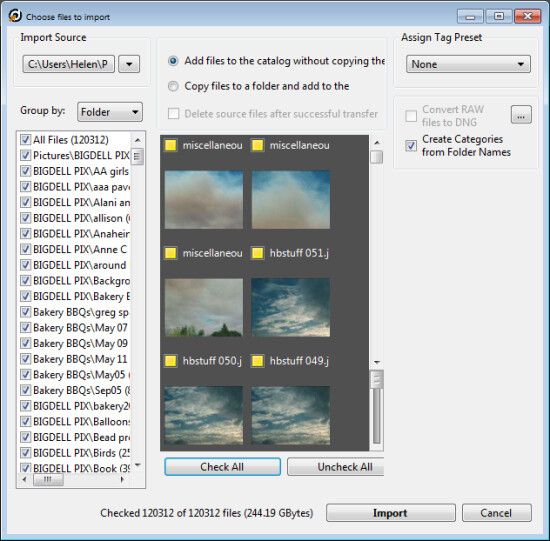
Once you have downloaded and installed Daminion, launch it and you can create a catalog. Like Lightroom you must import the images you want to manage with Daminion into the catalog. If the Add Files dialog doesn’t open automatically you can find it by choosing File > Add Files and then select the folders to import from.

daminion-import

While you can create and manage multiple catalogs in Daminion, like Lightroom, you can’t search across multiple catalogs so you should be careful about how you organize your images in catalogs. What makes sense in terms of catalog organization will depend on how you work with your images and if it makes sense to have them all in one catalog or in separate ones.

Daminion will recognize and manage a wide range of file types including common raster and vector formats as well as camera RAW images, video, music, and PDF formats. This gives it a broader scope as a management tool for digital media collections than Lightroom which is limited to photo and video formats only.

You can copy the images to another location on import or import them from their current locations. You can also group images by folder, date or file type on import. As the images are being imported you can begin to work with those already imported.

daminion-work-while-importing

daminion-catalog-tags

Organizing and tagging

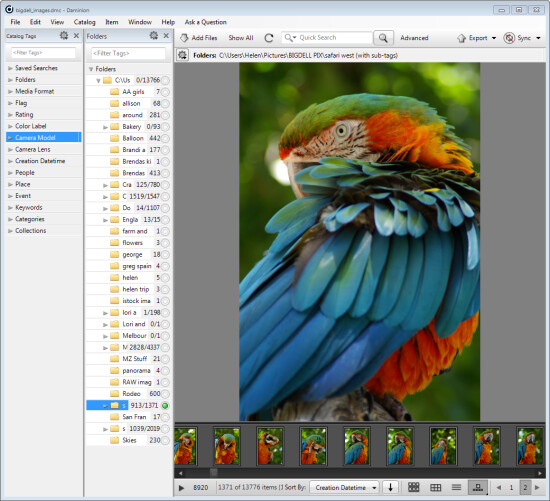
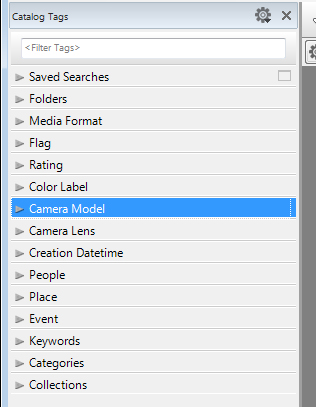
When you have some images imported into Daminion you can investigate the tools you have for managing and organizing them. The Catalog Tags panel on the left of the screen (see image on the right) is pre-populated with tags. Some of these are created from the image metadata, such as Camera lens and Camera Model, and others are those that you may have applied to the images in other programs such as keywords, ratings and color labels.

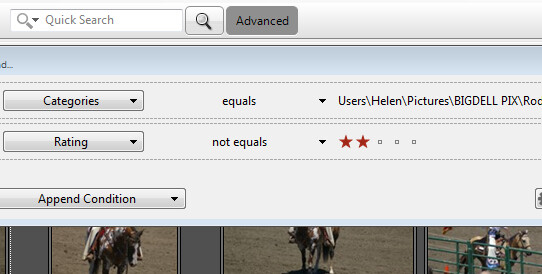
To filter the images by any catalog tag click the tag group and the tag to view and click the circle icon to view images that match that tag. You can perform AND and OR filtering using the Find dialog which you can find by clicking the Advanced link immediately to the right of the search box on the toolbar (see image below).

daminion-searches

You can also add tags and keywords to your images using the Catalog Tags panel. These can be written to the image XMP metadata so they will be accessible not only within Daminion but also in other applications such as Lightroom and Bridge.

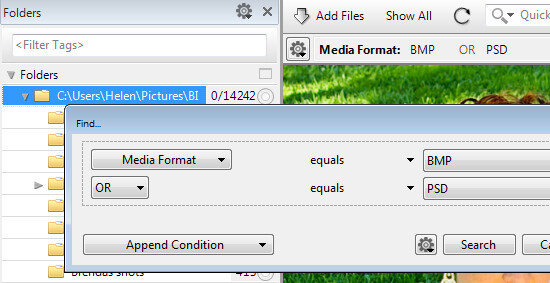
There are benefits to using Daminion for image management and filtering in preference to Lightroom. Daminion provides multiple ways to categorize your images including Categories, Collections, Events, Places, People and more. It also supports hierarchical tags, with no limitation on nesting levels. So you can configure hierarchical tags for categories, people, places, keywords, events and so on whereas in Lightroom you can create hierarchical keywords only. You can also create your own custom user defined tags in Daminion to categorize images by criteria that are meaningful to you. Daminion can write metadata directly into the RAW images rather than needing to do so to sidecar .xmp files, and it makes it easy for you to filter your image collection by writing complex searches using Boolean (AND/OR) operators.

daminion-boolean

Viewing your images

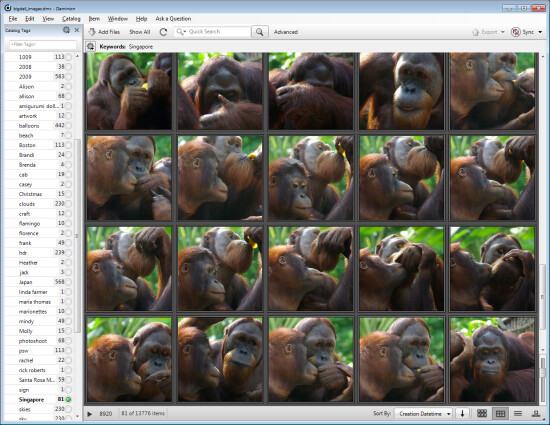
You can view your filtered images in one of a number of ways. You can sort them using a range of sort options including by shutter speed, file size, file name and so on. You can also view the images as thumbnails, using a compact view, details or filmstrip view.

daminion-compact

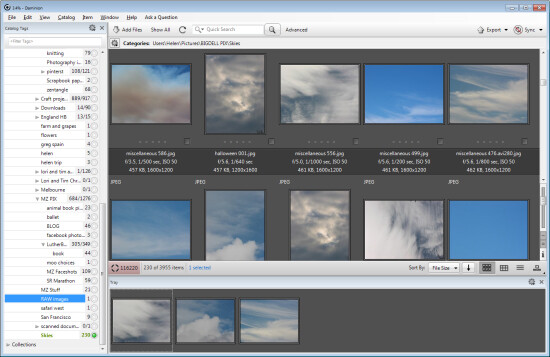
In Thumbnail view you can customize the information displayed above and below the image so it is easy to see the image properties that are meaningful to you. At any time you can view an image full screen by pressing Enter or click View.

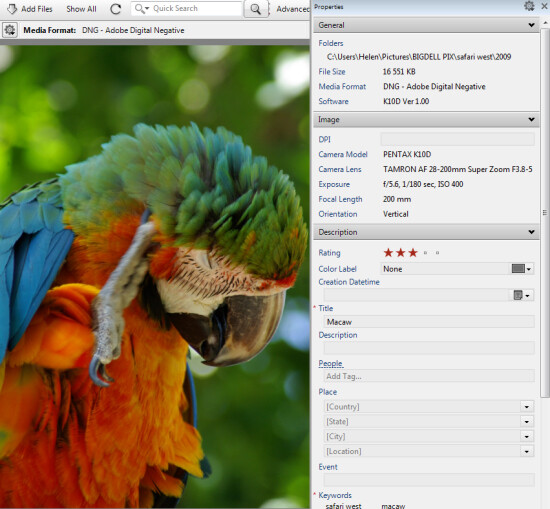
You can select any image and view and edit its properties using the Properties panel. While Daminion is not an editor you can use it to rotate your images.

daminion-properties

As you work through your images you can drag images you want to do something with into the Tray. The Tray stores these images until you are ready to work with them such as by sending them to an external editor or using the multiuser checkout feature. The checkout feature helps you manage multiple people working with the same catalog, it maintains an audit history and gives you the ability to undo changes if, for example, a newer version of an image is replaced by an older version.

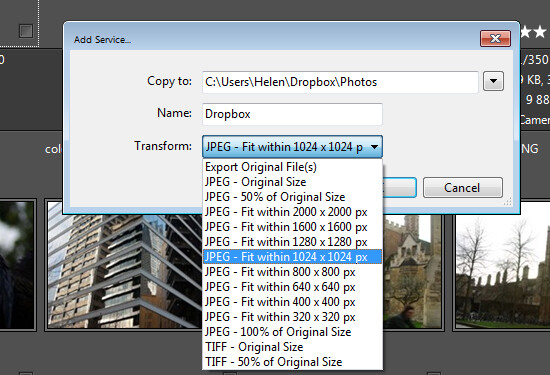
One handy feature of Daminion is the ability for you to publish images from Daminion direct to Dropbox so they are viewable on your iPad or other device. The Publish panel can be set up to convert and resize images including raw format images and then export them to a Dropbox folder on your computer. When this folder syncs to Dropbox the uploaded images can then be viewed on other devices.

daminion-publish

Is Daminion for you?

If you’re looking for a way to allow multi-user access to your image collection then Daminion is a great tool. It can be used along-side Lightroom for managing and organizing images which you then develop in Lightroom. The metadata changes made in either program can be easily viewed in the other program and the two work in tandem very well.

Do you also need some Lightroom organizational help? Try these:

  • Use Lightroom Collections to Improve your Workflow
  • 8 Important Things to know about Lightroom Collections
  • Why Lazy Photographers Should Use Lightroom Smart Collections
  • Organizing Images in Lightroom 5
  • Seven Pieces of Advice for New Lightroom Users

The post Large Library Management with Lightroom and Daminion [for Advanced LR Users] by Helen Bradley appeared first on Digital Photography School.


Digital Photography School

 
Comments Off on Large Library Management with Lightroom and Daminion [for Advanced LR Users]

Posted in Photography


Combining Images for Large Subjects using Photoshop Photomerge

31 Jan

Have you ever been so close to a subject that you just couldn’t get it all into the frame? You could use a fisheye lens but they creates so much distortion that it doesn’t always work the way you want it to. You can actually get the photo that you want with the lens that you already have! You can accomplish this by taking multiple images over several columns and several rows, and combining them into one very large, extremely detailed image. With a little practice and some information any photo is possible with the gear that you have in your camera bag.

Combining Images for Large Subjects using Photoshop Photomerge

Fig 2

WIDE LENS VERSUS IMAGE COMBINING

Let’s take a look at how to create one of these images. This photo of space shuttle Atlantis was taken just before sunrise as this incredible (and incredibly large) engineering marvel was being prepared for launch. Here are two photos
for comparison (Image #1 below) and (Image #2 above)

Fig 1

The image directly above was taken with a fisheye lens. More specifically a full-frame fisheye lens; one that covers a 180 degree angle of view, but the image still covers the entire frame with no black borders. As compared to a circular fisheye lens which covers a 180 degree angle of view, but the final image is a circle with a black border filling the rest of the frame. This image may be OK for some, but the cartoon like distortion may not be work for others.

Fig 2

You could buy a superwide lens that is corrected to eliminate distortion but those lenses could cost two or three times as much as a fisheye lens. Or maybe you have one but just don’t happen to have it with you on that particular day.

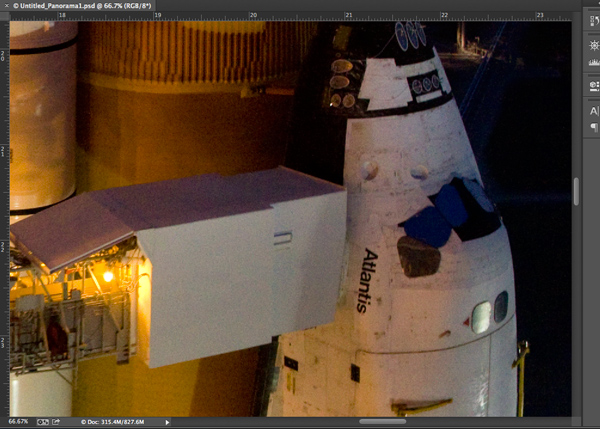
Image #2 (top and right) was created using a 17-40mm wide angle lens. This was accomplished by taking a series of images in a sequence from top to bottom in one column, followed by a second sequence from top to bottom in a second column. You want to make sure that you overlap your images approximately 20-25 percent so that they can be spliced together later using your editing software. The resulting image in this case was a combination of 12 images merged into one very large, very detailed image!

One major benefit of using this method is that you can focus each image separately as you take them allowing you to capture a greater depth of field. And when the images are combined you will have one large digital file that has many more pixels than the single images that you normally take. In this example the individual files were 3168 x 4752 pixels each. The total file size of the combined images is 9179 x 12,009 pixels. This composite image was then cropped to show just the desired image, cropping out this outer portion is something that we will take a look at in a minute. Using this method you can make some really large prints if you wanted to.

USING PHOTO MERGE TO COMBINE THE IMAGES

So now you know that it’s easy enough to take the images as long as you have sufficient overlap, so let’s learn how to combine them. I use Adobe Photoshop and I have successfully created these on every version that has the ‘Photomerge’ capability. You may have other photo stitching software that you want to try and that’s part of the fun of photography. Experiment with different software and experiment with how you take photos. It’s all part of adding knowledge to your photography tool belt. I’ll show you how we can combine these images using Photoshop CC since that’s what I’m currently using (the results are the same with all versions).

STEP ONE – SELECT IMAGES

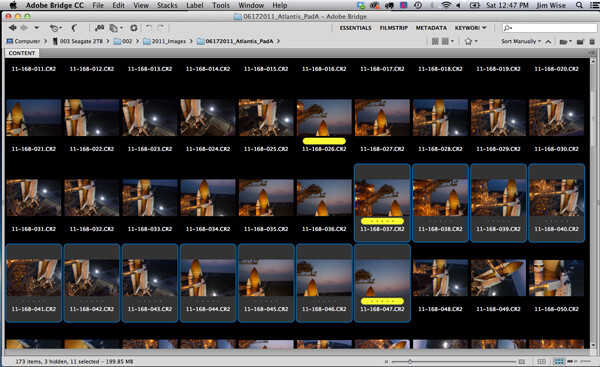
Fig 3

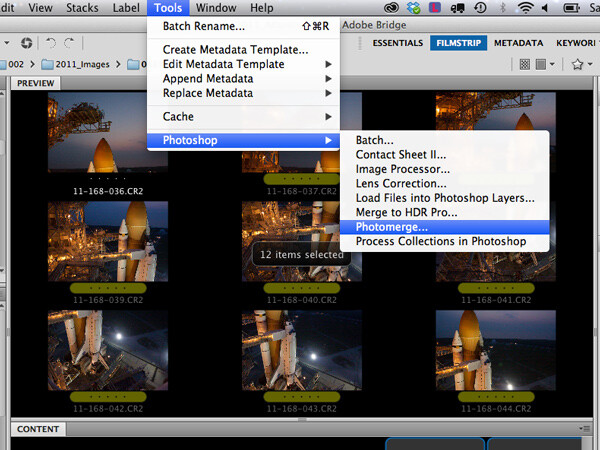
Step 1. Using Adobe Bridge select the images that you want to combine

STEP TWO – PHOTOMERGE

Fig 4

Step 2. In Adobe Bridge go to Tools > Photoshop > Photomerge

STEP THREE – COMBINING SETTINGS

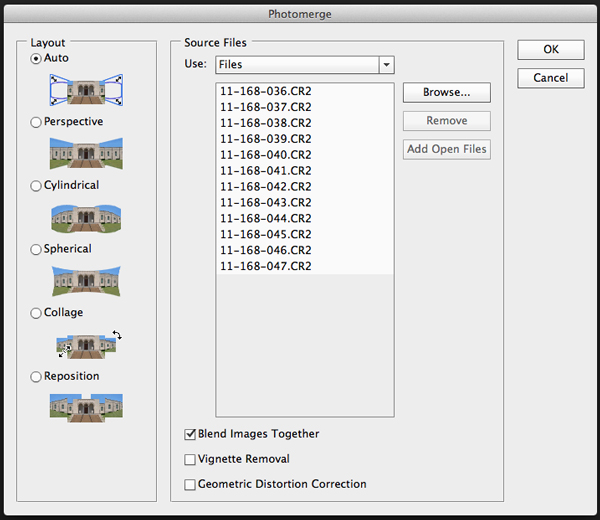
A new window will appear that shows you which files have been chosen to be combined, this allows you to verify that you have all of the correct files. You will see that you also have some options on how you want to combine the images. I have found that letting Photoshop automatically combine them works perfectly well for most things, so select Layout “Auto”, the top option. Check the ‘Blend Images Together’ option box, and leave the others unchecked. The ‘Blend Images Together’ option will automatically create layer masks in each of the layers of your image and it will greatly aid in seamlessly combining all of these images into one. See screen shot below.

Fig 5

Click OK

Note: At this point you may want to go make a sandwich. This part of the process can be time consuming and there are a lot of variables that will determine just how quickly or slowly your computer can crunch all of these pixels into one remarkable image.

  • Q. How many photos are you trying to combine? A. I recommend trying just 3 or 4 the first time.
  • Q. Are you combining RAW files or jpegs? A. For maximum punch you definitely want to use your RAW files, but for trying this out I would recommend using jpegs initially.
  • Q. How much RAM does your computer have? A. More is always better and will significantly decrease the time that your computer takes to process images like these. Combining these 12 images with 4GB RAM on my 2.4GHz Macbook Pro took almost 60 minutes.

How fast your processor is, what type of processor you have, which operating system, etc., are all factors that will determine how quickly this process works. Always use your computer’s hard drive (aka local drive) as opposed to an external hard drive that doesn’t respond as quickly as your local drive.

If you don’t have that super computer that you really would like to have yet, then you could stick to combining jpeg versions of your files instead of RAW files, but if you do that just make sure that your original files are untouched. And by untouched I mean do all of your color correcting AFTER your images are combined into one. That is true for those of you wanting to combine RAW files on your higher end computers also.

STEP FOUR – CROP AND FINAL TWEAKS

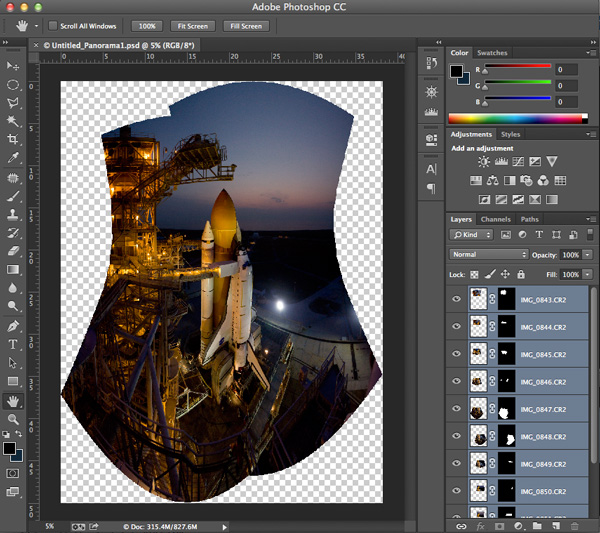
When photomerge has completed combining and blending your images you will see something like this below.

Fig 6

Photomerge has created a PSD file, complete with layer masks for showing just the parts of the image that you need to see from each layer. The blending may not look perfect at this point- you can usually see light edges where the masking is and that’s okay. You can see how Photoshop has automatically corrected for distortion and there will be some parts of the image that need to be cropped away. Let’s save the file ‘as is’ so that you will always have this ‘original’ to go back to.

The next step is to crop the image and save another copy that you can go ahead and flatten. It’s at this point (when the image is flattened) that you will see how well the blending did. Or rather you won’t be able to see it because the blending is seamless. You now have one really large composite image file with lots of detail.

Fig 7

You can save this flattened image as a TIF or JPG and make color corrections in Adobe’s Camera RAW, or any photo editing program. You can size it however you would like at this point.

SUMMARY AND CHALLENGE

So the next time you’re face to face with a larger than life subject, you can go ahead and take that fisheye capture. But while you’re there take a series of images with one of your other lenses as well. Capture them in columns or rows, leaving about 20-25% overlap, and see what you can create by combining those images. It might be a once in a lifetime opportunity so why not maximize your chances to get that great photo that you were hoping for!

Here are a few more photo stitching articles for further reading:

  • How to create a panorama with Photoshop and Photomerge
  • Stitching images for larger prints
  • How to shoot really big panoramas
  • Sending panorama sequences from Lightroom to Photoshop

The post Combining Images for Large Subjects using Photoshop Photomerge by Jim Wise appeared first on Digital Photography School.


Digital Photography School

 
Comments Off on Combining Images for Large Subjects using Photoshop Photomerge

Posted in Photography


Small cameras, large zoom: Canon’s new PowerShot ELPH 340 and SX600

06 Jan

PowerShot_ELPH-340-HS_Purple_02.png

CES 2014: Canon has unveiled two new low-cost cameras that pack big zoom lenses into compact bodies. The PowerShot ELPH 340 HS (known as the Ixus 265 HS in Europe) is slim and stylish, and sports a 25-200mm equiv. lens, 16 megapixel CMOS sensor, and 3-inch LCD. The SX600 is just a bit larger than the ELPH, but gains an 18X, 25-450mm equiv. lens along with 1080/60p video recording. Both cameras have Wi-Fi with NFC, which Canon says is easier to use than on previous models, plus numerous scene modes and special effects.
News: Digital Photography Review (dpreview.com)

 
Comments Off on Small cameras, large zoom: Canon’s new PowerShot ELPH 340 and SX600

Posted in Uncategorized


In pictures – Nikon’s large and pricey AF-S 58mm F1.4G

17 Oct

58mm.png

Want to know more about Nikon’s new premium AF-S Nikkor 58mm f/1.4G? Click through to see our pictures taken of the lens at Nikon’s UK press event, with the latest D610 acting as the model, along with our first thoughts of this sizeable and distinctly pricey optic.

News: Digital Photography Review (dpreview.com)

 
Comments Off on In pictures – Nikon’s large and pricey AF-S 58mm F1.4G

Posted in Uncategorized


How to: Gelling Large Light Sources

18 Jan

Do you shoot with soft boxes, beauty dishes and/or umbrellas?

If you shoot exclusively with small lights, you can just tape a couple of square inches of gel to your flash head, as with my permanently mounted warming gel seen above. No matter what the mod, the light is gelled before it gets there.

But if you sometimes shoot with big lights, things can get a little more complicated. Here are some ideas to help you gel the big mods as efficiently as possible. Read more »
Strobist

 
Comments Off on How to: Gelling Large Light Sources

Posted in Photography


Preview: Canon PowerShot G1X large sensor zoom compact

10 Jan

canon_g1x.png

Just Posted: Our hands-on preview of the Canon G1 X large sensor zoom compact. Canon is swimming against the tide somewhat with the G1 X – a camera that embraces the large-sensors used by most mirrorless cameras, but foregoing the interchangeable lenses to create a relatively compact all-rounder. The camera combines a 28-112mm equivalent, F2.8-5.8 stabilized zoom with a 14MP sensor just a fraction smaller than those in Canon’s DSLRs. Could this be the photographers’ compact that we always wanted the G series to be? Read our preview to find out.

News: Digital Photography Review (dpreview.com)

 
Comments Off on Preview: Canon PowerShot G1X large sensor zoom compact

Posted in Uncategorized