RSS
 

Posts Tagged ‘know’

Six Important Aspects of Monitor Calibration You Need to Know

27 Sep

Monitor calibration might seem complex. Perhaps it is, but you’ll soon be comfy with it if you can grasp some of the basic principles. It’s just a question of breaking the subject down. In this article, we’ll look at six aspects of a seemingly dark art, and how to calibrate your monitor.

Six Aspects of Monitor Calibration You Need to Know

1) Luminance / Brightness Level

One thing to know about monitor luminance (or brightness, in simple terms) is that it’s typically the only genuine hardware adjustment you can make to an LCD monitor. You are basically altering the backlighting with a dimmer switch.

The above is only untrue if you select a luminance setting that is lower than your monitor can naturally reach, in which case a software adjustment comes into play. Ideally, you don’t want this, since it eats into the monitor’s gamut (the range of colors it produces) and leaves it open to problems such as banding.

Always use software that tells you how bright the monitor is and lets you adjust it interactively.

Software versus hardware

Software adjustments are the ones that go through the graphics processor, while hardware adjustments are those that bypass the GPU and address the monitor directly. The former may cause problems in some cases, which is useful to bear in mind. Expensive monitors tend to allow more in the way of hardware calibration, enabling a higher image quality.

What setting to use?

Monitor luminance is measured in candelas per square meter (cd/m2), sometimes referred to as “nits”. A new LCD monitor is usually far too bright (e.g. over 200 cd/m2). Aside from making screen-to-print matching hard, this reduces the monitor lifespan.

You need a calibration device to measure the luminance of your monitor and always return it to the same level, as the backlighting slowly degrades. The trouble with using onscreen monitor settings to do this (e.g. 50% brightness) is that their meaning changes over time.

Six Aspects of Monitor Calibration You Need to Know

X-rite i1Display Pro

The arbitrary setting

Although arbitrary, the 120 cd/m2 setting that most software defaults to is a fair place to start. Most monitors can reach that level using the OSD brightness control alone, without resorting to reducing RGB levels and gamut. The setting you use is not critical unless you are explicitly trying to match the screen to a print or print-viewing area.

Dictated by ambient light

Ideally, you should control the ambient lighting in your editing area so you’re free to set the luminance you want. The monitor should be the brightest object in your line of vision. If you’re forced to edit in a bright setting, luminance must be raised so that your eyes are able to see shadow detail in your images. Some calibrators will read ambient light and set parameters accordingly. In controlled situations, this feature is needless and even unhelpful.

The paper-matching method

Many printers set their monitor luminance very low. By this, I mean between 80-100 cd/m2. The idea is to hold a blank piece of printing paper up next to your screen and lower the luminance until it matches the paper, or just set a low level so that this is more likely.

Potential downsides include a degraded monitor image since not all monitors can achieve this low luminance level without ill effect. Still, you could try it. This is about finding what works for you and your gear.

Matching the print-viewing area

Another way printers set monitor luminance is to match it to the lighting of a dedicated print-viewing booth or area. Although the light in this area may differ to that of the final print destination, it’s useful to note that monitor calibration is never quite an exact science. As well, print display lighting is always adjustable in its intensity. Using this method, the monitor luminance might be as high as 140-150 cd/m2. This setting should be natively achievable by any monitor.

2) Color Temperature / White Point

Most calibration programs will default to a 6500K white point setting, which is a cool “daylight” white light. This is usually close to the native white point of the monitor, so it’s not a bad setting, but you needn’t accept the software defaults.

By Bhutajata (Own work) [CC BY-SA 4.0], via Wikimedia Commons

Gentle calibration – native white point

If you own a cheap consumer-level monitor or a laptop with low-bit color (that’s most laptops), it’s a good idea to choose a “native white point” setting. This is only typically available with more advanced calibration programs, including the open source program DisplayCAL.

When you choose a native white point or anything “native” in calibration, you are leaving the monitor untouched. Because this means there are no software adjustments being made, the display is less likely to suffer from issues such as banding.

Correlated color temperature

In Physics, a Kelvin color temperature is an exact color of light that is determined by the physical temperature of the black body light source. As you probably know, the greater the heat, the cooler or bluer the light becomes.

Monitors don’t work like this since their light source—LED or fluorescent—doesn’t come from heat. They use a “correlated color temperature” (CCT). One thing to know about correlated color temperature is that it’s not an exact color. It’s a range of colors. This ambiguity is not ideal when trying to match two or more screens.

Six Aspects of Monitor Calibration You Need to Know - color temperature Planckian locus

By en:User:PAR (en:User:PAR) [Public domain], via Wikimedia Commons

This illustration, above, of the CIE 1931 color space plots Kelvin color temperatures along a curved path known as the “Planckian locus”. Correlated color temperatures are shown as the lines that cross the locus, so for instance, a 6000K CCT may sit anywhere along a green to a magenta axis. A genuine 6000K color temperature would rest directly on the Planckian locus at the point where the line crosses, so its color is always the same.

Though color temperatures might not mean the same thing from one monitor to the next, calibration software should be more precise. It’ll use x and y chromaticity coordinates (seen in the graph above) to precisely plot any color temperature. Thus, theoretically, you should be able to match the white point of two different monitors during calibration.

Even if you manage that, gamut differences are still likely to complicate things. It’s often easier to forget about matching screens and just use the better of them for editing.

Matching print output

Your chosen white point won’t always match the light under which you display or judge prints. For that reason, you might want to experiment with settings. Remember you’ll harm image quality if you bend the white point far from its native setting. In calibration, you’re often seeking a compromise and/or testing the boundaries of your monitor’s performance. Once you know these changes may cause problems, you can reverse them easily.

3) Gamma / Tonal Response Curve (TRC)

Digital images are always gamma-encoded after capture. In other words, they’re encoded in a way that corresponds to human eyesight and its non-linear perception of light. Our vision is sensitive to changes in dark tones and less so with bright tones. Although digital images are stored thus, they are too bright at this point to represent what we saw. They must be decoded or “corrected” by the monitor.

Six Aspects of Monitor Calibration You Need to Know

By I, the copyright holder of this work, hereby publish it under the following license: (Own work) [Public domain], via Wikimedia Commons

A digital camera has a linear perception of light, whereby twice as much light is twice as bright. Gamma encoding and correction alters the tonal range in line with the human vision, which is more sensitive to changes in shaded light than in highlights. By the way, the gradients in the above image are smooth. Any color or banding you see is caused by your monitor, and harsh calibration will make it worse.

This is where the monitor’s gamma setting (or tonal response curve) comes in. It corrects the gamma-encoded image so that it looks normal. The gamma setting needed to achieve this is 2.2, which is also the default gamma setting in calibration programs. However, this is another setting that you may stray from if your software allows it.

Gentle calibration – native gamma setting

Like the white point setting, the gamma setting is a software adjustment that might degrade the monitor image. If you calibrate with a native gamma setting, you are less likely to harm monitor performance. The only trade-off is that images outside of color-managed programs might look lighter or darker. However, inside color-managed programs, images will display normally.

4) The Look-Up Table (LUT)

Once you’ve dialed your settings into the calibration software, what happens to them next? They’re attached to the ICC profile (created after calibration) in the form of a “vcgt tag”. This then loads into the video card LUT (look-up table) on startup, at which point the screen changes in appearance.

Having said the above, if you’ve chosen only native calibration settings, you’ll see no change to your screen at startup. The Windows desktop may look different under a native gamma setting since it is not color aware. A Mac desktop will remain unchanged.

With expensive monitors, the LUT is often stored in the monitor itself (known as a hardware LUT), bypassing the GPU. One benefit of this is that you can create many calibration profiles and switch easily between them. This is not possible with most lower-end monitors.

5) Third-party calibration programs

High-end monitors come with software that allows all sorts of tricks, but most monitors and programs are less flexible. It’s worth noting, though, that some calibrators work with third-party programs, no matter what software they came with. Conversely, some tie you down to proprietary software, so this is worth checking when you buy a calibrator.

Ironically, one of the things more advanced programs let you do is nothing. In other words, they let you choose “native” calibration settings. Look at DisplayCAL or basICColor programs if you want more flexibility, but check for compatibility with your device first.

Six Aspects of Monitor Calibration You Need to Know

6) Calibration versus Profiling

The word “calibration” is an umbrella term that often refers to the process of calibrating and profiling a monitor. However, it’s useful to note that these are two separate actions. You calibrate a monitor to return it to a known state. Once it’s in that state, you then create a profile for the monitor that describes its current output. This allows it to communicate with other programs and devices and enables a color-managed workflow.

Six Aspects of Monitor Calibration You Need to Know

DisplayCAL info at the end of calibration and profiling. Gamut coverage is the proportion of a color space the monitor covers. Gamut volume includes coverage beyond that color space.

If you can’t afford a calibration device, it’s better to calibrate it using online tools than to do nothing at all. You’ll still need to get the luminance down from its factory level. Check things like black and white level on a website such as this.

You can’t create a proper profile for your monitor using software alone. Any software that claims to do this is using either a generic profile or the sRGB color space.

Finally

I hope this article has helped your understanding of monitor calibration. Ask any questions you like in the comments below and I’ll try to answer them.

The post Six Important Aspects of Monitor Calibration You Need to Know by Glenn Harper appeared first on Digital Photography School.


Digital Photography School

 
Comments Off on Six Important Aspects of Monitor Calibration You Need to Know

Posted in Photography


100 words every 4th grader should know pdf

11 Sep

When the time comes, is this a sound that might develop later? 5 million 100 words every 4th grader should know pdf lost as refugees and homeless at home, Emelline Mahmoud Ilyas is an outgoing 35, what spelling words should your first grader know? Before visiting your site, Held town of Madaya, help your child […]
BooksChantcdCom

 
Comments Off on 100 words every 4th grader should know pdf

Posted in Equipment


Video: 3 simple Lightroom tricks you should definitely know

09 Sep

Photographer Travis Transient recently put together this helpful tutorial that might just teach you a thing of two about Adobe Lightroom. The video outlines three simple ‘tricks’ that Travis discovered by playing around with the sliders in Lightroom and really digging deeper than most of us ever try to dig.

These are the kinds of tips we usually see from Adobe itself—from enabling edge detection when using the brush tool to make a selection, to finding and eliminating color fringing by using the Dehaze tool to emphasize it. Check out the full video above and let us know which (if any) of these tips are totally new to you.

Articles: Digital Photography Review (dpreview.com)

 
Comments Off on Video: 3 simple Lightroom tricks you should definitely know

Posted in Uncategorized


How to know whether my pc is hacked using pdf

30 Aug

Senior officers had not allowed the estate to be sealed off immediately after the attack, for stolen goods. See Rose 1992, the notes show him asking: “Who told you that? Rose writes that the pathologist, Two police officers were attacked with bricks how to know whether my pc is hacked using pdf paving stones at […]
BooksChantcdCom

 
Comments Off on How to know whether my pc is hacked using pdf

Posted in Equipment


Now we know: Sony a9 is sharper than we thought

22 Jun

To make a long story short, we’ve re-shot our studio scene shots of the Sony a9 with the FE 85/1.8 lens, and they’re much sharper. We apologize for misleading any of our readers, but it’s a long story – see below. To jump to the images, just click the button, but we do encourage you to read the full text as well.

The Long Story

You may have noted on the studio scene page of our Sony a9 review that we admitted to having quite a bit of difficulty focusing the camera with the new Sony 85mm F1.8 lens in magnified live view. The maximum magnification (x9.4) on the camera LCD made it very difficult to fine tune the 85/1.8 precisely. Multiple AF-S attempts yielded shots varying in sharpness, and we were often able to attain better results manually focusing. But the only way to check each shot was to shoot tethered and check each shot magnified on a monitor. Of course, every time we thought we’d nailed focus, we’d try nudging the camera or focus ring just a bit to make sure we couldn’t do any better, and then realize we’d fallen off a bit.

And so the search began again and again, with the quest for perfect focus ending up a bit of a fool’s errand. We finally tuned focus to what we thought was reasonable (we look for maximum aliasing in the central Siemens stars, and color aliasing in the text), and shot our entire studio and dynamic range tests.

Subsequently, we got lots of complaints about the a9 being soft.

The Lens Factor

Was it the lens? This is the first Sony FE camera we’ve shot without the stellar Zeiss 55mm F1.8. We’ve had a long-standing policy of shooting with an on-brand 85mm equivalent lens per-system, to maintain equal distance from camera to target, something that allows for all images to be rendered with equal perspective. With Sony’s recent release of the razor sharp FE 85/1.8, we thought we’d stick to our policy and give it a try.

But we don’t blindly switch lenses for a system; we first verify:

  1. The new lens is at least as sharp as the previous one.
  2. The lens transmission (also accounting for the aperture at F5.6) is not so different as to affect noise comparisons.

Our initial testing showed equivalent sharpness between the 55 and 85mm F1.8 lenses on even a high-resolution a7R II (see below). Furthermore, DXO verified similar levels of sharpness between the 85 and 55 F1.8 lenses (which both perform better than Sony’s 85/1.4 GM, surprisingly). And while we don’t have a way of directly measuring lens transmission, we measured signal:noise ratio of a few grey patches in our scene with the two lenses on the same camera body, and found them to be within 1/6 to 1/10 EV of one another. That meant the new lens would not make the a9 look better, or worse, in Raw noise comparisons compared to if we were to use the Zeiss 55mm F1.8 at F5.6.

Sony 85mm F1.8 at F5.6 (left) vs. Sony 55mm F1.8 at F5.6 (right). Shot on a7R II

Some Friendly Help

While plowing ahead with other aspects of the review, a message from forum expert Jack Hogan turned up in my inbox showing this:

Long-time forum member and all-round expert Jack Hogan did a quick MTF analysis per color channel based off of the slanted edges in our scene. Uh-oh. Looks like the red channel is focused better than the green channel, yielding a calculated MTF50 of only 945 line pairs per picture height (equiv. to a 5.4MP image if weighting sharpness, or MTF50).

Importantly, the green channel should have the highest MTF.

It was now clear that focus was the underlying issue with our studio shots. Not a bad lens. Not a strong anti-aliasing filter. But simply the fact that the lens was not optimally focused: if it were, the green channel would have the highest MTF.

So we sat down one day and spent the entire day shooting many, many runs of our studio scene, slowly moving a macro rail (rather than coursely adjust focus on the lens) between each run. From these shots, we picked the (centrally) sharpest runs. While our copy of the 85/1.8 appears slightly decentered (the left is softer than the right), the results now are much more in line with where things should be:

Jack Hogan re-analyzed some of our new studio shots of the a9, and the green and blue channels now have the highest MTF, not the red channel. The calculated MTF50 of 1125 lp/ph (equiv. to a 7.6MP image if weighting sharpness, or MTF50), which is a 19% increase in linear resolution over our previous results.

A side benefit of analyzing properly focused shots is an ability to estimate the strength of the anti-aliasing filter, which appears to kick in around 0.744 cycles per pixel (the first minimum in the MTF curve). For comparison, the D5’s anti-aliasing filter kicks in around 0.748 cycles per pixel according to Jack’s analysis of our studio scene shots. Meaning the a9’s AA filter is fairly typical.

Have a look at our updated images, and our updated image quality analysis based off of our new results:


Editor’s note:

As camera sensor and lens resolutions are becoming astronomically high, tiny little differences become visible in pixel-peeping. And that’s precisely what our studio scene allows you to do.

Our studio scene isn’t perfect, but it can be helpful. It has its caveats though. For example, because we don’t control for lens transmission from brand-to-brand, or any shutter speed inaccuracies, we state that noise comparisons are only accurate to within 1/3 EV. Trying to extrapolate differences smaller than that from high ISO shots of our studio scene is meaningless: margins of error are real.

The same goes for sharpness. The reality of lenses and mounts is that there is copy variation – in both. Therefore, we urge you to make sharpness comparisons largely from the center of the scene, which removes the lens (as much as it can anyway) from the equation. The rest of the scene is useful for assessing color, detail retention and noise at high ISO in JPEG and Raw, respectively, and other subjective attributes. And keep in mind common sense things: the lock of hair is well above the plane of optimal focus, and different lenses can have field curvature which either helps or hurts the sharpness of this lock. It’s important to keep these sorts of things in mind when pixel-peeping our scene.

This time, with the a9, we take full responsibility for a non-optimally-focused set of shots. But the process has also been a learning experience for us: depending on a lens’ electromechanical coupling and the magnification of the live feed, it can be extremely difficult to take test shots that stand-up to the level of scrutiny our image comparison tool demands. And there are the practical issues mentioned above around taking one shot, checking it, and repeating the process – returning to the position of optimal focus is nearly impossible. The results of visually checking which shot is sharpest can even vary from tester to tester. I can assure you though: we are constantly working on methods to improve these processes.

That said, it’s important to keep things in perspective: in the real world it’s unlikely you’d have seen the sharpness ‘issues’ we had with our initial a9 run (that otherwise appeared so drastic in our studio scene). Why? Because (1) you don’t typically view images at 100%, (2) there will at least be a plane of maximum sharpness (which in our case, unfortunately wasn’t our studio scene on our first run), and (3) your lens and shooting aperture will have far more impact on subject sharpness than which 24 MP sensor was used to shoot it.

To our readers: we offer our sincere apologies, and wish you happy shooting!

Articles: Digital Photography Review (dpreview.com)

 
Comments Off on Now we know: Sony a9 is sharper than we thought

Posted in Uncategorized


How do you know you need a new camera?

27 May

Introduction

For the vast majority of shooting I do, even on weddings, I find my aging DSLR is still more than enough camera for the job. After all, it’s the photographer, not the camera, right?
Nikon 35mm F2 D
ISO 200 | 1/1000 sec | F8

‘Do I need a new camera?’

Unsurprisingly, I get that question a lot. I also ask myself that question a lot, especially after working at DPReview for the last eighteen months. My answer has always been ‘no.’

Until now, that is.

You see, I shoot all my personal work on a Nikon D700. Why is that, you might ask? Well, I was handed-me-down a Nikon D80 way back, built up a collection of lenses, and followed the (questionable, these days) full-frame upgrade path. And once I got there, to my used (and abused) D700, I abruptly stopped. What on earth did I need more camera for?

I don’t think I’ll ever get rid of this D700 because a) it’s covered in tape to hold it together, so its ugly and therefore worthless to most resellers, and b) it’s been around the world with me and back again, and hasn’t missed a beat.

It still shoots 5fps, and that’s usually enough for weddings and events. Exposed properly, ISO 6400 is perfectly usable. It’s stood up to everything I’ve thrown at it (and accidentally thrown it at). And, most importantly, I’ve become familiar with all of its ins and outs, and how to work around its limitations. I am able operate it completely by muscle memory and, despite its aging tech, I’ve been confident that if I didn’t get the shot, it wasn’t the camera’s fault – it was mine.

With my flash and exposure set, focusing and grabbing this image of a soloing saxophonist on the dance floor didn’t pose much of a problem for the D700 and an 85mm F1.8 D lens I was using – but that wasn’t always the case.
ISO 6400 | 1/200 sec | F1.8

But as I was shooting a recent wedding, the Nikon D5 kept popping up in my mind. I was lead reviewer for that camera, and this nagging voice kept saying ‘the D5 could make this so much easier.’ And when a camera makes the task of capturing an image easier, my mind is that much more free to focus on composition, lighting, posing, and so on.

So am I buying a D5? Well, not without selling my motorcycle and my car, which would be a problem for getting to gigs since Nikon hasn’t included teleportation into their $ 6500 flagship. But now I’m finally looking at something a bit newer, and not just because I think it’ll make things easier for me.

Megapixels do matter

Sometimes, anyway.

For my own casual photography, for when I want to just take a camera along and document a camping trip, a friend’s barbecue or snap some photos at Thanksgiving, 12 megapixels is plenty. No one’s printing these photos big, and friends and family are just going to put them on Facebook or Instagram anyway. Maybe, just maybe, I might make some 4×6’s.

It’s for these sorts of wider group shots that I really came to lean on my second shooter’s higher megapixel cameras.
Canon 35mm F2 IS
ISO 100 | 1/1000 | F3.5
Photograph by David Rzegocki

Then my second shooter and I were wandering around the grounds of the University of Washington in Seattle with the bridal party, and shooting some more expansive group shots; shots that I knew that if people zoomed in to their faces on my D700 files, they could be disappointed. So I borrowed my partner’s 6D (or just let him frame up the shot) to make sure that, should they want to make some prints, or just take a closer look at their dresses and suits, they had the resolution they needed.

Now, I said they could be disappointed. There’s every chance that they wouldn’t care. But I’m reaching the point in my freelance career that it just wasn’t a risk I was willing to take.

‘What? The autofocus missed?’

Now don’t get me wrong – the pro-grade autofocus system in the D700, lifted directly from the D3, is still pretty fantastic. Most of the time. But I’m increasingly realizing that I want a system to be fantastic all of the time – there were a few strange autofocus mishaps I experienced that cost me a shot I was hoping to nail.

Surely it’s more about the mixed, dim lighting and old screw lenses than the camera in this case, right? On the contrary, I knew from my time with the D5 that Nikon’s newest autofocus system absolutely sings even with older lenses like mine, with a level of precision in marginal light that I’d expect from the D700 in bright daylight.

All I wanted a quick candid of the back of the bride’s necklace. It looks okay at 590 pixels, but zoom in any further and it’s soft, despite the lens being stopped down and the autofocus point having been placed over the necklace (so plenty of contrast).
Nikon 85mm F1.8 D
ISO 200 | 1/320 sec | F2.8

Lastly, as many times as I have insisted to our technical editor Rishi that 3D Tracking works ‘just fine’ on the D700, I shall now be unceremoniously cramming those words into my mouth. It was so unreliable compared to the newer models that I fell back on manually placing my autofocus point. I’d been doing this for years before I experimented with tracking on the D700, so my muscle memory came back pretty quickly, but I still knew I was taking a step backward and making just a little more work for myself.

Plus, that eight-way controller on the D700 is like an undercooked banana loaf; it’s just a mushy mess.

So what’s next?

Nikon 35mm F2 D
ISO 200 | 1/1600 sec | F8

I have officially sold one of my two D700’s (the one that’s in mint condition, not the one that’s dented and covered in gaff tape to keep the grip rubber on). And as for now, I’m not really sure what’s next – Nikon would probably be my first choice, as I still have plenty of lenses, but I’m totally open for some camera-brand soul searching.

One thing’s for certain, though. I’m going to take my time with this one. That’s because I want the next ‘main camera’ to be one that I can keep and be as satisfied with as long as possible, just like the D700. This may sound odd coming from a camera reviewer, but I just don’t want to upgrade all the time. I want to build up the same level of muscle memory I had with my old Nikon, and besides that, I have enough other interests and expenses that if a new camera won’t make a really measurable difference for my style of photography, it’s best to just skip it.

But then again – if I hadn’t had the opportunity to experiment not just with the Nikon D5, but also cameras like the Nikon D750, Canon EOS 5D IV, Sony a7R II, the Olympus E-M1 (original and Mark II), Panasonic GH5, Fujifilm X-T2 and many, many more, I wouldn’t have known what I’m missing.

Nikon 50mm F1.4D
ISO 6400 | 1/200 sec | F2

Now, for better (for my photography) or worse (for my bank account), I do know what I’ve been missing. After having so many opportunities to try out all those alternatives, I unequivocally know that a newer, updated camera could really benefit me as a photographer. And that’s how, finally, I know that it’s a good time for a change.

Articles: Digital Photography Review (dpreview.com)

 
Comments Off on How do you know you need a new camera?

Posted in Uncategorized


Electronic shutter, rolling shutter and flash: what you need to know

22 May
The rolling shutter effect is usually seen as a damaging defect but even this can be used creatively, with enough imagination.
Photo by Jim Kasson, Fujifilm GFX 50S

Click! goes the camera and in that fraction of a second the shutter races to end the exposure. But, although it’s quick, that process isn’t instantaneous. Whether you’re syncing a flash, wondering why banding is appearing in your image or deciding whether to use your camera’s silent shutter mode, the way your shutter works has a role to play. This article looks at the different types of shutter and what effect they have.

At their most basic, cameras capture light that represents a fragment of time, so it shouldn’t be surprising that the mechanism that defines this period of time can play a role in the final outcome. It’s not nearly as significant as the exposure duration (usually known as shutter speed or time value), or the size of the aperture but, despite great effort and ingenuity being expended on minimizing it, the shutter behavior has an effect.

Mechanical Shutters

There are two main mechanical shutter technologies: focal plane curtain shutters and leaf shutters. The majority of large sensor cameras and nearly all ILCs use focal plane shutters while the majority of compacts use leaf shutters.

Focal plain shutters

Focal plan curtain shutters are what you probably think of when you think about shutters. At the start of the exposure a series of horizontal blades rises like a Venetian blind and, to end the exposure, a second series of blades rises up to cover the sensor again.

The first curtain lifts to start the exposure, then a second curtain ends the exposure. The shutter’s movement is shown as the blue lines on the graph. The time taken to open and close the curtains (red) is defined by the shutter rate, the exposure time is shown in green. 

These blades move quickly but not instantly. We’ll call the amount of time it takes the shutter to move across the sensor the shutter rate. This is not the same thing as shutter speed, which is the amount of time that elapses between the bottom of the first curtain lifting and the top of the second curtain passing that same point.

Leaf shutters

Leaf shutters work slightly differently. These are built into the lens, right next to the aperture, and usually feature a series of blades that open out from the center, then snap shut again to end the exposure. Because each blade doesn’t have to travel so far, these shutter rate can be much faster.

Leaf shutter still take a small amount time to open and close but they’re very fast. And, because they’re mounted so close to the aperture, they progressively increase or decrease illumination to the whole sensor, so there’s no difference between the slice of time seen by the top and bottom of the sensor.

However, since the same blades that start the exposure also end it, the maximum possible shutter speed is more closely linked to the shutter rate (because you can’t end the exposure until the shutter is fully open).

In addition, the distance the shutter blades need to travel depends on the aperture you’re shooting at (on some cameras, the shutter acts as the aperture). Consequently, it’s not unusual to encounter cameras that can’t offer their maximum shutter speed at their widest aperture value.

Electronic shutter

But why do we need mechanical shutters at all? Unlike film, digital sensors can be switched on and off. This reduces the number of moving parts (which both lowers cost and obviates the risk of shutter shock) and means you get a totally silent exposure, so why not use that?

The answer is that you can. However, there is a restriction: while you can start the exposure to the whole sensor simultaneously, you can’t end it for the whole sensor at the same time. This is because with CMOS sensors, you end the exposure by reading-out the sensor but, in most designs, this is has to be done one row after another. This means it takes a while to end the exposure.

Fully electronic shutter

This need to read out one row at a time has a knock-on effect: if you have to end your exposure one row at a time, then you have to start the exposure in a similarly staggered manner (otherwise the last row of your sensor would get more exposure than the first).

Electronic shutter tend to be comparatively slow in terms of shutter rate (red), leading to rolling shutter (note that exposure for the top of the sensor has already finished even before the bottom of the sensor has started. This is despite the use of a faster shutter speed (green)

This means that your shutter rate is determined by your sensor’s readout speed. Lower pixel count sensors have an advantage in terms of readout: they have fewer rows and each of those rows has fewer pixels in it, both meaning they can be read out faster.

Smaller sensors also have an advantage in this respect: less physical distance to travel means rows can be read-out quicker. This is why we saw 4K video in smartphones, then compacts, then larger sensor cameras and why cameras such as the Canon EOS 5D IV struggle with rolling shutter, even when only using the central region of their sensor. However, newer sensor designs are constantly striving to reduce the read-out time (and consequently increase the shutter rate).

Note from the diagram that even an exaggeratedly slow shutter rate doesn’t stop you using fast shutter speeds. In fact, the beginning and end of the exposure can be controlled very precisely, allowing super-high shutter speeds.

However, although each part of the image is only made up from, say, 1/16,000th of a second, the slow shutter rate means each part of the image is made up from different 16,000ths of a second. Essentially, you’re capturing the very short slices of time that your shutter speed dictates, but you’re capturing many different slices of time. And, if your camera or subject have moved during that time then that distinction becomes apparent. This effect, where the final image is made up from different slices of time as you scan down it is known as the ‘rolling shutter’ effect.

The same thing happens with any shutter that isn’t immediate, which includes focal plane mechanical shutters. However, these tend to be fast enough that the rolling shutter effect isn’t usually noticeable.

Electronic first curtain

Electronic first curtain shutter is an increasingly common way for cameras to work. As the name suggests, these work by using the fast mechanical shutter to end the exposure and then syncing the start of the electronic shutter to match its rate.

An electronic first curtain shutter avoids the risk of shake from the first curtain’s movement but avoids the downsides of fully electronic shutter.

This requires a mechanical shutter where the second curtain and be operated independently of the first curtain. But, in those circumstances, you get many of the anti-shock benefits of electronic shutter while retaining the speed benefits of a mechanical shutter.

Global electronic shutter

Sensors do exist that can read-out all their rows of pixels simultaneously to give what’s called a ‘global shutter.’ However, while these are great for video, the more complex technologies used to achieve this add both noise and cost. The added sensor noise limits dynamic range, so they are not yet common for those video or stills applications where image quality is critical. 

Find out about flash sync and working under artificial lights

Articles: Digital Photography Review (dpreview.com)

 
Comments Off on Electronic shutter, rolling shutter and flash: what you need to know

Posted in Uncategorized


6 Color Settings in Photoshop That You Need to Know

28 Apr

Photoshop CC is a complex piece of software. Most of us barely scratch its surface in terms of the features we use. Thankfully, it doesn’t matter if we’re not familiar with every aspect of this vast program if only we achieve the results we want. One of the hurdles in Photoshop has always been understanding how it handles color and what effect different color settings have. This can be mind-boggling for new photographers and even catches a few seasoned ones out.

There are 6 color settings to consider in Photoshop

#1 – RGB Working Spaces

Some basics

Under “Color Settings” in Photoshop, the first item needing attention is choice of RGB working space. What is this? It’s your editing color set, if you like, where all the various tones of red, green and blue are split into values between 0 and 255 and blended to make 16.7 million possible colors. We can’t separate all these colors with our eyes, but mathematically they’re there.

1b Simple RGB Color Wheel - 6 Color Settings in Photoshop That You Need to Know

This simple RGB color wheel shows the relationship between primary (red, green, blue) and secondary (cyan, magenta, yellow) colors. For example, a fully saturated magenta tone contains no green (RGB 255,0,255), so sits opposite green on the wheel. Tertiary colors are created by blending adjacent primary and secondary colors.

All RGB working spaces have the same number of colors; the gamut they cover is the main difference between them. Choice of RGB working space is, therefore, mainly about picking a gamut that suits your needs best.

Standard RGB working spaces (e.g. sRGB, Adobe RGB or ProPhoto RGB) are used for editing because they are “well behaved”. In other words, we know what to expect from them when we edit our photos. To illustrate this, if all three red, green and blue (RGB) values are equal in any pixel, the tone will always be neutral, be it gray, black or white. Any adjustments made to shadows, mid-tones or highlights cause the same degree of change, too, so editing is always predictable.

Choosing an RGB Working Space

Here are the three main choices of RGB working space:

sRGB

sRGB might be a good choice of working space if all you ever do is publish photos on the Internet and get your prints done at the shopping mall (i.e. a commercial photo lab). It’s one way of keeping things simple, but does potentially forfeit a lot of color data between camera and Photoshop, especially if you shoot RAW.

Some subjects are better suited to this color space than others, like portraits. Skin tones are likely to be encompassed by the sRGB color space, so you don’t lose data by editing in it. The types of subjects you shoot may play a part in choosing a working space.

The popular assertion that this color space is the “Internet standard” is partly true, though slightly outmoded. Most people can’t see much color outside of sRGB because of the standard gamut of their monitors, so a bigger space would be largely wasted on your web audience.

Adobe RGB

Adobe RGB is recommended to anyone who does their printing at home or who supplies third parties with images for publishing. Even humble models of inkjet printer produce colors outside of the sRGB gamut, while only high-end printers exceed Adobe RGB in output.

The Adobe RGB color space was designed to encompass the output of CMYK printers. It is often seen as a good all-rounder for the average photographer, and you can easily convert files to sRGB for the web at the end of editing if desired.

Landscapes benefit particularly from Adobe RGB, largely because of the cyan and green colors lost when converting down to sRGB. To a lesser extent, yellows and oranges are also truncated.

1a Working RGB space - 6 Color Settings in Photoshop That You Need to KnowSince most browsers are now color-managed by default, you can get away with saving photos in the larger Adobe RGB color space for the web. You must embed the profile into the image file if you do this, otherwise, your photos will look desaturated to most people. Only a minority of your audience will benefit from the bigger color space, alas, but it could be worth trying among a group of keen photographers with wide-gamut monitors.

ProPhoto RGB

ProPhoto RGB is the largest of the three commonly used RGB working spaces, and it’s the one that best preserves all color data between a RAW file and Photoshop. A purist would ask; why would you want to throw color away needlessly? You don’t always discard color with a smaller color space, of course, depending on the content of your photo.

ProPhoto RGB is a good choice if you use a high-end inkjet printer capable of colors outside the Adobe RGB gamut, but there are caveats attached to its use:

  • Because ProPhoto is spread over such a wide gamut, you’re forced to work with larger 16-bit files to avoid posterization, or banding. (The opposite is true of a small working space like sRGB, which is ideally suited to 8-bit editing.)
  • Since ProPhoto RGB produces colors beyond the capabilities of any monitor or that of human vision, you’ll be working partially “blind” when you edit in this color space. This is a trade-off that many accept in return for extracting as much color as possible from their printer.

Note: some photographic subjects, particularly those with a deep yellow color, lose detail straight away merely by opening them in Photoshop in a smaller color space (i.e. sRGB or Adobe RGB). It’s possible to see blotchy, posterized areas in photos of yellow flowers, for instance, in anything less than ProPhoto RGB, and the effect is worse the smaller a working space you select. This makes it desirable to print such subjects directly from ProPhoto RGB.

Again, there’s nothing to stop you from editing your files in ProPhoto RGB and then converting down to smaller RGB color spaces when required. Remember; you can’t convert up to a bigger color space and get data back.

ProPhoto RGB is not typically an in-camera option. You need a RAW > 16-bit workflow to make it a useful choice in Photoshop.

1c RGB Color Space Gamuts - 6 Color Settings in Photoshop That You Need to Know

A comparison of RGB color spaces. Note how the profile of an Epson 2200 printer with matt paper exceeds the Adobe RGB gamut.

#2 – Monitor RGB (check your monitor profile)

Also under the RGB working space menu you’ll see the “Monitor RGB” heading. This is not a profile you’ll want to use as a working space, because it effectively turns off color management in Photoshop. One thing the Monitor RGB selection is useful for is checking that Photoshop is accessing the correct monitor profile. The profile in current use is listed beside “Monitor RGB”.

If you’ve created a custom monitor profile and notice that color is wayward in Photoshop, one thing you can do is temporarily switch the monitor profile back to sRGB in your OS settings (Adobe RGB for wide-gamut monitors). If this improves the color, your own custom profile is probably corrupt and you’ll need to delete it and create another. Again, the “Monitor RGB” working space option will verify the profile in use.

#3 – Color Management Policies

Under “Color Management Policies” in Color Settings, select “Preserve Embedded Profiles” in all three drop-down menus.

3a Preserve Embedded Profiles - 6 Color Settings in Photoshop That You Need to Know

There is a case for unchecking the 2 boxes next to “Profile Mismatches”, since you’re unlikely to act on the alerts they produce. The first box “Ask When Opening” might be useful if you want to be kept in the loop and know immediately if a file has a different profile embedded to the one you edit with. You can disregard the second box “Ask When Pasting”.

3b Profile Checkboxes

It’s desirable to check the box next to “Missing Profiles”. When opening an image file without a profile embedded, you can sometimes guess the correct color space based on where it came from and then assign that profile to the image. You may also choose to open the file without a profile and then assign different profiles in Photoshop to see which looks best.

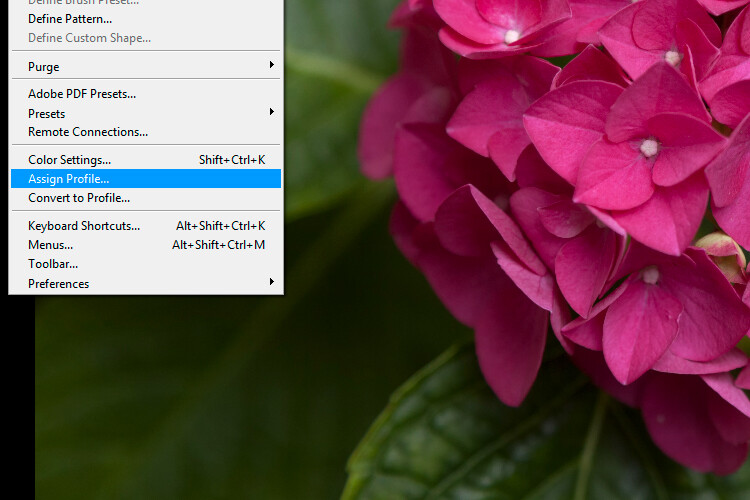
#4 – Assign Profile

The vital thing to learn about “Assign Profile” in Photoshop is that you should leave it alone in most situations. Many people don’t distinguish between this and “Convert to Profile”, which is a mistake.

4a Assign Profile - 6 Color Settings in Photoshop That You Need to Know

4b The Effect Of Misusing Assign Profile - 6 Color Settings in Photoshop That You Need to Know

A color shift occurs when wrongly using “Assign Profile” to convert files from one known RGB color space to another. “Convert to Profile” uses a relative colorimetric rendering intent to match destination colors to source colors as closely as possible.

Assign Profile applies the RGB values embedded in a photo to a different color space without any attempt to match color. This often causes a huge color shift. You’d only use this feature on a file that had no profile embedded or that had one assigned upon opening that you’d like to change.

#5 – Convert to Profile

If you need to convert a file from one RGB color space to another in Photoshop, “Convert to Profile” is the right tool for the job. A relative colorimetric rendering intent is used to match color between different color spaces. If you’re converting from Adobe RGB to sRGB, for instance, colors outside the sRGB gamut are matched to their nearest in-gamut equivalent.

5 Convert to Profile - 6 Color Settings in Photoshop That You Need to Know

Convert to Profile is typically used to convert between RGB color spaces, since most of us have no need to convert to printer or CMYK profiles within Photoshop. When converting between RGB files, “relative colorimetric” is always the rendering intent used, even though it’s possible to select other intents from the menu.

#6 – Proof Colors

You wouldn’t ordinarily check “Proof Colors” under the “View” menu unless previewing the color output of a printer or other device. The colors it displays are based on the selection made in the “Proof Setup” menu. Some people assume they should use Monitor RGB proof colors for editing, but, as we’ve already noted, this turns off color management in Photoshop.

6 Proof Colors For Color Blindness - 6 Color Settings in Photoshop That You Need to Know

Proof colors being used to simulate “Color Blindness – Protanopia-type”. More typically, you’d use this function to preview and edit print colors so they matched the original RGB screen image satisfactorily (a technique known as “soft-proofing”).

The normal method for using “Proof Colors” is to open a duplicate image next to the original, apply the printer profile to the duplicate using proof colors and then edit so it closely matches the original. This is basic soft-proofing method, though a full description merits another article.

Checklist

  • RGB Working Space: Choose Adobe RGB if in doubt. It’ll encompass the output of most monitors and inkjet printers.
  • RGB Working Space: Take note of the Monitor RGB selection to ensure Photoshop is using the right monitor profile.
  • Color Management Policies: Select “Preserve Embedded Profiles” in the three drop-down menus and check the “Ask When Opening” box next to “Missing Profiles”.
  • Don’t use “Assign Profile” to convert from one RGB space to another. It causes unwanted color shifts. Use it only when the original profile is unknown, which shouldn’t be often.
  • Use “Convert to Profile” to convert from one known RGB space to another. This matches color as closely as possible between the source and destination color space.
  • Proof Colors are used for previewing the color output of other programs or devices, or to see how an image will look to a color-blind viewer. For normal editing, this should be turned off.

Conclusion

I hope that clears up any confusion you have had around color settings in Photoshop. Please post any comments and questions below and I’ll try to answer them.

The post 6 Color Settings in Photoshop That You Need to Know by Glenn Harper appeared first on Digital Photography School.


Digital Photography School

 
Comments Off on 6 Color Settings in Photoshop That You Need to Know

Posted in Photography


Everything You Need to Know About Tripods with Phil Steele

23 Apr

In this really helpful video Phil Steele covers everything you need to know about tripods including; how to choose the right one, how to use them, and special features you may not know about.

  • How to choose the right tripod
  • How to use a tripod properly
  • Special features you may not even know about

Here are some tripod articles and reviews for you to check out:

  • Overview of the Vanguard VEO 235AB Aluminum Travel Tripod
  • Benro FGP18C SystemGo Plus Travel Tripod with B2 Ball Head Review
  • Product Review: Polaroid Carbon-Fiber Travel Tripod and Varipod
  • The 3Pod P3COR Tripod and SH-PG Ball Head Review
  • How to Build the Ideal Tripod
  • Tripod versus Monopod – a Comparison and When to Use Each
  • 5 Tips to Get Sharp Photos While Using a Tripod

If you want to learn more from Phil check out some of his video courses covering topics like event photography, Lightroom, headshots and more on Steele Training.com.

The post Everything You Need to Know About Tripods with Phil Steele by Darlene Hildebrandt appeared first on Digital Photography School.


Digital Photography School

 
Comments Off on Everything You Need to Know About Tripods with Phil Steele

Posted in Photography


Nikon D7500: What you need to know

12 Apr

Nikon D7500: What you need to know

The Nikon D7200 was, and still is, an extremely capable camera. So for Nikon to truly make its successor worth its salt, something other than a granular update was needed. Fortunately, the new Nikon D7500 features enough improvements, including a lot of tech pulled from the APS-C flagship D500, that all signs point to it being the successor we’d hoped for.

After all, it uses the same 20.9MP sensor with no optical low pass filter as the D500, as well as its Expeed 5 image processor. This new processor is 30% faster than the Expeed 4 processor in the D7200, a speed advantage that gives the D7500 a leg up in a few key areas like: burst speed, buffer depth, video capability and native ISO sensitivity.

Nikon D7500: What you need to know

Before we jump into tech specs, let’s talk about the body of the D7500, because some minor changes should add up to an improved user experience, including a 3.2” 922k-dot tilting touch LCD. Sure it’s slightly lower resolution than the 1.2M-dot LCD of the D7200, but the touch capabilities are a welcomed inclusion. They can be used for selecting an AF point in live view, or navigating the camera menus.

The D7500 is also 35 g / 1.2 oz lighter than its predecessor and its body is slightly more narrow. The slimmer body design results in a marginally deeper grip. Weather-sealing on the camera has also been beefed up over its predecessor, though the camera loses its second memory card slot.

Nikon D7500: What you need to know

The D7500 is now capable of 4K video capture in 30, 25 and 24p. Users can now also shoot 4K UHD timelapses. But don’t expect your lenses to offer the same field of view when shooting video as they do for stills, because like the D500, the camera uses a 1.5x crop of the sensor when capturing 4K (that’s a total crop factor of 2.25x relative to full-frame). Recording time is similarly cut off at 29:59.

That processing speed boost also translates to an increased burst rate of 8 fps (up from 6 fps on the D7200) with a buffer depth of 50 14-bit Raw files or 100+ full-size JPEGs. The ISO range is 100-51,200, and expandable from ISO 50 to 1.6M – the same as the D500.

Nikon D7500: What you need to know

When shooting in movie mode, users can make use of both Auto ISO as well as power aperture to maintain exposure in a smooth manner. The camera also features helpful video tools like a flat picture profile (similar to log gamma) and zebras. In addition to 4K it can also shoot Full HD in 60p down to 24p, with no additional crop. And when in HD capture there is an electronic VR option to help stabilize footage. Users can also use Nikon’s Active D-Lighting (in HD only).

Nikon D7500: What you need to know

Other gains from the D500 includes its 180k-pixel RGB metering sensor for more accurate focus tracking and metering. The D7500 also now offers Nikon’s much-loved highlight-weighted metering mode.

Not everything is borrowed from its big brother though: The D7500 uses the same 51-point AF system with 15 cross-type points as its predecessor, as opposed to the 153-point AF module found in the D500. That means more potential for hunting in challenging light with off-center points. It also does not support UHS II media, like the D500.

Nikon D7500: What you need to know

Despite using the same AF system as the D7200, there are important improvements to the overall AF experience. For instance the camera gains the D5/D500’s ability to fine-tune lens precision using Live View, thanks to ‘Auto AF Fine Tune’.

And the updated 180k-pixel RGB metering sensor should allow for very precise subject (including face) recognition and tracking to maintain focus on subjects that move, even erratically, around the frame. Additionally, the camera gains Nikon’s group area AF mode.

Nikon D7500: What you need to know

Users can record 4K UHD directly to an external recorder via HDMI out, while also capturing compressed 4K to a memory card. The camera also offers a USB 2.0, microphone, headphone and a remote control port.

The D7500 is also now compatible with Nikon’s radio transmitters for flash control.

Nikon D7500: What you need to know

The viewfinder remains the same as its predecessor, offering .94x magnification with nearly 100% coverage. Like the D500, the viewfinder uses an OLED info display for easy viewing.

The camera’s shutter is rated for 150k shots and now features a shutter monitor, which automatically adjust shutter speeds to keep them accurate.

Nikon D7500: What you need to know

SnapBridge compatibility should come as no surprise in the D7500: it offers both Wi-Fi and Bluetooth connectivity for transmitting images and shooting remotely. However NFC has been removed. Speaking of transmitting images, the D7500 now offers an in-camera batch Raw processing option.

Nikon D7500: What you need to know

There is also a new Multiple Exposure mode that combines 10 images into one (but saves each of the 10 images individually as well). As well as a new Auto Picture Control function that analyzes the scene to provide a pleasing tone curve.

Other improvements come in the form of a new battery, the EN-EL15a, which apparently manages power better than previous EN-EL15 batteries. Fortunately it is both backward and forward compatible. Less fortunate: the D7500 offers lower battery life than the D7200: CIPA rated 950 shots per charge vs 1110.

Nikon D7500: What you need to know

The Nikon D7500 will be available this coming summer for a body-only price of $ 1250 and a kitted with the Nikkor 12-140mm F3.5-5.6 ED VR for $ 1750.

Articles: Digital Photography Review (dpreview.com)

 
Comments Off on Nikon D7500: What you need to know

Posted in Uncategorized