RSS
 

Posts Tagged ‘know’

3 Quick Photoshop Edits You Need to Know

08 Jul

For many photographers, spending time behind a computer editing images, can be annoying. I personally enjoy the editing process, but I often hear photographers saying that they wish they didn’t have to spend time editing images. Of course, the image editing process has become the photographer’s responsibility since the advent of digital photography. In the past, the editing process was the domain of the lab that developed and printed your roll of film.

If you are one of the photographers that does not like the idea of spending hours editing your images, then this article might help you get out of the editing blues.

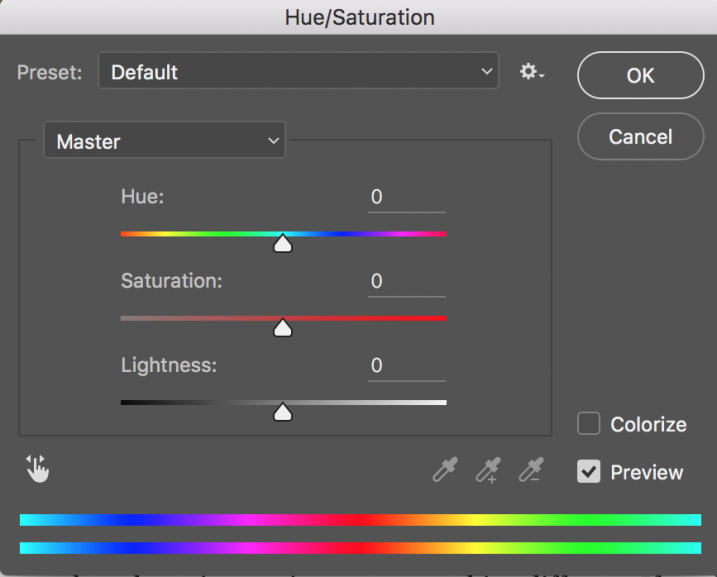
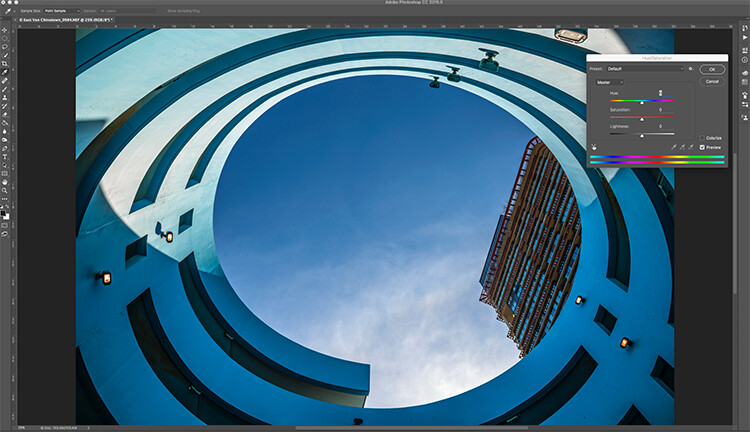
Image open in Photoshop with the Hue and Saturation tool open

Image open in Photoshop with the Hue and Saturation tool open

Of course, you will always need to spend some time editing, but you don’t want to be spend hours trying to make an image  look good. There is a quick way to get some good results from your images in Photoshop. But, before we talk about that, first there are some things that you need to do in-camera, which will save you time in post-production.

  1. Make sure your lenses are clean, you don’t want to spend time cleaning up dust spots on your images.
  2. Make sure your sensor is clean, get your sensor cleaned when you start to notice sensor spots on your images.
  3. Use a tripod, straightening images in Photoshop or Lightroom wastes your time.
  4. Make sure your image is in focus and sharp. Zoom in on your LCD screen to be sure, if not, retake the shot.

From there, you can be sure that your images are coming out of your camera in an edit-ready state. You don’t want to spend your time fixing photography mistakes made in-camera. The main goal with image editing is to take your good images, and make them look spectacular. So, here are some very quick edits you can do to your images (assuming the image is in good shape) in Photoshop, and in turn, spend more time behind the camera.

Quick Edit #1 – Levels or Curves?

This is something of an ongoing debate among photographers. Some have a preference for one or the other, the reality is that they are very different tools, and you can (and should) use both.

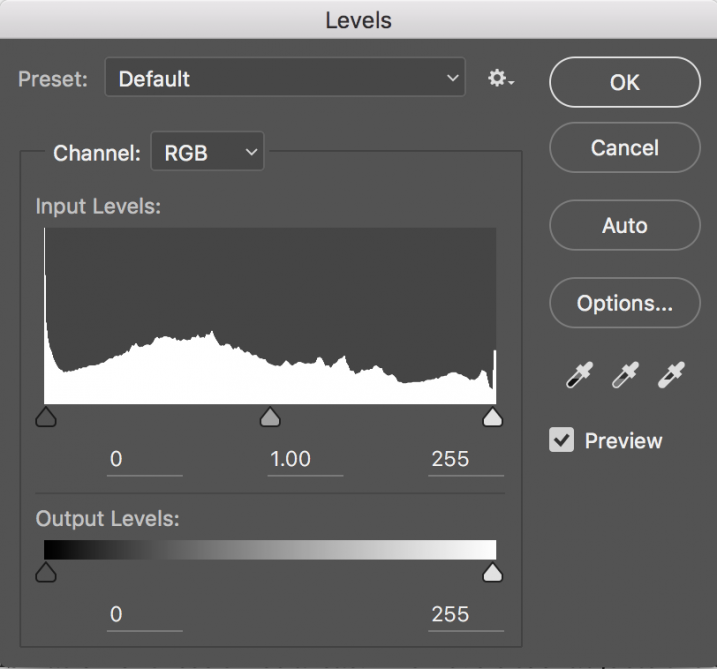
Screen Shot 2016-06-30 at 3.52.50 PMLevels is a great tool to quickly make exposure adjustments to your image. Curves gives you the same ability, but in much more detail. It also has some very powerful abilities in terms of specific adjustments. For a quick edit though, Levels is your tool of choice: IMAGE > ADJUSTMENTS > LEVELS, the keyboard shortcut is CMD>L on a Mac and CTRL>L on a PC, OR add it as an adjustment layer for non-destructive editing.

Levels can really make a difference to your image. Take a look at this article to help you with levels: 5 Photoshop Tools to Take Your Images from Good to Great, as well as some of the other tools available. The levels tool looks deceptively simple, but it has some really powerful functionality. It is best to adjust your image using Levels first, as this tool affects exposure on three areas of your image: the highlights, shadows and midtones.

All images are made up of a combination of these three areas. The Levels tool adjusts the exposure in each of them separately. The reason why this is important, is because exposure affects colour. For example, if you make your exposure in a scene darker, your colours will become more saturated, if you brighten the exposure, your colours will desaturate. So, making levels adjustments first, will also help your image’s colour.

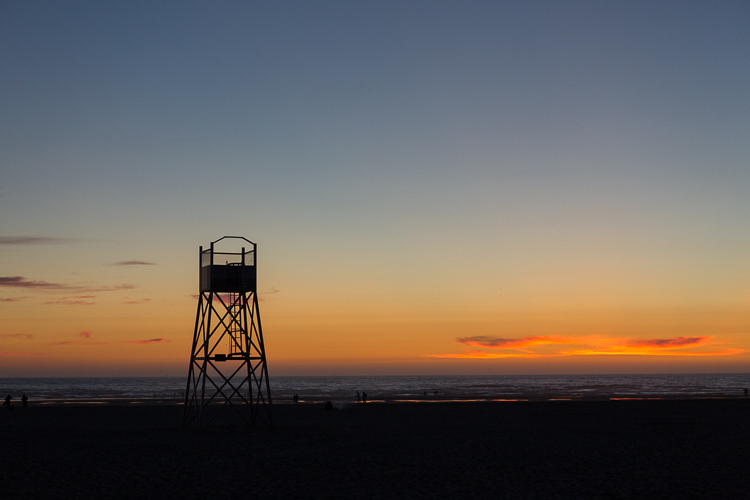
Image straight out of camera, no adjustments

Image straight out of camera, no adjustments.

The same image after adjustments in Levels

The same image after Levels adjustments

Quick Edit #2 – Hue and Saturation

Screen Shot 2016-06-30 at 3.54.30 PMThis tool is the next one in order. Start off with Levels and then move onto Hue and Saturation  (IMAGE > ADJUSTMENTS > HUE AND SATURATION or the keyboard shortcut is CMD>U on a Mac or CTRL>U ON A pc). This also looks like a simple tool on the surface, but there is a lot more depth to it.

First of all, you will see three sliders, the top one is Hue, the middle one is Saturation, and the bottom one Lightness. You will also notice a pull-down box above the three sliders, it is set to Master as the default.

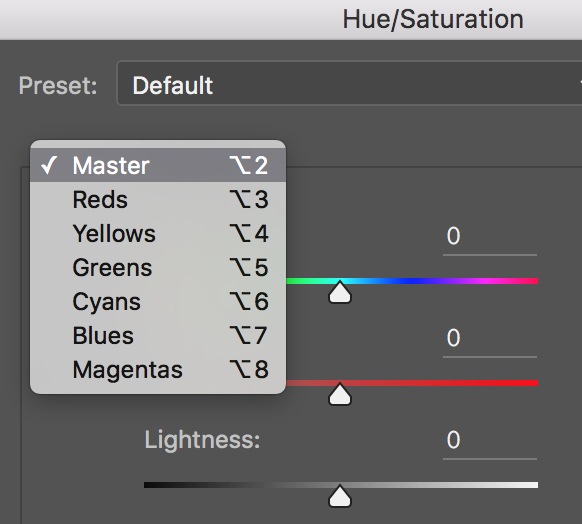
Screen Shot 2016-06-30 at 4.02.56 PMThe Hue slider is used if you want to change the colours in your image to something different. If you leave the box at the top on Master and adjust the Hue slider, all the colours in the image will change, making your image look a little funky and weird, but this could be fun too! The real power of the Hue slide comes into play when you select a colour channel from the drop down box. If you click on the arrow next to Master, all the colour channels will drop down (see screenshot left). This is really useful if you want all the reds to look a little more orange in your scene. Bear in mind, this is a universal adjustment, it will select all the reds in your image and make an adjustment to them all.

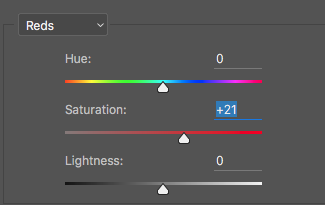
Screen Shot 2016-06-30 at 4.06.31 PMThe second slider is Saturation which affects how rich your colours are in your image. If the reds in your image seem to be light or weak, you can select Reds from the list, and simply move the Saturation slider up (see screenshot right). Also, if some of your colours seem too bold, you can select the appropriate colour channel and move the Saturation slider to the left. You can select each colour individually and make the necessary adjustments.

The last slider is Lightness. I have almost never used this one. If you have done a good job on your levels adjustment, there is really no reason to use the Lightness slider, so I would recommend not using it.

Image after Hue and Saturation adjustments have been made

Image after Hue and Saturation adjustments have been made

Quick Edit #3 – Brightness and Contrast

Once you have made your colour adjustments using Hue and Saturation, you might need to boost the brightness a little. The Brightness and Contrast tool (IMAGE > ADJUSTMENTS > BRIGHTNESS AND CONTRAST, there is no keyboard shortcut to this one) should be used sparingly, do not make big adjustments using it.

You can simply nudge the Brightness slider to the right and give some pop to the image, then do the same for the Contrast slider. If you don’t feel that you need to use this tool, then don’t, it is only necessary if your image looks a little dark after your colour adjustments.

Note: if you’ve done each of these as an adjustment layer you can go back and tweak your levels again, after doing the others.

Final quick edits made in Brightness and Contrast

Final quick edits made in Brightness and Contrast

That’s it, you are done, in a manner of speaking. These quick edits may be good enough for you to get your image to a satisfactory point. If you are happy with your image, then great – you have not spent too much time editing it.

You can do these three quick Photoshop edits on images that you think might be printed. Then if you see that the edits give them the boost you want, you can then spend more time on each image. This cannot replace a good workflow and a good understanding of what is possible in Photoshop, but these three tools will give you the ability to quickly edit your images and get them into a print-ready state really quickly.

If you need to do some further edits, then take a look at this article about more detailed post production techniques or check out all the articles dPS has on image editing in Photoshop. 

googletag.cmd.push(function() {
tablet_slots.push( googletag.defineSlot( “/1005424/_dPSv4_tab-all-article-bottom_(300×250)”, [300, 250], “pb-ad-78623” ).addService( googletag.pubads() ) ); } );

googletag.cmd.push(function() {
mobile_slots.push( googletag.defineSlot( “/1005424/_dPSv4_mob-all-article-bottom_(300×250)”, [300, 250], “pb-ad-78158” ).addService( googletag.pubads() ) ); } );

The post 3 Quick Photoshop Edits You Need to Know by Barry J Brady appeared first on Digital Photography School.


Digital Photography School

 
Comments Off on 3 Quick Photoshop Edits You Need to Know

Posted in Photography


Everything you Always Wanted to know about a Career in Photography but were Afraid to Ask

08 Jun

Before I get into this article, I want to set the stage by saying that the objective here is not to diminish or make light of the concerns and questions that novice photographers have. In fact, at some point in our careers, we have all asked similar questions – sometimes out loud, and sometimes just in the solitude of our own minds. There is no wrong or silly question, and there are no right or wrong answers. These are in no particular order, and the views expressed here are solely based on my own experiences.

Memorable Jaunts DPS Article What you want to know - Beach sunset photos

One of my favorite images to date happened by pure accident – I saw the image in my mind even before I took a single frame.

Where can I learn about everything related to photography for FREE?

We are both lucky and unlucky to live in the era of the Internet. Any google search, on average, yields thousands of pages, articles, and YouTube videos. If you have a burning question about anything and everything, the easiest way to learn is via the Internet.

Sites like our own Digital Photography School are a great resource for almost any topic related to photography, from a beginner to an experienced photographer. Other sites like Creative Live offer many classes on various aspects of photography, as well as other creative genres. While most sites provide a great overview of a particular topic, any in-depth research requires time and money. There are number of virtual, as well as live workshops, all over the world covering all aspects of photography. A few that come to mind are The Design School and Clickinmoms (I have used both services and am very happy with the level of instruction provided there – this is just my personal experience).

You could also check out our dPS ebooks and online courses.

Memorable Jaunts DPS Article What you want to know - Chicago Wedding Photos

I learn a lot online, in the comfort of my own home, but every once in while, I like to take a live workshop – not just to update my portfolio, but also to learn from and meet others in the industry!

How do I shoot in manual mode?

Shooting in manual mode is one of the most intimidating things that most amateur photographers face. If you have a DSLR camera that has a manual mode, it is really not that hard once you get the hang of it. The best thing you can do in learning to shoot in manual, is to understand the exposure triangle and how the three key components of photography – shutter speed, ISO and aperture work – independently and with each other. Here is a good article that digs deeper into photographing in manual mode. Remember this too take time and practice. There is another interesting article here in the Digital Photography School archives that explains all three shooting modes and is worth a read.

Memorable Jaunts DPS Article What you want to know - Understanding backlight

Mastering manual mode is important, especially for images like this – backlit golden hour images…this is SOOC (straight out of the camera).

What lens will give me a blurry background?

If I had a penny for the number of times that I get asked this question from other photographers, as well as my clients who are looking to upgrade their DSLR cameras, I would have an overflowing piggy bank! Blurry backgrounds, or bokeh as it is know in the photography space, is actually a function of aperture (i.e. f-stop), focal length, and distance of the subject from the background. Check out How To Achieve Nice Bokeh [In Plain English] from the dPS archives that addresses this issue specifically.

Memorable Jaunts DPS Article What you want to know - Lilacs in the rain-1

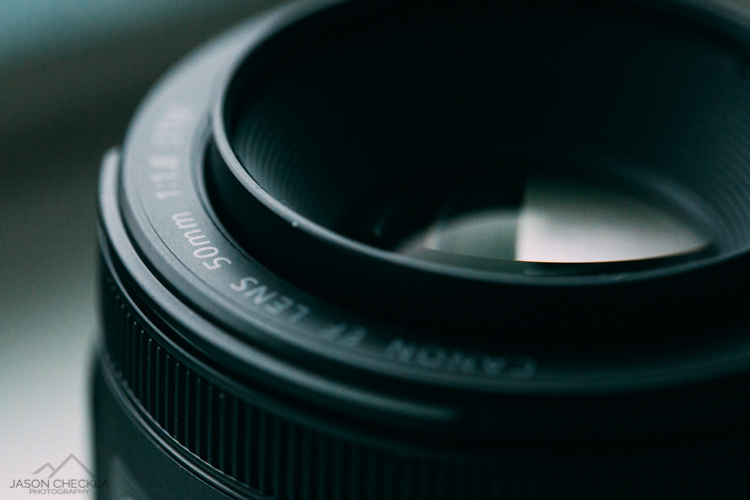
A wide aperture on 50mm lens gives a shallow depth of field where most of the background is blurry.

How much money do I need to spend to get started with a photography business?

There are again any different ways to answer this question. You can essentially spend as much, or as little as you want, to get started. At a bare minimum you will need a good camera system (good is a very relative term here, there are several prosumer cameras on the market today, at various price levels). In many places in the world, particularly in the US, there are several rental companies that offer various cameras and lenses for rent. Borrow Lens, Lensrental and LensProToGo are a few that come to mind. You can also check with your local camera shop to see if they offer rental services.

You do not need the latest and greatest camera system to be a professional photographer. While gear is definitely a plus, skill and the ability to work with what you have to get the results you need are far more important, especially when you are just starting out. Once you develop your own shooting style as well as what you want to focus on, you can slowly build up your gear by adding equipment based on your current needs.

How can I make money from my photography, and do it fast?

401(K) 2012

By 401(K) 2012

Sorry to burst your bubble, but the short answer here is that you cannot make money in anything fast. Everything takes time, practice, and patience. Just like any other career, the more time and effort you invest in your photography, the more experience you will gain. With experience comes confidence and recognition. So if your end goal is to be a internationally recognized photographer, treat it like a career and a business and invest in yourself, your education, and your experience. Don’t be afraid to roll up your sleeves and do the hard work – and in time, you will reap the benefits.

How much should I charge for my photography?

This is again something that is very subjective. What you charge for your services depends on many factors like your skill level, the value of photography in the area that you live in, and the buying capacity of the clients that you are targeting. Another thing to understand is the monetary value of your time. Remember your time is not just the amount of time you spend photographing the client – also take into account any travel to and from the location, editing time, and backend work like backing up photos, uploading galleries, and other administrative tasks. Once you have a handle on all these factors as it relates to your situation, charge an amount that makes it worth your while to photograph your clients. If you are looking to earn a living through your photography, then treat it like a business and not just a hobby. Read: 7 Things That Keep You From Charging What You’re Worth (and how to get over them).

What kind of photography should I focus on?

The easiest way to answer this question is to ask yourself what you enjoy photographing. Write down all the genres of photography that interest you, and try them all out if possible. Ask family and friends to model for you, if you are interested in portraits. Photograph different locations at different times of day if you are interested in landscape photography. Experiment with different types of food and styling if you are interested in food photography. Once you have a reasonable amount of experience in these categories, pick one or two to focus on, and give it your best. Don’t be afraid to experiment once in awhile in other genres, just to flex your creative muscles.

Memorable Jaunts DPS Article What you want to know - Bridal Portraits

I am a wedding and lifestyle photographer – that is what I enjoy doing the most. But mixed in my portfolio will be a bit of travel and editorial images that help me flex my creative muscles.

How can I get clients?

This is another big one that I get asked a lot, and I wish there was an easy answer. In fact, this is something that even I still struggle with, six years into my business. Getting new clients, and keeping a steady stream of clients is hard work. You have to constantly market yourself and your services at every opportunity you get. When you meet new people, don’t be afraid to say what you do. It took me a long time to introduce myself as a professional photographer, but once I said it often enough, I realized that I got more confident in not only my photography skills, but also in my business skills. Network and connect with your competitors, as well as other businesses in your area. Do a trade for images if appropriate, and remember not everyone you meet will be interested in getting pictures taken, and that is totally okay.

Memorable Jaunts DPS Article What you want to know - Lifestyle Portraits

A casual conversation at a networking meeting led to an epic family photoshoot and I gained a good friend too.

How can I build a portfolio of my work?

The length of time you invest in yourself and your photography skills is directly proportional to how long you will take to build your portfolio of work. If you constantly focus on learning and improving yourself, the more confident you will become, and the more opportunities you will find to create work that you are proud of. I have a few general rules that I follow in my photography journey

  • Photograph something every week if not every day – the objective here is to learn new techniques and perfect things I already know with respect to my gear.
  • 10:1 ratio – for every 10 minutes I shoot, I want to produce at least one image that I am proud of.
  • Spend time on personal projects – my mantra here is create for the sake of creation.

For me, this is an easy way to constantly update my portfolio with work that I am proud of, and which also represents my creative style.

Memorable Jaunts DPS Article What you want to know - Wedding Styled Shoot

Creating for the sake of creation is a great way to update your portfolio as well as connect with other vendors and creatives in your space.

This is just a small set of questions that I found helpful when I was starting off on my career in photography. If you have others that have helped you navigate the photography waters, feel free to list them in the comments so others can benefit as well.

If you have different questions that you’ve been wanting to ask, this is the place to do it. Let’s see if we can’t get them answered for you as well.


Editor’s Note: This is one of a series of articles this week that are Open for Discussion. We want to get the conversation going, hear your voice and opinions, and talk about some possibly controversial topics in photography.

Give us your thoughts below on the article above and watch for more discussion topics.

See all the recent discussion topics here:

  • 7 Commonly Accepted Photography Beliefs Debunked
  • Is HDR dead? Some dPS Writer’s Thoughts on this Controversial Topic
  • How to Find your Personal Photographic Style
  • Why You May be Failing to Reach Your Potential as a Photographer
  • To Process or Not To Process? Let’s Discuss
  • How much do you process your images? – a dPS POLL
  • Does the Camera Matter? SLR versus Mirrorless versus Smartphone
  • Natural Light Versus Artificial Light: Which is Better?
  • How Limitations Can Help You Grow as a Photographer
  • Brand Name Versus Third-Party Photography Gear: Which is better?

googletag.cmd.push(function() {
tablet_slots.push( googletag.defineSlot( “/1005424/_dPSv4_tab-all-article-bottom_(300×250)”, [300, 250], “pb-ad-78623” ).addService( googletag.pubads() ) ); } );

googletag.cmd.push(function() {
mobile_slots.push( googletag.defineSlot( “/1005424/_dPSv4_mob-all-article-bottom_(300×250)”, [300, 250], “pb-ad-78158” ).addService( googletag.pubads() ) ); } );

The post Everything you Always Wanted to know about a Career in Photography but were Afraid to Ask by Karthika Gupta appeared first on Digital Photography School.


Digital Photography School

 
Comments Off on Everything you Always Wanted to know about a Career in Photography but were Afraid to Ask

Posted in Photography


The 6 Most Important Things You Need to Know about Lightroom’s Develop Module

15 May

Lightroom is powerful, but it’s also complex and has a steep learning curve. If you feel overwhelmed by all the options, there’s great value in taking a simple approach and learning to use the tools that are most useful first. Leave the more advanced features until you have more experience.

With that in mind, I’ve put together this list of the six most important things you need to know about Lightroom’s Develop module. Learn these and you will be well on the way to Lightroom mastery.

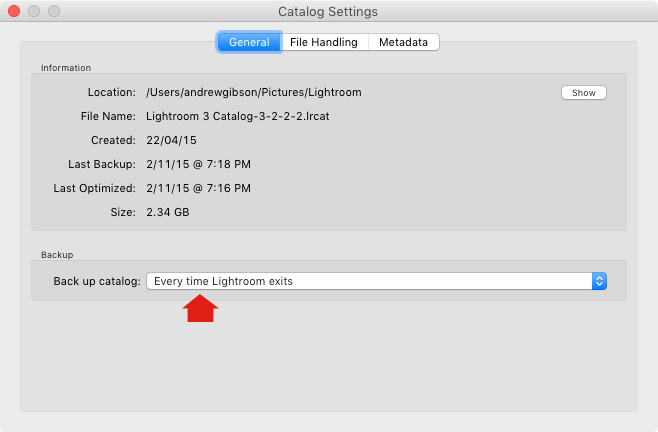
1. Backup your catalog regularly

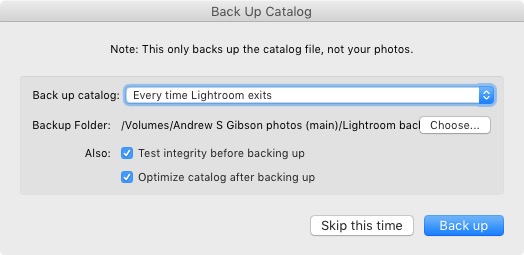
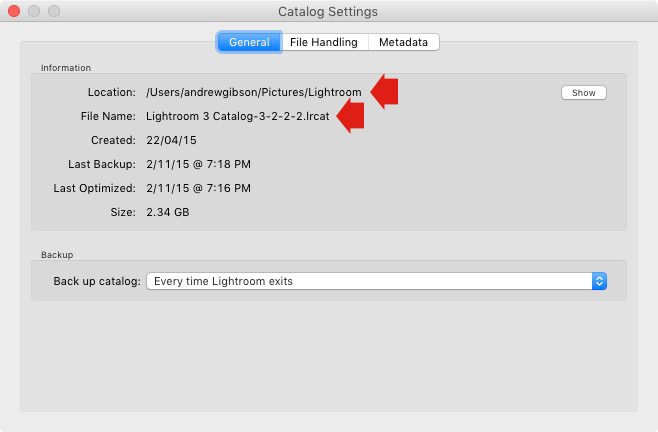
This is the most crucial thing to set up, as everything you do to your photos in the Develop module (not to mention metadata changes like Collections, flags and keywords) is stored in the catalog. It would be a disaster to lose your catalog (and consequently all your hard work) to hard drive failure, so you need to make sure that Lightroom is backing it up regularly to an external hard drive.

To do so, go to:

  • For Windows users: Edit > Catalog Settings > Back up catalog
  • For Mac users: Lightroom > Catalog Settings > Back up catalog

I have mine set to: Every time Lightroom exits – some photographers find that Once a week, when exiting Lightroom is enough.

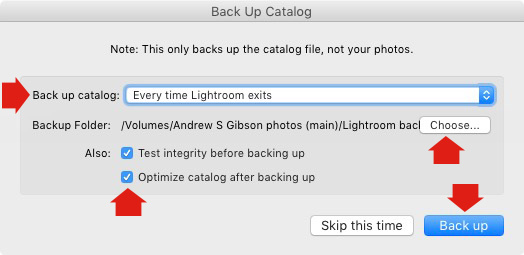
When you exit Lightroom, a dialog window appears that shows you where Lightroom is going to save the backup Catalog. Click Choose to change the location if you need to. Note: this is the only time you can select the destination where the backup will be saved.

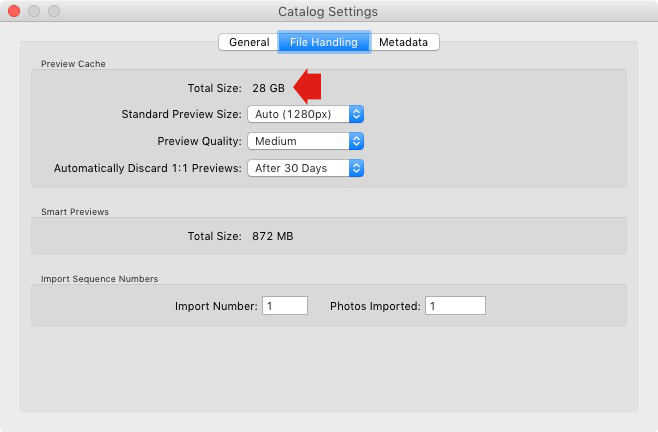
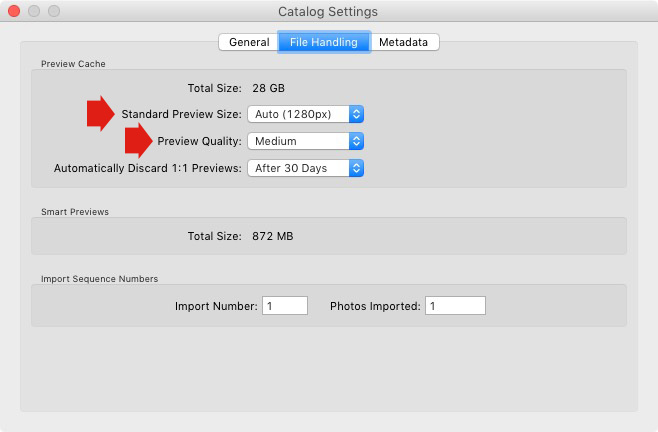
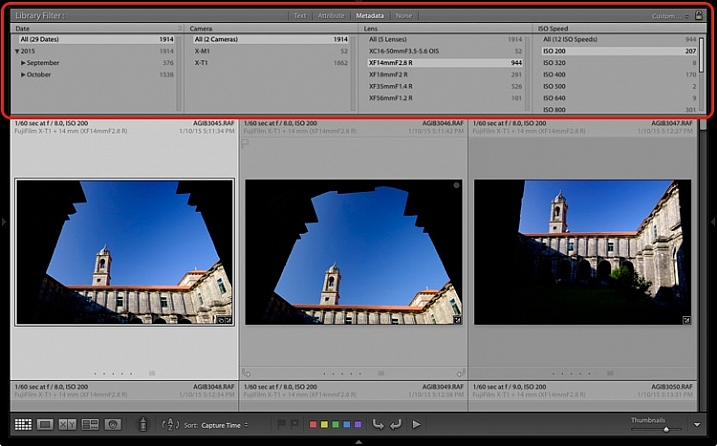
Make sure the Test integrity before backing up and Optimize catalog after backing up boxes are both ticked. This slows down the back up process, but it’s worth it because it helps ensure that your catalog remains free from corruption, and is optimized for speed.

Lightroom Develop module

Please note: The Catalog doesn’t contain any of your photos. Backing up your Catalog doesn’t back up your photos, only the information that Lightroom contains about them. Photo backups need to be managed separately.

2. Profile is the most important setting in the Develop module

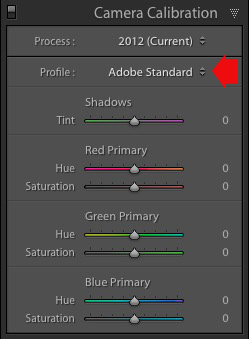
The Profile menu is tucked away in the Camera Calibration panel, at the bottom of the right-hand panels in the Develop module. The default profile setting is Adobe Standard (circled below). This profile was created specifically for your camera by Adobe. Pick that one for accurate colors.

You will also find the color profile settings specific to your camera (Landscape, Portrait, and so on). You can pick one of these if you prefer the look to Adobe Standard.

Lightroom Develop module

The profile affects both color and contrast, so from a practical point of view it’s important to select the right one, before you start adjusting contrast and white balance in the Basic panel. Get the profile right, and it makes all subsequent processing steps much easier. Get it wrong, and it makes them more difficult.

For example, if you apply a profile intended for landscape photos to a portrait, then you could end up with over-saturated colors and unnatural skin tones. Then you might try and fix that by playing with the Basic panel sliders or other color controls. This approach rarely works, it’s far better to select the most appropriate profile from the start.

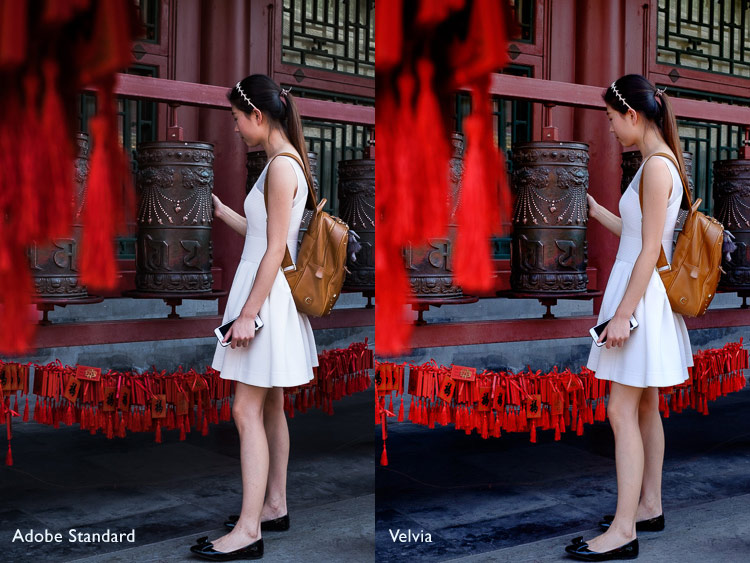
These two photos show the difference between the Adobe Standard and Velvia profiles on a Fujifilm X-T1 camera. The Velvia profile saturates colors, the Adobe Standard profile looks more natural.

Lightroom Develop module

3. Use Lens Corrections to correct distortion and eliminate chromatic aberrations

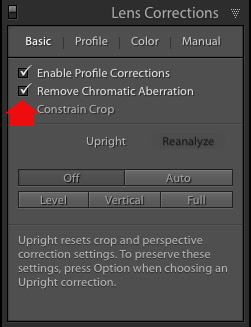
No lens is perfect, and most have at least a little distortion and chromatic aberration. One of the benefits of digital photography is that you can eliminate these in the processing stage, so they are not the problem they once were. Go to the Basic tab in the Lens Correction panel, select Enable Profile Corrections and Remove Chromatic Aberration in order to do so.

Lightroom Develop module

This comparison shows the result on a photo taken with a zoom lens producing barrel distortion.

Lightroom Develop module

Lightroom Develop module

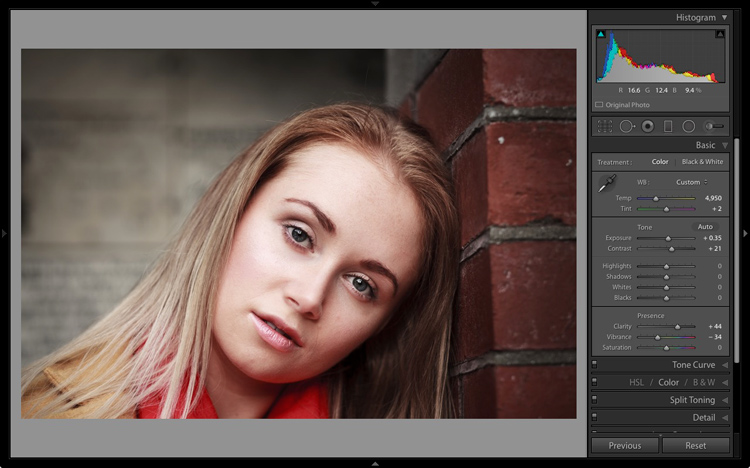
4. You can carry out 80% of your processing in the Basic panel

Once you have selected a Profile, and applied Lens Corrections, you can go to the Basic panel to start making any adjustments required to the photo’s brightness, contrast, and color.

The sliders in the Basic panel are extremely powerful. Take the time to get to know what each one does, and how the settings affect your images. Once you get the hang of these sliders it’s quite possible that you can do all of your global adjustments (those that affect the entire image) here, and not have to touch the Tone Curve or HSL / Color / B&W panels at all.

This photo is a good example. Virtually all the processing was done in the Basic panel, made possible by selecting the most appropriate profile first. The only additional thing I did was add a vignette using the Effects panel.

Lightroom Develop module

My article Steps for Getting Started in the Lightroom Develop Module goes into this in more detail.

5. Learn to use local adjustments wisely

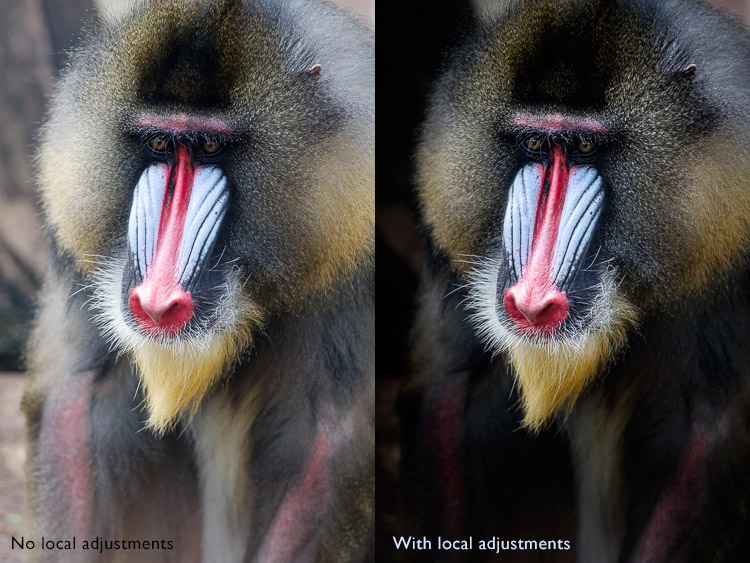
It wasn’t so long ago that many professional photographers would send their negatives to master printers who used dodging, burning, and other fancy darkroom techniques, to create a far better print than the photographer ever could. These local adjustments – those applied to only part of the image, rather than all of it – are often vital for bringing the best out of your Raw files in Lightroom.

Lightroom has three tools for making local adjustments – the Adjustment Brush, Radial Filter and Graduated Filter. They allow you to selectively adjust brightness, contrast, and other tone and color settings. Each tool has its own idiosyncrasies, so take the time to get to know each one in turn.

This example shows the difference that local adjustments make. I used a combination of all three of Lightroom’s tools to turn the image on the left, into the one on the right.

Lightroom Develop module

6. Don’t overlook the Clarity slider

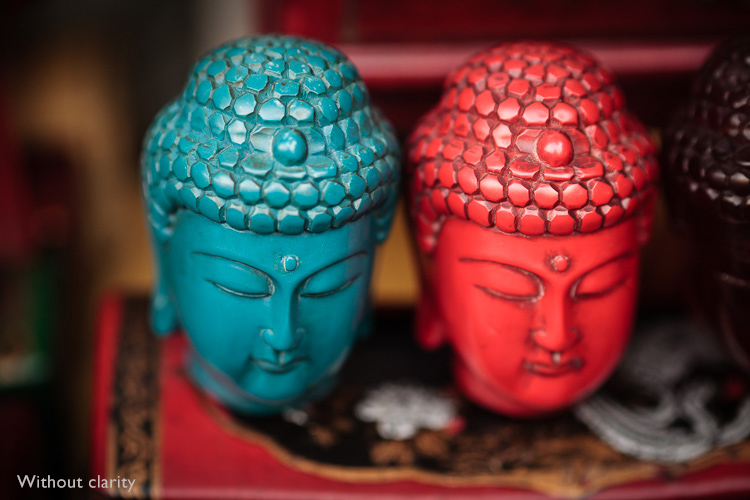
The Clarity slider is extremely useful as both a local, and global adjustment. It’s primary use is to enhance texture, and it does so by increasing edge contrast (the spots where dark and light areas meet). You do have to be careful not to overuse it, but judicious applications of texture enhancement can help bring the best out of any photo. Clarity is also an ideal tool for enhancing black and white images, which often rely on texture to add impact.

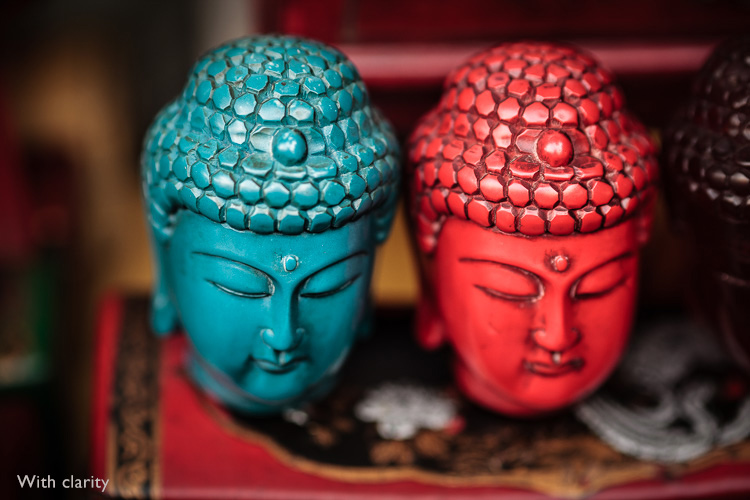
The following photos show the effect of adding Clarity. I used the Radial filter to apply Clarity to the Buddha heads to bring out the texture.

Lightroom Develop module

Lightroom Develop module

These six items are not a comprehensive list of what you can do in Lightroom’s Develop module, but they will certainly get you started, and simplify the process of learning to use it.

What do you think are the most important tools to master in the Develop module? Do you agree with my selection? Please let me know in the comments below. And if you want to learn more about Lightroom then please check out my Mastering Lightroom ebooks.

googletag.cmd.push(function() {
tablet_slots.push( googletag.defineSlot( “/1005424/_dPSv4_tab-all-article-bottom_(300×250)”, [300, 250], “pb-ad-78623” ).addService( googletag.pubads() ) ); } );

googletag.cmd.push(function() {
mobile_slots.push( googletag.defineSlot( “/1005424/_dPSv4_mob-all-article-bottom_(300×250)”, [300, 250], “pb-ad-78158” ).addService( googletag.pubads() ) ); } );

The post The 6 Most Important Things You Need to Know about Lightroom’s Develop Module by Andrew S. Gibson appeared first on Digital Photography School.


Digital Photography School

 
Comments Off on The 6 Most Important Things You Need to Know about Lightroom’s Develop Module

Posted in Photography


5 Important Focal Lengths to Know and the Benefits of Each

05 Apr

5 Focal Lengths and Why You Should Use Them 1

Please note: all focal lengths mentioned in this article are in reference to 35mm full frame sensors.

There are photographers that favor the convenience and flexibility of zoom lenses, and those that favor their sharper, lighter and cheaper counterpart, the prime lens. Note: some modern zooms do have prime-like optics. Often, it’s your line of work that will make that decision for you. Whichever variant you favor, you owe it to yourself to experiment with different focal lengths to learn where they each excel, and which ones mesh best with your style. You can achieve this with primes, or zooms if you can commit yourself to not touching that handy zoom barrel. Among the many options, five focal lengths you want to use are the: 24mm, 35mm, 50mm, 85mm, and 135mm.

Let’s look at each one at a time.

#1 – 24mm wide angle

Areas it excels in: landscapes, astrophotography, group portraits, and event photography.

This one is easy to experiment with because not only are there many affordable prime options available, but you’ll find this focal length at the wide end of many full frame zoom lenses. The 24mm prime lens is sufficiently wide and remarkably sharp, making it an ideal candidate for landscape photography. Zooms are wonderful for landscape photography too, but the locked-in field of view (or a prime lens) will force you to think carefully about your compositions.

5 Focal Lengths and Why You Should Use Them 2

The 24mm focal length also excels in situations that don’t offer a lot of light. That includes astrophotography, where 24mm lenses with wide apertures (f/.8 or wider) will facilitate shots of the milky way, and in event photography, where you’ll have an ample field-of-view to shoot indoors and add context to your photographs. Additionally, the 24mm focal length is sufficiently wide to capture group portraits with minimal perspective distortion. Just don’t get too close, and watch the edges of your frame.

5 Focal Lengths and Why You Should Use Them 3

#3 – 35mm focal length

Areas it excels in: street photography, events, environmental portraits, and shooting-across-the-dinner-table photography.

35mm is a classic focal length for many photojournalists. Part of that reason is that the field-of-view requires you to be close to the action, but still maintains enough of the environment surrounding your subject to give an image context. This same philosophy applies well to wedding or event photography, and makes the 35mm focal length a great fit.

5 Focal Lengths and Why You Should Use Them 4

Another great thing about the 35mm prime lens is that it just so happens to be the perfect focal length for shooting a portrait from across the dinner table. Any wider and your subjects face will suffer from perspective distortion (exaggerating their facial features) and any narrower and you’d have to get out of your seat for the shot.

5 Focal Lengths and Why You Should Use Them 5

#3 – 50mm (normal) lens

Areas it excels in: street photography, full-body portraits, walk-around shooting.

There are so many reasons to try shooting with a 50mm prime lens. Perhaps the best one is that they’re cheap. You can purchase a brand new 50mm lens for most DSLR systems for a little over $ 100. Also, they produce an image that is normal, or most-like the image that we see with our own eyes. There is a common misconception about this concept. The normal perspective that a 50mm lens offers refers to the perspective distortion (or lack thereof), not the field-of-view. For this reason, the 50mm lens is great for full-body portraits and walk-around or street photography.

5 Focal Lengths and Why You Should Use Them 6

5 Focal Lengths and Why You Should Use Them 7

The 50mm lens is another classic, and a large part of that reason is that often, the area in frame is just right. It’s narrow enough to create balanced compositions with ease, but still wide enough to create interest beyond your subject. That is why you will find a 50mm lens in the bags of most street photographers.

#4 – 85mm slight telephoto lens

Areas it excels in: portrait, events, and sports photography.

The 85mm focal length is one that you will find in the bag of many wedding and portrait photographers. It creates beautiful portraits with the ability to flatten one’s features, which is generally flattering, and brilliant background separation. The field of view is not so tight that you’ll feel like you need to be outdoors to use one, but it gives you a nice working distance that allows this focal length to sneakily capture candids at a wedding or family gathering.

5 Focal Lengths and Why You Should Use Them 8

That working distance is great for full body shots when you’re on the sidelines of a sporting event, too. The 85mm prime is also a great working distance for photographing your kids or pets.

5 Focal Lengths and Why You Should Use Them 9

#5 – 135mm telephoto

Areas it excels in: head-shots, portraits, and wedding photography.

When you need to get in close, or if you just love bokeh, the 135mm lens is a great pick. For details and head-shots that bring your subject to life, grab this focal length. The background separation is fantastic, due to the increased compression of the image. The flattering flattening effect (say that five times) from the compression, makes this lens great for shoulder shots, senior portraits, candids, and more. You’ll have fun shooting wide open to create magical separation between your subject(s) and their surroundings.

5 Focal Lengths and Why You Should Use Them 10

5 Focal Lengths and Why You Should Use Them 11

The drawback to this focal length is that you do need a lot of working room, and a lot of light. Remember the 1/focal length rule for shutter speed? In other words, you wouldn’t want to shoot a 135mm lens any slower than 1/135th of a second, without a very steady hand or a tripod. When light or space become a problem, it’s nice to have an 85mm lens to fall back on.

5 Focal Lengths and Why You Should Use Them 12

Chances are you will love some of these focal lengths and dislike others, but you’ll never know until you give them all a shot. Modern zoom lenses are remarkable in their optical-quality, but you do lose the connection you feel when you are truly in sync with your focal length. The more you shoot with a 50mm lens, the more you will start to see with a 50mm perspective. Good luck and happy shooting!

googletag.cmd.push(function() {
tablet_slots.push( googletag.defineSlot( “/1005424/_dPSv4_tab-all-article-bottom_(300×250)”, [300, 250], “pb-ad-78623” ).addService( googletag.pubads() ) ); } );

googletag.cmd.push(function() {
mobile_slots.push( googletag.defineSlot( “/1005424/_dPSv4_mob-all-article-bottom_(300×250)”, [300, 250], “pb-ad-78158” ).addService( googletag.pubads() ) ); } );

The post 5 Important Focal Lengths to Know and the Benefits of Each by Jason Checkla appeared first on Digital Photography School.


Digital Photography School

 
Comments Off on 5 Important Focal Lengths to Know and the Benefits of Each

Posted in Photography


9 Things You Need to Know to Become a Nature Photographer

29 Mar

Nature photography is a very popular field to be involved in. That’s no surprise though, as it gets you outdoors and seeing our planet in a way that others may miss. When I first started as a nature photographer, I began to see things differently. It sounds cliché, but I paid more attention to my surroundings and saw things from different angles.

Will Nicholls 3This tutorial will look at some of the most important things to keep in mind if you are looking to become a nature photographer.

#1 You’ve got to love it

Luckily this isn’t a very hard thing to adhere to, but you must love nature to excel at capturing it on camera. Nature photographers spend a lot of time outdoors. If you’re a landscape photographer, you’ll spend lots of your time hiking through scenic areas for just a few clicks of the shutter. Wildlife photographers often spend hours and hours sitting in one place, waiting for an animal to appear. Without the passion and drive behind you, this can be mind-numbing.

So it’s not for everyone, but if you’re reading this article, then chances are you have that interest programmed within you already!

#2 Be different

While it’s great that nature photography is so popular, this brings with it one big challenge – everybody is doing it. This means you need to figure out how you can be different (assuming you want your photos to be noticed).

This could be anything from focusing, and specializing on a single family or species of animal, to developing an artistic quirk and style in your photography. Personally, I spend a lot of my time photographing red squirrels – thousands of hours actually, to give you some idea. All this time has allowed me to learn about the animal, and capture behaviour that others have not managed.

Will Nicholls 5

#3 Take risks

By taking risks I mean with your time, not necessarily something dangerous to your wellbeing. As the saying, “Nothing ventured, nothing gained.” suggests, if you don’t take risks then you are unlikely to capture those truly mesmerizing images.

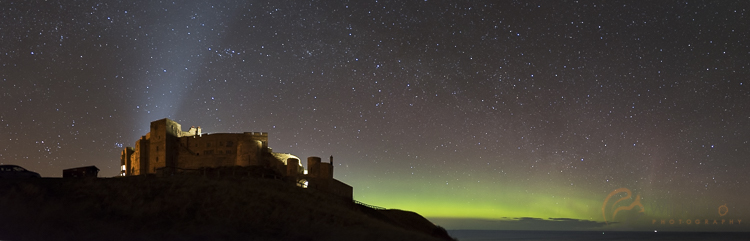
Recently in the North of England, there was a display of the aurora borealis. Typically, it is hard to predict this phenomenon, and the available forecasts only look an hour ahead. It can finish as quickly as it starts, so planning for such an event is not really possible. I decided that I wanted to capture the Northern Lights with a particular castle in the foreground, but it was over two hours away. Nevertheless, at 2 a.m. I dropped everything, and raced off to the coast. When I arrived the display was weakening, but I waited a further two hours and the lights erupted in front of me. I got home at 8 a.m., but it was well worth it.

I’m particularly pleased with this result as photographing the Aurora Borealis can be especially challenging because we are positioned only just north enough to see them.

Will Nicholls 8

#4 Be respectful of nature

Unfortunately, this is one thing that is not adhered to by everyone who calls themselves a nature photographer. Having an ethical approach to your photography, especially when it involves animals, is of the upmost importance. Those who don’t are shamed within the industry, and immediately lose the respect of the majority of photographers who really care about their subjects.

No photo should come before the welfare of an animal or place. It’s just that simple, and remembering this rule will help to improve your photos in the long run. The best photographers don’t cut corners, and you’ll find they have a great affinity with the environment.

Will Nicholls 4

#5 Think about what you’re photographing

It’s easy to press the shutter when you finally find what you’re looking for, whether that be an animal or a scene, but clicking the shutter without thought will often result in unimpressive photos. Think about what you’re trying to convey to the viewer. You want the person looking at the picture to feel like they are in your shoes, looking at the scene themselves.

For landscape photography, this often comes with effective composition, thinking about both your foreground and background to properly document a scene, and avoiding a flat appearance.

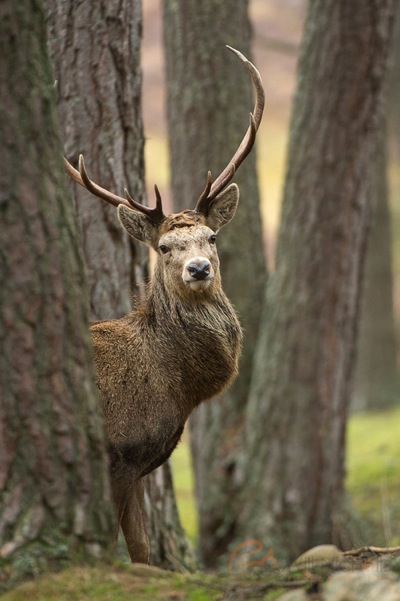
With wildlife photography, this comes from capturing the character and behaviour of an animal. Impactful photos can be achieved by establishing eye contact between the viewer and the subject.

Will Nicholls 7

#6 Introduce scale

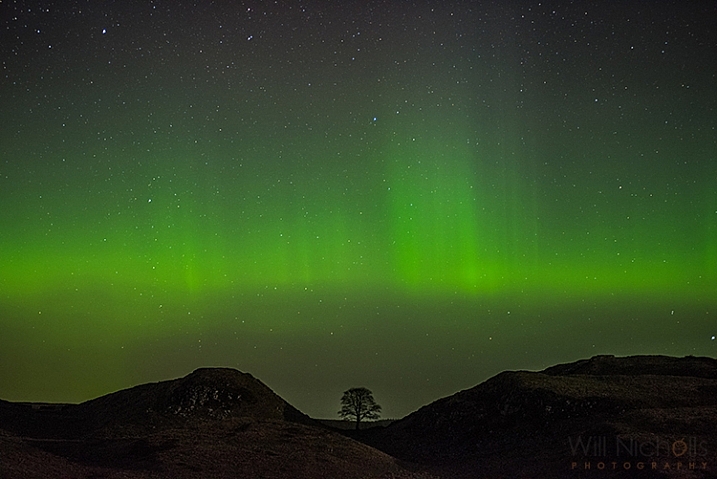
Sometimes we are just bowled over by the scale of something in nature. Documenting this with a camera can be tricky as you’re recording a three dimensional scene with a two dimensional medium. Think about using objects to show scale in your photos.

For this photo of the Northern Lights, I photographed it above a tree. This tree is particularly famous, resting in a gap on Hadrian’s Wall in England – and it’s actually rather large itself! This helps to convey the expanse of the sky and display above.

nature photography


#7 Try a different lens

This is another way of experimenting with your photos, and it works for both landscape and wildlife photography. If you usually shoot with a wide-angle lens, then put it down and pick up a telephoto. If you use a telephoto, then try something shorter. This forces you to play with perspective, and capture something new.

Photographing wildlife with a wide-angle lens is great fun, and can result in some fun shots that incorporate the surroundings into the image.

Will Nicholls 2

#8 Plan your shoots

Just because nature is relatively unpredictable, that doesn’t mean you shouldn’t plan your shoots. Have an idea of a photo you want to capture, and keep at it. Maintaining a long-term study of an area, or animal, will allow you to capture something extra special. It may be that particular shot you’ve been chasing, or something completely different.

#9 Don’t give up

If it was easy then everyone would do it. Nature photography requires a huge amount of time, but it should also be something that you can relax and enjoy – it definitely shouldn’t be a burden on you.

Will Nicholls 6

Results don’t come instantly, and like anything, it takes practice to achieve great images. Since you can’t direct nature and tell it what to do, taking good photos can be a longer process than in the other disciplines, but the challenge is what keeps it interesting.

Please share any other things you’ve noticed about being a nature photographer, and your nature images in the comments below.

amzn_assoc_placement = “adunit0”;
amzn_assoc_enable_interest_ads = “true”;
amzn_assoc_tracking_id = “dpsgeneral-20”;
amzn_assoc_ad_mode = “auto”;
amzn_assoc_ad_type = “smart”;
amzn_assoc_marketplace = “amazon”;
amzn_assoc_region = “US”;
amzn_assoc_linkid = “6710d26f550e9793f41475ee806fee9e”;
amzn_assoc_emphasize_categories = “13900861”;
amzn_assoc_fallback_mode = {“type”:”search”,”value”:”digital cameras”};
amzn_assoc_default_category = “Photo”;

googletag.cmd.push(function() {
tablet_slots.push( googletag.defineSlot( “/1005424/_dPSv4_tab-all-article-bottom_(300×250)”, [300, 250], “pb-ad-78623” ).addService( googletag.pubads() ) ); } );

googletag.cmd.push(function() {
mobile_slots.push( googletag.defineSlot( “/1005424/_dPSv4_mob-all-article-bottom_(300×250)”, [300, 250], “pb-ad-78158” ).addService( googletag.pubads() ) ); } );

The post 9 Things You Need to Know to Become a Nature Photographer by Will Nicholls appeared first on Digital Photography School.


Digital Photography School

 
Comments Off on 9 Things You Need to Know to Become a Nature Photographer

Posted in Photography


CP+ 2016: Features you need to know about on the Nikon D5/D500

03 Mar

CP+ 2016: Features you need to know about on the D5/D500

Nikon is starting off the year strong with the announcement of the D5 and D500, the KeyMission 360, and the DL compacts announced for CP+ 2016. We got our hands on the D5 and D500 and have been very impressed by our initial, informal testing. AF is much improved, as are ergonomics. We’re working on a video to demonstrate what we consider to be ground-breaking AF performance, but in the meantime we thought we’d also put together a slideshow highlighting some new things we found while digging through the D5 and D500 menus, and give you an idea of the extensive customization options available.

CP+ 2016: Features you need to know about on the D5/D500

First off is the autofocus menu, where you’ll note a couple of new features. You can now turn face detection on and off during viewfinder AF-C shooting, with the ‘3D-tracking face-detection’ option. Helpfully, Nikon’s new 180k-pixel RGB metering sensor is more than capable of discerning a face – even the eye of a face.

3D-tracking gains a ‘3D-tracking watch area’ customization, with options for a ‘Normal’ or ‘Wide’ watch area. We believe this affects how wide of a search region the camera should look over when tracking a subject around the frame. Frankly, the default setting has always worked so remarkably well that we’re not sure what switching it from its default (‘Normal’) will do, but we’re curious to put it to the test soon.

CP+ 2016: Features you need to know about on the D5/D500

‘Focus tracking with lock-on’ gains some new customization. Previously, this option just had a setting of 1 to 5, with higher numbers biasing toward ‘sticking’ to a subject rather than being distracted by a different object that passes in front of it. Nikon has now broken this setting down to allow you to separately customize how long the camera should wait before refocusing to a subject that passes in front of your initially acquired subject, and how erratic the movement of your subject is. 

It’s unclear if ‘Subject motion’ refers to how erratic an object switches between approaching and receding motion, vs. how erratic the subject is in terms of X-Y movement around the frame. We’ll investigate this once we have one in for testing, but the tailoring should help the user adapt the camera to a wider range of shooting scenarios.

CP+ 2016: Features you need to know about on the D5/D500

While this isn’t new, we though it worth pointing out that Nikon tends to offer four different settings for release vs. focus priority in AF-C (continuous).

Release prioritizes ‘taking the shot’ over focus, while ‘focus’ prioritizes acquiring focus before releasing the shutter. Focus+release prioritizes focus for the 1st shot, prioritizing release for later frames, while release+focus prioritizes firing the shutter for the 1st shot, but requiring focus before release for subsequent shots.

CP+ 2016: Features you need to know about on the D5/D500

The D500 can illuminate the focus screen red, but you can turn this off if you so desire. Unfortunately, the camera can only flash the point(s) red when either selecting them, activating an AF point, or when focus is acquired. It cannot keep focus points lit red as you track a subject or fire a burst. That’s reserved for Nikon’s flagship…

CP+ 2016: Features you need to know about on the D5/D500

… the D5 (and its recent predecessors). Unlike the D500, the D5 can continuously keep AF points lit red, which helps you see the active point as the camera follows a subject around the frame in, say, 3D-tracking mode.

You can even adjust the level of bright red they glow, in 4 steps. Seeing one red AF point stick to your subject like glue even as it moves around in your composition is, frankly, somewhat magical. Stay tuned for a video of it in action.

CP+ 2016: Features you need to know about on the D5/D500

With all the complex AF modes and customizable buttons on the D5, it’s helpful that Nikon has finally adopted a visual way to assign button function. And the number of customizable functions per button is impressive. The D5 allows you to customize the Pv, Fn1, and Fn2 buttons on the front of the camera where your right hand fingers rest, an additional vertical Fn button right behind the shutter button on the vertical grip, and finally a Fn3 button to the left of the LCD screen.

The Pv, Fn1, Fn2, and Fn3 buttons are highly customizable in that they can be assigned to any one of 24 or so different functions, or any of a number of functions (6, if we counted correctly) that have different levels of granularity that you can adjust by holding the custom button while turning a dial. The Fn3 button is a bit more limited, and the AF-ON button is reserved for AF and AE functions. We’ll spell out all the assignable options for these buttons in the D500 slides to follow, as they’re largely the same (save for features unique to the D5, like LAN, or 14 fps lockup). One significant difference, though, is that the joystick on the D5 is not customizable, while on the D500 you can assign exactly what pressing this joystick (called the ‘sub-selector’) down does.

Helpfully, you can change the behavior of these buttons during movie recording by customizing their functions specifically for movie shooting.

CP+ 2016: Features you need to know about on the D5/D500

The D500’s custom control assignment is a bit less complex than the D5’s, because it has fewer customizable buttons. On the other hand, unlike the D5, its ‘sub-selector’ AF joystick is customizable (we’ve set it to change image area in conjunction with a dial, as you see highlighted in yellow above), so it’s no slouch when it comes to customizability.

The Pv and Fn1 buttons are on the front of the camera, for easy access with your right hand as it grips the camera. The Pv button is up top and can generally be activated easily by your middle finger, with the Fn1 button accessible by your ring or pinky finger. Given their ease of access, and ability to be used in conjunction with the rear thumb dial, these two buttons are highly customizable. The new sub-selector retains all customization options of the Pv and Fn1 buttons as well, while adding two more. The Fn2 button, to the left of the LCD screen, is less customizable, likely because it’s less used during shooting. The AF-ON button is reserved for AF/AE functions.

Before we dive deep into all the customization options available for these buttons, for those prone to accidentally or inadvertently changing settings, you always have the option to assign a button to ‘None’, essentially deactivating it.

CP+ 2016: Features you need to know about on the D5/D500

With all this button customization, you’re probably wondering what you can or cannot assign to various buttons. Let’s start off with the AF-ON button, because it has a particular feature that might just be game-changing if you love Nikon’s ‘3D tracking’ as much as we do.

AF-ON can be assigned to any of the options shown above, as well as ‘AE lock (Hold)’ and ‘AF lock only’ (on the 2nd page of this menu, not shown). But here’s what we’re most excited about: the ability to assign the AF-ON button to ‘AF-area mode’ or ‘AF-area mode + AF-ON’. It’s a quick way to instantaneously switch between your selected AF-area mode (Single, d25, d72, d153, Group-area, Auto-area, 3D) by momentarily holding down the AF-ON button. 

The option to couple the AF-area switch with AF-ON means the following: a half-depress of the shutter engages AF with your typical AF-area mode, say 3D-tracking. But let’s say you’re now faced with a situation where things are happening so fast that you don’t even have the time to place your selected AF point over your intended subject to start tracking it. Instead, you just want the camera to find, say, the nearest bird or human face by itself and track it. What do you do? Click next…

CP+ 2016: Features you need to know about on the D5/D500

Assign the AF-ON button to ‘AF-area mode + AF-ON’ and select ‘Auto-area AF’ within this sub-menu. That way, when you hold down the AF-ON button, the camera will switch to ‘Auto-area’ as long as you have it held down, focusing on the nearest object or detected face and tracking it. This makes for versatile switching between your two most-used AF-area modes.

I actually found it most useful to assign AF-ON to ‘AF-area mode + AF-ON’ with Single-point AF, highlighted above. That way, I keep 3D-tracking engaged as the default AF mode (in AF-C), always defining my subject by initiating AF on it. The camera then tracks it as it moves or as I recompose, but if I ever want the camera to stop moving AF points automatically to track, and instead just freeze the AF point while still continuously focusing on the subject if it approaches or recedes, I just hold down the AF-ON button (while keeping the shutter button half-depressed). Want the camera to continue tracking the subject exactly where it left off? Just let go of the AF-ON button while keeping the shutter half-depressed, and the camera starts tracking the subject around the frame again. 

CP+ 2016: Features you need to know about on the D5/D500

The camera remembers your subject, such as this gentleman’s eye at the Nikon booth at CP+ (please excuse the low, through-the-viewfinder, iPhone video screenshot). The camera tracked his eye until I wanted it to stop moving the AF point – but only momentarily – re-engaging the tracking of his eye when I laid off the AF-ON button.

Previously, 3D-tracking – though class-leading in terms of subject tracking – was somewhat limited by the following: when I got the composition I wanted, and there was no more subject movement, I’d often want the camera to stop tracking in the X-Y plane, but continue tracking in depth (refocusing if the subject or photographer approaches or recedes). I couldn’t do that – if I wanted the AF point to momentarily stop moving while in 3D tracking, I’d have to engage AF-Lock, which’d mean the camera would stop focusing entirely. Now, though, I can use the AF-ON button to momentarily stop only the X-Y tracking. There isn’t a camera in the world, save for the D5 and D500, that can provide this robust functionality.

There is still no way to assign a button to instantly switch between AF-S and AF-C, but with the reliability of Nikon’s 3D tracking, I would leave this cameras in AF-C pretty much permanently, assigning one of the customizable buttons to ‘AF lock’ in the rare instances I don’t want the camera to focus (for example, recomposing such that the subject is outside of the AF area).

CP+ 2016: Features you need to know about on the D5/D500

You’re probably tired of hearing about AF by now. Let’s look at the other customizations possible with the Fn1, Pv, and sub-selector buttons. This and the next 3 slides show all the available customizations on the D500 for these three buttons, with the sub-selector also assignable to ‘select center focus point’ (a quick way to reset to center) and ‘highlight active focus point’ (red). For reasons that are obvious, Nikon is expecting you to assign the sub-selector to AF point-related functionality.

Oops, I thought I was going to stop talking about AF… As Barney often says, I’m absolutely irrepressible.

CP+ 2016: Features you need to know about on the D5/D500

This is the 2nd page of assignable options to the Fn1, Pv, and sub-selector buttons.

CP+ 2016: Features you need to know about on the D5/D500

This is the 3rd page of assignable options to the Fn1, Pv, and sub-selector buttons.

We think it’s very cool that you can momentarily trip the camera into a different metering mode – though this is nothing new for Nikon. It’s helpful that Nikon’s spot-metering is linked to the selected AF point on nearly every one of their cameras, and highlight-weighted metering allows one to expose for the highlights and recover shadows in post-processing (given the extensive latitude most Nikon cameras have). And on a related note – remember that you can permanently bias any of the metering modes +/- 1 EV, in 1/6 EV increments on most Nikon DSLRs (it’s an option under the metering menu).

CP+ 2016: Features you need to know about on the D5/D500

… and the final and fourth page of assignable options to the Fn1, Pv, and sub-selector buttons. Well, not exactly, since the 5th page has a ‘None’ option, and all of these options are a bit shifted for the sub-selector button because it has two additional functions listed on the 1st page. But now I’m just being pedantic.

A very useful assignment is ‘Access top item in MY MENU’. It’s a quick way to access one of your most used menu items after you assign to the top of MY MENU. Again, available on previous Nikons, but worth reiterating. This is how I, for example, quickly bias the minimum shutter speed the camera will use in Auto ISO mode.

CP+ 2016: Features you need to know about on the D5/D500

Here is a list of 6 out of 7 functions you can assign to the Fn1 button if you desire to operate it in conjunction with a dial (the 7th, on the next menu page, being ‘Photo shooting menu bank’. The same list of options is available if you with to operate the Pv button with a dial. Note that if you do this, you can’t assign any of the previous actions in the past 4 slides. You either use the Fn1 and Pv (and sub-selector) buttons as single button press actions, or as actions triggered in combination with a dial. The latter is more limited, for obvious reasons.

The sub-selector button has three fewer options when used in conjunction with the dial…

CP+ 2016: Features you need to know about on the D5/D500

… when using the sub-selector (pressing it downward centrally) in combination with a dial, you don’t get ‘1 step spd/aperture’ (which adjust shutter speed and aperture in 1 EV increments, instead of 1/3 EV) or ‘Active D-Lighting’ or ‘Exposure delay mode’.

CP+ 2016: Features you need to know about on the D5/D500

As we’d mentioned earlier, the Fn2 button to the left of the LCD screen is less customizable, probably because it’s less ergonomically useful during shooting. The Fn3 button in a similar position on the D5 has a few more features because of things like LAN connectivity on the D5.

CP+ 2016: Features you need to know about on the D5/D500

Now that you have a good idea of the extensive customization available on the D5 and D500, as well as some of the new features that enhance AF ergonomics and functionality, we turn to one last feature that shooters may find useful: an electronic front-curtain shutter (EFCS). This was first introduced on the Nikon D810, and we’re happy to see it continue in Nikon’s lineup.

EFCS initiates exposure electronically, foregoing the mechanical shutter, which ensures no camera-induced shake during an exposure. The exposure is ended mechanically, ensuring that rolling shutter is not an issue.

EFCS is limited though: above certain shutter speeds (we’d guess around 1/1000 or 1/2000 or so), EFCS becomes unreliable, if not outright unavailable. Furthermore, Nikon continues to offer this as a mirror-up only mode, which is a shame. It means you have to switch the camera’s drive mode to mirror-up, press the shutter button once to lock up the mirror and shutter, and press the button again to initiate the exposure electronically. That means you can’t really use it in typical shooting scenarios. Especially when you consider that the 2nd button press can induce motion, which means you may wish to introduce an exposure delay…

CP+ 2016: Features you need to know about on the D5/D500

… and unfortunately, the same exposure delay options are available as before. We would’ve loved to see the introduction of 1/2s, 1/4s, and 1/8s which, when coupled with EFCS, would automatically trigger the electronic shutter after the pre-specified delay.

In other words, EFCS should’ve been implemented like this: press the shutter button to lift up the mirror and shutter, then after the pre-specified delay time – say 1/2s – the camera would automatically start the exposure electronically. As it is, just like on the D810, you’ll have to press the shutter button once, then press it again to initiate the delay, after which the exposure is started. With a long lens, your entire composition will have shifted by now. And this method is often required in conjunction with certain VR lenses to ensure no mirror/shutter-induced shake is present in a certain range of shutter speeds (typically 1/60s – 1/125s).

That said, these roughly ~21MP cameras are unlikely to be as sensitive to mirror induced shake as the higher resolution D810, so users probably don’t have to worry much about these issues at all. Still, best practices are best practices, and we hope Nikon is listening.

CP+ 2016: Features you need to know about on the D5/D500

Introduced on the D810, but now with its own menu option, is ‘Monitor color balance’. This allows you to tune the color of the LCD on your camera’s screen. Some pros might find this useful in their workflow, to ensure the screen is a better judge of output color. But as long we’re seeing this sort of tailoring for color – might we expect true ICC color management in future camera displays? We certainly hope so.

We hope you’ve learned a few things about the new features available on the D5 and D500. The extensive feature-set and customization will prove invaluable for working pros and enthusiasts alike. We weren’t able to get a look at automated AF Fine Tune, unfortunately, but it’ll be the first thing we look at when we get our hands back on these cameras. Suffice it to say we’ve walked away incredibly impressed by these cameras, particularly by what they offer both in terms of AF capability and ergonomics. These cameras are likely to be second to none in their ability to track moving subjects and focus on them, even during 10-12 fps bursts. But don’t take our word for it – we’ve tried it, and will be releasing a video soon showing it in action.

Stay tuned.

Articles: Digital Photography Review (dpreview.com)
 
Comments Off on CP+ 2016: Features you need to know about on the Nikon D5/D500

Posted in Uncategorized


DL or No DL? What you need to know about the Nikon DL compacts

23 Feb

Three’s company

Are compact cameras still relevant? Nikon seems to think they can be, if they’re good enough. It’s announced three premium compacts, all built around 20.8MP 1″-type BSI CMOS sensors its latest, ‘EXPEED 6A’ processor. If that sensor spec sounds familiar, it’s because the Nikon J5 uses a very similar…probably the same…one.

The firepower in that new processor results in 4K video capture capabilities and bursts up 60 fps without AF, and 20 fps with. Combine this speed with a hybrid AF system that uses 105 phase-detect and 171 contrast-detect points (the same one found in the 1-System), and you should have three seriously capable compacts.

When we sat down with Nikon reps back at CES 2016, they explained how engineers developed the three in unison, but targeted each camera’s focal length range toward a very specific customer. However, all three customers are expected to be DSLR shooters looking for a smaller, lighter alternative for everyday shooting. As such, all three can shoot RAW, offer Adobe RGB, can utilize Nikon i-TTL Speedlights, and use a menu system very similar to that found in their pro and enthusiast DSLRs.

Meet the family

The three cameras that make up Nikon’s DL line of premium 1″-type compacts include the DL24-85, DL18-50 and DL24-500. They may not have the most exciting or creative names, but at least they’re straightforward. As you might have guessed, the 24-85 offers a 24-85mm equivalent F1.8-2.8 lens and is the standard zoom compact of the bunch. Reasonably fast on the wide end, this camera has a lot of appeal as an everyday pocketable shooter.

The DL18-50 is the first 1″-type camera to have an ultra-wide lens which, in this case, is a 18-50mm equiv. It also features an impressively fast 1.8-2.8 aperture range, and sits as the DL’s wide/normal option. And on the tele end you have the DL24-500 F2.8-5.6. It isn’t as fast as the other two and certainly isn’t pocketable, but it is easily offers the most versatile focal range of the three.

Yet more choices

Style-wise, the DL24-85 and DL18-50 may seem oddly familiar. The concealingly small dial on the back looks a lot like those on the Nikon 1 series bodies, but from the front, they look almost as if Nikon’s borrowed the leftover tooling from Panasonic’s LX5. This is no bad thing – the LX5 was a really classy little enthusiast compact, but we thought it was faintly amusing, given how fiercely Nikon has protected its industrial design in the past.

We’re joking, of course, and there’s no such precedent for the DL24-500 – perhaps because its design resembles every other superzoom on the market. It’s pretty difficult to make an interesting-looking superzoom, just as it’s difficult to make an interesting looking SUV. And often inadvisable to do so.

How do they compare?

We’ve had to approximate how the available F number on each lens will decline, as you zoom in, but even with these approximated values, you can see that the DL24-85 sits between the lens range of the Sony Cyber-shot RX100 Mark III and IV, and that of Canon’s Powershot G7 X II.

The graph should also make clear just how unusual the DL18-50’s lens is. 18mm equivalent is significantly wider than any of the other 1″ sensor compacts currently on the market, yet it’s bright and able to reach a relatively practical 50mm equivalent focal length.

As usual, we’ve plotted these graphs to show both equivalent focal length and equivalent aperture.

Reaching for it

The DL24-500 joins an already impressive group of 1″ sensor superzooms, including the Sony RX10 II, Panasonic FZ1000 and Canon G3 X. These cameras are undeniably popular, especially amongst travel photographers. From its specs alone, the DL24-500 certainly seems like a competitor. Its 4K capture and slow motion video options compete directly with some of the most stand-out specs from the RX10 II (which we recently gave a Gold Award to).

All of these cameras offer considerably better image quality than conventional, small-sensor superzooms. So, although they can’t boast >80x on the little metallic stickers they wear on camera store shelves, they still offer a degree of reach that will be suitable for a huge variety of shooting situations.

And again, the factor that could set the Nikon apart from its competition is its Hybrid AF system. If the DL24-500’s AF system offers similar performance to that of 1-Series cameras (and there’s little reason to think it wouldn’t), the competition will have good reason to be concerned.

Super steady

Each of the three DL compacts offers a secret power, specific to their zoom range and unique to each. In the case of the DL24-500, its super power is Sports VR for added stability when panning at the tele end. Of course, all three cameras have Dual Detect Optical VR and historically, Nikon cameras have impressed us with their stabilization, especially the Nikon P900 superzoom. So we definitely have high expectations for the DL24-500.

Of course, what good is VR and reach if you don’t have quality glass? All three Nikkor lenses have fluorine coatings to keep away moisture and grime, and the 18-50 is the company’s first compact to have a Nano Crystal Coat, which reduces flare and ghosting.

The everyday pocket cam to beat?

The Sony RX100 series of cameras has long been viewed as the pocketable premium compacts to beat. The most recent Sony RX100 IV in particular impressed us. But the Nikon DL24-85 has us ready to reconsider the crown.

The two cameras share a whole lot of similar specs, including 4K video capabilities, optical image stabilization, fast burst rates with continuous AF, and tilting LCDs. They both offer 20MP 1″-type sensors and very similar focal range, though the Nikon does have a bit more reach.

But the two do vary in some key areas. While the Sony has a pop-up EVF, you’ll have to pony up for an optional tilting model on the DL18-50 and 24-85. Conversely, the DLs all have touchscreen OLED displays, while the RX100s use non-touch LCDs. 

But an even bigger difference can be found when looking into each camera’s AF system: the Sony uses a contrast-detection AF system, while Nikon uses a hybrid approach (combining depth-aware phase detection with high-precision contrast detection). But before you dismiss the Sony entirely, it’s worth noting that the RX100 IV really impressed with its AF capabilities during our testing. So, while the Nikon DL24-85 should  be able to outperform the Sony, we’ll just have to wait until we get one in to know for sure.

Nice and close

The DL24-85 is the only DL of the three to offer a 1:1 macro mode (its secret power). It can be accessed by turning the zoom ring all the way to the right to the S.macro position. In the macro mode, users have a 35mm equiv. field of view. And while all three cameras offer a manual focus mode, the DL24-85 also has a focus bracketing feature, which should be particularity useful for macros.

Unfortunately, the ring around the lens barrel of the DL24-85 is not customizable (same goes for the other DL’s). It can only be used for manual focusing.

Wide street shooter

The DL18-50 is the widest DL of the bunch, and while its 18-50mm focal length may not appeal to casual shooters, street photographers are sure to be enticed by its range and fast lens. Its tilting touchscreen allows for tap-to-focus and, we assume, tap-to-shoot capabilities that should suit that ‘decisive moment’ shooting style.

This camera’s focal range will also likely appeal to architecture and landscape shooters. To further tempt said group, it has a built-in perspective control feature that can be used to distort the image to correct for perspective distortion.

Unlike the other two, it doesn’t have a built-in flash – perhaps because it would be too difficult to offer such wide coverage without some clever optics and a lot more distance away from the lens.

Touch, see, shoot and share

Touchscreens can be great, especially when paired with physical control points (this way you can choose). All three DLs offer 1.04M-dot OLED touch displays. The displays on the DL24-85 and DL18-50 can tilt, while the display on the DL24-500 is fully articulating. This only adds to the DL24-500’s appeal as a video-centric all-in-one.

The DL24-500 also offers a 2.4M-dot OLED electronic viewfinder, while the other two cameras accept the the rather bulky accessory DF-E1 tilting electronic viewfinder with the same XGA resolution. 

The three DLs are also Wi-Fi and Bluetooth enabled, allowing them to take advantage of Nikon’s ‘SnapBridge’ technology, first unveiled to the world at CES 2016 during the company’s press event announcing the D500. ‘SnapBridge’ allows a camera to stay connected to one’s smart device via low power Bluetooth connection, without the need to reconnect. It’s worth noting that while we’ve written about SnapBridge in the past and are excited by its implication, we have yet to try it. The cameras also support NFC, for quick and easy pairing with Android devices.

Where they fit on the 1″ scale

Here’s how they fit into the wider market. We don’t yet know exactly how their apertures will change as you zoom, so we’ve had to approximate them here.

The pricing is exactly as we’d expect: the DL24-85 with its fast standard zoom is a direct competitor for Sony’s RX100 III and Canon’s G7 X Mark II. It doesn’t have a viewfinder, as the Sony does, so it’s no surprise to find it’s being pitched at $ 150 lower than the RX100 III’s launch price and $ 50 below the Canon’s.

Meanwhile, the DL24-500’s long, increasingly slow lens makes it look like Nikon is targeting the same customers as the G3 X. And, guess what? The Nikon MSRP is exactly the same as the Canon’s, at $ 999.

Finally, although it shares a lot in common with the 24-85, there’s a premium to be paid for the DL18-50. With no direct rivals, and the challenges of making such a fast, wide lens, it’s no surprise that it’s to be launched for $ 849.

In summary

It’s interesting to see how these new models fit in to the market. Ever since Sony announced the RX100, manufacturers have been developing ever more variations and options around the 1″ sensor. Since most cameras take at least two years to develop, it’s still relatively early in the timeline, but with the arrival of Nikon there are now four manufacturers building large sensor compacts.

So far we’ve seen Sony focus its RX100 series on the idea of a small camera with a large sensor and a bright lens, with zoom range being the trade-off being made. Canon very much followed suit with its G7 X models. And the Nikon DL 24-85mm, with its F1.8 – 2.8 is clearly targeting the same potential buyers.

Meanwhile, Sony, Panasonic and Canon have all developed riffs on the large bodied, long zoom theme. Sony’s RX10 (both I and II) opt for constant aperture zooms, while Panasonic’s FZ1000 gives greater range that gets slower as you zoom. Nikon’s DL 24-500mm is much closer to Canon’s G3 X, in offering still more zoom by letting the aperture drop even further.

As such, the standout camera in this group is the DL 18-50. It’s fast (F1.8-2.8), ultra-wide to just-beyond-normal zoom range is unique, and offers an exciting option for wide-angle shooters looking for a pocketable camera with what should be good image quality. Whatever our reservations have been in the past about Nikon compacts, the image quality has usually been very good.

Articles: Digital Photography Review (dpreview.com)
 
Comments Off on DL or No DL? What you need to know about the Nikon DL compacts

Posted in Uncategorized


How well do you know the Lightroom interface? Take this quiz and find out

03 Jan

lightroom interface quiz lead image

When you’re new to Lightroom there are lots of things about the Lightroom interface that contribute to its steep learning curve. Most Lightroom users can tell you a story or two of being caught by items appearing, or disappearing, without warning. With experience these are minor inconveniences, but when you are new to Lightroom, they can be overwhelming. So, just how much do you know about the Lightroom interface? Take this quiz and find out:

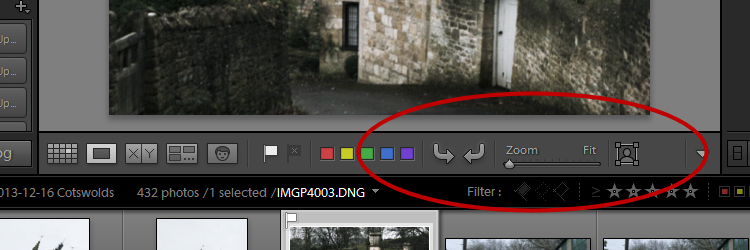
Question #1

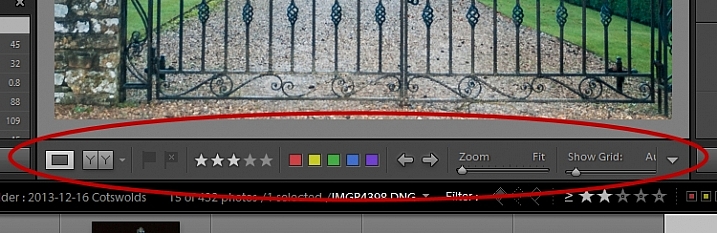
What is this and how do you get it back if it disappears?
Lightroom Interface Quiz - image for question 1

Answer:

That is the Toolbar, and you can display or hide it by pressing the letter T on your keyboard. You can also choose View > Hide Toolbar or View > Show Toolbar depending on whether it is currently visible or not. There is a toolbar in every module in Lightroom.

Question #2

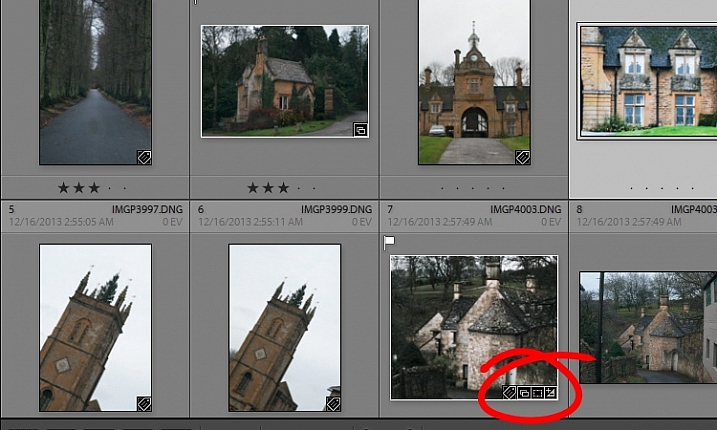
When you used Lightroom recently, you recall seeing small indicators like this in the bottom right corner of some of your images. What are they and how do you get them back if they’re not showing in grid view?

Lightroom Interface Quiz - image for question 2

Answer:

These are Thumbnail Badges, and they indicate whether or not an image has been cropped, has develop presets, keywords added, and so on. In the Library module pressing the letter J will toggle through a number of options for your grid view, two of which include thumbnail badges.

Question #3

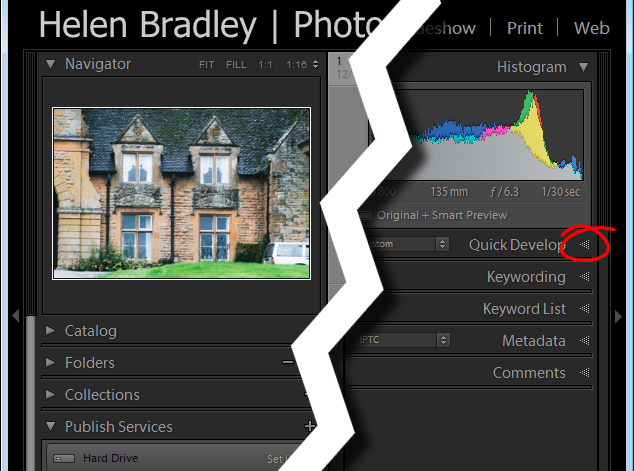
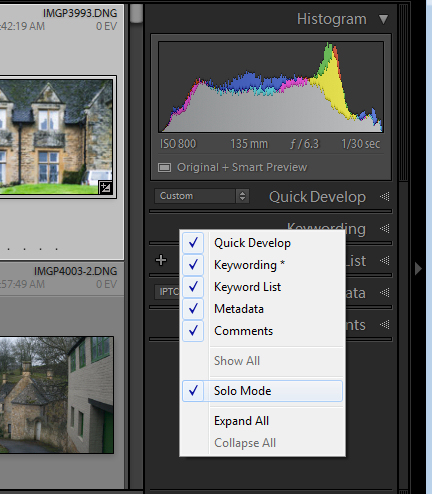
Most panels show filled in triangles like the one on the left (below), but one of the panels has a triangles like the one on the right (also below). Why is it different?

Lightroom interface quiz - image for question 3

Answer:

The second panel on the right is set to what is called Solo Mode. When this option is enabled, and you click to open any of the panels, all other panels will close automatically (essentially leaving only one opened at a time). The Navigator and the Histogram are exceptions to this rule and they operate independently of Solo Mode. To enable or disable Solo Mode, right click on the name of any panel (the actual word not the triangle) and choose Solo Mode from the options given (see below).

Lightroom interface quiz - image for question 3

Question #4

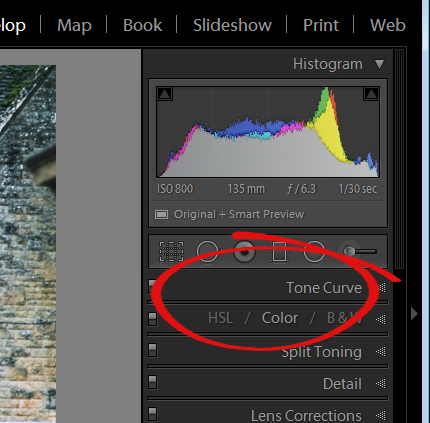
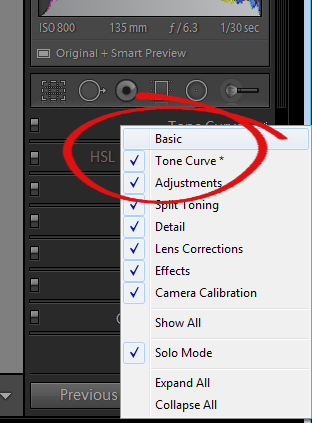
This is the Develop module and the Basic panel is missing. What has happened and how do you get it back?

Lightroom interface quiz - image for question 4

Answer:

Any panel can be enabled or disabled in Lightroom. If you’re missing a panel, right click another panel in that same sidebar to display the panel list. Any panel name without a checkmark isn’t visible, so to make it visible, just click the panel name.

Lightroom interface quiz - image for question 4

Question #5

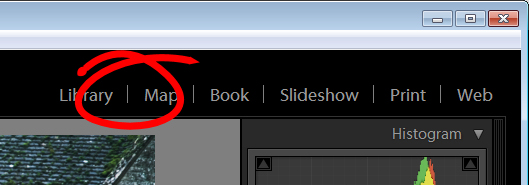
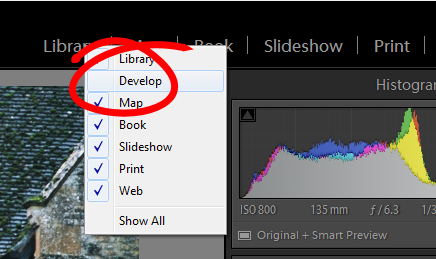
This is the list of Lightroom modules. A module is missing, what is it and how do you get it back?

Lightroom interface quiz - image for question 5

Answer:

The Develop module is missing. You get it back the same way as you would a missing panel, right click any of the module names to show a list of modules. Any that do not have checkmarks beside them are not visible. Select that one to display it.

Lightroom interface quiz - image for question 5

Question #6

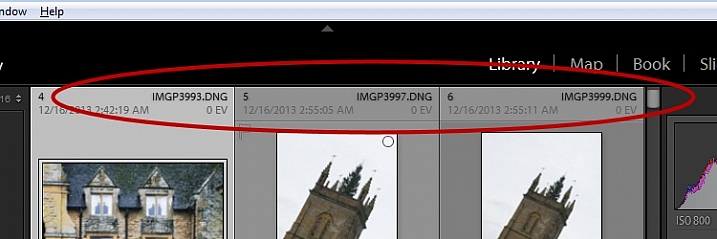
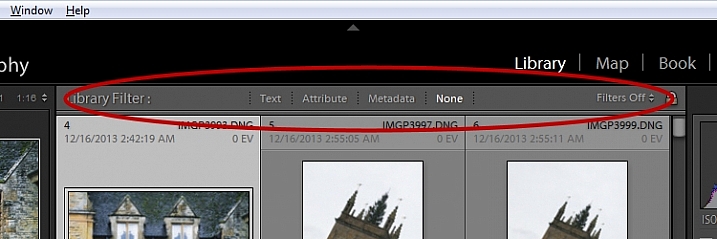
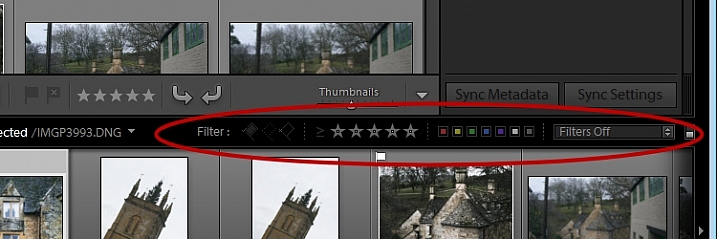
There used to be a panel here in Lightroom just above the thumbnails in grid view in the Library module. It’s disappeared. What is it, and how would you get it back?

Lightroom interface quiz - image for question 6

Answer:

This is the Filter bar, and you can display or hide it by pressing the Backslash key (\). You can also display or hide it by choosing View > Show Filter Bar.

Lightroom interface quiz - image for question 6

Question #7

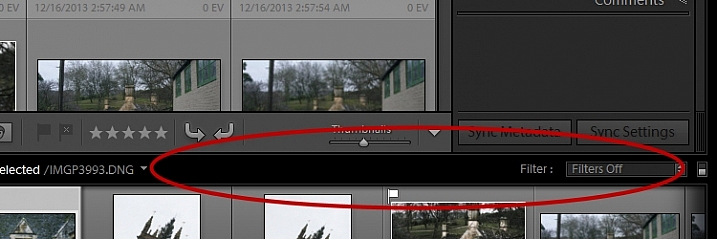
Here just above the filmstrip you recall that at one stage you saw Star, Flag and Color options, but they now seem to be missing. How do you get them back?

Lightroom interface quiz - image for question 7

Answer:

Click the word Filter and the filters will reappear. Click Filter again and they will disappear.

Lightroom interface quiz - image for question 7

Question #8

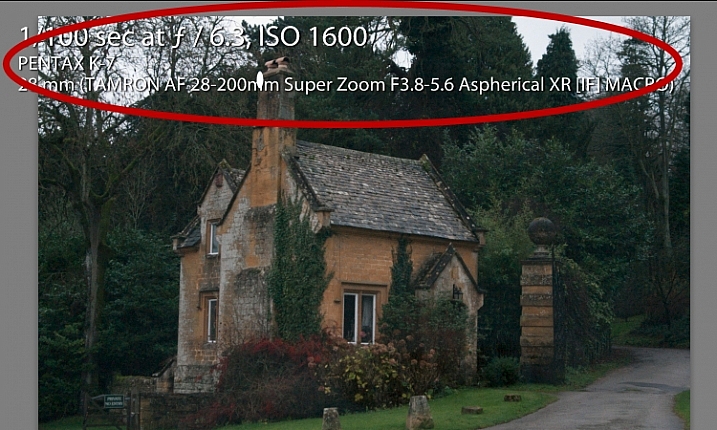
What is this called and how can you get rid of it or choose what information is showing?

Lightroom interface quiz - image for question 8

Answer:

This is the Loupe Info Overlay and you can display and hide it by pressing the I key on your keyboard. There are three states for this: Info Overlay 1, Info Overlay 2, and turning it off entirely. To edit what information is displayed click CMD+J (Control+J on a PC) or go to:  View > View Options.

Question #9

This is the right hand corner of the Lightroom screen and the controls for Maximize, Minimize and Close are all missing, as are all the Lightroom menus on the left of the window. How do you get them back?

Lightroom interface quiz - image for question 9

Answer:

To redisplay the Lightroom menu and the Windows controls press Shift + F. This is a toggle switch which displays and hides full screen mode. There are three states for full screen mode so press Shift + F repeatedly until the Lightroom menu and the Window controls reappear.

Question #10

Here, in the Develop module, you don’t see any stars on the toolbar when you are viewing this image at full size. The stars only appear on the toolbar when you are in Grid view. Where did they go and how can you get them back?

Lightroom interface quiz - image for question 10

Answer:

The toolbar in the Develop module has two states, one for the Grid View, and one for the Loupe (single image) View. To display and hide the various options on either toolbar, switch to that view, and click the arrow in the far right of the toolbar to display the options available in that view. Click any unchecked option to display it on that toolbar, likewise you can click any checked options that you want to hide.

Lightroom interface quiz - image for question 10

If you got 10 out of 10 on this quiz, well done! You have a good understanding of the basics of the Lightroom interface.

If you missed any of these questions, hopefully you’ve learned something about using Lightroom that you did not know before.

googletag.cmd.push(function() {
tablet_slots.push( googletag.defineSlot( “/1005424/_dPSv4_tab-all-article-bottom_(300×250)”, [300, 250], “pb-ad-78623” ).addService( googletag.pubads() ) ); } );

googletag.cmd.push(function() {
mobile_slots.push( googletag.defineSlot( “/1005424/_dPSv4_mob-all-article-bottom_(300×250)”, [300, 250], “pb-ad-78158” ).addService( googletag.pubads() ) ); } );

The post How well do you know the Lightroom interface? Take this quiz and find out by Helen Bradley appeared first on Digital Photography School.


Digital Photography School

 
Comments Off on How well do you know the Lightroom interface? Take this quiz and find out

Posted in Photography


5 Essential Things You Need to Know About the Lightroom Library Module

16 Dec

Essential things Lightroom

For those of you who have been following my Lightroom articles I thought it would be fun to test your knowledge. We’ll start with the Lightroom Library module because the work you do here, lays the foundation for everything you do inside Lightroom. Master the Library module and you’ll be well on your way to becoming an expert on the entire program.

Ready? Let’s start with what is probably the most important thing of all – backing up your Catalog.

1. How to back up your Catalog

This is really important. Your Lightroom Catalog is absolutely essential because it’s where Lightroom stores every piece of information it has about your photos. Not only does this include the location of your photos (i.e., where they are saved on your hard drive) but any metadata associated with them (from camera settings to keywords), Lightroom specific information (such as which Collections a photo belongs to) and any edits you have made in the Develop module. Yes, these are all stored in the Catalog.

How much of a disaster would it be if you lost all this data? I’m sure it would be a major loss. That’s why it’s so important that you back up your Catalog regularly. You should also back it up to an external hard drive, not to an internal one, in case your computer is lost or stolen.

You can check your back up settings by going to Lightroom > Catalog Settings. Click the General tab – Back up catalog should be set to Every Time Lightroom Exits as shown below.

Essential things to know about Lightroom

Connect the external hard drive on which you back up your Catalog, then exit Lightroom. Before Lightroom closes down, it displays the Back Up Catalog window. The Backup Folder setting should point to a folder on your external hard drive. If it doesn’t, click Choose and change it now.

Essential things to know about Lightroom

When you exit Lightroom is the only time you will see this popup box, and the only place you can change where it saves the backup of your catalog.

Make sure the Test integrity before backing up and Optimize catalog after backing up boxes are ticked. When you’re done click the Back up button. Lightroom will save a backup of your Catalog to your external hard drive before closing. This may take some time, especially for a large Catalog, so be patient.

Some important things to note about Catalog backups:

  • You only need to keep the last two or three backups. You can delete older ones to free up hard drive space.
  • If you have Lightroom 6 or Lightroom CC the backed up Catalogs are compressed, saving hard drive space.
  • You should always back up your Lightroom Catalog to a different hard drive than the one the main Catalog is stored on. That way, if your main hard drive fails, the backed up Catalog is safe.
  • Once a month (or more often if you like) copy the latest backup to Dropbox, Google Drive or another cloud storage solution. This is to protect you in case you lose both your computer and your external hard drive to theft or fire. The location and name of your Lightroom Catalog are recorded in Catalog Settings.

Essential things to know about Lightroom

2. How to back up your photos

This is important to mention because I want to make sure you understand that your photos are not stored inside Lightroom, or in the Catalog. Your photos are saved on your hard drive (or drives) and you need to back them up yourself. It is your responsibility – Lightroom doesn’t do it for you.

There are many ways of backing up photos, you need to find the method that works best for you. However I’m sure it will help if I share my method. Feel free to use, adapt or ignore it.

  • Create a folder called Raw. All your Raw files are stored in there (I shoot everything in Raw – you could simply call your folder something like Photos if you shoot a mixture of Raw and JPEG).
  • In that folder create a new folder for every year you take photos.

essential things about Lightroom

  • In each of those folders, create 12 folders, one for every month of the year.

essential things about Lightroom

  • Whenever you import photos into Lightroom, select the correct destination folder depending on the month and year the photos were taken.
  • Place each shoot into a folder of its own. You can either give it a name or organize the folders by date.

essential things about Lightroom

This system works because it’s easy to see whether your Raw files are backed up. Want to back up all your Raw files to another hard drive? Just copy the Raw folder. Want to see whether you’ve backed up all the photos you’ve taken this month? It’s easy to do so with this system.

By the way, I keep my Raw files backed up to four different external hard drives, one of which is stored off-site. That way, if one of the hard drives fails, I have three other copies.

3. How to set up File Handling in Catalog Settings

The File Handling settings are important because they help you strike a balance between optimizing Lightroom’s performance speed, and using hard drive space.

The first thing you need to look at is the total size of the cache. This tells you how much hard drive space your previews take up. For example, looking at mine (see below) I can see my Lightroom previews are currently taking up 28GB.

Essential things to know about Lightroom

It’s important to keep some of your hard drive free (at least 10%, but preferably more) otherwise Lightroom will slow down (as will everything else your computer does). If you are running out of hard drive space, come and have a look here to see if your preview files are too large.

There are two steps to keeping your previews file under control.

1. Make sure Lightroom is generating the optimum size Standard Previews. These are used to display your photos in Loupe View and don’t need to be any larger than your monitor’s resolution.

If you have Lightroom 6 or Lightroom CC you can set the size to Auto. Lightroom will calculate the optimum size for you. In Lightroom 5 or earlier pick the size that best matches your monitor’s resolution.

Set Preview Quality to Medium – it gives you the best balance between quality and size.

Essential things to know about Lightroom

2. Set Automatically Discard 1:1 Previews to After 30 Days. You need 1:1 previews for zooming in to photos, and working on them in the Develop module. However, they are very large. If you generated 1:1 previews for every photo in your Catalog, and never deleted them, you would eventually run out of hard drive space. To be honest, it doesn’t really matter which setting you choose here as long as it’s not set to Never. You can always regenerate discarded 1:1 previews if you need them again later.

4. How to search for images

One of the benefits of building the Lightroom architecture on a database is that it is easy to search your photos. You do this in the Filter Bar, which is displayed above the Content Window in Grid View (press ‘\’ on the keyboard if you don’t see it).

There are three types of searches:

  1. Text: Search keywords, filenames, titles, captions, etc., for text sequences.
  2. Attribute: Filter by flag, star rating, colour label or file kind (master photo, virtual copy, or video).
  3. Metadata: Search by date, camera, lens, camera setting (ISO, shutter speed, aperture, etc.), aspect ratio or any of the dozen or so search options listed there.

Have a play with these options to see how it works. Just bear in mind that Lightroom is searching the selected folders or Collections, not your entire Catalog when you do so (select All Photographs to search your entire library).

Essential things to know about Lightroom

5. How to use Collections

Collections are virtual Folders, which you use to organize your images. Folders are limited because a single photo can only be stored in one Folder at a time. The same photo can be stored in as many Collections as you like, making Collections the easiest, and most flexible, way to organize your photos.

An example of this is a photo taken of a person called Jenny in Rome in November 2015. The photo can only be stored in one Folder, but it can be added to a Collection called Jenny, another one called Rome, another called 2015 – in fact as many as you need.

Your folders should be set up to make backing up easy (see earlier point). Your Collections should be used to organize your photos. My article Use Lightroom Collection to Improve your Workflow will help you with this.

Your turn

Of course, this list is not exhaustive, but I’d like to hear your thoughts as well. What do you think is essential to know about the Library module? Do you have any questions about the points raised in this article? Please let me know in the comments below.


The Mastering Lightroom CollectionMastering Lightroom ebook bundle

My Mastering Lightroom ebooks are a complete guide to using Lightroom’s Library and Develop modules. Written for Lightroom 4, 5, 6 and CC  they  show you how to import and organise your images, use Collections, creatively edit your photos and how to work in black and white.

googletag.cmd.push(function() {
tablet_slots.push( googletag.defineSlot( “/1005424/_dPSv4_tab-all-article-bottom_(300×250)”, [300, 250], “pb-ad-78623” ).addService( googletag.pubads() ) ); } );

googletag.cmd.push(function() {
mobile_slots.push( googletag.defineSlot( “/1005424/_dPSv4_mob-all-article-bottom_(300×250)”, [300, 250], “pb-ad-78158” ).addService( googletag.pubads() ) ); } );

The post 5 Essential Things You Need to Know About the Lightroom Library Module by Andrew S. Gibson appeared first on Digital Photography School.


Digital Photography School

 
Comments Off on 5 Essential Things You Need to Know About the Lightroom Library Module

Posted in Photography


4K video: What you need to know

19 Nov

If you’ve been shopping for a camera recently you’ve probably seen the term ‘4K video’ plastered on shop displays and even written on the labels stuck on the front of products. 4K is a new video format that offers considerably higher resolution than standard HD, and even if you’re not someone who’s particularly interested in shooting video, you shouldn’t completely ignore 4K. We’ve put together an article explaining why. Read more

Articles: Digital Photography Review (dpreview.com)

 
Comments Off on 4K video: What you need to know

Posted in Uncategorized