RSS
 

Posts Tagged ‘Images’

Greater Storytelling Images by Shooting Collections

01 May

IMG_5794.jpg

You hit the export button and now your shot is ready for your website, blog, Facebook photography page, or an email attachment to a client. Be honest with yourself. Why is it a great image? Many photographers fall into the trap of thinking an image is stellar because of its textbook perfection. Beware. “Regular Joe” isn’t as interested in technical precision as they are the story in the frame.

Many photographers concentrate on leaving a shoot with that one glorious image. However, it is rare that a single picture is powerful enough to tell a larger story. Regardless of the technical expertise of a photograph, most people find storytelling images more captivating. Viewers want to attach themselves to a photograph and invest in a greater narrative. Considering this, you would be wise to ease up on the quest for the “money shot” and begin to devote energy to the search of multiple frames that can be pieced into a collection that relates a much more interesting overview of your subject.

In his article “Telling Stories With Photos” Digital Photography School founder Darren Rowse likens a captivating image to a short story. If you are like me, you would rather use your time for reading a whole novel, than to flirt with a short story. When your single image isn’t potent enough or you fail to capture the impressive shot you initially intended to get, shoot variations of a scene and present them as a cohesive collection. Similarly, learn to view each shoot or location as an opportunity to create a visual essay that presents a grander tale.

Possible Variations in a Collection

The following are common types of photographs included in a multiple image collection. While it is not necessary to have each type of photo in your compilation, it is important that your variations have a logical sequence and rhythm.

Setting the Scene

This is the image that creates a sense of place. The scene setter is typically a great opener for your collection. It identifies location and introduces subject matter to your audience.

IMG 6039

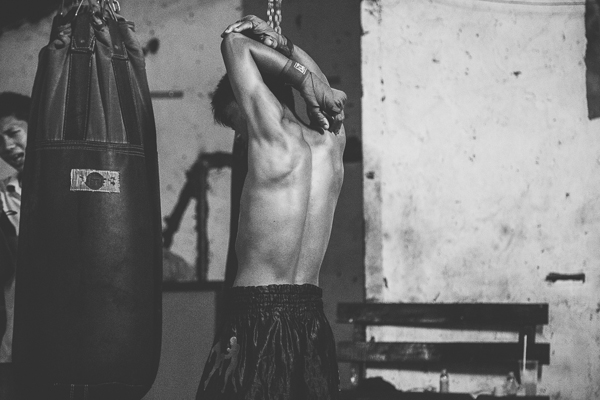
Mid-Range Shots

Pull back a bit and give more information to the viewer. Using a wider focal length includes some of the larger scene. By doing so, the collection starts to take shape and you have prepared your audience for the action of your story.

IMG 6054

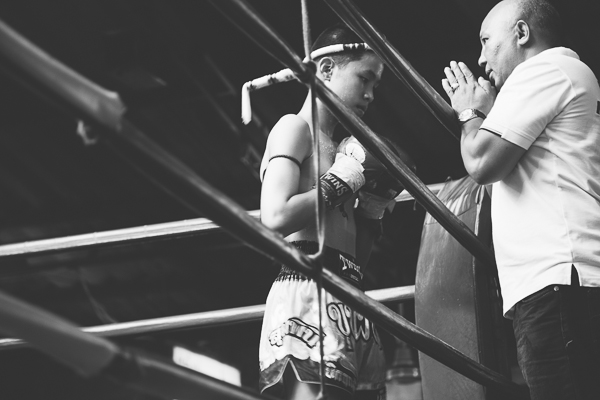
Portraits

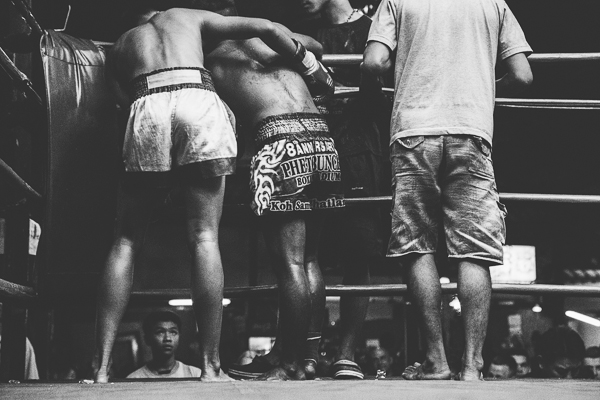
Most collections will have a human element. The reason why portraiture is so popular is because, as viewers of photography, we personally connect in some way to every other human. People identify with others and by including a portrait in your collection, your audience can emotionally leap into your narrative.

IMG 5794

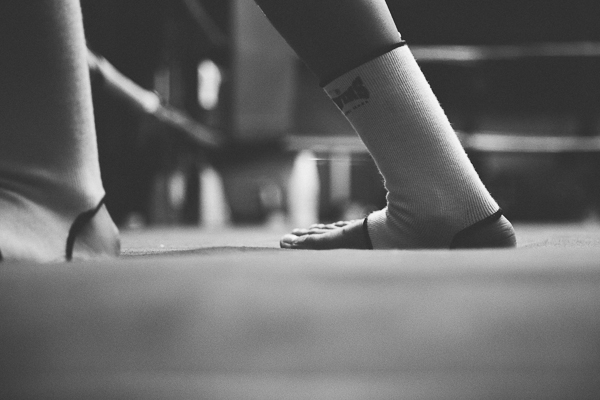
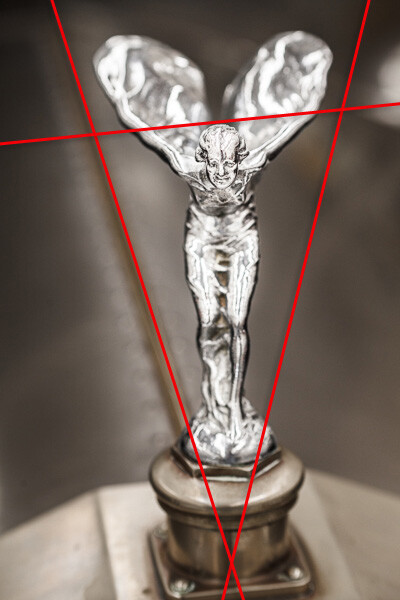
Detail Shots

There is small detail in every scene that most overlook. Whether it is the trampled confetti on a dance floor or the untied lace of a child’s shoe, the magic is often captured in the minutia. Detail shots also make great transitions in a multiple image collection.

IMG 6208

Differentiation Shots – get outside the box

Have you ever been to a tourist hotspot and seen a clump of photographers pointing their 70-200mm lenses in the same direction, from the same height? Even after the individual photographers edit, I am willing to bet that photographs taken from the “clumps” are, you guessed it, the same. To make your photography stand out and to improve the interest of your collection, shoot variations that other photographers fail to notice.

IMG 6015

IMG 6235

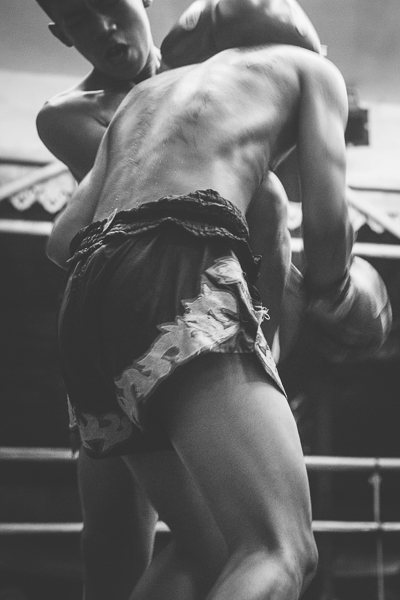
Action Shots

Action shots are a great way to identify what is commonly thought to be the crux of any story. However, the action shots are just the gravy on the mashed potatoes. The real story lies in the elements surrounding the action. Think about a wedding. The pinnacle of action of a wedding involves the words “I do” and a kiss. However, the best shots are captured before and after that moment. Many photographers concentrate on the action shot and are left without time or energy for anything else. My advice is to shoot every other variation first so that there is the scaffolding on which to build a larger story.

IMG 5931

IMG 5997

Closing Shots

How does your story end? To finalize a collection, think about what lasting image you would like to leave with your audience. Make sure that the concluding shot offers your audience a sense of closure.

IMG 6381

The Greater Story

When you pack your gear for a shoot, remind yourself that a single stellar image is not always the greater story. There is photographic gold to be mined if you give yourself time and allow yourself to break from the paralyzing tunnel vision that plagues most photographers. The next time you hit the export button, make sure that you are telling a greater story by producing variations and presenting them as a collection.

Gear tip: quite often, a scene unfolds rather quickly. Whether it a sporting event, party or field trip, photographers should be at the ready to capture the larger story quickly. While many telephoto zoom lenses do not have the character of their prime lens counterparts, they are extremely useful when attempting to create a collection in a short amount of time. Try a 24-105mm (or comparable) lens to capture both the wide and tight elements needed in an effective storytelling collection.

For more on creating storytelling images read these: 

  • Documentary Photography – Six Tips for Creating a Legacy
  • The Secret of Creating a Strong Image – 5 Tips for Creating a Story in Your Image
  • Interview with Jim Mortram – Small Town Inertia
  • 8 Photo Projects in Your Own Backyard

The post Greater Storytelling Images by Shooting Collections by Andrew Faulk appeared first on Digital Photography School.


Digital Photography School

 
Comments Off on Greater Storytelling Images by Shooting Collections

Posted in Photography


Improve Your Images with the Lightroom Graduated Filter Tool

30 Apr

Using the Graduated Filter in Lightroom

The Lightroom Graduated Filter is a versatile tool for making local adjustments to your photos. Don’t be fooled by the name – it may be named after a type of filter used for making skies darker in landscape photography, but its uses go far beyond that.

Before we look at how you can use the Graduated Filter tool to improve your images, you may want to think about the style in which you’d like to process the photo. What is your ultimate aim? My article Finding and Achieving Your Style in Lightroom will give you some advice on figuring that out. Once you know what you want to do, the rest falls into place.

How to use Graduated Filters

Using the Graduated Filter in Lightroom

This is how you apply a Graduated Filter in Lightroom

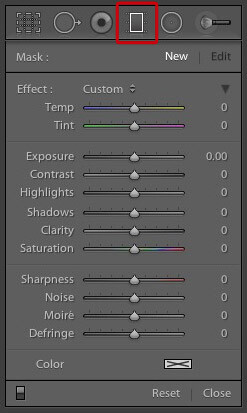
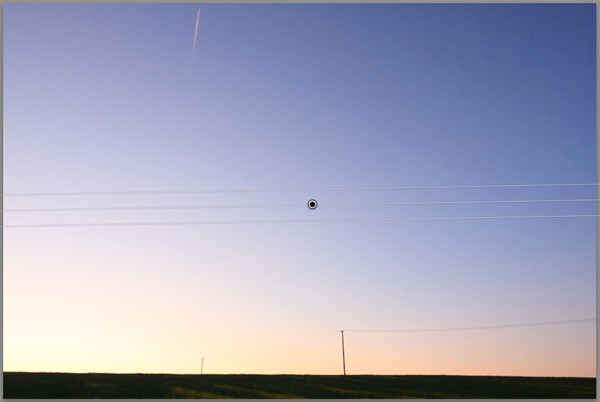
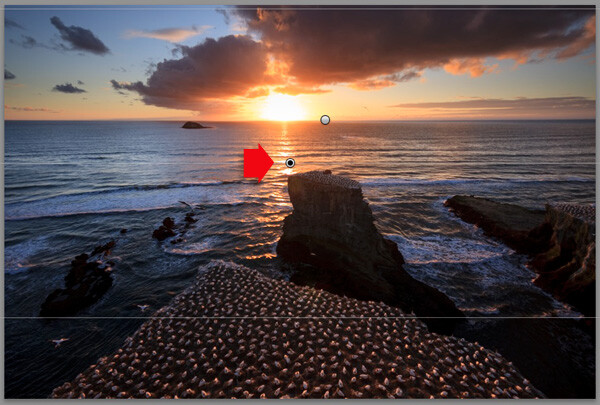
1. Click on the Graduated filter icon underneath the Histogram (the keyboard shortcut for it is “M”). The Graduated filter panel opens up beneath, revealing the sliders that you can adjust.

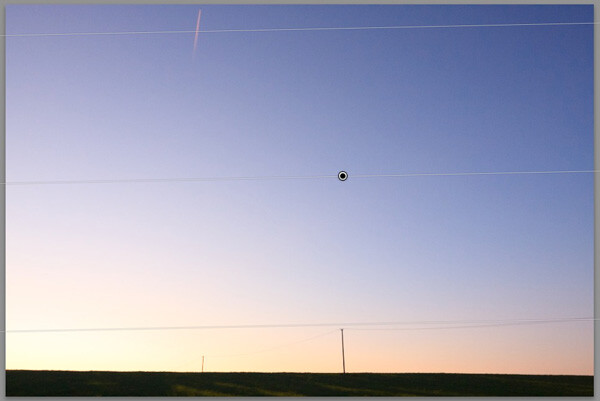
2. Hold the left mouse button down and drag the mouse across the image to place the Graduated filter. In this example I held the mouse button down while I dragged to create a wide Graduated Filter. There is a lot of space between the lines making up the filter, indicating that it will create a smooth graduation.

Using the Graduated Filter in Lightroom

3. If you let go of the mouse button early, you create a narrow Graduated Filter that gives a harder graduation. Drag the pin to position the Graduated Filter where you need it.

Using the Graduated Filter in Lightroom

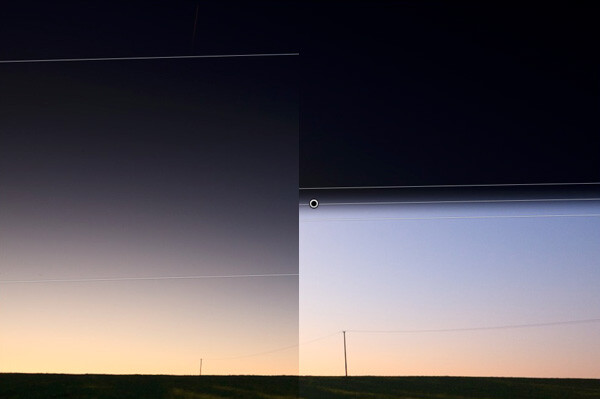
Here, I set Exposure to -4.0 to show you the difference between the two types of Graduated Filter:

Using the Graduated Filter in Lightroom

This illustration shows the difference between creating a wide Graduated Filter (left) and a narrow one (right). Experiment with both to see how they affect your photos.

Now you know how to use the Graduated Filter tool, here a few ways you can make your photos better with it.

Note: you can reposition the placement by dragging the pin, or widen the gradation any time even after applying the filter. Just reactivate it, select it (the dot will be black) and adjust. To adjust the gradation just hover the mouse over one of the edges, click to grab it, hold down the mouse button and pull to widen or narrow the spread. 

1. Making skies darker

Let’s start with the obvious application of using the Graduated Filter to make the skies in landscape photos darker. Note that the Graduated Filter can’t rescue you if the sky in your photo is so overexposed that detail is lost – you may still need to use a neutral density graduated filter when you take the photo in the first place.

Using the Graduated Filter in Lightroom

Starting image

The first step is to make the sky darker. I did this by adding a Graduated Filter and pulling back Exposure to -1.81. Every photo is different, so use your eye to judge the Exposure adjustment required on your photos.

Using the Graduated Filter in Lightroom

Exposure -1.81 applied using the Graduated Filter

2. Adjusting Contrast and Clarity locally

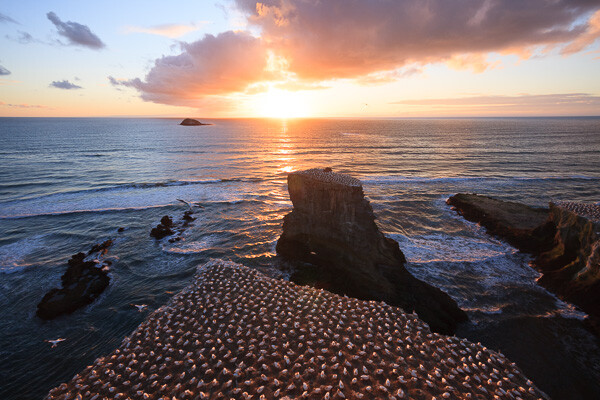
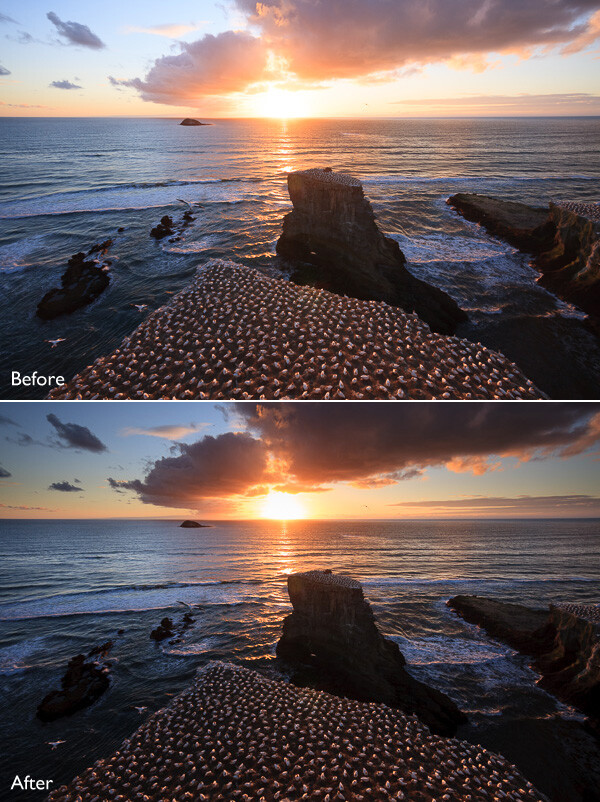
My aim with this landscape was to make the foreground darker and sharper, directing the viewer’s gaze towards the horizon. I achieved this by adding another Graduated Filter from the bottom. But this time, as well as adjusting Exposure to -0.79, I increased Contrast to +20 and Clarity to +27:

Using the Graduated Filter in Lightroom

Bottom Graduated Filter applied, Contrast +20 and Clarity +27

Here’s a before and after comparison, so you can see the difference adding the Graduated Filters has made. The two simple adjustments have transformed the photo.

Using the Graduated Filter in Lightroom

3. Adjusting White Balance

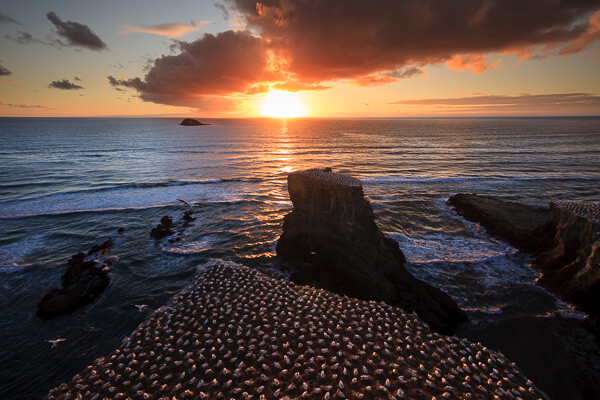
Another use of the Graduated Filter is to adjust colour temperature in part of the image. Sticking with the same landscape photo, I selected the top Graduated Filter to activate it and set Temp to 30. This warmed up the sky, emphasising the deep orange and red colours of the sunset:

Using the Graduated Filter in Lightroom

Be careful with adjusting Temp. If you push the slider too far the results may not look natural.

4. Making edges of your image darker

Moving away from landscapes, Graduated Filters are a handy way of making the edges of your images darker. This helps direct the viewer’s attention towards the focal point.

Using the Graduated Filter in Lightroom

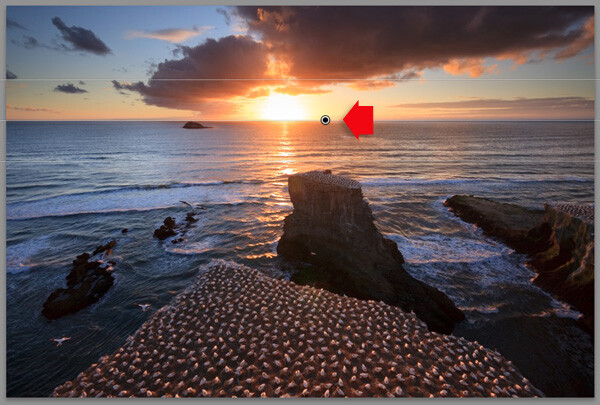
This diagram shows roughly where I placed the three Graduated Filters. The benefit of using individual Graduated Filters (instead of the Radial Filter or Adjustment Brush) is that you can adjust each one individually.

Using the Graduated Filter in Lightroom

5. Adding a colour wash

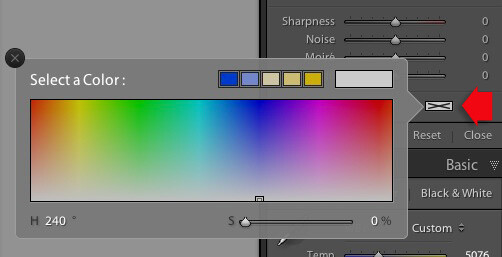
The Color setting at the bottom of the Graduated Filter panel lets you add a tint. It is laid over the filter in addition to the effects created by whichever sliders you choose to adjust. To select a colour, click on the colour picker icon at bottom of the Graduated Filter panel (the white rectangle with black cross inside indicates no colour has been selected) and select the colour you wish to add:

Using the Graduated Filter in Lightroom

Slider below is for adjust the Saturation of your selected color

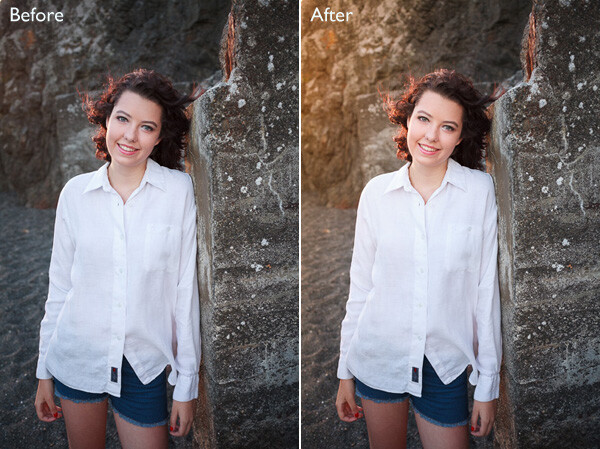
One use of this is to add a colour wash to a photo, to make it look as though the subject is lit by the light from the setting sun. This technique works best when the subject was genuinely shot during the golden hour, and you use the Graduated Filter to emphasize that. In this example I selected an orange hue to imitate the sun and set Exposure to +1.16 to lighten that side of the image.

Using the Graduated Filter in Lightroom

6. Lens blur effect

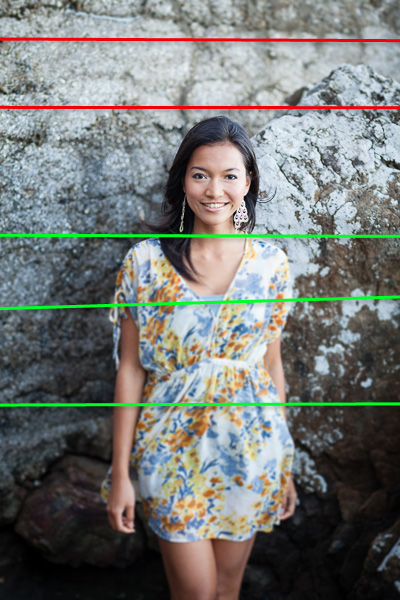
The Sharpness slider in the Graduated Filter panel is dual purpose. From zero to -50 it reduces sharpness. From -50 to -100 it creates lens blur. This lets you replicate the effect of using a tilt-shift lens or large format camera to create a photo with a tilted plane of focus. This is what it looks like. You may have to look closely – the model’s head is sharp but the areas at the top and bottom are not.

Using the Graduated Filter in Lightroom

I created this effect by adding five Graduated Filters, two at the top, and three at the bottom, their position shown by the coloured lines. The effect works best with a narrow Graduated Filter.

Using the Graduated Filter in Lightroom

The red lines indicate where I added Graduated Filters with Sharpness set to -100 at top. The green lines show you where I placed three filters at the bottom. Spacing the Graduated Filters mean the effect is strongest at the edges, replicating the true effect of using a tilt-shift lens.

Hopefully these tips will help you use the Graduated Filter more creatively. Lightroom is great for processing your photos and understanding how its tools work will help you use it more effectively. If you’re new to Lightroom, then my article Seven Pieces of Advice for New Lightroom Users will help you get started. Once you’ve mastered the Graduated Filter, I suggest you read Four Ways to Improve Your Photos With the Clarity Slider in Lightroom or 3 Uses for the Radial Filter Tool in Lightroom 5 to learn how to use more of Lightroom’s fabulous tools. Have fun!

By the way, I’m curious to hear how you use Graduated Filters in Lightroom. What techniques have you come up with? Please share them with other readers in the comments.


Mastering Lightroom: Book One and Two
mastering-lightroom-bundle-1

My Mastering Lightroom ebooks are a complete guide to using Lightroom’s Library and Develop modules. Written for Lightroom 4 & 5 they take you through every panel in both modules and show you how to import and organise your images, use Collections and creatively edit your photos.

The post Improve Your Images with the Lightroom Graduated Filter Tool by Andrew S. Gibson appeared first on Digital Photography School.


Digital Photography School

 
Comments Off on Improve Your Images with the Lightroom Graduated Filter Tool

Posted in Photography


Getty Images now lets you hang iconic photos on your wall

28 Apr

David-Redfern-Gallery-537x368.jpg

In March, stock photography house Getty Images rocked the industry when it announced it would allow people to embed images for free on websites and other electronic uses. Clearly looking to monetize the vast collection of images currently gathering digital dust in its archives, it has launched Photos.com by Getty Images to sell prints directly to customers. Learn more

News: Digital Photography Review (dpreview.com)

 
Comments Off on Getty Images now lets you hang iconic photos on your wall

Posted in Uncategorized


12 stunning images from Smithsonian’s photography contest

26 Apr

0151284_2_248070.jpg__1072x0_q85_subject_location-1840_1005_upscale.JPG

Smithsonian.com has announced 60 finalists for its 11th annual photo contest. More than 50,000 photographs were submitted by photographers from 132 different countries. Ten images were selected from each of six categories: The Natural World, Travel, People, Americana, Altered Images and Mobile. See gallery

News: Digital Photography Review (dpreview.com)

 
Comments Off on 12 stunning images from Smithsonian’s photography contest

Posted in Uncategorized


Pixels.com licensing service promises full control of images

18 Apr

pixels1.jpg

Pixels.com is a new image licensing marketplace that aims to give photographers more control than competing services. Users can set their own prices for images and manage the type of licenses they want to offer. There is even an option to create custom licenses with your own terms and conditions. Learn more

News: Digital Photography Review (dpreview.com)

 
Comments Off on Pixels.com licensing service promises full control of images

Posted in Uncategorized


Call for entries: Getty Images grants

17 Apr

006.JPG

Getty Images has announced a call for entries for its Getty Grants, a series of photographic grants for editorial and portrait photographers totaling $ 130,000 (~£77,737). To celebrate the 10-year anniversary of its grant program, Getty Images is offering six prizes for editorial photography, three creative grants for non-profits and individual photographers, and one for portrait photographers. Learn more

News: Digital Photography Review (dpreview.com)

 
Comments Off on Call for entries: Getty Images grants

Posted in Uncategorized


How to Get Super Sharp Landscape Photography Images

15 Apr

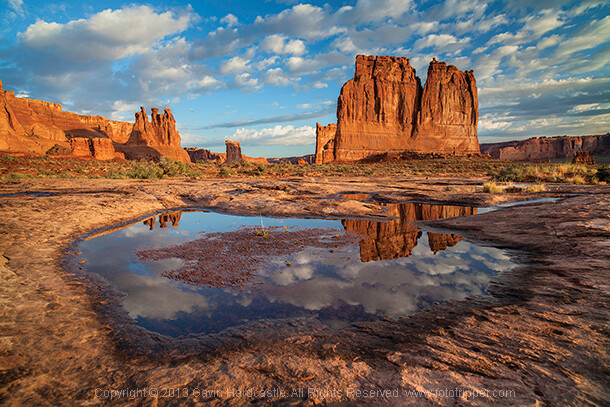
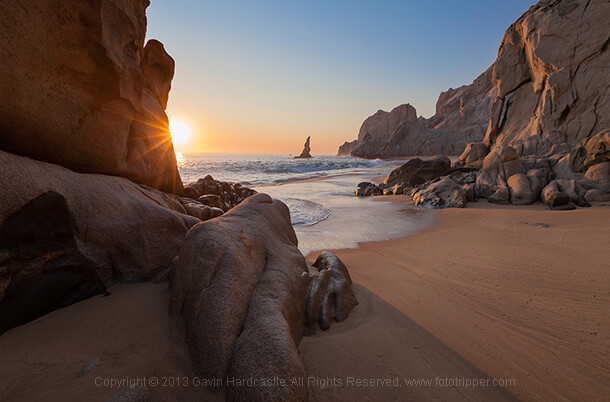
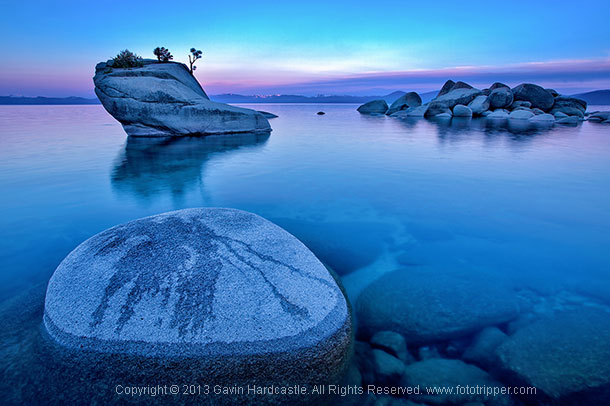
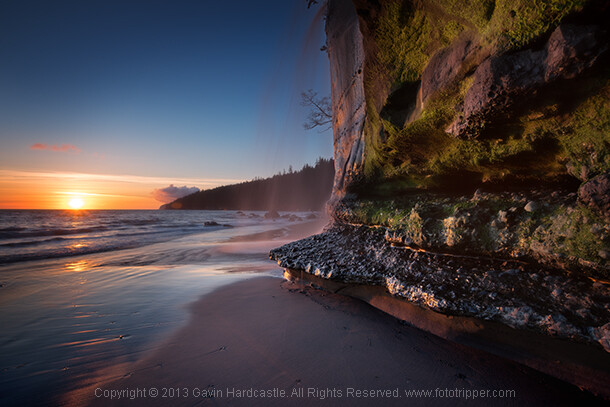
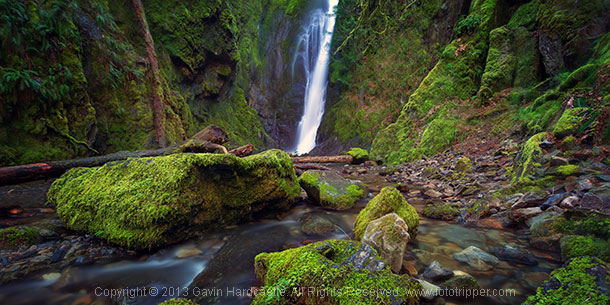
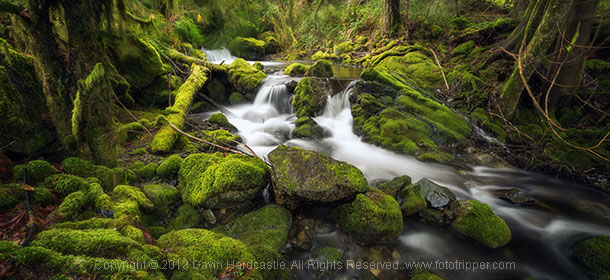
The most common question I get asked by my workshop students is ‘how do you get such sharp images?’. It’s actually really simple. Basically, avoid movement of any kind while the shutter is open, focus well and choose the right aperture for your creative vision. Mostly it’s just plain old common sense with a couple of technical elements thrown in, so if you want to learn how to get super sharp landscape photography images, here’s my list of top tips.

Top tips for sharper landscape photography

How to take sharp landscape images - Gavin Hardcastle

1 – Use a good tripod with a sturdy ball head and make sure everything is TIGHT

Seems obvious, but time and time again I see students using decent tripods and they often don’t have everything clamped down tightly. For example, the attachment that is screwed to the underside of your camera should be as tight as you can get it, eventually it’ll work its way loose. Make sure that ball head is completely locked down once you’ve composed your shot.

2 – While taking the shot, don’t place your hands on your tripod

The vibrations of your hands will blur the shot. When that shutter opens, your hands should be nowhere near the camera.

How to get ultra sharp landscape shots - Gavin Hardcastle

3 – Use the 2 second timer or a remote shutter release

This insures that the shutter won’t open until you are completely hands free.

4 – Cheap lenses will defocus while you rotate your circular polarizer

This is another one that seems obvious but I’ve seen it happen a lot. Let’s say you’ve achieved perfect focus on your landscape composition and now you’d like to rotate the polarizer which is attached to your perfectly focused lens. Guess what, as you rotate that filter, the lens is now losing its focus because of the movement and pressure you’re exerting on the filter. This rarely happens with high end lenses but I’ve seen it happen a lot with cheaper kit lenses that are poorly engineered. When this happens simply remember to refocus before hitting the shutter.

How to get tack sharp landscape images Gavin Hardcastle

5 – Enable the mirror lock-up if you have a DLSR

Using mirror lock-up ensures that the mechanical shock induced by the cameras mirror mechanism has dissipated by the time the shutter opens.

6 – Remove your camera strap

In windy situations it will act like a sail and induce vibration.

7 – Add some weight to your tripod’s central column

If the conditions are windy, it will also help reduce vibration.

8 – Place a small but heavy bean bag on your camera and lens

Do this just before taking the shot to further eliminate movement from shutter shock.

How to get very sharp landscape photos - Gavin Hardcastle

9 – Choose a Mid-range to Narrow Aperture

This one should be an article in itself but for now it’s important to understand that if you want corner to corner focus in your landscape images you’ll need to select an aperture that gives you a wide depth of field. Using f/2.8 is pointless, so pick an aperture like f/11 or f/16 depending on how close you are to your foreground subjects. Be aware however that the narrower the aperture (larger number like f/22) the less sharp your image will be due to light diffraction so experiment with your lenses to discover their sweet spot for wide depth of field.

Side Note: Shallow depth of field in landscapes can be beautiful when done well, in which case you’ll need a wide aperture like f/2.8 and ideally a lens that delivers beautiful bokeh – most super wide angle lenses don’t do bokeh well.

How to get really sharp landscape photographs

10 – Focus In the Distance

Don’t focus on the object closest to you. Pick an object in the middle distance that has a clear contrasting line and focus on that. You could focus to infinity but beware that most of the wide angle lenses I’ve used actually focus beyond infinity so I often have to focus to infinity and then carefully rotate the focus wheel back so that it’s just slightly before the ‘infinity’ mark.

11 – Put Your Glasses On

If you need glasses in order to see clearly and focus on things, it should go without saying that you might need to put on your stylish and expensive bifocals in order to achieve clear focus in your photography. Besides, everyone knows that glasses make you look cool and more intelligent, so why not put them on?

12 – Use Live View or EVF magnification

If you have a DLSR with an optical viewfinder I highly recommend that you use your cameras ‘Live View’ mode and then magnify it to your point of interest and use your manual focus ring to achieve sharp focus  If your camera has an EVF (Electronic View Finder)  you can do the same thing while looking in the EVF. I actually prefer this because you don’t get distracted by glare on the LCD or external light sources. Either way, remember to disable auto focus if you decide to focus manually with Live View.

How to get super sharp landscape images

I use every single one of these techniques in my Vancouver Island photo workshops and I teach them to all of my students. If you follow these tips every time you shoot landscapes, you’ll be sure to get much sharper images. If you’ve got some of your own tricks and tips for getting super sharp landscape images please leave a comment below and share your knowledge.

The post How to Get Super Sharp Landscape Photography Images by Gavin Hardcastle appeared first on Digital Photography School.


Digital Photography School

 
Comments Off on How to Get Super Sharp Landscape Photography Images

Posted in Photography


HDR Vertorama Photography – How to Create Mind-bending Images

26 Mar

If you are anything like me, then you are always looking for ways to create something original in your photography – images that have not been taken and presented a thousand times before. But being truly original and creating photos that have real impact is the hardest thing of all. It seems there is nothing that hasn’t been done yet. Or is there?

In this article, I am going to show you a technique for creating interior photos that you will certainly not find in every other portfolio – photos that will turn heads for sure. The technique that I am referring to is called HDR Vertorama Photography.
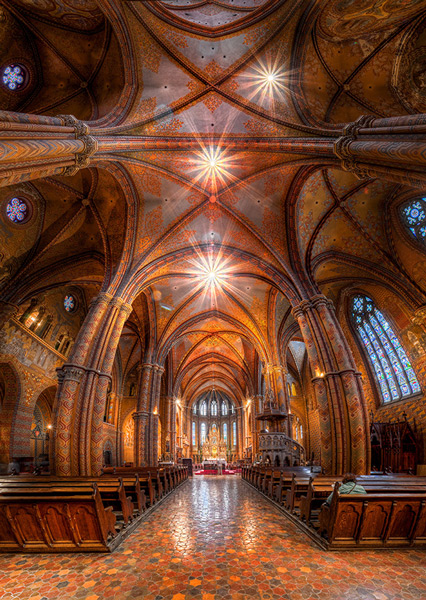
Matthias Church Budapest Hungary HDR Vertorama

What is a Vertorama?

Panorama photography is a well-established photographic discipline: you take a series of photos while you pan your camera in a horizontal direction between each pair of shots, ensuring that adjacent photos have enough overlap. Such a series of photos can then be combined into a single image with a much wider angle of view, a process that is called stitching.

But what happens if you turn panorama photography sideways? Turning an idea on its head can sometimes produce ingenious and unexpected results, and doing this literally with panorama photography falls into this category.

To answer the question: what you get is a Vertorama – a panorama in vertical direction. This may sound trivial, but when applied to interiors, this technique can present scenes in unseen ways. A room photographed as a Vertorama, seems to be opening towards the viewer. It depicts an interior in a way that you can only experience if you scan the actual scene with your own eyes, and it puts your audience inside the scene rather than in the spectator’s seat.

Why Does This Require HDR?

Photographing such a wide angle of view presents some challenges. One of them is the unusually high dynamic range encountered in such scenes. When you scan an interior (like a church, for example) from bottom to top, you will see very dark areas as well as extremely bright parts (e.g., the windows). In order to capture the scene realistically, combining the Vertorama technique with HDR (High Dynamic Range) photography is a natural choice. HDR will allow you to depict the details in the highlights and shadows in such a scene, despite the unusually high dynamic range. The resulting photographic discipline is called HDR Vertorama Photography.

The Anatomy of an HDR Vertorama

Vertorama and HDR photography are combined in such a way that each section of the final image consists of an exposure series, taken with a different tilt angle. Each of these exposure series is merged into an HDR image and tone mapped into a section HDR image.
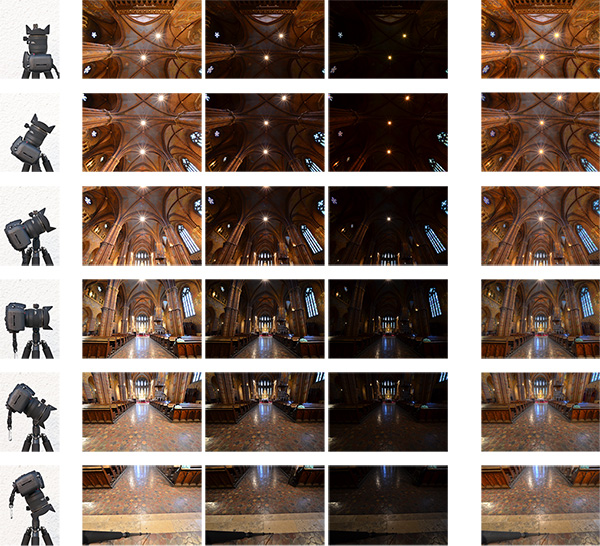
Hdr vertorama anatomy 01

Camera positions (left), exposure series (middle) and tone mapped section HDR images (right)

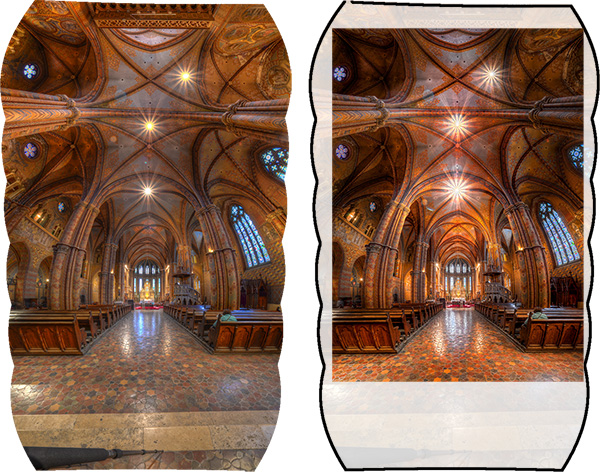
The section HDR images are stitched to produce a Vertorama, and finally, the Vertorama image is cropped and post-processed.
Hdr vertorama anatomy 02

Stitched HDR Vertorama (left) and final cropped image (right)

All the source photos for a single HDR Vertorama are called a set, and depending on actual scene, you may end up with 12 to 30 photos in a set.

The Camera

As long as you are shooting from a tripod, the range of cameras that can be used for this technique is wide. Any DSLR and mirrorless camera will be just fine. Having a camera that lets you change lenses is an advantage because in order to get the most out of your HDR Vertorama shoots, you should be using an ultra wide-angle lens with a shorter focal length then you will find on most fixed-lens cameras.

The Lens

You should use a rectilinear lens with a short focal length – the sorter, the better. With an ultra wide-angle lenses, you get a very wide angle of view, enabling you to capture more of an interior scene. If you own a DSLR with an APS-C-sized sensor, for example, the Nikon 10-24mm f/3.5-4.5G ED AF-S DX Nikkor, Canon EF-S 10-22mm f/3.5-4.5 USM SLR or Sigma 10-20mm f/4-5.6 EX DC HSM may be good choices, depending on which camera you are using and what budget you have available.

In contrast to a fisheye lens, a rectilinear lens has little or no barrel distortion. This means that straight lines in the scene are also (almost) straight in the image, and this creates the characteristic look of these images.

The Nodal Point Adapter

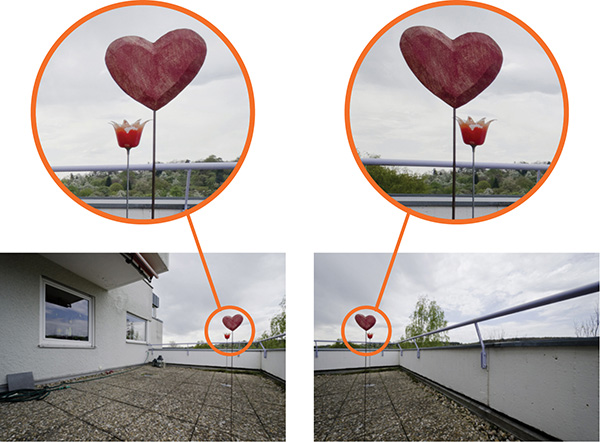
A nodal point adapter is a device that you screw on top of your tripod and that allows you to rotate your camera/lens combination around the nodal point of the lens. This avoids so-called parallax errors where objects at different distances from your camera move relative to each other in the overlapping areas of two consecutive source photos. If you are using a well-adjusted adapter, the overlap regions of the different sections of your Vertorama will perfectly match which is important for the stitching.
Hdr vertorama parallax error

Example of a parallax error

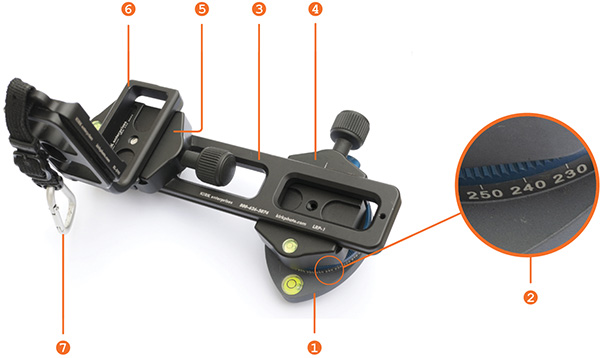
You can buy off-the-shelf nodal point adapters that are usually quite bulky and expensive, or you can assemble your own as shown in the example below: This do-it-yourself nodal point adapter consists of:

  • a panorama plate (1 diagram below)
  • with a scale that helps you control the rotation (2)
  • a macro rail (3) that enables you to move the camera back and forth for finding the nodal point
  • two quick release clamps for mounting the camera on the rail (5) and the rail on the panorama plate (4)
  • an L-bracket (6) for conveniently mounting the camera in landscape and portrait orientation
  • a snap hook (7) connects the L-bracket (and the camera that is permanently mounted to it) to the camera strap when the camera is not mounted to this adapter
Hdr vertorama nodal point adapter


Before you can produce usable source photos with an adapter like this one, you need to adjust it such that your camera is really rotated around the nodal point.

Setting up Your Camera

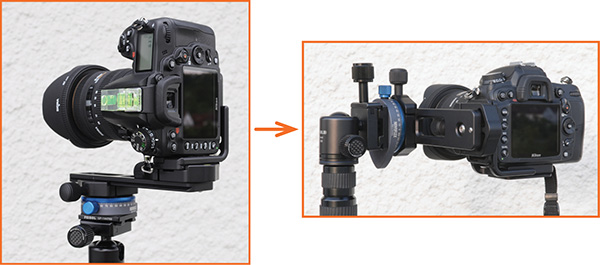
To prepare for the actual shoot, mount your camera onto the nodal point adapter and the adapter onto the tripod. Set up the nodal point adapter and tripod such that your camera can rotate around the horizontal axis.
Hdr vertorama camera orientation

To set up your camera, do the following:

  • Aperture – put your camera in aperture priority mode (“A” for Nikon, “Av” for Canon) and dial in an aperture that puts more or less the entire scene into focus – f/8 usually works pretty well
  • Focus – focus your camera and then put it into manual focus mode to avoid focus changes between the exposures
  • White balance (optional) – set the white balance to a fixed value depending on the type of light at the location. If you are shooting in Raw format, you can also skip this step
  • Mirror lock-up (optional, DSLRs only) – turn on mirror lock-up to reduce camera shake caused by the slapping mirror
  • Cable release – attach a cable release (remote trigger) to release the shutter without touching the camera
  • Cover the viewfinder (for long shutter speeds) – cover your viewfinder to prevent light from entering and falling on the camera’s sensor during the exposure

Finding the Right Exposure

There are many ways of finding the right exposure values for your source exposures. Here, I will show you a quick and simple one that uses the auto exposure bracketing (AEB) function of your camera to shoot the exposure series for your HDR process. Your goal is to set up the camera for an exposure series that remains the same for every section of the Vertorama.

To do this, put your camera in aperture priority mode, set the correct aperture, and scan the scene from the bottom to the top by rotating your camera. While you do this, your camera will adjust the shutter speed to get a correct exposure of the part of the scene it currently sees. Take note of the range of shutter speeds you see in the viewfinder (highest and lowest).

To set the correct exposure, put your camera in manual mode, dial in the respective aperture again and set the shutter speed to a value that is in the middle between the highest and lowest speed you saw during the scan. Now, set up your AEB function such that it goes above and below that shutter speed as much as possible.

For example, if your camera measures between 1/20s and 1/640s, the right shutter speed would be around 1/125s (roughly the middle between 1/20s and 1/640s). If your camera can do 3 shots with +-2 EV, set your AEB function to that setting. This gives you an exposure series of 1/30s, 1/125s and 1/500s for each section, and this produces a result that is close enough to what we need in this situation.

Taking the Shots

Your camera is now ready to take the photos. You should try to take the photos as quickly and fluently as possible as follows:

  1. Rotate your camera down: Your first section should be the floor right at your feet. This section will contain your tripod and possibly your feet. These things are not meant to be in the final image, but this gives you some room to maneuver in post-production.
  2. Wait for the right moment: Check the conditions before you start to shoot the series. When there are no people around and the lighting conditions are stable, you can start shooting.
  3. Action! When the conditions are right, start photographing the first section. When the section is done, rotate the camera to the next section such that the overlap with the previous section is about 30% and shoot, and so on. Do this until your camera points at the ceiling for the last section. It is important that you take the photos quickly to avoid that movement and changes in lighting interfere with your shoot.

Post-processing

The post-processing stage involves a number of steps. If you shot your source photos in RAW mode, you need to develop them in some RAW converter. Depending on the ISO setting you used to capture the photos, you may want to apply some noise reduction already at this early stage to keep the noise at bay over the remaining workflow.
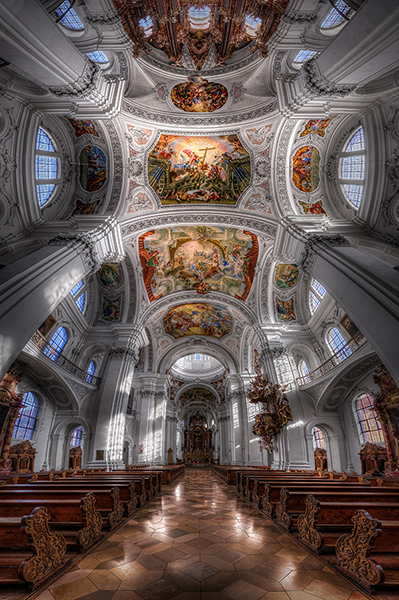
Basilica St Martin Weingarten Germany HDR Vertorama

Vertorama Creation

When the preparation of the source photos is finished, it’s time for the merging and the stitching. Remember that the source photos have to be combined in two different ways:

  • The exposure series for each section needs to be merged into an HDR image
  • all the resulting HDR images for all sections need to be stitched to generate the final HDR Vertorama

Depending on the software you use, the order of these two steps can vary. We will do the HDR merging first and then the stitching. This is generally easier.

For creating the HDRs, you need to load each exposure series into your HDR software (e.g., Photomatix), and merge them, one by one. This is straightforward and there are not a lot of decisions to be made. The result will be one 32-bit HDR image for each section (we call these the section HDR images in the following). Then you need to tone map each section HDR image, using the same settings for each one of them:

  1. Load one of the section HDRs into your HDR software and find the right tone mapping parameters. How you set the parameters is completely depending on your personal taste and style. There is no right or wrong here.
  2. Once you have found pleasing settings, apply these settings to all section HDRs and tone map them.
  3. Save each of the tone mapped images as an 8 or 16-bit image. Saving 16-bit images will give you a better quality but produces larger files.

After this step, you have a tone mapped image for each of the sections, and these images need to be stitched. There are many software products that can stitch photos. I prefer to use Photoshop for this task as it has a very simple but yet powerful stitching module called Photomerge.

Stitching your tone mapped images in Photomerge (File > Automate > Photomerge) is simple: the Use drop-down menu (1) lets you work with individual files or whole Folders of images. Browse your disk (4) to select the files or add all files that are currently opened in Photoshop (5). Choose Cylindrical (2) as your Layout and check the three check boxes at the bottom (3) to let Photomerge apply a number of corrections to your images. When you press Ok, your images are stitched fully automatically.
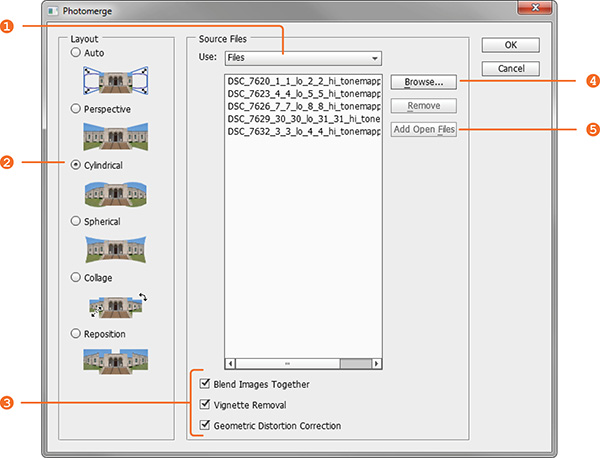
Hdr vertorama photomerge

When the stitching is complete, Photoshop presents you with the result. The edges are a bit wonky and it is laying on the side because Photoshop thinks it is a panorama. Merge all the layers into one (Layer > Merge Layers) and rotate the image accordingly (Image > Image Rotation).
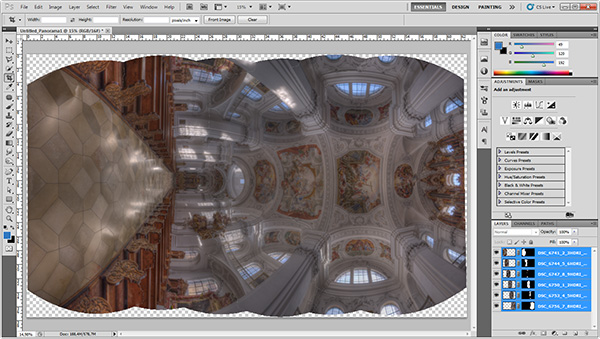
Hdr vertorama after stitching

Use the Warp tool (Edit > Transform > Warp) to correct the typical distortion of an interior Vertorama image that makes it wide in the middle and narrow at the top and at the bottom. You can do this by dragging the corner handles of the Warp box to the outside and the right and left edge handles to the inside.
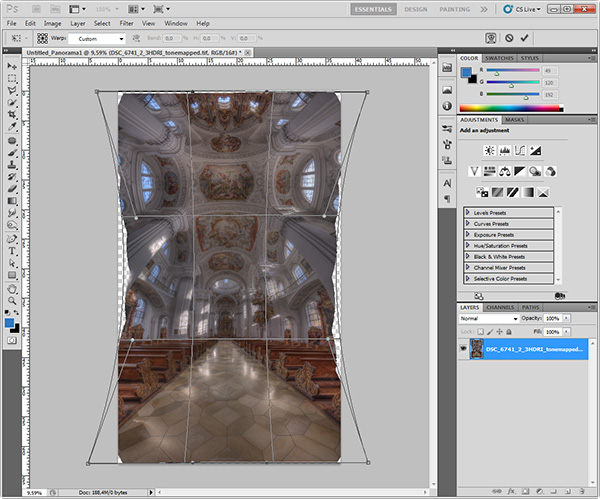
Hdr vertorama distortion correction

Apply the warp distortion and crop the image such that the uneven edges are removed and the composition is symmetrical.
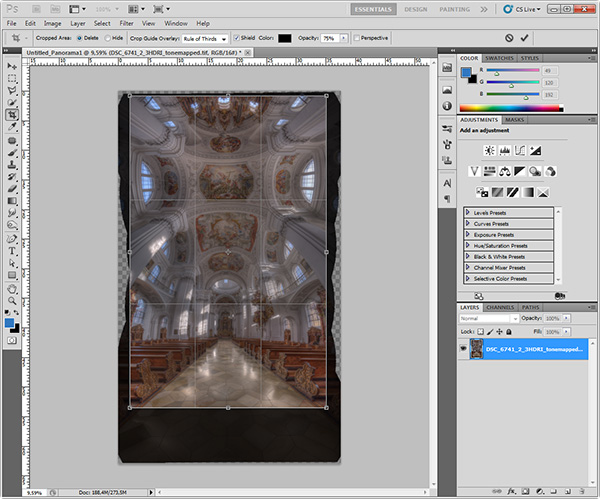
Hdr vertorama cropping

This completes the actual HDR Vertorama creation. You now have a stitched image that covers the entire tonal range of the scene (due to using HDR). The remaining post-processing steps are not specific to the HDR Vertorama technique. As with any other photo, you will at least want to correct the colors and increase the contrast. But you can also apply arbitrarily complex adjustments to the image and process different parts of it selectively.

In this particular case, I applied selective adjustments to the white interior to desaturate it slightly, to the floor to enhance the reflections, and the paintings on the ceiling to balance the colors and make them stand out. I added more saturation to the windows and more contrast to some of the ornaments. Finally, I added a vignette to the edges and a spot light effect to the paintings in the ceiling to guide the viewers’ eyes.

Conclusions

HDR Vertorama Photography is a technique that lets you depict interiors in a unique way. If you are willing to invest the effort and time it takes to master this multi-exposure technique, you will be rewarded with images that will stand out in your portfolio.
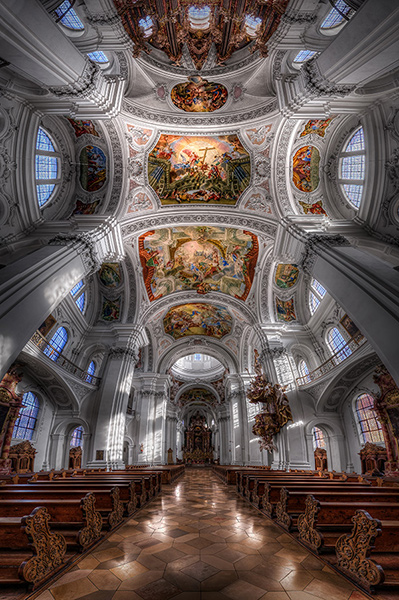
Basilica St Martin Weingarten Germany HDR Vertorama

Please share your comments, suggestions and tips below.

For more articles on HDR check out these:

  • Five Minutes to Realistic HDR using Lightroom and a 32-Bit Plugin
  • 5 Tips for Successful HDR Photos
  • How to Create Realistic Looking HDR Photographs
  • Tips for Great HDR Sunsets

The post HDR Vertorama Photography – How to Create Mind-bending Images by Klaus Herrmann appeared first on Digital Photography School.


Digital Photography School

 
Comments Off on HDR Vertorama Photography – How to Create Mind-bending Images

Posted in Photography


8 Simple Guidelines for Capturing Spectacular Sunrise and Sunset Images

26 Mar

When we are asked to think of popular subjects for landscape photography, images of beautiful sunsets immediately come to mind. What outdoor photographer worth his or her salt doesn’t have at least a couple of images of the sun dipping below the horizon? In most people’s minds, it is an easy thing to capture; the beauty and scale of the event itself should carry the photo, with minimal interaction from the photographer.

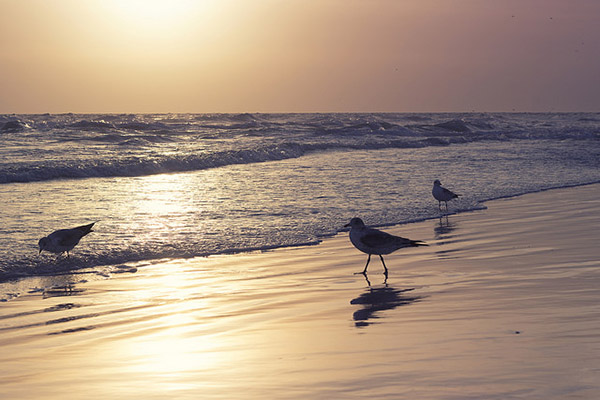
bird_trio

But is this really the case?

Unfortunately, it’s not. Unless you’re relying on luck alone, you’ll need to possess a few seeds of knowledge (eight in this case) to get you started in capturing that epic sunrise or sunset. None of these guidelines are difficult to comprehend, and can vastly improve your chances of properly capturing one of mother nature’s most incredible events.

1. Scout the Location

As tempting as it is to just show up at a convenient location and start shooting, you greatly increase your chances of success by planning the shoot in advance. The first thing you’ll want to determine is the best location from which to shoot.

Pick a location that is out of the way of road and foot traffic, where you’re unlikely to be disturbed. Go to the location in broad daylight before the shoot, and ensure your view of the horizon will be unobstructed and free of any hazards.

The most important factor after the location is time of the day. Obviously, this will vary depending on whether you’re capturing a sunrise or a sunset. Is there a storm coming? If your shooting time coincides with an approaching or recently-ended storm, the results can be staggering. Rain and storm clouds can add a dramatic layer of dimension to the scene.

Lastly, you can pinpoint the perfect time to shoot by using an online tool or smartphone app to determine precise sunrise and sunset times for your exact location. Many low-cost (and sometimes free) solutions are out there, including SunSeeker, Daylight Free, and the excellent Photographers Ephemeris to name a few.

sunset_article3.jpg

2. Sunrise, or Sunset?

If you’re familiar with color temperature, you’ll know that there is a slight difference in the appearance of light at sunset versus what you’ll see at sunrise. Early morning light tends to be cooler (higher blue) than light in the late evening, which leans toward more warm color castings consisting of orange and red.

Since we know there are differing color temperatures at work here, you might need to adjust for this, depending on what feel you’re going for, either through warming or cooling filters, or adjustments in post-production to add or remove warmth into the color profile of the final photograph.

Be aware that physical filters used on your camera will degrade image quality slightly, due to the addition of another obstacle for light to pass through between your subject and your camera’s sensor

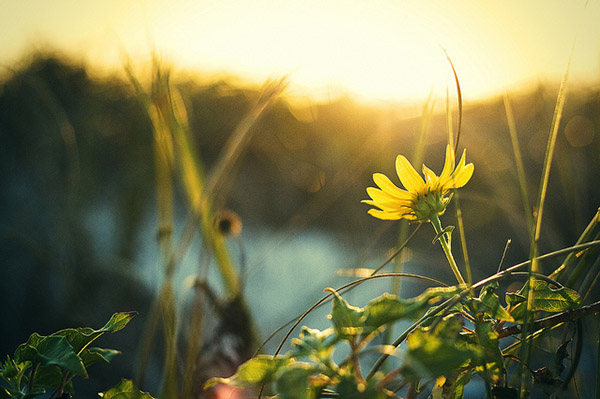
daisy

3. Plan your Shots

Another important step to accomplish before heading out is to plan out what you hope to achieve in the photo. What look are you going for?  Is there a definitive subject lit by the sunlight, or will the sunset itself be the star of the show?

This is also a great time to determine any other special considerations, such as the possibility of shooting an HDR (High Dynamic Range) photo. If that’s the case, you’ll need to prepare your camera for bracketed exposures to capture the full range of tones in the scene. Since these type of scenes normally consist of bright spots and shadows, this is a great way to produce some truly dramatic images.

4. Gather the Proper Gear

Obviously you can’t capture the right shot without the right gear; so make sure you have it all ready to go before you head out. First and foremost, you’ll want to bring your tripod. Sunrises and sunsets are potentially low-light situations (depending on what part of the sunset you’re trying to capture), so you want a steady base for your camera.

Secondly, you’ll want to determine what lens to use for the shot.  Even though beautiful landscapes can be captured using a 35mm or 50mm focal length (for sensors with a 1.6 crop factor – 56 to 80mm on a full frame system), a wide angle lens is preferred, including any zoom lenses that can capture a length of 25mm and below (40mm on a full frame system).  If you have a prime lens at these lengths, you will have a better chance of catching an even sharper image.  Using a wide angle lens will allow you to capture a more vast, sweeping portion of the scene.

Do you own and use screw-on filters for your camera?

Although using filters can degrade image quality a bit, due to the addition of another obstacle for light to pass through between your subject and your camera’s sensor, there are some that could be useful here, such as a GND (graduated neutral density) filter, to darken the upper portion of the sky a bit. Filters such as UV (ultraviolet) or polarizing filters may actually be a hinderance in these situations, and should be avoided. These filters reduce the amount of light coming in to the sensor, further increasing the required exposure time, which may not be idea if you’re trying to freeze any motion in the shot.

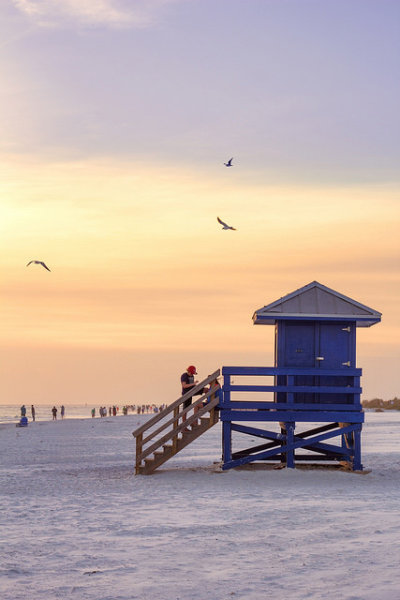
lifeguard_shack

5. Use the Right Settings

Another item that can be set up before you arrive to your shoot is the settings on the camera itself.

Since you’re shooting landscape, you’ll want to use a smaller aperture such as f/8, f/11 or even higher to maximize the depth of field and capture a sharp image throughout. If you’re using a tripod, this isn’t a problem.

Although shooting in manual mode is the norm here, to allow for minor changes in exposure compensation, I prefer to shoot almost everything in A/Av (aperture priority mode). This way I can lock in my aperture and let the camera choose a proper shutter speed. Since low-light situations like this can confuse the camera and you run the risk of overexposure, you can use your camera’s exposure compensation settings to fine-tune the exposure a bit lower.

A low ISO should also be used such as 100 or 200, to ensure there isn’t a lot of noise in the final shot. Again, with a tripod this isn’t an issue, but if you’re hand-holding for the shot, you will need to bump the ISO up to get a shutter speed that’s fast enough to avoid a disappointingly blurry photo.

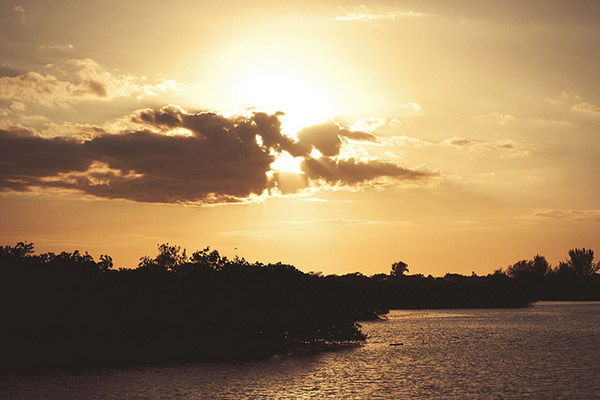
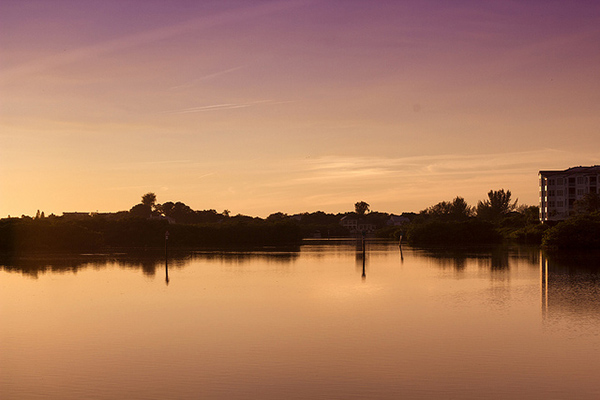
inlet_sunset

Another useful trick to increase warmth in your final shot is to set WB (white balance) to the “sunny” or “cloudy” setting instead of “auto”. Although you can certainly add warmth in post-processing, your initial image from the camera will be warmer if you make this adjustment now.

And of course, ALWAYS shoot in RAW! To a certain extent, shadows and highlights that are lost in a shot can be recovered in post-processing later.

6. Compose for Interest

Alright, the preparation is over, now we get to the fun part! Once you’re on location, and are ready to take the shot, you’ll want to make considerations for composition.

The most common error in shooting sunsets or sunrises is composing the horizon exactly in the middle of the photo. While this can work in some cases, it normally causes a bit too much symmetry and can make the picture uninteresting.

Take a moment to look the scene over; what part is the most dramatic? Are there any parts that aren’t as interesting of a focus?

Once you have identified that, simply compose the shot to include more of the most dramatic scenery. If you have an angry, cloudy sky that accentuates the sunlight, let that occupy the upper 2/3 of the scene. If you have an interesting foreground or landscape below the sun, and a less-intriguing sky, let that occupy the bottom 2/3 of the image. You want to draw the viewer into the horizon, and then let their eyes drift to the most dramatic part of the image.

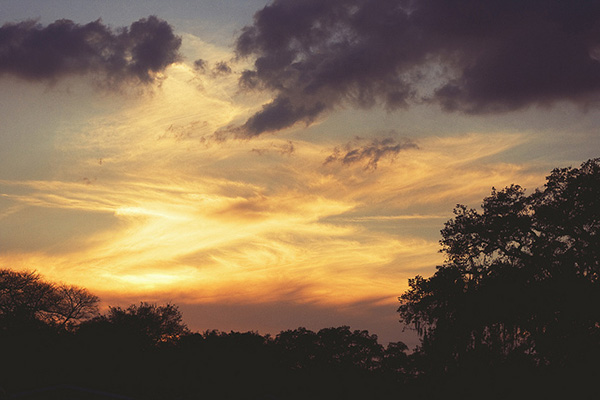
purple_sunset

7. Waiting for the Right Shot

If you already have experience shooting landscapes, you know that sometimes waiting is the name of the game. Because of the dynamics of natural lighting, a scene can completely change from one hour to the next, and sometimes even one minute to the next.

Now is the time to be creative! Try different exposure times, play with your exposure compensation settings for different tones. Let the clouds and sun change positions, and reshoot, or try a slightly different angle.

Maybe even allow different subjects to come in and out of frame, and shoot them in the foreground against the sunrise or sunset. The longer you’re at the location shooting, the more variety of shots you’ll end up with.

pier

Sunset article4

8. Don’t Leave Too Early

Lastly, one of the most common things you’ll hear about capturing sunsets, in particular, is to stick around after the sun dips below the horizon. This is certainly true, as the entire dynamic of a scene changes at this point.

Tones, colors and hues in the sky usually become more saturated and dramatic. You’ll need to allow for the loss of your main source of light, but it’s hard to deny some of the most beautiful images can be shot right after the sun is out of sight.

The post 8 Simple Guidelines for Capturing Spectacular Sunrise and Sunset Images by Tim Gilbreath appeared first on Digital Photography School.


Digital Photography School
 
Comments Off on 8 Simple Guidelines for Capturing Spectacular Sunrise and Sunset Images

Posted in Photography


8 Simple Guidelines for Capturing Spectacular Sunrise and Sunset Images

26 Mar

When we are asked to think of popular subjects for landscape photography, images of beautiful sunsets immediately come to mind. What outdoor photographer worth his or her salt doesn’t have at least a couple of images of the sun dipping below the horizon? In most people’s minds, it is an easy thing to capture; the beauty and scale of the event itself should carry the photo, with minimal interaction from the photographer.

bird_trio

But is this really the case?

Unfortunately, it’s not. Unless you’re relying on luck alone, you’ll need to possess a few seeds of knowledge (eight in this case) to get you started in capturing that epic sunrise or sunset. None of these guidelines are difficult to comprehend, and can vastly improve your chances of properly capturing one of mother nature’s most incredible events.

1. Scout the Location

As tempting as it is to just show up at a convenient location and start shooting, you greatly increase your chances of success by planning the shoot in advance. The first thing you’ll want to determine is the best location from which to shoot.

Pick a location that is out of the way of road and foot traffic, where you’re unlikely to be disturbed. Go to the location in broad daylight before the shoot, and ensure your view of the horizon will be unobstructed and free of any hazards.

The most important factor after the location is time of the day. Obviously, this will vary depending on whether you’re capturing a sunrise or a sunset. Is there a storm coming? If your shooting time coincides with an approaching or recently-ended storm, the results can be staggering. Rain and storm clouds can add a dramatic layer of dimension to the scene.

Lastly, you can pinpoint the perfect time to shoot by using an online tool or smartphone app to determine precise sunrise and sunset times for your exact location. Many low-cost (and sometimes free) solutions are out there, including SunSeeker, Daylight Free, and the excellent Photographers Ephemeris to name a few.

sunset_article3.jpg

2. Sunrise, or Sunset?

If you’re familiar with color temperature, you’ll know that there is a slight difference in the appearance of light at sunset versus what you’ll see at sunrise. Early morning light tends to be cooler (higher blue) than light in the late evening, which leans toward more warm color castings consisting of orange and red.

Since we know there are differing color temperatures at work here, you might need to adjust for this, depending on what feel you’re going for, either through warming or cooling filters, or adjustments in post-production to add or remove warmth into the color profile of the final photograph.

Be aware that physical filters used on your camera will degrade image quality slightly, due to the addition of another obstacle for light to pass through between your subject and your camera’s sensor

daisy

3. Plan your Shots

Another important step to accomplish before heading out is to plan out what you hope to achieve in the photo. What look are you going for?  Is there a definitive subject lit by the sunlight, or will the sunset itself be the star of the show?

This is also a great time to determine any other special considerations, such as the possibility of shooting an HDR (High Dynamic Range) photo. If that’s the case, you’ll need to prepare your camera for bracketed exposures to capture the full range of tones in the scene. Since these type of scenes normally consist of bright spots and shadows, this is a great way to produce some truly dramatic images.

4. Gather the Proper Gear

Obviously you can’t capture the right shot without the right gear; so make sure you have it all ready to go before you head out. First and foremost, you’ll want to bring your tripod. Sunrises and sunsets are potentially low-light situations (depending on what part of the sunset you’re trying to capture), so you want a steady base for your camera.

Secondly, you’ll want to determine what lens to use for the shot.  Even though beautiful landscapes can be captured using a 35mm or 50mm focal length (for sensors with a 1.6 crop factor – 56 to 80mm on a full frame system), a wide angle lens is preferred, including any zoom lenses that can capture a length of 25mm and below (40mm on a full frame system).  If you have a prime lens at these lengths, you will have a better chance of catching an even sharper image.  Using a wide angle lens will allow you to capture a more vast, sweeping portion of the scene.

Do you own and use screw-on filters for your camera?

Although using filters can degrade image quality a bit, due to the addition of another obstacle for light to pass through between your subject and your camera’s sensor, there are some that could be useful here, such as a GND (graduated neutral density) filter, to darken the upper portion of the sky a bit. Filters such as UV (ultraviolet) or polarizing filters may actually be a hinderance in these situations, and should be avoided. These filters reduce the amount of light coming in to the sensor, further increasing the required exposure time, which may not be idea if you’re trying to freeze any motion in the shot.

lifeguard_shack

5. Use the Right Settings

Another item that can be set up before you arrive to your shoot is the settings on the camera itself.

Since you’re shooting landscape, you’ll want to use a smaller aperture such as f/8, f/11 or even higher to maximize the depth of field and capture a sharp image throughout. If you’re using a tripod, this isn’t a problem.

Although shooting in manual mode is the norm here, to allow for minor changes in exposure compensation, I prefer to shoot almost everything in A/Av (aperture priority mode). This way I can lock in my aperture and let the camera choose a proper shutter speed. Since low-light situations like this can confuse the camera and you run the risk of overexposure, you can use your camera’s exposure compensation settings to fine-tune the exposure a bit lower.

A low ISO should also be used such as 100 or 200, to ensure there isn’t a lot of noise in the final shot. Again, with a tripod this isn’t an issue, but if you’re hand-holding for the shot, you will need to bump the ISO up to get a shutter speed that’s fast enough to avoid a disappointingly blurry photo.

inlet_sunset

Another useful trick to increase warmth in your final shot is to set WB (white balance) to the “sunny” or “cloudy” setting instead of “auto”. Although you can certainly add warmth in post-processing, your initial image from the camera will be warmer if you make this adjustment now.

And of course, ALWAYS shoot in RAW! To a certain extent, shadows and highlights that are lost in a shot can be recovered in post-processing later.

6. Compose for Interest

Alright, the preparation is over, now we get to the fun part! Once you’re on location, and are ready to take the shot, you’ll want to make considerations for composition.

The most common error in shooting sunsets or sunrises is composing the horizon exactly in the middle of the photo. While this can work in some cases, it normally causes a bit too much symmetry and can make the picture uninteresting.

Take a moment to look the scene over; what part is the most dramatic? Are there any parts that aren’t as interesting of a focus?

Once you have identified that, simply compose the shot to include more of the most dramatic scenery. If you have an angry, cloudy sky that accentuates the sunlight, let that occupy the upper 2/3 of the scene. If you have an interesting foreground or landscape below the sun, and a less-intriguing sky, let that occupy the bottom 2/3 of the image. You want to draw the viewer into the horizon, and then let their eyes drift to the most dramatic part of the image.

purple_sunset

7. Waiting for the Right Shot

If you already have experience shooting landscapes, you know that sometimes waiting is the name of the game. Because of the dynamics of natural lighting, a scene can completely change from one hour to the next, and sometimes even one minute to the next.

Now is the time to be creative! Try different exposure times, play with your exposure compensation settings for different tones. Let the clouds and sun change positions, and reshoot, or try a slightly different angle.

Maybe even allow different subjects to come in and out of frame, and shoot them in the foreground against the sunrise or sunset. The longer you’re at the location shooting, the more variety of shots you’ll end up with.

pier

Sunset article4

8. Don’t Leave Too Early

Lastly, one of the most common things you’ll hear about capturing sunsets, in particular, is to stick around after the sun dips below the horizon. This is certainly true, as the entire dynamic of a scene changes at this point.

Tones, colors and hues in the sky usually become more saturated and dramatic. You’ll need to allow for the loss of your main source of light, but it’s hard to deny some of the most beautiful images can be shot right after the sun is out of sight.

The post 8 Simple Guidelines for Capturing Spectacular Sunrise and Sunset Images by Tim Gilbreath appeared first on Digital Photography School.


Digital Photography School

 
Comments Off on 8 Simple Guidelines for Capturing Spectacular Sunrise and Sunset Images

Posted in Photography