RSS
 

Posts Tagged ‘Images’

Backlighting in Photography: The Ultimate Guide to Beautiful Backlit Images

21 Jan

The post Backlighting in Photography: The Ultimate Guide to Beautiful Backlit Images appeared first on Digital Photography School. It was authored by Simon Ringsmuth.

backlighting in photography the ultimate guide

When used creatively and intentionally, backlighting can be an incredible tool to take your photography to the next level.

However, the concept of backlighting seems somewhat counterintuitive.

After all, when your subject is backlit, the main source of light is coming from behind, not from the front – and conventional photography wisdom generally says that your subject should be well-lit from the front.

So how can you create backlighting that looks good? How can you capture backlit images that really stun the viewer?

That’s what this article is all about.

Let’s dive right in.

Backlighting spider
Nikon D750 | Nikon 50mm f/1.8G | 50mm | 1/250s | f/4 | ISO 1100

What is backlighting?

In order to understand how to use backlighting, you should know what the term means.

So what actually is backlighting?

The following diagram depicts a standard photography scenario with the main source of light behind the camera.

frontlighting diagram

Using this type of setup, the subject is well-lit, and there is a shadow cast on the wall directly behind the subject. The result is a detailed, evenly-exposed image that conforms to the basic principles of photography.

In contrast, backlighting reverses the subject and the light source.

The light goes behind the subject (and points toward the camera), which causes the shadow behind the subject to vanish. Backlighting results in a photograph where the subject is usually much darker than normal.

Backlighting diagram backlight

Also, placing the light behind the subject often results in a silhouette or glow effect. This makes the final image look different from a normal photograph and can be jarring, at least at first.

But with a little practice, you can use this technique to create images that are unique and stand out from the crowd.

Backlighting in portraits

Backlighting is a tried-and-true portrait photography technique – one that can get you some stunning photos.

How does this work?

It helps to see some actual portrait photos that illustrate the concept of backlighting versus frontlighting. This first image is a fairly standard portrait shot:

maternity frontlit
Nikon D750 | Nikon 70-200 f/2.8G ED VR II | 122mm | 1/350s | f/4 | ISO 800

The subjects are lit from the front, and the image is evenly exposed without any harsh shadows. It’s a great photograph, and it meets all the normal criteria for a maternity shot someone would want to put in a frame or a photo book.

Now, let’s look at another photo of this couple, this time shot using backlighting:

Backlighting maternity couple
Nikon D750 | Nikon 70-200 f/2.8G ED VR II | 180mm | 1/3000s | f/2.8 | ISO 400

The parents-to-be are shrouded in shadow (which I was able to boost in Lightroom, thanks to the RAW file format), and the woman’s hair is glowing with a brilliant golden halo. The man has a glowing outline around his head, and the entire scene has a slightly mystical quality to it.

This is all due to the creative use of backlighting.

When you light your subjects from behind, you can get images like this, which pack glowing hair, brilliant outlines, and a beautiful background. This type of photo does take practice, but with a little trial and error, you can use backlighting to get similar results.

Here’s a head and shoulders portrait of a young man:

Backlighting senior portrait frontlit
Nikon D750 | Nikon 70-200 f/2.8G ED VR II | 200mm | 1/250s | f/2.8 | ISO 100

The sunlight is coming from the front, his face is evenly lit, and the background is colorful and easy to see.

Now compare that image to its backlit counterpart:

Backlighting senior portrait
Nikon D750 | Nikon 70-200 f/2.8G ED VR II | 200mm | 1/180s | f/2.8 | ISO 320

His hair suddenly looks like it’s on fire, and his ears have a bit of a glow. The right side of the background is lush and green, whereas the left side, where the sun is positioned, is almost entirely blown out. Even the man’s shoulders are outlined in gold, and the photo has an energy to it that the frontlit photo just can’t match.

As you can see, knowing how to use backlighting to your advantage can result in portraits that stand out from the pack. It may be a little tricky at first, especially if you’re using natural light instead of studio light.

But with a little practice, you’ll get the hang of backlighting – and you’ll get the type of pleasing reactions from your clients you never knew you were missing.

Backlighting isn’t just for portraits, though! It can be used in a variety of situations for creative, inspiring images, including nature photography:

Backlighting in nature

To illustrate the power of backlighting for nature photography, check out this backlit landscape image:

Backlighting sunrise pine trees
Nikon D7100 | Nikon 35mm f/1.8G | 35mm | 1/3000s | f/4 | ISO 200

Once you start looking for the light, you’ll notice shots like this everywhere. In fact, one of the best ways to learn backlighting is to go out in nature and simply experiment by putting your subjects between the camera and the sun.

Sunrise and sunset are great times to try out backlighting. Look for situations where your subjects are at a bit of a distance; it also helps to have a general idea of where the sun will be at dawn and dusk. Metering with backlight is tricky, so I like to use Aperture Priority to control the depth of field and then dial in exposure compensation to get my shots as light or as dark as I want.

A rule of thumb I like to use in these situations:

Expose for the highlights, then bring up the shadows in Lightroom. Basically, try not to make your photo too bright, because you may end up with clipped highlights (i.e., white, informationless areas that cannot be darkened).

Backlighting sunset wind turbines
Nikon D750 | Nikon 70-200 f/2.8G ED VR II | 200mm | 1/4000s | f/22 | ISO 100

You can also look for more mundane subjects on which you can practice, like interesting leaves:

backlit leaves
Nikon D7100 | Nikon 50mm f/1.8G | 50mm | 1/1500s | f/2.8 | ISO 100

Remember:

When shooting in nature, the main source of light is the sun, but you don’t have to use direct sunlight. In the image above, the mid-afternoon sun made these leaves glow. The sun isn’t in the frame, but it still lit the leaves from the back and gave me a fun photo opportunity.

I used a similar technique for the image below. You can see how my use of backlighting made this large blade of grass appear almost translucent. The shot was not an accident, and I was only able to capture it by looking for new ways to shoot familiar subjects. In this case, I was only photographing a simple piece of grass!

Backlit grass
Nikon D7100 | Nikon 50mm f/1.8G | 50mm | 1/500s | f/4.8 | ISO 100

Most people would pass by this scene without a second thought, but it just goes to show how backlighting can give new life to even mundane subjects.

Silhouette backlighting

One interesting way to use backlighting is to obscure your subject altogether. This technique is known as silhouette backlighting, and it can be a fun and creative way to showcase people, animals, and other objects.

How does this work?

You create silhouette images by shooting directly into the light source – which completely darkens your subject. The result is a photo that shows a shape or outline instead of a well-exposed subject.

To get the image below, I pointed the camera at my main source of light, then waited for someone to walk by. The fountain itself doesn’t emit light, but instead reflects what comes from the sun – and it was so bright that it completely darkened my subject. The image tells a story, even without seeing any details of the person.

silhouette person fountain
Nikon D7100 | Nikon 85mm f/1.8G | 85mm | 1/1000s| f/4 | ISO 200

I used a similar backlighting technique to get this shot of a young woman in the early morning:

silhouette person sunrise
Nikon D200 | Nikon 50mm f/1.8G | 50mm | 1/6000s | f/4 | ISO 200

I knew where the sun was positioned, so I waited patiently until a person walked into the frame. By putting my subject directly between the camera and the main source of light, I was able to capture a silhouette. The end result is much more interesting than a normal, properly-exposed image taken in broad daylight.

Silhouettes aren’t just for people. You can use silhouette backlighting for a variety of subjects; all it takes is a little creativity and a willingness to try something different.

Some type of Manual mode (either full Manual or Aperture Priority with exposure compensation) is best for these shots. It’ll give you better control over the final image, and you won’t need your camera to make exposure decisions in tricky lighting conditions.

goose fountain
Nikon D750 | Nikon 70-200 f/2.8G ED VR II | 200mm | 1/4000s| f/2.8 | ISO 100

One of my favorite ways to use silhouette backlighting is to create sun stars, like this:

Backlighting sun flare
Nikon D200 | Nikon 50mm f/1.8G | 50mm | 1/400s | f/16 | ISO 200

I start by putting a large building between my camera and the sun.

Then I move around until the sun is poking out from behind a corner of the building. I shoot with a small aperture, usually f/8 to f/11, and I shift the camera position until I get the shot just right.

This technique takes practice, but you can easily get the hang of it in under 15 minutes.

Use Aperture Priority and exposure compensation, and look for ways to use the light that might not have occurred to you before.

Backlighting in photography: Conclusion

If you’ve never experimented with backlighting, then I encourage you to give it a try and see what happens.

You might think shots like the ones in this article are beyond your skills, but all it takes is a bit of practice, a dash of patience, and a willingness to try something different.

Backlighting is a fun, creative technique, and you might just find yourself using it far more than you expected!

Have you ever tried backlighting? What did you think of it? Share your thoughts in the comments below!

The post Backlighting in Photography: The Ultimate Guide to Beautiful Backlit Images appeared first on Digital Photography School. It was authored by Simon Ringsmuth.


Digital Photography School

 
Comments Off on Backlighting in Photography: The Ultimate Guide to Beautiful Backlit Images

Posted in Photography


Google Photos now syncs ‘liked’ images with Apple’s iOS Camera Roll

11 Dec

Apple and Google haven’t always gotten along, but there are times when the two work together to make life easier for end-users, regardless of what mobile operating system they’re using. One of the latest examples of this is a new feature baked into Google Photos that makes it possible to sync ‘liked’ and ‘favorited’ images between Google Photos and the iOS Camera Roll app.

Screenshots of the new settings in the Google Photos iOS app. Click to enlarge.

As visible in the below demonstration from Android Police, who first reported on the feature, a simple setting within the Google Photos app will make it so images ‘liked’ in the iOS Camera Roll app will become ‘starred’ in your Google Photos account.

We tested the new feature and can confirm we had a similar experience to Android Police; syncing happens slightly faster when ‘starring’ an image in Google Photos than it does when ‘liking’ an image in the iOS Camera Roll. This is likely because when ‘liking’ an image in the iOS Camera Roll, Google Photos is running as a background task, whereas when using Google Photos, the synchronization process can be triggered immediately.

The feature should be live for all Google Photos users and has worked seamlessly across both an iPhone XS and iPad Pro (11-inch) in our testing. If you don’t have it already, you can download the Google Photos app for free in the iOS App Store.

Articles: Digital Photography Review (dpreview.com)

 
Comments Off on Google Photos now syncs ‘liked’ images with Apple’s iOS Camera Roll

Posted in Uncategorized


How to Take Sharp Images

09 Dec

The post How to Take Sharp Images appeared first on Digital Photography School. It was authored by Darren Rowse.

taking sharp images ibis

Taking sharp images is something that most photographers want – but clean, crisp, sharp images can be difficult to achieve.

Before we start exploring how to improve sharpness, let’s talk about the main causes of a lack of sharpness:

  • Poor focus – The most obvious way to get images that are ‘un-sharp’ is by shooting them out of focus. This might be a result of focusing on the wrong part of the image, being too close to your subject for the camera to focus, selecting an aperture that produces a very narrow depth of field, or taking an image too quickly without checking that it is in focus.
  • Subject movement – Another type of blur in shots is the result of your subject moving; this is generally related to the shutter speed being too slow.
  • Camera shake – You can get blur if you, as the photographer, generate movement while taking the image. This often relates to shutter speed and/or the stillness of your camera.
  • Noise – Noisy shots are pixelated and look like they have lots of little dots over them (get up close to your TV, and you’ll get the same effect).

10 Ways to Take Sharper Images: Tips for Beginners

Here’s a list of 10 basic things to think about when shooting – so you can get consistently sharp images.

(Note: There’s also a lot you can do in Photoshop after taking your images!)

how to take sharp images dahlia

1. Hold your camera well

A lot of blur in the photos that I see is a direct result of camera shake (i.e., the movement of your camera for that split second when your shutter is open).

While the best way to tackle camera shake is to use a tripod (see below!), there are many times when using one is impractical, and you’ll need to shoot while holding your camera.

I’ve written a tutorial previously on how to hold a digital camera, but in brief:

Use both hands, keep the camera close to your body, and support yourself with a wall, tree, or some other solid object.

2. Use a tripod

Regular readers of this site will have seen our articles on tripods and know that we’re a big fan of using tripods as a way to reduce (and even eliminate) camera shake.

While tripods are not always practical, the result you’ll get when you do go to the effort of hauling one around can be well worth it.

Related Article: A Beginner’s Guide to Tripods

3. Select a fast shutter speed

Perhaps one of the first things to think about in your quest for sharp images is the shutter speed that you select.

Now, the faster your shutter speed, the less impact camera shake will have, and the more you’ll freeze movement in your shots.

As a result, you reduce the likelihood of two of the main types of blur in one go (subject movement and camera movement).

But how do you pick the right shutter speed? I recommend the “rule” for handholding:

Choose a shutter speed with a denominator that is larger than the focal length of the lens.

So:

  • If you have a lens that is 50mm in length, don’t shoot any slower than 1/60th of a second
  • If you have a lens with a 100mm focal length, shoot at 1/125th of a second or faster
  • If you are shooting with a 200mm lens, shoot at 1/250th of a second or faster

Keep in mind that the faster your shutter speed is, the larger you’ll need to make your aperture to compensate (see the next section!). And this will mean you have a smaller depth of field, which makes focusing more of a challenge.

4. Choose a narrower aperture

Aperture impacts the depth of field (the zone that is in focus) of your images. Decreasing your aperture size (which means increasing the f-number) will increase the depth of field – meaning that the zone in focus will include both close and distant objects.

Do the opposite (by moving to f/4, for example), and the foreground and background of your images will be more out of focus. Therefore, you’ll need to be exact with your lens focusing.

Keep in mind that the smaller your aperture, the longer your shutter speed will need to be – which makes moving subjects more difficult to keep sharp.

5. Keep your ISO as low as possible

The third element of the exposure triangle is ISO, which has a direct impact on the noisiness of your shots.

Choose a larger ISO, and you’ll be able to use a faster shutter speed and a smaller aperture (which, as we’ve seen, helps with sharpness). On the other hand, this will increase the noise in your shots.

Depending on your camera (and how much you plan to enlarge your images), you can probably get away with using an ISO of up to 400 (or even 800 or 1600 on some cameras) without too much noise. But for pin sharp images, keep the ISO as low as possible.

6. If you have image stabilization, use it

Many cameras and lenses are now being released with different forms of image stabilization (IS).

Image stabilization won’t eliminate camera shake, but can definitely help reduce its impact. I find that using IS lenses gives me an extra two or three stops (i.e., I can drop the shutter speed by around two to three stops) when handholding my camera.

Keep in mind that IS helps with camera movement but not subject movement – so it’s not helpful in low-light action scenarios.

Also, don’t use image stabilization when you mount your camera to a tripod.

7. Nail focus as often as possible

Perhaps the most obvious technique to work on when aiming for sharp images is focusing. Most of us use our camera’s autofocusing, and this works well – but don’t assume that your camera will always get it right.

Make sure you check what part of the image is in focus before hitting the shutter. And if the focusing isn’t right, then try again or switch to manual focus. This is particularly important if you’re shooting with a large aperture (small depth of field), where even the slightest focusing error can result in your subject being noticeably out of focus.

taking sharp photos ibis

Most modern cameras have a range of focus modes you can shoot in, and choosing the right focusing mode is very important. You can learn how to do that here.

8. Make sure your lenses are sharp

This one is for DSLR and mirrorless owners:

If you have the budget for it, invest in good-quality lenses, because this can have a major impact upon the sharpness of your images.

For example, shortly after buying my first DSLR, I was in the market for an everyday zoom lens that would give me the ability to have both wide and telephoto zoom capabilities. I bought a Canon EF 28-135mm lens. It was a good lens (and reasonably priced), but it wasn’t as sharp as some of my other lenses.

A few months later, I borrowed a Canon EF 24-105mm “L” lens (“L” is Canon’s professional series of lenses) from a friend, and I was amazed by the difference in sharpness between the lenses.

While the first lens was good for what I paid for it, I ended up going for an upgrade. The new lens is now almost permanently attached to my camera.

9. Get your eyes checked

Since I was young, I’ve worn glasses. But in recent years, I’ve been a little slack in getting my eyes checked.

Recently, I got them tested for the first time in a number of years, and I was surprised to find that they’d deteriorated significantly. Getting new glasses improved a number of areas of my life, one of which was my photography.

Also connected to this is checking the diopter on your camera, if it has one.

What’s a diopter?

It’s usually a little wheel positioned next to your viewfinder that lets you tweak the sharpness of the image you see when shooting. The diopter is particularly useful for people with poor eyesight, because you can use it to compensate for your vision (so you won’t have to remember to wear glasses when out shooting!).

10. Clean your equipment

Recently, my wife and I went on a window-cleaning frenzy at our place. Over the previous months, the grime on our windows had gradually built up without us really noticing it.

But when we did clean the windows, we were amazed at how much more light got through and how much better the view outside was!

The same can be true for your lens. Keep it clean, and you’ll eliminate the smudges, dust, and grime that can impact your shots.

Similarly, a clean image sensor is a wonderful thing if you have a DSLR or a mirrorless camera, as getting dust on it can produce noticeable blotches in your final images.

taking sharp photos little blue heron

11. Use your lens’s aperture sweet spot

Lenses have some spots in their aperture ranges that are especially sharp. In many cases, the ultimate “sweet spot” is one or two stops from the maximum aperture.

So instead of shooting with your lens wide open (i.e., where the f-numbers are smallest), pull it back a stop or two, and you might get a little more clarity in your shots. Learn more about identifying your lens’s sweet spot here.

Further reading about how to take sharp images

Learn more about how to take sharp images with the following tutorials:

  • Advanced Tips for Tack Sharp Images
  • Getting Sharper Images – an Understanding of Focus Modes
  • How to Get Super Sharp Landscape Photography Images
  • 9 Ways to Ensure You Get Sharp Images When Photographing People
  • 5 Tips for Getting Sharper Images
  • The Secret to Ultra-Sharp Photos
  • 5 Simple Secrets To Sharper Photos
  • Making Sharper Wildlife Photographs

The post How to Take Sharp Images appeared first on Digital Photography School. It was authored by Darren Rowse.


Digital Photography School

 
Comments Off on How to Take Sharp Images

Posted in Photography


Documenting humanity’s journey into space: Over 2,400 iconic space images are up for auction

13 Nov
Lead image: ‘The ‘Blue Marble’, the first human-taken photograph of the Earth fully illuminated, December 7-19, 1972, Harrison Schmitt [Apollo 17]. Estimate: £15,000-31,500. Offered in Voyage to Another World: The Victor Martin-Malburet Photograph Collection, November 6-19, 2020, Online’ Caption and image courtesy of CHRISTIE’S IMAGES LTD. 2020

Christie’s has placed up for auction a massive collection of images, many of which document the American space program from the 1940s through the 1970s. The collection, ‘Voyage to Another World: The Victor-Martin Malburet Photograph Collection,’ includes 700 lots comprising more than 2,400 separate items.

Bidding began on November 6 and continues until November 19 for lots 1-325 and November 20 for the remaining lots. Christie’s states that the collection traces ‘the artistic heritage of the Apollo Missions and Golden Age of space exploration.’

‘The first photograph of man in space [Large Format], Ed White’s first American EVA over Hawaii, June 3-7, 1965, James McDivitt [Gemini IV]. Estimate: £6,000-8,000. Offered in Voyage to Another World: The Victor Martin-Malburet Photograph Collection, November 6-19, 2020, Online’ Caption and image courtesy of CHRISTIE’S IMAGES LTD. 2020

Martin-Malburet has built this collection over the last 15 years. He has been interested in images captured in space since he accompanied his father to an auction. ‘It was a sale of astronautical artifacts,’ says Martin-Malburet, ‘We bought various things, including an autograph of Yuri Gagarin. But the item that impressed me most was a photograph, the famous shot of Buzz Aldrin on the moon with the lunar module reflected in his visor. It is such a powerful image: one lonely figure in another world. And since Aldrin is anonymous inside his spacesuit, he seems to represent all humanity.’

Victor ultimately studied mathematics and physics at university, and he says he wanted to blur the boundary between art and science. Martin-Malburet says of the moon landing photos in particular, ‘Between 1968 and 1972, 24 privileged humans traveled a quarter of a million miles to a place that was not Earth and a record of it all exists. But the complete story has not been told. At the time, only a tiny fraction of the material was released to the media. The rest remained in Houston, unpublished.’

‘First human-taken photograph from space; orbital sunset, February 20, 1962, John Glenn [Mercury Atlas 6]. Estimate: £3,000-5,000. Offered in Voyage to Another World: The Victor Martin-Malburet Photograph Collection, November 6-19, 2020, Online’ Caption and image courtesy of CHRISTIE’S IMAGES LTD. 2020

Many of the images in the collection have not been seen by people outside of NASA and various research institutions. Many images didn’t include accompanying information, leaving Martin-Malburet to dig through NASA’s transcripts of space missions to determine when each photograph in the collection was captured, such as whether it was on the way into space or on the way back to Earth, information NASA didn’t record. Martin-Malburet also often had to determine who the photographer of each image was, as ‘crediting the author’ is very important to him. By collating the available information and filling in the gaps, we now, for the first time, have a more complete story of many important moments in our history of space exploration.

There are many great images in the collection, including a photograph of Neil Armstrong on the moon, seen below. For decades, even NASA didn’t know this image existed. Martin-Malburet determined that Buzz Aldrin picked up the camera only once and it was to record this photograph of the first man on the moon. Otherwise, Armstrong himself was the photographer for the duration of the mission.

‘The only photograph of Neil Armstrong on the Moon, July 16-24, 1969, Buzz Aldrin [Apollo 11]. Estimate: £30,000-50,000. Offered in Voyage to Another World: The Victor Martin-Malburet Photograph Collection, November 6-19, 2020, Online’ Caption and image courtesy of CHRISTIE’S IMAGES LTD. 2020

Further ‘firsts’ in the collection include the first image of the earth rising over the moon’s horizon. Ed White’s first spacewalk, seen is recorded as well, and is the first full-face portrait of the Earth itself captured during the very last Apollo mission.

Christie’s writes that ‘Anyone looking at such photographs is bound to feel awestruck.’ It continues, ‘So are they genuine art objects?’ To that question, Martin-Malburet answers, ‘They are absolutely works of art. Artists strive for new ways to express themselves, a visual vocabulary. The astronauts had the blank vistas of space as their subject and their canvas. And the fact that you have humans behind the camera is really important. They saw themselves as scientists, but somehow they embraced the sublime. Through them, art broke free of gravity.’

It’s a wonderful collection. To view the entire collection, visit Christie’s. While the images themselves certainly hold a lot of value, Martin-Malburet’s work in contextualizing each photograph and determining the photographer adds a lot. As mentioned earlier, bidding is ongoing and ends on November 19 or 20, depending on the lot in question. Each lot includes an estimated value, and the estimates range from around $ 1,000 USD to over $ 60,000.

Articles: Digital Photography Review (dpreview.com)

 
Comments Off on Documenting humanity’s journey into space: Over 2,400 iconic space images are up for auction

Posted in Uncategorized


A photo history quiz tests the impact of color on guessing when images were captured

29 Oct

Does how we place an image in history depend upon its presentation? A new quiz (and experiment) by Matt Daniels and Jan Diehm aims to test this question. The quiz, published on The Pudding, shows users a series of five images captured in the United States during the last century and asks you to estimate the year the photo was taken.

We recommend taking the quiz before reading the rest of this article to preserve the integrity of the data results.

The quiz shows some images in color, and others in black and white. In some cases, the black and white image has been digitally altered from its original color presentation. Daniels and Diehm want to know if users estimate the age of the same image in black and white as being older than that image in color.

The pair were inspired to construct the experiment after reading this tweet from Hannah Beachler, Academy Award Winning production designer. In her tweet, Beachler shared a series of color photos from the Civil Rights movement and posited that showing this important period in American History as digitally altered black and white images leads people to believe it took place longer ago than it did, which may very well impact the general societal conception of the movement, particularly among a younger generation.

Daniels and Diehm write, ‘How we view history is largely defined by the aesthetics we associate with each period. When you were dating the photos, you probably looked for context clues — what people were wearing, if there were any familiar buildings, and if you recognized any faces. You were probably also looking at color…we wanted to test how color does or does not warp our perception of time.’

On the results page, you see the five photos you were shown again, this time with the color original and black and white versions. You then see how your guess compares against the average guesses for both the color and black and white versions. For example, one of the images I was shown in color was captured in 1987. In this case, users shown the same photo in black and white guessed that it is seven years older than it is. This same gap was present in another photo I was shown in color.

You can also view an additional series of images others saw when they took the quiz. In some cases, users guessed that the black and white versions were upwards of 14 years older than the same image in color. In the case of every image, participants guessed that the black and white version was older.

The photo, typically visible to the left in color (top) and black and white (bottom) has been removed. Here we can see that the average guess when presented the black and white version of the image is seven years older than the same image in color. While the difference varies, this pattern is consistent.

Color photography has been around for a long time, since the 19th century in fact, but its mainstream adoption lagged far behind for decades. While The Milwaukee Journal first printed a color image in 1891, many newspapers were very slow to follow suit. Even in 1993, when The New York Times wrote ‘newspapers’ adoption of color nearly complete,’ there were still newspapers in North America printing exclusively in black and white.

Given the results of the quiz, it appears that the presentation of an image does impact how users place the photograph in historical context. Further study, repeated testing and peer review are needed to produce definitive conclusions, but Daniels and Diehm intend to build analysis in the future.

Articles: Digital Photography Review (dpreview.com)

 
Comments Off on A photo history quiz tests the impact of color on guessing when images were captured

Posted in Uncategorized


Microsoft’s latest computer vision technology beats humans at captioning images

16 Oct
Seeing AI. Photo by Microsoft

Microsoft has expanded its existing efforts to improve life for the visually impaired by developing an AI system capable of automatically generating high-quality image captions — and, in ‘many cases,’ the company says its AI outperforms humans. This type of technology may one day be used to, among other things, automatically caption images shared online to aid those who are dependent on computer vision and text readers.

Computer vision plays an increasingly important role in modern systems; at its core, this technology enables a machine to view, interpret and ultimately comprehend the visual world around it. Computer vision is a key aspect of autonomous vehicles, and it has found use cases in everything from identifying the subjects or contents of photos for rapid sorting and organization to more technical use cases like medical imaging.

In a newly published study [PDF], Microsoft Researchers have detailed the development of an AI system that can generate high-quality image captions called VIsual VOcabularly (VIVO), which is a pre-training model that learns a ‘visual vocabulary’ using a dataset of paired image-tag data. The result is an AI system that is able to create captions describing objects in images, including where the objects are located within the visual scene.

Test results found that at least in certain cases, the AI system offers new state-of-the-art outcomes while also exceeding the capabilities of humans tasked with captioning images. In describing their system, the researchers state in the newly published study:

VIVO pre-training aims to learn a joint representation of visual and text input. We feed to a multi-layer Transformer model an input consisting of image region features and a paired image-tag set. We then randomly mask one or more tags, and ask the model to predict these masked tags conditioned on the image region features and the other tags … Extensive experiments show that VIVO pre-training significantly improves the captioning performance on NOC. In addition, our model can precisely align the object mentions in a generated caption with the regions in the corresponding image.

Microsoft notes alternative text captions for images are an important accessibility feature that is too often lacking on social media and websites. With these captions, individuals who suffer from vision impairments can use dictation technology to read the captions, giving them insight into the image that they may otherwise be unable to see.

The company previously introduced a computer vision-based product described specifically for the blind called Seeing AI, which is a camera app that audibly describes physical objects, reads printed text and currency, recognizes and reports colors and other similar things. The Seeing AI app can also read image captions — assuming captions were included with the image, of course.

Microsoft AI platform group software engineering manager Saqib Shaikh explained:

‘Ideally, everyone would include alt text for all images in documents, on the web, in social media – as this enables people who are blind to access the content and participate in the conversation. But, alas, people don’t. So, there are several apps that use image captioning as a way to fill in alt text when it’s missing.’

That’s where the expanded use of artificial intelligence comes in. Microsoft has announced plans to ship the technology to the market and make it available to consumers through a variety of its products in the near future. The new AI model is already available to Azure Cognitive Services Computer Vision customers, for example, and the company will soon add it to some of its consumer products, including Seeing AI, Word and Outlook for macOS and Windows, as well as PowerPoint for Windows, macOS and web users.

Articles: Digital Photography Review (dpreview.com)

 
Comments Off on Microsoft’s latest computer vision technology beats humans at captioning images

Posted in Uncategorized


NASA translates Milky Way images into sound using sonification

09 Oct

NASA has used sonification, the process of turning data into audio in order to perceive it in a new way, to reveal the ‘sounds’ of our universe. A video containing the generated audio was recently published by NASA’s Marshall Space Flight Center in Alabama. The data, in this case, comes from NASA’s Chandra X-Ray Observatory and other telescopes that imaged the Milky Way in optical and infrared light in addition to observing X-rays.

NASA creates composite images of space using the data gathered by its observatories, providing the public with a visual look at things that are otherwise beyond the means of human perception. Sight represents only one way that humans can perceive data, however, with NASA pointing out that sonification makes it possible to experience the same data through hearing.

The space agency explains:

The center of our Milky Way galaxy is too distant for us to visit in person, but we can still explore it. Telescopes gives us a chance to see what the Galactic Center looks like in different types of light. By translating the inherently digital data (in the form ones and zeroes) captured by telescopes in space into images, astronomers create visual representations that would otherwise be invisible to us.

But what about experiencing these data in other senses like hearing? Sonification is the process that translates data into sound, and a new project brings the center of the Milky Way to listeners for the first time.

This project represents the first time data from the center of the Milky Way has been processed as audio, something that involves playing the ‘sounds’ of space from left to right for each image. In this case, NASA set the intensity of the light in the images as the volume control, while stars and other ‘compact sources’ are translated as individual notes. The space dust and gases are played as a fluctuating drone, and the vertical position of light controls the pitch.

NASA has provided multiple different versions of its sonification project, including solo tracks that provide audio for observations made by each source individually (Hubble, Spitzer, Chandra, etc.), plus there’s a version where all of the data is combined together to form an ensemble with each telescope source serving as a different instrument. Listeners can ultimately hear audio that translates data observed across a massive 400 light-years, according to the space agency.

‘Sound plays a valuable role in our understanding of the world and cosmos around us,’ NASA says, pointing out that the observations from each telescope represent different aspects of the galaxy around us. The image sourced from Hubble represents the energy in parts of the Milky Way where stars are forming, whereas the image from Spitzer provides data on the ‘complex structures’ within the galaxy’s dust clouds.

NASA has a website dedicated to sound produced from Chandra observation data called ‘A Universe of Sound.’ Additional audio tracks can be found on this website, including ones of various pulsars, star systems and notable celestial features like the ‘Pillars of Creation.’

Via: Laughing Squid

Articles: Digital Photography Review (dpreview.com)

 
Comments Off on NASA translates Milky Way images into sound using sonification

Posted in Uncategorized


How To Find Your Lens’ Sweet Spot: A Beginner’s Guide to Sharper Images

06 Oct

The post How To Find Your Lens’ Sweet Spot: A Beginner’s Guide to Sharper Images appeared first on Digital Photography School. It was authored by Dena Haines.

How To Find Your Lens' Sweet Spot: A Beginner's Guide to Sharper Images

Are you tired of blurry images?

It’s time to learn how to capture sharper images by finding your lens’s sweet spot. This will give you more confidence, save time, and help you take better photos.

In this article, you’ll learn:

  • How to find your lens’s sweet spot (for sharper images)
  • Why you should shoot in Aperture Priority mode (and how to use it)
  • How to perform a test to get the sharpest image every time
  • How important your lens’s sweet spot really is

Mid range aperture sharper than wide open

In the above images of the clock, the one on the right is sharper. Look closely at the words. The f/9 image is sharper throughout because it was shot using my lens’s sweet spot. The f/3.5 one was not.

First, take a look at your lens

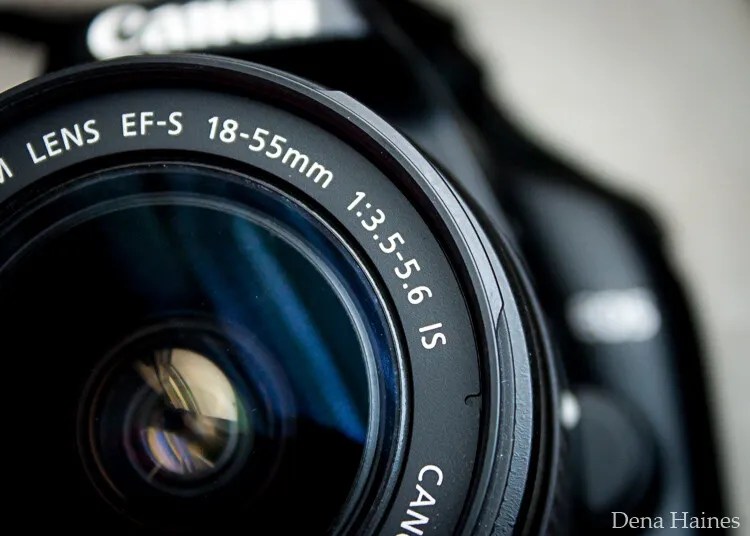
In this beginner’s guide, we’ll use an entry-level zoom lens as our example. Most kit lenses (the basic lens that comes with a DSLR) generally shoot their sharpest at a mid-range aperture setting. To determine the mid-range aperture of your lens, you’ll need to know its widest (or maximum) aperture setting. This is located on the side or end of the lens and will look something like 1:3.5-5.6.

For example, here it is on my Canon 18-55mm zoom lens:

Lens aperture range

This means that when my lens is zoomed all the way out to 18mm, its widest aperture is f/3.5. When zoomed all the way in to 55mm, its widest aperture is f/5.6.

The rule for finding that mid-range sweet spot is to count up two full f-stops (aperture settings are called f-stops) from the widest aperture. On my lens, the widest aperture is f/3.5. Two full stops from there would bring me to a sweet spot of around f/7.1.

Use this chart to count your f-stops:

Robin Parmar

By Robin Parmar

There is some wiggle room in what counts as mid-range, so anything from f/7.1 to f/10 will capture a sharp image. Once you know the mid-range aperture of your lens, you can do an easy test to get your sharpest image. To perform the test you’ll need to shoot in Aperture Priority mode.

Take control with Aperture Priority mode

Shooting in Aperture Priority allows you to choose the aperture setting you want, which gives you more creative control than Auto mode.

By controlling the aperture setting, it’s much easier to get a sharp image. And because your camera still chooses the ISO (if it’s set to Auto ISO) and the shutter speed automatically, it’s very easy to use.

You’ve probably heard that apertures like f/16 and f/22 are best for keeping everything in focus. While that can be true, focus does not always equal overall sharpness. Choosing a mid-range aperture will give you sharper images throughout. You can improve your photos even further by reducing camera shake by way of a tripod and a remote shutter release (or your camera’s self-timer).

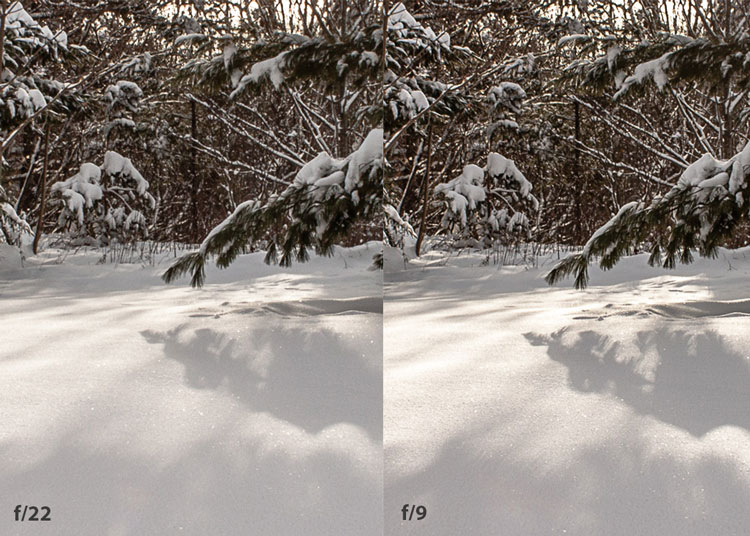
Here’s an example of how shooting in your lens’s sweet spot will give you sharper images:

Sharp images shot in lens sweet spot

Mid range f stop sharper than small f stop

In the above image, the f/9 shot is sharper than the f/22 one. The needles and shadows are not as soft or blurry as in the f/22 shot (look at the crispness and sparkles in the snow, too).

Switching from Auto to Aperture Priority mode

To take your camera off of Auto and put it in Aperture Priority, just turn the large mode dial to Aperture Priority. This is what that looks like on my Canon (on Nikon and other brands look for the “A”).

Aperture priority on canon mode dial

Auto mode is the green rectangle; Aperture Priority mode is the Av (or A on a Nikon). Once your camera is in Aperture Priority mode, turn the smaller main dial (shown here on the top of my Canon) to choose your f-stop.

Main dial canon

As you turn that dial, you’ll see the f-number changing on your screen. In the next picture, it’s set to f/9.5:

Aperture setting on canon LCD screen

Perform a lens sweet spot test

Once you have your camera set up on a tripod, performing a sweet spot test only takes a couple of minutes. To begin, put your camera in Aperture Priority mode, then compose your shot and take photos at varying apertures. Start with a shot at the widest aperture, then rotate that main dial a couple of times (to narrow the aperture) and take another shot. Keep doing that until you’ve taken seven or eight photos.

Upload your photos to your computer and zoom in. You’ll quickly see which aperture settings gave you the sharpest overall image.

This next photo of my daughter was shot using natural light. Shooting in my lens’s sweet spot gave me a pretty sharp image, even in this low light setting:

Mid range aperture sharp image low light

Find your lens sweet spot for sharper images

The close-up of the mug shows the advantage of shooting in the lens’s sweet spot. Whenever you want to make sure you get the sharpest capture possible, take a shot at each mid-range setting: f/7.1, f/8, f/9, and f/10.

Getting your sharpest images

Now that you know your lens’s sweet spot, it’s time to practice. I hope you’re as pleased with the results as I’ve been!

Mid range aperture for sharper images

I love shooting in natural light, and learning how to capture sharper images in low light has made me so much happier with my photos.

Tips for capturing the sharpest images

  • Shoot in Aperture Priority mode
  • Choose a mid-range aperture (usually f/7.1 to f/10)
  • Use a tripod and a remote shutter release (or your camera’s self-timer) to reduce camera shake
  • Take a series of shots at f/7.1 through f/10 when a sharp capture is especially important

But don’t stop there. Keep playing with settings in Aperture Priority mode. It’s awesome to get images that are sharp throughout, but there’s a lot more to aperture than that.

Learn more about aperture and depth of field here.

The post How To Find Your Lens’ Sweet Spot: A Beginner’s Guide to Sharper Images appeared first on Digital Photography School. It was authored by Dena Haines.


Digital Photography School

 
Comments Off on How To Find Your Lens’ Sweet Spot: A Beginner’s Guide to Sharper Images

Posted in Photography


Tips for Culling Images for Better Results and More Efficiency

30 Sep

The post Tips for Culling Images for Better Results and More Efficiency appeared first on Digital Photography School. It was authored by John McIntire.

When it comes to a photographer’s workflow, there is one stage that might be more important than any other. It is the image selection process, also known as the culling stage. This critical stage is the point where you get your images into Lightroom (or other software) and start choosing which to work on.

But while this is the stage where you choose the photos that ultimately end up representing your work as a photographer, without systems in place it can turn into a huge time sink.

So focusing on the process of culling images can help speed up image selection significantly. 

Have a system for culling images to help you get to your best results faster.
Being able to quickly whittle down a set of photos is an important skill for any photographer. At 36 images, this is a small set of photos, but the principles are the same whether it’s 36 images or 360.

This article aims to show you why having a good system for image selection can be beneficial to your photography and your portfolio. It will also provide an overview of a basic system that you can start to use in your workflow right away, and it will provide tips on how to use Lightroom’s built-in functionality for this purpose. 

Note: My examples here are portraits, but the system applies to just about any genre in photography. There are instances where you might not be able to apply some of these principles and the criteria you apply in different genres will be different, but they are exceptions. 

The forest for the trees

Take a moment to imagine that you’ve just finished a big session and imported all the images into Lightroom. Now you may have hundreds of images that you have to sift through to find the ones that you want to work on.

Having a lot of photos from a shoot makes culling images even more important.
When you have hundreds of photos from a shoot all in one place, and test shots, outtakes, and misfires are still included, it can feel like a chore to go through them all.

Without a system for culling images in place, it’s all too easy to find yourself continually scrolling through the same set of images and reviewing the same ones multiple times. This may not be a problem if you only have a handful of frames, but once you get into larger shoots, you can waste a lot of time doing things this way.

Additionally, after going through the same images over and over again, it can also become discouraging. This makes it easy to give up and leave some gems unspotted, which are ultimately relegated to obscurity on your hard drive. 

culling images
By using Collection Sets to divide a large shoot into ten outfit changes, the images become much easier to manage.

So what type of system can you create?

Using Collection Sets to divide up large shoots into smaller, more manageable chunks is a good place to start.

This is just a small reason why you should consider developing a system for your editing process. 

Editing

The image selection process is also known as editing. Now, I know that the word edit (and editing) has come to mean something else in everyday vernacular for photographers. You can call it whatever you want, as I am not one to dictate or prescribe. But as you will be going about image editing in the future, consider thinking about your post-processing workflow in terms of these two job descriptions:

Photo (Picture) Editor: Someone whose job it is to select photos appropriate for the use in question. 

Retoucher: Someone whose job it is to alter the appearance of photos and manipulate photos to achieve a final result. 

Tools

Lightroom has a huge variety of tools that makes culling images easier. While this is not an exhaustive list, here are a few features that I use regularly: 

Fullscreen Mode

Culling images in full screen mode ensures that you are focusing on one image at a time.
Using Fullscreen Mode during the image selection process will help to remove any distractions from your screen. You’ll see the photo that you are evaluating and nothing else.

Being able to view a single image at a time makes this whole process go more smoothly. It also takes away the distraction of Lightroom’s standard interface on the screen. To enter Fullscreen Mode, select any single image in the Library Module and press the “F” key. 

Compare

culling images
If you want to look at two similar images side by side, use the Compare feature in Lightroom.

The Compare feature allows you to look at two images side by side. Although you won’t use this until later in the selection process, it becomes very useful when you are trying to choose between two similar images with minor differences.

To use the Compare feature, select any two images in the Library Module and press the “C” key. To get back to your normal view, press “G.”

Reject

Lightroom lets you mark photos as rejects, which makes culling images a breeze.
When you reject a photo in Lightroom, the image will be grayed out and marked by a black flag with an “X.” Any images you mark in this way should be recognizable at a glance.

If you follow my process, you are going to use this tool a lot. When you press the “X” key while any image is selected, you flag that image as a reject. This marks the image with a black flag with an “X” in the upper left-hand corner, and it grays the image out in the Library Module. This makes it very easy to see which images you have already reviewed and marked as unsuitable.

Pick

Mark photos you like with a Pick when culling images.
Marking an image as a Pick will annotate it with a highly-visible white flag.

When you are going through your images, you will eventually come across a photo that you love. You’ll know that you want to work on it no matter what.

In this instance, press the “P” key; the image will be flagged as a Pick. A little white flag icon will appear at the top left of the image in Lightroom.

Star ratings

culling images using the Lightroom star ratings
Using the star ratings in Lightroom is another quick and useful way to annotate images that you want to review again later.

Because you will be going through your images multiple times, you can use the star ratings in Lightroom to mark any images you are unsure of or aren’t able to make a final decision on yet. You can mark them with one to five stars by using the corresponding number key. This makes them clearly labeled when you return to them in the future. 

On being ruthless

Before we get into the actual steps of the editing process, there is one thing to discuss. Most everything outlined in this article can be changed up as required, but there is one thing that will be important for you to follow no matter what.

To make this process faster and more efficient, and to ensure that you are only left with your best images, you have to be ruthless. If something is not right about an image, reject it. If you have to think about it for more than a few seconds, reject it. If you have even so much as a niggling doubt, reject it. 

Being able to spot obvious flaws will make culling images a fast process.
Being able to quickly recognize obvious faults will allow you to reject images quickly. Overexposure, outtakes, reflections in glasses, cropped body parts, and awkward arm placements are some of the reasons these images were rejected at first glance.

A lot of the wasted time in this part of the workflow comes from hemming and hawing over an image for a length of time when the image doesn’t wind up getting used anyway. Make decisions fast. Be ruthless.

The system

culling images
Keeping the images you are working on separate from the rest will make this process go much more smoothly.

Now that you know the desired end result, you can get started with the actual process of image selection.

The first step is to isolate the set of images you are working on from everything else. There should be no distractions. If you are working on a set from a portrait session where there were multiple outfit changes, separate each outfit into its own folder.

In Lightroom, this is easy. You can create a Collection Set for your shoot, and then create a Collection for every outfit change inside that set. This will keep all of the images from a session in one place, but separated by things like outfit changes or lighting changes. 

Criteria

Chances are that you already have preconceived notions of what you don’t like in photos. Whether these ideas come from things you’ve heard from other photographers or opinions you’ve developed yourself, it doesn’t matter. Knowing what these things are is going to help you speed through the process much, much faster. 

Technical: Things that fall on the technical side are relatively easy to identify. What you are evaluating for here are things like focus, exposure, the absence of motion blur, etc. When you are going through your images, learn to identify technical faults at a glance.

Culling images is easy when you know what to look for
Technical faults, like reflections in glasses, are easy to spot and make quick decisions on.

Aesthetic: This one is all down to your personal tastes. If you can figure out what you don’t like, then you can spot those things in an instant and rule the photos out of the selection process.

Don’t like when portrait subjects bring their hands to their face? That rules out any photos fitting that description. Don’t like it when catchlights appear in the whites of the eyes? You get where I’m going with this. 

culling images
Aesthetic faults come down to personal preference and taste. Here, the eyes are dark and the pose isn’t the best.

The first pass

culling images
The goal of your first pass is to reject as many images as possible as fast as possible. If you can identify a reject at a glance and mark it as such, you won’t waste any time later going over that image multiple times.

Once you’ve isolated the images that you’re working on, you can begin the first pass of the culling process.

The only goal here is culling images as fast as possible. Select the first photo in your folder and enter Fullscreen Mode in Lightroom (press “F”). Use the right arrow key to scroll through your images one at a time.

You should have an idea of what isn’t a good photo in your mind. You’re looking for things that fall into that category. Did the flash misfire? Are the eyes partly closed? Is the facial expression not flattering? Is the lighting not quite right? Is the focus off? 

If there’s a fault in the image, find it and press “X.” 

The second pass

Now that you have completed the first run through your images, you should find that you’ve rejected most of them. The next step is to isolate the images that you haven’t culled from the ones you need to review again.

There are a few ways you can do this. You can create a new Collection and add the images that are to be reviewed. Or you could remove the rejected images from the Collection you are working in. 

Sorting options will help you when culling images.
Using the sorting options on the bottom toolbar, you can sort by Pick. This will put all of your rejects at the bottom of the catalog, making it easy to go through for the second pass.

You could also use the sorting options on the bottom toolbar in the Library Module. This will put any rejected images at the end of the gallery. From there, you can select all of the unflagged images and enter Fullscreen Mode again. As you cycle through the images a second time, you’ll first see the shots you have selected.

For this pass, you are trying to achieve the same thing as the first: to reject as many images as possible. This time it will take longer, as these are images that you have already decided don’t have any immediate faults. Feel free to take extra time and have a careful look over the images. Just remember that you are still not picking any photos yet, merely getting rid of the ones that aren’t suitable. 

You can repeat this stage as many times as you need in order to narrow down your Collection to the few best images. For the sake of brevity, we’ll move directly on to the next stage and assume you’ve narrowed your images down as much as possible. 

The third pass

the third pass when culling images
Using this method, I was able to narrow down this set to three images in a little over ten minutes.

At this point, you should have a much smaller group of images to work with.

(If you still have a lot of photos, go back and be more ruthless.)

You can now go through and start making your final selections. It should be a lot easier now that you have a much smaller pool to go through. Use the Pick flags or star ratings to indicate the photos you want to work on and reject any photos that still need rejecting.

At the end of your culling sessions, you should have a concise selection of images that reflect the best shots from a particular set. 

How many should you aim for?

If you’re wondering how many images you should aim to have left once this is all over, the answer is: it depends. 

The number of final images is going to vary wildly depending on how you shoot and what you are shooting for. For example, if I am shooting for myself, I will be looking for one or two images per set. That set may start with 10 photos in it. It may start with 100. I am still only looking for one or two.

If I’m doing a short portrait session for a client, I might end up with 15-20 proofs to present. If I was photographing an event, I would go through and get rid of the obvious rejects and keep everything that was left. 

culling images example photo
Canon 5D Mark III | Canon EF 85mm f/1.8 | 85mm | 1/2000 sec | f/2.8 | ISO 200

There is no right answer. Only you can answer how many images you need in the end. This whole process of culling images is there to get you to those final photos faster, rather than get you to a certain number.

Keeping it basic

The tools and the process outlined in this article are very basic. It’s how I do it and it’s like that for a reason. The process is uncomfortable and forces you, for a little while, to focus on your mistakes.

When I am culling images, I want it completed as soon as possible, and I don’t want my tools to get in the way of the process. That said, Lightroom has a whole host of other features that could be used in the culling process. By all means, use them if they suit you. It doesn’t matter how you get the job done as long as you get it done.

Conclusion

I know that this can be a difficult process. You have a catalog of images on the screen that you created and poured all kinds of effort into. You just want to look through them and feel good about the photos you’ve made. You don’t want to jump in and start finding faults with 90% of them. I understand. I’m the same.

However, as disheartening as it feels at first, once you start culling images and the best images from a shoot start showing themselves (usually after a short while), that allows you to focus only on the best.

Trust me: The images that you cut get quickly forgotten, anyway. It’s best to be done with them fast; that way you can focus the rest of your time and effort on the images that will benefit you and your portfolio. 

The post Tips for Culling Images for Better Results and More Efficiency appeared first on Digital Photography School. It was authored by John McIntire.


Digital Photography School

 
Comments Off on Tips for Culling Images for Better Results and More Efficiency

Posted in Photography


Researchers teach an AI to generate logical images based on text captions

30 Sep

The Allen Institute for AI (AI2) created by Paul Allen, best known as co-founder of Microsoft, has published new research on a type of artificial intelligence that is able to generate basic (though obviously nonsensical) images based on a concept presented to the machine as a caption. The technology hints at an evolution in machine learning that may pave the way for smarter, more capable AI.

The research institute’s newly published study, which was recent highlighted by MIT, builds upon the technology demonstrated by OpenAI with its GPT-3 system. With GPT-3, the machine learning algorithm was trained using vast amounts of text-based data, something that itself builds upon the masking technique introduced by Google’s BERT.

Put simply, BERT’s masking technique trains machine learning algorithms by presenting natural language sentences that have a word missing, thus requiring the machine to replace the word. Training the AI in this way teaches it to recognize language patterns and word usage, the result being a machine that can fairly effectively understand natural language and interpret its meaning.

Building upon this, the training evolved to include an image with a caption that has a missing word, such as an image of an animal with a caption describing the animal and the environment — only the word for the animal was missing, forcing the AI to figure out the right answer based on the sentence and related image. This taught the machine to recognize the patterns in how visual content related to the words in the captions.

This is where the AI2 research comes in, with the study posing the question: ‘Do vision-and-language BERT models know how to paint?

Experts with the research institute build upon the visual-text technique described above to teach AI how to generate images based on its understanding of text captions. To make this possible, the researchers introduced a twist on the masking technique, this time masking certain parts of images paired with captions to train a model called X-LXMERT, an extension of the LXMERT model family that uses multiple encoders to learn connections between language and visual data.

The researchers explain in the study [PDF]:

Interestingly, our analysis leads us to the conclusion that LXMERT in its current form does not possess the ability to paint – it produces images that have little resemblance to natural images …

We introduce X-LXMERT that builds upon LXMERT and enables it to effectively perform discriminative as well as generative tasks … When coupled with our proposed image generator, X-LXMERT is able to generate rich imagery that is semantically consistent with the input captions. Importantly, X-LXMERT’s image generation capabilities rival state-of-the-art image generation models (designed only for generation), while its question-answering capabilities show little degradation compared to LXMERT.

By adding the visual masking technique, the machine had to learn to predict what parts of the images were masked based on the captions, slowly teaching the machine to understand the logical and conceptual framework of the visual world in addition to connecting visual data with language. For example, a clock tower located in a town is likely surrounded by smaller buildings, something a human can infer based on the text description.

An AI-generated image based on the caption, ‘A large painted clock tower in the middle of town.’

Using this visual masking technique, the AI2 researchers were able to impart the same general understanding to a machine given the caption, ‘A large clock tower in the middle of a town.’ Though the resulting image (above) isn’t realistic and wouldn’t be mistaken for an actual photo, it does demonstrate the machine’s general understanding of the meaning of the phrase and the type of elements that may be found in a real-world clocktower setting.

The images demonstrate the machine’s ability to understand both the visual world and written text and to make logical assumptions based on the limited data provided. This mirrors the way a human understands the world and written text describing it.

For example, a human, when given a caption, could sketch a concept drawing that presents a logical interpretation of how the captioned scene may look in the real world, such as computer monitors likely sitting on a desk, a skier likely being on snow and bicycles likely being located on pavement.

This development in AI research represents a type of simple, child-like abstract thinking that hints at a future in which machines may be capable of far more sophisticated understandings of the world and, perhaps, any other concepts they are trained to understand as related to each other. The next step in this evolution is likely an improved ability to generate images, resulting in more realistic content.

Using artificial intelligence to generate photo-realistic images is already a thing, though generating highly specific photo-realistic images based on a text description is, as shown above, still a work in progress. Machine learning technology has also been used to demonstrate other potential applications for AI, such as a study Google published last month that demonstrates using crowdsourced 2D images to generate high-quality 3D models of popular structures.

Articles: Digital Photography Review (dpreview.com)

 
Comments Off on Researchers teach an AI to generate logical images based on text captions

Posted in Uncategorized