RSS
 

Posts Tagged ‘Images’

Getty Images sued over ‘deceptive’ licensing public domain images

03 Apr

CixxFive Concepts, a digital marketing company based in Dallas, Texas, has filed a class action lawsuit against Getty Images over its alleged licensing of public domain images. The complaint, which was first reported by TechDirt, accuses Getty of violating RICO and the Washington Consumer Protection Act, among ‘other claims.’

The lawsuit, embedded below, alleges Getty Images has been…

…fraudulently claiming ownership of copyrights in public domain images (which no one owns) and selling fictitious copyright licenses for public domain images (which no one can legally sell), including operating an enterprise of third-party contributors to perpetrate this egregious scheme.

Though CixxFive acknowledges that it is not illegal to sell public domain images, the company alleges that Getty’s ‘conduct goes much further than this,’ claiming it has utilized ‘a number of different deceptive techniques’ in order to ‘mislead’ its customers — and potential future customers — into thinking the company owns the copyrights of all images it sells.

The alleged actions, the lawsuit claims, ‘purport to restrict the use of the public domain images to a limited time, place, and/or purpose, and purport to guarantee exclusivity in the use of public domain images.’ The lawsuit also claims Getty has created ‘a hostile environment for lawful users of public domain images’ by allegedly sending them letters, via its License Compliance Services (LCS) subsidiary, accusing them of copyright infringement.

In listing examples of Getty’s allegedly deceptive actions, the lawsuit states:

One aspect of the deceptive nature of Getty’s and/or Getty US’s licensing scheme is that Getty and/or Getty US claims copyright on all of the content on its website. For example, the bottom of each page of its website states: “All contents © copyright 1999-2019 Getty Images. All rights reserved.”

Also, specific public domain images are overlaid on Getty and/or Getty US’s website with the © symbol followed by an entity or contributor name, indicating that the image is protected by copyright. The same © symbol and information is also provided next to the public domain image.

CixxFive claims it has licensed public domain images from Getty, pointing to two images specifically that are available for free from the Library of Congress and NASA. The lawsuit claims that Getty’s licensing of public domain images has ‘injured CixxFive and the public, and will continue to do so unless brought to a halt by this court.’

It’s doubtful CixxFive will prevail in its lawsuit against Getty, as it’s legally allowed to sell public domain images, as unethical as it may be. Getty has previously won two past lawsuits related to image licensing: one from photographer Carol Highsmith filed in July 2016 and another from press agency and wire service Zuma in August 2016.

Articles: Digital Photography Review (dpreview.com)

 
Comments Off on Getty Images sued over ‘deceptive’ licensing public domain images

Posted in Uncategorized


Copytrack report claims 2.5 billion online images were stolen per day in 2018

30 Mar
Illustration showing copyright infringements by continent, used with permission

Image rights enforcement company Copytrack has released its new Global Infringement Report 2019 study detailing the current state of unauthorized image use around the world. According to the company, it performed a statistical analysis of more than 12,000 Copytrack user profiles as part of its new report, which details the number of ‘potential copyright violations’ the company dealt with from December 2017 to December 2018.

Based on its analysis, Copytrack estimates more than 2.5 billion images are stolen every day with potential daily damages estimated at up €532.5 billion / $ 598 billion. Due to the vast number of images used daily, the company found that most photographers and agencies were unaware of many instances of image infringement.

Illustration showing the top 20 most image infringing countries, used with permission

The study found that the majority of copyright infringement cases originated from North America at 33.90%, with Europe coming in second at 31.40% and Asia in third with 29.38%. The company isn’t able to answer why Asia had lower rates of infringement than NA and EU regions but speculated it may be due, in part, to the percentage of regular Internet users in each continent.

Looking at infringement numbers by country, Copytrack found the US had the highest percentage at 22.96%, followed by Panama at 6.76%, China at 6.57% and Germany at 6.32%. The percentage drop quickly from there, coming in at 3.75% for the UK all the way down to 1.25% for Switzerland, 1.16% for the Netherlands and 1.05% for Vietnam.

Below is the report in its entirety:

Of the infringing use, Copytrack found Full HD 1920 x 1080 resolution images were the most commonly used. Most unauthorized use involved images with 3:2, 2:3, and 1:1 format ratios, as well as 640 x 400 and 800 x 800 resolutions. Copytrack concludes its report, stating, ‘This problem will most likely continue at a similar rate until major search engines such as Google, Yahoo, and the like figure out a way to reliably identify the authors of images posted online.’

Articles: Digital Photography Review (dpreview.com)

 
Comments Off on Copytrack report claims 2.5 billion online images were stolen per day in 2018

Posted in Uncategorized


Harvard sued over allegedly profiting from 1850s images of American slaves

23 Mar

Harvard University has been sued over its licensing of daguerreotypes believed to be the first images of American slaves. The lawsuit was filed by Tamara Lanier, who says she is the direct descendant of Renty, the man featured alongside his daughter, Delia, in the daguerreotypes. The suit was filed on March 20 in the Middlesex County Superior Court.

The daguerreotypes were commissioned in 1850 by Harvard professor Louis Agassiz, a Swiss-born Harvard professor who sought the images in support of polygenism, a flawed theory that human races have different origins. The commissioned images were taken by J.T. Zealy in Columbia, South Carolina. A total of 11 slaves were photographed, including Renty and Delia, who were stripped naked and imaged from multiple angles.

The images were apparently lost for years before turning up in the Harvard University Peabody Museum of Archaeology and Ethnology’s attic in 1976. Since their discovery, according to the lawsuit, Harvard has used the images of Renty for profit, including as the cover image for the book From Site to Sight: Anthropology, Photography and the Power of Imagery, which was published by the Peabody Museum and sold by Harvard.

According to the lawsuit, Lanier had repeatedly reached out to Harvard over the images, but the university failed to address her concerns. Lanier reportedly provided Harvard officials with proof that she is one of Renty’s descendants but was unable to get a response. The lawsuit seeks to have Harvard turn over the images to Lanier’s family and to pay an unspecified amount in damages.

Articles: Digital Photography Review (dpreview.com)

 
Comments Off on Harvard sued over allegedly profiting from 1850s images of American slaves

Posted in Uncategorized


NVIDIA Research project uses AI to instantly turn drawings into photorealistic images

21 Mar

NVIDIA Research has demonstrated GauGAN, a deep learning model that converts simple doodles into photorealistic images. The tool crafts images nearly instantaneously, and can intelligently adjust elements within images, such as adding reflections to a body of water when trees or mountains are placed near it.

The new tool is made possible using generative adversarial networks called GANs. With GauGAN, users select image elements like ‘snow’ and ‘sky,’ then draw lines to segment an image into different elements. The AI automatically generates the appropriate image for that element, such as a cloudy sky, grass, and trees.

As NVIDIA reveals in its demonstration video, GauGAN maintains a realistic image by dynamically adjusting parts of the render to match new elements. For example, transforming a grassy field to a snow-covered landscape will result in an automatic sky change, ensuring the two elements are compatible and realistic.

GauGAN was trained using millions of images of real environments. In addition to generating photorealistic landscapes, the tool allows users to apply style filters, including ones that give the appearance of sunset or a particular painting style. According to NVIDIA, the technology could be used to generate images of other environments, including buildings and people.

Talking about GauGAN is NVIDIA VP of applied deep learning research Bryan Catanzaro, who explained:

This technology is not just stitching together pieces of other images, or cutting and pasting textures. It’s actually synthesizing new images, very similar to how an artist would draw something.

NVIDIA envisions a tool based on GauGAN could one day be used by architects and other professionals who need to quickly fill a scene or visualize an environment. Similar technology may one day be offered as a tool in image editing applications, enabling users to add or adjust elements in photos.

The company offers online demos of other AI-based tools on its AI Playground.

Articles: Digital Photography Review (dpreview.com)

 
Comments Off on NVIDIA Research project uses AI to instantly turn drawings into photorealistic images

Posted in Uncategorized


How to Edit and Retouch Images Using Capture One Pro

16 Mar

The post How to Edit and Retouch Images Using Capture One Pro appeared first on Digital Photography School. It was authored by Carl Spring.

Before and after split screen of edit

Whilst we all flock to Photoshop for our retouching, Capture One now has a lot of great tools. But is it possible to do a full image edit including retouching? More so, if it is, should you do it and avoid Photoshop altogether?

To find out, I closed Photoshop and settled myself down for a full edit using only Capture One Pro. Lets go through the process and see what I learnt.

Annotate

Capture One’s built-in annotation tools make it easy to plan your retouching for your images. A variety of colors can easily be added to the image should you wish. I really like this tool. It allows you to make simple notes on screen. While it may look like I am practicing my abstract expressionism, I am actually highlighting what I want to improve. In this case, the red is for retouching and yellow is for exposure issues. I love this tool! So far so good.

The annotate tool is great for making notes before you start the edit.

Colour balance

When the image comes into Capture One, the first thing is to get a good neutral color balance. I always start by letting Capture One get me into the ballpark via the Auto tool in White Balance. While not perfect, it gives a good starting point.  I then tweak the color to taste. In most cases, it is only a small tweak from the auto white balance to get a starting point I am happy with.

Exposure

Continuing with the basics, next up is exposure. It always pays to get as close as you can in-camera, and this case required very little. For this image, I pushed up the exposure just under 0.5 stops and added a slight amount of contrast and saturation to my taste. All that was left was a slight highlight recovery to take away the worst of the hot spots. The worst highlights will be taken care of in the next step (and first layer) Luma masking.

Layer One: Luma Mask

New in Capture One 12 is Luma masking. I love this tool! It is such a great time saver for masking highlights. I use it here to mask out the highest highlights in the image and then use the High Dynamic Range sliders to pull back the highlights. Subtly is the key here. I only want to take the harshness out of the bright spots.

An image showing the luma mask in Capture One Pro 12

Possibly my favourite tool in Capture One 12. The Luma mask

Layer two (and three and four): Blemish Retouching

Trying to do any amount of blemish retouching in Capture One soon tells you that it wasn’t designed for this task. The system is clunky. You sample using the alt key (the same way as Photoshop); however, you cannot resample a different area on the same layer. Instead, you need to create a new layer and a new sample. I ended up using 3 layers merely to do basic spot removal (and this wasn’t even going as far as I would in Photoshop). Capture One isn’t effective for any serious blemish removal. I tried this process out on another image to see if it fared better, but it was worse. It got to the point where I just gave up. Yes, it works for simple items, but in the future, blemishes will be worked on in Photoshop only.

Layer five: Skin smoothing

The Skin Smoothing tool is a super-great way to improve skin with a simple mask and a couple of sliders. I use this tool all the time when editing wedding photography. It gives a great effect with such little effort.

The first step is to create a mask using a new layer and the Brush tool. Make sure you leave out areas of detail, such as the eyes and lips. You can then refine the mask to get it more accurate. I tend to use a number between 100-150 for most situations. After this, I go back in with the brush and erase tools until I am happy with the mask. A little tip here is to change the mask color from the default of red when working with people. It just makes the mask stand out more against the skin.

Next, the special sauce. A.K.A The Clarity tool. Just go to the clarity section, choose Natural as the clarity type and slide the numbers into the negatives. I generally find the sweet spot for this technique to be between -60 to -70. Much more than this and it can become a little fake. It comes down to the image you are working on. Simply adjust the sliders until you are happy with the result.

This on its own has a massive difference on the image, but when you add in the Color Editor tool, it takes this to another level.

Layer five continued: Skin Colour

The ability to work with color so precisely is one of Capture One’s greatest strengths. Editing skin tone is a great way to make your model’s skin glow. You can find this tool located in the Color Editor section. To start, click the icon and sample a skin tone. Next, you work with the two sections of this tool, Amount and Uniformity. The amount sliders are to get a skin tone that you are happy with. You then move onto the uniformity sliders to even out the skin tone through the whole face. As with much retouching, it is easy to go over the top. My tip for this is to do the edit, then take a break for a couple of minutes and come back. You instantly see if the image is over done and you can dial back accordingly.

We now have an even, soft skin tone through the image. This layer has made a huge difference to our image. It’s now time to finesse the details.

Capture One screen grab showing mask and colour tools

As you can see, the combination of the clarity slider and the Skin colour editor has really made a difference. The blue mask, maybe not so flattering.

Layer six: Teeth

The teeth need to be slightly whitened. This is as simple as a mask, followed by reducing the saturation. Again, don’t take it down to zero – it will look weird. Take it down just enough so that the teeth look naturally white. In this image, the sweet spot was -51. I then pushed the exposure just slightly to give a whiter smile. But again, as with all retouching, less is more.

Layer seven: Eyes

You sense a theme yet? I created another mask for the eyes. This time I added a very slight bump in exposure and some clarity to give them a subtle pop that was missing before.

Layer eight: The top

The red top the model wore in this shoot was just too bright. Using a combination of a mask and the color editor, I was able to easily reduce the red tone to something less overpowering.

Capture One screen shots showing before and after the colour editor

Toning down the red top means it is not quite as powerful in the image.

Layers nine and ten: The Hair

As the old saying goes; in for a penny, in for a pound. Having worked on the heal and clone layers for basic spot removal, this was going to be something that I was unsure would work. However, with a lot of trial and error, I produced something that was okay. Would I do it again? No. But, I did manage to improve the hair significantly from the previous state.

I ended up using a clone layer for one side of the hair and a heal layer for the other. Again, editing like this shows the limitations of Capture One for high-end retouching. However, after some trial and error, it did an okay job.

Layer eleven: Colour Grade

I generally don’t color grade images heavily – if at all. I usually prefer a natural look. But for this tutorial, I added a color grade. To do this, you add a new fill layer and add your grading there. This also allows you to reduce the effect by opacity or simply turn it on or off quickly to give different looks.

For this image, I decided to use Capture One’s excellent film grain emulations to add some soft grain. Next, I spent some time with the Color Balance tools pulling the shadows into the blues and highlights slightly into the orange. Finally, I used the levels to give a slightly faded look to the final color grade. That’s it. It’s done!

Final photo after retouching

The final edit.

What did I learn?

Well, it is possible to do a full retouch in Capture One. However, in reality, it is clunky and nowhere near as powerful as Photoshop.

The worst part of this was the blemish removals. It was painful to use for more than a couple of blemishes in an image. Also when trying this on another image to remove an eyelash, it was impossible to get it to give a pleasing result.

The standout of this edit is a process I use all the time: the Skin Smoothing and Skin Color combination. These two tools can quickly take care of many skin problems you may see. As a wedding photographer, this is a powerful tool. I can make a bride’s skin look glowing, quickly and easily without the need to round trip to Photoshop. To give you an example, check out this before and after using only this combination. You can achieve quick, simple and powerful results in just a couple of minutes.

A comparison of before and after skin reoutching in Capture One

Such a vast improvement only using two tools.

Conclusion

In general, the color tools in Capture One are amazing, and as well as working well on the skin, they were great for color grading the final image. My regular workflow for an image like this would be a trip to Photoshop for the skin, then back into Capture One for color grading.

Overall, Capture One did give a good final result, but at the cost of time and with some frustration.

Can Capture One Pro do a full edit with retouching? It can – kind of.

Would I recommend it? No.

It’s just not quite precise enough to be able to use regularly for this type of edit. That skin trick though is gold!

Do you use Capture One for your retouching? What are your experiences?


The post How to Edit and Retouch Images Using Capture One Pro appeared first on Digital Photography School. It was authored by Carl Spring.


Digital Photography School

 
Comments Off on How to Edit and Retouch Images Using Capture One Pro

Posted in Photography


Understanding Imaging Techniques: the Difference Between Retouching, Manipulating, and Optimizing Images

09 Mar

The post Understanding Imaging Techniques: the Difference Between Retouching, Manipulating, and Optimizing Images appeared first on Digital Photography School. It was authored by Herb Paynter.

Understanding Imaging Techniques

Three distinct post-production processes alter the appearance of digital photographs: Retouching, Manipulating, and Optimizing. These terms may sound similar enough to be synonymous at first glance, but they are entirely different operations. Once you understand the difference between these three processes, your image editing will take on new meaning, and your images will deliver powerful results.

Image retouching

Photo retouching is image alteration that intends to correct elements of the photograph that the photographer doesn’t want to appear in the final product. This includes removing clutter from the foreground or background and correcting the color of specific areas or items (clothing, skies, etc.). Retouching operations make full use of cloning and “healing” tools in an attempt to idealize real life. Unfortunately, most retouching becomes necessary because we don’t have (or take) the time to plan out our shots.

Our brain tends to dismiss glare from our eyes, but the camera sees it all. A slight change of elevation and a little forethought can save a lot of editing time.

Planning a shot in advance will alleviate much of these damage control measures but involves a certain amount of pre-viewing; scouting out the area and cleaning up items before the camera captures them. This includes “policing” of the area… cleaning mirrors and windows of fingerprints, dusting off surfaces, and general housekeeping chores. This also includes putting things away (or in place), previewing and arranging the lighting available and supplementing the lighting with flash units and reflectors where required, checking for reflections, etc.

Benjamin Franklin coined the phrase “an ounce of prevention is worth a pound of cure,” which pretty much sums up the cleanup chores. We also use the phrase “preventative maintenance;” fixing things before they break and need repair.

Admittedly, we don’t often have the luxury of time required to primp and polish a scene before we capture it, and retouching is our only option. However, sometimes all we need to do is evaluate the scene, move around and see the scene from another angle, or wait for the distraction to move out of the scene.

Sometimes a small reposition can lessen the amount of touchup and repair needed.

We can’t always avoid chaos, but we could limit the retouching chore with a little forethought. It takes just a fraction of a second to capture an image, but it can take minutes-to-hours to correct problems captured.

Image manipulation

Manipulation is a bit different, though it occasionally is a compounded chore with retouching. When we manipulate a photo, we truly step out of reality and into fantasyland. When we manipulate an image we override reality and get creative; moving, adding elements to a scene or changing the size and dimension. When we manipulate an image, we become a “creator” rather than simply an observer of a scene. This is quite appropriate when creating “art” from a captured image, and is ideal for illustrations but perhaps shouldn’t be used as a regular post-capture routine.

Photo-illustration is an excellent use of serious manipulation, and can be quite effective for conveying abstract concepts and illustrations.

Earlier in my career, I worked as a photoengraver in a large trade shop in Nashville Tennessee during the early days of digital image manipulation. The shop handled the pre-press chores for many national accounts and international publications. On one occasion in 1979, we were producing a cover for one of these magazines. On the cover was a picture of Egypt’s President Anwar Sadat set against one of the great pyramids. Unfortunately, the pyramid was in a position that interfered with the titles on the magazine’s cover.

While this is not the exact picture used in the magazine, you see the challenge.

The Art Director for the magazine sent instructions for us to shift the pyramid in the picture so that the titles would not interfere with it. Moving that thing was an amazing feat back then. Normal airbrushing would have left obvious evidence of visual trickery, but digital manipulation opened a whole new potential for near-perfect deception. We were amazed at the potential but a bit nervous about the moral implications of using this power.

This venture was accomplished (over a decade before Photoshop) on an editing machine called a SciTex Response, a workstation supported by a very powerful minicomputer. Nobody outside that small building knew that from Nashville, we pushed an Egyptian pyramid across the desert floor until revealed years later. Shortly thereafter, digitally altered images were prohibited from use as evidence in a court of law by the Supreme Court of the United States. Today, this level of manipulation lets you routinely alter reality and play god on a laptop, sitting on a park bench.

Manipulation is powerful stuff and should be used with serious restraint; not so much for legal reasons, but because of diminishing regard for nature and reality. Fantasyland is fun, but reality is where we live. We quite regularly mask skies and replace boring clouds with blue skies and dramatic clouds, and even sunsets – all without hesitation. We can move people around a scene and clone them with ease using popular photo editing software. Reality has become anything but reality. Photo contests prohibit photo manipulation in certain categories, though a skillful operator can cover their digital tracks and fool the general public. However, savvy judges can always tell the difference.

Typical manipulation consisting of a clouded sky to replay lost detail.

Personal recommendation: keep the tricks and photo optics to a minimum. Incorporating someone else’s pre-set formulas and interpretation into your photos usually compromises your personal artistic abilities. Don’t define your style by filtering your image through someone else’s interpretation. Be the artist, not the template. Take your images off the assembly line and deal with them individually.

Image optimization

Photo optimization is an entirely different kind of editing altogether and the one that I use in my professional career. I optimize photos for several City Magazines in South Florida. Preparing images for the printed page isn’t the same as preparing them for inkjet printing. Printing technology uses totally different inks, transfer systems, papers, and production speeds than inkjet printers. Each process requires a different distribution of tones and colors.

Since my early days in photoengraving, I’ve sought to squeeze every pixel for all the clarity and definition it can deliver. The first rule (of my personal discipline) is to perform only global tonal and color adjustments. Rarely should you have to rely on pixel editing to reveal the beauty and dynamic of a scene. Digital photography is all about light. Think of light as your paintbrush and the camera as nothing more than the canvas that your image is painted on. Learn to control light during the capture and your post-production chores will diminish significantly. Dodging, burning and other local editing should be required rarely, if at all.

Both internal contrast and color intensity (saturation) were adjusted to uncover lost detail.

Even the very best digital camera image sensors cannot discern what is “important” information within each image’s tonal range. The camera’s sensors capture an amazing range of light from the lightest and the darkest areas of an image, but all cameras lack the critical element of artistic judgment concerning the internal contrast of that light range.

If you capture your images in RAW format, all that amazing range packed into each 12-bit image (68,000,000,000 shade values between the darkest pixel and the lightest) can be interpreted, articulated, and distributed to unveil the critical detail hiding between the shadows and the highlights. I’ve edited tens of thousands of images over my career, and very few cannot reveal additional detail with just a little investigation. There are five distinct tonal zones (highlight, quarter-tones, middle-tones, three-quarter-tones, and shadows) in every image, and each can be individually pushed, pulled, and contorted to reveal the detail contained therein. While a printed image is always distilled down to 256 tones per color, this editing process lets you, the artist, decide how the image is interpreted.

Shadow (dark) tones quite easily lose their detail and print too dark if not lightened selectively by internal contrast adjustment. The Shadows slider (Camera Raw and Lightroom) was lightened.

The real artistry of editing images is not accomplished by the imagination, but rather by investigation and discernment. No amount of image embellishment can come close to the beauty that is revealed by merely uncovering reality. The reason most photos don’t show the full dynamic of natural light is that the human eye can interpret detail in a scene while the camera can only record the overall dynamic range. Only when we (photographers/editors/image-optimizers) take the time to uncover the power and beauty woven into each image can we come close to producing what our eyes and our brain’s visual cortex experience all day, every day.

Personal Challenge

Strive to extract the existing detail in your images more than you paint over and repair the initial appearance. There is usually amazing detail hiding there just below the surface. After you capture all the potential range with your camera capture (balancing your camera’s exposure between the navigational beacons of your camera’s histogram), you must then go on an expedition to explore everything that your camera has captured. Your job is to discover the detail, distribute the detail, and display that detail to the rest of us.

Happy hunting.

The post Understanding Imaging Techniques: the Difference Between Retouching, Manipulating, and Optimizing Images appeared first on Digital Photography School. It was authored by Herb Paynter.


Digital Photography School

 
Comments Off on Understanding Imaging Techniques: the Difference Between Retouching, Manipulating, and Optimizing Images

Posted in Photography


Researchers launch Colourise.sg, a free web app that colorizes B&W images using AI

07 Mar

Engineers with GovTech Singapore’s Data Science and Artificial Intelligence Division have launched a website called Colourise.sg that uses deep learning AI to colorize black and white images. The website doesn’t require any technical skills from the user and is free to use. Colorized results are delivered in seconds and, more often than not, are very realistic.

The project was detailed by software engineer Preston Lim, who explained that Colourise.sg was trained specifically to colorize historical black and white Singaporean photos. This differs from some competing AI-based colorizers, Algorithmia being one given example, which are often trained using an image dataset called ImageNet.

“Singapore.” The New York Public Library Digital Collections. The Miriam and Ira D. Wallach Division of Art, Prints and Photographs: Picture Collection, The New York Public Library (left), colourised photo by Colourise.sg (right)

The tool remains an excellent option for colorizing images outside of a Singaporean context, however. There are limitations to the tool, primarily that users aren’t able to specify the original color of image elements, meaning the final colorized image may be realistic, but not reflect the scene’s true colors.

According to the team behind Colourise.sg, the colorizer works best with high-resolution images featuring humans and natural scenery. The system is capable of colorizing images that contain objects it can identify based on the dataset used to train it. In photos that contain objects the AI can’t recognize, the results may include unrealistic colors as the system must simply use its best guess.

Several excellent examples of Colourise.sg’s capabilities are provided on Medium.

Articles: Digital Photography Review (dpreview.com)

 
Comments Off on Researchers launch Colourise.sg, a free web app that colorizes B&W images using AI

Posted in Uncategorized


How to Use Photoshop to Resize and Sharpen Images for the Web

28 Feb

The post How to Use Photoshop to Resize and Sharpen Images for the Web appeared first on Digital Photography School. It was authored by Peter Dam.

Do you struggle with getting your images to look super sharp when you use them online? Do they even look blurry? No matter if you share your images on social media platforms or photo sharing sites like Flicker and 500px, you want your images to look as sharp as possible.

Most photographers come across web sharpening issues at some point. But did you know that most of the web sharpening issues you experience come from the resizing process? Resizing your image can make your image look blurry and a lot less sharp than the full sized image. You might have spent a long time processing your image so it would be a shame that it should end up as a less sharp online version.

In this article, you will learn the common pitfalls to sharpening your images for web use, and more importantly, how to sharpen in a way that gives you both full control and the best results.

However, let’s take a look at how not to resize images for online use before we dig into the best way to resize and sharpen in Photoshop.

Milford Sound Mitre Peak © Peter Dam

How NOT to resize and sharpen your images for online use

To get sharp and great looking images online, avoid uploading a full-sized image and relying on the website to handle resizing for you. You don’t have any control over the amount of sharpening (if any) that a website’s upload function add to your image.

You should also avoid just using the export dialogue in Photoshop. Even though it is good, it is not great. You can still end up with blurry images, especially if there is a dramatic size change. Like if you want to resize a 6000px wide image to being only 1200px.

Also, avoid just resizing in Photoshop and then let the export tool do the rest if you want the best results. Even though you resize the image, you have little control of the sharpening process when you only use the export tool.

How to sharpen your images in Photoshop for the best results

To follow along, open a copy of an image that you have already processed in Photoshop, as we go through the best method for resizing and sharpening your photos for online use.

Note: Make sure you use a copy of the image and not the original because you are going to resize your image to a much smaller version. If you accidentally save the image without renaming and close Photoshop, you can’t recover the image back to its full size.

The Chute © Peter Dam

It would be logical to go straight ahead and resize your image to the output size you want. However, this won’t lead to the best results as it may be difficult for Photoshop to properly sharpen an image that suffers from a quality loss when you resize a lot.

Instead, resize in two steps and sharpen in between the steps.

Let’s go through the process step-by-step using the dimensions from above as an example, resizing from a 6000px wide image down to 1200px wide.

The first step is to resize your image down to approx. 1.6 of the final output size that you want to use online. In this case, this would be 1.6 X 1200px = 1920px.

To resize your image in Photoshop, you should go to Image->Image Size and enter the width.

This gives you an image that hasn’t degraded too much from being resized but is still relatively close to the final image size.

Before resizing to the final output size, you should add sharpening. You do this by going to Filter->Sharpen->Sharpen.

If you like to keep track of what each layer does, I suggest renaming the layer to “Sharpened.”

After applying this first layer of sharpening, duplicate the layer. You can do this by pressing CMD+J (on Mac) or CTRL+J (on Windows).

Then apply another round of sharpening by using the menu Filter->Sharpen->Sharpen. Rename this layer to “Extra sharpening.”

Now you are ready to resize to the final image size. You do this by going to Image->Image Size and enter 1200px as the width.

Now that you have resized the image to the final output size, you should see that the image looks very sharp when you view it at its actual size.

If you think that it looks somewhat over-sharpened, you can easily adjust it by just changing the opacity of the of the topmost layer (the one called “Extra sharpening”). Pull down the opacity to around 60-70%.

Now you are done with the sharpening process. However, you should know that there are additional issues that occur when resizing images.

Sharpening an image also tends to make it a tiny bit brighter. If you want to address this, you should add a Levels adjustment layer and pull the midtone point slightly to the right. Usually changing the midtone point to 0.97 brings back the original brightness level. You can also use an Exposure adjustment layer if you prefer to use that instead of a Levels adjustment layer.

The colors in your image also suffer a bit when resizing and sharpening; however, it is not always visible. If you find that your image looks a bit less colorful now that it is resized, you should add a Hue/Saturation adjustment layer and add a bit of saturation back into the image. About +5 to +9 usually brings your image back to the level it was before resizing and sharpening.

That is the end of the web resizing and sharpening method used by many professional photographers using Photoshop.

If you are familiar with creating Photoshop actions, you can record the process of resizing and sharpening images to the dimensions you most often use online. This allows you to speed up the process significantly.

Exporting your image

The final step is to export your image. You can do this by going to File -> Export -> Export As…

The setting you choose when exporting your image depends on where you want to upload your image. For some sites, like image galleries or your portfolio website, image quality is more important than the file size. Whereas, blogs prefer to have smaller file sizes, but with a bit lower image quality.

One of the most important things, as discussed in this article, is that the result is a sharp looking image. You already took care of this by following the sharpening and resizing workflow above, where you resized the image to the output size you need. This means that you don’t have to worry about resizing the image or what resample method to use during export.

The only thing to worry about when following this sharpening and resize workflow is choosing the file format you want and the quality to use. The file format is most likely going to be JPG for web use. The image quality settings depend on whether you prefer a really small file size (so the image loads lightning fast online), or whether you prefer to maintain the best image quality possible. Usually, you can lower the image quality to 80% without a visible drop in image quality. This is my preferred personal setting for image quality. You can optimize the file size even more by using a lower image quality. However, I would never recommend going lower than 50% to get smaller file sizes. There are also some image optimizing sites you can use, such as TinyJpeg, that lower your file size without compromising your image quality too much.

Conclusion

Admittedly, it is a lot more complicated method for resizing your images than using the inbuilt Export feature in Photoshop. However, it also leads to much better results. What use is it to put much effort into capturing and processing an image, if it doesn’t look as great as it could when you show it online?

What method do you use for sharpening your images before using them online? Feel free to share your thoughts in the comments below.

The post How to Use Photoshop to Resize and Sharpen Images for the Web appeared first on Digital Photography School. It was authored by Peter Dam.


Digital Photography School

 
Comments Off on How to Use Photoshop to Resize and Sharpen Images for the Web

Posted in Photography


NASA Astronaut Drew Feustel explains how he captures racetrack images from space

28 Feb
Photograph of Drew Feustel taking a photograph outside the International Space Station while on a space walk mission.

NASA astronaut Drew Feustel has detailed his love of cars and racing in a new interview with Hot Rod Network, as well as his work photographing racetracks from space. Feustel has shared a number of these images on social media, each providing a unique look at racetracks around the world.

The images were captured from the International Space Station, where Feustel served as commander from June 2018 to October 2018. During the interview, Feustel explained that he would work with mission control ground support teams to coordinate times when he could attempt to capture the images.

German GP at Sachsenring Circuit — MotoGP

Feustel shot the images during his free time in space, where he’d plan ahead to capture the racetracks as the ISS passed overhead. The photography project ‘wasn’t a trivial thing,’ he said during the interview, explaining that he’d have to consider whether the conditions would be clear enough to capture the images and how he would get them.

Feustel said:

The photos were taken in my spare time—nights or weekends, or middle of the night or whenever, basically when I knew I was going to be flying over a track I would plan ahead for the day so that I had some free time to use the 5 minutes that I had to catch a track as I passed overhead, and then get back on with my work—I managed to capture all of them.

German GP at the Hockenheimring — Formula 1

The images were taken using a Nikon D5 camera with an 800mm lens and a 2x converter. Locating the racetracks from space was tricky and, in some cases, didn’t pan out:

When I looked out in the lens you could probably fit 30 tracks into the area, I couldn’t see them with the naked eye, usually, but if I pointed the camera in the right place, I could see them through the viewfinder. There were a lot of times where I couldn’t see them, and entirely missed a track because I pointed the camera in the wrong spot.

The ISS’s high-speed travel through space — it travels approximately 28,000kph / 17,000mph — compounded the difficulty, giving Feustel less than a minute to capture the racetrack before the window of opportunity closed.

$ (document).ready(function() { SampleGalleryV2({“containerId”:”embeddedSampleGallery_2348163101″,”galleryId”:”2348163101″,”isEmbeddedWidget”:true,”selectedImageIndex”:0,”isMobile”:false}) });

The effort paid off, however, resulting in dozens of images of racetracks located around the world. The public can view Feustel’s images on his Instagram and Twitter accounts.

Articles: Digital Photography Review (dpreview.com)

 
Comments Off on NASA Astronaut Drew Feustel explains how he captures racetrack images from space

Posted in Uncategorized


Enhance Your Images with Creative Photo Editing

17 Feb

The post Enhance Your Images with Creative Photo Editing appeared first on Digital Photography School. It was authored by Stacey Hill.

Much effort goes into creating an image; you have to buy the camera gear, learn how to use it, and then get out there and take interesting photos. However, once they are taken and downloaded on our computers, many images never see daylight.  Perhaps we take too many shots and can’t choose the best ones? Maybe our editing skills are not where we would like them, and we are frustrated?  It could be that we find editing boring?

While there is a school of thought that minimal or no editing is a preferred choice, the other end of the scale is all about luminosity masks, HDR and Photoshop layers by the dozen.  In between, there is a middle ground where many of us fall.

Here, we’d like to edit our images better but don’t necessarily understand the capabilities within the software we have. We may be uncertain how much editing is too much (or conversely, not enough).  Perhaps we don’t know what all the tools and sliders do and get confused and frustrated as a result.

One of the most powerful things that had a positive impact on my editing was choosing to play and experiment freely – to go in completely different directions.  Many of the outcomes were unexpected and gave me results that I really liked.

Note for this article I work with Lightroom and Photoshop.

Beyond the basics

Let us assume you’ve completed the following steps with your image editing:

– you’ve uploaded your image to your computer
– its loaded into your software program of choice
– you’ve completed basic edits – exposure, contrast, highlights, shadows, etc
– you have applied any cropping, lens corrections, and other adjustments

So what is left?  You have a nice shot, that is well composed. The exposure etc is all right.  However, it may still feel lacking in some way?  Perhaps you feel you could do more to the image if only you knew how?

Let’s look at what else makes up your image and how you can work further with that to achieve a stronger picture.

Colour

Most likely your image is in color, and color has a significant impact on people’s brains.  A lot of the way we process and relate to color is instinctive and emotional. Our culture, society and personal experiences also contribute to how we relate to color.  Color psychology is a fascinating area to research.

As an example, in the Western world, white is the color of purity and innocence. However, in Eastern cultures, it is the color of mourning.

All colors have different emotional contexts associated with them, and people react differently as a result.  So the people viewing your images, (especially online around the world), may relate differently to the color in your work. How often do you consciously think about the color in your image from this point of view?

Contrast

Contrast can be several different things within your image. It can relate most directly to the tonal range, i.e. the contrast between the light and the dark areas.  However, it can also relate the different colors and how they interact together.  How your subject matter relates to the rest of the image can be part of the contrast too.  Does your subject stand out in a particular way?

Can you somehow use these different contrast ideas to process your image in an alternative way?

For example, using a spot of color in a black and white scene can provide a point of interest and color contrast and change the way the viewer sees the image.

Tonal Range

While the tonal range of the scene is part of the image as you shoot it, with some careful editing you can change it.  How can this be impactful?  Visualize very high-key fashion or wedding photography images where its all white and bright, and the tonal range can be quite restrained.  Professional images may be purposefully lit and shot that way, but we can still achieve a similar look via editing on the right image too.  This can completely change the mood of your image as well.

Texture

Adding textures to images has become relatively popular, especially in still life and flower photography.  Its also being used with portraits and landscapes. Imagine if you had a beautiful subject with a great pose and an awful background? What if you could remove the background and make it awesome instead?

Alternatively, add some extra depth and interest, elevating your image above the average approach?

Cropping

Sometimes a hard crop is called for to bring out the best in an image.  Alternatively, an abstract approach could make a big difference.

Some before and after examples

Color

For me, color is the most versatile and flexible option to work with.  By changing the color, you can instantly change the whole mood and feel of your image.

BEFORE – This image had basic edits done and a black and white process – this was originally shot to be a black and white image.  Nice depth of field, a bit of tweaking on the vignette to bring focus to the center, but it feels cold and unwelcoming.

AFTER – the addition of a sepia tone makes the skin tones more inviting and adds warmth to the image. Sepia invokes a feeling of nostalgia. Perhaps a reminder of careless childhood days where adventures were had?

Contrast

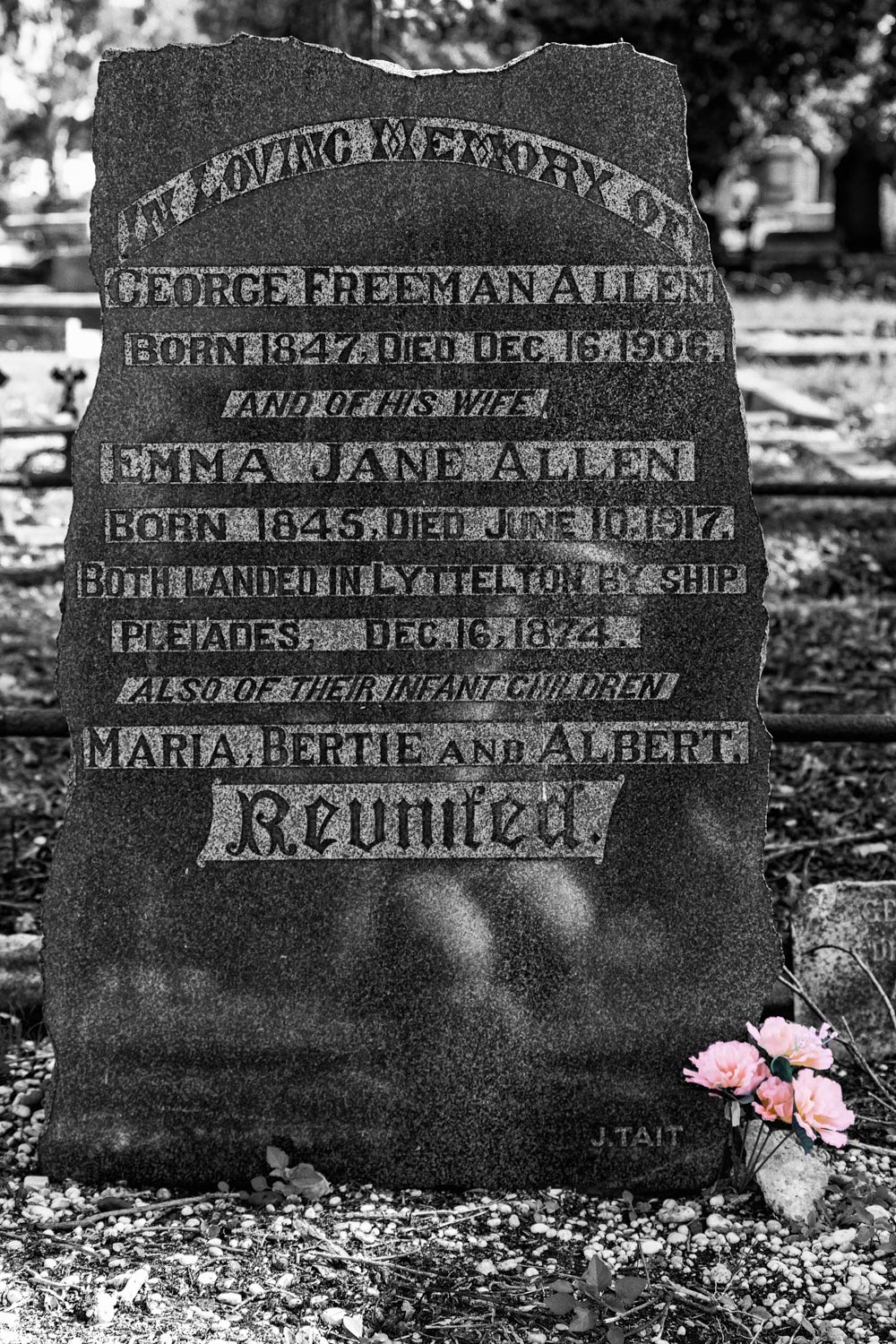
There are two types of contrast used in this image.  There is much contrast between the bright background and the heavy dark marble of the headstone.  Also, the pale stone behind the words offers tonal contrast as well.

This image was originally shot to be a black and white image, and as such, it looks quite good.  However, when I read the words on the headstone, I saw that a whole family was buried here over 200 years ago. Still, there was a bunch of flowers carefully poked into the corner of the headstone base. Who left the flowers and why?

BEFORE – unedited RAW


AFTER – I wanted to bring attention to the flowers, so I brought the color back into the final black and white image. The flowers were only a small part of the overall image, yet enough to catch the eye. My intention here was to ensure the flowers were part of the overall story.
Tonal range

Radically altering the tonal range is one of the tools that offer the most excitement in my editing process.  Being brave and going way up or down the histogram has resulted in some very creative and exciting results.

BEFORE – this is shot with my Lensbaby Velvet 56 which gives much softness when it is wide open.  This shows the unedited RAW file.

AFTER – This histogram has been pushed way to the right. Doing this overexposed the image. It removed most of the blacks and shadows, giving it more of a high-key tonality. The mood of this image now comes across as light, airy, floral, delicate and fragile. The original image was heavy and spiky and didn’t feel like a flower at all.

Texture

BEFORE  – I spent ages taking shots while this gorgeous steam train puffed up. The dark coal smoke against the white clouds of steam was very atmospheric.  The background is pretty awful and doesn’t do it any justice at all. So time to get creative!

AFTER – this one went through a range of edits. First, I played a bit with color.  I did a straight black and white treatment. Secondly, I added a sepia tone with an old vintage newspaper frame to add more of that vintage feel to the image. This is a side by side image for comparison.


AFTER continued – the background was annoying me, so I very carefully extracted the train and all the smoke from the background and then had some fun playing. This one had a Scribble Action along with a replacement background added.

AFTER continued – still wasn’t happy, so I put a new replacement background on the image. However, it was quite heavily textured and didn’t fit, so I ran a Topaz Impression over the whole lot to apply a painterly effect. I also added a subtle framing texture.  Doing so, finally provided the outcome I wanted.

Cropping

Sometimes a hard crop is what an image needs to bring the focus in or to tell the story that you want. People often seem afraid of a hard crop.  I let the image tell me its story and work from there. If it is only ever going to be a digital format, i.e. not printed, then a hard crop has little long term effect.

BEFORE – original unedited RAW file.  The flowers are pretty, and the focus is good, but the background ones are distracting.

AFTER a hard crop and a soft edit.  Now the focus is on the delicate veins in the petals, the water droplets and even the pollen grains on the anthers.

Conclusion

There are many things you can do in post-processing that can further enhance your images.  Any good RAW conversion program has reasonable editing capability included.  What you choose to do with it is really up to you.

Maybe one day you take a handful of images, forget the rules and play and see what you get?

I find presets are a great source of creative inspiration – where someone else has made up a recipe of settings. However, it can be a random lottery to what the outcome is.  Still, you can quickly click and get a very different result, cancel it and move on to the next one.  It might surprise you what you end up with.

What about the deliberate considerations you make when editing? Do you shoot with a specific outcome (like black and white) in mind?  Do you edit and then wonder what other possibilities there are and then dabble a bit until you find something you like?  Alternatively, maybe you have a definite outcome in mind and work hard to get there?

It is allowed and encouraged for you to color outside the lines!  Be brave!  Experiment!  No one ever needs to see it, but you might be surprised at what you can achieve, what you might learn and how much fun you can have.

Share your images with us in the comments below.

The post Enhance Your Images with Creative Photo Editing appeared first on Digital Photography School. It was authored by Stacey Hill.


Digital Photography School

 
Comments Off on Enhance Your Images with Creative Photo Editing

Posted in Photography