RSS
 

Posts Tagged ‘Image’

Image Hacking: 40+ Glitch Art Photos, Paintings & Videos

18 Mar

[ By Steph in Art & Drawing & Digital. ]

Glitch Art main

Surreal, dreamlike and often haunting, databending creates digital or analog image errors for artistic effect. An art form in which corrupted files are either created or mimicked in photographs, paintings, sculptures, video or even audio, databending finds beauty in technology gone awry. Ranging from colorful pillows to uncanny oil paintings inspired by security footage, here are 40+ works by 12 notable glitch artists.

Security Footage Paintings by Regina Parra

Glitch Art Regina Perra 1

Glitch Art Regina Perra 3

Glitch Art Regina Perra 2

Low-resolution security footage is translated into hazy watercolor paintings in a collaboration between Kon Trubkovich and Regina Parra. With this series, Parra immortalizes moments on film which already have somewhat of an eerie feel, rendering them even more fascinating.

Glitch Videos by Rosa Menkman

Glitch Art Rosa Menkman

The Collapse of PAL from Rosa Menkman on Vimeo.

02: One Billion Steps aka The longer you sit on a bus, the smaller the world becomes from Rosa Menkman on Vimeo.

Dutch filmmaker and artist Rosa Menkman is an authority on the glitch art genre, producing events and written works as well as a ‘glitch manifesto’ and experimental work of her own. In fact, she completed her master thesis on digital glitch in 2009. “Glitches are the uncanny, brutal structures that come to the surface during a break of the flow within a technology; they are the primal data-screams of the machine,” Menkman told DINCA in a 2010 interview. “Glitch art is a practice that studies and researches the vernacular of file formats in exploitative manners to deconstruct and create new, brutalist (audio)visual works. However, glitch artists often go beyond this formal approach; they realize that the glitch does not exists without human perception and therefore have a more inclusive approach to digital material.”

Glitch Textiles by Philip Stearns

Glitch Art Textiles Stearns

Artist Philip Stearns describes his collection of woven and knit wall hangings and blankets “glitches in the cold, hard logic of digital circuits transformed into soft, warm textiles.” The designs were taken from short-circuited cameras and other ‘unorthodox’ digital techniques.

Distortion by Nicholas Ballesteros

Glitch Art Nicholas Ballesteros

“This technique of altering or appropriating images is not for a desired outcome other than showing the found material’s sheer ability to be bent,” says artist Nicholas Ballesteros of his ‘Distortion’ series. Ballesteros uses a scanner and found images to produce these effects.

Glitch Art Pillow Covers by Benjamin Berg

Glitch Art Pillow Covers Berg

Display colorful video glitches around your house with this series of throw pillows by artist Benjamin Berg. Also producing work under the alias stAllio, Berg discovered glitching by running the contents of his hard drive through music software. “Glitch art is a dance on the edge of a failing system,” he says.

Analog Glitches by Rob Sheridan

Glitch Art Rob Sheridan

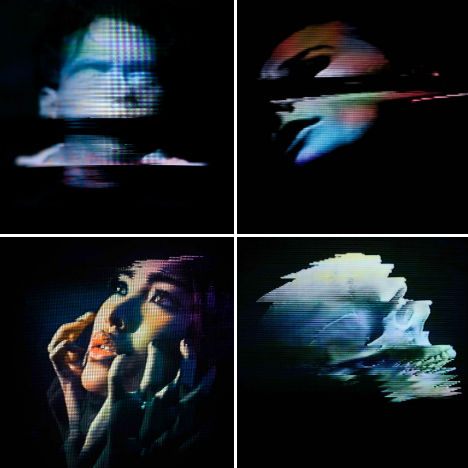
Artist Rob Sheridan created a series of visuals for the band How to Destroy Angels’ Welcome Oblivion and An omen EP, saying “these images were created by disrupting signals through analog tape and display equipment, not with Photoshop effects.”

Next Page:
Image Hacking 40 Glitch Art Photos Paintings Videos

Share on Facebook


[ By Steph in Art & Drawing & Digital. ]

[ WebUrbanist | Archives | Galleries | Privacy | TOS ]


WebUrbanist

 
Comments Off on Image Hacking: 40+ Glitch Art Photos, Paintings & Videos

Posted in Creativity


Acorn Version 3.5.1 Image Editing Software

18 Mar

Acorn256Sometimes Photoshop is just too much. Just too much for your image editing skills and sometimes just too much for your needs. And that’s not to forget the demands on your pocket!

As the company says ‘Everyone needs to edit images at some point, but not everyone has the time to learn super pricey wizbang image editing programs.’ With Acorn you can add text and shapes to your images, combine images, work with layers to improve images or create something new from scratch.

An added plus is that Acorn is claimed to be the ‘world’s only image editor with native support for Retina displays.’

After a brief dabble with the application and before I read any guff on its talents … a bit like using a camera under review and before reading the manual! … I fell for Acorn very heavily.

Besides, it does things I have never seen before.

Rundown

Here’s a rough map of its talents:

Apply non-destructive effects to your layers; turn your text and shapes upside down and every which way; Quickmask allows you to zoom in and edit your selections; Instant Alpha — remove backgrounds and other unwanted pixels from an image; Multistop Live Gradients — with this, you have infinite rainbows at your fingertips. It can also convert text to bezier paths, add and subtract points and have edges snap to pixel boundaries. And quite a bit more.

You can export images as optimized PNG, JPEG, JPEG 2000, GIF and Google’s WebP format.

Filters

But my interest in these programs always falls onto the filters section. And boy! Has Acorn got some beauties!

Figures and beach 3

Figures and beach 3 starshine

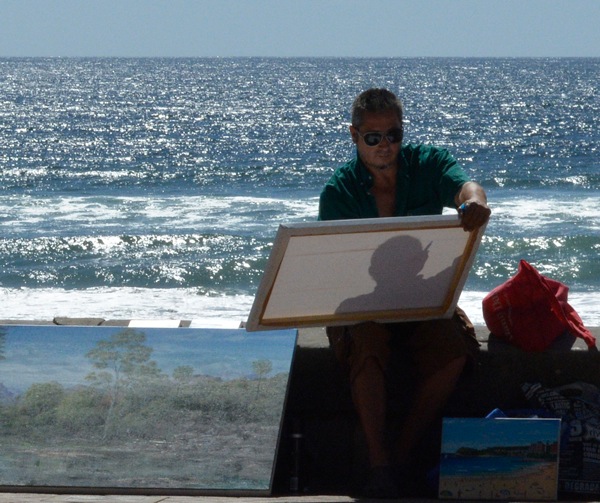
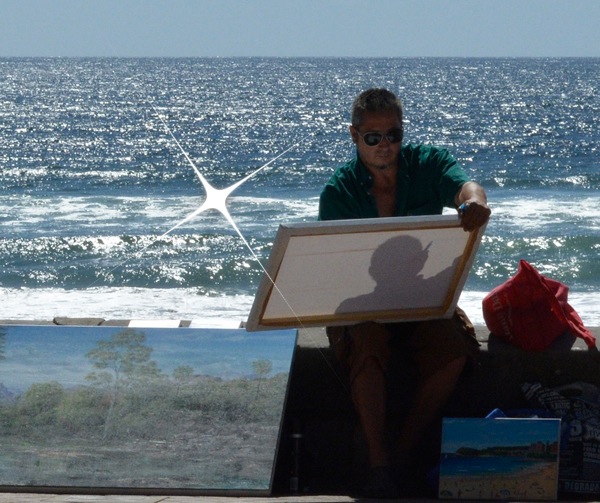
I picked up a beachside image that just screamed out for a sunflare.

In Filters>Generator I found Star Shine. Great!

First, I could place the centre of the effect. Next, to adjust the radius (size) and cross scale (extent of the rays). Other controls included the ray’s opacity, width and Epsilon. The latter? Dunno!

Clock

Glass effect

Next was a classic image of a railways station clock that just screamed out for some treatment to lift it out of the banal. My choice?

Distortion Effect>Glass Distortion. By carefully limiting the effect to the circular clock face I could impart a pebbled, hand-made glass effect that did the trick.

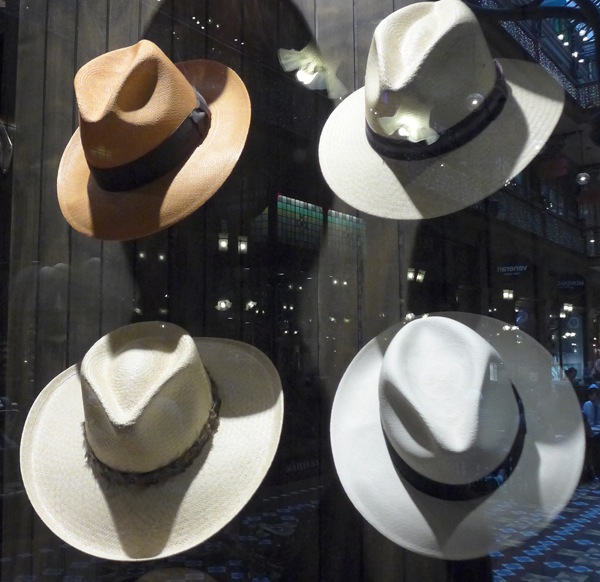
Strand arcade hats

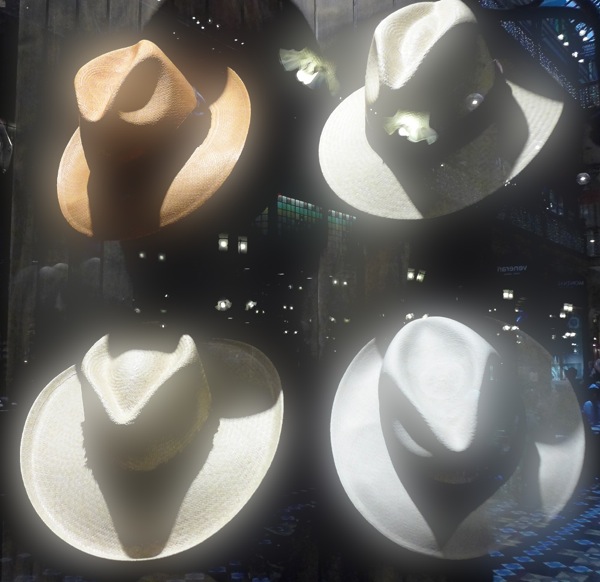
Strand arcade hats Bloom

A simple shot of a hat shop window showing their range had a bit going for it, but not much. My solution? Filters>Stylize>Bloom. Here I could vary the radius of the effect and its intensity. What I found interesting, and this comment applied to some other filters, was that the intensity of the bloom effect changed only in areas of lightness. Great!

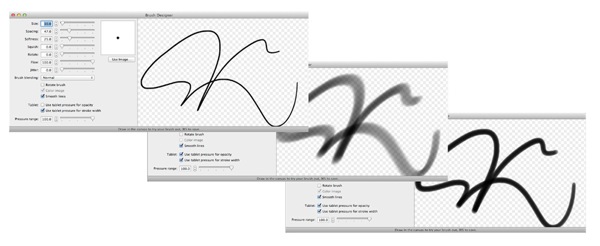
Brush sizes

Lanterns brush effect

Lanterns window

Lanterns brush effect

Then, as if the Filters department was not enough to engage me, I then fell upon the Brush section and, as you can see from this example, there is plenty to enjoy!

If you feel your image making is becoming a bit tired, try an Acorn. From little ones, big things can grow!

System Requirements

Mac OS 10.6 and later. If your OS is earlier, back to OS 10.4 you can download an earlier version of Acorn.

Go to http://www.flyingmeat.com/acorn/

Price: US$ 49.99. Fourteen days trial version available.

Post originally from: Digital Photography Tips.

Check out our more Photography Tips at Photography Tips for Beginners, Portrait Photography Tips and Wedding Photography Tips.

Acorn Version 3.5.1 Image Editing Software


Digital Photography School

 
Comments Off on Acorn Version 3.5.1 Image Editing Software

Posted in Photography


Four Tips on Your Image Data Safety Procedures

01 Feb

Introduction

The following is an excerpt from the SLR Lounge Lightroom Workflow System Workshop on DVD, a system designed to increase your post production speed by 5 to 10 times. Click here to learn more.

I was attending a workshop last year in Los Angeles where the instructor talked about the importance of having backup gear for an important shoot. His mantra was that during a shoot, “something always goes wrong.” Gear redundancy is important, especially when you are on the client’s clock. Without a doubt, not having a backup to your gear can potentially derail a photoshoot if something were to break.

However, the most important and expensive component of your photoshoot is indeed not your camera gear. Unlike your gear, which you carry insurance for and can be replaced, the images from the shoot may not be replaceable and are therefore the most critical component of a paid photoshoot.

Not only would it be far more expensive to setup a reshoot, for photojournalists shooting a wedding or a Presidential inauguration, a reshoot is simply impossible.

So just like your gear, it is important to have duplicate copies of your client’s images from the shoot to your computer. Here are four tips that you can integrate into your shooting workflow.

1. Back up the Images in Camera

Ideally, when you are working professionally, it is best to shoot with a DSLR that can record onto two cards on the fly. It is the most convenient and most portable method of creating backups of your images as you can simply set the camera to “duplicate” the images onto each card as they are recorded. If you are in need of frequent high speed burst shooting for action/sports, this may not be possible since using dual cards can often fill your cameras buffer too quickly. But, wherever possible, using two cards in camera will automatically add an additional level of security to your workflow.

The majority of the full-frame DSLRs such as the Nikon D600, Sony A99, Canon 5D mkIII, Canon 1D Series, Nikon D800 and the Nikon D4 Series have this capability already. Currently, the Nikon D7000 is the only APS-C DSLR that has two card slots.

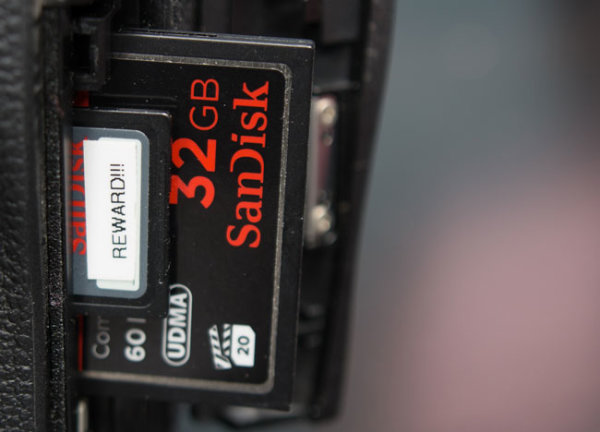
Additionally, we recommend that for your most important shoots to only use memory cards from established manufacturers such as Sandisk and Lexar. There are also many fake Sandisk and Lexar cards out there, so be wary of them. For Amazon shoppers, be sure to buy directly from Amazon itself and not a third-party seller on Amazon. Often times these counterfeit cards are virtually impossible to differentiate from packaging alone. For those that want the extra peace of mind there are also “zero failure” memory card brands out there such as Hoodman. However, in sticking with the major name brands, I have never had a card failure and thus never really felt like it was worth the 5x-10x premium price for zero failure memory.

It is also a good idea to have a standardized system of storing your cards in order to know which memory cards have been used. An example of a straightforward system is to place any used card face down in the wallet.

2. Back up the Images at the Shoot

Another method of backing up your images during the shoot is by backing up the images to either a laptop or a portable media storage drive such as the Sanho Hyperdrive Colorspace UDMA. This is especially useful when you are shooting with a single-card camera or if you have a second shooter with you

The laptop is easier if you are in a controlled environment such as a studio or a private photoshoot, but it is not recommended when you have to be in a less-secure environment such as a wedding where you may be running around everywhere. This is where a portable media drive can attract less attention, while also being far more portable than a laptop.

3. Safeguard the Memory Card on the Trip Back

The trip from the shoot is another part of the day where having a contingency plan can keep the client’s images safe in case something happens on the way home or to the studio.

One way to ensure the safety of the images is to keep both copies of the images in two separate places. I usually carry the primary cards in my card wallet which is attached to my belt loop and kept in my pocket. The back-up cards, laptop, hard drive, or portable media storage stays in the trunk.

If someone rear ends the car and damages the gear, or if someone breaks into the car while I’m eating at a restaurant, I still have at least one set of the images with me. Additionally, if the memory cards in my pocket somehow fall out, I still have the backup in the trunk.

4. Back up to Images to at Least Two Locations on the Computer

Once you returned to your studio or home, be sure to back up your images to your computer and into the backup hard drive. For additional security, you can also upload the images as either the original RAW or the finished images on to an online storage site like Amazon’s Glacier or Crashplan.

Thankfully, hard drives are relatively cheap nowadays, and additionally, there are plenty of online storage options as well. It pays to research the brand names and websites to know which hard drives and online storage sites are the most reliable. I personally use 1TB Silicon Power Rugged Armor A80 portable hard drives because they can take a beating (literally). The current online storage solution that I use is Crashplan.

Conclusion

Remember, gear can be replaced, but the client’s images may not be replaceable, so it is important to work image redundancy into your shooting workflow. The good news is that it does not take that much more effort to safeguard your images, just good habits and awareness.

The SLR Lounge Workflow System Workshop on DVD

The SLR Lounge Workflow System Workshop on DVD takes everything that we taught in the Lightroom 4 A to Z Workshop on DVD and builds by teaching you how to maximize your shooting and post processing efficiency and workflow. This 7 hour DVD covers data safety procedures, file management, culling standards and overall develop techniques to increase your post production efficiency by up to 15x! In fact, using this Workflow System we can cull and edit over 1,500 images per hour! Don’t believe us, watch the teaser video! The Workflow System is also available as a part of the Lightroom 4 Workshop Collection. To learn more click this link.

Post originally from: Digital Photography Tips.

Check out our more Photography Tips at Photography Tips for Beginners, Portrait Photography Tips and Wedding Photography Tips.

Four Tips on Your Image Data Safety Procedures


Digital Photography School

 
Comments Off on Four Tips on Your Image Data Safety Procedures

Posted in Photography


Create an Image Watermark in Photoshop

01 Feb

Create an Image Watermark in Photoshop

In a recent post I talked about using an image watermark in Lightroom to apply to your images. This post I’ll show you how to create the watermark image to use.

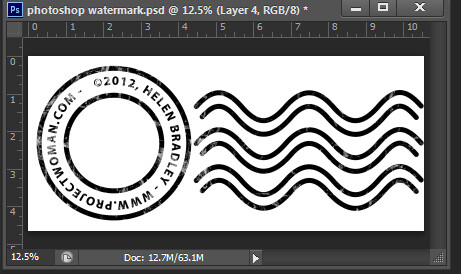
This watermark has two concentric circles with text between them and a set of wavy lines making it reminiscent of a post office stamp cancellation. The watermark also has a slightly grunge look.

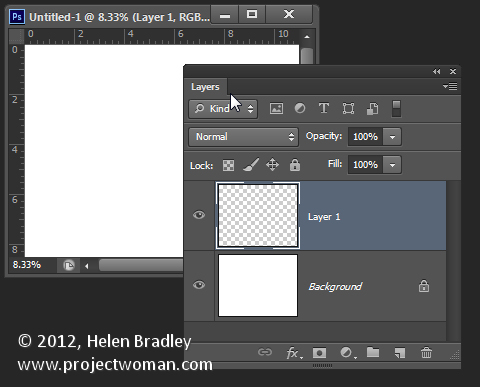
To make it, start in Photoshop with a letter size image. I set mine to landscape orientation with a white background. This will make it easy to create a black watermark and I will be able to see it as I work.

Add a new layer by choosing Layer > New > Layer. This is a transparent layer on which you’ll place the circles.

Make a watermark image in photoshop step1

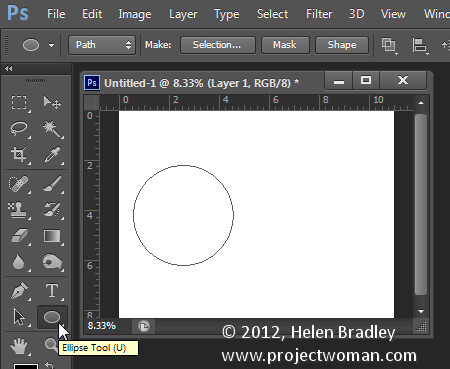
Start with the Ellipsis Tool which shares a position in the Tools with the Rectangle tool – it is a shape tool – don’t use the Elliptical Marquee Tool.

Make sure that the option on the Tool Option bar is set to Path and hold Shift as you drag a circle on the screen.

Make a watermark image in photoshop step2

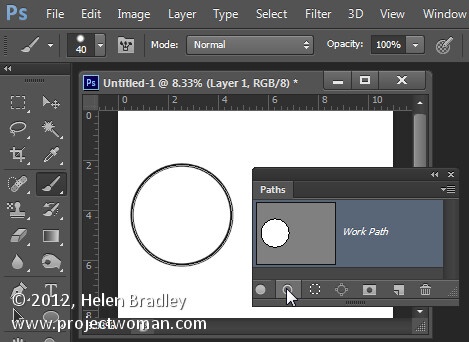
When the circle is in position choose Window > Paths to view the Paths palette.

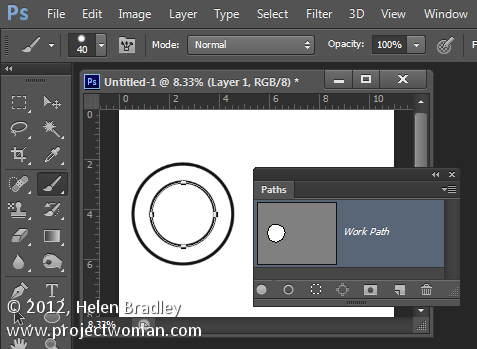
Select the Brush tool and select a brush. I used a Hard Round brush sized down to around 40 pixels.

Set the foreground color to black, click the Work Path in the Paths palette to select it and then click the Stroke Path with Brush icon at the foot of the Paths palette. This strokes the path with the current brush.

Make a watermark image in photoshop step3

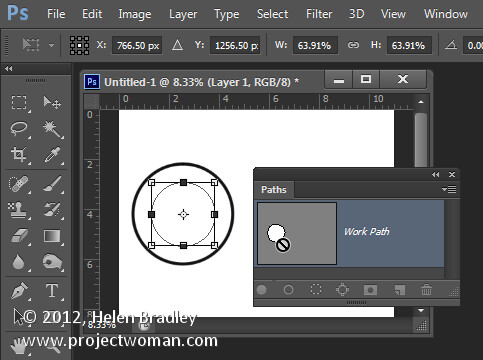
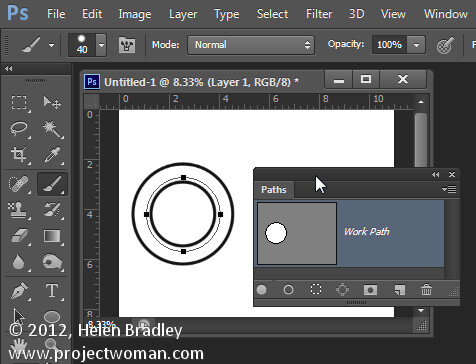
Click the Path Selection Tool which shares a position in the Tools palette with the Direct Selection Tool. Click on the path and it will select the entire path.

If the transformation handles do not appear press Ctrl + T (Command + T on the Mac). Hold Shift and Alt (Shift and Option on the Mac) and drag inwards to create a circle which is concentric with the previous circle.

Make a watermark image in photoshop step4

Repeat the process of selecting the Brush, click on the path so it is selected and click to Stroke Path with Brush.

Make a watermark image in photoshop step5

Click the Path Selection Tool and, with this smaller circle selected, press Ctrl + T (Command + T on the Mac). Hold Shift and Alt (Shift and Option on the Mac) and drag a little outwards to create a circle path for typing the text along.

Make a watermark image in photoshop step6

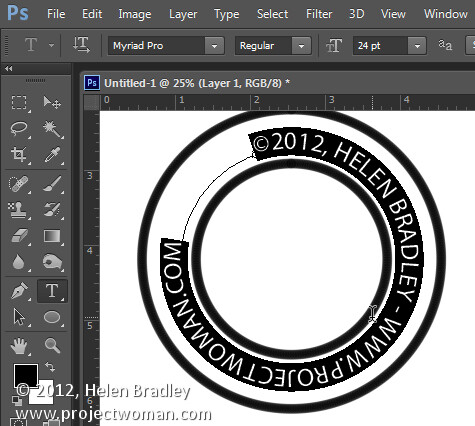
Select the Text tool and hold the mouse over this third path.

Look for the text tool to show as an I-beam pointer with a bent line through it – this tells you Photoshop will align the text along the path.

Click once to anchor the Text tool to the path. Select the text color – in my case I chose black – and select the font and font size – I used Myriad Pro – 24 points. Type the text to use – I typed:

© 2012, Helen Bradley – projectwoman.com –

To enter © hold Alt and type 0169.
?Make a watermark image in photoshop step7

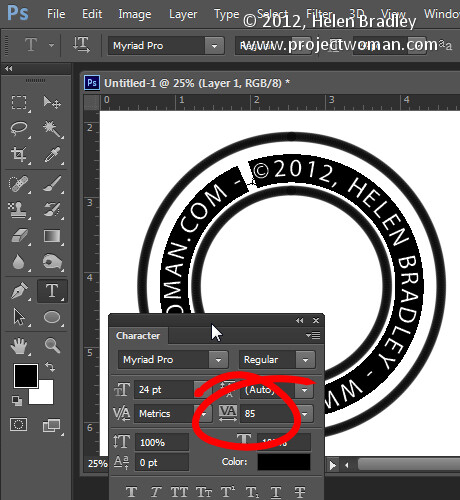
With the text selected display the Character palette by choosing Window > Character and adjust the tracking to expand the text so it wraps all the way around the shape.

Make a watermark image in photoshop step8

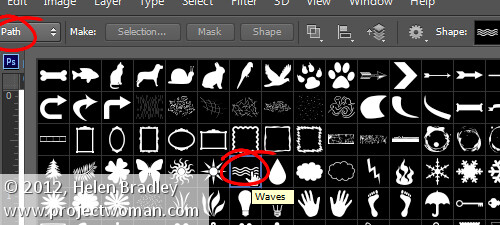
You can draw your own lines for the cancellation lines using the Custom Shape Tool. First create a new layer then select the Wave shape and on the Tool Options bar make sure that it is set to Path.

Make a watermark image in photoshop step9

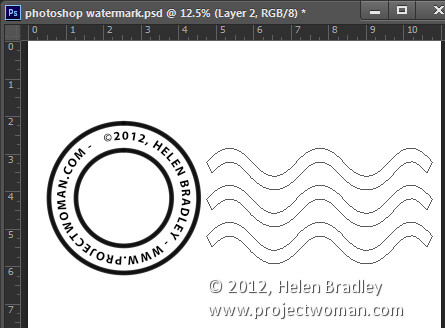
Drag to make your curved lines.

Make a watermark image in photoshop step10

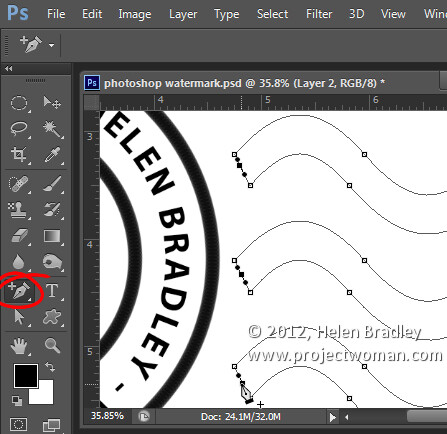
Select the Add Anchor Point Tool (it shares a position with the Pen tool) and click once in the middle of each end of the path to add a point.

Make a watermark image in photoshop step11

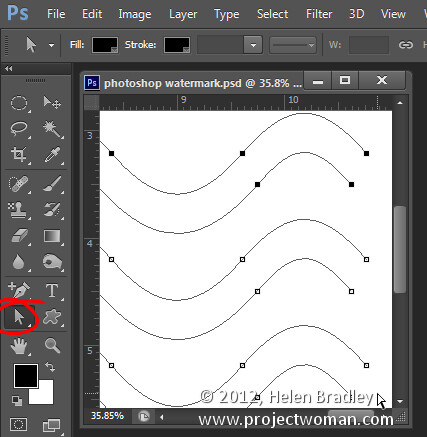
Target the Direct Selection Tool, click one at a time on the Anchor points you just added and press Delete – this breaks the 3 paths in half to make 6 paths. When the Anchor is selected it will show as a dark filled square.

Make a watermark image in photoshop step12

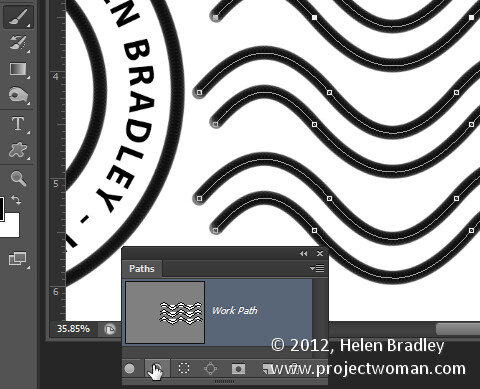
Select your Brush and black paint and select the path in the Paths palette and click the Stroke Path with Brush icon.

Make a watermark image in photoshop step13

Once you’ve done this you can add a grunge effect.

Start by hiding the background layer, target the top layer and press Control + Alt + Shift + E to create a flattened layer with transparency. Hide all layers but this top one.

If the lines aren’t dark enough duplicate this layer a few times and they will darken. Then merge all these duplicated layers

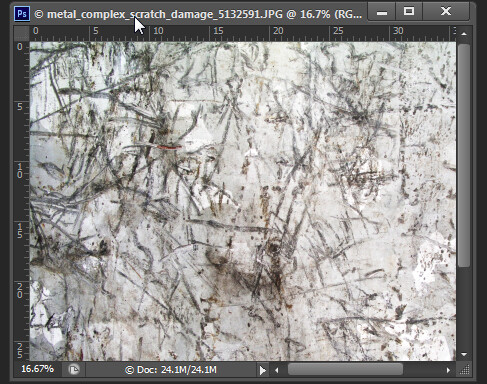
To add the grunge effect click Add a Layer Mask icon at the foot of the layers palette to add a mask to the layer. Locate an interesting texture image to use such as this one from www.mayang.com/textures.

Make a watermark image in photoshop step14

Make it the same size as your image by choosing Image > Resize, deselect the Constrain Proportions checkbox and click Window and click your copyright image file to use its dimensions. Click Ok.

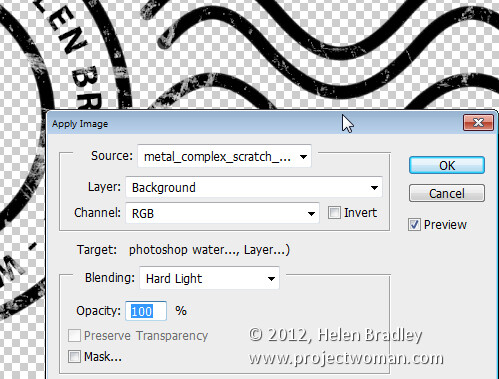
Now return to your Copyright image, click the mask to target it and choose Image > Apply Image. From the Source box select the texture image (it won’t appear in the list if it isn’t the right size), and then set the other options to suit so you get a distressed look to your copyright symbol. Click Ok.

Make a watermark image in photoshop step15

Add a new layer and press Control + Alt + Shift + E to create a flattened version of the image on this layer but maintaining its transparency. Make all other layers invisible and crop the image close around your shape.

Then choose File > Save As and save it as a .PNG image to use in Photoshop or Lightroom as a copyright overlay.

If you select the top layer and press Control + I you’ll invert it to make a white version of the copyright image that you can then save as a second .png file.

Make a watermark image in photoshop step16

Make sure to also save your file as a .psd file if you think you might need to make changes to it – for example, to change the date – a .png file is flattened so it won’t be easy to edit – a .psd file will be much easier to update.

Post originally from: Digital Photography Tips.

Check out our more Photography Tips at Photography Tips for Beginners, Portrait Photography Tips and Wedding Photography Tips.

Create an Image Watermark in Photoshop


Digital Photography School

 
Comments Off on Create an Image Watermark in Photoshop

Posted in Photography


Google updates Image Search with preview panel

29 Jan

shared:google.png

Google has rolled out an updated version of its Image Search feature with faster browsing speeds and a redesigned UI. Users can now view larger versions of images in a preview window with an option to flip through images using arrow keys, and limited metadata, including the pixel dimensions of the original file, is displayed alongside the thumbnail. Click through for more information and a link to Google’s blog post.

News: Digital Photography Review (dpreview.com)

 
Comments Off on Google updates Image Search with preview panel

Posted in Uncategorized


Nikon relaunches image storage and sharing site as Nikon Image Space

23 Jan

Nikon_Logo_White.png

Nikon has relaunched its image sharing and storage servce as ‘Nikon Image Space’. Unlike ‘myPicturetown’, this service will be open to non-Nikon users as well. However, owners of Nikon cameras are eligible for 20GB of free storage space compared to 2GB for regular members.

News: Digital Photography Review (dpreview.com)

 
Comments Off on Nikon relaunches image storage and sharing site as Nikon Image Space

Posted in Uncategorized


Create a Warm, Sunset Mood Image in Lightroom 4

22 Jan

Introduction

This tutorial is a demonstration of the SLR Lounge Lightroom 4 Preset System. With over 200 presets, the LR4 Preset System has been critically acclaimed as the most powerful and intuitive preset system available for Lightroom 4. DPS users can get 10% off by using the DPS10 coupon code upon checkout. Click the link above to learn more/purchase.

Overview

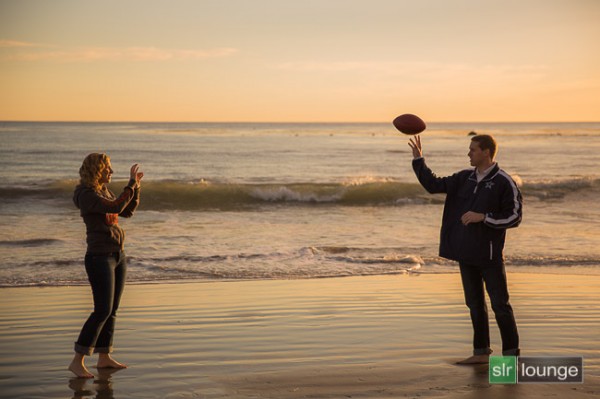
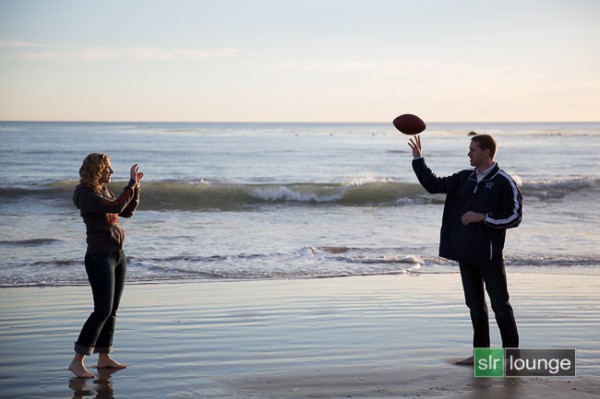
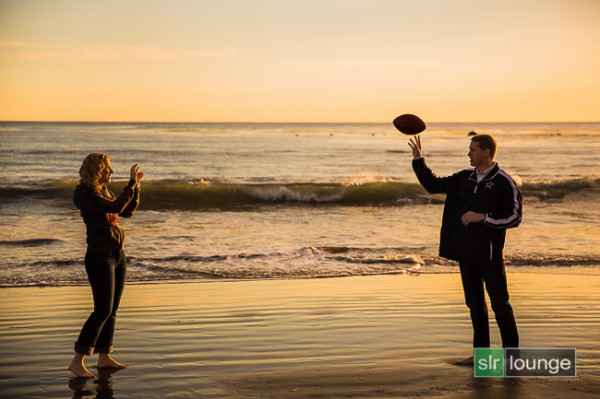
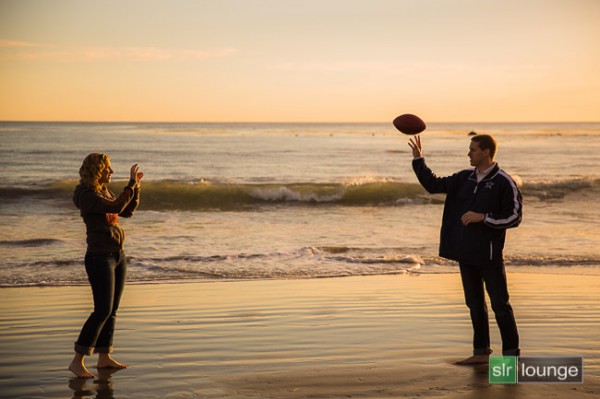
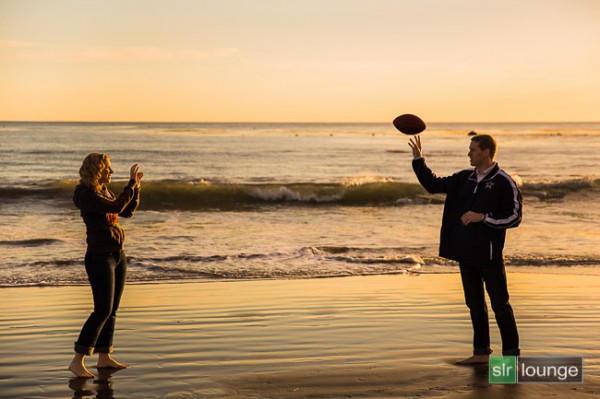
In this Lightroom 4 tutorial, we will show you how to create a warm, sunset-toned look in Lightroom 4. It is a great look that can be applied to a late afternoon outdoor images. I particularly dig this look on shots like this one at the beach. We will also correct for uneven exposure across the image that is caused by the directional lighting of the sun.

Before and After Image

Before
After
Lightroom 4 Preset System Mixology

If you own the SLR Lounge Lightroom 4 Preset System, this effect can be achieved in 3 clicks as shown below. If you don’t own the preset system, please skip to Step 1 to learn how to do it manually.

Lightroom 4 Presets

00 MY MIXOLOGY – 10 SOFT PORTRAITS > 16 SP HDR Light
01 BASE ADJUST – 00 EXPOSURE > 04 Darken -0.5
01 BASE ADJUST – 40 SHADOWS BLACKS > 42 Heavy Brighten (+30, +60)

Warm up Temperature and increase the Magenta in Tint to your liking. To see all the tweaks and adjustments applied, please continue on.

Step 1. Applying our Basic Adjustments

This image from a recent engagement session was shot around 4pm late in December on one of our many SoCal beaches ;) . Although it was late afternoon, there were not a lot warm tones in the atmosphere, and the photo lacked dynamic range.

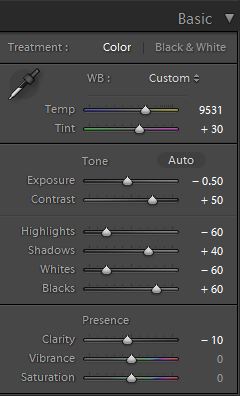
So in the Basic Adjustment Panel, let’s warm up the image by raising the Temperature to between 8000K to 10,000K. Additionally, we want to add some Magenta Tint in order to keep the image from looking too green. Without the pink/red tones that will be added from boosting Magenta tones, we end up with an image lacking the rich warmth we desire. This is the one of the advantages of shooting in RAW, you can change the color temperature of the image at will.

The background environment is also a little too bright and flat, and since we want a moodier shot, let’s lower the exposure by -0.50 stop and increase contrast by +50.

Next, let’s expand the dynamic range of the image by decreasing the Highlights and Whites by -60 while lifting the Shadows and Blacks by +40 and +60 respectively.

Finally, bring down the Clarity by -10. We will reintroduce Clarity with an adjustment brush to everything but the couple’s face, hair, hand, and feet.

The Basic Adjustment Panel and the image should look similar to below.
Step 2. Adding Additional Contrast via Curves

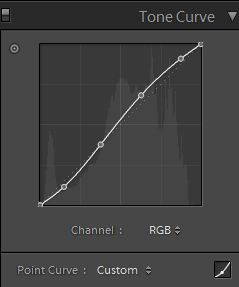
In addition to adding Contrast in the Basic Panel, let’s add a slight contrast-boosting “S” curve that pulls down the shadows a bit and boosts the highlights up a bit.
Step 3. Sharpening and Noise Reduction

Normally, if you are using the SLR Lounge Preset System, standard Sharpening amounts are automatically applied. Here is what we typically apply to our image:
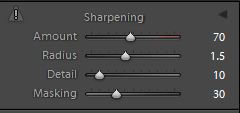
03b Sharpening

Because we boosted the dynamic range and pulled up the shadows, we do need to apply some Noise Reduction. We use this setting for Noise Reduction:
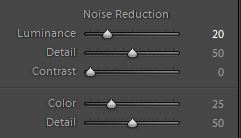
03c Noise Reduction

03 Sharpening and Noise Reduction

Step 4. Opening up the Borders with Vignetting

Finally, the brightness is not that even along the edges of the frame, so let’s add some Lens Vignetting at +30 Amount and +30 Midpoint to even out edge-to-edge brightness.
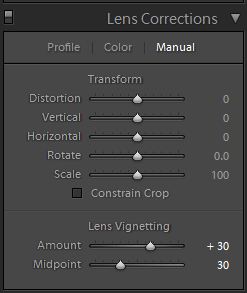
04b Lens Correction

Here is how your image should look like after applying all of these adjustments.
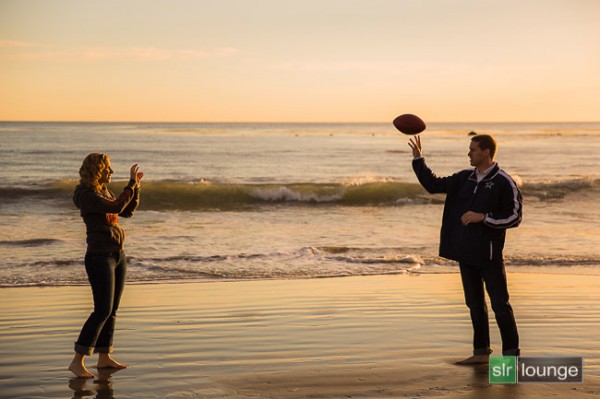
04 Lens Correction

That is it for the global adjustments, we are now going to use the adjustment brushes and graduated filter to add more clarity and contrast to the environment, as well as work on evening out the overall exposure.

Step 5. Using Adjustment Brushes for the Sky and the Ground

In the Lightroom 4 Preset System, there is an adjustment brush called the “Sky | Cloud | Ocean” that we apply to the sky, cloud, and ocean. The purpose of this brush is to increase the contrast and clarity. Additionally, this adjustment brush also increases saturation.

Here are the settings for this adjustment brush:
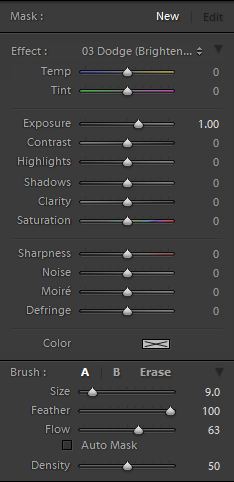
05b Sky Cloud Ocean from SLR Lounge Lightroom 4 Preset System

We want to apply this brush to the entire scene except for the couple’s exposed skin. The quickest way to accomplish this is to fill the entire scene with the brush, then use Erase brush at the bottom of the Brush Panel to remove the effect from their face, hair, hands, and feet.

Hold Alt (Opt on OSX) while in the active brush to switch to the Erase brush.

Because there is a lot of contrast between the subjects and their surroundings, you can use the Auto Mask to allow Lightroom to mask around the individuals.

To make it easier to see what part of the image is being affected by the adjustment brush, press “O” on the keyboard to toggle the Mask Overlay. The adjustment brush is applied on any part of the image that is overlaid in red.
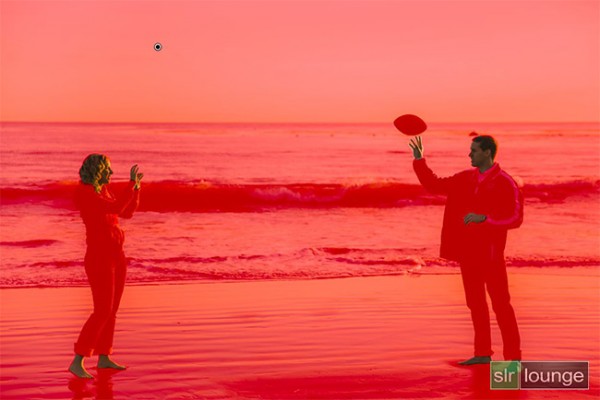
05c Adjustment-Brush

Once you are finished applying this adjustment brush, press “O” again to hide the overlay. Your image should have a punchier look that similar to the deep shadows of the setting sun.
05 Adjustment Brush

Step 6. Using an Graduated Filter to Even Out Exposure on Left Side

At 4pm, the winter sun had already started its decent to the horizon, which meant that light was beginning to fade quickly. Because the sun is lighting the scene from the far right, the left side of the image was a tad underexposed in comparison to the right side. We want to correct for this subtly, so we will be using a Graduated Filter to slightly brighten the left side of the frame.

One final adjustment I would like to make to this image is just to remove the rock in the water that is just behind and above the male subjects head. But, given the size and position of the rock, this will best be done in Photoshop.
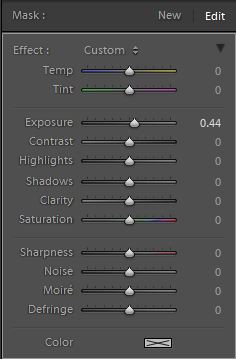
06b Graduated Filter

Final Before and After Images

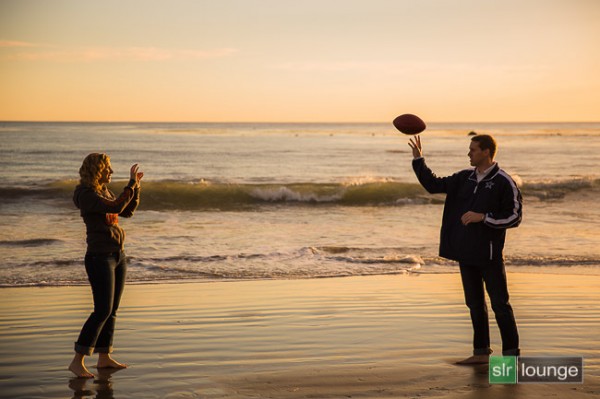
Finally, here are the before and after images comparing the original image to the new image with the warm, sunset mood look.

Original

Warm, Sunset Mood Image

The Lightroom 4 Preset System

The SLR Lounge Lightroom 4 Preset System is designed to enable users to achieve virtually any look and effect within 3-5 simple clicks. From basic color correction, vintage fades, black & white effects, tilt-shift effects, faux HDR, retouching, detail enhancing, and so much more. The sky is the limit with what has been dubbed the most powerful and intuitive preset system available. Click the link above to learn more/purchase.

You can also purchase the LR4 Preset System as part of the 30 hour 3 DVD Lightroom 4 Workshop Collection set, containing every bit of education and tools needed to run a Lightroom 4 based photography studio.

Post originally from: Digital Photography Tips.

Check out our more Photography Tips at Photography Tips for Beginners, Portrait Photography Tips and Wedding Photography Tips.

Create a Warm, Sunset Mood Image in Lightroom 4


Digital Photography School

 
Comments Off on Create a Warm, Sunset Mood Image in Lightroom 4

Posted in Photography


The Amphimallon-Project – image stacking by “helicon focus” stacking software

19 Jan

Maximilian Weinzierl Junikäfer The Amphimallon Project – image stacking by helicon focus stacking software; see my insects www.alamy.com Kevin MacLeod incompetech.com “image stacking” we think no further words are necessary, just look. Focus Stacking Demonstration with Novoflex Einstellschlitten CASTEL-Q focusing rack castel Q, Nikon D700 AF-S Micro Nikkor 105/2.8 VR and Nikon TC 2.0 E III, broncolor studio light
Video Rating: 5 / 5


Fujifilm X100S Digital Split Image focus – how it works

11 Jan

fujifilm_x100s.png

The Fujifilm X100S is the latest in a recent rush of cameras to include phase-detection elements on its imaging sensor, giving an AF system that is a hybrid of contrast and phase-detection methods. However, Fujifilm also uses this system to provide a unique and incredibly clever manual focus aid – which could finally allow digital cameras to offer the speed and convenience enjoyed by manual-focus SLR and rangefinder users. Fujifilm UK has posted a video showing ‘Digital Split Image’ focusing and Japanese camera site DCWatch has published details that allow us to show how it works.

News: Digital Photography Review (dpreview.com)

 
Comments Off on Fujifilm X100S Digital Split Image focus – how it works

Posted in Uncategorized


New image viewing options for forums

05 Jan

shared:DPRlogo.png

We’ve just deployed a smart new viewing system for images embedded in forum posts. It offers easy access to original images (100% view), makes navigating images easier within a post and lets you pixel-peep to your heart’s content with the new loupe tool. We hope you like it – more information after the link.

News: Digital Photography Review (dpreview.com)

 
Comments Off on New image viewing options for forums

Posted in Uncategorized