RSS
 

Posts Tagged ‘Guide’

Posing Guide: 21 Sample Poses to Get You Started with Photographing Men

01 Aug

The post Posing Guide: 21 Sample Poses to Get You Started with Photographing Men appeared first on Digital Photography School. It was authored by Guest Contributor.

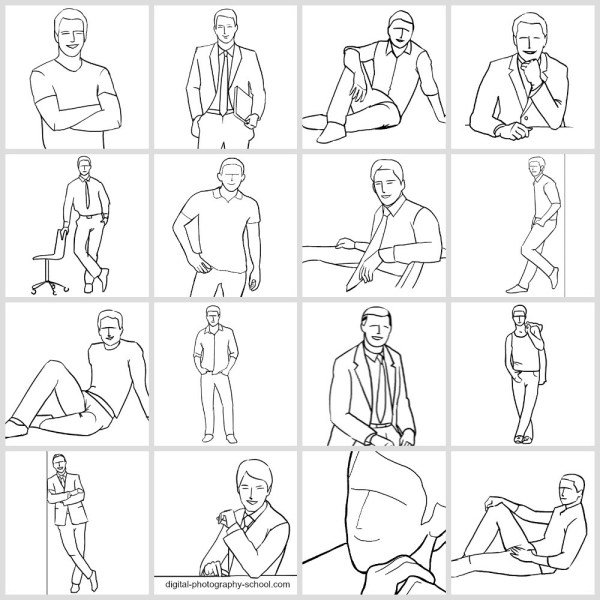
Posing Guide for taking Great Photos of Men

Previously we’ve created posing guides with suggested sample poses to help you get started posing women (also see part 2 for posing women), posing children, posing couples, posing groups, and posing weddings, so today let’s look at some sample starting poses for photographing men.

Men are usually less comfortable with being photographed, so it’s important to set them at ease with posing in order to get good results.

It is always a good idea to prepare before the photoshoot.

Just one more piece of advice: Involve your subject in the process!

He will feel more confident knowing the plan, what he has to “do,” and what kind of outcome is expected. Showing this kind of posing cheat sheet to your model is indeed a very good way to prepare your subject for a photoshoot and make him feel more relaxed and confident at the same time.

So, let’s look at some sample poses for men

1. Very simple pose for a man’s portrait: An upper body shot with crossed arms.

Two things to take care of: Shoulders should be pulled back a little, stomach muscles kept in check.

Posing Guide for taking Great Photos of Men

2. Crossed arms work very well in full height shots as well. In addition, ask him to cross one leg in front of the other. But make sure the body weight is not supported equally on both legs; otherwise, that would look just awkward!

Posing Guide for taking Great Photos of Men

3. A recurring question from your subject might be “Where shall I put my hands?” The solution is actually quite simple. There are four places to keep in mind (mixed in any combination, utilizing both hands).

#1. Loosely by the side.

#2. On the hips.

#3. In the pockets.

#4. Both hands crossed on the chest.

And in addition, hands should always be relaxed, which means no muscle pressure, except when you are photographing a bodybuilder.

Posing Guide for taking Great Photos of Men

4. A casual pose for a man standing upright. Men indeed have a problem with placing their hands; by keeping them fully or partly in the side pockets, you have a sure way to achieve a natural and relaxed pose.

Posing Guide for taking Great Photos of Men

5. Just a slight variation on the previous pose. A piece of clothing over the shoulder, merely a thumb in the pocket, and legs crossed work very well.

Posing Guide for taking Great Photos of Men

6. For a sitting pose, putting the ankle of one leg onto the knee of the other looks relaxed and natural. Shoot slightly from above.

Posing Guide for taking Great Photos of Men

7. Leaning against a wall is just another variant for upright posing.

Posing Guide for taking Great Photos of Men

8. The sideways way of leaning against the same wall. Works very well for both casual and formal shots.

Posing Guide for taking Great Photos of Men

9. A very simple pose for a formal portrait. Items held in the hand (e.g. a laptop, books, or even tools) can work as indicators of the subject’s occupation.

Posing Guide for taking Great Photos of Men

10. Against common belief, it is absolutely fine to make shots of a man sitting partly on a desk. For formal portraits, such a pose might counteract rigidness.

posing-men-subjects10.png

11. A very simple pose for a portrait: A man sitting at a desk. To reveal the subject’s profession, place work-related items on the desk.

Posing Guide for taking Great Photos of Men

12. A slight variation of the previous pose. Very appropriate for formal portraits.

Posing Guide for taking Great Photos of Men

13. To show the work environment while removing the distance created by a foreground object like a desk, take your shot from the backside. The result will be formal but inviting at the same time.

Posing Guide for taking Great Photos of Men

14. A man supporting himself on a desk with arms crossed. Again, you could place work-related items on the desk to point to the subject’s profession.

Posing Guide for taking Great Photos of Men

15. Using a chair as a prop can make a portrait more engaging and interesting. Very suitable when introducing creative people in their work environment.

Posing Guide for taking Great Photos of Men

16. Sitting comfortably in a chair usually works for corporate and formal portraits.

Posing Guide for taking Great Photos of Men

17. An easy and natural pose with a man sitting on the ground. Try different shooting directions and angles.

Posing Guide for taking Great Photos of Men

18. Another variant of a man’s pose while sitting on the ground. Suitable for outdoor locations.

Posing Guide for taking Great Photos of Men

19. An easy and relaxed-looking pose for a sitting man.

Posing Guide for taking Great Photos of Men

20. Informal pose. The man is sitting on the ground resting his back against the wall or some object.

Posing Guide for taking Great Photos of Men

21. Finally, let your subject be the protagonist of your picture. Never be afraid to crop tightly around the model’s face.

Posing Guide for taking Great Photos of Men

That should offer a starting point. Again, remember that there are no absolutes; each sample pose might and should be adjusted depending on your shooting environment and scenario. There is no need to overdo anything.

In reality, all you need for good people portraits is simplicity:

Simple backgrounds, simple clothing, simple poses, and natural expressions.

Check out our other Posing Guides:

  • Posing Guide: Sample Poses for Photographing Women (Part 1)
  • Posing Guide: Sample Poses for Photographing Women (Part 2)
  • Posing Guide: Sample Poses for Photographing Children
  • Posing Guide: Sample Poses for Photographing Couples
  • Posing Guide: Sample Poses for Photographing Groups of People
  • Posing Guide: Sample Poses for Photographing Weddings

Grab Our Guide to Portrait Posing

Kaspars Grinvalds is a photographer working and living in Riga, Latvia. He is the author of Posing App where more poses and tips about people photography are available.

The post Posing Guide: 21 Sample Poses to Get You Started with Photographing Men appeared first on Digital Photography School. It was authored by Guest Contributor.


Digital Photography School

 
Comments Off on Posing Guide: 21 Sample Poses to Get You Started with Photographing Men

Posted in Photography


Posing Guide: 21 Sample Poses to Get You Started with Photographing Women – Part I

18 Jul

The post Posing Guide: 21 Sample Poses to Get You Started with Photographing Women – Part I appeared first on Digital Photography School. It was authored by Guest Contributor.

This is the first in a series of Posing Guides with suggested starting poses for photographing different subjects. We are starting with the female posing guide.

Also in the series check out our posing guides for posing children, posing couples, posing groups and posing weddings.

Sample Poses to Get You Started with Photographing Women

If you ever run out of ideas, get stuck in creativity or simply need some guidance when shooting female subjects, you may use following posing samples as a “posing cheat sheet”. Many pro photographers use such a technique when preparing for and during the photo shoot.

The poses in this article are selected as an initial reference. I would advise you to look at the poses together with your subject, especially if she’s inexperienced. During a photo shoot, don’t hesitate to discuss with the subject which pose is or isn’t working in any particular situation. It’s usually very productive and you both will feel more confident in what you are doing.

OK, let’s start, one by one.

posing-photographing-female-models01.png

1. Very simple portrait pose to start with. Have the model look over her shoulder. Note how unusual and interesting a portrait might look, if shot simply from a different angle.

posing-photographing-female-models02.png

2. In portrait photography, hands are usually not visible or at least not dominant. However, you might get creative by asking the model to play around with her hands trying different positions around her head or face. Keep in mind, though: No flat palms, and the hands should only show their sides!

posing-photographing-female-models03.png

3. You might be familiar with composition rules like the rule of thirds. In a similar way, pleasing effects can be created by using diagonals. Also remember that you don’t need to always hold your camera on a perfectly even level. Don’t be afraid to tilt it, you might achieve some interesting and unusual perspectives.

posing-photographing-female-models04.png

4. A really nice and lovely pose with a model sitting. The knees have to touch each other. Shoot slightly from above.

posing-photographing-female-models05.png

5. Another open and inviting pose with the model lying on the ground. Get down and take your shot nearly from the ground level.

posing-photographing-female-models06.png

6. Just a variation for a pose with the model lying on the ground. Both hands might as well be resting on the ground. Works very well outdoors, on the grass or in a wild flower meadow, for example.

posing-photographing-female-models07.png

7. A basic easy pose, yet looks absolutely stunning. Get down and shoot nearly from a ground level. Then try to move gradually around the model while making shots. Also ask your model to change head and hand positions.

posing-photographing-female-models08.png

8. Another easy yet gorgeous pose for all body types. Try different hand and leg positioning. And remember to focus on the model’s eyes!

posing-photographing-female-models09.png

9. A really lovely pose. Works well in different surface settings: The model, for example, might lie on a bed, on the ground, in the grass, or on a sandy beach. Shoot from a very low angle and focus on the eyes.

posing-photographing-female-models10.png

10. Gorgeous and easy pose for a model sitting on the ground.

posing-photographing-female-models11.png

11. Another simple and friendly pose for a model sitting on the ground. Try different directions and angles.

posing-photographing-female-models12.png

12. A wonderful way to demonstrate the beauty of a model’s physique. Works very well as a silhouette when shooting against a bright background.

posing-photographing-female-models13.png

13. A simple and casual looking pose. Lots of variations are possible. Ask the model to twist her body, experiment with hand positioning and try different head turns.

posing-photographing-female-models14.png

14. Another very simple and elegant pose. The model is turned slightly to the side, hands in back pockets.
posing-photographing-female-models15.png
15. Leaning slightly forward can be a very attractive gesture. It is a subtle way to emphasize upper body shapes.

posing-photographing-female-models16.png

16. A sensual pose. By holding the hands above the head body curves are emphasized. Works with fit body types.

posing-photographing-female-models17.png

17. Endless variations are possible for posing in full height. This pose is just the starting point. Ask the model to slightly turn her body, change hand positioning, change head and eye directions etc.

posing-photographing-female-models18.png
18. A relaxed pose with the model standing upright and supporting her back against a wall. Remember that the model may use a wall not only to support her back, but also to put her hands on, or resting a leg against it.

posing-photographing-female-models19.png

19. Note that full height settings are very demanding and work well only with slim to athletic body types. Posing guidelines are simple: The body should be arched in an S shape, hands should be relaxed, while the weight finds support on just one leg.

posing-photographing-female-models20.png

20. An exquisite pose for slim to athletic models. Many variations are possible. In order to find the best posture, tell the model to slowly move her hands and twist her body constantly. When you see a good variant, ask your model to hold still and take some pictures. Repeat for a full set.

posing-photographing-female-models21.png

21. An absolutely romantic and delicate pose. Any kind of cloth (even a curtain) can be used. Note that the back doesn’t need to be completely bare. Sometimes as little as a bare shoulder could work pretty well.

So, there’s something for you to start with. Hope you will find at least couple of poses to work with in different shooting scenarios! Keep in mind that each of the initial sample poses is meant to be only a starting point. Each pose has endless variations! Just be creative and adjust the pose as needed (for example, try different shooting angles and ask your subject to change hand, head and leg positioning etc.)

Check out our other Posing Guides:

  • Posing Guide: Sample poses for photographing Women Part 1
  • Posing Guide: Sample posees for photographing Women Part 2
  • Posing Guide: Sample poses for photographing Men
  • Posing Guide: Sample Poses for photographing Children
  • Posing Guide: Sample Poses for Photographing Couples
  • Posing Guide: Sample Poses for Photographing Groups of People
  • Posing Guide: Sample Poses for Photographing Weddings

Grab Our Guide to Portrait Posing

Posing Guide: 21 Sample Poses to Get You Started with Photographing Women – Part I

Kaspars Grinvalds is a photographer working and living in Riga, Latvia. He is the author of Posing App where more poses and tips about people photography are available.

The post Posing Guide: 21 Sample Poses to Get You Started with Photographing Women – Part I appeared first on Digital Photography School. It was authored by Guest Contributor.


Digital Photography School

 
Comments Off on Posing Guide: 21 Sample Poses to Get You Started with Photographing Women – Part I

Posted in Photography


A Photographer’s Guide to Selling

18 Jun

Before you invest in an expensive degree in Photography or a related program, read this guide. There are countless methods for lucrative photography sales. That’s because today, more people are purchasing art and printed photography than ever before. Continue reading for a comprehensive guide on selling photography. A photographer’s guide to selling will cover: Why You Should Sell Your Photography Continue Reading

The post A Photographer’s Guide to Selling appeared first on Photodoto.


Photodoto

 
Comments Off on A Photographer’s Guide to Selling

Posted in Photography


Tripod Buying Guide – 6 Vital Features to Look For

08 Jun

The post Tripod Buying Guide – 6 Vital Features to Look For appeared first on Digital Photography School. It was authored by Suzi Pratt.

dps-tripod-buying-guide

A tripod is one of the first accessories people like to buy when they get a new camera. But there are hundreds of thousands of tripods out there, all with different features and price points. How do you go about choosing the best tripod for you? This tripod buying guide will highlight 6 features to consider before purchasing a new tripod.

Best tripod for beginners
Canon 5D Mark III with Canon 100mm f/2.8 – 1/160 sec, f/7.1, ISO 400

Why use a tripod?

There are a couple of reasons why you might need a tripod in the first place.

First, you should use a tripod if you plan to shoot slow shutter speeds or high f-stops (apertures). Conditions like this are typically real estate, interior, architectural, and landscape photography, where you need your scene to be as sharp as possible, often in low light conditions.

You should also use a tripod when shooting bracketed photos for compositing or HDR in post-production, or when taking selfies or group photos that you want to be a part of.

There are certainly more reasons to consider using a tripod, but hopefully, these give you good examples to start thinking about.

Waterfall tripod photo
Fujifilm X-T3 with Carl Zeiss Touit 12mm f2.8 WITHOUT Tripod – 1/75 sec, f/2.8, ISO 2500
Waterfall tripod photo
Fujifilm X-T3 with Zeiss 12mm WITH Tripod – 0.8 sec, f/9, ISO 400

1. Payload (or load capacity)

The very first feature to consider when researching tripods is its payload or maximum load capacity. In other words, how much weight is it able to support? The payload is typically found in the product description of each tripod. To come up with this number, consider the heaviest and largest camera setup that you plan to use on the tripod. Camera and lens weights can easily be found via a Google search or examining their respective product descriptions.

For example, my Sony A7rIII camera body alone weighs 23.2 oz (657 grams). My heaviest lens, the Sony 70-200mm f/2.8 weighs 52.16 oz (1480 grams). So together, my heaviest camera setup would be 75.36 ounces (2137 grams). That means I should find a tripod with a payload of at least that amount.

It is also important to look at the payload of the tripod head or the piece that attaches your camera to the tripod legs. Some tripods come with a head included, or you can replace it with a head that you buy separately. Many tripod heads have their own payloads specified, so be sure to consider that number as well.

Best tripod for beginners
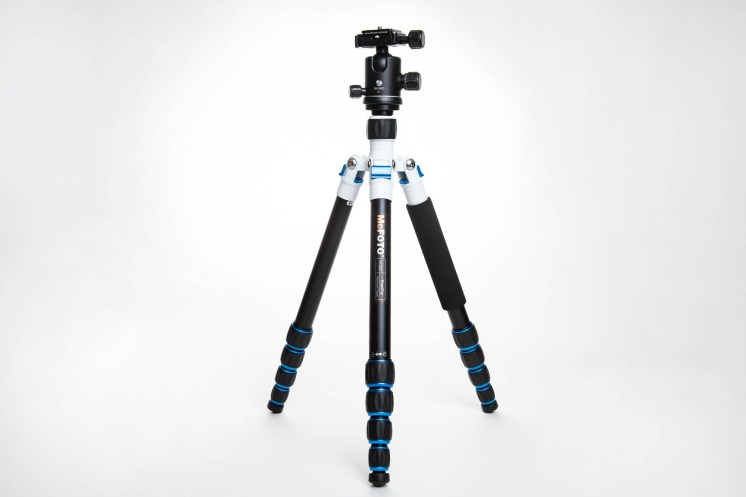
MeFoto Roadtrip travel tripod. Canon 5D Mark III with Canon 100mm f/2.8 – 1/160 sec, f/7.1, ISO 400

2. Tripod minimum and maximum height

All tripods have a minimum and maximum height expressed in their product descriptions. Some tripods can get ultra-tall, others can get ultra-low to the ground. Think about what kind of subjects you will be photographing, and the optimal height you would want your tripod to be.

If you are tall or plan to shoot tall subjects, aim to get the tallest tripod you can find. However, if you shoot subjects that are lower to the ground, you may want to consider tripods with a low minimum height. There are even new tripods like the upcoming Peak Design Travel Tripod designed to get extremely low, down to 5.5 inches.

Best tripod for beginners
Manfrotto 055 tripod. Canon 5D Mark III with Canon 100mm f/2.8 – 1/160 sec, f/7.1, ISO 400

3. How stable is the tripod?

The next quality to consider is how stable the tripod is. First, consider the payload or weight capacity mentioned above – this will give you a good idea of whether the tripod can support your camera and lens combination. But there are other features that can enhance tripod stability.

Some tripods come with retractable or removable spikes in the tripod feet. These provide extra stability by sticking into the dirt or soft ground if you happen to be shooting outside.

Tripods can also come with a retractable hook in the center column of the tripod, allowing you to hang weight to stabilize the tripod. Attaching a heavy sandbag to the hook is often the optimal option, but you can also get creative by using other items like a heavy water bottle or even your camera bag.

Best tripod for beginners
MeFoto Roadtrip Travel Tripod.
Canon 5D Mark III with Canon 100mm f/2.8 – 1/160 sec, f/7.1, ISO 400
Best tripod for beginners
Legs of the Manfrotto 055 tripod.
Canon 5D Mark III with Canon 100mm f/2.8 – 1/160 sec, f/7.1, ISO 400

4. How easy is it to carry the tripod?

If you plan to travel a lot with your tripod, or use it on the go, it’s important to consider the overall weight and folded length of the tripod. If you opt for a heavy, large tripod, you might get optimal stability, but you will likely struggle to carry that tripod around.

Consider the material the tripod is made from. Most tripods are made of aluminum (cheaper, but heavier) or carbon fiber (lightweight, but more expensive). Many tripod models are available in either construction material, so think about your budget and how important the weight saving is to you.

Also, look at the overall ease of folding the tripod up. Most tripod legs are three sections meaning they get taller with each section you open, but some can be two sections or even five sections. The more leg sections you have to deploy equates to a longer time to set up and put away. Along the lines of tripod legs, look at the mechanism they use to deploy. Most tripods use a twist-lock mechanism, which can get confusing about which direction locks or unlocks the legs. Meanwhile, other tripods have a simple clip lock that is much easier to unlock and lock.

5. Tripod head quality?

Some tripods come with a tripod head, and others require that you buy it separately. In some cases, you may even want to buy your own tripod head if you have a preference in the best type to use.

A ball head is the most common type of tripod head, allowing for 360-degree rotation to position the camera where you want it. However, many ball heads, especially cheap or low-quality ones, will slip over time and be less stable. Thus, it may be worth buying a high-end ball head or looking at another type of head to use on your tripod.

Examples include the Manfrotto 3-Way (my favorite), or a pistol grip tripod head. Pretty much every large tripod allows you to replace the tripod head with one of your choosing.

Best tripod for beginners
Standard Arca Swiss type tripod ball head.
Canon 5D Mark III with Canon 100mm f/2.8 – 1/160 sec, f/7.1, ISO 400

The final piece of the tripod head to consider is the tripod plate or the piece that mounts directly to your camera. Arca-Swiss type plates are among the most common and universal, but they often come with the need to use an Allen wrench to tighten the plate to your camera.

On the other hand, there are other tripod plates such as those made by Manfrotto or Joby that includes a twist screw that you can easily secure without the need for an extra tool.

6. Extra features?

The last things to consider are any extra features or bells and whistles that come with the tripod. Here are a few examples to look out for:

Tripod to monopod conversion

Some tripods such as those made by MeFoto, allow you to easily convert the tripod into a monopod by simply removing one leg and attaching it to the center column. This is a handy feature if you anticipate needing a monopod.

Tripods with a column that can be positioned at 90 degrees

If you have the need to shoot with a 90-degree column, look for a tripod that offers this feature. My Manfrotto 055 has this feature and it comes in very handy for product or flat lay photography.

Built-in bubble leveler

While many cameras have a built-in leveler, it always helps to have a physical bubble leveler to make sure your camera is straight. Some tripods have bubble levelers built-into the tripod head or the center column of the tripod.

Carrying case

Some tripods come with a carrying case to aid in transportation, and others require the carrying case to be purchased separately.

Best tripod for beginners
Manfrotto 3-Way tripod head.
Canon 5D Mark III with Canon 100mm f/2.8 – 1/160 sec, f/2.8, ISO 2000

In conclusion

There are a plethora of tripods out there and it is not an easy task to find the right one for you. Ultimately, this tripod buying guide is intended to help you think of all of the situations in which you plan to use a tripod and encourage you to carefully research all six features above. And while there are plenty of cheap tripods out there, consider investing in a high-quality tripod to begin with. Your camera equipment is expensive, and you don’t want to risk dropping or damaging it due to placing it on a cheap tripod.

Video

The post Tripod Buying Guide – 6 Vital Features to Look For appeared first on Digital Photography School. It was authored by Suzi Pratt.


Digital Photography School

 
Comments Off on Tripod Buying Guide – 6 Vital Features to Look For

Posted in Photography


How To Take Good Pictures of Flowers- An Easy Step by Step Guide

03 Jun

Do you want to learn how to use light in photography? Photograph a flower. A flower in and of itself is an interesting subject. Flowers have different textures, bright colors, and won’t get bored of sitting still while you adjust your settings. But a quick snap of a flower, while beautiful, can be boring. If you really want to bring Continue Reading

The post How To Take Good Pictures of Flowers- An Easy Step by Step Guide appeared first on Photodoto.


Photodoto

 
Comments Off on How To Take Good Pictures of Flowers- An Easy Step by Step Guide

Posted in Photography


A Beginner’s Guide to Layer Masks in Photoshop

17 May

The post A Beginner’s Guide to Layer Masks in Photoshop appeared first on Digital Photography School. It was authored by Simon Ringsmuth.

dps-layer-masks-in-photoshop

Adobe Photoshop has so many buttons, tools, and options it can seem overwhelming and intimidating to beginner photo editors. Rather than diving into the deep end and trying to learn every possible tool all at once, I recommend a more measured approach. Pick one thing and learn that, and then move on to the next tool or technique. And learning Layer Masks in Photoshop is one of the most important and useful tools for any editor.

layer masks in Photoshop high school senior
High school senior, class of 2017. There is no number 17 on his shirt. I added it in Photoshop with layer masking. Nikon D200, 50mm, f/1.8, 1/90 second, ISO 200.

In 1994, Photoshop Version 3 introduced a concept that blew the doors off the image editing industry: layers. This allowed editors to stack multiple image elements on top of each other to form a complete picture. This is all well and good, but what if you put one layer on top of another layer and still want to see something on the layer below?

You could use the Eraser tool to remove part of the top layer, which is what I used to do when I first started using Photoshop years ago.

A much better solution is to use a Layer Mask, which lets you show and hide any part of a layer. Instead of using the Eraser tool, you use the Paintbrush (or other tools) to make any part of a layer visible, invisible, or transparent.

As an example, here’s a picture of a truck on a farm. It’s alright, but the sky behind the truck isn’t very dramatic.

layer masks in Photoshop truck on the prairie
Nikon D750, 95mm, f/2.8, 1/3000 second, ISO 100

What if I replaced the boring blue sky with this dramatic sunset? Surely that would be a much more interesting photo, and maybe help the farmer sell his truck too.

layer masks in Photoshop dramatic sunset
Fuji X100f, 23mm, f/16, 30 seconds, ISO 200

If the pictures of the truck and sunset are stacked in Photoshop, the truck is visible but not the sky. This is where Layer Masks in Photoshop can save the day! You can use a mask on the truck layer and then edit it to remove the sky. This would leave the truck visible but the sunset showing through.

layer masks in Photoshop
Layers are fundamental to the image editing process in Photoshop. Layers are on top are visible, whereas layers underneath cannot be seen unless some parts of the layers on top are visible.

To add a Layer Mask, click the top layer (in this case, the truck) and choose Layer>Layer Mask>Reveal All.

Alternatively, click the Layer Mask icon at the bottom of the Layers panel.

layer masks in Photoshop
The rectangle with a circle icon will add a layer mask to the selected layer.

At this point, nothing in the picture has changed because the entire layer is still visible, and nothing has actually been masked out. This is why the menu command is “Reveal All.”

The layer mask shows the entire layer to which it is applied. At this point, you can use any number of methods to remove portions of the layer you are working on.

layer masks in Photoshop
The white rectangle is your layer mask. Click on it to select the mask, and then you can start hiding portions of the layer which it is attached to (in this case, the Truck layer).

My preferred method to show and hide Layer Masks in Photoshop is to use the Brush tool. Press the ‘B’ key on your keyboard or click the Brush tool icon on the left-side toolbar. Then start brushing the portions of the layer that you want to make invisible, just as though you were using an eraser.

layer masks in Photoshop layer mask erasing
Brushing the layer mask will reveal whatever is beneath the layer. Here you can see how, after a few brushstrokes, the sunset layer is starting to show through.

Notice how any part of the mask that you erase is also reflected in the thumbnail. Black portions are where the mask has been eliminated, which is a subtle but useful indicator of the work you are doing on the mask.

layer masks in Photoshop
As you apply the brush to portions of the mask, the mask thumbnail is updated accordingly.

To completely remove the sky behind the truck, I used the Quick Selection tool to select the sky. Then I switched back to the Brush tool and brushed over the entire selected area.

layer masks in Photoshop layer mask demonstration with errors to fix
It worked! The original sky is gone, replaced with a dramatic sunset. But there are some errors that I still need to fix.

At this point, a Layer Mask probably seems much more complicated than just using the Eraser tool. If you want to erase part of an image, why over-complicate the matter with masks and brushes and selections? Layer Masks provide an enormous advantage in that you can un-erase whatever you want just as easily.

With the Brush tool selected, press the ‘X’ key to invert your brush, and you can now put everything you erased back. Use the ‘[‘ and ‘]’ keys to change the size of the brush, and the ‘Z’ key to zoom in on portions of the image to get the finer details.

layer masks in Photoshop modifying the layer mask
Invert the brush tool by pressing the X key to un-erase any part of the layer.

All the normal controls for brushes can be used when working with layer masks – opacity, smoothing, etc. This makes Layer Masks in Photoshop incredibly powerful and exponentially more useful than just using the eraser tool.

layer masks in Photoshop
It still needs some touch-ups, but it’s a lot better than before thanks to the flexibility of layer masks.

Layer Masks can do so much more than replacing the sky. They can be used to combine any number of images, layers, and effects.

I created the picture at the top of this article with Layer Masks in Photoshop in just a few minutes. It started with the picture below of a high school senior wearing a blue shirt. Since this young man graduated in 2017, I wanted to put a 17 on his shirt. Photoshop made it easy.

layer masks in Photoshop high school senior blank shirt
A high school senior, Class of 2017. A nice big 17 would look good on his shirt.

I started by using the Fyra font for the number 17. I set the color to white and used the Soft Light blend mode to make the number look like it was part of the shirt, not just sitting on top of it. The young man’s crossed arms presented a challenge, but one that was easily solved in seconds thanks to layer masks.

layer masks in Photoshop high school senior number 17 without mask
What to do about his arms? Layer Masks to the rescue!

With the base layer selected, I chose the Lasso tool and selected the portion of the picture containing the arms. Then with that selection active, I right-clicked on the image and chose “New Layer via Copy.” This created a new layer in my Layers panel, which I moved to the top of the list by clicking and dragging.

layer masks in Photoshop

With the new layer selected in my Layers panel, I went to the Layer menu and selected Layer Mask>Reveal All. This created a new masking layer, much like the truck and sunset example, that I could use to show and hide whatever portions of the arms I wanted to.

layer masks in Photoshop
Click the white box next to Layer 1 to edit the layer mask for the top layer.

With the new Layer Mask in place, the rest of the operation was fairly simple.

I zoomed in on the image to get a closer view by pressing ‘Z’ and then clicked on the arms. Then I pressed the ‘B’ key to select my Brush tool and used the [ and ] keys to get the right size. As I brushed out the part of the top layer I did not want, I pressed the ‘X’ key to switch back and forth between erasing and un-erasing. This makes it very simple to perform fine adjustments to your layer mask.

layer masks in Photoshop
Brush options such as Opacity and Smoothing can be used to perform edits to your layer mask with surgical precision.
layer masks in Photoshop fine adjustment to layer mask
With one hand on your mouse and another hand on the X key, you can quickly show and hide whatever part of your layer that you want.

Using layer masking instead of just erasing portions of an image means you can continue to manipulate your image as separate layers even after you have made your edits. Watch how the number 17 can be moved and resized without any additional editing or erasing. This is possible because the arms are a separate layer in front of the number, and the blue part of the arms layer has been erased or masked out.

layer masks in Photoshop transform layer

Reading through all these steps to learn Layer Masks in Photoshop might seem kind of overwhelming. If you follow along step by step, it’s a lot easier than it seems. Also, there are hundreds of ways to edit layer masks to create compositions you probably thought were previously unattainable.

If you have never tried using layer masks in Photoshop, I recommend giving it a try, and see where your creativity takes you. You might find that it opens up a door to entirely new types of artistic expression and editing possibilities.

Share your results with us in the comments below!

The post A Beginner’s Guide to Layer Masks in Photoshop appeared first on Digital Photography School. It was authored by Simon Ringsmuth.


Digital Photography School

 
Comments Off on A Beginner’s Guide to Layer Masks in Photoshop

Posted in Photography


A beginner’s guide to lighting tools – with stay-at-home-friendly DIY versions

26 Apr

DIY studio lighting solutions

One of the most important skills that photographers can learn is how to control and manipulate light. After all, it’s the very definition of photography! So if you aren’t already a master of photography lighting, use this quarantine time at home to explore and practice lighting techniques. In this article, I’ll show you some of the most popular lighting solutions that professional photographers use, and DIY versions that you can make with regular household products.

This guide is geared towards those with little-to-no knowledge of lighting, but it can also be useful for professionals. Gear can malfunction at any time, and it is helpful to know how to hack quick solutions, especially on paid jobs.

Light sources: Pro Photographer Version

The lights that professional photographers use can fall into two broad categories: natural light and artificial light. Natural light simply means any available ambient light, most commonly sunlight. The plus side to natural light is that there is plenty of it available, and you can use it as-is or with modifiers such as a reflector (more on this below).

However, the downside to natural light is that it changes throughout the day, and is not always consistent. Natural light at sunrise or sunset has very different qualities than that of midday natural light.

While it’s beneficial for pro photographers to know how to use natural lighting, understanding how to use artificial lighting is also valuable since one cannot always rely on natural lighting to be available. Most photographers incorporate artificial lighting in the form of strobes, Speedlights, or LED panel lights.

Strobes and Speedlights are external flashes that produce a bright burst of light at high power. In comparison, LED panels are external lights that are always on, giving you a real-time preview of what your subject will look like with lighting on. The main downside to LEDs is that they are generally not as powerful as strobes or Speedlights.

Light sources: DIY Version

The best DIY light source is a flashlight. This can be a dedicated flashlight or the one on your cell phone will do just fine.

From here on out, we’ll talk about lighting modifiers. The most important thing to understand about a modifier is that it (naturally) can’t be any brighter than the light that already exists, so it is best to start off with the most powerful light you can find. For the DIY versions of these modifiers, don’t worry if your materials are wrinkled, stained or dirty. All we’re doing is using them to reflect light, so little imperfections are fine.

Light Modifier: Reflector – Pro Photographer Version

The most basic and inexpensive light modifier is a reflector. This tool manipulates light by bouncing it off of reflective surfaces. There are several different kinds of reflectors out there, but the handiest by far is the 5-in-1 reflector. This gives you five different tools to work with:

  • A silver side for highly reflective, neutral-colored light.
  • A gold side for highly reflective, warm-colored light.
  • A white side for reflecting soft light.
  • A black side for absorbing or blocking light.
  • A translucent panel for diffusing light.

Light Modifier: Reflector – DIY Version

5-in-1 reflectors are quite cheap, so get one if you can afford it. But if you want to use household items, you can recreate the effects of the 5-in-1 reflector with some common materials:

Tools Needed

  • Tape, scissors, binder clips or clamps, large foam boards (most of these can be found in a craft or hardware store).
  • A silver side – aluminum foil works fine.
  • A gold side – this is more tricky to reproduce, but gold gift wrap could work.
  • A white and black side – white or black foam board is the best option.
  • A translucent panel – parchment paper (explained use is in the next section).

Step 1: Cut the large foam boards into your desired size, but keep it in a rectangular or square shape to help it stay balanced. Determine the ideal size by figuring out what kind of photo subject you are trying to light. A larger photo subject = a larger foam board.

Step 2: The foam board can be used as-is if you simply want a white or black surface to bounce light off of. Simply attach the binder clips or clamps to the bottom of the reflector to give it feet to stand on, and start using it.

Step 3: If you have aluminum foil or metallic gift wrap, take it a step further by wrapping the foam board cutout with the reflective material. It doesn’t matter if the foil or gift wrap is wrinkled – all you want is the reflective quality of the material. After your foam board is wrapped and secured with tape, attach the binder clips or clamps for feet, and you’re ready to go.

Light Modifier: Softbox – Pro Photographer Version

Similar to the translucent panel of a reflector, a softbox diffuses light. It can turn harsh light with heavy shadows into soft, even light. Like all other lighting modifiers, softboxes vary in terms of size and shape. When choosing softboxes, consider the size of your photo subject – a larger softbox is needed to light larger subjects – and if your subject has any reflective surfaces. Softboxes can often be seen in reflections (ie. glass bottles, or a photo subject’s eyes). This may impact the shape of the softbox that you should use.

Bottles of wine or other beverages are often shot with rectangular softboxes so that the reflection compliments the bottle’s form.

Light Modifier: Softbox – DIY Version

In the previous section, the use of parchment paper was not explained because you would use the parchment paper in much of the same way you would make this DIY softbox.

Tools Needed:

Tape or glue, Exacto knife (or scissors), large clamps, large foam boards, parchment paper (most of these can be found in a craft or hardware store).

Step 1: Cut the foam board into a certain size, if desired, but it is best to use the largest foam board that you have available.

Step 2: Cut out a generous portion of the middle of the foam board, leaving a foam board frame. This is easiest done with an Exacto knife.

Step 3: Tear off a piece of parchment paper large enough to fill in the foam board hole. Tape or glue the parchment paper to the foam board frame.

Step 4: Depending on the size of your DIY softbox, you may be able to balance it on a surface if you use large clamps as feet. If you have a really large softbox, use an assistant to hold it in place, or set your camera on a timer and hold the softbox yourself.

To get the best light out of your DIY softbox, play around with the placement of your light source and the softbox. A good rule of thumb is that the larger the softbox, the softer the light quality. However, the proximity of the softbox to your photo subject also affects the light output – the closer your photo subject is to the light source, the softer the light appears.

Light Modifier: Snoot – Pro Photographer Version

The last type of photography lighting modifier I’ll discuss is the snoot. A snoot is a long tube that fits on the front of a light, producing a targeted beam of light, similar to a spotlight. Photographers often use snoots as a hair light in portrait photography to create separation between the subject and background.

Light Modifier: Snoot – DIY Version

There are many ways to DIY a snoot. Which tool is best for you really depends on the size of your light source, since the snoot needs to tightly fit around the end of your light. Assuming that you are using a relatively small flashlight, the cheapest and easiest way to DIY a snoot is to use the inner cardboard piece of a toilet paper or paper towel roll. Simply cut and toilet paper piece and rearrange it to tightly fit around the end of your light, and tape or glue the shape into place.

And there you have it – plenty of ideas to experiment with around the house. Watch the video below to see these DIY solutions in action, and let us know your best household item lighting hacks in the comments!

Articles: Digital Photography Review (dpreview.com)

 
Comments Off on A beginner’s guide to lighting tools – with stay-at-home-friendly DIY versions

Posted in Uncategorized


How to Use Lightroom Presets- A Handy Guide

09 Apr

How many of you love wasting hours of time making the same basic edits to a lot of photos? Anyone? No? Well, that’s understandable. None of us like doing menial repetitive tasks and it’s no different when editing images — even for those of us who enjoy the editing process. The good news is that Lightroom has a handy tool Continue Reading

The post How to Use Lightroom Presets- A Handy Guide appeared first on Photodoto.


Photodoto

 
Comments Off on How to Use Lightroom Presets- A Handy Guide

Posted in Photography


How to Repair Corrupted Videos Shot on Digital Cameras and Other Devices: A Step-by-Step Guide

18 Mar

The post How to Repair Corrupted Videos Shot on Digital Cameras and Other Devices: A Step-by-Step Guide appeared first on Digital Photography School. It was authored by Theodomentis Lucia.

How to repair corrupted videos featured image

Earlier today, I thought about playing some videos that I shot on my digital camera during my last vacation. Sadly, every time I tried to play them on VLC or Windows Media Player, I got a gray or green display on the screen instead. I realized that my videos were corrupt and thought of digging up and finding an ideal solution for it. To be honest, after some failed attempts, I was finally able to repair my corrupted videos. If you have also encountered a similar situation in the past, then you may learn something from my experience.

Read on to find out how.

What could have caused your videos to become corrupt?

Before we head into the details on how to repair corrupted videos, it is important to discuss a few things in advance. You should know the major reasons why a video gets corrupt or damaged so that you can avoid it in the future.

These reasons include:

  • The transfer process of videos from your digital camera to the computer could be halted mid-transfer.
  • You may have restarted the system while the video was still playing in the background.
  • Sometimes, a third-party tool like a video editing software can also end up corrupting a file.
  • The location (drive or partition) where your video is stored could be corrupted.
  • The meta content or the header of the video might be tampered with as well.
  • If you have forcefully tried to change the video extension or type, then it can corrupt the file.
  • The audio-video components of the file might not be synced properly or could be missing.
  • You have played the video with an unsupported media player, or there could be an issue with the video encoding.
  • Other logical issues related to video playback, picture, sound, etc. can also cause this problem.
How to Repair Corrupted Videos Shot on Digital Cameras and Other Devices: A Step-by-Step Guide

How can you repair corrupted videos on Windows or Mac?

If your videos have been corrupted, then you need to look for the right tools to fix them. 

Since there are so many tools out there to repair corrupted videos, I asked a friend of mine, who is an expert in the field. He recommended Recoverit Video Repair, so I decided to give it a try as well. 

Ideally, Recoverit is a dedicated application to recover the lost or corrupt data of all kinds. However, it also has a dedicated video repairing tool that can fix various issues related to a video file.

After getting to know these features, I wanted to give Recoverit a try and found its click-through process pretty easy. 

Once you have installed the Recoverit Video Repair application, you can follow these steps to fix your corrupt files.

Steps to repair corrupted videos and files

Step 1: Launch the Video Repair tool

If you have some videos to fix, then just launch the Recoverit application on your system and launch the “Video Repair” tool from its home page. Also, attach your digital camera to the computer and move your damaged videos to the system.

How to Repair Corrupted Videos Shot on Digital Cameras and Other Devices: A Step-by-Step Guide

Step 2: Add corrupt videos to repair

Once you launch the Recoverit Video Repair application, you can just click on the “add” button to load the corrupted videos.

How to Repair Corrupted Videos Shot on Digital Cameras and Other Devices: A Step-by-Step Guide

This will further launch a browser window, letting you locate and load the videos that are damaged. If you want, you can load multiple videos and repair them at the same time.

How to Repair Corrupted Videos Shot on Digital Cameras and Other Devices: A Step-by-Step Guide - Adding the videos screenshot

Step 3: Start the repairing process

After you have added the corrupted videos to the application, the interface will let you know. You can view the details of the added videos and even remove them from here. 

If you are ready, then just click on the “Repair” button to commence the repairing process.

How to Repair Corrupted Videos Shot on Digital Cameras and Other Devices: A Step-by-Step Guide

Step 4: Wait for the repairing process to be over

As soon as you click on the “Repair” button, the application starts fixing the loaded videos and displays the progress. Kindly be patient as of now and let the application complete the process.

How to Repair Corrupted Videos Shot on Digital Cameras and Other Devices: A Step-by-Step Guide - waiting for the repair process screenshot

Once the repairing process is completed, Recoverit will let you know by displaying the following prompt.

How to Repair Corrupted Videos Shot on Digital Cameras and Other Devices: A Step-by-Step Guide

Step 5: View the repaired videos

You can now preview the results of the repaired process by clicking on the play icon adjacent to the video.

How to Repair Corrupted Videos Shot on Digital Cameras and Other Devices: A Step-by-Step Guide - View repaired videos screenshot

This opens a pop-up window with a video player that will let you play the repaired video. In this way, you can check the results of the application before saving the videos.

How to Repair Corrupted Videos Shot on Digital Cameras and Other Devices: A Step-by-Step Guide

Step 6: Save the repaired videos

If you are satisfied with the results, then click on the “Save to Folder” button right next to the video. 

If you want, you can also click on the “Save All” button to save all the videos. This opens a browser window, letting you select a secure location to save the videos.

How to Repair Corrupted Videos Shot on Digital Cameras and Other Devices: A Step-by-Step Guide

Step 7: Run an advanced video repair (optional)

In the case that you are not satisfied with the standard video repairing results, then click on the Advanced Video Repair feature, which you can find at the bottom of the video player.

How to Repair Corrupted Videos Shot on Digital Cameras and Other Devices: A Step-by-Step Guide - Advanced video repair screenshot

To run an advanced repair, you need to load a sample video to the application. The sample video should be shot on the same device as the corrupted video and must be in the same format. 

After loading the sample video, you can start the advanced video repair process and view its results as well.

How to Repair Corrupted Videos Shot on Digital Cameras and Other Devices: A Step-by-Step Guide

Conclusion

When using Recoverit, it’s easy to repair corrupted videos. Recoverit is able to fix all sorts of issues related to videos like missing fragments, gray/green screens, video not loading error, and so on and supports a wide range of video formats like MOV, AVI, FLV, 3GP, MP4, MKV, MTS, and more. It can fix all kinds of videos shot on a wide range of devices like digital cameras, drones, camcorders, and smartphones.

The video repair tool is available in three different purchase options – $ 29.95 a month, $ 39.95 a year, or $ 49.95 (lifetime purchase) for the Windows version. If you get it now, you can get 30% off Recoverit for windows or 30% off for mac.

Download and Get 30% off Recoverit video repair now by using the exclusive coupon code: LENOP09

Disclaimer: Recoverit is a dPS paid partner.

The post How to Repair Corrupted Videos Shot on Digital Cameras and Other Devices: A Step-by-Step Guide appeared first on Digital Photography School. It was authored by Theodomentis Lucia.


Digital Photography School

 
Comments Off on How to Repair Corrupted Videos Shot on Digital Cameras and Other Devices: A Step-by-Step Guide

Posted in Photography


A Photographer’s Guide to Buying a Drone – Getting it Right the First Time

05 Mar

The post A Photographer’s Guide to Buying a Drone – Getting it Right the First Time appeared first on Digital Photography School. It was authored by Matt Murray.

photographers-guide-to-buying-a-drone

In this photographer’s guide to buying a drone, I’ll share with you some invaluable tips for buying a drone for the first time.

Seven years ago, my employer wanted a photo of a local lighthouse from an elevated viewpoint. It sounds ridiculous now, but very early on a winter’s morning, I was loaded into a cherry picker with two cameras and hoisted 15 meters in the air to take photos. I’m a little bit scared of heights, so I really had to concentrate on getting the images and not looking down!

With the introduction in the last few years of many relatively low-cost good quality drones (also known as UAVs – unmanned aerial vehicles), that whole scenario seems laughable.

So why should you think about buying a drone if you haven’t already?

Here are some of the key considerations.

Image: By chance, I saw this boat sailing past when I was taking aerial images of fishing boats in Y...

By chance, I saw this boat sailing past when I was taking aerial images of fishing boats in Yamba. Taken with the DJI Mavic.

A photographer’s guide to buying a drone

Why buy a drone?

The main reason for buying a drone is the unique viewpoints that it will bring to your photography that you couldn’t achieve easily otherwise.

Sure, you can take elevated images from buildings, planes, helicopters – or even a cherry picker. However, those options are unlikely to be suitable or cost-efficient, depending on what you’d like to photograph. Having a drone in your kit opens up new possibilities and viewpoints like never before.

How else would you be able to take images from viewpoints like this? Boats at the seaside taken with the DJI Mavic Pro 2.

What kind of photographers would benefit from having a drone?

The short answer is – all kinds of photographers. I’ve seen or heard of aerial images from UAVs used in many industries.

Travel

Aerial images have been a stable of Instagram travel accounts for years now. Many Instagrammers take a compact drone with them on their travels to add to the range of shots they can take at a destination. They can use the images for both posting on social media or as deliverables for clients.

These images are often featured by large national and regional travel accounts to showcase destinations.

A Photographer's Guide to Buying a Drone

Real estate photographers

Drones are widely used amongst real estate photographers and seem to be essential kits these days.

Aerial images are common on many listings here in Australia to show the boundaries and layout of a property and its location to nearby landmarks and amenities.

Fine art

This is a small but very well paid niche. Some photographers make thousands of dollars for breathtaking fine art aerial images taken with UAVs.

Stock photographers

There’s been an increasing number of aerial images and videos sold on stock photography sites recently. Using a drone is one way to add to the range of images you have for sale in your portfolio.

A Photographer's Guide to Buying a Drone

A stock photography library I shoot for had a call out for images to illustrate bad parking. This is an image I sold them for the campaign.

Wedding and portrait photography

Aerial images are becoming increasingly popular for weddings, engagement shoots, and portrait sessions.

Images for your family archive

When I’m out and about taking photos for stock or travel, my family often accompanies me. I love taking aerial images of them; it certainly makes for a different type of shot in the family photo archive.

Tips before buying a drone

If you’re thinking about buying a drone, it pays to do your research first. Take a look at photos taken by drones on Instagram using hashtags such as #dronephotography, #dronestagram, and #droneoftheday.

Which make and model of UAV took these images? Looking at the photos will give you a good indication of the quality you can expect from each model.

Join some drone-related Facebook groups. Have a read through the discussions and ask questions. People will often be happy to share how they took a photo, what equipment they used, and what post-processing they did on the image.

Image: My daughter taking her board out for a surf in northern New South Wales, Australia.

My daughter taking her board out for a surf in northern New South Wales, Australia.

Try before you buy

Do you know a friend who has a drone? Ask if you can go along with them next time they fly it and learn the basics. You could also see if a local drone Facebook Group has meetups where you can learn the ropes. Maybe you’ll love it, but maybe you’ll hate it. Handy to know before you shell out for such a high cost.

Buy cheap, buy twice

I’ve heard many people buy a cheap toy drone to see if they’ll like it. The truth is, many of those cheaper drones are a complete nightmare to fly, and people are put off when it crashes. Typically, the more expensive a UAV, the easier it is to fly.

I’d recommend the “try before you buy” approach over this.

Which drone should I buy?

Ultimately, this is down to two different factors: the first is your budget, the second is what you want to do with your aerial images.

If you want to sell your images for stock, weddings, or fine art, go with the drone with the best image quality. However, if you want to travel with your drone, take family photos or only post to social media, perhaps you’d value a compact, lighter offering.

Pros and cons of some popular drone models

Below are some of the pros and cons of popular drones.

The Mavic Pro

The Mavic Pro is one of the best-selling drones of all time. It’s capable of taking photos in both horizontal and landscape orientations, which I found very handy when I owned it. The 12-megapixel camera has a fixed f/2.2 aperture, which compared to newer offerings, is a bit limiting. The good news is, you should be able to pick up one for a good price secondhand.

Image: DJI Mavic Pro

DJI Mavic Pro

Mavic Pro 2

I sold my Mavic Pro when they released the Mavic Pro 2. It has a significantly better 20-megapixel camera with a 1-inch sensor, which suited me better for taking larger images for stock libraries.

It also has an f/2.8-11 variable aperture, which gives you the potential to be more creative with your aerial images.

The one potential downside is that when facing the horizon, the gimbal doesn’t rotate the camera so you can capture vertical images like you can with the Mavic.

Read a full review of the Mavic Pro 2 here.

A Photographer's Guide to Buying a Drone

The Mavic 2 drone.

Mavic 2 Zoom

The Mavic 2 Zoom came out at the same time as the Mavic Pro. Its main advantage over the Pro 2 is the ability to zoom the camera. Combined with movement, you can use this to achieve the dolly zoom effect. The downside is that its camera is only 12-megapixel, and the aperture is f2.8-3.8.

Read a review of the Mavic 2 Zoom here.

A Photographer's Guide to Buying a Drone

DJI Mavic 2 Zoom

Mavic Mini

The Mavic Mini is a very small and light drone with impressive specifications. The Mavic Mini is the cheapest I’ve covered and would be ideal for many people wanting to take aerial images as they travel. It has a 12-megapixel camera. Unlike the others listed, it is only capable of taking images in JPG format for stills.

A Photographer's Guide to Buying a Drone

DJI Mavic Mini

Also, read a review of the DJI Spark here, and the Mavic Air here.

What else do I need to consider?

Is your device up to scratch? To fly a DJI drone, you’ll need the DJI GO app on your smartphone or on a tablet.

Is your device good enough to support the latest app? You’ll need to look into this before you get started.

A Photographer's Guide to Buying a Drone

Make sure your phone or tablet is powerful enough to run the drone app.

How will you edit your image?

If you’re a dPS regular reader, no doubt you’ll know all about the various ways you can post-process your images. I use Adobe Lightroom and occasionally Adobe Photoshop to edit my JPG and DNG drone images.

Insurance

UAVs are an expensive investment. Make sure that your camera insurance or home contents insurance adequately covers your new kit.

DJI have their own insurance product – DJI care. Whichever option you go for, make sure you understand the limits of the policies, so you don’t get caught out.

Flying legally

This is very important. You don’t want to find yourself on the wrong side of the law, especially if you take your drone overseas.

It’s good to learn all the rules when you’re considering buying one or while you’re waiting for it to arrive.

Rules differ from country to country, region to region, so always make sure you know the correct laws to fly at your destination.

For example, in Australia, you’ll need permission to fly a drone in a National Park in the state of New South Wales, but over the border in Queensland, you do not.

Image: Early morning view of South Stradbroke Island, Queensland. DJI Mavic.

Early morning view of South Stradbroke Island, Queensland. DJI Mavic.

Flying safely

Investing time learning the rules and regulations is just one part of things. You also need to learn to fly safely.

A major part of this is learning to identify hazards, whether they be trees, powerlines, buildings, weather, or as I found out once, a swooping bird in my local park.

It’s always a good idea to have a pre-flight and post-flight-check routine in place.

Conclusion

Buying a drone is a fantastic way of adding new viewpoints to your photography. The latest offerings from companies such as DJI have given photographers the ability to capture scenes that were not possible a few years ago without chartering a plane or helicopter.

However, there are many things to consider before you dive in. Consider what you want to use the images for, which model to buy, and how to edit your images. You also need to learn how to fly safely and legally.

I hope this photographer’s guide to buying a drone has been helpful if you are currently looking at adding a drone to your photography kit.

What other considerations do you think are important when considering buying a drone? Tell us below.


The post A Photographer’s Guide to Buying a Drone – Getting it Right the First Time appeared first on Digital Photography School. It was authored by Matt Murray.


Digital Photography School

 
Comments Off on A Photographer’s Guide to Buying a Drone – Getting it Right the First Time

Posted in Photography