Black and white film and paper manufacturer Ilford Photo has produced a series of videos to help beginners get to grips with essential darkroom techniques. Hosted by Rachel Brewster-Wright from Little Vintage Photography the collection of videos tackles some of the basics of common darkroom questions in a simple to follow format.
So far, subjects covered in the 16-video playlist include dodging and burning, selenium toning, using multi-grade paper and more. The series sits alongside a mass of other educational content from the film-maker that covers issues such as how an enlarger works, pinhole photography, a checklist for setting up your own darkroom and processing your first roll of film. This is mixed with inspirational interviews with black and white photographers and printers, as well as footage inside the Ilford Factory in the UK.
If you want to get started in black and white film photography, or you want a refresher on how it’s all done check out the Ilford Photo YouTube channel.
What color is your camera? Have you ever paid attention to the color of DSLR cameras? Peek in a wedding photographer’s bag, or check out the sea of photographers at a press conference or sporting event and you’ll notice that most (or all of) their cameras are one color — black. Keep looking and you’ll notice that most of their Continue Reading
The post Camera Color Guide – Why Cameras Are Black appeared first on Photodoto.
The post How To Find Your Lens’ Sweet Spot: A Beginner’s Guide to Sharper Images appeared first on Digital Photography School. It was authored by Dena Haines.
Are you tired of blurry images?
It’s time to learn how to capture sharper images by finding your lens’s sweet spot. This will give you more confidence, save time, and help you take better photos.
In this article, you’ll learn:
How to find your lens’s sweet spot (for sharper images)
Why you should shoot in Aperture Priority mode (and how to use it)
How to perform a test to get the sharpest image every time
How important your lens’s sweet spot really is
In the above images of the clock, the one on the right is sharper. Look closely at the words. The f/9 image is sharper throughout because it was shot using my lens’s sweet spot. The f/3.5 one was not.
First, take a look at your lens
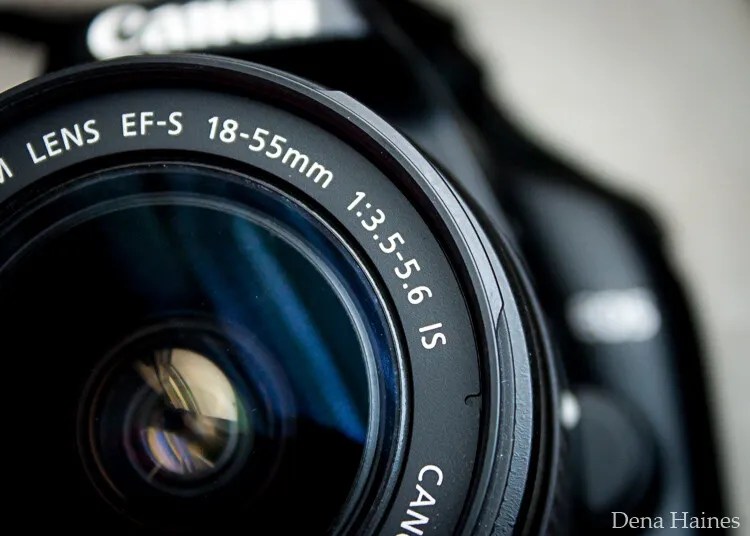
In this beginner’s guide, we’ll use an entry-level zoom lens as our example. Most kit lenses (the basic lens that comes with a DSLR) generally shoot their sharpest at a mid-range aperture setting. To determine the mid-range aperture of your lens, you’ll need to know its widest (or maximum) aperture setting. This is located on the side or end of the lens and will look something like 1:3.5-5.6.
For example, here it is on my Canon 18-55mm zoom lens:
This means that when my lens is zoomed all the way out to 18mm, its widest aperture is f/3.5. When zoomed all the way in to 55mm, its widest aperture is f/5.6.
The rule for finding that mid-range sweet spot is to count up two full f-stops (aperture settings are called f-stops) from the widest aperture. On my lens, the widest aperture is f/3.5. Two full stops from there would bring me to a sweet spot of around f/7.1.
Use this chart to count your f-stops:
By Robin Parmar
There is some wiggle room in what counts as mid-range, so anything from f/7.1 to f/10 will capture a sharp image. Once you know the mid-range aperture of your lens, you can do an easy test to get your sharpest image. To perform the test you’ll need to shoot in Aperture Priority mode.
Take control with Aperture Priority mode
Shooting in Aperture Priority allows you to choose the aperture setting you want, which gives you more creative control than Auto mode.
By controlling the aperture setting, it’s much easier to get a sharp image. And because your camera still chooses the ISO (if it’s set to Auto ISO) and the shutter speed automatically, it’s very easy to use.
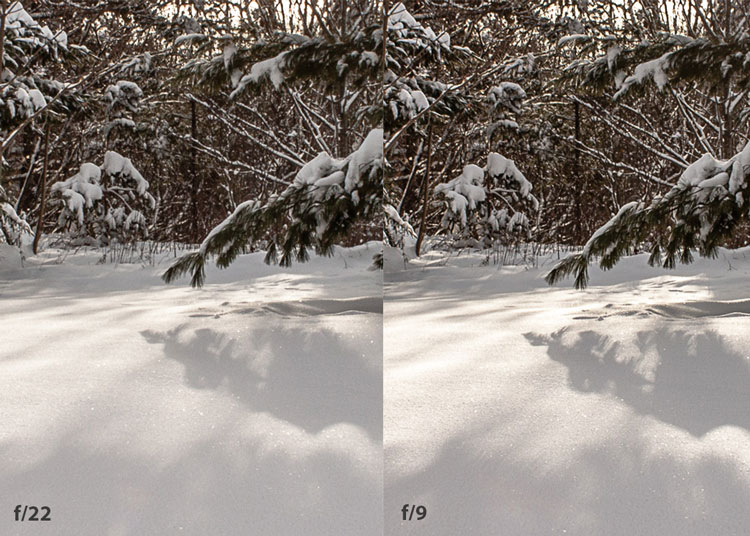
You’ve probably heard that apertures like f/16 and f/22 are best for keeping everything in focus. While that can be true, focus does not always equal overall sharpness. Choosing a mid-range aperture will give you sharper images throughout. You can improve your photos even further by reducing camera shake by way of a tripod and a remote shutter release (or your camera’s self-timer).
Here’s an example of how shooting in your lens’s sweet spot will give you sharper images:
In the above image, the f/9 shot is sharper than the f/22 one. The needles and shadows are not as soft or blurry as in the f/22 shot (look at the crispness and sparkles in the snow, too).
Switching from Auto to Aperture Priority mode
To take your camera off of Auto and put it in Aperture Priority, just turn the large mode dial to Aperture Priority. This is what that looks like on my Canon (on Nikon and other brands look for the “A”).
Auto mode is the green rectangle; Aperture Priority mode is the Av (or A on a Nikon). Once your camera is in Aperture Priority mode, turn the smaller main dial (shown here on the top of my Canon) to choose your f-stop.
As you turn that dial, you’ll see the f-number changing on your screen. In the next picture, it’s set to f/9.5:
Perform a lens sweet spot test
Once you have your camera set up on a tripod, performing a sweet spot test only takes a couple of minutes. To begin, put your camera in Aperture Priority mode, then compose your shot and take photos at varying apertures. Start with a shot at the widest aperture, then rotate that main dial a couple of times (to narrow the aperture) and take another shot. Keep doing that until you’ve taken seven or eight photos.
Upload your photos to your computer and zoom in. You’ll quickly see which aperture settings gave you the sharpest overall image.
This next photo of my daughter was shot using natural light. Shooting in my lens’s sweet spot gave me a pretty sharp image, even in this low light setting:
The close-up of the mug shows the advantage of shooting in the lens’s sweet spot. Whenever you want to make sure you get the sharpest capture possible, take a shot at each mid-range setting: f/7.1, f/8, f/9, and f/10.
Getting your sharpest images
Now that you know your lens’s sweet spot, it’s time to practice. I hope you’re as pleased with the results as I’ve been!
I love shooting in natural light, and learning how to capture sharper images in low light has made me so much happier with my photos.
Tips for capturing the sharpest images
Shoot in Aperture Priority mode
Choose a mid-range aperture (usually f/7.1 to f/10)
Use a tripod and a remote shutter release (or your camera’s self-timer) to reduce camera shake
Take a series of shots at f/7.1 through f/10 when a sharp capture is especially important
But don’t stop there. Keep playing with settings in Aperture Priority mode. It’s awesome to get images that are sharp throughout, but there’s a lot more to aperture than that.
Learn more about aperture and depth of field here.
The post How To Find Your Lens’ Sweet Spot: A Beginner’s Guide to Sharper Images appeared first on Digital Photography School. It was authored by Dena Haines.
The current climate is not ideal for many businesses, particularly photographers. Without an outlet for work, it’s easy to ruminate on how you’re going to weather the storm. Going without work is not an option for many photographers, so what are the alternatives? Fortunately, there’s plenty you can do to pivot your business and retain your income. For example, increasing Continue Reading
The post Working From Home as a Photographer in the Current Climate: A No-Bull Guide appeared first on Photodoto.
Low light photography is one of those types of photography that when done well can produce amazing photos but when not done well can leave you feeling a bit disappointed. It’s a type of photography that at first can seem quite complicated as if you need a PhD to master. Yet all you actually need is a few simple pieces Continue Reading
The post The Ultimate Guide To Low Light Photography: Tips, Settings, Cameras, Lenses appeared first on Photodoto.
Writing is not for photographers. This is the most ridiculous statement I have ever heard, and as a photographer, I have heard many. Do you know what is even more absurd about this declaration? For a long time, I am the one who swore by it. This was following the demise of my first personal photoblog. You can say Continue Reading
The post 8 Amazing Hacks To Be A Pro Photographer Blogger: The Definitive Guide I’m Using To Write How I Shoot appeared first on Photodoto.
The breathtaking landscape before you is just begging to be photographed. The only problem is that you don’t know how to do it. You try taking a few images, but upon reviewing them your disappointment sinks in. They don’t hold a candle to the real thing — and they certainly don’t look like those gorgeous landscape images that show up Continue Reading
The post Landscape Photography: Complete Guide for Beginners; Equipment, Settings, and Tricks appeared first on Photodoto.
The post A Beginner’s Guide to Focus Stacking appeared first on Digital Photography School. It was authored by Bruce Wunderlich.
Other than for special effect, photographers generally do not want out-of-focus images. But sometimes, regardless of which camera settings are used, not every detail of an image can be captured tack sharp.
The depth of field (DOF) can be so shallow that interesting aspects of the photos are without sharpness. A smaller aperture may be used to increase DOF, but moving the aperture farther from a lens’s sweet spot introduces lens diffraction into the image, again resulting in some fuzziness. Also, if stopping down the camera’s aperture, the shutter speed will need to be increased and blurry images may result. Increasing ISO to help with the exposure will introduce digital noise to the image.
So how do you shoot with the best aperture and shutter speed combination and get sharp images from the front to the back of an image? A technique that can help resolve this problem is called focus stacking.
Here’s some helpful info about this technique.
A 13 image focus stack.
What You Need
A tripod.
A DSLR camera capable of shooting in manual mode. It is possible to use a point and shoot camera, but it must have a manual mode and manual focus capabilities.
A depth of field app (which is helpful but not required).
Photoshop or another focus stacking software.
How to Shoot for Focus Stacking
Focus stacking is similar in principle to HDR photography. However, with focus stacking, images are captured with different focus points and later combined in Photoshop; this is in order to create an image with more DOF than would be possible with a single exposure. Landscape and macro photography are two genres of photography that benefit most from using this procedure.
But be warned: Calm winds and reasonably stationary objects are a must!
Before beginning to shoot, it is always helpful to know a lens’s sweet spot, defined as the aperture at which the lens produces its sharpest image. (It is usually found about two to three stops from wide open.) Experiment until this important setting is determined.
Landscape
There are two basic scenarios when shooting landscapes that may benefit from focus stacking.
The first is when the subject is a close foreground object with an interesting background, and you want both these elements to be in sharp focus.
The second is when using a telephoto lens (which typically has a shallow depth of field) and the subject covers multiple distances that may be brought into sharper focus.
(FYI: If shooting a landscape with a wide-angle lens, the DOF may be deep enough to capture a sharp image that doesn’t require focus stacking.)
Here is a little trick to find out if focus stacking will benefit an image when photographing a scene or subject:
After composing the image, set the focus point about one third into the image. Then, using Live View, enlarge the image and check to see if the foreground and background are sharp or blurry. If either image isn’t in focus as sharply as desired, the image could benefit from focus stacking.
Steps for Shooting Landscapes for Focus Stacking
Place the camera on a sturdy tripod; this is a must!
Frame the subject and compose the shot.
Determine exposure for the scene and set the camera to manual mode to ensure that the exposure is constant for every image.
Set the camera to Live View and aim the focus point at the nearest object you want in focus. Use the camera’s zoom (the plus button, not zoom on the lens) to preview the focus through Live View. Then switch to manual focus and use the focus ring to fine-tune for sharpness if necessary.
Take the first exposure.
Without moving the camera or adjusting any settings, move the focus point to an object mid-way in the image and refocus.
Take the second exposure.
Again, without changing anything, refocus on an object at the farthest point of the intended image.
Take the third exposure. To capture landscapes, three images are generally all that is necessary to create sharp focus stacking images, but it’s completely fine to take extra images to make sure that the entire scene is covered. A rule of thumb would be to add more images for longer focal lengths. Be aware that extra images will take longer to process in post-production. If available, check the DOF with a Smartphone app in order to figure out how many images will be necessary to get every aspect of the photo in focus.
The first image was focused on the fence, the second was focused midway into the image, and the third was focused on the front of the house.
Macro Photography
Macro photography can benefit from focus stacking more than any other type of photography, because a macro lens has an extremely shallow depth of field.
So here’s what you do:
Place the camera on a sturdy tripod – a must!
Frame the subject and compose the shot.
Determine the exposure for the subject, and set the camera to manual mode to ensure that the exposure remains constant for each and every image.
Set the camera to Live View and aim the focus point on the nearest object you want to be in focus. Use the camera’s zoom (the plus button, not a zoom on the lens) to preview the focus through Live View. Then switch to manual focus and use the focus ring to fine-tune for sharpness, if necessary.
Take the first exposure.
Without moving the camera or adjusting any settings, move the focus point to a distance slightly farther away from the lens. Remember that DOF in macro photography will be measured in fractions of an inch, instead of in feet (as in landscape photography).
Repeat step 6 as many times as needed to cover every aspect of the subject’s DOF. This could range from as few as six images to 30+ images. Make sure the entire subject is covered or the results may be unusable. If available, check a DOF app on your smartphone to figure out how many images will be necessary to get every aspect of the photo in focus.
Focus stacking the flowers only makes the flowers stand out from the background.
The image on left is a single image capture at 85mm focal length. The image on right is a 12-image focus stack. Each image had a DOF of less than one inch. Note the additional detail in the image on the right compared to the single image.
Tip: Take a shot with your hand in front of the camera before and after each series of images. When working with the images later, this will make it easier to tell where each series starts and ends.
Use your hand to mark the beginning of each series of images. This will make processing your images easier.
Processing the Final Images
Processing the files to achieve the final image may seem like the most difficult part of creating a focus-stacked image, but it’s really very simple to do in Photoshop. Here’s how:
Open Photoshop
Get each image on a separate layer. Under File, choose Scripts and Load Files into Stack. Click Browse and select all the images.
Check the Attempt toAutomatically Align Source Images box.
Click OK and each of the images will open into a new layer in Photoshop.
Open the Layer palette and select all layers.
Under Edit, select Auto-Blend Layers.
Check the box for Stack Images and Seamless Tones and Colors. Optionally, select Content-Aware Fill Transparent Areas, which will fill any transparent areas generated by aligning images in step 3. (Be aware that this will increase processing time. Generally, I do not choose this option; rather, I just crop the image slightly later, if necessary.)
Click OK
Flatten the image by selecting Layer>Flatten Image and save.
Note: If you are using a Lightroom and Photoshop workflow, after importing your images into Lightroom, instead of following steps two through five, you can simply add all your images into Photoshop as layers. Just select all your images, then go to Photo>Edit In>Open as Layer In Photoshop.
This will open all the selected images as layers. You will then have to align your images by selecting all the layers in the layer palette, then go to Edit>Auto Align Layers. Finally, continue at step six above.
Summary
It is nearly every photographer’s intention to capture the sharpest images possible, and focus stacking can be another tool to help you achieve that goal. The trick to this whole process is to take enough focused images to create a final photo that is in focus from foreground to background.
The results can be amazing once you get the hang of it; make sure to give it a try!
The post A Beginner’s Guide to Focus Stacking appeared first on Digital Photography School. It was authored by Bruce Wunderlich.
The post A Non-Techie User Guide to Installing GIMP Plugins appeared first on Digital Photography School. It was authored by Ana Mireles.
Have you heard all about how GIMP is free and open-source, but you’ve struggled to embrace the program? Well, I was like that at first; that’s why I decided to make this guide on installing GIMP plugins from one non-techie to another.
My first few attempts to use GIMP were quite off-putting, and when I tried to install a plugin I ended up completely frustrated. But now I actually prefer GIMP to Photoshop for certain edits. Hopefully, this article can save you some time and turn you into an avid GIMP user, as well.
What is open-source software?
When a developer builds software, they write lines of text in a specific programming language. This forms the software’s source code.
In commercial software, this code is protected by copyright. You have to pay a license to use such a program, and you can’t change it in any way.
Instead, an open-source program can be used, modified, and distributed by anyone. Also, most of the time it is free. Sounds great, right?
Well, it is. That’s why everybody keeps telling you GIMP is amazing because it’s “open source.” On the other hand, GIMP is not as user-friendly as other programs. So you might need some time to get used to it. Here’s an introductory guide to get you started.
What are plugins?
A plugin is an add-on that gives more functions to a program. It can be a filter, a tool, or a library that isn’t included in the original source code. As a result, the software gets more powerful and gains more capabilities.
Commercial software has plugins, too (Photoshop, for example).
Since we are already talking about expanding the capabilities of software, scripts are another essential add-on to be aware of. You’ve probably heard of Photoshop actions and Lightroom presets, both of which are scripts.
Well, GIMP has scripts to automate processes and save you time and effort. So while you might find GIMP to be somewhat basic at first, once you start adding plugins and scripts you’ll see that it really has a lot to offer.
Where can you find GIMP plugins?
This is where it starts to get more tricky. Because neither GIMP nor the plugins are made by one developer, there isn’t a website that you can go to find a list with links.
There used to be one registry that held all the plugins, scripts, images, and files, but it’s not active anymore. Fortunately, in this day and age, you can find anything just by Googling.
As you know, search engines like Google will show you a lot of results; some of it can be outdated, other results can even be a virus, so be careful with what you download. Here are some tips to make your search more efficient:
Look for tutorials
Start by searching for guides or tutorials on what you want to do, for example: “How to do Content Aware Resizing in GIMP?”
These results will give you suggestions for different plugins that have this functionality, and often they’ll even share the link so you can download it. Since you know that the recommendation comes from a plugin user, you know it’s safe and you can also see if it’s what you’re looking for.
Always look at the date the recommendation was published and click on the most recent suggestions. If you find an article that’s too old, you might not find the plugin anymore, or the plugin may not be compatible with your GIMP version.
Look for reviews on blogs
There are tons of websites that make lists and reviews about these kinds of things. You can search for “The best plugins of this year for GIMP.”
This way, you’ll also find safe downloads and you don’t have to worry about the plugins being useful. If they weren’t, they wouldn’t be on such a list, right?
Installing GIMP plugins
Download your file
Once you find the plugin you want, download it to your computer. I’ll use the Resynthesizer plugin as an example, which you can download here. Please keep in mind that you need to find the right file for your operating system. Everything you see here is done on a Mac.
Resynthesizer downloads in a zip file, so double-click on it to extract the files. Leave this Finder window open. You’ll need it again in a moment.
Find GIMP’s plugin folder
Now open GIMP. Click on the GIMP menu and choose Preferences. This will open a pop-up window.
In the left column, find the Folders menu and click on it. This will display all the folders that hold GIMP’s information, so just look in there for the one called Plugins.
Find the folder with the plugin resources. It should be called something like this: GIMP-2.10.app/Contents/Resources/lib/gimp/2.0/plug-ins.
Of course, the GIMP version may be different for you; mine is 2.10.
Now click on the square button in the top right of the window. If you hover on top of the button, it should say Show file location in the file manager. This will open the folder that contains the plugin files.
Copy the plugin to GIMP
Now you should have the two folders open:
On one side, the Finder window with the folder of the plugin you downloaded.
On the other side, the window you just opened from GIMP with the folder that contains the plugins.
Select the files from the new plugin and drag them into GIMP’s plugin folder.
Restart GIMP
That’s it. Now you only have to restart GIMP to find the new tools ready for use.
In the case of the Resynthesizer plugin, it adds the filters Enlarge & Sharpen, Heal Selection, Heal Transparency, Sharpen by Synthesis, and Uncrop.
Conclusion
That’s it. As you can see, installing GIMP plugins is basically a copy-paste operation, so it’s really not as complicated as you might think.
The only hassle is finding the right files and locations. With the tricks I showed you in this article, it will hopefully get easier.
In the end, it’s worth the effort.
Now over to you:
Share in the comments your experiences with GIMP plugins, as well as any plugins or scripts you recommend.
The post A Non-Techie User Guide to Installing GIMP Plugins appeared first on Digital Photography School. It was authored by Ana Mireles.
The post Step-by-step Guide to Long Exposure Photography appeared first on Digital Photography School. It was authored by Francesco Gola.
In the past few years, thanks to the diffusion of useful accessories and photographic filters with good quality and low prices, the technique of long exposure has become increasingly popular among photography enthusiasts. Even if this technique can be used both in the studio and in an urban environment, the perfect playground for long exposures is landscape photography.
Unfortunately, it often happens that the result we get is far from our expectations, and we end up classifying the long exposure as an impossible technique. However, following this step-by-step guide to long exposure photography, you’ll see how easy it is to get a good result on the first attempt (or almost!).
Step One: Study the weather
A day with a cloudless sky is a good day to drink a beer with friends, not to make long exposures. Likewise, it cannot rain forever, so do not resign yourself to an afternoon with your PlayStation. You should study satellite images rather than the meteorological sites, trying to figure out if there is an incoming storm, or if the downpour is about to end.
Step Two: Visit the location well in advance
Scout the location ahead of time, as you need a lot of time to find the perfect composition, or at least more than the time needed for a “short exposure”. In fact, in a long exposure, the world is completely different from how you see it with your own eyes. You have to try to see it with your mind, looking for a harmonious composition that includes moving subjects, trying to predict the direction of the clouds or the force of the sea.
Try not to put the sun into the composition, because its movement will ruin the shot and it will create an area of overexposure that is not recoverable. If you cannot avoid the sun, wait for it to hide behind a cloud.
Step Three: Use a tripod
Mount your camera on a tripod and install all the accessories such as the remote shutter release and the filter holder (if you are using drop-in filters). However, wait to actually install the filters. This is very important!
Step Four: Compose the image and lock focus
Refine your composition, focus on the subject, and lock the focus. If you are using manual focus, go ahead and turn the lens’s focus ring.
If you are using your camera’s autofocus mode, you should focus by half-pressing the shutter button, and once the focus has been made, while still holding down the shutter button halfway, push the lever from Auto Focus to Manual. In this way, your camera will maintain the focus (alternately, you could use back-button focus).
Step Five: Set the exposure
Now set your camera to Manual (M) mode or Aperture Priority (A/Av) mode. Then set the aperture to an appropriate value for the scene (for landscapes I suggest between f/8 and f/11) and take a “test shot.”
The test is complete when you get a correct exposure. To determine if the exposure is correct, check the histogram (do not trust your display, it is too bright). It is true that there is no universally correct result on the histogram, but there are histograms that are universally incorrect, namely moved completely to the right or left side (the image is respectively overexposed or underexposed).
Once the test shot is successful, write down the shutter speed you used for that shot.
Step Six: Add your filter
Now add your Neutral Density (ND) filter. If the filter is very strong (10 stops, for example), you will not be able to see through the viewfinder or the Live View. Do not worry, because if you have followed the guide up to this point you will notice that we have already made the composition and the focus too. You are blind, but your camera will see everything perfectly.
Step Seven: Change to Bulb mode
Set the shooting mode to Bulb (B) in order to discard the thirty-second limit of the camera. Do not change any of the other settings (ISO and aperture) used in the test shot.
Step Eight: Take your long exposure shot
It is finally time to take our long exposure shot.
But how long will you need to leave the shutter open? It is less difficult than you might expect. First of all, recollect the shutter speed that you noted down from the “test shot” you did in Step Five above. Now you must compensate by the number of stops introduced by the filter.
For example, if your test shot was 1/15th of a second, adding 10 stops will get a shutter speed of approximately 60 seconds. Now you have your shutter speed!
(No need to get stuck in the mathematics: On the internet you can easily find conversion tables and applications for your smartphone that will do the conversion for you.)
Step Nine: Check the histogram again
Once you’ve taken the shot with the calculated shutter speed, check the histogram. If the new histogram is approximately equal to the histogram of the test shot, mission accomplished. If it is shifted too far to the right or to the left, repeat the shot again correcting the shutter speed.
Easy, isn’t it? Now fill your backpack with your camera and filters and go to practice in the field!
The post Step-by-step Guide to Long Exposure Photography appeared first on Digital Photography School. It was authored by Francesco Gola.