RSS
 

Posts Tagged ‘Getting’

Getting Started with Long Exposure in Fashion Photography

03 Mar

Editor’s note: Once you try to use long exposure in fashion photography, you’re likely to do it again and again. Not only can it bring outstanding results in terms of originality of your images, but it’s also a great way to add a funny bone to your portrait sessions and thus, get more natural, sincere model looks. In this post, Continue Reading

The post Getting Started with Long Exposure in Fashion Photography appeared first on Photodoto.


Photodoto

 
Comments Off on Getting Started with Long Exposure in Fashion Photography

Posted in Photography


The Not So Decisive Moment – How to Increase Your Chances of Getting the Best Shot

02 Mar

To a certain extent Henri Cartier-Bresson has a lot to answer for. Yes, he’s certainly one of the photography greats, and his work has inspired countless photographers, but his book “ The Decisive Moment ” and the meaning of its title, is frequently misunderstood by many, and has created a whole raft of confusion.

Many photographers have made the assumption that Cartier-Bresson was referring to a sort of magic moment, where the photographer manages to instinctively see a perfectly formed image in a fraction of a second, bring the camera up to their eye, and take the image in its perfect form, before moving on. Interestingly, the French version of the book is called “Images on the Run”, which seems to almost suggest the opposite. This couldn’t be further from the truth, and a study of his contact sheets tells a rather different story.
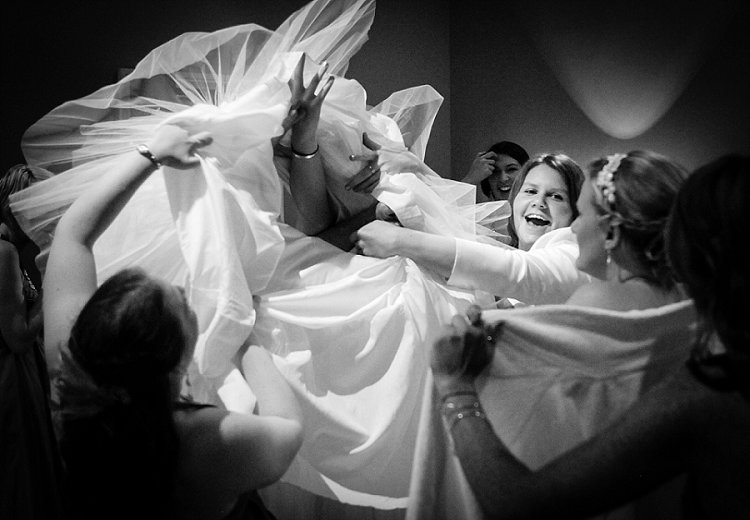
001

I’ve been photographing weddings professionally in a photo journalistic style, for well over 10 years. When I started out, I too thought that capturing these types of images was simply about looking and reacting. However, I soon learned that by taking control and being proactive, rather than reactive, I could significantly increase my chances of getting the shot.

There really isn’t a magic formula, and is possible to stack the odds in your favour, to greatly improve your chances of getting the image. Sometimes it really is luck and good reactions, but more often than not, the techniques outlined below will produce more consistent and predictable results.

Set up your camera

On a very practical level, it’s vital that you have the right camera, and that it’s set up correctly. It must be quick, with virtually no shutter lag at all. You’ll also need to get used to timing your shutter actuations. This can be done with practice, by repeatedly photographing moving objects, such as passing cars or bikes, until you’ve completely gotten the feel of the timing, and speed of the shutter release. This is vital, as the coordination between your eye, the shutter release, and the camera needs to be instinctive, to achieve the split second timing that’s needed.

You might find that shooting with a prime lens is faster as well. Using a zoom will inevitably waste precious seconds zooming in and out, it’s often quicker to just move. You might also find that the focus on a prime lenses is a bit quicker, and that you compose better with a prime attached to the camera, rather than a zoom.
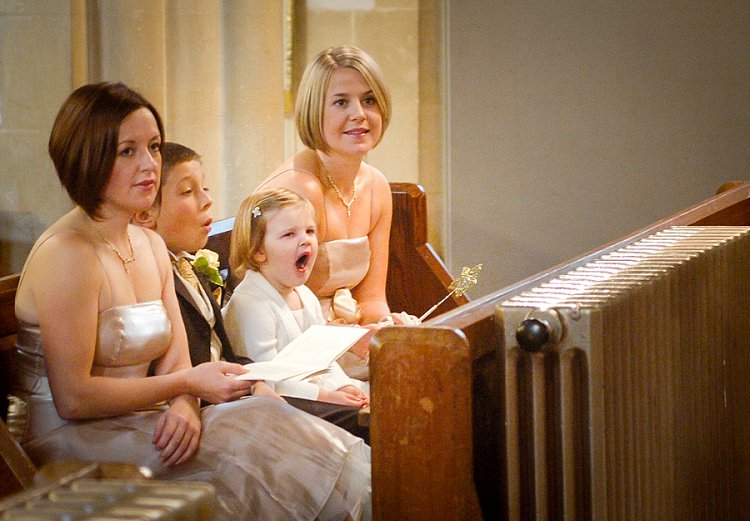
002

As far as camera settings are concerned, again, it’s all about anticipation. Set up the camera, wait, and shoot. Often this will mean using a number of auto controls – have a go at using auto ISO, auto white balance (to be corrected from the RAW files in Lightroom) and generally shoot in aperture priority mode. For this type of photography, the moment is far more important than your choice of depth of field, and even having the camera on full programme mode is okay. It’s all about emotion and expression, timing and anticipation, and the fewer distractions you have to achieve this goal, the better. If you are a manual shooter, then setting the exposure in advance is critical.

Finally, it’s also worth mentioning, that having a camera that writes to the memory card reasonably quickly, is important too. You’ll likely need to fire off several shots relatively rapidly, and waiting for the camera to write the card is a pain. Often buying faster, high quality cards is the answer, maybe changing the camera to record slightly smaller jpegs might work – again the priority is timing, speed, and anticipation for this type of photography. If you need to sacrifice using massive file sizes, to gain the speed you need, then so be it.
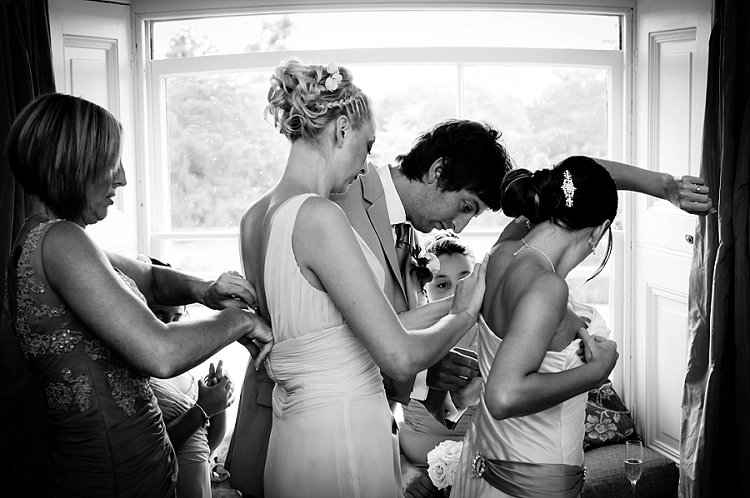
003

Pre-planning and envisioning

Think about where the type of pictures you want are likely to happen. It’s hopeless to randomly go out looking for photographs, you really have to put yourself in the best situation, at the best time, to increase your chances of getting the pictures you’re after. If you are a street photographer for example, then you’ll probably want to head out in the middle of the day, maybe on a weekend, when the streets are more likely to be filled with people. There will be many more interactions, and your chances of success are higher. It all begins with deciding exactly what type of pictures you want, and where the most likely place are that you will get them.

Once you are in place, also pre-visualizing the types of shots you want, will give you focus and purpose. If you’re photographing at an outdoor market for example, how about setting yourself the task of photographing human connections, maybe as people are chatting, handing over money or goods, etc? Or how about looking for interesting juxtapositions between shop window displays, and people standing or passing in front of them? This may all sound rather prescriptive but, by setting yourself some parameters, you’ll get your creative juices going, focus your attention, and increase your chances of success. There’s nothing worse than not knowing what you want, randomly taking pictures, waiting for something to happen.
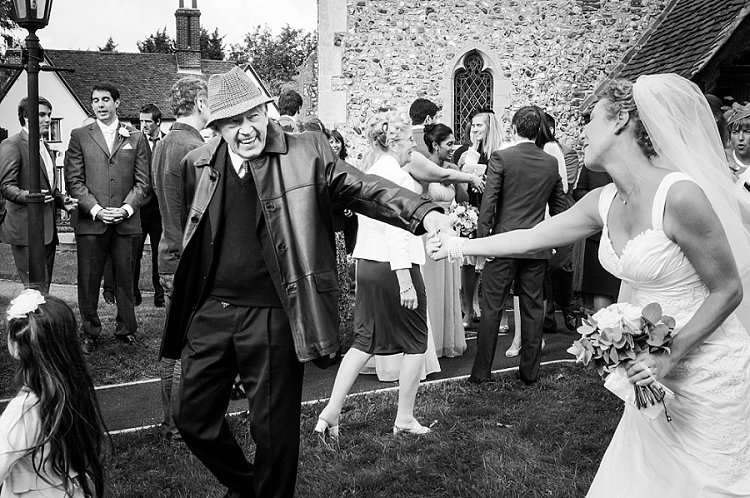
004

Set the scene

It’s important to look for the elements in the image that you can actually control. For example, finding some nice light, a great background, or a place where an image will work well compositionally. Having set the stage, it’s then simply a case of waiting for something to happen on the stage, to complete the picture. This is so much better than looking for something to happen in hunting mode, where you are trying to react to things all over, and have no control over any of the photographic elements. The chances of getting a strong image with the former method, are significantly higher. It might take longer, and you may shoot fewer frames, but the overall quality of the end result will be better.

Work at the image

Looking at his contact sheets, Cartier-Bresson always took several exposures of the same scene or moment. He very rarely got the shot in one take, and it’s a great relief to realize that he worked the scene. This means that you need to take a number of frames, in fairly quick succession – not on continuous (burst) shooting mode, but close enough together to record subtly different expressions, juxtapositions of people in the frame, and changes of angle and composition. You should aim to keep moving – try the shot a little to the left, then the right, maybe a step forward or back, or a little higher or lower. Photography should keep you fit, and you should always be moving. You can then go through the different frames once they are downloaded, and select the strongest image.
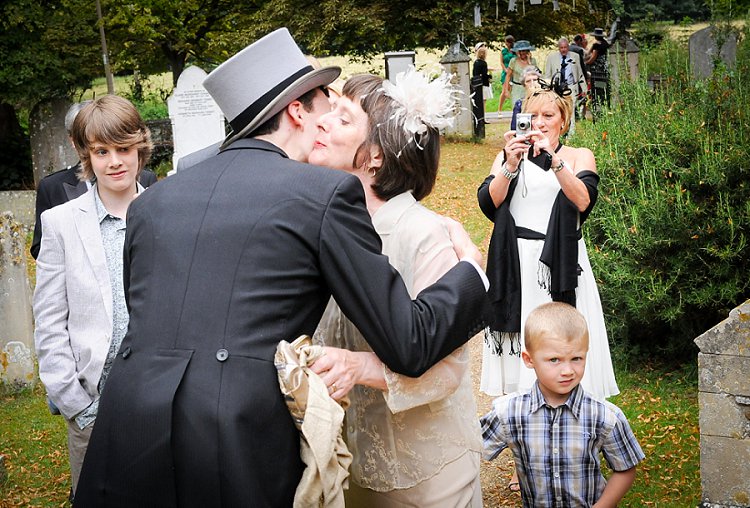
005

Being unobtrusive and body language

Generally people will be aware that you’re taking pictures. I don’t think that it’s a particularly good approach to stalk your subject from behind a huge 400mm lens, it’s much better to use something smaller and less intrusive, to be closer to the subject and more involved in what’s going on. You can even interact with people as you’re taking pictures, which makes you much less threatening, and consequently people will behave in a much more natural and relaxed way in front of you and your camera.

Being non-threatening can be as simple as smiling, looking relaxed, keeping your body language open and friendly, and just being respectful of people’s personal space. Yes, you’re an observer, but you have to observe from a position of being emotionally and physically involved. You’ll gain much more acceptance from your subjects, and the pictures will be more authentic and natural. That’s not to say that your presence should influence the scene in any way, it’s just that you have to be accepted, to be able to photograph people behaving naturally. If your subjects insist on fake posing, and smiling for the camera, you need to work harder.

A great way of making this work is to move in and out of the scene really quickly – essentially this means waiting for a scene to unfold a little distance from you. As the moment is about to happen, walk towards the scene, camera ready to go. Very quickly, shoot as you are close to the action, then continue to walk out of the scene. If you combine this with unobtrusive body language, you can remain essentially invisible.
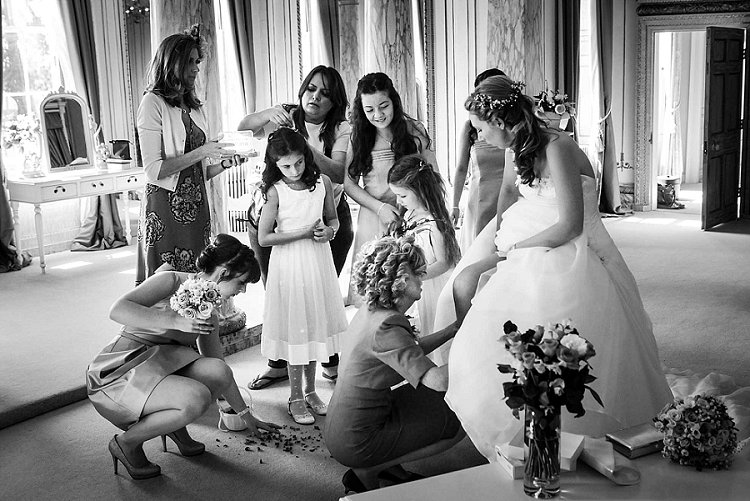
006

Eye contact

Human eye contact is a powerful communication which you can use to your advantage. I think that people can almost sense when they are being watched, and avoiding eye contact (in a non-threatening way) can be a powerful technique. If you want to photograph a group of people, it’s amazing how close you can get to them, if you seem to be diverting your attention to something else. It’s then often possible to get the shot without disturbing them, as they feel as though your interest is elsewhere. We also naturally have an inclination to look at our subject as we take the camera down from our eye, so try to avoid doing that. You’ll be much less intrusive and conspicuous to your subject, particularly if you seem to be focussing your attention on some other subject away from them.

Insert Image 007 MISSING??

Anticipation

This means simply imagining what could happen next, you need to become an expert in human behaviour, and be ready for what you think is about to happen. Often, with a bit of practice, you’ll be right, and you’ll have prepared yourself to get the shot.

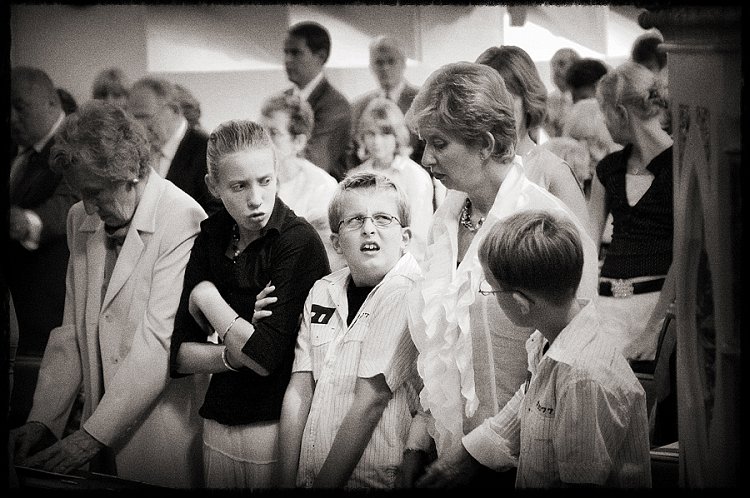
As an example, part of my job as a wedding photographer, is to take pictures of people laughing and enjoying themselves. Good expressions are vital, and getting the timing right is the key. I listen for people telling an amusing tale, that will inevitably end in laughter. It’s no good waiting until they are laughing to bring the camera to my eye and take the shot – I need to be ready beforehand, and choose my moment. It’s also worth saying that often there will be laughter at the original joke, then someone will but in with secondary after joke, creating even more hilarity, which often makes an even better image than the first one – so be patient and wait.

The same principal can be applied to all sorts of situations – imagine what is going to happen next, prepare for it, and photograph it, if and when it happens. Often something else will happen, so you also need to be prepared to be flexible. Make sure that when you get what you were expecting, that something else even better doesn’t happen and you miss it.
008

No chimping

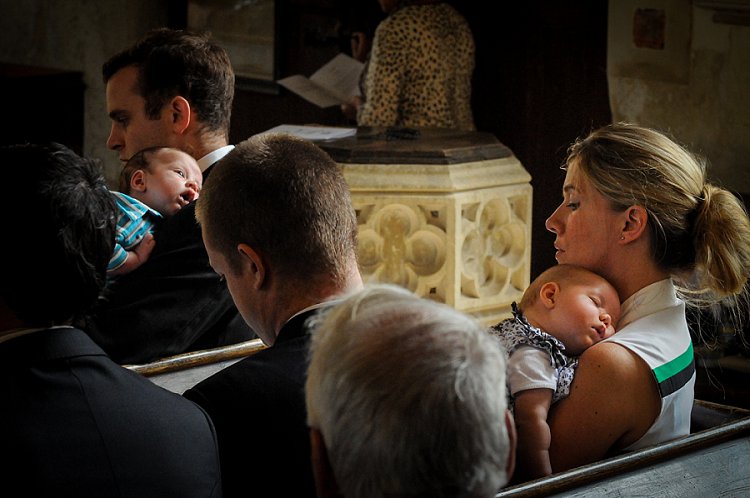
The moment is often after when you think it’s going to be – just as you are checking your screen. This is what I call the chimping effect. Many, many times I’ve taken an image, had a quick look down at the screen on the back of the camera, only to realize that I have just missed something better. Don’t look at the screen. Keep your camera ready, and always wait – even if you think you’ve got the shot.

Similarly, you will often miss great shots, just at the point when you are tired and have given up. You need to keep going and going – I know that the longer I shoot, the more high quality images I will get. I also know that by having a complete break for five minutes or so every hour, I am able to keep quick and alert for longer. However it’s weird the number of times that I have just given up on a scene, that something suddenly interesting happens.
009

When it looks like there’s nothing to photograph – think again

Very rarely is there not a photograph to be taken somewhere – it comes down to the photographer’s skill in making images. This is particularly hard with transient, and moving subjects like people. But, people do constantly interact, do things, and move around. It might be that you can’t get the exact image you have in mind, but try to think more laterally, and look for something completely different. In a situation like this it becomes a case of mind over matter, work at keeping your creative thinking fresh and flexible, and you will find an image somewhere.

Practically speaking, changing lenses, moving position, or trying a new technique can spark some creative thought. However, very often it’s just a case of looking and waiting… then looking and waiting some more. There are always images to be had, often they are small fleeting moments, but they are always there.
010

It’s behind you

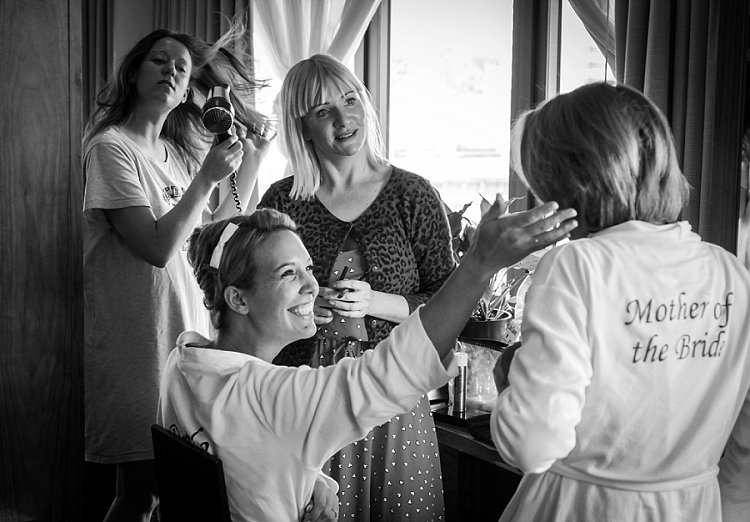
This isn’t a joke. Weirdly, and frequently, I’ll be looking for an image in front of me, not having much luck, then realize that I should have been looking the other way. Often just turning right around, will present a completely new range of photographic possibilities. Sometimes the picture really is just behind you – you only need to turn around and look.

Primary and secondary subjects making the moment

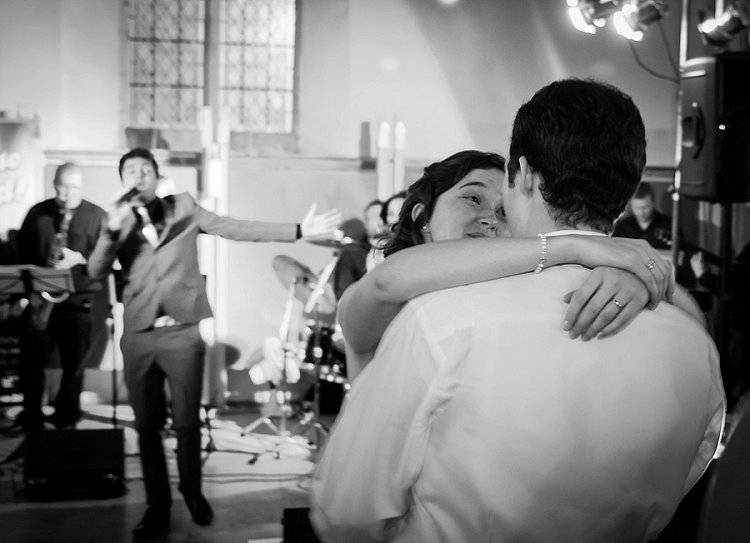
Try to make a photograph by adding another element in the frame, i.e. having a primary and secondary subject. It could be that both subjects make an okay picture on their own, but if they are combined into one image, they become much stronger. If the image explores a relationship between the two subjects it’s even better. Maybe one offers a commentary on the other, or there is an echoing of shape or gesture.
011

Waiting, waiting and waiting

I’ve mentioned being patient several times, and the amount of time spent looking and waiting for success in this type of photography is phenomenal. Never give up – just wait, poised for action. Linger a little longer, just outside your comfort zone you might well find that there are a number of great images to be had.

As with anything, practice is the one thing that will really make a difference, and this can be both photographic practice, as well as observational practice. Try to develop skills in reading people, anticipating moments in your everyday life, and practice your observational skills. Combine this with the other techniques above, and you will soon find that you are able to make some of these seemingly magic moment images happen. You will have become proactive in your photography, rather than reactive, and your success rate will be considerably higher.

You Decide

So I urge you to give these tips a try, and see if you can come away with better candid images. Please share your thoughts and experiences in the comments below.


googletag.cmd.push(function() {
tablet_slots.push( googletag.defineSlot( “/1005424/_dPSv4_tab-all-article-bottom_(300×250)”, [300, 250], “pb-ad-78623” ).addService( googletag.pubads() ) ); } );

googletag.cmd.push(function() {
mobile_slots.push( googletag.defineSlot( “/1005424/_dPSv4_mob-all-article-bottom_(300×250)”, [300, 250], “pb-ad-78158” ).addService( googletag.pubads() ) ); } );

The post The Not So Decisive Moment – How to Increase Your Chances of Getting the Best Shot by Andrew Hind appeared first on Digital Photography School.


Digital Photography School
 
Comments Off on The Not So Decisive Moment – How to Increase Your Chances of Getting the Best Shot

Posted in Photography


Tips for Getting Started with Still Life Photography

07 Dec

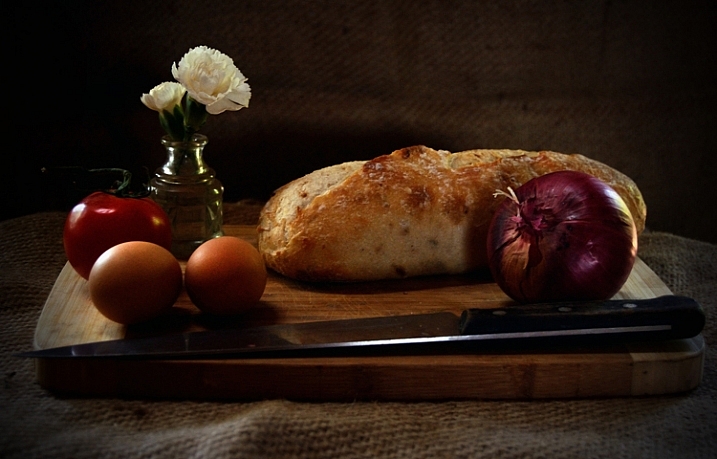
breakfastW

When photographing a still life subject, you are creating an image rather than capturing a moment. You are constructing your photograph; from background, to subject, to lighting. With the subject matter being inanimate objects, their tendency to stay very still allows you to take time to refine your lighting, and experiment with your composition. It’s a very pleasant way to photograph, and you don’t need any fancy gear. It’s also a great way to learn about lighting and composition, the key elements to any photographic style.

Here are some tips to get you started on still life photography:

Subject matter

Subject matter doesn’t really matter. Generally the words “still life photography” conjures the image of traditional paintings of a vase of flowers, and a few carefully arranged items. But essentially as long at it stays still, it is a still life.

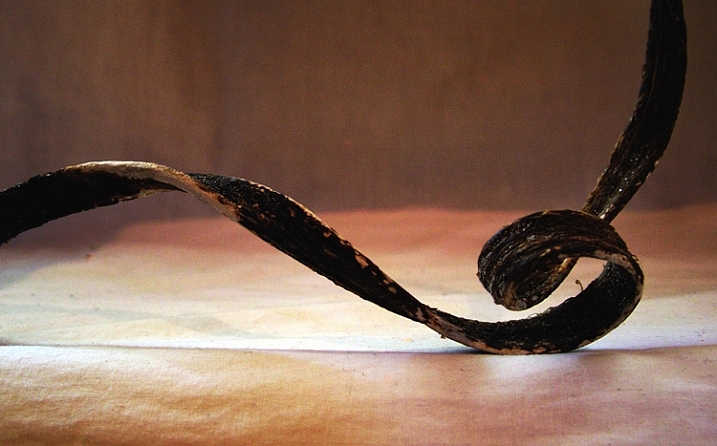
Still life photography

As long as it is still, technically it is a still life. This is a piece of dried seaweed on some calico.

You could group a bunch of items together simply because you like them, or they look pleasing, or you can gather related items to tell a story. The image at the beginning of this article tells the story of my breakfast.

Or you can find still life arrangements that already exist, their story or mood already set up for you.

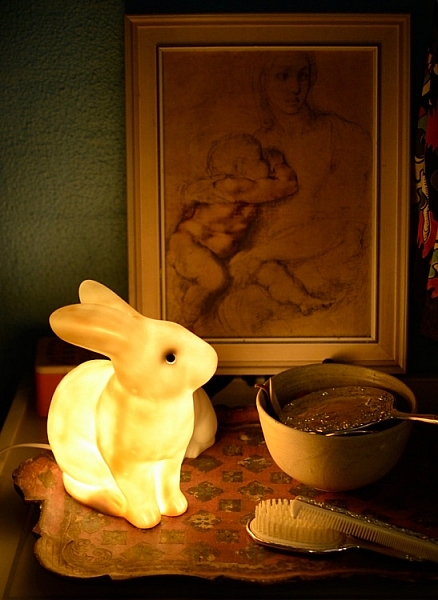
Still Life Photography

A arrangement on a friend’s bedside table of heirloom items, made for an already set up still life image.

You can use things that are simply visually pleasing, or you can make it personal. If you’re stuck for a still life subject, I suggest finding some things that are personal and important to you, give the photograph some meaning. Plus, then you’ll have a photograph of this important thing. Bonus!

Backgrounds

A good background can really make a still life. Fabric, cardboard or paper, or an existing wall, are all easily accessible backdrops. For the image of my breakfast I used old potato sacks. Just make sure whatever you use is not too distracting from your subject matter. Keep it simple. If you’re using fabric, make sure you iron it first! Few things are more distracting than a wrinkled backdrop.

Still Life Photography

I like to call this one, Still Life With Slightly Wrinkly Backdrop.

A bright color, or busy backdrop, can pull too much attention away from your subject matter. Plain, neutral-toned, backdrops are a good place to start, then experiment from there. You may be surprised what backdrop will end up making your image really pop.

Still Life Photography

After trying different colored, plain backdrops for this image, I experimented with some reflective cardboard, which worked much better.

You can also experiment with focus and depth of field, having the whole image completely sharp or certain elements, such as the background, in soft focus. A blurry background could help out, should you not have an iron handy, or if you are not handy with one and need to knock back that wrinkly background.

Lighting

You don’t need anything fancy to light a still life. Natural light from a window will do the trick. A lamp, light painting with a torch, or a makeshift soft box are great fun to experiment with. A bunch of tips on these lighting methods and more in my DIY  lighting using household items article.

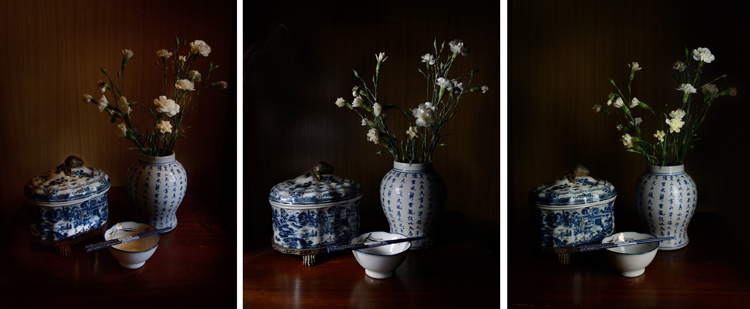
Still life photography works well for longer exposures, allowing you to use a really subtle light source, such as single candle. You’ll need a tripod, or to steady your camera on a solid box, or pile of books. You can literally paint your still life with light using light painting, and all you need is a small flashlight.

Still Life Photography

A quick setup of different lighting. From left: Natural light from nearby window, light painting with a flashlight, and lighting from a single soft box.

Your subject matter is still life, it’s not going to dash off on you, so take your time here and really play with your lighting.

Try out different intensities of light, by either a curtain if using window light, or moving your light source in and out. You can also combine different light sources such as a small flashlight to fill in any dark spots when using natural light, or perhaps use both a lamp and a candle. (Just be aware of different colors of light each may produce)

How you angle your lighting is important. Experiment with different positions for your light source. If you’re using natural light you’ll obviously have to move your subject to change angles, much easier than rebuilding your window! With a movable source, start with some side lighting, and then try a few different angles. Pay attention to where the shadows fall, as well as what happens with any reflective surfaces. You don’t necessarily want to turn your still life into a self-portrait, with a reflection of yourself and your camera staring back at you.

Composition

Good composition skills go a long way with still life, and is as important as good lighting. There are many wonderfully informative articles here on dPS on the basics, and sometimes not so basics of composition. Understanding things like the rule of thirds can be very helpful, even if you choose to then ignore it.

With still life photography, if you just keep moving your arrangement around, you will find one that works. Don’t just settle on the first one you set up. Keep your eye out for overly empty gaps, or too much going on. Placing an item on an angle will lead the eye in that direction, does the item lead the eye nowhere, out of the frame, or subtly towards another part of the arrangement? A small tweak of the angle of your subject’s placement can make all the difference.

Also try photographing from different angles, even if you need to shoot directly front on, try raising or lowering your camera for a few shots, then zoom in or out a bit and see what happens. It might work, it might not, you won’t know until you try.

Editing

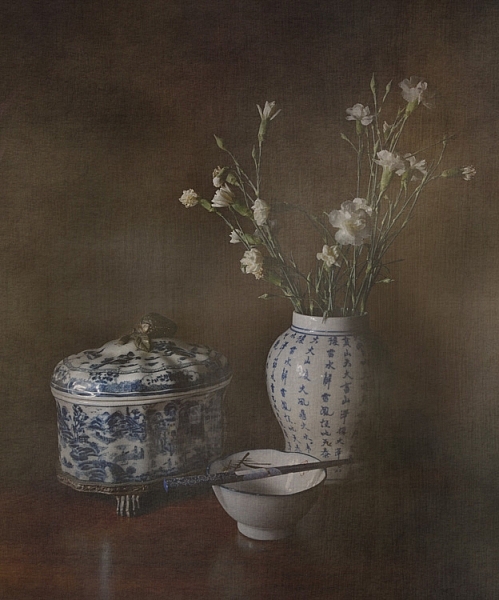
There is loads of fun to be had in the editing stage. Different processes can completely change your still life image. HDR is a popular process for still life photography, and can be very effective. Or you could play with layer masks with a couple of different exposures, and paint in and out certain areas of your image. I like to add a texture to give the image a painting-like look. Here’s a link to a beginners guide to applying textures.

Still Life Photography

Adding a texture in the editing stage can give a painting like effect

Experiment and enjoy

Unlike most other forms of photography, when photographing still life you can really slow down and take your time, and enjoy the process . You don’t have to limit yourself  to the traditional still life, experiment with subject matter as well as your lighting and editing. Indulge in a little photographic play time!

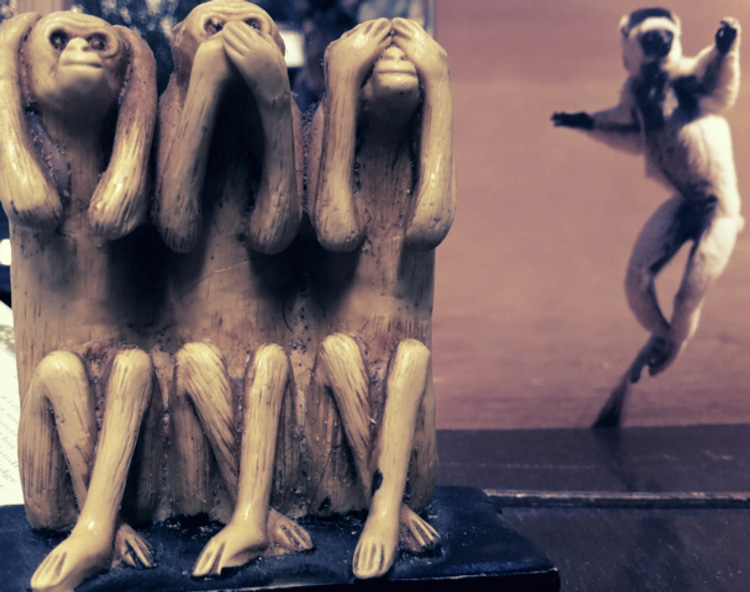
Still Life photography

An arrangement of this monkey sculpture next to a post card made for an interesting still life image.

Try a still life today. Share your photographs or any further still life tips you’ve learned along the way in the comments below.

googletag.cmd.push(function() {
tablet_slots.push( googletag.defineSlot( “/1005424/_dPSv4_tab-all-article-bottom_(300×250)”, [300, 250], “pb-ad-78623” ).addService( googletag.pubads() ) ); } );

googletag.cmd.push(function() {
mobile_slots.push( googletag.defineSlot( “/1005424/_dPSv4_mob-all-article-bottom_(300×250)”, [300, 250], “pb-ad-78158” ).addService( googletag.pubads() ) ); } );

The post Tips for Getting Started with Still Life Photography by Lea Hawkins appeared first on Digital Photography School.


Digital Photography School
 
Comments Off on Tips for Getting Started with Still Life Photography

Posted in Photography


Getting the Most Out of Each Portrait Location Spot

29 Nov

159

Some photographers are very inefficient when it comes to shooting in a portrait location. They will take a photo here by this tree, then move over to another tree, then by the pathway, and one at the rock. Then they can’t figure out where to shoot next, because they’ve already used every “backdrop” they can see in that area, and they only have a handful of shots to show for their efforts.

I’d like to share a few tips with you for using your locations fully and completely, without leaving any leaf, tree, stone, or pose unturned. You’ll speed up your sessions, and get a lot more useable photos by adopting these habits.

158

First, find a background that you like. Look for good light, elements that frame your subject, colors that complement, something to lean or sit on, etc. Once you’ve found a spot or background to start with, use it completely and quickly before you move on to a new spot.

161

I’ve created a few lists that can help you remember all the ways that you can pose your subject(s), and use a background fully, before you move on. Use these ideas to create your own list that you can carry with you until “wearing each spot out completely” becomes second nature.

All subjects with any background

  • Standing
  • Seated
  • Smiling
  • Serious
  • Laughing
  • Looking away
  • Close-up
  • Far away
  • Portrait (vertical) orientation
  • Landscape (horizontal) orientation
  • Full body
  • Head shot
  • With a prop
  • Without a prop
  • Unexpected composition (such as subject on the very edge of the frame, subject centered right in the middle, etc.)

162

Families, couples, or groups with any background

  • All looking at the camera  and smiling
  • Looking at each other
  • Hugging
  • Laughing
  • All sitting
  • All standing
  • Some sitting, some standing
  • Parents
  • Kids
  • Boys
  • Girls
  • Parent with child
  • Individual portraits of each family member
  • Couple hugging facing each other
  • Couple hugging, one behind the other
  • Holding hands
  • Walking towards you
  • Walking away from you

171

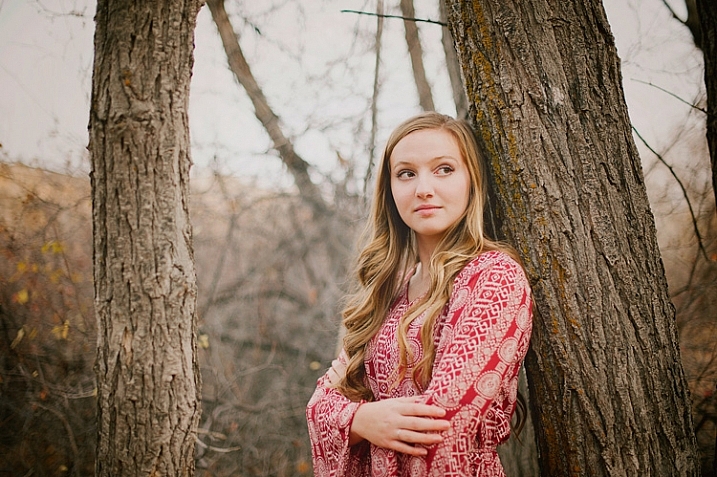
Individual with trees or walls (something to lean against)

  • Shoulder leaning on a wall or tree
  • Back to the wall or tree, looking at the camera
  • Hand to the tree or wall
  • Head leaning on the tree or wall
  • Arms folded
  • Hands in pockets
  • Hand on hip
  • Sitting against the tree or wall
  • Any of the above, looking away from camera
  • Funny/silly looking around tree or wall

169

If you move quickly through each of these poses, your subject won’t feel like she’s stuck in one place forever, but you will have so many options to choose from when you are sorting through the photos later. You might not choose to edit every pose, in every location. But, you may find as you go through the photos later, that you really like the serious face in one location, and you really love the close-up in a different location. Shooting so many options in each location at that moment gives you that choice, instead of being stuck with the one and only option you thought of in that moment.

168

Some of your photos may end up looking very similar to each other, but you may decide that you really like the full body pose better than the tighter shot. If you had only shot that location with a cropped pose, you wouldn’t have that option. Alternatively, if you don’t shoot a cropped-in pose at that time, youhave the option to crop it later, but you will lose photo quality by cropping it the file smaller.

173

As you learn to use each location fully, you will find that you can get many more useable photos in much less time, with less effort, and in locations that you might not have even noticed before. One tree and one person could be one photo, or it could end up being a hundred photos if you are extremely creative and efficient.

Give yourself a challenge to figure out at least 10 different photos in one location spot, and share a couple of your favorites in the comments! I’d love to see what you come up with.

googletag.cmd.push(function() {
tablet_slots.push( googletag.defineSlot( “/1005424/_dPSv4_tab-all-article-bottom_(300×250)”, [300, 250], “pb-ad-78623” ).addService( googletag.pubads() ) ); } );

googletag.cmd.push(function() {
mobile_slots.push( googletag.defineSlot( “/1005424/_dPSv4_mob-all-article-bottom_(300×250)”, [300, 250], “pb-ad-78158” ).addService( googletag.pubads() ) ); } );

The post Getting the Most Out of Each Portrait Location Spot by Melinda Smith appeared first on Digital Photography School.


Digital Photography School
 
Comments Off on Getting the Most Out of Each Portrait Location Spot

Posted in Photography


PIX 2015: Rick Sammon’s guidelines for getting motivated and staying inspired

07 Nov

Staying inspired as a creative, no matter the discipline, isn’t always easy. Some photographers work through creative droughts by starting 365 projects, while others look to photo groups and peers to help them stay accountable and keep shooting. Pro wildlife photographer Rick Sammon argues that all creatives – especially photographers – need some help staying inspired from time to time. Read more

Articles: Digital Photography Review (dpreview.com)

 
Comments Off on PIX 2015: Rick Sammon’s guidelines for getting motivated and staying inspired

Posted in Uncategorized


5 Tips for Striking Getting Ready Shots of Brides

06 Nov

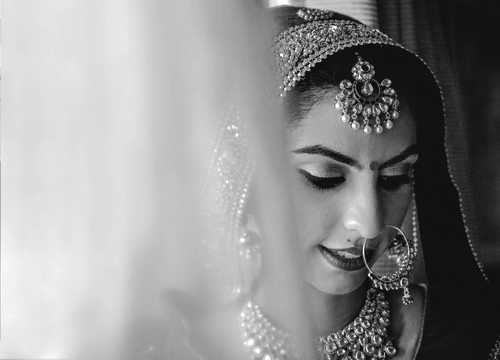
The Bride in her wedding dress, shy and tense, beautiful and alluring. She provides quite a conundrum for a wedding photographer. How does one work towards capturing the emotions that often rush over the bride as she prepares for holy matrimony?

DPS2

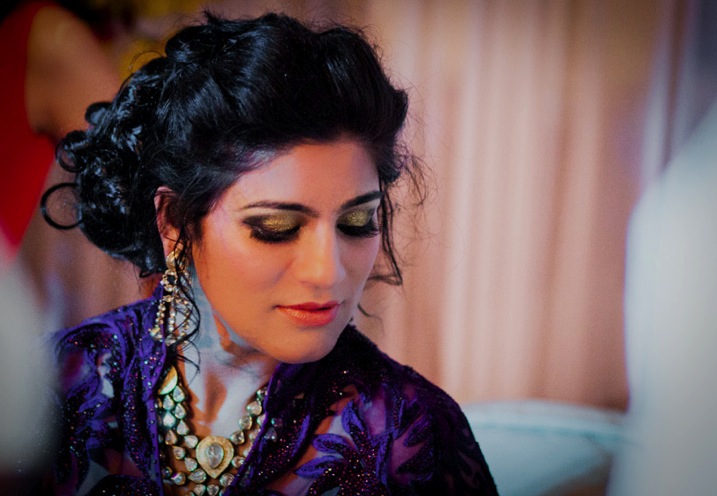
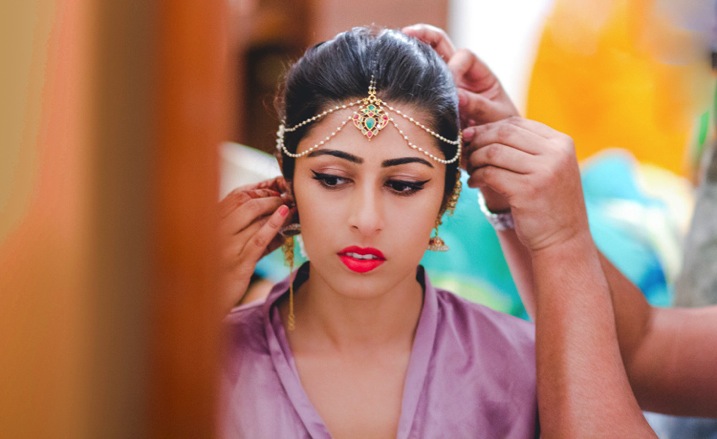
Over the years that I’ve shot weddings in India, I’ve come to appreciate the Bridal getting ready session. This is the calm before the storm when the bride will look her best, and it is the least interrupted time the photographer has with the bride. Below are a few tips and tricks I’ve honed that help me capture my brides at their best in some pre-wedding getting ready photos:

1. Work with the most important person in the room.

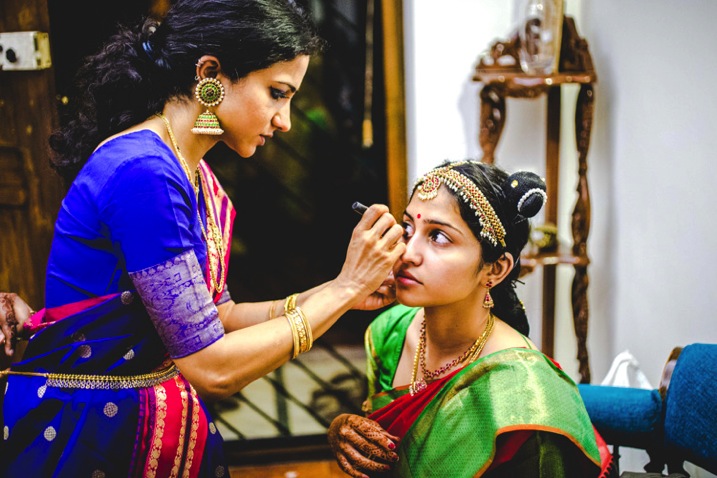
The bride typically gets ready in a room in the presence of the make-up artist and supportive sister(s) and friend(s). In this group, the most important person is the make-up artist. Work with him or her to understand their work flow. Is she left handed or right handed? What is the order in which she does her stuff? Does she schedule her breaks??
All this information is critical for you to capture the best angles, and moments, in the getting ready process. You don’t want to interrupt another wedding professional when she is in her zone. Respect her and together you can make the bride look her best and capture the process.

DPS1

2.The Three Perspective Rule

Every wedding photographer has been taught to capture the subject from multiple perspectives. While I agree with this, I believe there are three specific perspectives that are critical for capturing the bride getting ready. They are:

The Top Down

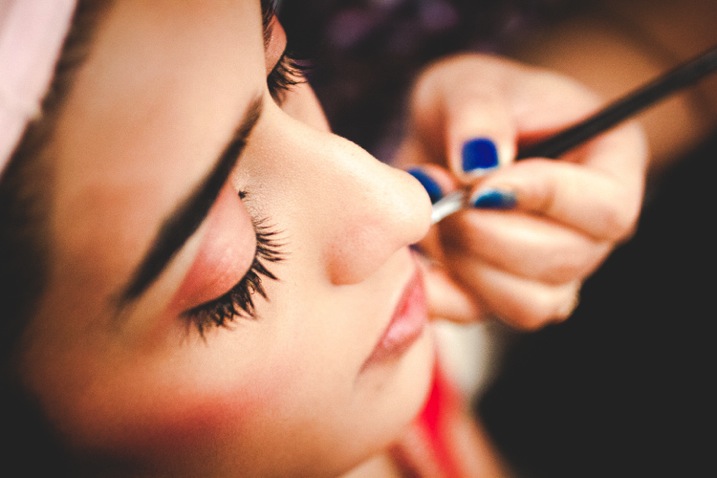
These shots provide a god view of the process and often help focus the viewer’s eye on a specific aspect of the process. Below is a top-down of the eye liner getting done. A lot of clutter in the room (weddings are messy !) can be worked around and simple moments like the addition of lipstick or the adjustment of a dress can be shown with a certain dramatic flourish.

DPS3

The Bride’s View

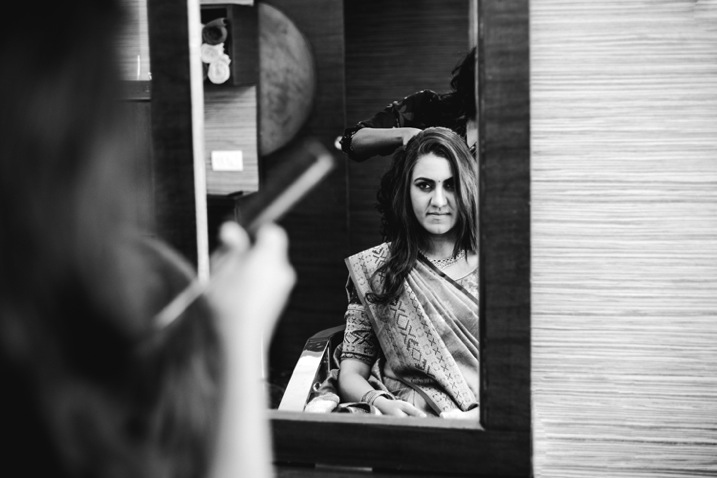
Do not forget that the most important person after the make-up artist is the bride. It’s important to capture this session from her perspective too. Get down to her level if she is sitting. Imagine what she is going through. Follow her eyes to see what is capturing her precious attention. Make use of a mirror to capture her in a moment of self-reflection. Below is a picture of bride when she is just looking at herself while her friends are helping her with her earrings.

DPS4

The Fly on the Wall

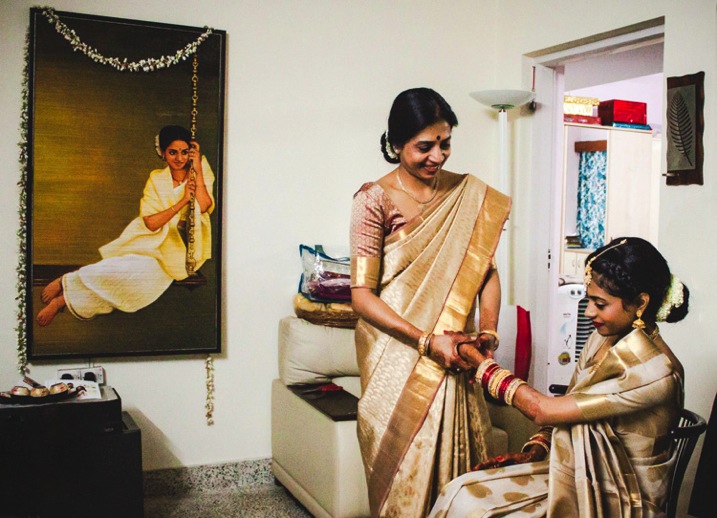
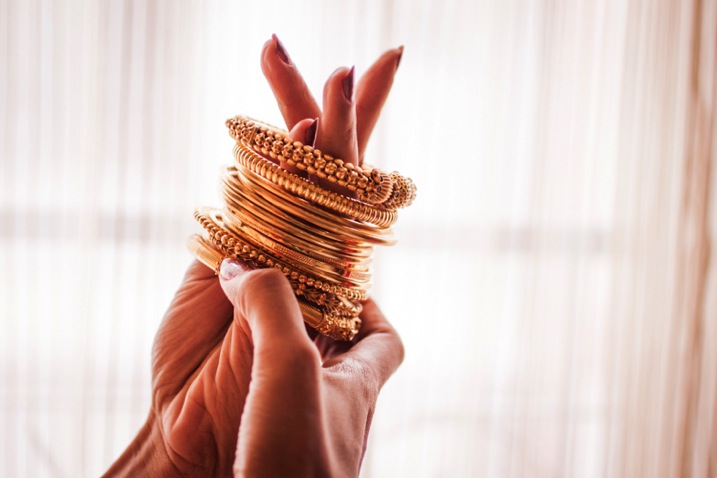
Remember that clutter I mentioned? That is part of weddings. They are like the handwritings of the bride and her sisters. Try going to the corner of the room with a wide angle lens and capture the confusion and chaos in all its glory. Get on a chair and view the room from above and try to spot what is adding color and personality to the room. Maybe it’s the jewellery spread carelessly on the bed. It could be the mother happily putting bangles on the bride’s arm, or maybe the groom trying to look through the window (it’s happened!).

DPS5

3. Expect the Unexpected

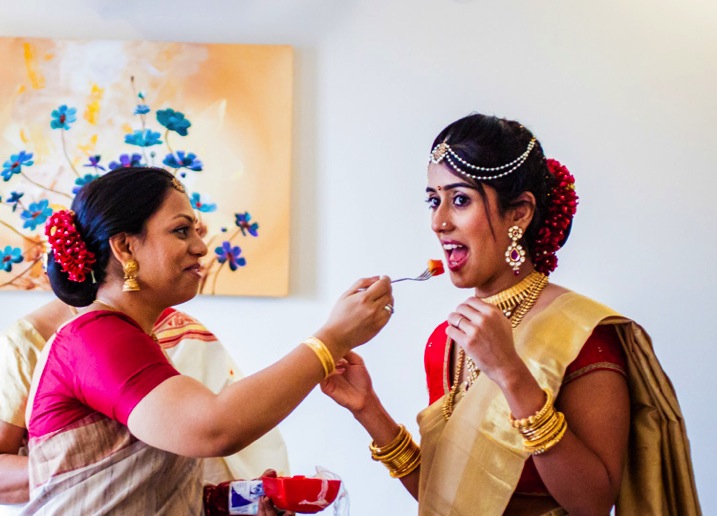
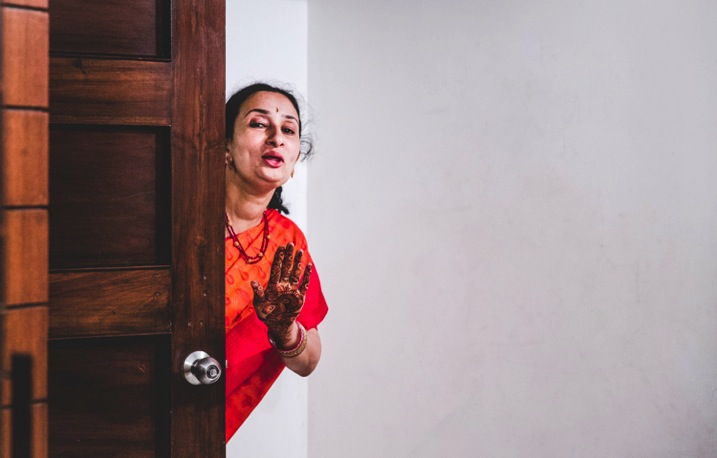
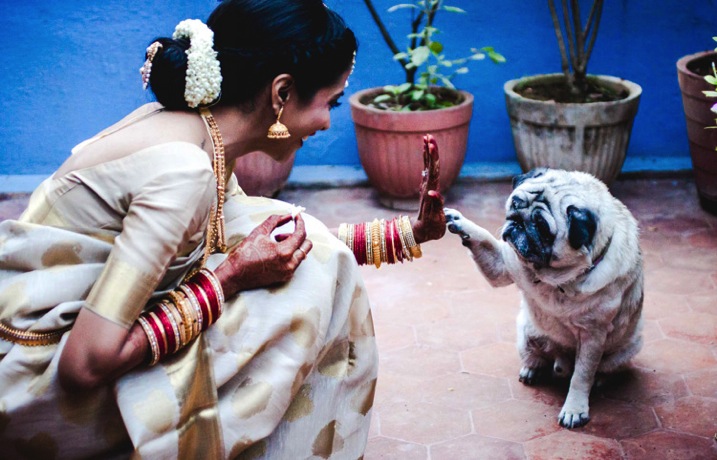
Wedding photographers should approach the weddings with the attitude of a journalist looking for a scoop. Still, during the getting ready time, it’s easy to let your guard down as everything seems pre-planned, and in motion. Some of my most candid pictures have been taken in moments of delightful serendipity. Below are pictures from different weddings.

DPS6

A sister-in-law feeding the bride minutes before she stepped out

DPS7

The bride’s aunt reminding her that she has just five minutes to go

DPS6b

And then sometimes the pet just walks in to say the final goodbye!

4. The Trousseau and Trinkets

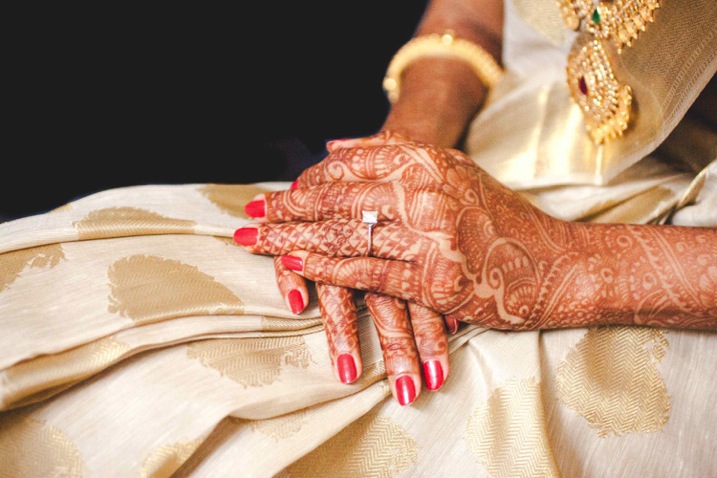
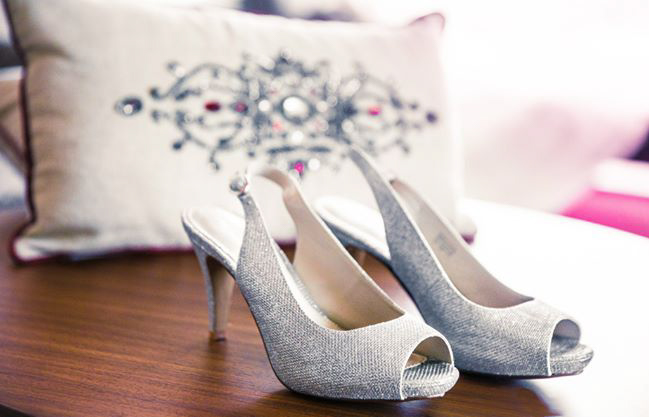
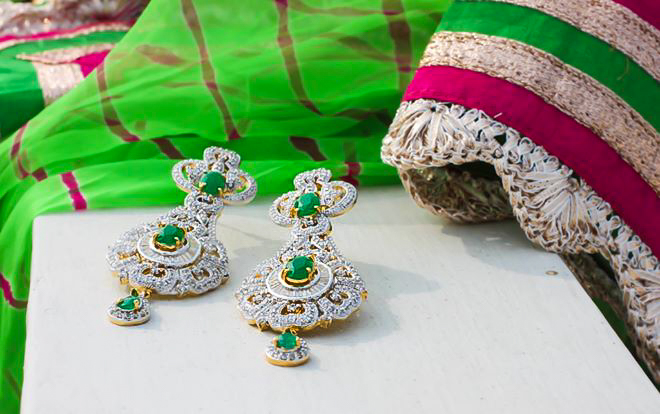
There are brides that wear a simple white silver bracelet, and others that wear elaborate gold chains, adorned with peacock and mango motifs, that were made nearly a century ago for their grandmother’s wedding. The Wedding Trousseau and the accompanying trinkets say a lot about the personal choice of the bride and her traditions. It is important to capture them with respect, and a certain sensitivity, as these hold meaning for a family more that what we as a person viewing in from outside can appreciate.

These items could simply be the Wedding Trousseau itself, which the bride, her sister, and friends would have spent weeks agonizing over, and probably spent many woman-hours putting together.

DPS8b

DPS8 DPS9


DPS9b

5. Lights, Camera, Action!

Light – what else is there for a photographer to contemplate? The challenge doing portraiture for a bride getting ready is that the event sometimes occurs in a small compact bedroom, studio, or dressing room at the temple, church, or hotel where the wedding is taking place.

It’s important to understand what the sources of lights in the room are, and perfectly professional to ask the make-up artist and bride to reorient themselves, or the way they face to make the pictures look better.

Be prepared to use white curtains to bounce of light from your flash or shoot from outside the room through a window to get light right!

DPS10 DPS11

I hope you find these tips helpful, whether you are doing wedding photography as a professional, or at a friend or relative’s wedding. Please share your own tips and comments below, as well as your images.

googletag.cmd.push(function() {
tablet_slots.push( googletag.defineSlot( “/1005424/_dPSv4_tab-all-article-bottom_(300×250)”, [300, 250], “pb-ad-78623” ).addService( googletag.pubads() ) ); } );

googletag.cmd.push(function() {
mobile_slots.push( googletag.defineSlot( “/1005424/_dPSv4_mob-all-article-bottom_(300×250)”, [300, 250], “pb-ad-78158” ).addService( googletag.pubads() ) ); } );

The post 5 Tips for Striking Getting Ready Shots of Brides by Manvi Gandotra appeared first on Digital Photography School.


Digital Photography School
 
Comments Off on 5 Tips for Striking Getting Ready Shots of Brides

Posted in Photography


PIX 2015: Brian Ach and getting the right shot

29 Oct

Brian Ach has shot for just about every big-name publication you can think of, and he’s photographed his share of A-list celebrities, including a stint as Prince’s official tour photographer. In short, he knows how to get the shot. But he argues there’s an important distinction between getting shot and getting the right shot, and it all comes down to context. Read more

Articles: Digital Photography Review (dpreview.com)

 
Comments Off on PIX 2015: Brian Ach and getting the right shot

Posted in Uncategorized


Next Steps to Getting Started in the Lightroom Develop Module

21 Oct

Lightroom Develop module

A previous article showed you how to get started in Lightroom’s Develop module by using the Camera Calibration, Lens Corrections and the Basic panels.

In this article you’ll learn how to use the remaining right-hand panels in the Lightroom Develop module:

  • Tone Curve panel
  • HSL / Color / B&W panel
  • Split Toning panel
  • Detail panel
  • Effects panel

This guide is aimed at photographers who are new to Lightroom, so it doesn’t cover every aspect – just the important things you need to know if you’re just getting started with it.

It is quite possible that you won’t have to touch any of the panels listed above when processing a photo. Many photos can be developed in Lightroom just by using the Camera Calibration, Lens Correction and Basic panels, plus local adjustments. But the panels mentioned above will help you be more creative with your processing, especially when it comes to working with colour and tone.

The Tone Curve panel

One purpose of the Tone Curve panel is to give you another way of applying the same tonal adjustments that you can make with the Basic panel sliders. If you’re accustomed to using curves in Photoshop, the Tone Curve panel gives you the option of doing the same in Lightroom in addition to, or instead of, using the Basic panel sliders.

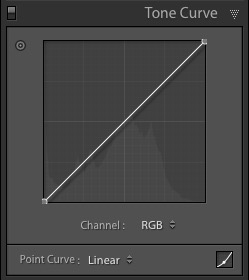
This is what you will see when you open the Tone Curve panel for the first time.

Lightroom Develop module

This is the RGB curve. Adjusting this curve affects the brightness values, but not the colours, of the photo.

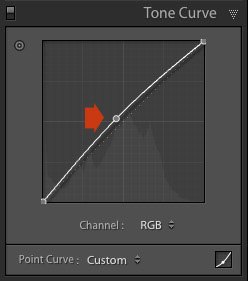
You can move the curve upwards (as shown below) to make the image lighter. To do so, left-click once on the midpoint of the curve to add an adjustment point. Then click and drag the adjustment point to move it up, and change the shape of the curve.

Lightroom Develop module

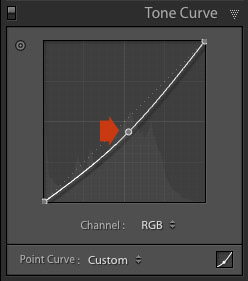
You can also move it downwards to make the image darker.

Lightroom Develop module

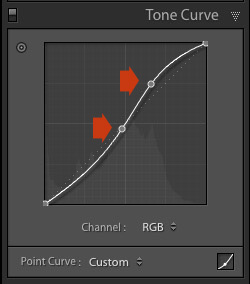
You can create an S-curve like this to increase contrast (add a second adjustment point first).

Lightroom Develop module

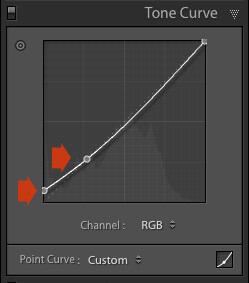
You can create the matte look with a curve like this. Add an adjustment point near the bottom of the curve then lift the left-side up. This makes the darkest tones in the photo dark grey rather than black, imitating the look of a print made on matte paper.

Lightroom Develop module

Notice the lower left point is not touching the bottom, this creates a matte look.

You can return to the original straight tone curve at any time by going to the Point Curve menu and selecting Linear.

Colour curves

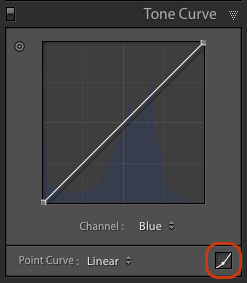
Underneath the Tone Curve is a menu that lets you select the Red, Green, or Blue tone curves individually. These curves affect each of the color channels in the photo respectively. The blue curve is shown below.

Lightroom Develop module

More options

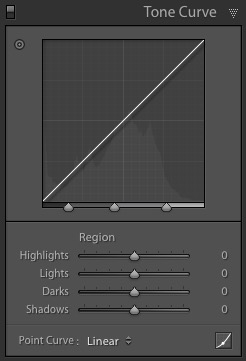
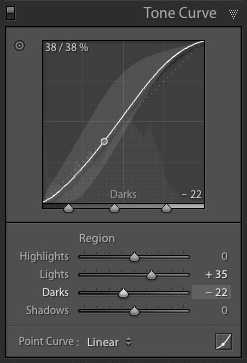
If you click the icon in the bottom right-hand corner of the Tone Curve panel (circled above) the panel opens up to reveal four sliders, called Highlights, Lights, Darks and Shadows (see below).

Lightroom Develop module

These sliders give you another way to make adjustments to the tone curve. When you move one of the sliders, the corresponding region of the tone curve is highlighted, so you can see which tones are affected.

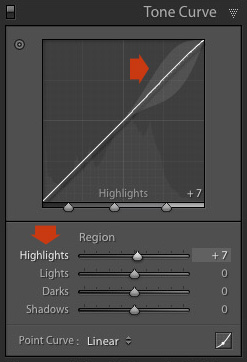
The illustration below shows what happens when you move the Highlights slider. The top right of the tone curve is marked in grey. This part of the curve changes when you move the Highlights slider.

Lightroom Develop module

You can click and drag on a single adjustment point (but not multiple points) to change the shape of the curve. The sliders change value as you adjust the curve. The diagram below shows the effect a simple S-curve has on the sliders.

Lightroom Develop module

Double click on any slider heading to reset that slider to zero. That covers the basics of curves. You can learn more advanced techniques by reading our article Lightroom’s Tone Curve Explained.

HSL / Color / B&W

The HSL / Color / B&W panel is for adjusting colour values. It is also for converting photos to black and white. This is beyond the scope of this article, but you can learn more by reading my article How to Convert Photos to Black and White in Lightroom.

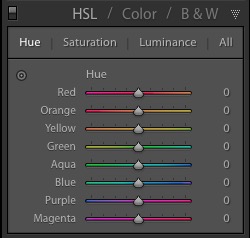
The HSL / Color / B&W panel is divided into three tabs. The HSL and Color tabs are the ones you need for making adjustments to colour. They contain the same sliders, just arranged in a different order. The screen shots below are taken from the HSL panel.

The Saturation and Vibrance sliders in the Basic panel affect all the colours in the photo. The HSL and Color tabs allow you to target individual hues without affecting others. You can target a specific colour and change the following:

  • Hue
  • Saturation
  • Luminance

Adjusting Hue replaces the selected colour with an adjacent colour on the colour wheel. For example, you can target red tones and make them more magenta (pink tone) or orange. Or you could target blue tones and make them aqua or purple.

You don’t need a colour wheel to see how colours are affected by the Hue sliders. You can just look at the eight Hue sliders. For example, the Red slider (top in the diagram below) is coloured magenta to the left and orange to the right. Moving the slider in those directions changes red colours in the photo to either magenta or orange.

Lightroom Develop module

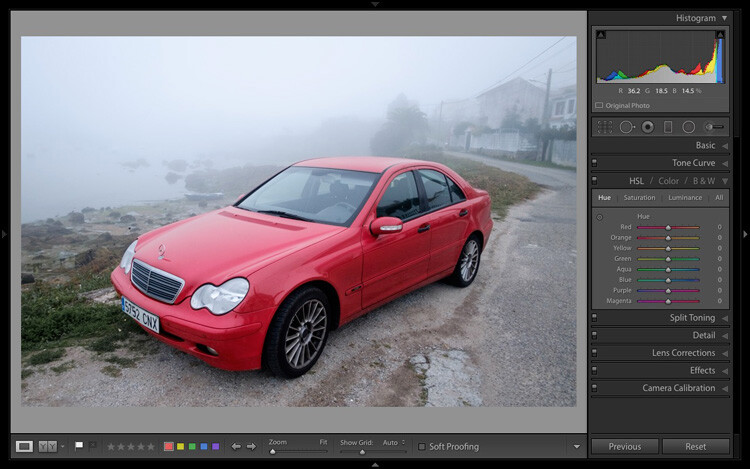
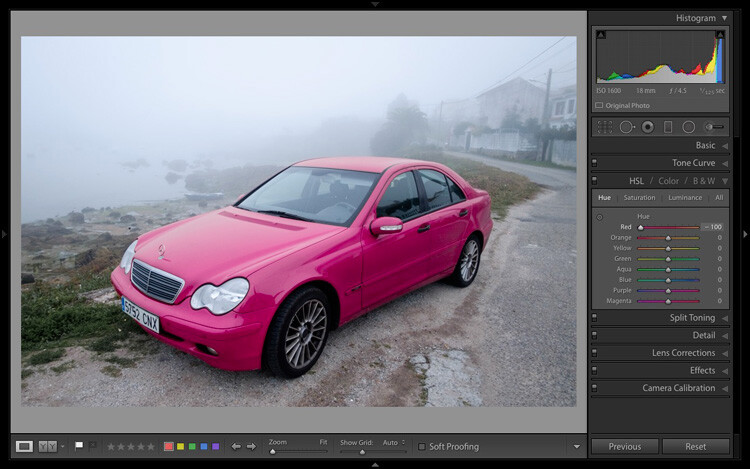
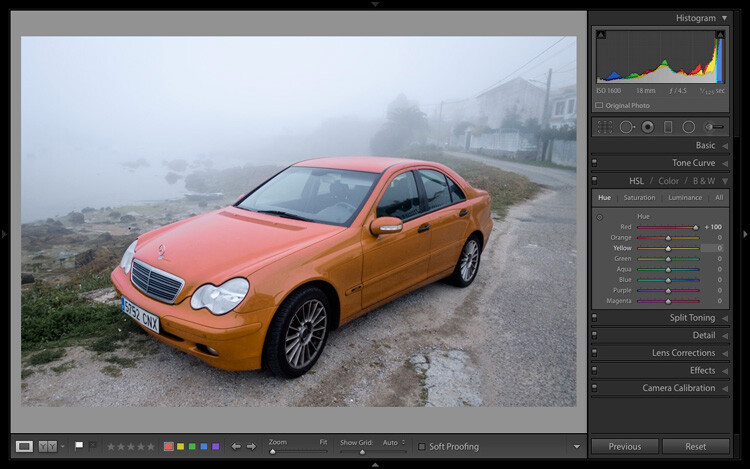
The easiest way to see how this works is to try it. The examples below show the effect that moving the Red slider to -100 and +100 (the strongest available settings) have on the image.

Lightroom Develop module

No adjustment.

Lightroom Develop module

Red -100.

Lightroom Develop module

Red +100

The Saturation and Luminance sliders work in a similar way. Saturation adjusts the saturation (intensity) of specific colours, and Luminance adjusts the brightness.

Targeted Adjustment Tool

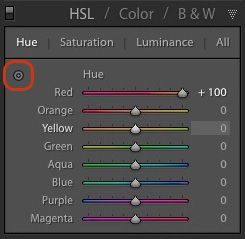
The Targeted Adjustment Tool gives you an even more precise way of adjusting colour values. To use it, click on the Targeted Adjustment Tool icon in the HSL / Color / B&W panel (circled below).

Lightroom Develop module

Then move the cursor over the colour (area) in the photo you want to adjust. Click and hold the left mouse button, while you drag the mouse downwards to reduce the Saturation or Luminance of the colours underneath the cursor, or adjust the hue.

Move the mouse upwards to increase the saturation or luminance, or adjust the hue in the opposite direction. Lightroom analyzes the colours underneath the cursor and moves the sliders in the HSL / Color / B&W panel accordingly. All similar colors in the image will be affected.

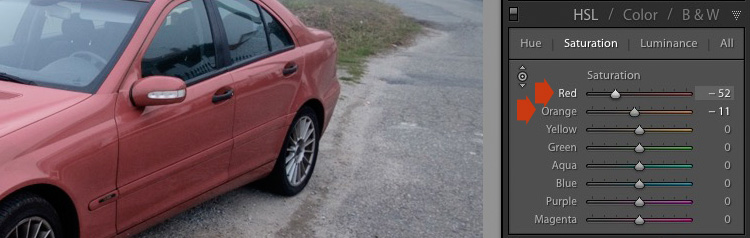
For example, in the following photo I activated the Targeted Adjustment Tool, then clicked on the car’s paintwork and dragged the mouse downwards to reduce the Saturation. Lightroom adjusted both the Red and Orange sliders, showing that the red paintwork is comprised of those two colours. This is more accurate result than only moving the Red slider.

Lightroom Develop module

The Targeted Adjustment Tool is a useful tool that appears in other Develop module panels.

Read my article Mastering Color in Lightroom using the HSL tab to learn more about the HSL / Color / B&W panel.

The Split Toning panel

The Split Toning panel is for toning photos. While this is a technique traditionally associated with black and white photography, you can also use it with colour. If you’re a beginner, split toning is a little advanced for you at this stage, so I’ll direct those of you who are interested to articles that cover it in detail.

How to Split Tone Black and White Photos in Lightroom shows you how it’s done with black and white photography.

How to Create a Vintage Look using Lightroom shows you how to split tone colour photos (it also covers tone curves and Lightroom Develop Presets)

The Detail panel

The Detail panel is for adjusting the default image sharpness and noise reduction settings. For beginners it is simplest not to touch these. You won’t need to do so until you are a more advanced user.

Those of your curious to learn more can read our articles Learn How to Use the Sharpening Tools in Lightroom and How to Do Noise Reduction in Lightroom.

The Effects module

Use the Effects module to apply a creative vignette, add grain or (new in Lightroom CC only) add or remove atmospheric haze.

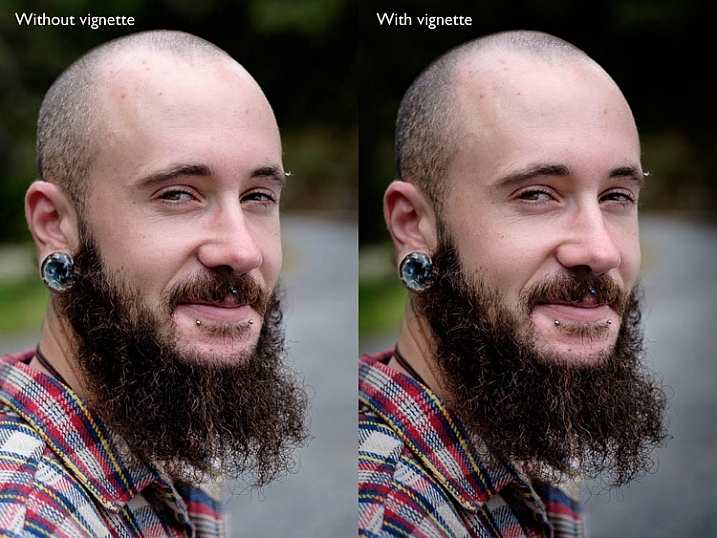
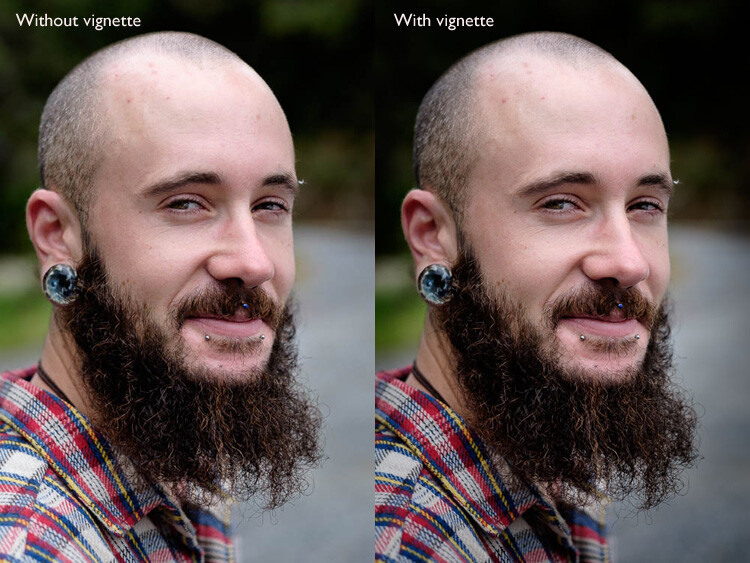
Vignetting lets you darken (or lighten) the edges of your photo, gently guiding the viewer’s eye towards the centre. Many images, especially portraits, can be improved by adding a subtle dark vignette. Here’s an example:

Lightroom Develop module

You may have to look closely to see it as the effect is subtle, but the portrait on the right has a vignette. It is most obvious in the bottom right corner.

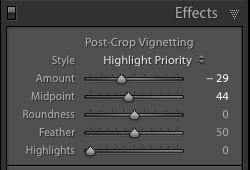
These are the settings used to create this vignette:

Lightroom Develop module

  • Move the Amount slider left to darken the edges of the image, or to the right to lighten them.
  • Move the Midpoint slider left to make the area covered by the vignette larger, or right to make it smaller.
  • Move the Roundness slider left to make the vignette squarer, or right to make it more circular.
  • Move the Feather slider left to make the edge of the vignette harder (a more defined end and beginning of it), or right to make the edge softer (graduates slower from dark to light).
  • Move the Highlights slider right to preserve any highlights present in the area covered by the vignette.

Tip: The easiest way to see what these sliders do is to set Amount to -100. Then move the other sliders to see what effect they have.

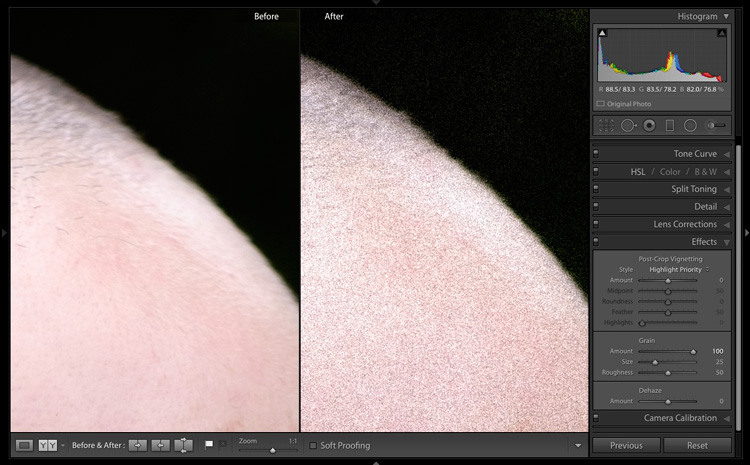
Use the Grain sliders to add grain to your photos. This is only useful if you would like to emulate the look of photos taken with film. Move the Amount slider right to add grain (there is no grain at the zero setting) and then use the Size and Roughness sliders to adjust the size and appearance of the grain. This before and after image shows the effect of increasing Grain to 100, the maximum setting:

Lightroom Develop module

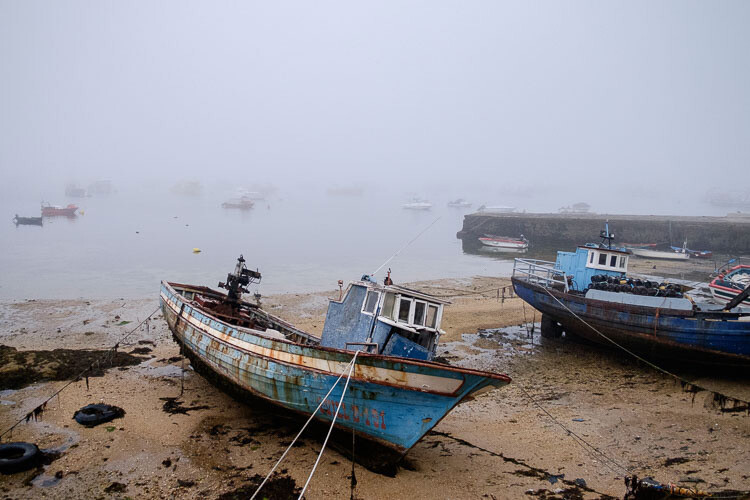
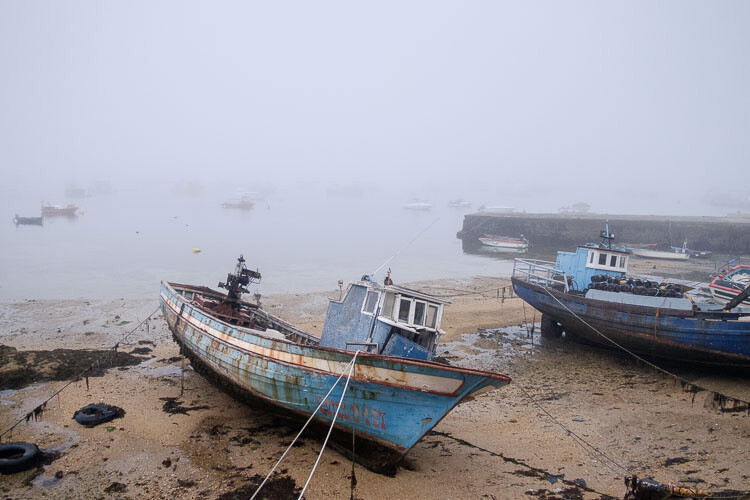
Dehaze is a new slider that is only available in Lightroom CC. Use it to reduce atmospheric haze caused by flare, mist, or pollution. You can also use it to increase haze – a good example of this is with photos taken in foggy conditions.

Lightroom Develop module

Photo taken in foggy conditions. Dehaze set to zero (the default).

Lightroom Develop module

Dehaze set to -10 to increase effect of fog.

Lightroom Develop module

Dehaze set to +30 to decrease effect of fog.

I’ll show you how to build on the work done in the right-hand panels by making local adjustments in my next article. In the meantime, if you have any questions about the techniques in this article, please let me know in the comments.


The Mastering Lightroom CollectionMastering Lightroom ebooks

My Mastering Lightroom ebooks will help you get the most out of Lightroom. They cover every aspect of the software from the Library module through to creating beautiful images in the Develop module. Click the link to learn more or buy.

googletag.cmd.push(function() {
tablet_slots.push( googletag.defineSlot( “/1005424/_dPSv4_tab-all-article-bottom_(300×250)”, [300, 250], “pb-ad-78623” ).addService( googletag.pubads() ) ); } );

googletag.cmd.push(function() {
mobile_slots.push( googletag.defineSlot( “/1005424/_dPSv4_mob-all-article-bottom_(300×250)”, [300, 250], “pb-ad-78158” ).addService( googletag.pubads() ) ); } );

The post Next Steps to Getting Started in the Lightroom Develop Module by Andrew S. Gibson appeared first on Digital Photography School.


Digital Photography School
 
Comments Off on Next Steps to Getting Started in the Lightroom Develop Module

Posted in Photography


Steps for Getting Started in the Lightroom Develop Module

14 Oct

Lightroom Develop module

If you have read my earlier articles about Lightroom you will already understand how it differs from Photoshop and how it uses a database to organize your photos as well as process them.

Lightroom has evolved into a powerful raw processor, and it is now possible to process most of your images in it. You only need to use other software (such as Photoshop or a plug-in) when you reach the limits of what Lightroom can do.

Raw processing takes place in the Lightroom Develop module. If you haven’t used Lightroom before you may find the Develop module layout confusing, especially if you are used to pixel editing software like Photoshop. Lightroom has no layers or blending modes, and there is no real set order in which to do things. But don’t worry if it makes little sense at first – this article will help you come to grips with the basics, and make a start on processing your raw images.

Note that you can also use Lightroom to process JPEG and TIFF files, although some of the options Lightroom gives you differ slightly. I have used raw files in this article.

The Lightroom Develop Module

To start, go to the Library module and select the photo you want to process. Click on Develop in the Module Picker, or press D on the keyboard, to open the image in the Develop module.

The Develop module is split into sections. There are panels on the left, some more on the right, and the Content Window in the middle, where the photo you are currently working on is displayed. Just like the Library module, you also have the Module Picker at the top and the Filmstrip at the bottom.

Lightroom Develop module

You may have noticed that there is no Folders panel (left side) in the Develop module. This is Adobe’s way of encouraging you to use Collections. So if you are not doing so already, now is time to get in the habit.

We don’t need the Module Picker, left-hand panels, or Filmstrip for this article, so when you’re ready click on the white arrows at the edges of the screen to hide them.

Your screen should look something like this, with the right-hand panels and the histogram available on the right, and the photo you are working on occupying the rest of the screen.

Lightroom Develop module

If you do not see the toolbar below your image hit T on your keyboard to show/hide it.

The right-hand panels contain most of the tools that Lightroom has for processing raw files. Today we are going to look at three of these:

Lightroom Develop module
  • Camera Calibration panel
  • Lens Corrections panel
  • Basic panel

These panels are important because they are the foundation of the processing work you do on an image.

The Camera Calibration panel

The Camera Calibration panel is the ideal starting point for processing an image. When you come here you are looking for two important settings.

Process: Should be set to 2012 (Current), which is set by default.

Lightroom Develop moduleProfile: Should be set for the most appropriate setting for your photo. The options you see here depend on the camera used to take the photo. All cameras have profiles that you set to determine the treatment of the image. Each manufacturer has different names for this setting (for example, Canon calls it Picture Style, Nikon Picture Control and Fujifilm Film Simulation).

Lightroom should show you most of the settings you have available on your camera plus another one called Adobe Standard. Your job is to pick the profile that is most suited to your photo.

I’ll assume you know your own camera settings well enough to do so. If there’s any doubt, just move through the available options and pick the one that has the most suitable effect. In this case I selected Camera Velvia/Vivid to bring out the strong colours in the photo.

Ignore the colour sliders in the Camera Calibration panel for now, they are for advanced users.

The Lens Correction panel

There are a lot of things you can do in the Lens Correction panel, but to get started you only need two:

#1 – Enable Profile

Lightroom Develop module

Note that this screen shot is from a photo taken with a Canon camera.

Click Profile and tick the Enable Profile Corrections box. Select your lens using the menus underneath. Lightroom contains profiles for most commonly used lenses (the full list is available here).

Set the Distortion slider to 100 (the default). Lightroom uses the selected profile to remove any barrel or pincushion distortion caused by the lens.

The default for the Vignetting slider is 100. This lightens the edges of the photo to compensate for the vignetting effect caused by using your lens at wide apertures. You may wish to include the vignetting for aesthetic reasons – in which case move the slider left until you get the effect you want.

Some Raw files, such as those created by most Fujifilm cameras, have an embedded profile that Lightroom uses to correct barrel and pincushion distortion. If this is the case, and you are using Lightroom 6 or Lightroom CC, then the message Built-in Lens Profile applied is displayed at the bottom of the panel. If you see this message, don’t tick the Enable Profile Corrections box. Lightroom doesn’t have a profile for your lens and you won’t be able to find it.

Lightroom Develop module

In earlier versions of Lightroom the Built-in Lens Profile applied message isn’t displayed, even if your Raw file has a built-in profile. If you can’t find your lens in the list, it’s probably because:

a. The lens is so old Adobe hasn’t got around to profiling it yet.

b. The lens is so new that Adobe hasn’t had chance to profile it yet (updates with new lens profiles are released periodically).

c. The camera used embeds the lens profile into the Raw file, and Lightroom uses it automatically. This is most common with mirrorless cameras.

#2 Remove Chromatic Aberration

Click on Color and tick the Remove Chromatic Aberration box. This tells Lightroom to remove any chromatic aberrations caused by the lens.

Lightroom Develop module

The sliders underneath are for removing purple and green fringing. They are zeroed by default, and for the moment we will leave them there, as they are a topic for another article.

The Basic panel

The Basic panel is where you adjust the color and tonal values of your image. These sliders can make a dramatic difference to the appearance of your photo, and there are times when you won’t need to touch any of the other panels in the Develop module.

The White Balance sliders

If you’re not sure what White Balance is then read our article Demystifying White Balance, but really all you need to know here is that you move the Temp slider left to make the image cooler (add a blue cast or remove an orange cast) or move it right to make the image warmer (add an orange cast or remove a blue cast).

Lightroom Develop moduleAlternatively, you can use the WB presets: As Shot, Daylight, and so on (note: those options only appear when you are processing a Raw file). I selected Daylight for this image for a fairly neutral colour balance.

The Tint slider is for removing green and magenta colour casts. These are usually caused by artificial lighting such as fluorescent lights.

If none of the above options seem to work then activate the eyedropper tool by clicking on the eyedropper icon and click a neutral grey or white area in the photo. Lightroom analyzes the pixels underneath the cursor and adjusts the White Balance accordingly to remove any color cast and make it neutral.

What is the purpose of White Balance? The answer depends on what you want to do with the image. There are three basic options.

  1. Create an image with neutral colour: In this case you are trying to eliminate any colour casts present in the image.
  2. Create an image with a warm colour cast: This is something you might do with a landscape photo taken during the golden hour or a portrait (where warm tones are more flattering) to the subject.
  3. Create an image with a cool colour cast: This is something you might do if you want to impart a cold feel to the image. This would suit a landscape taken in winter, for example.

Think about your intent when you adjust White Balance. Once you know what you want to do, you can adjust the sliders to suit.

Lightroom Develop moduleWhite Balance is all about color and there are two more sliders at the bottom of the Basic panel that assist with controlling colour, they are called Vibrance and Saturation. Move these sliders left to reduce the color intensity, or right to increase it.

The Saturation slider affects all hues equally, whereas the Vibrance slider has a greater effect on weaker colours than it does on stronger ones. Play around with them on a few different images to get the hang of how they work.

Be careful with both sliders – they are usually used to desaturate colour rather than increase it (which can look false). For this photo I have left them both at zero.

The Tonal Sliders

Lightroom Develop moduleThe following sliders affect tones, and are used for adjusting brightness and contrast. Feel free to press the Auto button to see what Lightroom thinks you should do with your photo.

The Exposure slider

This slider is very simple – move it right to make the photo brighter or left to make it darker.

The Contrast slider

Again, a simple slider to use. Move it right to increase contrast, or left to decrease it.

The Highlights and Shadows sliders

Whereas the Exposure and Contrast sliders affect every tone in the photo, the Highlights sliders affects only the lightest tones and the Shadows slider affects only the darkest tones.

Move the Highlights slider right to make light tones lighter, or left to make them darker. Move the Shadows slider right to make the dark tones lighter, or left to make them darker.

Note: you may have notice sliders left makes your image lighter, sliders right makes it darker.

Again, the best way to learn how these sliders work is to play with them. Move them around and observe the effect they have on the histogram (displayed at the top of the right-hand panels), and the appearance of the image itself.

Don’t worry if you’re not sure how to read the histogram. It deserves an article to itself and I will write one shortly.

The Whites and Black sliders

You don’t have to worry too much about these sliders when you are just starting out. You can either leave them at the default setting of zero or let Lightroom work out what the settings should be.

To set the Whites slider automatically, hold the Shift key down and double-click on the word Whites. Do the same to set the Black slider automatically, hold the Shift key down and double-click the word Blacks.

If the slider settings don’t change when you do so, that means that zero is the ideal setting.

The Clarity slider

The Clarity slider affects something called mid-tone contrast. In simple terms, moving the Clarity slider right emphasizes texture, and moving it left removes texture by softening the image. Many photos benefit from a subtle increase in Clarity (between +10 and +20). Black and white photos, of which texture is often an important part, can benefit from greater adjustments.

Play around with the Clarity slider on different photos to see what effect it has. Resist the temptation to make your photos pop by moving it too far to the right – it may seem like a good idea at the time but the result will simply hurt your eyes.

My article Four Ways to Improve Your Photos with the Clarity Slider in Lightroom explores the topic in more detail.

These are the Basic panel settings I settled on for this photo. Every image is different, but at least it gives you an idea.

Lightroom Develop module

This is how the photo looks so far. Not very exciting, I admit, but that’s because so far we’ve been doing mainly preparation work. The real excitement comes when you add local adjustments or convert the photo to black and white. Lightroom Develop module

I’ll show you what the other right-hand panels do in my next article. In the meantime, if you have any questions about processes explored in this one, please let me know in the comments.


The Mastering Lightroom CollectionMastering Lightroom ebooks

My Mastering Lightroom ebooks will help you get the most out of Lightroom. They cover every aspect of the software from the Library module through to creating beautiful images in the Develop module. Click the link to learn more or buy.

googletag.cmd.push(function() {
tablet_slots.push( googletag.defineSlot( “/1005424/_dPSv4_tab-all-article-bottom_(300×250)”, [300, 250], “pb-ad-78623” ).addService( googletag.pubads() ) ); } );

googletag.cmd.push(function() {
mobile_slots.push( googletag.defineSlot( “/1005424/_dPSv4_mob-all-article-bottom_(300×250)”, [300, 250], “pb-ad-78158” ).addService( googletag.pubads() ) ); } );

The post Steps for Getting Started in the Lightroom Develop Module by Andrew S. Gibson appeared first on Digital Photography School.


Digital Photography School
 
Comments Off on Steps for Getting Started in the Lightroom Develop Module

Posted in Photography


Tips for Getting Started with Urban Landscape Photography

08 Sep

2-for-1 special

As part of Landscape Photography Week here on dPS, we’re offering TWO for the price of ONE on our best-selling Living & Loving Landscape Photography ebooks!

Click here to take advantage of this offer.


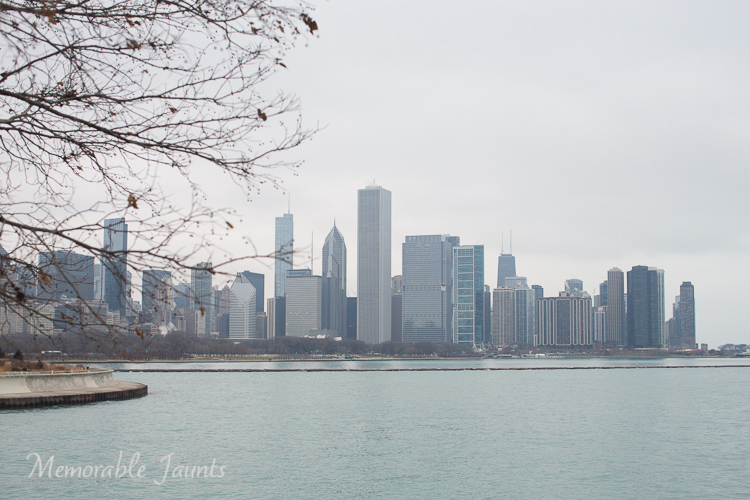
Memorable Jaunts Urban Photography Article for Digital Photography School Downtown Chicago Skyline as seen from Museum campus

My friends always joke that if I had my way I would pack my belongings, load up the family car, and head to the mountains to live out the rest of my days away from all the chaos of city life. What a happy dream, and one that someday I hope to make a reality, but for now I live in a urban city as far away from mountains as you can get. Urban living does have some benefits, in that it presents some wonderful photographic opportunities, if you know where to look and how to go about it.

There is some confusion among photographers between the terms: urban photography and street photography. Technically they are quite similar, and it is very easy to overlap the two, but here’s how I look at them. To me, urban photography portrays the urban landscape (e.g. buildings, bridges, structures, monuments, etc.) and does not necessarily include people where as street photography often features people or other human elements living in an urban setting. Now keep in mind, urban in itself has different meanings for different people. Wikipedia says, urban is anything related to a city. I like to think of urban as anything that is not rural (e.g. no corn fields, agricultural lands or remote mountain areas). This opens up a whole gamut of photographic opportunities for every pallet.

In general, here are some of the rules or tips I like to follow while on an urban photo expedition.

Preparation

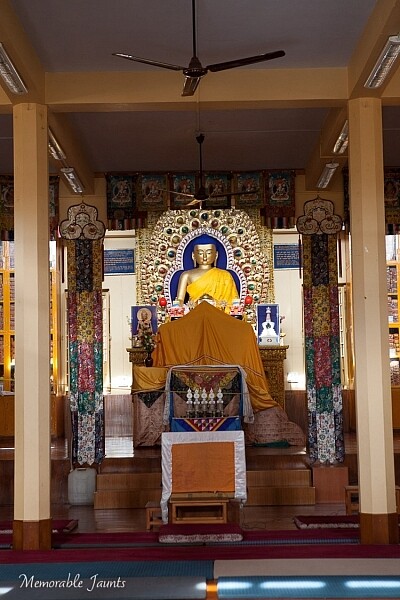
Memorable Jaunts Urban Photography Article for Digital Photography School Dharamsala Monastery Photo

A little prep work paid off as I was able to photograph inside one of the monastery temples in Dharmsala, India

Before going on an urban photography excursion it is very important to be prepared. That not only means packing your gear the night before, and making sure all the cards are formatted and all batteries are charged (although you should do that too), but it is also beneficial to understand where you are going, and how are you going to get there.

What are the traffic patterns? Are there any parking restrictions? Do you need any special permits to photography there? Is photography even allowed? The Art Institute of Chicago is a perfect example. While photography is permitted, they don’t allow large camera bags or roller bags. So a small purse/backpack with a single camera and lens setup is your best bet. Do some research, and ask around if other photographers have experienced any issues in the location you want to explore.

Gear choice

I touched on this briefly already, but most urban photography expeditions are best done on foot where you are free to explore alleyways, buildings and street corners. I don’t know about you, but walking with about 30lbs of gear on my back is not my idea of fun, unless I am backpacking in the mountains! Pack light and carry at most two lenses.

My camera of choice is the Canon 5D MKIII and my go to lenses are Canon EF 24-70mmL zoom and Canon 100mm macro. Sometimes if I am brave, and in the mood for a good upper body workout, I will ditch the 100mm macro and carry my Canon EF 70-200mm. I carry an extra battery for my camera and one extra 32GB memory card. All of these fit comfortably in my backpack.

Shoot smart

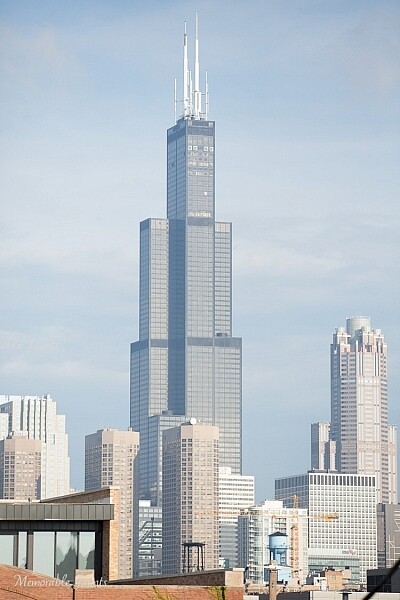
Memorable Jaunts Urban Photography Article for Digital Photography School Willis Tower Image Downtown Chicago

A really wide shot of Willis tower with other buildings around it, provides a sense of scale and grandeur of one of the tallest buildings in the world.

Often we tend to photograph first and think later. The mindset of, “I have a limited amount of time so I will take pictures of everything and anything and cull my images later” is one that is very easy to adapt. I am guilty of this as well, and have to consciously remind myself to think first, and photograph later. But challenge yourself to stop being a lazy photographer (I fall into this trap too) and start photographing smart. Especially with urban photography, there is only so much you can portray about a building or a monument. Limit yourself to

  • One horizontal photo of said object/building/monument
  • One vertical photo
  • One zoomed in detail if there is anything particularly appealing
  • One wide angle shot to give a sense of place and space


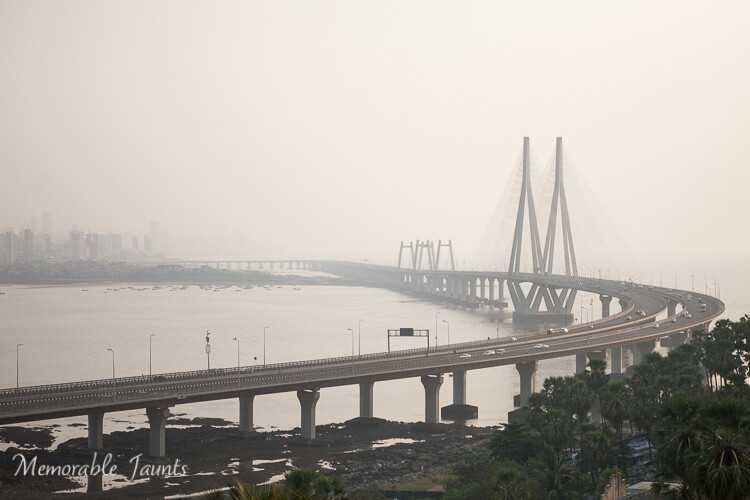
Memorable Jaunts Urban Photography Article for Digital Photography School Mumbai Sea Link Photo

However a zoomed out, wider view of the entire bridge in the early morning hours with the sea, gives the viewer a true sense of its beauty

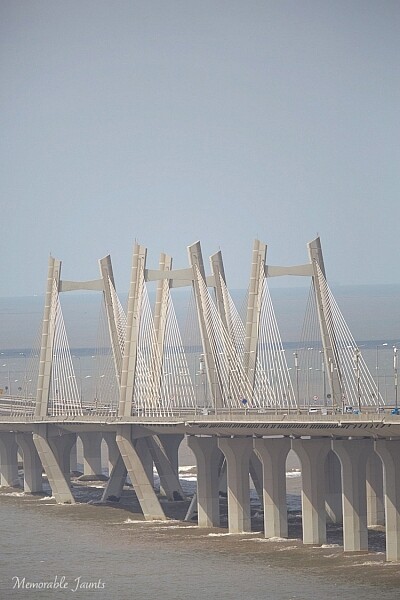
Memorable Jaunts Urban Photography Article for Digital Photography School Mumbai Sea Link Photo

A zoomed in view of Mumbai’s famous Sea Link does NO justice what so ever to this engineering marvel.

Angles and Framing

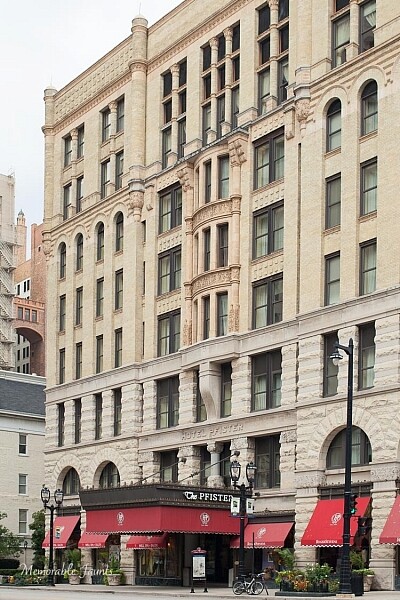
Memorable Jaunts Urban Photography Article for Digital Photography School Pfister Hotel Downtown Milwaukee

Adding the name of this historic hotel in downtown Milwaukee in the frame makes it easy to find, and completes this story.

This tip goes hand in hand with the shoot smart strategy above. Try and get everything correct in-camera so you spend less time in front of the computer, and more time out exploring. I find that when I am out photographing urban scenes, I am shooting in conditions where I don’t have much control – think harsh midday sun, far away subjects, etc. Hence, I pay particular attention to the technical aspects I can control.

When I am framing my subject and composing the image, I try to convey a story. There is no right or wrong way to do it, remember it’s your story, so as long as you can convey your message, go for it. When photographing a really tall building, go wide. If you cannot go wide, then try to either get the top half or the bottom half. Is it a historic site? Are there some special markers or markings? Something that will help explain why you have taken that particular shot?

Experiment with various angles as well – get down low or shoot from high above. I am not a big fan of tilted angles, particularly on urban landscapes. They make me dizzy and I always wonder which way am I supposed to tilt my head to see the image. Unless the building has a natural slant like the Leaning Tower of Pisa, I don’t get the image! Of course, this is just my personal preference. If tilting is your thing, your forte – then go for it. Experiment and see what works for you.

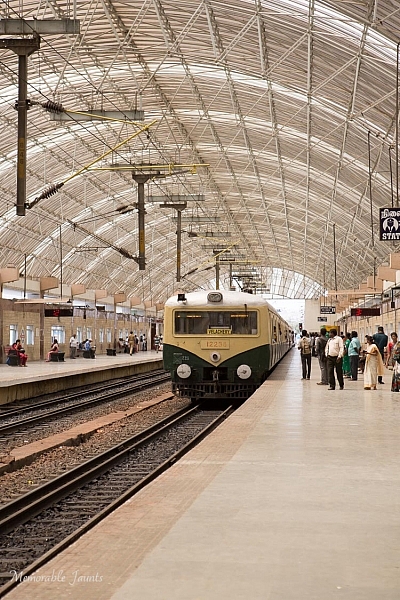
Memorable Jaunts Urban Photography Article for Digital Photography School Chennai Train Station

The name of the train line at the front of the train gives this image a sense of place (and yes, I included people in this urban photo).

Memorable Jaunts Urban Photography Article for Digital Photography School Downtown Milwaukee Photo

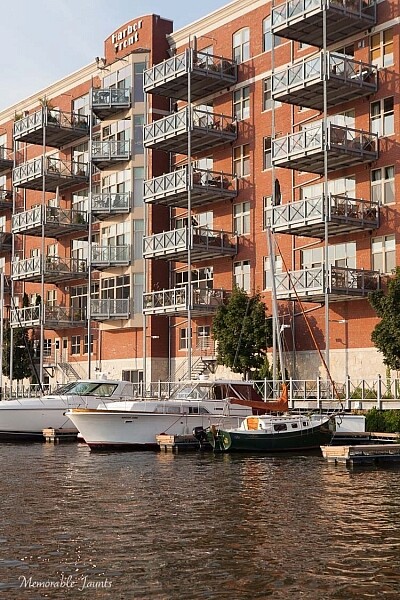
An apartment community with boat parking docks is aptly called Harbor Front in Downtown Milwaukee, Wisconsin

End goal

Always have an end goal for any photographic exercise. Goals can vary. Maybe you want to try out new gear, explore modern architecture, or maybe you just want to explore a new city or an old favorite neighborhood though your view finder. No matter what the goal, be clear and set your own expectations.

Memorable Jaunts Urban Photography Article for Digital Photography School Taj Hotel Mumbai Photo

The majestic Taj hotel in Mumbai taken from a roof top building several miles away.

Memorable Jaunts Urban Photography Article for Digital Photography School Downtown Chicago Fountain Photo

A fountain in Downtown Chicago comes alive as the sunlight hits the water flowing out of it (my personal perspective, my story).

Memorable Jaunts Urban Photography Article for Digital Photography School Downtown Milwaukee Photo

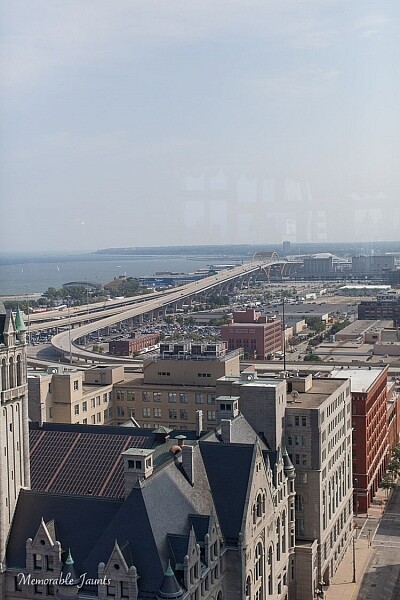
I wanted to show the beautiful bridge that acts as an entryway to downtown Milwaukee, and decided to live with the glass refection very obvious against the blue sky (this was taken from the sky deck of the Pfister Hotel).

At the end, when all is said and done, if there is one tip I can give you, this is it – remember to have a good time exploring, and don’t get too caught up in getting the perfect shot. It is okay to put down the camera at times, engage in conversation with others, and also experience the space and place you are in with your mind’s eye! So get out there and explore.


Here on dPS this is landscape week – here is list of what we’ve covered so far. Watch for a new article (or two) on landscape photography daily for the next day or so.

  • 6 Tips for Better Low-Light Landscape Photography
  • Landscape Photography and the Human Element
  • 5 Ways a Telephoto Lens Can Improve Your Landscape Photography
  • Landscape Photography from the Side of the Road
  • 32 Majestic Landscape Photos to Inspire Your Wanderlust
  • Weekly Photography Challenge – Landscape
  • Landscape Photography – Shooting the Same Location Through the Seasons
  • How to Solve 5 Composition Conundrums Faced by Landscape Photographers
  • 6 Tips for Creating More Captivating Landscape Photographs

googletag.cmd.push(function() {
tablet_slots.push( googletag.defineSlot( “/1005424/_dPSv4_tab-all-article-bottom_(300×250)”, [300, 250], “pb-ad-78623” ).addService( googletag.pubads() ) ); } );

googletag.cmd.push(function() {
mobile_slots.push( googletag.defineSlot( “/1005424/_dPSv4_mob-all-article-bottom_(300×250)”, [300, 250], “pb-ad-78158” ).addService( googletag.pubads() ) ); } );

The post Tips for Getting Started with Urban Landscape Photography by Karthika Gupta appeared first on Digital Photography School.


Digital Photography School
 
Comments Off on Tips for Getting Started with Urban Landscape Photography

Posted in Photography