RSS
 

Posts Tagged ‘from’

Blog Project: Your Best Photos From 2014

18 Dec

Our planet has nearly completed its orbit around the Sun once again and if you’re a regular JMG-Galleries reader that means one thing…  it is time to kick off the 8th annual best photos of the year blog project. This is by far my most popular blog project. Year over year this project has continued to increase in participation with last years participation hitting 328 participants (see Best Photos of 2013,  2012, 2011, 2010, 2009, 2008 and 2007). Around this time of year people start to ask if I’d be running this project again. The answer clearly is always YES! 1. I love this project and I love that so many people get excited about it. 2. It’s a great way exercise to improve your photography (10 Ways to Top Your Best 20xx Photographs). So with out any further delay here is how you take part to submit your best photos of 2014.

How to Participate (Read Carefully)

  1. Review & select your best photos from 2014.

    Note: Photo edit carefully narrowing down your results to your best 10 or 5 photos. Reference Pro Tips: Photo Editing with Gary Crabbe for pointers.
  2. Create a blog post on your web site or a Flickr/500px set containing your best photos from 2014.
  3. Complete the form below by Saturday JANUARY 3th at 11:59PM PST to take part. The following Tuesday I’ll post a link to all submitted sites and photos on my blog. Through out the week I’ll also share the results across all my social media accounts.

Spread the Word!

Feel free to spread the word of this project on Twitter, Facebook, Google+, photo forums you frequent and/or your blogs. All who are interested in taking part are invited.


Loading…

Copyright Jim M. Goldstein, All Rights Reserved

Blog Project: Your Best Photos From 2014

The post Blog Project: Your Best Photos From 2014 appeared first on JMG-Galleries – Landscape, Nature & Travel Photography.


Related Stories

  • The Insightful Landscape – A New Landscape Photography Book
  • 101 Landscape Visionary Insights Not To Miss – A New eBook & Video Series
  • 101 Landscape Visionary Insights Not To Miss – A New eBook & Video Series – Enclosure
Feed Ads by FeedBlitz
powered by ad choices


JMG-Galleries

 
Comments Off on Blog Project: Your Best Photos From 2014

Posted in Equipment


Setting Your White Balance with a Gray Card – a Tip from Phil Steele

15 Dec

Setting your white balance can be done two ways: in camera when you’re shooting or later in post-processing. In this short video tutorial Phil Steele shows you how to do both methods.

Part one is using a gray card to set a custom white balance. Read more about that topic with: Get your White Balance Right in Seconds Using Grey Card.

Part two is how to adjust the white balance using a gray card in Lightroom. Read more here: Adjusting White Balance in Lightroom.

Phil also mentioned where to buy gray cards, you can find several options on Amazon:

If you liked this tip, you can find out more about Phil’s Lightroom course or his brand new Event Photography course here.

googletag.cmd.push(function() {
tablet_slots.push( googletag.defineSlot( “/1005424/_dPSv4_tab-all-article-bottom_(300×250)”, [300, 250], “pb-ad-78623” ).addService( googletag.pubads() ) ); } );

googletag.cmd.push(function() {
mobile_slots.push( googletag.defineSlot( “/1005424/_dPSv4_mob-all-article-bottom_(300×250)”, [300, 250], “pb-ad-78158” ).addService( googletag.pubads() ) ); } );

The post Setting Your White Balance with a Gray Card – a Tip from Phil Steele by Darlene Hildebrandt appeared first on Digital Photography School.


Digital Photography School

 
Comments Off on Setting Your White Balance with a Gray Card – a Tip from Phil Steele

Posted in Photography


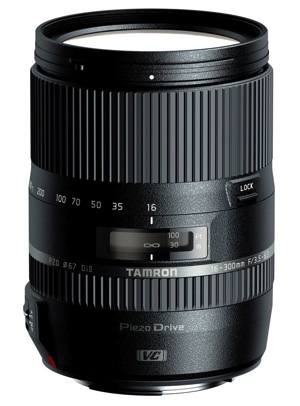
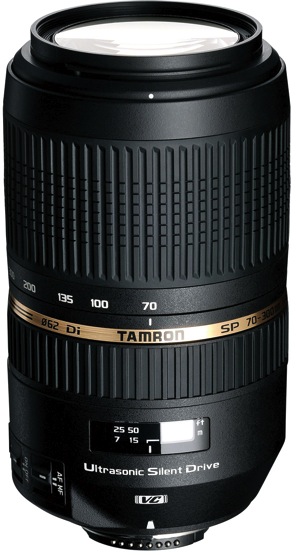
Win One of Three Lenses from Tamron!

11 Dec

Over the last few years here at dPS, we’ve run very some very popular competitions with our partners to give away to lucky dPS readers some of their great photographic products.

We are lucky enough to be able to do it again this week!

For this competition, Tamron is giving away THREE prizes!

These three unique prizes are designed to help every level of photographer create BETTER pictures. Tamron is the world’s most awarded photographic lens line. Each will be won by a different dPS reader. Here’s what you could win:

  • Tamron 16-300mm Di II VC PZD Macro – Value $ 629
  • TWO – Tamron SP 70-300mm Di VC USD – Value $ 449
Tamron 16 300mm Di II VC PZD Macro 600Tamron 16-300mm Di II VC PZD Macro 70 300VC USD model A005 600Tamron SP 70-300mm Di VC USD

Learn a little more about Tamron here: Tamron.com

How to Win

To win this competition you’ll need to:

  • Visit the above lens information pages and learn more about each lens and its core use.
  • Leave a comment below and tell us why you’d like to win and HOW you would you utilize each lens. Please note: there is a limit of 1 entry per person.

Do this in the next 14 days and on December 26, 2014, the sales team at dPS will choose what it considers the best three answers and we will announce the winners in the following days.

Deadline Is December 23, 2014 at Midnight PDT (UTC-8). Comments left after deadline will not be considered.

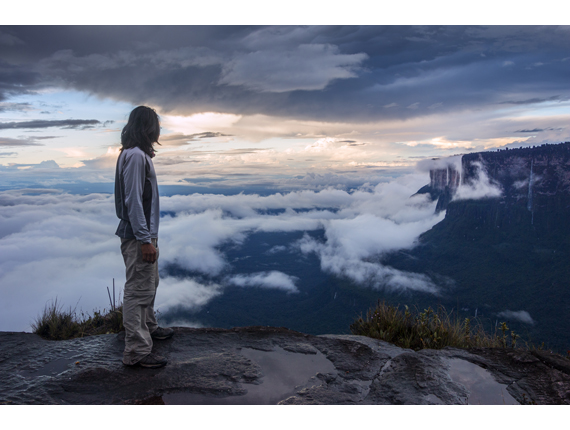
16300VC 3 Ian Plant Photo

Photo by Ian Plant

By best – we’re looking for people who have an understanding of the lenses and how they will best suit your needs. So you’ll need to check out the product pages to put yourself in the best position to win.

There’s no need to write essay length comments to win – but we’re looking to hear what you like about the lenses and how it would help your development as a photographer, professionally, personally, or both.

This competition is open to everyone, no matter where you live – but there is only one entry per person. To enter – simply leave your comment below.

Tamron logo

About Tamron

Disclaimer: Tamron is a paid partner of dPS.

googletag.cmd.push(function() {
tablet_slots.push( googletag.defineSlot( “/1005424/_dPSv4_tab-all-article-bottom_(300×250)”, [300, 250], “pb-ad-78623” ).addService( googletag.pubads() ) );
} );

googletag.cmd.push(function() {
mobile_slots.push( googletag.defineSlot( “/1005424/_dPSv4_mob-all-article-bottom_(300×250)”, [300, 250], “pb-ad-78158” ).addService( googletag.pubads() ) );
} );

The post Win One of Three Lenses from Tamron! by Darlene Hildebrandt appeared first on Digital Photography School.


Digital Photography School

 
Comments Off on Win One of Three Lenses from Tamron!

Posted in Photography


Digital Photo Editing Workflow – Better Images From Capture to Output

06 Dec

Better images from capture to output

A comprehensive look at the essential steps and principles in an effective photo editing workflow with highlights of key tools.

Have you ever tried to find a digital photo you know you worked on, but couldn’t remember where you saved it, or even what it’s called? Do you find yourself re-editing photos you’re sure you finished before? Or are you stuck, staring at an image you know could be made better, but not sure which adjustments to make, or even where to start?

We’ve all been there: hundreds of images to sort through. Files scattered all around your hard drives; photos missing, others duplicated in unnecessary versions, who-knows-what lurking in mysterious places with confusing names. And prints coming back from the lab looking, well, crappy. All the while, knowing you have photographic gems just waiting to be discovered and brought to life.
Nat coalson digital photo editing workflow image 1 diagram H

If you’re feeling overwhelmed by digital photography, you’re not alone. Capturing digital images has become so easy in recent years that it’s easy to get stressed, if only because of the sheer volume of pictures you’re making.

For every serious photographer, capturing an image is only the beginning of a complex process with numerous pitfalls. So how can you streamline this tangled mess? The key to keeping your digital photography fun and productive is to adopt, and adapt, an effective, consistent workflow.

Why workflow matters

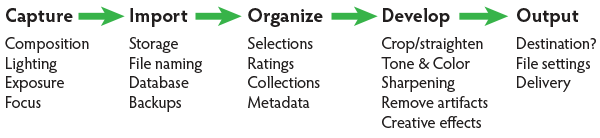
The concept is simple – your photography workflow is the sequence of steps and actions you take to edit your photos, work them up to a result you consider finished, and share them with the world. Editing photos can be like baking a cake or assembling flat pack furniture. You start with raw ingredients, or loose parts, and use an ordered sequence of steps to put the thing together. In a good photography workflow, the end result is a perfectly crafted image, securely stored for future use, all with the least possible effort.

Efficiency is important. Without a good workflow, at minimum you’re wasting time. Worse, you run the very real risk of losing your most precious photos. Forever. A couple of years ago I knew a wedding photographer, then aspiring to become professional, who lost an entire wedding shoot because of relatively simple errors in her workflow. (In short, the mistakes derived from a convoluted importing method and totally inadequate backups.)

Maybe you’re only taking pictures for fun? If you’re planning to continue with photography, you still need to use an effective workflow. If you don’t, your photo archive will become a beast, very difficult to tame. And your images won’t look as good as they could. No fun.

When you’re starting out in digital photography, you need to develop good habits early. Even if you’ve been shooting for years, it’s never too late to improve your process.
Nat Coalson Within the Great Cloister 600px

Now it’s personal

You can craft your digital photography workflow to suit your own situation and preferences. But every effective workflow shares common tasks, proven techniques and best practices. These established methods have evolved with real-world use across all genres of photography. They apply equally to beginning enthusiasts and seasoned pros.

I first began editing photos in the early 1990s, working in a magazine publishing environment. Under tight deadlines and managing many thousands of digital assets, a good workflow was crucial. As a working photographer, I’ve been refining my own workflow for over a decade and I still make little tweaks now and then.

Continually finding ways to tighten the screws helps eliminate the risk of disaster, while also making the practice of photography more fun and rewarding. You can master your own photography workflow, too. You first need to understand the most common problems and tasks you’re likely to encounter. Then learn the best tools and techniques for dealing with them. A good photo editing workflow:

  • Uses the fewest steps possible.
  • Is non-destructive and allows you to change your mind or redo steps without losing image quality< ./li>
  • Protects your images now and for the future.
  • Provides the best looking photos.

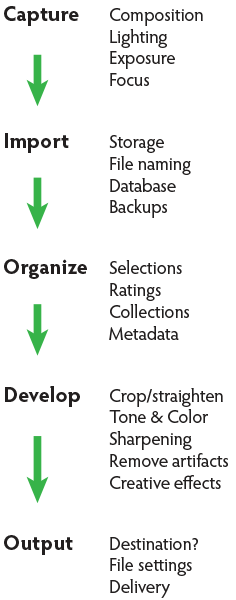
So let’s review the essential parts of a practical photo editing workflow.
Nat coalson digital photo editing workflow image 1 diagram V

Stage 1. Capture

Whatever the end result you’re envisioning, great digital photographs begin with good data. You should always strive to make the best capture you can, and in most cases, try to finish the photo as much as possible in-camera. Work carefully to make the most accurate exposure with the ideal level of sharpness for the given scene or subject. Regardless of your capture format, you should always be working to master your camera techniques.

Stage 2. Import

Copying files from removable media onto more permanent storage is also variously called downloading, ingesting, transferring, etc., but the result is the same. Right after a shoot, copy all your images from the memory card into a new folder on at least one hard drive, then back up everything right away.

Backup. Backup. Back Up!

Every computer user knows the importance of backing up data. But too many people don’t do it, or don’t do it often enough. This isn’t a single step in the workflow; it’s something you should do frequently throughout the process. You should have your image files saved on at least three separate media sources:

  1. Your master working drive
  2. A current backup of the master drive
  3. A complete historical archive, preferably stored in a separate physical location from your master and working backups

(The topic of digital photo storage and backup is so important that we’ll revisit it repeatedly in the future!)

Stage 3. Organize

After your photos are copied onto your working storage media (and backed up!), sort through the pictures to separate your favorite images from the rest. The best way to do this is with ratings (e.g. stars) or other ranking methods (colors, flags, etc.).

Nat coalson digital photo editing workflow Image 2 selections

Whichever system you prefer, keep all the photos from a single shoot together in one folder and use the ratings attributes to annotate your selections. During this stage you should also apply and enhance the metadata associated with your files. Keywords, copyright notices and contact information are just a few of the many types of textual information you can embed within a digital image.

Escaping folder hell

In the early days of digital media, it was common practice to move files from one folder to another during the editing workflow. For example, all the original images, often scans from film, would first be put into one folder. As individual photos were selected, processed and output, the files would be copied again (or moved) into other folders representing the stage of the workflow it was in. DON’T DO THIS! It creates a very unwieldy hierarchy of files and folders and makes good organization all but impossible.

Modern imaging software, and more specifically, metadata—allows you to more effectively organize files using virtual methods (such as Lightroom’s Collections and virtual copies) without the need to ever copy or move your original images on the hard drive. In an efficient workflow, there is no need to use separate folders for different types of files.

Stage 4. Develop

This is where you apply digital processing to make each image look as good as it can to fulfill your creative vision for the picture. Like Import, this stage has different names depending on who you’re talking to. Developing is the term most often used by Lightroom users. Enhancing, adjusting, post-processing, and simply editing are other common terms to describe this stage, which itself is comprised of several distinct steps.

The ideal order of operations for developing a photo depends on the characteristics of the original capture; some images will need very different enhancements than others. Still, it’s possible to define a typical sequence of steps as below.

TIP: Work global to local

Make the biggest changes first, then work your way to smaller details. In photo editing, this means first making global adjustments (those that apply to the entire image) before working on the local adjustments. And, earlier in the workflow, apply any changes relevant for large batches of images before moving on to fine tune individual photos.

Develop steps

  1. Crop and straighten. Since it changes the composition, cropping can be the most significant change you can make to a photograph. It’s best to do it early in the process, but you need to use a method that allows you to go back and refine the crop later if you change your mind.
  2. Correct distortion. Most camera lenses introduce various amounts of distortion to a picture; some more than others. Fix distortion as one of your first, regular steps.
  3. Adjust exposure and tones. The tonal range of an image refers to the various levels of brightness of each pixel, from pure white to solid black. Tone is independent from color. Simply setting the white and black points can have a huge impact on the overall appearance of an image, so you should normally do this before moving on to color. Tonal contrast should also be handled during this step; the variation between light and dark tones determines how much impact (or punch) a picture has. Naturally, some pictures will look best as low contrast.
  4. Adjust white balance and color. White balance plays the biggest role in the color of a photo. If the photo has a strong color cast — for example, an indoor photo captured using outdoor white balance settings — you should fix it before addressing tone. But for images with white balance that seems fairly accurate, set the tone before refining the white balance. After setting white balance, consider making other color adjustments, most notably saturation and vibrance, which affect how pure and vivid the colors appear. Alternatively, convert to black-and-white or apply special color effects during this step.
  5. Apply local adjustments. These are edits you make only to small areas of the picture. Examples are dodging and burning (lightening and darkening, respectively) and selective color adjustments. In general, you should try to make local adjustments after you’ve finished the global adjustments.
  6. Apply noise reduction. Noise appears in digital images as soft colored blobs or grainy speckles. Most images can be improved with varying amounts of noise reduction. Photos captured at high ISO, made in the dark, or ones that are significantly underexposed, will need more aggressive noise reduction. You’ll normally want to deal with noise reduction after you set tone and color, because those global adjustments will affect the appearance of noise. Zoom in for larger previews when adjusting noise reduction and sharpening.
  7. Apply sharpening. Sharpening is all about contrast. The appearance of sharpness in a digital image is based on the relative lightness or darkness of neighboring pixels along the edges of lines within the picture. More contrast along the edges equals more sharpness. As such, you shouldn’t try to refine the sharpening levels until you’ve already set the global tone range, because the overall contrast of the image will have a major effect on the appearance of sharpness. Do your sharpening a bit further into the workflow.
  8. Perform retouching. Many pictures contain elements that you want to remove altogether. In some cases, these are artifacts — undesirable results of digital processing or camera characteristics including noise, chromatic aberration, fringing and sensor dust spots. Other times, there’s something ugly in the frame, like a telephone pole sticking out of your mother-in-law’s head. Retouch your photos using Lightroom’s Spot Removal tool or Photoshop’s Clone Stamp and Healing Brush.Other processing can reduce or eliminate the need for retouching, so it can be a waste of time and effort to retouch photos earlier in the workflow. For example, you could spend twenty minutes removing dust spots around the edges of a photo and then decide you want to crop the picture tighter anyway.Do your retouching toward the end of the workflow.
  9. Apply special effects. All the previous developing steps will apply to most of your photographs. After you’ve corrected the technical issues and processed the photo to an acceptable baseline quality, consider applying further stylistic adjustments and special effects.

Nat coalson digital photo editing workflow image 3 barcelona

Stage 5. Output

After you edit photos to a level of perfection you’re happy with, think about sharing and reproducing them. In the digital realm, output generally refers to the many ways you can bring your images into the real world. To do this, from your finished master image, export derivative files, specifically for each intended purpose.

Sharing online is a great start. Most web sites have some important parameters you need to know for your images to look their best (and all web site specs are not the same). Take the time to research the best file settings for your file uploads.

High quality printed reproductions — photo books, notecards, calendars, fine art prints, etc. – also require you to follow specific parameters for exporting image files from your editing software.

TIP: About resizing photos

When you’re editing photos, you should always process your master images at their native resolution. In other words, whatever the pixel dimensions of the image as it came off your camera, do all your editing at that size. Any resizing should be done at the very end of the workflow and only on copies of the master file, each exported to the specifications for the output destination. Don’t resize your master files! (Lightroom keeps this simple – since there are no controls for resizing during the editing process, you can only do it only during an export.)
Nat Coalson Flow III 575px

Conquer your photo editing workflow

When you don’t follow a good system, digital photography can become stressful. Losing pictures, redoing steps, and not getting the quality you’re hoping for are all side effects of an ineffective workflow. Who wants any of that?

Remember that everybody who’s mastered their personal photography workflow had to start somewhere. You’ve likely mastered some parts of the process already. Now, identify specific bottlenecks and key areas for improvement in your own photo workflow. Pick one aspect of the workflow that seems unfamiliar or challenging, and start there.

Crafting your ideal workflow doesn’t happen all at once, nor is it a purely linear process. With so many steps and potential traps, you’ll need to study and practice each of the different stages independently, then tie them together into a cohesive sequence.

TIP: The main reason Adobe Photoshop Lightroom is widely considered the best photo editing software is that it provides most of the capabilities you need to handle the complete photo workflow as describe above.

When you follow an optimized process for working with your pictures and develop a clear understanding of the principles behind your decisions, you’ll have more fun working on the things you enjoy, rather than struggling with tedious tasks.

Practicing good workflow techniques helps you make great photos – easier!

googletag.cmd.push(function() {
mobile_slots.push( googletag.defineSlot( “/1005424/_dPSv4_mob-all-article-bottom_(300×250)”, [300, 250], “pb-ad-78158” ).addService( googletag.pubads() ) );
} );

The post Digital Photo Editing Workflow – Better Images From Capture to Output by Nat Coalson appeared first on Digital Photography School.


Digital Photography School

 
Comments Off on Digital Photo Editing Workflow – Better Images From Capture to Output

Posted in Photography


Review: The Filter Hive from Mindshift Gear

30 Nov
Filter Nest by Mindshift Gear review

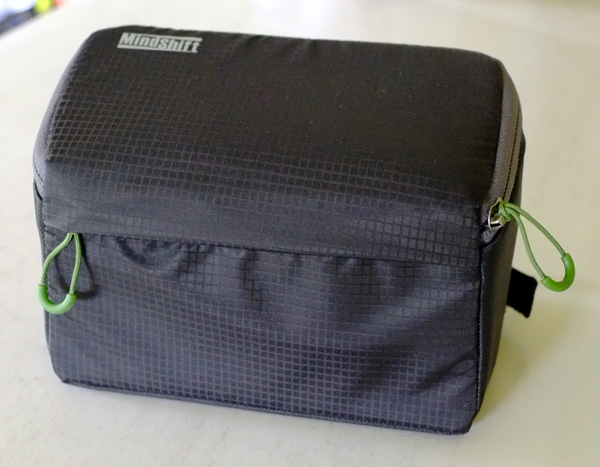
The Filter Hive, made by Mindshift Gear. The fabric exterior is coated with a water resistant coating to help protect your filters in bad weather.

If you are a landscape photographer it’s quite possible you own several filters that you use regularly. These may include a polarizing filter, three or four stop neutral density filters, graduated neutral density filters (you might have two or three of these) and, if you practice long exposure photography, a 10 stop neutral density filter such as the LEE Filters Big Stopper.

Filters can be difficult to deal with. I’ve tried several solutions, like using a messenger style bag (so I can just reach down by my side and take out the filters I need) and a small waist pack to store them. The problem is that filters come in cases that need to be taken out of the bag, then opened, all without dropping the filter. It becomes even trickier when trying to change one filter for another.

The bottom line – filters are essential for landscape photography, but handling them is a pain in the backside.

Filter Hive

That’s why I was so glad to come across the Filter Hive from Mindshift Gear. Essentially it’s a padded, charcoal coloured case with a removable insert that you use for storing your filters.

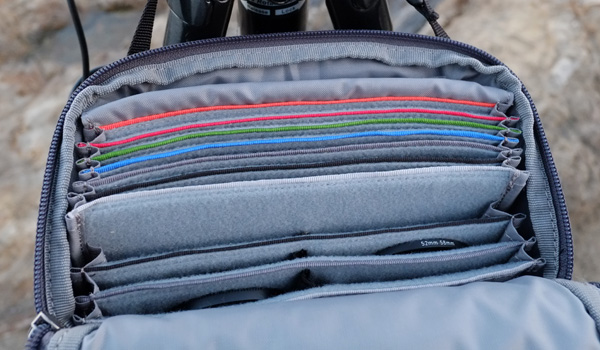
The Filter Hive is an extremely well thought out product. There are six slots for storing large rectangular filters (such as those made by LEE filters) and another six for storing smaller circular filters. The large slots are colour coded, making it easy for you to find the filter you are looking for. All the slots have a soft lining that is designed not to scratch glass or plastic, so your filters are safe.

Filter Nest by Mindshift Gear review

A peek inside the Filter Hive shows the larger colour coded slots at the back (ideal for large rectangular filters) and smaller slots at the front. You can also see the soft lining that helps protect your filters from scratches.

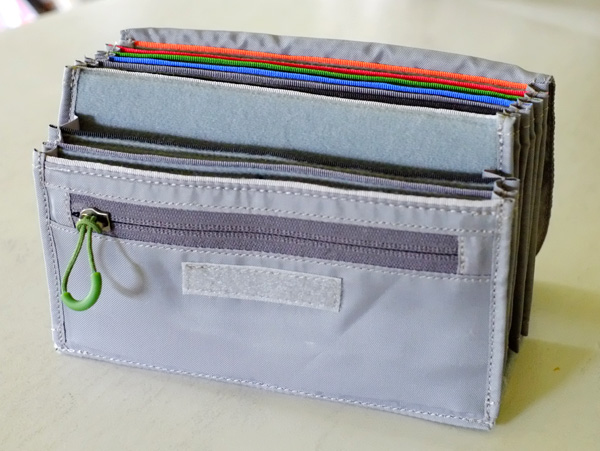
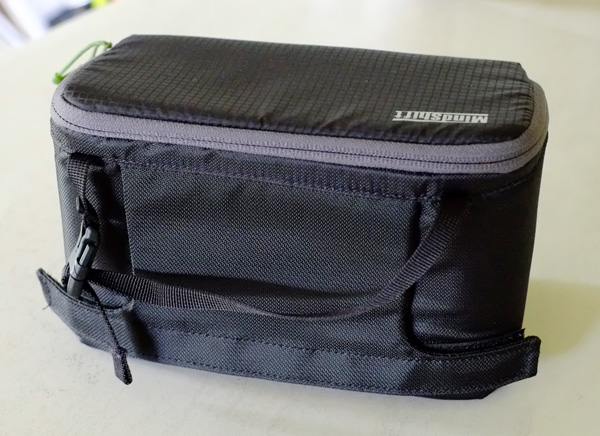
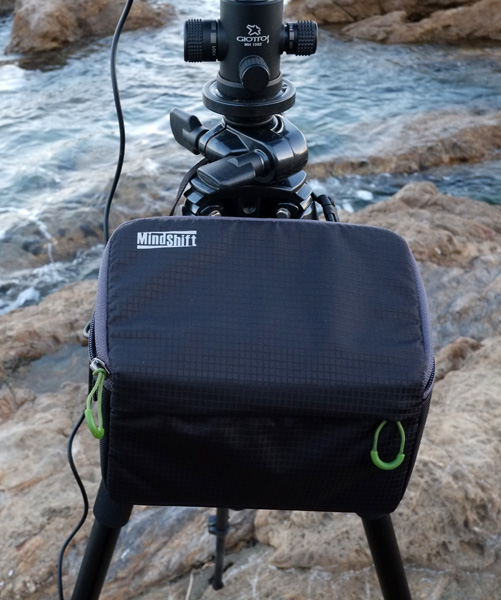
The insert is removable and comes with a dust flap to help protect your filters from dirt. The case has a zippered pocket on the front, as does the insert. On the back of the case is a loop so you can attach the case to your belt or to the side belt of Mindshift Gear’s Rotation 180 Panorama Rotating Backpack. There’s also a grab handle with a release buckle that you can use to hang the Filter Hive on the side of your tripod while taking photos.

Filter Nest by Mindshift Gear review

The insert containing the lined and padded slots for filters is removeable.

Filter Nest by Mindshift Gear review

The rear of the Filter Hive shows the belt loop (secured by velcro) and the buckle strap for attaching it to a tripod.

So, how does the Filter Hive perform in practise? The answer is brilliantly. I can store all my filters, removed from their cases, plus stepping rings in the Filter Hive. It’s easy to find and remove the filter that I need, and when I’m changing filters I can remove one from the lens and place it directly into the Filter Hive. It’s like the third hand that I’ve always felt I needed when changing filters up to now, and greatly reduces the chance that I will accidentally drop one.

The Filter Hive hanging from my tripod.

The Filter Hive hanging from my tripod.

Another benefit of the Filter Hive is that there is plenty of space to include a sachet of silica gel, helping to ensure that the filters inside stay free of fungi during the colder, damper, months. There’s also room for lens cleaning accessories like micro-fibre cloths and lens tissues.

Learn more

You can learn more about the Filter Hive, and it’s smaller brother the Filter Nest, from Mindshift Gear’s website by clicking on the links. They are also available from retailers such as BH Photo & Video, Adorama and Amazon.

This YouTube video will also give you a good idea of how the Filter Hive works.

Editor’s disclaimer: this product was donated to the author by MindShiftGear. dPS has not received any compensation and the author’s review is unbiased.

The post Review: The Filter Hive from Mindshift Gear by Andrew S. Gibson appeared first on Digital Photography School.


Digital Photography School

 
Comments Off on Review: The Filter Hive from Mindshift Gear

Posted in Photography


How to get more from your printer – besides good quality prints!

26 Nov
Canon Pixma MG6350 All-in-one-printer

Canon Pixma MG6350 All-in-one-printer

If you like to print hard copies of your photos at home, how do you decide which inkjet printer to buy? With such a myriad of printers on the market it can be daunting which one to choose. However, similar to buying a camera, one main consideration will be how much do you want to spend.

I bought a Canon PIXMA MG6350 a little over a year ago.

As luck would have it, my local computer shop had the white version in stock for nearly 50 Euros ($ 62USD) less than the black one. The white one was my first choice.

This is a high-end, multifunction, inkjet printer. It is an all-in-one color printer with two paper trays. This means that it can print, copy, and scan and it also has WiFi and Airprint. I believe the latter lets you print from a smartphone or tablet but I haven’t tried it yet.

The lower cassette can hold up to 125 sheets of A4 (US letter) size paper, while the upper tray is for photo paper (20 sheets) of 10 x 15cm (3.9 x 5.9 inches) or 13 x 18cm (5.1 x 7.1 inches). So it doesn’t hold a great deal of paper but I only ever load one sheet at a time.

Its physical size, measuring 466 x 369 x 148mm (18.34 x 14.5 x 5.8 inches)was a perfect fit for my shelving unit. My Manfrotto travel tripod measures 18 inches when folded and this is exactly the width of the printer. It’s not small but at least it doesn’t have a top paper feed which can be awkward if the space between the shelves isn’t adequate enough.

It’s solid but it is not light, it weighs approximately 8.4 kg (18.5 lbs). Also, this printer is noisy.

Canon printer with Manfrotto travel tripod

Manfrotto travel tripod on top of Canon Pixma MG6350 All-in-one-printer

Canon Pixma MG6350 All-in-one printer

Canon Pixma MG6350 printer-perfect fit on these shelves

Inks

The branded inks aren’t cheap. This is often the case with home, small office printers, whereby the consumables are not cost efficient. The Canon Pixma MG6350 uses a six-tank ink system. A full set of standard 15ml tanks will cost you around 62 Euros ($ 77.50 USD). The 22ml XL versions cost around 85 Euros ($ 106 USD), and are better value for money. The Canon Pixma MG6350 has a print resolution of up to 9600 x 2400 dpi.

Generic third party inks have improved in their quality. It will be a case of trial and error to see which ones are better than others. The upside is that they can work out much cheaper. Currently, the non-branded full set XL versions cost 52 Euros ($ 65 USD) for this printer, so it is worth taking at look at them.

DPI/PPI/MP

In printing, DPI (dots per inch) refers to the output resolution of a printer or imagesetter. The more dot’s the higher the quality of the image.

PPI (pixels per inch) refers to the input resolution of a photograph or image. Although these two terms are used in the same context, they are different but are analogous to each other.

The real digital “resolution” of your photos are its pixels, the total of those is expressed as megapixels. For example, if your camera shoots 2848 x 4288 natively. Multiply these two figures and this represents the megapixels of your camera. In this case, it is 12.2 MP.

Images viewed on the web have an output value of 96dpi (for PCs) and 72dpi (for Macs). However, this is where it can get confusing. An image displayed on your monitor with a resolution value of 72dpi, and the same image saved out as 300dpi will look exactly the same on screen (the resolution on your monitor is fixed). But if you were to print these images, this is where they would look very different. The image saved out as 300dpi will be a quarter the size of the image at 72dpi but the image will be better quality and won’t have that pixelated (jaggies) look.

So why bother saving images for the web at 96/72dpi? Because they load faster and it saves on bandwidth.

The standard output resolution(dpi) for printing when using inkjet printers is normally 240dpi (good), 300dpi (better) and 360dpi (better yet).

To change the the resolution of a file in Photoshop, you first choose Image from the File menu and then Image Size. Make sure to uncheck Resample Image. If you need to make the image smaller or larger than leave Resample Image checked.

However, if you want to change the resolution and the document size (print output size) at the same time here’s what you do. In this example, I want to change this file sized 9.49” x 14.29” at 300ppi to a 4” x 6” at 360ppi.

  1. Choose Image > Image Size (Alt+Ctrl+I). The Image Size dialog box appears.
  2. Deselect the Resample Image option, and change the Resolution to 360ppi. Notice that the Document Size changes to 7.9″ x 11.9″ because you’re moving the pixels closer together.
  3. Select Resample Image option and change the Document Size Width to 4 inches.
  4. Click OK. Now you have a file that is 4″ × 6″ at 360ppi.
Resampling and image resizing in Photoshop

Animated gif illustrating how to change resolution and size of image in Photoshop

Scanning

The Canon Pixma MG6350’s flatbed scanner has an optical resolution of up to 2400 x 4800 dpi, and is Twain compatible. This means that you can scan an image through Photoshop rather than using proprietary software. What I like about this flatbed scanner is that the flap can extend upwards allowing for books and larger items.

This was particularly useful a few months back, I was presented with this very old portrait image to make a copy. As you can see, the actual image is much larger than the surface area of the scanner.

Old large image on scanner bed

Old large image on scanner bed

Old portrait image-actual size-larger than scanner bed

Old portrait image-actual size-larger than scanner bed

Tip: Scan the image in as four separate files, working from top left to top right and then bottom left across to bottom right to ensure all the image has been scanned. Don’t worry if they overlap. Depending on the size of your photo, it is better to increase the DPI.

For this image, I increased the DPI to 400. Save out the images as PNGs. This format is lossless, whereas JPEGs are a lossy compression which means that some detail is lost. The size of the image worked out at 6056 x 6983 pixels. This is a high resolution image.

You then bring the four separate images into Photoshop. Go to File>Automate>Photomerge. A dialog box appears. By default, Auto is chosen which is fine. Make sure Blend Images Together checkbox is ticked too.

Photomerge dialog box in Photoshop CS6

Photomerge dialog box in Photoshop CS6

Photoshop usually does a fantastic job of blending images together. It also creates the layer masks. This will be a huge time saver. Then save out your file as a PSD and work on cleaning up the image.

Photomerge action completed showing scanned image with layer masks

Photomerge action completed showing scanned image with layer masks

Photo Papers

When it comes to photo papers, the better quality branded papers are excellent. They are consistent and produce much better quality prints over non branded cheaper versions. My choice is the Ilford Galerie range (especially the Prestige Smooth Pearl paper), Hahnemühle FineArt Pearl-finish, and the Canon Luster range.

However, I do use cheaper photo papers for my girls’ school projects. And if you are feeling in a creative mood, like I was, you can print up ID tags for your kids’ school bags using an old plastic gift/iTunes card, some double-sided tape, a colored cable tie and an O-ring.

Another gift idea is the iron-on transfer papers. These papers allow you to print your photo onto a t-shirt. In the past I have given these as last minute birthday presents. They have always gone down as a treat.

T-shirt+name-tag

T-shirt+name-tag

WiFi

That fact that this printer works from WiFi is a plus. This helps prevent your desk looking like a spaghetti junction of cables from other connected peripherals.

CD/DVD Labels

A feature that I hadn’t realized came with the printer was neatly tucked under the second paper tray. This is the direct-to-disc tray for printing CD, DVD and Blu-ray labels.

This is a much more favourable option over the self adhesive labels. These are known to peel and get stuck in the optical drive.

While Apple is doing away with optical CD and DVD drives from their range of desktops and laptops. This technology is becoming defunct, especially as flash drives are getting cheaper to buy. Nonetheless, it makes for a good presentation to give someone a CD with photos and a cool label on it. This could be a potential client or gift to someone you like.

Do you have any other printer tips you’d like to share?

The post How to get more from your printer – besides good quality prints! by Sarah Hipwell appeared first on Digital Photography School.


Digital Photography School

 
Comments Off on How to get more from your printer – besides good quality prints!

Posted in Photography


H2O to Go: Bike Bottle Makes Water from Thin Air as You Cycle

17 Nov

[ By WebUrbanist in Conceptual & Futuristic & Technology. ]

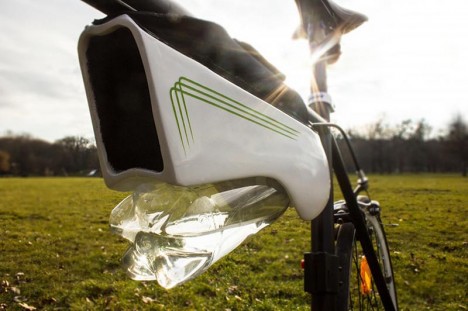
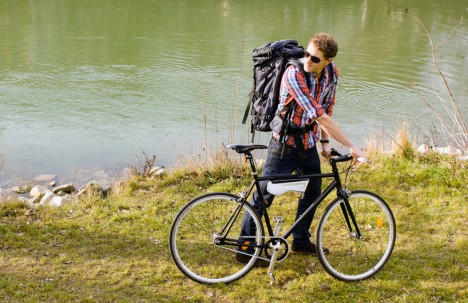
water bottle in situ

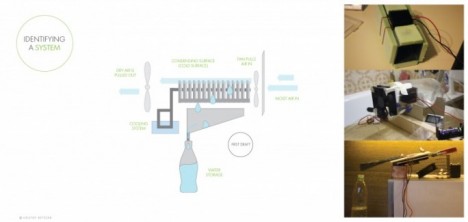
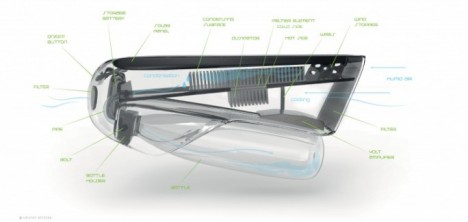
Using air flow and solar energy, this ingenious device creates up to 16 ounces (a half-liter) per hour of drinkable water via condensation as you ride, quenching your thirst just when and where you need it most: while cycling hard in hot and humid climates.

fontus bottle

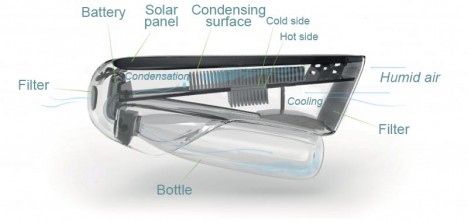
water bottle explanatory diagram

Austrian designer Kristof Retezár has submitted his work on this self-filling water bottle (dubbed Fontus) for award consideration to the James Dyson Foundation. His prototype and proposal cite potential benefits both to athletes but also more broadly to regions where obtaining potable water can be difficult (in many cases, these are also places where many travel by bicycle).

fontus water bottle design

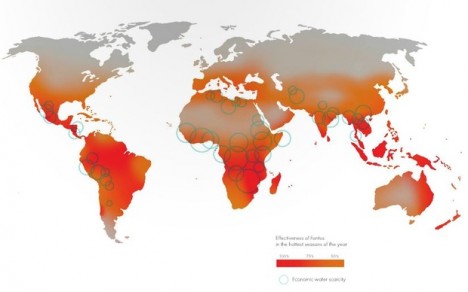
water bottle humidity graph

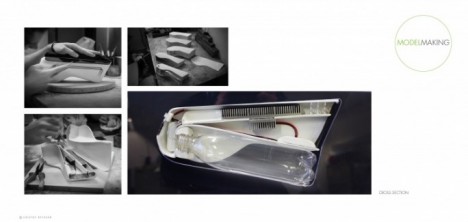
The gadget itself attaches to the frames of bicycles and contains a slot where a standard-sized disposable water bottle can be attached, filled and detached when needed. Retezár experimented with various materials, systems and processes to make a working prototype in his own bathroom, testing under various temperatures and humidity conditions.

water bottle experimental stage

water bottle from air

How does it work? “Basically, condensation occurs when you cool air to its saturation point. Fontus has a small internal cooler that is divided into two halves. A solar panel provides energy to cool the upper half of the condenser, a process that heats the lower half. When air flows past the heated lower half, it makes the top cool even further. Air moving through the chambers is slowed and cooled to condense moisture, which drips down into the bottle.”

water bottle form design

water bottle design prototype

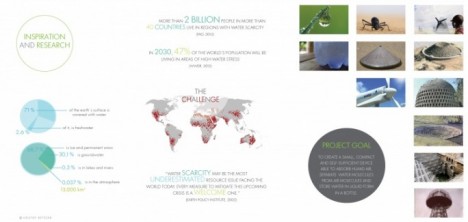
For now, it is a work in progress – whether this design hits mass-production without kinks or complications remains to be seen. The inspiration: “According to UN statistics, More than 2 billion people in more than 40 countries live in regions with water scarcity. In 2030, 47% of the world´s population will be living in areas of high water stress. Water scarcity may be the most underestimated resource issue facing the world today. Every measure to ease this upcoming crisis is a welcome one.”

water bottle modeling process

air condensed water bottle

“Harvesting water from the air is a method that has been practised for more than 2000 years in certain cultures mostly in Asia and Central America. The Earth’s atmosphere contains around 13.000 km3 of mostly unexploited freshwater. This project is an attempt to discover these resources. My goal was to create a small, compact and self-sufficient device able to absorb humid air, separate water molecules from air molecules and store water in liquid form in a bottle.”

Share on Facebook


[ By WebUrbanist in Conceptual & Futuristic & Technology. ]

[ WebUrbanist | Archives | Galleries | Privacy | TOS ]


WebUrbanist

 
Comments Off on H2O to Go: Bike Bottle Makes Water from Thin Air as You Cycle

Posted in Creativity


Prints from first photographed royal tour go on show at Buckingham Palace

15 Nov

A collection of photos taken in 1862 during the Prince of Wales’ tour of the Middle East, showing historical figures and sites, has gone on display at Buckingham Palace in London. Taken by Francis Bedford, who was the first photographer to ever accompany a royal tour, the show comprises almost 100 original prints and documents the progress of the party as they travelled from London to Egypt, Palestine, Syria, Lebanon, Turkey and Greece. See gallery

Articles: Digital Photography Review (dpreview.com)

 
Comments Off on Prints from first photographed royal tour go on show at Buckingham Palace

Posted in Uncategorized


Eugenia Maximova: Kitchen Stories from the Balkans

12 Nov

Die Fotos von Eugenia Maximova vereinen vieles in sich. Sie sind Bericht einer Reise, Dokumentation des Alltäglichen und Zeugnis einer von Zerrissenheit geprägten Kultur. Die Bilder in „Kitchen Stories from the Balkans“ sind in Albanien, Bulgarien, Bosnien und Herzegowina, Kroatien, Kosovo, Mazedonien, Montenegro, Serbien und Rumänien entstanden. Dennoch vereint die Fotografin ihr Werk in einem Gebiet, das sie als „The Balkans“ versteht.

Gemeint ist kein durch Grenzen abgestecktes Gebiet, eine bestimmte Gruppe oder der Traum einer vereinten Nation, sondern viel mehr die kulturellen Gemeinsamkeiten der Bevölkerung, die sich nicht einfach aufteilen lässt.

Auch formal will das Buch in keine einzelne Kategorie passen, denn es lässt sich nicht klar als Bildband oder Kochbuch definieren. Die Verbindung zwischen diesen beiden Kategorien erinnert den fotografischen Denker an detailliert inszenierte Aufnahmen präparierter Mahlzeiten, künstlichen Dampf und Farbstoffe, die sich mit satten Farben in die edel anmutenden Kochbücher renommierter Köche einfügen. Oder an Bilder von charmant selbstgemachten Gerichten, die auf rustikalen Holzbrettern zwischen groben Gewürzen für kreative Food-Blogs arrangiert werden.

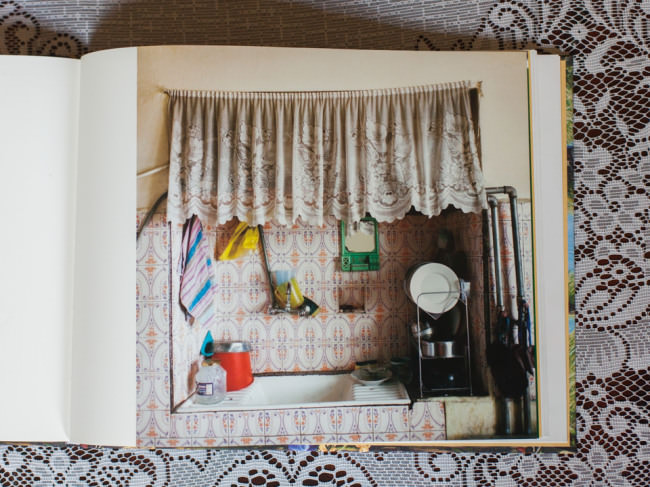
Ein Buchcover mit Hirschen

Ein voller Küchentisch

Um in den visuellen Genuss solcher Gerichte kommen zu können, führt „Kitchen Stories from the Balkans“ den Leser selbst in die Küche. Der hintere Teil des Buches ist gefüllt mit traditionellen Rezepten, die die Fotografin auf ihrer Reise gesammelt hat und die Menschen über verschiedenste Ländergrenzen hinweg verbinden.

Der Augenschmaus wird so zum Teil einer sinnlichen Erfahrung von Geschmack und Geruch. Die Rezepte, neben dem Hinweis auf die Region, der sie entstammen, sind illustrativ gepaart mit den Tischdecken, die sich in den Küchen finden. Kätzchen, Blumen, Spitze und Gemüse auf Karomuster mögen als Kitsch verschrien sein, aber der Ansatz wird humorvoll deutlich gemacht: Man begegnet sich bei Tisch.

Eugenia Maximova nimmt uns Betrachter hinein in alltägliche Begegnungen ihrer Reise. Sie zeigt jene privaten Räume, die besonders wichtig sind für familiäres Zusammenleben: Küchen. Als Ort der Zubereitung der täglichen Mahlzeiten ist die Küche erfüllt von Dampf und Röstaromen, sie ist oftmals der Platz, an dem die Familie zwischen alltäglichen Verpflichtungen zusammen kommt.

Die Küche eines Hauses wird so zum Ort der Begegnung und der Gemeinschaft, durch gemeinsames Kochen, Essen, Austauschen, durch geteiltes Leben. Diese Schauplätze von Beziehung und Alltagskultur spielen die Hauptrolle in den Bildern.

Eine Buchseite mit Katzenbabys

Eine Buchseite mit abgebildetem Herd

Die Aufnahmen der Räume verraten viel über deren Bewohner, auch ohne je eine Person zu zeigen. Bügeleisen zeugen von täglicher Hausarbeit, Tee- und Kaffeekannen von geselligem Beisammensein. Ein Radio untermalt das Familienleben mit Musik oder berichtet, wie die Zeitung auf dem Regal, über aktuelle Ereignisse. Es stehen Blumen auf dem Tisch, Kräuter auf den Fensterbänken, die Wände sind dekoriert. Es sind nicht nur Räume, es ist Heimat.

Mein westeuropäisches Auge romantisiert die Spitzentischdecken, Gasherde und Blumentapeten, sie erinnern mich an das Elternhaus meiner Großeltern. Die malerische Bildästhetik unterstützt diese romantische Sicht auf Küchen, deren Einrichtung zugleich zeitlos und wie aus vergangener Zeit wirkt. Die Worte des frühromantischen Schriftstellers Novalis beschreiben treffend, welchen gedanklichen und emotionalen Vorgang die Bilder in mir anstoßen:

Indem ich dem Gemeinen einen hohen Sinn, dem Gewöhnlichen ein geheimnisvolles Ansehen, dem Bekannten die Würde des Unbekannten, dem Endlichen einen unendlichen Schein gebe, so romantisiere ich es.

Eine Buchseite mit abgebildetem Waschbecken

Ein Herd

Es ist also fragwürdig, inwieweit meine gefärbte Perspektive zum Alltag der Bewohner der abgebildeten Küchen passt. Insofern haben die Bilder einen dokumentarischen Charakter, die an Gemälde erinnernde Bearbeitung und die Kitsch-Romantik (was für mich tatsächlich wertungsfrei, keineswegs abwertend gemeint ist) stehen dem Anspruch der Dokumentarfotografie entgegen.

Mit etwas Abstand kommt die Frage auf, woher der Sinn für Ästhetik kommt, den diese Bilder (in meinem westeuropäischen Denken) ansprechen. Ist es Nostalgie, die Glorifizierung der Vergangenheit, die als Konzept grundsätzlich kritisch zu betrachten ist? Oder eine Sehnsucht nach Einfachheit, danach, Dinge zu reparieren, anstatt sie durch das neueste Modell zu ersetzen?

Wieder bin ich gedanklich bei meinen Großeltern. Die haben oftmals nicht gezögert, etwas „Schönes“, „Altes“ durch etwas Teures, Zeitgemäßes zu ersetzen. Zwischen Alternativlosigkeit und wirtschaftlicher Not bleibt kein Raum für Romantik. Im Nachhinein vielleicht, weshalb mir als Kind eben ein bestimmtes Konsumverhalten vermittelt wurde, das etwa den verbeulten Emaille-Töpfen auf Maximovas Bildern entspricht.

Die Reaktion, in diesen Stillleben voller Leben nur Schönes zu entdecken, ist also auch ein Zeichen der kulturellen und wirtschaftlichen Perspektive, aus der ich die Welt sehe. Sich dessen bewusst zu werden, ist wichtig, um die Beziehung zu verstehen, die man als Betrachter zu diesen Bildern hat, um zu verstehen, warum sie so „schön“ sind.

Eine Küchenwand

Eine Küchenecke im Licht

Ein Esstisch in einer Küche

Das Buch ist hochwertig verarbeitet, das Hardcover hat eine weiche Oberfläche, das haptisch an die Patina an alten Küchenschränken erinnert. Die Gestaltung der Seiten, auf denen wenig bis kein Text zu finden ist, geht einher mit der minimalistischen Bildgestaltung der Fotos, selbst die Seitenzahlen fallen weg. Es finden sich nach einer kurzen Einleitung zwei Kapitel. Unter dem Titel des Buches sind die Fotografien eingeordnet, gefolgt von „On the Balkans Table“, den Kochrezepten und humorvoll-kitschig gestalteten Tischdecken.

Die geborene Bulgarin hat Journalismus und Kommunikationswissenschaft studiert und arbeitet derzeit als freie Fotografin.

Informationen zum Buch

Eugenia Maximova: Kitchen Stories from the Balkans
Sprache: Englisch
Einband: Gebunden
Seiten: 80
Abbildungen: 37
Maße: 27 x 21,5 cm
ISBN: 978-3-200-03436-5
Preis: 35€ plus Versand


kwerfeldein – Fotografie Magazin | Fotocommunity

 
Comments Off on Eugenia Maximova: Kitchen Stories from the Balkans

Posted in Equipment


5 Tips for Filtering Advice from Other Photographers

09 Nov

Things seems to all be falling into place. You have your gear all set, a fancy new logo, a great new set of business cards and your portfolio is starting to shape up nicely.

DSC 1760

But you still have a lot of questions – ranging from technical to business. So you decide to seek out the advice from a seasoned professional photographer and hope they will help you with all of your unanswered questions about starting just starting out.

But who is there to help you decipher whether the advice you are receiving from said pro is good or not-so-good?

Here are some great tips to help you filter out the good advice versus the bad when it comes to improving your photography skills and business.

#1 – Consider the source

You have done a lot of research when it comes to photography and even running a business, so take the time to learn a little more about who it is you are talking to for advice. There is nothing wrong with looking at people’s credentials when seeking advice about something so important to you. Look at their resume and portfolio. Ask them how long they have been working in the field of photography, why they got started, why the love it and so on. Seek those out you admire for specific reasons – their technical abilities, website, blog presence, and so on.

DSC 2411

#2 – Don’t be scared to ask questions

The worst thing someone might say to you is NO. It never hurts to ask the questions you have in mind. Connecting with others is a great way to become a better photographer and business person. Check to see which photographers you admire offer one-on-one mentoring sessions, workshops or e-learning courses.

#3 – Ask the right questions

You have the undivided attention of an experienced photographer – make sure you prepare some questions before you speak with them. Be specific, not vague. If you are having technical issues show them some of your most recent work and ask how to improve. If you have some business questions, have paperwork and numbers handy (if you are comfortable sharing). The more specific you can be with your questions, the better they can help you with your problems.

DSC 1735

#4 – Listen and take advice with a grain of salt

There is no one said all, do-all, be-all, fix for any problem or issue. Just like life, different things work for different people. Certain photographers have different ideas about how to do different things – especially when it comes to business. Listen to the advice and do what is best for YOU. Some photographers sell the rights to their digital images, others don’t. Some photographers do in person sales, others do business online. While some practices might be successful for them, they may not be for you. Consider all the factors before making big decisions and do what is best for you and your business.

#5 – Be prepared for constructive criticism

What is the saying, “If you put yourself out there, be prepared”? While it would be wonderful to think that everything is rainbows and apple pies, you can’t grow from sugar coating things, especially if you want to grow. If you are willing to put yourself out there and ask for advice – you will be able to grow and learn from it. Participate in photography challenges, join a local photography group – put yourself out there. Yes, it might be uncomfortable. You might not like what you hear, but it is much better knowing the honest truth from trusted sources.

DSC 5027

#6 – Stay true to who you are

Advice is a pretty powerful thing and can be help solve many unanswered questions – but don’t cast aside who you are as a photographer and artist. Remain true to your core principles, what you believe in creatively and always follow your gut.

Best of luck in all of your photography endeavours.

DSC 1765

The post 5 Tips for Filtering Advice from Other Photographers by Allison Gipson appeared first on Digital Photography School.


Digital Photography School

 
Comments Off on 5 Tips for Filtering Advice from Other Photographers

Posted in Photography