RSS
 

Posts Tagged ‘from’

Tips for Doing City Photography from Above

30 Aug

Many cities have places with great panoramic views of the city vistas from above. For example, in the U.S., New York has the top of the Empire State Building or Rockefeller Center. Similarly, Chicago has observation decks in both the Willis Tower (formerly the Sears Tower) and the Hancock Building. In Europe, there are great views of Paris from Montparnasse Tower. You can capture London from the top of St. Paul’s Cathedral, or now the observation deck of the Shard (the new tallest building in London), and the list goes on.
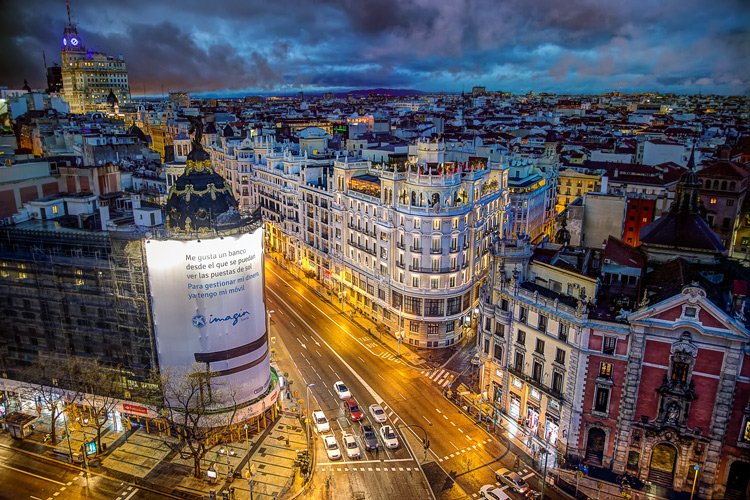
Madrid, Spain, from the Circulo des Bellas Artes

The Gran Via in Madrid, Spain, from the Circulo des Bellas Artes

But these shots present certain challenges. Often tripods are not allowed. Sometimes you have to shoot through glass. And when should you go? What settings should you use? In this article, we’ll work through these issues so you can get great shots from these city overlooks.

What? I Can’t Use My Tripod?

Sometimes you are allowed to use a tripod, and sometimes not. Each building has its own rules. To make things even more interesting, some buildings seem to have different rules depending on when you visit (or perhaps the mood of the security guards). So you will need to be prepared to shoot without a tripod.

If you go up the building in the middle of the day, that might not matter very much. There will be enough light to support a fast shutter speed, and you can get away with hand holding. But if you are shooting in dim light or at night, you will want to use a longer shutter speed. That will require some sort of stabilization.
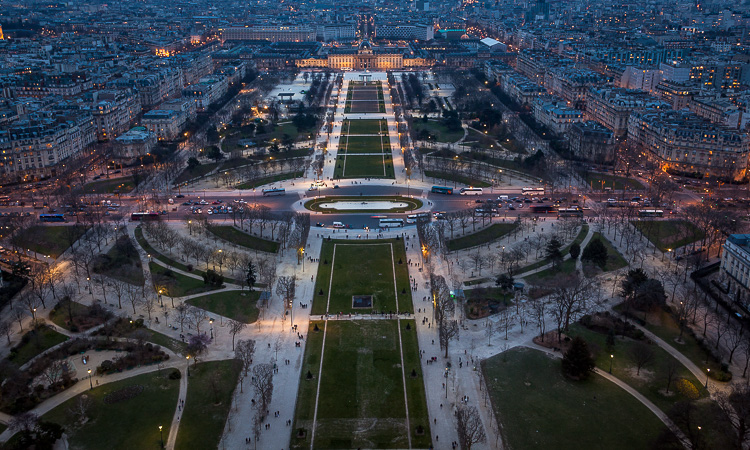
Paris from the Eiffel Tower

Paris from the Eiffel Tower

In almost every case, you will find something available at the top of the building to support your camera. Sometimes you have to resort to using the the floor (which can work if you press your lens up against the window), but often there is some sort of shelf to use. Many buildings have plexiglass panels at the top, with small gaps between them, and you can hold your camera against the sides of the panels to steady it.

Shooting Through Glass

Oftentimes, you are photographing from an enclosed structure surrounded by glass. That means reflections are going to be a problem. I wish there was a magic bullet to solve this problem, but there isn’t. I do have a few tips to help you minimize the reflections though.
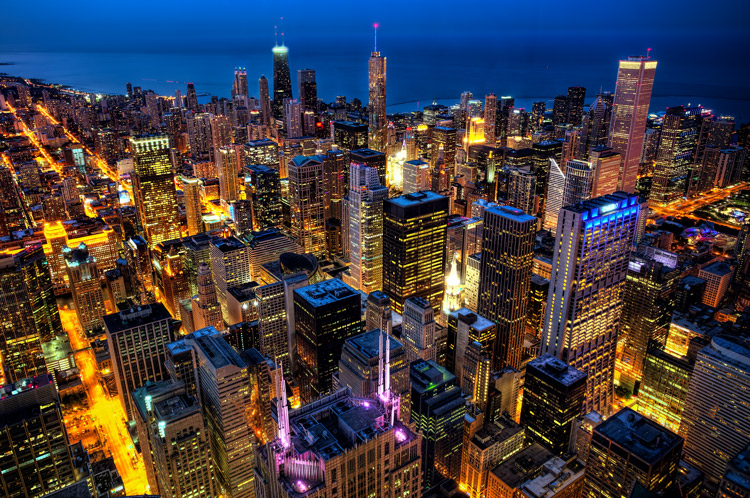
Chicago from the Willis Tower (formerly known as the Sears Tower)

Chicago from the Willis Tower (formerly known as the Sears Tower)

Before resorting to that, see if there is any way to shoot unobstructed. As mentioned above, some buildings have plexiglass panels on top. There are often carve-outs in the panels that you can shoot through, which you should definitely use. If not, check to see if you can shoot between the panels. That will avoid the whole issue with reflections.

If not, you are going to need to take steps to minimize reflections. Let’s start with one that should be obvious (but I always see people doing it). Do not use your camera’s flash. First of all, the flash is useless in this situation. Everything will be too far away for the flash to have any effect. More importantly, the flash will cause reflections and glare in the glass.

Next, hold your camera directly up against the glass. This will minimize reflections. In addition, make sure your point of focus is set far away from you and that your camera is not trying to focus on the reflections.
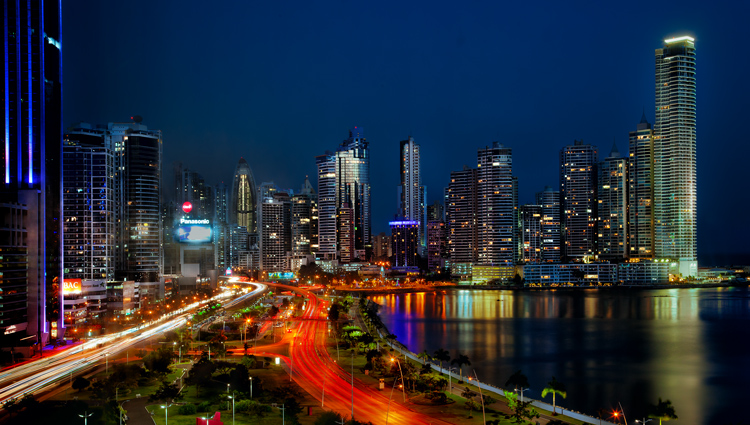
Panama City, Panama from the Intercontinental Hotel (shot through glass)

Panama City, Panama from the Intercontinental Hotel (shot through glass)


If you are on your own (like in a hotel room or somewhere you can set up), then make sure all the inside lights are off, and use the curtains to block any light coming from the room. Some photographers hold a black cloth against the window with a hole cut in the center to shoot through. If you have the opportunity and time to prepare, that is the best option.

Usually, you will find yourself in a public place where such steps are not possible. In that case, just use your body or hand to block any areas of glare or bright light.

After that, just take a few pictures and see if there are any reflections in the final result. Zoom in on your LCD to take a close look. If you find any reflections or glare, just adjust your position slightly to try to get it out and shoot again. You would also try a polarizing filter.
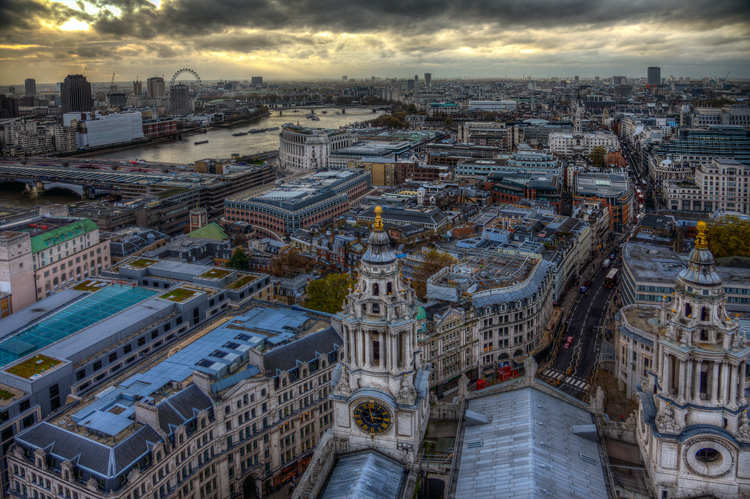
London from the top of St. Paul's Cathedral

London from the top of St. Paul’s Cathedral

What Camera Settings Should I Use?

Your exposure settings will depend on how much light is available at the time you are shooting. While I obviously cannot give you exact exposure settings, I can give you a few ideas to maximize your light and get the best exposure.

First and foremost, remember that you don’t need to use a small aperture for these shots because you do not need a deep depth of field. Your focus will be set at infinity. Nothing in your shot will be within 50 feet/15 meters of you. Too see this for yourself, take a look at the distance scale on the top of your lens (assuming it has one). It will show you that everything farther than about 30 feet/10 meters is set at infinity (in fact, the focus will be at infinity even sooner for wide angle lenses). There will not be a wide range of distances in your shot that require a deep depth of field. Therefore, if you find yourself in need of more light to create your exposure, widening the aperture is a good place to start.
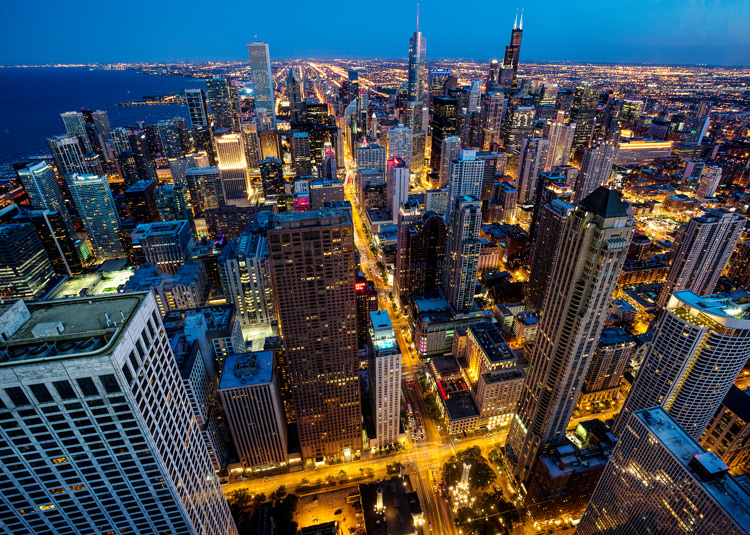
Chicago from the Hancock Building

Chicago from the Hancock Building

Your other two exposure settings (shutter speed and ISO) will depend entirely on whether you can use a tripod. If you cannot use a tripod, raise the ISO until your shutter speed is fast enough to hand hold. Remember you can cheat a little bit and use a slower shutter speed than usual by propping your camera on something. But blur from movement during the exposure will ruin the picture. Remember that digital noise can be fixed in post-processing, but camera shake cannot. Raise the ISO as much as you need to get a supportable shutter speed.

If a tripod is allowed, things are much easier when it comes to exposure settings. You can use as slow a shutter speed as you want. That will also allow you to reduce the ISO, and use a smaller aperture as well. In fact, you may want to keep the the ISO low and the aperture small to force the camera to use a long shutter speed. That will capture traffic trails, create some movement in the clouds, and other effects.
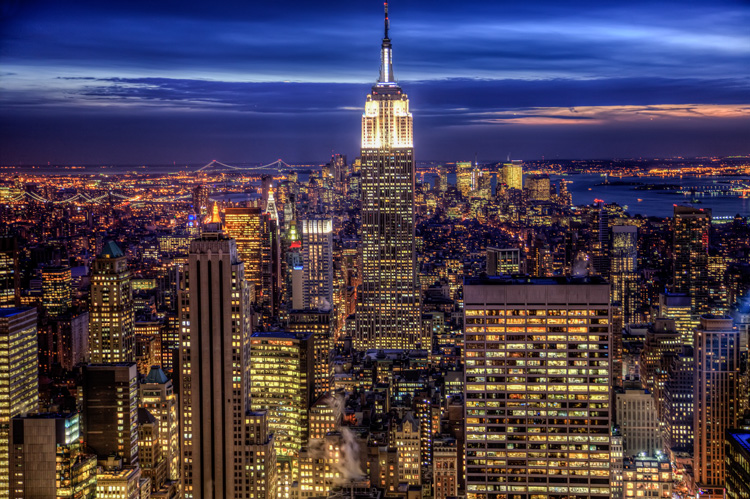
New York, from Rockefeller Center (Top of the Rock)

New York, from Rockefeller Center (Top of the Rock)

Finally, consider bracketing your photos, especially if you are shooting at night. The scene before you will contain bright lights and dark portions. This will challenge your camera’s dynamic range. Even if you will never use any sort of blending or HDR, you might be pleasantly surprised by the overexposed or underexposed images.

Making a Composition from a Jumble of Buildings

When you are up high in a building overlooking the city, you will have a great view, but that doesn’t necessarily mean a great picture. The key to success is creating a composition out of what is before you, in other words to generally find a center of interest. That is, find something to key on that will anchor the picture. Sometimes it is obvious – like when you are staring at the Empire State Building or the Eiffel Tower – but other times it isn’t. You’ll just have to find something to center your picture on. It could be a building that stands out, perhaps a bridge, or even a leading line.

In doing so, don’t overlook the usual compositional rules. Start with the Rule of Thirds. Put your horizon line on either the top third or the bottom third. After that, you might consider placing an important, or prominent, feature on one of the vertical third lines.
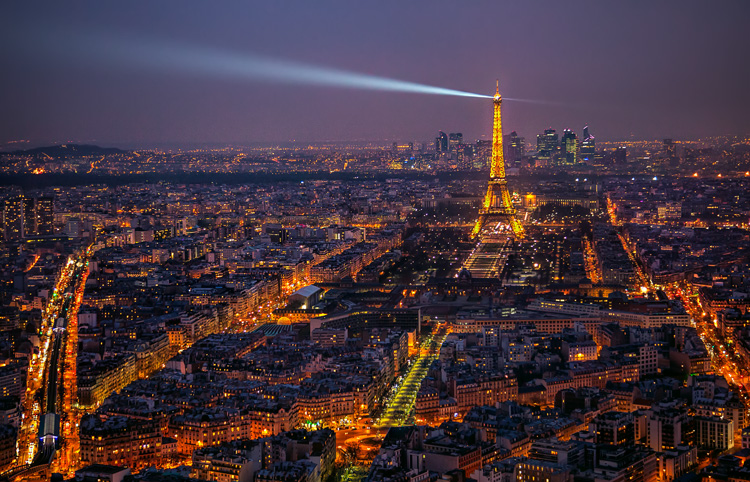
Paris from the Montparnasse Tower

Paris from the Montparnasse Tower

Just these two concepts – ensuring you have a center of interest and following the Rule of Thirds – will go a long way to ensuring success. After that, you can find lines, shapes, and forms to work around. Experiment with different focal lengths and angles. Remember that nothing is moving so you can keep experimenting all you want.

When to Go

Deciding when to go capture you city view from above will have more to do with how the pictures turn out, than anything else you do. Avoid going in the middle of the day. Travel schedules don’t always allow that, but that is the worst time for these pictures.

If you are going to a public observation deck, when you can go will be limited by the opening hours of the building. They are generally not open early enough for sunrise, so that won’t be an option. Almost all locations are open for sunset and a few hours of darkness, so that is often an option.
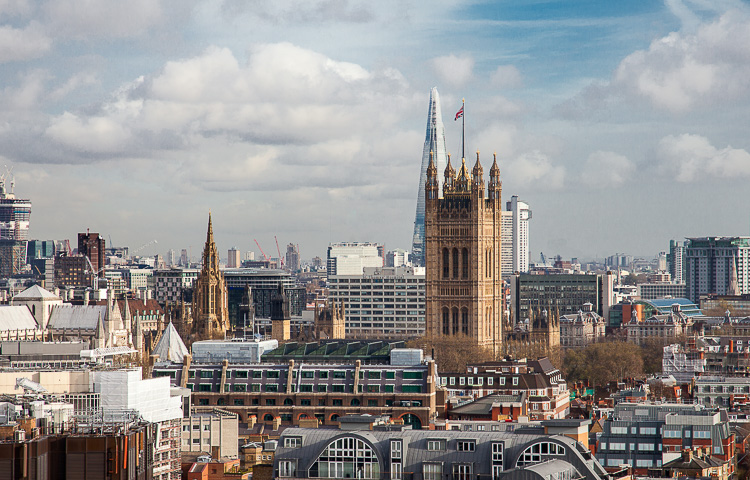
London from the tower of Westminster Cathedral

London from the tower of Westminster Cathedral

The best time to go is just before sunset. You will have the best of all worlds with one ticket. You can capture the sunset and twilight. After that, just wait around for a little while for some night shots.

But in any case, go. It is an easy way to get great shots of whatever city you happen to be visiting. Get up high and capture the city from above.

googletag.cmd.push(function() {
tablet_slots.push( googletag.defineSlot( “/1005424/_dPSv4_tab-all-article-bottom_(300×250)”, [300, 250], “pb-ad-78623” ).addService( googletag.pubads() ) ); } );

googletag.cmd.push(function() {
mobile_slots.push( googletag.defineSlot( “/1005424/_dPSv4_mob-all-article-bottom_(300×250)”, [300, 250], “pb-ad-78158” ).addService( googletag.pubads() ) ); } );

The post Tips for Doing City Photography from Above by Jim Hamel appeared first on Digital Photography School.
Digital Photography School

 
Comments Off on Tips for Doing City Photography from Above

Posted in Photography


How to Size and Export Images from Lightroom for Facebook and Print

24 Aug

One of the most confusing features of Adobe Lightroom for many users, is how to get your final results out of the software, to show them to friends or to send to customers. Different from other programs, there is only one way to “save” thing out of Lightroom – that is to an Export Images. This article will walk you through some of the options to help you demystify this often confusing function, so you can post your images on Facebook, and get them printed, all using the right sizes.

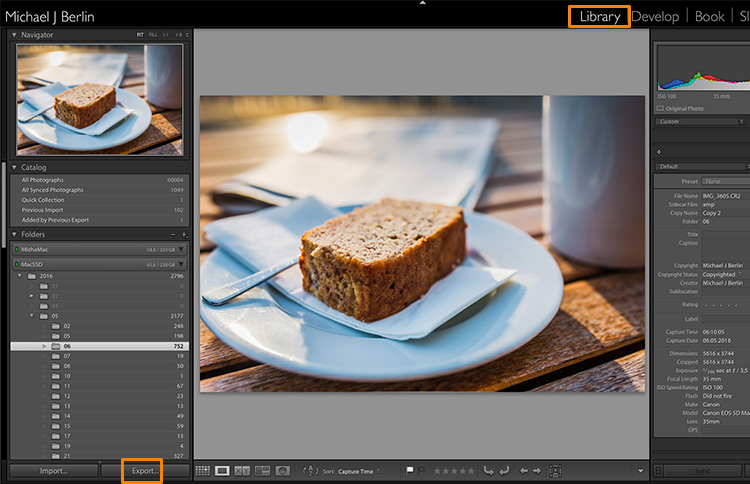
Lightroom export images

The reason is that Lightroom does not actually store your images, they are not really within its database. Lightroom merely keeps a list of locations where your original images are located, generates its own internal previews of those images to work with, and stores the changes you have chosen to make to the files. But until this stage all you are seeing in Lightroom is purely a visualization, there is no actual finished images created yet.

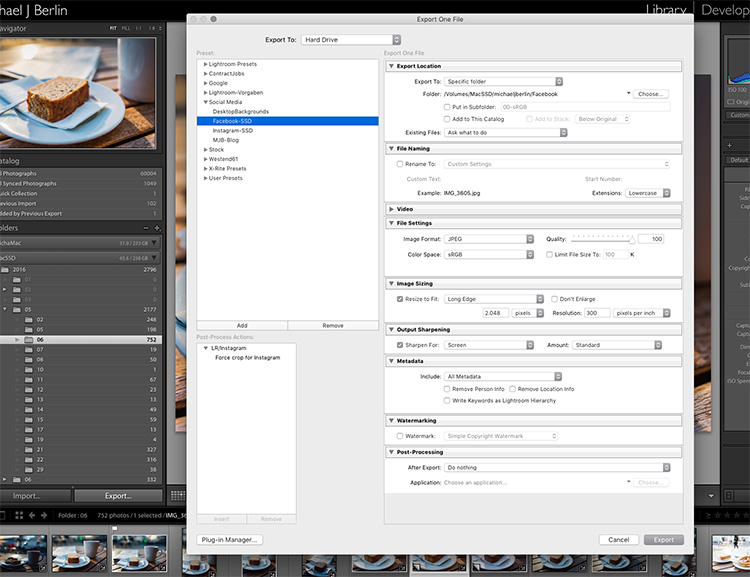
For this, you will have to learn to use the Export feature. While it is one of the essential features of Lightroom, it seems to confuse many people at the start. Part of the confusion certainly comes from the huge amount of options Lightroom offers when trying to save images:

Lightroom export images

So let’s have a look at the most common cases for using the Export functionality to get the best results:

Export an image for Facebook

There are many discussions about how an image should be saved for Facebook. I trust Facebook’s own recommendations most and have had good experiences relying on that article. Typically I export images at the highest resolution Facebook will accept, the 2048 pixels mentioned in the help article.

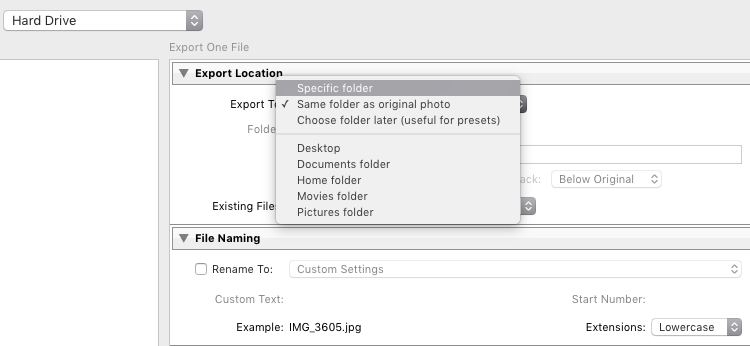
So, first of all, you have to tell Lightroom where we want to save your image. Lightroom offers a lot of choices, one of them being to save the new resulting image into the same folder as the original. Remember, until now only the original image exists somewhere on your hard drive, no changes have been made to it.

Lightroom export images

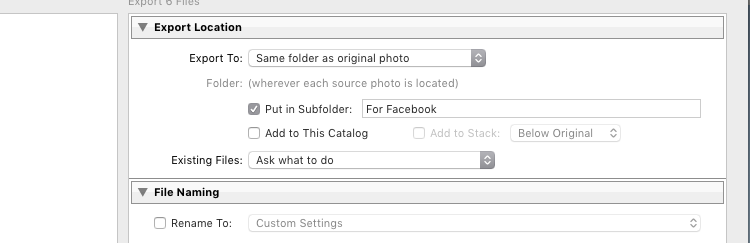
It can be a good idea to keep the original and your final copies in the same space. However, I typically save images into a subfolder to the original – named “For Facebook” for example – so when my original RAW image is in a folder structure by date “2016/05/06”, I would save my Facebook images into the sub folder “2016/05/06/For Facebook”.

Lightroom export images

Another option at this point that I regularly use, is to define a “Specific folder” for my outputs. This allows you to send all exported images to the same location on your hard drive, for example to keep a specific folder containing all the images you have uploaded to Facebook. This also works great to automatically save files into an online cloud storage such as into a Dropbox folder on your disk.

File format

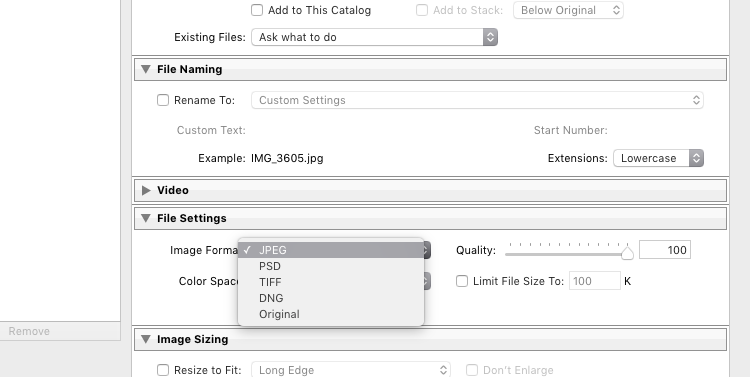
Further down on the Export screen, you get to choose the file format you want to make the exported image. For internet purposes, you would mostly choose JPEG as the desired file format. JPG is a compressed format which allows faster transmission of images, so most internet based platforms use this format to store photos. PSD and TIFF will allow you to store images in full detail in with a wider range of colors (16 bit instead of 8 bit). Some printers (photo labs) will accept TIF files because of the additional details stored in the images, but you should make sure your printer does before trying to send files that can reach more than 100 MB.

Lightroom Export 05 File Format

With the JPEG format, you also have to choose the Quality level. As JPEG tries to find areas of similar colors to make the file size smaller, the quality setting defines how “different” a color section needs to be before a compression is being applied. The lower the quality, the more compression artifacts you might see in the final image, in exchange for a lower file size. In most cases, values around 80-90% will not show critical changes over the full 100%, and only in rare occasions (when file size is very critical) you should go below 60%.

Color profile

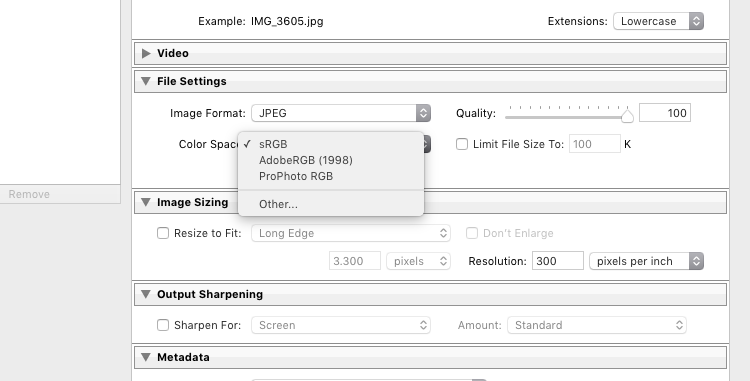
Besides the format and quality settings, there is another drop down box in this section showing the color profile to be used. In simple terms, the color profile defines how many (and which) colors can be accurately stored. The smaller a color profile is, the less color information it contains, but also the smaller the file sizes will also be.

Lightroom Export 06 Color Space

In general, sRGB is the best choice for all images that are meant to be displayed on electronic screens, from large computer monitors, to smart phones, on your website, or on Facebook. The other options (AdobeRGB and ProPhoto RGB) both contain more color information, which can be advantageous if you want to apply further changes to the images at a later stage, for example in Photoshop or in the pre-print processing.

Just as with generating TIF or PSD files, you should only use these other color spaces when sending images when you know in advance that the recipient at the target location can work with them. Most online print services today are prepared to accept images in JPEG format and sRGB color space, as this is what most consumers produce with their cameras.

Sizing your images

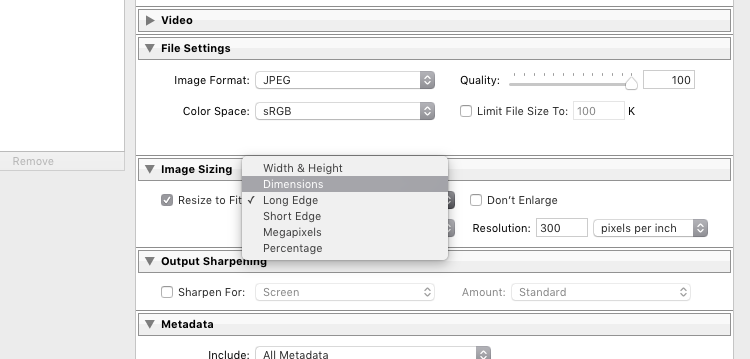
The final section you need to address before exporting your images are the resizing options:

Lightroom Export 07 Resize

For images you plan to upload to the internet – be it your blog, to Facebook, or Instagram – you probably don’t want to upload the full resolution of 16 or 24 megapixels that your camera probably shoots. As mentioned in the linked help article above, Facebook only accepts up to 2048 pixels on the wide side, and if you upload larger images they will automatically be downscaled. So it is preferable to save the file in the recommended size, to save upload time.

With these settings, you could now export your image for sharing on Facebook. There are a few sections below like Output Sharpening (you can choose “Screen” and “Standard”, and compare the results to a version without output sharpening to see the difference) or adding a Watermark to your images automatically, but those are topics for a another article in the future. But just wait a second before you press the Export button right now, there is something else we should look at first.

Save your settings as an Export Preset in Lightroom

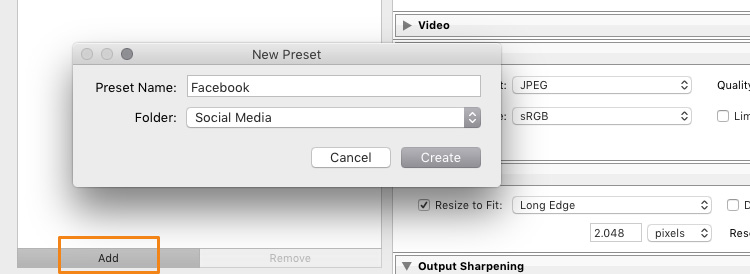
Now that you have taken the time to understand the settings on the Export screen and have come to a result you’re happy with, you want to be able to use the same settings in the future without having to think about getting them all right for every new image. This is why Lightroom allows you to save these settings as an Export Preset. Just press the “Add” button below the list of saved presets on the left half of the window, to add your personal preset – you can even have them sorted in Folders for different purposes:

Lightroom Export 08 Add Export Preset

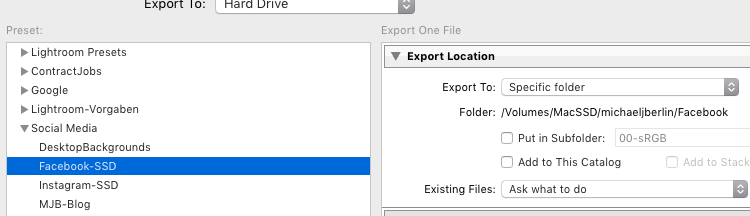
Once it is saved as an Export Preset, selecting the same settings is simply a matter of a single click. As you can see from the next screenshot, I have defined my personal Export Presets for different social media uses like my blog, Facebook, and Instagram, as well as usage as a new Desktop Background for my own computer.

Lightroom Export 09 Use Export Preset

Cropping images for desired format before the Export

With all the settings, we have looked at in the first part of this article, there is one important part that has to be done before entering the Export screen: Cropping your images when you want to use them into a format (proportion) that does not match your camera’s output.

Most modern cameras produce images in a 3:2 aspect ratio, so the long side of an image is 50 percent longer than the short side – in a 24 megapixel camera this translate to 6,000 x 4,000 pixels. However, traditionally there are different popular formats, especially when it comes to printing images:

  • From the age of large format cameras, the 5:4 format (or 8×10 prints) is still very popular in some regions.
  • Medium format cameras usually produced images in 6 x 4.5 (so a 4:3 ratio) or in 6×6 square format.
  • The square format has also been Instagram’s unique format until recently.
  • TV screens, and a growing number of computer monitors, come in the 16:9 standard defined by high definition TV.

To print a full image in one of those different formats would cause distortion, as the image information would have to be squeezed to fit to the shorter sides. In general, printers will not distort the image but instead cut them off at the side. To avoid a random crop in print, what you need to do is to crop your images to fit the desired output format.

Make Virtual Copies

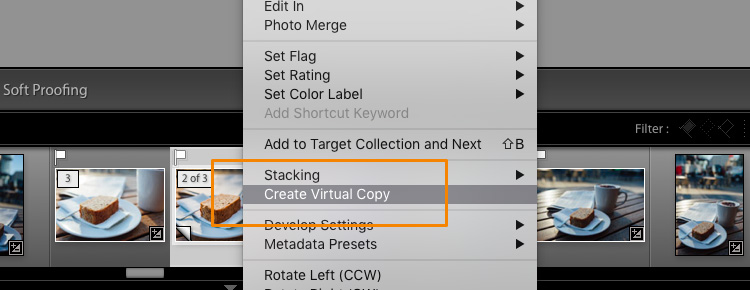
Bonus Tip: If you want to keep the original format for easy access and/or offer your customers different print formats, I recommend to create a Virtual Copy (keyboard shortcut is: Command/Control+’ or right click the image and select Create Virtual Copy, see screenshot below) from your image before doing the cropping. This way, you will have two (or more) versions of your images, one in original aspect ratio and others in the cropped format. Within Lightroom this will only take a minimal amount of space, as Virtual Copies do not duplicate the original file but are just an additional set of data within the database.

Lightroom Export 10 Virtual Copy

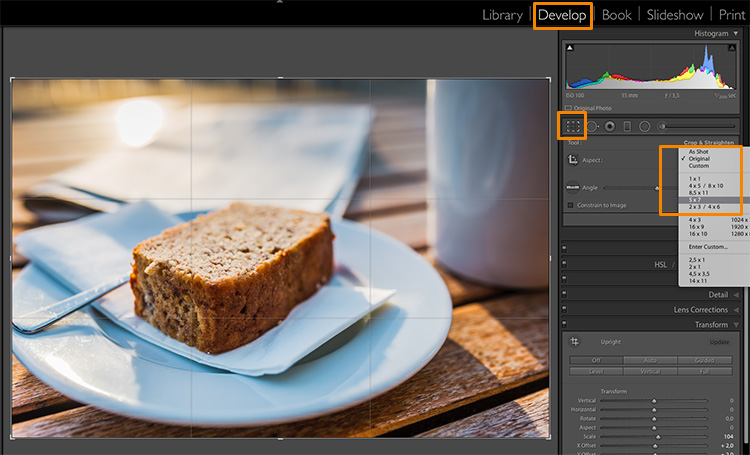
When you select the Crop tool in Lightroom’s Develop module, you will find a list of presets covering the most popular aspect ratios in a dropdown menu. Choose the desired format from the list, or choose a Custom Format if you don’t find the aspect ratio you are targeting.

Lightroom Export 11 Crop Tool

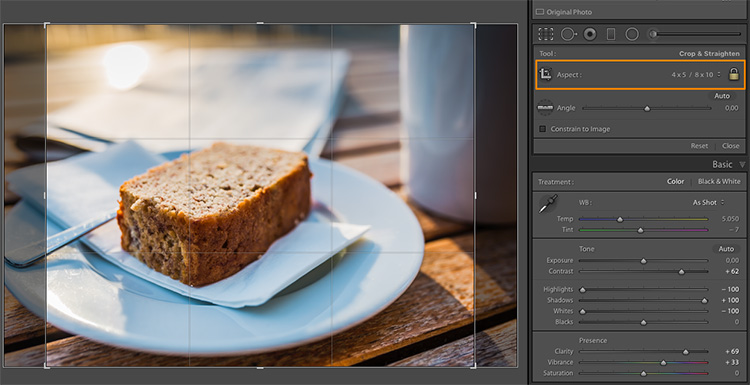
If you select a 5×4 crop, you will see the crop guides highlighting the parts of your image that will remain in the final result, and the darkened parts on both sides of the photo that would be cropped off. You can now move the crop area to your liking to the right or left – or drag one of the corners in case you want to close in to your main subject a little more. Reminder: As everything in Lightroom, this is a non-destructive process, you can change the chosen crop at any stage and even return to the original size.

Lightroom Export 12 5x4 Crop

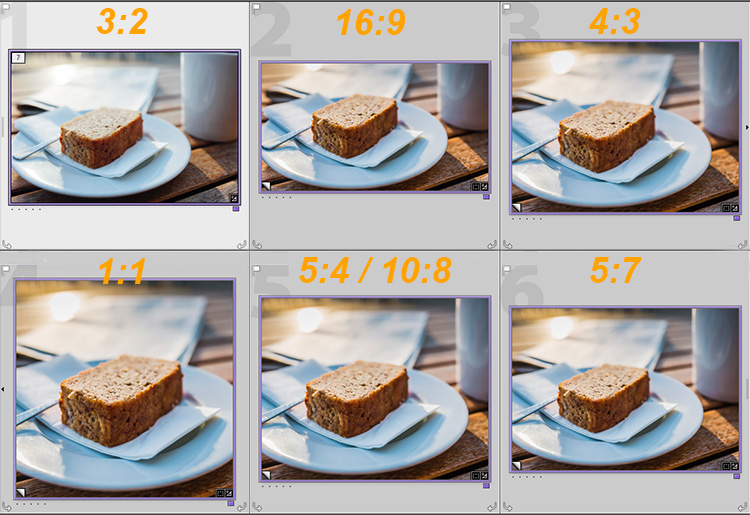
To give you an idea how the different crops can impact an image, I have created five virtaul copies, in addition to my original 3:2 format image, and have applied the five most popular aspect ratios as follows:

Lightroom export images Crop Comparison

Image size settings

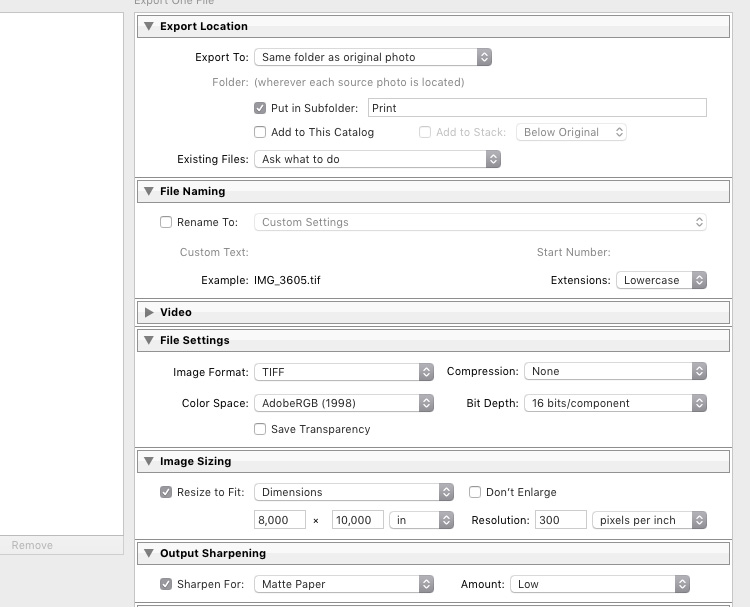
Once you are happy with your crop, you can go back to the Export screen from the Library module. Now let’s have a look at the Image Sizing section again. As you can see, I have now chosen to make Lightroom fit the image to a 8 x 10 inch print format. Please note that I have changed the measure from “pixels” to “in” in the drop down box for this – if you prefer the metric system, there is a “cm” option for centimetres as well.

Lightroom export images Print

I have also set the Resolution to 300 pixels per inch which is the typical requirement for most printers. With these settings, Lightroom will now automatically save the image to the desired aspect ratio and file size. Remember to store these settings as another Export Preset if you are happy with the results, so you can use the same settings for future exports.

Also, please note that I have changed the File Settings in this case to TIFF, and AdobeRGB with 16-bit, to show the settings that will save the most information with the file. As discussed in the first part, this is only recommended if you know that the printer can handle the resulting large file size. If you want to deliver printable files to your clients, I would recommend you stick with JPEG and sRGB, as you can’t say in advance which printers they will use and most services will be able to handle those images as well.

Summary

I hope this article helped you to understand the basics of exporting images to different formats from Lightroom. In case you have questions, feel free to leave a comment below this article or join the Digital Photography School group on Facebook where I am available to answer questions as well.

lightroom-mastery.jpg


For more training using Lightroom check out our new course Lightroom Mastery!

googletag.cmd.push(function() {
tablet_slots.push( googletag.defineSlot( “/1005424/_dPSv4_tab-all-article-bottom_(300×250)”, [300, 250], “pb-ad-78623” ).addService( googletag.pubads() ) ); } );

googletag.cmd.push(function() {
mobile_slots.push( googletag.defineSlot( “/1005424/_dPSv4_mob-all-article-bottom_(300×250)”, [300, 250], “pb-ad-78158” ).addService( googletag.pubads() ) ); } );

The post How to Size and Export Images from Lightroom for Facebook and Print by Michael Zwahlen appeared first on Digital Photography School.

Digital Photography School

 
Comments Off on How to Size and Export Images from Lightroom for Facebook and Print

Posted in Photography


LEGO-Like Architecture: $5,000 Homes from Recycled Plastic Blocks

18 Aug

[ By WebUrbanist in Architecture & Houses & Residential. ]

block house

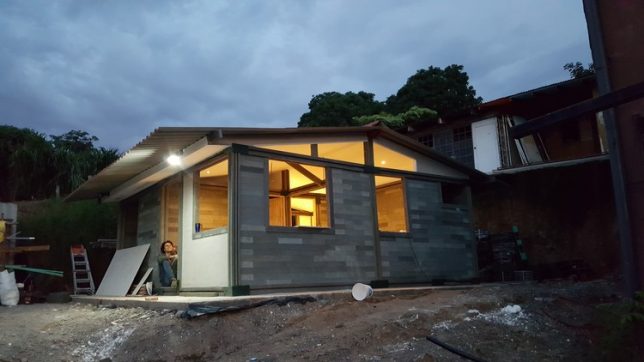
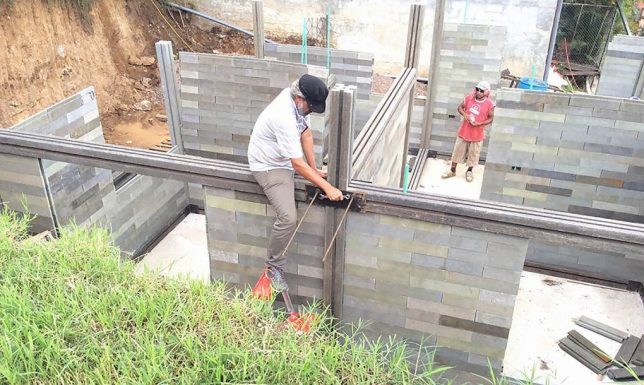
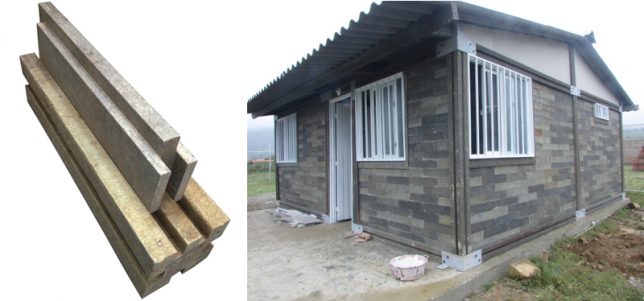
A Columbian company is tackling plastic waste issues and affordable housing with a single ingenious solution: interlocking LEGO-like bricks that can be used to build houses for a few thousand dollars per structure. Walls are formed using a slim slotted brick then framed using a thicker module used for beams and columns, locking the smaller units into place and providing rigid vertical and lateral support.

durable plastic lego blocks

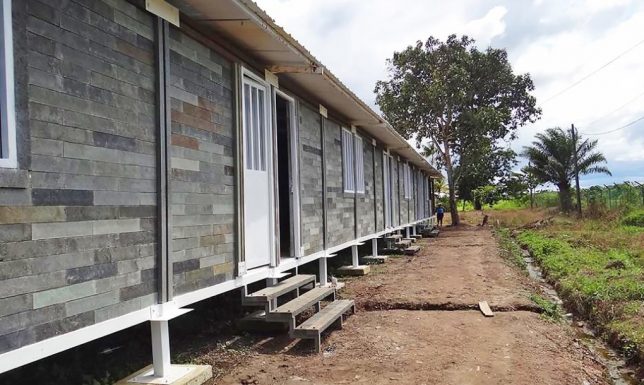
Conceptos Plásticos is addressing their technology to rising populations of urban poor, families with the time but not financial means or materials to construct their own dwellings. The company works with locals to source plastic and create all kinds of spaces, including emergency shelters, community and educational buildings.

modular stacked block houses

The upcycled plastic blocks are easy to use and require no construction experience. They are durable, fire- and earthquake-resistant and much cheaper than other available materials. The company estimates the lifespan of the blocks at 500 years.

plastic block homes

“We hope to create a movement where more and more people get involved,” say the company founders. “We want to develop new products that make better use of the thousands and thousands of tons of plastic that is discarded.”

“There will soon be more plastic in the sea than fish, so we really need to do something big.” Recent projects using this novel material include a hostel for displaced victims of violence in the Columbian countryside.

Share on Facebook


[ By WebUrbanist in Architecture & Houses & Residential. ]

[ WebUrbanist | Archives | Galleries | Privacy | TOS ]


WebUrbanist

 
Comments Off on LEGO-Like Architecture: $5,000 Homes from Recycled Plastic Blocks

Posted in Creativity


Amphibious Folding Motorcycle from Russia Fits in the Trunk of a Car

12 Aug

[ By SA Rogers in Technology & Vehicles & Mods. ]

folding motorcycle 8

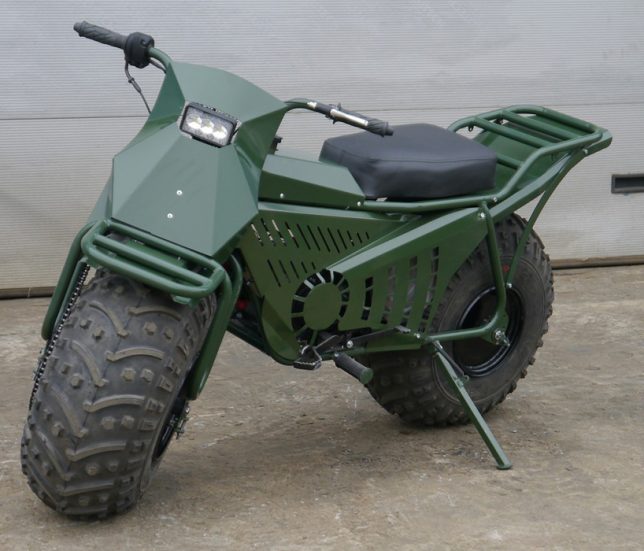
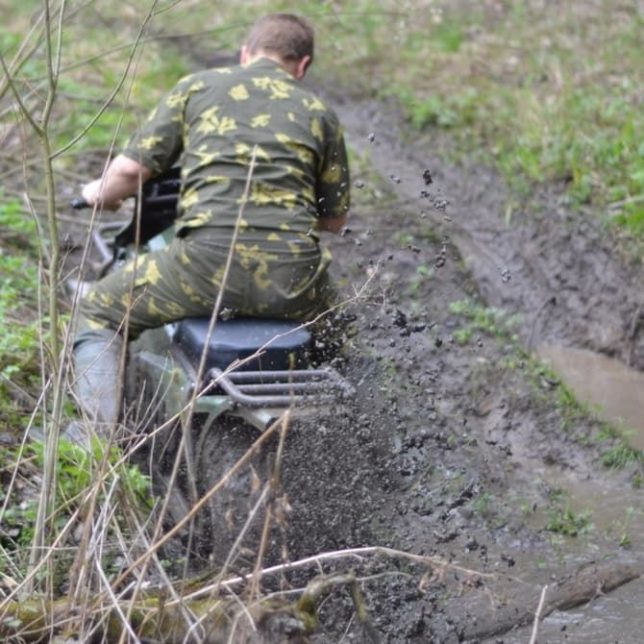
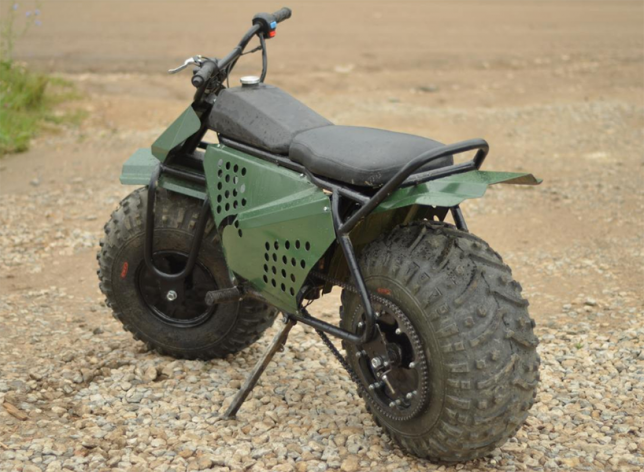
“How long I’ve wanted this dream to come true,” wails Twisted Sister as a motorcycle zips through a mud pit that’s snatching the boots of its rider in this frankly ridiculous video of the Russian motorbike Taurus 2×2. The video shows the bike zooming through giant puddles, pulling a trailer piled with hay bales and even giving a second motorcycle a lift like it weighs next to nothing. Designed specifically for agricultural purposes and recreation in rural Russia, the bike definitely shows off what it can do, leaving no doubt that it can tackle some serious tasks.

folding motorcycle 1

folding motorcycle 4

folding motorcycle 6

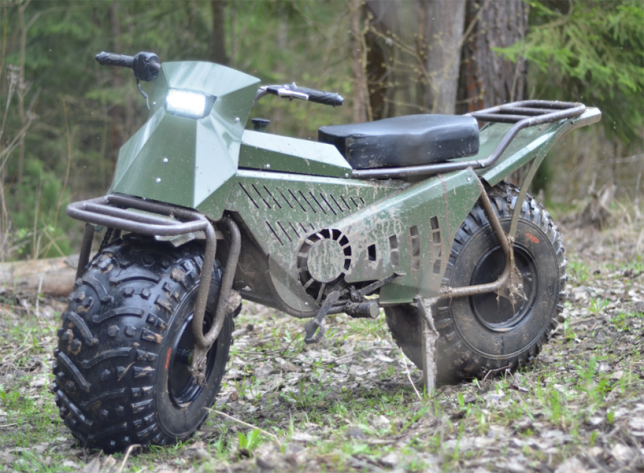
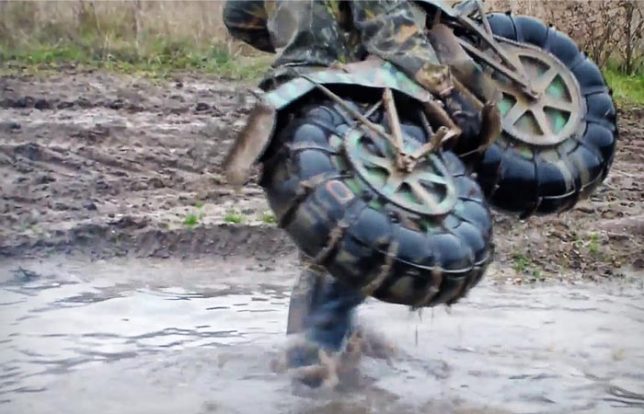
Perhaps the most jaw-dropping moment is when the rider drops the Taurus right into a body of water and it gently bobs to the surface thanks to those bulbous tires and its mere 181-pound weight. It’s extra-light, amphibious and takes just five minutes to dismantle for transport inside another vehicle. It’s not street legal, however – riders have to stick to the back roads of Russia, but that’s really where the Taurus shines.

folding motorcycle 3

folding motorcycle 9

It may not be pretty, but it’s impressively aggressive, navigating landscapes that even the toughest dirt bikes wouldn’t dare take on. Can’t you just imagine shirtless Vladimir Putin on the back of this thing? The Taurus is currently only available in Russia, but its creators say they’re hoping to sell it internationally sometime soon.

Share on Facebook


[ By SA Rogers in Technology & Vehicles & Mods. ]

[ WebUrbanist | Archives | Galleries | Privacy | TOS ]


WebUrbanist

 
Comments Off on Amphibious Folding Motorcycle from Russia Fits in the Trunk of a Car

Posted in Creativity


SpaceVR wants you to see the earth from space, in VR

12 Aug

SpaceVR is a startup that is planning to shoot VR cameras into space, so that subscribers to their service back on earth can see the planet from an astronaut’s point of view, in full 360-degree VR glory. The company has made a huge step towards reaching this goal by signing an agreement with aerospace company NanoRacks which, if all goes to plan, will launch the first SpaceVR camera satellite, called Overview 1, into space sometime in 2017. 

Overview 1 is a small cube satellite that carries two 4K image sensors with super-wide lenses. Video footage from the two modules would be stitched into a 360-degree spheric video panorama and transmitted to earth where it would be accessible via a wide range of VR viewing devices, including Oculus Rift and smartphones. The satellite will be delivered to the International Space Station (ISS) with the SpaceX CRS-12 Mission in 2017. NanoRack will then then deploy it into a low earth orbit using its CubeSat deployer. Once in place SpaceVR will have full altitude and flight control over the satellite. 

This is all good news for SpaceVR after initial attempts to raise funds for the project on Kickstarter had failed in 2015, and plans to install a more ambitious 12-camera system directly on the ISS had to be abandoned. If you’ve always wanted to see the earth through an astronaut’s eyes, and have sufficient faith in the project, you can pre-order a one-year subscription to the service on the SpaceVR website now.

Articles: Digital Photography Review (dpreview.com)

 
Comments Off on SpaceVR wants you to see the earth from space, in VR

Posted in Uncategorized


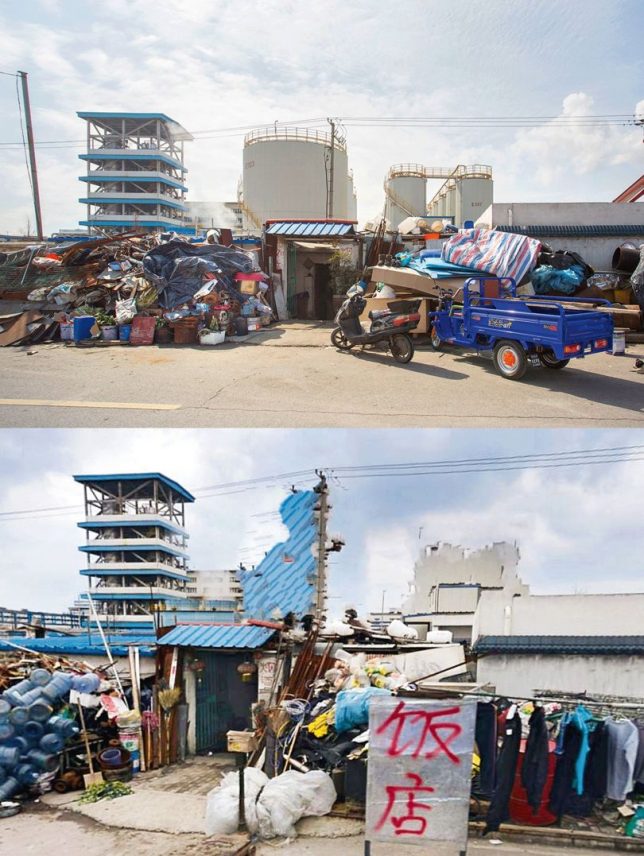
Glitch Cities: Buildings Mysteriously Deleted from Chinese ‘Street View’

10 Aug

[ By WebUrbanist in Art & Photography & Video. ]

deleted buildings

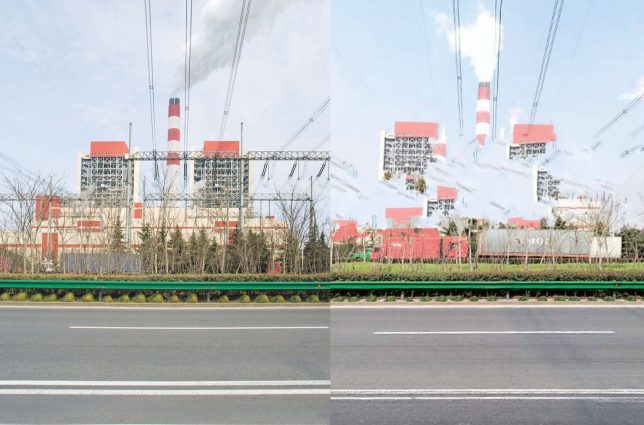
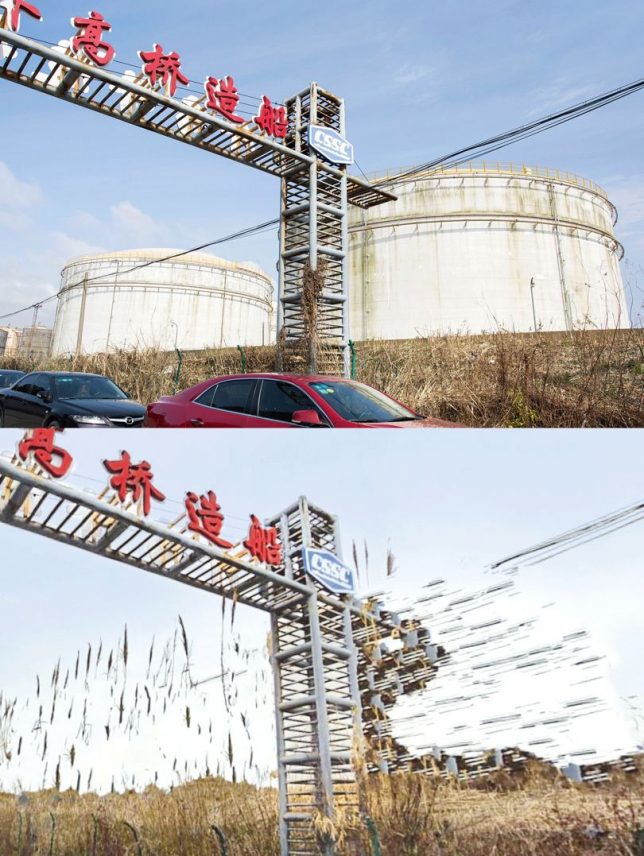
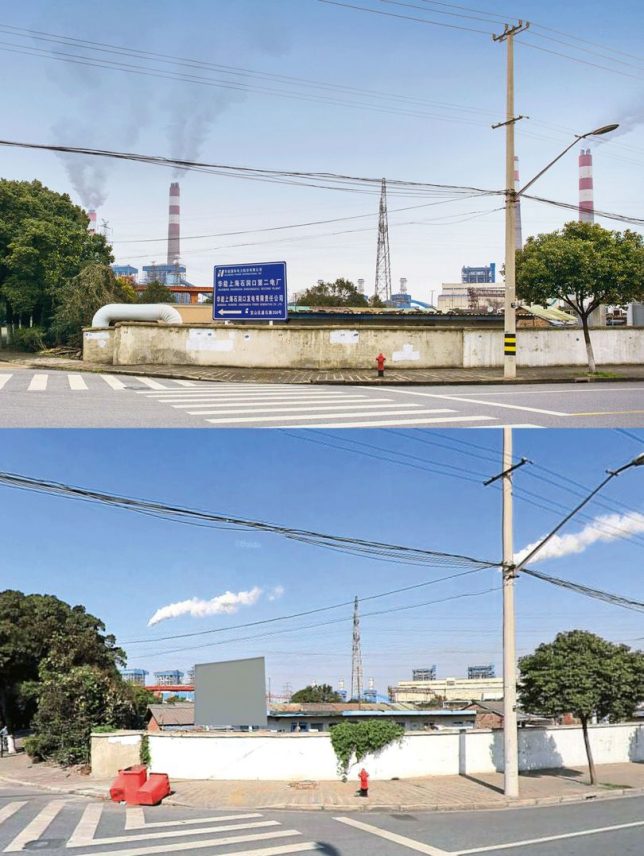
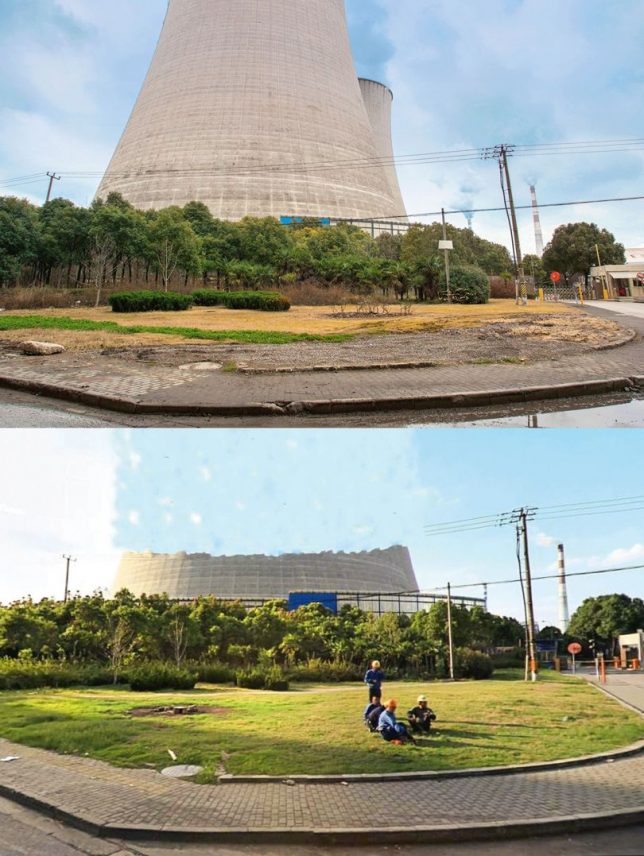
All kinds of architecture is being inexplicably erased from the Baidu Total View image database (analogous to Google Street View) … and whoever is behind it is doing an oddly haphazard job of removing things.

810 (4)

Freelance photographer Jonathan Browning encountered this mystery a few years ago. He was searching for locations on Total View and discovered a half-erased bridge near some sooty factories and industrial complexes.

810

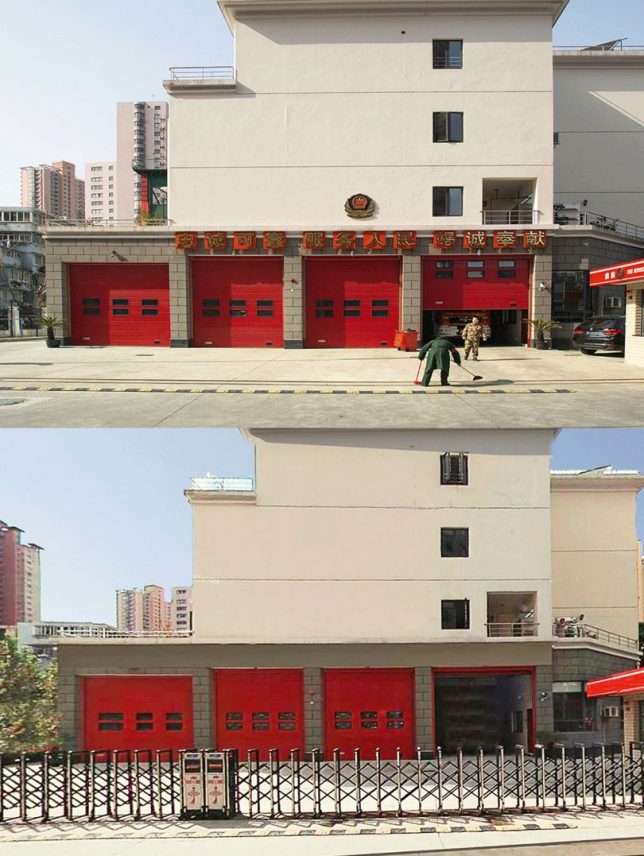
A resident of Shanghai, Browning dug deeper and found government buildings, prisons and other municipal infrastructure. These semi-deleted structures were all over, partially hidden in hundreds of Chinese cities viewed by hundreds of millions of monthly Total View users.

810 (2)

In some cases, the partial deletions seem intentional – a building might remain with its sign and smoke stacks gone. In other instances, at least some attempt has been made to erase the entire structure. Often, aftereffects of cloning tools and other basic Photoshop-style manipulations are easy to spot in the picture. Since some of these structures are high, many of them have to be edited in dozens of surrounding views, too. Even normal-sized, street-facing buildings often show up in a few different shots.

810 (1)

Like Google Street view, the images found on Baidu are assembled from shots taken from cars (or persons) with mounted cameras. Also like their international counterpart, Total View removes some sensitive details, but the removals in this case don’t add up in terms of privacy or national security. If anything, they leave traces and thus highlight areas that people like Browning might find worth exploring.

810 (3)

Of course, Browning had to be careful when driving around and photographing places that someone (corporate or governmental) had decided shouldn’t be on publicly-accessible image maps. In the end, no one seems quite sure what these attempted deletions are all about, and the Chinese government, as usual, isn’t saying a thing (via BldgBlog and Wired).

Share on Facebook


[ By WebUrbanist in Art & Photography & Video. ]

[ WebUrbanist | Archives | Galleries | Privacy | TOS ]


WebUrbanist

 
Comments Off on Glitch Cities: Buildings Mysteriously Deleted from Chinese ‘Street View’

Posted in Creativity


Dazzling images from the Astronomy Photographer of the Year 2016 shortlist

30 Jul

Astronomy Photographer of the Year 2016 shortlist

Flash Point © Brad Goldpaint (USA)

The Perseid Meteor Shower shoots across the sky in the early hours of August 13, 2015, appearing to cascade from Mount Shasta in California, USA. The composite image features roughly 65 meteors captured by the photographer between 12:30am and 4:30am.

The Royal Museums Greenwich has announced the shortlist for its eighth annual Insight Astronomy Photographer of the Year competition. More than 4500 entries were received from over 80 countries; winners will be announced on September 15, with winning images going into a free exhibition at the Royal Observatory. One overall winner will walk away with £10,000, and runners-up will take home £500 each. 

Here are just a handful of the more than 130 images that made the shortlist – head to the Royal Museums Greenwich site to learn more about the competition.

Astronomy Photographer of the Year 2016 shortlist

Seven Magic Points © Rune Engebø (Norway)

The rusty red swirls of the circular, iron sculpture Seven Magic Points in Brattebergan, Norway mirror the rippling aurora above.

Astronomy Photographer of the Year 2016 shortlist

Frozen Giant © Nicholas Roemmelt (Germany)

The celestial curve of the Milky Way joins with the light of a stargazer’s headlamp to form a monumental arch over the Cimon della Pella in the heart of the Dolomites mountain range in northeastern Italy.

Astronomy Photographer of the Year 2016 shortlist

M8: Lagoon Nebula © Ivan Eder (Hungary)

New stars are formed in the undulating clouds of M8, also commonly referred to as the Lagoon Nebula, situated some 5,000 light years from our planet.

Astronomy Photographer of the Year 2016 shortlist

Parallel Mountains © Sean Goebel (USA)

The shadow of Manua Kea, the highest peak in the state of Hawaii, is projected by the rising sun over the volcano, Hualalai, whilst the Full Moon soars above them, higher again.

Astronomy Photographer of the Year 2016 shortlist

Northern Lights over Jokulsarlon, Iceland © Giles Rocholl (UK)

A couple takes in the awe-inspiring sight of the Northern Lights streaking across the night sky over the lagoon at Jokulsarlon, Iceland on Valentine’s night of 2016.

Astronomy Photographer of the Year 2016 shortlist

Just Missed the Bullseye © Scott Carnie-Bronca (Australia)

The International Space Station (ISS) appears to pierce a path across the radiant, concentric star trails seemingly spinning over the silhouettes of the trees in Harrogate, South Australia.

Astronomy Photographer of the Year 2016 shortlist

Painted Hills © Nicholas Roemmelt (Germany)

With very little light pollution, the glimmering stars of the Milky Way bathe the colourful layers of the Painted Hills of Oregon in a natural glow.

Astronomy Photographer of the Year 2016 shortlist

Antarctic Space Station © Richard Inman (UK)

A view of the Halley 6 Research Station situated on the Brunt Ice Shelf, Antarctica, which is believed to be the closest thing you can get to living in space without leaving Earth, making it perfect to be used for research by the European Space Agency. As the Sun’s light dissipates into the horizon, the aurora can be seen swirling overhead.

Articles: Digital Photography Review (dpreview.com)

 
Comments Off on Dazzling images from the Astronomy Photographer of the Year 2016 shortlist

Posted in Uncategorized


LensRentals details its top ten favorite products from the past decade

30 Jul

Ten years have passed since our friends at LensRentals first launched as a small business operating out of a garage. The company has seen many changes over those years, both in its own operation and in the spheres of photography and videography, and it has highlighted some of those changes in a new blog post. The LensRentals team has detailed their top ten favorite products from the last decade.

‘What we’ve found, is that there is no right piece of gear for everyone,’ they say, ‘and we all have varying tastes and expectations when it comes to gear.’

The products, which aren’t listed in any particular order, run the gamut from cameras to lenses and a few different accessories. Most notably, Canon products took four of the ten slots, with both the 5D Mark II and 5D Mark III making the list, as well as its EF 400mm F4 DO IS II and 11-24mm F4L lenses. 

Pentax, Leica, Freefly, Profoto, Sony, and Sigma products fill out the remaining six slots, though as LensRentals notes: ‘the photography and videography industries have changed faster than ever before, so some pieces of gear had to be left out on our list.’ It’s a somewhat long read, but the LensRentals team takes the time to explain why each product earned it place on the list, and it’s well worth giving it a look.

Articles: Digital Photography Review (dpreview.com)

 
Comments Off on LensRentals details its top ten favorite products from the past decade

Posted in Uncategorized


Literal Streetwear: ‘Pirate Printer’ Lifts Patterns from Urban Objects

29 Jul

[ By WebUrbanist in Design & Products & Packaging. ]

street wear clothes

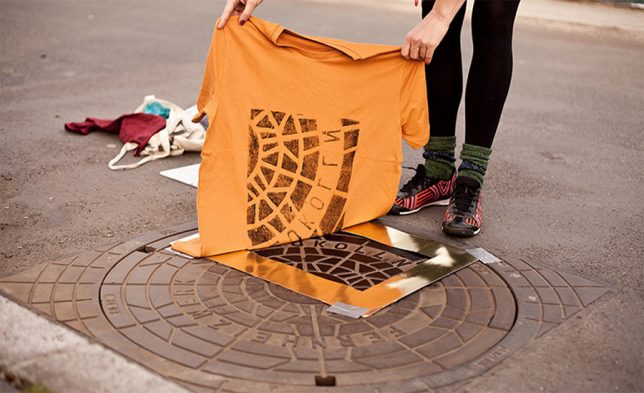
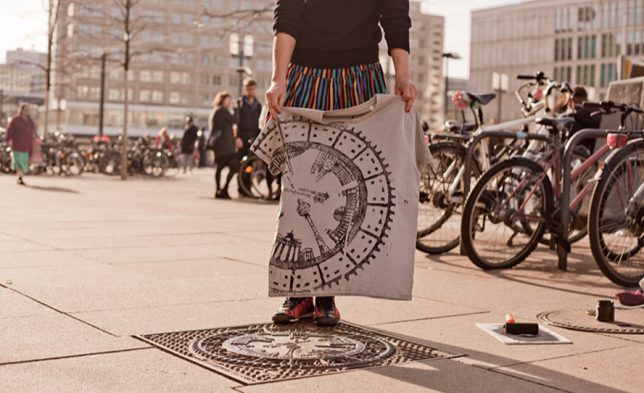
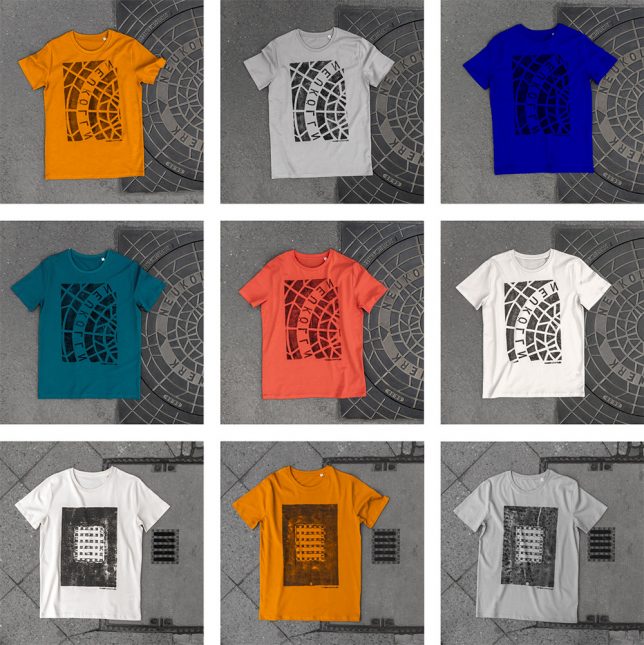
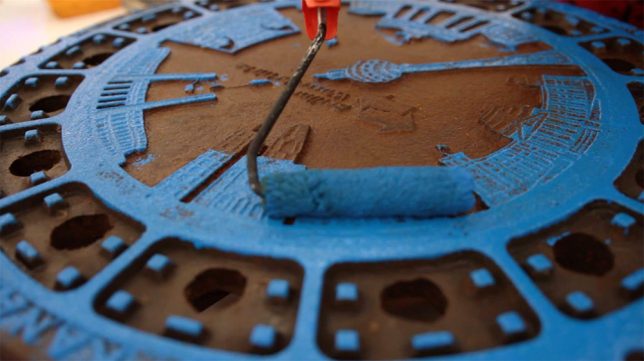
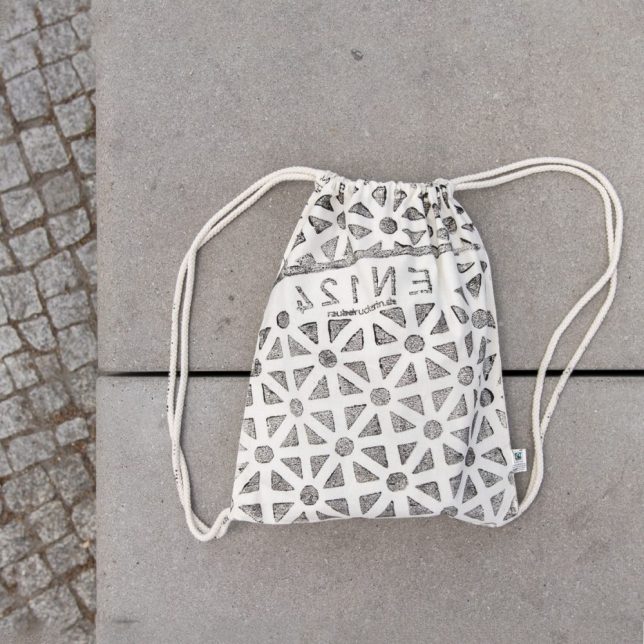
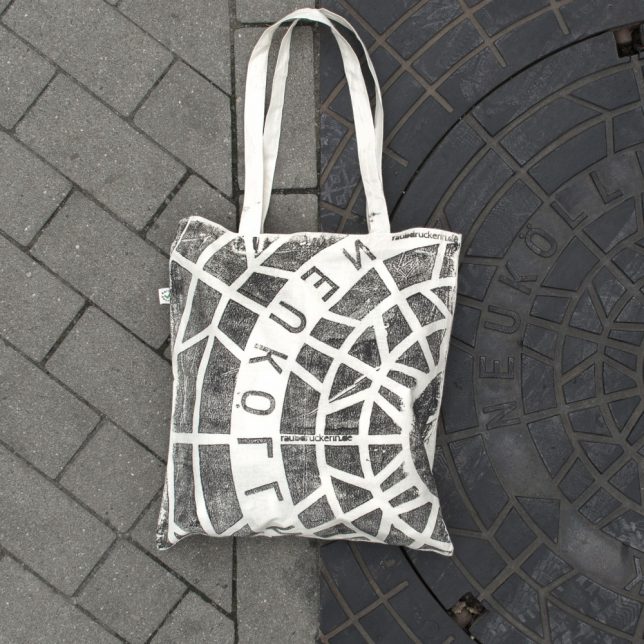
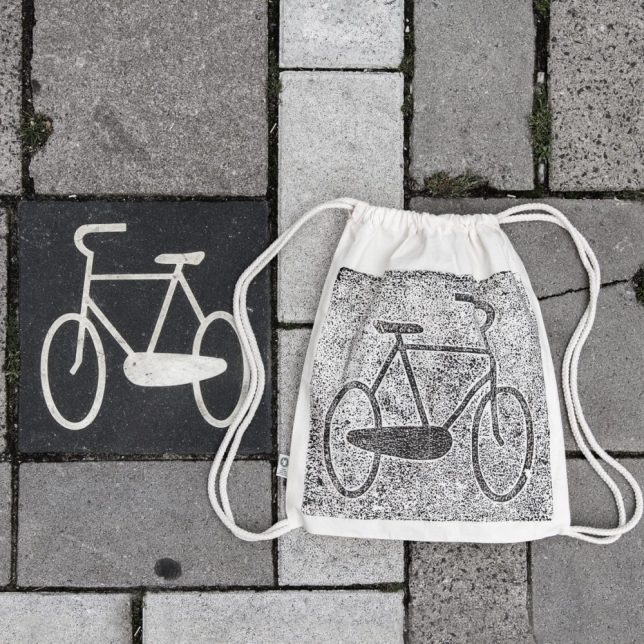
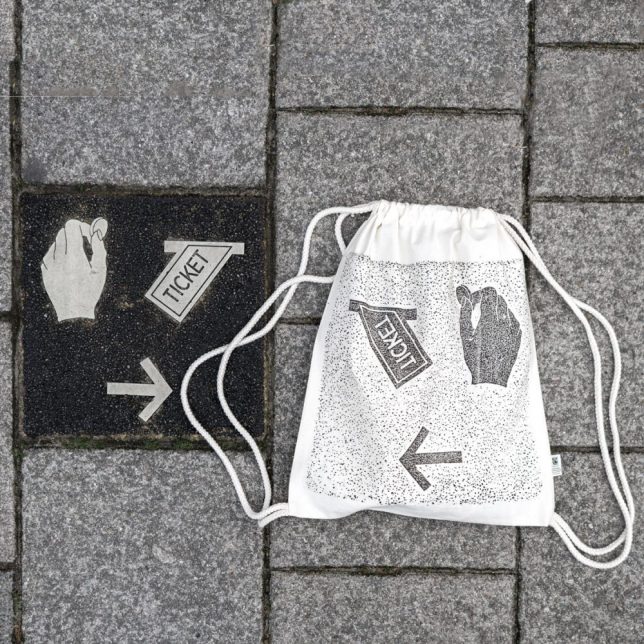
A Berlin art collective has taken to the streets, inking urban infrastructure and laying down shirts and tote bags to create a line of unique prints … their patterns directly lifted from city streets.

print process cover

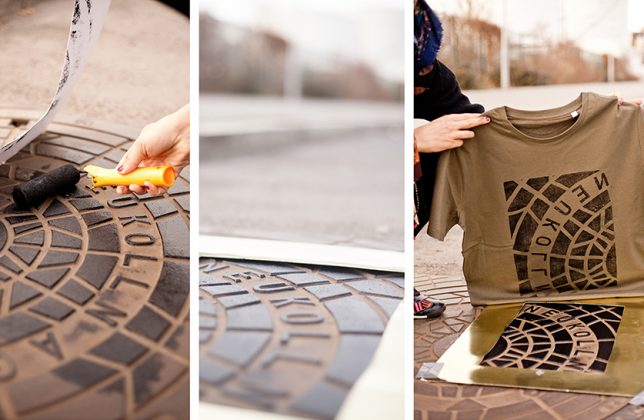
pirate pressed tshirts

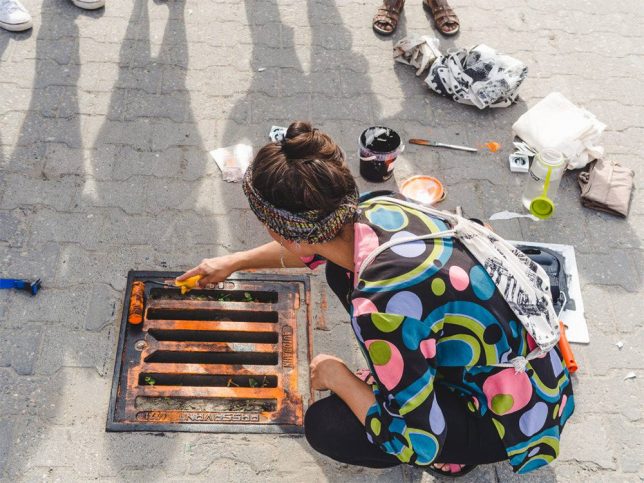
Raubdruckerin (AKA Pirate Printer) press apparel to painted manhole covers, utility grates, etched signage, vents and other objects that have depth differences (and thus themselves to the relief-printing process, like woodcuts or letterpress).

painted manhole cover

pirate clothing urban collection

painted city grate

The group rolls out different colors of ink, much as one would with any kind of etched or raised printing process, then lays cloth down and applies pressure. Depending on the size and type of the object in question, the prints are partial or complete pictures of a given urban artifact.

pirate patterned bag

manhole cover bag

bike path sign

ticket sign

The crew has traveled to Amsterdam, Lisbon, Paris and other iconic cities to capture some of their least-noticed but still-beautiful urban artifacts, transferring overlooked parts of these places to a new style of streetwear. Naturally, each one is a little different – even when the same street fixture is used, the re-inking process results in variegation from one print to he next (via Colossal).

Share on Facebook


[ By WebUrbanist in Design & Products & Packaging. ]

[ WebUrbanist | Archives | Galleries | Privacy | TOS ]


WebUrbanist

 
Comments Off on Literal Streetwear: ‘Pirate Printer’ Lifts Patterns from Urban Objects

Posted in Creativity


Don’t Delete Your Failed Images – Instead Learn from Your Mistakes with These Tips

28 Jul

I know you’ve done it. It’s okay to admit it. I’ve done it too! We all have! You’ve shot some terrible photographs.

Perhaps you shot the whole time in the wrong white balance, or you didn’t pay attention to shutter speed and everything is blurry. When this happens it’s incredibly disappointing. Frustrated and angry with yourself, you consider the experience a write-off, and delete the images. Then you head for the snack cupboard searching for some kind of solace.

But, everyone makes mistakes when they shoot, even professionals. There are times when we get excited and forget to check our settings, or make sure we are using the right lens for the right moment. It happens.

Image 1

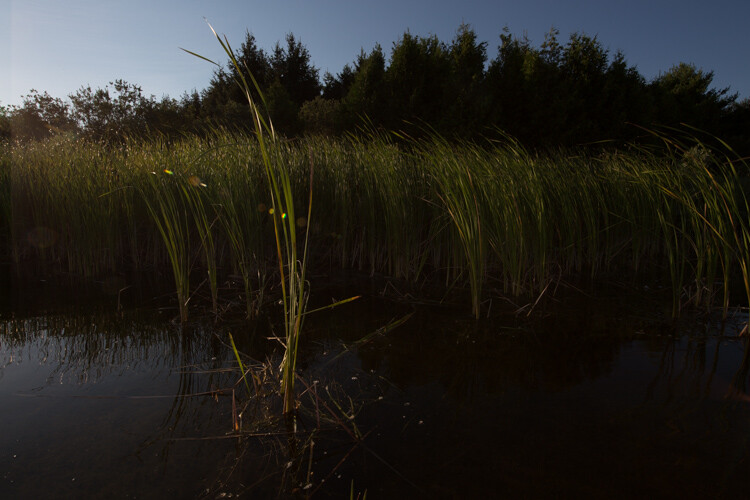
We were canoeing and in my rush to get an image of a small bird I underexposed the shot.

These failures don’t have to be a complete waste though. There’s nothing negative about making mistakes. Willie Nelson once said, “Once you replace negative thoughts with positive ones, you’ll start having positive results.”

So with that in mind, start looking at every photograph you take, as a step forward. Don’t delete those mistakes right away. You can learn a lot about taking good photographs from the missteps you make. I’ve met some photographers who have created a special file for all of their failures. Then when they have a little bit of time, they peruse through the collection and reflect upon them. This type of exercise can help you grow as a photographer.

There are lots of ways to reflect on your images. Some people make mental notes about their images. Others like to use a written journal format. I know of a few photographers who use the keyword section in Lightroom to make notes. I’ve even seen a detailed scrapbook in which the photographer printed out his failures and scribbled notes beside each. Just be sure to pick a format that works for you. Regularly reflecting on your work is important.

To start you down the path here’s a list of questions that you can use to help you reflect on your images.

Reflection Tips

  • In the first few seconds of viewing the photograph, what was the first emotion you experienced? Why? Now let it go. Detach from the emotion and be critical.
  • Why do you consider this image a failure? Don’t analyze too much just scribble down the first thought that comes to your mind. Try to make this part of the analysis a stream of consciousness.
  • What were your goals or intentions when you shot this image? Why were you unable to meet those goals?
  • If you could turn back time and reshoot the image what would you do differently?
  • Think carefully about the image and come up with one key piece of learning that you can take away from this experience.

Now let’s practice your reflection skills. It’s not easy to analyze your own photographs; it can take some time to perfect. Let’s analyze some of my failures, and some successes.

View each image, and really look at it in a critical sense. You can use the guiding questions from above to help you. After you’ve finished your reflection, scroll down and take a look at my notes, see if you agree with my thoughts. Perhaps you noticed something different then I did.

Image 2

What did you come up with? Keep in mind there’s no right or wrong to this whole process. Some people might argue the image isn’t a failure. I personally, hate it.

Notes about the image

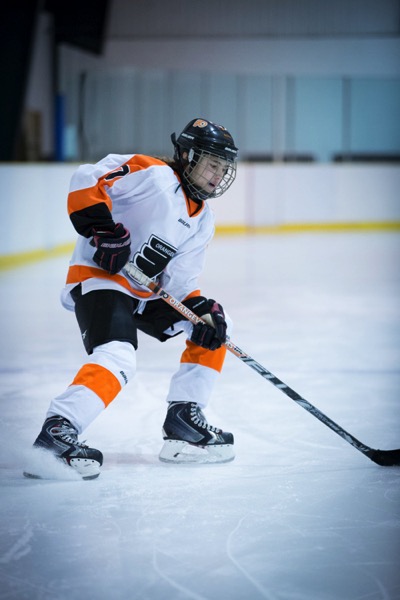
  • I cut off the hockey stick, it’s bad framing.
  • She’s looking down at the puck, there is no eye contact.
  • Loss of impact or connection with the viewer.
  • The edge vignette makes it too dark.

Ways to improve

  • Mark out the ice and give players a guideline for where to stop.
  • Remind players to look at the camera at all times.
  • Remove one complication by having kids skate without the puck (Photoshop the puck into the image in post-processing).

Image 3

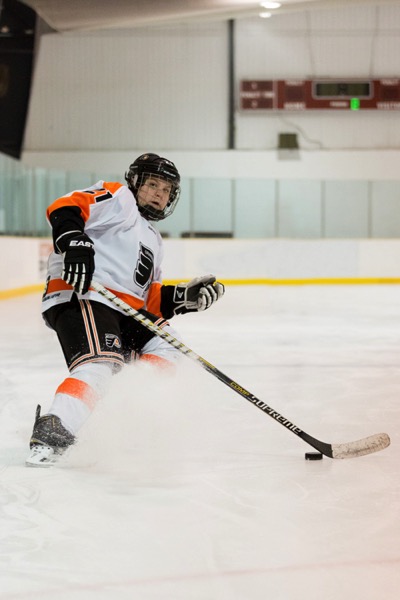
Compare the shot above, with the previous image. It was taken in the same arena a few months later. Do you think there’s a difference? The framing is certainly better and he makes eye contact with the camera. Have I improved over the first shot?

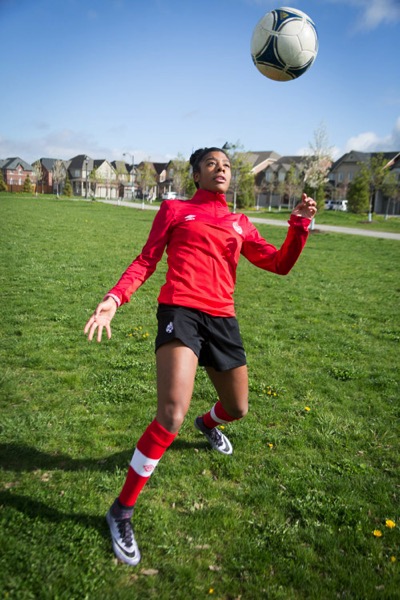
Let’s consider another mistake. This image was shot for a magazine article. Can you tell why it’s a fail?

Image 4

Notes about the image

  • Her face is slightly out of focus.
  • The client wanted a unique angle for the shot but the focus is on the ball.
  • The houses behind in the background don’t suggest or support that we are on a soccer field.

Ways to improve

  • Ensure the focus is on the correct part of the scene by using back button focus.
  • Always take the time to set up the scene. Remember that the background is as important as the foreground.
  • Direct the player more to remain in a certain area.

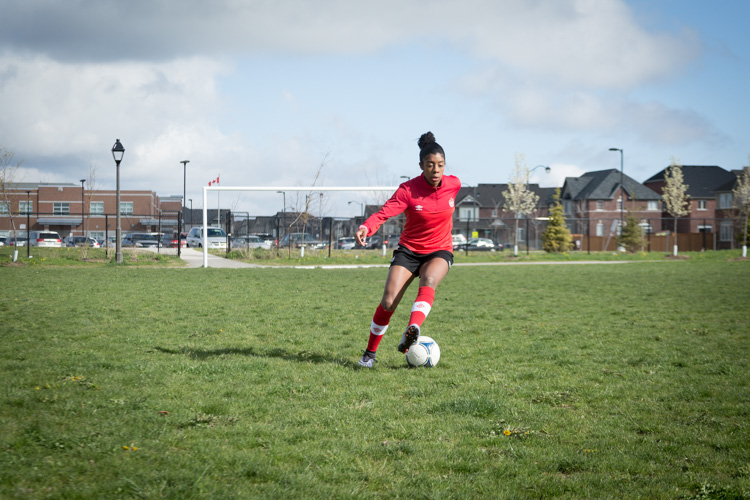
Here’s the image the magazine chose to use for the article. You can see how the background gives this image more context than the previous shot.

Image 5

The more you reflect upon your images, the more you will grow as a photographer. If you find you are stuck in a rut, this kind of activity may just be a way to move forward. Coming back to images after a few days, or weeks, is always a good idea. By separating yourself from the image it will help you to analyze it more carefully.

I’ve posted a few more images here for you to reflect upon below. Once you’ve finished analyzing my work, try it on some of your own shots. Leave some examples in the comments below, and include your reflections.

Image 6

Image 7

Image 8

This is an opportunity to grow and become a stronger photographer. I expect that everyone who shares will be heartened by the fact that they are not the only ones to have taken a bad photograph. If you choose to reply to other people’s posts, please be kind and be constructive. This is all in the name of learning, we are not here to criticize each other.

Keep in mind, even geniuses have some failures!

“I have not failed. I’ve just found 10,000 ways that won’t work.” – Thomas Edison

googletag.cmd.push(function() {
tablet_slots.push( googletag.defineSlot( “/1005424/_dPSv4_tab-all-article-bottom_(300×250)”, [300, 250], “pb-ad-78623” ).addService( googletag.pubads() ) ); } );

googletag.cmd.push(function() {
mobile_slots.push( googletag.defineSlot( “/1005424/_dPSv4_mob-all-article-bottom_(300×250)”, [300, 250], “pb-ad-78158” ).addService( googletag.pubads() ) ); } );

The post Don’t Delete Your Failed Images – Instead Learn from Your Mistakes with These Tips by Erin Fitzgibbon appeared first on Digital Photography School.

Digital Photography School

 
Comments Off on Don’t Delete Your Failed Images – Instead Learn from Your Mistakes with These Tips

Posted in Photography