RSS
 

Posts Tagged ‘faster’

Can we go Faster, Please? Lexar 1000x CF Cards

10 Dec

This isn’t so much a review as a “I had the chance to use the Lexar 1000x CF cards and wanted to tell you about my experience”

Time is one thing that we’re all finding we have less and less of, so anything that speeds a process up is a good thing. I’ve recently changed my focus (boom boom) in the kind of photography work I’m taking on, and find myself approaching weddings and portraits. Whilst a portrait shoot might be anywhere from 50 to 200 images, depending on what the person is after, a wedding might be 1000 images or even more – depending on the length of the wedding, the locations, the people involved etc… That can be anywhere from 20 to 40gb of images (camera depending, etc) and shifting that data into your computer can be time consuming.

Lexar 1000x memory cards

The Lexar is quick in camera, emptying the buffer more quickly than any of my other CF cards including, but only just, the Sandisk Extreme Pro, but that’s not really an issue for me – I shoot with a Canon 5DMKII and MKIII and the Sandisk and the Lexar are fast enough for burst modes in both of these cameras, despite the newer MKIII being almost twice as fast as the MKII.
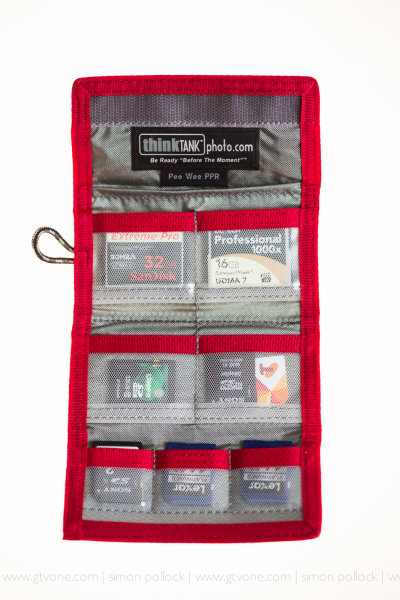
Though, this can be an issue when you’re shooting fast events or continually filling your buffer before the card can write that data to its memory. Where the 1000x really came into its own was when transferring to my laptop via USB3 – I’m fortunate to be using a mid 2012 Macbook Air when on a location shoot, and so can transfer my files using the Lexar USB 3.0 card reader and the USB3 port on the laptop. Zoom zoom zoom.

The speed difference between USB 2 and USB 3 is vast…. So, let’s go back to USB 1.0 — 12Mbps then, USB 2.0 at 480Mbps and we all ‘wowed’ so now, USB3.0 is able to transfer at a theoretical 4.8Gbps…..Don’t fear, I’m not going to geek out on you – let’s call it USB2 was fast at roughly 40Mbps, USB3 is about ten times as fast.

So, taking a 16GB card full of images and transferring them via the Lexar USB3 (UDMA7) reader means that your transfer takes no time, when compared with an older card….
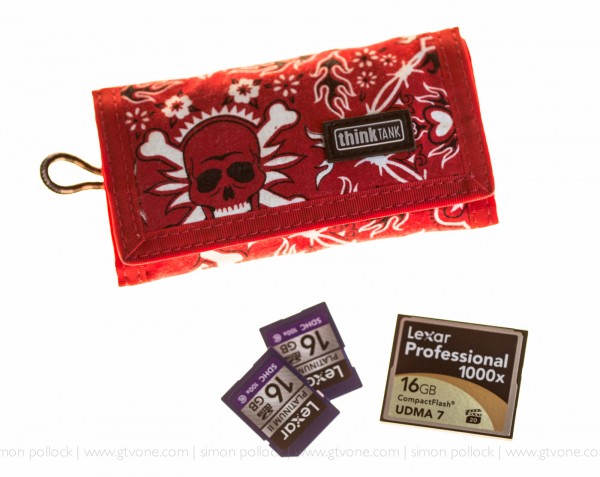
My basic test, for you, went like this… Take the iPhone stopwatch, take a 10gb file (Video) and transfer it to the card… Twice… Then download it again, twice!

We’ll start with the aData 16gb ….”not sure of the speed” CF card..

Upload to my aData 16GB card took — 08:11.7
Download from my aData 16GB card took — 04:07.3

Yeah, was like watching paint dry! – That card is a backup for when all else fails!

So let’s go to the Sandisk UDMA 7 Extreme Pro 32GB..

Sandisk Upload — 01:46.4
Sandisk Download —  02:56.3 (odd that up was faster than down, right? Well, this isn’t a lab)

Right then, let’s pop the Lexar 1000x 16gb CF card in… UDMA7

Lexar 1000x upload took — 02:15.8
Lexar 1000x download took — 01:22.6

Yeah, lightning! – That download was the important bit, the upload being plenty fast enough. From 4 minutes down when using the aData to 1:22 of the Lexar 1000x is pretty good.
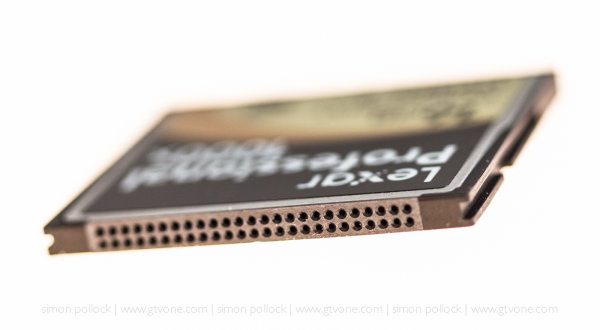
The Lexar comes with recovery software and is competitively priced. The Lexar 16GB is currently $ 77 and the Sandisk Extreme Pro 16GB is $ 79. The aData was about ten bucks, it’s true – you get what you pay for.

Lexar Professional 1000x 16GB

SanDisk 16GB Extreme Pro

So, bottom line, do you need to buy the fastest memory card on the planet? Well – A few questions – is your camera new enough to handle a UDMA7 memory card? Are you able to take advantage of USB 3 on your computer? Does your shooting style require faster memory cards? — If you’ve answered yes, then simply click the link above and buy one. (They are affiliate links, and we thank you for your continued support)

Now that you’ve read all this – maybe it’s time to pop across to another article on ‘how to care for your memory cards‘

Hope that helps some of you umming and ahhhing about the newer faster compact flash cards.

–Sime

Post originally from: Digital Photography Tips.

Check out our more Photography Tips at Photography Tips for Beginners, Portrait Photography Tips and Wedding Photography Tips.

Can we go Faster, Please? Lexar 1000x CF Cards

Digital Photography School

 
Comments Off on Can we go Faster, Please? Lexar 1000x CF Cards
Posted in Photography


5 Tips for a Faster Lightroom Workflow

17 Nov

At a recent workshop I joined, several of the attending photographers expressed frustration with the slowness of Lightroom, and were surprised to see how quickly I am able to process my photos in Lightroom. So I thought I’d share some of the workflow tricks that I’ve picked up over the last few years that have helped me get faster in Lightroom.

In addition to specific workflow practices, there are also some important configuration changes you can make to optimize Lightroom performance. However, in this post I will focus on workflow technique, not application configuration. Check out this post for more information on configuring Lightroom for optimal performance.

Note: The tips and screenshots in this article are from Lightroom 4.2, but most of these ideas are also applicable to older versions of Lightroom.

Let’s get on to the tips.

1. Start with Spot Removal, and use the 2003 process

As you begin to stack up edits in Lightroom, some of the tools get slower and slower. This is the nature of nondestructive editing. None of your edits have changed the underlying image data, so the more you do with an image, the more work your computer has to do to update the preview of your image in real time as you move sliders or work with other controls.

I’ve found this phenomenon to be the most annoying when using the Spot Removal tool to retouch portions of an image. Using the Spot Removal tool at the end of your workflow can be painfully slow. To address this, I’ve formed the habit of always doing spot removal first, before applying any other edits to an image. This is much faster, and there is also a creative advantage to removing the small distractions, before you go on to more serious editing work.

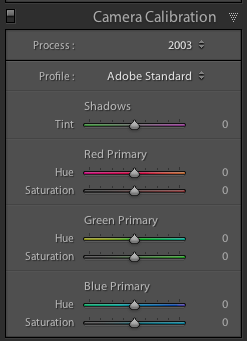
To further improve the performance of the Spot Removal tool, you can change to the “2003 Process.” This is especially helpful if you have an older computer. The process version is the algorithm that Lightroom uses to decode your Raw image file and display it in the Develop Module. Different process versions give you different options in the Development Module, with significant improvements in the later versions. The 2003 Process is the most basic, and therefore the fastest. The 2012 Process gives you much more flexibility, but is more resource intensive and forces your computer to work harder.

Check out this post for more information on process versions.

The process version setting is in the Camera Calibration section of the Develop Module:

screenshot showing Lightroom Camera Calibration Settings

In my own workflow, especially for portrait retouching were I use the Spot Removal tool extensively, I start by changing to the 2003 process, doing only spot removal, and then changing back to the 2012 process for the rest of my edits.

CAUTION: since the process versions are very different, some controls get zeroed out when you move between process versions. Avoid making adjustments like contrast, tone curve, noise reduction, sharpening, etc while you’re in the 2003 process as you might lose some of those settings when you return to the 2012 process. Just do your spot removal in the 2003 process, and then go back to 2012 process for the rest of your editing work. Doing this at the very beginning of your workflow saves time and makes for a happier, snappier, spot removal experience.

2. Learn (and use) keyboard shortcuts

There’s a lot going on in the Lightroom interface. Using just your mouse or trackpad to get from place to place can really slow you down. Use keyboard shortcuts to jump straight to the tool you need.

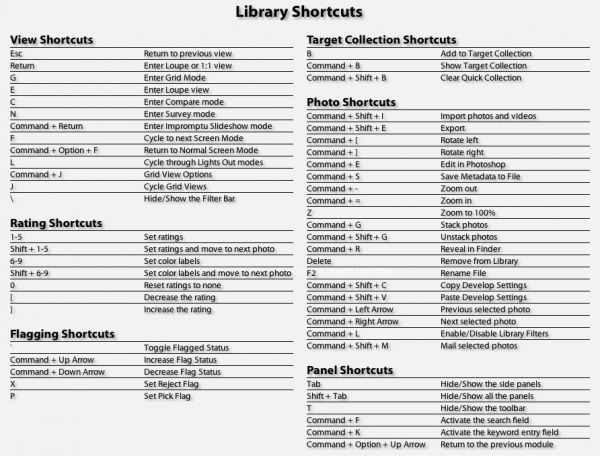
Lightroom has a help screen that will show you the keyboard shortcuts for the module you’re currently in. Look under Help > Lightroom Module Shortcuts, or use this keyboard shortcut:

Mac: CMD /
Windows: CTRL /

screenshot of the Lightroom Keyboard Shortcut help screen

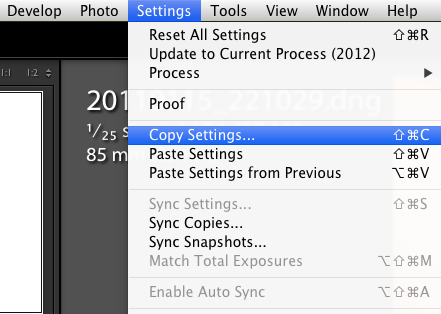
In additional to consulting this screen, I also recommend learning the shortcuts as you go. As you navigate a menu for a certain control, take note of the keyboard shortcut and try to use it next time:

screenshot showing one of the menus in Lightroom

“Note to self, press SHIFT CMD C next time!”

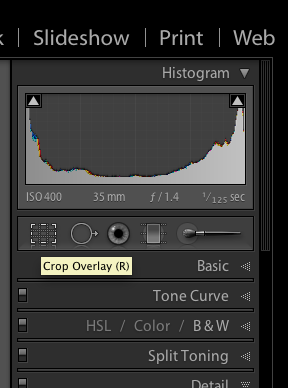
Or when you reach for your mouse to access a tool in the interface, like the crop tool for example, hover over the tool and take note of the keyboard shortcut, then try to remember it for next time.

Screenshot showing a tooltip in Lightroom

“Note to self, press R next time!”

This is a good way to teach yourself the keyboard shortcuts that are most useful for you in your own workflow. You’ll be learning them in the order that is most useful for you personally.

There are lots of keyboard shortcuts in Lightroom, but here are the ones I use the most:

Changing Modules and Views

E – Enter Loupe View
D – Enter Develop Module
G – Enter Grid View

Develop Module Shortcuts:

\ – Toggle before / after view
Q – Enter Spot Removal Mode
M – Enter Graduated Filter Mode
K – Enter Adjustment Brush Mode
V – Toggle between Black and White and Color
W – White Balance Selector
R – Enter Crop Mode
Shift CMD C (Shift CTRL C on Windows) – copy develop settings
Shift CMD V (Shift CTRL V on Windows) – past develop settings

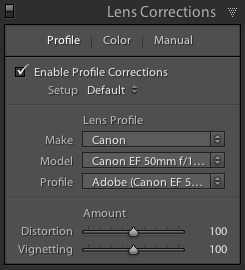
3. Enable Lens Correction at the end of your processing workflow

Lightroom includes lens profiles for many common lenses. Lens Correction works well to remove distortion and vignetting, especially from wide angle lenses. Sometimes this improves the image, sometimes it doesn’t.

If you choose to enable lens correction for a particular photo, enable it near the end of your workflow after you’ve made your other adjustments. Many of the controls in Lightroom, especially the Spot Removal tool and the Adjustment Brush, run more slowly with Lens Correction turned on.

screenshot showing Lightroom Lens Corrections Settings

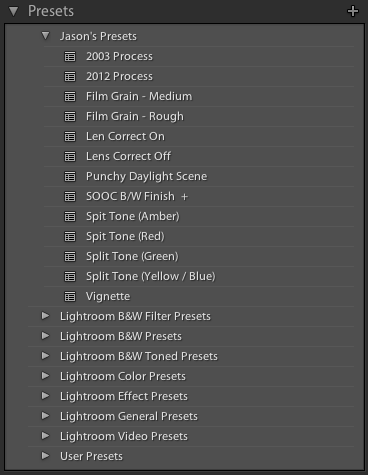
4. Create Develop Presets for commonly used settings

In addition to using develop presets to quickly apply a desired visual effect, I also use them to reduce the number of mouse clicks required to access certain controls in the GUI, for which there is no keyboard shortcut. This is particularly useful for changing process versions quickly, as mentioned in #1 above, or for toggling lens corrections on or off.

screenshot showing Lightroom Develop Presets

I’m basically using develop presets to pull some commonly used controls to the top of the GUI. It’s like creating a custom button.

To create a Develop Preset:
1. Apply some settings to a photo in the develop module.
2. Navigate to the Develop menu and select “New Preset…”
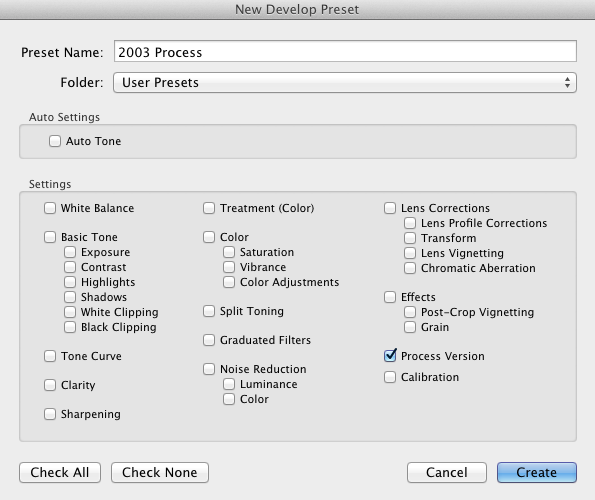
3. Check the box next to the settings you want captured in the new Develop Preset

screenshot showing how to create a Lightroom Develop Preset

5. Shoot smaller files

This is not for everyone, and not for every situation, but there are times when you don’t need that full 18, or 22, or 36 megapixel Raw file. Depending on the project at hand, a 10mp file may be more than enough, and shooting smaller files are much faster to work with on the computer. Personally, I have a hard time letting go – when I shoot smaller files I always worry that I’m missing something. But it’s worth considering a smaller file size from time to time. What are you going to do with the photo? If you have a specific usage in mind and you know that you don’t need the full resolution your camera can capture, try shooting a smaller size.

I hope this article has been helpful, and that you’ve found at least one trick that you can use to get a little faster in Lightroom. Studying and processing your photos improves your creative vision, which over time impacts your shooting decisions. So a solid post-processing workflow is essential to developing yourself as a photographer.

Post originally from: Digital Photography Tips.

Check out our more Photography Tips at Photography Tips for Beginners, Portrait Photography Tips and Wedding Photography Tips.

5 Tips for a Faster Lightroom Workflow


Digital Photography School

 
Comments Off on 5 Tips for a Faster Lightroom Workflow

Posted in Photography


Eye-Fi gets larger and faster with 16GB Class 10 Wi-Fi SD card

16 Oct

Pro-X2_16GB.png

Eye-Fi has launched the Pro X2 16GB, its largest Wi-Fi SD card, and its fastest yet. The Pro X2 retains all the existing capabilities of the existing 8GB version, including upload to a smartphone, direct connection to a Wi-Fi network, auto backup and Raw file transfer. Despite the capacity and speed hike (the previous version was rated as Class 6), the Eye-Fi Pro X2 16GB retains the recommended selling price of $ 99.99, with existing models having $ 20 knocked off their prices. Customers in Australia and Japan will be next to receive the card.

News: Digital Photography Review (dpreview.com)

 
Comments Off on Eye-Fi gets larger and faster with 16GB Class 10 Wi-Fi SD card

Posted in Uncategorized


DxO Labs announces Optics Pro 7 with faster performance

26 Nov

DxO_Optics_Pro_7_Elite.png?v=1233

DxO Labs has announced that Optics Pro 7, the latest version of its Raw processing and optical correction software, will be available from November 30th. The company says version 7 has been extensively re-written to make it faster – up to four times faster in the case of batch processing. Version 7 also includes support for popular enthusiast cameras, such as Fujifilm’s X100 and Sony’s A77, as well as more than 300 additional camera/lens Optics Modules. Refinements include an improved lens softness tool that attempts to correct for inherent lens softness without interfering with bokeh in out-of-focus regions. DxO Optics Pro 7 will be available with a 33% discount until December 24th (and free to users who bought version 6 after September 1st).

News: Digital Photography Review (dpreview.com)

 
Comments Off on DxO Labs announces Optics Pro 7 with faster performance

Posted in Uncategorized


Instagram v2.0 offers faster processing, larger images and more options

23 Sep

Instagram has updated its popular free image processing and sharing app to version 2.0, adding an revised interface and more features. Instagram v2.0 includes an improved user interface, faster image processing and the ability to save its processed images at higher resolution. The app still only shares low-res versions of files but allows you to save full resolution versions to your ‘phone (10x larger in the case of the iPhone 4). The latest version also adds four more processing filters and the option to add or remove borders from the existing ones.
News: Digital Photography Review (dpreview.com)

 
Comments Off on Instagram v2.0 offers faster processing, larger images and more options

Posted in Uncategorized