RSS
 

Posts Tagged ‘Explained’

The Samsung Galaxy S9+’s dual aperture feature explained

11 May
The wide-angle camera on the Samsung S9+, along with its smaller S9 sibling, comes with an adjustable aperture, offering either F1.5 or F2.4.

In a never-ending quest for better image quality, smartphone manufacturers are turning to all sorts of tricks to eke better performance out of very small image sensors. But through all the software, algorithms and dual-and-triple camera setups, the Samsung Galaxy S9 and S9+ flagship phones have joined a very select club of smartphones with real aperture settings. The S9+ will automatically switch from F1.5 to F2.4 depending on your lighting situation, and you can manually select it in ‘Pro’ mode.

Going from F2.4 to F1.5 on the Galaxy S9+ gives you nearly a stop and a third of extra light

So what are the potential benefits of having aperture control on a smartphone anyway? According to Samsung, “the category–defining Dual Aperture adapts to bright light and super low light automatically, like the human eye. And you can flex your artistic side, toggling the aperture to create a mood.”

Just ‘flexing my artistic side’ by manually choosing F1.5 and shooting into the sun. Out-of-camera JPEG.
ISO 50 | 1/516 sec | F1.5

All that strikes us as a little ‘over-the-top,’ but there is some potential here. Going from F2.4 to 1.5 gives you nearly a stop and a third of extra light, and will keep your ISO value down (or your shutter speed up) in dim conditions. But we were also curious about the quality in other situations; after all, these apertures are equivalent to F9 and F14 on full-frame. Could shooting the wider aperture in bright light give you sharper images by having less softness from diffraction?

Landscape quality

$ (document).ready(function() { ImageComparisonWidget({“containerId”:”reviewImageComparisonWidget-3103211″,”widgetId”:612,”initialStateId”:null}) })

As you can see in a variety of areas$ (document).ready(function() { $ (“#icl-4080-1185640169”).click(function() { ImageComparisonWidgetLink(4080); }); }), this isn’t the case$ (document).ready(function() { $ (“#icl-4081–573727960”).click(function() { ImageComparisonWidgetLink(4081); }); }) – the corners in particular are softer$ (document).ready(function() { $ (“#icl-4083-1993239441”).click(function() { ImageComparisonWidgetLink(4083); }); }) at F1.5.

F1.5 F2.4

Here’s an easy-to-see example of the difference in detail capture, despite all the Galaxy S9+ is doing behind the scenes to make these look as detailed as possible. It’s important to put this in context, though: when flipping between these two images full-screen on the S9+ they look identical. So unless you’re planning on making prints from your cell phone landscapes, it probably doesn’t matter all that much which aperture you (or the phone) pick.

Let’s see what sort of difference the aperture makes with a close subject, and distant background.

Close focus quality

Disappointingly, the S9+ and its included applications don’t allow you to use any computational background blur wizardry on images shot using the wide-angle camera that it does allow on its telephoto one (the smaller S9 on the other hand, which only has a wide angle camera, does let you do this). So does having a wider aperture give you some buttery background blur naturally?

$ (document).ready(function() { ImageComparisonWidget({“containerId”:”reviewImageComparisonWidget-46915080″,”widgetId”:613,”initialStateId”:null}) })

While there is a difference in background blur between the two apertures, it’s nothing like shooting with a wide-aperture prime lens on an interchangeable lens camera – but nor would we really expect it to be. But we do see how the phone’s noise reduction techniques deal with fine gradients in out of focus areas$ (document).ready(function() { $ (“#icl-4085–1726942983”).click(function() { ImageComparisonWidgetLink(4085); }); }).

F1.5 F2.4

Low light performance and takeaways

In really low light conditions, the faster aperture will definitely get you better shots on the Galaxy S9 and S9+ than if you were forced to use the camera at F2.4. Optical image stabilization means that you can hand-hold images down to a reasonably slow shutter speed, and the phone can keep its ISO more than a stop lower – as long as your subjects aren’t moving.

Out-of-camera JPEG.
ISO 50 | 1/13 sec | F1.5

But as I found out while shooting a dimly lit concert with the Galaxy S9+, Samsung’s latest flagship camera phone still isn’t a match for low light and moving subjects in its fully automatic mode (you can switch into ‘Pro’ mode and force higher ISO values or shutter speeds if you’re an advanced user). We are still working through our testing and plan on doing side-by-side comparisons with phones such as Google’s Pixel 2, which intelligently stacks images together even in low light situations.

This photograph taken at 1/30 sec in ‘auto’ was the only one that wasn’t blurred to oblivion. Out-of-camera JPEG.
ISO 800 | 1/30 sec | F1.5

Now it’s true that for casual shooters taking their phones out to dinner and photographing their friends and their food, the camera will automatically switch to F1.5 will help them get shots with more detail and less noise reduction, while using an F2.4 aperture will get them slightly better quality in daylight.

But we can’t help wondering if this is a little ‘gimmicky’ – the drop in detail at F1.5 is unlikely to be a deal breaker for these sorts of users, and if Samsung didn’t have to squeeze an aperture blade system into the lens design, could they simply have made the lens perform better wide open? The system looks to have real blades that expand and contract, but you’re only allowed a toggle between the two values.

We don’t know for sure, but we’ve still got lots of testing on the Galaxy S9+ over the coming weeks. Stay tuned for our full review.

Articles: Digital Photography Review (dpreview.com)

 
Comments Off on The Samsung Galaxy S9+’s dual aperture feature explained

Posted in Uncategorized


Video: DxOMark’s smartphone rating system explained

14 Oct

Marques Brownlee has one of the most popular photo and video-focused YouTube channels out there—boasting some 5.2 million subscribers—and his most recent video takes on a subject that many in the photo world argue about ad nauseam: DxOMark ratings. The video is currently the #7 trending video on all of YouTube, and it’s definitely worth a look, especially if you don’t fully understand how DxO comes up with its overall ratings, photo ratings, video ratings and beyond.

The first half of the video breaks down how DxOMark’s testing system actually works, and how scores in individual categories are compiled into an overall Photo and Video score, which is compiled into an overall score for the device. The second half of the video is where it gets really interesting, however.

Brownlee spends the last 6 minutes or so of the video tackling a few different subjects:

  1. How DxOMark’s role as a consulting firm leads to some speculation about how certain manufacturers might be tuning their devices so they’ll perform better on DxO’s testing system, and whether that always translates
  2. How the scores are NOT based on a maximum score of 100.
  3. How we really ought to expect every new smartphone or camera to be the “best” DxOMark has ever tested, because the tech ought to be getting better every year.
  4. And how the Tech Press at large isn’t very good about explaining DxO scores and often just throws out an overall score for clicks.

That last part is something we do our best to avoid here at DPReview—diving into individual scores and breaking down some of the more subjective assumptions, like we did with the Pixel 2—but something we’re certainly not immune to either.

In the end, Brownlee’s video helps to explain how DxOMark scores are arrived at, the questions you should ask when you look at those scores, and the kind of in-depth analysis you should demand from your tech publications when they share those scores. Yep, that includes us.

Check it out for yourself at the top, and let us know what you think in the comments down below.

Articles: Digital Photography Review (dpreview.com)

 
Comments Off on Video: DxOMark’s smartphone rating system explained

Posted in Uncategorized


Video: The difference between Saturation and Vibrance explained

29 Sep

You’ve probably heard this question once or twice from a novice, or maybe even asked it yourself: what exactly is the difference between the Vibrance and Saturation sliders? Well, fortunately, Jesus Ramirez of Photoshop Training Channel has put together a quick, simple, and thorough explanation that you can reference from here on out.

At the most basic level, both options increase color intensity—the difference lies in which colors they affect and how.

Saturation impacts all color intensity equally, which is why it’s so easy to go overboard so quickly. Vibrance, on the other hand, only increases the intensity of the less saturated colors in an image while simultaneously trying to avoid skin tones and prevent the gaudy posterization that happens when you crank your saturation up to the max.

Jesus covers this difference in his video—with appropriate demos of course—but he also goes a bit further by diving into how the Saturation slider differs between the HSL panel and the Vibrance panel, and showing how the two options, Vibrance and Saturation, can be combined to achieve pleasing results that don’t look like you puked a rainbow all over your image.

Check out the full 5-minute video above to see the useful rundown for yourself, and then head over to the Photoshop Training Channel for even more handy tutorials like this one.

Articles: Digital Photography Review (dpreview.com)

 
Comments Off on Video: The difference between Saturation and Vibrance explained

Posted in Uncategorized


Rolling shutter explained with simple side-by-side examples

01 Jul

We hold accurate technical knowledge in pretty high regard around here, which is why this video from YouTube channel SmarterEveryDay was such a pleasant surprise.

In 7 minutes, engineer Dustin Sandlin does a fantastic job explaining rolling shutter with plenty of useful examples where he simulates the rolling shutter effect using high-speed camera footage and After Effects. In this way, he can actually show you how rolling shutter distortion happens; in fact, he can recreate it perfectly:

In the example above, he basically recreates what happens in every single frame of a 24fps iPhone video when you’re recording an airplane propeller. As the green line moves down, it scans the prop… but the prop is moving, and so it’s causing this strange distortion known as the ‘rolling shutter effect.’

In this example, he actually traces the lines as your camera is seeing them over the course of the exposure:

You will capture different patterns depending on which way the propeller is rotating, but it’s not a guessing game. You can actually visualize it when you slow the footage way down the way Dustin has.

But he doesn’t stop with propellers (which is where most breakdowns of rolling shutter end), he goes on to show you how this affects cell phone video of all kinds of things. Fidget spinners, a coin spinning on a table top, guitar and mandolin strings, you name it: the rolling shutter effect visualized and simulated/recreated by using high speed footage.

Definitely check out the full video up top to really see rolling shutter in action. If you’ve always had a hard time conceptualizing how the rolling shutter effect worked, and why it produced the shapes it does, you won’t find a better side-by-side comparison than this.

And if you like this, definitely check out Dustin’s YouTube channel. This is far from the only interesting, educational and just plain cool thing on SmarterEveryDay.

Articles: Digital Photography Review (dpreview.com)

 
Comments Off on Rolling shutter explained with simple side-by-side examples

Posted in Uncategorized


Photography fundamentals explained

19 Feb

Want to brush up on some basic concepts? Here you’ll find detailed explanations of some of the fundamentals of digital photography. Get your science on and impress all your friends at the next dinner party.

Sources of noise part two: Electronic Noise
234

Sources of noise part two: Electronic Noise

Following on our look at the effects of shot noise, our attentions turn to the electronic noise added by your camera. In this second part of the series, we look at read noise and how your sensor’s behavior defines what your camera is capable of and consequently, how you should shoot with it. Read more

The effect of pixel size on noise
99

The effect of pixel size on noise

A quick look at the effect of sensor size and pixel size on noise.

What's that noise? Part one: Shedding some light on the sources of noise
713

What's that noise? Part one: Shedding some light on the sources of noise

How would you react if you were told that the aperture and shutter speed you choose make more difference to image noise than the ISO setting? You might be surprised to discover that a lot of the noise in your images doesn’t come from your camera at all: it comes from the light you’re capturing. Our own Richard Butler explains. Read more

What is equivalence and why should I care?
2348

What is equivalence and why should I care?

Equivalence, at its most simple, is a way of comparing different formats (sensor sizes) on a common basis. Sounds straightforward enough, but the concept is still somewhat controversial and not always clearly understood. We thought it was about time we explained – and demonstrated – what equivalence means and what it doesn’t. Learn more

Sense and Sensitivity
0

Sense and Sensitivity

Sensitivity (ISO) in digital imaging is the subject of quite a lot of confusion – it’s becoming common to hear talk of manufacturers ‘cheating with ISO.’ Here we look at why sensitivity can be hard to pin down, why we use the definition we do and how it’s really as complicated as it can seem.

Behind the scenes: extended highlights!
3

Behind the scenes: extended highlights!

Sensors, sensitivity, exposure and dynamic range (blog post)

Articles: Digital Photography Review (dpreview.com)

 
Comments Off on Photography fundamentals explained

Posted in Uncategorized


How to Swap Colors in Photoshop – Two Methods Explained

12 Jan

Color swapping in Photoshop is both a fun thing to do and a very handy tool for product photographers with clients in need of options. It’s not a hard technique and it only takes a try or two to get it right. This article outlines two methods for how to swap colors in Photoshop.

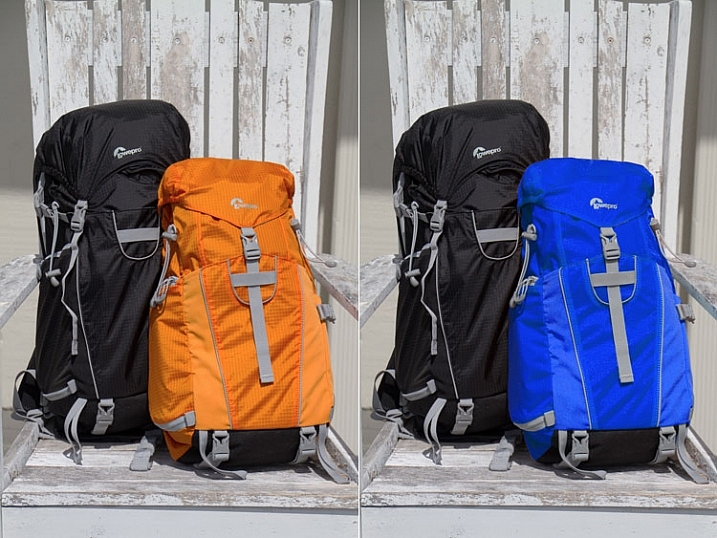
final-side-by-side-color-swap


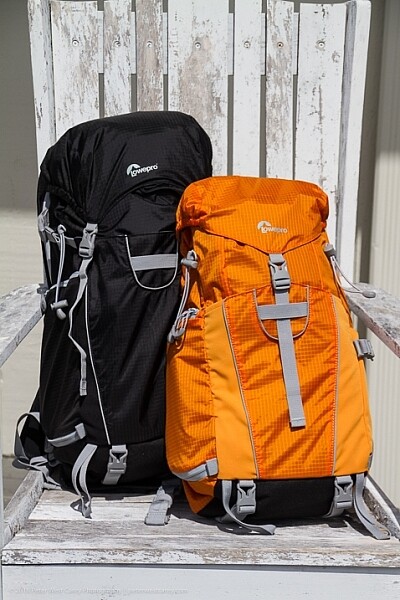
The first is a quick method and the second tends to do a better job. I’ll be using this the image below from my review of the Lowe Pro Photo Sport 100/200 AW bag. This demonstration was created with Photoshop CC 2017.

The Quick Method

This method is a quick color swap that may or may not cover your needs. If your subject has nice, solid colors without very much tonal difference, you can likely use this method by itself. Go ahead and open your file in Photoshop and let’s get started!

How to Swap Colors in Photoshop - Two Methods Explained

Sample Image

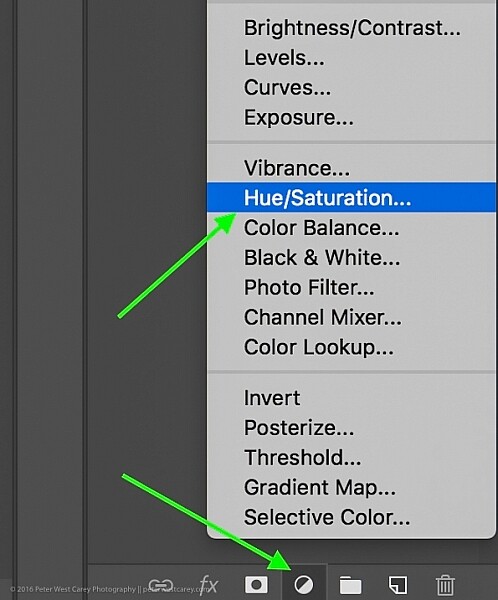
Step #1 Create a Hue/Saturation Adjustment Layer

Click on the “Create New Adjustment Layer” button on the bottom of the Layers panel and choose “Hue/Saturation”.

How to Swap Colors in Photoshop - Two Methods Explained

Choose Hue-Saturation

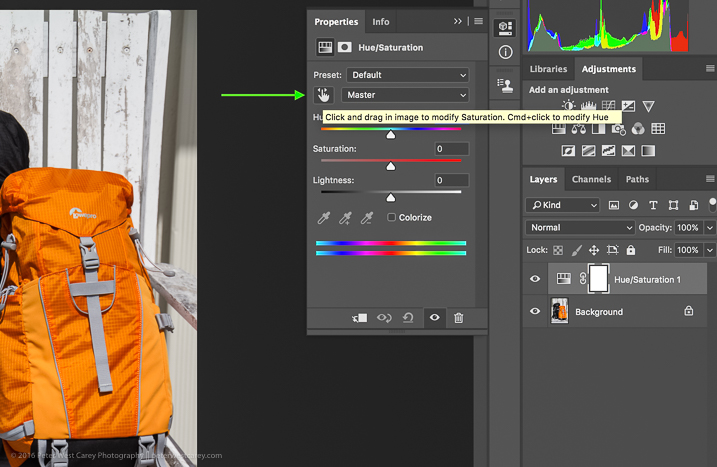
In the Properties window that pops up, there is a little hand with a pointer finger in the upper left side of the box. Click that.

How to Swap Colors in Photoshop - Two Methods Explained

This is where my method deviates from some others. As you can see in the image above, there is an option to hold Cmd/Ctrl as you drag the mouse, and change the Hue straight away.

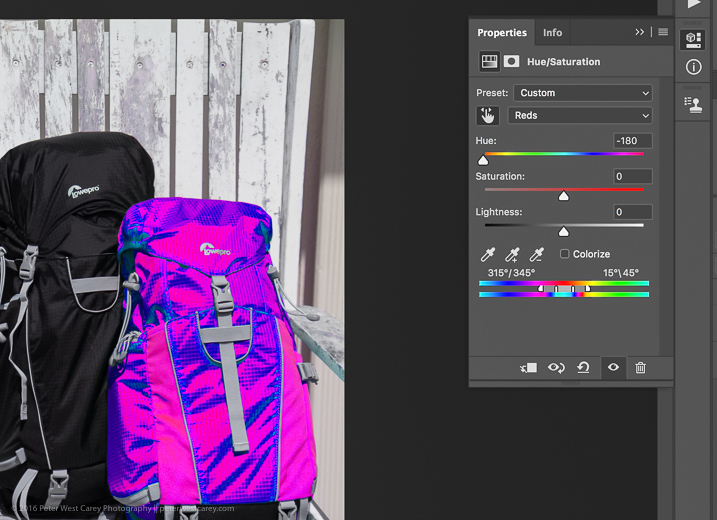
This is a tempting method, for sure. But it won’t always get you as close to your desired results as if you follow the rest of these instructions. For instance, I used that method to try to change the orange pack to blue and this was the result.

How to Swap Colors in Photoshop - Two Methods Explained

Not what I wanted. So….

Step #2 – Select a color range

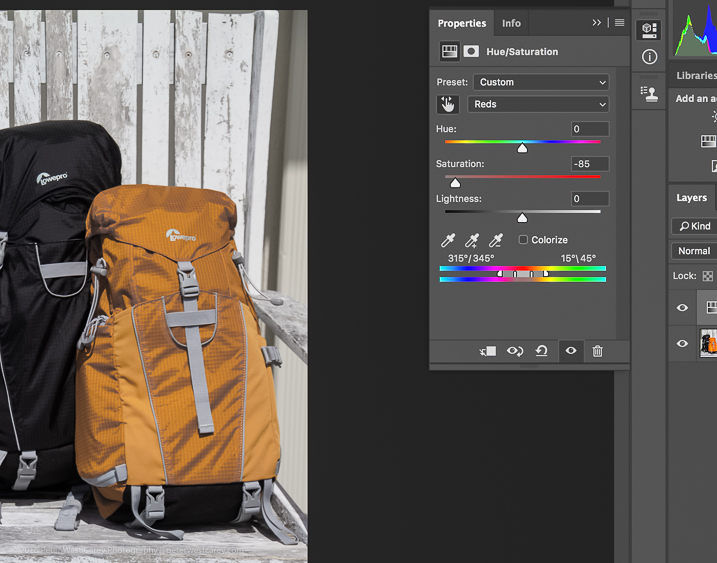
After you click that little finger and hover over your source color (the orange bag), click there to select the color. Your screen will change depending on which color you pick, but more or less it will look a little like this.

How to Swap Colors in Photoshop - Two Methods Explained

I chose a dark spot so my saturation for all orange dropped and now there is a little slider in the color bands at the bottom of the properties box. You will be using those bands and the saturation slider to refine your selection.

Step #3 – Adjust to get all the color

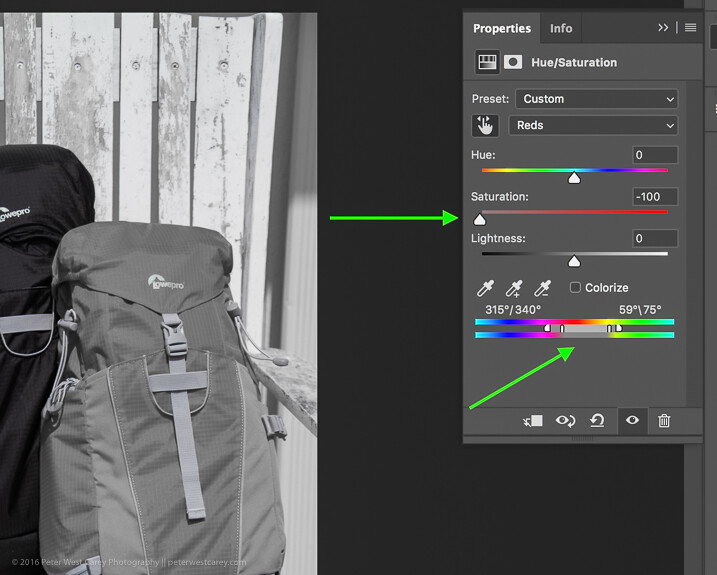
To know you have the right colors you want to work with, move the Saturation slider all the way down, essentially turning off the source color. If that doesn’t get all the color you want, move the little white bands on the color slider on the bottom until it captures all your source color.

How to Swap Colors in Photoshop - Two Methods Explained4

Move Saturation to -100, and adjust the bands (bottom green arrow) left or right, or apart, until there is no more of the selected color showing.

Can you see how that lighter gray box on the sliders at the bottom is larger (they were moved farther apart) in this image compared to the one above? That is to make sure I gobbled up all the orange, including some reds and yellows. Fiddle with this option to capture all your source color.

Step #4 – swap the color for a new one

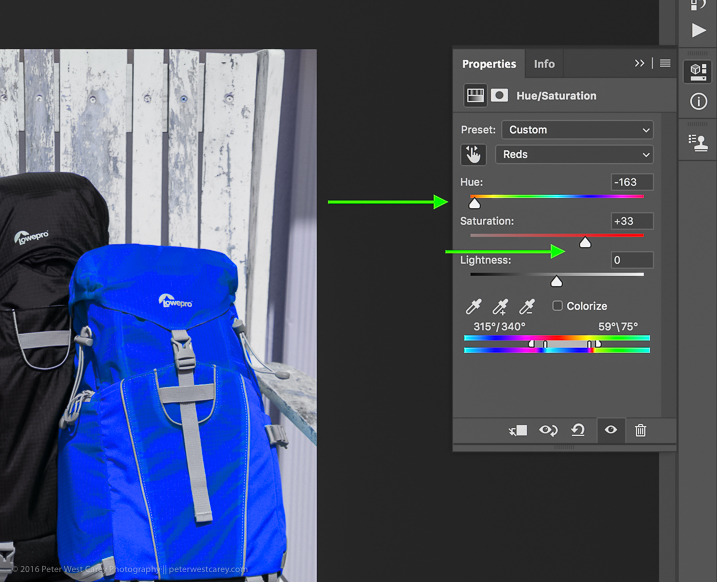
Now that you know you have the right source color, jack up the Saturation slider then move the Hue slider until you get a color you like.

How to Swap Colors in Photoshop - Two Methods Explained

If you’re looking for quick and easy, you are essentially done! Save the file with a new name and you’re good to go.

But wait! Things aren’t as good as they could be with this method. For one thing, there is now a slight tint to the entire image as the mask was applied to the entire image. Let’s clean that up a little.

Method #2 for swapping colors

Method #2 picks up where Method #1 left off and continues:

Step #5 – Apply a layer mask

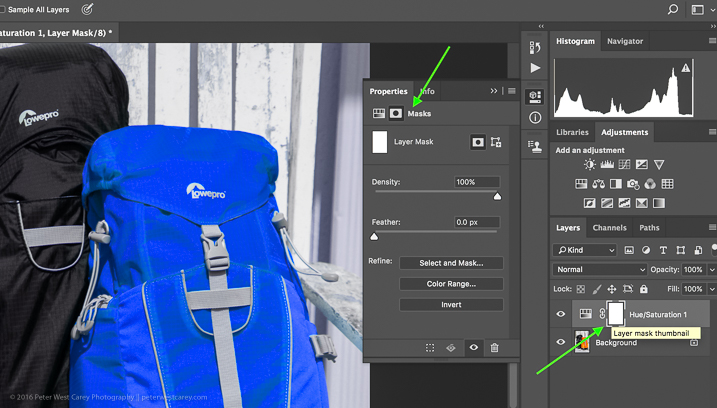
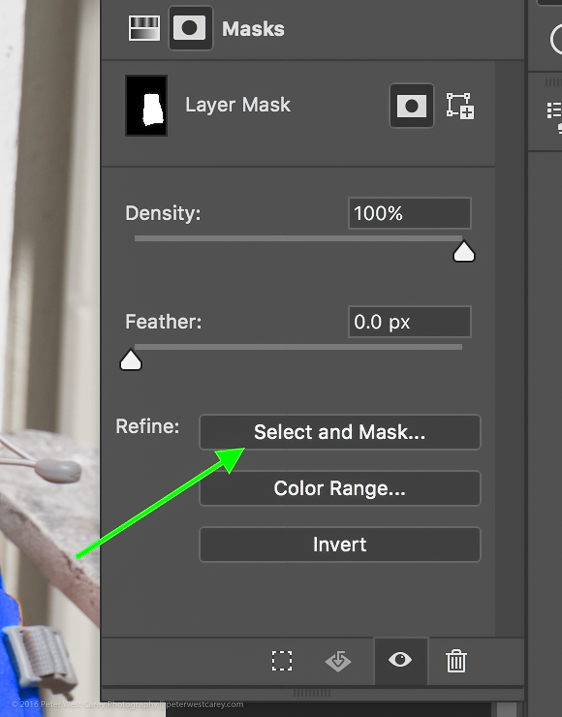
In this step, you want to apply a mask to the Hue/Saturation adjustment layer (seen on the right side of the layer) just to the backpack so it doesn’t tint the whole image. Click on the layer mask and the information panel will change to show mask options.

How to Swap Colors in Photoshop - Two Methods Explained

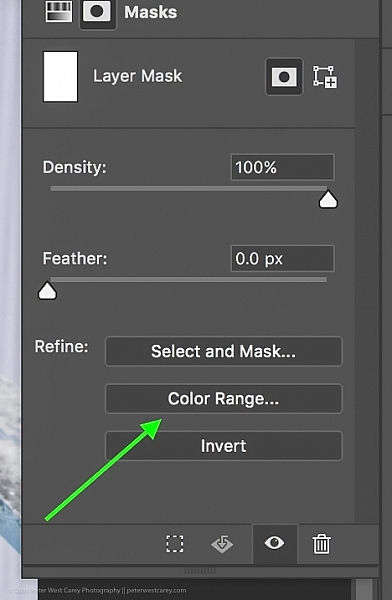
Choose “Color Range…” from the “Refine” options at the bottom.

How to Swap Colors in Photoshop - Two Methods Explained

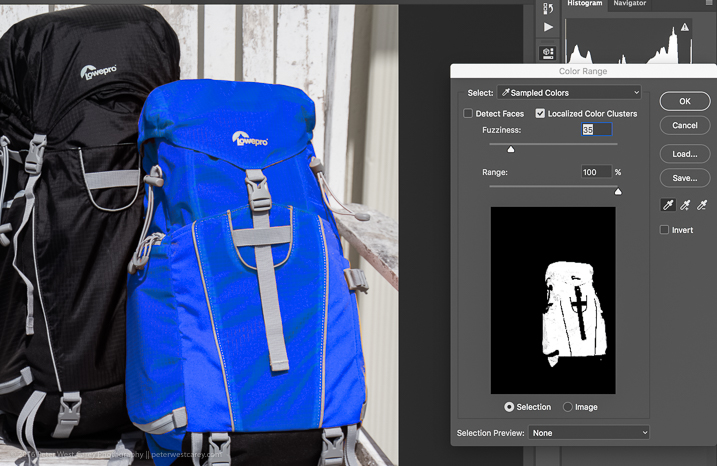
This should bring up a mask with the color range you have already selected and changed in the steps above. Your mask should show the area of color you are swapping as white, like so:

How to Swap Colors in Photoshop - Two Methods Explained

Click OK to apply the layer mask.

Step #6 – Refine the layer mask

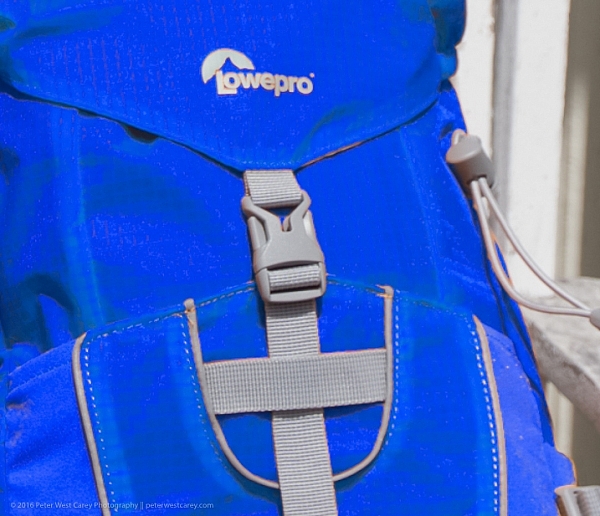
Now you need to refine the layer mask just a little as Photoshop is not always perfect. Take a look close in my example and you can see some orange peeking through.

How to Swap Colors in Photoshop - Two Methods Explained

To eliminate this effect, click on “Select and Mask”, once again in the “Refine” options area.

How to Swap Colors in Photoshop - Two Methods Explained

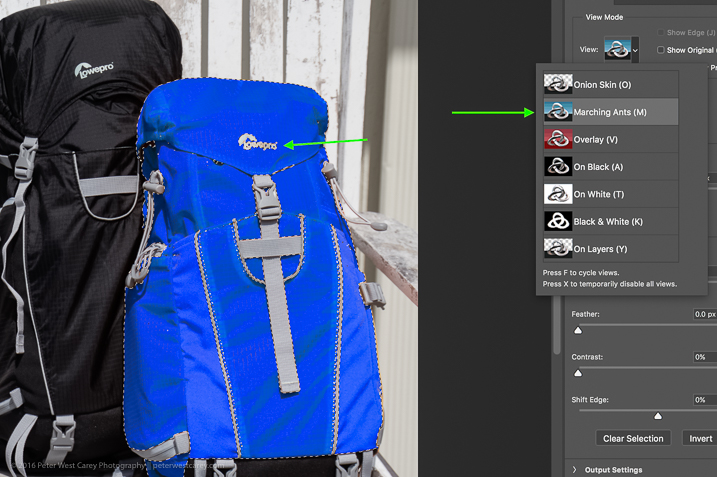
Choose to use the “Marching Ants” View to make it easy to find the missing areas.

How to Swap Colors in Photoshop - Two Methods Explained

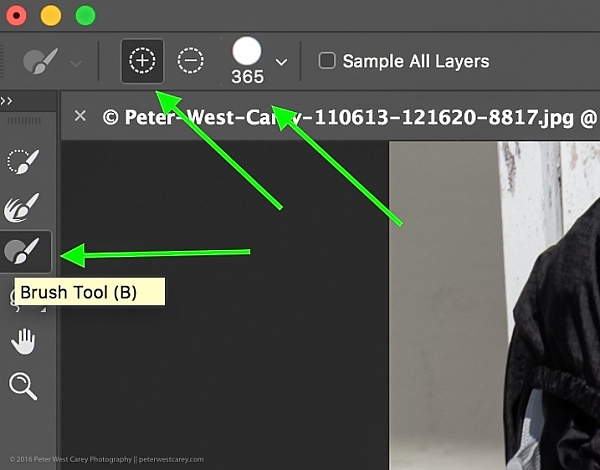
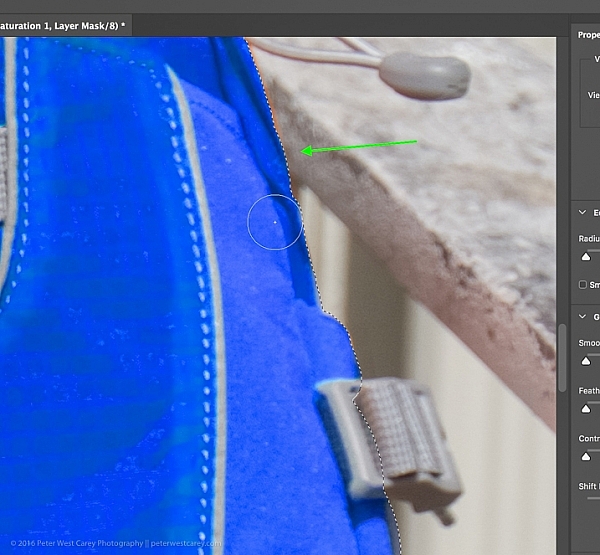
Then in the upper left corner, choose the Brush Tool and make sure the “add” feature (+) is selected. Lastly, choose a radius size to make the selecting easy. In this case, I used 365.

How to Swap Colors in Photoshop - Two Methods Explained

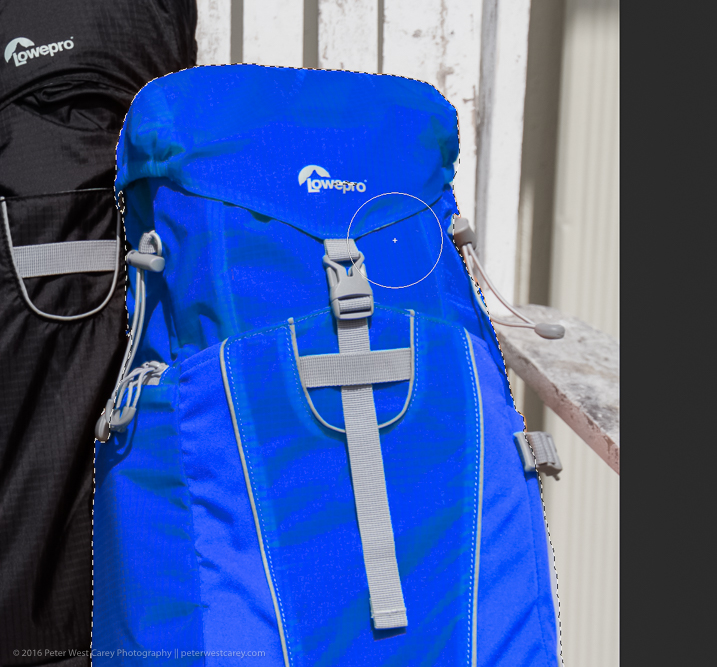
Now paint all over the area you want to change to the new color. It’s okay to go slightly over the edges to ensure all of the color is changed. If you are making drastic changes or if your background color will interfere, you may need to be more careful with your painting.

How to Swap Colors in Photoshop - Two Methods Explained

Zooming in, you can see that I missed some edges here and there and overlapped a little too much. Take your time and make it look good.

How to Swap Colors in Photoshop - Two Methods Explained

You can also see in the image above that there is still an orange cast on the armrest of the chair. To make the scene complete, I’ll swap that color as well.

Click OK when you are finished painting in the area to swap. You’re just about done!

Step #7 – Layer blend mode

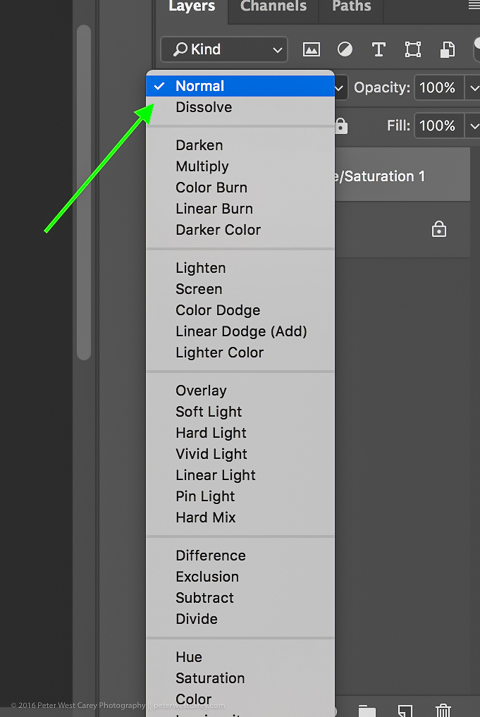
Depending on what you’re swapping and the textures and colors involved, you may be able to get a slightly better result by choosing a different blend mode option for this layer. Click the word “Normal” above your layer and play around with the different layer blend mode choices.

How to Swap Colors in Photoshop - Two Methods Explained

You’re done!

From here, you can fiddle until your heart is content. Try new blending modes and opacities. Refine your masks. Then sit back and enjoy your handy work!

final-side-by-side-color-swap


Cautions

  1. Watch out for white objects when there is a lot of white in the scene. These can be tricky.
  2. For that matter, watch out for the color you want to swap appearing anywhere else in the image. You’ll need to remove the mask from those areas manually (Step #6 but use the “minus” option).

googletag.cmd.push(function() {
tablet_slots.push( googletag.defineSlot( “/1005424/_dPSv4_tab-all-article-bottom_(300×250)”, [300, 250], “pb-ad-78623” ).addService( googletag.pubads() ) ); } );

googletag.cmd.push(function() {
mobile_slots.push( googletag.defineSlot( “/1005424/_dPSv4_mob-all-article-bottom_(300×250)”, [300, 250], “pb-ad-78158” ).addService( googletag.pubads() ) ); } );

The post How to Swap Colors in Photoshop – Two Methods Explained by Peter West Carey appeared first on Digital Photography School.


Digital Photography School

 
Comments Off on How to Swap Colors in Photoshop – Two Methods Explained

Posted in Photography


What is a Stop? The Common Currency of Exposure Explained

30 Sep

What are stops? Are they the same as f-stops? How are they measured? Are they the same for different exposure controls? Are they still useful now?

These are common questions for those just starting out in photography. They are good questions, and the exposure concepts surrounding them can be confusing. You have probably been told that a stop is a “doubling of light,” which of course is true. That is helpful, but it doesn’t show how stops really works and how they tie your exposure controls together.
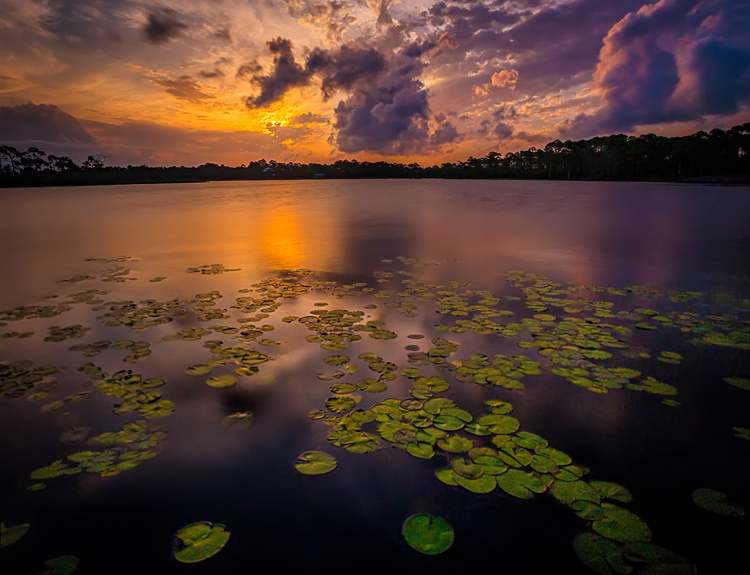
WesternLake

What I want to show you in this article is how the concept of a stop acts as a common currency in exposure, and allows you to take complete control of it. Rather than being confusing, stops are really a simplification tool. Without stops, we’d have a hard time controlling our exposure between the three controls; aperture, shutter speed, and ISO.

Introduction

I’m using the term “common currency” to describe stops. To see what I mean, think about the barter system before we had money. If you sold chickens, I sold apples, and someone else sold bricks, how would we all trade? And what if the person selling the bricks didn’t value your chickens as much as I did? It was a mess, which is why the concept of money was developed. Now we all value our goods using money and we exchange money with each transaction. This has proven to be a remarkably useful tool, which is why it has stuck around for a few thousand years.

Similarly, in photography we faced trade-offs when it came to exposure. For example, how could we value a change in the size of the aperture versus lengthening the time of shutter speed? And then how would we value the sensitivity of the digital sensor (or film in the old days) as compared to these other two adjustments? It isn’t apples to apples. The concept of stops is how we square everything up.
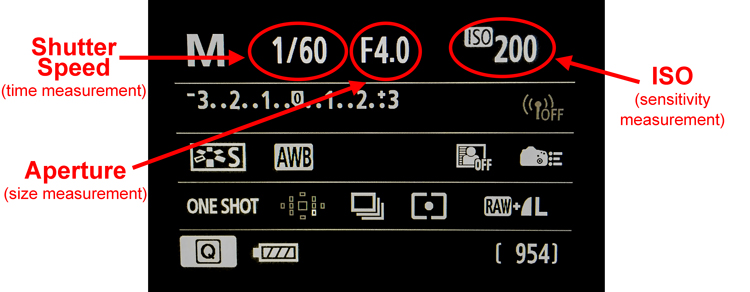
CameraBack

Understanding this is a necessary precondition to mastering your camera and controlling the exposure process. Hopefully this will help you grasp your exposure controls better. First, we’ll take a brief looks at each of them and show you how they are measured in stops. After that, we’ll get into how to use them together.

Shutter Speed

Your shutter speed is a measurement of time. As you probably already know, when you open up the shutter, the camera is gathering light. The longer you allow the camera to gather light, the higher the exposure value. Most shutter speeds you use will be a fraction of a second, but here are the common values for shutter speed you will see when you look through your viewfinder or at your LCD:
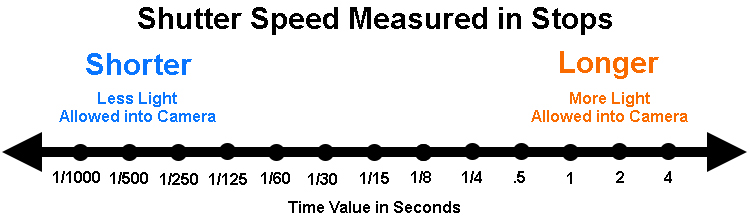
Shutter Speeds measured in stops

The segments in this chart are 1-stop increments. Again, a stop is a doubling of light. Remember that shutter speed is a measurement of time, so a doubling of the time your shutter is open is the same thing as a doubling of light. Therefore, for example, a move from 1/250th of a second to 1/125 is a one stop change. You have doubled the time the shutter is open so you have also doubled the exposure value.

Something that might confuse you is that your camera doesn’t change settings (each click of your dial) in 1-stop increments. Most cameras are set to move in 1/3 stop increments. So rather than moving from 1/250 to 1/125, each click of the dial on your camera will only move part of the way there. It will take three clicks to move a full stop. It looks something like this:
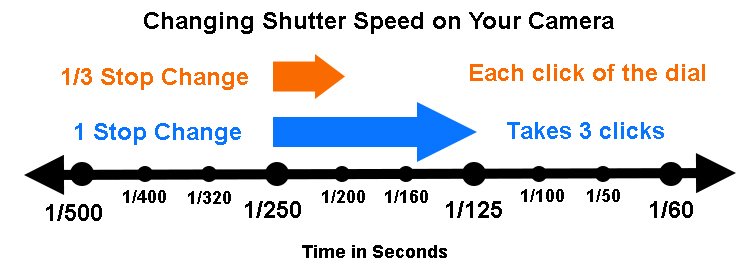
Changes to Shutter speed in thirds of stops

The point is to understand that we are taking a time measurement and converting it into a stop. Each doubling of the amount of time the shutter is open equals a stop. Conversely, you reduce by a stop every time you cut the shutter speed in half. We’ll be able to use that stop in connection with the other controls in a bit.

Aperture

Now let’s look at this in the concept of aperture. As you probably know, the aperture is the hole in the lens that lets light through into the camera, and it is adjustable. Making it larger lets more light into the camera; making it smaller lets less light in. To change your exposure value using the aperture control, you are changing the size of the aperture.

Aperture measurements can be confusing. To begin with, the measurement is actually of the size of the aperture compared to the focal length (The F-number of a lens is the ratio of its focal length divided by the diameter of the aperture.). That makes it a ratio or reciprocal figure, which means that the larger the aperture the smaller the measurement, and vice versa. Secondly, different lenses have different maximum and minimum aperture values. With that in mind, here are common aperture values:
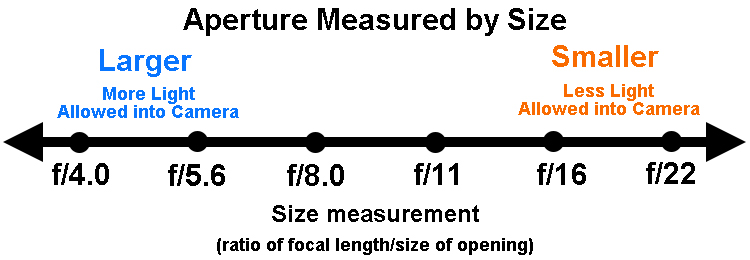
Aperture values in full stop increments

Again, remember that your camera is probably set up to change values in 1/3 stop increments. So, for example, you camera won’t go directly from f/5.6 to f/8.0. Instead, it will probably go from f/5.6 > f/6.3 > f/7.1 > f/8.0 as you click the dial.

I’m ignoring the concept of depth of field here because it isn’t important for purposes of this discussion. All we care about now is converting these measurements into stops. So, on that front, what we have done here is convert a size measurement into a stop. That means we can easily compare it to shutter speed changes as we saw above. We’ll also be able to compare it to changes in ISO, which we’ll talk about next.

ISO

Finally, we get to ISO, the third exposure control. This is a measure of the sensitivity of your camera’s digital sensor to light. Making it more sensitive to light increases exposure but leads to increased digital noise in your pictures. Conversely, decreasing the ISO lowers the exposure value but also decreases digital noise. Here is a chart showing common ISO values in one stop increments:
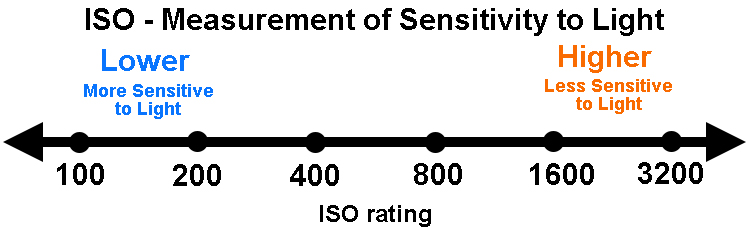
ISO values in full stop increments

As you can see from the chart above, the ability to change ISO is pretty limited. Whereas there are 18 stops within the range of common shutter speeds, there are only seven in ISO. There are cameras with ISO values that go higher (such as ISO 12,800 and even 25,600), but they lead to pretty dramatic digital noise. This limited range though does show why increases are important.

In any case, as you can see what has been done is create a system where we have taken a measurement of sensitivity to light and converted it into stops. Each doubling in sensitivity doubles the exposure value, which equals a stop. What’s great is that (unlike the aperture measurements) ISO is simple. It is easy to understand that an ISO of 200 is double that of ISO 100.

Putting it all together

Now that we have covered the concept of stops for each of the three exposure controls, we are ready to talk about them together.

The key thing to understand here is that a stop, is a stop, is a stop. By that I mean that a stop of shutter speed exposure, equals a stop of aperture, equals a stop of ISO. In other words, lengthening your shutter speed by one stop is the exact same thing as opening your aperture by one stop. And that is exactly the same thing is changing the ISO by one stop. The measurements all equate.

Why does this matter? Because you will face the need to change your exposure values all the time. This will allow you to take complete control over the exposure process. For example, when you want to increase your depth of field you know you need to make the aperture smaller. But that will cause your picture to be underexposed. By using stops, however, you can increase the exposure by the exact same amount using either the shutter speed or ISO.

An example of using stops

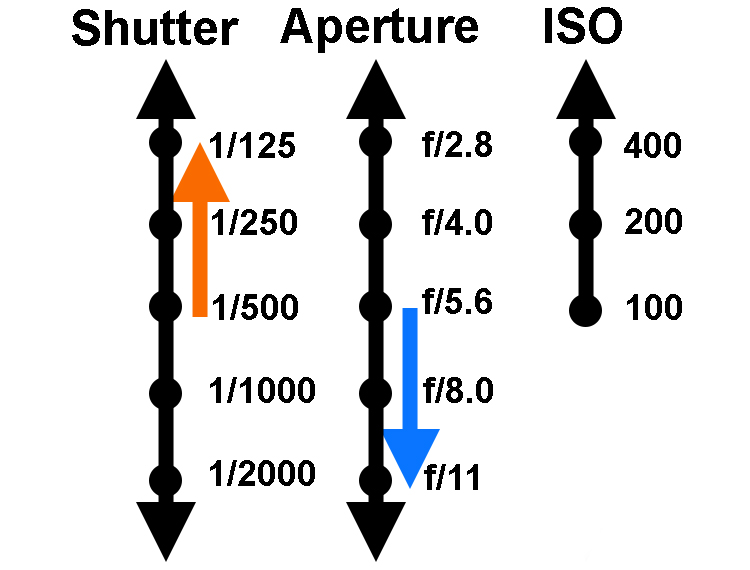
If this seems confusing, an example should help make it clearer. Let’s say you are out shooting a landscape scene and you hold up your camera and set up a correct exposure. It is 1/500th of a second at f/5.6, with an ISO of 100.

That’s just fine, except that remember that this is a landscape photo. You want a much deeper depth of field than f/5.6 is going to allow, so let’s move that to something like f/11. You know that this is a 2-stop decrease (check the charts above for confirmation).
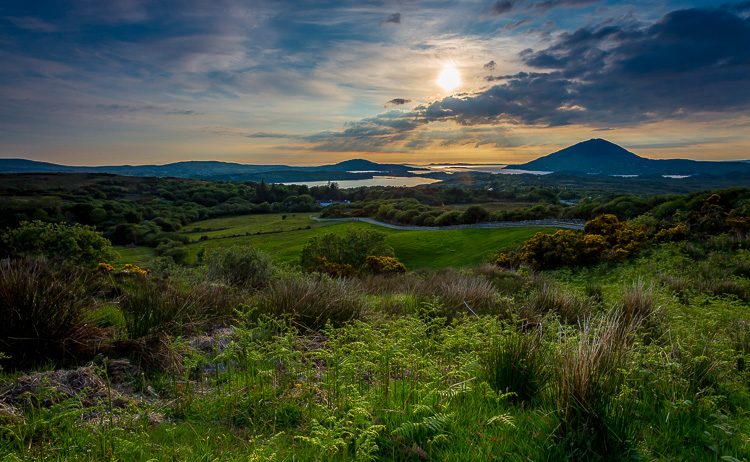
Landscape shot at 1/125 of a second at f/11.

Landscape shot at 1/125 of a second at f/11.

If you made no other change, your photo would be very underexposed. But you now know that you can just increase (lengthen) your shutter speed by the same amount (two stops) to offset this move. In other words, since we have converted all these exposure changes to stops, we have a common currency that we can interchange freely. A 2-stop shutter speed increase takes you to 1/125th. In other words, you started at 1/500, twice that is 1/250, and doubling that again is 1/125 (again, check the chart above to see).

You could also change ISO if you wanted (to ISO 400), but you probably don’t want to do that to keep noise to a minimum. Your new settings of 1/125, f/11, ISO 100 are much better for this situation.

For those who do better with visuals, here is how the two offsetting moves appear:
Two-Stop-Move

Another example

Let’s walk through another example to make sure you’ve got it. Let’s say you are photographing a friend or a family member and your camera settings are at 1/40, f/16, ISO 200. The camera’s meter says you have a correct exposure. Take a look at the shutter speed and aperture settings and you’ll see a few problems though.

First, the aperture is too small for this situation. You don’t need a small aperture like f/16. Not only do you not need the small aperture, which costs you light, but you actually don’t want the deep depth of field that f/16 gives you. You’d rather have an extremely shallow depth of field to blur out the background. Secondly, a shutter speed of 1/40 is probably a too slow for this situation. This shutter speed could lead to a lack of sharpness due to the camera shaking slightly or your subject moving while the shutter is open.

The good news is that both your problems can be solved by making changes to the shutter speed and aperture. You can use a stop as the common currency to make sure they offset and your exposure stays the same. You decide to open up the aperture all the way to f/4. That’s a 4-stop increase. Check the chart above, and you’ll see it goes like this; you start at f/16> f/11 > f/8 > f/5.6, and the fourth stop takes you to f/4.0.

Now that you’ve made that change you have the depth of field situation fixed. If you made no other change, your picture would be quite overexposed though. But that’s okay, this just allows you to shorten your shutter speed which you wanted to do that anyway avoid any possible camera shake or subject movement. Now you know you can shorten the shutter speed by four stops to offset the change you just made to the aperture. Starting at 1/40, moving fours stop gets you: 1/40th > 1/80th > 1/160th > 1/320th, and finally to 1/640th. That’s much better.
Shot at 1/620 second with aperture of f/4.0.

Shot at 1/640th of a second with an aperture of f/4.0.

Using stops to master exposure controls

Hopefully you see the utility of the concept of stops. It acts as a common currency so that all changes in exposure equate. One click of the dial that controls your shutter speed equates to one click of the aperture control. And that equals one click of the control for your ISO settings (if you can adjust your ISO in 1/3 stops). It all works out, and that is extremely important in the exposure process.

So many times you want to change one exposure control but keep the overall exposure setting the same. You may want to stop down the aperture to increase the depth of field, lower the ISO to reduce digital noise, or shorten the shutter speed to avoid any camera shake. Using stops you can do this with confidence.

Why can’t you just rely on the camera to do all this for you? In other words, why couldn’t you just use Aperture Priority mode, set the aperture you want, and then watch as they camera sets the right shutter speed? You can just change the aperture and ISO settings until the camera sets the shutter speed you want. And, yes, you can do it that way. But even so, you should understand the process so that you know what is going on under the hood. In addition, if you ever use neutral density filters or find yourself in a situation where you camera cannot meter light properly, you’ll know how to do it for yourself.

googletag.cmd.push(function() {
tablet_slots.push( googletag.defineSlot( “/1005424/_dPSv4_tab-all-article-bottom_(300×250)”, [300, 250], “pb-ad-78623” ).addService( googletag.pubads() ) ); } );

googletag.cmd.push(function() {
mobile_slots.push( googletag.defineSlot( “/1005424/_dPSv4_mob-all-article-bottom_(300×250)”, [300, 250], “pb-ad-78158” ).addService( googletag.pubads() ) ); } );

The post What is a Stop? The Common Currency of Exposure Explained by Jim Hamel appeared first on Digital Photography School.


Digital Photography School

 
Comments Off on What is a Stop? The Common Currency of Exposure Explained

Posted in Photography


Maximum sharpness: Nikon’s automated AF Fine Tune explained

22 Apr

Among the features introduced in Nikon’s new D5 and D500 DSLRs, we’re very excited by automated AF Fine Tune. This feature allows users to quickly fine-tune their specific camera bodies and lenses, maximising the chances of a sharp shot and avoiding the lengthy process of trial-and-error tuning that was previously necessary. Watch our video and read our in-depth analysis.

What’s the problem?

If you’re a DSLR shooter, you may be acutely aware of consistent front or back-focus issues with some of your lenses, particularly fast ones like F1.4 primes. Mirrorless users tend to not have such issues, because their cameras focus using their image sensors. When a mirrorless camera says it’s achieved focus, generally it’s actually in focus. That doesn’t necessarily hold true with DSLRs, which use a secondary phase-detect sensor under the mirror as a sort of proxy for focus at the imaging plane. This makes DSLR focus sensitive to misalignments between the secondary AF module and the image sensor, and also requires calibration of the optics inside the module itself. Furthermore, the way these phase-detect AF modules makes them sensitive to certain lens aberrations, like spherical aberration.

Manufacturers of DSLR bodies and lenses do a lot of calibrations to make sure that this isn’t an issue, calibrating every AF point at the factory, writing look-up tables into lenses, and more. But the reality of tolerances is such that you’ll be best off if you calibrate your particular copy of a lens and your particular copy of a body yourself. That’s what AF Fine Tune, or AF micro-adjustment as Canon calls it, is all about.

State of the current art…

Up until now, this calibration procedure has required cumbersome procedures for accurate calibration. We’d often set a camera up on a tripod and align it to a LensAlign (which has a sighting tool), then have to change the set up to test different subject distances, lighting, or lenses. Some photographers even try to Fine Tune on the spot by trying different values and seeing if a real-world target looks sharper or not – but this method is extremely prone to error. Solutions like FoCal have tried to automate the procedure, but again, the requirement of a chart and a computer is cumbersome.*

… disrupted

Nikon’s new automated AF Fine Tune makes things as easy as child’s play. It uses contrast-detect AF in live view, which focuses using the image sensor and is nearly always accurate, to calibrate its own phase-detect AF system. Watch our video above to get an idea of just how easy it is to calibrate your lenses on the new D5 and D500 cameras.

A couple of things are worth keeping in mind. For some lenses and systems, the optimal calibration value can change for different subject distances. This isn’t necessarily always the case, but you may wish to calibrate for the subject distances you’re most likely to shoot for any particular lens. For a good all-round calibration, we’re told that using a target approximately 40x the focal length away strikes a good balance.

The key here is to play around a bit. Try a couple different distances, a few different runs, and make sure you’re getting a consistent result. Sometimes we’ve found the optimal value to change with lighting temperature, but this sort of thing is precisely why the automated procedure is so valuable: if you’re running into trouble with focus, you can – right at the wedding reception you’re shooting – set the camera on a table, point it at a static object, and calibrate your camera in under 10 seconds. Yeah, we timed ourselves.

The result

Here’s an example of how Fine Tune helped calibrate our Nikon 24/1.8 to our D5. Roll your mouse over the ‘OFF’ and ‘ON’ buttons to see Sam’s eye sharpen up. If you click on the main image, you can see the full image in a separate window, where you’ll notice that the ‘OFF’ shot is front-focused on Sam’s nose, while the ‘ON’ shot is focused correctly on his eye. We placed a single AF point over Sam’s left eye (on camera right) for focus in both cases.

AF Fine Tune OFF
(focused on nose)
AF Fine Tune ON
(focused on eye)

In this case, for this lens paired to this body, automated AF Fine Tune found a value of +14 was best. This indicates that for correct focus, the camera has to shift focus backward an arbitrary 14 units from the focus reading the phase-detect sensor makes. In other words, out of the box, this lens on our D5 front-focuses. If it had back-focused out-of-the-box by a similar amount, we might have expected the automated procedure to find -14 to be the optimal value.

How we’d like to see this feature evolve

AF Fine Tune currently only writes one global value per lens. This means the calibration value can’t be adjusted for either end of a zoom. Furthermore, only the center point can be calibrated – the camera assumes that the calibration at the factory ensures all points are consistent with one another and, importantly, the center point. Finally, as mentioned earlier, sometimes the optimal value can change based on subject distance.

Canon cameras currently at least offer to microadjustment values for either end of a zoom, but don’t offer any sort of automation to help you out. Sigma and Tamron USB docks allow for calibration at either end of the zoom, and for 3 to 4 different subject distance ranges, allowing for a high degree of accuracy of calibration. Unfortunately, entering 4 different subject distance ranges for two ends of a zoom mean the user has to literally set up the camera 8 times, with some sort of test target for accurate assessment – hardly practical for most working photographers.  

The key here is automation: automating opens up a world of opportunities, and automated Fine Tune is an important first step. We’d even imagine a future implementation where calibration data for all focus points is stored and learned from over time. Every time you calibrate a particular point, the camera could retain subject distance information (passed on to it via the lens), and over time learn the best calibration values for each point, for all subject distances, for different temperatures and lighting as well (the latter are often minor concerns).

To sum up…

Nikon’s automated AF Fine Tune is truly one of the most welcome features we’ve seen added to a DSLR in recent times. We’ve wondered for years why camera companies don’t use their contrast-detect AF to self-calibrate their phase-detect systems, instead relegating calibration to a cumbersome end-user experience.

Automated Fine Tune changes all that. It’s a really useful feature that takes a lot of guesswork and cumbersome aspects of calibrating yourself out of the equation, allowing you to do it on the spot, at an event, anywhere, on the fly. In fact, anyone working with shallow depth-of-field imagery should absolutely perform this procedure. Wedding, newborn, portrait, lifestyle, photojournalist, and even sports photographers: take note.


* We really like Reikan FoCal for research purposes though: you get a plethora of data for how a body/lens combination behaves at different subject distances, on different days, under different lighting, and even a map of the optimal calibration value per AF point. Of course, since you can only enter one global adjustment value into your camera, this information is a bit more academic, but if you want to get an idea of the behavior of your system, there’s probably no more comprehensive tool than FoCal.

Articles: Digital Photography Review (dpreview.com)

 
Comments Off on Maximum sharpness: Nikon’s automated AF Fine Tune explained

Posted in Uncategorized


Camera Modes Explained for Newbies

12 Jan

Okay, so for one reason or another you’ve decided to step up to a new, more capable camera. Maybe you’ve moved up from a point and shoot, or maybe your phone just doesn’t cut it for you anymore. But now what? There are all these buttons and dials to make sense of – where do you even start? Not to worry, read on!

Your Mode Dial Explained

Manual Mode is used to capture long exposure images such as this.

The Camera Mode Dial

Well, the first place to start, is by learning about camera modes. This is where you’ll tell the camera how you want to capture an image. Very likely, you’re looking at this dial, or it may be a display on the screen, and you’re wondering what all those different camera modes are.  I’ll explain all of that in a moment, but first I’ll need to go over a few definitions:

Aperture

This is the opening in the lens, that determines how much light enters the camera. The aperture also affects depth of field, which is the range of objects that are in focus – from those that are closest to you, to those farthest away. A smaller aperture setting will give you greater depth of field, while a larger aperture setting gives you shallower depth of field. Aperture settings work a bit backwards, in that the higher the number, the smaller the opening. For instance, f/4 is a larger aperture than f/11. Of those two, a setting of f/11 will give you greater depth of field. For more on how the aperture works, see How to Take Control of Aperture and Create Stronger Photos.

Shallow-DOF

Use of a large aperture creates a shallow depth of field as in this image, where only a small portion is in sharp focus.

Shutter Speed

The shutter speed determines the amount of time that light is allowed to enter the camera. It also determines how movement is recorded in an image. A faster shutter speed will freeze motion, while a slower one will blur motion. Faster shutter speeds are often referred to in fractions of a second, such as: 1/125th, 1/60th, 1/500th and so on – while longer shutter speeds can be one second, 5 seconds, or even 30 seconds long. For more on shutter speed, check out Demystifying Shutter Speed.

ISO

Your camera’s ISO determines how sensitive it is to light. Lower numbers, such as ISO 100 or 200, mean your camera is less sensitive, and are used in bright situations, such as outdoors on a sunny day. Higher numbers, such as ISO 800 or 1600, make your camera more sensitive to light, and are used when there is less available light, such as outdoors on a cloudy day, or indoors when you can’t use flash. Read 6 Tips for Using ISO Effectively With Your Camera for more on setting your camera’s ISO.

Every camera’s mode dial is a bit different. The major manufacturers all tend to have the same, or similar basic modes, but each may have their own spin on things, or even throw in a few of their own special modes. In this article I’ll deal with the basic modes that are common to pretty much everyone.

The Basic Modes

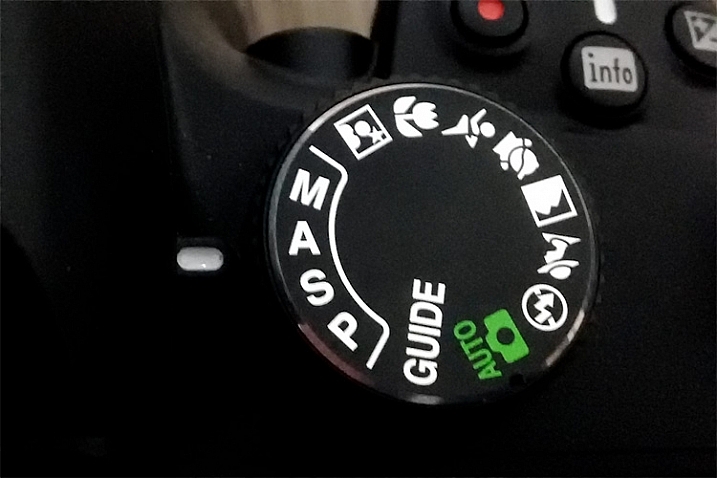
Mode Dial

The Mode Dial (a Nikon dial is shown here)

Your camera will have a few basic modes, where the camera takes control of everything, and all you have to do is push the shutter button to take the picture. These modes can be a good place to start if you’re unsure of how to get a specific type of picture.  Keep in mind that when using these modes, the camera is controlling everything, including: color, contrast, white balance, shutter speed, aperture, and ISO. The most common of the basic modes are:

Auto Mode

Depending on your camera’s brand, this will be indicated in one of several different ways. Sony uses a green camera icon, Canon uses a green box, and Nikon uses a camera with the word Auto above it. What you need to know about this mode, is that the camera is making all exposure decisions for you. If the camera is a recent release, it may also be using a type of Intelligent Auto mode, where it analyzes the scene you are taking a picture of to determine the best settings. The flash may pop up if needed. The camera will set an appropriate aperture, ISO, and shutter speed to allow you to hold the camera and get a good exposure.

Portrait Mode

Portrait Mode is usually indicated by a head icon of some kind. When this mode is selected, the camera optimizes your settings for taking pictures of people. It will select color settings, choose a fairly shallow depth of field, and a fairly fast shutter speed, to ensure that your subject is not blurry. The camera may decide that flash is necessary, and fire if it is needed for exposure. Want to learn more about shooting portraits? See 10 Crucial Things You Need To Think About for Portrait Photography.

Portrait Mode

Portrait mode is great for capturing images of people. Be aware your camera’s flash might fire if there’s not enough light!

Landscape Mode

This mode is generally indicated by an icon containing mountains. When you select Landscape Mode, you are telling the camera you’re shooting scenery. The camera will record vivid colors, and set a small aperture for maximum depth of field. You may also need a tripod, as the shutter speed may be too slow to handhold the camera without blurring the image. The flash will not pop up in this mode. For more on photographing landscapes, take a look at 7 Landscape Photography Mistakes That Could be Ruining Your Photos.

Landscape mode is used for scenes like this where you want a lot of depth of field.

Landscape mode is used for scenes like this where you want a lot of depth of field.

Sports Mode

An icon of a running man indicates Sports Mode. This setting is best for capturing subjects that are moving, such as children playing, or a sporting event. The camera uses a faster shutter speed to freeze the motion of the subjects, and will use a wider aperture for shallower depth of field. The ISO may be raised to accommodate the faster shutter speed, and the flash will not fire. If catching action is your thing, Catching the Action: Photographing Youth Sports has some tips for getting started.

Sports Mode

Sports mode will set a shallow depth of field and a fast shutter speed to stop action.

Night Portrait Mode

That picture of the person with a star or moon behind them? That’s night portrait mode. This mode is used to capture pictures of people at night, usually firing the camera’s flash to illuminate them. However, the camera will also use a slightly slower shutter speed, and a higher ISO, to allow any ambient light to record in the image as well. Think of it this way – if you want to take a picture of someone at night in front of a neon sign, and you want the glow of the neon to show up in the image, this is the mode to use.

Close-up Mode

Almost invariably, an icon featuring a flower indicates Close-up Mode. Many people incorrectly call this Macro Mode. I say incorrectly, because macro generally means you are recording the objects you are photographing at life size, or larger. Close-up mode is used when you are photographing an object very close to the camera. Each manufacturer uses this mode a bit differently. While Nikon states that the camera will use a small aperture to maximize depth of field, Canon states that it will use a wide aperture to blur the background. The camera will also attempt to focus on the nearest subject to the camera. In each case a tripod may be necessary to work with a slower shutter speed.

Close-up Mode

Advanced Modes

The advanced modes on your camera’s mode dial grant you more control over exposure choices to some degree, depending on which mode you select. In addition, you’ll have the flexibility to choose picture styles, white balance, and other settings as well. Let’s start with the more basic of the advanced modes, and move on from there.

Program Mode

Contrary to popular belief, the “P” on the mode dial does not stand for “Perfect”. It stands for Program, and is Auto Mode’s big brother. Program mode is a good general use option. The camera will select the ISO, aperture, and shutter speed for you. Sounds like Auto Mode, right? It’s similar, but in Program mode, you have the ability to choose the white balance you want, the picture style you want, and you have the ability to shift the exposure, so if the camera selects a shutter speed or aperture you don’t want, you can shift that setting, and the camera will adjust the others accordingly. Your Guide to Understanding Program Mode on Your Camera can provide further insight into this setting.

Aperture Priority Mode

Aperture-Priority

Once you know how the advanced modes work, an image like this can be done a number of ways. Either Aperture Priority with a small aperture, or Manual mode with full control, could be used.

On Canon or Pentax cameras, this mode is indicated by an Av on the dial, while other manufacturers simply use an A. This mode is exactly what it says – you choose the aperture setting you want, usually deciding on such a setting to achieve a specific depth of field, the camera will then set the appropriate shutter speed to achieve proper exposure. You will also be responsible for choosing an ISO setting. Many cameras now feature an AUTO ISO setting, which lets the camera choose the ISO, if you’d rather not be bothered with selecting it yourself.

Aperture priority is best used when you know you want a specific depth of field for your image. For instance, if you’re shooting a landscape or grand vista, you’ll likely want the entire scene in focus, so you’ll want to choose a smaller aperture, such as f/16, to achieve that. The camera will then set the appropriate shutter speed for proper exposure. You’ll need to be aware of the shutter speed the camera selects, as you may need a tripod to keep the camera still if a slower shutter speed is necessary.

Shutter Priority Mode

The S on your mode dial (Tv if you have Canon or Pentax) stands for Shutter Priority mode. The Tv stands for Time Value, or the length of time the shutter remains open for exposure. This mode is the opposite of Aperture Priority. You’ll choose the shutter speed, and the camera will set the appropriate aperture, to give you the proper exposure. Remember, you’ll also need to set the ISO to ensure your exposure is correct, or set AUTO ISO so the camera can do it for you.

Shutter-Priority-Panning

Use of shutter priority allows you to select the shutter speed for panning shots like this one.

Shutter priority is useful when you know you want to use a certain shutter speed to capture motion in a specific way. For instance, if you are photographing sports, you know you want a faster shutter speed to freeze the action. You’ll likely set a shutter speed of 1/500th (or faster) to ensure you’re doing that, and let the camera set the aperture for the appropriate exposure. For more information on both Aperture Priority and Shutter Priority modes, see Getting off Auto – Manual, Aperture and Shutter Priority modes explained.

Manual Mode

Universally indicated by an M on your mode dial, in Manual Mode you are truly flying solo. You are responsible for setting your aperture, shutter speed, and the ISO, to achieve the proper exposure. This gives you the ultimate freedom in creating images, as all camera settings are available for you to set, and change as you see fit. You’ll want to keep an eye on your camera’s meter to be sure you aren’t over or underexposing the image. How to Learn Your Camera’s Light Meter and Master Manual Mode is a great primer if you’re ready to take the plunge and learn to shoot manually.

If you’re still not sure where to start, have a look at A Beginner’s Guide to Choosing Shooting Mode for further clarification.

googletag.cmd.push(function() {
tablet_slots.push( googletag.defineSlot( “/1005424/_dPSv4_tab-all-article-bottom_(300×250)”, [300, 250], “pb-ad-78623” ).addService( googletag.pubads() ) ); } );

googletag.cmd.push(function() {
mobile_slots.push( googletag.defineSlot( “/1005424/_dPSv4_mob-all-article-bottom_(300×250)”, [300, 250], “pb-ad-78158” ).addService( googletag.pubads() ) ); } );

The post Camera Modes Explained for Newbies by Rick Berk appeared first on Digital Photography School.


Digital Photography School

 
Comments Off on Camera Modes Explained for Newbies

Posted in Photography


The Language of Death: 15 Gravestone Symbols Explained

29 Oct

[ By Steph in Culture & History & Travel. ]

grave symbolism main

The symbols carved into stones commemorating the dead can reveal a lot about the deceased’s beliefs and philosophies, or at least those attributed to them by their families when they were buried. Grave symbolism ranges from well-known symbols of major religions to the arcane and complex, each one often containing layer after layer of hidden meaning known only to those initiated into certain organizations. These 15 common symbols seen in cemeteries around the world are often meant to relay messages to those who are still living.

Winged Skull

grave symbols winged skull 1

grave symbolism winged skull 2

(images via: jenn g, xlibber)

The winged skull most often means a dead person’s journey is not over; after they’ve shed their physical form, they are flying away to another realm. In the United States, the ‘death’s head’ was initially a non-religious symbol simply used to denote a buried corpse, as the Puritans didn’t believe in using religious symbols on graves. The particular style of the death’s head motif on older graves acted as a calling card for the carver.
Serpent

grave symbolism snake 1

grave symbolism snakes 2

(images via: henning muhlinghaus, chynna67)

The serpent represents everlasting life, especially when seen in ‘ouroboros’ form, when it creates the shape of a circle with its own tail in its mouth. The snake cheats death by shedding its skin. The Orphic Egg (a snake wrapped around an egg) is an occult symbol representing the personification of light, the hermaphroditic Greek deity Phanes/Protogonus, who created the other gods. Two snakes wrapped around a winged staff (aka the caduceus) similarly represents the hermaphroditic god Hermes and has been incorrectly used by the healthcare industry as a symbol for medicine – mistaken for the rod of asclepius, which has only one snake and isn’t winged. The latter is often seen on graves of doctors. A snake wrapped around a cross can symbolize the Masonic brazen serpent, a symbol of the 25th Degree Masons, or foreshadowing of Christ’s crucifixion.

Clasping Hands

grave symbolism clasped hands

(image via: RPM)

A loved one may be gone, but those they left behind often have hopes of seeing them again someday, as represented by clasping hands on a grave. Symbolizing unity even after death, it’s often depicted on the shared graves of spouses.

Flying Hourglass

grave symbolism winged hourglass

grave symbolism winged hourglass 2

(image via: sean, todd mecklem)

‘Time flies’ and death comes too soon for many, as symbolized by an hourglass with wings. In the early 18th century, it wasn’t unusual for the dead to be buried with an actual hourglass to represent the sands of time having run out. In Masonic symbolism, it’s often paired with the scythe, another emblem of how easy it is to sever the boundary between life and death.

Inverted Torch

grave symbolism: inverted torch

grave symbolism inverted torch 2

(images via: jpmatth, godutchbaby)

Inverting a torch would typically extinguish the flame, so when it’s seen on graves with the flames still burning, it represents eternal life.

Next Page – Click Below to Read More:
The Language Of Death 15 Gravestone Symbols Explained

Share on Facebook


[ By Steph in Culture & History & Travel. ]

[ WebUrbanist | Archives | Galleries | Privacy | TOS ]


WebUrbanist

 
Comments Off on The Language of Death: 15 Gravestone Symbols Explained

Posted in Creativity