RSS
 

Posts Tagged ‘Enhance’

How to Enhance Portraits Using Gray Layers to Dodge and Burn in Photoshop

24 Jul

What is dodging and burning?

The techniques of dodging and burning are hand-me-downs from the days of the darkroom. The idea was to manipulate parts of an image while the paper was being exposed to light from the enlarger, where the negative was fitted. In order to decrease the exposure (lighten) on parts of an image, the paper had to be exposed for less time, which was dodging. To increase exposure (darken) it needed to be exposed for more time, which was burning.
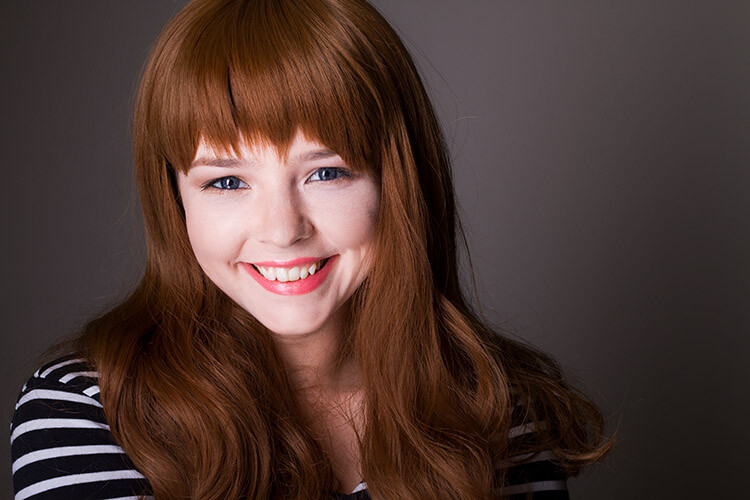
Before dodging and burning
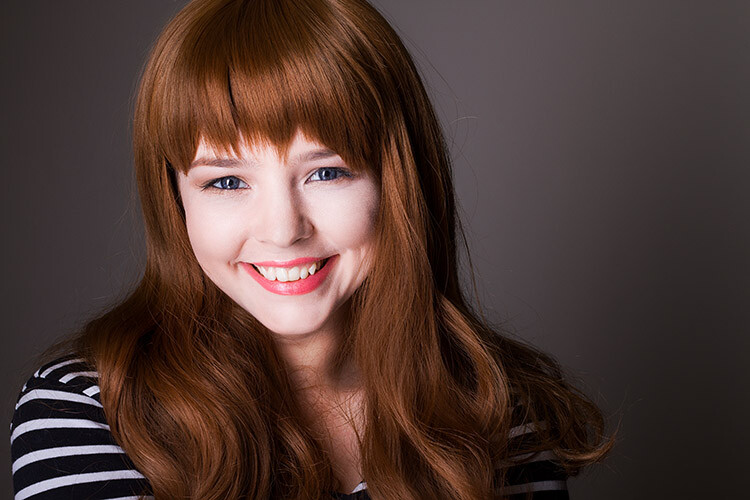
Before dodging and burning

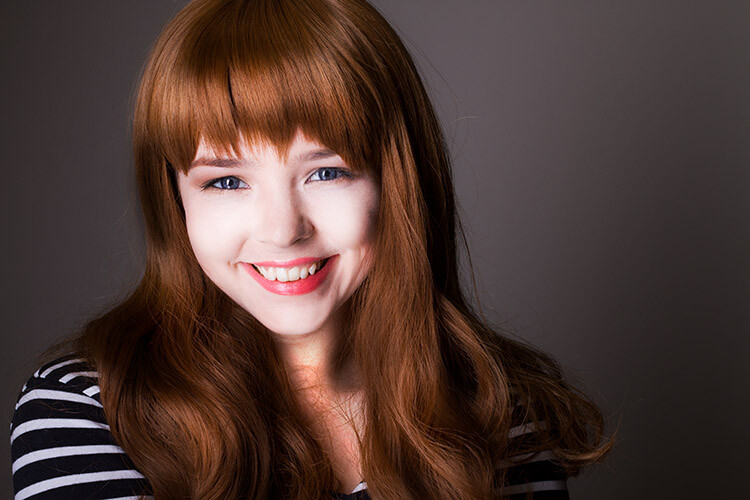
After dodging and burning (it’s subtle, look at her hair and cheeks – don’t overdo it with this technique)

One way of doing this, was by holding bits of paper or card over the parts of the image that didn’t require manipulation. Because these adjustments only applied to certain parts of an image, it required a certain amount of dexterity (as well as a lot of paper) to get right. Because of this complexity and precariousness, dodging was used primarily to lighten dark areas. Burning was then used to darken highlight areas.

The Photoshop version of the technique; however, is far more forgiving. Photoshop allows very fine control over an image and even allows pixel by pixel retouching. The versatility this provides turns the traditional darkroom method on its head. It allows you to use small brush strokes to brighten and exaggerate small areas of highlights, or darken shadows, instead of applying to only broad areas.

This technique is very easy to learn, but it does require some practice to get down, as it’s very easy to go overboard with it, and overcook your images.

Why dodge and burn?

Tools like curves and levels give you control over the tonality and contrast of an entire image (excluding the use of layer masks). This is called a global adjustment, but they aren’t always effective for most images.

Dodging and burning allows you fine control over the tonality of your images in small, concentrated areas. These are called local adjustments. This allows you to pick out small parts of an image to work on, while leaving areas that need no work untouched.

While useful in all genres of photography, the use of local adjustments comes into its own in portraiture. If you think in terms of contrast alone; hair, eyes, skin, and clothes all require very different treatments in order to look their best. For example, if you pump up the contrast in an image to make a pair of jeans look punchy, that will wind up destroying the skin tones in your portrait. One of the easiest ways to overcome this is using a local adjustment technique like dodging and burning.

This tutorial will get you started with a two layer dodging and burning technique, that will give you far more control over your images than you would have with global adjustment tools alone. This is an intermediate technique and you need to have a basic understanding of how to use layers in Photoshop.

For this demonstration, I am going to go beyond what I would normally consider acceptable and overcook the image, to ensure that it is visibly clear what is happening at various stages of the process.

Setting up the layers

Before you start this technique, I suggest that you first finish any blemish removal in your image.

That said, the first step in Photoshop is to create a new layer by going to Layer>New Layer or by pressing ctrl+shift-n. Rename this layer, “Highlights”.
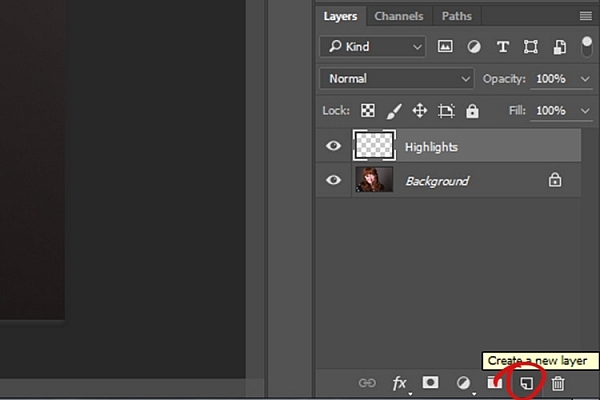
dodging-and-burning-with-grey-layers-newlayer

With this new layer selected, go to Edit>Fill or shift+f5 and choose 50% gray from the menu. Press OK. Your image should now be entirely gray.
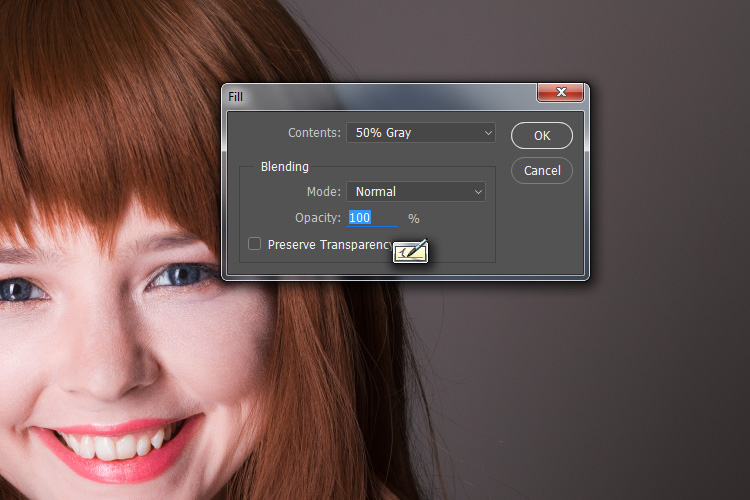
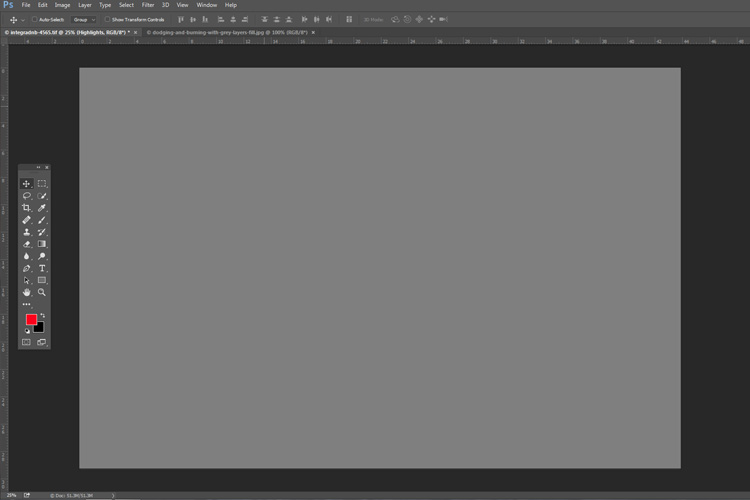
dodging-and-burning-with-grey-layers-fill

dodging-and-burning-with-grey-layers

The next step is to change the blending mode of your gray layer. From the drop down menu in the layers palette, choose Overlay or Soft Light. Either choice is fine, but using Overlay will result in a far more pronounced effect than Soft Light. Experiment with both, see how it works for you, and which you prefer. Once the blending mode is changed, you should be able to see your image again.
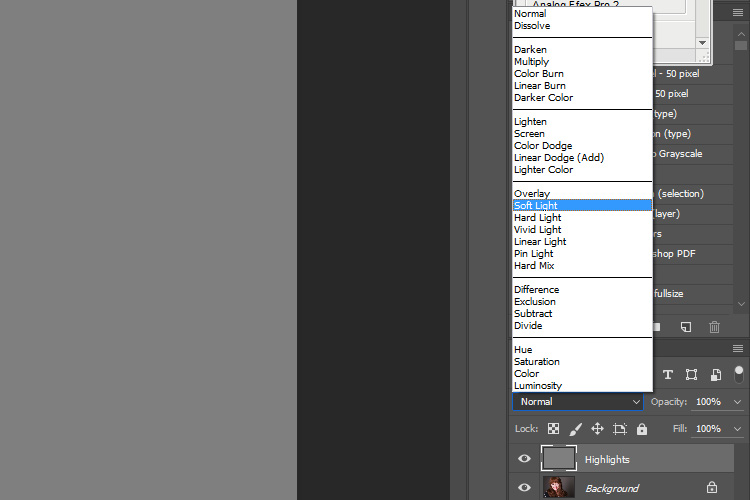
dodging-and-burning-with-grey-layers-softlight

Next, create another new layer. Layer>New Layer or ctrl+shift+n and rename it to “Shadows”. Again, fill it with 50% gray. Edit>Fill>50% Gray or shift+f5
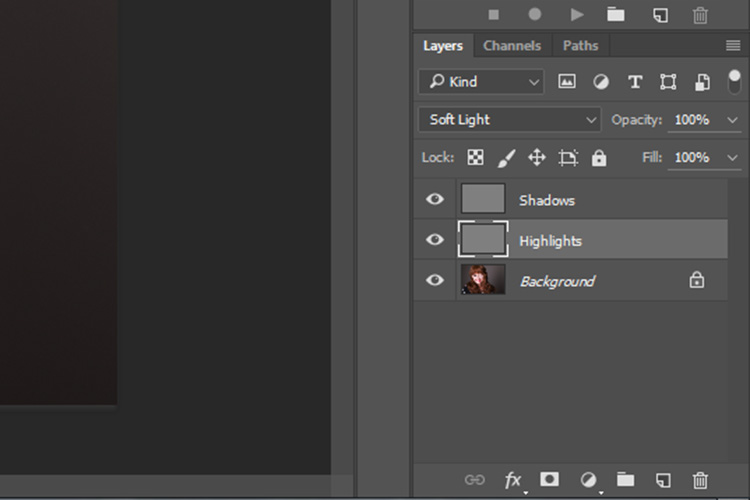
dodging-and-burning-with-grey-layers-layers

Set this layer’s blending mode to the same as the one you chose for your Highlight layer.

That’s the preparation work done. Once you’re used to it, this whole process only takes a few seconds. It’s also possible to set it up as an action, so Photoshop will do it for you at the press of a button.

Dodging

To start, select your Highlight layer and choose the brush tool. Pick a large, soft brush (Hardness number is low and edges are fuzzy). You can change the brush settings by right clicking within your image.
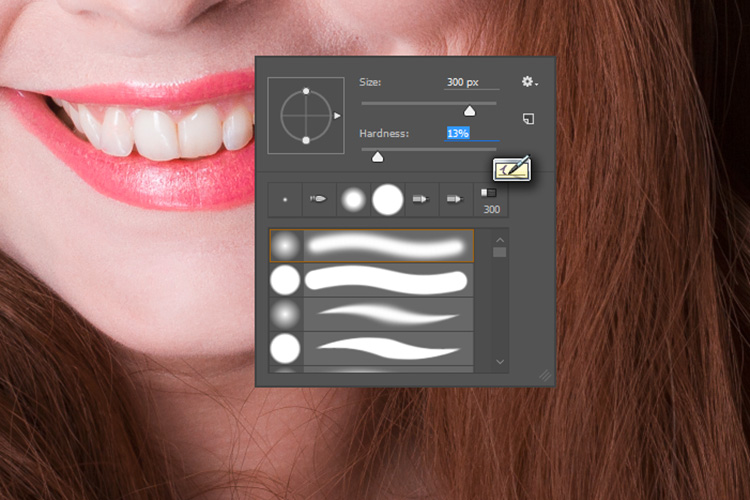
dodging-and-burning-with-grey-layers-brush

With the brush selected, look for the tool settings at the top of your screen. You’re looking for a pair of sliders labeled opacity and flow. Set your brush’s opacity to 15% and the flow to 10% (see below circled in red). You can change them later, but this is a good starting point.
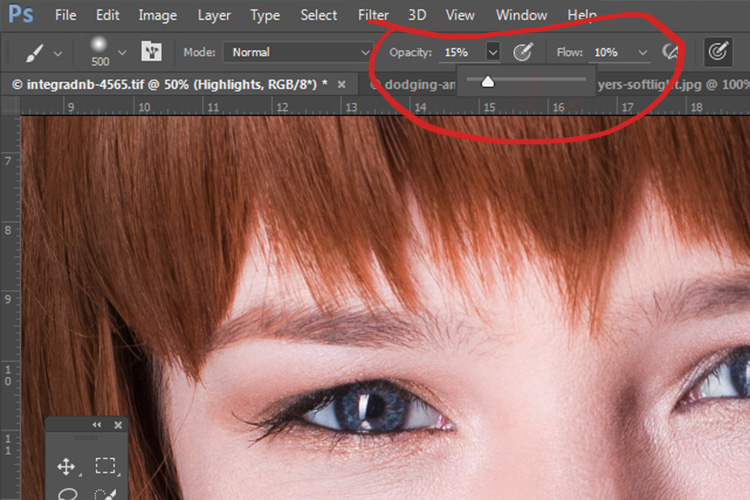
dodging-and-burning-with-grey-layers-brushopacity

Make sure that your brush colors are set to white and black. You can press D (default) on your keyboard to do this. Also, you can press X to swap between them. Knowing these shortcuts will save you an incredible amount of time.

Now you’re ready to dodge.

Assuming you’re working on a portrait, find a highlight area on your subject’s skin that you would like to emphasize. With white set as your foreground color, paint into that area (make sure you are on the Highlight layer not your image). Because the brush’s opacity is so low, you may not notice a difference at first. Just keep brushing into it, and build up strokes until you have the desired effect. Do this for all of your highlight areas.
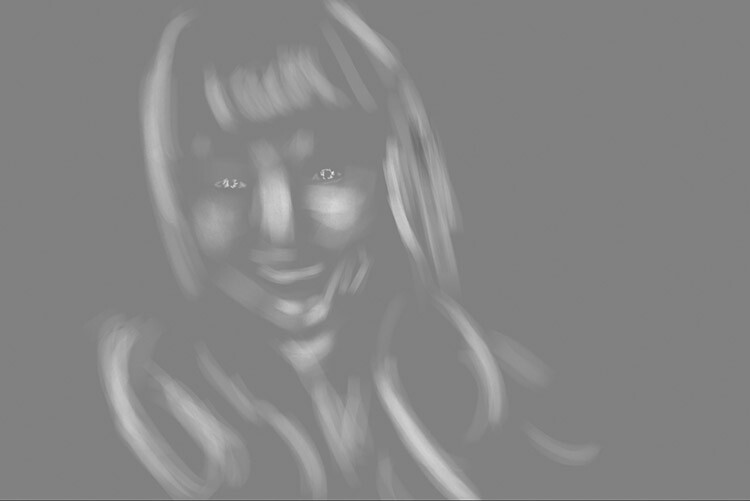
With the blending mode set to normal, your highlight layer may look something like this.

Note: If you decide that you’ve gone too far, just fill the layer with 50% gray again and start over.

Burning

With your highlights done, select your Shadow layer by clicking on it in the layer palette. Select black as your foreground color and paint into the shadows in the same manner you did for your highlights (make sure you are painting on the Shadow layer not your image).
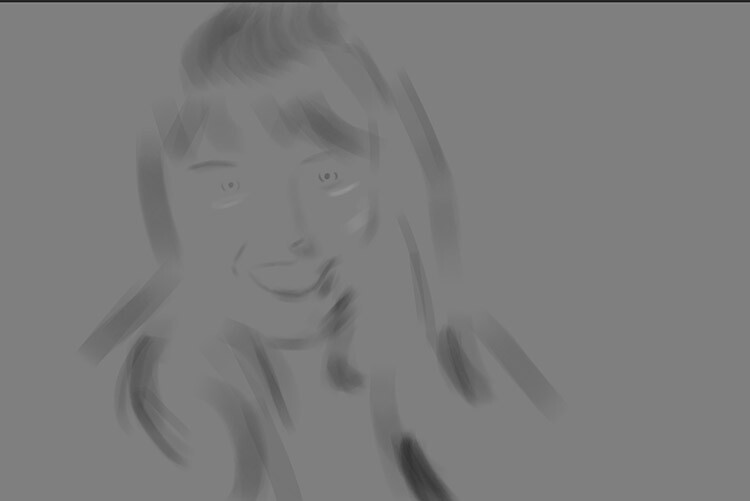
With the blending mode set to normal, your shadow layer may look something like this.
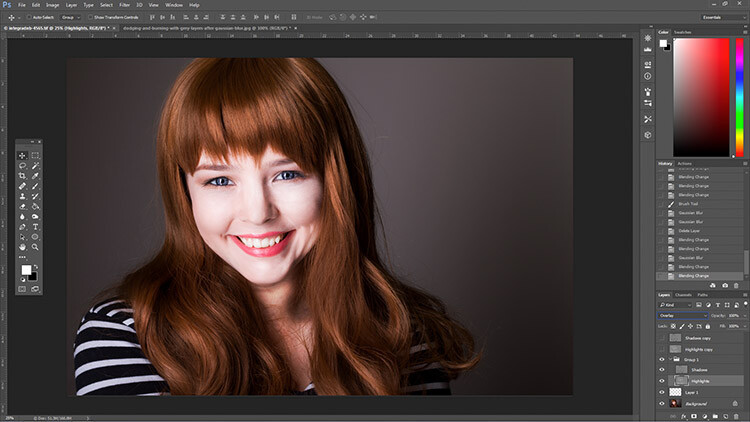
After dodging and burning is complete, you may have something that looks like this.

Add Gaussian Blur

The next step is to smooth out your brush strokes. Select your Highlight layer and select Filter>Blur>Gaussian Blur. Choose an amount between 20 and 40 pixels, and press okay.
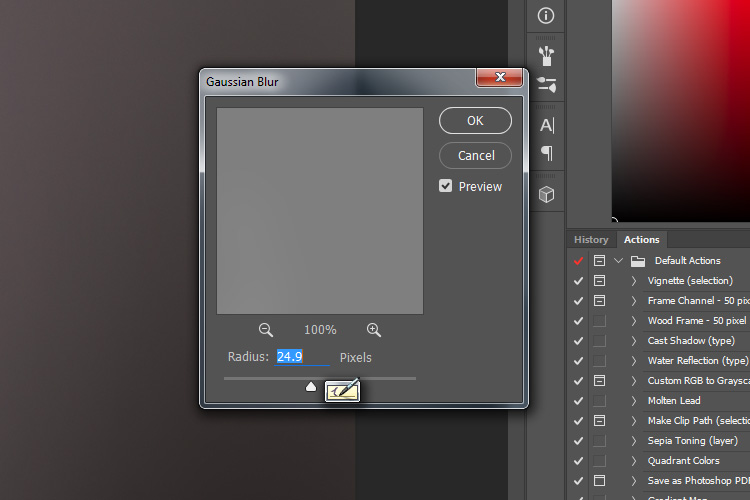
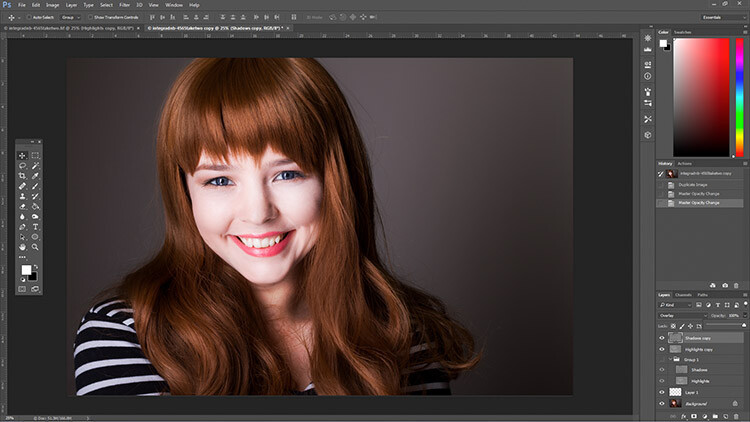
dodging-and-burning-with-grey-layers-gaussian

After the Gaussian Blur filter is applied.

Do the same for your shadow layer.

Final Steps

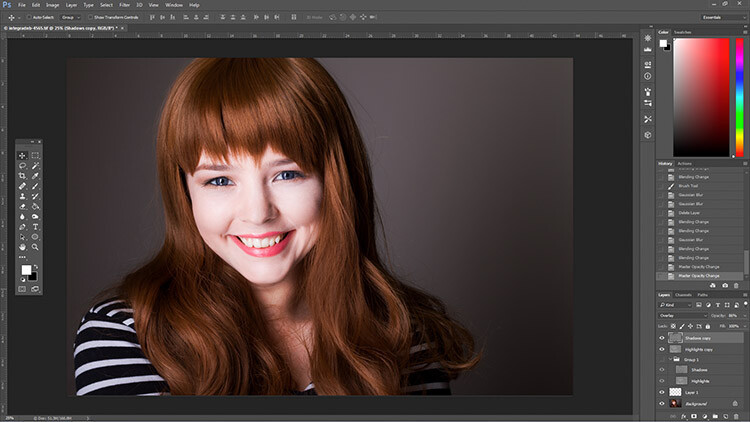
The last thing to do is is change the opacity of your layers. It may not seem like it, but at this point the effect is probably way too strong.

Select one of your painted layers. Find the opacity slider in the layer palette, and drag it to the left. Watch your image as you move the slider and stop once you’ve reached the desired effect.
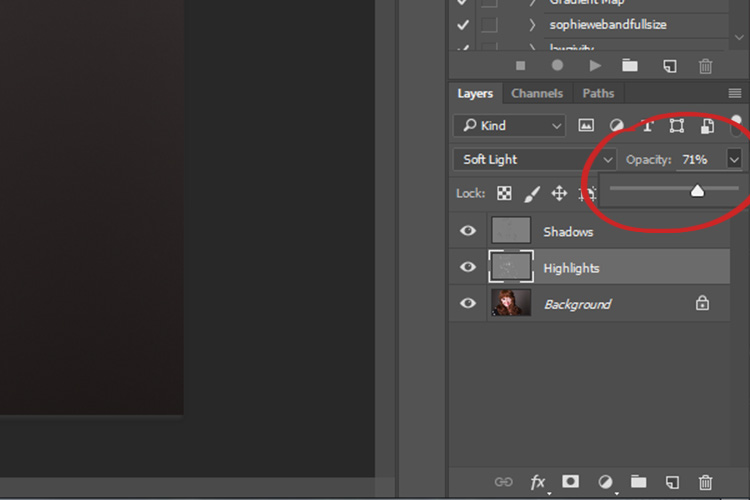
dodging-and-burning-with-grey-layers-layeropacity

Do this for the second layer, and that’s it! You have dodged and burned.
The final image after the opacity of the dodge and burn layers has been reduced.
It's really easy to overcook an image with this technique. Use low opacity brush strokes and take your time to avoid having your images look like this one.
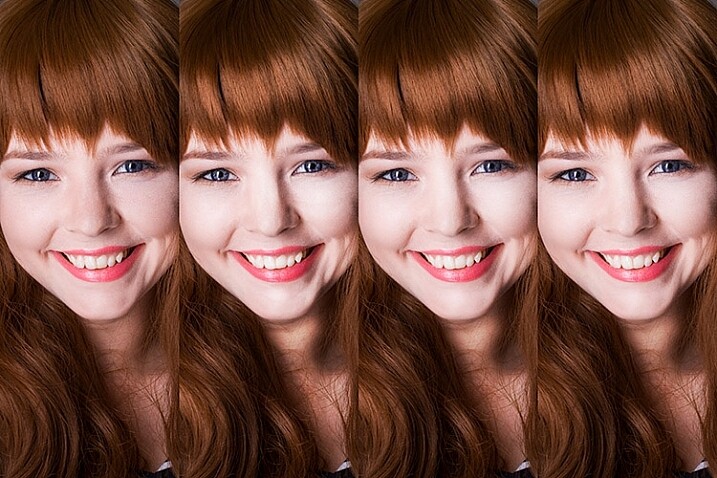
It’s really easy to overcook an image with this technique. Use low opacity brush strokes and take your time to avoid having your images look like this one.

From Left to right: 1) Before 2) Dodge and burn with no blur. 3) Gaussian Blur filter applied. 4) Opacity of dodge and burn layers reduced.

Tips and Notes

  • Like most retouching techniques, subtlety is key. At first, overcooking your images with this technique is inevitable. Keep practicing and you’ll figure it out in no time.
  • Always zoom in to 100% or closer when working on small areas like eyes.
  • A graphics tablet will help with smooth, natural brush strokes. If you can only use a mouse or trackpad, experiment with more liberal use of Gaussian Blur to mask the brush strokes.
  • When painting shadows or highlights, try to match the light in the image. You can paint white (dodge) into your shadows, but this will probably look very strange in the end.
  • Change the brush size often, and appropriately, to the area you are working on. Keyboard shortcuts make this a breeze (use [ and ] to increase and decrease brush size).
  • Experiment with different brushes until you find one that suits your taste.
Before dodging and burning
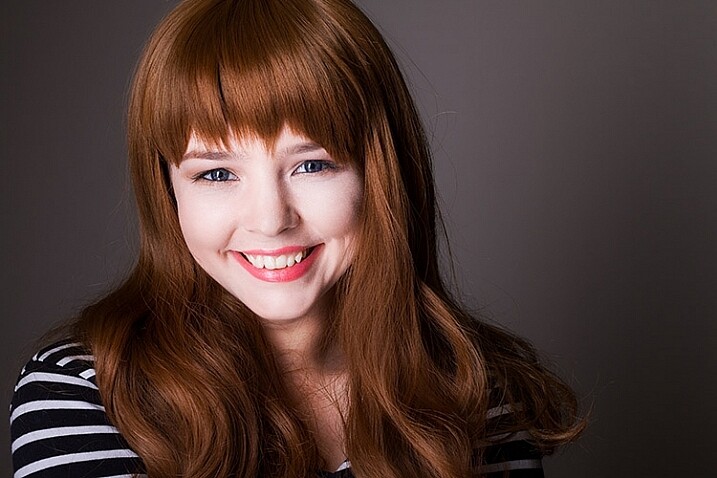
Before dodging and burning

After dodging and burning

More Tips and Notes

  • It’s all too easy to concentrate on the face, but try not to forget other parts of the image like your subject’s hair, clothes, and the rest of their body.
  • Both dodging and burning can be done on a single gray layer. Feel free to do this, but the two layer technique grants you even more control, without much extra effort.
  • Consider setting up a keyboard shortcut for Gaussian Blur. This saves a lot of time.
  • You can create as many sets of gray layers as you want. For example, if you want to use very small brushes to dodge and burn the eyes, you might choose to do this on a separate set of layers in order to use less blur at the end. If you use a lot of layers sets like this, consider using layer groups to keep them organized and don’t forget to name your layers.
  • If the shadows and highlights you are working with have very hard edges, try using a harder brush and a lower amount of Gaussian Blur.
  • Consider watching and trying some digital painting and sketching tutorials for Photoshop. These can really help to increase your brush control and lend to more natural results.

googletag.cmd.push(function() {
tablet_slots.push( googletag.defineSlot( “/1005424/_dPSv4_tab-all-article-bottom_(300×250)”, [300, 250], “pb-ad-78623” ).addService( googletag.pubads() ) ); } );

googletag.cmd.push(function() {
mobile_slots.push( googletag.defineSlot( “/1005424/_dPSv4_mob-all-article-bottom_(300×250)”, [300, 250], “pb-ad-78158” ).addService( googletag.pubads() ) ); } );

The post How to Enhance Portraits Using Gray Layers to Dodge and Burn in Photoshop by John McIntire appeared first on Digital Photography School.
Digital Photography School

 
Comments Off on How to Enhance Portraits Using Gray Layers to Dodge and Burn in Photoshop

Posted in Photography


How to Use Photoshop to Enhance Details in Your Photos

29 Jun

Do you think that your images lack details? Here is the way to extract the extra details that are already present in your photos, but are not visible, using Photoshop. Some methods like high pass sharpening will either give you a way too crunchy look or create halos around the edges of the different elements in your image. However, this Continue Reading

The post How to Use Photoshop to Enhance Details in Your Photos appeared first on Photodoto.


Photodoto

 
Comments Off on How to Use Photoshop to Enhance Details in Your Photos

Posted in Photography


How to Use a Reflector and Diffuser to Enhance Flower Photographs

26 Jun

Photograph Flowers 2016-05-11at15-41-06

cover-fill-card

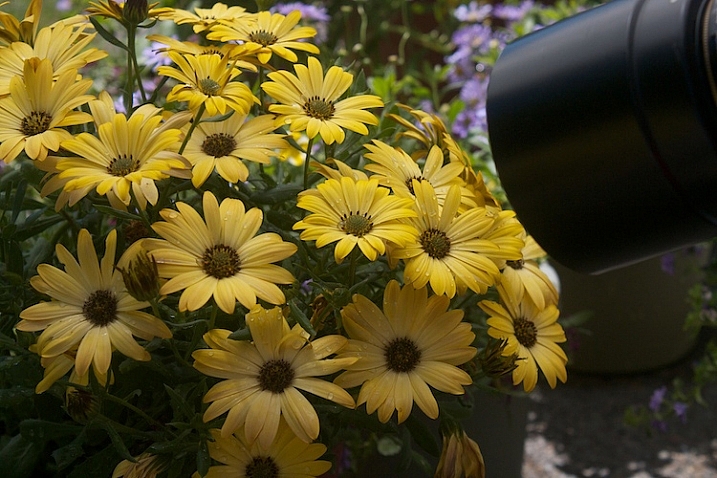
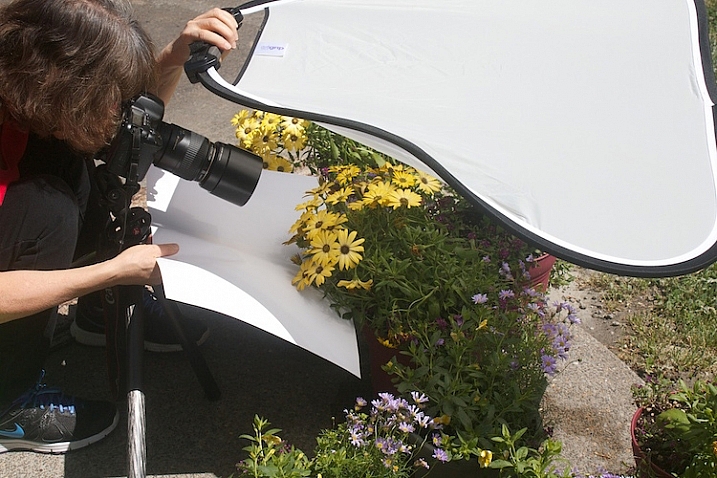
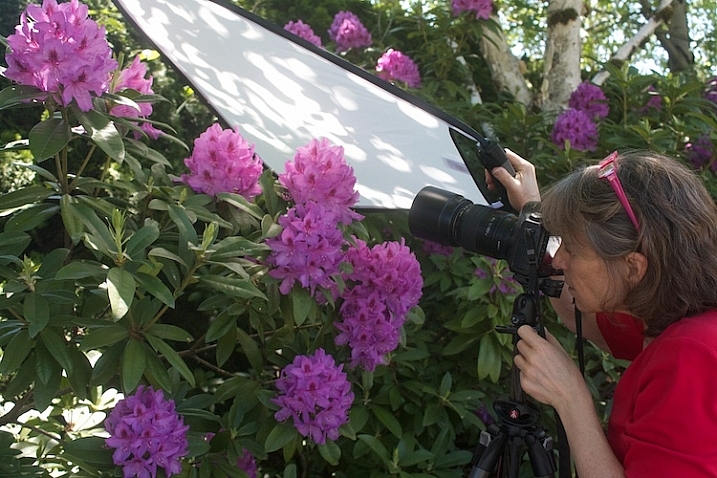
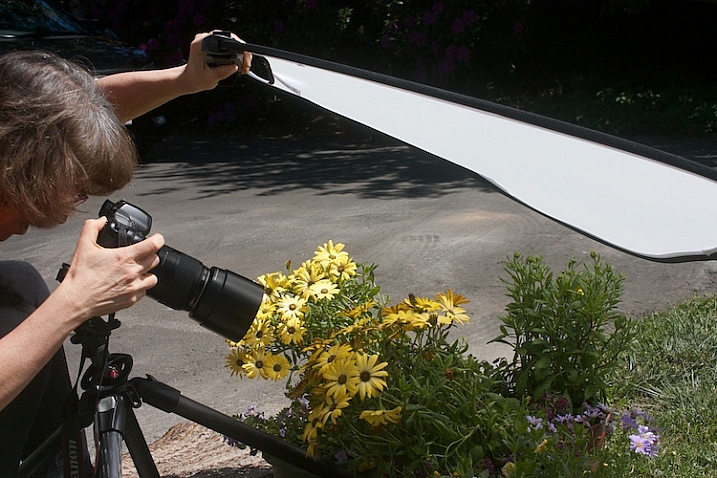
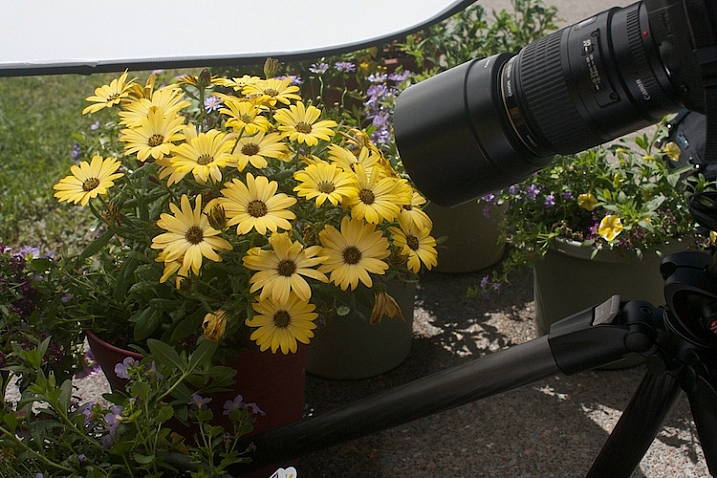
Learning to see and use light is one of the most important steps to creating great photographs. As you become more aware of what nice light really looks like, you can start to manipulate even the harshest conditions with some simple tools. The photo above was shot in bright sunshine using both a diffuser and a reflector.

full-sun-overview

Practice

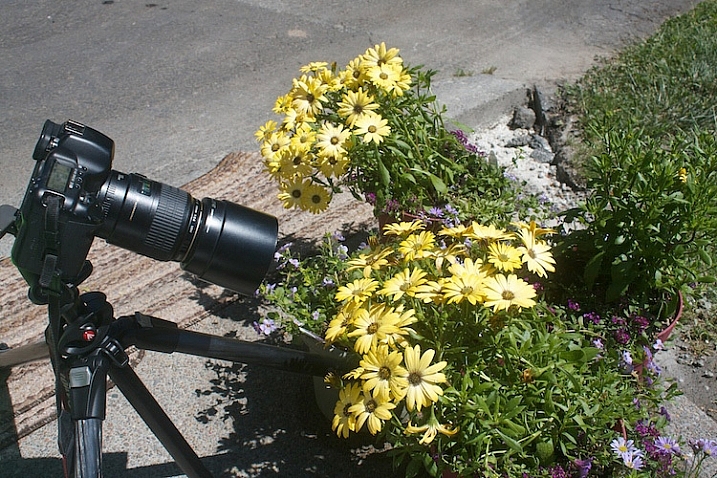
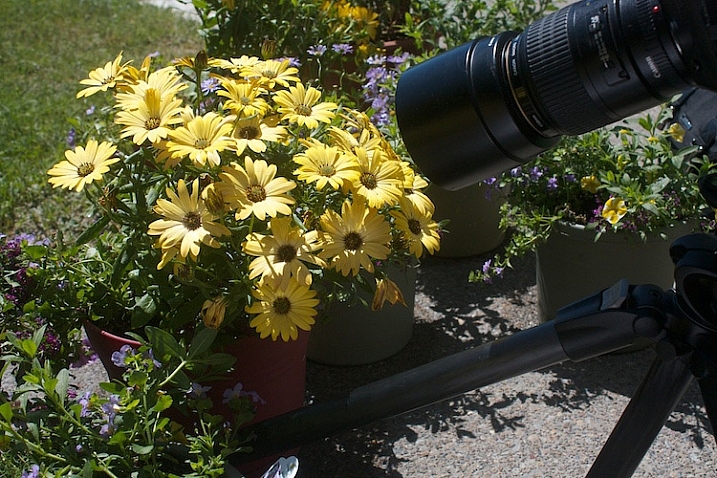
To practice this exercise, find some flowers in bright sun. You can photograph flowers that are planted in your garden, or in pots.

Photograph-Flowers-in-sun-3

Photograph-Flowers-in-sun-2

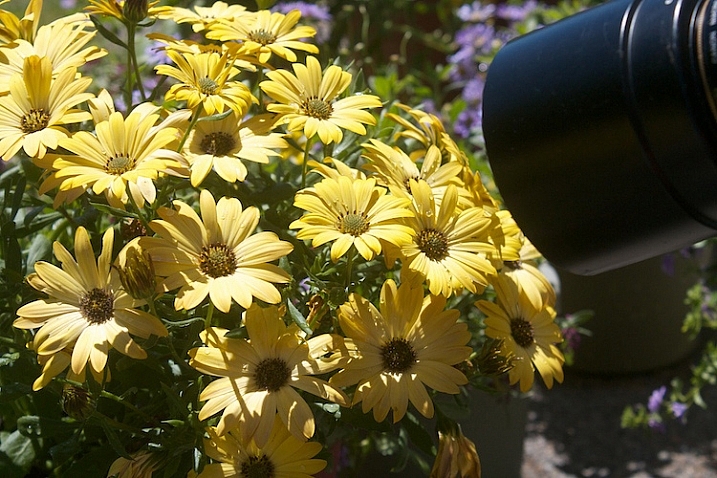
Notice the quality of light on the flowers. In bright sun, there are strong highlights and deep shadows. There is lot of contrast, which comes through in the image.

Photograph-Flowers-2016-05-11at15-34-44

Notice how you lose detail in the highlights. The bright spots caused by the sun don’t add anything to the photograph, in fact, they are very distracting. Our eyes tend to go toward the brightest spots in a photograph and in this situation, the highlights are drawing our eyes away from the center of interest – the flower.

Photograph-Flowers-2016-05-11at15-09-23

Add a reflector

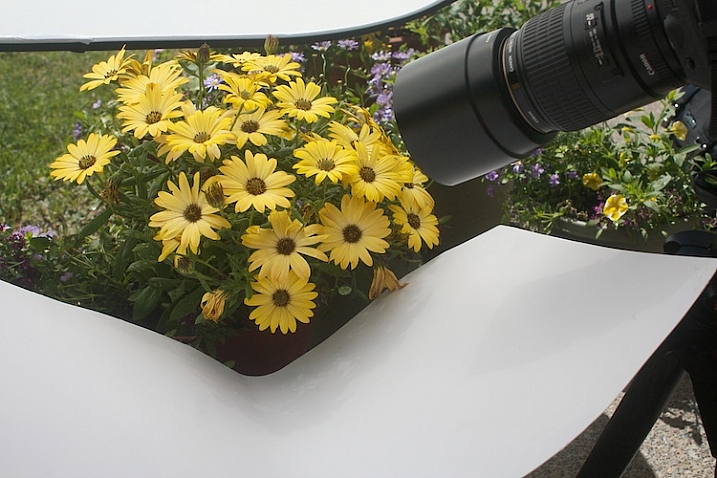
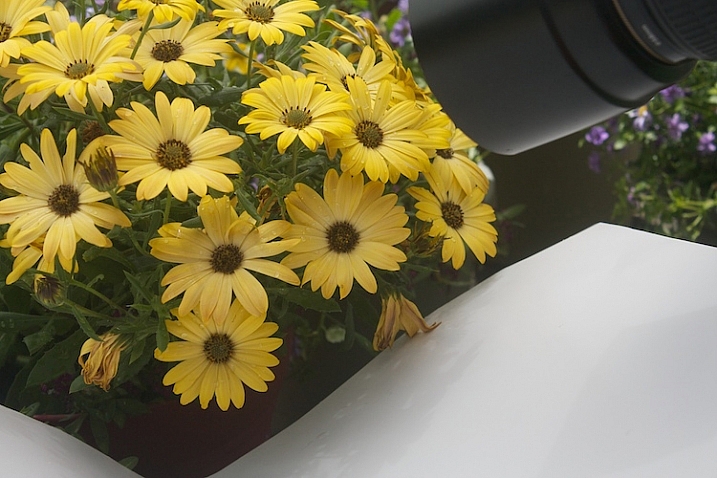
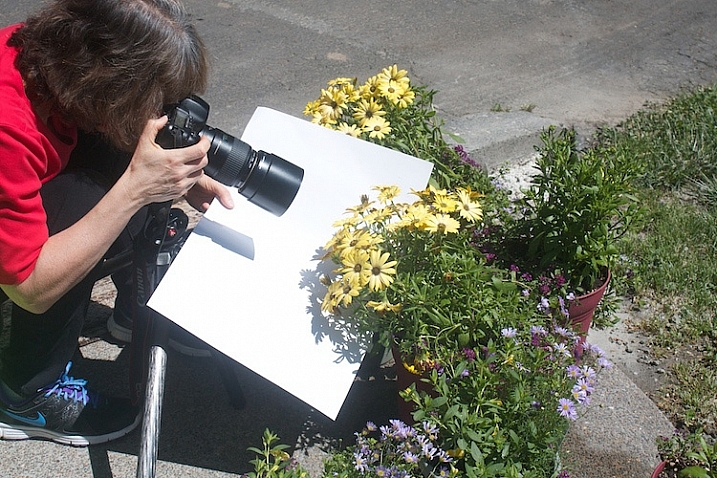
Now, try using a reflector. Light bounces just like a billiard ball. By placing a light colored, reflective surface opposite the light source, you can bounce light back into the subject. In this instance, our light source is the sun, so I placed the reflector under the leaves to bounce the light back into the shadows. You can use almost anything as a reflector. In this example, I’m using a piece of white poster board.

Read DIY How to Build and Use a Reflector to Take Better Portraits and 10 Ways to Use a 5-in-1 Reflector for more help on using reflectors.

Just-below-full-sun-using-fill-cards

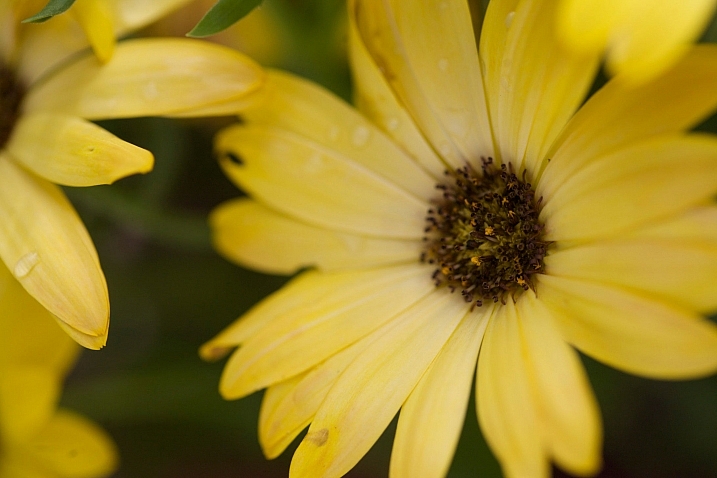
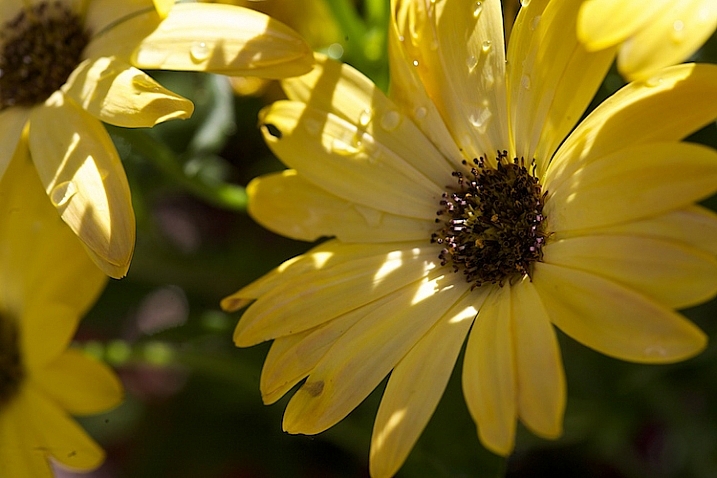
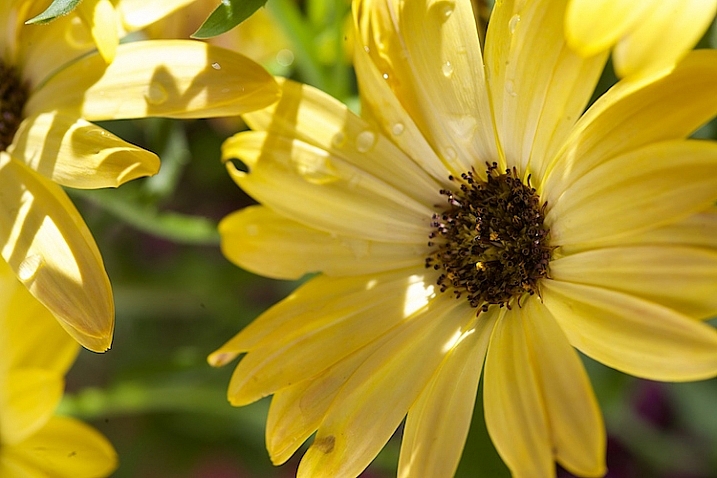
Notice the difference in the image above, compared to the one without the reflector. Can you see how bouncing the light back in brightens up the flower? The exposure settings haven’t changed. The only difference is the reflector (also called a fill card) in the second shot.

Photograph-Flowers-2016-05-11at15-08-06

Diffuse the light

Now, we are going to use a diffuser to soften the light.

Photograph-Flowers-reflector-above-better2

Here we are starting to see some really beautiful, soft light. Notice how even the light is and how much softer the flowers feel. The highlights and shadows are not as severe and harsh, and more detail is retained in both areas.

Photograph-Flowers-reflector-above

Use a reflector and diffuser

Take it a step further.

Photograph-Flowers-2016-05-11at15-09-41

Let’s use a diffuser with a reflector, and see how that looks. Here’s a tip for you: If you can’t prop up your reflectors and diffuser and press the shutter button, you can use the 2-second self-timer on your camera to free up an extra hand.

Photograph-Flowers-reflector-above-and-below

With the diffuser above and a reflector below, the flowers start to take on a magical feel.

Photograph-Flowers-2016-05-11at15-12-20

fill-card-reflector-top-and-bottom

cover-fill-card

Now you can see how using a reflector and diffuser can drastically improve your flower photographs. I also want to add that none of these photographs were manipulated in Lightroom or Photoshop in any way, other than a little sharpening. The dramatic difference in the photographs was created entirely by manipulating light.

Please share you comments and questions below, then try this exercise at home and post your photos in the comments below. I’d love to see them!

googletag.cmd.push(function() {
tablet_slots.push( googletag.defineSlot( “/1005424/_dPSv4_tab-all-article-bottom_(300×250)”, [300, 250], “pb-ad-78623” ).addService( googletag.pubads() ) ); } );

googletag.cmd.push(function() {
mobile_slots.push( googletag.defineSlot( “/1005424/_dPSv4_mob-all-article-bottom_(300×250)”, [300, 250], “pb-ad-78158” ).addService( googletag.pubads() ) ); } );

The post How to Use a Reflector and Diffuser to Enhance Flower Photographs by Vickie Lewis appeared first on Digital Photography School.

Digital Photography School

 
Comments Off on How to Use a Reflector and Diffuser to Enhance Flower Photographs

Posted in Photography


How to Enhance Urban Night Photographs Using Luminosity Masks in Photoshop

19 Jun

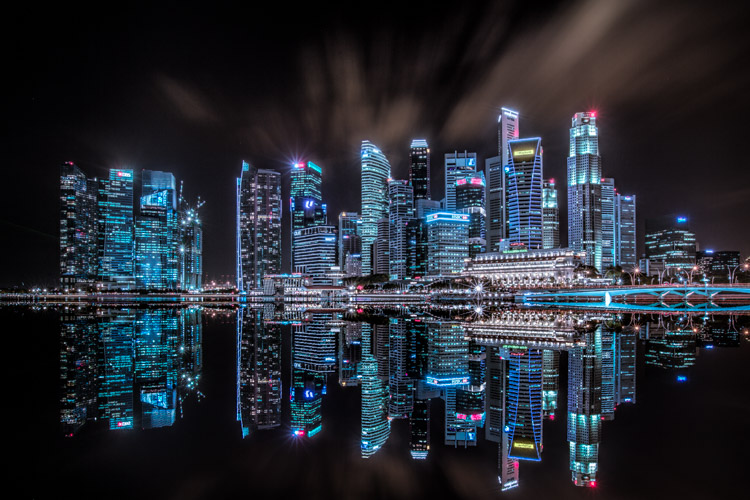
As the sun sets on a city’s skyline, thousands of lights come flooding the concrete jungle, turning every urban scene into a photographer’s paradise. Every corner around the city suddenly seems too irresistible not to be photographed.

Image 01

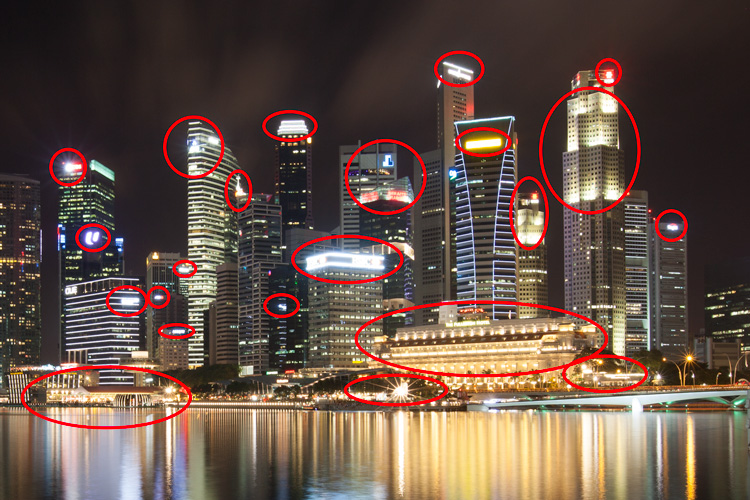
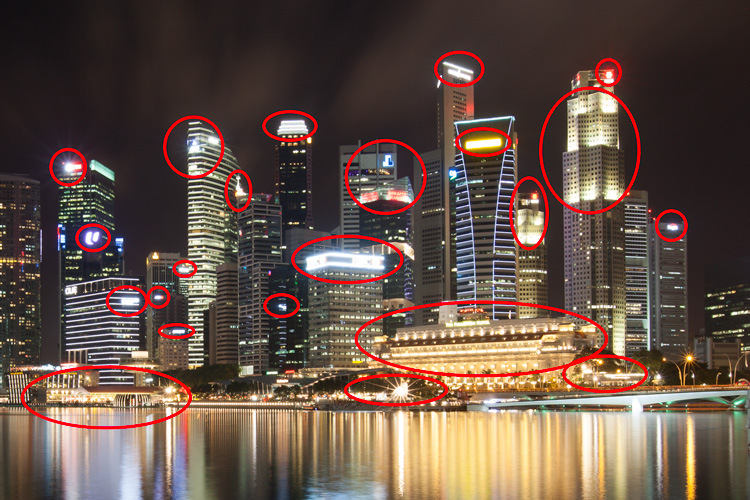
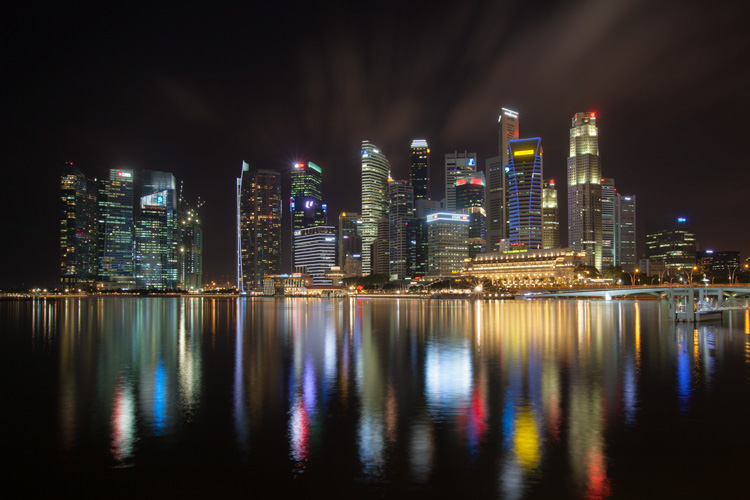
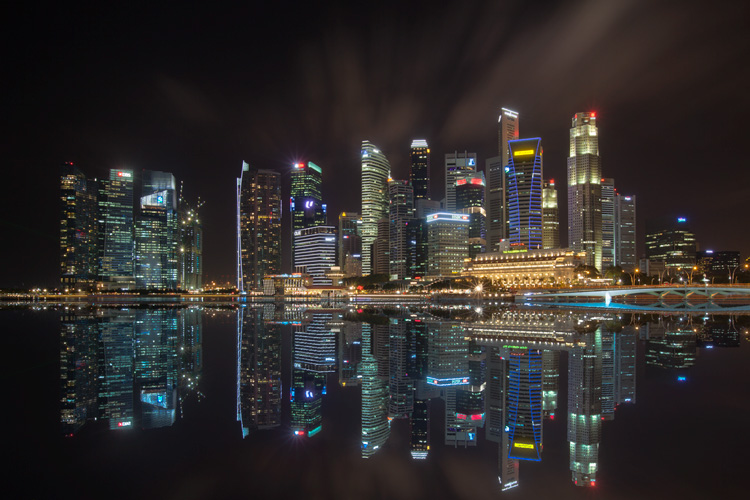
Urban night shots is probably one of the most common photos taken at night. The way most people shoot cityscapes at night is to keep the camera still, press the trigger, and snap the shot. The result is often an uninspired image, with overexposed highlights due to the long exposure. This problem can be fixed by blending multiple exposures, to recover details in the highlights with luminosity masks.

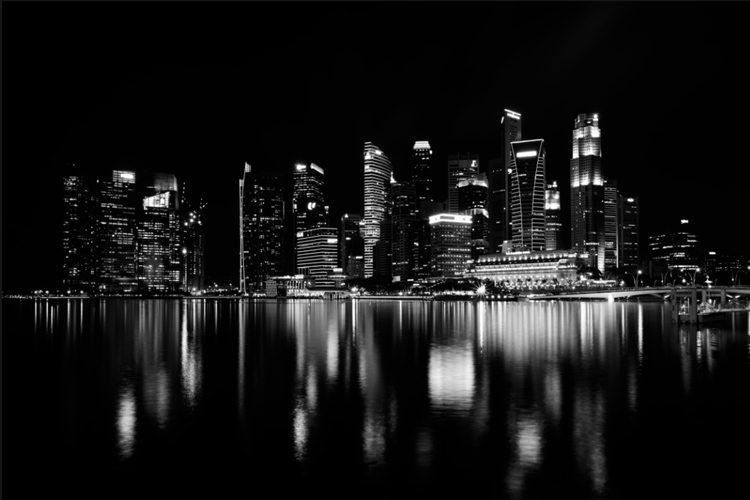
Image 02

Overexposure of highlights circles in red.

Using Luminosity Masks is a way of making a selection based on the luminosity (or brightness) value of the pixels. The main advantage of luminosity masks over other selection tools is its ability to feather the edges, which makes the transition seamless. One of the earliest articles detailing how luminosity masks works was published by Tony Kuyper. You can learn more about luminosity masks here.

In this tutorial, I will show you step by step, how you can recover detail in the highlights of your urban night shots, using luminosity masks in Photoshop. There are two parts to this: taking the multiple exposure, and editing them in Photoshop with luminosity masks.

Part one: How to take multiple exposures

  • Step 1: You need a tripod, and a camera that has aperture priority and manual mode.
  • Step 2: Mount your camera on the tripod and compose your image. In aperture priority mode, set the aperture and ISO settings you want, and take a shot with the default metering mode (usually matrix metering).
  • Step 3: Review the image on the LCD screen and take note of the shutter speed. Switch your camera to manual mode and dial in the ISO, aperture, and shutter speed that you used for the first shot.
  • Step 4: Speed up your shutter speed by one stop and take a shot again. For example, if the initial shutter speed was 30 seconds, stopping up by one stop would be 15 seconds (the shutter speed halves).
  • Step 5: Repeat step 4 until you can see details in the highlights by zooming in on the LCD screen on your camera, and checking the histogram for clipped highlights (blinks).

Tip: Use a remote release and/or enable mirror lockup (in a DSLR) to ensure the sharpness of your photos.

Part two: Recovering the highlights using luminosity masks in Photoshop

Step 1: If you use Adobe Lightroom, select all the images you want to blend. Right click on the mouse, choose Edit in > Open as layers in Photoshop. Otherwise, you can open them individually in Photoshop, use the move tool and drag each image into a single file as layers.

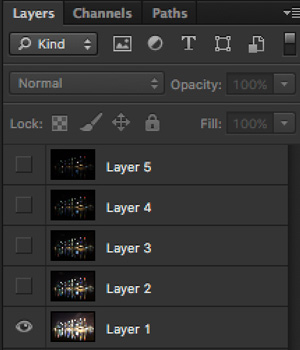
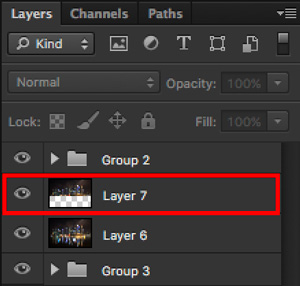
Step 2: Make sure the images are arranged such that the brightest exposure is at the bottom of the layers. To make sure all images are absolutely aligned, select all layers, then go to Edit > Auto-Align Layers. You may have to crop the image a bit after alignment.

Image 03

The layers are arranged so that the brightest image is at the bottom.

Step 3: Make sure you have luminosity masks Photoshop Actions to add and remove luminosity masks. If you don’t, you can download it here (the file is zipped, so make sure you unzip it first, then follow the instruction on how to install it here).

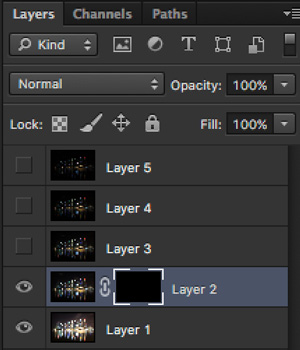
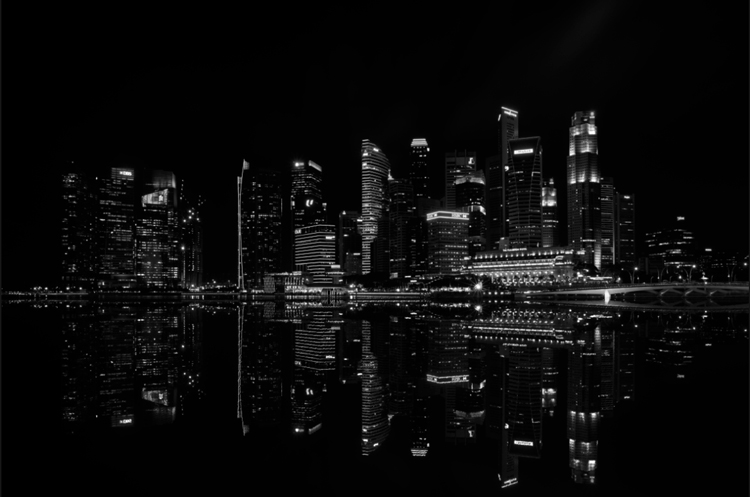
Step 4: To start off, make all layers invisible except the bottom two (layer 1 and 2). You can do so by unchecking the eye icon next to each layer. Next, create a mask for Layer 2 and fill it with black.

Image 04

Step 4: Next, generate luminosity masks based on Layer 1 (the brightest exposure). To do that, select Layer 1 on the layers panel, and generate the luminosity mask with the Photoshop Action.

Step 5: Go to Channels panel, select a Brights luminosity mask that targets just the highlights. In this case, Brights 2 seems like a good choice because it is not too restrictive and has good feathering on the edges.

Image 05

Step 6: Select Brights 2 luminosity mask by holding down CMD (Mac) or CTRL (Win) and left click on the mask. You should see marching ants appear on the image. Depending on your image, if you do see a pop-up window that says “Warning: No pixels are more than 50% selected…”, don’t worry about it and just click ok.

Step 7: Go back to the layers panel and click on the mask on layer 2. Select the brush tool, set the opacity to 50%, color to white, and paint over the layer mask to blend the darker exposure (Layer 2) into the brighter exposure (Layer 1 below). Depending on your image, you can choose to paint just the brightest highlights or all of them. In this example, I chose to paint all the highlights. If you find the marching ants annoying, hit CMD (Mac) or CTRL (Win) + H key to hide them.

Image 06

Details in the highlights are gradually recovered.

Step 8: Delete the luminosity masks generated previously because you now need luminosity masks based on the brightness of Layer 2, where you have just blended in the darker exposure. To do so, remove the current luminosity masks with the Photoshop Action.

Step 9: Now select Layer 2 and generate luminosity masks with the Photoshop Action.

Step 10: Select Layer 3, add a layer mask, and fill it with black.

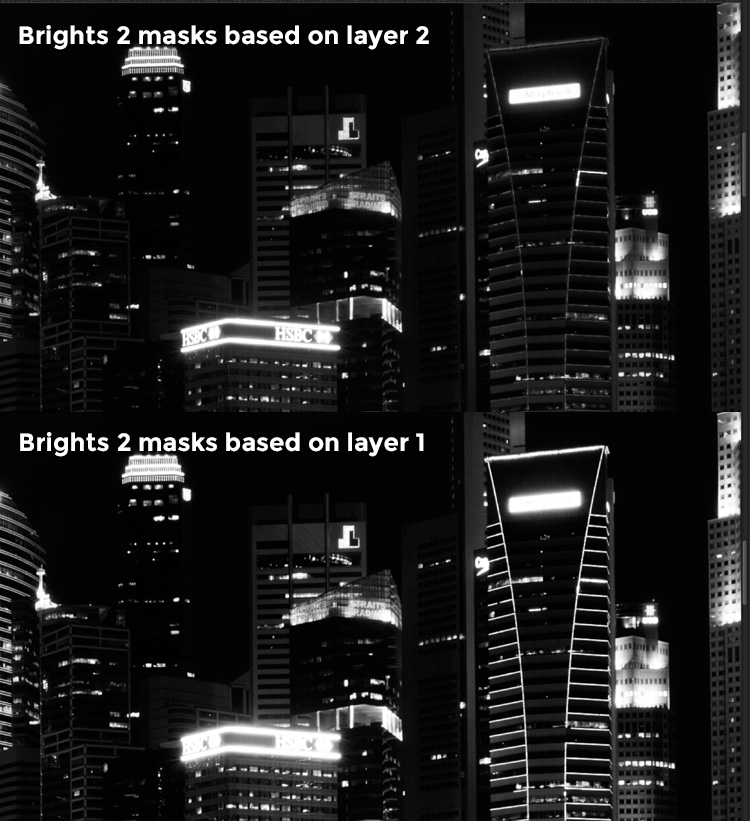
Step 11: Go to the Channels panel, select a brights mask that targets the highlights. In most cases, selecting the same mask should do the job. In this example, I have chosen the Brights 2 mask again.

Image 07

Comparison of Brights mask for Layer 1 and Layer 2.

Step 12: Hold down CMD (Mac) or CTRL (Win) and click on Brights 2 mask to select once again. Go back to layers panel and click the mask on Layer 3, then use a white brush as before, and paint over the highlights again. You should see details being recovered gradually. At this stage, you should consider painting over the brightest highlights only instead of the whole image. In this example, I only painted the highlights as circles in the illustration below.

Image 02

Step 13: Repeat Steps 8 to 12 until you are done with all the layers. Your final image should have a more balanced exposure, with details in the highlights. You can then apply further tonal or color adjustments, and sharpening to your image.

Image 08

Final image.

Bonus: Adding a reflection and color to the lights

This involves a lot of editing, and may not be for everyone. For those of you who are into post-processing, you can clean up the image by removing unwanted objects, add a reflection, and change the color of the lights.

Adding a reflection

This only works if you have an empty foreground in your image like the example here.

  • Step 1: Use the rectangular marquee tool and make a selection of the city’s skyline. Then, copy and paste it as a new layer.
Image 09

Copy and paste the selection as a new layer.

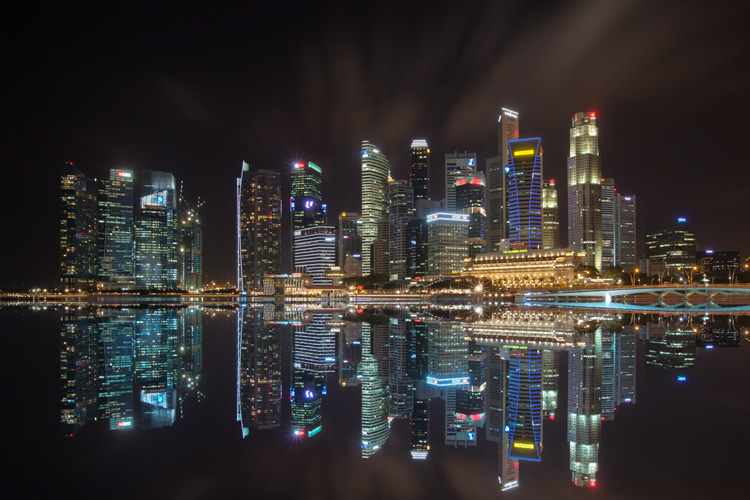
  • Step 2: Select the layer of the copy, hold CMD (Mac) or CTRL (Win) + T to transform. Move your cursor to the image, right click and select > Flip Vertical. Use the move tool to position the flipped image lower to align the border.

Image 10

  • Step 3: You can add a ripple effect to the reflection by going to the top menu and selecting Filter > Distort > Ripple. Keep the size of the ripple to medium, set the amount you like, and press ok.
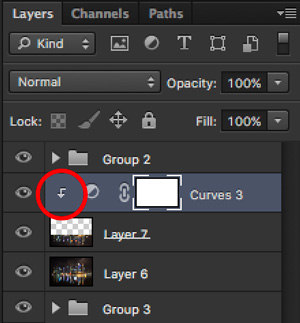
  • Step 4: Increase the contrast of the reflection by adding a curves adjustment layer, and clip it to the reflection layer only. To do that, right click on the curves layer and select Create Clipping Masks. You should see a little arrow on the curves layer pointing down at the layer below it. You can also reduce the opacity of the reflection layer if you like.
image-11

Clipping curves adjustment to the layer below.

Image 12
Final image with reflection.

Adding color to the lights

  • Step 1: You need a visible layer to begin with. If you don’t have one, you can go to the menu on the top and choose Layer > Merge Visible.
  • Step 2: Generate luminosity masks based on this layer. Remember to delete any luminosity masks you had before this.
  • Step 3: Select a brights luminosity masks that targets the highlights. In this example, I know from before that brights 2 mask works very well, so I’m going to choose it again. Select it by holding cmd (Mac) or ctrl (Win) + left click on your mouse.
Image 13

Brights 2 luminosity mask.

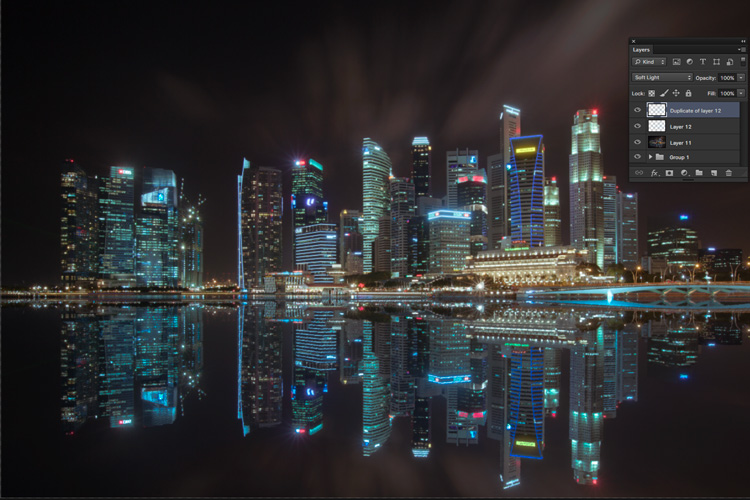
  • Step 4: Add a new layer, and change the blend mode to soft light. The selection should be automatically loaded onto this new layer already.
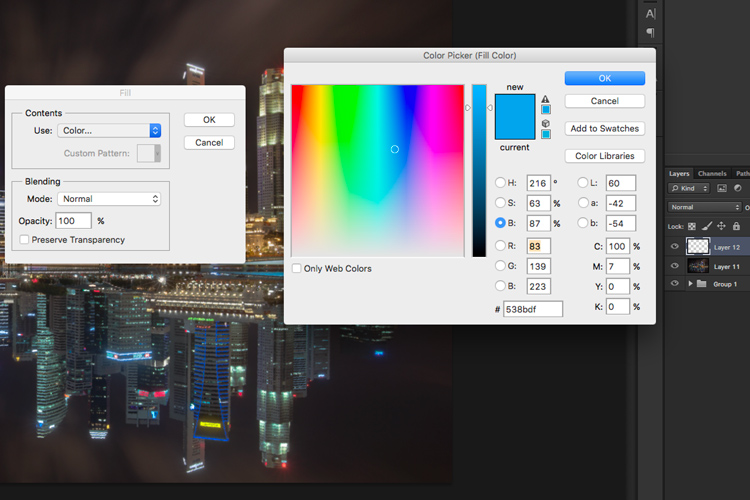
  • Step 5: Now fill the with the color of your choice by holding down Shift + Backspace, select a color, and press ok. You should now see the color of the lights have changed subtly.

Image 14

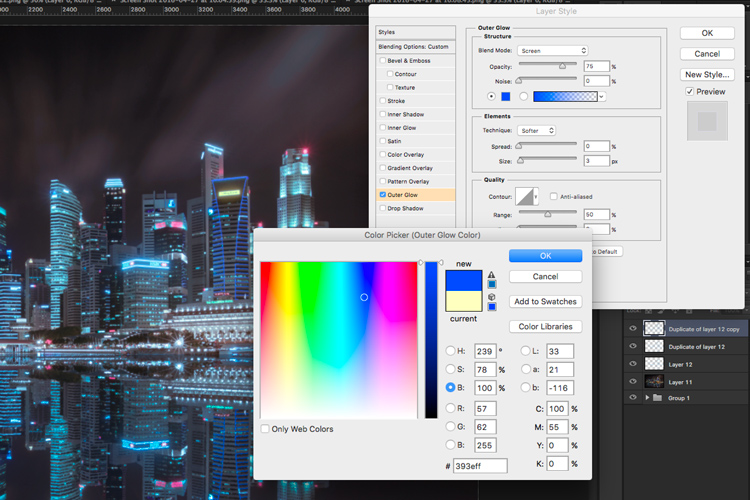
  • Step 5: If you want the effect to be stronger, duplicate the layer once or twice until you like it.
Image 15

Duplicate the layer for a stronger effect.

  • Step 6: The final step is what makes the lights glow. Double click on the top layer to bring up the layer style. Check the box for outer glow, and pick a color that is slightly darker than the one you have used before. Click ok and your done!
Image 16

Apply outer glow for the final touch.

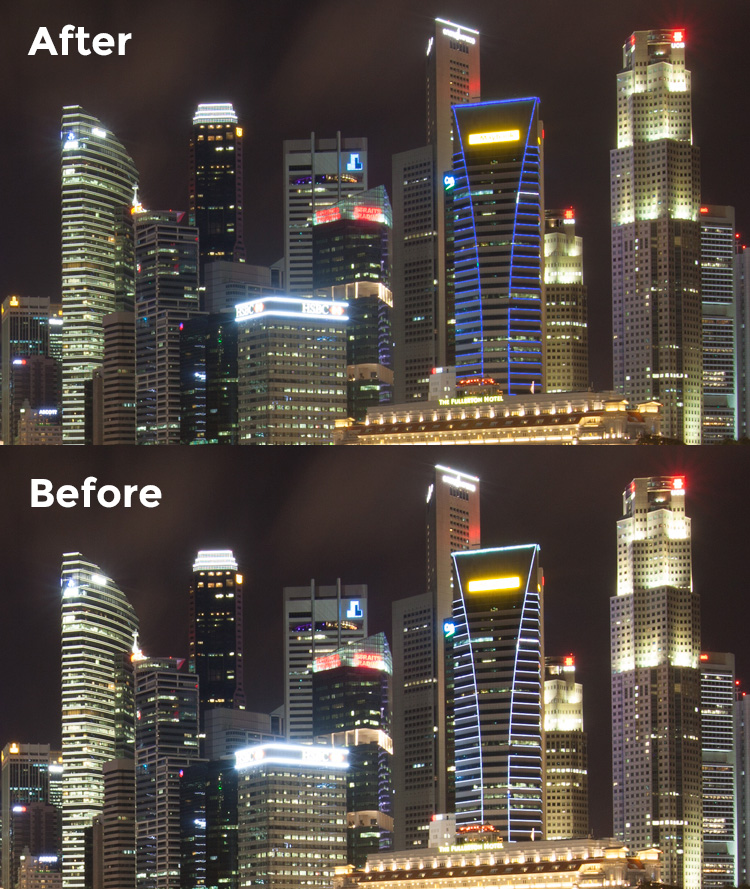
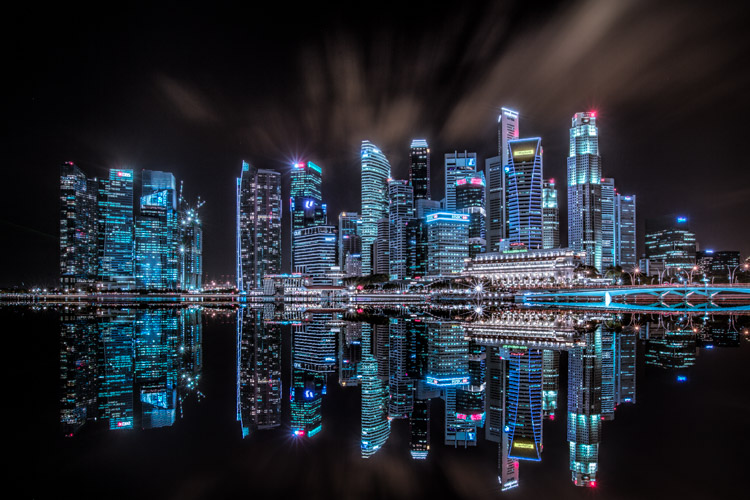
Apply a few other tweaks and sharpening and you’ve got yourself a cool urban night cityscape!

Before

Before

Image 01

After


googletag.cmd.push(function() {
tablet_slots.push( googletag.defineSlot( “/1005424/_dPSv4_tab-all-article-bottom_(300×250)”, [300, 250], “pb-ad-78623” ).addService( googletag.pubads() ) ); } );

googletag.cmd.push(function() {
mobile_slots.push( googletag.defineSlot( “/1005424/_dPSv4_mob-all-article-bottom_(300×250)”, [300, 250], “pb-ad-78158” ).addService( googletag.pubads() ) ); } );

The post How to Enhance Urban Night Photographs Using Luminosity Masks in Photoshop by Yaopey Yong appeared first on Digital Photography School.

Digital Photography School

 
Comments Off on How to Enhance Urban Night Photographs Using Luminosity Masks in Photoshop

Posted in Photography


How to Use Clouds to Enhance and Improve Your Images

07 Apr

Siberian Husky, 7 months old, male, white, lying on a hill with dramatic sky

Many photographers enjoy taking pictures of clouds, and it’s easy to see why. From the vivid patterns and brilliant sunset formations, to the storm clouds and unusual styles, there’s almost always something interesting happening in the sky. While there’s no doubt that clouds can make great subjects in their own right, I feel that they are most useful, photographically speaking when they’re used as backgrounds for other subjects. The proper use of clouds in an image can add texture, dimension, and drama to many photos, while enhancing or serving as an additional storytelling feature for your main subject.

Making clouds work for you in this way usually requires a little bit of planning, some location scouting (always fun!), the right subject, and, course, keeping a sharp eye on the sky for weather that will produce great clouds. Let’s get started!

Clouds = texture

First let’s examine how clouds can turn boring into brilliant. This image below of a Whippet was taken on a hill, on a clear day without any clouds at all. The plain blue background is striking, but the solid color perhaps lacks interest:

Whippet, portrait on hill

Now consider this shot, taken of the same dog back in the same location, but on a day with large summer clouds. The difference is immediately obvious – the clouds add some much-needed texture and drama, elevating this image above the plain blue version (and earned it a spot in an upcoming Whippet calendar).

Whippet, portrait on hill

A good landscape photo can also often benefit from some cloudy texture:

Farm fencing, fields, clouds

Reach for the sky

Finding a way to include clouds behind the subject is one of those photographic puzzles that we have to solve from time to time. Often, the key is to figure out how to raise the subject, or lower yourself. A great way to do this is to utilize a hill. Generally, the bigger the hill, the better, but even tiny knolls and rises can work.

Here’s a shot taken on a large hill, where I was able to get much lower than the horses.

Herd of horses grazing on hill, clouds

The hill blocks out anything distracting, and gives the photo a clean horizon line. But again, if this was just a blank, blue sky, the photo wouldn’t be as interesting, and wouldn’t pack as much of a punch. The clouds provide added texture, and help balance out the top of the photo.

Now here’s a photo where the subject was on just a tiny rise.

DJ-SM-20-159

Getting this shot required a little extra work on my part, as I had to get myself and my camera down close to ground and look up, but it worked. What you can’t see is that there were actually a lot of distracting elements all around the scene, that I was able to remove just by getting down low. A big part of photography is understanding what not to include in the viewfinder.

You can also take advantage of subjects that are already higher than you are.

Person pitching loose hay on haywagon with tractor, clouds in sky

Person pitching loose hay on wagon with tractor, clouds in sky.

Silhouettes optional

Remember, not all subjects against a sky have to be black silhouettes. Because the horses and clouds are being lit with the same light, from the same direction, detail and color remain consistent for both. In the case of the Whippet image, I used a large reflector board to illuminate her body, until her brightness matched the sky and clouds, preventing the Whippet from becoming underexposed.

Storytelling

It’s great to be able to use clouds as a storytelling device. Let’s look at a few examples of this:

Windmill on farm with clouds

I thought the big weathervane was an interesting subject, but the terrific approaching storm clouds were what really made me look twice. The weathervane says “weather,” but the subject combined with some actual weather maybe suggests the question, “What’s going to happen when the storm comes?”

How about this one?

Two cowgirls on hill with dramatic clouds and fencing

Again, even though the clouds aren’t the star, they’re still pulling their weight composition-wise, and add a lot of drama and balance to this shot. The cowgirls and their fence may be the main subject, but the clouds are adding some storytelling, too. It looks like rain, is that good? Do the cowgirls want rain, or not? It’s all up to the viewer to decide.

Girl on farm hill with clouds and stormy skies

Increase depth of field

If you’re using a telephoto lens, or if you’re close to your subject, you may want to stop your lens down a bit to increase your depth of field and keep your cloudy background looking distinct. If you would normally shoot a portrait at f/4 or f/5.6 for instance, try using f/11 or f/16 to help retain cloud detail.

Colorful clouds

One last takeaway, remember that clouds aren’t always white and grey. As with all types of outdoor photography, the golden hours can be your friend. In the case of clouds, a great sunrise or sunset can make the clouds turn red, pink, and orange. Don’t necessarily shoot towards the sun either, look on the opposite side of the sky to find more subtle, but still beautiful, colors.

Moon and clouds

Got a favorite image with a cloudy background?

googletag.cmd.push(function() {
tablet_slots.push( googletag.defineSlot( “/1005424/_dPSv4_tab-all-article-bottom_(300×250)”, [300, 250], “pb-ad-78623” ).addService( googletag.pubads() ) ); } );

googletag.cmd.push(function() {
mobile_slots.push( googletag.defineSlot( “/1005424/_dPSv4_mob-all-article-bottom_(300×250)”, [300, 250], “pb-ad-78158” ).addService( googletag.pubads() ) ); } );

The post How to Use Clouds to Enhance and Improve Your Images by Daniel Johnson appeared first on Digital Photography School.

Digital Photography School

 
Comments Off on How to Use Clouds to Enhance and Improve Your Images

Posted in Photography


How the Square Format Can Enhance Your Street Photography

24 Mar

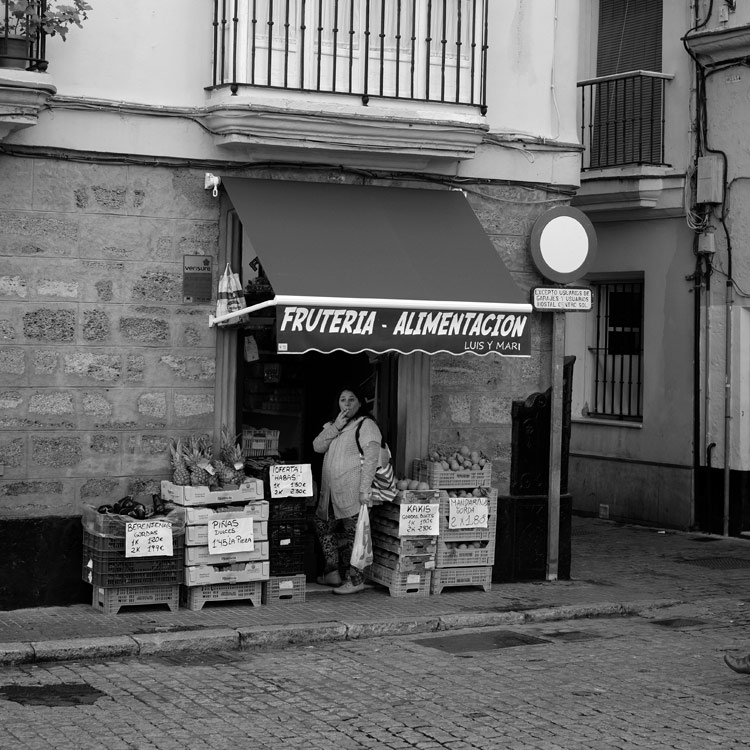
Square format and street photography

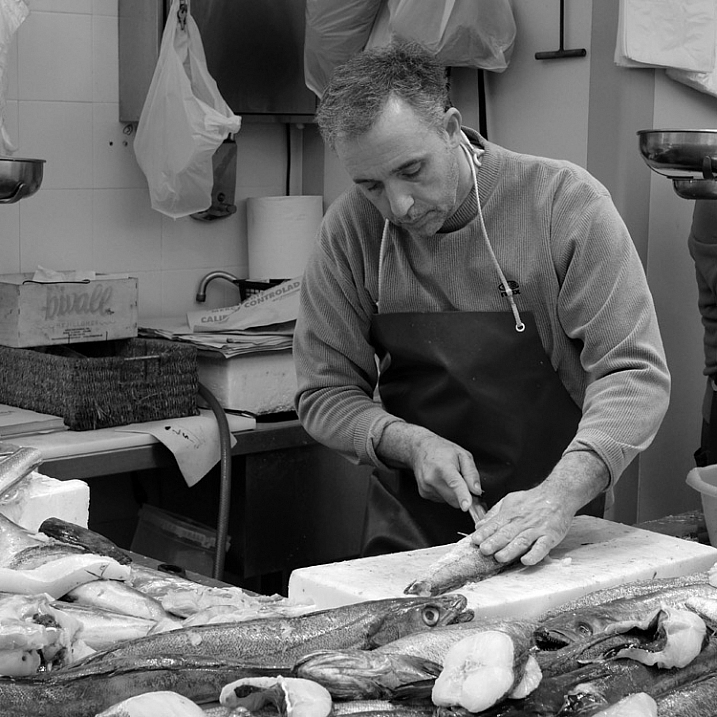
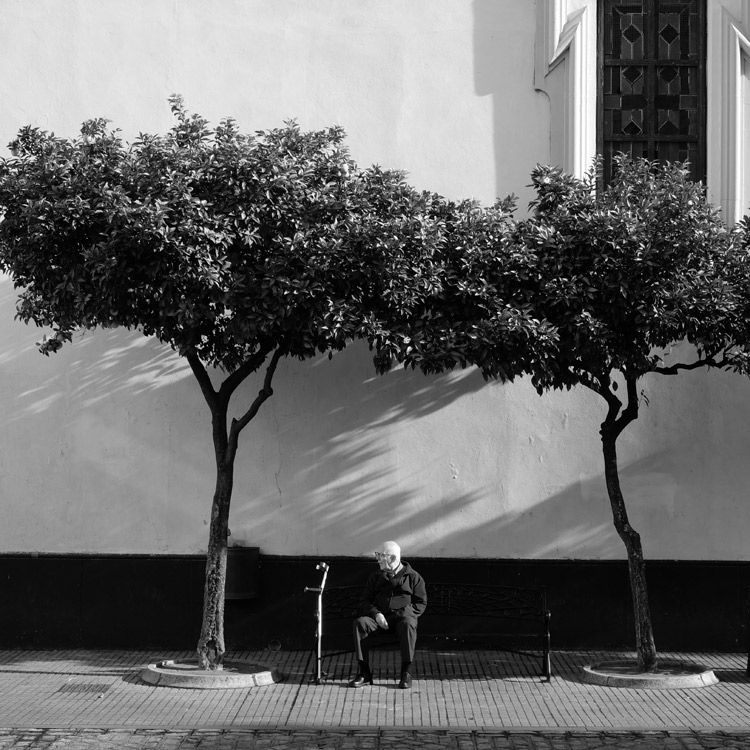
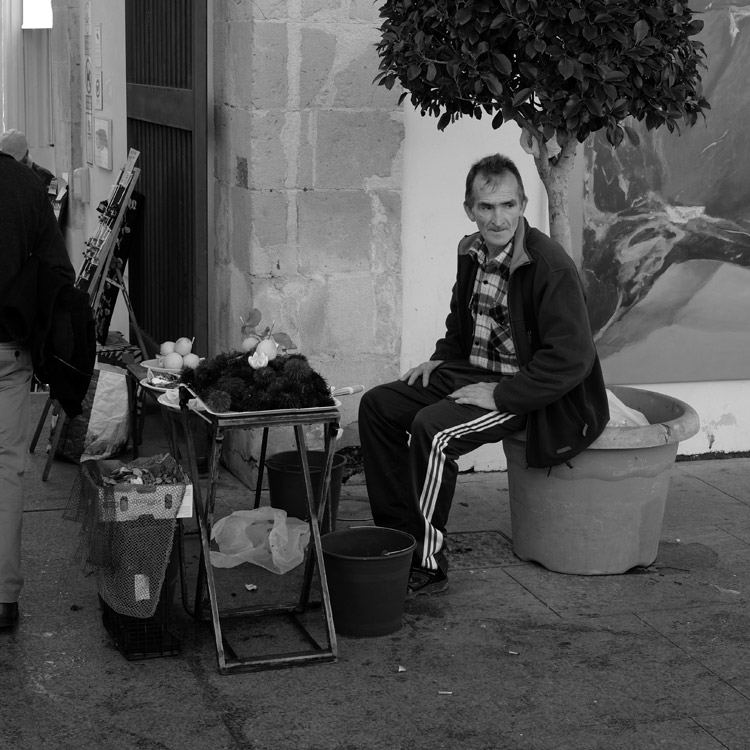
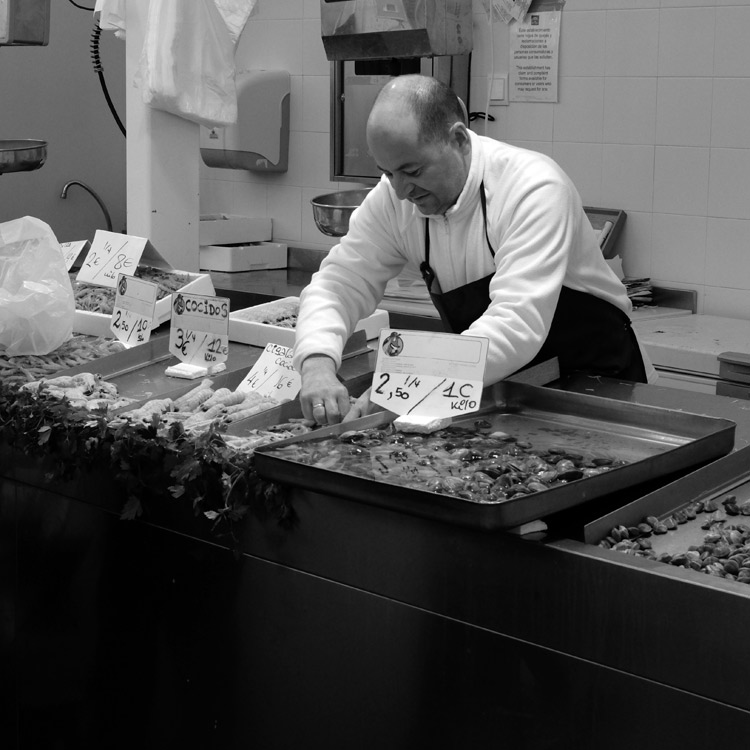
In my last article about choosing the best lens for street and travel photography, you may have noticed that all the photos used to illustrate it, were in the square format. That’s not a coincidence. I recently discovered that I really like this aspect ratio for street photography. It’s made a big improvement to my photos, and I thought it would be interesting to go a little deeper into the reasons why.

It started when I read a book by street photographer Willem Wernsen. I noticed that virtually all his photos were square, and I had an aha moment. There was something about the aspect ratio that worked really well. I couldn’t wait to try it out.

The square format and street photography

So, what is so good about the square format? I think it comes down to two factors. The first is to do with a fundamental weakness of the 3:2 aspect ratio of the 35mm format, that full-frame and APS-C cameras use. The long rectangle is difficult to use well, especially when the camera is turned on its side in the portrait orientation.

You can learn more about this in my article Aspect Ratio: What it is and Why it Matters

That’s why some photographers historically prefer using medium, or large format cameras, for landscape and portrait photography. These are two subjects where it seems especially difficult to compose within the 35mm rectangle, in the portrait orientation. The shorter rectangles of these cameras (not to mention the 4:3 aspect ratio of Micro four-thirds cameras) just seems to work better.

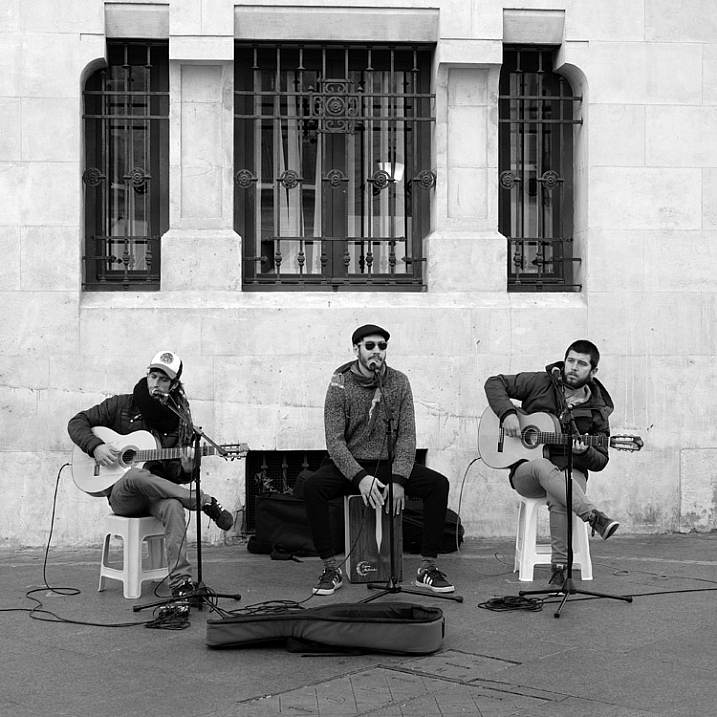
Square format and street photography

Keeping street photography simple

The other factor is that the square format greatly simplifies the decision making process. Street photography is often about reacting quickly to the scene in front of you. The fewer decisions you have to make, the quicker you can do so. With the square format, there is no need to consider whether the composition would be better if you turned the camera on its side.

Another benefit of the square format is that is seems much easier to create an effective composition within the square frame, than it does within the rectangular one. A good tip is to look for strong shapes, and simplify the composition as much as you can.

square-format-street-photography-02

Camera settings

If you would like to try out the square format, it is relatively easy to do so, as most modern digital cameras let you select the aspect ratio. If your camera has an optical viewfinder it will probably display guidelines to let you know how to frame the scene. Check your user manual.

If your camera has an electronic viewfinder you will see a cropped, square image. This, combined with the smaller size and quiet operation, makes mirrorless cameras ideal for street photography.

Square format and street photography

If you would like to shoot in black and white, as I have done for the photos in this article, then you can do so by setting your camera to its monochrome mode. Mirrorless cameras display the scene in black and white in the viewfinder, a great aid to composition. Digital SLRs display the photos in black and white when you play them back on the LCD screen.

If you shoot Raw, most cameras will let you uncrop the image in Lightroom if you want to (the exceptions are Nikon and Panasonic, which crop the image even for Raw files). The key is to convert the Raw files to DNG when you import them into Lightroom. If you keep them in their native format, Lightroom won’t let you uncrop them.

Using Raw also lets you convert your black and white files to colour if you wish to.

Square format and street photography

Your turn

Have you tried using the square format for street photography? How did you get on with it? Please let us know in the comments, and share some of your photos.

Square format and street photography


Mastering Composition ebookMastering Composition

My new ebook Mastering Composition will help you learn to see and compose photos better. It takes you on a journey beyond the rule of thirds, exploring the principles of composition you need to understand in order to make beautiful images.

googletag.cmd.push(function() {
tablet_slots.push( googletag.defineSlot( “/1005424/_dPSv4_tab-all-article-bottom_(300×250)”, [300, 250], “pb-ad-78623” ).addService( googletag.pubads() ) ); } );

googletag.cmd.push(function() {
mobile_slots.push( googletag.defineSlot( “/1005424/_dPSv4_mob-all-article-bottom_(300×250)”, [300, 250], “pb-ad-78158” ).addService( googletag.pubads() ) ); } );

The post How the Square Format Can Enhance Your Street Photography by Andrew S. Gibson appeared first on Digital Photography School.

Digital Photography School

 
Comments Off on How the Square Format Can Enhance Your Street Photography

Posted in Photography


50 Photoshop & Lightroom Photo Editing Tutorials to Enhance Your Images

04 Jan

Photoshop and Lightroom are awesome tools for photographers, professionals and amateurs alike. While Lightroom is considered the most comprehensive tool to do some basic image editing, such as fixing exposure, white balance, and contrast, Photoshop is often chosen by photographers for further creative processing. Without a doubt, Photoshop is a powerful program with huge possibilities. However, once you really dig Continue Reading

The post 50 Photoshop & Lightroom Photo Editing Tutorials to Enhance Your Images appeared first on Photodoto.


Photodoto

 
Comments Off on 50 Photoshop & Lightroom Photo Editing Tutorials to Enhance Your Images

Posted in Photography


Tips for Using Flash to Enhance Outdoor Nature and Landscape Photography

13 Dec

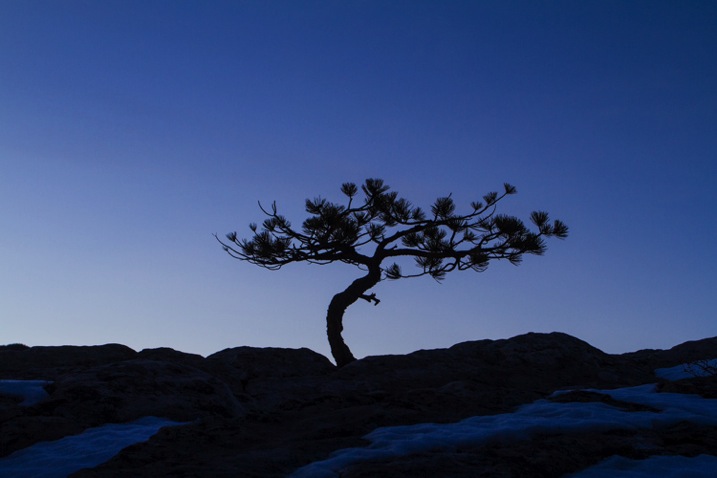
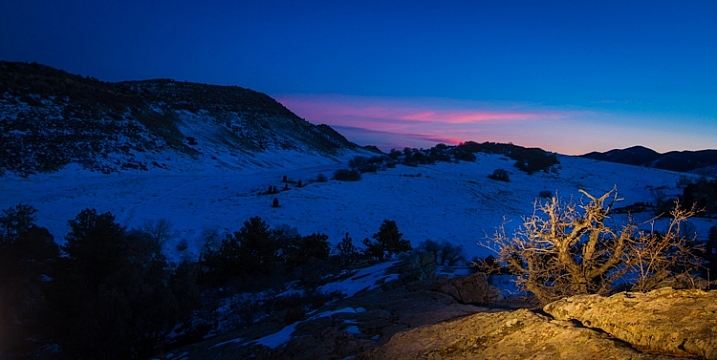
Late on a winter evening, I was photographing atop a ridge in Colorado’s Front Range. I had been working on some landscape shots, but with the light fading from the sky, the thought of beer and food was beginning to overwhelm my desire to stay out. The colors were shifting to the deep tones of blue hour, and the light was long gone from the hills. About to give up and head home, I spotted a lone juniper atop a rocky outcrop, perfectly silhouetted against the deep blue of the mountain sky. I sighed, tempted to ignore the scene, but instead put my camera back on the tripod, walked over and composed a shot. With a click, I snapped the shutter.

CO KenCaryl evening 30Dec2011 6

The image was decent, nice blues with a clean black foreground, but it needed some warmth, an element to contrast with the abundant cool tones. “If only I could get a beam of sunlight to reach back above the horizon…” I thought to myself.

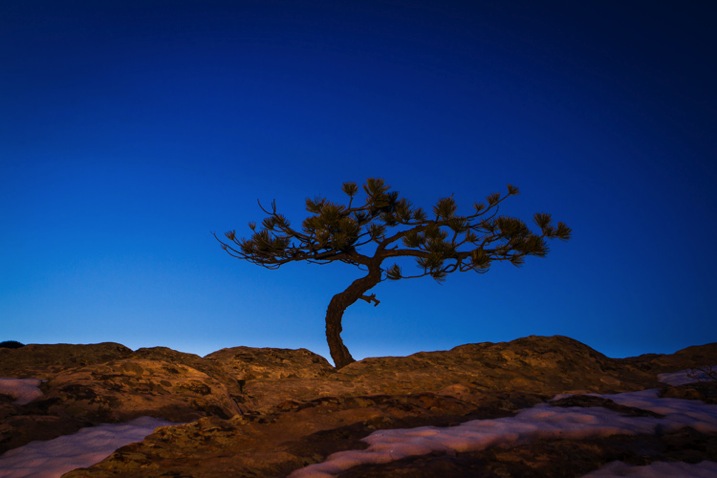
Wait a second… I didn’t need the sun, I had a flash and a remote trigger in my bag. I pulled it out, all thoughts of beer and food forgotten, and placed the flash on a boulder a few feet to my left. I set it low, to 1/4 of full power, then took a shot.

Better, I thought, looking at the image glowing on the back of my camera, but still not right. The light coming from the flash was too cool, lacking the warmth I wanted. Digging back in my bag, I emerged with a pack of gels and slapped a half cut of CTO (color temperature orange) over the flash, and clicked off another.

CO KenCaryl evening 30Dec2011 7

“Now we’re talking”, I muttered. A warm beam of light crossed the rocky foreground to light up the tree. Never mind that the actual sunlight disappeared 45 minutes before, I could re-create it with a little artificial light trickery. A few adjustments to the flash’s positioning and brightness, and I had my keeper shot. Finally, I could go home.

Using Flash Outdoors

For most photographers, flash is relegated to the studio, and if used outside it is usually restricted to portraiture. But there is so much more potential for artificial light. Landscape and wildlife photography can often benefit from a little flash, and with some creativity, it can bring out the best in your images. Here are a few tips to help you get using flash for your outdoor nature and landscape photography.

To get started, you’ll need a few things in your bag:

  • At least one flash
  • Some kind of remote trigger (I use cheap and simple wireless triggers I found on Amazon for a few bucks)
  • A selection of multi-colored gels
  • A flash stand or assistant
  • For night photography, a strong headlamp or hand-held flashlight is a good addition to the kit
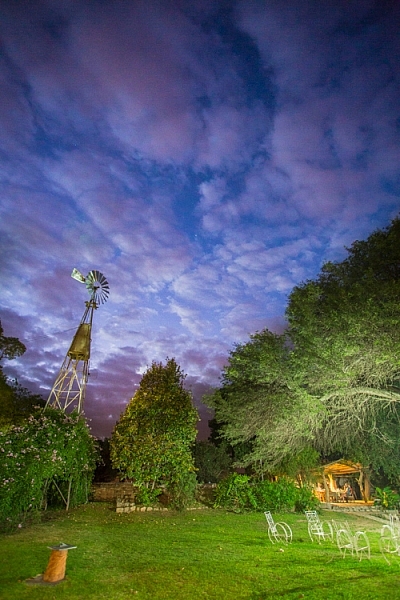
A windmill stands in the garden of the Finca Santa Anita in Salta Province, Argentina.

A windmill stands in the garden of the Finca Santa Anita in Salta Province, Argentina.

General Guidelines

As with almost all flash use, for best results, you’ve got to get the light off your camera. On-camera, straight flash, looks weird and unnatural. I like to say that photographic rules are meant to be broken, but this one seems universal: get the flash off your camera.

Get the flash off your camera

Direction of light, and how much to use it, is a matter of your personal vision, but here are my thoughts: Artificial light should either look so natural, you don’t notice it comes from a bulb, or so obvious, that it’s clear the scene was lit for artistic reasons. Anything in between usually doesn’t work.

As with all successful photography, you need to think through your image, and the story you are trying to tell. Do you want a natural-looking scene or are you aiming for an artistic portrayal of your subject? Once you have an answer to that question you can move forward.

Scrubby pines grow from the rocks of the Dakota Hogback in the foothills of Colorado outside Denver, late evening.

Scrubby pines grow from the rocks of the Dakota Hogback in the foothills of Colorado outside Denver, late evening.

Imitating Natural Light on the Landscape

The near-dark hours before dawn and just after sunset, or full night, are the most suitable times to add a bit of light to a scene. A natural look is usually subtle and may rely heavily on the light that is already available to you. In my example of the juniper tree, I kept the flash setting low, and warmed the light with a gel to get a sun-like look. Finding the right balance between flash and ambient light is critical.

The further you get from the flash, the dimmer, and harder the light becomes. A flash aimed toward the ground will be very bright close to the strobe, fading quickly to invisibility. When setting your scene, use the test button to look at the throw of light across your subject. Aim it carefully, and take advantage of the flash’s zoom to consolidate the beam just where it is needed.

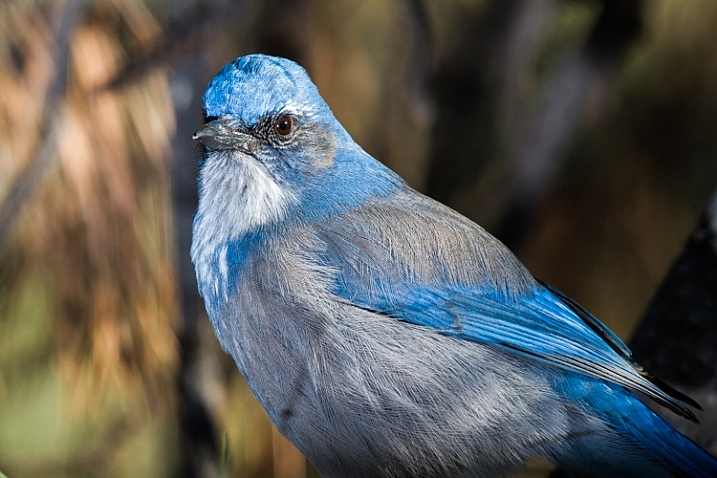
A Western Scrub Jay perches in a tree in the foothills of the Rocky Mountains outside Denver, CO, USA.

A Western Scrub Jay perches in a tree in the foothills of the Rocky Mountains outside Denver, CO, USA.

Adjusting Exposure

Once set, pop a shot or two, and check the results on your LCD. Almost always, you’ll find you need to adjust the flash brightness, placement, or the ambient light exposure.

When using flash remember this: adjust ambient light with the shutter speed, and flash with the f-stop (aperture).

For example, if you want to bring out more brightness in the sky, lengthen your shutter speed, if you want to increase the apparent brightness of your flash, open up the aperture. This is effective for small adjustments in camera, and keeps you from having to constantly readjust flash settings.

Lighting Your Vision – Artistic Styles

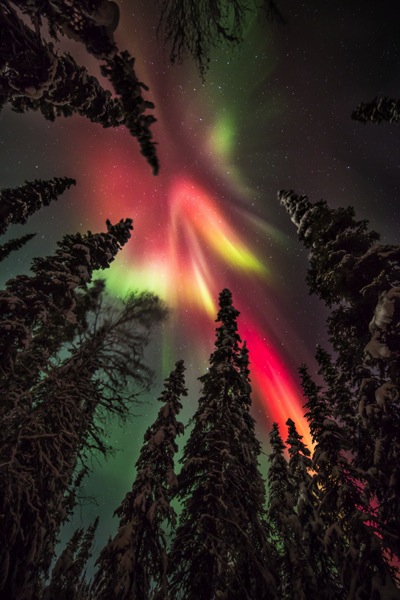
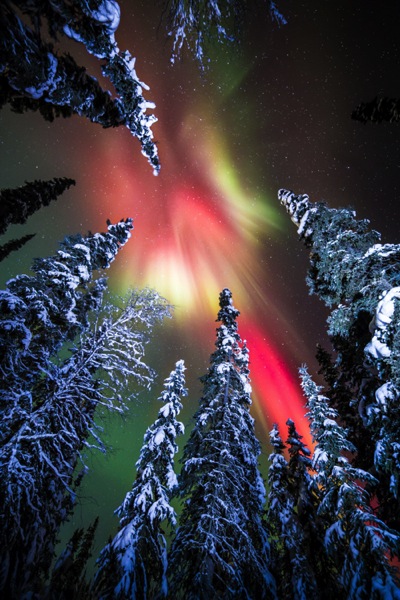
An artistic look is more straight forward, but light direction, intensity, and color are just as important. I often photograph the northern lights around my home in Fairbanks, Alaska. Often the moon, stars, or aurora itself, are sufficient to illuminate the foreground, but at times, it fades to black as you can see below.

AK FAI aurora 112073 17

In such cases, a splash of light is just what I need. When photographing the aurora, or the night sky in general, I rarely carry an actual flash, but I’m always wearing a headlamp. During a typical 5-10 second exposure, if I need a little extra texture or warmth, I can pan the beam quickly over the foreground, “painting” it with light as I did in this image.

AK FAI aurora 112073 18

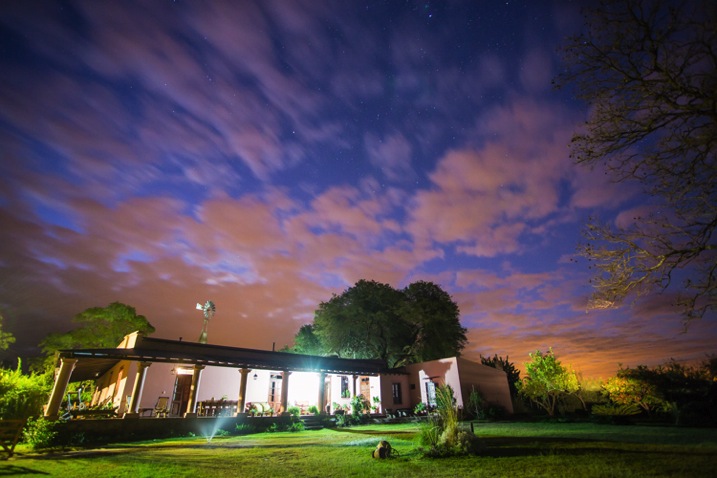
Light from a typical LED is very cool, but cover it with CTO gel, and nice warm tones result. Light painting is a popular technique, but one that requires some practice to make sure your subject is evenly lit, and not too bright. Mixing light painting and ambient can be very effective to even out brightness in an image, and compensate for highlights. In Argentina, a few years ago, I was shooting a historic farmhouse during the late evening. Bright porch lights on the house needed to be evened out, so I painted some key parts of the scene.

Arg Salta SantAnita house night 104133 18

A warning: painting light can mess with the color of a digital image. If you use your camera’s automatic settings, as I do, light painted images will often require some color correction in post-processing. Shoot in RAW to be sure you retain this flexibility.

Wildlife

Flash can also play an important role in wildlife photography. Birds in particular are often down low in dark forests, where natural sunlight is rarely found. The flat, boring light beneath the foliage can be replaced by the directional light of a flash.

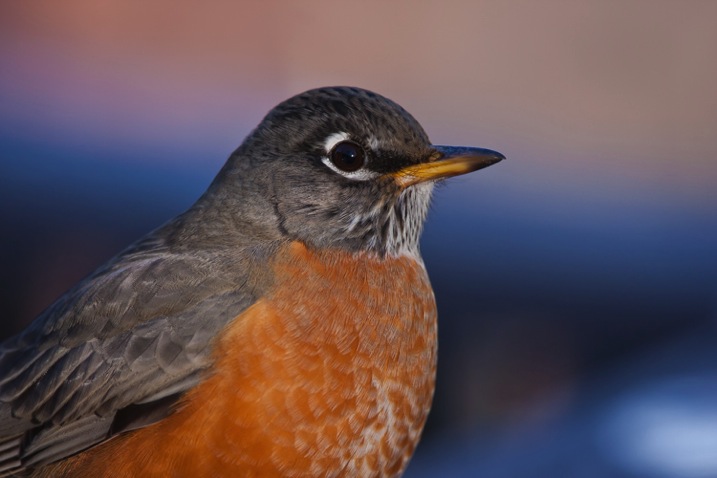
CO Dec2009 AMRO 3

When using flash with a long telephoto, you can often get away with on-camera, or bracket-mounted flash, as I did of the portrait of the American Robin above. Using camera-mounted flash is easy with TTL (Through The Lens) compatible strobes. In fact, this technique is so easy, that I’m not even going to go into it, because more interesting possibilities exist.

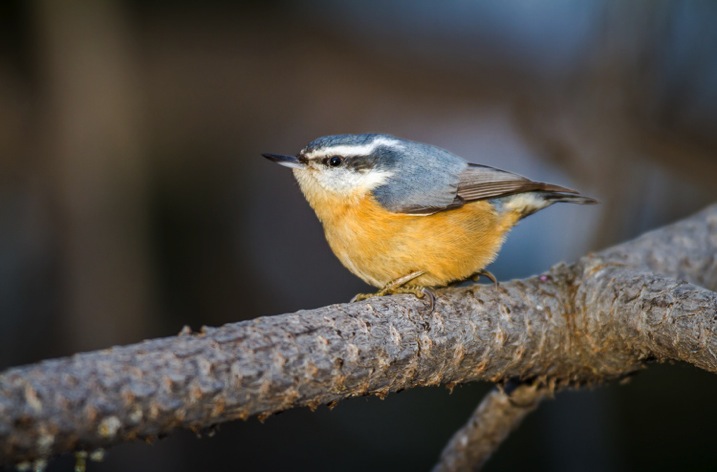
Where I live in Alaska, the winters are long, and during the few hours of daylight, the sun is often hidden behind trees or clouds. The birds I love to photograph are usually stuck in flat, gray light. There are a few trees in my yard that the birds prefer. By setting up a flash (or two), gelled with CTO to emulate the absent sun, I’ve managed to create some well lit portraits of these guys.

RBNU 21Dec2011 2

The method is similar to lighting a landscape. You’ve got to choose your flash placement to avoid shadows, and since there is rarely a chance to replicate a poorly exposed shot, it’s best to get your settings right and then leave them in place throughout the shoot. In this case, I was going for an almost studio-like look, so I took advantage of the white snow as a background, making the final image appear almost as a cut-out.

ORJU 22Dec2011 2

I like to put my flashes atop a tall stand to get them over my head like a low angle sun. Done right, the set up and exposure takes only a few moments, and the results can be great.

Conclusion

Artificial light in the outdoors offers a great opportunity to create unique images. Think through your shots, consider where extra light can be added, and what role it will play in the final image. Not every situation requires it, in fact, most don’t. But there are times when that extra pop of light can take a photo from mundane to extraordinary.

Have you tried using flash with your nature or landscape photography? Please share your tips and images in the comments below.

googletag.cmd.push(function() {
tablet_slots.push( googletag.defineSlot( “/1005424/_dPSv4_tab-all-article-bottom_(300×250)”, [300, 250], “pb-ad-78623” ).addService( googletag.pubads() ) ); } );

googletag.cmd.push(function() {
mobile_slots.push( googletag.defineSlot( “/1005424/_dPSv4_mob-all-article-bottom_(300×250)”, [300, 250], “pb-ad-78158” ).addService( googletag.pubads() ) ); } );

The post Tips for Using Flash to Enhance Outdoor Nature and Landscape Photography by David Shaw appeared first on Digital Photography School.

Digital Photography School

 
Comments Off on Tips for Using Flash to Enhance Outdoor Nature and Landscape Photography

Posted in Photography


How to use Focal Length and Background Compression to Enhance Your Photos

17 Nov

One of the most common uses for zoom lenses is, as their name suggests, to zoom in on objects that are far away. These lenses are fantastic for getting close-up views of nature, architecture, wildlife, or anything else that might be little more than a speck to the naked human eye.

Some cameras like the Nikon Coolpix P900 let you get a close-up view of objects a few miles away. While this flexibility might seem like a rather tempting proposition for getting close to objects without physically moving yourself, there is another often-overlooked benefit of zoom lenses when taking portraits or other types of pictures with one clear subject in front of a vast spread of scenery – background compression. Understanding how this works, and how you can manipulate it, can transform your approach to portrait photography and give your pictures the type of visual boost that you might have always wanted, but never knew how to achieve.

background-compression-senior-photo

The basic idea with background compression is that you can take photos of something relatively close to you, such as a high school senior as shown in the image above, and bring elements of the background closer as well. This gives a more constrained feeling to the overall composition, and helps focus the viewer on your subject while not only bringing the background in, but often blurring it at the same time.

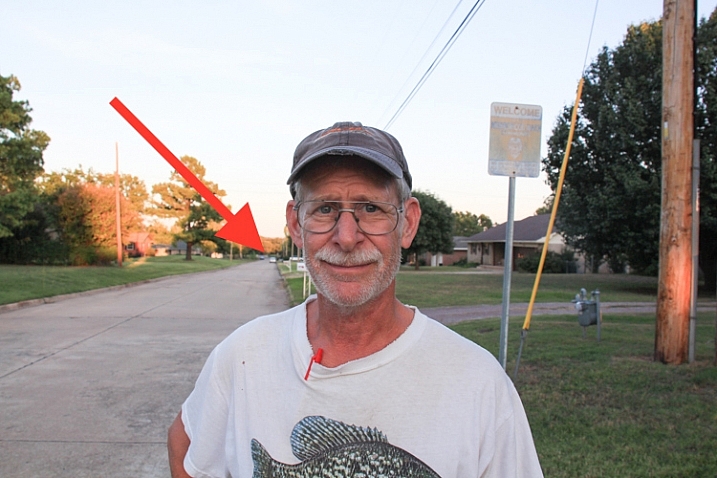
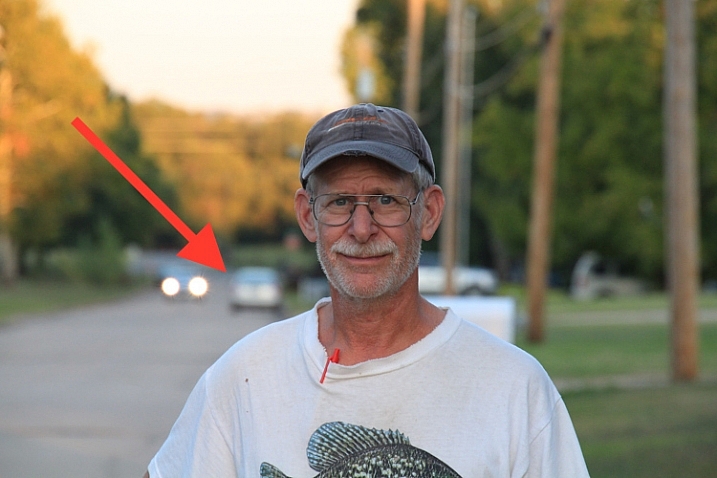
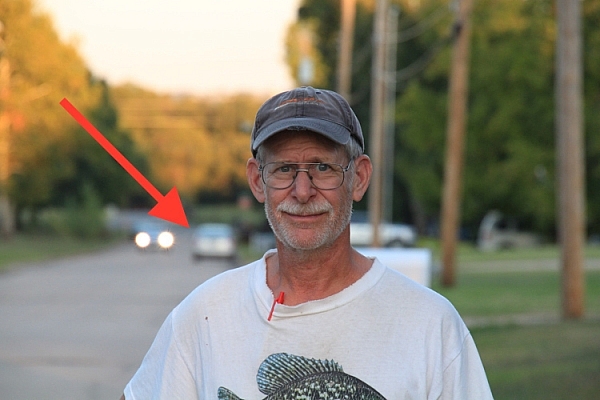
As an illustration of how this works, here are several photos of my dad taken at different focal lengths. Notice how he is framed similarly in each shot, but the background changes dramatically as I adjust the zoom on my camera lens.

18mm focal length, f/7.1, 1/80th of a second, ISO 100

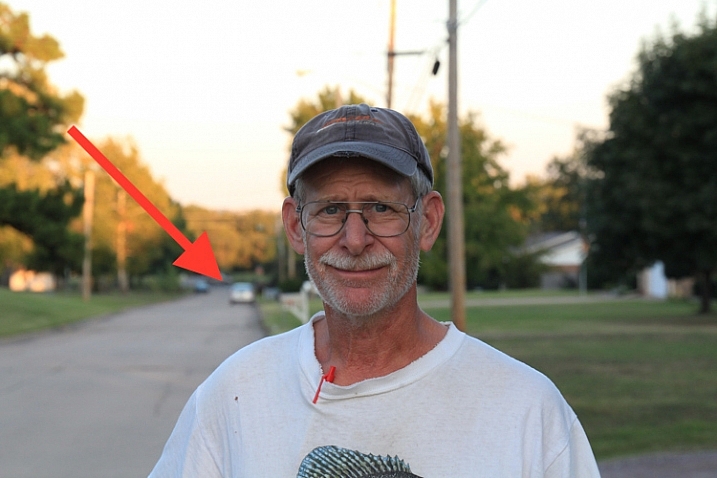
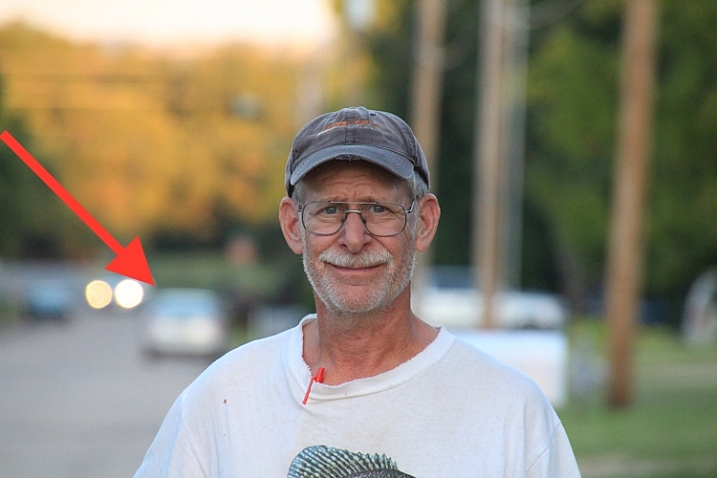
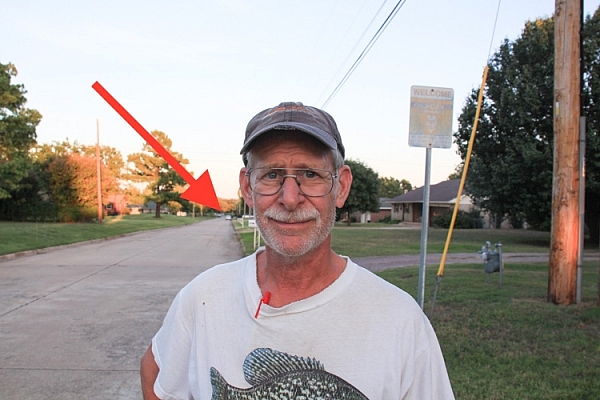
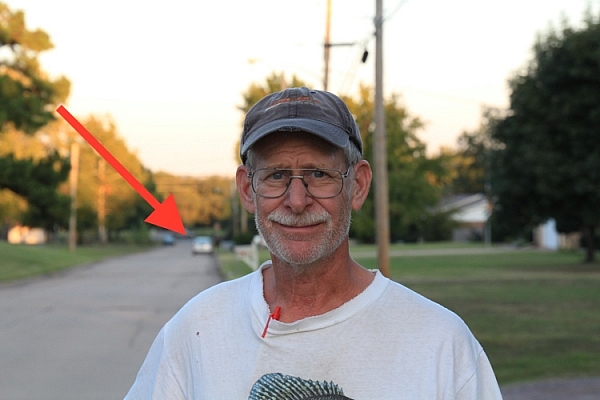
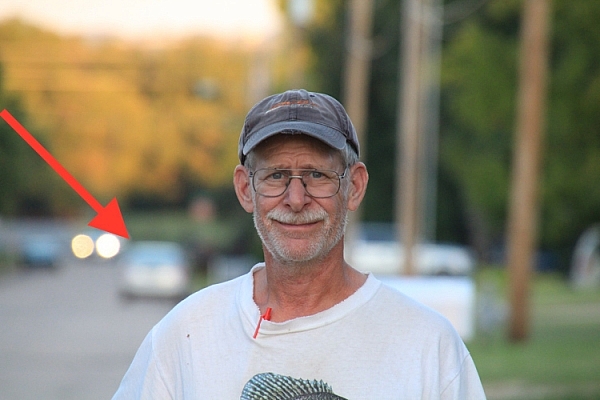
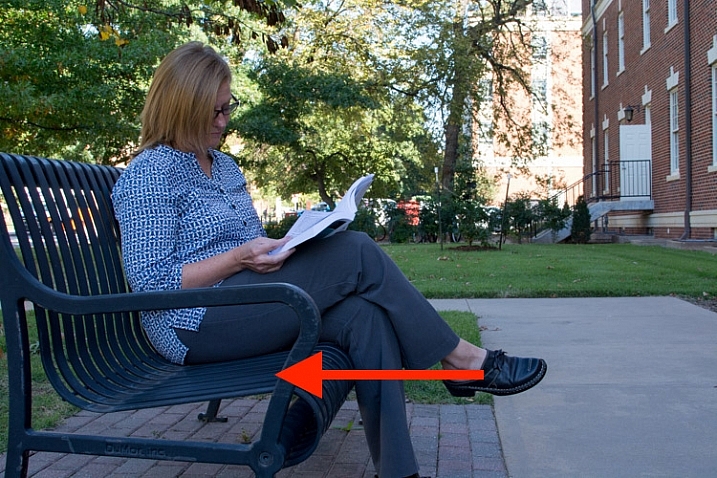
I used an 18-270mm zoom lens to take these shots, and this first one (above) at 18mm shows my dad along with a massive background: utility poles, houses, trees, mailboxes, and all sorts of other elements make up the picture in addition to the subject. Take note of the car several hundred yards behind him, as indicated by the red arrow, and notice what happens as I change focal lengths, but keep my dad similarly framed.

18mm, f/7.1, 1/125 second, ISO 320

70mm, f/7.1, 1/125 second, ISO 320

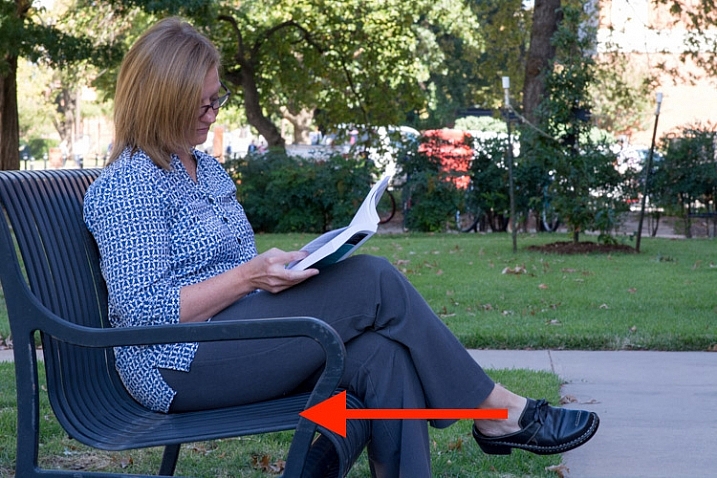
Here you can already see several differences from the original image. The scene is now slightly claustrophobic with many of the elements along the perimeter of the original photo disappearing altogether. Mailboxes and utility poles have been brought closer, and notice how the same stationary automobile far in the distance has appeared to creep forward, and is now much larger. The background, in essence, is getting squeezed together or compressed.

154mm, f/7.1, 1/250 second, ISO 800

154mm, f/7.1, 1/250 second, ISO 800

At 154mm the vehicle in the background seems significantly closer, and various other elements such as trees and utility poles are now filling almost the entire frame. As I zoom in, while keeping my dad consistently framed in the shot, even the distance between the individual utility poles seems to be shortened, which further enhances the overall feeling of compression. It’s not just that things appear closer, but that the distances between all the elements of the frame look much smaller as well. This can be a powerful, and extraordinarily useful way to compose a picture, and you don’t even need a fancy camera or lens to do it. Most pocket cameras have optical zooms that can be used to accomplish the same effect.

270mm, f/7.1, 1/400 second, ISO 1600

270mm, f/7.1, 1/400 second, ISO 1600

In this final shot, the background elements virtually dominate the frame and almost overpower my subject. The vehicle just over his shoulder is about a quarter of a mile (0.4 km) away, though it appears as if it’s a mere stone’s throw behind him.

Background compression can be a good or bad thing, depending on the type of picture you are taking. The key takeaway here is to know what it is, and how to utilize it to get the type of composition you are going for. The longer your focal length, the more you will be able to add this sense of compression to your background. But, it also helps if you have a great deal of distance between your subject and the elements behind it. If my dad were standing a few feet away from something, like a tree or a brick wall, there would be virtually no compression at all, even with a very long focal length.

18mm, f/7.1, 1/80 second, ISO 100

18mm lens

18mm, f/7.1, 1/125 second, ISO 320

70mm lens

background-compression-dad-154mm-f71

154mm lens

background-compression-dad-270mm-f71

270mm lens

If the final example in the above series seems a bit extreme, here’s another set of images that show how background compression can be used effectively to enhance the overall composition, rather than overpower your subject.

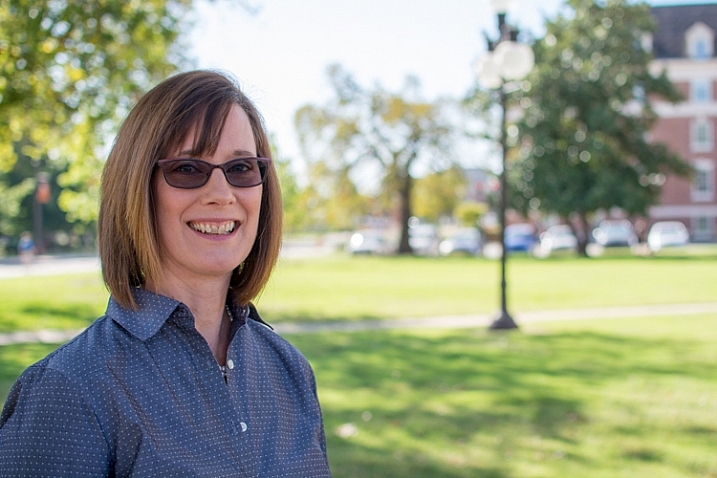
35mm, f/2.8, 1/750 second, ISO 200

35mm, f/2.8, 1/750 second, ISO 200

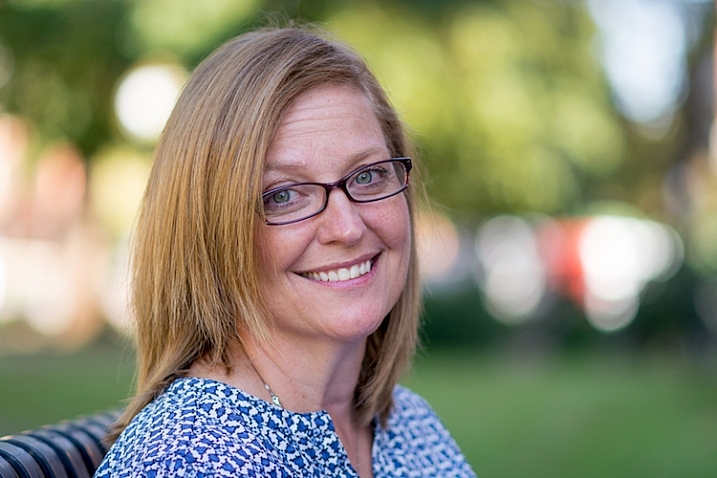
This is a perfectly serviceable portrait, although I purposely left a bit too much space on the right-hand side in order to illustrate the compression concept. Shot at 35mm, with a wide aperture of f/2.8, the background is nice and blurry, the focus is clearly on the smiling woman, and the background is not too distracting or bothersome. However, re-taking the same picture with a longer focal length, leads to a much more pleasing picture all around.

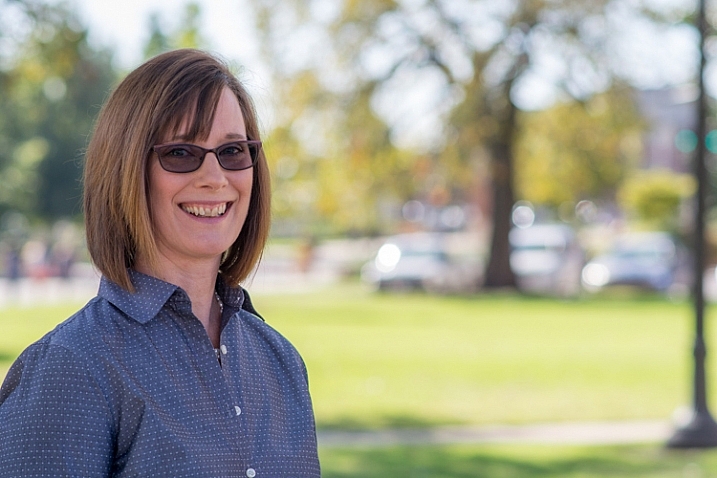
85mm, f/2.8, 1/750 second, ISO 200

85mm, f/2.8, 1/750 second, ISO 200

The same compression shown in the first series of pictures is clearly evident here, though it is used to a much better overall effect. Even though the tree and cars create a background that is somewhat busy, shooting with a wide aperture blurred things out enough, that the focus is still clearly on the woman, while the background serves to add a bit of context to help put the overall composition in perspective.

One final note about compression: it doesn’t just work for foreground elements too as you can see in the following pictures.

35mm, f/11, 1/125 second, ISO 400

35mm, f/11, 1/125 second, ISO 400

I purposely shot this with a much smaller aperture in order to minimize the degree of background bokeh, lest compression be confused with blur. Notice how this woman is sitting squarely in the middle of the bench with plenty of room to her right, and about 50 yards (46 meters) between her, and the trees and cars in the background. Most of the picture is in focu,s which is a direct result of the small aperture.

85mm, f/11, 1/90 second, ISO 400

85mm, f/11, 1/90 second, ISO 400

Here the foreground and background have both been brought nearer to the subject. The trees and cars behind her are much closer, while the bench appears to take up almost no room on the woman’s right side. It might as well be little more than a chair in this picture, and yet, this is merely an illusion created by using a longer focal length while keeping my subject framed appropriately. Most of the picture remains in focus due to the small aperture, and you can clearly see that background compression is not always synonymous with background blur.

As one final example, here is the same woman, on the same bench, shot wide open at f/1.8 with my 85mm lens.

85mm, f/1.8, 1/1000 second, ISO 400

85mm, f/1.8, 1/1000 second, ISO 400

The overall compositional elements remain the same in this final image as the two above, except that I moved myself physically closer to the subject, while shooting at a very wide aperture of f/1.8. The background is severely compressed, and quite blurry, which leads to a rather pleasing portrait.

Background compression can be a bit tricky to understand, but if you play around with different focal lengths you should get the hang of it quickly. Then it’s just a matter of figuring out how to use it to your advantage to create the type of shot you want–especially when doing portraits.

Have you tried using this technique in your own photography? What other tips do you have to share about creative uses for background and foreground compression? Leave your thoughts in the comments below, and feel free to share any example images you have as well.

This week on dPS we’re featuring a series of articles about composition. Many different elements and ways to compose images for more impact. Check out the ones we’ve done so far:

  • Using Framing for More Effective Compositions
  • 7 Tips to Improve Your Skyline Photos
  • 33 Images that Exemplify Compositional Elements
  • Weekly Photography Challenge – Composition Craziness
  • How to Take Control of Aperture and Create Stronger Photos
  • How Cropping in Post-Production Can Improve Composition
  • Good Crop Bad Crop – How to Crop Portraits

googletag.cmd.push(function() {
tablet_slots.push( googletag.defineSlot( “/1005424/_dPSv4_tab-all-article-bottom_(300×250)”, [300, 250], “pb-ad-78623” ).addService( googletag.pubads() ) ); } );

googletag.cmd.push(function() {
mobile_slots.push( googletag.defineSlot( “/1005424/_dPSv4_mob-all-article-bottom_(300×250)”, [300, 250], “pb-ad-78158” ).addService( googletag.pubads() ) ); } );

The post How to use Focal Length and Background Compression to Enhance Your Photos by Simon Ringsmuth appeared first on Digital Photography School.

Digital Photography School

 
Comments Off on How to use Focal Length and Background Compression to Enhance Your Photos

Posted in Photography


3 Fun Ways to Enhance Your Landscape Images in Photoshop

18 Sep
title-day-moonlight

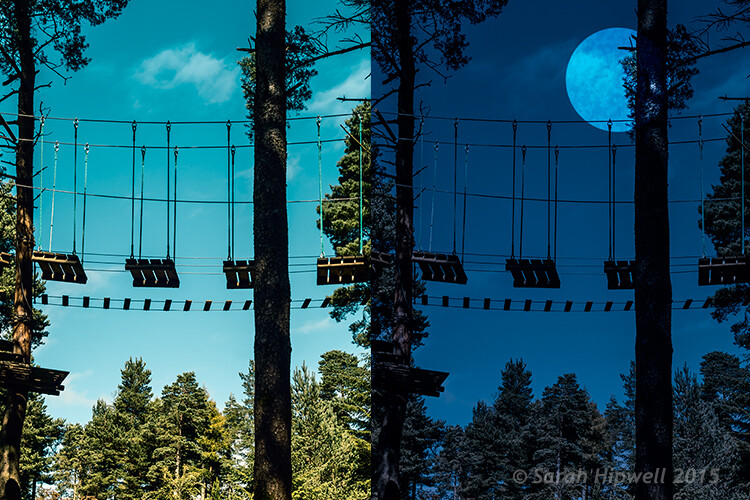
Turning Day into Night using Color Lookup and easy-to-do moon in Photoshop.

As the theme for this month is on landscape photography, I thought I would share three fun ways to add features to your landscape images that already come embedded in Photoshop as presets. Let’s take a look at the first one.

#1 The Rainbow

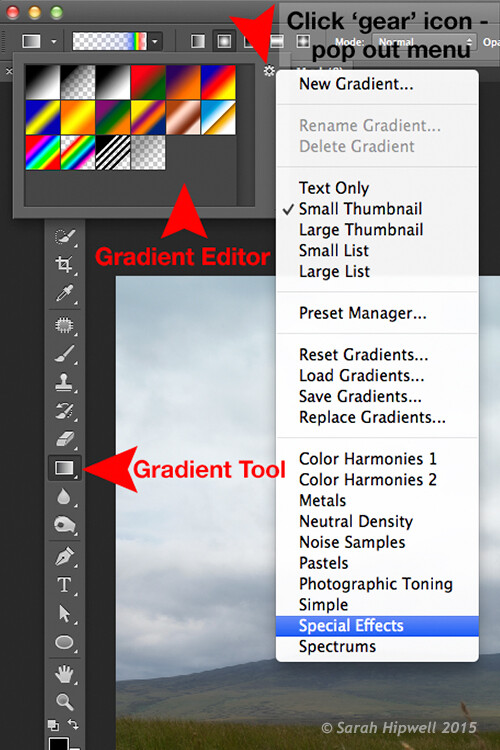
Open an image that you want to add the rainbow to. Click on the Gradient tool, then click on the Gradient box in the Options bar to bring up the Gradient Editor dialog box.

Click on the gear icon at the top right corner of the Presets section and another pop-up menu appears. Choose Special Effects near the bottom of the list. When you click on it, a dialog box appears asking you to replace the current default gradients with the ones that you are loading. Click Ok. It contains only five presets, the last one being Russell’s rainbow is the one I’m going to use. Click ok, then go back up to the Options bar and click on Radial Gradient.

Gradient-editor-pop-out-menu-special-effects

The rainbow preset is in the Gradient Editor under Special Effects.

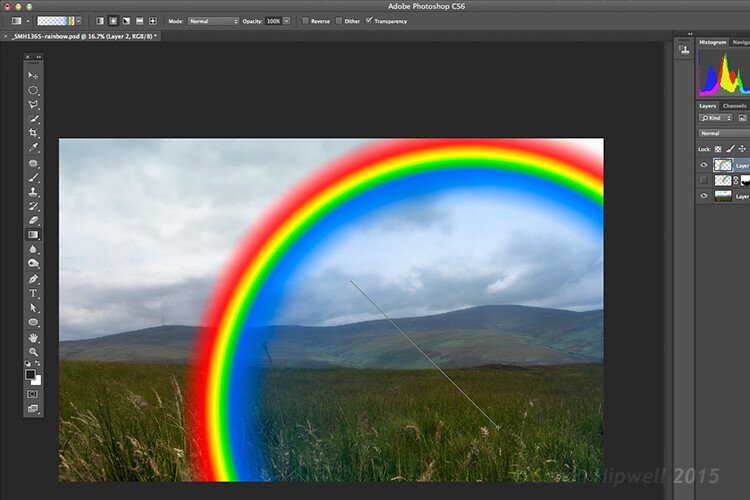
Make sure you have a new layer over the image that you are using. Start at the bottom of the image and drag upwards at a 45 degree angle and release. Depending on the size of the rainbow that you want, you can press CMD Z to undo and restart again (see image below). At first, it looks way too extreme and unrealistic, but using the free transform tool (CMD+T), resize and rotate and place it into position.

Creating-rainbow-using-rainbow-effect

With Russell’s rainbow preset selected and the gradient changed to radial. Click on a low part of the image and drag upwards at an angle to create the rainbow.

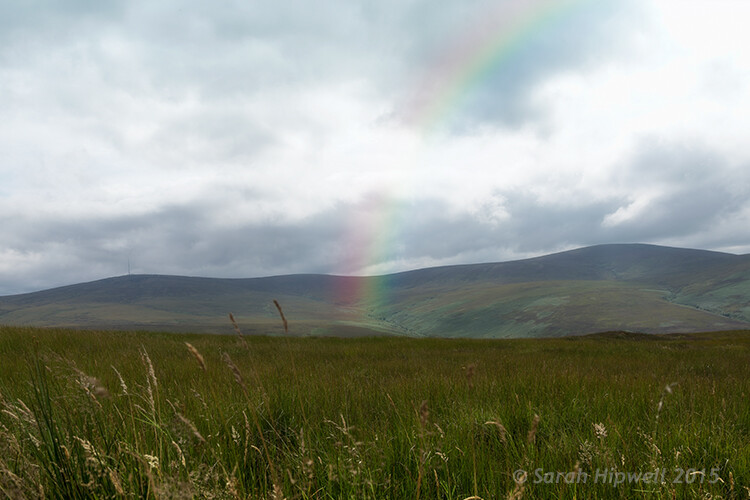
Change the layer blend mode to Screen. You can see the rainbow appears behind and in front of the clouds. Add a layer mask and with a big soft brush, soften the end of the rainbow where it hits the ground. I also converted the layer to a Smart Object and applied a Gaussian Blur. I then Lowered the Fill and Opacity to get an almost translucent effect. Voila, a real simple but effective rainbow.

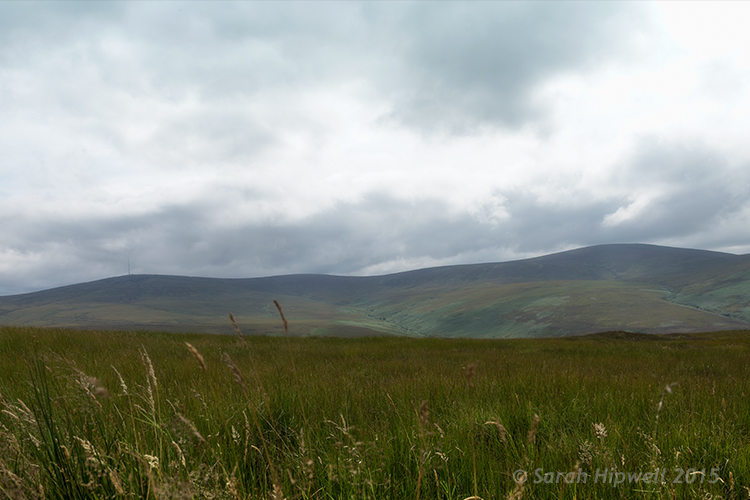
mountain-view

The original image without the rainbow.

mountain-view-rainbow

The rainbow effect added to the image.

Rainbows happen when sunlight and rain combine in a very specific way. And this brings me to the next preset…

#2 Rain

This particular preset is not as effective as the other two. I think a custom rain brush would be better, nevertheless, it does an okay job.

Depending on the image that you use, it is better to have an image with clouds rather than a clear blue sky. I desaturated this image by using a hue/saturation adjustment layer and I also added a vignette to give it more drama.

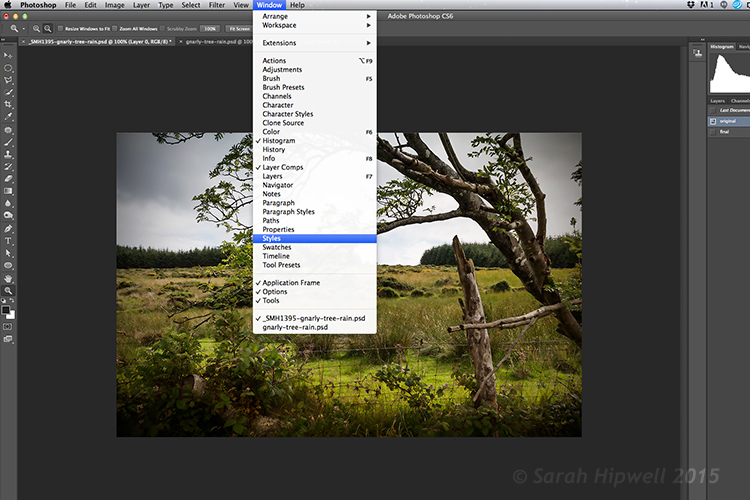
If you go up to Window in the menu bar and open up the Styles panel, or the Adjustments panel has a Styles tab to its right. Over to the far right corner is an arrow, click on this icon and a pop out menu appears. Choose Image Effects from near the bottom. Similar to the Gradient Editor, a dialog box appears asking you to, “Replace current styles with the styles from Image Effects?” Click Ok. The Rain style is down near the bottom.

Window-Styles

The Styles Panel is located under Window in the Menu bar.

arrow-icon-styles-panel

You’ll see this arrow icon to the far right corner of the Styles Panel. Click on tit and a pop-out menu appears (right).

pop-out-menu-styles-image-effects

This is the pop-out menu. The rain preset is located in the Image Effects.

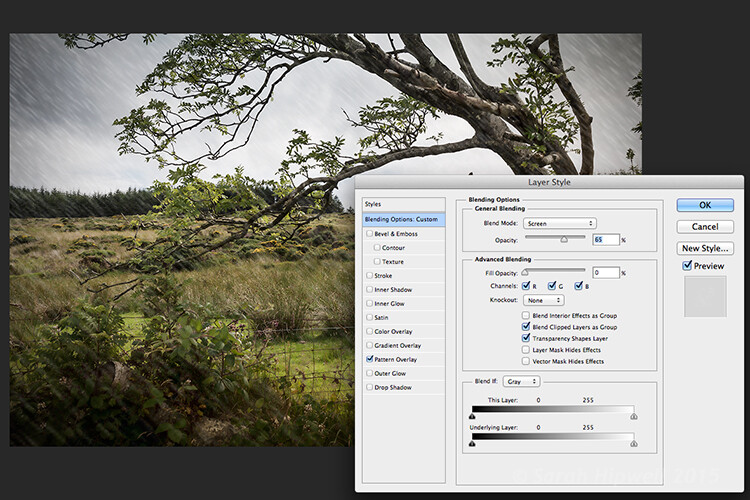
But first, create a new layer over the image that you have opened. Name this layer, Background rain. Fill it with 50% gray. Now click on the rain style. It creates a Pattern Overlay. At first, you just see small white diagonal slashes against a gray background. Change the blend mode to Screen. Then click anywhere to the right of this gray layer to bring up the Blending Options Layer Style dialog box. All you need to do here is bring the Fill opacity under Advanced Blending down to zero. Click Ok. Now you see just the the rain, the gray color is gone.

Layer-style-blending-options

This is the Layer Style Blending Options dialog box where you set the Fill Opacity to zero to get rid of the gray background. You could also reduce the Fill Opacity in the Layers panel.

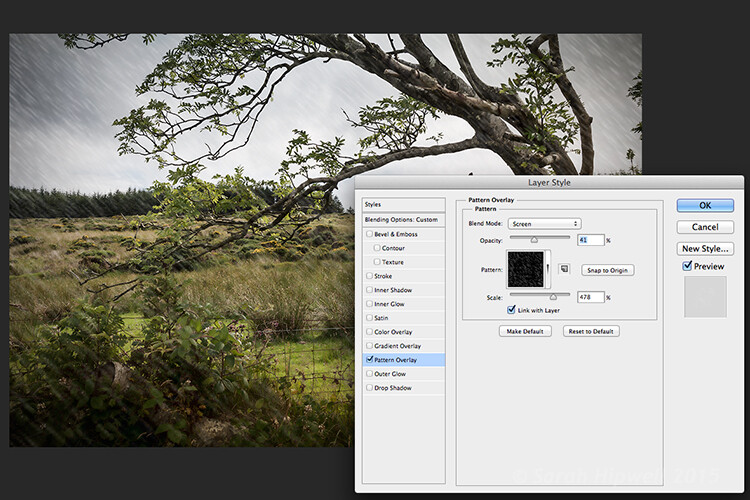
You need to alter the size of the rain, it needs to be smaller as if it’s in the background. Double-click just underneath the layer where it says Effects>Pattern Overlay, this brings up the Pattern Overlay Layer Style dialog box. As you move the scale slider to the right or left, you can see the rain increasing or decreasing in size. I chose 207% and reduced the opacity to 52%. Click Ok. I added a layer mask, and with gradient tool, I masked away the rain at the bottom (you can equally use a soft brush to mask instead). I reduced the Opacity on this layer to 85%.

Layer-style-pattern-overlay

This is the Pattern Overlay where you can adjust the size of the rain by using the scale slider, and its opacity, quick and easily.

I created another layer and named this Foreground rain. I repeated the same steps as above but I changed the scale of the rain. I wanted the rain to appear bigger. So again double click on the Effects>Pattern Overlay to open the Pattern Overlay Layer Style dialog box. Increase the scale to 478% and reduce the opacity to 41%. Click Ok. I then reduced the Opacity on this layer to 65%. This gives the rain a bit more depth and adds a more realistic effect.

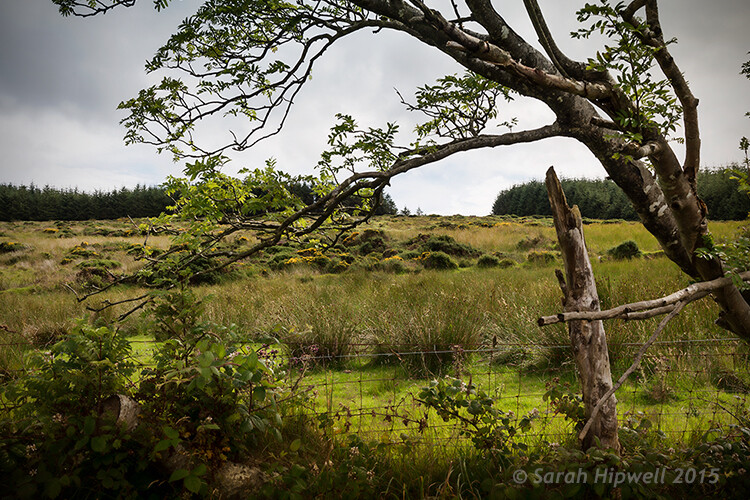
field

Original image taken with no rain.

Rain-in-field

Rain applied using the rain preset in the Styles panel. I also desaturated and added a vignette to the image before adding the rain.

#3 Day to Night

Now for the third effect. This is a really quick and easy way to turn a photo from day into night with a preset already in Photoshop (CS6). Go up to Layer>New Adjustment Layer>Color Lookup. Where it says 3DLUT File, click on the tab beside it and a pop-up menu with different effects appears, scroll down to Moonlight.3DL. These presets are known as lookup tables, or LUTs, they’re mainly found in the film industry.

For added effect, I’m going to add a moon. Create a new layer, Go to your eclipse tool and hold down the Shift key and draw a circle, roughly 200px. Fill it with white. Deselect (CMD+D). Go up to Filter>Filter Gallery>Artistic>Sponge. Choose the Brush tool set to: Size 7, Definition 3 and Smoothness 5. Click Ok. Move the moon near the top of the tree. I reduced the size a little by using the Free Transform Tool (CMD+T). Change the blend mode to overlay. Duplicate this layer and reduce the Opacity to 55%. See image below.

title-day-moonlight

I hope you enjoyed these fun and quick techniques using these presets found in Photoshop. Do you use presets or other plugins? Please share in the comments below.

googletag.cmd.push(function() {
tablet_slots.push( googletag.defineSlot( “/1005424/_dPSv4_tab-all-article-bottom_(300×250)”, [300, 250], “pb-ad-78623” ).addService( googletag.pubads() ) ); } );

googletag.cmd.push(function() {
mobile_slots.push( googletag.defineSlot( “/1005424/_dPSv4_mob-all-article-bottom_(300×250)”, [300, 250], “pb-ad-78158” ).addService( googletag.pubads() ) ); } );

The post 3 Fun Ways to Enhance Your Landscape Images in Photoshop by Sarah Hipwell appeared first on Digital Photography School.

Digital Photography School

 
Comments Off on 3 Fun Ways to Enhance Your Landscape Images in Photoshop

Posted in Photography