RSS
 

Posts Tagged ‘Editor’

Priime, The Best iPhone Photo Editor I’ve Ever Used

20 Mar

Priime is Liive -- Get It While It's Hot

Disclosure, I am an advisor to Priime and have styles included in their style marketplace.

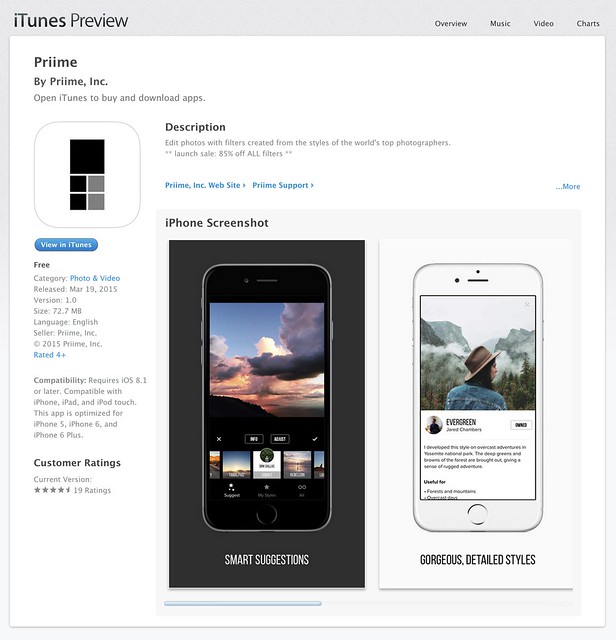
Boom. Just a few hours ago Priime went live in the Apple iTunes App Store and already on launch day Apple is featuring it in their best new apps section.

What is Priime?

Priime is the best mobile phone editor I’ve ever used. I’ve been using it behind the scenes for the past few months and am blown away by how much better it is than anything else out for mobile editing today. The free app features a powerful suite of editing tools allowing you to enhance a lot of the basics around your photos: brightness, structure, contrast, warmth, tint, saturation, sharpness, highlights/shadows, vignette and fade. The app can also save photos up to 50 megapixel in size! I don’t know of any other app that can let you output such high res photos.

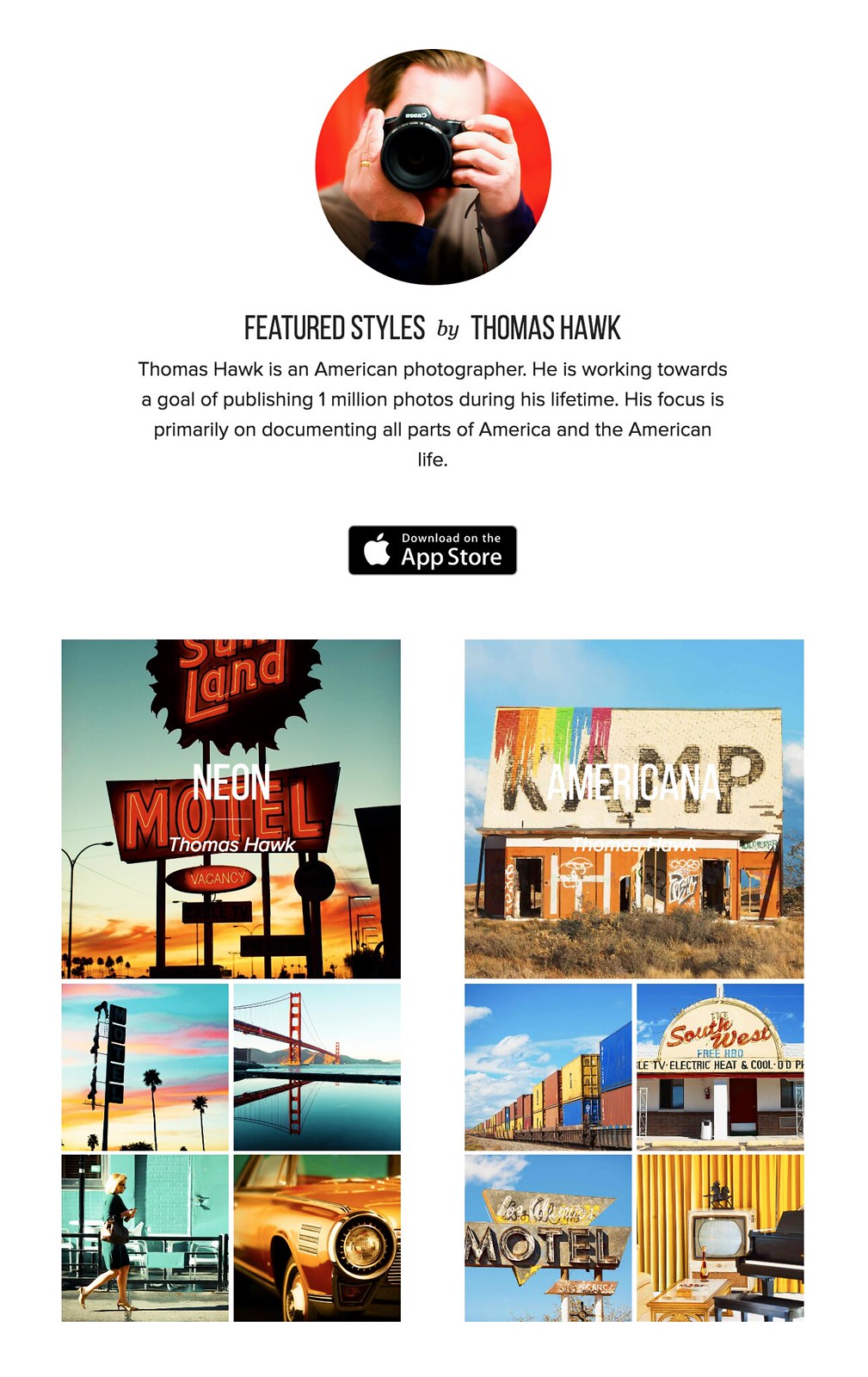
In addition to these tools, Priime has currated some of the best mobile photo styles available. These are styles developed by photographers for photographers. I have two styles for sale in the Priime marketplace — Americana and Neon. Neon can be a particularly tricky thing to shoot sometimes. I’ve taken over 10,000 photos of neon signs and this is my best attempt at an overlay that works especially well for signs.

The app gives you some great free starter styles. It will also make suggestions for what styles may work best with your photo after analyzing it.

In addition to my styles, Priime features styles developed by 30 other insanely talented photographers, each with their own unique way of processing the world through their iPhone.

Daniel Krieger, who shoots for the NY Times, is probably the best working food photographer in the world right now. If you are going to take photos of food, you are definitely going to want to get his filter. Vivienne Gucwa just put out a fantastic book of New York City photographs and has some amazing styles as well.

There is no Android version yet (it is on the roadmap), but the app is compatible with iPhone, iPad, and iPod touch.

One of the things that I think makes Priime different from other photo editing apps is that it was actually developed by photographers. I have known Art Chang for several years. We went and shot Death Valley with a bunch of Google+ photographers 4 years ago. He’s an amazing photographer and has especially done cool things with mobile. His Instagram stream is here. Art has a love for photography that I think gives the app a unique photographer driven perspective and street cred. Art’s co-founders are also all photographers — Loren Baxter, Andrew Ng and Joe Pestro.

Priime is sharing the revenue for their styles with the photographers who have developed them. I think that is a really cool thing. I can’t wait to see what other photographers are added as time goes on.

Anyways, check out Priime in the iPhone App Store. Here is a direct link to the app here. I’d love to hear what you think of it. Remember it’s Priime with two ii’s. :)

My Styles in the New Release iPhone App Priime

Priime Featured in the Best New Apps Section of the iPhone App Store


Thomas Hawk Digital Connection

 
Comments Off on Priime, The Best iPhone Photo Editor I’ve Ever Used

Posted in Photography


Microsoft Image Composite Editor 2.0 offers new panorama features and improved interface

09 Feb

Microsoft’s Research’s Interactive Visual Media Group has announced the release of Image Composite Editor 2.0. The software’s latest update, taking advantage of the company’s Photosynth technology, can seamlessly stitch together ‘gigapixel images’, create panoramas from video, and automatically fill in areas of missing photographs. Read more

Articles: Digital Photography Review (dpreview.com)

 
Comments Off on Microsoft Image Composite Editor 2.0 offers new panorama features and improved interface

Posted in Uncategorized


Product Review: Macphun Tonality Black and White Photo Editor

10 Sep

Macphun Software announces new program

Macphun Software, a photography app developer with over 20 million users worldwide just recently released their latest photo editing software program, called Tonality. This is a program dedicated entirely to editing your photos in black and white, and it is so much fun to use!

You may already be using a Macphun program – they have produced a whole suite of useful consumer photography editing tools, such as Intensify Pro, Snapheal Pro, and Focus Pro. This latest addition to their software collection is really a powerful one, for professionals and hobbyists alike.

I played around with the software a bit and there are quite a few things I liked about it, and just a couple of things that I found non-intuitive. Read on to discover more about this program.

Macphun Tonality

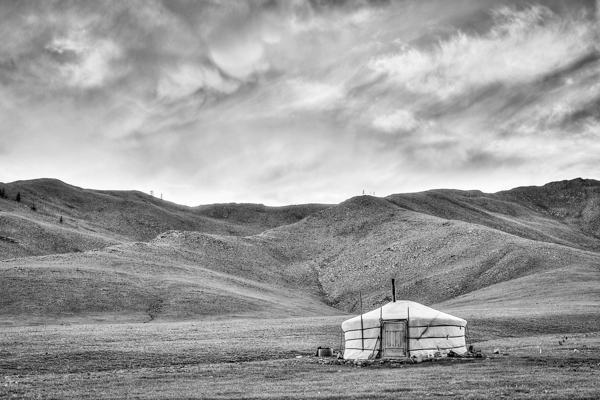
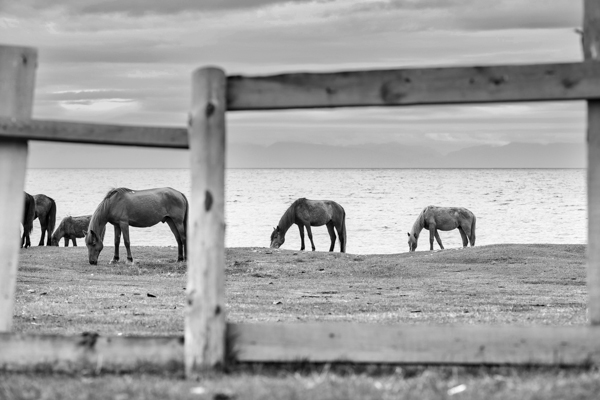
From my recent trip to Mongolia

Overview of Macphun Tonality

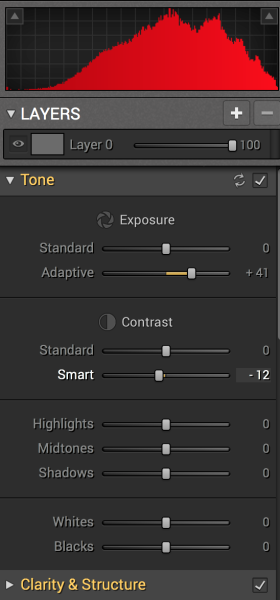
Macphun TonalityTonality is easy to pick up right away if you are familiar with Lightroom or Photoshop RAW editing tools. The designers intentionally created an editing panel on the right hand side of your viewing window that looks almost exactly like Lightroom’s editing panel. It includes familiar tools like Exposure, Tone Curve, Split Toning, and Vignetting.

There are some other effects here that are not so familiar, and do interesting things when you play with the sliders. Clarity & Structure is a section unto itself that provides the user with highly controlled clarity effects. In the Exposure section there is an ingenious slider titled Adaptive which allows you to adjust the exposure while preserving the highlights, something Lightroom should have had in place a long time ago. There is a section called Glow which does exactly what you think it would do; add glow to your images, like a balloon lit from the inside casting a nice glow over everything. You can add Grain, adjust the overall Opacity of the changes you are creating, and there are options for Texture Overlay and Frames, which are pretty fun with black and white images.

Macphun Tonality

Layers

One thing that is really fantastic is that ability to edit with layers. This is something that I found (and still find), rather non-intuitive, but allows for huge possibilities in editing, especially with textured layers.  When you add on a new layer and insert a texture via the Texture Overlay panel, you can brush through via masking and only texturize parts of the image, like the background in this image:

Macphun Tonality

Editing with the Textures Overlay panel. I added a metal texture in one layer and a paper texture in another layer, and painted through on the girl’s face using the layer mask so the texture didn’t affect the smoothness of her skin.

Here I added a metal texture in one layer and a paper texture in another layer and painted through on the face using the layer mask so the texture didn’t affect the smoothness of the girl’s skin.

The non-intuitive part for me is in actually using the layers and brushes to mask out parts of the image. If you have grown up on Adobe Photoshop then you might not find this familiar at all. It’s not impossible, it just requires a different way of thinking about how layers work and how the masking works. It will simply slow down your workflow slightly, but as with anything new, there is always a learning curve.

Some thoughts

When I first saw the software I thought to myself; “I can edit in black and white just fine with Lightroom. Why would I need another program to do such a simple thing?”. But just as Photomatix is brilliantly designed to do just one thing (tone-map HDR images), Tonality is designed to do just one thing perfectly: create black and white images like you could never do in Lightroom or Photoshop. I took a couple of black and white images from Lightroom that I was satisfied with, and tried them out in Tonality. Just using the presets alone as a jumping board for editing in Tonality shows an astounding difference in quality, sharpness, and texture.

See these two images side-by-side and notice what Tonality can do to really make a photo pop:

Digital Photography School Review

Edited in Lightroom for a simple black and white look

Macphun Tonality

Edited in Tonality for some movie poster “pop”

Perhaps some won’t like that HDR look, but I happen to love it. It makes an otherwise bland black and white photo cause me to pause and take a second look. Which is what we are always trying to accomplish with our photos, aren’t we?

Macphun Tonality Pro features:

  • Professional image quality with proprietary 16-bit RAW processing engine
  • Advanced algorithms and a streamlined user experience for superior results
  • Scores of inspiring professional presets provide a wide range of one-click image styles
  • Built-in organic-style overlay textures, plus user-loadable textures, for incredible creativity
  • Unique adaptive exposure and smart contrast tools for advanced tone control
  • Multiple effect layers, each with separate opacity controls, blending modes and preservation of color data offer true advancements in creative toolsetsTonalityPro
  • Adjustable, pressure-sensitive brushes and masking tools for precise selective edits
  • Advanced clarity and structure detail controls yield dramatic results
  • Proprietary grain engine with over 20 emulated film types
  • Selective color using color channel sliders for unique stylistic expressions
  • Glow, lens blur, vignette, photo frame and opacity controls for finishing touches
  • Easy image sharing to popular social networks, and via email, instant messaging, AirDrop and SmugMug
  • Macphun Print Lab services, powered by MILK
  • Runs as either a standalone app or, in the Pro version, as a plug-in to popular image editing software like Adobe® Photoshop®, Adobe Photoshop Lightroom®, Adobe Photoshop Elements® or Apple® Aperture®.

Find Tonality Pro and Tonality here on the Macphun website, starting at $ 19.99, and for dPS readers they’ve given us 20% off so use this link to get that special price.

Summary:

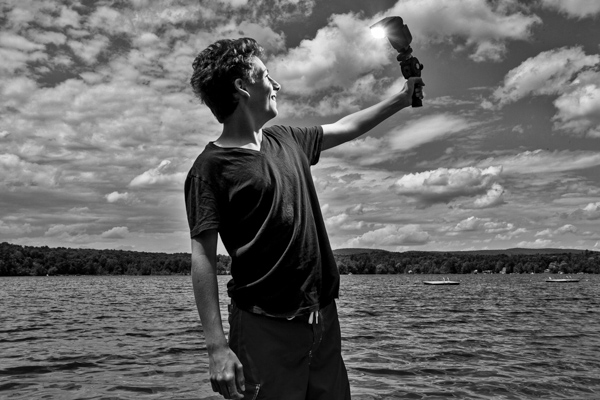
In summary, I give this software product 5 stars. I can actually see myself using this in the future, and I think it will be a welcome addition to my limited number of tools that I use for editing photos. It’s fun, super easy, and I can use it to edit a lot of my future travel photos. Like these:

Macphun TonalityPro

Macphun TonalityPro

Macphun TonalityPro

You can also add in some coloring for sepia tints or different metallic effects

The post Product Review: Macphun Tonality Black and White Photo Editor by Phillip VanNostrand appeared first on Digital Photography School.


Digital Photography School

 
Comments Off on Product Review: Macphun Tonality Black and White Photo Editor

Posted in Photography


Pics.io, a browser-based Raw editor built on Google Drive, goes live with public beta

23 Aug

Ukrainian start-up Pics.io is hoping to change your photography post-processing workflow with its new browser-based Raw editing and organization service. Using WebGL technology to harness the power of your computer’s graphics card, Pics.io is able to offer Raw image editing and management for Canon, Nikon, Sony and Olympus Raw files right in your web browser. Read more

Articles: Digital Photography Review (dpreview.com)

 
Comments Off on Pics.io, a browser-based Raw editor built on Google Drive, goes live with public beta

Posted in Uncategorized


National Geographic editor tells how photography changed her life

21 Apr

Screen_Shot_2014-04-21_at_8.40.28_AM.png

Photographer, producer and Senior Photo Editor at National Geographic, Pamela Chen first picked up a camera at around 9 months old. Although she was pointing the camera the wrong way, as children often do, the photo that Chen shares with us in this video is a sweet remembrance. During the video, which is sponsored by Microsoft OneDrive, Chen tells the story of how capturing one blurry photograph when she was a college student changed the course of her life. See video

News: Digital Photography Review (dpreview.com)

 
Comments Off on National Geographic editor tells how photography changed her life

Posted in Uncategorized


NYT photo editor gives career tips for photojournalists

09 Apr

Screen_Shot_2014-04-08_at_2.40.59_PM.png

As part of their continuing video series, Photo District News has released an interview with James Estrin, founder of the New York Times ‘The Lens’ blog. Estrin provides a series of tips for the aspiring photographer. While many of these aren’t groundbreaking, the video has some real gems. Notably, in his advice to photographers looking to document strife or crisis in exotic places, he says to pursue stories that are closer to home. Learn more

News: Digital Photography Review (dpreview.com)

 
Comments Off on NYT photo editor gives career tips for photojournalists

Posted in Uncategorized


Getting to Know Picasa – a Free Image Editor and Browser by Google

20 Dec

Getting to know Picasa

If you’re looking for an image browser and editor that is feature packed and easy to use then Picasa just may be the only bit of software you’ll ever need. It may not have all the advanced features you would expect from some of the more well-known image editors but it is a nice piece of software that punches way above its weight, and what’s more, it’s free and available for both Mac and Windows platforms.

Photo editing picasa 01

Before I get started I will state unequivocally that I have never in the past or present worked, in any capacity, for Google or any of its subsidiaries. Furthermore, I have never received payment of any kind for writing about their products. I wish!

I recently ran a digital photography course in Perth, Western Australia and was asked by my boss to use Picasa as the editing software. I was sceptical at first about what I could achieve with freeware, mainly because I was used to working with the Adobe Creative Suite, and initially protested. But after downloading and trialling Picasa, I was pleasantly surprised to find it’s actually quite a useful and feature-packed piece of software.

So what exactly is Picasa?

According to Google, it’s software that helps you “organize, edit and upload photos”. When you download and install Picasa, the first thing the software will do is trawl through your computer, and attached hard drives, looking for image files such as jpegs, bitmaps, tiffs. In fact Picasa recognizes most image file types, including Photoshop PSD. So what you’ll end up with is a large library of pictures organized chronologically in folders, which is handy for finding that holiday snap you took several years ago. How long this all takes will depend on how many images you have on your computer or hard drive, so be patient and wait until it has finished collating.

Browsing

Once Picasa has catalogued all your pictures you can then start to browse, organize, and edit, as well as having the option of grouping them into Albums. One of the nice things about Picasa is that it’s non-destructive. So edits you make to photos can be undone. Picasa also stores all edits as separate files so your original pictures are left intact. Picasa also scans your hard drive and updates itself whenever you add more pictures so it’s always up to date.

Picasa main screen 01

Picasa’s main browsing interface is simple and easy to navigate

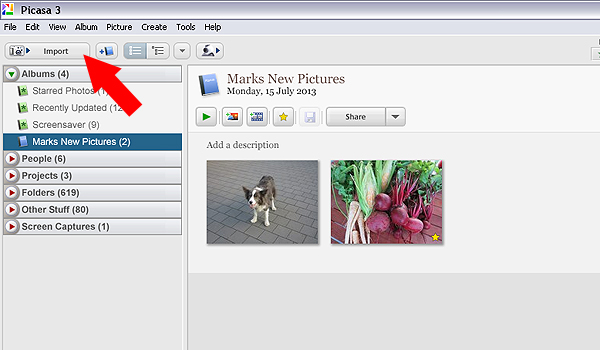
You also have the ability to import photos directly from cameras and portable drives using the import function in the top left hand side of the browser. Simply connect the device to your computer and navigate to the photographs on your device. Once you have all your pictures imported, and in their respective folders, you are ready to start editing.

Picasa import button 02

Use the import function to download from a digital camera or portable hard drive

Editing and effects

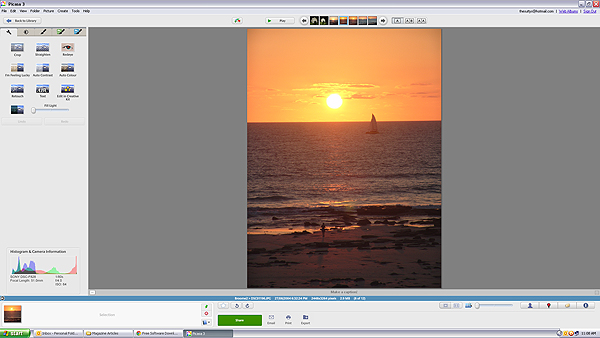
To begin editing you simply double click on a picture in the Picasa browser. This activates the editing functions and you can begin making changes to your selected photograph.

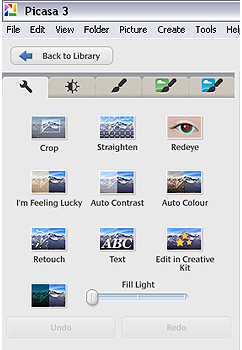
There are five tabs at the top left-hand side of the editing window:

Use the import function to download from a digital camera or portable hard drive

Use the import function to download from a digital camera or portable hard drive

TAB #1 COMMONLY NEEDED FIXES

The tools in this tab gives you control over cropping, straightening, red-eye removal, basic brightness and contrast adjustments. There are some automated features too such as “Auto contrast” and “Im feeling lucky”, which all deliver varied results. The “Edit in Creative Kit” feature has been discontinued but there is the opportunity to edit online inside Google+. There’s also a “Text” tool for adding some titles and information to your selections as well as a “Retouch” tool for fixing blemishes and scratches.

TAB #2 CONTRAST ADJUSTMENTS

The second tab gives you more brightness and contrast options and a greater level of control. It includes sliders to adjust the amount of fill light and shadows in your picture, and you also have the ability to change highlights. There’s a temperature control feature but in reality this simply adds either a blue or sepia tint to the picture which simulates daylight or interior colour temperatures.

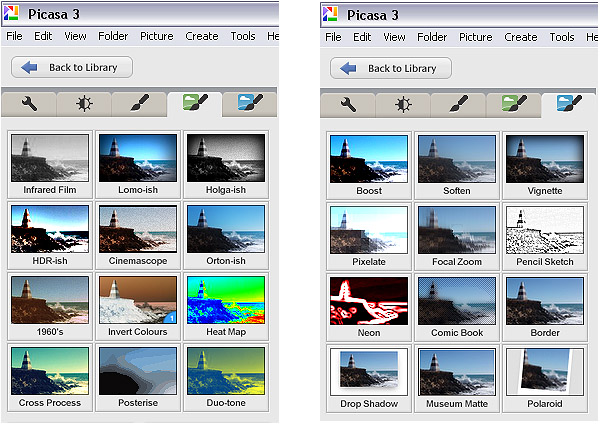
TAB #3 FILTERS

The third tab is where Picasa starts to offer some cool features. Here you will find a series of twelve preset filters such as sharpening, film grain and black and white. Most of the filters are adjustable so you can control the amount of each effect applied to a photograph.

TABS #4 and 5 MORE FUN FILTERS

Similarly, tabs four and five continue to offer you even more fun filters to apply to your photographs, with twenty four additional styles.

Picasa effect previews 04

The image filters in Picasa offer a wide range of modern and classic effects

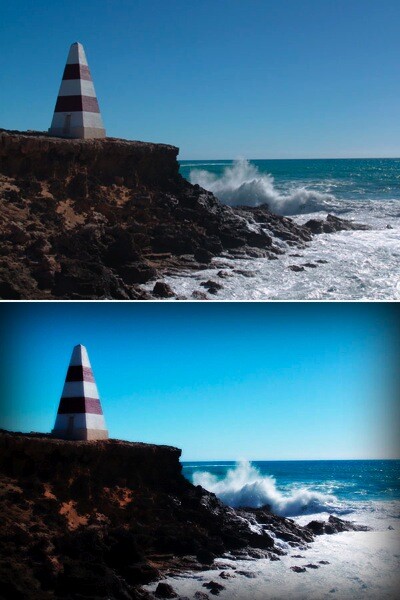
In the picture below I applied the Orton-ish filter and a Vignette to get a softening, yet dynamic effect.

Picasa before and after 05

Video

So, you’ve messed around for a few hours and now have a dozen images you want to show off to friends and family. Well Picasa’s bag of tricks doesn’t stop there. In fact, there’s some very useful output options available should you want to either print, make a video, or simply upload your pictures to the web.

Picasa create video icon 06

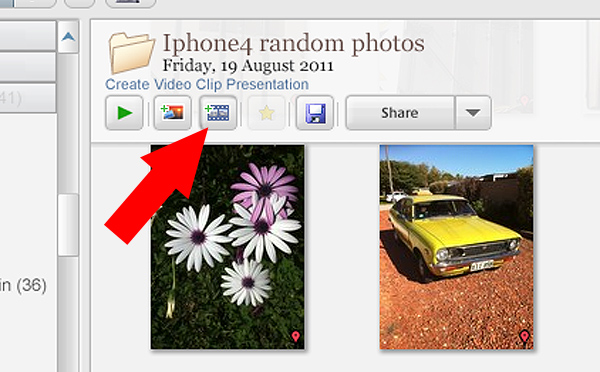
Making videos is simple and fun in Picasa. Just click the “Create Video Clip” icon to get started

By selecting a group of pictures in the browser and selecting “Create Video Clip Presentation’ it puts your selected pictures onto a simple video timeline. You can then add titles, and even import a music sound track to go with your pictures. If you’re not happy with the selection order you can shuffle the pictures, and then output the file to one of several video formats, including high definition 1080P.

There’s also the option of making a collage for print, screen or for the web. There are tons of options and it takes very little time to come to grips with how it all works.

Other features

If you think that’s impressive, wait, there’s more! If you have a free Google+ account you can upload and share your pictures right from the Picasa browser, to Picasa’s Web Albums photo sharing site with very little effort. Just make sure you familiarize yourself with the privacy settings before you start uploading and always read the terms and conditions.

On the downside,

On the downside Picasa has limited raw editing features, so if you want to try something more advanced then you will have to look elsewhere. That said there’s enough features in this little program to keep most people happy.

Bottom line on Picasa

Picasa is really a fun and easy program to use and the learning curve isn’t too steep. If you need an application that is primarily for browsing and organizing, then this is a handy program. Although the editing capabilities are basic there are some useful features such as geotagging, keyword tagging, face recognition and a range of exporting options. But if you are a serious photographer that needs a program that can do some heavy lifting then perhaps you’ll need something more robust.

Picasa will certainly appeal to a broad demographic and it is really intended to perform many of the most common photographic tasks. It can also speed up the process of getting your pictures online. While I was reluctant to start using this program I have warmed to it. So if you need a photo organizer and editor that’s quick, easy and – dare I say – fun to use then perhaps give it a go.

Download it:

  • Picasa for Windows
  • Picasa for Mac OSX

The post Getting to Know Picasa – a Free Image Editor and Browser by Google by Mark Sutton appeared first on Digital Photography School.


Digital Photography School

 
Comments Off on Getting to Know Picasa – a Free Image Editor and Browser by Google

Posted in Photography


Introducing our New Managing Editor – Darlene Hildebrandt

19 Nov

Today I’d like to introduce you to the new editor of dPS. But first… a little backstory.

The Evolution of dPS

Back in 2006 when I started Digital Photography School I did so because I was ‘that guy’ in my friendship circle who friends came to for advice on how to use their digital cameras (and to bring my camera along to every party, wedding and other gathering).
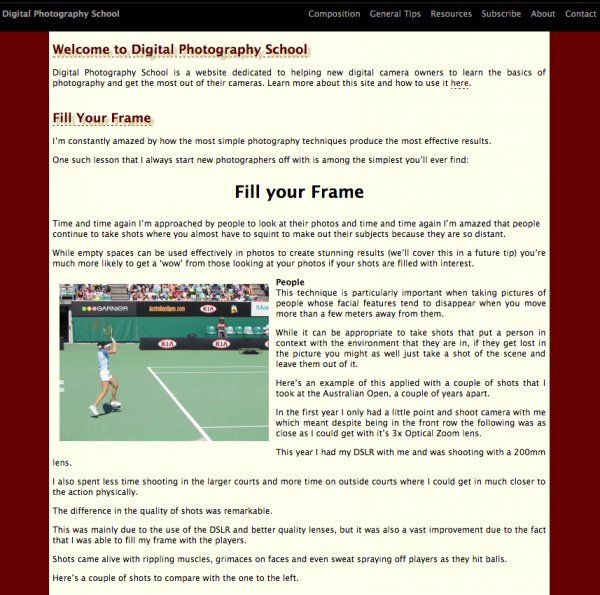
Our first day on dps back in 2006.

Our first day on dps back in 2006. Yes, our first design was ‘Maroon’!

While I’d done a few weddings and other paid photography gigs I didn’t consider myself a pro – but wanted to create a place online to share what I did know to help those at the beginning of their photography journey.
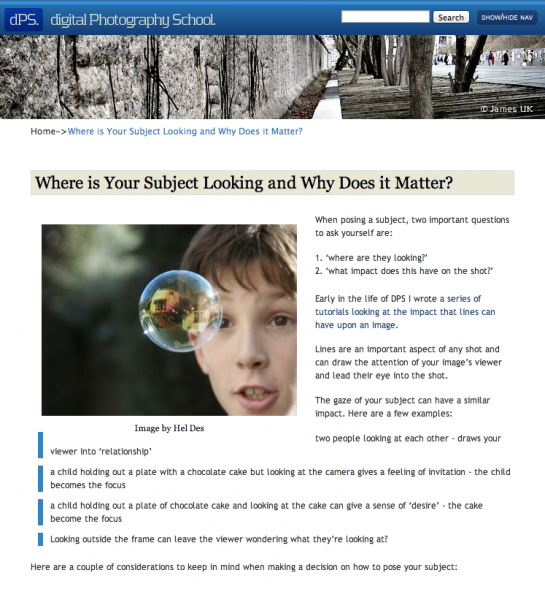
In 2008 we went through a bit of a 'blue' stage with our design.

In 2008 we went through a bit of a ‘blue’ stage with our design.

The content in the early days was unashamedly for beginners but in time we began to explore more intermediate level teaching. Early on I did all the writing myself but as the site grew I began to approach more experienced and professional photographers to write more and more of the content.
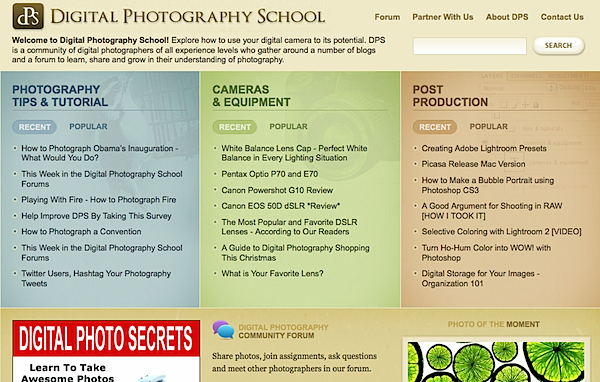
In 2009 we did a major redesign and expanded the site with new sections on 'camera reviews' and 'post production'.

In 2009 we did a major redesign and expanded the site with new sections on ‘camera reviews’ and ‘post production’.

Today at dPS

Fast forward to 2013 and we now have a team of 15 regular writers in our core team and a group of almost 20 other semi-regular writers submitting guest posts.

While in the early days I published 2-3 posts per week we now post two tutorials per day.

While I was happy in the early days of the site to get 100 visitors in a day, today we regularly see over 100,000 in a day!

As of today we’ve had over 158,934,066 visitors to the dPS blog and forum area since we started! I can hardly believe where dPS has grown to and feel like the luckiest man in the world to have been a part of it.

You will have noticed some changes here on the site in the last couple of months. The blog area had a complete redesign (and the forum will be redesigned shortly to match), we’ve been hard at work on delivering you a much requested mobile friendly theme too – but behind the scenes there have been many changes of late.
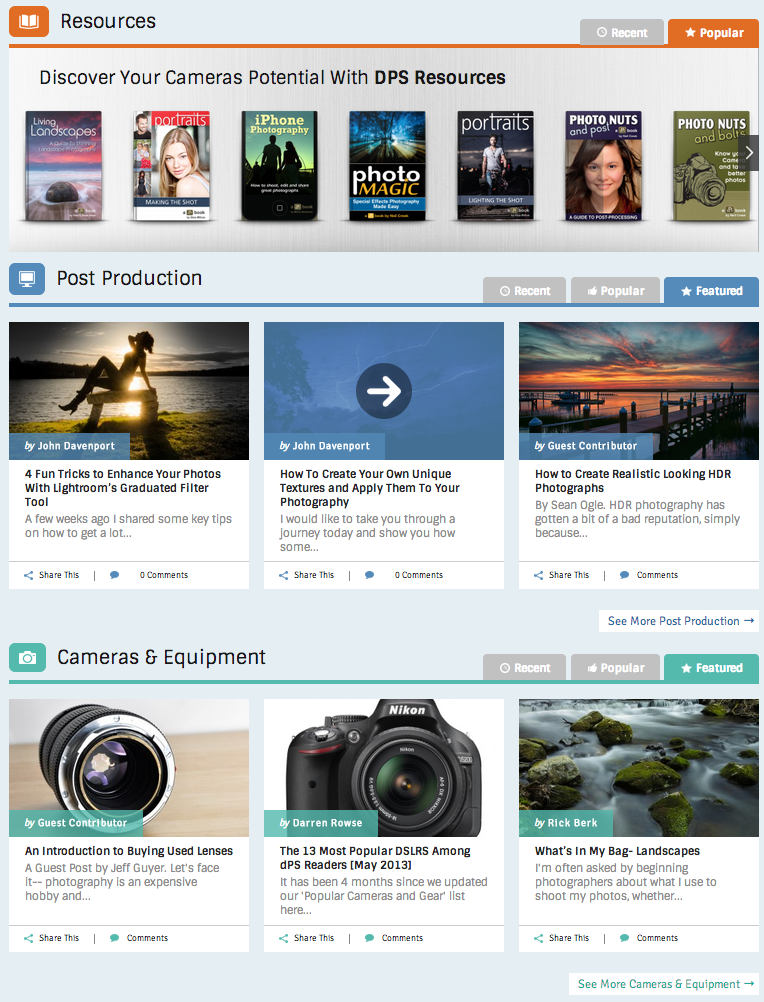
6 weeks ago we launched our brand new design.

6 weeks ago we launched our brand new design.

A lot of the backend of the site has been reengineered but in the last couple of years I’ve been developing our team also and have recruited a number of people to help take dPS to the next level. These include:

  • Jasmin who produces our eBooks and other products
  • Simon who works on customer support and moderating the forum
  • Jade who helps with our social media accounts – she’s the one curating our popular Pinterest Account
  • Shayne who works on marketing but also heads up our dev team. He also helps with our SnapnDeals and SnapnGuides sister sites
  • Luke and his team who works with site advertisers/sponsors to help us keep the site free
  • Mario and 3 other developers to work on the back end of the site (they did the redesign but are also working on numerous other behind the scenes technologies to streamline what we do but also help our servers to work faster and more reliably).
  • Lastly we’ve engaged the services quite a few great professionals who have helped us with authoring, editing, design and production of our eBooks.

Most of the above team have come on in the last 2 years (our end of year Christmas party suddenly is becoming a little more fun…) so we’ve seen some significant changes around here – however I’ve also been on the look out for some help with the editorial aspects of the site.

While our writers have consistently had great feedback I know that there is always room for improvement and am very aware of my own limitations as a photography educator. I’ve been blogging for 10 years and so have experience in that – but lately I’ve been on the look out for a Pro Photographer to help us develop our editorial strategy.

Introducing Darlene Hildebrandt

Today I’m pleased to announce the appointment of Darlene Hildebrandt as our new editor. I feel a little strange ‘introducing’ her to you as regular readers will know her work already as she’s been one of our regular authors for 18 months.

Darlene headshot May13 162 web 2Darlene has been a professional photographer for over 26 years having worked in many different genres in the industry including: commercial, food photography, portraits, weddings, fine art, and travel photography. She still does portraits by referral, and special events for charities on a volunteer basis.

Her fine art work is shown and sold in a local gallery in her city, Edmonton, Alberta, Canada and she’s participated in many group and solo art shows and exhibitions over the last eight years. Since 2011 she has turned her focus towards teaching photography, and sharing her passion for the craft with others. She teaches weekend classes locally, as well as photography weekend workshops in Alberta and Washington state (USA).

New for 2014 she will also be leading photography travel tours with a fully booked trip to Cuba scheduled for January, and Nicaragua in February/March that is quickly filling up as well. Her tours will have emphasis on interacting with and helping out the locals in that country, and a schedule that is flexible and adaptable as the participants see fit. Photography at optimal times of day will be one of the goals on the tours and photography coaching in the field will allow Darlene to assist tour members in getting their very best images.

In April of 2012 Darlene started writing for Digital Photography School. Her articles quickly became popular, consistently among the top articles each quarter, and she became a regular author on the site. You can view Darlene’s author page here.
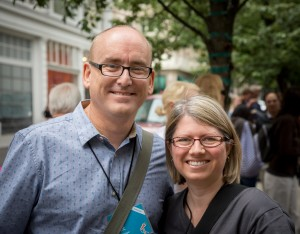
NewImageIn July last year I spent a little time with Darlene in Portland Oregon at a conference (that’s us on the right) and in the last couple of weeks Darlene flew out to spend time with the rest of the dPS team here in Melbourne Australia.

Today, Darlene comes on board as the Managing Editor to help us take DPS to the next level.

A Few Words From Darlene

You’ll no doubt continue to hear from Darlene regularly here on dPS but I asked her to say a few words today!

From Darlene:

“I am really happy to be joining the dPS team as Managing Editor! Working with Darren and the team has endless possibilities for the future, one that it is exciting and inspiring to me.

Being a photography teacher and writer allows me to share my passion for photography with liked minded people like you. I thrive on comments from students and readers who have break through moments and create images they never dreamed possible. These moments drive my energy and enthusiasm for teaching photography. Through you, the valued readers of DPS, I will be able to connect with more people and spread creativity through photography, a subject which is so close to my heart.

There are some great new things coming soon for dPS and I’m really excited to be a part of the team bringing them to you. I look forward to connecting with you soon and seeing your images for the weekly challenges and articles!”

The Future of dPS

I’m really excited about the future of dPS. Darlene coming into the team will continue to lift the quality of our tutorials but will also enable us to do some new things.

I can’t say too much about what’s coming yet but you can expect some new types of teaching and content to start appearing on dPS in the coming months! We’re also hard at work getting our popular 12 Deals of Christmas together for next month!

Darlene coming onto the team will also free me up to work on improving other aspects of the site too. I’ll still be very hands on with all areas of dPS but am also very excited to have a little extra time to work on some new related projects that I’ve been wanting to get my teeth into that I think will make dPS even more useful to our community.

That’s enough from me for today – please welcome Darlene!

Post originally from: Digital Photography Tips.

Check out our more Photography Tips at Photography Tips for Beginners, Portrait Photography Tips and Wedding Photography Tips.

Introducing our New Managing Editor – Darlene Hildebrandt

The post Introducing our New Managing Editor – Darlene Hildebrandt by Darren Rowse appeared first on Digital Photography School.


Digital Photography School
 
Comments Off on Introducing our New Managing Editor – Darlene Hildebrandt

Posted in Photography


When to Stop Being a Photographer and Start Being a Photo Editor

03 Sep

At some point, every photo shoot comes to an end.  Every portrait session, cookbook shoot, family vacation, ad campaign, college graduation, wedding, and photo essay eventually gets to the point when it’s time to put the camera down and see what you’ve got.  Congratulations–  You’ve just become a photo editor.  To be clear, I’m not talking about correction or manipulation in Lightroom, Photoshop or any of the other image editing software packages available.  I’m talking about the task of sitting down with the 367 images that you’ve just downloaded and being able to look at your own work with an objective, critical eye, and whittle them down to your best work.  Truthfully, this is one of those benchmark qualities that defines the term “professional photographer.”  Some people define the term based on the gear, while others base it on whether you are paid for your photography (and if so, how much).  For me, I define it in large part based on the photographer’s ability to at least temporarily sever their emotional tie to the work and realize that they shouldn’t be uploading ten images of the same sunset to their Flickr or 500px accounts simply because the angle is ever so slightly different in each.

I first learned this lesson several years ago when I started out as a second shooter for a high-end wedding photographer.  I showed up at the studio one Monday morning after a big weekend wedding, all excited to help with The Culling.  The preliminary critique the night of the wedding had been very positive, so I was feeling good.  Until we started going through the images.  “You’re deleting THAT one?  Seriously?  Wait a minute– what was wrong with THAT one!?!”  By the time we were done I was seriously questioning my new career choice.  My boss tried explaining that when the bride started going through the proofs she was going to get overwhelmed (and not in the good way) by having so many similar photos, that picking her favorites and placing an order would be an insurmountable task.  There wasn’t enough that was different about them.

As much as I didn’t want to admit it, he was right.  I hate it when that happens.

The bottom line was that the bride really didn’t need five 3/4 portraits with varying degrees of tilt when two– MAYBE three– would more than suffice.  The point of the lesson was learning to edit yourself by thinking like a client.  It’s a lesson I’ve tried carrying with me on every assignment since.  Think about it like this– have you ever had to sit through a three-hour marathon session of being forced to look at each and every photo your best friend took on their summer vacation?  Of course you have.  We’ve all been there.  How much better would it have been if they had edited themselves down to their twenty best?  See where I’m going with this?

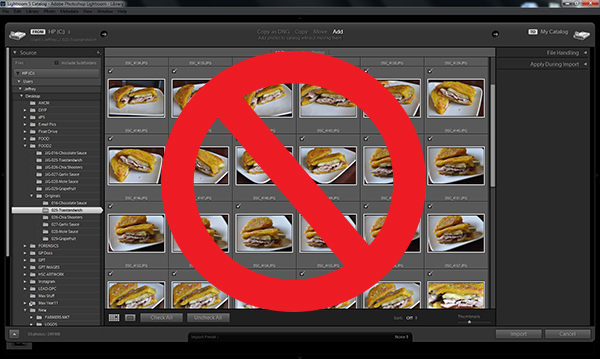
This was a Lightroom import from last week while I was shooting the last four dishes of the thirty I’d been commissioned to shoot for an upcoming cookbook.  I seriously overshot this one.  The screen capture only shows 24 of the 39 frames I shot of a sandwich.  Thirty-nine frames of a sandwich!  Not only do I not want the client to have to go through that many images to select the one that will go in the book, I don’t want them knowing that it took me 39 frames to take a picture of a sandwich!  Knowing how to edit yourself is crucial.  Unfortunately, not enough photographers learn how to do it well.

Editing-001-copy

The rule of thumb here is not to only show your best.  It’s to show the best of your best.  If I’ve taken 100 photos, chances are that maybe 50 go in the “selects” folder.  Of those 50, maybe 30 are really good.  Keep cutting your numbers in half as you move from “really good” to “THAT’S what I’m talking about!”  If I’m your client, I’ve already spent considerable time and money in hiring you.  I know you’re good.  Show me just how good you are by not wasting my time and showing me your best.  As soon as you can take your own emotions out of the equation you’ll be thinking like a photo editor and will be much better prepared to present only your best work, whether the client is a bride, a band, or a book publisher.  (As a side note, the same advice applies to entering photography competitions.  Think like the judge, not the photographer).

I see some you nodding your heads, but some of you are still skeptical.  “I got up at 3:00 in the morning to get to the location and set up just in time to see the sun come up over the crest of the mountain…”  Stop right there.  Rule #1 of critique with my photography students is “No talking once your photo is up on the screen.  The old cliche that every picture tells a story is true, but you need to let the picture tell it.  I don’t care about how difficult it was to get the shot or that you were happy/depressed/angry/indifferent when you took it.  While the result always matters,  you can’t necessarily say the same for the back story.  Save the stories for when you write your book some day.  For now, the work needs to speak for itself.

Learning to edit yourself pays dividends across the board.  If you are a professional photographer, your clients will appreciate both your quality and professionalism.  Professionals, hobbyists, and enthusiasts can not only get better at selecting the cream of the crop, but can also eventually start mentally editing themselves before they even push a shutter button.  Digital has made it easier than ever to walk away from a shoot with several hundred images.  That’s great, I suppose, but why create so much extra work for yourself?  Learn to think like a photo editor and all that extra work goes away.


Post originally from: Digital Photography Tips.

Check out our more Photography Tips at Photography Tips for Beginners, Portrait Photography Tips and Wedding Photography Tips.

When to Stop Being a Photographer and Start Being a Photo Editor


Digital Photography School

 
Comments Off on When to Stop Being a Photographer and Start Being a Photo Editor

Posted in Photography


Former Chicago Sun-Times Visual Editor speaks out at CNN.com

07 Jun

chi-sun-times-job-cuts-001-1.jpeg

Following the widely-reported layoffs at the Chicago Sun-Times a former Visual Editor at the paper, Robb Montgomery, has written a thoughtful piece for CNN.com about what the decision to move to a freelance work force means for the paper, and the industry as a whole. The same article also includes a video interview with Pulitzer price-winning photographer John H. White, who was among those laid off at the Sun-Times last week. Click through for extracts and a link to the full article at CNN.com.

News: Digital Photography Review (dpreview.com)

 
Comments Off on Former Chicago Sun-Times Visual Editor speaks out at CNN.com

Posted in Uncategorized