RSS
 

Posts Tagged ‘Editor’

Microsoft unveils Windows Story Remix, a video editor for Windows 10

14 May

Windows Movie Maker is revived in Story Remix, an app announced today for Windows 10 users at Microsoft’s Build conference. It allows users to easily edit together photos and videos from their mobile and desktop collections into movie clips.

Microsoft’s presentation emphasizes its ease-of-use and collaboration features, but the attention-getter is the ability to easily drop in special effects. Fireballs, 3D-figures and text can be added to a scene and anchored to objects for a realistic-looking cinematic effect. 

For those less interested in customizing their video, Story Remix can automatically edit photos and videos into a movie with basic input from the user, presenting the option to ‘remix’ the whole thing if you don’t like what you get. The demonstrations certainly look clever – we’ll be interested to see how end users take to the final product.

Articles: Digital Photography Review (dpreview.com)

 
Comments Off on Microsoft unveils Windows Story Remix, a video editor for Windows 10

Posted in Uncategorized


Movavi Photo Editor 4

28 Mar

  Let’s take a closer look at  the new  Movavi Photo Editor. The completely redesigned interface is the first thing that catches your eye when you launch the program. Now you’ve got all the tool tabs at the top, and their settings on the right. Quick access to all functions, including “Undo”, “Redo”, “Revert Changes”, and “View Original” buttons in Continue Reading

The post Movavi Photo Editor 4 appeared first on Photodoto.


Photodoto

 
Comments Off on Movavi Photo Editor 4

Posted in Photography


Get your pictures in front a NASA photo editor by entering Astronomy Photographer of the Year 2017

24 Feb
Serene Saturn Winner Planets, Comets & Asteroids 2016 © Damian Peach (UK)

The Insight Astronomy Photographer of the Year 2017 competition is set to open next week offering space photographers the chance to have their work judged by a picture editor from NASA as well as to win the top prize of £10,000. The competition is open to professional and amateur photographers who can choose from nine categories in which to enter their images. Entry is free but restricted to ten images in total all of which need to have been taken since January 1st 2016.

The winner of each category will receive a £1500 prize while those in runner-up positions get £500 and Commended images win £250. There are an additional two special awards for The Sir Patrick Moore Award Best Newcomer and for Robotic Scope Image of the Year – both of which earn the photographer £750.

Joining the judging panel this year is photographer Rebecca Roth, the Image Coordinator and Social Media Specialist at NASA’s Goddard Space Flight Center in Maryland. She will judge alongside a collection of astronomers and astro-photographers as well as presenters from the BBC Sky at Night TV program. Photographer Wolfgang Tillmans is also on the judging panel.

The competition is open for entries from Monday February 27th and closes on Friday April 7th. It is run by the Royal Observatory Greenwich in the UK along with the BBC’s Sky at Night magazine. The Royal Observatory is a charitable organization and has some terms regarding additional uses beyond the realms of the competition that entrants should acquaint themselves with before submitting their work.

For more information see the Royal Museums Greenwich website and the terms and conditions page.

Press release

INSIGHT ASTRONOMY PHOTOGRAPHER OF THE YEAR 2017 ANNOUNCES COMPETITION DATES AND WELCOMES REBECCA ROTH OF NASA TO THE JUDGING PANEL

The Royal Observatory Greenwich, in association with Insight Investment and BBC Sky at Night Magazine, announces the dates for the Insight Astronomy Photographer of the Year 2017 competition – its annual global search for the most beautiful and spectacular visions of the cosmos, whether they are striking pictures of vast galaxies millions of light years away, or dramatic images of the night sky much closer to home.

Now in its ninth year, the hugely popular competition will open to entrants on Monday 27 February giving them a chance of taking home the grand prize of £10,000. Entrants will have until Friday 7 April to enter up to ten images into the various categories of the competition via www.rmg.co.uk/astrophoto.

The competition also welcomes Rebecca Roth of NASA to the judging panel. Based in Washington D.C. Rebecca is a photographer, photo editor and social media specialist, currently working as the Image Coordinator and Social Media Specialist at NASA’s Goddard Space Flight Center. Rebecca has worked at NASA for nearly 8 years and is charged with sharing amazing images of our universe with the media and with the public through channels such as Instagram, Twitter and Facebook. Prior to working at NASA, Rebecca worked as a photojournalist and photo editor for outlets including National Geographic Television & Film, Roll Call Newspaper, and USA Weekend Magazine. Of her latest role as a judge for the Insight Astronomy Photographer of the Year 2017, Rebecca has said, “At NASA Goddard, we build spacecraft and instruments, and invent new technology to study the Earth, the sun, our solar system, and the universe – a favorite part of my job is sharing images of these spacecraft and the images they produce with the public. This will be an exciting and unique opportunity to see the spectacular images of space captured by the public themselves and discovering their photographic interpretations of the night sky and beyond.”

Insight Astronomy Photographer of the Year 2017 has nine main categories:

– Skyscapes: Landscape and cityscape images of twilight and the night sky featuring the Milky Way, star trails, meteor showers, comets, conjunctions, constellation rises, halos and noctilucent clouds alongside elements of earthly scenery.

– Aurorae: Photographs featuring auroral activity.

– People and Space: Photographs of the night sky including people or a human interest element.

– Our Sun: Solar images including solar eclipses and transits.

– Our Moon: Lunar images including lunar eclipses and occultation of planets.

– Planets, Comets and Asteroids: Everything else in our solar system, including planets and their satellites, comets, asteroids and other forms of zodiacal debris.

– Stars and Nebulae: Deep space objects within the Milky Way galaxy, including stars, star clusters, supernova remnants, nebulae and other intergalactic phenomena.

– Galaxies: Deep space objects beyond the Milky Way galaxy, including galaxies, galaxy clusters, and stellar associations.

– Young Astronomy Photographer of the Year: Pictures taken by budding astronomers under the age of 16 years old.

There are also two special prizes: The Sir Patrick Moore Prize for Best Newcomer is awarded to the best photo by an amateur astrophotographer who has taken up the hobby in the last year and who has not entered an image into the competition before, and Robotic Scope, acknowledges the best photo taken using one of the increasing number of computer-controlled telescopes at prime observing sites around the world which can be accessed over the internet by members of the public.

Entries to the competition must be submitted by 7 April 2017, and the winning images will be showcased in the annual free exhibition at the Royal Observatory Greenwich from 14 September 2017.

Photographers can enter online by visiting www.rmg.co.uk/astrophoto and each entrant may submit up to ten images to the competition.

Articles: Digital Photography Review (dpreview.com)

 
Comments Off on Get your pictures in front a NASA photo editor by entering Astronomy Photographer of the Year 2017

Posted in Uncategorized


App review: Full Frame is a quick, easy JPEG viewer, EXIF editor

28 Jun

Full Frame is a Mac-based image viewer, photo importer and metadata editor that centers around an incredibly clean and intuitive user interface. Released by California-based Inland Sea and available now in the App Store, its potential to speed up one’s workflow caught our attention.

Of course, there are a lot of different photo viewing, ingesting and sorting programs available on market, many of which are geared toward casual users. Full Frame, on the other hand, is targeting more toward high-end users like photo enthusiasts.

In Use

Having spent some time trying out using Full Frame in my own workflow, it seems its closest competitors are Photo Mechanic, a time-honored program with a cult-like following from photojournalists world-wide, as well as Adobe Bridge.

Unlike Adobe Bridge, which I find frustratingly sluggish and cluttered in design, Full Frame comes across as exceptionally lean in terms of speed (except when working with un-supported Raw files) and design. It has much more in common with Photo Mechanic like quick startup and image load times. Of course the spectrum of its functionality is much more limited than that of Adobe Bridge.

I took Full Frame for a spin while sorting images to post to one of my personal sites. Specifically,  I used it to move and rename selects from one drive, to a folder on another.

Once you have Full Frame fired up, users simply select the source folder and destination (assuming you are copying files) in the upper-left of the screen. The above screenshot represents the entire window when the program is open. There is literally nothing to get in your way of viewing images and deciding which to keep and which to trash.

To select an image to copy, simply click on it and a checkmark appears. Alternatively you can select all by hitting ‘Command A’ and uncheck the ones you don’t want. In the upper-left portion of the window you’ll find a slider to zoom in the grid view as well as options to view metadata and delete files from their source.

With your mouse hovering over an image, a small plus sign will appear in the upper left of the photo. Click on it to expand the view. Once in the single image viewer, users can use the slider at the top to zoom the image in and out, to check for critical focus. Unfortunately, when zooming in and out, there is no display of the percentage you are zoomed to, unlike in Photo Mechanic.

One of the best features of Full Frame is the metadata/EXIF viewer. It offers an incredibly detailed list that goes above and beyond what a lot of other programs show, including Photo Mechanic.

Users can also add EXIF info to any imported files from within the preferences panel. One thing I’ve always really liked about Photo Mechanic is how simple it is to add copyright warnings and contact info to my files. In Full Frame, it is just as painless. From within the preference panel users can also assign rules for renaming files on import, which is very handy. 

In many ways, Full frame comes across as a utilitarian program, built to accomplish several specific tasks related to moving and organizing images. However it also doubles as an outstanding way to show off your work to clients, friends or families. The grid view is frankly gorgeous, and once in the single image view, users can simple use the arrow keys to move from image to image. It also starts up very fast, which is a plus.

Things to consider

While I found a lot to like about Full Frame, there are some things to consider before purchasing it: First and foremost, despite the claims of Raw support, I found numerous files, from varying manufacturers, to be unsupported. For instance, Raw files from the Nikon D750 are unsupported, as are those from the Sony a7 II. However, if you have Raw+JPEG files, load times will slow significantly but you can at least view and import your images.

This is really quite unfortunate. Sure, app updates could bring about Raw support but who has time to wait around? On the other hand you could always covert to DNG first, but if the whole point of this program is to speed your workflow, that also makes little sense. Photo Mechanic on the other hand does not have this problem, it can display a JPEG rendering from any Raw file, and loads quickly regardless.

Another beef I have with Full Frame is that there is only one option for sorting/rating images. In Photo Mechanic and Bridge, there are numerous ways to rate and sort images. For instance, when choosing my selects, I first do an initial sweep and check mark all of the ones I like, I then assign color or star ratings until I’ve got the images sorted down to a manageable amount.  At that point I copy the selects to a separate drive to be imported into Lightroom for processing.

The Takeaway

Full Frame is not a program that can do it all, but the things it can do, it does well. If you need a quick, easy way to view JPEGs or edit/view EXIF info, it might be your cup of tea.

Full Frame is an outstanding option for photographers seeking a powerful EXIF viewer/editor or a quick and easy way to import and rename files. Its spotty Raw support is the main thing holding it back. But at $ 30, Full Frame is a major bargain compared to Photo Mechanic, which will set you back $ 150. It is also a much faster way to quickly view and sort JPEG files than Adobe Bridge.

What we like:

  • Intuitive user interface
  • Very clean, simple design
  • Powerful EXIF viewer and editor
  • JPEGs load very quickly
  • Can be used to import, sort, batch rename files
  • Support for video files

What we don’t:

  • Despite claims of Raw support, many Raw files not supported
  • No percentage shown on zoom slider
  • Not as many options for rating photos as competition

Rating:

Articles: Digital Photography Review (dpreview.com)

 
Comments Off on App review: Full Frame is a quick, easy JPEG viewer, EXIF editor

Posted in Uncategorized


Enter to Win one of 10 Copies of Corel’s AfterShot Pro 3 Photo Editor

27 Jun

Win one of 10 Copies of AfterShot™ Pro 3 Photo Editor from Corel!

Enter the After Photography Contest Today!

After dark, after thought, after noon, after work, after school, after life, after all…

You pick your after theme and have fun with it.

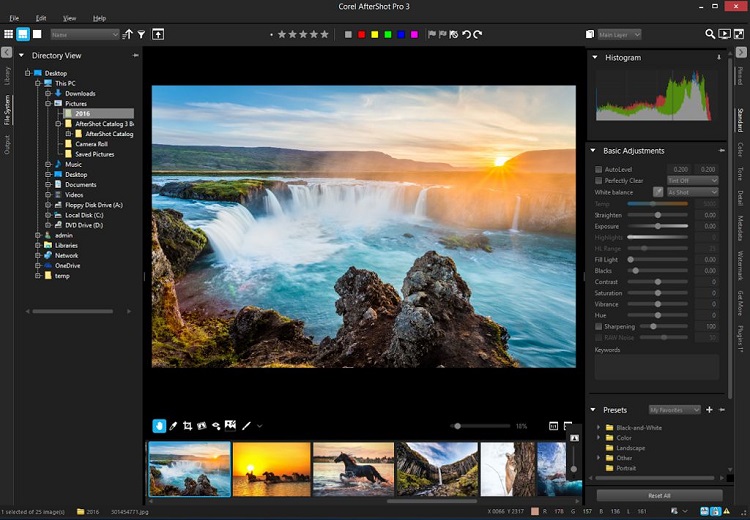
ASP 3 workspace

Over the last few years here at dPS, we’ve run very some very popular contests with our partners, to give away some of their great photographic products to lucky dPS readers. We are lucky enough to be able to do it again now.

For this competition, Corel is giving away TEN copies of AfterShot™ Pro 3 Photo Editor!

These prizes are designed to help every level of photographer create BETTER pictures. Since 1989, with the introduction of CorelDRAW, Corel boasts a range of award-winning products that includes graphics, painting, photo, video, and office software with a community of over 100 million strong. Each copy of AfterShot Pro 3 will be won by a different dPS reader.

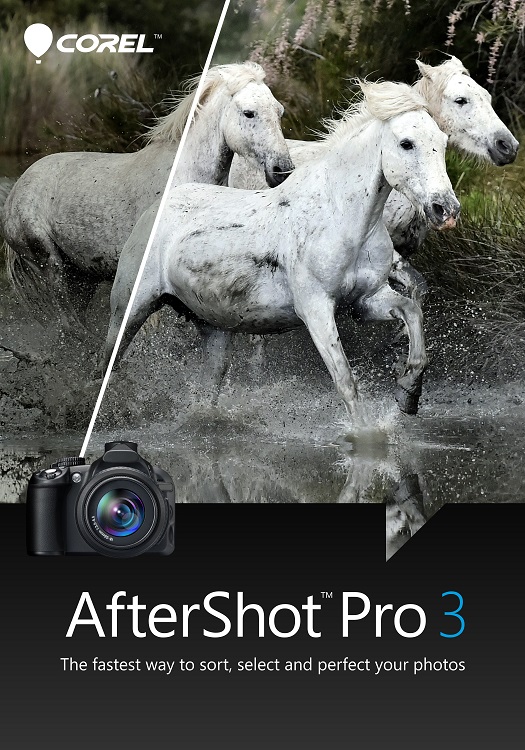
ASP3 box front

Our 10 prize winners will receive the full version of Corel’s leading RAW Photo Editor – A $ 79.99 Value

Corel® AfterShot™ Pro 3 is up to four times faster than Adobe® Lightroom (claim based on a batch export workflow, using Lightroom CC 2015.5.). It’s the photo editor that helps you reveal your true creative potential. With AfterShot™ Pro 3 there are no subscriptions, and no longer a need to spend hours editing at your computer. You can import, process, output faster, and get back to taking photographs. Take a look at a few of the new, improved and classic features:

  • Faster workflow
  • Simple photo management
  • New comprehensive watermarking
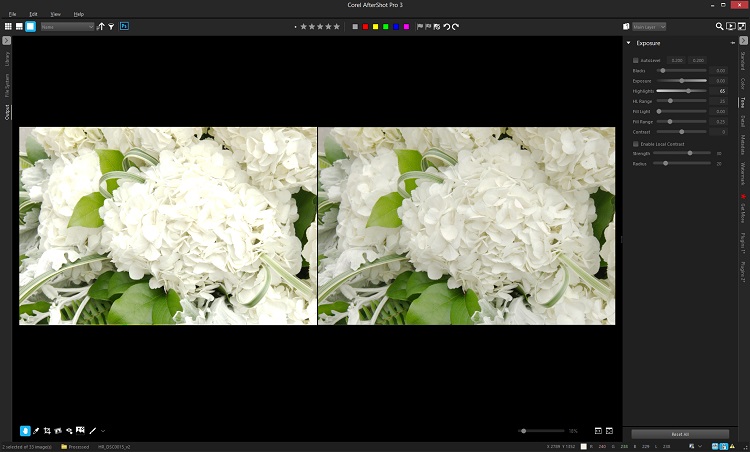
  • Enhanced highlight recovery
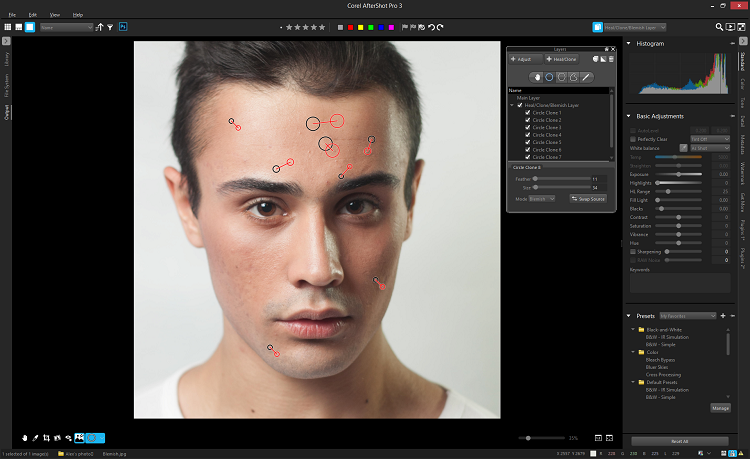
  • New blemish remover tools
  • New image preset library
  • Powerful batch processing

Adobe®, Lightroom® and Photoshop® are either registered trademarks or trademarks of Adobe Systems Incorporated in the United States and/or other countries.

ASP 3 Highlight Recovery

New Blemish Remover

Learn a little more about AfterShot Pro 3 HERE:

ASP3 Logo

How to win

To win this contest you’ll need to:

  • Edit your favorite ‘After’ photo. To make it even better, download a free trial of AfterShot Pro 3 HERE
  • Post your After photo, along with a few words on how you feel AfterShot Pro 3 would help your photography in the comments section below, and of course, your After themed image. It’s as easy as that!
  • Do this in the next 21 days and on August 5, 2016, the team at Corel will choose the 10 best photos and comments, and we will announce the winners in the following days.
  • Deadline Is July 19, 2016, at 11:59pm PDT. Photos and comments left after deadline will not be considered.

By best – we’re looking for people who have an understanding of photography post-processing, and how AfterShot Pro 3 may best suit your needs. So you’ll need to check out the product page to put yourself in the best position to win. Don’t forget to grab a free trial download.

There’s no need to write essay length comments to win – but we’re looking to hear what you like about the software, and how it would help your development as a photographer. Don’t forget to include your favorite After themed photo. We encourage you to have fun and be creative!

This competition is open to everyone, no matter where you live – but there is only one entry per person. To enter – simply leave your photo and comment below.

ASP3 Logo

Disclaimer: Corel is a paid partner of dPS.

By entering the After photo contest, the Entrant is providing permission to Corel to publish their photo, if it is chosen as a winner, to be utilized within media post(s) by Corel announcing the winners and promoting. Entrants will be provided a full photo credit if photo is used, and will retain their copyright – Please click HERE or full contest rules, terms and conditions.

googletag.cmd.push(function() {
tablet_slots.push( googletag.defineSlot( “/1005424/_dPSv4_tab-all-article-bottom_(300×250)”, [300, 250], “pb-ad-78623” ).addService( googletag.pubads() ) ); } );

googletag.cmd.push(function() {
mobile_slots.push( googletag.defineSlot( “/1005424/_dPSv4_mob-all-article-bottom_(300×250)”, [300, 250], “pb-ad-78158” ).addService( googletag.pubads() ) ); } );

The post Enter to Win one of 10 Copies of Corel’s AfterShot Pro 3 Photo Editor by Darlene Hildebrandt appeared first on Digital Photography School.


Digital Photography School

 
Comments Off on Enter to Win one of 10 Copies of Corel’s AfterShot Pro 3 Photo Editor

Posted in Photography


Alien Skin releases non-destructive photo editor Exposure X

11 Dec

Alien Skin has launched Exposure X, its non-destructive photo editor and film emulation software for Mac OS X and Windows. Exposure X is the successor to Exposure 7, and functions as both a plug-in for Adobe Lightroom and Photoshop as well as a standalone editor. Features include a revamped user interface, RAW image editing, and an import system that doesn’t use a catalog file.

Plans to release Exposure X were announced weeks ago. As promised, the software combines simplified design with non-destructive editing tools for organizing, editing, processing, and storing photos. Exposure X doesn’t use a catalog file, instead opening photos directly from the source folder. The interface, meanwhile, does away with separate modules, presenting a full set of tools at all times, according to Alien Skin. Analog looks can be applied to images, including Kodachrome, Lo-Fi, Daguerreotypes, and more. 

Exposure X is a free upgrade for Exposure 7 owners and $ 99 USD for those with other Exposure versions. The software is $ 149 USD for new customers.

Via: Alien Skin

Articles: Digital Photography Review (dpreview.com)

 
Comments Off on Alien Skin releases non-destructive photo editor Exposure X

Posted in Uncategorized


Alien Skin Exposure X ‘nondestructive’ photo editor to launch by year’s end

24 Nov

Alien Skin Software plans to release a new ‘nondestructive’ photo editing application called Exposure X by the end of the year. Exposure X will include several changes over Exposure 7, including improvements to the user interface, file management tools, and new keyboard shortcuts. Read more

Articles: Digital Photography Review (dpreview.com)

 
Comments Off on Alien Skin Exposure X ‘nondestructive’ photo editor to launch by year’s end

Posted in Uncategorized


AfterShot Pro 2.3 offers missing link for Photoshop CS6 users with External Editor function option

05 Nov

The latest version of Corel’s AfterShot image editing and Raw conversion application introduces a ‘Send To External Editor’ button that allows Raw files to be opened and worked on in AfterShot, then exported directly to Photoshop. This creates another way for PhotoShop CS6 customers to continue to add Raw support for new cameras to their workflow, in addition to Adobe’s DNG converter application.  Read more

Articles: Digital Photography Review (dpreview.com)

 
Comments Off on AfterShot Pro 2.3 offers missing link for Photoshop CS6 users with External Editor function option

Posted in Uncategorized


Polarr releases Photo Editor 3 with new features, interface improvements

17 Oct

Polarr has released Photo Editor 3, the third version of its lightweight photo editing software. The new version brings with it support for using a mouse and a touchscreen, as well as a new user interface, adjustment sliders, photo editing guides, and other features. Read more

Articles: Digital Photography Review (dpreview.com)

 
Comments Off on Polarr releases Photo Editor 3 with new features, interface improvements

Posted in Uncategorized


Tips on Choosing a Free Photo Editor for Post-Processing

08 Oct

A question I get asked a lot is, “What software for post processing would you recommend if you were starting out in photography today?”

Don’t know which photo editor to choose, here are some free options worth considering.

My go-to software for editing photos is Adobe Photoshop. This doesn’t mean I am advocating that Photoshop is the only photo editor worth considering – far from it. I will be using Photoshop as a frame of reference only, and not as a direct comparison to other software products mentioned in this article.

Title

Deciding which Photo Editor can be daunting for a beginner, especially as there are so many to choose from!

However, it is the industry’s number one software for professionals. Prior to the new subscription model, Photoshop was a standalone piece of software and was expensive. But even with the subscription model, it’s a recurrent expense, which over time will amount considerably for your buck.

After doing some research, I was quite amazed at the plethora of photo editing software applications, on the market that are relatively inexpensive to purchase. Most of which equip the beginner with more than enough features and tools to get your images looking great.

Also, most of the applications can be downloaded free, for a limited trial period. This gives you a better idea what it’s like, and you’re able to test the software and its capabilities.

Other products can be downloaded for entirely free and some are even web based, so you don’t have to download any software onto your computer. The disadvantage is that you do need a reliable internet connection. Also, I did find the annoying ads that pop up alongside the interface distracting. An alternative to get rid of these ads is to pay for an upgrade.

Let’s take a look at some of the free options:

Pixlr

Pixlr is a web based, online editing tool. You can create a new image, upload an image, or grab one directly from a URL location. I found this product very intuitive and easy to use. The images load up fast in the web browser. The interface is quite similar to Photoshop. It has all the tools like: layers, lasso tool, brush controls, cloning, and filters.
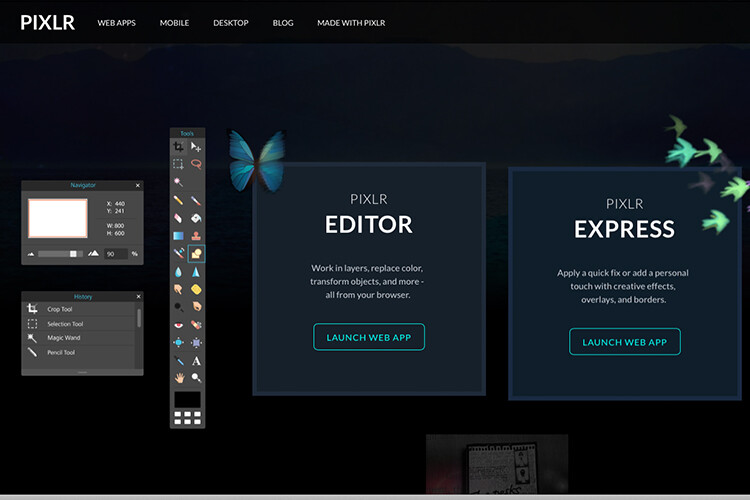
Pixlr-web-based-launch-screen

The Launch screen as it appears when you load Pixlr in your web browser.
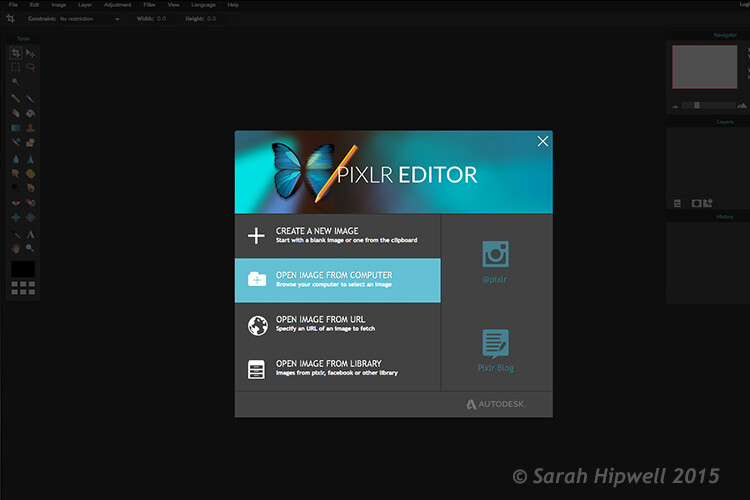
Pilxr-web-based-image-editor-interface

You have four options to choose from when you go to open your file. It’s that easy.

Ok, so where do you start with your post-processing?

When you have your image open, duplicate it so that you keep the original intact. That way, if you completely mess up, don’t worry, you still have the original to begin again.

Post editing is a skill. It does take patience and time to master.

Color correction

I would consider color correction an important area to begin your post-processing.

The Levels setting exists in many image editors. It is a powerful tool for adjusting the tones (contrast) in your image, and for making color adjustments. In Photoshop, you select Layer> New Adjustment Layer > Levels. In Photoshop Elements choose Enhance > Adjust Lighting > Levels. Other image editors place it differently, but essentially it does the same job. The Levels setting is a bit daunting and complex to begin with, but I do feel it is worth the time to get to know.

The Levels dialog box has an image histogram which is similar to the display on the back of your camera. A simple explanation of the histogram is: the shadows (blacks) are on the far left, mid-tones (grays) are in the middle and the highlights (whites) are on the far right. So by adjusting any of the sliders on the bottom, you will affect the contrast of your image.
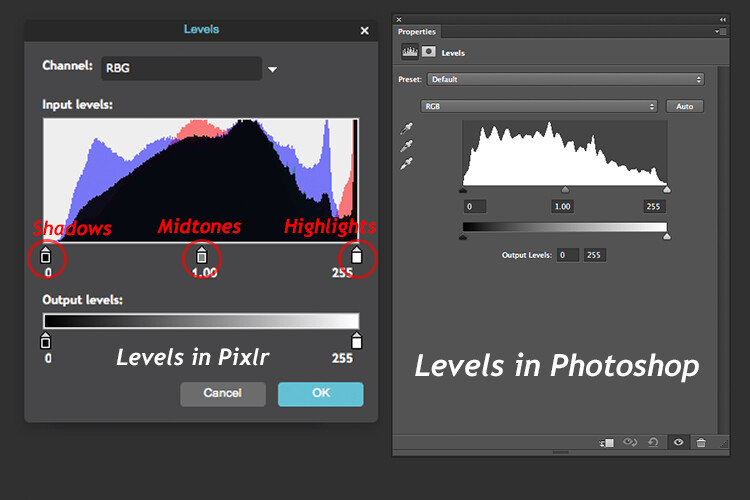
Levels-in-Pixlr-and-Photoshop

The Levels setting on the left belongs to Pixlr, and on the right is the Levels adjustment as it appears in Photoshop CS6.

Okay, but what about the color of the image?

An easy way to adjust color correction is by changing the color channels which are found in the Levels dialog box. The default setting is RGB in Pixlr.
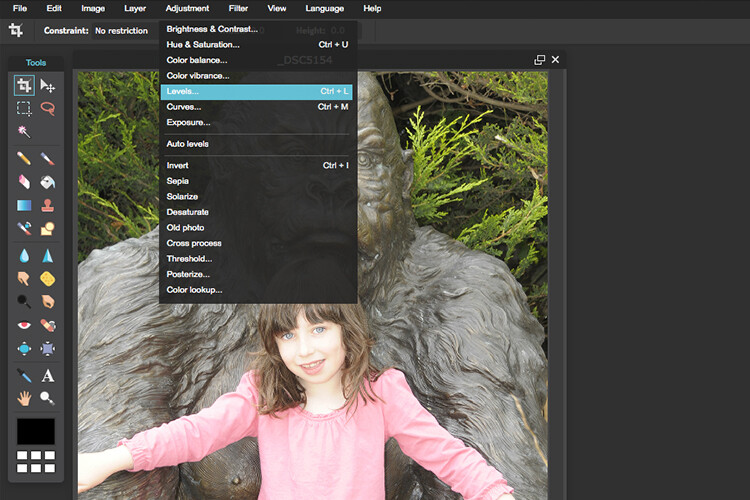
Adjustment-Levels-Pixlr

Where you find the Levels setting in Pixlr.

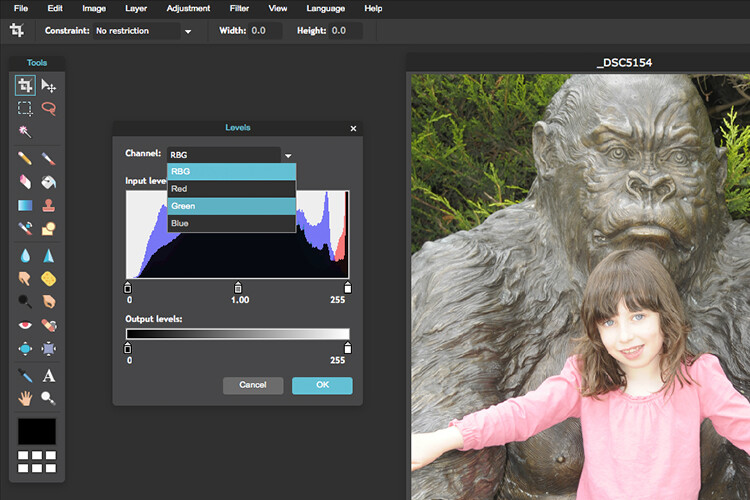
Go to Adjustment Tab and select Levels. Click on the downward arrow next to RGB in Channel, this brings up a drop-down menu for the red, green and blue channels. Choose the first one, which is red. Look at the histogram graph and check for gaps in it.
Color-channels-in-Levels-pixlr

The colour channels appear in a drop down menu by clicking on the small arrow to the right of RGB.

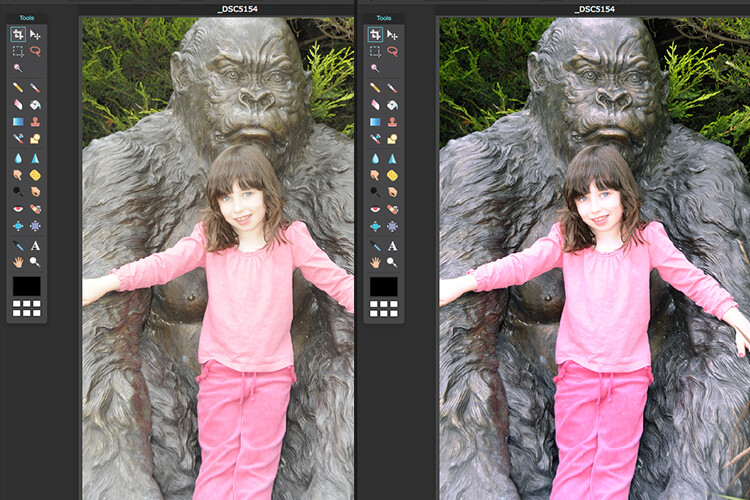
For this image, as it is quite over-exposed a lot of the shadow detail is lost (overly gray and no black in the image), see left of the graph. Move the shadow slider to the right, in towards the middle, where the graph starts to go up.

You want your graph to represent a nice mountain shape starting from the shadows rising high in the midtones and back down to the highlights. See photo. Repeat this process for the other two channels. Click back to RGB.

To add some contrast, just move the middle slider (mid-tones) to the right, see photo below. There is a lot more to learn about the Levels adjustment, but this is just an easy way for beginners to start.
Before-and-after-color-correction-pixlr

Before and after colour correction on the RGB channels using Pixlr.

Some other alternative web based solutions are SumoPaint, which has a similar interface to Photoshop, and another called PicMonkey.

SumoPaint

Similar to Pixlr, SumoPaint was very easy to use. I was able to adjust the color correction on this image using the Levels adjustment and modifying the color channels, as I did using Pixlr.

Sumopaint-in-browser

Sumopaint-Levels

Sumopaint-Levels-channels

If you prefer to download software onto your computer. Again there is a wide choice of free products available.

  • Paint.net, which is Windows based.
  • Picasa is Google’s photo manager and editor. It plugs into Google+.

Photoscape

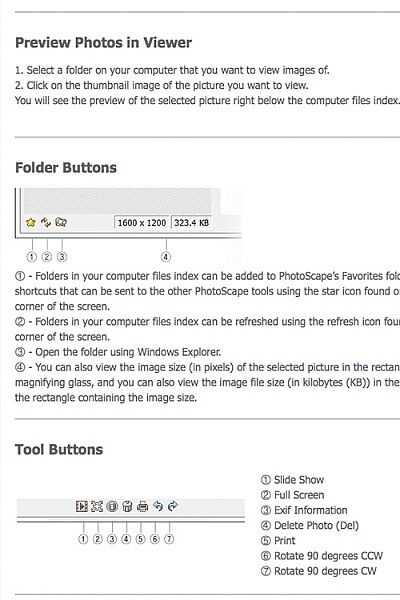
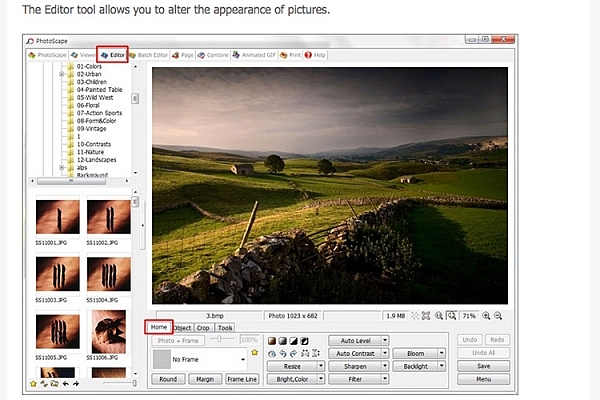
Here’s another one that you may or may not have come across, called Photoscape. This software is packed with excellent features for free. It has a built-in image viewer, which lets you see all your images quickly at a glance using thumbnails. It also has a Batch Editor, so if you apply an edit to one photo or resize it – using the Batch Editor will apply the same edit to multiple images. It even has a RAW Converter. For beginners, it offers image cropping, brightness and colour adjustment, red eye removal, and some great effects too. It does appear to more intuitive and offer a less steep learning curve for beginners.
Photoscape
Photoscape

Editor-tool-in-Photoscape

Main editor tools in Photoscape
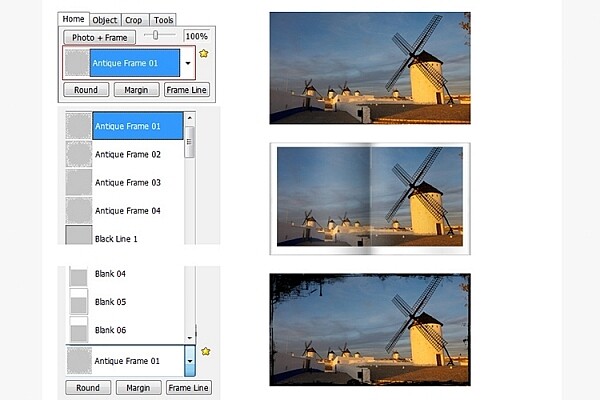
Adding-frames-in-Photoscape

Adding frames in Photoscape
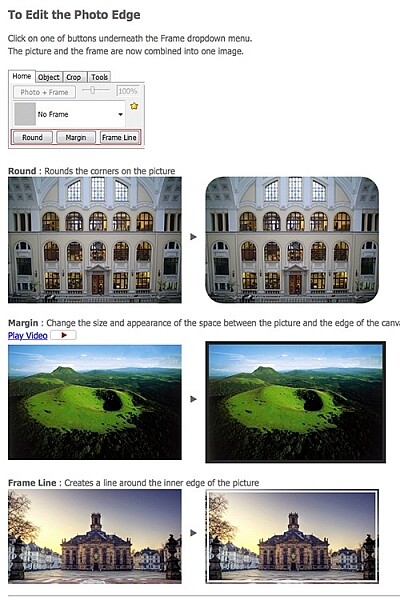
Edit-photo-edge-photoscape

Edit photo edge in Photoscape

Preview, which is Apple’s built-in image and document viewer for OS X, surprised me. It has the capability to crop, resize, and do color adjustment which was quite impressive.

Conclusion

In summing up, there is a vast range of post-processing image editors to choose from. In this article, I only hinted at a mere few. The list is endless!

As a guide for beginners, I would experiment with the free options and test them out for yourself. There is no financial investment only your time. The time invested will give you a better idea which application suits you best in the long run.

Post-processing does require time, no matter how skillful you become at it. Once you have established a certain level of skill at post editing, you can then graduate to purchasing a reasonable priced standalone image editor, if you prefer.

Example products are:

  • ACDsee19 for $ 59.99
  • Photoshop Elements 14 for $ 99.00
  • Adobe Lightroom 6 for $ 149.00
  • Affinity Photo for the Mac is only for $ 49.99
  • PhotoPlusx8 for $ 99.99

Or you could simply download GIMP, (some equate this software as being powerful to Photoshop) which is an open source image editor with versions available for Windows, OS X, and Linux. There are lots of tutorials and resources already on the web to help you further with this software.

In fact, if I was new to photography and I had to decide which photo editor to pick, I would feel spoilt for choice!

Disclaimer: I was not contacted or sponsored to test any of the above software applications. Opinions are purely by the author only.

googletag.cmd.push(function() {
tablet_slots.push( googletag.defineSlot( “/1005424/_dPSv4_tab-all-article-bottom_(300×250)”, [300, 250], “pb-ad-78623” ).addService( googletag.pubads() ) ); } );

googletag.cmd.push(function() {
mobile_slots.push( googletag.defineSlot( “/1005424/_dPSv4_mob-all-article-bottom_(300×250)”, [300, 250], “pb-ad-78158” ).addService( googletag.pubads() ) ); } );

The post Tips on Choosing a Free Photo Editor for Post-Processing by Sarah Hipwell appeared first on Digital Photography School.


Digital Photography School

 
Comments Off on Tips on Choosing a Free Photo Editor for Post-Processing

Posted in Photography