RSS
 

Posts Tagged ‘Editing’

New York Times details photo editing policy for fashion magazine

21 May

nytcover.jpg

A cover image in the latest issue of the New York Times’ monthly style magazine, T, has led to an interesting discussion about the newspaper’s policy on photo retouching. While editors forbid any image manipulation beyond, ‘minor color-toning and brightness’ in news stories, retouches and removal of blemishes are allowed in the style magazine’s fashion photography. Does a newspaper risk credibility by allowing retouching on editorially-branded content? Click to read more and share your thoughts.

News: Digital Photography Review (dpreview.com)

 
Comments Off on New York Times details photo editing policy for fashion magazine

Posted in Uncategorized


10 Photo Editing Programs (that aren’t Photoshop)

18 May

corel.jpg

Adobe Photoshop has become ubiquitous since its introduction more than 20 years ago, but it isn’t the only game in town. In this article, we’ve selected 10 photo editing programs that aren’t all as well-known as Photoshop, but which are well worth investigating if you’re looking for other options. Click through for a link to the full article. 

News: Digital Photography Review (dpreview.com)

 
Comments Off on 10 Photo Editing Programs (that aren’t Photoshop)

Posted in Uncategorized


A Simple 3 Step Culling Workflow: The “Editing Out” Culling System

29 Apr

Introduction

This tutorial has been transcribed from the SLR Lounge Lightroom 4 Workshop on DVD, a 14 hour Lightroom 4 A – Z guide with over 130 tutorials for mastering Lightroom from start to finish. The Digital download can be purchased from SLR Lounge while the physical copy is available through Amazon Prime.

Overview

In this article, we will go over one of our culling systems that we use at Lin and Jirsa Photography. We currently use the “Editing In” System at our studio, but in this article, we will go over the “Editing Out” System. Both systems are fast and effective; however, the “Editing In” System works a bit better for us (We will cover that “Editing In” workflow in an upcoming tutorial). Keep in mind that there is no one right culling system, so feel free to set up one that works best for you.

Either way, it is a good idea to keep your culling system as streamlined as possible. Our “Editing Out” System is a quick way to cull through images, so keep reading to see how you can save time in your production workflow!

KISS – Keep It Simple Stupid

As mentioned before, it is best to have a simple culling system because it can save you a lot of time. In most cases, the KISS acronym is quite fitting. Keep it simple, stupid. Seconds saved per image can end up being hours by the time you work through a large image catalog. Sometimes, photographers create rather complex culling systems to try and keep their images meticulously organized right from the start. For example, they may use the 5-star rating system like the one below.

  • 5 stars = Portfolio photo
  • 4 stars = Blog photo
  • 3 stars = Average photo (delivered)
  • 2 stars = A little potential but unsure (undelivered)
  • 1 star = Reject image

While this kind of a rating system sounds great in theory, it can become too cumbersome when working from image to image since it requires you to carefully analyze each image and make too many decisions at once. “Is it good enough to keep, if so, is it blog worthy, or portfolio worthy, etc.” This is why we stress creating a simple culling system. We won’t truly know what images are blog or portfolio worthy until we are done culling, editing and finishing our images. At that point, we can scan through and quickly select and mark our blog/portfolio images in just a minute or two. Trying to make that decision during the initial culling is not only time consuming, it is impossible to make correctly.

So, let’s go over the 3 steps of the “Editing Out” System that you can adopt into your workflow to help speed things up.

The 3 Step “Editing Out” Culling Process

If you have seen our Lightroom 4 Workflow System DVD, you know that Lin & Jirsa Photography currently uses the “Editing In” System, which we mentioned earlier. In the “Editing Out” System, we will select all of our images in the catalog as a “pick” by pressing “P”. Then, we will go through each individual image and reject the images we do not want to deliver. The “Editing Out” System is simple because we now only have 1 choice : keep the image and move to the next or reject the image by pressing “X.”

Immediately, our workflow process has moved from 5 possible decisions with 5 different keystrokes, to only 1 decision and 1 keystroke.

Step 1: Flag All Images as Picks
We need to flag all images in our catalog as a Pick. Return to the Grid View by pressing “G.” Then, select all of your images by pressing “Ctrl + A.” Next, press “P” to flag all images as Picks. Then deselect your images by pressing “Ctrl + D.” This will allow us to go through our images and un-flag them during the culling process.

Step 2: Filter by Flag Status
Next, we need to filter our images, so that when we “reject” an image it disappears from view. We are going to filter by flag status, so click on the first flag, as shown below. Now, we can only see flagged images. Anytime we press “X” to mark an image as a “reject” it will disappear from view.

11_filter-flag-status

Step 3: Culling Images
While we view and cull our images, we want to have as much screen space as possible. Press “F” twice to go into Full Screen Mode. Then press “Tab” to get rid of the left and right panels. Double-click on your image to view the image in full screen. Now, we are going to start culling our images. If you want to reject an image, press “X.” Since the Filter is set to only display “Flagged” images, any rejected image will automatically disappear from the lineup. Continue moving through your images by pressing the Right Arrow on your keyboard.

With the “Editing Out” System, we only have 1 option to consider, is the photo deliverable, or is it not. Is it worth keeping, or is it not. Deciding on whether it belongs on your blog, or portfolio should really come after all the images have been finalized and edited, not during the initial culling.

If you turn off all filters, you can see that the rejected images are grayed out. If you want to look at the rejected photos, just turn on the Rejected Filter, down in Filters.

So, hopefully this article was helpful to you. In the next culling article, we will show you are simple “Editing In” workflow. Just remember to keep your culling system simple, and it will save you many hours of time!

Learn More with the Lightroom 4 Workshop Collection!

This was a sample tutorial from the Lightroom 4 A to Z DVD which is one of the DVDs in the Lightroom 4 Workshop Collection. A collection of nearly 30 hours of video education teaching everything from Lightroom basics to advanced raw processing techniques.

The LR4 Workshop Collection also includes the critically acclaimed Lightroom 4 Preset System which is designed to enable users to achieve virtually any look and effect within 3-5 simple clicks. From basic color correction, vintage fades, black & white effects, tilt-shift effects, faux HDR, retouching, detail enhancing, and so much more. Click the links above to learn more.

Post originally from: Digital Photography Tips.

Check out our more Photography Tips at Photography Tips for Beginners, Portrait Photography Tips and Wedding Photography Tips.

A Simple 3 Step Culling Workflow: The “Editing Out” Culling System


Digital Photography School

 
Comments Off on A Simple 3 Step Culling Workflow: The “Editing Out” Culling System

Posted in Photography


Google+ app update adds Snapseed editing and location sharing abilities

26 Mar

GooglePlus.png

Google has updated its Google+ social media app for both Android and iOS. The latest version of the iOS app adds some of the company’s Snapseed app features including basic editing tools and a limited selection of filters. While the Android version doesn’t offer the Snapseed features yet, like the iOS app it offers the ability to share location, and improves the way one can see images and interact through posts. Click through to read more about the updates at connect.dpreview.com.

News: Digital Photography Review (dpreview.com)

 
Comments Off on Google+ app update adds Snapseed editing and location sharing abilities

Posted in Uncategorized


Acorn Version 3.5.1 Image Editing Software

18 Mar

Acorn256Sometimes Photoshop is just too much. Just too much for your image editing skills and sometimes just too much for your needs. And that’s not to forget the demands on your pocket!

As the company says ‘Everyone needs to edit images at some point, but not everyone has the time to learn super pricey wizbang image editing programs.’ With Acorn you can add text and shapes to your images, combine images, work with layers to improve images or create something new from scratch.

An added plus is that Acorn is claimed to be the ‘world’s only image editor with native support for Retina displays.’

After a brief dabble with the application and before I read any guff on its talents … a bit like using a camera under review and before reading the manual! … I fell for Acorn very heavily.

Besides, it does things I have never seen before.

Rundown

Here’s a rough map of its talents:

Apply non-destructive effects to your layers; turn your text and shapes upside down and every which way; Quickmask allows you to zoom in and edit your selections; Instant Alpha — remove backgrounds and other unwanted pixels from an image; Multistop Live Gradients — with this, you have infinite rainbows at your fingertips. It can also convert text to bezier paths, add and subtract points and have edges snap to pixel boundaries. And quite a bit more.

You can export images as optimized PNG, JPEG, JPEG 2000, GIF and Google’s WebP format.

Filters

But my interest in these programs always falls onto the filters section. And boy! Has Acorn got some beauties!

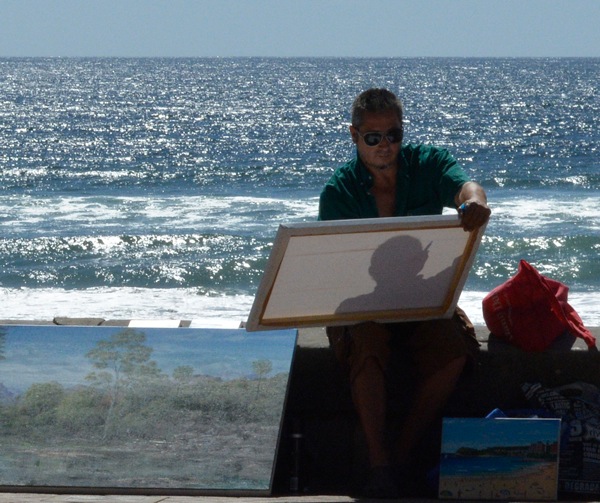
Figures and beach 3

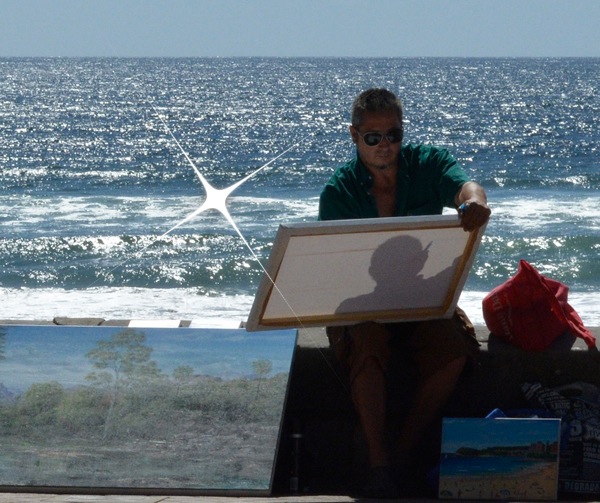
Figures and beach 3 starshine

I picked up a beachside image that just screamed out for a sunflare.

In Filters>Generator I found Star Shine. Great!

First, I could place the centre of the effect. Next, to adjust the radius (size) and cross scale (extent of the rays). Other controls included the ray’s opacity, width and Epsilon. The latter? Dunno!

Clock

Glass effect

Next was a classic image of a railways station clock that just screamed out for some treatment to lift it out of the banal. My choice?

Distortion Effect>Glass Distortion. By carefully limiting the effect to the circular clock face I could impart a pebbled, hand-made glass effect that did the trick.

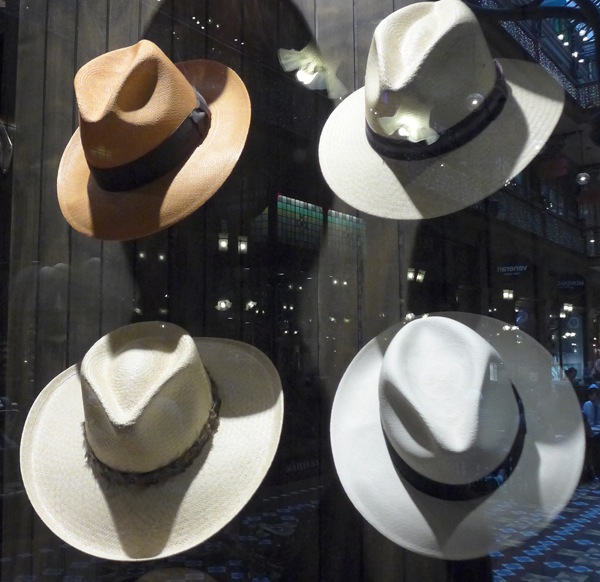
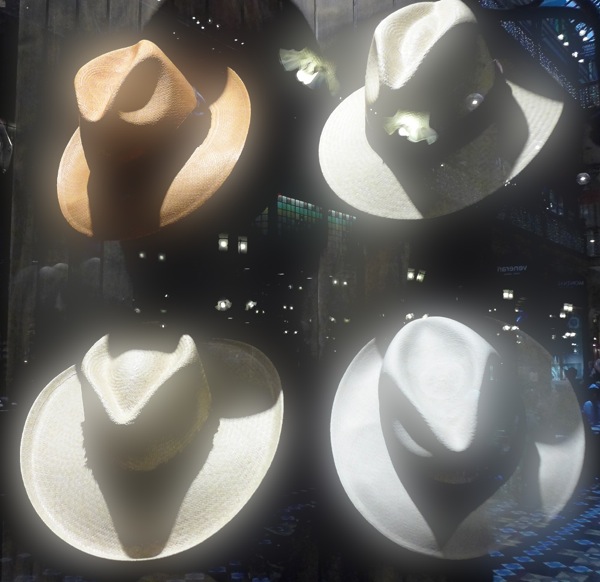
Strand arcade hats

Strand arcade hats Bloom

A simple shot of a hat shop window showing their range had a bit going for it, but not much. My solution? Filters>Stylize>Bloom. Here I could vary the radius of the effect and its intensity. What I found interesting, and this comment applied to some other filters, was that the intensity of the bloom effect changed only in areas of lightness. Great!

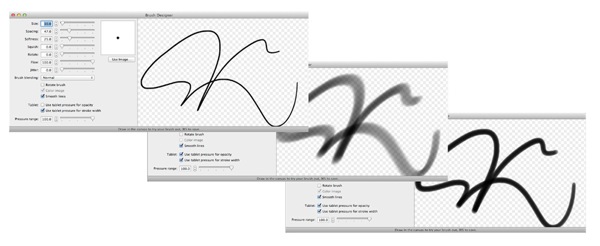
Brush sizes

Lanterns brush effect

Lanterns window

Lanterns brush effect

Then, as if the Filters department was not enough to engage me, I then fell upon the Brush section and, as you can see from this example, there is plenty to enjoy!

If you feel your image making is becoming a bit tired, try an Acorn. From little ones, big things can grow!

System Requirements

Mac OS 10.6 and later. If your OS is earlier, back to OS 10.4 you can download an earlier version of Acorn.

Go to http://www.flyingmeat.com/acorn/

Price: US$ 49.99. Fourteen days trial version available.

Post originally from: Digital Photography Tips.

Check out our more Photography Tips at Photography Tips for Beginners, Portrait Photography Tips and Wedding Photography Tips.

Acorn Version 3.5.1 Image Editing Software


Digital Photography School

 
Comments Off on Acorn Version 3.5.1 Image Editing Software

Posted in Photography


Retro Hover Cars: Editing Photos to Float Vintage Rides

19 Feb

[ By WebUrbanist in Technology & Vintage & Retro. ]

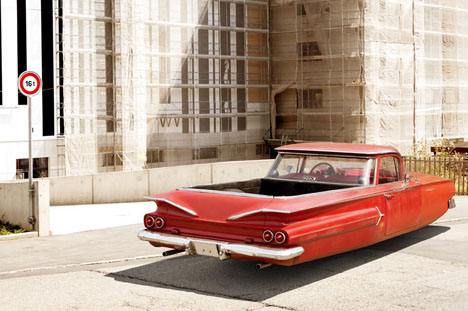
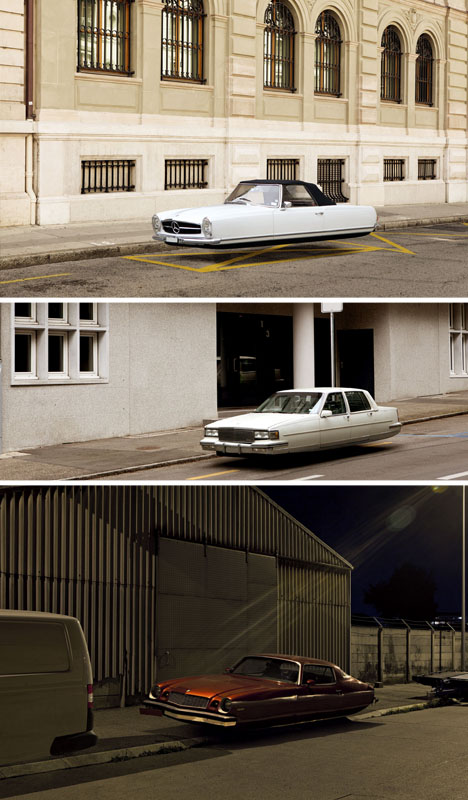
hover car

One of the most common concepts for the future has long been the wheel-free automobile, even before it was popularized in Back to the Future – but always, these looked almost shockingly familiar to our everyday rides.

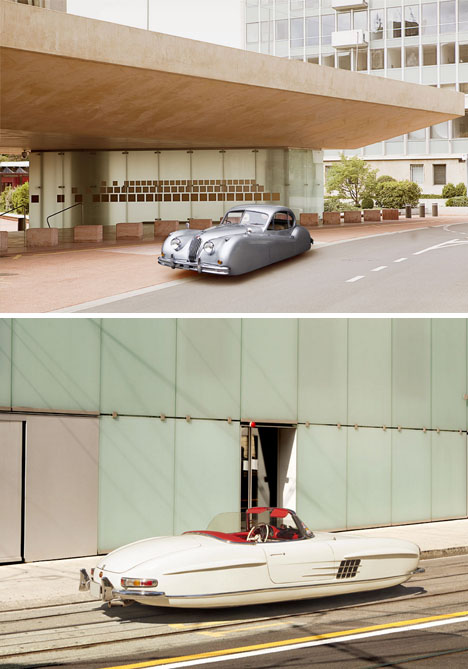
hover floating retro cars

Renaud Marion is well established in the realm of realistic photo editing, splicing everything from architecture to wild animals into ordinary city street scenes and letting the strange juxtapositions speak for themselves.

hover vintage car photoshop

In this new series, he simply (albeit carefully) edits out all trace of wheels from various vintage vehicles, resulting in surreal portraits of apparently-flying cars. Even the dingiest rusting old 70′s-era auto seems somehow wonderfully otherworldly after he is done.

Share on Facebook


[ By WebUrbanist in Technology & Vintage & Retro. ]

[ WebUrbanist | Archives | Galleries | Privacy | TOS ]


WebUrbanist

 
Comments Off on Retro Hover Cars: Editing Photos to Float Vintage Rides

Posted in Creativity


Retro Hover Cars: Editing Photos to Float Vintage Rides

19 Feb

[ By WebUrbanist in Technology & Vintage & Retro. ]

hover car

One of the most common concepts for the future has long been the wheel-free automobile, even before it was popularized in Back to the Future – but always, these looked almost shockingly familiar to our everyday rides.

hover floating retro cars

Renaud Marion is well established in the realm of realistic photo editing, splicing everything from architecture to wild animals into ordinary city street scenes and letting the strange juxtapositions speak for themselves.

hover vintage car photoshop

In this new series, he simply (albeit carefully) edits out all trace of wheels from various vintage vehicles, resulting in surreal portraits of apparently-flying cars. Even the dingiest rusting old 70′s-era auto seems somehow wonderfully otherworldly after he is done.

Share on Facebook


[ By WebUrbanist in Technology & Vintage & Retro. ]

[ WebUrbanist | Archives | Galleries | Privacy | TOS ]


WebUrbanist

 
Comments Off on Retro Hover Cars: Editing Photos to Float Vintage Rides

Posted in Creativity


Online Photo Editing Services

16 Jan

Photo editing online is made possible using a wide range of free tools. It is a lot of fun for both kids and adults to make funny makeovers, add text and illustrations to photographs.  However you can also use the online photo editors for more serious tasks even though desktop version may be a lot better! So if you find Photoshop too expensive, too hard and time consuming to learn and work with – you have alternatives online as you can see below.? Photoshop can certainly create the effects you can dream up, but it is expensive and not that easy to learn. On the desktop side there are also some interesting free and open source Photoshop alternatives.

A large number of photo editing online services are available to help us all saving time or just having fun manipulating photos and creating effects instantly. Most of these are also free so you may get you graphical job done without investing in expensive tools. Of cause these tools have their limits but they are fun and can be useful some cases. Please post a comment if you know a great online photo service that I missed.

One Click Online Photo Editing Services

Fun Photo Box
Fun Photo Box is a really cool place. It has loads of stunning effects and a well designed interface to apply them. This is fun for hours!

Big Huge Labs
This site offers various ways to make fun of your photos online. You can create fake magazine covers, movie posters, calendars, and other special effects available.

WriteOnIt
Easily create your fake pictures, captions and fake magazines and other funny jokes for you and your friends.

Imagechef Photo editing online
Imagechef have four interesting services. Sketchpad and Word Mosaic are both really cool.

picjoke
Many many photo editing online effects found here!

PiZap
This service as awesome for making funny images. You may also use it for serious purposes like adding a text bobble .

Funny Photo
It lets you make photo collages, make fun of your pictures, and add picture frames that are available at various designs.

Enjoy pic Photo editing online
EnjoyPic.com is an online photo editing tool where you can add funny photo effects to your pictures. It is very easy to use. What you need to do is to upload any picture or photo you like, and wait to see the result of magic.

BeFunky
This photo editing site lets you edit and create effects on your pictures even without registering on the site. The good thing is, it offers free photo editing service online.

PhotoFunia
PhotoFunia is a site with tons of creative backgrounds to play around with. With only a few click you can create very cool effects. PhotoFunia allows you to make fun of your photos fast and easy. In addition, there are many available cool effects to choose from.

FotoTrix
The site offers various ways to make fun of your pictures online such as creating frames, fake magazine covers, and other special effects.

Loonapix
Loonapix lets you add photo frames on your pictures and add face effects as well.

Imagic Photo Enhancer
This is a fast and easy way of enhancing your photos online.

Photo505
Another very cool photo effect service.

Dumpr
Create multiple interesting effects from your normal photos. The tools are good and simple to work with.

Photofacefun
Lots of nice free photo editing online services here

Phixr
Phixr allows you to create various photo effects on your pictures which you can take from your computer.

Festisite Money
Here, you can upload your photo and create a personalized paper bill online.

Pato
More than 400 photo editing online effects

Pixisnap
Here you can create wonderful photo mosaics and polaroid images.

Picartia
Create a photo mosaic of your choice for free online. Only you fantasy sets the limits here.

Real Online Editors

Need to do basic image editing like resize, crop, rotate etc.? You can do that for free online.

pixlr
Pixlr is a really great on-line photo editor with layers, history and other features you know from tools like Photoshop. The GUI is created to look like Photoshop. You will find that there’s an express version as well that focus on basic features like resize, crop etc. For sure one of the most feature rich online image editors I have seen.

Photoshop Express
This may be the best online editor you will find. It’s a free online photo editor that’s not meant to replace Adobe’s current offerings, but “make Adobe imaging technology immediately accessible to large numbers of people.

Splashup
Splashup is designed to give you a feeling of working in Photoshop. It is integrated with Flickr, Facebook, Picasa, and more and even support layers. Being a free tool this application offers many features, filters and is really worth trying out.

Picnik
Picnik makes your photos fabulous with easy to use yet powerful editing tools and it is one of the most popular online image editors. Tweak to your heart’s content, then get creative with oodles of effects, fonts, shapes, and frames. It is very popular because it integrated with Flickr, Facebook, myspace, Picasa, Webshots, Webs and more. Picnik offer the basic features needed and also have a premium plan that adds more powerful features.

Phoenix
Aviary offers a suite of tools for editing images, vectors etc. Phoenix is the Aviary image/photo editor and it offers layers and compositing. It is integrated with Flickr, Facebook and Picasa allowing you to import images from these popular services. This is another very interesting free tool to check out before investing in commercial packages.

Anymaking Image Workshop
Simple image editing tools. You will also find a few photo effects.

Makeover Tools
Interesting makeover tools that you will love or hate.

Yearbook Yourself
Turn your face photo into yearbook alike black & white old school photo. The service is paused and will be back this Summer.

Hairmixer
Choose a photo for the left and right side and start mixing their hairs up. There’s a lot of celebrity photos you can choose from but really does it make sense to mix hair on people…. you decide. You can as well create a magazine cover with the end result photo.

Moron Face
Moronize yourself but be careful you’re not going to like the result

Revitalizer
This is a funny tool that allows you to retouch a face really easy. The interface is ok to work with but the results may not satisfy a professional photoshopper.

Hollywood Hair Makeover
Love those celebrities’ look? Wear thier hair instantly and see how you look. You can also put on some makeup and see how it looks with a new color.

Any suggestions, ideas? Feel free to comment on this article!

Back to Top

BlogPhoto

 
Comments Off on Online Photo Editing Services

Posted in Equipment


360 degree Panorama Photography tips and editing

15 Jan

dombowerphoto.blogspot.com If you enjoy myvideos please post them on your Facebook page and let others know about this channel, please subscribe and share on Facebook and twitter. Also check out the links below. If you really like my work please feel free to check out or buy a copy of the my PHOTOGRAPHY BOOK: Getting There With Photography: By Dom Bower www.blurb.com FACEBOOK Critique/advice GROUP www.facebook.com FACEBOOK PAGE www.facebook.com TWITTER page twitter.com WEBSITE www.dombower.com PHOTOGRAPHY CLOTHING Point and destroy clothing http
Video Rating: 4 / 5


Editing a River Landscape Photograph in Adobe Lightroom

31 Dec

Doing an edit of a photograph I took, trying out different things eeing what I can come up with. We use graduated filters, Black and White, Saturation, Luminance, Distortion correction and more. www.photoix.co.uk Follow me on Twitter for the latest news and updates! http
Video Rating: 4 / 5

Testing video with nikon J1 and lens nikkor VR 10-30. Video 1280×720 60p
Video Rating: 4 / 5