RSS
 

Posts Tagged ‘Easier’

LEE100 is a next-generation filter holder with a modular design for easier operation

19 Mar

LEE Filters has announced the LEE100 filter holder, a next-generation filter holder that improves upon the design and interface of its predecessors to help improve the experience of working with photography filters.

Made from injection-moulded composite materials, the holder is both rigid and lightweight. Like its predecessor, the LEE100 filter holder relies on a spring release for easy one-hand operation when an adapter ring is mounted to a specific lens. This release can be used in three different settings to accompany different shooting needs: neutral, half lock and full lock.

The neutral setting keeps the filter holder attached to lenses, but allows it to both rotate freely and detach itself in the event the filter holder gets hit, so the camera and lens doesn’t fall to the ground as well. Half lock keeps the filter holder secured onto the adapter ring, but allows for easy rotation of the ring to better account for the horizon and other elements. The full lock setting keeps everything locked in place so the filter holder will neither rotate nor detach from the adapter ring until it is unscrewed and released.

New on the LEE100 filter holder are modular filter guide blocks that come in one, two and three-slot configurations. Unlike previous versions of LEE’s filter holders that required screws to hold the guides in place, the LEE100 features snap-in guides that can be quickly changed without the need to carry around a screwdriver. The guides themselves are also tapered now, which not only lends to a more streamlined aesthetic, but also improves the resistance, which helps to better keep the filters in place when making adjustments.

LEE says up to three filters can be used before any vignetting is visible. All of LEE’s 100mm filters can be used in the new holder as well as the new LEE100 Polarizer.

The LEE100 filter holder is available at as a single unit and in various kit arrangements. Alone, the LEE100 filter holder is available at B&H for $ 96. The Deluxe kit, which includes the LEE100 filter holder, LEE100 Polariser, Big Stopper, LEE 0.6 ND medium grad, LEE 0.9 ND hard grad, LEE 1.2 ND medium grad, 50ml ClearLEE filter wash and ClearLEE filter cloth, is available at B&H for $ 739.

Articles: Digital Photography Review (dpreview.com)

 
Comments Off on LEE100 is a next-generation filter holder with a modular design for easier operation

Posted in Uncategorized


Twitter wants you to tweet more photos, makes its in-camera app easier to access

16 Mar

Twitter has announced a change to its iOS app in an apparent move to encourage the tweeting of photos. The in-app camera has received a redesign and can now be opened by simply swiping left from your Twitter timeline screen.

Once the camera has opened you can tap on the virtual shutter button to capture a still image or hold down to record video. There is also quick access to Twitter’s livestreaming feature. Location information and captions are overlaid onto photos and videos captured within the app and you can choose from a range of overlay colors.

Overall the new feature isn’t a groundbreaking change but it shows that Twitter is aiming to compete more closely with Instagram and other image-focused social media apps, most of which offer equally direct access to the camera app.

Articles: Digital Photography Review (dpreview.com)

 
Comments Off on Twitter wants you to tweet more photos, makes its in-camera app easier to access

Posted in Uncategorized


Proposed rule changes would make it easier for drones to fly at night, above crowds

15 Jan

Despite a partial government shutdown in the United States, Transportation Secretary Elaine Chao announced a new proposed rule that would simplify the process of flying drones at night and over crowds of people by removing the need for waivers.

The proposed rule, which can be read as a draft (PDF), would remove the need for commercial drone operators to file for waivers granting them permission to fly both at night and over large gatherings of people. It would also drones to have ‘an anti-collision light illuminated and visible for at least 3 statute miles, according to the document proposal.

‘This will help communities reap the considerable economic benefits of this growing industry, and help our country remain a global technology leader,’ said Chao in her statement to the nonprofit Transportation Research Board.

DJI chimed in on the proposed rule change with a blog post on its website that begins by stating:

DJI, the world’s leader in civilian drones and aerial imaging technology, welcomes the U.S. Department of Transportation’s proposals announced today to help expand the use of drones in America, and looks forward to a substantive discussion that balances the requirements of the proposed rules with the benefits they would achieve.

The proposed rule change also lists out new rules for smaller drones. Specifically, drones weighing less than .55lbs / 250g would be able to fly over crowds without any new restrictions. However, drones weighing more would need their manufacturers to prove that if the drone ‘crashed into a person, the resulting injury would be below a certain severity threshold,’

The proposed rule change will be open for public comment for 60 days before anything can be set in stone.

Articles: Digital Photography Review (dpreview.com)

 
Comments Off on Proposed rule changes would make it easier for drones to fly at night, above crowds

Posted in Uncategorized


5 Adobe Lightroom Plugins That Will Make Your Life Easier

19 Oct

5 Lightroom plugins that will make your life easier

We all love Lightroom.

There’s a reason it became an essential part of a photographer’s workflow. It’s powerful, easy to use, and helps make your photos come alive.

But what if I said you could make it even easier to use while adding a new dynamic to your editing process?

Well, plugins can do just that.

Being able to extend Lightroom’s capabilities with third-party plugins is one of the things I love most about it. And it’s something most people overlook.

In this article, I’ll introduce you to five Lightroom plugins I use and couldn’t live without.

But first…


How to install Lightroom plugins

Installing Lightroom plugins is pretty straightforward. They all use the same six-step installation process.

  1. Unzip the ZIP file for the plugin, and move the unzipped file to a folder on your computer. Note: The unzipped files can’t be moved or deleted after installation, or the plugin will stop working.
  2. From Lightroom’s File menu, select ‘Plug-in Manager’.

How to install Lightroom plugins

  1. Click the ‘Add’ button near the bottom of the dialog box.

How to install Lightroom plugins - Plugin Manager

  1. Navigate to folder you chose in step 1.

How to install Lightroom plugins - Folder selection

  1. Open the folder and highlight the file with the ‘.lrplugin’ extension, then click ‘Add Plug-in’.

How to install Lightroom plugins - selecting the plugin

  1. Restart Lightroom to complete the installation of your new plugin.

Note: with the 7.5 release of Adobe Lightroom, some newer plugins now have the extension of .xmp rather than .lrtemplate or .lrplugin. This is so they can be used in both Lightroom and Photoshop.

In this case, go to Lightroom->Preferences and select ‘Show Lightroom Develop Presets’. This will open the Presets window. Select the ‘Settings’ folder, and simply drag and drop your unzipped file into the Settings Folder and restart Lightroom.

If you don’t have the ‘Show Lightroom Develop Presets’ link select the ‘Show Lightroom Presets Folder’. This will open the Presets window. Select the ‘Lightroom’ then ‘Develop Presets’ folder, and simply drag and drop your unzipped file into the folder and restart Lightroom.

Now that you know how to install Lightroom plugins, let me show you five that will save you time and effort during your next mammoth editing session.


The Fader

The Fader is probably the plugin I use the most. Its main advantage becomes clear when you’re using presets.

It works as a master slider that controls all the different tools within Lightroom. Moving the slider will adjust all the edits a particular preset makes at the same time and in equal measures.

If you’re working on an edit and haven’t applied a preset, but you still want to use The Fader, simply create a new preset using the image you’re working on as a template and adjust it from there.

To create a new preset, click either a filter tool (graduated or radial) or the brush tool, and from the drop-down menu select ‘Save Current Settings as New Preset’.

Lightroom plugins - The Fader

Whether you create your own presets or download other people’s, chances are you’ve experienced this situation: You apply a preset to one photo and it looks great, but when you apply it to another, it’s completely over the top and looks terrible.

Normally you’d have to reduce each tool individually. But with The Fader you can reduce them all at once using the slider. Just open The Fader (File -> Plug-in Extras -> The Fader), select the preset you want to apply, and then use the opacity slider to increase or decrease the preset’s overall strength.

Lightroom plugins - The Fader 2


LR Backup

LR Backup does exactly what it says it does – back up your Lightroom catalog. But it gives you a few extra features the standard backup tool doesn’t provide.

Why is it important to back up your catalog? Because it contains a record of every edit you’ve made to your images. You might have backups of your RAW files, but without a backup of your Lightroom catalog they’ll be just that: RAW images with no editing applied.

LR Backup lets you make manual backups of the Lightroom catalog without having to exit the program, which you need to do when using the built-in backup tool. But what makes this plugin really useful is its ability to schedule backups.

Lightroom plugins - LR Backup

It also compresses the backup to almost 10% of its original size, which is particularly useful when you have a large database of edited images.

While a free version of LR Backup is available, you need to make a donation to the creator to unlock its full functionality. But the donation can be as small or as large as you like. It’s totally up to you.


LRTimelapse

If you create time-lapse videos using your camera’s intervalometer, you’ll need an easy way to batch edit the images so you don’t have to do them one by one.

LRTimelapse makes time-lapse videos easy. It comes in both free and paid-for versions as either a standalone product or a Lightroom plugin. And what I really love about it is how the plugin integrates with Lightroom.

Lightroom plugins - LR Timelapse

By integrating LRTimelapse with Lightroom, you can create a few keyframes that you’ll edit in Lightroom and then export back into LRTimelapse. It then uses these edited keyframes to automatically and seamlessly edit the other time-lapse photos into a video that transitions smoothly and gradually from the first frame to the last.

It’s a great way to incorporate the power of editing in Lightroom into your next time-lapse video.


Focus Mask

The Focus Mask plugin by Capture Monkey (the same people who make The Fader) is a simple plugin. It does only one thing, but it does it very well.

The plugin works the same way focus masking or focus peaking does in your camera. It highlights the parts of the image that are in focus.

Lightroom plugins - Focus Mask

This helps you to choose the best shot between two or more similar images at a glance.

We’ve all taken a handful of photos of the same subject because we weren’t sure we nailed the focus. This plugin will help you quickly pick a winner.

Photolemur

The last plugin on the list might not be for everyone. In fact, some people might be totally against it.

Photolemur automatically edits your photos with one click. It uses artificial intelligence to create the best edit possible so you can focus your time on other aspects of photography.

Now, some of you might think letting a bunch of computer code edit your photos takes away part of the artistic process. And you’d be right.

I wouldn’t use it on every image, especially client images. But if I want to quickly upload something to Instagram without having to process the image first, I’ll use Photolemur.

Photolemur is a standalone product, but can also be set up as a Lightroom plugin. Unfortunately, there isn’t a free version you can try before you buy. It’s only available as a paid product.


Which Lightroom plugin will you try?

I’ve used all the plugins I just mentioned. But if I had to pick one, I’d choose The Fader because I love using my own presets. It makes my editing style consistent across all of my work.

But they’re all great plugins. Which one are you going to try?

Image Credit: Joseph Pearson

The post 5 Adobe Lightroom Plugins That Will Make Your Life Easier appeared first on Digital Photography School.


Digital Photography School

 
Comments Off on 5 Adobe Lightroom Plugins That Will Make Your Life Easier

Posted in Photography


10 Lightroom Tricks That Will Make Your Life Easier

04 Sep

When it comes to Lightroom, there is a lot to learn, and we tend to pay the most attention to the big things like understanding how to organize images and which sliders to use to improve our photos. But there are also lots of little Lightroom tricks that will improve your workflow and just make your life easier when it comes to working with your photos.

In this video, I’ll show you 10 of my favorite tricks that will make your life easier in Lightroom. There is also a summary of these items below the video for your reference. Enjoy!

1. Build Previews

Have you ever noticed that when you view images full size in the Library Module and you move from one to the next, sometimes Lightroom shows a message that says “Loading…” and it takes a minute for the photo to display properly? You can get around that by building previews before you start working on a group of images.

To do this, choose Library > Previews > Build Standard-Sized Previews.

I generally build standard-sized previews which are just big enough to fit in the Lightroom window. You can also build the 1:1 Previews which means you can view each image zoomed-in at 100% without having to wait, but that takes longer.

Building the previews first does take a bit of time, but you can do something else while Lightroom is busy with this task. Then when you are ready to work on your images, Lightroom will be really fast.

2. Auto Advance

When selecting your Picks or adding a star rating to images in the Library Module, you can have Lightroom automatically move to the next image, making it very quick to go through a selection of photos. To turn this setting on choose Photo > Auto Advance.

3. Solo Mode

In the Develop Module, there are a number of panels which, when expanded, can make it necessary to do a lot of scrolling to move between them. But with “solo mode”, only one panel can be opened at a time which means no more scrolling.

To turn this on, right-click to the left of one of the develop module panel titles (such as “basic”) and choose Solo Mode.

4. Quickly Reset a Slider

When you make a change to a slider in the Develop Module, and you simply want to reset it back to zero, you don’t have to actually move the slider back. Simply double-click on the name of the slider and it will reset.

5. Letter O Key

Did you know there are quite a few different crop overlays you can use to help you crop your photos just right? Click the crop tool in the Develop Module, and then try repeatedly pressing the letter O on your keyboard to rotate through the various crop overlays.

6. Letter F Key

When you think you are done and you want to view a larger size of your image to make sure everything is just right, press the letter F on your keyboard to view the image full screen. Press F again to go back.

7. Letter L Key

Another way to view your image without distractions is to use the L key on your keyboard. Press it once and all the sidebars and your desktop will turn grey. Press it again and everything goes black except your actual photos (this is called Lights Out). Press it a third time to return to normal.

8. Backslash Key

As a final check when you think you are done with your processing, press the backslash key on your keyboard to see the “before” version of your image before you made any changes in Lightroom. Press it again to see the “after” version.

9. Virtual Copies

If you want to make another version of an image without changing the original, you don’t have to actually make a copy of it on your hard drive. You can simply create a “virtual copy” and apply different settings to it. This virtual copy takes up no space on your hard drive and allows you to play with different looks.

10. Sync Settings

After you have finished processing one photo in a group, you can apply those exact settings to all the other photos in the group. This makes it very fast to process a whole group of images.

Go to the Library Module, select all the photos you want to apply the settings to, including the one you have processed, and click the “Sync Settings” button in the lower right corner of your screen. You can then choose whether to sync all or just some of the settings to the selected photos.


Lightroom can be overwhelming! If you want to learn the essentials of Lightroom so you can get started quickly and easily, check out my video course Launch Into Lightroom. In 22 short videos that total a little over 2 hours, you’ll be off and running.

The post 10 Lightroom Tricks That Will Make Your Life Easier appeared first on Digital Photography School.


Digital Photography School

 
Comments Off on 10 Lightroom Tricks That Will Make Your Life Easier

Posted in Photography


Adobe just made it way easier to import Lightroom collections into Adobe Portfolio

11 Oct

Adobe has announced that Portfolio, its online website publishing service for CC customers, has a new integration with Lightroom that lets users import their collections and add photos to their website with next-to-no effort.

As of this new update, a users’ Lightroom content will simply show up within Portfolio’s ‘Manage Content’ section under the ‘Integrations’ tab. From there, users are able to choose any of their Lightroom Collections to import to a Page on Portfolio. When added to the website, Adobe says the full Collection appears as a new Page with a photo grid, which you can then customize by removing images and/or rearranging the grid. Other elements, such as text and videos, can also be added to the page.

Finally, Adobe also says that Portfolio will now automatically import new Behance projects to new Pages within a chosen gallery—assuming the user chooses a default import gallery and has their Adobe ID associated with a Behance account.

Imported content is tagged with either a Lightroom or Behance badge in the Manage Content section to show where it was imported from.

To learn more about these new features or give them a try for yourself, head over to the Adobe Creative Cloud blog or download the latest version of Portfolio and give Lightroom import a shot for yourself.

Articles: Digital Photography Review (dpreview.com)

 
Comments Off on Adobe just made it way easier to import Lightroom collections into Adobe Portfolio

Posted in Uncategorized


6 Practical Tips to Instantly Make Travel Photography Easier

17 Mar

Documenting exotic places, capturing priceless memories, and recording once-in-a-lifetime experiences are just a few of the pleasures travel photography affords us. But it can also throw up challenges. Time constraints, logistics, and lack of portable storage can make getting the perfect shot far more difficult. Here are a few tried-and-tested tips to help you make those challenges a little more surmountable.

Travel photography tips 01

1. Eliminate the unnecessary

Lack of storage, dubious safety, and the sheer weight of equipment may put the kibosh on your plans of bringing two DSLRs and five lenses to adequately capture your trip. By thinking about how you tend to shoot, you may be able to hone down your kit to just one camera and lens.

Some photographers opt for a fixed focal-length camera like the Fuji X100T. It’s compact, versatile, and good for all-round shooting. But for a photographer who shoots at long focal lengths, it would be a constant source of frustration.

Bridge cameras may provide an alternative, with their versatile zoom ranges in one neat package. Consider your individual needs based on your preferences and narrow down what kit you really need to have with you from what you merely want.

Travel photography tips 02

If you just can’t decide, try this; take one entry-level DSLR with a lens that has a varying zoom length from wide-standard to telephoto and a constant aperture of f/2.8 which is ideal for most situations.

Travel photography tips 03

2. Pick a lens with IS or VR

Each lens manufacturer offers some form of in-built stabilization. Canon has Image Stabilization (IS); Nikon has Vibration Reduction (VR). Choosing a lens that has in-built IS or VR helps when you can only shoot handheld.

When traveling, there are so many times when the perfect shot can only be captured on-the-fly. Unpacking a tripod and fiddling with camera settings may even be entirely out of the question. For moments when the light is low and shooting handheld is all you can do, IS or VR can help reduce shake and potentially save a photo.

Travel photography tips 04

3. Carry a mini-tripod

Slinging a folded down Manfrotto over your back may not be possible, but it also might not be something you’d want to do if you are taking photos in between relaxing moments on your family vacation. Having a portable, mini-tripod in your pocket or bag is a cheap and easy way to get around that issue. A flexible option like the Joby GorillaPod can even help get stable shots from unusual angles without adding too much undue weight to your bag.

Travel photography tips 05

4. Invest in memory and charge those batteries

Don’t come back from your holiday with 700 amazing shots from the first three days and absolutely nothing to show for the remaining week and a half because you ran out of memory. It’s now easier than ever to get lots of data and a fast write speed on one reasonably-priced SD card, so hoard a few of them before you go!

Do the same with batteries. Planning to re-charge every night is a great habit to get into, but don’t rely on that alone. When you end up in a hotel that has no power sources or you realize that you left your adapter in the last place you stayed, you’ll wish you’d invested in a few extra batteries and charged them before you left home.

Travel photography tips 06

5. Shoot for post-processing

We all want great results straight out of the camera. But if you don’t have all the equipment that you need or the time to nail your exposure by toying with intricate histograms, shooting a certain way to enable post-processing can be what helps you get the shot.

Bracketing your exposures and post-processing the final image into HDR when shooting the dimly lit walls of medieval ruins might be the only way to save the deep blue of the hot Mediterranean sky outside the cracked windowpanes. Without that, the blown-out highlights may not be salvageable.

If you don’t have a tilt-shift lens on hand and you can’t sprout wings and fly, shooting wider than usual and then correcting perspective in post-processing may be the only way to save that great shot of the iconic tower you visited.

Travel photography tips 08

6. When in doubt, take the shot

There are many times when you feel that it’s not worth taking the shot. A thousand other photographers may have captured the same view before; you may not have the equipment you need to get the results you want; the weather may have turned sour on the one and only day you got to visit. But regardless of how you feel, take the shot.

If it turns out to be a dud, you just delete it when you get home and you’re in the exact same position as if you hadn’t taken it. But if it turns out to be better than you’d thought, you could have a hidden gem that you hadn’t been expecting. Don’t miss a shot because you feel trapped by circumstance. Just shoot, and the magic will happen.

Travel photography tips 07

Conclusion

I hope these 6 tips have given you some ideas for your travel photography to make your next trip a bit easier.

Do you have any others to add to this list? Please share in the comments below.

The post 6 Practical Tips to Instantly Make Travel Photography Easier by Laura Hexton appeared first on Digital Photography School.


Digital Photography School

 
Comments Off on 6 Practical Tips to Instantly Make Travel Photography Easier

Posted in Photography


Manfrotto introduces Xume magnetic holder system to make switching filters easier

08 Feb

Accessory manufacturer Manfrotto has launched a new filter suite that features a magnetic adapter and filter holders that it says make fitting and removing filters quicker and easier. The new Xume system uses a magnetic adapter ring that screws into the front of the lens, while the filter itself screws into a metal filter holder. The two parts then connect securely when they are held close together and can be separated just by pulling them apart. The system removes the part of the attaching-a-filter process where the filter is screwed onto the front of the lens.

The filter holders and lens adapters are available now in eight sizes: 49mm, 52mm, 58mm, 62mm; 67mm, 72mm, 77mm and 82mm and are priced from $ 10.99 to $ 34.99.

For more information see the Manfrotto website.

Press release

Manfrotto Launches Innovative Lens Filter Suite

Providing precision and ease to capture every shot

Manfrotto, a leading global innovator and manufacturer of premium photo, video and lighting support products and accessories, has launched a new, groundbreaking Manfrotto Lens Filter Suite, a combination of Manfrotto’s successful high-quality lens filters and innovative Manfrotto XUME magnetic adapters.

The new Manfrotto Lens Filter Suite enables professional and amateur photographers and videographers to avoid the hassle and frustration of changing filters while subjects wander or light slips away. With the Manfrotto Filter Suite, photographers instantly and precisely connect the filter to their lens so that they never miss the perfect shot.

The Manfrotto Lens Filter Suite is comprised of a Manfrotto Lens Filter, a Manfrotto XUME Lens Adapter and Filter Holder plus an optional Cap (available only for 77mm diameter). It is the perfect choice for long exposures, wedding photography, macro, architectural photography, fine art photography – any style requiring the use of filters.

Manfrotto’s camera lens filters are built to the highest quality standards. They feature flawless multi-coating which minimizes reflection and maximizes light transmission, consistently delivering the effects photographers wish to achieve. Each filter is provided with a practical, reusable storage case, ensuring the highest level of protection off-camera. Depending on the model, Manfrotto filters feature reliable water-repellent, oil-repellent and anti-static characteristics.

  • UV filters block out UV light, preventing it from entering the lens, reducing blurring, haziness and blue casting.
  • Circular Polarizer filters enhance color, contrast and saturation as well as removing undesirable reflections from non-metallic surfaces.
  • Neutral Density filters help control exposure times by reducing the amount of light hitting the camera sensor without altering the color of the scene.
  • Protect filters provide maximum protection against scratches, oil and moisture, without affecting overall image quality.

Manfrotto XUME Adapters are the revolutionary magnetic solution which securely locks filters onto lenses, quickly and easily. Photography gear stays safe in-use with the filter magnetically secured to the lens. Manfrotto XUME accessories are safe for the lens’ focus mechanism, media cards, drives or other electronics.

Unique to the market, Manfrotto’s XUME Adapters:

  • Install in an instant.
  • Are secure; no moving parts and completely safe to use.
  • Have very low profile rings and are completely unobtrusive.

Manfrotto XUME Filter Holders and Manfrotto XUME Lens Adapters are now available nationwide in eight sizes: 49mm, 52mm, 58mm, 62mm; 67mm, 72mm, 77mm and 82mm. The Manfrotto XUME CAP is available only for the 77mm size. Manfrotto Filters range in price from $ 19.99 to $ 134.99 and Manfrotto Xume Adapters range in price from $ 10.99 to $ 34.99.

The Manfrotto Lens Filter Suite will be on display at WPPI in Las Vegas, Feb. 7–9, at the Manfrotto Distribution booth, No. 349.

Articles: Digital Photography Review (dpreview.com)

 
Comments Off on Manfrotto introduces Xume magnetic holder system to make switching filters easier

Posted in Uncategorized


Robot Home Companion: 12 High-Tech Assistants Making Life Easier

02 Feb

[ By SA Rogers in Gadgets & Geekery & Technology. ]

robot-barista

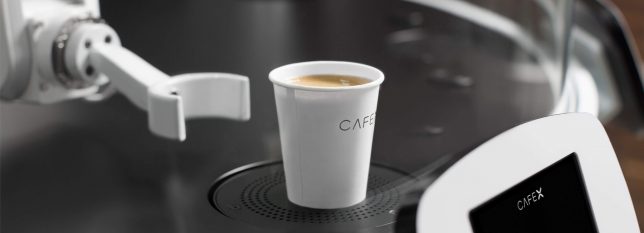
They can’t quite measure up to R2D2, but a new array of consumer robots offer all sorts of practical advantages, including companionship, soothing babies back to sleep, playing with pets, folding laundry and making the perfect latte. All 12 of these robot home companions have passed the concept stage into fully-operational products, and many of them are already up for sale.

Cargo Carrier: Gita Bot

gita-cargo-robot

gita-cargo-robot-2

gita-3

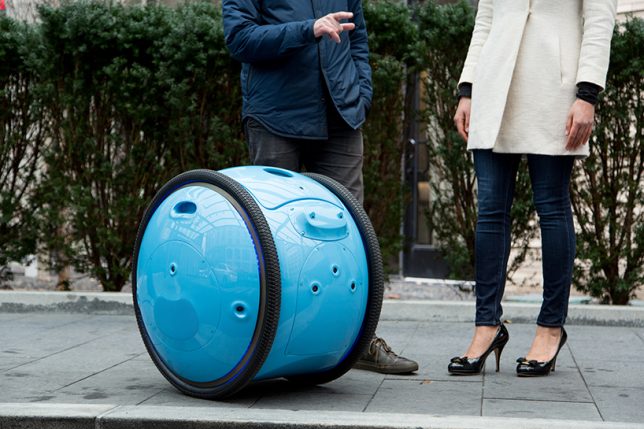
From the same company who gave us the Vespa scooter comes Gita, a cargo bot that’ll carry your stuff for you, follow you ask you walk, stop when you do, slow down when necessary and even keep up if you start running. You could use it to haul groceries home from the neighborhood market, deliver packages or as a travel aide; a display screen lets you know when the battery is getting low. One thing that’s not clear is how it manages stairs.

Scooter Bot: Segway Advanced Personal Robot

segway-robot

segway-robot-2

segway-robot-3

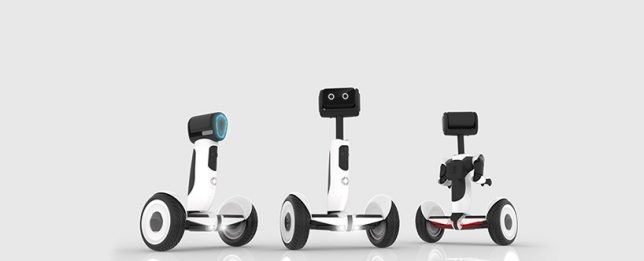
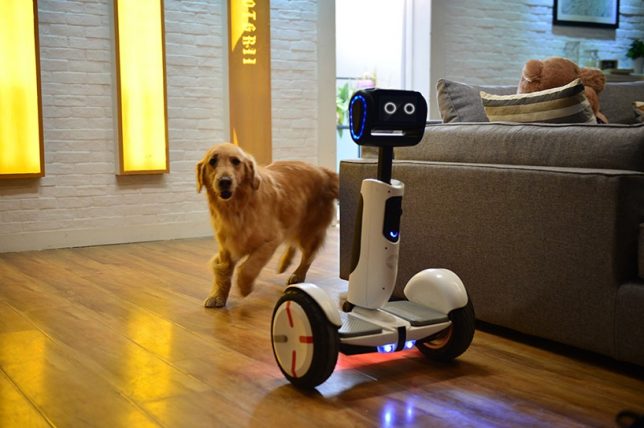
Recently renamed ‘Loomo,’ the Segway ‘Advanced Personal Robot’ is a cross between a robot companion and a functional scooter, capable of recognizing individuals and following them until it’s needed. It’s able to stay in balance while carrying loads, and its microphones listen for voice commands. Sensors keep it from bumping into objects and help it map your home and other surroundings so it can navigate itself. It’s currently still in development.

Cute Companion: Kuri Home Robot

kuri-home-robot-1

kuri-home-robot-2

kuri-home-robot-3

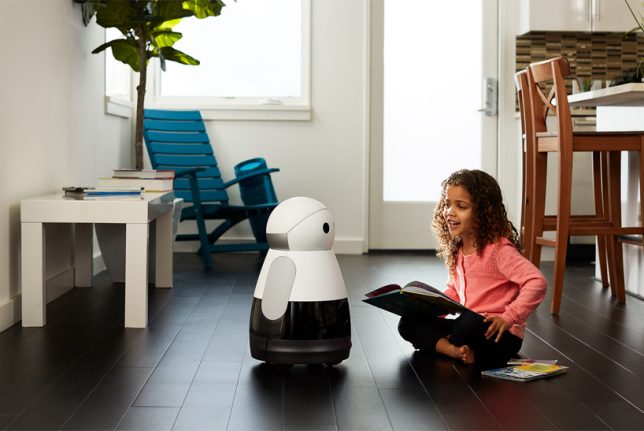
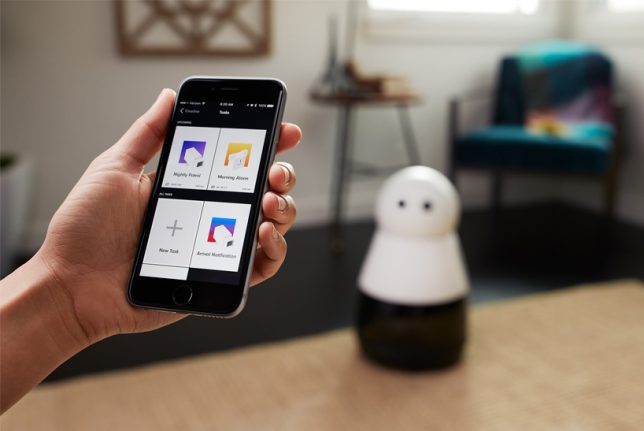
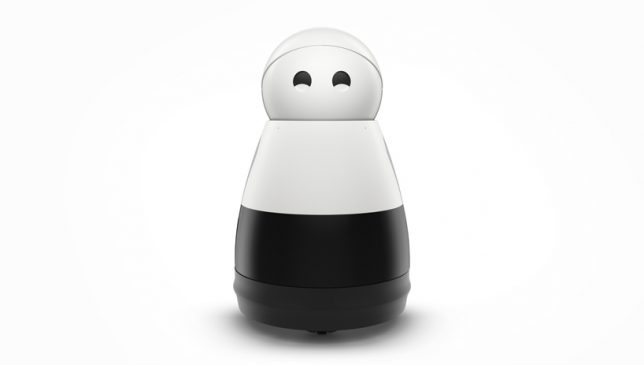
This 20-inch-tall, 14-pound personal companion robot chirps, blinks and ‘smiles’ in response to your attention, and it’s able to recognize specific people, understand context and surroundings, play music, read books, project video, tell you the weather and perform other useful everyday tasks. The Kuri bot responds to verbal commands and can also be controlled and maintained through a smartphone app.

Pet Entertainer: Rolling Bot by LG

lg-rolling-bot

rolling-bot-lg-2

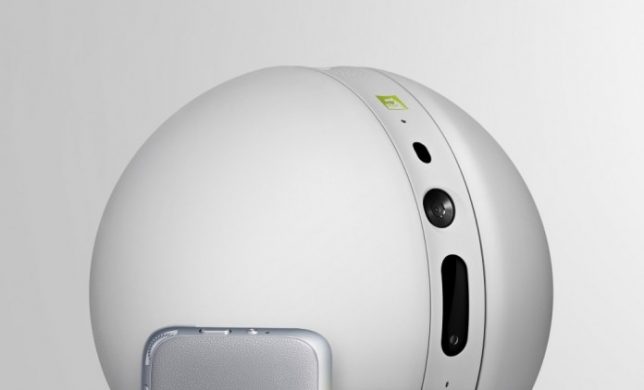
This little bot may not have as much personality as the Kuri, but it’s got some seriously useful functions if you’re the kind of homeowner and/or pet owner who wants to keep a close eye on things while you’re gone. The Rolling Bot by LG is part security system, part pet toy, part smart home gadget with a built-in camera and the capability to roll itself through your home, turning lights on and off, sending you video footage, or entertaining your dogs and cats with dancing and lasers. You can control it through your phone to talk to your pets through it, too.

Next Page – Click Below to Read More:
Robot Home Companion 12 High Tech Assistants Making Life Easier

Share on Facebook


[ By SA Rogers in Gadgets & Geekery & Technology. ]

[ WebUrbanist | Archives | Galleries | Privacy | TOS ]


WebUrbanist

 
Comments Off on Robot Home Companion: 12 High-Tech Assistants Making Life Easier

Posted in Creativity


All cameras are great, but that doesn’t make choosing one any easier

22 Jan

It’s often said all modern cameras are good. And it’s true: That’s the reason most of the cameras we review get some kind of award. But it’s also close to meaningless. It seems to imply that it doesn’t matter which camera you buy, yet that’s as far from the truth today as it’s ever been.

The thing that stood out to me as we selected our recommendations in our recent roundups was that, no matter how much technology improves and cameras converge, there’s still a huge difference in terms of what each camera does well and what it falls down on. Which means there’s still a right and a wrong camera for you.

Not just any camera will do

It is also true of course that it’s your own skills, rather than the limitations of technology, that are most likely to hold you back. But again, this doesn’t mean that just any camera will do.

One of the most witless arguments I regularly see is: ‘it won’t improve your photography – Ansel Adams would get better photos using an iPhone.’ (And it’s always Ansel Adams, isn’t it?).

Follow that logic to its conclusion and none of us would ever use a proper camera. Sure, a great photographer will be able to take better photographs using any old camera, but they’ll probably take an even better photo if you give them a better camera – especially if it’s a better camera for them. And, while it’s obvious that a better camera won’t instantly make me a better photographer, it could result in me enjoying photography more.

There is no ‘best’ camera

Predictably enough, there were howls of outrage at the cameras we recommended, with owners of other brands passionately advocating for the camera they’ve chosen. And it’s easy to see how this comes about: along with a healthy dose of post-purchase justification I’d like to think that a lot of these people have bought cameras that are well suited to their needs. But this doesn’t mean they’d be well suited to everybody else’s.

We recommended the Sony a6000 in our roundups because it’s probably the best all-rounder in its class: it’s got a viewfinder, really good video, excellent autofocus and competitive image quality (despite its age). Yet it’s not the camera I’d buy for myself, in this category.

Just look at the mid-range interchangeable lens camera category. There is no camera that’s best at everything so in the end we selected the Sony a6000. It no longer offers the very best image quality or the very best specs, nor is it the stand-out leader for video at this point. However, without knowing more about the person we’re recommending it to, it stands out as the best all-rounder because it’s consistently competitive in every respect. By this same logic, we didn’t end up recommending a couple of cameras that we as a team really like.

The Fujifilm X-T10, for instance, is a cracking little camera, it borrows most of its technology from the much more expensive X-T1 and retains just about everything we like about that camera (the JPEGs, the controls, the choice of lenses…). However, its continuous autofocus simply isn’t a match for the likes of the a6000, NX500 or D5500 and its video is a significant weak spot, meaning it was never going to be one of our overall recommendations. And yet, for a certain type of photographer, it’s the best camera in its class.

Know your needs and be willing to grow

One of the key lessons, then, is that it’s important to think hard about what you want to use a camera for and what your priorities are. And just as a good camera can encourage you, a limited camera can limit you.

The Nikon D5500 offers some of the best image quality in its class, a well worked-out user interface, great autofocus and excellent battery life. But it’s also one of the bulkiest cameras in its class, one of the least video-friendly and one of the few not to include twin control dials for the price.

I regularly see comments saying ‘I don’t care that my camera isn’t very good at Movie shooting/Dynamic Range/Autofocus tracking, I never use it.’ Which increasingly prompts me to wonder whether that person might use the feature more it their camera was better at it. As I review cameras it’s occasionally frustrating to have to continue to use a feature that doesn’t work very well. I know I’d just stop using it if it wasn’t my job to persevere. So, before you consider your next upgrade, think carefully: might you use a feature more if it was easier to use or gave better results?

It still matters

This is why I think saying ‘all cameras are great’ is such an unhelpful statement: because they’re not equally great at everything and the differences still matter.

The Fujifilm X-T10 is the last camera I’d choose for video work and its continuous autofocus isn’t a match for the best of its peers. Yet there are plenty of people I’d recommend this camera to. Or the Olympus E-M10 II, for that matter.

The difference between the best and worst autofocus performance is the difference between it being easy to get the shot and there being a high chance you’ll miss the moment. The difference between the best sensor and the weakest is the difference between you having the latitude you need when you get to Lightroom and having to work out how to hide the noise. The difference between the best movie shooting camera and the worst is the difference between being able to easily capture great-looking footage and finding yourself thinking ‘can I really be bothered with this?’

So yes, most modern cameras are amazing, but not all of them will encourage, support and inspire you in your photography. And that’s got to matter, hasn’t it?

Articles: Digital Photography Review (dpreview.com)

 
Comments Off on All cameras are great, but that doesn’t make choosing one any easier

Posted in Uncategorized