RSS
 

Posts Tagged ‘develop’

Next Steps to Getting Started in the Lightroom Develop Module

21 Oct

Lightroom Develop module

A previous article showed you how to get started in Lightroom’s Develop module by using the Camera Calibration, Lens Corrections and the Basic panels.

In this article you’ll learn how to use the remaining right-hand panels in the Lightroom Develop module:

  • Tone Curve panel
  • HSL / Color / B&W panel
  • Split Toning panel
  • Detail panel
  • Effects panel

This guide is aimed at photographers who are new to Lightroom, so it doesn’t cover every aspect – just the important things you need to know if you’re just getting started with it.

It is quite possible that you won’t have to touch any of the panels listed above when processing a photo. Many photos can be developed in Lightroom just by using the Camera Calibration, Lens Correction and Basic panels, plus local adjustments. But the panels mentioned above will help you be more creative with your processing, especially when it comes to working with colour and tone.

The Tone Curve panel

One purpose of the Tone Curve panel is to give you another way of applying the same tonal adjustments that you can make with the Basic panel sliders. If you’re accustomed to using curves in Photoshop, the Tone Curve panel gives you the option of doing the same in Lightroom in addition to, or instead of, using the Basic panel sliders.

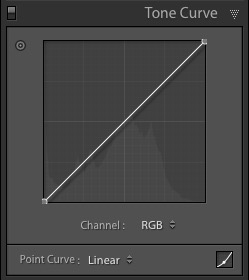
This is what you will see when you open the Tone Curve panel for the first time.
Lightroom Develop module

This is the RGB curve. Adjusting this curve affects the brightness values, but not the colours, of the photo.

You can move the curve upwards (as shown below) to make the image lighter. To do so, left-click once on the midpoint of the curve to add an adjustment point. Then click and drag the adjustment point to move it up, and change the shape of the curve.
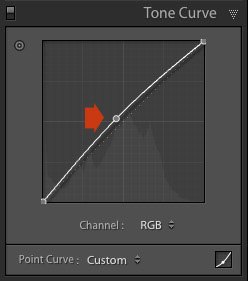
Lightroom Develop module

You can also move it downwards to make the image darker.
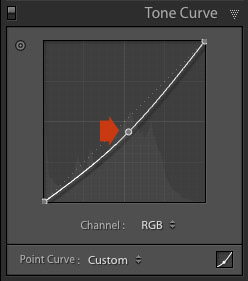
Lightroom Develop module

You can create an S-curve like this to increase contrast (add a second adjustment point first).
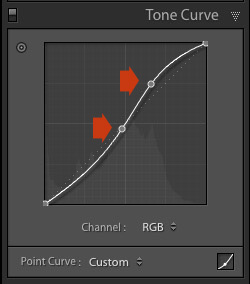
Lightroom Develop module

You can create the matte look with a curve like this. Add an adjustment point near the bottom of the curve then lift the left-side up. This makes the darkest tones in the photo dark grey rather than black, imitating the look of a print made on matte paper.
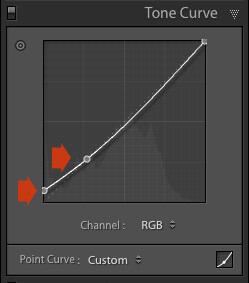
Lightroom Develop module

Notice the lower left point is not touching the bottom, this creates a matte look.

You can return to the original straight tone curve at any time by going to the Point Curve menu and selecting Linear.

Colour curves

Underneath the Tone Curve is a menu that lets you select the Red, Green, or Blue tone curves individually. These curves affect each of the color channels in the photo respectively. The blue curve is shown below.
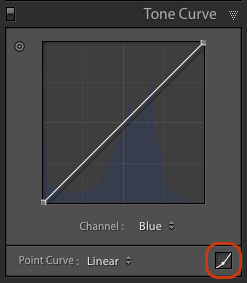
Lightroom Develop module

More options

If you click the icon in the bottom right-hand corner of the Tone Curve panel (circled above) the panel opens up to reveal four sliders, called Highlights, Lights, Darks and Shadows (see below).
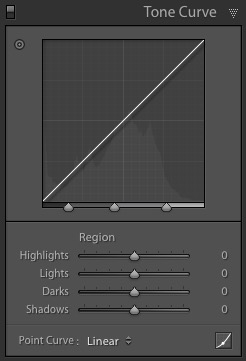
Lightroom Develop module

These sliders give you another way to make adjustments to the tone curve. When you move one of the sliders, the corresponding region of the tone curve is highlighted, so you can see which tones are affected.

The illustration below shows what happens when you move the Highlights slider. The top right of the tone curve is marked in grey. This part of the curve changes when you move the Highlights slider.
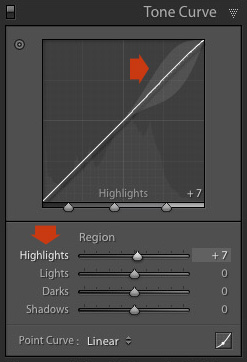
Lightroom Develop module

You can click and drag on a single adjustment point (but not multiple points) to change the shape of the curve. The sliders change value as you adjust the curve. The diagram below shows the effect a simple S-curve has on the sliders.
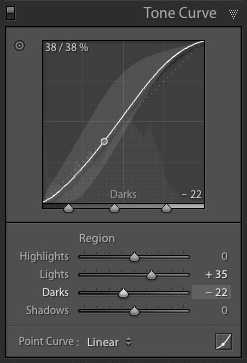
Lightroom Develop module

Double click on any slider heading to reset that slider to zero. That covers the basics of curves. You can learn more advanced techniques by reading our article Lightroom’s Tone Curve Explained.

HSL / Color / B&W

The HSL / Color / B&W panel is for adjusting colour values. It is also for converting photos to black and white. This is beyond the scope of this article, but you can learn more by reading my article How to Convert Photos to Black and White in Lightroom.

The HSL / Color / B&W panel is divided into three tabs. The HSL and Color tabs are the ones you need for making adjustments to colour. They contain the same sliders, just arranged in a different order. The screen shots below are taken from the HSL panel.

The Saturation and Vibrance sliders in the Basic panel affect all the colours in the photo. The HSL and Color tabs allow you to target individual hues without affecting others. You can target a specific colour and change the following:

  • Hue
  • Saturation
  • Luminance

Adjusting Hue replaces the selected colour with an adjacent colour on the colour wheel. For example, you can target red tones and make them more magenta (pink tone) or orange. Or you could target blue tones and make them aqua or purple.

You don’t need a colour wheel to see how colours are affected by the Hue sliders. You can just look at the eight Hue sliders. For example, the Red slider (top in the diagram below) is coloured magenta to the left and orange to the right. Moving the slider in those directions changes red colours in the photo to either magenta or orange.
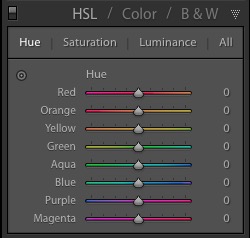
Lightroom Develop module

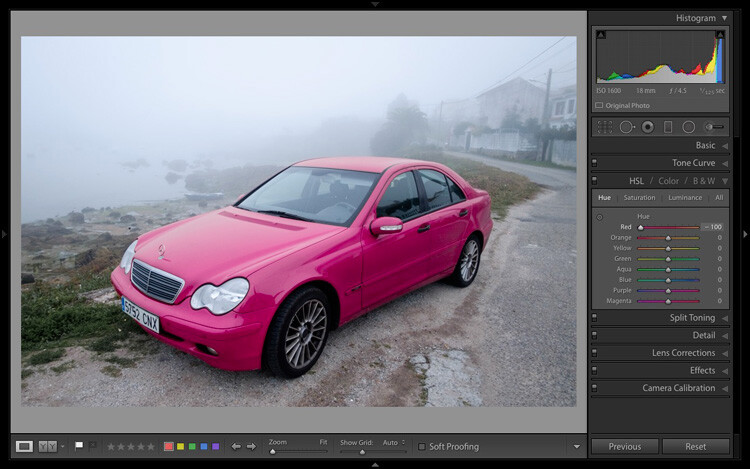
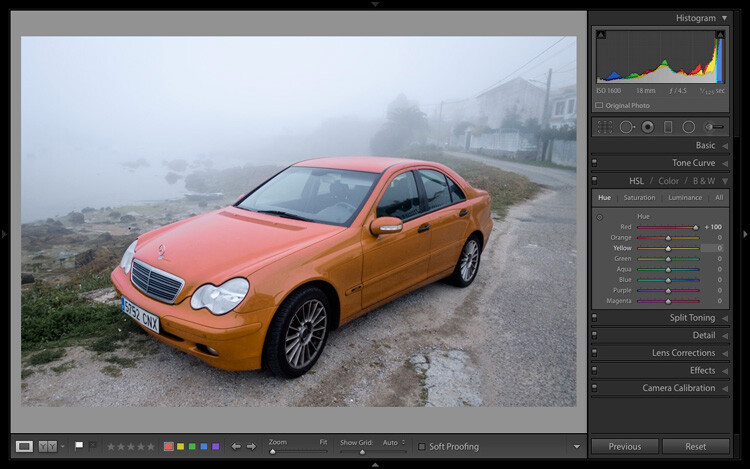
The easiest way to see how this works is to try it. The examples below show the effect that moving the Red slider to -100 and +100 (the strongest available settings) have on the image.
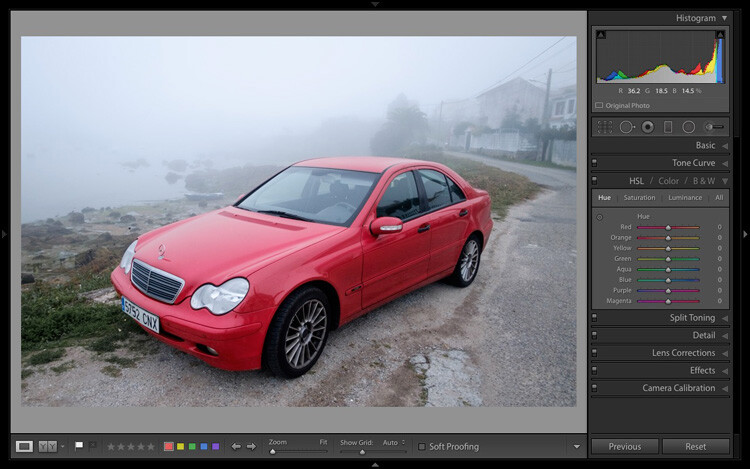
Lightroom Develop module

No adjustment.

Lightroom Develop module

Red -100.

Lightroom Develop module

Red +100

The Saturation and Luminance sliders work in a similar way. Saturation adjusts the saturation (intensity) of specific colours, and Luminance adjusts the brightness.

Targeted Adjustment Tool

The Targeted Adjustment Tool gives you an even more precise way of adjusting colour values. To use it, click on the Targeted Adjustment Tool icon in the HSL / Color / B&W panel (circled below).
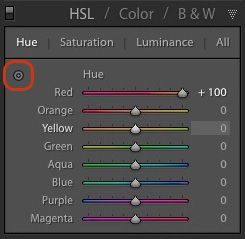
Lightroom Develop module

Then move the cursor over the colour (area) in the photo you want to adjust. Click and hold the left mouse button, while you drag the mouse downwards to reduce the Saturation or Luminance of the colours underneath the cursor, or adjust the hue.

Move the mouse upwards to increase the saturation or luminance, or adjust the hue in the opposite direction. Lightroom analyzes the colours underneath the cursor and moves the sliders in the HSL / Color / B&W panel accordingly. All similar colors in the image will be affected.

For example, in the following photo I activated the Targeted Adjustment Tool, then clicked on the car’s paintwork and dragged the mouse downwards to reduce the Saturation. Lightroom adjusted both the Red and Orange sliders, showing that the red paintwork is comprised of those two colours. This is more accurate result than only moving the Red slider.
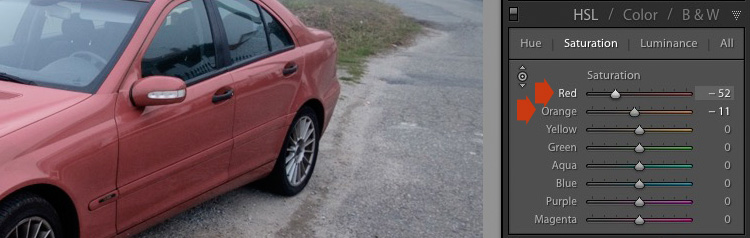
Lightroom Develop module

The Targeted Adjustment Tool is a useful tool that appears in other Develop module panels.

Read my article Mastering Color in Lightroom using the HSL tab to learn more about the HSL / Color / B&W panel.

The Split Toning panel

The Split Toning panel is for toning photos. While this is a technique traditionally associated with black and white photography, you can also use it with colour. If you’re a beginner, split toning is a little advanced for you at this stage, so I’ll direct those of you who are interested to articles that cover it in detail.

How to Split Tone Black and White Photos in Lightroom shows you how it’s done with black and white photography.

How to Create a Vintage Look using Lightroom shows you how to split tone colour photos (it also covers tone curves and Lightroom Develop Presets)

The Detail panel

The Detail panel is for adjusting the default image sharpness and noise reduction settings. For beginners it is simplest not to touch these. You won’t need to do so until you are a more advanced user.

Those of your curious to learn more can read our articles Learn How to Use the Sharpening Tools in Lightroom and How to Do Noise Reduction in Lightroom.

The Effects module

Use the Effects module to apply a creative vignette, add grain or (new in Lightroom CC only) add or remove atmospheric haze.

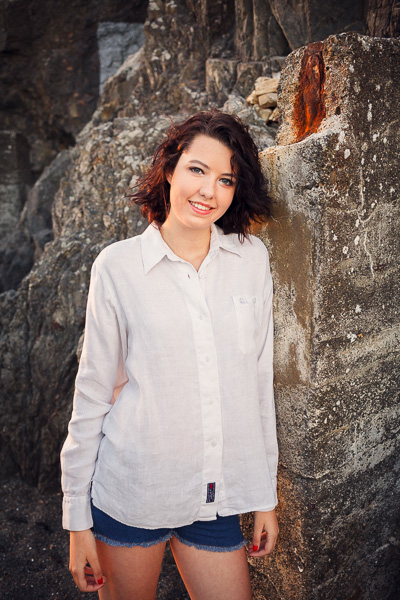
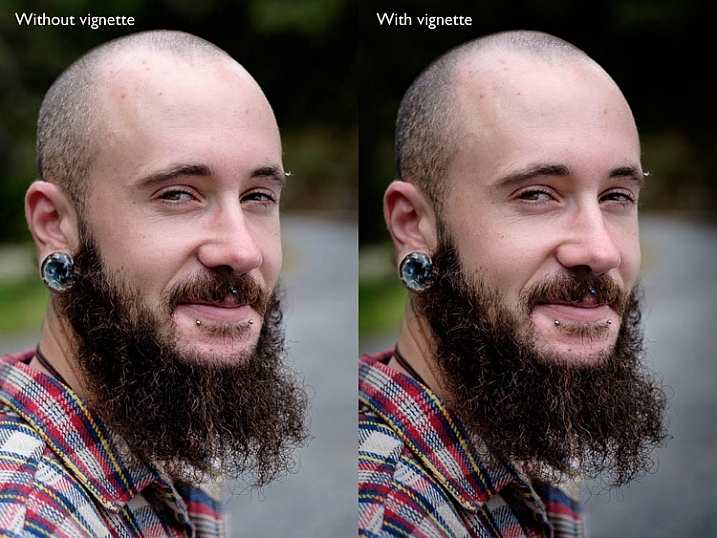
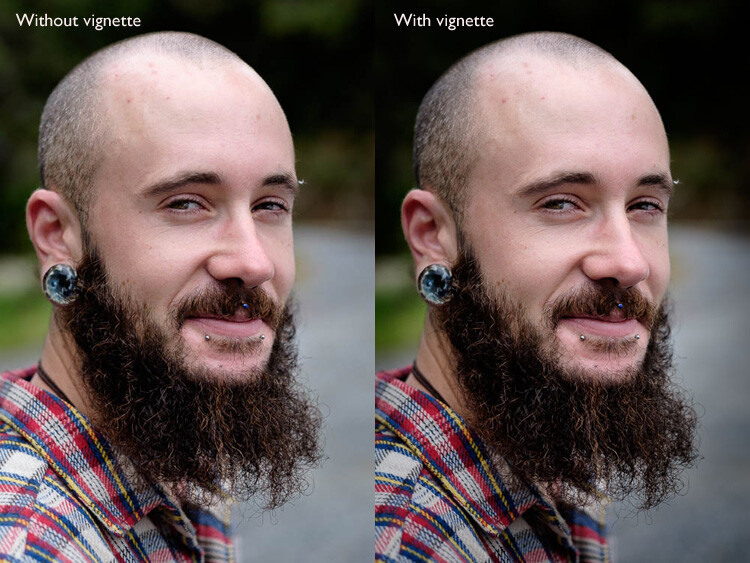
Vignetting lets you darken (or lighten) the edges of your photo, gently guiding the viewer’s eye towards the centre. Many images, especially portraits, can be improved by adding a subtle dark vignette. Here’s an example:
Lightroom Develop module

You may have to look closely to see it as the effect is subtle, but the portrait on the right has a vignette. It is most obvious in the bottom right corner.

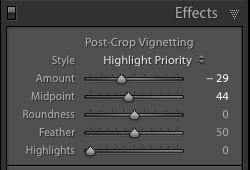
These are the settings used to create this vignette:
Lightroom Develop module

  • Move the Amount slider left to darken the edges of the image, or to the right to lighten them.
  • Move the Midpoint slider left to make the area covered by the vignette larger, or right to make it smaller.
  • Move the Roundness slider left to make the vignette squarer, or right to make it more circular.
  • Move the Feather slider left to make the edge of the vignette harder (a more defined end and beginning of it), or right to make the edge softer (graduates slower from dark to light).
  • Move the Highlights slider right to preserve any highlights present in the area covered by the vignette.

Tip: The easiest way to see what these sliders do is to set Amount to -100. Then move the other sliders to see what effect they have.

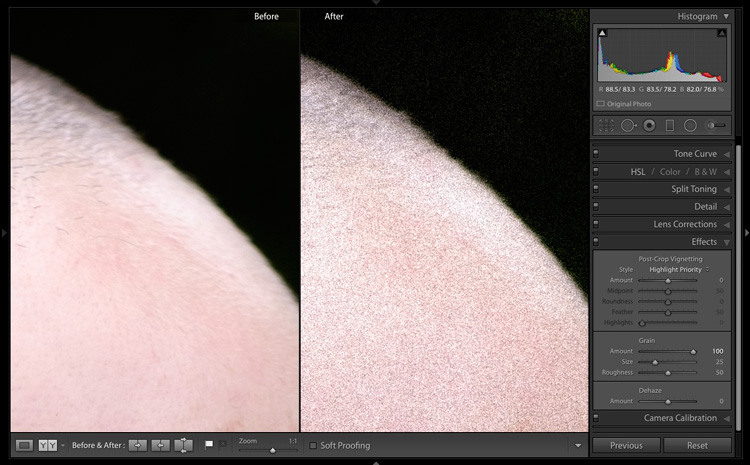
Use the Grain sliders to add grain to your photos. This is only useful if you would like to emulate the look of photos taken with film. Move the Amount slider right to add grain (there is no grain at the zero setting) and then use the Size and Roughness sliders to adjust the size and appearance of the grain. This before and after image shows the effect of increasing Grain to 100, the maximum setting:
Lightroom Develop module

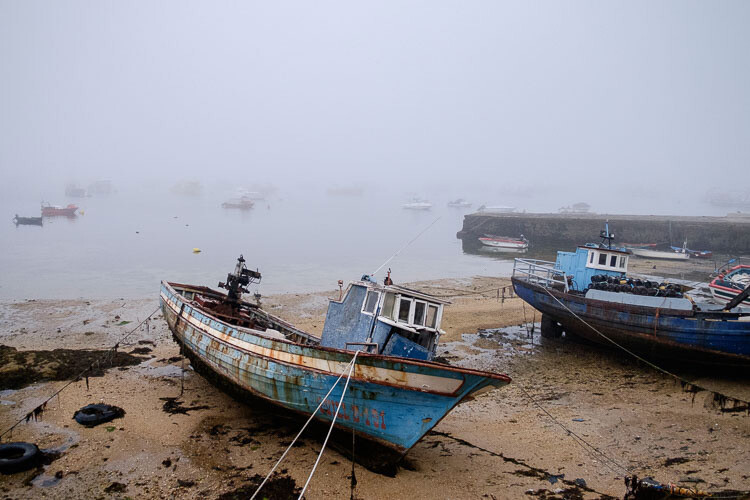
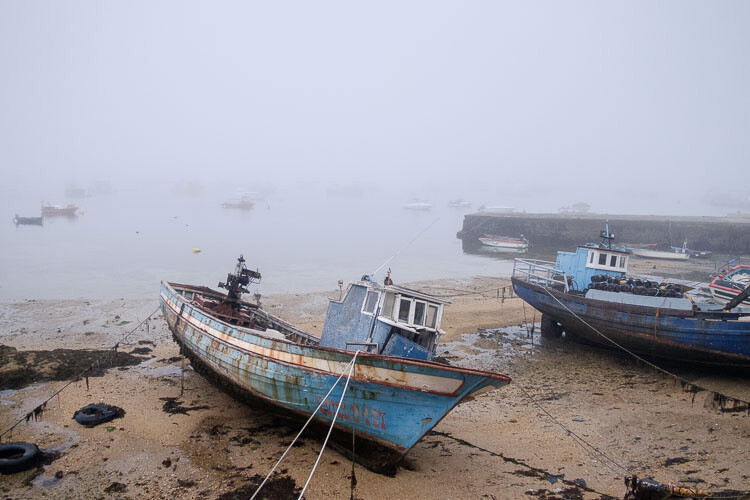
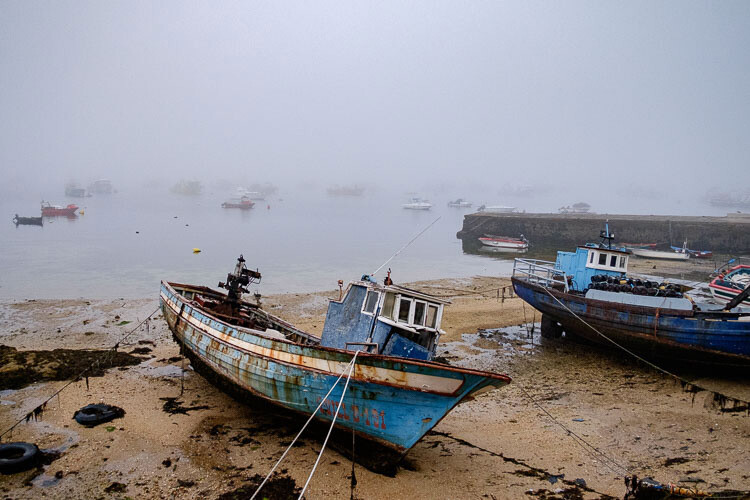
Dehaze is a new slider that is only available in Lightroom CC. Use it to reduce atmospheric haze caused by flare, mist, or pollution. You can also use it to increase haze – a good example of this is with photos taken in foggy conditions.
Lightroom Develop module

Photo taken in foggy conditions. Dehaze set to zero (the default).
Lightroom Develop module

Dehaze set to -10 to increase effect of fog.
Lightroom Develop module

Dehaze set to +30 to decrease effect of fog.

I’ll show you how to build on the work done in the right-hand panels by making local adjustments in my next article. In the meantime, if you have any questions about the techniques in this article, please let me know in the comments.


The Mastering Lightroom CollectionMastering Lightroom ebooks

My Mastering Lightroom ebooks will help you get the most out of Lightroom. They cover every aspect of the software from the Library module through to creating beautiful images in the Develop module. Click the link to learn more or buy.

googletag.cmd.push(function() {
tablet_slots.push( googletag.defineSlot( “/1005424/_dPSv4_tab-all-article-bottom_(300×250)”, [300, 250], “pb-ad-78623” ).addService( googletag.pubads() ) ); } );

googletag.cmd.push(function() {
mobile_slots.push( googletag.defineSlot( “/1005424/_dPSv4_mob-all-article-bottom_(300×250)”, [300, 250], “pb-ad-78158” ).addService( googletag.pubads() ) ); } );

The post Next Steps to Getting Started in the Lightroom Develop Module by Andrew S. Gibson appeared first on Digital Photography School.


Digital Photography School

 
Comments Off on Next Steps to Getting Started in the Lightroom Develop Module

Posted in Photography


Steps for Getting Started in the Lightroom Develop Module

14 Oct

Lightroom Develop module

If you have read my earlier articles about Lightroom you will already understand how it differs from Photoshop and how it uses a database to organize your photos as well as process them.

Lightroom has evolved into a powerful raw processor, and it is now possible to process most of your images in it. You only need to use other software (such as Photoshop or a plug-in) when you reach the limits of what Lightroom can do.

Raw processing takes place in the Lightroom Develop module. If you haven’t used Lightroom before you may find the Develop module layout confusing, especially if you are used to pixel editing software like Photoshop. Lightroom has no layers or blending modes, and there is no real set order in which to do things. But don’t worry if it makes little sense at first – this article will help you come to grips with the basics, and make a start on processing your raw images.

Note that you can also use Lightroom to process JPEG and TIFF files, although some of the options Lightroom gives you differ slightly. I have used raw files in this article.

The Lightroom Develop Module

To start, go to the Library module and select the photo you want to process. Click on Develop in the Module Picker, or press D on the keyboard, to open the image in the Develop module.

The Develop module is split into sections. There are panels on the left, some more on the right, and the Content Window in the middle, where the photo you are currently working on is displayed. Just like the Library module, you also have the Module Picker at the top and the Filmstrip at the bottom.

Lightroom Develop module

You may have noticed that there is no Folders panel (left side) in the Develop module. This is Adobe’s way of encouraging you to use Collections. So if you are not doing so already, now is time to get in the habit.

We don’t need the Module Picker, left-hand panels, or Filmstrip for this article, so when you’re ready click on the white arrows at the edges of the screen to hide them.

Your screen should look something like this, with the right-hand panels and the histogram available on the right, and the photo you are working on occupying the rest of the screen.

Lightroom Develop module

If you do not see the toolbar below your image hit T on your keyboard to show/hide it.

The right-hand panels contain most of the tools that Lightroom has for processing raw files. Today we are going to look at three of these:

Lightroom Develop module
  • Camera Calibration panel
  • Lens Corrections panel
  • Basic panel

These panels are important because they are the foundation of the processing work you do on an image.

The Camera Calibration panel

The Camera Calibration panel is the ideal starting point for processing an image. When you come here you are looking for two important settings.

Process: Should be set to 2012 (Current), which is set by default.

Lightroom Develop moduleProfile: Should be set for the most appropriate setting for your photo. The options you see here depend on the camera used to take the photo. All cameras have profiles that you set to determine the treatment of the image. Each manufacturer has different names for this setting (for example, Canon calls it Picture Style, Nikon Picture Control and Fujifilm Film Simulation).

Lightroom should show you most of the settings you have available on your camera plus another one called Adobe Standard. Your job is to pick the profile that is most suited to your photo.

I’ll assume you know your own camera settings well enough to do so. If there’s any doubt, just move through the available options and pick the one that has the most suitable effect. In this case I selected Camera Velvia/Vivid to bring out the strong colours in the photo.

Ignore the colour sliders in the Camera Calibration panel for now, they are for advanced users.

The Lens Correction panel

There are a lot of things you can do in the Lens Correction panel, but to get started you only need two:

#1 – Enable Profile

Lightroom Develop module

Note that this screen shot is from a photo taken with a Canon camera.

Click Profile and tick the Enable Profile Corrections box. Select your lens using the menus underneath. Lightroom contains profiles for most commonly used lenses (the full list is available here).

Set the Distortion slider to 100 (the default). Lightroom uses the selected profile to remove any barrel or pincushion distortion caused by the lens.

The default for the Vignetting slider is 100. This lightens the edges of the photo to compensate for the vignetting effect caused by using your lens at wide apertures. You may wish to include the vignetting for aesthetic reasons – in which case move the slider left until you get the effect you want.

Some Raw files, such as those created by most Fujifilm cameras, have an embedded profile that Lightroom uses to correct barrel and pincushion distortion. If this is the case, and you are using Lightroom 6 or Lightroom CC, then the message Built-in Lens Profile applied is displayed at the bottom of the panel. If you see this message, don’t tick the Enable Profile Corrections box. Lightroom doesn’t have a profile for your lens and you won’t be able to find it.

Lightroom Develop module

In earlier versions of Lightroom the Built-in Lens Profile applied message isn’t displayed, even if your Raw file has a built-in profile. If you can’t find your lens in the list, it’s probably because:

a. The lens is so old Adobe hasn’t got around to profiling it yet.

b. The lens is so new that Adobe hasn’t had chance to profile it yet (updates with new lens profiles are released periodically).

c. The camera used embeds the lens profile into the Raw file, and Lightroom uses it automatically. This is most common with mirrorless cameras.

#2 Remove Chromatic Aberration

Click on Color and tick the Remove Chromatic Aberration box. This tells Lightroom to remove any chromatic aberrations caused by the lens.

Lightroom Develop module

The sliders underneath are for removing purple and green fringing. They are zeroed by default, and for the moment we will leave them there, as they are a topic for another article.

The Basic panel

The Basic panel is where you adjust the color and tonal values of your image. These sliders can make a dramatic difference to the appearance of your photo, and there are times when you won’t need to touch any of the other panels in the Develop module.

The White Balance sliders

If you’re not sure what White Balance is then read our article Demystifying White Balance, but really all you need to know here is that you move the Temp slider left to make the image cooler (add a blue cast or remove an orange cast) or move it right to make the image warmer (add an orange cast or remove a blue cast).

Lightroom Develop moduleAlternatively, you can use the WB presets: As Shot, Daylight, and so on (note: those options only appear when you are processing a Raw file). I selected Daylight for this image for a fairly neutral colour balance.

The Tint slider is for removing green and magenta colour casts. These are usually caused by artificial lighting such as fluorescent lights.

If none of the above options seem to work then activate the eyedropper tool by clicking on the eyedropper icon and click a neutral grey or white area in the photo. Lightroom analyzes the pixels underneath the cursor and adjusts the White Balance accordingly to remove any color cast and make it neutral.

What is the purpose of White Balance? The answer depends on what you want to do with the image. There are three basic options.

  1. Create an image with neutral colour: In this case you are trying to eliminate any colour casts present in the image.
  2. Create an image with a warm colour cast: This is something you might do with a landscape photo taken during the golden hour or a portrait (where warm tones are more flattering) to the subject.
  3. Create an image with a cool colour cast: This is something you might do if you want to impart a cold feel to the image. This would suit a landscape taken in winter, for example.

Think about your intent when you adjust White Balance. Once you know what you want to do, you can adjust the sliders to suit.

Lightroom Develop moduleWhite Balance is all about color and there are two more sliders at the bottom of the Basic panel that assist with controlling colour, they are called Vibrance and Saturation. Move these sliders left to reduce the color intensity, or right to increase it.

The Saturation slider affects all hues equally, whereas the Vibrance slider has a greater effect on weaker colours than it does on stronger ones. Play around with them on a few different images to get the hang of how they work.

Be careful with both sliders – they are usually used to desaturate colour rather than increase it (which can look false). For this photo I have left them both at zero.

The Tonal Sliders

Lightroom Develop moduleThe following sliders affect tones, and are used for adjusting brightness and contrast. Feel free to press the Auto button to see what Lightroom thinks you should do with your photo.

The Exposure slider

This slider is very simple – move it right to make the photo brighter or left to make it darker.

The Contrast slider

Again, a simple slider to use. Move it right to increase contrast, or left to decrease it.

The Highlights and Shadows sliders

Whereas the Exposure and Contrast sliders affect every tone in the photo, the Highlights sliders affects only the lightest tones and the Shadows slider affects only the darkest tones.

Move the Highlights slider right to make light tones lighter, or left to make them darker. Move the Shadows slider right to make the dark tones lighter, or left to make them darker.

Note: you may have notice sliders left makes your image lighter, sliders right makes it darker.

Again, the best way to learn how these sliders work is to play with them. Move them around and observe the effect they have on the histogram (displayed at the top of the right-hand panels), and the appearance of the image itself.

Don’t worry if you’re not sure how to read the histogram. It deserves an article to itself and I will write one shortly.

The Whites and Black sliders

You don’t have to worry too much about these sliders when you are just starting out. You can either leave them at the default setting of zero or let Lightroom work out what the settings should be.

To set the Whites slider automatically, hold the Shift key down and double-click on the word Whites. Do the same to set the Black slider automatically, hold the Shift key down and double-click the word Blacks.

If the slider settings don’t change when you do so, that means that zero is the ideal setting.

The Clarity slider

The Clarity slider affects something called mid-tone contrast. In simple terms, moving the Clarity slider right emphasizes texture, and moving it left removes texture by softening the image. Many photos benefit from a subtle increase in Clarity (between +10 and +20). Black and white photos, of which texture is often an important part, can benefit from greater adjustments.

Play around with the Clarity slider on different photos to see what effect it has. Resist the temptation to make your photos pop by moving it too far to the right – it may seem like a good idea at the time but the result will simply hurt your eyes.

My article Four Ways to Improve Your Photos with the Clarity Slider in Lightroom explores the topic in more detail.

These are the Basic panel settings I settled on for this photo. Every image is different, but at least it gives you an idea.

Lightroom Develop module

This is how the photo looks so far. Not very exciting, I admit, but that’s because so far we’ve been doing mainly preparation work. The real excitement comes when you add local adjustments or convert the photo to black and white. Lightroom Develop module

I’ll show you what the other right-hand panels do in my next article. In the meantime, if you have any questions about processes explored in this one, please let me know in the comments.


The Mastering Lightroom CollectionMastering Lightroom ebooks

My Mastering Lightroom ebooks will help you get the most out of Lightroom. They cover every aspect of the software from the Library module through to creating beautiful images in the Develop module. Click the link to learn more or buy.

googletag.cmd.push(function() {
tablet_slots.push( googletag.defineSlot( “/1005424/_dPSv4_tab-all-article-bottom_(300×250)”, [300, 250], “pb-ad-78623” ).addService( googletag.pubads() ) ); } );

googletag.cmd.push(function() {
mobile_slots.push( googletag.defineSlot( “/1005424/_dPSv4_mob-all-article-bottom_(300×250)”, [300, 250], “pb-ad-78158” ).addService( googletag.pubads() ) ); } );

The post Steps for Getting Started in the Lightroom Develop Module by Andrew S. Gibson appeared first on Digital Photography School.


Digital Photography School

 
Comments Off on Steps for Getting Started in the Lightroom Develop Module

Posted in Photography


Start a New Great Year – How To Develop Ideas More Creatively

05 Jan

As a photographer, coming up with ideas and visualizing what you imagined in an image, is an essential progress. Coming up with those (hopefully) great ideas isn’t an easy task though because of the sheer flood of pictures that everyone sees everyday. Here are my strategies for coming up with ideas that help you stand out from the masses. According Continue Reading

The post Start a New Great Year – How To Develop Ideas More Creatively appeared first on Photodoto.


Photodoto

 
Comments Off on Start a New Great Year – How To Develop Ideas More Creatively

Posted in Photography


Lytro’s new Develop Kit opens platform to NASA and more

07 Nov

Lytro has opened its doors to outside companies with a Lytro Development Kit (LDK), giving the likes of NASA and the Department of Defense – two of its first customers – access to its light field technology hardware and software. This is part of its Lytro Platform, and it starts at $ 20,000 USD. Read more

Articles: Digital Photography Review (dpreview.com)

 
Comments Off on Lytro’s new Develop Kit opens platform to NASA and more

Posted in Uncategorized


How to use Lightroom Develop Presets to Learn Processing Tips

24 Jul

Learn Lightroom from Develop Presets

In my previous article you learned how to create a vintage effect using Lightroom. I started by showing you some Lightroom Develop Presets you can use as a shortcut, and finished by demonstrating some techniques you can use yourself. The hidden message in the article was that one way to learn how to use Lightroom is to buy some Develop Presets (or download some free ones) and analyze them to see how they work. You can then apply the same techniques to your own photos, and even create your own Develop Presets.

Today I’m going to give you some tips on analyzing other people’s Develop Presets. I’m going to do it using some presets I downloaded from onOne Software. These are free presets that anyone can download and use themselves (just follow the link), so it is easy for you to follow along.

Preset: onOne Instantastic – Daisy

The Daisy preset, part of the onOne Signature Collection Presets (Vol. 2), gives an Instagram filter effect. There is a slight matte effect and a blue colour cast.

Learn Lightroom from Develop Presets

A. Original photo B. Daisy preset

Vibrance and saturation adjustments

This preset uses two techniques to create the colours. The first is applied in the Basic panel. The preset increases Vibrance to +20, and reduces Saturation to -20.

Learn Lightroom from Develop Presets

To understand the effect of these tweaks you need to know the difference between Saturation and Vibrance. Saturation affects all colours in the photo evenly. Reducing Saturation to -20 has a uniform effect on all the colours within the frame.

Vibrance, on the other hand, affects the least saturated colours in the photo the most. The net effect of decreasing Saturation and increasing Vibrance is that the strongest colours in the frame are desaturated while other colours are not desaturated nearly so much.

Learn Lightroom from Develop Presets

A. Vibrance 0, Saturation 0 B. Vibrance +20, Saturation -20

Tone Curve adjustments

The rest of the colour adjustment is carried out in the Tone Curve panel, with two adjustments to the blue and red Tone Curves. Here’s what the adjustments look like.

Learn Lightroom from Develop Presets

Raising the blue curve on the left creates a matte effect and a blue colour cast. Pulling the right hand side of the curve down adds yellow (the opposite of blue) to the highlights. This comparison shows the difference.

Learn Lightroom from Develop Presets

A. Blue curve lifted on left. B. Blue curve lifted on left and pulled down on right.

The red curve adjustments are also a subtle colour and tonal adjustment. Moving the bottom left corner to the right adds cyan and makes the shadows a little darker.

Moving the top right corner to the left adds magenta and makes the highlights a little brighter.

This comparison shows the difference the red Tone Curve adjustment makes. The difference is subtle, so you may have to look closely.

Learn Lightroom from Develop Presets

A. Blue Tone Curve adjustment only. B. Blue and red Tone Curve adjustments combined.

Preset: Nicolesy Matte 3

The Matte 3 preset, part of the Nicolesy Matte Presets for Adobe Lightroom 5 set, creates a subtle matte effect and a red colour cast.

Learn Lightroom from Develop Presets

A. Original photo. B. Matte 3 preset.

The Develop Preset does its work in the Tone Curve and Split Toning panels. Let’s take a look at each.

Tone Curve adjustment

The Tone Curve adjustment combines two adjustments in one to the RGB curve (the colour curves haven’t been touched). First, the bottom left corner has been moved upwards to create a matte effect. Second, the center of the RGB curve has been pushed gently upwards, making the mid-tones brighter. The net effect of this Tone Curve adjustment is to add a matte effect and make the mid-tones brighter at the same time. This comparison shows the difference it makes.

Learn Lightroom from Develop Presets

A. Linear Tone Curve. B. Adjusted Tone Curve.

Split Toning

The colour has been added to the photo using the Split Toning panel. The preset adds hot pink to the Shadows, and a luminescent green to the Highlights, with the Balance slider pushed to the right to give prominence to the green tone. This comparison shows the difference the split tone makes:

Learn Lightroom from Develop Presets

A. No Split Tone. B. With Split Tone.

Putting it all together

In my last article I wrote that buying Lightroom Develop Presets made by other people (or downloading free ones) is a shortcut to creating effects like these. One benefit of using other people’s presets is that you can take advantage of their knowledge and hard work and use the presets for yourself.

But the main advantage is that other people’s presets can introduce you to new and creative ways of processing your photos, using techniques that you may never have thought of by yourself. The real benefit comes when you take a close look at the settings altered by the preset and take the time to understand how they work. Your understanding of Lightroom will become deeper as you do, so that you can use these techniques in your own photos.

For example, in this article you have learned how to use the Tone Curve panel to create a matte effect and change the colours in your photos. You have also learned how to use the Split Tone panel in combination with a Tone Curve adjustment to create another type of matte effect. The rest is up to you.

Can you come up with ways to use these techniques creatively on your own photos? What Tone Curve adjustments can you make? What Split Tone combinations can you apply? Have fun, experiment and good things will surely follow.


Mastering Lightroom: Book Four – The Photos ebookMastering Lightroom: Book Four – The Photos

My new ebook Mastering Lightroom: Book Four – The Photos takes you through ten beautiful examples of photography and shows you how I processed them step-by-step in Lightroom. It explores some of my favourite Develop Presets and plug-ins as well as the techniques I use in Lightroom itself. Click the link to learn more.

The post How to use Lightroom Develop Presets to Learn Processing Tips by Andrew S. Gibson appeared first on Digital Photography School.


Digital Photography School

 
Comments Off on How to use Lightroom Develop Presets to Learn Processing Tips

Posted in Photography


Are Lightroom Develop Presets Worth the Money?

27 Mar

Delicious Presets review

I was recently approached by a representative of Delicious Presets to review their product. The review is below, but when I looked at the details on their website it occurred to me that there are other questions to answer:

  1. Are Lightroom Develop Presets (the sort you buy from someone) worth the money?
  2. And if they are, how do you know which ones to buy given that most websites won’t refund your money if you are unhappy with the product?

Let’s start with Delicious Presets, then dig into those later. The promise on the website is that their presets will increase the quality of your processing and save you time in Lightroom.

They seem to be aimed primarily at event and wedding photographers. On the surface, their presets seem expensive at $ 40 a set (you can save money by buying in bundles) but from a business perspective that is a relatively small investment for something that saves you time. An example:  I recently spent around $ 150 on a good quality polarizing filter for a new lens, and you can buy all the Delicious Presets in a bundle for less than that.

Here’s what you get in each set:

  • Between 11 and 13 Develop Presets
  • Delicious Controls, which gives you three sets of presets for taking control of sharpness, grain and tone
  • Plus 37 vignettes and frames

All the presets have been updated to work with Lightroom 5. You can go to the Delicious Presets website and view the details for yourselves.

If you want to learn more about Lightroom Develop presets in general, you should read my article A Concise Guide to Lightroom Develop Presets.

Delicious presets website

Delicious Controls:  Sharpness, Grain and Tone

The Sharpness and Grain presets really do nothing that you can’t do on your own, although it might be nice to use presets created by someone else if you don’t have the time or inclination to work out the sharpness and grain settings that suit your photos. Complete beginners to Lightroom may also find them useful as a way of learning by analyzing how the presets work.

The Tone Control presets are a little more useful and give you some colour grading options that you might not have come up with yourself. But again, they are fairly simple in nature and are really just a set of Split Toning presets that can be applied to either colour or black and white images. They do look nice in black and white and you can tweak the saturation if the tone is too strong for you.

Delicious Controls: Vignettes and Frames

While I can see the use of the sharpness, grain and tone controls as part of a workflow aiming to save you time, I don’t understand the point of the vignettes and frames. The vignettes are rendered useless by The Radial Filter tool in Lightroom 5, a tool that is easier to use and more versatile. The frames are just cheesy.

Delicious Presets Collections

Now let’s look at the preset collections themselves. Lightroom Develop Presets tend to fall into one of two broad categories. The first are one shot Presets – they tend to be presets that you use once. These ones are pretty binary, they either work or they don’t, and the effectiveness depends on your photo. If the preset matches your photo you’ll get a good result, and if it doesn’t, it won’t.

The second category are what I think of as genuinely useful presets. These are a bit better thought out and may be presets that the photographer who created them uses in his own workflow. They may work in modular fashion, so that you can build up the effects by layering them on top of each other. Each preset tends to adjust just one or two settings, so that you can pick which adjustments you want to make. The best ones combine flexibility with consistency, allowing you to create a variety of looks while retaining a consistent feel throughout your portfolio.

The Delicious Presets presets fall into the second category, if used with the Delicious Controls presets.

Delicious Colour Presets

This is a promising set of presets. The key to getting the best out of them is pick one you like and use it as a starting point, tweaking the sliders in the Basic panel until the tonal values are pleasing to the eye. Here’s an example with the Autumn preset:

Delicious Presets review

Another with the Blue Love preset:

Delicious Presets review

Yet another with the Vivid Tones preset. For this example I used the presets in a modular fashion, adding a vignette, grain, sharpening and the Brownie tone using the Delicious Controls presets:

Delicious Presets review

The verdict? I like these and think they have a lot of potential for portrait processing.

Delicious Black and White Pepper Presets

This is another promising set of presets that give you 12 instant black and white conversions. They need a bit of work to get the best out of them, but the potential is certainly there. This example uses the Black Pepper preset:

Delicious Presets review

Below is the Black Pepper preset with the Warm Tone from the Delicious Tone Control presets added:

Delicious Presets review

This is an interesting collection and they are certainly helpful for creating black and white conversions rapidly.

Delicious Analog Story Presets

These presets are aimed at photographers who like the look of photos produced with film cameras. There’s no doubt this is a trend in the world of event photography, and these presets aim to bring that look to you with a click of the button. There are some interesting presets here that complement the Delicious Colour presets nicely. This is the Blue Vintage preset:

Delicious Presets review

Distinct Analog Presets

Another set of analog presets, and I have to admit that these didn’t work well. Most of the presets just looked horrible with this particular photo, although you may of course get a better result with different subject matter. The Love Letter preset didn’t look too bad:

Delicious Presets review

The verdict

If you buy the bundle with all four singles collections you end up with 37 colour Develop Presets and 12 black and white ones. You also get the Delicious Controls which may provide a useful shortcut to some people. But essentially you can achieve the same effects by pushing sliders. The Tone Control part of the Delicious Controls gives some nice tones but the others are not really worth bothering with.

That leaves the Develop Presets themselves. Are they useful? The Delicious Colors, Delicious Black & White Pepper and Delicious Analog Story, yes. Especially if you are willing to use them as starting points and adjust them to suit your photos. The Delicious Distinct Analog is an exception – I didn’t like this one, but it may work well with other peoples’ photos.

Are they worth the money?

I don’t think so. They are too expensive for what you get and you will get better value elsewhere. I think the fair price is around $ 10 a set, although I’m sure many people will disagree. It’s hard to name a fair price for Develop Presets but there are plenty of people selling similar sets for around the $ 10 mark and I don’t see anything special about the Delicious Presets collections that sets them apart.

Don’t forget you can go to the Delicious Presets website and check them out for yourself.

A negative review?

Is this review too negative? I’m the sort of person who speaks his mind and I’m not going to tell you that a product is good value for money if I don’t think is. But, I understand that some of you may see things differently. If you have used any Delicious Preset products, then please let us know in the comments to balance out my point of view. Do you like them? Do you think they are good value for money?

You can also check out the Delicious Presets blog, where they give examples of photos processed with Delicious Presets. Take a look and make up your own mind.

Free Develop presets

There’s no question about value for money with free Develop Presets, but are they worth the time? My favourite free presets are the Signature Collections from OnOne Software. But what are your favourites? Let us know in the comments.

Other Develop Presets

There are lots of Develop Presets out there, and I haven’t tried them all. That’s where you come in. Have you purchased any other Develop Presets? Did you find them useful? Were they good value for money? What are your recommendations? Please let us know in the comments, and hopefully we can build a good list of useful Develop Presets.

Some that I have bought and found useful are the ones sold by Craft & Vision and the Black and White Workflow Collection from Pretty Presets.

Tips for buying Develop Presets

You don’t always have to pay full price for Develop Presets. You’ll often see presets offered for heavily discounted prices at websites like Snapndeals, Photo Deal Cafe and Photo Dough.

Another tip is to sign up for the newsletters of websites that sell Develop Presets. If they have a sale, they will let you know.

For more on Lightroom check out these:

  • Processing an Image in Lightroom 5 – a Video Tutorial
  • 6 of Lightroom’s Hidden Treasures
  • Organizing Images in Lightroom 5
  • Lightroom How To – One Tip and One Trick

Mastering Lightroom: Book Two
Mastering Lightroom Book Two Develop ModuleMy new ebook Mastering Lightroom: Book Two – The Develop Module teaches you how to process your Raw files in Lightroom for spectacular results. Written for Lightroom 4 & 5 it takes you through every panel in the Develop module and shows you how to creatively edit your photos.
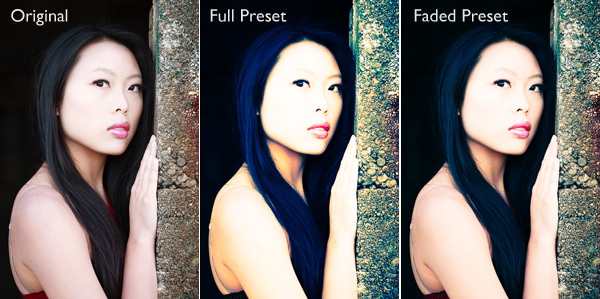
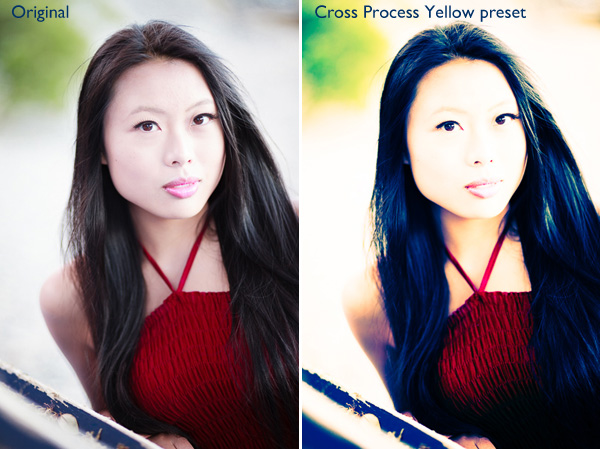
The post Are Lightroom Develop Presets Worth the Money? by Andrew S. Gibson appeared first on Digital Photography School.


Digital Photography School

 
Comments Off on Are Lightroom Develop Presets Worth the Money?

Posted in Photography


How to Add an Opacity Slider to Lightroom Develop Presets with The Fader Plug-In

13 Jan

The Fader Lightroom plugin

For me, one of the biggest advantages of Lightroom over Photoshop is the ability to use Develop Presets on your images. Here are some of the benefits:

  • You can create several virtual copies of an image and use different Develop Presets to see how they come out. Doing so uses virtually no extra hard drive space as the changes are stored in the Lightroom Catalog in the form of text commands.
  • Develop Presets fit in neatly with your Lightroom workflow – there’s no need to export your images to Photoshop or other software.
  • It’s easy to see how Develop Presets work. If you download someone else’s Develop Presets it is easy to go to the Develop module and see which settings have been altered. You can tweak them to suit your photo, and (best of all) you get to see how the photographer achieved the effect. It’s a great way to learn how to use Lightroom.

Lightroom comes with some built-in presets, and there are plenty of websites that either give Develop Presets away for free or sell them. One of my favourites are the Signature Collections from OnOne Software. They are free (click the link for details) and give you a range of creative effects you can add to your images.

The only thing with downloaded Develop Presets is that most of them are not subtle. Here’s an example:

The Fader Lightroom plugin

If only there was a way of fading the effect – a kind of opacity slider in Lightroom. Maybe it will come in a future version. But at the moment there isn’t, so we have to find a way around that.

One method is to export two versions of your image, one with the preset applied and the other without. You place one on top of the other in Photoshop and use the Opacity slider to fade the effect. Easy enough – but it does take you out of Lightroom, something that’s good to avoid where possible. Those exported files take up valuable hard drive space. Plus, you may want to do something else to the image afterwards back in Lightroom.

As a smart Lightroom user you probably want to save time as well as hard drive space. That’s where a Lightroom plug-in called The Fader comes in.

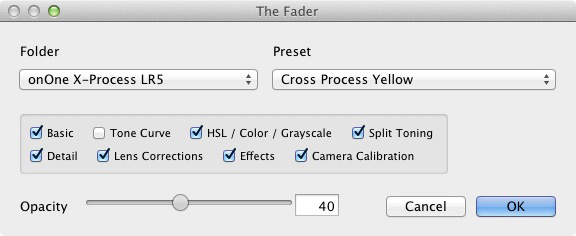
The Fader does exactly what its name suggests. Once installed, you can activate it, select the Develop preset you want to apply from the drop down menu, and use an Opacity slider to fade the effect. This clever plug-in calculates the changes the Develop preset made to the image, and fades them all at the same time.

It’s simple, and it works wonderfully well. It isn’t free, but it’s relatively inexpensive at $ 10 (plus 24% VAT if you live in the European Union). You can download it, and test it out, with Lightroom’s built-in Develop presets at no cost. Paying the registration fee lets you use it with all your Develop presets.

You can download The Fader plug-in from the Capture Monkey website.

Installing The Fader plug-in

1. Go to this page on the Capture Monkey website and download The Fader plug-in. Select a folder to store it in (creating a folder called “Lightroom Plug-ins” in your Documents folder seems logical). Double-click the zipped folder to extract the files.

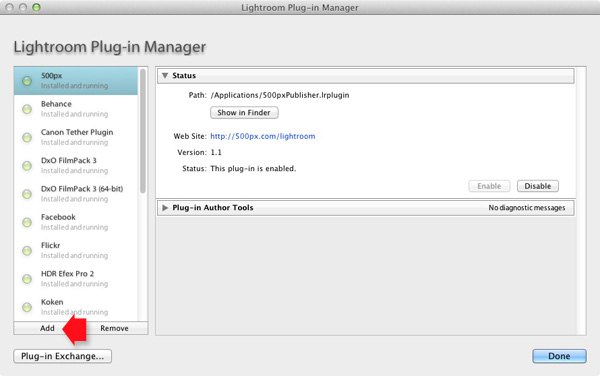
2. Open Lightroom and go to the Plug-In Manager (File > Plug-in Manager). Click the Add button in the bottom left-hand corner and navigate to the folder where you saved The Fader folder. Open the folder and double-click on the file called TheFader.lrplugin to complete the installation:

The Fader Lightroom plugin

Using The Fader

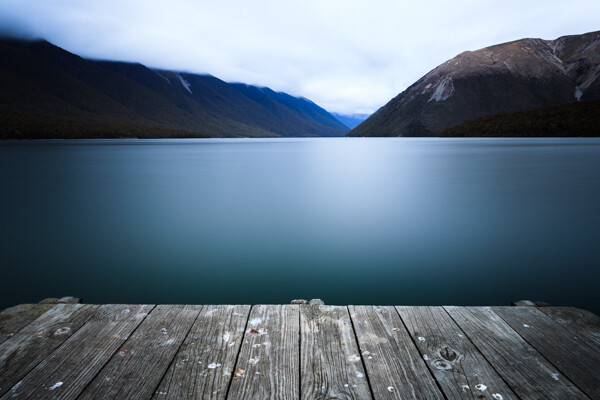
1. Open the photo you want to process in the Develop module. If you are using Develop Presets like the ones in OnOne Software’s Signature Collection, then you should process your file first in Lightroom and then apply the Develop Preset afterwards. Don’t expect the preset to do all the developing for you, it doesn’t work that way:

Original images before preset

Original images before preset

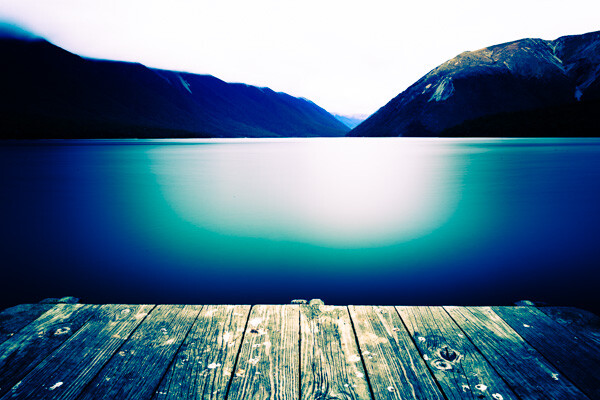
Then go to File > Plug-in Extras > The Fader and select the Develop Preset you want to apply. In this case I’ve chosen the Cross Process Yellow preset from OnOne Software. The effect is dramatic:

Preset applied

Preset applied

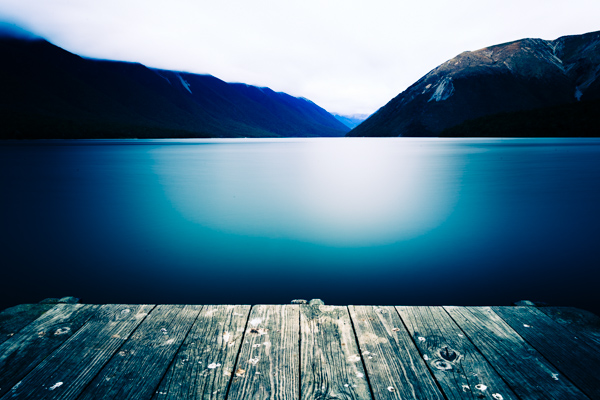
2. Now use the Opacity slider to reduce the intensity of the Develop Preset:

Fader applied

Fader applied at 40%

Here, I set Opacity to 40% for a more subtle effect:

The Fader Lightroom plugin

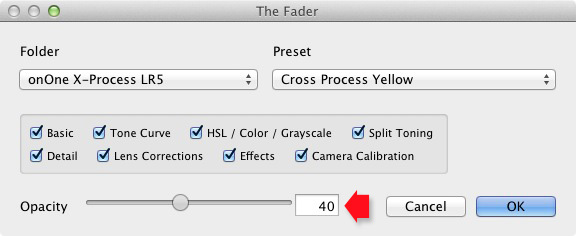
The Opacity slider has a range of -50 to 150. Values above 100 increase the intensity of the Develop Preset. The effect of minus values varies according to the preset used, but it is unlikely you will ever use them.

3. Finally, you can fine-tune the fade even further by selecting which parameters to apply to your photo. For example, if the Develop Preset you selected applies a Tone Curve to the photo, you can disable that part of the preset by unticking the Tone Curve box. Then you can use the Opacity slider to fade out the rest of the Develop Preset.

The Fader Lightroom plugin


Mastering Lightroom Book One: The Library Module

key-11My latest ebook Mastering Lightroom Book One: The Library Module is a complete guide to using Lightroom’s Library module to import, organize and search your photo files. You’ll learn how to tame your growing photo collection using Collections and Collection Sets, and how to save time so you can spend more time in the Develop module processing your photos.
The post How to Add an Opacity Slider to Lightroom Develop Presets with The Fader Plug-In by Andrew Gibson appeared first on Digital Photography School.


Digital Photography School

 
Comments Off on How to Add an Opacity Slider to Lightroom Develop Presets with The Fader Plug-In

Posted in Photography


A Concise Guide to Lightroom Develop Presets

05 Jan

 Lightroom develop presets

The Presets panel (found in the left-hand panels in the Develop module) is one of the most useful in Lightroom. The most obvious benefit of Develop Presets is that they can save you time, which is always a good thing. But they do more than that, including help you maintain a consistent approach to post-processing and using creative effects.

Develop Presets tend to fall into one of two categories. The first are what you might call one-shot presets, which seem to work well on one or two images but not many others. A good example is Develop Presets intended to create a vintage or cross-processed look. They tend to improve some photos, but look horrible on most others.

The second category is what you could call genuinely useful presets. They are a bit better thought out, and designed to make post-processing an easier and quicker task. Usually they are created by a photographer that has put them to use over a long period of time and tweaked them until they work well. I will give you some examples of these at the end of the article.

In this guide to Lightroom Develop Presets we’ll go over some your options.

Free Develop Presets

If you haven’t used Develop Presets before then you likely don’t have many to play with. There are some included already with Lightroom, but there are also plenty of websites where you can download good Develop Presets for free. The problem is, as with anything free, sorting out the rubbish, especially as most of these fall into the first category of Develop Presets. We can save you some time by making some recommendations:

OnOne Software Signature Collection

  • One of my favourites is made by OnOne Software. There are a lot of Develop Presets in their set. Some of them will be a bit over the top for most photographers, but there are some good ones, including a set that imitate the filters in the Instagram app. If you’ve ever wanted to use Instagram on photos taken with your digital camera, this is the easiest way to do it. By the way, the link takes you through to OnOne Software’s Lightroom Presets page, where you’ll find lots more free Lightroom Presets.
Lightroom-develop-presets-09

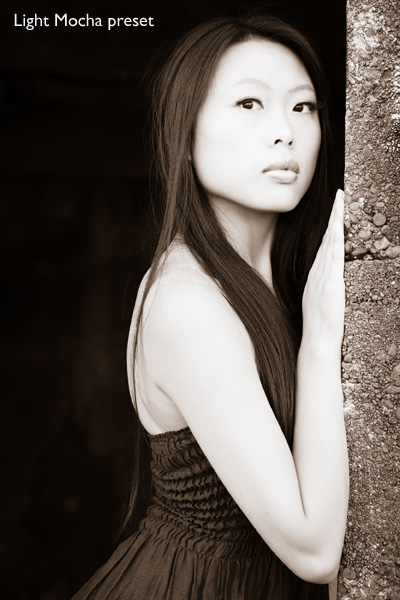
This photo was created with the Light Mocha Preset from OnOneSoftware

Presets Heaven Vintage Presets

  • A nice collection of seven vintage effects for Lightroom 4 and 5. The opening photo above was processed with one of these.

Delicious Freebies

  • A set of free Lightroom Presets from Delicious Presets.

Installing Lightroom Develop Presets

Develop presets are easy to install, follow these steps:

  • Start by downloading them to your computer (the folder you save them in isn’t important at this stage)
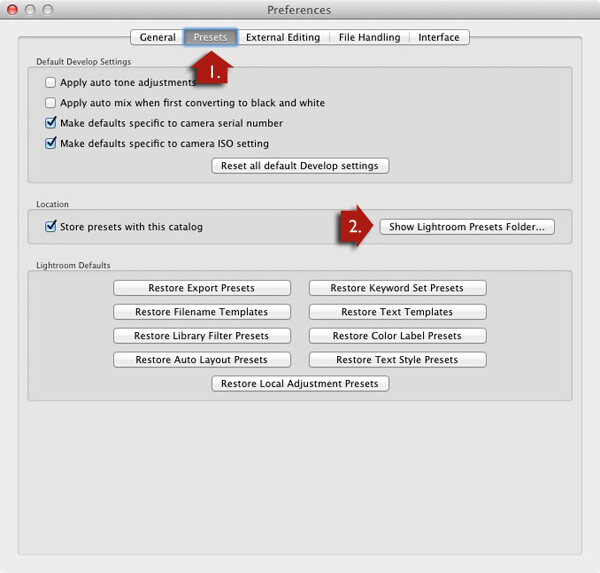
  • Open Preferences, go to the Presets tab (see red arrow #1 below) and click on the Show Lightroom Presets Folder button (see red arrow #2 below)
  • Inside this folder is another called Lightroom Settings, and inside that is one called Develop Presets. Drag the Develop Presets you downloaded earlier to this folder
  • You will need to restart Lightroom before they appear in the Presets panel

Lightroom develop presets

Using Develop Presets

Develop Presets are easy to use:

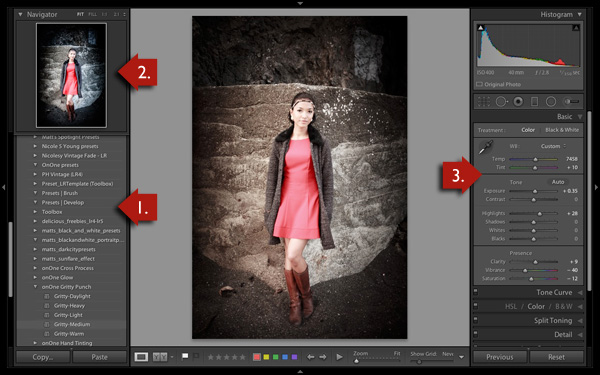
  • The Presets panel contains all Develop Presets that come with Lightroom, ones you have created yourself (listed under the heading User Presets) or downloaded from other sources (see red arrow #1 below).
  • If you hover over any of the presets, the thumbnail in the Navigator panel shows you what your photo will look like with that preset applied (see red arrow #2 below).
  • Click on the preset name to apply it to your photo. The Develop settings in the right-hand panel are updated when you do so (red arrow #3 below).

Lightroom develop presets

You can’t always tell much from the thumbnail in the Navigator panel as it’s so small. You’ll get a better view if you click on the Before/After View icon (#1 below) – the backslash key “\” is the keyboard shortcut, and will toggle before/after on the entire image by turning it off and on. Set the Zoom slider to Fit to show the entire image on the screen (see #2 below).

When you click on a Develop Preset to apply it to your image you will see the original photo and the new version displayed side by side. If you don’t like the result, Undo it using the Cmd+Z (Mac) or  Ctrl+Z (PC) keyboard shortcut.

Lightroom develop presets

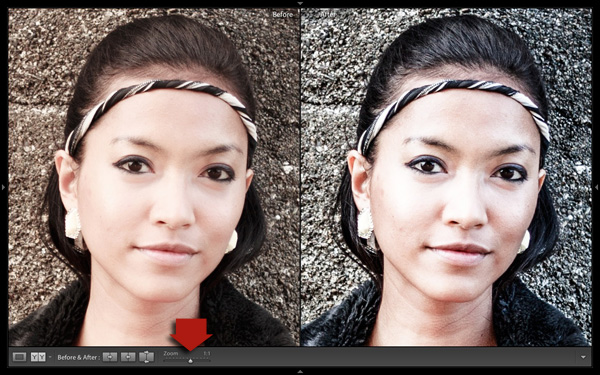
For a close-up look at the effect the Develop Preset has had on your photo, set the Zoom slider to 1:1 (below). Make sure you check important parts of the photo, such as the model’s face in this portrait, to make sure that the newly applied preset hasn’t created any undesirable effects. Some presets do go a little over the top with settings such as Clarity, so it’s wise to double check. You can make adjustments to the appropriate sliders if required.

Lightroom develop presets

One of the interesting things about Develop Presets you download from other sources is that you can look at how the settings have changed after you have applied the new preset to see how the effect is achieved. It’s an easy way to learn new processing techniques.

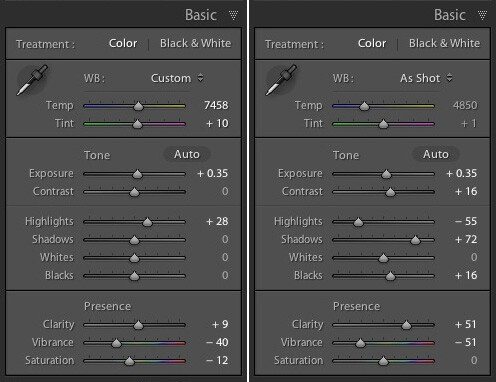
In the example above (the Gritty-Medium preset from OnOne Software), the Develop Preset made all the changes in the Basic Panel. It boosted the contrast by moving the Contrast and Clarity sliders to the right, then negated that effect somewhat in the mid-tones by moving the Highlights slider left and the Shadows slider right (see screenshot below). It also reduced Vibrance and Saturation. The end result is gritty and dramatic, but not so harsh that it’s unsuitable for portraits.

Lightroom develop presets

Settings before preset applied on the left, and after it was applied on the right

Create Your Own Develop Presets

It’s very easy to create your own Develop Presets:

  • Select a photo and make the required adjustments using the right-hand panels of the Develop Module.
  • Go to Develop > New Preset. Alternatively, click the Create New Preset icon in the Presets panel (below)

Lightroom develop presets

  • Give the Preset a name (#1 below) and select the settings that you want to include in the Develop Preset in the New Develop Preset window (#2 below). You don’t have to include every setting. If you did, the Develop Preset would probably only be useful for that specific photo.
  • Press the Create button (#3 below) when you are done. The new Develop Preset appears in the User Presets category in the Presets panel.

Lightroom develop presets

Other Develop Presets

Here is a list of other Develop Presets you may find useful. These are different from the ones listed above as they are not free. If you have any recommendations yourself, please leave them in the comments.

The first two are from the Craft & Vision website

  • David duChemin’s Lightroom Presets
  • Dave Delnea’s Lightroom Presets

The next one is from SLR Lounge

  • It’s a comprehensive system, and so costs more than the others. You can watch the video on the page to see how it works: Lightroom Preset System V5

key-11Mastering Lightroom Book One: The Library Module

My latest ebook Mastering Lightroom Book One: The Library Module is a complete guide to using Lightroom’s Library module to import, organise and search your photo files. You’ll learn how to tame your growing photo collection using Collections and Collection Sets, and how to save time so you can spend more time in the Develop module processing your photos.
 

The post A Concise Guide to Lightroom Develop Presets by Andrew Gibson appeared first on Digital Photography School.


Digital Photography School

 
Comments Off on A Concise Guide to Lightroom Develop Presets

Posted in Photography


Lightroom Tips for the Develop Module – the Magic Alt Key

08 Dec

LR_Alt_option_visualization_opener

Lightroom tips for the Develop module – one feature in Lightroom that isn’t obvious or easy to discover is the visualization feedback which you can get in the Develop module. In many cases when you hold the Alt key, (Option on a Mac) and click (and hold it) on a slider, the screen will change to give you feedback on the adjustment you are making.

This feedback (visualization) take some of the guess work out of how the adjustment you are making is affecting the image. Here are some of the useful visualizations available in the Lightroom Develop module:

Alt and the Exposure, Highlights, Whites, Shadows and Blacks Sliders

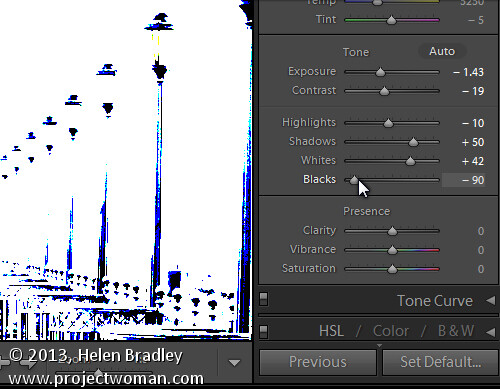
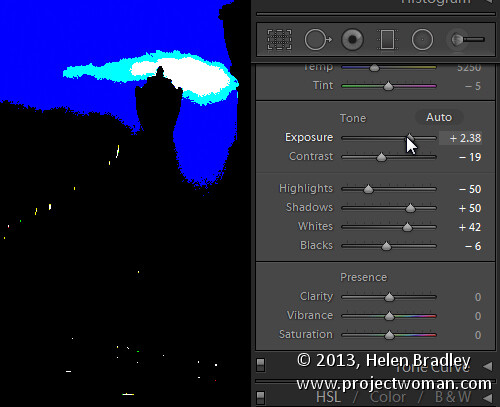
When you hold Alt (Option) and drag any of these sliders you will see any areas where whites or blacks are clipped as a result of the adjustment – the color shows which channel is being clipped. When you adjust Shadows and Blacks the white areas of the image aren’t clipped.

LR_Alt_option_visualization_1

Showing where the blacks are being clipped

When adjusting Exposure,  Highlights and Whites – the black areas are not clipped.

LR_Alt_option_visualization_2

Showing where the highlights are being clipped

Sharpening

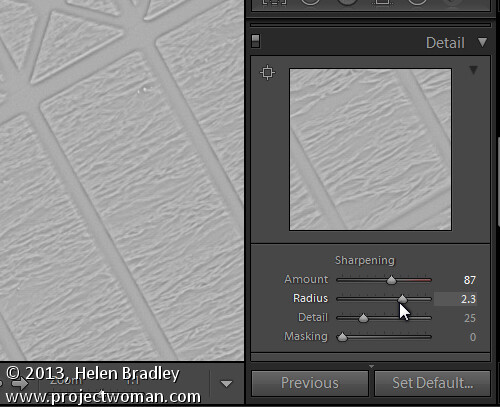
When adjusting Sharpening you can preview the result of the sharpening on the image by holding the Alt (Option) key and drag on any slider. Alt (Option)  and the Amount slider shows you the sharpening applied to a black and white version of the image – as Lightroom sharpens only the luminance and not color this gives you a better view of the sharpening result.

Alt (Option)  with the Radius slider shows the halos being applied to the edges in the image to sharpen it.

LR_Alt_option_visualization_3

Showing the radius or amount of sharpening being applied

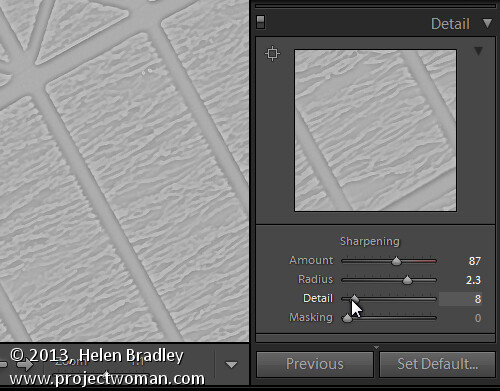
Alt (Option)  and the Detail slider shows the suppression of the halos occurring as you drag on this slider.

LR_Alt_option_visualization_4

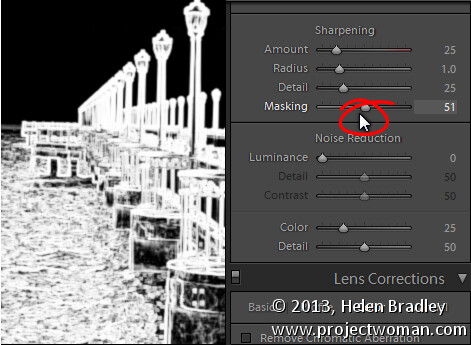
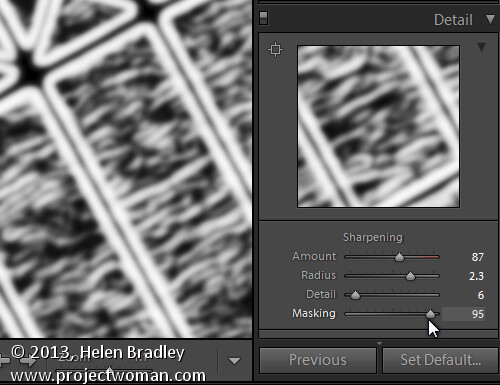
Alt (Option) and the Masking slider shows a black and white mask over the image – the areas which are black are not sharpened and those which are white will be sharpened.

LR_Alt_option_visualization_5

Showing the mask when sharpening – makes it easy to control which areas are sharpened and which are not, very useful for people photos.

Split toning

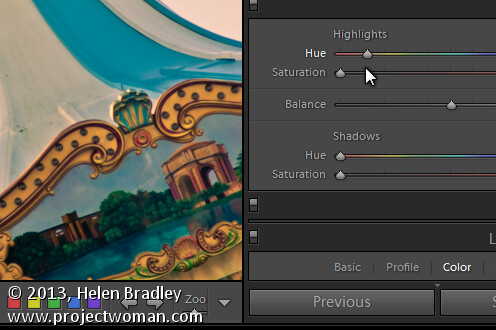
Alt (Option) and either of the two Hue sliders shows the currently selected hue in place on the image even if the Saturation slider is set to zero. This lets you see the color you are selecting, at 100% saturation, before you apply it.

LR_Alt_option_visualization_6

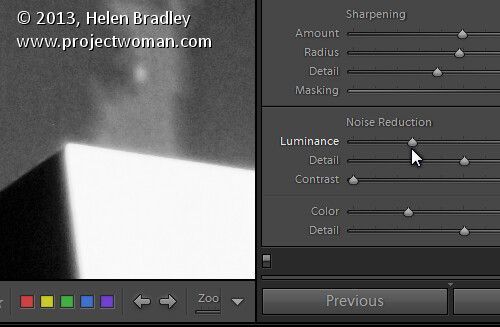
Noise Reduction

Alt (Option) and the Luminance, Detail and Contrast sliders for removing  noise converts the image into a black and white image so you can see the effect of the adjustments more clearly.

LR_Alt_option_visualization_7

Lens Correction – Color tab

Alt (Option) and the appropriate Amount slider shows the areas in the image affected by fringing. White is not affected and you will see any areas affected by purple or green fringing.

LR_Alt_option_visualization_8

Alt (Option) and the appropriate Hue slider lets you view the range of hues being fixed. Black areas are already being targeted and any remaining purple or green color indicates residual color fringing.

LR_Alt_option_visualization_9

Recognizing the times you can use the Alt (Option) key in the Develop module will help you make adjustments to your images more easily and effectively. I hope you enjoyed these Lightroom tips for the Develop module.

Post originally from: Digital Photography Tips.

Check out our more Photography Tips at Photography Tips for Beginners, Portrait Photography Tips and Wedding Photography Tips.

Lightroom Tips for the Develop Module – the Magic Alt Key

The post Lightroom Tips for the Develop Module – the Magic Alt Key by Helen Bradley appeared first on Digital Photography School.


Digital Photography School

 
Comments Off on Lightroom Tips for the Develop Module – the Magic Alt Key

Posted in Photography


Tamron to develop 150-600mm F5-6.3 ultra-telephoto zoom

07 Nov

Tamron_SP150-600mm_Di_VC_USD.png

Tamron has announced the development of a 150-600mm F5-6.3 zoom lens for full-frame and APS-C sensor cameras. It will feature 20 elements in 13 groups and have a minimum focus distance of 2.7m. Tamron will also include VC (Vibration Compensation) image stabilization and USD (Ultrasonic Silent Drive) technologies. The lens will be developed for Canon, Nikon, and Sony mounts. 

News: Digital Photography Review (dpreview.com)

 
Comments Off on Tamron to develop 150-600mm F5-6.3 ultra-telephoto zoom

Posted in Uncategorized