RSS
 

Posts Tagged ‘crop’

Twitter is using AI to intelligently crop image previews

26 Jan

Twitter added the ability to upload images back in 2011, and while many people take advantage of that feature, one of its big drawbacks is crappy cropping. As Twitter engineers explained in a recent post, the platform automatically crops image previews for the sake of consistency, but these crops usually focus on the center of the image… often at the expense of the photo’s subject.

A poorly cropped image may hide the most interesting aspect of the photo—instead presenting a glimpse of a wall, empty sky, or something else similarly boring. And that adorable photo of Fido is a lot less adorable when it’s cropped right through the center of his head.

According to Twitter engineers Zehan Wang and Lucas Theis, the company at one point used facial recognition to somewhat solve this issue. With that, the system would identify the most prominent face in an image and base the crop around it. The system wasn’t perfect, though, nor relevant to images without faces.

A better system, the researchers explain, is one that focuses on saliency—that is, on the parts of the image that are prominent and mostly likely to be noticed. In other words: the most ‘eye-catching’ part of the photo.

“In general, people tend to pay more attention to faces, text, animals, but also other objects and regions of high contrast,” the duo explain. While a neural network can be trained to identify the salient parts of an image, it presents its own issue: it is too slow to put into production.

However, the team found a solution to that problem—one that enables Twitter’s platform to immediately detect the most ‘eye-catching’ part of an image and then crop with that at its center. The end result are image previews more likely to contain interesting elements that, as demonstrated in the screenshots above.

Twitter began rolling out its improved image preview cropping earlier this week, which means all of those really pretty landscape photos and product shots that pop up on the DPReview Twitter should be cropped a lot better in short order.

Articles: Digital Photography Review (dpreview.com)

 
Comments Off on Twitter is using AI to intelligently crop image previews

Posted in Uncategorized


How to Crop to Exact Pixel Size Using Photoshop – with Phil Steele

10 May

If you’ve struggled to resize images to an exact pixel size watch this video tutorial by Phil Steele. He will show you exactly how to crop your images to fit a specific pixel size (like for a Facebook banner, etc.) using one quick step in Photoshop.

Crop to pixel size using Photoshop

Phil also mentioned that it’s a good idea to sharpen your image after cropping. Here is some help on that topic:

  • Photoshop Tip: Using the High Pass Filter to Sharpen Images
  • Smarter Sharpening in Photoshop using Adobe Camera Raw

If you want more Photoshop tutorials, try these:

  • How to Understand the Curves Tool in Photoshop
  • How to Use the Levels Tool in Photoshop
  • How to do Digital Blending in Photoshop to Create a Composite Photo
  • How to Create a Rim Light Effect Using Photoshop
  • How to Add a Sun Flare to Your Images Using Photoshop
  • How to do Non-Destructive Editing in Photoshop

Want more from Phil? Check out his Photoshop Basics course here. 

The post How to Crop to Exact Pixel Size Using Photoshop – with Phil Steele by Darlene Hildebrandt appeared first on Digital Photography School.


Digital Photography School

 
Comments Off on How to Crop to Exact Pixel Size Using Photoshop – with Phil Steele

Posted in Photography


Using Lightroom’s Transform and Crop Tools to Improve Composition

30 Jul

Everybody loves to get it right in camera. But if you don’t, you have plenty of tools to help you make it right. Lightroom is one of the best available, and the easiest to use. In this article I’ll show you how you can use Lightroom’s Transform and Crop Tools to improve your composition.

The Transform Tab

First, let’s talk about the Transform tab, in the Develop module. Transform is relatively new to Lightroom. It’s an improved version, split-off of the Lens Correction tab. Essentially, Transform helps you straighten crooked or skewed images.

IMAGE 1

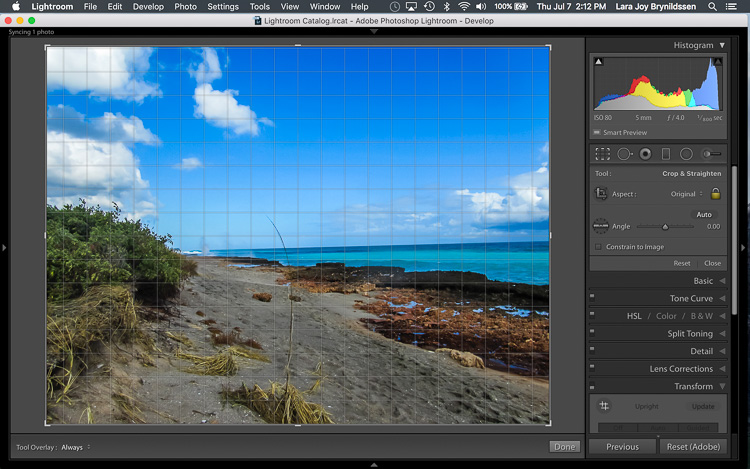
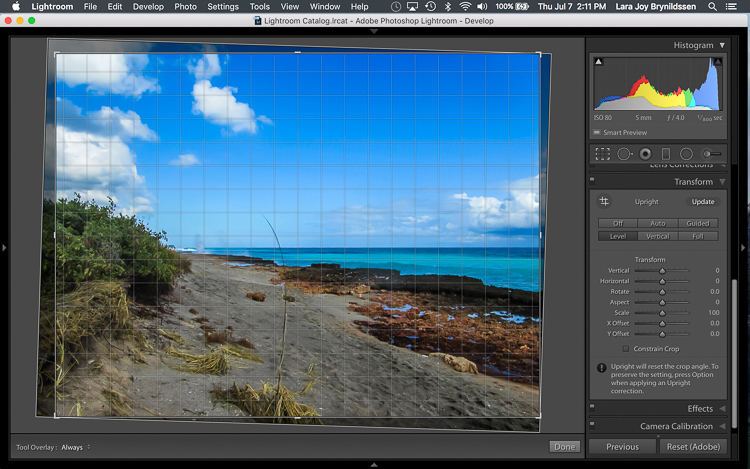
Here, in the first example above – a lovely seascape – there is a crooked horizon. Before opening the Transform tab, press the R key to activate the Crop Tool. Now press the O key (letter not number) to toggle the Grid overlay. With the Crop Tool still activated, click on the Transform tab in Lightroom and choose Level.

IMAGE 2

The Level option is perfect for images like this, when there are no strong vertical lines that need correction. It simply straightens the horizon so it no longer slopes crookedly. With the Grid overlay turned on, it’s easy to verify that the horizon is now straight. Here’s the image after the crop is applied.

IMAGE 3

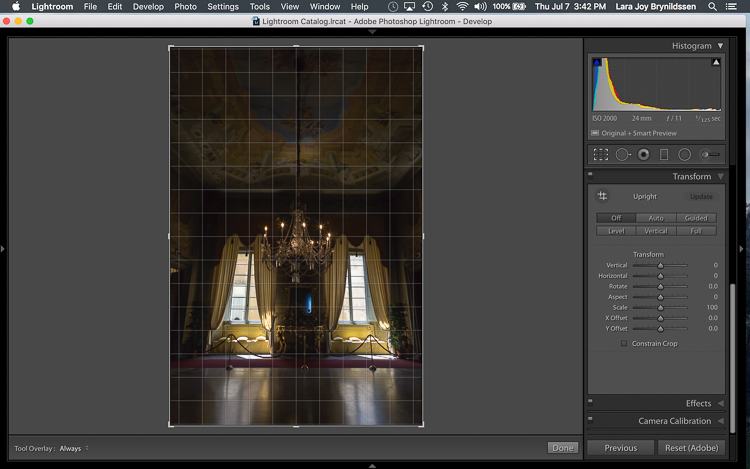
In this next example (below) – an interior image of an old Italian mansion – the windows are falling over backwards.

IMAGE 4

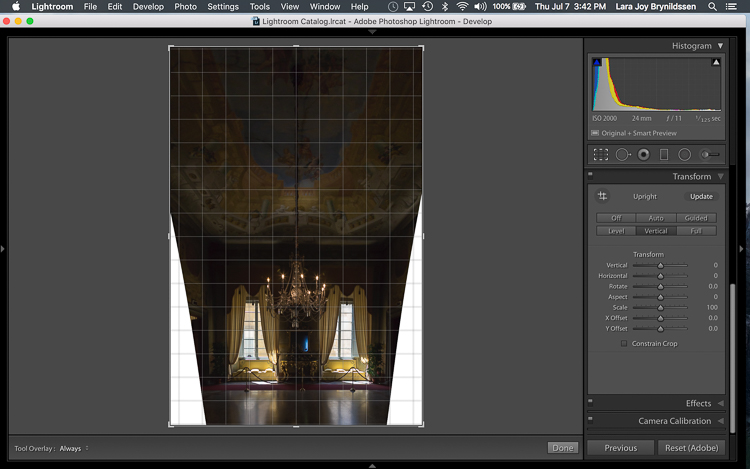
Here the Vertical option in the Transform tab does a great job of straightening the perspective. The windows align perfectly with the horizontal and vertical lines of the Grid overlay.

IMAGE 5

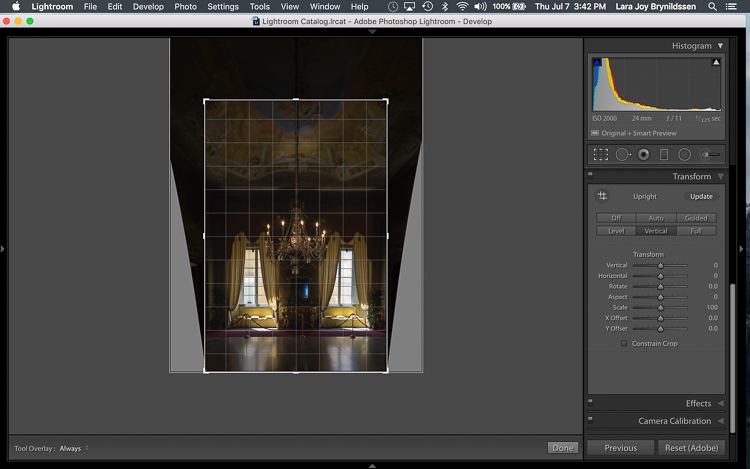
But as you can see, straightening the image has created a few problems. The image was so crooked (perspective distortion) that now there is a lot of white space to crop out. The good news is that when fixing these issues, composition can be improved too.

Composing with the Crop Tool in Lightroom

The white space can be eliminated, and the composition strengthened, by creatively using the Crop Tool in Lightroom. The next step is to adjust the composition with the Crop Tool by moving it around the image.

IMAGE 6

In this image, to eliminate all of the white space and direct the viewer’s focus to the chandelier and windows, grab the Crop Tool at the top centre point, and draw down. This eliminates both the unnecessary ceiling, and the white spaces on either side of the image.

Now that the image is starting to look better, scroll through the Crop Tool overlays and review the newly cropped image to see which ones work. By reviewing your images with different Crop Tool overlays, you can strengthen your intuitive sense of strong composition.

To review each of the overlays, press the O (oh not zero)) key. You’ll toggle through the following:

  • Rule of Thirds (below left)
  • Diagonal (below right)
  • Golden Triangle
  • Golden Ratio (similar to the Rule of Thirds overlay)
  • Golden Spiral
  • Aspect Ratios
  • Grid
IMAGE 7 IMAGE 8

In the example images above, both the Rule of Thirds and the Diagonal overlays clearly show that the composition is strong.

Before

Before

IMAGE-9.jpg

Final image.


Here’s the final image (before correction is above left, after is on the right). Now let’s take a quick peek at one more image, and one more feature in Lightroom.

Flipping the Golden Spiral and Golden Triangle Overlays

You’ve probably toggled through the overlays and disregarded both the Golden Triangle and the Golden Spiral because they just never work. Unlike most of the overlays, neither the Golden Spiral nor the Golden Triangle is symmetrical. That means that you need to flip the overlays around a few times to find the orientation that aligns with your image. By pressing the Shift key and the O key at the same time, you can change the orientation of both the Golden Spiral and the Golden Triangle. Changing the orientation makes those overlays a lot more useful.

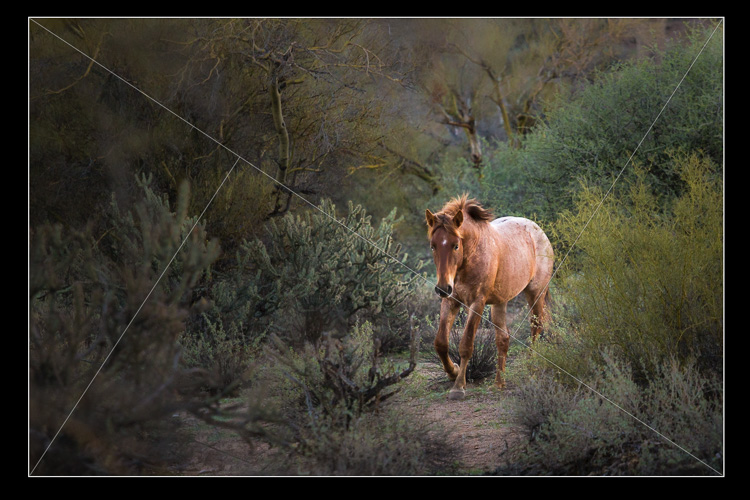
Here, in this image of a wild stallion (below), before flipping the Golden Triangle orientation, this overlay doesn’t work at all. Looking at it you might question whether or not the image had a strong enough composition to start with.

IMAGE 11

By pressing Shift plus the O key, and flipping the overlay orientation, the stallion fits neatly into his own triangle. His legs and nose are also no longer bisected by one of the diagonals. In addition, he’s positioned towards the back of the triangle. The top diagonal edge of the triangle that contains the stallion shows us that he is moving forward into the composition, towards the viewer, which is naturally pleasing to the eye. The other triangles neatly organize the foliage surrounding the stallion. Even the beam of sunlight highlighting the stallion falls within the main triangle, further confirming that this image is well composed.

IMAGE 12

With a little practice, some judicious use of the Transform tab and Crop Tool, you’ll master composition in no time. How do you use these tools to help you? Please share in the comments below.

googletag.cmd.push(function() {
tablet_slots.push( googletag.defineSlot( “/1005424/_dPSv4_tab-all-article-bottom_(300×250)”, [300, 250], “pb-ad-78623” ).addService( googletag.pubads() ) ); } );

googletag.cmd.push(function() {
mobile_slots.push( googletag.defineSlot( “/1005424/_dPSv4_mob-all-article-bottom_(300×250)”, [300, 250], “pb-ad-78158” ).addService( googletag.pubads() ) ); } );

The post Using Lightroom’s Transform and Crop Tools to Improve Composition by Lara Joy Brynildssen appeared first on Digital Photography School.


Digital Photography School

 
Comments Off on Using Lightroom’s Transform and Crop Tools to Improve Composition

Posted in Photography


Adobe updates PhotoShop CC with content-aware crop, face-aware liquify

22 Jun

Photoshop CC 2015.5 introduces a couple of editing tools that have been showcased recently by Adobe, as well as a new selection and masking workspace. 

Face-aware liquify uses facial recognition to identify facial features, offering slider adjustment tools to change the shape of a nose or a mouth, for instance. Content-aware crop aims to fill in blank canvas space around an image resulting from a horizon adjustment, for example, applying the same logic as the existing content-aware fill tool. In addition to these new retouch tools, users will find a new selection and masking workspace, making it easier to isolate elements of an image with tools like refine edge brush. 

With this update, Adobe claims that Photoshop CC will open documents faster and performs with better overall responsiveness. Specifically mentioned is content aware fill, which Adobe claims will be ‘up to 3X faster with even better results.’

Subscribers can update to Photoshop CC 2015.5 starting today.

Articles: Digital Photography Review (dpreview.com)

 
Comments Off on Adobe updates PhotoShop CC with content-aware crop, face-aware liquify

Posted in Uncategorized


Cream of the crop: Sigma 50-100mm F1.8 real-world samples

10 Mar

The Sigma 50-100mm F1.8 is a bit of a rarity. It’s a fast telezoom designed specifically for Canon, Nikon and Sigma APS-C bodies, providing 75-150mm equivalent range (80-160mm on Canon bodies). Canon and Sigma mount versions should also work on Sony E-mount cameras with Sigma’s new MC-11 adapter. With Sigma’s ‘Art’ designation, it’s built to the company’s highest standards and includes a redesigned Hyper Sonic Motor and nine rounded aperture blades. We were lucky enough to get our hands on a pre-production model while we were in Japan for CP+ 2016, and didn’t waste any time putting it to work.

Due to our limited time with the lens, samples aren’t as varied as we’d have liked, but we’ll be adding more to this gallery once we get one back in. For now, enjoy a number of aperture progressions at various focal lengths to get an idea of edge-to-edge sharpness, chromatic aberration, and vignetting performance. Our preliminary thoughts are that sharpness and contrast are impressive for a F1.8 zoom, with center sharpness nearing its peak by F2.8, and extreme edge sharpness maximal by F5.6.

Articles: Digital Photography Review (dpreview.com)

 
Comments Off on Cream of the crop: Sigma 50-100mm F1.8 real-world samples

Posted in Uncategorized


Cream of the Crop of Specialty Photography Genres in 2015

02 Jan

In the past week I’ve rounded up some of the most popular and most read articles on various topics here on dPS over the last year including:

  • Most Popular Landscape Photography Articles on dPS in 2015
  • The Top Gear Related Articles from 2015
  • 12 of the Best Portrait Articles of 2015
  • Beginners Photography Tips – Best of 2015
  • Post-Processing Tips of the Year 2015 on dPS
  • The Tip Top Travel Topics of 2015

But there are many more narrow focused topics that slip between those cracks. Let’s take a look at a few that you might be interested in and see what we can learn from these.

Philippe Rouzet

By Philippe Rouzet

Macro Photography

  • 5 Tips for Getting Fresh Ideas for Macro Photography
  • 5 Macro Photography Tricks to Make Your Images Stand Out
  • 5 Creative Macro Photography Ideas that Really Work
  • How to Give Your Macro Photography a Fine Art Touch in Post-Processing
  • Macro Photography Tips – Video Tutorials
  • Lighting for Macro Photography

Street Photography

street-photography-tips-02

From my own trip to Cuba January 2014 (by the time you read this I’ll be preparing to head there for my third time)

  • 39 Street Photography Images That Have Common Threads
  • 7 Tips for a More Anonymous Approach to Street Photography
  • 7 Street Photography Rules That Should Be Broken
  • There is No Bad Light for Street Photography
  • The Importance of Capturing Gesture and Emotion in Street Photography
  • 7 Steps to Create Street Photography Silhouettes

Night and Long Exposure Photography

Andi Campbell-Jones

By Andi Campbell-Jones

  • Tips for Getting Proper Exposure for Night Photography
  • 10 Items You Need for Your Night Photography Kit
  • 13 Great Subjects for Urban Night Photography
  • Tips for Enhancing Night Sky Photography in Photoshop
  • 5 Tips for Geting Sharper Images When Doing Long Exposures
  • 10 Common Mistakes in Long Exposure photography
  • Long Exposure Photography Without a Tripod
  • 5 Reasons You Should Learn Long Exposure Photography
  • How to Improve Your Long Exposure Photography with Photo Stacking
  • How to Shoot a Star Trails Selfie
  • Two Methods for Shooting Star Trails Made Easy
Howard Ignatius

By Howard Ignatius

Business of Photography

  1. 10 Quick Photography Business Tips to Kickstart 2015
  2. 10 Low-Cost Marketing Strategies for Your Photography Business
  3. How to Break Into the Photography Business with dPS Writer Gina Milicia
  4. 3 Questions to Ask Yourself When Starting a Photography Business
  5. 5 Trends to Take Your Photography Business to the Future
  6. 8 Creative Ways to Make Money with Your Photography
  7. The Top 5 Sales Mistakes Costing You Money Right Now

googletag.cmd.push(function() {
tablet_slots.push( googletag.defineSlot( “/1005424/_dPSv4_tab-all-article-bottom_(300×250)”, [300, 250], “pb-ad-78623” ).addService( googletag.pubads() ) ); } );

googletag.cmd.push(function() {
mobile_slots.push( googletag.defineSlot( “/1005424/_dPSv4_mob-all-article-bottom_(300×250)”, [300, 250], “pb-ad-78158” ).addService( googletag.pubads() ) ); } );

The post Cream of the Crop of Specialty Photography Genres in 2015 by Darlene Hildebrandt appeared first on Digital Photography School.


Digital Photography School

 
Comments Off on Cream of the Crop of Specialty Photography Genres in 2015

Posted in Photography


Tokina announces ultra-wide 14-20mm F2 lens for Canon and Nikon crop sensor DSLRs

01 Jan

Kenko Tokina has launched the Tokina AT-X 14-20mm F2 Pro DX lens for Canon and Nikon DSLRs with APS-C sensors. That’s equivalent to 21-30mm on Nikon bodies and 22-32mm on Canons.

This ultra-wide zoom has a pair of super low dispersion elements in the back and a plastic aperhical element in the second group that promise to reduce flare and ghosting. It also sports nine aperture blades, a one-touch focus clutch mechanism and internal focusing.

Pricing and availability have yet to be announced.


Press release:

Kenko Tokina Co., Ltd. is pleased to announce the new AT-X 14-20 F2 PRO DX

Characteristics 

The fast F2.0 Zoom lens of Tokina
Since the maximum aperture of F2.0 is given this lens, it’s possible to support the low sensitivity photography used ISO64 and ISO100 setting. The maximum aperture of F2.0 shows its power for the photography using the blur feeling and photography with the low brightness (In the room, In the night). 

Adopt highly precise Plastic Aspherical lens
The 2nd lens group in this lens is adopted the plastic aspherical lens which improved surface accuracy, and is given antireflection coat. This lens is designed tough against ghost flare. 

Arrange highly precise Glass molded Aspherical lens
2 pieces of super low dispersion glass molded aspherical lens is located in the back goup of the lens, and various aberration are corrected by these lenses. 

Compact Body and Excellent Operability
Tokina’s exclusive One-touch Focus Clutch Mechanism allows the photographer to switch between AF/MF simply by sliding the focus ring, forward side for AF and back toward the camera for MF. This lens is designed as the fast aperture F2.0 in all focal range, but it is a compact body. This lens has a thread in the front frame, so it’s possible to attach filters of 82mm size. 

The new Tokina AT-X 14-20 F2 PRO DX is an ultra-wide-angle zoom lens for the DX(APS-C) size, and has the maximum aperture of F2.0. 

In low brightness situation, use it demonstrates its preeminent power. 

Specifications 

  • Focus distance: 14 – 20 mm 
  • Brightness: F2.0 Canon 
  • Format : APS-C 
  • Minimum aperture: F22 
  • Lens configuration: 13 elements in 11 group 
  • Coating: Multilayer film coating 
  • Angle of view: 91.68° ~ 71.78° 
  • Filter size: 82mm 
  • Shortest Object Distance: 0.28m 
  • Macro maximum magnification: 1:8.36 
  • Focus method: Internal focus 
  • Number of Aperture blades: 9 
  • Maximum diameter: 89.0 mm 
  • Full length: 106.0 mm 
  • Weight: 725 g 
  • Hood (Attached) : BH-823 

Above mentioned specifications are for a Nikon mount. 


Tokina AT-X 14-20mm F2 Pro DX specifications

Principal specifications
Lens type Zoom lens
Max Format size APS-C / DX
Focal length 14–20 mm
Image stabilisation No
Lens mount Canon EF, Nikon F (DX)
Aperture
Maximum aperture F2.0
Minimum aperture F22.0
Aperture ring No
Number of diaphragm blades 9
Optics
Elements 13
Groups 11
Special elements / coatings 2 super low dispersion + multilayer film coating
Focus
Minimum focus 0.28 m (11.02)
Maximum magnification 0.12×
Autofocus Yes
Full time manual Yes
Focus method Internal
Distance scale Yes
DoF scale No
Physical
Weight 725 g (1.60 lb)
Diameter 89 mm (3.5)
Length 106 mm (4.17)
Sealing No
Colour Black
Zoom method Rotary (internal)
Zoom lock No
Filter thread 82.0 mm
Hood supplied Yes
Hood product code BH-823
Tripod collar No

Articles: Digital Photography Review (dpreview.com)

 
Comments Off on Tokina announces ultra-wide 14-20mm F2 lens for Canon and Nikon crop sensor DSLRs

Posted in Uncategorized


Good Crop Bad Crop – How to Crop Portraits

16 Nov

All images © Gina Milicia 2015

“Learn the rules like a pro, so you can break them like an artist.” ? Pablo Picasso

When it comes to knowing what is right for me there are a few things I know for sure: First, garlic and ice cream are never meant to be mixed together. Secondly, even if I colour my hair blonde I’m never going to look like madonna, and finally when my mechanic warns me that the timing chain in my car should be fixed as soon as possible, I need to listen up and act.

If who have read my other articles or ebooks, you will know that I’ve also learned many lessons in my photography career from stupid mistakes, or lapses in judgement. It’s through learning from failure, and trial and error, that I’ve managed to discover what works best for me.

When it comes to how I crop my portraits there are a few cropping styles I try to avoid because just like eating garlic ice cream I have learnt what works best for me.

How I crop my portraits is just as important to defining my style as the lens I use, the way I light, and how I process my files. I believe the way an image is cropped can change the look from “meh” to “amazing”.
Goodcrop 2B

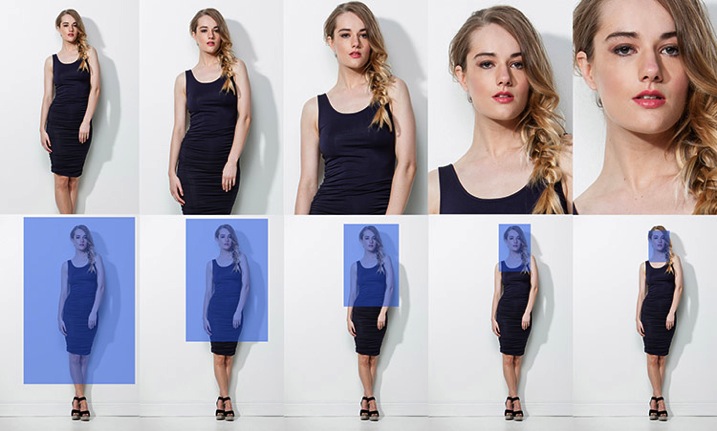
I always crop a shot below the knee, mid-thigh, at the waist, across forearm, or through the top of head. If I’m going to crop through my model’s waist I will usually ask my model to bring their arms up so I don’t have to crop through their arms.
BadCropW

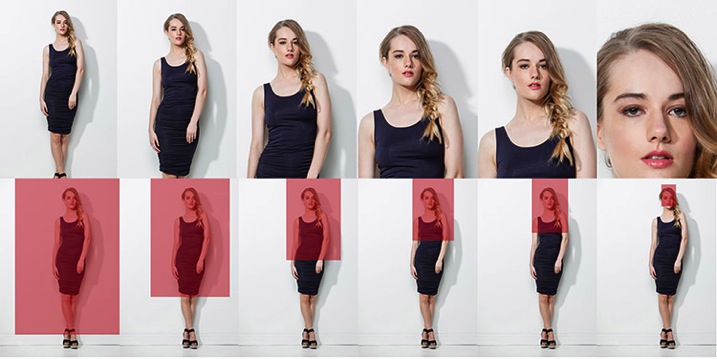
I avoid cropping at any of the joints of the body. This includes fingers, toes, elbows, knees and wrists. I also think cropping through the model’s chin looks odd.

It took me many years of trial and error, and studying the work of my favourite photographers, to learn that there are actually a few golden rules of cropping worth following. Ones that make a huge difference to the visual impact my portraits make, and how flattering these portraits can be for the subject.

Like all rules there are always exceptions, and the art world would implode if these rules were not constantly tested and broken. Pablo Picasso, Vincent Van Gogh, and Jackson Pollack are examples of artists whose styles broke every rule in the, “how to paint book” and in their time they were mocked and ridiculed by other artists and critics alike, yet today their paintings are priceless. Having said that, they all studied conventional painting rules of their time, and then went on to break those rules, and create their own signature styles. I wonder if they ever considered changing their hair colour to look like Madonna…

My shooting,lighting,posing, and post-production style has developed and evolved over the years, but the way I crop my images has remained the same.

Here are my top five tips for how to crop portraits:

#1 Crop In-Camera
Tightcrop A

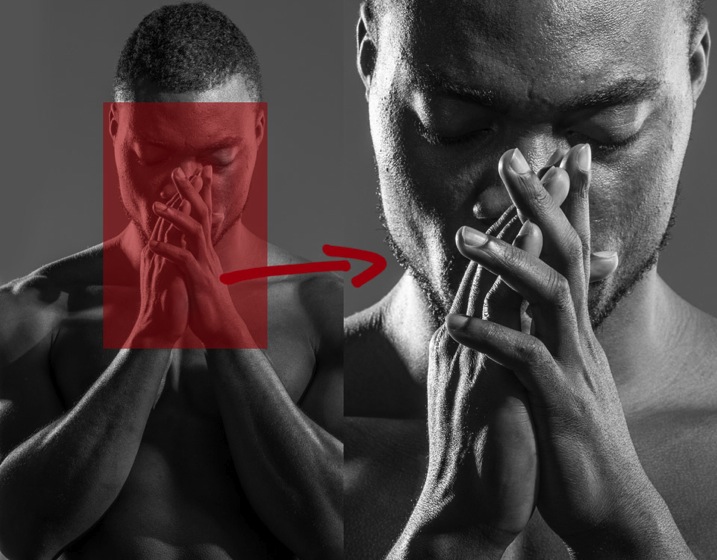
Cropping in-camera basically means that you compose your image exactly how you want your final crop to look when you are taking the photo, rather than shooting loosely and cropping the shot in post-production. There are two reasons for this:

  1. Firstly, images cropped in-camera look totally different to images that are cropped in post-production. Filling the frame and cropping tight means that you will create great background blur (bokeh), which removes any background distractions and focuses more attention on your model, which is always a good thing.
  2. The other advantage of cropping in-camera is that your file size is not affected. A loosely photographed cropped image may only leave you with 10-15% of your file size, so a file that was originally 30MB as a full size image, is reduced to 3MB with a tight crop. Lower resolution images have less detail and won’t be as sharp as a full size image.

#2 If it bends don’t crop it
BadCrop 2Bad crop Crop3Good crop

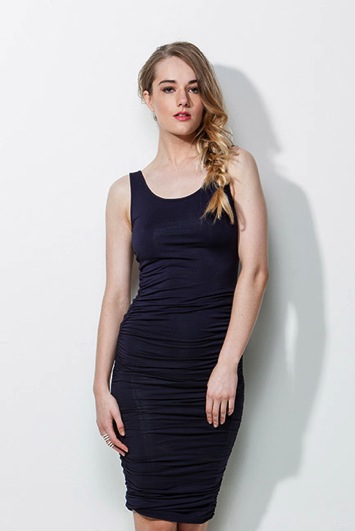
I think cropping mid thigh looks visually more pleasing than doing so at the knee. Seeing just part of the knee where the dress ends also looks untidy.

There are also certain ways to pose models that are more flattering to the body. I’m always looking for ways to pose my models that elongate, rather than shorten, their body parts. I try and emphasize their best features, and hide or diminish the features that are not as strong.

As a general rule I crop in a way that will elongate and flatter the body. Cropping at the knees, waist, elbows, toes, fingers, ankles, or wrists can make your model look stumpy. Cropping off the arms or legs can make your model look square, or larger than they really are.

#3 Avoid cropping into the chin and keep the eyes in the top third of the frame

BadCrop 6Bd crop Crop6Good crop

Keeping the eyes in the top third of the frame is visually better than cropping into someone’s chin, which to my eye looks like I wasn’t paying attention when I took the shot, and visually this crop (above left) looks awkward.

I find my portraits look much stronger visually when the eyes are positioned in the top third of the frame. Cropping into the chin is visually jarring in the same way that garlic ice cream was jarring to my tastebuds.
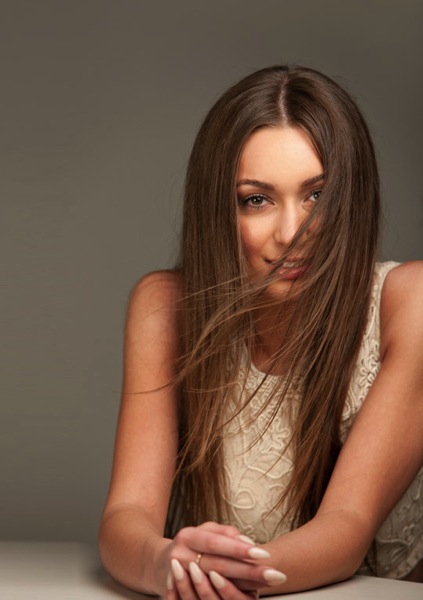
Rulethirds

This is the original framing of a shot I took for the cover of my dPS book, Portraits – Striking the Pose. I wasn’t sure how much of the shot we would be using, so I deliberately shot wider, and left space on the left of my frame to allow for text and other images.
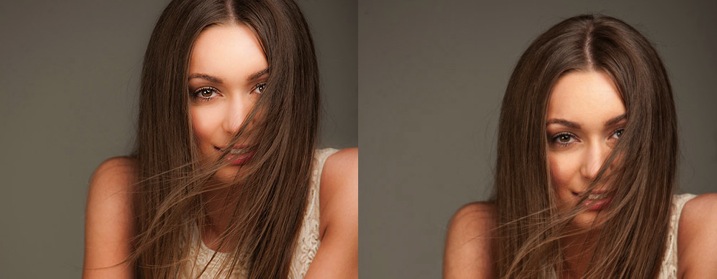

Rulethirds 1 Rulethirds 1B

Rulethirds 2B

Rulethirds 2

The final shot for the cover was cropped very tightly because I felt including the hands looked a bit messy. I cropped this image with the eyes in the top third of the frame because this was visually the strongest option.

#4 Give yourself options

The explosion of social media has radically changed how I shoot my portraits. When a client booked me for a session a few years ago, I would shoot the majority of their portraits as vertical images. Now I make allowances for websites and social media platforms that run both vertical, square, and horizontal images.

I will usually start with portraits framed as vertical images and then rotate my camera to shoot some horizontal frames.

I generally position my model to fill the left or right hand third of the frame. This adds interest to the portrait, and makes it visually more dynamic. Having said that, there are times when I will frame my portrait in the centre of the shot because I personally love the way it looks.

I also love cropping into people’s heads, but this is not everyone’s cup of tea, so I always shoot a few frames with space above the head just in case.

You never know where the final image may end up in a few weeks or a few years, so I think it’s a good idea to plan ahead. It only takes a couple of minutes to shoot slightly wider, vertical, and horizontal at the end of each setup.

#5 Crop like you mean it!

Use these suggestions as a starting point, and find a style that works for you. Start with a full length portrait and first try cropping using traditional rules, then try breaking the rules and see which way you prefer the most.

Each person, location, and pose you shoot will always be different, so don’t be afraid to mix it up a bit and create your own signature style. The one question I always ask myself when I’m cropping my images is, “Does this crop look deliberate or does it look like a mistake?”

Tightcrop 2 Tightcrop 3

Sometimes following cropping rules to the letter will still leave my portraits looking visually jarring. An example of this is if I photograph a model wearing 3/4 sleeves and crop at a point which is technically correct, leaving a tiny amount of arm showing just below the sleeve. This looks like a mistake and would look better if I cropped a little higher to remove the skin.

The more you shoot, the more you will start to get a feeling for what looks right to you. If you’re still not sure, do two versions and compare them.

You might like to deliberately create a series of portraits that are visually jarring because they will evoke an emotional reaction.

How do you like to crop your portraits? Do you like to crop in-camera or in post-production? Do you think a tighter crop looks best ,or do you like to let your portraits have lots of space around them? Is there anything I’ve missed? I’d love to hear your thoughts and see your images. Please feel free to share in the comments section below.

This week on dPS we’re featuring a series of articles about composition. Many different elements and ways to compose images for more impact. Check out the ones we’ve done so far:

  • Using Framing for More Effective Compositions
  • 7 Tips to Improve Your Skyline Photos
  • 33 Images that Exemplify Compositional Elements
  • Weekly Photography Challenge – Composition Craziness
  • How to Take Control of Aperture and Create Stronger Photos
  • How Cropping in Post-Production Can Improve Composition

googletag.cmd.push(function() {
tablet_slots.push( googletag.defineSlot( “/1005424/_dPSv4_tab-all-article-bottom_(300×250)”, [300, 250], “pb-ad-78623” ).addService( googletag.pubads() ) ); } );

googletag.cmd.push(function() {
mobile_slots.push( googletag.defineSlot( “/1005424/_dPSv4_mob-all-article-bottom_(300×250)”, [300, 250], “pb-ad-78158” ).addService( googletag.pubads() ) ); } );

The post Good Crop Bad Crop – How to Crop Portraits by Gina Milicia appeared first on Digital Photography School.


Digital Photography School

 
Comments Off on Good Crop Bad Crop – How to Crop Portraits

Posted in Photography


How to Crop Like a Boss in Photoshop

21 Jan

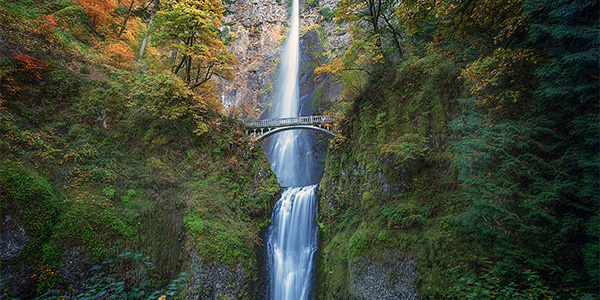
I have a habit of shooting for the crop (see my previous article ‘No Telephoto lens No Problem – Shoot for the crop‘) which often means that my final vision is a 4:2 proportion, or even a 4:1 panorama style image, instead of the most common 3:2 that is the default for most digital cameras.

With Photoshop’s latest crop tool this has never been easier, so let me show you how to crop like a boss!

How to crop like a boss in Photoshop

Step 1 – Load the Crop Tool in Photoshop

With your image open in Photoshop, press the ‘C’ button on your keyboard. This loads the crop tool; you’ll know this by the appearance of the marquee (square) which has been drawn around your image. You can now begin to draw the crop shape you want simply by dragging the corners of the crop marquee, but I’m going to show you a cleaner way to do this.

How to Crop in Photoshop CC

Step 2 – Choose an Aspect Ratio

If you want to keep your existing aspect ratio but simply want a smaller crop you can hold down the shift key while dragging one of the corners of the marquee. But, what if you want to get creative and want a different aspect ratio?

We do this by clicking in the very first drop down menu in the crop tool properties (usually displayed at the top under your main Photoshop menu).

Photoshops Crop Tool

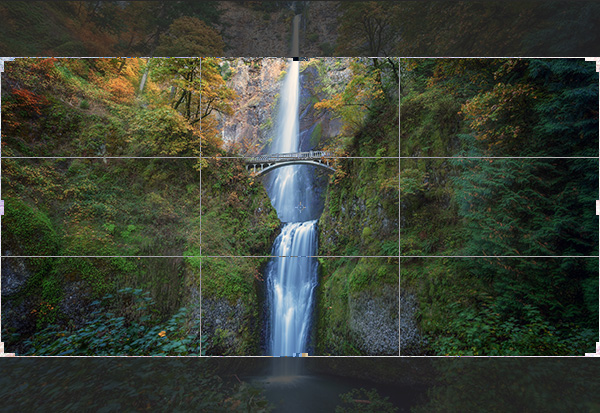
For now I’ll specify an aspect ratio of 2:1 and I do this by entering the number 2 in the ‘width’ box and the number 1 in the ‘height’ box.

2:1 Ration in Photoshop crop tool

I’ve also specified the ‘Rule of Thirds’ grid (image below) because it closely matches the grid that I use on my camera when shooting. There are several to choose from, pick a grid that works for you.

Rule of Thirds grid in Photoshops crop tool

What About Custom Sizes?

You may decide that you’d rather not conform to an industry norm so you’re free to crop to a custom size and ratio. Either leave the aspect ratio boxes empty or press Clear if you’ve already played around. You can then drag the marquee tool to whatever size or shape you like. If however, you intend to send your image to a print lab, you’ll discover that they charge more for custom sizes so it’s often a good idea to choose the closest aspect ratio to your artistic vision. I just saved you $ $ $ $ , you’re welcome.

Step 3 – Place the Crop

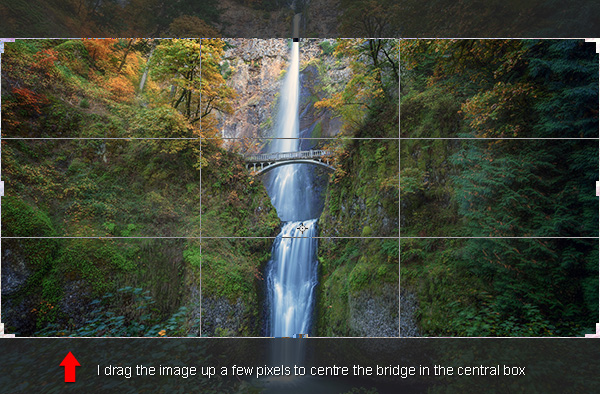
The really cool thing about Photoshop crop tool is that now you’ve specified your aspect ratio you can then move the image around within those crop constraints. All I do is click on the image and drag to position. In this case all I’m doing is dragging the image slightly higher so that the bridge is perfectly centred in the middle box of the grid.

Drag Photoshops crop tool to place your crop

Step 4 – Now Experiment

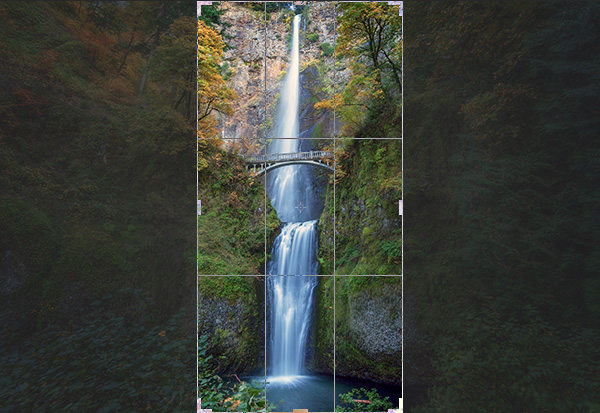
Before you decide to apply the crop, it’s worth playing around a little to see if you can spot a better composition. For fun, I’m going to reverse the aspect ratio by entering 1 in the width box and 2 in the height box. This gave me a crop like this:

Vertical Crop in Photoshop

Step 5 – Apply the Crop

When you’re happy with the crop you’ve found, it’s time to apply it. You need to decide on whether or not you’d like to commit to this crop or if you’d like to keep the ‘cropped’ pixels. There’s a checkbox entitled ‘Delete Cropped Pixel’ which is ticked by default. Simply apply the crop by hitting ‘enter’ on your keyboard.

Delete cropped pixels

If you uncheck this box it doesn’t really crop your image, it just displays the cropped version while you view it in Photoshop. This is called ‘non-destructive’ editing.

With this option, you can save the image after you’ve cropped and although you’ll be looking at the cropped version in Photoshop, the original is still intact. If you want to recall the original (uncropped) image, just open the image file, load the crop tool and then enter the original aspect ratio to revert back to its original crop state (3:2 in most cases).

Confused? Yeah, it sounds kind of silly if you’re not used to Photoshop logic. I personally prefer to have the ‘Delete Cropped Pixel’ checked and then I simply save the cropped image as a separate TIFF file, leaving the original image unsaved and untouched. That’s just good old fashioned file keeping.

To Cancel the Crop

If you get nervous and want out of the crop tool, just hit your ESC key repeatedly until the crop tool vanishes. You can also press the M key to go back to the ‘Rectangular Marquee Tool’ which cancels the crop tool quicker.

How to Use Aspect Ratios

There’s a brilliant article by Elliot Hook called Aspect Ratios in Landscape Photography where he explains all of the standard aspect ratios that most print labs can handle. Try some of the ones that he mentions to see if they work for your image crops.

Try it with Your Images

I’d love to see some great examples of images that you have cropped using this technique. I often say that you can learn a lot about composition simply from carefully cropping existing images to create new compositions. It’s fun and easy to get busy with the crop tool and now you’ve learned how to crop like a boss!

googletag.cmd.push(function() {
tablet_slots.push( googletag.defineSlot( “/1005424/_dPSv4_tab-all-article-bottom_(300×250)”, [300, 250], “pb-ad-78623” ).addService( googletag.pubads() ) ); } );

googletag.cmd.push(function() {
mobile_slots.push( googletag.defineSlot( “/1005424/_dPSv4_mob-all-article-bottom_(300×250)”, [300, 250], “pb-ad-78158” ).addService( googletag.pubads() ) ); } );

The post How to Crop Like a Boss in Photoshop by Gavin Hardcastle appeared first on Digital Photography School.


Digital Photography School

 
Comments Off on How to Crop Like a Boss in Photoshop

Posted in Photography


Google Camera update brings back self-timer and 16:9 crop

30 May

fisheye.jpg

Google again updates its Camera App, this time with self-timer, 16:9 aspect ratio and two more panorama modes. This addresses a point of criticism raised by users when an update in April removed the self-timer function. Other features that come with the new version of the app include wide angle and fisheye panorama options that are based on the Photo Sphere technology. 

News: Digital Photography Review (dpreview.com)

 
Comments Off on Google Camera update brings back self-timer and 16:9 crop

Posted in Uncategorized