RSS
 

Posts Tagged ‘Create’

Learn How You Can Easily Create the Perfect Reflection Photos

02 Feb

The post Learn How You Can Easily Create the Perfect Reflection Photos appeared first on Digital Photography School. It was authored by Simon Bond.

learn-to-create-perfect-reflection-photos

In this article, you’ll discover how to create the perfect reflection photos. You’ll learn how to find reflection photos in locations near to you, and then how best to capitalize on these reflections in your photo. Use the correct equipment, the right angle, and you’ll be taking stunning photos in no time.

What is reflection?

First, the science behind reflection photography. Knowing why reflections form will help a lot when it comes to finding and taking these types of images.

The most obvious object you’ll come across on a day-to-day basis that reflects is a mirror. So in reflection, the angle of the incident light will be equal to the angle of the reflected light.

That means when you stand directly in front of a mirror, you’ll see yourself. However, if you stand to the side, you’ll see the scene that’s to the side of you.

When you reach the extreme edge of the mirror and look across it, you’ll see the room you’re standing in duplicated in a mirror image.

In the majority of cases, you’ll want to get down to the angle of the reflection to create this duplicate image in your photo. Repetition always works well in photography.

Image: A strong subject like architecture can work well for reflection photography.

A strong subject like architecture can work well for reflection photography.

Which materials have a reflective surface?

Now you know what reflection is, you’ll need to know where to find it. There are lots of things that have a reflective surface – the mirror is the most extreme of these and is designed to reflect. You’re really looking for something with a smooth, shiny surface. So look for the following to get a reflection:

  • Metal – Any metal surface will reflect. Surfaces with less scratches are best.
  • Glass – Glass will also reflect. The shallower the angle you use, the stronger the reflection will be.
  • Marble – Shiny smooth stone surfaces will reflect, but not as much as glass or metal. That said, with water on top of the marble, the reflection will be better.
  • Water – Where water forms a flat surface, there will be a reflection. Puddles often do this, ponds also work, and even larger bodies of water can work when there is no wind.
Image: The glass on this shop window becomes more reflective the shallower the angle.

The glass on this shop window becomes more reflective the shallower the angle.

How to take the perfect reflection photos.

Now you know what reflection is, and the materials that produce it, you’re ready to take the perfect reflection photos. Take a look at the following steps, and you’ll be in a position to get the best results.

Finding locations with reflection

Knowing which surfaces cause reflection is only half the story. You need to combine finding one of these surfaces in a location that has an interesting reflection. Going out and finding these is sometimes easy, and sometimes more of a challenge.

Look to the following to improve your chances:

  • Clear surfaces – Windows on high streets, or glass protecting commuters from the track in subway stations, all have the potential to be good reflection surfaces.
  • Bodies of water – Permanent bodies of water like ponds or lakes can be great for reflection photos. The moat around a castle can also work very well. You’ll want to choose a calm day for best results.
  • Puddles – After it’s finished raining, but before the puddles drain away, it is a great time to look for reflections that would not normally be there.
Image: After it’s finished raining get out looking for puddles that will then be reflection po...

After it’s finished raining get out looking for puddles that will then be reflection pools.

Create your own reflection

There are, of course, times when you’d like to photograph a reflection where one doesn’t usually form. In that case, you could experiment by taking a mirror with you to a location. It might not be practical to bring a large mirror with you, but by using a wide-angle lens, you can make the reflection look much larger than it actually is.

Another solution is to bring a bottle of water with you or even a bucket. If there is a readily available source of water nearby, like a lake or the sea, you might be able to carry buckets of water to a location where you wish to create a reflection.

Image: This location is a popular location to photograph reflections. It’s next to the sea, so...

This location is a popular location to photograph reflections. It’s next to the sea, so it’s possible to make your own reflections. I’m thankful to my friend for helping make the puddle.

Enhance your reflections

There are a couple of things you can do to enhance your reflection photo in-camera. These mainly involve the equipment you use. Look to do the following to create the perfect reflection photos.

  • Circular polarizing filter – One of the best items you can use in reflection photography. Using this filter will greatly increase the strength of the reflection.
  • Wide-angle lens – Use a wide-angle to increase the scope of the reflection within your photo. Even a small puddle can fill an entire frame if you get close enough to the puddle.
  • Shallow angle – The shallower the angle, the greater the reflection will be. So get side-on to a window, or down on the ground near a puddle for best results.
Image: This is the result of making a reflection using buckets of water.

This is the result of making a reflection using buckets of water.

Good subjects for reflection

Now just because a place has a reflection doesn’t mean it’s going to be the best place to take a reflection photo.

As with all photography, you need a strong main subject. That main subject might already be there in the form of architecture. If that’s not the case, you may need to wait for a moment of capture, a person walking past your reflection location, for instance.

While a mirror image reflection could hold your photo, a single person, single tree, or an iconic landmark that also reflects will dramatically improve your results.

Use post-processing for reflections

In addition to the steps you can take in-camera, there are further steps you can use in post-processing. These involve enhancing your existing photo or creating a reflection within your image.

Enhancing a photo

This involves taking a photo that already has a reflection and then making that reflection stand out more. 

You’ll be looking to make local adjustments to your image. To do that, you can either use graduated filters to adjust the image or layer mask and reveal only the area of the image that you wish to effect. 

Adjustments you can consider making are brightening, sharpening, and adding more contrast to the reflection in an attempt to mimic the image that the reflection is from.

Image: This sunset had the perfect reflection pool. It could be better with a stronger main subject.

This sunset had the perfect reflection pool. It could be better with a stronger main subject.

Creating a reflection

Lastly, in your bid to create the perfect reflection photos, you could turn to post-processing.

You’ll need to choose an appropriate image to do this – one that has some nice sky would work best.

Then it’s a case of increasing the canvas size of your image, duplicating the image, flipping it, resizing it, and then making the reflection look realistic by adding some imperfections. You can look to create this by using the following guide.

How will you create the perfect reflection photos?

Now you have the knowledge needed to go out and create stunning reflection photos in your neighborhood. Are there any techniques you use to enhance your results either when you take the photo or post-process it?

Here at digital photography school, we value your ideas and opinions, so please share those in the comments section. Likewise, if you have images you’ve taken that show reflections, please share those as well!

The post Learn How You Can Easily Create the Perfect Reflection Photos appeared first on Digital Photography School. It was authored by Simon Bond.


Digital Photography School

 
Comments Off on Learn How You Can Easily Create the Perfect Reflection Photos

Posted in Photography


5 Ways to Create More Artistic Photos (Fast!)

30 Jan

The post 5 Ways to Create More Artistic Photos (Fast!) appeared first on Digital Photography School. It was authored by Jaymes Dempsey.

create-more-artistic-photos-fast

Are you looking to create more artistic photos? Do you feel like your photos need a bit of an upgrade?

You’re not alone.

This type of struggle is one that most photographers feel at one point or another. I’ve felt it myself, which is why I developed several methods for increasing the artistry in my own photography.

And I’m going to share these methods with you today.

So if you’re looking to add a level of creative and artistic flair to your photos, keep reading.

Image: 300mm, 1/1250 sec, f/6.3, ISO 200

300mm, 1/1250 sec, f/6.3, ISO 200

1. Use minimalism to improve your compositions

Creating more artistic photos can start by changing up your compositions.

Because here’s the thing:

After doing photography for a bit, you start to fall into compositional patterns. You’ll take the same type of photo, over and over again. You may not even realize it.

So in order to take things to the next level…

…you should make a strong effort to break free of your compositional patterns.

One of my favorite ways to do that is with minimalism. Minimalism involves using lots of negative space, while also positioning your subject toward the edges of the frame.

create-more-artistic-photos-fast

400mm, 1/320 sec, f/5.6, ISO 400

For instance, a minimalistic photographer might take a single plant and place it down at the very top or bottom of the frame, while the rest of the scene stays primarily white:

Image: 100mm, 1/125 sec, f/2.8, ISO 320

100mm, 1/125 sec, f/2.8, ISO 320

Minimalism is great, and one of the things I love most about it is how it feels so different from normal compositional techniques. Once you start thinking minimalist, your whole outlook can change.

And your photos will start to look far more artistic.

2. Add split toning to enhance the colors

If you’re looking to increase the artistry in your photos, ask yourself:

How am I doing with color?

Because color is one of the most neglected aspects of photography, despite its important role in most photos.

Color adds contrast, creates harmony and disharmony, and evokes different moods.

(All in a wonderfully subtle way!)

Now, one aspect of improving the use of color in your photography involves looking for interesting color combinations when out shooting.

But you can also make changes after you’ve finished your photoshoots.

More specifically, split toning will allow you to add a bit of mood and contrast to your photos.

Here’s a photo with a bit of split toning to deepen the yellow highlights and the green shadows:

Image: 90mm, 1/160 sec, f/9.0, ISO 320

90mm, 1/160 sec, f/9.0, ISO 320

Basically, a split tone just involves putting one color cast in the highlights of your photo and one color cast in the shadows of your photo. Cold shadows and warm highlights are pretty common, so you could easily go with a blue/yellow split-tone combination. But you should also experiment with other possibilities to make things as artistic (and interesting!) as possible.

Note that pretty much every RAW photo editor offers split toning in one form or another. So no matter your preferred post-processing software, you’ll be able to add some color!

3. Decrease the depth of field for a softer look

This is one of my personal favorites for making photos more artistic:

Bringing down that depth of field.

With a shallow depth of field, you can create all sorts of interesting effects: Stunning background bokeh, soft subjects, and even abstract-type images.

Image: 50mm, 1/2000 sec, Freelensed, ISO 250

50mm, 1/2000 sec, Freelensed, ISO 250

Now, to create a shallow depth of field look, you’ll need to use a lens with a wide maximum aperture (something in the area of f/1.2 to f/2.8 is best). You’ll also want a lens of at least 50mm, and you’ll want to get close to your subject, if possible. The closer you are to your subject, the better the soft-focus effect.

Note that it can be difficult to focus when working at such a wide aperture. So you may need to switch your lens over to manual, in order to ensure you nail focus every time.

To add additional interest, you might try positioning a light source in the background, so that you can create cool bokeh, like this:

create-more-artistic-photos-fast

90mm, 1/100 sec, f/2.8, ISO 320

I’d also recommend thinking about your subject a bit differently. Don’t envision the subject as a single entity; instead, look for shapes and lines that you can use for a more powerful composition. That way, you’ll be able to use the soft-focus effect for more artistic, abstract-style images.

4. Look at the work of good photographers for inspiration

If you’re the type of person who likes to get out and practice photography, you may grumble at this suggestion. After all, practice makes perfect, right?

But it’s important to realize that it’s hard to know what perfect would mean…

…if you haven’t ever seen it.

That’s why I urge you to look at the work of photographers you admire. Do it all the time. If you like, you can simply look at photographers in your favorite genres.

Image: One of the photographers whose work I view over and over again is Jess Findlay. While he and...

One of the photographers whose work I view over and over again is Jess Findlay. While he and I gravitate toward different subjects, his work serves as a constant inspiration to me.

Or you can expand your horizons, looking for photographers in many different areas.

(In fact, I like to look at work that’s not in my areas of interest; I find that it gives me fresh ideas that would’ve never occurred to me if I’d stuck to my preferred genres.)

When you look at photography that you like, ask yourself:

What is it that makes this work special? What is it that makes it so artistic?

Then come up with some ideas for incorporating that level of artistry into your own work. Don’t copy blindly, but try to pull out bits and pieces of wisdom that you can use to enhance your own photos.

For instance, if you notice that a photographer likes to shoot from a low angle, start shooting from a low angle yourself.

If you notice that a photographer loves to juxtapose two contrasting subjects, try juxtaposing some contrasting subjects yourself.

Just give it a try. My guess is that you’ll notice improvements in your own photos pretty quickly.

And then you won’t want to stop looking at other photos!

5. Lengthen your shutter speeds for more abstract photos

Here’s a final, practical tip for creating more artistic photos:

Use creatively long shutter speeds.

For instance, photograph moving a flower, but drop the shutter speed way down, so you get a cool blur effect.

And then move your camera around, even as you’re taking the photo. That’ll give you an even more interesting abstract:

create-more-artistic-photos-fast

100mm, 1/6 sec, f/2.8, ISO 250

Personally, I love doing handheld abstracts with long shutter speeds. Sure, they take a lot of experimentation, but they’re also very liberating. And they’re great for situations where the light is too low to get sharp shots handheld and you don’t want to use a tripod.

Now, to pull off this type of abstract image, you’ll need to put your camera in Manual mode (or Shutter Priority) and drop the shutter speed until it reaches 1/10s to 1s (or longer). Then, as you hit the shutter button, move your camera. I’d recommend aligning the movement with compositional elements in your scene (e.g., if there are trees in the scene, move the camera along the tree trunks).

You’ll end up with some very artistic blurs!

Five ways to make your photography more artistic: Conclusion

Hopefully, you now know a few easy ways to make your photos more artistic.

After all, capturing artistic photos doesn’t have to be hard…

…it just involves changing things up!

So try some of the ideas I’ve suggested, and see how things go. I bet you’ll like the result!

create-more-artistic-photos-fast

300mm, 1/400 sec, f/6.3, ISO 320

Do you have ideas for creating more artistic photos? Share them in the comments!

The post 5 Ways to Create More Artistic Photos (Fast!) appeared first on Digital Photography School. It was authored by Jaymes Dempsey.


Digital Photography School

 
Comments Off on 5 Ways to Create More Artistic Photos (Fast!)

Posted in Photography


COSYSPEED is crowdfunding to create first ‘Made in Africa’ camera lens pouches

01 Jan

German company COSYSPEED is looking to raise at least $ 11,000 by offering up the option of either plain or ‘African-style’ camera lens pouches to backers via the popular crowdfunding platform, Indiegogo. Burundi, located in central Africa, is the world’s poorest country. COSYSPEED has partnered with Burundikids, a non-profit organization dedicated to educating young women and girls, to produce a series of 3 microfiber-lined lens pouches plus a microfiber cloth.

The lens pouches come in three sizes designed to fit prime, standard zoom, and telephoto zoom lenses. The microfiber cloth is the most affordable option, starting at $ 4, followed by $ 9 for the prime pouch, $ 10 for the standard, and $ 11 for the telephoto zoom lens pouch. The entire bundle, containing all 4 items, can be purchased for $ 28. The measurements for each item are as follows:

  • S size Lens Pouch: (Ø) 80 mm / 3.2″ x (h) 100 mm / 4″ – Fits prime lenses
  • M size Lens Pouch: (Ø) 120 mm / 4.7″ x (h) 200 mm / 8″ – Fits standard zoom lenses up to 24-70/2.8
  • L size Lens Pouch: (Ø) 140 mm / 5.5″ x (h) 280 mm / 11″ – Fits tele zoom lenses up to 70-200/2.8
  • Microfibre Cleaning Cloth: 150 mm / 6″ x 150 mm 6″ – For lens cleaning

If the campaign is successful, COSYSPEED aims to set up a permanent production facility in Bujumbura, Burundi’s largest city, so they can continue to produce the first ‘Made in Africa’ photo accessories. It will house homeless young mothers, and their children, while providing them food and health care. The women will also have the opportunity to participate in an apprenticeship program that will make them dressmakers.

COSYSPEED will be crowdfunding on Indiegogo through January, 2020. Items are expected ship starting in May.


Disclaimer: Remember to do your research with any crowdfunding project. DPReview does its best to share only the projects that look legitimate and come from reliable creators, but as with any crowdfunded campaign, there’s always the risk of the product or service never coming to fruition.

Articles: Digital Photography Review (dpreview.com)

 
Comments Off on COSYSPEED is crowdfunding to create first ‘Made in Africa’ camera lens pouches

Posted in Uncategorized


How to Create Twinkle Lights for Christmas Tree Portraits in Photoshop

23 Dec

The post How to Create Twinkle Lights for Christmas Tree Portraits in Photoshop appeared first on Digital Photography School. It was authored by Jackie Lamas.

how-to-create-twinkle-lights-in-photoshop

Christmas is almost here and like you, many photographers are getting ready to photograph their holiday sessions and are likely using Christmas trees. In this article, we’re going to show you how to add a little more twinkle to your Christmas photos so that you can wow your clients. Even if your trees have lots of lights, this will show you how to create twinkle lights in Photoshop so you can add more cheer to your photos!

Image: Learn how to add twinkle lights to your holiday photo sessions in this article.

Learn how to add twinkle lights to your holiday photo sessions in this article.

Step 1. Create your twinkle lights pattern

In order to add the twinkle lights to the lights and create more lights, you’ll need to first create the brush preset. This isn’t as difficult as it seems. Of course, you could download brush presets online, but there’s nothing like having the perfect brush you’ve created for your photos.

1.1 Create a new document. It doesn’t have to be a large document. Use a predetermined one and make sure you aren’t using artboards and that your resolution is at 300dpi. A white background will help you see what you’re doing.

Image: Create a new document. It doesn’t have to be large since you’ll end up with a bru...

Create a new document. It doesn’t have to be large since you’ll end up with a brush preset that can be sized after.

1.2 Next, go into Brush Settings. If you don’t see this on the icon menus on the left (or where you have your tools), you can open it by going to Windows -> Brush Settings and the window with the settings will pop up.

How to Create Twinkle Lights for Christmas Tree Portraits in Photoshop

Choose the round brush with zero hardness – it should be brush 30 in the brush menu. It’s a predetermined brush.

Here, you’ll want to select the roundness of the brush to around 8%. This will make sure your brush is flat to make the different strokes of the twinkle.

For this tutorial, we’ve made our twinkle with 5 points, but you can get creative with the size and add in additional points if you like.

Image: You can see how the brush is flattened.

You can see how the brush is flattened.

1.3 Choose the angles of your brush. Respectively, they are 90-degrees, 180-degrees, 45-degrees, and -45-degrees to make the five points. You can set a ruler to help guide you, making sure the lines intersect in the middle. For this one, I just painted with the brush by eye.

How to Create Twinkle Lights for Christmas Tree Portraits in Photoshop

1.4 Once you have all five points or as many points as you want for your twinkle, go back to the Brush Settings and change the roundness back to 100%. With this brush, go to the center of your star and fill in the middle with a couple of clicks to add more to the middle.

This will give the twinkle a little more fullness and make it look like an actual light in the Christmas tree.

How to Create Twinkle Lights for Christmas Tree Portraits in Photoshop

1.5 We’re almost done! Finally, we’ll add in a nice Gaussian Blur to the twinkle so it looks more real in the background and the points on the starburst aren’t too harsh when you’re adding them into the images.

Of course, this is preference and you can make one brush with the blur and another brush without so you have options. We’ve added the blur to our starburst. Go to Filter -> Blur -> Gaussian Blur and choose how much blur you want.

How to Create Twinkle Lights for Christmas Tree Portraits in Photoshop

1.6 Now you have a nice full twinkle light! From here, we’ll need to create the Brush Preset pattern so that you can use it in the future on any image in Photoshop. Go to Edit -> Define Brush Preset -> Change the name to what you’d like to call it and click OK.

How to Create Twinkle Lights for Christmas Tree Portraits in Photoshop How to Create Twinkle Lights for Christmas Tree Portraits in Photoshop

This will create your brush pattern! Now you have your twinkle light brush ready to use and you can change the color and size.

Step 2. Clone lights to make the twinkle lights look more real

If you add your twinkle lights to the photo, it will look oddly out of place. This is because it needs an actual light to shine off of an actual light source. The best way to do this is to clone a light in the original photo to other parts of the tree before using the twinkle light brush.

While you could just paint on dots, they don’t have the same color and gradient as a light that is already in the tree and may look out of place.

2.1 To do this, first create a new layer so that your twinkle lights can become moveable after you’ve added them. Also, this will keep you from cloning and using the brush on the original image in case you need to start over, you can simply delete the layer.

How to Create Twinkle Lights for Christmas Tree Portraits in Photoshop

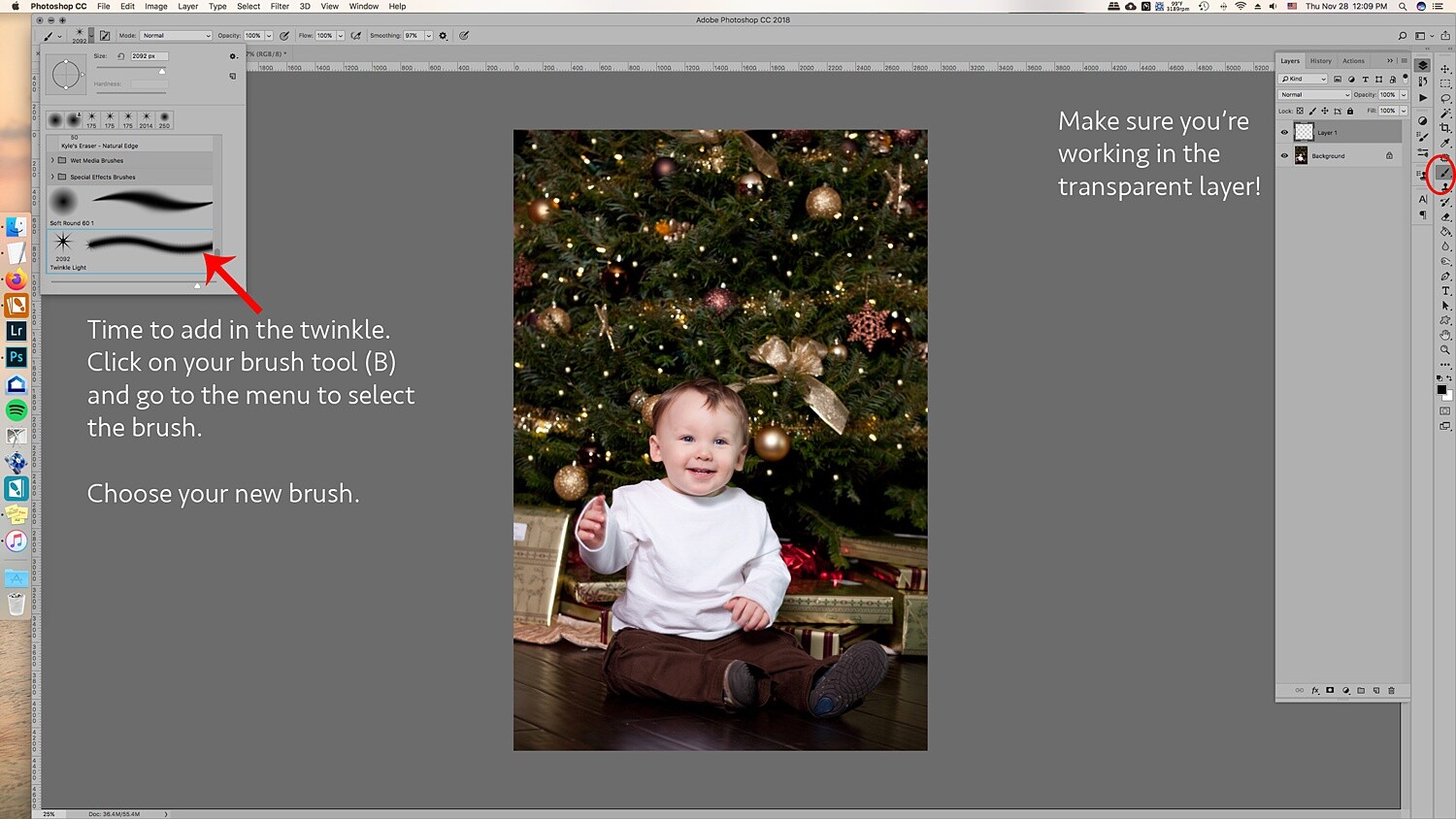
2.2 Now go to the layer of your original image, click on the Stamp Tool. In the menu bar at the top, make sure that you uncheck where it says Aligned. This will make sure to only clone the light as you click on various parts of the layer.

How to Create Twinkle Lights for Christmas Tree Portraits in Photoshop

Click on ATL and click a light. Make sure the brush is just large enough for the light tip so you don’t clone too much of the tree/background.

2.3 Once you’ve made your selection of which light you’ll clone, go back to the new layer and click on the parts of the image you see that you want to add the lights in. Don’t worry, you’re not cloning on the image itself, this layer is transparent and that’s why you can see the photo in the layer below. It helps to see where you’re putting the extra lights.

How to Create Twinkle Lights for Christmas Tree Portraits in Photoshop

2.4 All right, now that you’ve added more lights to the tree, you are ready to add in the twinkle lights brush! Go to Brush and choose the brush you just created. Usually, new brushes show up at the end of the brush list.

Choose your twinkle light brush. Make sure that the color for your brush is set to white. Alternatively, you can choose the color picker and get a warmer yellow color that matches the lights. It’s your choice! You can also add colored lights if you wish!

Leave the hardness and opacity at 100%, go to your new layer where you’ve cloned the lights on. Go to each light and add in the twinkle onto it. Adding the lights and the twinkle makes the twinkle look real and not too fake.

How to Create Twinkle Lights for Christmas Tree Portraits in Photoshop How to Create Twinkle Lights for Christmas Tree Portraits in Photoshop christmas-twinkle-lights

Change the size for a few of the twinkles so they look more random.

How to Create Twinkle Lights for Christmas Tree Portraits in Photoshop

3. Add in additional colors

The great thing about doing the twinkle lights this way is that because you’ve added them onto a transparent layer, you can move them around and resize them as you need.

The amazing part is that you can duplicate the twinkle lights layer, move it around, and add colors to it to create colored twinkle lights. Here’s a break down of how you do that for multiple colors:

3.1 Duplicate the twinkle lights layer.

How to Create Twinkle Lights for Christmas Tree Portraits in Photoshop

3.2 Move it around and transform it so that it’s not directly on top of the other twinkle lights. If you’re going to add in more colors, I suggest that you don’t add in too many twinkle lights in the original layer so that you can fill in those empty spots with the colored twinkle lights.

3.3 Go to Layer -> New Fill Layer -> Solid Color. Choose a color. I did blue, green, and red. But you can add in any color.

How to Create Twinkle Lights for Christmas Tree Portraits in Photoshop

3.4 You’ll end up with a solid color onto your images. Don’t worry, right-click on the layer and choose Create Clipping Mask to clip it to the twinkle light duplicate layer.

How to Create Twinkle Lights for Christmas Tree Portraits in Photoshop

How to Create Twinkle Lights for Christmas Tree Portraits in Photoshop
3.5 Go to Blending modes at the top of the layer window and choose Color. This will overlay the color on the twinkle lights and make it look more real.

How to Create Twinkle Lights for Christmas Tree Portraits in Photoshop

How to Create Twinkle Lights for Christmas Tree Portraits in Photoshop

3.6 A great tip is to merge each color to the twinkle lights layer. Then add a mask so that you can go into the layer with your brush and take out the twinkle lights for that layer without having to deal with the color clipping mask and all that.

It’ll make removing them easier. This is ideal in case you need to remove one from an ornament or face.

How to Create Twinkle Lights for Christmas Tree Portraits in Photoshop

You can also add a clipping mask to the original twinkle lights layer to help brush out unwanted twinkle lights as well.

Image: Using a mask on the layer can help you to take out unwanted twinkle lights.

Using a mask on the layer can help you to take out unwanted twinkle lights.

And that’s it! That’s how you add in additional twinkle lights in color to your image!

Image: Before and after with the twinkle lights in color. You can make it more subtle by adding fewe...

Before and after with the twinkle lights in color. You can make it more subtle by adding fewer twinkle lights.

Use in non-holiday images as well

Use this tutorial on other images where you’d like to add in some twinkle too! It doesn’t have to just be for holiday sessions, simply just use the brush only with a color set.

Image: Use the twinkle lights brush on other portraits that you’d like to add some sparkle to.

Use the twinkle lights brush on other portraits that you’d like to add some sparkle to.

Make sure you’re working on the transparent layer and play with opacity levels and additional colors.

How to Create Twinkle Lights for Christmas Tree Portraits in Photoshop

In a new transparent layer, I selected the twinkle lights brush and added the twinkle lights to various parts of the layer in white in different sizes. Then, set the blending mode to Overlay to get the right look. I also lowered the opacity.

Twinkle lights with more than 5 points

The great thing about adding in twinkle lights is that you’re creating your own brush preset! This lets you create different types of brushes, and one might be adding more points to the twinkle light.

Image: Here’s a comparison of no twinkle lights, a five-point twinkle, and a multi-point twink...

Here’s a comparison of no twinkle lights, a five-point twinkle, and a multi-point twinkle light.

Go through all of the steps in Step One, only this time add more angles and add in more points. It also looks great when you change the size within the same brush.

Image: In the close-up, you can see that the brush preset has more points than the five-point twinkl...

In the close-up, you can see that the brush preset has more points than the five-point twinkle light brush we made previously.

It’s really all about preference, so play around and see what look is the right one for your portraits.

In conclusion

Image: Before and after on another photo. This is more subtle and only uses white twinkle lights.

Before and after on another photo. This is more subtle and only uses white twinkle lights.

It may sound complicated the first time you give it a try, but with time it gets easier! Adding in additional twinkle lights can give your holiday photos a little more twinkle and pop that will make your clients very happy to see in their final images!

Will you be using this tip to add in twinkle lights to your images?

The post How to Create Twinkle Lights for Christmas Tree Portraits in Photoshop appeared first on Digital Photography School. It was authored by Jackie Lamas.


Digital Photography School

 
Comments Off on How to Create Twinkle Lights for Christmas Tree Portraits in Photoshop

Posted in Photography


Easy Tips to Create Slideshows in Lightroom

19 Dec

The post Easy Tips to Create Slideshows in Lightroom appeared first on Digital Photography School. It was authored by Kevin Landwer-Johan.

slideshows-in-lightroom

Lightroom has a built-in feature that allows you to create slideshows with selections of your photos. You can include music and add text overlays to slideshows in Lightroom. This can make sharing your work more appealing and interesting.

Slideshows you make with Lightroom can be exported as videos and uploaded to Youtube. You can then embed them on your website and use them on social media.

Step #1: Select photos for your slideshow

There are many ways to select the photos for slideshows in Lightroom, but using the Library Module in the program is the easiest I know of.

Select the photos you want to use when you are in Grid View by holding down the Ctrl (Cmd) key and clicking each image. You can then add the selected photos to a New Collection or Quick Collection.

I prefer to add them to a Quick Collection because it’s so easy. When you have your photos selected, just tap the ‘B’ key and they get added to your Quick Collection. Once you have completed your selection, you can make a New Collection from the photos in your Quick Collection.

Using Lightroom To Create Slideshows

Select all the photos in your Quick Collection and press Ctrl (Cmd) + N to start a New Collection. Name the collection of photos for your slideshow. It will be added to the Collections panel on the left of your screen.

Step #2: Arrange the order of your slideshow photos

Arrange your photos in the order you want them to appear in your Lightroom slideshow.

This is a key step in creating slideshows in Lightroom that will hold people’s attention. If the order of your photos is random they will appear disjointed. Having a good flow to the sequence of images will help you retain your audience’s attention longer.

Create a slideshow with good flow and feeling. Look at composition, color, and meaning in your photos. Aim to place similar photos together. Or place them in a natural series if they are following a chronological timeline. Considering your story and the way the slideshow will play is very important.

In Grid View, drag and drop each photo to the place you want it to appear in the Lightroom slideshow.

Using Lightroom To Create Slideshows arrange

Step #3: Make your Lightroom slideshow

Once you’ve arranged all your images in the sequence you want them, click on Slideshow in the top menu. This opens the Slideshow Module view in Lightroom. This module has different left and right panels than you are used to using in the Library Module. If you can’t see them, press the F7 and F8 keys to bring them into view.

Click on Create Saved Slideshow at the top right of the central panel. Name your slideshow and click on Create. Once you have made your slideshow in Lightroom, all the changes you make will be saved automatically.

Using Lightroom To Create Slideshows create

Step #4: Pick a template for your Lightroom slideshow

Choose a template for your Lightroom slideshow from the Template Browser in the left-hand side panel. With the preset templates, it is easy to make changes later if you want.

Run your slideshow to see how it looks. Are you happy with the layout and sequencing you have chosen?

Easy Tips to Create Slideshows in Lightroom

Step #5: Customize the design of your Lightroom slideshow

In the right-hand side panel, you will find a series of windows. Here you can make changes to:

Options

In the Options panel, you can select the way you want your photos to display on each slide.

You can have the photo fill the entire frame or part of it. You can add a border and drop shadow that you can customize. If you Zoom to Fill Frame a shadow cannot be seen in the slideshow even if you create one.

Layout

Here you can add space around your slides. You can choose how there is space above and below and to either side of your slides. By default, they are all the same, but you can uncheck the Link All box to customize.

Here you have options for the aspect ratio you would like. These are Screen, 16:9 and 4:3

Overlays

In the Overlays window, you can add an identity plate, watermarking and rating stars. These options can be helpful when you are sharing your slideshow with wedding or portrait clients.

Using Lightroom To Create Slideshows overlays

Click on the text box to edit the text for the identity plate. Type in your new text and adjust the size and style to suit your taste.

You can add custom overlay text to each slide. To do this, click the ABC which you can find below the main window. Type in your text and then drag it to the position you want. You can grab the text box handles to resize.

Using Lightroom To Create Slideshows text

Backdrop

You can choose various options to create a background for your slideshows in Lightroom.

Using the the Color Wash option adds a gradient look to the background. Choose colors that will work best with the photographs in your slideshow. Leave the Color Wash option unchecked to make a solid color background.

You can choose to add a photo or other graphic as a background. Be careful if you use this option not to include a background image that conflicts with your photos in the slideshow.

background

Titles

This is where you can add intro and outro text. You may want to include an introduction title or company logo. At the end, you may wish to display your website or email details.

Music

Select a music track to set the mood for your Lightroom slideshow. Choose an mp3 music file from your hard drive or find one online. There are lots of options to buy or find free music online you can legally use.

Playback

This is where you get to control transitions and how long each slide will stay on screen. There are manual and automatic options. You can also have it sync to the music track you have chosen.

Adjust the options until you find a good flow for your photos when they are shown in the slideshow. Syncing to your music will work better with some tracks than with others. You may prefer to have each slide and transition the same length.

Conclusion

When you think you have got it right, press Play. Lightroom will prepare your slideshow and play it. You might want to go back and tweak the photos or design, which you can still do.

Easy Tips to Create Slideshows in Lightroom

Once you have watched your slideshow in Lightroom play through a few times, it’s time to export it. You can export it as a PDF or a video. A PDF can be used in a slide presentation, and video can be uploaded to Youtube or shared on social media.

Click on the export option you prefer and name your slideshow. Depending on the number of photos you have in your slideshow in Lightroom, exporting may take a while.

It’s that simple!

Do you use this feature in Lightroom or have any other tips for creating a lightroom slideshow? Share with us in the comments.

The post Easy Tips to Create Slideshows in Lightroom appeared first on Digital Photography School. It was authored by Kevin Landwer-Johan.


Digital Photography School

 
Comments Off on Easy Tips to Create Slideshows in Lightroom

Posted in Photography


Create Awesome Reflections in Photoshop with Ease (Step-by-Step Guide)

18 Nov

The post Create Awesome Reflections in Photoshop with Ease (Step-by-Step Guide) appeared first on Digital Photography School. It was authored by Kevin Landwer-Johan.

reflections-in-photoshop

Attractive reflections can be challenging to capture naturally in your photographs. Sometimes it’s easier to create reflections in Photoshop. You will have more control over how the photo looks and you can avoid the difficulties that photographing reflections can bring.

Often you can’t find just the right place to stand to catch the best reflection. Sometimes the light is wrong and a natural reflection will look too dark. Choosing to make reflections in Photoshop gives you much more flexibility to get the look you want.

It’s really not that difficult to do. In this article, I’ll walk you through a series of steps you can use to make a mirror image in Photoshop.

Reflections in Photoshop

© Kevin Landwer-Johan

Step 1: Selecting your photo

When making reflections in Photoshop, it’s important to start out by choosing a photo that’s suitable. Not every photo will look good or natural when you make a mirror image of it.

When you’re looking for a photo to use with this technique, think about how it will look. You ideally want to use a photo where the main subject has a distinct line along where the reflection will appear.

Open your photo in Photoshop. You may need to crop the bottom of the photo to create a clean line where the reflection can be placed.

Step 2: Adjust the canvas size

You need to adjust the canvas size to make room for the reflection you will create.

Go to the top menu and select Image->Canvas Size. In the pop-up that appears in the box next to the Height option, click the drop-down and choose Percent. Make the Height percentage 200.

Click the top center of the Anchor options grid. This will force the new canvas space you are creating to appear underneath your photo.

Click OK.

Create Awesome Reflections in Photoshop with Ease (Step-by-Step Guide)

Step 3: Duplicate the layer

In the Layers panel, unlock the base layer. To do this, click on the padlock icon. Now you can duplicate this layer by going to the top menu and selecting Layer->New->Layer Via Copy.

Convert both the layers to Smart Objects by right-clicking on each of them and selecting Convert To Smart Object. Now rename both layers to make it easier to keep track of which one is which.

Reflections in Photoshop

Step 4: Position the new layer

Drag the new layer to the space you created under your main image.

Now you need to flip the lower layer. This will be your reflection. From the top menu select Edit->Transform->Flip Vertical and press Enter.

Reflections in Photoshop

Step 5: Add blur to the reflection layer

With your reflection layer selected, from the top menu select Filter->Blur->Motion Blur. Set the Angle to 90-degrees and use the Distance slider to add a suitable amount of blur. How much you add is up to you and will vary depending on the resolution of the photo you are working with. In my example, I have set it to 30.

You may need to reposition your reflection layer by nudging it up slightly if a gap has appeared between your two layers.

Create Awesome Reflections in Photoshop with Ease (Step-by-Step Guide)

Step 6: Make a new file

Duplicate your file by going to the top menu and selecting Image->Duplicate. Crop the image so you are left only with the reflection.

Delete one layer so you are left with a blank canvas. Resize the canvas to 30%, otherwise, it will be too big to manage easily. Select the paint bucket and fill the image with black.

This file you have created will be added to the reflection layer to make it look more realistic like water.

Reflections in Photoshop

Step 7: Add blur and noise for texture

From the top menu select Filter->Noise->Add Noise. Make the amount 350% and check the boxes Uniform and Monochromatic. Click OK.

Now add some blur. Select Filter->Blur->Gaussian Blur from the top menu and set the Radius to 1.5 pixels and click OK.

Create Awesome Reflections in Photoshop with Ease (Step-by-Step Guide)

Step 8: Emboss your texture

In the Channels panel click on the Red channel.

Next, go to the top menu again and select Filter->Stylize->Emboss. Set the Angle to 90, the Height to 5, and the Amount to 500. Of course, you can experiment with any of these amounts. Click OK.

Now select the Green channel and Filter->Stylize->Emboss from the top menu. Set the Angle to 0, the Height to 5, and the Amount to 500. Click OK.

Turn on all the channels by clicking RGB. Go back to your Layers Panel, right-click the layer and Convert To Smart Object.

Create Awesome Reflections in Photoshop with Ease (Step-by-Step Guide)

Step 9: Stretch the perspective of the distortion

Select Edit->Free Transform from the top menu. Right-click inside the image and select Perspective. Make sure you are zoomed out a long way so your image is small in the center of your monitor.

Click on one of the bottom corners of the frame and drag it out horizontally. This will stretch and distort the lower part of the texture. Don’t worry if it looks weird, once you incorporate it into your reflection it will make it look more natural.

Zoom back to 100%. Save this image as a .PSD where you can find it easily and name it something recognizable.

Create Awesome Reflections in Photoshop with Ease (Step-by-Step Guide)

Step 10: Make an adjustment layer on your main image

Click on the reflection layer on your main image and duplicate it by pressing Ctrl (Cmd)+j on your keyboard. Name it “Reflection Copy.” With the new layer selected (which should be above the other reflection layer), from the top menu, choose Filter->Distort->Displace. Set the vertical and horizontal scales to about 10.

You may need to alter these if it does not look good, depending on your image size and resolution. Click OK.

From the window that opens, find and select the distortion image you just created and saved. This will use the texture image as a displacement layer. If the ripple effect is too large or too small, undo that step. Redo the step again, but this time choose a higher or lower number for the displacement scale.

Experiment with this until you are satisfied with the way it looks. It’s entirely up to your taste.

Reflections in Photoshop

Step 11: Adjust the reflection

With your Reflection Copy layer selected, click on the layer mask icon, which is at the bottom of the Layers Panel. Select the Brush tool with the color set to Black and a large brush size and Hardness of 0%.

From the options panel above your image, set the brush opacity to 20%. Select your layer mask, not the main reflection layer. Paint from side to side over the top half of your reflection layer, where it meets the top layer until it looks natural.

What you are doing is erasing 20% of the distortion each time you paint. You want to make the reflection look smoother in what appears to be the distance.

Reflections in Photoshop

Step 12: Merge the reflection layers

Select both the reflection layers in the Layers Panel. Right-click on one of them and select Merge Layers. Make sure your main image is not selected. You should now have one reflection layer and your main layer.

Step 13: Darken the reflection

With the reflection layer selected, go to your top menu and choose Image->Adjustments->Curves. Click in the middle of the curves adjustment line and drag it down to darken the reflection. Adjust it until it looks natural. A reflection in water is typically darker than the scene it’s reflecting.

Reflections in Photoshop

Conclusion

Follow through these steps a few times and experiment with the variables. There is no right or wrong way to do this. Your personal preference and the photos you choose will determine the outcome.

You will find reflections in Photoshop look better on some images than on others.

Try out this technique for making reflections in Photoshop, and share your images with us in the comments below!

The post Create Awesome Reflections in Photoshop with Ease (Step-by-Step Guide) appeared first on Digital Photography School. It was authored by Kevin Landwer-Johan.


Digital Photography School

 
Comments Off on Create Awesome Reflections in Photoshop with Ease (Step-by-Step Guide)

Posted in Photography


Create Amazing Sunrise Photos with these Easy Lightroom Editing Tips

09 Oct

The post Create Amazing Sunrise Photos with these Easy Lightroom Editing Tips appeared first on Digital Photography School. It was authored by Simon Ringsmuth.

Sunrise pictures can be tricky. Even the most dedicated photographer can get frustrated with sub-par results, often with foregrounds that are too dark or a nice round sun that appears white and washed-out. While things like timing and technique are critical for taking good sunrise pictures, another element is the editing. With a few Lightroom sunrise photo editing tips, you can take a boring, bland sunrise and turn it into a work of art.

Create Amazing Sunrise Photos with these Easy Lightroom Editing Tips

To get a good finished photo you need a solid starting point. That means your initial sunrise photo needs to meet a few basic parameters:

  • It must be shot in RAW.
  • The sky should be properly exposed, which means the foreground will be dark.
  • It’s helpful to shoot with low ISO values to give you as much headroom as possible when editing.

If you start with a sunrise photo that meets these parameters, you can use a few sliders and options in Lightroom to bring out the colors and brilliance that you saw with your eyes when you shot it.

To illustrate this process, I’m going to walk through an example of sunrise photo editing. The picture below is a RAW file straight out of my camera.

sunrise-photo-editing-tips

Original RAW file straight from my camera. Nikon D750, 50mm, f/4, 1/180 second, ISO 320.

This picture might not look very impressive, but that’s the point. If I had exposed for the foreground, the dark areas would be bright and natural. The trade-off is that parts of the sky would be so bright they would be unrecoverable in Lightroom.

Everything needed for a beautiful sunrise photo is fully intact in this dark, underexposed image. I just need to coax out the colors with a little sunrise photo editing.

Step 1: Shadows

The first thing to do is brighten the foreground by adjusting the shadows. Locate the Basic Panel in the Lightroom Develop module and push the Shadows slider all the way to the right.

Image: Boosting the shadows will make the dark foreground a lot more usable.

Boosting the shadows will make the dark foreground a lot more usable.

This makes the foreground much brighter. It is very close to how the scene looked when I shot the picture. I was on my bike, and there’s no way I would have ridden to work that morning in the complete pitch black!

sunrise-photo-editing-tips

With the shadows lifted, the foreground is brighter. You can also see that there is plenty of image data captured in the RAW file to work with.

Step 2: White balance and graduated filters

After bringing up the shadows, the next step is to tweak the colors of the sky and foreground. The graduated filter is perfect for this since your edits are applied gradually, as the name implies.

Image: Graduated Filters are ideal for sunrise photos.

Graduated Filters are ideal for sunrise photos.

The values you use for this will depend greatly on the look you want in your picture. For a good starting point, I recommend lowering the Temperature, raising the Whites, and increasing the Saturation. Feel free to tweak the other settings to your liking, but I recommend being a little conservative at this point. You can always go back and change things later. If you have objects protruding into your sky like trees, buildings, or mountains, you can use the Range Mask option. Then your edits are only applied to the sky and nothing else.

Image: When using a Graduated Filter on the sky, I like to lower the color temperature and increase...

When using a Graduated Filter on the sky, I like to lower the color temperature and increase saturation. You might find other tweaks to be helpful as well.

After adjusting the sky, use a second Graduated Filter to perform a similar operation on the foreground. Click the New button at the top of the Graduated Filter panel, and click-and-drag on the picture to apply your filter.

Move the Temperature slider to the right so the foreground is a little warmer. Then adjust other options like Exposure, Texture, and Sharpness as needed.

Image: A second Graduated Filter in the opposite direction can be useful for giving the foreground a...

A second Graduated Filter in the opposite direction can be useful for giving the foreground a warmer white balance.

There’s no correct way to do this next step because everyone has unique taste and preferences. I used the following values on the image above, but your results will vary depending on your picture.

Image: When applying a second Graduated Filter to the foreground, it can be useful to edit some othe...

When applying a second Graduated Filter to the foreground, it can be useful to edit some other parameters as well, especially Exposure and Shadows.

Step 3: Crop the picture

Some will debate the exact stage in the process where you need to crop your picture. Others will say that a good photographer should use what comes out of the camera and never crop anything! I say it’s your picture and if you want to crop, go right ahead. I recommend cropping after your basic adjustments are in place. Those operations can bring out things formerly hidden and give you a better sense of how you really want to crop the image.

In the image I’m working with for this example, I don’t like the “Speed Limit 35” sign on the right side. If I crop that out, then I need also to re-frame the picture, so the sun is in the middle.

sunrise-photo-editing-tips

You can use cropping to get the dimensions and proportions of your picture just right.

Step 4: General Color Adjustments

After making your initial set of adjustments, and cropping the picture to your liking, it’s time to head to the HSL/Color panel to tweak the individual colors of the sunrise. Bring up the Saturation level of orange, blue, and red while also adjusting the Hue and Luminance to get just the right look. As before, be careful not to go overboard since too much tweaking makes your picture look unnatural.

For the picture below, I adjusted the Hue and Saturation of Blue by +20 each, and the Saturation of Orange by 14.

Image: Adjusting the blues and oranges can really bring out some of the vivid colors of a sunrise pi...

Adjusting the blues and oranges can really bring out some of the vivid colors of a sunrise picture.

Image: Don’t overdo your adjustments or your image will look fake and over-saturated.

Don’t overdo your adjustments or your image will look fake and over-saturated.

Step 5: Detailed enhancements

As with cropping, some photographers have varying opinions on when to do this step while others skip it entirely. I like to do it near the end of the editing process after I have made my other adjustments. However, you might find it better utilized at an earlier phase. Head back to the Basic panel where everything began and fine-tune a couple of other sliders like Highlights, Whites, Texture, and even Exposure if you need to.

sunrise-photo-editing-tips

Final tweaks help put the finishing touches on your sunrise.

At this point, you’re really just putting the finishing touches on, almost like adding a pinch of salt or garlic powder to a pot of soup that’s ready to eat. I sometimes get lost down an image-editing rabbit hole at this step. I find myself endlessly tweaking the sliders in a vain attempt to chase perfection. If that happens to you, walk away from your computer for an hour. When you return, you may be pleasantly surprised at how good your picture looks, with no additional tweaking required.

Create Amazing Sunrise Photos with these Easy Lightroom Editing Tips

You can also use the Spot Removal tool to clean up dust or dirt on the lens as well as fix other imperfections. There are also several Sharpening options to make your sunrise a little more clear and crisp.

From good to great

As with most photo editing situations, your results will vary greatly depending on a variety of factors. I have found that this same process, with different degrees of adjustments to the sliders, works quite well for me. It would probably work as a good starting point for you too. Still, I encourage you to experiment and develop your own editing style over time.

For one more example of how this process can yield good results, I started with the following RAW file. I shot this picture just as the sun was coming up in rural Nebraska.

sunrise-photo-editing-tips

RAW file straight out of my camera. 50mm, f/8, 1/180 second, ISO 100. As with the other image at the top of this article, the original is severely underexposed but contains all the data needed when editing in Lightroom.

I used the exact same process described in this article to vastly improve the picture in less than two minutes.

sunrise-photo-editing-tips

Two minutes later and it’s been transformed into a frame-worthy midwestern sunrise.

I hope these sunrise photo editing tips help you achieve some epic photos!

I’d love to see some of your sunrise shots and hear about the editing process you use as well. Leave your thoughts, as well as any pictures you’d like to share, in the comments below.


sunrise-photo-editing-tips

The post Create Amazing Sunrise Photos with these Easy Lightroom Editing Tips appeared first on Digital Photography School. It was authored by Simon Ringsmuth.


Digital Photography School

 
Comments Off on Create Amazing Sunrise Photos with these Easy Lightroom Editing Tips

Posted in Photography


5 Great Ways to Create Abstract Wave Photography

19 Sep

The post 5 Great Ways to Create Abstract Wave Photography appeared first on Digital Photography School. It was authored by Erin Fitzgibbon.

In this article, you’ll learn how to use motion and long exposure photography to create abstract wave photography.

There’s something about water. It is mesmerizing. People flock to beaches and waterfalls to photograph water. We seem drawn to its fluid beauty.

5 Great Ways to Create Abstract Wave Photography

If you Google “waterfalls,” you’ll find millions of images. Beaches, sunsets and softly crashing waves also pepper Google searches. Given these two facts, why then do most of the images of water, waves, and waterfalls always look so similar? The same seems to be true of wave photography – all the photos seem to follow a particular recipe.

You find images either capture the violence and strength of water as the wave crashes or you see images of curling barrels of water, usually taken at sunset. Water has much versatility. Its fluidity makes it an intriguing subject matter.

Capturing the motion of water seems to be one of humanity’s favorite past times, but there’s more you can consider. How can playing with motion expand your efforts to capture waves and water? Perhaps by experimenting, you can find new angles and new ways to capture waves.

1. Using longer shutter speed to change the look and shape of waves

When photographing a waterfall there’s only one way that the water can flow, and that’s downward. Sure, the water may travel a little to the left or right over some rocks, but the reality is it’s headed in the direction gravity pulls it. So when we use a slow shutter speed, the look of the water is predictable. We know and love that white candy floss type of look.

When using a slow shutter speed with waves; however, the results are less predictable. The water may crash and spray against rocks and bubble. It may splash and break in endless patterns. Using a slow shutter speed to capture the breaking of a wave can yield some interesting effects and looks.

Let’s take a look at some of the following experiments.

Long Exposure

Shot using 1/8s, f32, ISO 100.

In the above example, I used a longer shutter speed to capture these unusual looking wave shapes. The first wave was rolling back into the oncoming wave, and the collision created these upward sprays. With a longer shutter speed, you can capture the wave and some light trails. If you look closely, you’ll also notice that the longer shutter speed seems to create a ghost-like transparent look to parts of the splashing wave. You can see through some of the water.

Perhaps this look doesn’t appeal to you, but it does break the traditional view of a wave.

2. Study the way the waves break and look for patterns you can photograph

You can also play with motion and study the way the wave breaks. Despite their fluidity, waves do tend to break in the same places along a beach. Of course, they vary in intensity and size depending on the day, but you can watch a storm and know that waves will hit a rock and create a lot of splashing or spray. Watching the waves and then using these patterns along with a long shutter speed, can also create some different looking images. Let’s take a look at the following example.

abstract-wave-photography

1/8s, F32, ISO 100

While I used the exact same shutter speed in this image as the first image, the look of the image has changed. This is due to it being shot at a different location along the beach. In this spot, the waves were smaller, and they rolled in slowly with less turmoil. The light trails have stretched out more, and you can discern the rolling nature of the wave as it meets the beach. The sand below the surface is also visible. Also, the incoming waves behind are more abstracted in this photograph.

Some people have told me they look like they’ve been painted rather than photographed.

abstract-wave-photography

1/13s, F32, ISO 100

For this image, I used a slightly different shutter speed. I searched for patterns and used a longer focal length revealing a different look to the waves. In this image, the light trails are much more important to the composition of the photograph. Less defined by the white water, the shape of the wave is revealed by the smooth lines of the wave.

3. Move the camera horizontally as you capture the waves

Of course, waves are in motion, but we can change the look, feel, and our perceptions of waves by including the motion of the camera while capturing the movement of the wave. In the image below, I used intentional camera movement (ICM) – the waves were moving right to left, while I dragged the camera across the wave from left to right.

abstract-wave-photography

1/13s, F32, ISO 100

The light trails are still a part of the capture, but the wider angle and the motion of the camera turn the waves into something different. Here the shape is more abstracted and becomes a white oval against the water and the sand which now streaks of different shades of beige. The waves are no longer defined. Instead, the motion of the camera abstracts the water a little bit.

4. Move the camera in a bouncing motion

abstract-wave-photography

1/10s, F32, ISO 100

Pushing the experiment further, I moved the camera in a sort of bouncing motion. The look of the rocks on the beach becomes important in this photograph. Also, the light trails also take on a different shape. The effect of the motion on the water seems to have less of an effect too.

Once again, experiment to see what you can create and how you can take a typical subject matter and make it different. I rather like the bouncy, playful feel to the rocks on the beach.

5: Get very close

In the following images, I used a much faster shutter speed, and I moved closer and closer to the subject matter to take the images.

It was about capturing something as I moved to see what the camera grabbed. It’s a fairly impulsive way to use your camera. The autofocus is unpredictable in this scenario, but the results are surprising. It’s also fun to see what you can get. This is less about planning but more about enjoying the moment and options available to you as you move your camera.

shallow depth motion

1/800s, F2.4, ISO 400

Image: 1/800s, F2.4, ISO 400

1/800s, F2.4, ISO 400

In both of these photographs, I used a very shallow depth of field with a very low perspective. I chose to lie down on my belly and inch my way towards the waves while holding down the shutter speed. To me, the resulting images feel as if you are falling into the water. There’s very little to focus on, and the water seems to be all around. Some may find the view unsettling, but love it or hate it; this is another way of looking at and capturing waves.

In Conclusion

Playing with motion to create some new perspectives in wave photography can be a fun experiment. Some images will work very well, while others may be hard to look at. Either way, it’s about finding ways to get creative with your camera. It’s about studying a subject and showing the world how much variation there is in the world. Using motion to capture water is a fun experiment that’s easy to complete with almost any type of camera.

What’s my next experiment? Who knows? Maybe it’s using motion and underwater photography with waves. We’ll have to see.

If you’ve tried some interesting angles or techniques for photographing waves, share them with us. Let’s see what types of abstract wave photography you create!


abstract-wave-photography

The post 5 Great Ways to Create Abstract Wave Photography appeared first on Digital Photography School. It was authored by Erin Fitzgibbon.


Digital Photography School

 
Comments Off on 5 Great Ways to Create Abstract Wave Photography

Posted in Photography


Open-source Intervalometerator helps DIYers create inexpensive remote time-lapse DSLRs

20 Aug

Sydney-based coder Greig Sheridan and his photographer partner Rocky have introduced Intervalometerator, an open-source intervalometer designed for deploying inexpensive remote time-lapse systems involving Canon DSLRs, Arduino and Raspberry Pi hardware. The system is ideal for DIYers seeking an inexpensive alternative to existing remote time-lapse systems.

According to the Sheridan’s ‘Intvlm8r’ website, the open-source intervalometer system can be used with a battery and solar panel remotely, in addition to ‘on-grid’ for less remote setups. The intervalometer was designed for the Canon 6D, 60D, and 600D models, Sheridan told PetaPixel, but the duo hopes ‘that over time other models and brands will be tested and found compatible too — it relies on gPhoto to talk to the camera.’

The Intervalometerator can be set up with Web access for remote control and is fully configurable, enabling users to choose the full camera settings, select the time/day when images are captured and interval. The software’s interface, a demonstration of which is available here, includes information on battery level, captured images, remaining storage, the time and date of the last image, as well as when the next shot will be captured and the camera hardware in use.

In addition to having a low power requirement of less than 1mA, the Intervalometerator can also automatically recover in the case of a temporary power loss. Sheridan estimates the Intervalometerator’s cost, excluding the protective housing, mount, and camera, at around $ 242. That is substantially cheaper than competing commercially available systems; the Titan2 Remote time-lapse box with solar power for DSLRs, for example, costs $ 4,700 USD.

Sheridan details the project on his blog and has shared the code on Github.

Articles: Digital Photography Review (dpreview.com)

 
Comments Off on Open-source Intervalometerator helps DIYers create inexpensive remote time-lapse DSLRs

Posted in Uncategorized


10 Tips to Create Emotive Portraits

13 Aug

The post 10 Tips to Create Emotive Portraits appeared first on Digital Photography School. It was authored by John McIntire.

10 Tips to Create Emotive Portraits

Portraiture is as vast a genre of photography as it is rewarding. There are a lot of ways to go about creating portraits with a lot of visual interest, but one of the most satisfying ways to do this (to me anyway) is to create emotive portraits. Being able to capture your subjects showing emotion (whether that be positive or negative) not only allows you to show your viewer a more human aspect of your subject, but it can also help create compelling and arresting imagery. This article provides you ten tips to help you with your create emotive portraits. Some of these tips are technical, but most of them, perhaps unsurprisingly, focus on how you interact with your subjects.

1. Concentrate on the gesture

When you’re photographing emotion, it will be helpful to consider what information you need in your frame. If your subject is smiling, crop in close on the head and leave all other information out. The space in your frame is valuable, and you want to ensure that you get your message across clearly. Unneeded information (such as things in the background or body parts that are not involved in the gesture) serve only to detract from the focus of the image.

create-emotive-portraits

By cropping in closer, the emphasis of the composition is placed on the gesture of the expression, leaving nothing to distract from it.

That said, pay attention to your subject’s body language. If they are gesticulating with their arms as part of the expression, be sure to include that in your frame as it will help to complete the expression.

2. Keep the lighting simple

Image: Basic lighting techniques work well when trying to capture emotion. A lot of the time, you do...

Basic lighting techniques work well when trying to capture emotion. A lot of the time, you don’t need more than one light and a reflector.

Just like in a lot of other walks of life, less can definitely be more in emotive portraiture. By keeping your lighting simple, you are controlling how much information is in the frame. Just like the first tip, this is about ensuring that your viewer’s attention is placed squarely where you want it to be.

The lighting pattern that you choose will likely depend on what emotion you are trying to convey. For bright, happy emotions, you may opt for something like butterfly lighting. You also might choose to use a lot of fill light. For darker emotions, like sadness, more dramatic light such as that provided by short lighting is a fantastic tool that provides many shadows and can add tons of mood to your images.

3. Communicate clearly

Image: Before you even start a shoot, explain to your subject as clearly as possible what you want f...

Before you even start a shoot, explain to your subject as clearly as possible what you want from them. If you need to, show them examples.

Assuming you are staging your portrait session rather than taking candids, you will want to very clearly communicate with your subject exactly what it is that you are trying to achieve. Be specific and avoid vagueness. If you tell someone to be happy, you might get that generic smile that everybody gives a camera. Instead of happy, try saying something along the lines of: “I’m looking for genuine expressions of joy. I want you to imagine that you’ve just got a new puppy.” You’ll find this kind of thing works well very often as you almost always evoke genuine emotion from someone.

If the puppy doesn’t work, feel free to substitute it with anything that might. Kitten, baby, chinchilla, motorcycle; it doesn’t matter as long as it works.

4. Genuine rapport

create-emotive-portraits

Having a good rapport with your subject will often give you more subtle and genuine expressions.

To get the very best and most authentic expressions out of your subjects, you will want to build a genuine rapport with them. Be nice, be polite, let them talk about themselves, show them the back of the camera, joke around (appropriately) and develop a light-hearted banter (if warranted, not everyone appreciates it).

Also, try to keep the session relaxed and stress-free. You, as the photographer, might be worried about the lighting and all of the technical things, but I think it’s vital for you to worry about your role in your head and keep your subject’s focus on their role.

5. Make your subject an actor

Image: Instructing your subjects to act out various scenarios can give you a range of images from wh...

Instructing your subjects to act out various scenarios can give you a range of images from which to choose the most natural and evocative images.

An approach that can help to elicit good expressions is to tell your subject to act rather than to pose. Still images and video are very different things, and people change their behavior accordingly. If you suggest that they should treat the session and the scenarios you give them as if you were filming, or as if they were acting on stage, you can get much more natural expressions. Better yet; book an actor if you want the very best results, and it suits your project.

6. Look away from the camera

create-emotive-portraits

One of the easiest ways to get emotion into your photos is to have your subject look away from the camera.

One of the simplest ways to help convey real expression is to make sure your subject isn’t looking directly at the camera. Instead, pick a point for them to look at and direct them to do so. Where you pick isn’t important as long as you can capture and clearly convey the emotion that you are after.

This is very useful for the more somber emotions. Sadness, longing, and thoughtfulness can all be more easily portrayed with your subject looking off into the distance. This isn’t a rule, so please don’t shoot every single shot this way unless the situation calls for it.

7. Give permission to be ridiculous

Image: Tell your subjects they can be as ridiculous as they want. It can help to loosen them up and...

Tell your subjects they can be as ridiculous as they want. It can help to loosen them up and act more natural later. Sure, there will be unusable frames, but you might just hit gold.

Many people (including those with much experience) tend to go rigid in front of a camera. Let them know that they can act ridiculous. Moreover, encourage them to act as ridiculous and exaggerated as possible. This will help them to loosen up, and it will also help to lighten the mood of the session. Having your subject’s pull funny faces is a good way of cutting through the seriousness of a photoshoot.

Another trick that I sometimes use (it doesn’t work on everyone) is to get someone to fill their cheeks with air and then blow out as hard as possible.

If they’re open to it, it almost always results in fits of laughter.

8. Have a set of techniques that provoke reactions

Image: Blurting out random words and photographing the reactions can lead to fantastic results.

Blurting out random words and photographing the reactions can lead to fantastic results.

There are a lot of tips on how to provoke reactions from people. My favorite is to blurt out random words and photograph the reactions. To do this, just say a different word in-between frames. It could go something like alpaca, cheeseburger, dunce cap, or giant mushroom. Feel free to adjust your words based on the person you are working with.

Again, it doesn’t work on everyone, and you may have to switch to another technique.

If you know your subject well enough, you could always show them some funny pictures or memes on your phone. Just be sure that whatever you show them matches their sense of humor or you might ruin the rest of your shoot.

9. Give food for thought

create-emotive-portraits

Try giving your subject a specific scenario to think about for a few frames. This works well across the board, no matter how happy or sad you want them to act.

Instead of strings of random words, you can give your subject a specific thing to think about. This works well for all manner of emotions, whether that be happy or sad. I recently worked with an actor, and she introduced me to the sentence, “Imagine a badger eating spaghetti.” For laughter, I don’t think I’ve come across anything that works better.

For sadder emotions, I suggest (from experience) avoiding being too specific. If you say something along the lines “Imagine the loss of a pet” and they recently lost a pet, it’s really not going to go down well.

Instead, ask them to imagine feeling a loss and let them think about whatever it is that comes to mind. Remember, when trying to capture negative emotions, you will generally have no idea what’s going on in your subject’s life. While you want to capture an emotion, it’s not usually a good idea to put your subject through unnecessary emotional turmoil. Please try to be respectful of that and the people you work with.

I know of a lot of wonderful photo projects that exist to document the rawest emotions in people (Sam Taylor Wood’s “Crying Men” is easily the best photography exhibit I have ever seen). I am not saying “don’t do that” if that’s your goal. However, do be explicit with your intentions to your subjects, and do ask them if there’s anything they would rather you not touch on.

10. Outtakes

Image: Don’t forget to take a look at your outtakes from any given shoot. They are usually the...

Don’t forget to take a look at your outtakes from any given shoot. They are usually the most spontaneous and natural shots of all.

During a normal portrait session, outtakes can often be seen as a fun extra. However, when you’re creating emotive portraits, it’s the outtakes where you might find the most genuine expressions. Don’t forget to give them a look through once you have the photos on the computer. You may find that a spontaneous outtake has given you exactly what you were after.

create-emotive-portraits

Seriously, the world needs more outtakes.

That’s it

Sometimes getting your subjects to react the way you want and then to convey those emotions well in your photographs can be a challenge. With these ten tips, you hopefully have a few more tools in your belt to make that process easier. These are just a handful of things that can help; however, and there are plenty of other techniques out there.

If you have tried and tested methods, or things that you say to subjects to provoke expression, please add it to the comments below.


create-emotive-portraits

The post 10 Tips to Create Emotive Portraits appeared first on Digital Photography School. It was authored by John McIntire.


Digital Photography School

 
Comments Off on 10 Tips to Create Emotive Portraits

Posted in Photography