RSS
 

Posts Tagged ‘Create’

Two Ways to Create a Snowstorm Using Photoshop

11 Nov

The holidays are upon us and you want to have the perfect photo but it’s just too cold, slippery, or you missed the snow all together? There are times that regardless of your will, the weather won’t allow you to go outside to shoot the photos you want. Fortunately, it’s easy to recreate a snowstorm using Photoshop to give that final touch to your image.

Two Ways to Create a Snowstorm using Photoshop

Select an appropriate image

First, you have to choose an image that will be believable as having been shot during a snowfall. It can be a snowed-in landscape or a holiday view like the ones I’ll use here to show you the technique. However, you can get as creative as you like. In this tutorial, I’ll teach you two different techniques to make it snow in Photoshop so you can choose which suits you best.

#1 – Snowstorm with layers

With your image open in Photoshop, duplicate it as a layer by going to Menu > Layers > Duplicate Layer. An exact copy of your image will be created on top of the original and as a default will be called Background copy. However, if you want to rename it “snow” for organization purposes just double-click the layer name.

With this new layer selected, go to Menu > Filter > Pixelate > Pointillize. In the pop-up window, you can choose how big or small you want the snowflakes to be by dragging the slider and when you’re happy click OK.

Note: Your background color should be set to white.

Pointillize - Two Ways to Create a Snowstorm using Photoshop

While on the same layer, go to Menu > Image > Adjustments > Threshold to make it monochrome. The higher the number, the less dense the snow will be and therefore it will look more real.

Threshold - Two Ways to Create a Snowstorm using Photoshop

Layer blend mode

Once you click ok you will only see a black canvas with white spots. So to merge it with your image you need to change the layer blend to Screen; you can do this in the drop-down menu of the layers tab.

Now you need to give the snow some movement to make it look like it’s falling. For this you can go to Menu > Filter > Blur > Motion Blur. When you adjust the angle you will change the direction in which the snow will appear to be coming down. The Distance setting changes the space between the “snowflakes”. When you’re happy with it click OK.

Two Ways to Create a Snowstorm using Photoshop

There you have it, a digitally created snowstorm! You can adjust the opacity of the layer if you want the effect to be less intense. You can also repeat the process to create more layers and change the values of the Motion Blur to make it less homogeneous and therefore more realistic.

Snowstorm Two Ways to Make it Snow in Photoshop

However, this will always be a bulk effect, if you want to do it more precisely and more controlled then follow the next set of steps in method two.

#2 – Snowfall with brush strokes

First, you need to create a personalized brush for the snow. To do that, open a new canvas with a white background and then paint some uneven circles (with a black brush) that will be your snowflakes. Make two or three in different sizes, remember that you can adjust the size of the brush in the top left menu. It’s also good to use a soft brush to avoid any hard edges.

To turn this canvas into a brush, you need to go to Menu > Edit > Define Brush Preset. In the pop-up window, you can rename it as Snow. Now you can close this document without saving it because it was already saved as a brush that you can now use on any image. Now you can open the photo in which you want to make it snow.

Brush Two Ways to Make it Snow in Photoshop

Paint in the snow

Having your desired scene as the background, you need to create a new layer by going to Menu > Layer > New Layer. This is where you are going to paint the snow using the new brush you just created, but first, you need to set the properties of the brush.

First click on the brush tool, choose the snow brush from the pop-up menu and set your foreground color to white. Then open the Properties window by going to Menu > Window > Brush or by pressing F5. Here you can change many things to adjust the brush to suit your needs, in this case, I did the Scattering, the Shape Dynamics and the spacing of the Brush Tip Shape, but you can play around until you’re happy.

You will always see the applied effect of what you’re doing in the preview window at the bottom right-hand side of the screen. You can also activate or turn off each of the settings with the check sign to the left of the brush preset name.

Brush Properties - Two Ways to Make it Snow in Photoshop

Refine the snow

To make it more realistic, go to Menu > Filter > Blur > Gaussian Blur. In the pop-up window, you can change the radius to soften the snowflakes.

Now you can create more layers to give the impression of depth. The snowflakes you did before form the base, think of those as being the farthest away. Then repeat the process on another layer in which the flakes are going to be closer, for that they need to be bigger, which is controlled by the brush size. You also need to show motion, so instead of the Gaussian Blur, this time, use a Motion Blur.

Snowfall - Two Ways to Make it Snow in Photoshop

You can add and paint snow on as many layers as you want. Of course, you can always colorize it with some hue if your scene has a different tonal palette, adjust the layer opacity, and mix the two techniques described here in order to make your image look just right, as shown below.

Both - Two Ways to Make it Snow in Photoshop

Conclusion

Please give this a go, and share your before and after snowstorm images in the comments below.

The post Two Ways to Create a Snowstorm Using Photoshop by Ana Mireles appeared first on Digital Photography School.

Digital Photography School

 
Comments Off on Two Ways to Create a Snowstorm Using Photoshop

Posted in Photography


VSCO adds ‘Recipes’ feature that lets you create 10 custom presets

09 Nov

VSCO has launched a new feature for VSCO X subscribers called Recipes. With Recipes, subscribers are able to save their favorite edits, making it possible to apply them as a batch to future images. Up to 10 Recipes can be saved at a time via a new menu item that you tap after the image edits are chosen for the first time.

Non VSCO X subscribers will be able to save only one recipe, so if you want to get into the preset making game, you’ll need to pony up for the VSCO X membership ($ 20/year).

The company explains how to use the new Recipes feature in the video below:

Articles: Digital Photography Review (dpreview.com)

 
Comments Off on VSCO adds ‘Recipes’ feature that lets you create 10 custom presets

Posted in Uncategorized


How to Create a Beautiful Online Gallery with Lightroom Classic CC and Adobe Portfolio in 15 Minutes

04 Nov

One of the common questions I hear from photographers is regarding a way to link Lightroom to a photography portfolio website. It usually comes from photographers who don’t like the design options in the LR Web module. The perfect solution doesn’t exist, perhaps the closest (until recently) is Koken, a free plugin that I wrote about some time ago that uses Lightroom’s Publish Collections to update your online portfolio.

But, the good news is that Adobe has just made creating a portfolio website a whole lot easier with its latest update to Adobe Portfolio.

Adobe Portfolio Lightroom

What is Adobe Portfolio?

Adobe Portfolio is exactly what it sounds like – an online gallery of photos. The benefit of using Adobe Portfolio is that it’s very easy (no web design or coding skills required). It also integrates with your Lightroom Collections (this is the update I just referenced).

That means all you have to do is set up some Collections containing the photos you want to include in your gallery and synchronize them with Adobe Portfolio. Then it’s just a matter of choosing a layout, tweaking the design, and making the website live. You can do all of this in less than 15 minutes.

The only caveat is that you need to be an Adobe Creative Cloud Photography Plan subscriber. Just like Lightroom mobile and Lightroom web, it isn’t available to photographers who use a standalone (purchased) version of Lightroom.

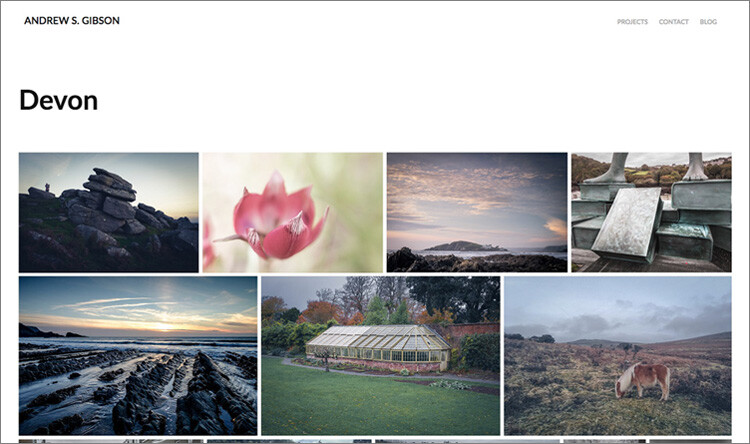
Curious? You can check out a portfolio website I created for myself using Adobe Portfolio here to see what it’s capable of.

Adobe Portfolio Lightroom

Step-by-Step Guide to Adobe Portfolio

The first step – and probably the hardest – is to decide what photos you want to include in your portfolio. Once you’ve made your mind up about that, the rest is easy.

  1. Create a Collection Set in the Library module called Portfolio.
  2. Create several Collections inside this Collection Set, one for each gallery you want to include on your portfolio website.
  3. Add photos to the Collections.
  4. Arrange the photos in the order in which they are to be displayed online.
  5. Synchronize the photos in the Collections by ticking the boxes to the left of the Collection name (marked below).

My portfolio website (link above) has four galleries; Black & White, Portraits, Spain, and Devon. Each gallery corresponds to a Collection in Lightroom with the same name (seen below).

Adobe Portfolio Lightroom

Register

Go to www.myportfolio.com and sign in with your Adobe ID. If you haven’t created a portfolio yet click the button that says Get Started Free. Otherwise, click the button that says Edit Your Portfolio.

Adobe Portfolio Lightroom

Choose a design for your gallery

Now it’s time to choose a layout. Start by clicking the Switch layouts icon (marked below).

Adobe Portfolio Lightroom

Adobe Portfolio gives you eight layouts from which to choose. All the layouts are fully mobile responsive, which means they work and look professional on mobile phones and tablets as well as desktop computers. Decide which one you want to use and click the Use this layout button.

Adobe Portfolio Lightroom

It may be difficult to visualize which one works best when populated with your photos. Don’t worry about that at this stage – you can change the layout afterward if you want to.

Settings

Next, click the Edit your settings icon (marked below).

Adobe Portfolio Lightroom

Go to Site Options and click the Lightbox for Images tab. Tick the “Enable lightbox for images on my pages” box and click Done (see below). This is important as it lets people view the photos on your portfolio website. If you don’t tick it all they will be able to see are thumbnails.

Adobe Portfolio Lightroom

Add images to your gallery

Click the Manage content icon (marked below).

Adobe Portfolio Lightroom

Go to the Integrations tab and Click the Add Collections button. The website opens a window that displays all your synchronized Lightroom Collections. Pick the ones you want to include in your portfolio and click the Import Selected button (see button below lower-right).

Adobe Portfolio Lightroom

Go to Adobe Portfolio, click on the Manage content icon again and go to the Website Pages tab. Make sure the switch is set to the On position for each Collection you want to display on your portfolio website.

Adobe Portfolio Lightroom

Choose cover photos

Now it’s time to tidy up the gallery cover photos. You’ll need to do this once for each gallery. Start by clicking the pencil icon next to the gallery cover photo (see below).

Adobe Portfolio Lightroom

Pick Edit Cover Image from the menu to edit the cover photo. At the moment this feature is a little limited – the website automatically picks the photo that appears on the cover and it’s not easy to change it.

The only way currently is to click Upload a new image and upload a photo you’ve exported from Lightroom – there’s no way to select another photo from the Collection. But you can zoom the photo and adjust the crop. Click Done when you’re finished and repeat for the other gallery cover photos.

Adobe Portfolio Lightroom

Setup the domain name

Click the Edit your settings icon again and click Domain Name. You can select a URL for your portfolio in the form yourname.portfolio.com. This is the easiest option. Alternatively, if you have a domain or a subdomain you can follow the instructions to use that.

Adobe Portfolio Lightroom

Preview your portfolio gallery

Click the gray Preview button to see a preview of your portfolio website. Happy with what you see? Click Update Live Site to publish your portfolio to your chosen URL. Congratulations – your brand new portfolio website is now live!

Adobe Portfolio Lightroom

Customizing the design

So far I’ve shown you how to get your portfolio website online as quickly as possible. The hardest part, as I said, is deciding which photos to include in your gallery. That can take hours, days, or even weeks. But, once the decision is made, you can get your portfolio online in under 15 minutes. It really is that quick.

If you’re happy with the default settings of your layout you can stop there, your job is done. But it’s worth spending some time looking at both the page and global settings. You can customize things such as fonts, colors and the number of columns on your front page. There is an option to add pages (for instance an About page) and links to other websites. You have a lot of options and it’s worth exploring them to see how you can individualize your portfolio website.

You can even change the layout by clicking on the Switch layouts icon. Adobe portfolio remembers your customizations, which gives you peace of mind as it means you won’t lose your customizations when you switch from one layout to another.

When you are finished, remember to click the green Update Live Site button. None of your customizations are published until you click that button.

How to update the photos

Portfolios are fluid and as time goes by you will add and remove photos from the Collections you created. You may also add more Collections as your photo collection grows. There are two steps to updating your portfolio website.

1. Update your Lightroom Collections and make sure Lightroom has had time to synchronize the changes.

2. Go to Adobe Portfolio, click on the Manage content icon and go to the Website Pages tab. Click on the Cog icon next to the Collection that you want to update and select Reset from Lightroom to update your portfolio gallery.

Adobe Portfolio Lightroom

3. Finish by clicking the green Update Live Site button to publish the updates to your portfolio website.

Next steps

With the recent update that lets you integrate Lightroom Collections, Adobe Portfolio has become the easiest way to create a portfolio website using Lightroom Collections. The only downside, as mentioned earlier, is that you need to be a Creative Photography Plan subscriber to use this feature.

If you are not, then look at Koken as an alternative. Don’t dismiss the Web module out of hand either, it has some very useful features and doesn’t require a CC subscription to use.


You can learn more about all aspects of Lightroom with my bestselling Mastering Lightroom ebooks.

The post How to Create a Beautiful Online Gallery with Lightroom Classic CC and Adobe Portfolio in 15 Minutes by Andrew S. Gibson appeared first on Digital Photography School.


Digital Photography School

 
Comments Off on How to Create a Beautiful Online Gallery with Lightroom Classic CC and Adobe Portfolio in 15 Minutes

Posted in Photography


Steel Mesh Kraken Sunken Off British Virgin Islands to Create an Artificial Reef

23 Oct

[ By SA Rogers in Destinations & Sights & Travel. ]

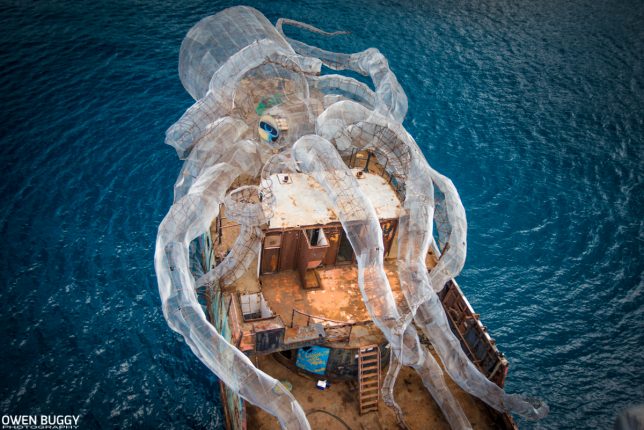
Perched atop the Kodiak Queen, a former WW2-era Navy fuel barge, this 80-foot ‘Kraken’ now serves as the base of an artificial reef and marine research station on the ocean floor near the British Virgin Islands. The project, entitled BVI Art Reef, accomplishes a range of goals all at once: saving a decorated ship from destruction, transplanting coral to a new site in the hopes that it will flourish, creating an epic dive site and underwater art gallery, and providing a new habitat for marine life.

Photographer Owen Buggy documented the process, from the early stages of building the massive sea monster to sinking it in April 2017 to checking out the results a few months later. Sunken off the coast of the island Virgin Gorda with the help of tugboats and helicopters, the installation is already helping to rehabilitate heavily over-fished marine populations. Filmmaker Rob Sorrenti also got some great footage, presented as a documentary entitled ‘The Kodiak Queen,’ which is due for release in early 2018.

“This is the story of learning from past lessons and coming together to create something greater; rooted in joy and fueled by the power of play,” reads the BVI website. “This is the story of a group of friends from around the world who fell in love with the BVIs… and turned a weapon of war into a platform for unity – and a catalyst for new growth. This charitable kick-off in the British Virgin Islands combine art, ocean conservation, world history, marine science and economy… to solve a series of challenges in the BVIs by asking: how can we use play and collaboration to install permanent solutions that boost the local economy, secure the prosperity of these pristine islands for generations to come?”

“Our solution: a fantasy art eco-dive and ocean conservation site that puts the BVIs on the map as having one of the most unique and meaningful dive sites in the world… and one of the most forward-thinking approaches to creative problem solving that secures the education of its youth, and the health and prosperity of this island nation.”

Get updates on the project at the BVI Art Reef Facebook page.

Share on Facebook


[ By SA Rogers in Destinations & Sights & Travel. ]

[ WebUrbanist | Archives | Galleries | Privacy | TOS ]


WebUrbanist

 
Comments Off on Steel Mesh Kraken Sunken Off British Virgin Islands to Create an Artificial Reef

Posted in Creativity


WD will use microwave technology to create 40TB hard drives

13 Oct

Every time you think we’re approaching the ceiling of what’s possible in the world of photo storage, a new innovation comes along that moves that ceiling just a little (or a lot) higher. Case in point: Western Digital has revealed some new proprietary technology that it claims will allow them to create 40TB 3.5″ spinning disk hard drives (HDDs) by the year 2025.

According to Engadget, the current max you’ll find in the wild is also made by Western Digital (or, rather, one of its subsidiaries) and maxes out at 14TB. So how does WD expect to almost triple that capacity without increasing the size of the drive itself? The answer: microwaves. Or, more specifically: something called “Microwave-Assisted Magnetic Recording Technology”.

This MAMR technology is built into a new type of drive head that, according to Western Digital, is able to pack more bits of data onto the same size disk by generating “a microwave field.” Once this technology is fully developed, WD expects it to allow drives to pack up to 4 Terabits of data per square inch of disk, leading to “hard drives with 40TB of capacity and beyond by 2025, and continued expansion beyond that timeframe.”

If you’d like to learn more about this technology, check out the technical video below:

WD claims this tech is “ready for prime time,” with the first MAMR drives appearing on the market in 2019. Just in time for 8K video to become standard on smartphones, right?

Press Release:

WESTERN DIGITAL UNVEILS NEXT-GENERATION TECHNOLOGY TO PRESERVE AND ACCESS THE NEXT DECADE OF BIG DATA

Company Builds on its Leadership of Delivering Industry’s Highest Capacity Hard Drives with Demonstration of Breakthrough Innovation on Microwave-Assisted Magnetic Recording Technology

San Jose, CA – October 11, 2017 – At its “Innovating to Fuel the Next Decade of Big Data” event today, Western Digital Corp. (NASDAQ: WDC) announced a breakthrough innovation for delivering ultra-high capacity hard disk drives (HDDs) to meet the future demands of Big Data with proven data center-level reliability. The event, held at the company’s headquarters in Silicon Valley, included a demonstration of the world’s first microwave-assisted magnetic recording (MAMR) HDD and presentations from company executives and the inventor of MAMR technology, Professor Jimmy Zhu from Carnegie Mellon University. The company also showcased advancements in micro actuation and Damascene recording head technology. Western Digital expects to begin shipping ultra-high capacity MAMR HDDs in 2019 for use in data centers that support Big Data applications across a full range of industries.

“As the volume, velocity, variety, value and longevity of both Big Data and Fast Data grow, a new generation of storage technologies are needed to not only support ever-expanding capacities, but ultimately help our customers analyze and garner insights into our increasingly connected universe of data,” said Mike Cordano, president and chief operating officer at Western Digital. “Our ground-breaking advancement in MAMR technology will enable Western Digital to address the future of high capacity storage by redefining the density potential of HDDs and introduce a new class of highly reliable, ‘ultra-high capacity’ drives. We have a proven track record for identifying, investing in and delivering advanced technologies that create new product categories and enable the world to realize the possibilities of data. Five years ago we introduced our HelioSeal®, helium-filled drive technology. Since then, we have shipped more than 20 million helium drives. That type of leadership and innovation continues today and we aim to leverage it well into the future.”

MAMR is one of two energy-assisted technologies that Western Digital has been developing for years. The company recently innovated a breakthrough in material and process that provides the required reliable and predictable performance, as well as the manufacturability to accelerate areal density and cost improvements to an estimated average of 15 percent per year. Developments in the other energy-assisted technology, specifically, heat-assisted magnetic recording (HAMR), present new material science and reliability challenges that are not a factor in MAMR. Only MAMR demonstrates the reliability and cost profile that meets the demands of data center operators.

At the heart of the company’s innovation breakthrough is the “spin torque oscillator” used to generate a microwave field that increases the ability to record data at ultra-high density without sacrificing reliability. Western Digital’s innovative MAMR technology is expected to offer over 4 terabits-per-square-inch over time. With sustained improvements in recording density, MAMR promises to enable hard drives with 40TB of capacity and beyond by 2025, and continued expansion beyond that timeframe.

“Western Digital’s demonstration of MAMR technology is a significant breakthrough for the hard disk drive industry,” said John Rydning, research vice president, Hard Disk Drives, IDC. “Commercialization of MAMR technology will pave the way to higher recording densities, and lower cost per terabyte hard disk drives for enterprise datacenters, video surveillance systems, and consumer NAS products.”

Western Digital’s MAMR technology is the latest innovation to significantly improve areal densities. It builds upon a number of other leading innovations from the company. In addition to HelioSeal helium-filled drive technology, MAMR also builds upon the company’s micro actuation and recording head manufacturing technologies. Western Digital’s advanced micro actuation technology for data center applications enables hard drives to accurately and reliably position magnetic heads for writing and reading at ultra-high densities. The company’s head manufacturing operations are the only internal supplier to utilize Damascene processing to manufacture heads with the precise tolerances and complex structures required for reliable and cost-effective recording at ultra-high densities. The Damascene process also provides the capability to embed the spin torque oscillator that enables the manufacturing of MAMR heads. The combination of these technologies deliver superior total cost of ownership (TCO) across all sizes of cloud and enterprise data centers.

The demonstration of Western Digital’s MAMR technology is the latest achievement in decades of HDD leadership from the company, including over 7,000 issued patents in HDD technology, on-going helium-enabled HDD technology advancements – as highlighted by the recent introduction of the world’s first host-managed shingled magnetic recording (SMR) technology enterprise-class 14TB hard drive – and a long history of world’s firsts in multi-disk design.

For further information on Western Digital MAMR technology, go to http://innovation.wdc.com.

Articles: Digital Photography Review (dpreview.com)

 
Comments Off on WD will use microwave technology to create 40TB hard drives

Posted in Uncategorized


How to Use Plastic Wrap to Create Neat Color Special Effects

26 Sep

In this article I’ll show you how to use a common household item, plastic wrap, to make creative images with colored filter special effects.

Plastic wrap (a blanket term for Saran Wrap, Glad Wrap and Cling Wrap) is a clear plastic film typically sold in rolls or boxes with a serrated edge. Usually used for sealing food items like sandwiches to keep them fresh for longer, plastic wrap is an incredibly versatile material. Great for a picnic or practical jokes, it’s also a useful tool for creative photography.

If you’re looking to add something a little different to your portfolio, plastic wrap is a simple, low-cost option. Using a rubber band, a camera, and some markers, you can easily create a colored filter out of plastic wrap – adding an experimental edge to your photographic repertoire.

How to Use Plastic Wrap to Create Neat Color Special Effects

The science

Like many great scientific discoveries, plastic wrap was discovered by accident. Ralph Wiley, a lab worker at The DOW Chemical Company was having trouble washing out a beaker which contained a substance he couldn’t scrub clean. He called the substance “Eonite” named after an indestructible substance created by chemist Eli Eon in the Little Orphan Annie comic book strip. DOW researchers adopted the substance, using it to create a greasy, dark green film they called “Saran” and shared it with the military to spray on fighter jets as a guard against sea spray.

How to Use Plastic Wrap to Create Neat Color special Effects

A very subtle red and blue colored filter adds a little color to this image of a Ferris wheel.

Saran works by polymerizing vinylidene chloride with acrylic esters and unsaturated carboxyl groups to create chains of vinylidene chloride. What does that mean? Simply put, the process results in a film with molecules bound so tightly that very little can penetrate it. The chemists at DOW eventually removed Saran’s green color. They also removed an unpleasant odor the Saran emitted when exposed to oxygen. It was first sold for household use in 1953.

How to Use Plastic Wrap to Create Neat Color special Effects

A surreal green shade created with a plastic wrap filter colored with green marker.

Plastic wrap in art

While handy in the lunchbox or fridge, plastic wrap is also a great material to experiment with creatively. Artists have used plastic wrap in sculpture, painting and as a prop for photography. Many well-known fashion designers have created clothing from layers of plastic cling film for the runway.

Because of its relatively clear composition, plastic wrap is great for forming a barrier between your camera lens and foreign materials. Recently, I applied a layer of Vaseline to plastic wrap stretched over the front of my camera lens. The result was a fine, misty effect without the agony of a greasy camera.

How to Use Plastic Wrap to Create Neat Color special Effects

This image was captured using plastic wrap over the lens with a red section on the upper half and a green colored portion below.

Creating a colored special effects filter

You will need:

  • A piece of plastic wrap at least 30cm in length and width.
  • Camera and lens.
  • Permanent markers.
  • A few rubber bands.

Adding color

To create a colored filter for your camera, first you will need to add some color to your plastic wrap! The easiest way to do this is to stretch the plastic wrap over your lens and color in the plastic within the circle. However, this method is a little risky. If the plastic wrap is pierced, you will end up drawing on your lens or lens protector (cap).

Instead, take your lens cap or lens and place it on the plastic wrap. Trace a circle around the outside. Now you’ll know where you should color your plastic wrap to get full coverage of the lens. To minimize the use of plastic here, you can trace multiple outlines of your lens on the same sheet of plastic wrap as I’ve done below.

How to Use Plastic Wrap to Create Neat Color special Effects

Use the same sheet of plastic wrap to create different effects, making it easier to keep for later and minimizing waste.

Finally, add color to the sectioned-off portion of plastic wrap, make sure you use quality permanent markers. Low-quality texters won’t leave any visible color on the plastic wrap and the ink from non-permanent markers simply slides off the plastic (onto your hands or something worse).

You can color in your circles any way you would like. For a full effect, color in the whole interior of the marked out circle with one or two colors. For a softer gradient, draw a light squiggle. You can color in the center of the circle and leave the perimeter clear, or vice versa. Don’t be afraid to experiment here!

How to Use Plastic Wrap to Create Neat Color special Effects

The effect of a portion of plastic wrap colored entirely green and placed over the front of the lens.

How to Use Plastic Wrap to Create Neat Color Effects

Coloring only the outer perimeter of the plastic wrap filter produces a fish-eye effect.

How to Use Plastic Wrap to Create Neat Color special Effects

Create an eerie atmosphere with a thick layer of red permanent marker.

Time to photograph

When you are happy with the colors of your circles, select one and lay it carefully over the front of your lens. Fix the filter in place with a rubber band, but don’t pull the plastic wrap too tightly or it will split.

When the filter is fixed properly to the lens, it’s time to get photographing. Because your camera will have difficulty focusing with the layer of colored plastic wrap in the frame, you should use manual focus over automatic. Because the filter will cut down the light reaching your sensor, you may also need to increase your exposure time or adjust your aperture accordingly.

Also, be sure to check the rubber band is fitted snugly around your lens. You don’t want it to come flying off, especially when photographing portraits!

How to Use Plastic Wrap to Create Neat Color special Effects

How to Use Plastic Wrap to Create Neat Color Effects

Using colored plastic wrap can add an effect imitating the light leaks produced with partially exposed film.

Finishing up

Once you are happy with your photos, take them back to have a look on your computer. As I mentioned before, the filer may cut down the amount of light reaching your sensor. This could result in photographs that lack contrast. Photoshop is your friend here.

Open your images in Photoshop and adjust the Curves layer to increase contrast. For more intense colors you may also want to adjust the Vibrance and Saturation of the image with the Vibrance and Saturation tool.

How to Use Plastic Wrap to Create Neat Color Effects

Adjust the Curves tool for more contrast in your images.

How to Use Plastic Wrap to Create Neat Color Effects

Adjust the Vibrance and Saturation tool for more intense colors.

Your Turn

Once you’ve got some quirky plastic wrap photos, please share them in the comments below. And remember to keep your filters for later. You never know when you might need them. Fold them down or scrunch them into a loose ball, they last for ages. Have fun.

How to Use Plastic Wrap to Create Neat Color Effects

An apocalyptic scene created with red ink that completely covers the plastic wrap filter.

How to Use Plastic Wrap to Create Neat Color Effects

How to Use Plastic Wrap to Create Neat Color Effects

Loosely fixing colored plastic wrap to the lens, mirrors the view through a window on a rainy day.

Pulling the plastic wrap taut reduces glare.

An image with a slower shutter speed creates light trails as if looking through a window with raindrops on the outside.

The post How to Use Plastic Wrap to Create Neat Color Special Effects by Megan Kennedy appeared first on Digital Photography School.


Digital Photography School

 
Comments Off on How to Use Plastic Wrap to Create Neat Color Special Effects

Posted in Photography


How to Create a Successful Local Marketing Strategy for your Photography Business

26 Aug

The internet has taken over most aspects of our daily lives. We can talk to the world at a moments notice, promote our services instantly, and sell anything we want day or night. However, in the quest to grow as many followers and fans as we can, it can become easy to forget about one of the most important opportunities that exist for your photography business. There is so much potential right outside your front door.

Think local

No photography business can afford to forget about their local community – so you need to create a complete marketing plan that addresses both the internet and your own local community.

Photography Business Marketing

You don’t need to reach an audience around the globe to receive a job from your neighbor down the street. How many people cross your path in a given day? How many of them know what you do or could potentially use your services? How many of them might be interested in what you have to offer?

Through local marketing, you want to create a daily strategy for your local connections to grow consistently.

Photography Business Marketing

Be informative not intrusive

You do not have to be overly intrusive about it. You do not have to sell to your friends, colleagues, or acquaintances directly. Have you ever had a friend that you haven’t seen in years suddenly contact you out of the blue asking to talk or to get together? Then you speak to them and realize that they have just gotten a job as a financial planner (or some other such thing) and are trying to sign you up as a client.

This is not what I mean by local marketing, but you do have to be effective at making people aware of what you do, whenever the situation presents itself. You want to intrigue people. When people ask what you do, help them understand your photography business. You are in a creative field, so make it sound as exciting as possible.

Photography Business Marketing

Just let people know what you do

If there is a crossover that might help the person, mention it. For instance, what type of photographer are you? What are the specific services that you provide? Depending on who the person is, tailor what you say to them or their situation.

Send out an official announcement letting everyone know about your photography business. Briefly, explain what your services are and how you might provide potential customers with assistance. When done correctly, this will not be intrusive but informative. People will congratulate you and celebrate your endeavor.

If you are trying to grow your family portrait or corporate business, the people you know will be a huge help. How many of your friends work for businesses or have families? I am assuming most of them. Why would these friends want to seek out a stranger to provide these services when they could work with someone they know? You can be that person.

Photography Business Marketing

Build relationships with other businesses

How many businesses do you frequent on a daily basis? From restaurants to law firms to local shops, there is a wealth of opportunity right under your nose. It is simple but can seem so daunting at the same time. Smile, talk to that business owner you have seen for years and tell them about your services and how they might benefit from them. Bring a brochure of your work.

For businesses that you do not have a prior relationship with, try to locate the person in the company who would be in charge of hiring out the type of work that you want to do. It can be much less effective to just walk in the door blind with the aim of speaking to the first person you see. Your prospective chances will improve significantly if you can make a pointed and direct contact with an influential person within a business.

Exhibit your work

Seek out gathering spaces, such as a coffee shop, a bar, or an event space to hold a show. This is good for their business as it provides art on their walls and a reason for people to enter their establishment. For you, it provides a fun space to show your work. If you live in a smaller community, where a lot of people who know you will come across the work, then this can be a great strategy. If you can draw people to the space to help show and sell your work, then that is a good thing. Many gallerists hold pop-up galleries in addition to their permanent spaces for just this purpose. Consider doing similar pop-up events of your work.

If you live in a smaller community, where a lot of people who know you will come across the work, then this can be a great strategy. If you can draw people to the space to help show and sell your work, that is a good thing. Many gallerists hold pop-up galleries in addition to their permanent spaces for just this purpose. Consider doing similar pop-up events of your work.

Photography Business Marketing

Make sure it’s on your terms

However, there are some pitfalls to this strategy. Providing your work to a business for an open-ended period of time at no cost doesn’t necessarily mean that your work will sell or that it will help you get noticed. I see artwork covering the walls of coffee shops all over New York, and most of it never moves. This is just giving the establishment free art with little or no benefit to you.

You need to select the correct establishment and have a way to draw people there with the specific purpose of seeing your art and hopefully purchasing it. Without that, this strategy can be as much of a drain on your time and resources as it can be a success. If these benefits are not there for you, the establishment should pay you for your work (or pay a rental fee) since you are providing a service to them. You are giving them an ambiance and improving the experience for their customers.

Photograph students at a local school

Another thing you could consider is contacting an acting or music teacher at a local school and offering to photograph the student’s headshots. If you do well, it will help build your portfolio and both the students and the teachers alike will tell others of your services. Hang an advertisement in a local business, do work for a local website, sell your work at a local fair; there are many creative ways to integrate what you do into your community.

Photography Business Marketing

There is an infamous and successful example of this type of strategy employed by a guitar teacher named Dan Smith in New York City. Beginning in the 1990s, Dan hung small ads in doorways and vestibules in businesses all over Manhattan. You could not walk into a diner or coffee shop without seeing one, and these ads persist today. He has built a business out of this single marketing strategy, and it lead him to be so ubiquitous that even The New York Times ran a profile of him.

The repetition is what worked for him, and it was not annoying; it was almost humorous and became a defining characteristic of growing up in the city. This is an example of the 80/20 rule, where 80 percent of your income can come from 20 percent of your marketing. Dan found a strategy that worked and pushed it to the extreme. It only worked because of the extreme measures that he took in plastering so much of the city with his ads. Other music teachers pasted their ads around the city, but none did it like Dan.

Conclusion

By working on a variety of local marketing strategies, these endeavors will combine to create an overall awareness of your business in the community. Some of the individual pieces might seem small, and all of this may seem tedious at first, but all together they can be very powerful.


For even more business help – join the Focus Summit 2017 Online Business and Marketing Conference for Photographers on Sept 26-28th 2017. We will cover marketing, business development, law, SEO, branding, blogging, and much more. Use the code “DPS” for a $ 50 discount.

The post How to Create a Successful Local Marketing Strategy for your Photography Business by James Maher appeared first on Digital Photography School.


Digital Photography School

 
Comments Off on How to Create a Successful Local Marketing Strategy for your Photography Business

Posted in Photography


Arri repurposes internal filter tech to create a line of heavy-weight ND filters

24 Aug

Cinema equipment powerhouse Arri has introduced a new line of full spectrum neutral density filters that are designed to be used in front of the lens. The company says it has drawn on its expertise creating internal filtration systems for its ALEXA Mini and the AMIRA movie cameras to produce the new line of eight strengths that range in optical density from 0.3 to 2.4 (1 to 8 stops).

Arri says it has used coatings to reflect infrared wavelengths, which should help maintain a neutral color balance and good contrast, and that the filters are made with Schott B270i glass for its purity and even, parallel surfaces. With new technologies such as high resolution capture and output, as well as HDR viewing, better quality filters are required at the shooting stage, says Arri.

These filters will be available in 6.6 x 6.6in/167.6mm x 167.6mm and 4 x 5.65/101.6mm x 143.5mm sizes will weigh a solid 0.609lbs/276.6g and 0.316lbs/143.5g respectively. No prices have been released yet, but these should be some of the best ND filters on the market when they do launch.

For more information, see the specs below or visit the Arri website.

Manufacturer Information

Full Spectrum Neutral Density Filter

The new ARRI Full Spectrum ND filter serves as the front line of image control. A natural succession to ARRI’s high quality products, this external FSND filter not only provides protection but has a palpable effect on image quality.

Due to the increasing standards of modern deliverables, current industry image quality demands such as Ultra HD, High Dynamic Range, and Wide Color Gamut, and an increase in customer and end-user demand for external filters of the highest quality, ARRI was inspired to create their own FSND external filter. ARRI is already very familiar with premium filters; the ALEXA Mini and the AMIRA cameras come equipped with an internal FSND filter that is highly respected in the industry and purely color neutral. Now, the unsurpassed dynamic range of ARRI’s camera sensors do not have to be diminished or distorted by external filters of lesser quality.

Main Features:

  • Renowned Full Spectrum ND Filters from ALEXA Mini and AMIRA now as front filters
  • Highest contrast and truest color transmittance for HDR capture
  • Multiple layers of coating for easy cleaning and prolonged filter life
  • Long-lasting CORDURA® pouches lined with MICRODEAR® anti-static cleaning cloth
  • Fast inventory tracking through unique, laser-engraved barcodes

Additional Features:

  • Optical quality, Schott B270i glass with completely flat and parallel surfaces for image sharpness
  • Anti-reflective coating for contrast and top HDR deliverables
  • Hard coating for prolonged filter life
  • Hydrophobic and oleophobic coating for easy and fast cleaning
  • C-Shaped, black edge prevents chipping and reflection
  • Anti-static premium pouch for safe storage
  • Engraved, unique barcode for fast inventory tracking and proof of ownership
  • Purely color neutral for true image capture

Articles: Digital Photography Review (dpreview.com)

 
Comments Off on Arri repurposes internal filter tech to create a line of heavy-weight ND filters

Posted in Uncategorized


How to Create Abstract Photos with Fruit and Veggies

20 Aug

In this article, I’ll show you a fun way to make abstract photos using stuff you have in your house already – fruit and vegetables.

How to Create Abstract Photos with Fruit and Veggies

Produce and photography

They feature in renaissance paintings, religious symbolism, fine art photography and advertisements for your local supermarket. It’s your everyday fruit and veggies! Not only do they keep you full, fruits and vegetables have some remarkable detail, making for great photographic subjects.

As demonstrated by masters like Edward Weston, produce and photography work really well together. The matter that makes up organic material has a natural and sometimes surprising ingenuity. That’s why, with very little prep time, creating abstract photos with fruit and vegetables is a such a simple and fun project with surprisingly beautiful results.

How to Create Abstract Photos with Fruit and Veggies

As diverse as they are tasty, fruit and veggies make for some of the best subjects you can point a camera at!

Supplies you will need include:

  • Camera
  • Tripod
  • A selection of fruits and veggies
  • Hand towel or wipes (to remove any juice off of your hands)
How to Create Abstract Photos with Fruit and Veggies

I placed a clear glass sheet over the top of these strawberries and pressed down a little. The juice from the fruit started to spread, creating this liquid effect.

How to Create Abstract Photos with Fruit and Veggies

They can make you cry, but the intricate layers of onions can make beautiful abstract photographs.

Gathering your produce

So what fruit and veggies should you use? The answer is, any and all of them! One of the best things about abstract photography is the variety of subject matter available. Check your fridge, your fruit bowl, and failing that, check out your local grocer. All varieties of fruit and vegetables have their own artistic properties, let alone every individual piece. If you stick with produce, you’ll never be short on subject matter for abstract photos.

Personally, I enjoy focusing on the textures and layers that make up organic material. That’s why I often concentrate on photographing vegetables like leeks and onions. The intricate swirls you can see when you cut an onion in half are as unique as a thumbprint, so you will never photograph the same thing twice.  Fruits like strawberries and oranges that have a very distinct pattern are great for incorporating leading lines and pattern into your photography.

Opposite on the spectrum in terms of texture and softness, the curving lines in an onion peel and the texture of a rock melon’s skin are beautiful and intriguing at the same time. Just grab whatever catches your eye. If you decide you don’t want to photograph a fruit or vegetable later, just eat it instead!

How to Create Abstract Photos with Fruit and Veggies

Once you’ve selected a nice range of fruit and vegetables, it helps to pre-cut a few slices so they will be ready to photograph. Cut nice thin slices, making as level cuts as possible so they will sit square with the camera lens. Don’t cut all your fruit and vegetables up at once though, as they will brown when exposed to the air for too long.

Setting up

If you have your fruit and camera at the ready, you’re halfway there. To truly capture the detail in your fruit and veggies I recommend using a macro lens or extension tubes. For these images, I used my set of Kenko extension tubes with my EF 24-105mm Canon f/4 lens. Set up your tripod and camera near a good light source to illuminate your subjects. A window with natural light coming through should be plenty. Lay out your fruit on a plain, flat surface and arrange them how you like.

Start by focusing your camera on areas that appeal to you the most. The texture or the pattern on a potato might catch your eye, or you might want to focus on the delicate gradients of color in a peach. You’ll find that the more you investigate your produce, the more you’ll have to photograph. Training your eye to recognize these subtle intricacies will prove invaluable in developing your inner photographer’s compass.

How to Create Abstract Photos with Fruit and Veggies

The delicate colors and lines in this image of an onion and onion skin complement each other and highlight similarities and differences

How to Create Abstract Photos with Fruit and Veggies

Conclusion

One you begin to investigate the visual qualities of fruits and veggies, you’ll never look at the grocery store quite the same. And that’s great! Photography is about opening yourself up to new visual experiences. The more you explore, the more you’ll want to see. That’s what makes us photographers tick.

Not only will photographing fruits and vegetables broaden your critical eye for detail, it might broaden your pallet too, bon appetite!

How to Create Abstract Photos with Fruit and Veggies

How to Create Abstract Photos with Fruit and Veggies

The layers in a leek can be gently sprung open to reveal a shell-like structure.

How to Create Abstract Photos with Fruit and Veggies

The loose rings of a leek settle gently against a white backdrop. Photographing vegetables and fruits in new ways will draw a viewer’s attention to the unusual perspective.

How to Create Abstract Photos with Fruit and Veggies

Arranging vegetables and fruits in a pattern can bring out the intricacies and details often left unexplored.

How to Create Abstract Photos with Fruit and Veggies

How to Create Abstract Photos with Fruit and Veggies

Converting an image to black and white can isolate your subject, lending a surrealistic effect to the photograph.

The post How to Create Abstract Photos with Fruit and Veggies by Megan Kennedy appeared first on Digital Photography School.


Digital Photography School

 
Comments Off on How to Create Abstract Photos with Fruit and Veggies

Posted in Photography


4 Key Elements to Help You Create Stronger Landscape Photography

08 Aug

If you’re like me and love great landscape photography, then you’ve probably wondered how the same photographers seem to be able to pull off beautiful shots of sweeping mountain vistas or incredible black and white images of rolling hills and valleys. It’s as if they have some secret formula for “getting lucky” time and time again. Have you ever thought about what goes into making a strong landscape photograph? The techniques, the composition, the timing, the tools?

4 Key Elements to Help You Create Stronger Landscape Photography

The fact is, there is no secret formula for making better photos of landscapes. There’s almost always much more that goes into the task than simply snapping a picture of a pretty place. Most great landscape photos are made in beautiful places but that doesn’t mean that every picture of beautiful scenery is a great landscape. While there are no concrete “rules” for doing solid landscape photography there are a few ways to strengthen your landscape work and make those “awesome shots” happen more frequently.

#1 – Construct Interesting Elements

I once had a professor of photography tell me that any photograph could be judged by how much information it contained. It’s easy to say that a successful landscape photo shows the beauty and majesty of a place, but the truth is there is so much more. When setting up for your photo, pay attention to everything that falls within the frame. Look for interesting foreground elements such as trees or rocks, water, even people or animals.

4 Key Elements to Help You Create Stronger Landscape Photography

Look for ways to add more information to the photograph. Generally, the more you fill the frame with interesting elements the more interesting and appealing the overall photograph will be. But there is also a flip side to this concept as sometimes less is more. There are times when you must know what to NOT include in order to give a better feel to the photo. Look at this photo from a blustery winter morning.

4 Key Elements to Help You Create Stronger Landscape Photography

The feelings of solitude and isolation are brought about by the use of empty space. More on composing your landscape photos a little later.

#2 – Lighting

Yes, yes…I’m sure you’ve heard the phrase “chasing the light” when it comes to making good photos. This is especially true when it comes to landscape photography. There’s a reason why photographers love to shoot in the early morning hours (ugh) or in the waning light of the afternoon or late evening.

4 Key Elements to Help You Create Stronger Landscape Photography

It comes down to the quality of light which again, adds more interest to a landscape. When you have beautiful light, the entire landscape is transformed into something different. It becomes less ordinary and more extraordinary.

4 Key Elements to Help You Create Stronger Landscape Photography

As much as it pains me, getting up early and staying out late is virtually a necessity for landscape photographers. The reason being is that some of the most gorgeous golden light comes in the late afternoon as the sun gives way to night. Just as true, the early morning “Blue Hour” as the first glimpses light begin to appear, is another prime time for shooting landscapes.

Even locations that seem somewhat lackluster at midday can take on an entirely new feel in the late or early hours of the day. So be sure to try out different spots at daybreak and sundown. There’s a good reason why we landscape junkies really do chase the light.

#3 – Composition

The very word “composition” describes the nature of how something’s parts are constructed or arranged together. Having all the best ingredients doesn’t help you much if you don’t know how to put them all together into an awesome cake, a beautiful symphony, or in your case…a strong landscape photograph. The way you compose the elements in your landscapes can often make or break the photograph. Again, there are no actual rules to composing your photo but there are some tried and true practices.

4 Key Elements to Help You Create Stronger Landscape Photography

Adjust the horizon so that it isn’t exactly in the middle of the frame and place foreground or background elements off-center to add interest and make stronger images.

4 Key Elements to Help You Create Stronger Landscape Photography

It helps to use imaginary lines such as the Rule of Thirds (again, not exactly a rule) to help compose your image.

4 Key Elements to Help You Create Stronger Landscape Photography

Just as importantly, always remember to shoot your landscapes in accordance with how they “feel”. Composition in landscape photography is about conveying a feeling, not just how the scene looks. Shoot different compositions of the same location until you find one that works best for that particular landscape.

#4 – Gear and Technical Considerations

While a successful landscape photo doesn’t rely on having the latest or greatest gear, there are a few gear and technical aspects that make for better photos. Here are a few tips.

Use a wider lens

Even though many solid landscape photos can be shot at long focal lengths using zoom lenses, generally short focal length (wider angle) lenses work best. Wide angle lenses allow you to include more into the frame of your photo.

4 Key Elements to Help You Create Stronger Landscape Photography

Use smaller apertures

Continuing on from lenses, using a smaller aperture increases the depth of field and brings more elements into focus. Remember, the larger the F-Number the smaller the physical aperture of the lens becomes.

….and wait for it…..

Use a tripod

If you’ve read any of my other articles, you’ll know that when it comes to landscape photography I believe a sturdy tripod is worth its weight in gold. Reducing motion as much as possible is key for obtaining sharper landscape photographs. Using a tripod helps to eliminate as much camera shake as possible. This becomes important because generally the smaller apertures used in landscape photography call for longer shutter speeds which make hand holding the camera less desirable.

Final Thoughts

A successful landscape photo is a careful construction of multiple ingredients. Knowing what to include (or exclude from your photo) and understanding when the best light happens, go a long way to making a better image.

4 Key Elements to Help You Create Stronger Landscape Photography

Just as importantly, knowledge of how to compose the elements in the frame and what techniques or gear will be needed are both essential to “getting lucky” time and time again. Producing stronger landscapes takes patience and a little planning but it is well worth the effort.

The post 4 Key Elements to Help You Create Stronger Landscape Photography by Adam Welch appeared first on Digital Photography School.


Digital Photography School

 
Comments Off on 4 Key Elements to Help You Create Stronger Landscape Photography

Posted in Photography