RSS
 

Posts Tagged ‘Camera’

‘Manual’ app brings manual camera settings to iOS8 devices

26 Sep

The latest version of Apple’s mobile operating system, iOS 8, offers camera app developers access to previously locked manual controls such as focus, shutter speed and ISO. A new app called Manual not only makes use of the manual controls offered by iOS 8, but puts them at the center of the user experience. Read more at connect.dpreview.com

Articles: Digital Photography Review (dpreview.com)

 
Comments Off on ‘Manual’ app brings manual camera settings to iOS8 devices

Posted in Uncategorized


Photokina 2014: Polaroid Socialmatic combines camera, printer and Android OS

18 Sep

The Polaroid Socialmatic was first announced a while ago but is still in development and expected to ship sometime later this year. However, at the Polaroid stand in Hall 5.2 Photokina visitors can already get their hands on a few prototypes and play with the unique device. The Socialmatic combines a 14MP camera, an Android smart device and a Polaroid Zero Ink technology printer. Click through to read more.

Articles: Digital Photography Review (dpreview.com)

 
Comments Off on Photokina 2014: Polaroid Socialmatic combines camera, printer and Android OS

Posted in Uncategorized


Olympus shows ‘Open Platform’ Micro Four Thirds camera module

16 Sep

Olympus is using Photokina to show a prototype ‘Open Platform’ camera module. Developed with the MIT Media Lab, the module is a Micro Four Thirds compatible unit that can be controlled from a smart device. Like Sony’s QX series, the Olympus has its own shutter button but it also offers a hotshoe an is built around a more open software platform to allow developers to create apps to control it.

Articles: Digital Photography Review (dpreview.com)

 
Comments Off on Olympus shows ‘Open Platform’ Micro Four Thirds camera module

Posted in Uncategorized


10 Must-Have Camera Settings for Concert Photography

16 Sep
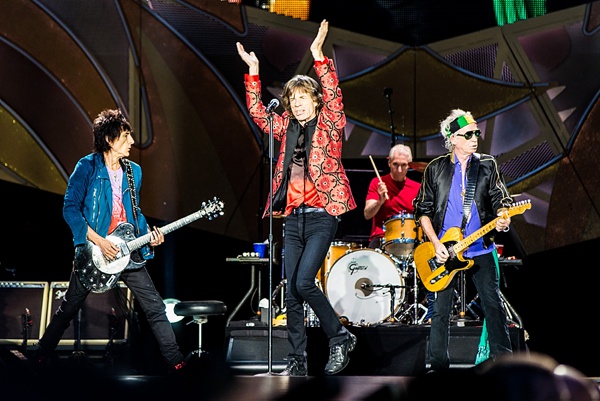
The Rolling Stones

The Rolling Stones: Nikon D800, 185mm at f4, 1/320, ISO 1600

The correct camera settings are key to getting awesome concert photos in low light situations. Maybe you were in this situation before. You used the full automatic mode in front of the stage and – BAM- the little flash monster sitting on top of your camera pops up and throws the ugliest light you can think of onto the singer’s face. At this point, a lot of frustrated concert photography beginners just take their cameras home and never shoot a concert again. But wait, in this article I’ll share the camera settings I use all the time during concert shoots and I promise they’ll help you to immediately boost your career as concert photographer. Let’s start.

1) Aperture Priority Versus Manual Exposure Mode

I started off using aperture priority mode; you tell your camera the aperture you want to use and the camera sets the shutter speed accordingly. This is a great option for a beginner to use, because you’ll be stressed enough with all the other things going on around you. However, I soon recognized that only manual mode would give me the flexibility I was looking for. I set aperture, shutter speed, and ISO and then change them on the fly using the internal exposure bar in the viewfinder. I am constantly checking my LCD screen and have a look at the histogram to see if my exposure is correct.

Fink

Fink: Nikon D700, 14mm at f/2.8, 1/200, ISO 3200

2) Use the Lowest Aperture Number

When deciding which lenses will work best for concert photography, you’ll always come to the same conclusion: use fast lenses and shoot them wide open. Set your aperture to the smallest number on your lens e.g. f/1.8 (which reflects a big aperture). This allows the most possible light to enter your sensor and is a must-have setting in ultra low-light stage conditions. The best zoom lenses have an aperture of f/2.8, the best prime lenses f/1.4 or f/1.8. For Beginners on a budget I suggest to get a 50mm f/1.8, which is cheap and therefore a no-brainer for concert photography.

3) Use a Fast Shutter Speed

Have you ever been on a concert where the artist was hyperactive jumping from one side of the stage to the other? To freeze these movements you have to use a fast shutter speed. In general, I set my shutter speed at 1/200sec and faster. Otherwise you risk blurred photos.

Miley Cyrus

Miley Cyrus: Nikon D800, 340mm at f/4.8, 1/320, ISO 1600

4) High ISO Values

ISO or film speed refers to the sensitivity of an analog film. Today the term is used for the sensitivity of your digital sensor. The higher the ISO setting the less light is needed for a proper exposure, but the more noise you will encounter in your pictures. Depending on the ability of your camera a good starting point for ISO is a setting of 1600. If my shutter speed is too low, I will crank up the ISO setting to 3200 or 6400.

5) Spot Metering

Set your camera’s internal light meter to spot metering. This takes a light reading limited to the center of your viewfinder (a very small percentage, and some cameras allow you to choose where to meter – check your manual). When shooting concerts, you will often find yourself in a situation where the artist is lit by a spotlight and the rest of the stage is almost dark. When using spot metering mode, place the artist’s face in the middle of your viewfinder and you’ll get the right exposure for it. When using the Matrix (or evaluative) metering setting, the camera will take a light reading at several points in the scene and you’ll probably get overexposed faces if the background is dark.
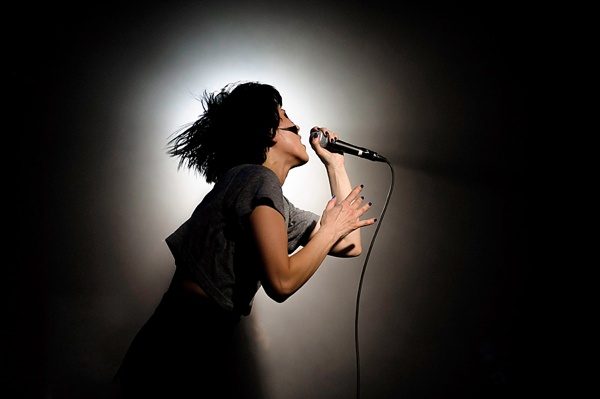
Atari Teenage Riot

Atari Teenage Riot: Nikon D700, 50mm at f/1.8, 1/2500, ISO 1600

6) Use the Middle Autofocus Point

On your camera, only use the central focus point in low light situations. This will be the most accurate one. If you don’t always want to have the artist in the middle of the frame, you have to recompose. Simply push your shutter button halfway down to focus on the artist’s face. By holding the shutter button halfway down you lock focus. Now move your viewfinder until you get the desired framing and push the shutter button fully down.

To use this technique, you have to set your camera to Autofocus single (AF-S for Nikon, One Shot for Canon) mode, otherwise the camera focuses continuously while you’re reframing your picture. You can also set the AF-ON button to focus, which I prefer.

7) Use Auto White Balance

I use the auto white balance setting on my camera. The reason being is that I shoot in RAW format and can therefore adjust the white balance setting in post-production anyway.

Skunk Anansie

Skunk Anansie: Nikon D700, 85mm at f/3.5, 1/500, ISO 1600

8) Multiple Shot (Burst) Mode

Set your camera to multi-shot mode (may be called High Speed shooting mode). It allows you to rapidly shoot three to four photos in a row (depending on the frames per second of your camera model. It’s more likely that at least one of the four photos is tack sharp whereas the others might not be in focus.

9) Never Use Flash

First, you are not allowed to use a flash in concert photography. Imagine ten photographers burst their flashes at the same time. This would be quite annoying for the artist. Second, straight flash pictures don’t look awesome.
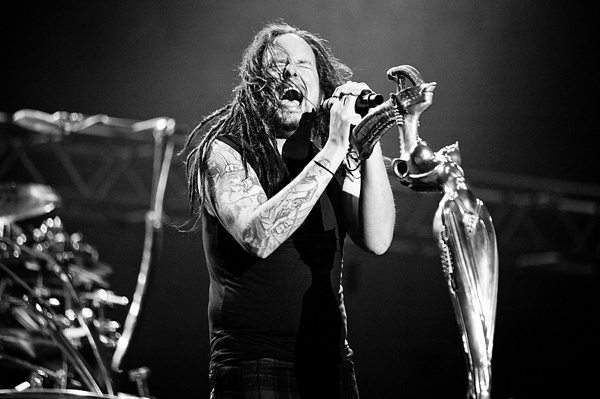
Korn

Korn: Nikon D700, 130mm at f/2.8, 1/250, ISO 3200

10) Shoot in Raw Format

Always shoot concerts in RAW format. If you shoot in JPEG mode, the internal camera computer adds contrast, saturation and sharpness to your photos. These files look great when you open them on your computer, but don’t leave much freedom in post-production. If you shoot in RAW format, the camera does not process the photo at all. The advantage is that you can change parameters like exposure, white balance, saturation, contrast, clarity and so on afterwards.

Here is a summary of my ten must have camera settings:

  1. Use manual exposure mode
  2. Use your lowest aperture number
  3. Use fast shutter speeds
  4. Use high ISO values
  5. Use spot metering
  6. Use your middle autofocus point
  7. Use the auto white balance setting
  8. Use burst mode
  9. Never use flash
  10. Shoot in RAW format

With these camera settings you will be able to get great results when shooting in low light conditions such as concerts.
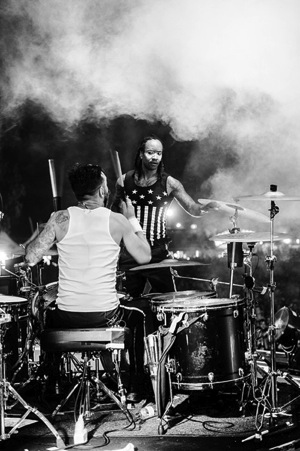
The Prodigy

The Prodigy: Nikon D800, 85mm at f/1.8, 1/320, ISO 1600

Zola Jesus

Zola Jesus: Nikon D700, 50mm at f/1.8, 1/200, ISO 1600

Being a concert photographer can be tough. There are a lot of industry secrets that nobody is talking about and it took me almost six years to reveal them.

So I decided to write the Guide to Rockstar Concert Photography which is a step-by-step guide which will provide you with all the information necessary from shooting your first concert, learning which camera gear and settings you need, how to build an awesome portfolio, understanding the rules of the photo pit, getting signed by magazines, shooting exclusively for your favorite bands, and making money with your work.

This guide is available for the first and only time at SnapnDeals at a 50% off discount to help you getting started to become a Rockstar Photographer too.

The post 10 Must-Have Camera Settings for Concert Photography by Matthias Hombauer appeared first on Digital Photography School.


Digital Photography School
 
Comments Off on 10 Must-Have Camera Settings for Concert Photography

Posted in Photography


Blackmagic Design introduces PL Mount options for Production Camera 4K and Cinema Camera

13 Sep

Blackmagic Design has announced the addition of two new PL mount options to its line of professional motion picture cameras. The Production Camera 4K and Cinema Camera are now available with a PL mount, complementing existing EF and passive Micro Four Thirds models. Read more

Articles: Digital Photography Review (dpreview.com)

 
Comments Off on Blackmagic Design introduces PL Mount options for Production Camera 4K and Cinema Camera

Posted in Uncategorized


Ricoh surfs into action camera market with WG-M1

11 Sep

Ricoh is entering the choppy waters of the action camera market, which is currently dominated by GoPro. The company isn’t truly a newcomer into the rugged market, as it has been making rugged cameras for many years. The WG-M1 is a 14MP camera that can dive up to 10m underwater, be dropped from 2m, and function at temperatures as low as -10C – all without a housing. The WG-M1 sports a 14MP CMOS sensor, super-wide lens with a 160° field-of-view, 1.5″ LCD, 1080/30p video, and Wi-Fi. Naturally, mounts for nearly every purpose will be available.

Articles: Digital Photography Review (dpreview.com)

 
Comments Off on Ricoh surfs into action camera market with WG-M1

Posted in Uncategorized


Cold War camera: 1950s Berlin in color (part 2)

07 Sep

Ten years after the end of WWII, Germany was rebuilding. Cities like Berlin, which had been severely damaged during the war were emerging from the rubble as the ‘Wirtschaftswunder’ or ‘economic miracle’ transformed West Germany. In the immediate post-war period hundreds of thousands of allied troops were stationed in the divided country, many of them with cameras. Found recently at a flea market, the images in this article date from 1956-7 and were taken by a US Serviceman in Berlin. Click through to take a look at part 2.

Articles: Digital Photography Review (dpreview.com)

 
Comments Off on Cold War camera: 1950s Berlin in color (part 2)

Posted in Uncategorized


CAMS wants to change how you carry your camera with new ‘Pro’ camera and lens plates

06 Sep

Delaware-based company CAMS is raising money to create a range of mounting plates for DSLR users to carry their gear from a mount on the bottom, rather than the top of the camera. The low-profile CAMS Pro Camera Plate and Lens Plate attach to the tripod screws on the bottom of your camera (and lenses with a tripod collar) and provide a firm mounting point for the company’s quick-release neoprene straps, allowing your gear to be carried comfortably at hip level, ready to be brought quickly into the shooting position. Read more

Articles: Digital Photography Review (dpreview.com)

 
Comments Off on CAMS wants to change how you carry your camera with new ‘Pro’ camera and lens plates

Posted in Uncategorized


Nokia announces Lumia 830 with OIS and innovative camera modes

05 Sep

At an event in Berlin, Nokia has today announced the Lumia 830. Dubbed an ‘affordable flagship,’ the device’s camera module offers a 10MP 1/3.4-inch CMOS sensor and F2.2 maximum aperture. What sets the 830 apart from many competitors is the optical image stabilization system which, according to Nokia, is the thinnest in any of its devices, allowing for the 830’s slim physique. Read more

Articles: Digital Photography Review (dpreview.com)

 
Comments Off on Nokia announces Lumia 830 with OIS and innovative camera modes

Posted in Uncategorized


How to Clean Your Camera Sensor in 3 Easy Steps

04 Sep

There is really nothing more frustrating for photographers than a camera sensor that is full of dust and specks. Dust on the sensor happens, it’s just a fact of digital photographic life. If you’re an outdoor photographer with a zoom lens, or one who changes lenses in the field, dust and particles will find a way onto your sensor on an almost regular basis. But even studio photographers experience the distress of a dirty sensor.

_2DS3368Wjpg

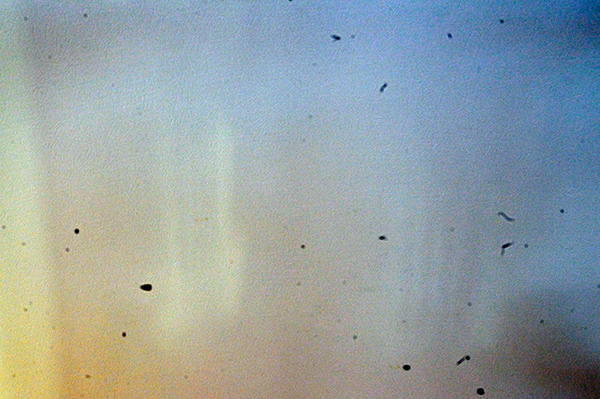
The world’s dirtiest camera sensor. Yuck.

A few weeks ago I was on a mountain photo tour, and was constantly changing lenses in the windy and dusty alpine weather. This is a photo taken to show you my sensor dust. All those black specks are fragments of airborne stuff that either gets sucked into your sensor when you use a zoom lens, or when you change your lens outdoors. The image above is the result.

There’s not too much you can do about it if you’re out on a shoot, other than know that there will be many hours spent on your computer editing out those miserable spots from your otherwise beautiful photos. However, you needn’t stress once you get back to your home base, where you can easily take care of cleaning the sensor and removing the smudges in three easy steps.

Is Your Sensor Dirty?

Check to make sure your sensor needs cleaning. It’s quite possible that it does, but you may not know it. If you shoot wide open, or at larger apertures (smaller f-stop number, such as f/2.8) you may not really see any sensor gunk on your images unless you view them at 100% on your monitor. But one day you’ll want, or need, to set your aperture to f/8, or f/16; then sensor dust will become visible, almost as if from nowhere, to torment you, frame by frame.

To see if you have sensor dust right now, so you won’t be surprised when you’re out in the field shooting, stop down to the smallest aperture on your lens (the largest f-stop number, f/32 for example) and take a photo of a white or light colored wall. What I do then, is open the image in Photoshop and click on Auto Tone (under the Images Menu item). Horrors! Do you see it? Hopefully your sensor dust won’t look as bad as mine, above. But if you see the dreaded black specs, read on.

Step 1) Using the Auto Clean Function

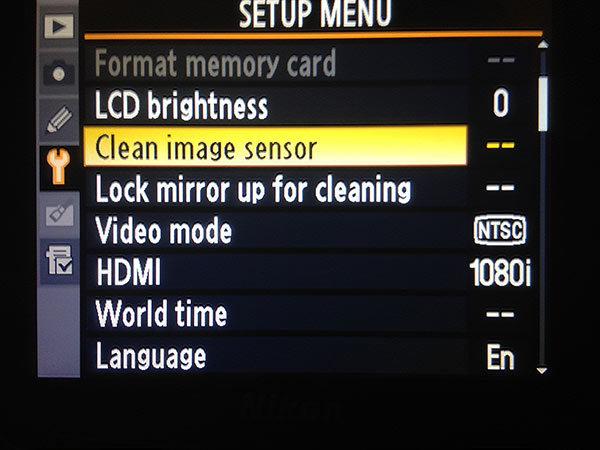
Many newer DSLRs have a special function for automatically cleaning the sensor.  Look for it in the Tools menu on your camera. When you use this tool, the camera gives the sensor a series of micro-vibrations that “shake” the dust loose, in theory anyway. You may have to repeat this process several times. But with some patience, and providing your sensor is not as bad as the example in my image above, you’ll be relatively free of most of your sensor dirt in a few minutes.

sensorclean-menu

If you don’t have this feature on your camera, don’t worry, there is a way to manually clean your sensor. Sooner or later, even those photographers with auto-clean cameras will have to wash their sensors using this manual method, Step 2 below.

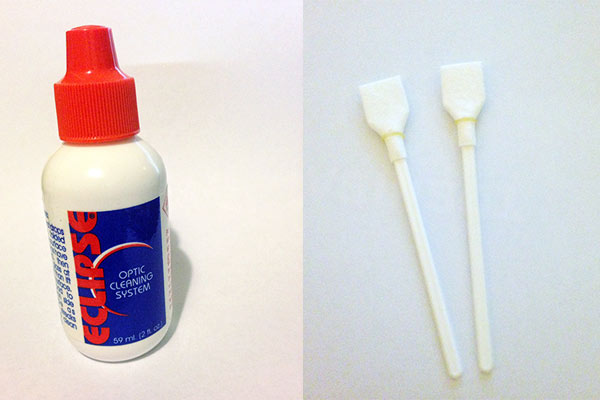
Step 2) Using Sensor Swabs and Eclipse Fluid

Sensor swabs are specially designed cleaning pads for camera sensors. Used with a few drops of Eclipse cleaning fluid they will wipe you sensor clean. Think of it as a tiny Swiffer for your sensor. You can get the swabs in exactly the right size for your sensor, so one swipe in each direction could be all you need.

comboW

The procedure is easy. You’ll simply put 2 drops of the fluid on a pad, and then gently wide the swab across your sensor ONCE, ONE WAY. Then change directions and swipe the other way. Throw that swab away. If you need to repeat the process, use a new swab.

Step 3) Power up, Mirror Up

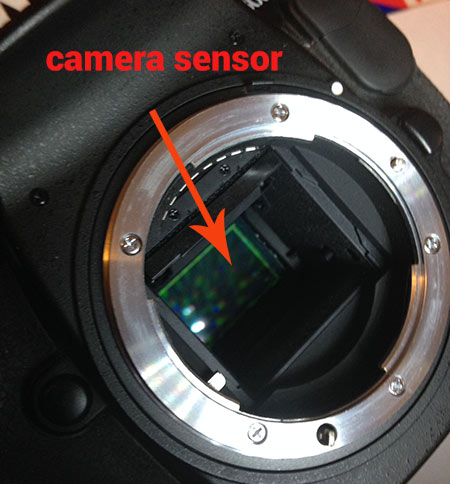
To use the swabs you’ll need to keep your mirror up to give you access to your sensor. This is the tricky part – you don’t want your mirror to come down while the swab is still inside your camera.

If you don’t have a setting for Lock Mirror Up for Cleaning, make sure your battery is fully charged, and set your camera exposure on Bulb. The Bulb setting will allow you to keep the mirror up until you release the shutter (use a locking shutter release to hold it not your finger). This way you can access the sensor, and do the quick sensor two-step, swipe left, swipe right.

sensor1W

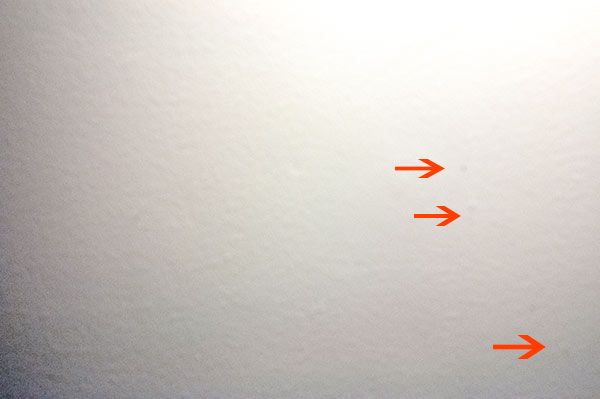
Check your results: take another shot at the same stopped down aperture and take a look at the difference.

_2DS3392w

Image of sensor dust after using Sensor Swabs. The main culprits are gone.

There are still three spots but all the big blobs, and large dust particles are gone. Depending on your preferences, you may be happy with this knowing that it’s a few easy clicks of the clone tool to remove these small faint marks. Or you may want to give the sensor another round of swabbing. Either way the sensor is super clean compared to the initial test image.

Cleaning your sensor is not difficult, you do need to be careful but it’s very worth the effort. Your photographs will love you for it.

I’d love to see your sensor dust horror stories – post your before and after cleaning shots here.

Editor’s note of warning: if you are terrified of damaging your sensor (it is delicate) you can usually find a local camera store that offers this service. You will pay a lot more for it than doing it yourself, but if they damage it, they have to replace it for you. The camera that is! If you damage your sensor there is no going back. So do follow the directions exactly, and do be cautious. Perform this procedure in as dust-free, windless room as possible. And remember to NEVER, EVER touch your sensor with your fingers. The oil from your fingers will do more damage and is much harder to remove (i.e. you’ll likely be sending it to the manufacturer to get that off).

The post How to Clean Your Camera Sensor in 3 Easy Steps by Alex Morrison appeared first on Digital Photography School.


Digital Photography School
 
Comments Off on How to Clean Your Camera Sensor in 3 Easy Steps

Posted in Photography