RSS
 

Posts Tagged ‘Camera’

GoPro granted patent for square-profile action camera housing

02 Apr

GoPro has been granted a patent for a small square camera housing, which eschews the rectangular shape its cameras have taken thus far in favor of something resembling the Polaroid Cube. According to the patent, which was recently published by the USPTO, the square design would allow for additional mounting options, with every orientation being the same. Read more

Articles: Digital Photography Review (dpreview.com)

 
Comments Off on GoPro granted patent for square-profile action camera housing

Posted in Uncategorized


Phase One Industrial’s new 80MP drone camera is the smallest of its kind

01 Apr

Phase One Industrial designed a new camera specifically for drones, billed as the smallest 80 megapixel medium format camera in the world. The iXU 180 camera features an 80 megapixel CCD sensor, taking 4:3 ratio images with your choice of five Schneider-Kreuznach lenses and an overall modular design. The camera won’t be arriving until the middle of next month, but Phase One Industrial has detailed its specs ahead of time. Read more

Articles: Digital Photography Review (dpreview.com)

 
Comments Off on Phase One Industrial’s new 80MP drone camera is the smallest of its kind

Posted in Uncategorized


Mint introduces Instantflex TL70 instant film TLR camera

31 Mar

Polaroid camera repair and maintenance company Mint has introduced its own instant camera called the Mint Instantflex TL70. Fitted with a 65.4mm lens the camera offers aperture settings of f/5.6, f/8, f/16 and f/32 with an additional setting called f/bokeh – which creates a 5-pointed star shaped aperture. The Instantflex also features a flip-up flash unit housed above the viewing lens. Read more

Articles: Digital Photography Review (dpreview.com)

 
Comments Off on Mint introduces Instantflex TL70 instant film TLR camera

Posted in Uncategorized


Adobe Camera Raw 8.8 and DNG Converter 8.8 now available

21 Mar

Adobe has released its Camera Raw 8.8 final release for Photoshop CC/CS6, the company has announced. Support for several additional Canon, Panasonic, and Fujifilm cameras have been added, as well as the Hasselblad Stellar II, Nikon D5500, and Olympus OM-D E-M5 II, among others. Read more

Articles: Digital Photography Review (dpreview.com)

 
Comments Off on Adobe Camera Raw 8.8 and DNG Converter 8.8 now available

Posted in Uncategorized


Using the Adjustment Brush in Adobe Camera Raw

17 Mar
Adjustment-Brush-title2

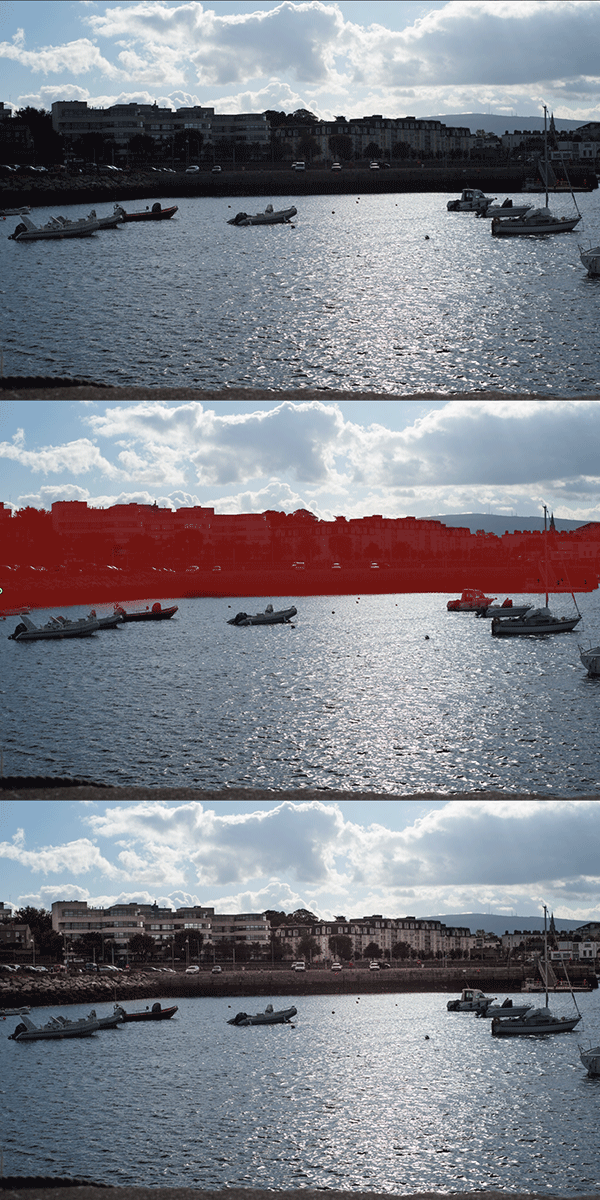
A before and after using the Adjustment Brush on the buildings.

What is the Adjustment Brush?

The Adjustment Brush is an editing tool in Adobe Camera Raw (known simply as ACR). This tool is possibly the equivalent of the Dodge and Burn tools in Photoshop. So what is dodging and burning? To dodge is to lighten and to burn is to darken a specific area.

What does it do?

When you make your initial global adjustments of a RAW file in ACR, more than likely, you will need to make local adjustments too. This is where the Adjustment Brush is useful for making adjustments to specific areas of your photo.

Recently, I have found I am using this tool more and more. If I am out and about just shooting for my own library, I tend to take photos slightly underexposed. This way, I can recover a lot of detail in the post editing stage. This is useful if you don’t have time for metering the shot perfectly, especially in the case where skies are involved.

How does it work?

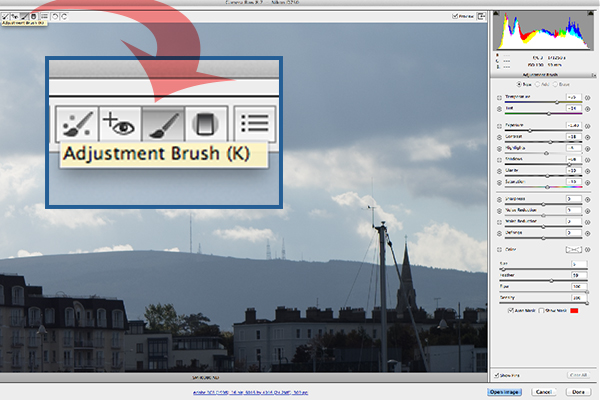
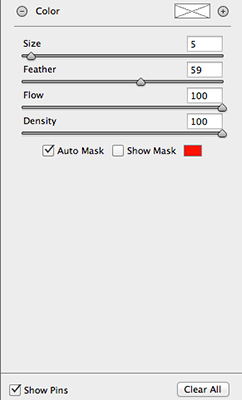
The Adjustment Brush isolates a specific area by masking it, similar to using layer masks in Photoshop. When you click on the Adjustment Brush icon, the right panel changes to the Adjustment Brush tab. The bottom sliders modify the size of the brush and you can also determine how much feather and density (flow) you wish to apply.

When you use the Adjustment Brush on a particular part of your image, a pin icon appears to determine where your adjustment has just been made.

Adjustment-brush-zoomed-up

The Adjustment Brush is located at the top left of the dialog box.

Adjustment-Brush-and-Pin-icon

How the Adjustment Brush looks when in use and the Pin icon which determines where on the image the adjustment has been made.

Adjustment-Brush-slider

These sliders adjust the size, feather and flow of the Adjustment Brush.

I do find using the Adjustment Brush a bit cumbersome. But this tool definitely has its merits. Like most of the editing tools in ACR, Photoshop, Lightroom, etc., there is simply no one-click button that magically does it all.

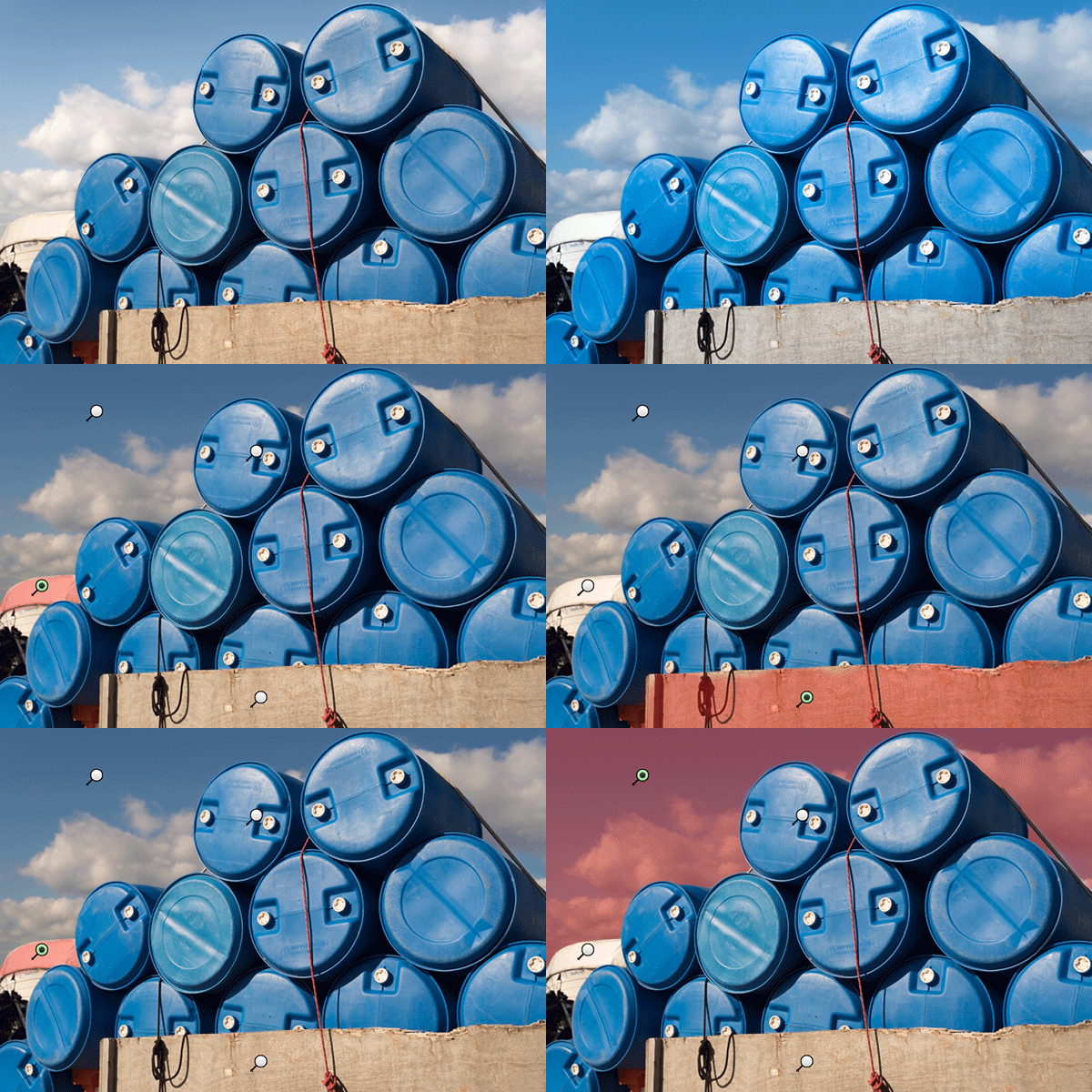
You may find with a bit of practice using the Adjustment Brush that it could speed up your editing workflow. Take for example this image that I shot of some blue containers on a pier. I made the basic adjustments in ACR. I then used the Adjustment Brush in several areas: to lighten the sky; to keep the highlights on the small white boat on the left from being blown out completely. I also used the Adjustment Brush on the wood section to give it more warmth.

blue-drums

Several areas where the Adjustment Brush has been used as shown by the Pin icon.

The Graduated Filter in conjunction with the Adjustment Brush is a great combination. It behaves in a similar way to a Graduated Neutral Density filter. I use this filter on skies, then use the Adjustment Brush to mask areas that I don’t want the Graduated Filter to effect.

Pros

  • Broad local adjustments lightened or darkened.
  • Speed up your editing workflow as you may not need further adjustments in Photoshop or Lightroom.
  • Works really well in conjunction with the Graduated Filter tool.

Cons

  • Cumbersome and sometimes awkward to use.
  • More refined detail is better done in Photoshop using layer masks where you have more control.

Tip:

A fantastic feature in Photoshop CC is that Camera Raw is now a filter. However, if you are using previous versions such as CS5/6, a substitute workaround is before you open your image from within ACR to Photoshop, make sure you open it as a Smart Object. You can do this by holding the Shift key and the Open Image button changes to Open Object. Or you can have this option ticked in Workflow Options. This is a pop-up dialog box located by clicking on the link at the bottom of the ACR screen. That way you can go back into ACR by double clicking on the layer.

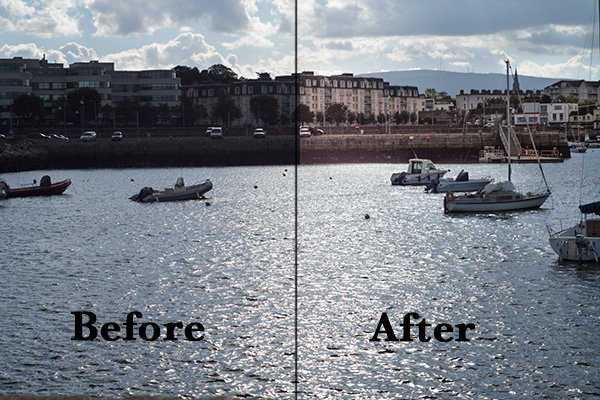
Harbour

By using the Adjustment Brush on just the buildings, I was able to recover a lot of detail.

googletag.cmd.push(function() {
tablet_slots.push( googletag.defineSlot( “/1005424/_dPSv4_tab-all-article-bottom_(300×250)”, [300, 250], “pb-ad-78623” ).addService( googletag.pubads() ) ); googletag.pubads().enableSingleRequest();
googletag.pubads().disableInitialLoad();
googletag.pubads().collapseEmptyDivs( true );
googletag.enableServices();
} );

googletag.cmd.push( function() { googletag.display( ‘pb-ad-78623’ ); } );

googletag.cmd.push(function() {
mobile_slots.push( googletag.defineSlot( “/1005424/_dPSv4_mob-all-article-bottom_(300×250)”, [300, 250], “pb-ad-78158” ).addService( googletag.pubads() ) ); googletag.pubads().enableSingleRequest();
googletag.pubads().disableInitialLoad();
googletag.pubads().collapseEmptyDivs( true );
googletag.enableServices();
} );

googletag.cmd.push( function() { googletag.display( ‘pb-ad-78158’ ); } );

The post Using the Adjustment Brush in Adobe Camera Raw by Sarah Hipwell appeared first on Digital Photography School.


Digital Photography School

 
Comments Off on Using the Adjustment Brush in Adobe Camera Raw

Posted in Photography


GoPro Hero4 Black – Camera Review

15 Mar

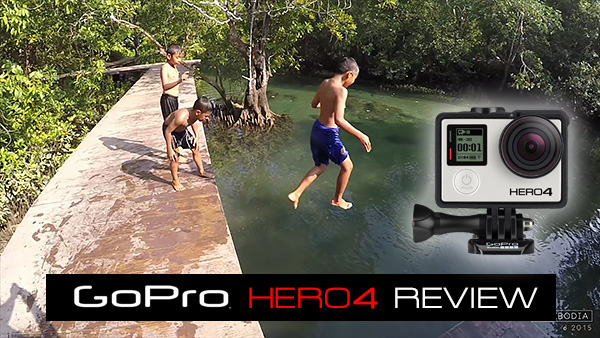
GoPro Hero 4 Black Review

The GoPro Hero 4 Black edition is an action cam for recording video but it’s also a very powerful stills camera if you’re interested in getting super wide angle shots on a budget, especially if you want to shoot underwater.

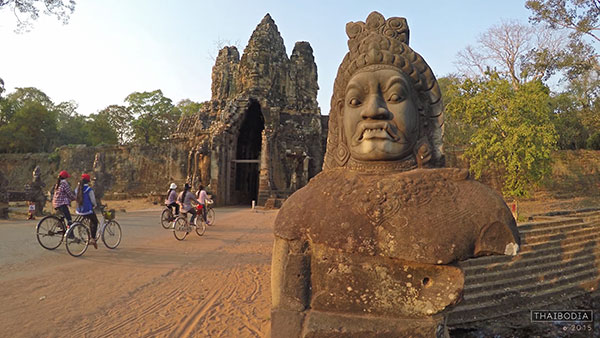
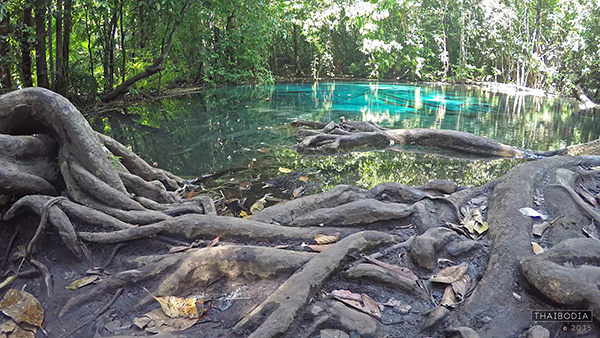
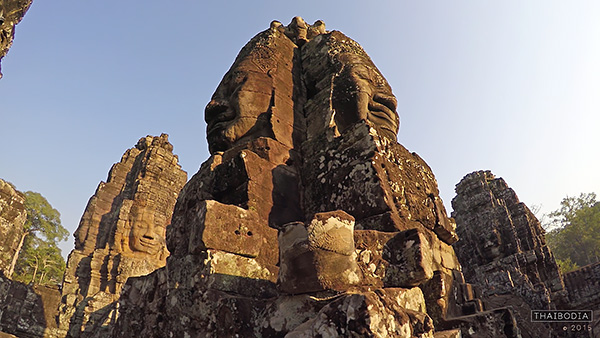
If you are into shooting video of the 4K variety, don’t overlook this tiny but powerful little camera. Here’s a short test film I put together to show the 4K chops of the GoPro Hero4 Black.

The 4K Image Quality

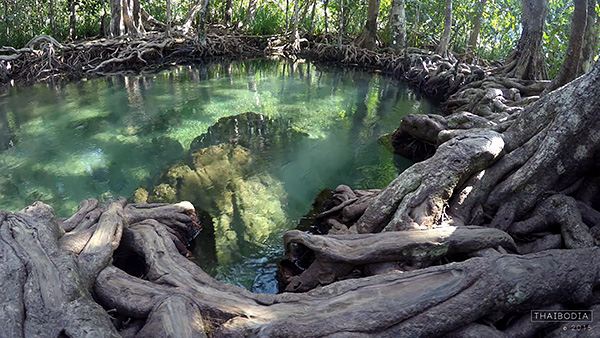
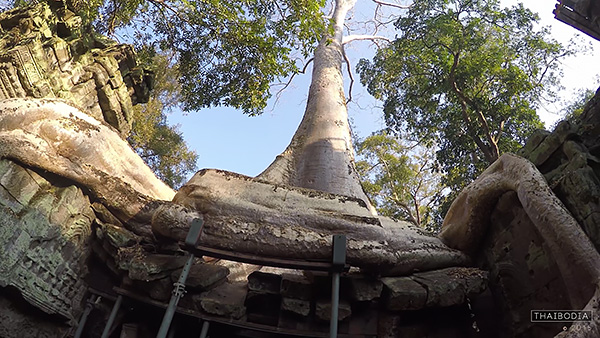
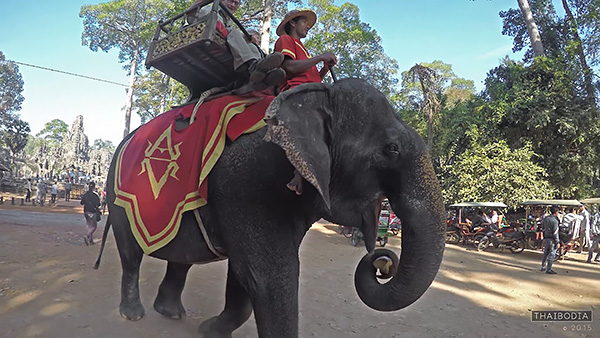
I was so impressed with the clarity of the 4K video captured by the GoPro that I decided to shoot a little film while visiting Thailand and Cambodia. With only a cheap tripod and a slider you can create some beautiful looking 4K footage. To watch the above film in 4K click on the Youtube quality setting and set it to 2160p. Even if you don’t have a 4K capable screen you’ll still benefit from seeing that glorious extra resolution.

The 4K image quality is amazing when you consider the price tag, but only in the right light. When shooting in dark or shaded conditions the image quality takes a massive drop with lots of noise and hardly any shadow detail.

In low light conditions you’ll get better results on your still images by shooting in the 8 Megapixel still mode.

Not Just an Action Cam

With my film I set out to create a little art piece rather than the usual death-defying action or skateboard fails that you usually see from GoPro footage. It’s actually when using the GoPro in a fairly slow and stable setting, that you really get to see that crisp 4k at its best.

Once you start jumping around and adding major vibration to your recordings, you might as well just shoot in 1080p and save yourself some disc space.

Gopro Here 4 Review by Gavin Hardcastle

Shooting Stills

Once I’d gotten over the outrageous fisheye (Wide and SuperWide) perspective of the GoPro, the sharpness of that cheap little piece of glass blew me away. Not only are stills very, very crisp if you keep the camera still, but the 4K footage is so sharp that you can easily grab stills from frames in your video and that is where the GoPro really excels for stills photography.

Yes, you’ll get better dynamic range and overall image quality from hitting the shutter button to actually take a still image, but if you missed the moment, the 4K video recording most likely didn’t.

Imagine having a DSLR that shoots at 30 fps. When that day arrives you’ll never miss a moment of action but I doubt you’ll be paying $ 500 for that kind of power. Until that day, the GoPro Hero4 Black Edition will have to do. It fits in your pocket, weighs less than a muffin, and can go underwater when placed in the skin-tight waterproof housing.

Try doing that with your DSLR. Actually, don’t!

GoPro Hero Camera Review

Ease of Use

In terms of what photography settings you can control, things are very limited. You can’t set focus, do long exposures, or have any control over depth of field. You can change the white balance, ISO, and exposure value by two stops but that’s about it.

The idea with the GoPro is switch it on and start shooting. It’s about as automatic as it gets.

You get three buttons to set the shooting mode and the preferences of those modes. Sounds simple but having used professional cameras for years I have to say this is really frustrating. I was forever switching into the wrong mode accidentally which ruined some shoots. I’d often think I was shooting a 4k video sequence when in fact all I’d done was take a still image.

You’ll get much better control of the GoPro if you use the Smartphone app but even that is limited. The image quality that gets transmitted to your phone is so bad that you won’t be able to clearly see everything in your frame, meaning you’ll get some nasty surprises during editing.

GoPro Here 4 Black Edition Review

The Touch Screen Option

For an additional $ 90 you can attach a touch screen to the back of the GoPro. I found it to be a total waste of money and much prefer using the phone app. Of course, the app option won’t be much help for surfers and water warriors in general, in which case, the touch screen is better than nothing.

I guarantee that it will drive you crazy the first time you try the Unlock Touchscreen swipe action, that you’re forced to use through the plastic housing. It’s kind of like scratching an itch while wearing boxing gloves.

GoPro Hereo 4 Review in Cambodia

Battery Purgatory

I take back all my previous complaints about the battery life on mirrorless cameras. I’ve had sneezes that lasted longer than the battery in the GoPro. If you’re really lucky you’ll get around 20 minutes of battery life in clement temperatures. I shudder to think what the battery life would be in subzero temperatures.

Dynamic Range

I realize I’m totally spoiled with a background using DSLR and mirrorless cameras so it’s unfair to expect the GoPro to perform on that level, especially at just $ 500. I have to say though that the dynamic range of the GoPro 4K footage is pretty feeble. You’ll have to get used to blown out skies and murky shadows that you just can’t recover in post.

I’d happily pay considerably more for a Pro version that allowed for better image quality and some kind of RAW video format that allows better control of shadows and highlights, but I’m not sure if that’s currently possible for such a tiny little camera.

The Gopro Hero 4 Review

There was no chance of recovering the blown out highlights of the trees in the background in this 4K video frame.

Exposure Shifting Issues

I had to scrap a lot of footage due to the fact that you can’t lock the exposure on the GoPro. As you move the camera around it’s constantly adjusting exposure. While that’s an essential requirement for action footage recording, it totally ruins artistic slider shots. If ever a Pro version of the GoPro becomes available I’d like to have a RAW video format and exposure locked where I decide to set it.

Slow Motion

Another cool feature of the latest GoPro is that it can record at 120 fps (frames per second) but unfortunately that’s only at 1080p resolution. When played back at 30 fps in editing software you get super smooth slow motion. I can’t wait for the next generation of GoPro that records 4K at 120 fps.

The Gopro Here 4 Black Edition Camera Review

Should GoPro Owners Upgrade

If you already own a previous version of the GoPro and you’re thinking of upgrading, I’d ask yourself if the 4K recording means that much to you. If you’re recording dirt bike adventures in 4K you’ll not see much of an improvement over upscaled 1080p footage. All that shaking and fast movement really makes the 4k quality pointless.

If you’re filming drone or slider footage, the 4K image quality is a major upgrade and gives you that added option of grabbing sharp stills from the frames of your video.

Things I love about the GoPro4 Black Edition

  • Fits in your pocket
  • Sharp 4K video for under $ 500
  • It’s waterproof (when placed in the housing)
  • Weighs less than a muffin
  • Super wide angle for less than the cost of a DSLR fisheye lens
  • Ideal for drones
  • The phone app

Things I dislike about the GoPro4 Black Edition

  • Battery life is beyond pathetic
  • You cannot lock the exposure value
  • The three button controls are annoying
  • The optional touchscreen is painful to use

Conclusion

Grumbles aside, I’m still impressed by the things I can do with this sub $ 500 camera. Capturing crispy 4k video footage from a palm sized toy is a breath of fresh air for me, especially when you consider the heavy gear I usually lug around on my travels. I’m giving the GoPro Hero4 Black Edition a generous four out of five stars.

googletag.cmd.push(function() {
tablet_slots.push( googletag.defineSlot( “/1005424/_dPSv4_tab-all-article-bottom_(300×250)”, [300, 250], “pb-ad-78623” ).addService( googletag.pubads() ) ); googletag.pubads().enableSingleRequest();
googletag.pubads().disableInitialLoad();
googletag.pubads().collapseEmptyDivs( true );
googletag.enableServices();
} );

googletag.cmd.push( function() { googletag.display( ‘pb-ad-78623’ ); } );

googletag.cmd.push(function() {
mobile_slots.push( googletag.defineSlot( “/1005424/_dPSv4_mob-all-article-bottom_(300×250)”, [300, 250], “pb-ad-78158” ).addService( googletag.pubads() ) ); googletag.pubads().enableSingleRequest();
googletag.pubads().disableInitialLoad();
googletag.pubads().collapseEmptyDivs( true );
googletag.enableServices();
} );

googletag.cmd.push( function() { googletag.display( ‘pb-ad-78158’ ); } );

The post GoPro Hero4 Black – Camera Review by Gavin Hardcastle appeared first on Digital Photography School.


Digital Photography School

 
Comments Off on GoPro Hero4 Black – Camera Review

Posted in Photography


Flat elements developed by Harvard could make camera lenses smaller, lighter and better

11 Mar

A team at Harvard School of Engineering has developed a method for making flat lenses that could dramatically reduce the size and weight of camera lenses in the future. The method employs tiny silicon antennas positioned on flat glass components to redirect light when it reaches the surface of the lens instead of relying on refraction and the thickness of glass to bend light in a particular direction. Learn more

Articles: Digital Photography Review (dpreview.com)

 
Comments Off on Flat elements developed by Harvard could make camera lenses smaller, lighter and better

Posted in Uncategorized


Chinese maker Xiaomi challenges GoPro with new Yi Action Camera

05 Mar

Chinese company Xiaomi, perhaps best known for its smartphones, has introduced a new GoPro competitor called the Yi Action Camera. This new action camera will only be sold inside of China for the equivalent of approximately $ 64 USD (399 CNY); the company doesn’t, as of now, have plans to sell it elsewhere. This still poses a problem for GoPro, however, which has recently been looking to expand into the Chinese market. Read more

Articles: Digital Photography Review (dpreview.com)

 
Comments Off on Chinese maker Xiaomi challenges GoPro with new Yi Action Camera

Posted in Uncategorized


Turn your DSLR Camera into a Wildlife Camera Trap

02 Mar

If you have an old DSLR camera lying around, you could be putting it to work as a camera trap for photographing wildlife.

What is a camera trap?

A camera trap is simply a camera that fires automatically when an animal is detected. All you need in order to turn your DSLR into a camera trap is a sensor that can detect animals, then trigger your camera. Once set up, a camera trap can be left for days or even weeks at a time. The longer you leave it, the greater your chances of capturing a shot of an elusive animal.
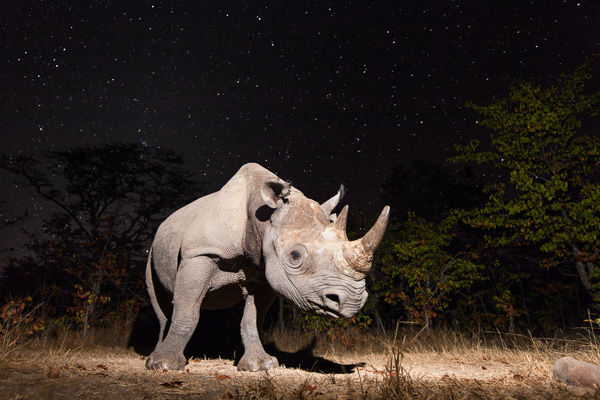
Camera trap 1

Black rhino at night in Zambia. A 30 second exposure time captured the stars. The rhino was illuminated by a flash at the start. I left my camera in the clearing for a week to capture this shot.

One of the main advantages of a camera trap is that you can take your time setting up off-camera flashes in order to achieve dramatically lit shots of nocturnal creatures. If you try to do this any other way, then the creature is likely to disappear well before you have finished setting up your lights!

As a result of these benefits, camera traps have become a key tool for wildlife photographers aiming to photograph shy and nocturnal animals.

So how do you set up a camera trap?

First, dig out that old DSLR that you don’t use any more. I mostly use a Canon EOS 1Ds Mark III. Camera traps can get much closer to animals than a human holding a camera, so you can use a wide-angle lens. My preferred lens is a 17-40mm f/4 lens.

Next, you need a way of detecting the animal and triggering your camera. If you are a handy, DIYer then you can do this by modifying a security device (I provide more information about how to do this on my website). The two most commonly used types of detector are beam-break and motion detectors.

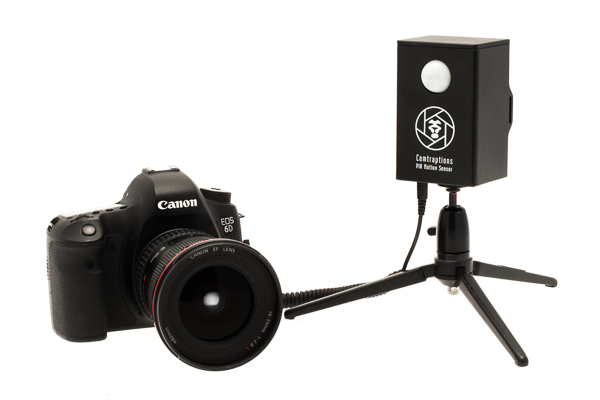
My preferred method of detecting animals is to use a Passive Infrared (PIR) motion sensor. This is similar to the sensor used on automatic patio security lights. I like these because they don’t consume much power, so they can remain on standby for a long period of time. They are also very easy to set up – you just point them at the trigger zone and wait for the animal to show up.
Camera trap 2

A PIR Motion Sensor plugs in to your camera’s shutter release socket

Now you have the camera and the trigger sorted, the next thing you need is a speedlight (flash), or two, so that you can capture nocturnal subjects.

I recommend setting up one or more off-camera flashes, connected to your camera with a TTL flash cord. It is important to get the flashes away from the camera itself because this will reduce redeye and make the shadows look more natural.
Camera trap 3

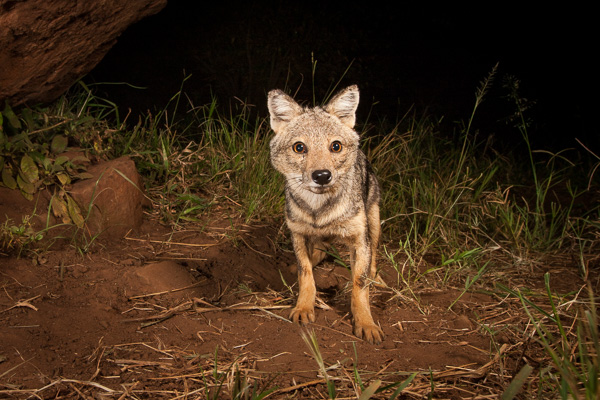
Side-striped Jackal, Kidepo Valley, Uganda. This is an example of a dual flash setup, with a primary light source on the right and a fill flash on the left.

I often just use one flash because I quite like dramatic shadows. However, sometimes, it is preferable to use a second flash to fill-in the shadows on the subject. If you want to get even fancier, you can also add more speedlights to illuminate the background.

Camera settings

The challenge with camera traps is that you don’t know when the animal will pass and therefore the camera and flashes need to be programmed so that the scene is attractively exposed in any lighting condition. Here are some general settings that I find work well in most situations.

Use manual focus and either low speed burst or single shot mode. Set the camera to aperture priority mode with a reasonably small aperture to provide a large depth of field. This means, if the animal isn’t quite in the right position, you should still get a sharp shot.
Camera trap 4

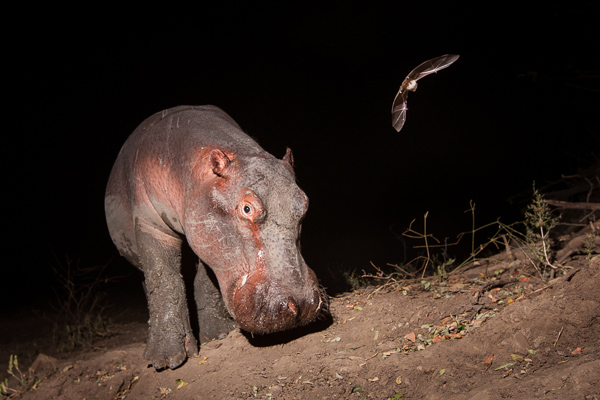
A hippo and a bat in Zambia. This was a lucky shot where the bat happened to be flying around the hippo. A small aperture ensured both animals were in focus.

Selecting aperture priority means that in darkness, the camera will select a long shutter speed. This means it will capture details in the background such as twilight colours in the sky, or even stars. However, if there is too much ambient light, then you may get ghosting when the animal moves. If ghosting is a problem for you then, limiting the shutter speed to one second or faster can help.

If I am using a single flash then I will leave it in TTL mode so the camera automatically determines the flash output based on its metering. For a multiple flash setup, it is usually easier to set the flash outputs manually. With manual flash output and your camera in Av mode, you may need to under-expose your camera (using exposure compensation) by a stop so that daylight images don’t blow-out.

Power considerations

If you plan to leave you camera trap set up for more than a night, then battery life will be an issue. Make sure your camera is set to power off and that it can be woken by the sensor. I also recommend turning off the image preview to conserve battery. Your camera should now be able to last for many days, assuming it isn’t firing the whole time.

Keeping your flashes powered is more challenging. Speedlights have a capacitor inside them which needs to be charged for the flash to fire. However, capacitors drain over time so flashes needs to constantly keep them topped up. If your flash isn’t set to sleep, then the batteries are likely to drain over the course of a single night. If your flashes are set to sleep then when you need them to fire, the capacitor may not have enough charge and so the flashes won’t be ready to fire immediately.

There are three ways to deal with these issues:

  1. Disable your flash’s sleep function – your flash will always be ready to fire but you will probably have to change the batteries every day, or power them with an external power supply.
  2. Use a flash that holds its charge well, even when sleeping. The best I know of is the Nikon SB-28, which can sleep for many days and still have enough charge in the capacitor to fire instantly.
  3. Set your camera to continuous drive mode and let your flashes sleep. The first and second shots may be black, but eventually your flashes will charge and fire.

If you are letting your flashes sleep, then you will need to connect them to your camera via a TTL cable. This allows your camera to wake the flashes. You will need long cords and a TTL splitter hub if you want to fire multiple speedlights.

Positioning your camera trap

Next you will need to find somewhere to set up your camera trap. The most productive places I have found are animal trails, particularly ones that cut through a difficult obstacle such as thick bush or a steep bank. I set my sensor up so that it covers a small section of the trail and then position the camera off to one side (so that it doesn’t block the animal’s path).
Camera trap 5

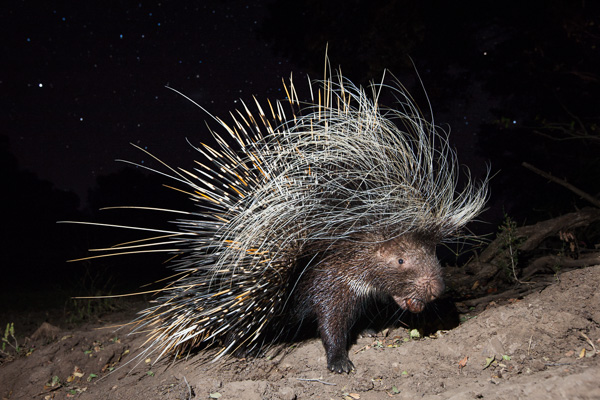
A porcupine photographed in Zambia. My camera was positioned next to an animal trail that lead up a steep bank. It captured many creatures including this porcupine.

The last thing to do is to camouflage, waterproof, and protect your equipment. Rain covers can be made from plastic sheeting. If you need protection from animals such as hyenas and lions then you will need to buy or build your own protective housing.

Once everything is set up, I recommend leaving your camera trap as long as possible in order to maximize the chances of getting results. You may just need to visit it from time to time to change batteries and check your settings.

I have created a series of videos that help illustrate the process of setting up a camera trap. You can watch the first video in this series below.

If you want more wildlife related tips and articles try these:

  • Writer’s Favorite Wildlife Lens – Tamron 150-600mm
  • Why Manual Exposure is Better for Winter Wildlife Photography
  • Nature and Wildlife Photography Tips for Beginners
  • Top 5 Tips for Wildlife Photography
  • Guide to Attracting Critters to Your Garden for Backyard Wildlife Photography

googletag.cmd.push(function() {
tablet_slots.push( googletag.defineSlot( “/1005424/_dPSv4_tab-all-article-bottom_(300×250)”, [300, 250], “pb-ad-78623” ).addService( googletag.pubads() ) ); } );

googletag.cmd.push(function() {
mobile_slots.push( googletag.defineSlot( “/1005424/_dPSv4_mob-all-article-bottom_(300×250)”, [300, 250], “pb-ad-78158” ).addService( googletag.pubads() ) ); } );

The post Turn your DSLR Camera into a Wildlife Camera Trap by William Burrard-Lucas appeared first on Digital Photography School.


Digital Photography School
 
Comments Off on Turn your DSLR Camera into a Wildlife Camera Trap

Posted in Photography


Gear Guide: The Ultimate Authority on What to Put in Camera Bag

27 Feb

I remember my first time in a Real Professional Camera Store, Samy’s Camera, in Los Angeles. I had money to burn in my pocket so that I could buy the right equipment to be a Professional Photographer, but instead of being a kid in a candy store, I was a vegetarian in a hunting store. Nothing looked familiar. There were Continue Reading

The post Gear Guide: The Ultimate Authority on What to Put in Camera Bag appeared first on Photodoto.


Photodoto

 
Comments Off on Gear Guide: The Ultimate Authority on What to Put in Camera Bag

Posted in Photography