RSS
 

Posts Tagged ‘Camera’

How to Buy Camera Gear Wisely and Save Money

07 Aug

Many photographers have experienced lens-lust or gear envy, and know the thrill of playing with a new piece of camera gear. But gear can be expensive, and choosing the wrong equipment can be a costly mistake. So how do you know you are purchasing the correct gear, and ensuring that it won’t end up in a cupboard collecting dust?

Here are five tips to help you choose and buy camera gear wisely, and maybe save a little bit of money at the same time.

1. What do you really need?
WideAngle

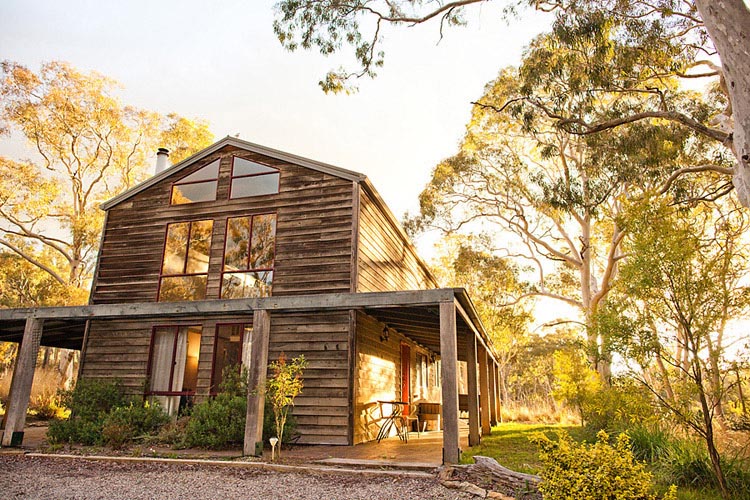
If you often photograph in tight spaces, or want to explore landscape or architecture photography, a wide angle lens is perfect.

I always advocate working with your current gear until you start to feel its limitations. This way you will have a clearer idea of what specifications or items will help you grow further as a photographer.

If you feel that you’ve reached these limits, but are still confused about which piece of equipment you should buy as your first priority, try taking a few notes during your next shoot. Where do you get stuck? What frustrates you? What would make your photography life easier? What will you be photographing? And what is your next goal? Asking yourself these questions will help refine exactly what you need from your next purchase.

For example, do you wish that your lens would shoot wider, or zoom in closer? Perhaps you really want to try macro photography, or need a tripod to try slow shutter speed waterscapes?
Landscape

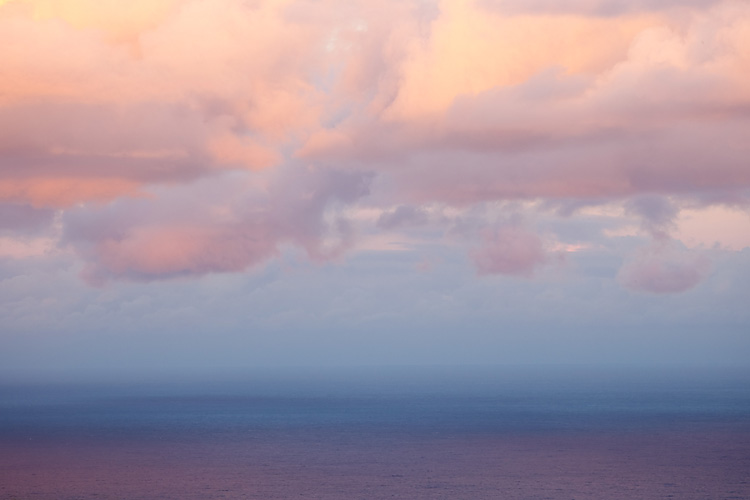
A zoom lens can be really useful, allowing you to use it across numerous photography genres from portraiture, events, and even landscapes.

If you shoot a lot of landscapes or architecture, a wide angle lens will be more useful than a telephoto lens. Alternatively, if you photograph families, children, or events, a zoom lens may make it easier to respond quicker to impromptu moments, rather than a prime fixed-focal length lens.

Also, will you fully understand and use all the wonderful aspects of the new equipment? Will it be beneficial to your photography, or will it be so complex that it will frustrate you?

For example, should you spend a lot of money on a professional level lens that shoots at f/2.8 if you do not know anything about depth of field? Do you like the effect of f/2.8? Will you use it regularly? Or would a less expensive lens that goes to f/5.6 do everything you need it to?
MacroShot

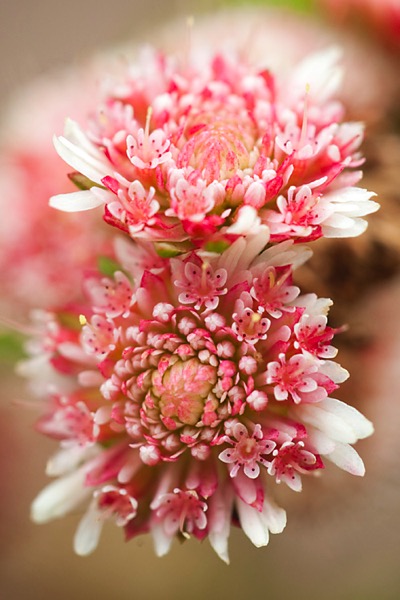
A macro lens won’t help with room interior photographs, but is perfect for capturing close up shots of flowers and insects.

Similarly, if you’ve only been shooting on auto-modes, purchasing a camera that has mostly manual options may not be the best choice. Instead, consider a mid-range camera that offers both auto and manual modes, so you can try more advanced techniques, as well as take it out just for fun.

Make a decision about what you really need from your gear, and remember – it’s okay to stick with the equipment you currently own until you are 100% sure of your choice.

2. Know your budget

Unfortunately we do not all have limitless bank accounts, and will have to make decision on how much we can spend. It is a balancing act between deciding on your budget, and researching the actual cost of items. You could choose to spend a bit more now on one item that will fulfil your needs for the long term, or spend less on an entry-level option to build up your experience.

Budgeting

It is important to stick within your budget. If you can’t stretch to afford your ideal gear, consider other options such as buying second-hand, less expensive options, renting, or waiting for the next sale.

Sometimes however what you really want is simply too expensive, so you can choose to wait for the next big sale or look at alternatives, and that’s perfectly okay too. Another option would be to buy the absolute necessities now, while saving for the next items. If you discover you need it sooner, and have not saved enough yet, you can choose to rent gear as needed.

Many stores now also offer payment plans that allow you to take the gear home and pay it off in weekly instalments. This can certainly help with cash flow, but always read the small print, and check the interest rate to see if it will suit your situation.

3. Do your research

50mm apertures
The images above were shot with two different 50mm lenses, using their largest apertures. Do you think you would notice the difference in your own shots? Is it worth the price difference? Flickr can also be a great way to see examples of images taken using specific equipment.

There are so many opinions and reviews posted online that it is easier than ever to do your research. Read personal opinions, website reviews, as well as manufacturers’ specifications, to give you a well rounded opinion and compare them to what you are looking at purchasing. YouTube is a great resource for tutorials, reviews, and box openings. Flickr is also be a good place to find images that have been tagged as being shot with a specific lens or camera – it is a great way to see real-life results.

Your local camera store should not be overlooked either. Go in for a browse, play with the items, listen to advice, and go back a few times if you’re unsure and want to become more familiar with the item before buying it. You want to ensure you are comfortable with the gear you are purchasing, and that it does exactly what you want it to.
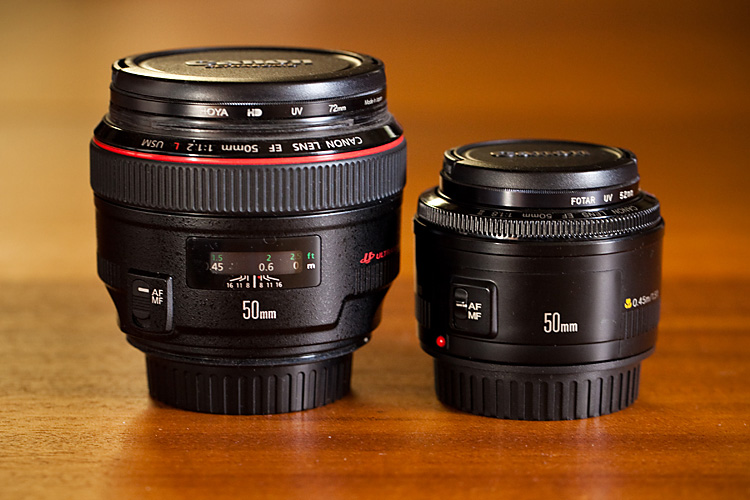
50mm lenses

Here are two different Canon 50mm lenses – one with a maximum aperture of f/1.2 on the left, and the other f/1.8 on the right. Both offer a shallow depth of field, but the prices are vastly different.

Editor’s note: Canon has three 50mm lenses: The f/1.8 version at $ 125 (shown above right), the f/1.4 version at about $ 349 (not pictured), and the f/1.2 monster (above left) which will run you a whopping $ 1349.

If you’re trying out new lenses or a flash, take your camera into the store with a fresh battery and memory card, attach the lens/flash and take a few photos. Test it out in store, see how it works, then go home and review the images. If you’re looking at a new camera body, take your favourite lens and a memory card and do the same. All gear has an adjustment period for becoming familiar with settings and button locations, so this will give you a head start, and an idea of the weight and shape of the item, something you can’t experience by online shopping.

Helpful and knowledgeable salespeople are also invaluable. Many camera store staff on a commission-based pay structure can often be motivated to make a higher-priced sale, so may push you toward the more expensive option. There are those, however, who will provide good advice and non-pushy service, with the hope you will come back to them when you’re ready to buy. If the price is right, it is always good to support your friendly local camera store, as they can be an invaluable resource, especially if something goes wrong.

4. Consider renting

Rental List

Many camera stores and online services offer the opportunity to rent higher priced and specialist equipment. This can be a great way to try before you buy, or to hire gear for one-off assignments.

Did you know you can rent equipment such as lenses and camera bodies, as well as studio flash kits? Many professional photography stores offer this service, and there are several online camera rental services as well.

This option is great for when you are considering professional level gear, or something for a special technical application. You have the opportunity to rent the gear for a day, weekend, or a week, which is a great way to try before you buy.

It is not only a good option for researching a new purchase, but you can hire specialist equipment needed for one-off jobs (like a macro or tilt-shift lens for example), without the cost of purchasing it outright, and with the added advantage of claiming the hire expense as a business expense. A security bond is usually charged, so be sure to read the fine print for the rental terms and conditions.

5. Look for the less expensive option
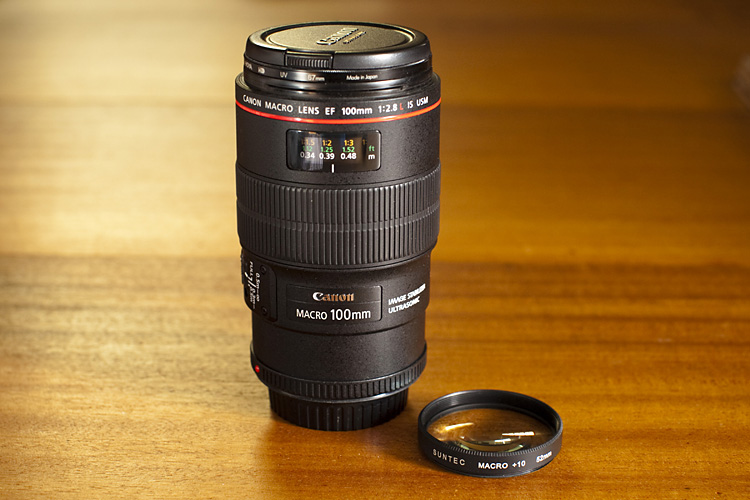
MacroLens Filter

The price difference between a close-up filter set and a dedicated macro lens is over $ 1,000. Each has its own effects, but both are capable of producing quality, and interesting photographs.

If you cannot afford your preferred brand or wish-list item, try searching for a less expensive option. This could mean waiting for a camera sale, purchasing second-hand, a lesser-known brand, or even an alternative method to achieve the same result. These options can be a great way to expand the gear in your camera bag and try new techniques, without spending quite as much money.

For example, we all agree that an f/1.2 lens is drool-worthy, but would the f/1.4 version do almost as good a job? Or instead of purchasing a special macro lens, would close-up filters work instead? Generic, or lesser known brands, are another less expensive option, although they may not have the same quality or life expectancy as the branded versions.

Purchasing second hand equipment may be risky, but with some research, and by asking the right questions, you can often find a bargain. Always consider how much wear and tear the item has had, who has owned it before, and how much life is still left in it. A wedding photographer, for example, will often upgrade their gear and sell off their old cameras. While it might look like a great deal, it’s worth keeping in mind that their gear may have been subject to a lot of wear and tear.
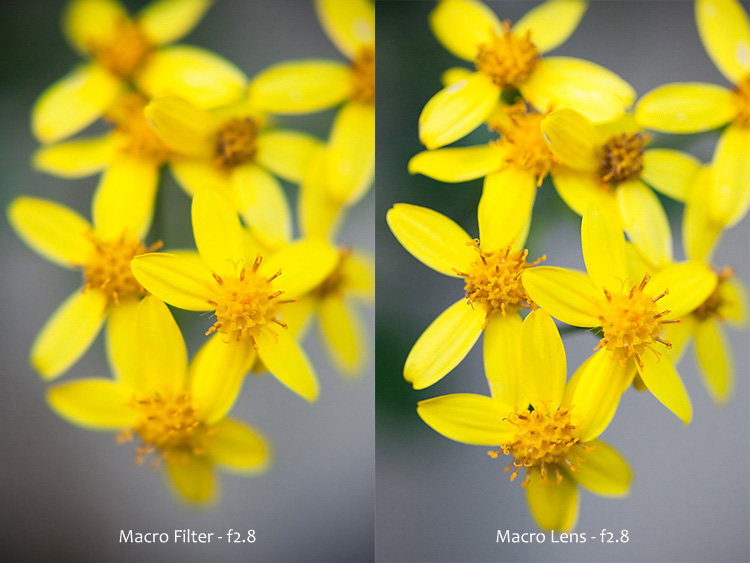
MacroOptions

The same subject, photographed using two different systems – a close-up filter, and a macro lens. Both images were photographed at f/2.8. Filters often create softer images, but are an inexpensive way to enter the world of macro photography.

Scratches and marks can be forgiven, provided they do not affect proper function, while some items have a limited lifetime. When considering a second-hand camera, ask about its shutter actuation, or shutter count, and then compare it to the camera’s life expectancy. This will give you an idea of how many more photos the camera can capture, before the shutter may fail. If photography is your hobby it may take you years to reach this limit, whereas if you’re shooting weddings every week you will reach this number sooner. Shutters are replaceable but it can be expensive, and often camera replacement is more cost effective.

Many of these alternative options are available to purchase in your local camera store, or online. In regards purchasing of second hand equipment, it is worth being cautious: ask lots of questions, request photographs, ask about any return policy, and if you do go ahead, purchasing insurance on postage.

Summary

Hopefully these tips will assist you in choosing your next purchase wisely, one that suits your needs perfectly, and may even help you save a little bit of money too – who knows, maybe just enough to afford that other item you want?

The most important thing, however, is that you use your new gear and enjoy your continuing journey in photography.

googletag.cmd.push(function() {
tablet_slots.push( googletag.defineSlot( “/1005424/_dPSv4_tab-all-article-bottom_(300×250)”, [300, 250], “pb-ad-78623” ).addService( googletag.pubads() ) ); } );

googletag.cmd.push(function() {
mobile_slots.push( googletag.defineSlot( “/1005424/_dPSv4_mob-all-article-bottom_(300×250)”, [300, 250], “pb-ad-78158” ).addService( googletag.pubads() ) ); } );

The post How to Buy Camera Gear Wisely and Save Money by Erinna Ford appeared first on Digital Photography School.


Digital Photography School

 
Comments Off on How to Buy Camera Gear Wisely and Save Money

Posted in Photography


Casio launches rugged EX-FR200 camera with detachable lens unit

06 Aug

Casio has announced a 360° camera that features a detachable lens unit and a mode that allows the body to control two cameras at the same time. The Casio EX-FR200 is equipped with a 1.35mm lens that offers a fisheye capture with the angle of view we’d expect from a 13.4mm lens on a 35mm film camera.

The lens can be used in four different modes to either capture a 180° 3888 x 3888 pixel fisheye spherical view, an unwrapped 360° 7456×1864 panorama, a super-wide 208° image or when combined with a second camera it can join two images shot in opposite directions to create a 360° ‘omni-directional’ image.

The camera consists of a body unit and a detachable lens/camera unit that can be used separated from the body, or folded for ‘normal’ shooting or selfie shooting while connected to the body.

Casio has also produced an accessory that mounts a pair of FR200 or FR100 lens units back-to-back so that they can shoot in both directions simultaneously to create images that can be merged in Casio’s Exilim Album app or Exilim 360 Viewer desktop software to form a navigable YouTube 360 Video file. The camera can also control dual lens units in sequence from different perspectives while pointed in the same direction.

The FR200 is waterproof, freeze-proof and drop resistant for use in tough environments, and communicates via Bluetooth 2.1 and Wi-Fi. The camera also has a 4K video function.

Beyond Japan it isn’t clear where the camera will be sold, but the company plans to make 5000 a month from the time it is released in mid-September.

For more information see the Casio press release (translated version).

Articles: Digital Photography Review (dpreview.com)

 
Comments Off on Casio launches rugged EX-FR200 camera with detachable lens unit

Posted in Uncategorized


Hasselblad rumored to be working on 10x zoom camera module for Moto Z phones

05 Aug

The Lenovo Moto Z and Moto Z Force smartphones have a unique feature: they accept accessory modules, so-called Moto Mods, which attach to their back plates magnetically and via 16 connection pins. At launch, Lenovo showed the InstaShare projector, a JBL Soundboost 6 Watt speaker and a 2220 mAh battery pack, but unfortunately the previously rumored camera module did not materialize. 

However, now hellomotoHK found information on the Chinese microblogging site Weibo that might indicate that Hasselblad is working on a Moto Z camera module with, a 10x zoom lens, physical shutter button and zoom lever, Xenon flash and Raw capability. Unfortunately, no information on sensor size and resolution has been provided. 

With Raw capture, optical image stabilization and 13 and 21MP sensors respectively the Moto Z and Z Force are well-equipped in the camera department, but a 10x zoom lens with a potentially larger sensor than in the smartphone camera modules would definitely expand the creative potential of the devices. It’s impossible to know how much truth is in this rumor, especially given that the image is just a rendering, but we certainly hope Hasselblad and Lenovo will let us know soon.

Articles: Digital Photography Review (dpreview.com)

 
Comments Off on Hasselblad rumored to be working on 10x zoom camera module for Moto Z phones

Posted in Uncategorized


Samsung Galaxy Note 7 combines S7 camera with large display, S-Pen and iris scanner

03 Aug

In keeping with its established product innovation cycle, Korean manufacturer Samsung has today launched the latest model in its Note line of large format smartphones, the Galaxy Note 7. Judging by its specifications the new device looks like an impressive package but is in many ways more of a refinement of previous models rather than a radical overhaul.

The camera module, for example, comes with the same specification as the smaller Galaxy S7 and S7 edge devices. A 1/2.5″ 12MP sensor with 1.4-micron pixel size is combined with a fast F1.7 aperture, optical image stabilization and dual pixel on-sensor phase detection AF. The front camera has a 5MP sensor and F1.7 aperture.

Processing specifications are identical to the S7 as well. The US version of the device is powered by a Qualcomm Snapdragon 820 chipset while the international versions will come with Samsung’s own Exynos octa-core chip. All models come with 4GB of RAM and 64GB of internal storage that is expandable via a microSD-slot.

The Note 7’s characteristic 5.7″ dual-edge display offers Super AMOLED technology and a 2560 x 1440 Quad-HD resolution. It’s also the first display to feature Gorilla Glass 5 which should survive a drop from 1.6 meters height. As on the predecessor, the edges of the display are curved and offer Samsung’s unique Edge interface for quick access to contacts and apps. While some competitors have started to dispense with the headphone-jack the Samsung still offers this standard connector, next to a new USB Type-C port. All the components are powered by a 3,500mAh battery, which is a little smaller than the variant in the S7 Edge.

Notable new features include an iris scanner above the display that allows you to unlock the phone or access secured content. Samsung says that in the future the scanner will let you log into accounts or use Samsung Pay, but none of these functions are currently implemented. The design of the Note series’ characteristic S-Pen stylus has been slightly altered, too. It is now water-resistant and at 0.7mm comes with a thinner tip which should make for a more natural writing experience. 

Overall the Galaxy Note 7 looks like an appealing proposition for those users who like to work with larger screens and a stylus for photo editing. The camera module has already been tried and tested on the Galaxy S7 models and currently among the very best. 

Articles: Digital Photography Review (dpreview.com)

 
Comments Off on Samsung Galaxy Note 7 combines S7 camera with large display, S-Pen and iris scanner

Posted in Uncategorized


High-profile camera expert leaves Microsoft, returns to Nokia

03 Aug

As the former Head of Imaging at Nokia, Juha Alakarhu was a key figure in the development of the Finnish company’s PureView cameras. The innovative technology was implemented in models such as the Nokia 808 or Lumia 1020, which by many mobile photographers are still viewed as the best smartphone cameras ever made. Unfortunately, slightly slower than usual camera processing speeds and the high cost of the technology meant the devices never really caught on in the mass-market.

When Nokia’s device division was sold to Microsoft, Alakarhu and his team moved as well, but now it looks as if Microsoft is pretty much abandoning its entire smartphone business, making redundant a large proportion of the employees that were hired as part of the Nokia acquisition. Camera expert Alakarhu is among a number of high-profile engineers who have already found a new role, though, and it’s with his former employer. He is returning to Nokia as the head of the Ozo VR camera.

If you’d like to refresh your knowledge on Nokia’s PureView technology you can read our interview with Juha that was conducted on the occasion of the Nokia 808 launch in 2012.

Articles: Digital Photography Review (dpreview.com)

 
Comments Off on High-profile camera expert leaves Microsoft, returns to Nokia

Posted in Uncategorized


How to Use Adobe Camera Raw and Photoshop to Make Your Landscape Images Pop

02 Aug

Photoshop is a wonderful tool if it is used correctly. Yes, there is a way to use it right. The basic idea is that if someone can see the adjustments you have made to your image, that’s not so good.

Think of Photoshop as your own personal darkroom. During the film era, some photographers had black and white darkrooms in their homes. That way, they could control the complete process of making the image. Very few had colour darkrooms, as that was far more complicated and costly. Nowadays, we have a fully functional colour darkroom loaded onto our computers (even our iPads), it’s called Photoshop or Lightroom (which is not named that by mistake, it is the opposite of darkroom). If you have Photoshop or Lightroom, you have a very powerful tool with which to edit your images.

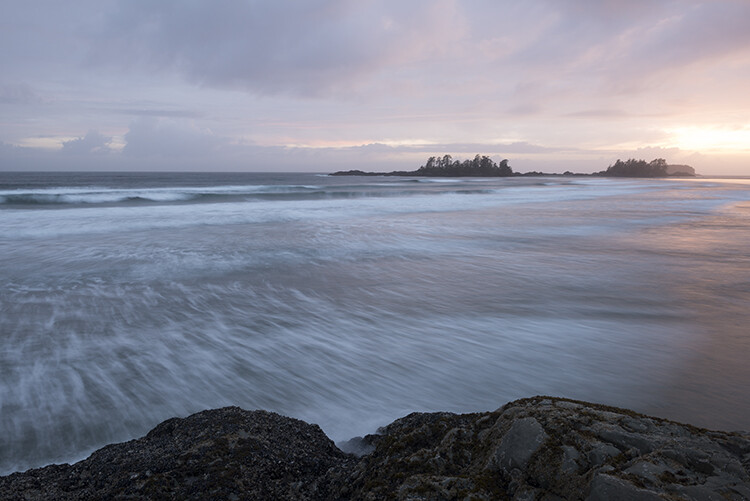
Before

Before

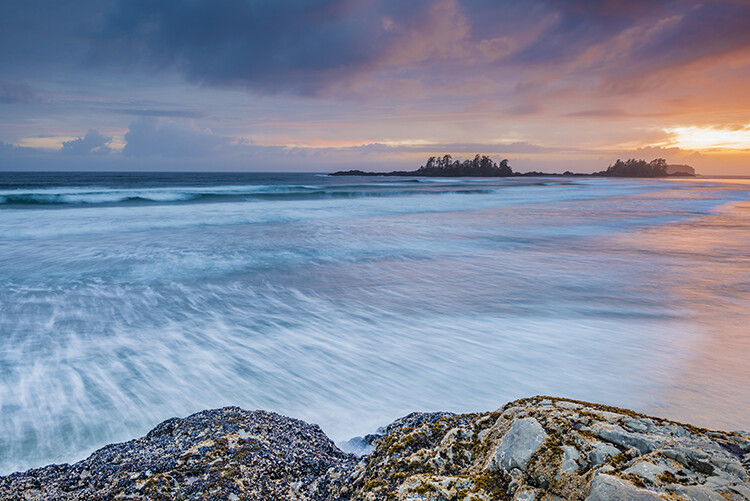
After

After

Making your images POP!

What does it mean to make your images pop? It can mean a number of things, but mostly it means to have more colour, contrast, and look more dramatic. As always, it implies that you have a good image to start with. Trying to make an average image pop, is not what this is about. Make sure you start off with a good image out of camera, then go through these steps in order.

Shoot in RAW

Shooting in RAW is a good start. I know, you may not want to shoot in RAW because the file sizes are so big, or you don’t really see the benefits, but RAW really does make a difference. Firstly, you are working with a full uncompressed file of data. A JPEG image has already had adjustments make in camera to compress it to that file size. Some information has already been discarded, which means you are working with less image information, which in turn means you have less flexibility in the editing process. Of course, RAW is only useful if you are going to spend time editing your images in Photoshop or Lightroom.

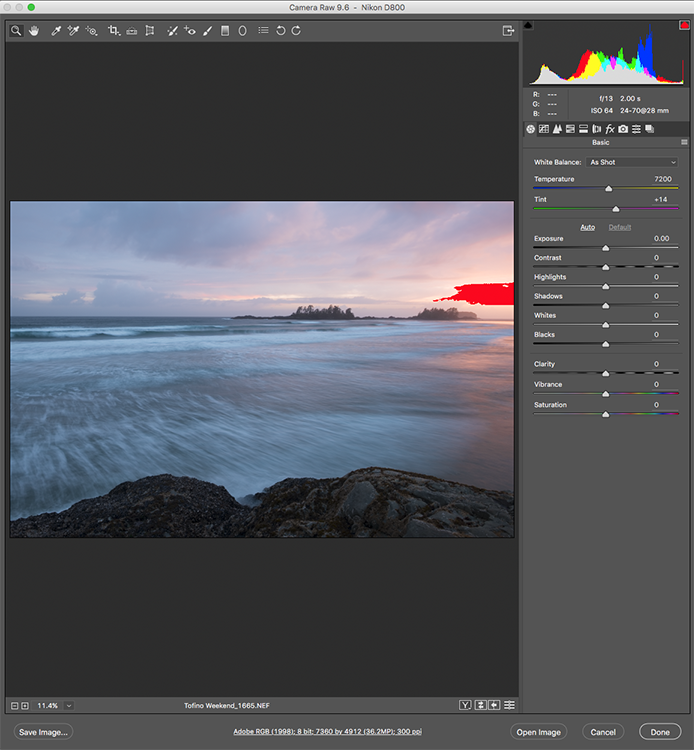
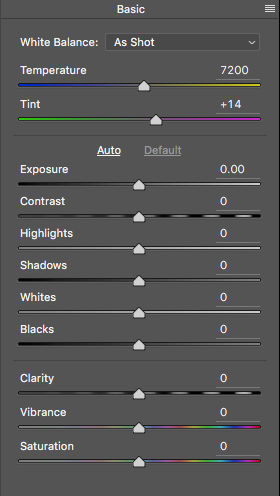
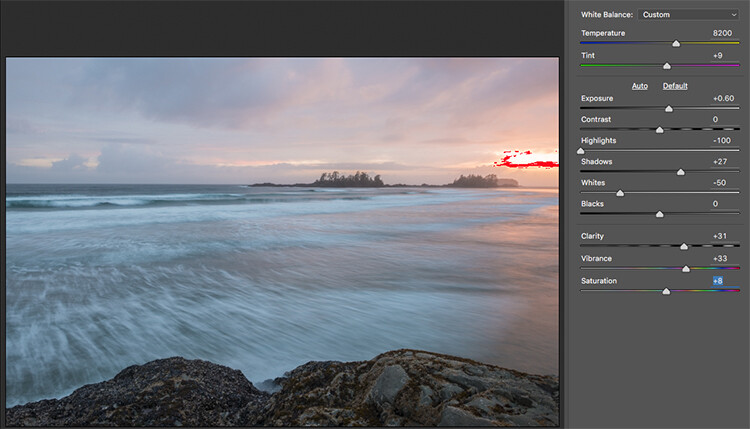
Let’s assume that you are going to edit and you have shot in RAW, open your image up in Photoshop and you will see the Adobe Camera Raw (ACR) Editor open. The ACR editor is a really powerful tool. The latest updates have made the ACR editor in Photoshop almost a separate image editing tool, it’s that powerful. As it opens, you will see a selection of tools on the right hand side, mostly sliders such as: White Balance, Tint, Exposure, Contrast, Highlights, Shadows, Whites, Blacks, Clarity, Vibrance and Saturation.

Camera Raw Editor in Photoshop CC

The camera raw editor has some very powerful adjustment tools. The next few steps will be done mostly in the RAW editor, then the image will be opened in Photoshop, and edited further. Many of these edits are very similar in the Lightroom Develop module, so you can make these same adjustments there as well.

The Camera Raw Editor in Adobe Photoshop CC

Close up of the basic RAW editor sliders

Making adjustments in the RAW editor

  • Temperature – Start off by taking a look at the colour in your scene. You can adjust the temperature to make the colour of the scene warmer (slide towards yellow) or cooler (slide towards blue). This can be used to correct a colour cast, or to add some drama to your image. In this scene, I chose to move toward the warmer side.
  • Exposure – Take a look at your exposure, the image might be a little dark, or maybe a little bright. Slide the exposure slider to adjust this.
  • Contrast – Adjust the contrast to make sure that the dark areas of the image are dark enough, but don’t lose details here.
  • Highlights – In this image, the red indicator in the highlights shows me where there is very little detail. To compensate for this, slide the highlights slider to the left. If your highlights are underexposed, slide this slider to the right, but be sure not to overexpose your highlights.
  • Shadows – The shadows slider can help you bring back details in the shadows or darken them a little. Be careful not to overdo this slider as your shadows may look noisy (or your image can take on an “HDR” look) if you push this too hard.
  • Whites – This slider adjusts any pixels in the image that are white or partially highlighted.
  • Blacks – This slider will adjust any pixels that are black.
  • Clarity – The clarity slider adjusts contrasts in the midtones. This can really add some structure to your image, but be careful not to overdo it.
  • Vibrance – This slider will adjust any pixels that are not saturated. This is a good place to start to add some subtle pop to your scene.
  • Saturation – This slider will adjust all pixels by saturating or desaturating them.

Basic adjustments in Camera RAW

HSL adjustments tab

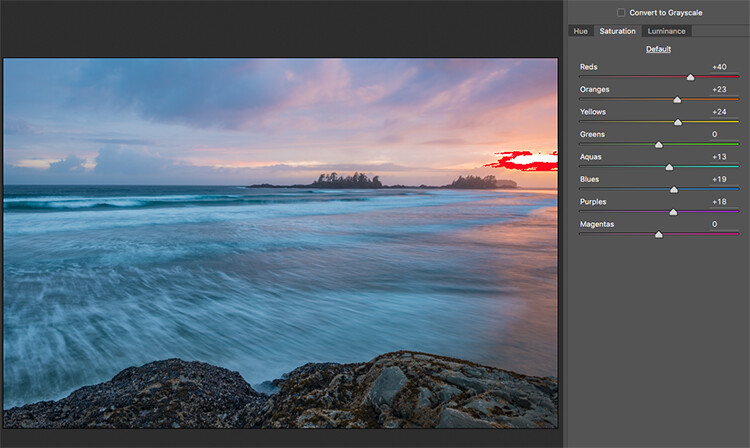
This tab has three different tools under it, namely: Hue, Saturation, and Luminance (HSL). These adjustments will make changes based on the colour channels in your image. For example, if you click on the saturation tab, you can make the reds in your image more or less saturated, the same is true for the oranges and all the way through the colour channels. You can also make certain colours brighter, by using the luminance tab. In this image, I wanted to saturate the reds, yellows, and oranges, as well as some of the blues.

HSL tab adjustments

Graduated Filter in Camera Raw

Much like using one on your camera in the field, you can add a graduated filter in Camera Raw. The beauty about doing this in Photoshop is that you can make some very fine tuned adjustments to your image, depending on how you position the Graduated Filter tool.

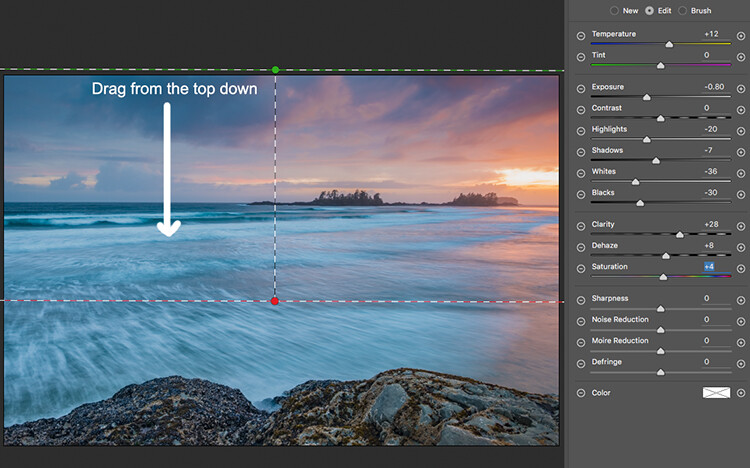
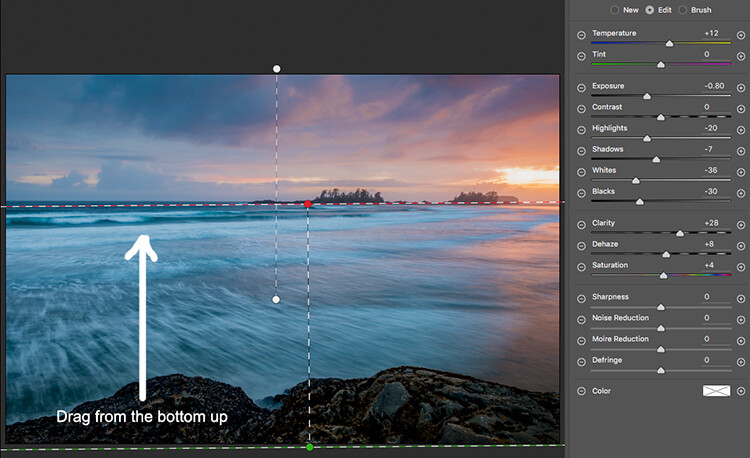
Click on the Graduated Filter icon at the top of the screen, and the you will see a whole new dialogue box with very similar functions to the basic Camera Raw Module. The difference here is that you will click and drag the filter down on your image to select the sky. You can also click and drag up from the bottom to select the foreground. I will do both (theGraduated Filter applies to the image from the edge inward).

Starting at the top, I click and drag the filter to just over midway through my image. That limits the effect to the top half. This filter is graduated, so the effect will be properly blended, and you won’t see a hard line where the filter ends (the more you drag it the wider the blend area, you can also adjust that after). I make some adjustments and you can see the difference they made to the sky. Once you are finished with one filter, click on New (at the top of the adjustment box) and repeat the process, but drag up from the bottom this time to make adjustments to the foreground. Once you have made the final adjustments, you can click open image at the bottom of the Camera Raw box to open your image into Photoshop.

Graduated Filter icon highlighted

One key adjustment that needs to mentioned here is the Dehaze tool. The Dehaze tool does exactly what it says, it removes haze and creates better contrast. Use it carefully, it is easy to go too far with it, and your image may suffer as a result. It is a really useful tool for landscapes and seascapes, as there is often some haze in the images, as there was in mine. Using it lightly has removed the haze and made the image better overall.

You will notice it is part of the Graduated Filter tool, and there is also a Dehaze function in the effects tab of the Camera Raw Editor. It is up to you when you use it, but be aware that if you use it without a selection, it will apply the effect universally to your entire image. Using it here in the Graduated Filter tool means you can have better control over how it affects your image.

Click and drag the Graduated Filter from the top down to select the sky. Then select with adjustments you want to apply.

Selecting the foreground by dragging from the bottom up.

Open your image in Photoshop

After you have made your adjustments in Camera Raw, the final touches can be applied in Adobe Photoshop. Once again, the sky and the foreground in this image are going to look different, and will need different adjustments.

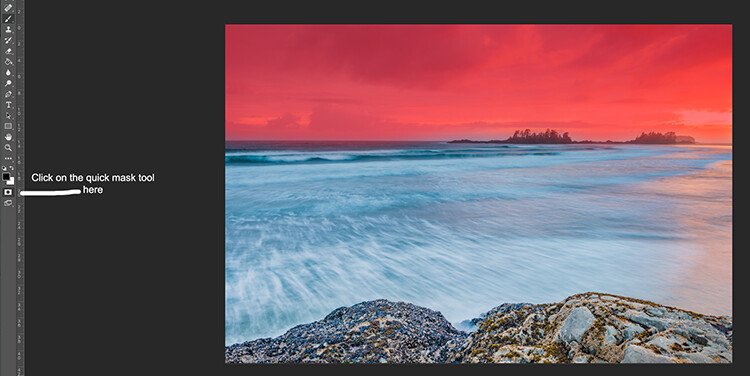
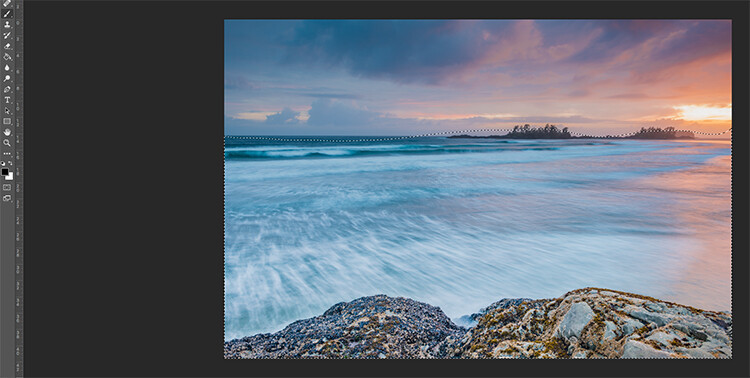
To make a softer selection of the sky, click on the quick mask tool at the bottom of the left hand side toolbar in Photoshop. You can then use a soft brush to paint in a selection of the sky as a mask. Once you are happy with the selection (see red mask) click on the quick mask tool again to activate that selection. There is one tricky thing to note about the quick mask tool, the mask means that you are selecting everything that is NOT red. So, when you click on the quick mask tool, you will see the marching ants around the bottom portion of the image and not the red area. This is good, because you can toggle between the two areas very easily and make adjustments to each selection.

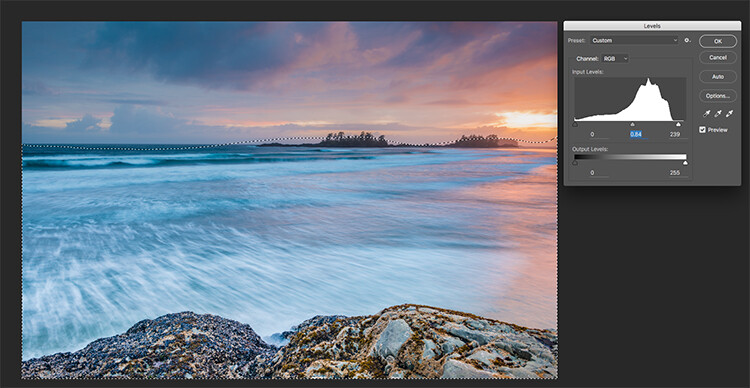
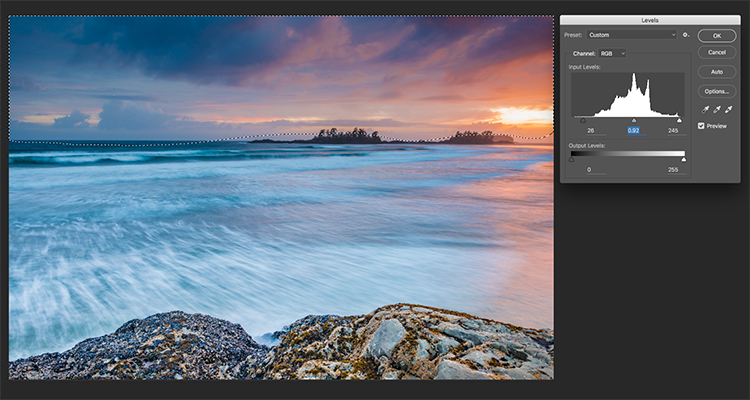
First of all, make the necessary adjustments to the foreground using Levels. In this image, I wanted to make the foreground a bit brighter, so I popped up the highlights a little. From there I selected the inverse (i.e. the sky). You can do this by holding down CMD>SHIFT>I together. This will toggle your selection from the foreground to the background.

Red indicates the area that will be masked

Screen Shot 2016-07-05 at 3.28.52 PM

The marching ants show where the current selection is in the foreground.

Screen Shot 2016-07-05 at 3.29.56 PM

Making levels adjustments to the foreground

Screen Shot 2016-07-05 at 3.30.24 PM

CMD>SHIFT>I will toggle the selection, here the sky is being selected and levels is being used to adjust the sky

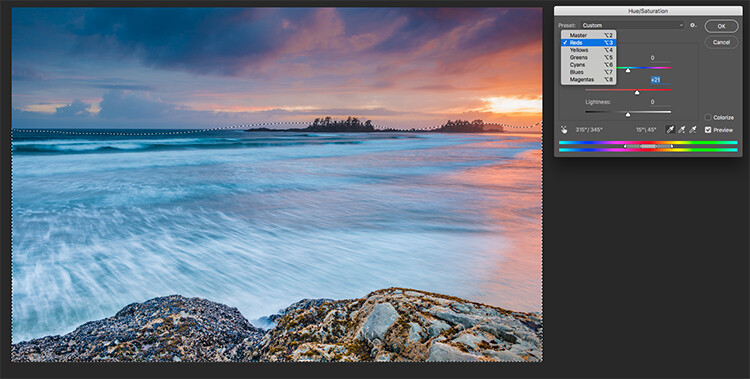
Use Hue and Saturation to make final colour adjustments

You can use the toggle function (CMD>SHIFT>I) to select the sky and foreground interchangeably. Once you have your selection, choose a tool to make adjustments, and the changes will only be made to the area that is selected. In this example I have used the Hue and Saturation function to make further enhancements to the image. I am again making adjustments by each channel. This gives me great control over what colour ranges need to be saturated, and perhaps desaturate others that are a little over done. Go through each channel and make the necessary adjustments.

Screen Shot 2016-07-05 at 3.30.53 PM

Use Hue and Saturation to make final colour adjustments

Once you are done, you can then sharpen your image as you see fit and save it to be printed. The steps outlined above will help you make any image look better. If done correctly, your images will have the pop and drama that you are looking for.

Give it a try, once you know the process, these adjustments can be done really quickly.

After

Final image

Please share your images and thoughts on the comments section below.

googletag.cmd.push(function() {
tablet_slots.push( googletag.defineSlot( “/1005424/_dPSv4_tab-all-article-bottom_(300×250)”, [300, 250], “pb-ad-78623” ).addService( googletag.pubads() ) ); } );

googletag.cmd.push(function() {
mobile_slots.push( googletag.defineSlot( “/1005424/_dPSv4_mob-all-article-bottom_(300×250)”, [300, 250], “pb-ad-78158” ).addService( googletag.pubads() ) ); } );

The post How to Use Adobe Camera Raw and Photoshop to Make Your Landscape Images Pop by Barry J Brady appeared first on Digital Photography School.


Digital Photography School

 
Comments Off on How to Use Adobe Camera Raw and Photoshop to Make Your Landscape Images Pop

Posted in Photography


Video explains Kubrick’s use of innovative camera tech when shooting Barry Lyndon

30 Jul

Legendary director Stanley Kubrick was known to be obsessed with cameras and pushing the limits of cinematic technology, with much of his technical awareness stemming from his days as a stills photographer. A new video essay by the British Film Institute now explains his use of different lenses to create the movie Barry Lyndon, which won an Oscar for its cinematography.

We’ve written before about the famous Carl Zeiss Planar 50mm F0.7 lens (originally developed for NASA) that he used, but the BFI essay also discusses how he used it. It also looks at his use of zoom shots and the meanings he hoped to convey with them.

Many scenes in the movie were shot in natural light and very dim candlelight to authentically portray the look and feel of the 18th century. In the very low light conditions Kubrick had to shoot with the superfast F0.7 lens’ aperture fully open, resulting in an extremely shallow depth-of-field. This required re-thinking the way such scenes were staged and demanded reduced actor movement, to avoid mis-focus, but the director felt this helped convey the stilted 18th century atmosphere.

The video essay can be viewed on the British Film Institute’s Facebook page.

Articles: Digital Photography Review (dpreview.com)

 
Comments Off on Video explains Kubrick’s use of innovative camera tech when shooting Barry Lyndon

Posted in Uncategorized


Facebook posts Surround 360 camera assembly instructions on GitHub

29 Jul

Facebook is pushing 360-degree VR content on its platform and in April announced its Surround 360 Open Source high-end VR camera. Now the company has posted detailed instructions on GitHub, which appear to be inspired by Ikea furniture assembly manuals, on how to source the parts, assemble the camera and install the software.

The Surround 360 combines 17 4MP cameras, 15 of them arranged in a circle and two fish-eye lenses on top and bottom, to capture 4K, 6K, or 8K 360-degree video. The cost of all the parts and components needed to build the device is approximately $ 30,000. This is a lot more than your average consumer VR camera but compares favorably to similar professional systems. Facebook also says it took a randomly selected engineer 4 hours to build the camera, so once all parts are available it seems you can be up and running in less than a day.

If you like the idea of building a Surround 360 for yourself you can download the instructions and software on GitHub. The video below shows you a time-lapse of the assembly process. 

Articles: Digital Photography Review (dpreview.com)

 
Comments Off on Facebook posts Surround 360 camera assembly instructions on GitHub

Posted in Uncategorized


New in the Shop: The I-1 Instant Camera

29 Jul

Woah.m.g. They did it.

After restoring an old Polaroid factory and bringing back instant film for Polaroid cameras … Impossible Project has made the first new camera for the original instant format in 20 years!

All the good ol’ fun of old Polaroid cams, with new creative features like double exposures, light painting mode, full manual control and more.

LEARN MORE or BUY


© laurel for Photojojo, 2016. |
Permalink |
No comment |
Add to
The I-1 Instant Camera”>del.icio.us

Post tags:


Photojojo

 
Comments Off on New in the Shop: The I-1 Instant Camera

Posted in Equipment


Real world test: The Panono is a 108MP spherical camera

24 Jul

‘Uh, what is that thing?’

‘What is that thing?’ That’s the question I was asked pretty much every time I took the Panono out shooting. There is a lot of curiosity surrounding 360/VR content and my week spent fielding questions from curious onlookers as I dipped my toes into a new, more immersive photographic world is proof of that. In fact, only once did someone walk up to me and say “Hey I know what that is, its a 360 VR camera!” And it was a 12 year old child.

Damn know-it-all kids making us all look bad…

Yes, it can be tossed in the air to take a picture. 

So uh, what exactly is it? The Panono is the highest resolution 360-degree still camera currently on the market. A grapefruit-sized ball constructed of tough plastic, the Panono contains 36 separate cameras. Each camera uses a 1/4″ sensor (a bit smaller than the sensor likely found in your smartphone) and when the files are combined, the result is a 108MP 360-degree image that allows one to pan and zoom around the scene. 

Panono started off as a thesis project, but was later successfully funded via crowd-sourcing campaigns (DPreview field-tested an early version in 2013). Designed in Germany and constructed in Poland, everything about the camera is surprisingly frustration-free and the controls are intuitive. I say ‘surprisingly’ only because Panono is such a new company and good UI often takes time to get right. But once paired with a smart device, taking shots, processing  and sharing them is all a breeze. 

For optimal viewing, open the 360 in full screen mode. This image was shot using the HDR-setting, which combines a properly-exposed image with one exposed for highlights. 

The design 

The Panono only has a single button on the top. Holding it down for a second turns the camera on and off. When it’s switched on, the button can also be used to take images without the need for a smart device. However, for the best user experience, you’ll want to use the app to set up and control the Panono remotely from a phone or tablet. 

Around the periphery of the Panono’s one and only physical button is a glowing LED. It lights up when the camera is switched on and blinks whenever a photo is taken. If battery or internal space is getting low, part of the LED ring will illuminate red next to the corresponding symbol. While useful in dim conditions, the LED ring is near impossible to see in bright light.

There is a micro-USB port located at the very bottom of the camera for charging. It doubles as a mounting point for the Panono Adapter (to mount it on a tripod) and the Panono stick (a selfie stick). However when plugged into a computer via Micro-USB, the Panono is not discoverable. 

The app

Pairing with a device simply requires turning the Panono on and connecting to it via Wi-Fi. The password to connect is written directly on the side of the unit. Once connected, open up the app. At the bottom of the screen there are five icons. If you’ve properly paired the unit, green lines will appear above the camera icon (which is the shooting screen), indicating you are connected.

Most of the shooting controls are accessed via the center-most camera icon on the bottom. The app is also used to push images downloaded to your device to the cloud for processing. You can also view your processed 360s. 

Simply tap the green camera button to fire a shot. For more control over the camera’s exposure and color parameters, tap the gear symbol. 

To take images from within the shooting screen simply tap the green camera button bottom center. By default the camera will beep and blink when a photo is fired (the beep can be turned off). For more controls, tap the gear symbol in the lower right. There you can control a number parameters, like dialing in a white balance or specific exposure. I found the auto exposure and white balance modes largely worked fine for the majority of the places I shot. But it’s nice that those additional manual controls exist.

There is also a switch to toggle HDR mode on and off. If you’re mainly photographing static subjects, HDR mode is very useful. You can see an example of it on and off below:

The above image was shot as an HDR file, the one below was not.

The camera has 16GB of internal storage. Once an image is taken it is stored locally within the camera and a low-resolution un-stitched version of the image will appear within the app’s shooting screen for quick viewing. If you’re please with the preview, simple tap “download from camera,” and the files are transmitted to your device, but only temporarily – more on that in a moment.

It’s worth noting that if you are shooting a non-HDR image, there is a 10-sec black out time between when a shot has been fired and when an additional shot can be taken. When shooting an HDR image, that time gap is closer to 30 seconds. When the camera is ready to shoot again, the circle around the camera symbol/trigger button will turn from white to green. 

Once back in the comfort of a proper Wi-Fi connection open the “Task” screen (2nd icon from the right). There you’ll find all your transmitted 360’s. With the tap of a finger you can upload them to the Panono cloud where their servers do all the hard work of stitching and processing – you can simply sit back and make yourself a cocktail. In about 10 minutes, your 360s will appear in your Panono account where you can share them either via a direct link, iframe embed or Facebook/Twitter/Google+. It’s really that easy.

Articles: Digital Photography Review (dpreview.com)

 
Comments Off on Real world test: The Panono is a 108MP spherical camera

Posted in Uncategorized